 ManualGo.com
KNAG510 - Receiver KENWOOD - Free user manual and instructions
Find the device manual for free KNAG510 KENWOOD in PDF.



Download the instructions for your Receiver in PDF format for free! Find your manual KNAG510 - KENWOOD and take your electronic device back in hand. On this page are published all the documents necessary for the use of your device. KNAG510 by KENWOOD.
USER MANUAL KNAG510 KENWOOD
is a registered trademark of Garmin Ltd. or its subsidiaries and may not be used without the express permission of Garmin. XM Radio and XM NavTraffic are trademarks of XM Satellite Radio Inc. Garmin
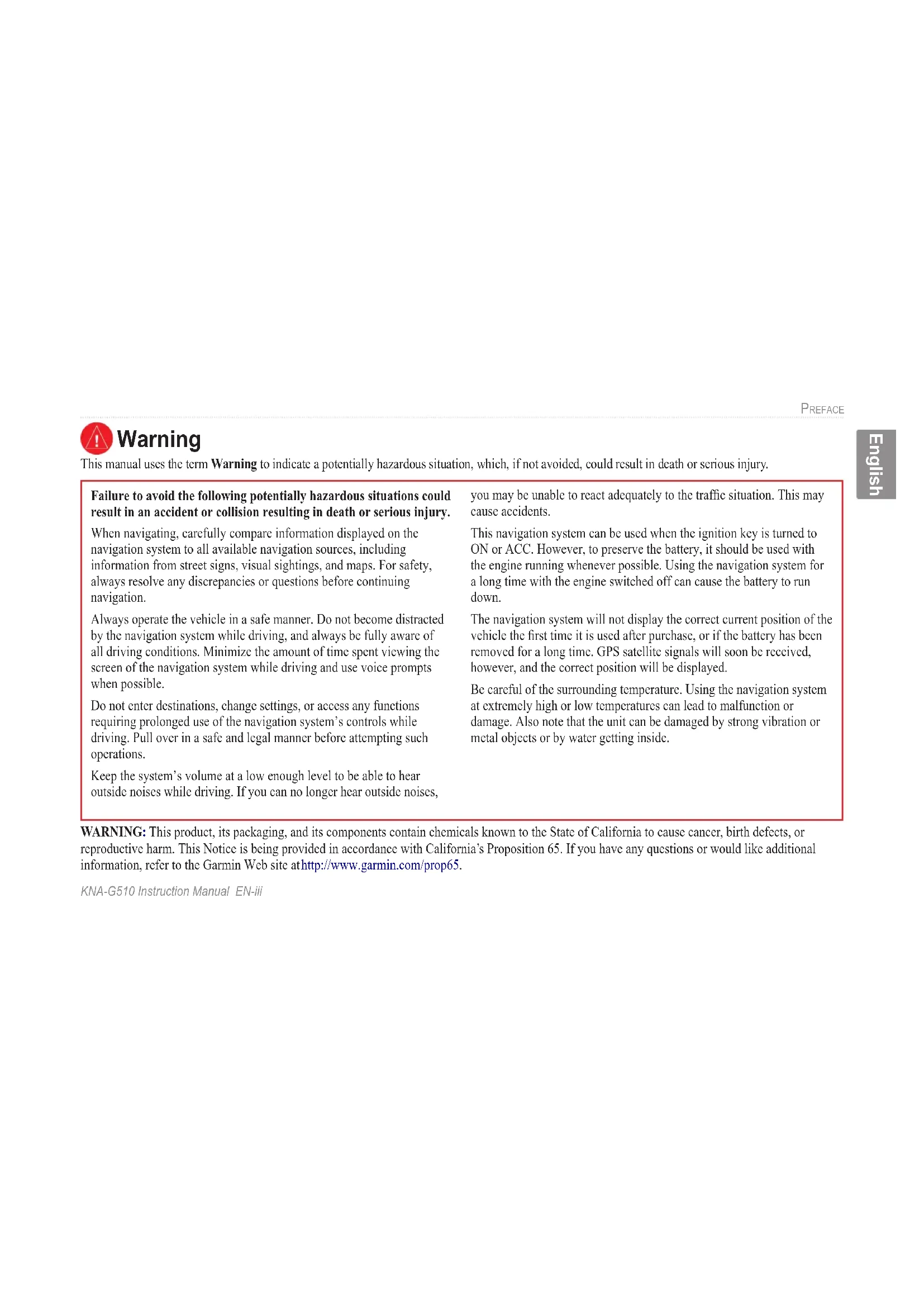
Index .......................................... 48KNA-G510 Instruction Manual EN-iii PREFACE English Warning This manual uses the term Warning to indicate a potentially hazardous situation, which, if not avoided, could result in death or serious injury. Failure to avoid the following potentially hazardous situations could result in an accident or collision resulting in death or serious injury. When navigating, carefully compare information displayed on the navigation system to all available navigation sources, including information from street signs, visual sightings, and maps. For safety, always resolve any discrepancies or questions before continuing navigation. Always operate the vehicle in a safe manner. Do not become distracted by the navigation system while driving, and always be fully aware of all driving conditions. Minimize the amount of time spent viewing the screen of the navigation system while driving and use voice prompts when possible. Do not enter destinations, change settings, or access any functions requiring prolonged use of the navigation system’s controls while driving. Pull over in a safe and legal manner before attempting such operations. Keep the system’s volume at a low enough level to be able to hear outside noises while driving. If you can no longer hear outside noises, you may be unable to react adequately to the traffic situation. This may cause accidents. This navigation system can be used when the ignition key is turned to ON or ACC. However, to preserve the battery, it should be used with the engine running whenever possible. Using the navigation system for a long time with the engine switched off can cause the battery to run down. The navigation system will not display the correct current position of the vehicle the first time it is used after purchase, or if the battery has been removed for a long time. GPS satellite signals will soon be received, however, and the correct position will be displayed. Be careful of the surrounding temperature. Using the navigation system at extremely high or low temperatures can lead to malfunction or damage. Also note that the unit can be damaged by strong vibration or metal objects or by water getting inside. WARNING: This product, its packaging, and its components contain chemicals known to the State of California to cause cancer, birth defects, or reproductive harm. This Notice is being provided in accordance with California’s Proposition 65. If you have any questions or would like additional information, refer to the Garmin Web site at http://www.garmin.com/prop65.EN-iv KNA-G510 Instruction Manual PREFACE English Failure to avoid the following potentially hazardous situations may result in injury or property damage. The navigation system is designed to provide you with route suggestions. It does not reflect road closures or road conditions, traffic congestion, weather conditions, or other factors that may affect safety or timing while driving. Use the navigation system only as a navigational aid. Do not attempt to use the navigation system for any purpose requiring precise measurement of direction, distance, location, or topography. The Global Positioning System (GPS) is operated by the United States government, which is solely responsible for its accuracy and maintenance. The government’s system is subject to changes which could affect the accuracy and performance of all GPS equipment, including the navigation system. Although the navigation system is a precision navigation device, any navigation device can be misused or misinterpreted and, therefore, become unsafe. Caution This manual uses the term Caution to indicate a potentially hazardous situation, which, if not avoided, may result in minor injury or property damage. It may also be used without the symbol to alert you to avoid unsafe practices. Important Information MAP DATA INFORMATION: One of the goals of Garmin is to provide customers with the most complete and accurate cartography that is available to us at a reasonable cost. We use a combination of governmental and private data sources, which we identify in product literature and copyright messages displayed to the consumer. Virtually all data sources contain inaccurate or incomplete data to some extent. In some countries, complete and accurate map information is either not available or is prohibitively expensive.KNA-G510 Instruction Manual EN-1FIND IT AND GO!English FIND IT AND GO! Follow the instructions on the next two pages to find a place and go to it! Finding a Restaurant
Touch a food category.
Touch a place.EN-2 KNA-G510 Instruction Manual FIND IT AND GO! English Following Your Route Follow the route to your destination using the map. As you travel, the navigation system guides you to your destination with voice prompts, arrows, and directions along the top of the map. If you depart from the original route, the navigation system recalculates the route and provides new route instructions. Your route is marked with a green line. Follow the arrows. A checkered flag marks your destination. For more information about using the map and the other tools, see pages 11–13.KNA-G510 Instruction Manual EN-3WHERE TO?English WHERE TO? Finding an Address
From the Menu page, touch Where To? Touch Address.
Enter the street name and touch Done.
Enter the address number and touch Done.
Select the street. Select the city, if necessary.
Select a state. Touch Search All Cities or select a city.EN-4 KNA-G510 Instruction ManualWHERE TO? English Finding a Place Using the Map From the Menu page, touch View Map. You can also touch Where to? > Browse Map. Touch anywhere on the map to recenter the map on that location.
Touch Go To or Advanced.
- Use the and icons to zoom in and out.
- Touch an object on the map. The map recenters on that location, and an arrow appears, pointing at the object you selected.
- Touch Review to open the location’s information page; for more information, see the next page.
- Touch Save As Favorite to save the location selected by the pointer to your Favorites.
- Touch Back to return to the previous screen.KNA-G510 Instruction Manual EN-5 WHERE TO? English Understanding the Information Page When you find a location, select it in the search results list to open the item’s information page. Information Page Touch Go To to create and follow a route to this location. Touch Advanced to view other options for this location:
- Insert in Current Route—add this point as the next stop in your route.
- Add As Favorite—add this location to your Favorites. For more information, see page 7.
- Find Near Point—find a location near this point.
- Browse Map—view this location on the map. Finding Recently Found Places The last 50 places you have found are stored in Recent Finds.
Select an item from the search results list.
Touch Where To? > Recent Finds. Touch Category to display recent finds from a certain category, such as Food, Hotel….EN-6 KNA-G510 Instruction Manual WHERE TO? English Finding Places in a Different Area You can search for locations in a different area, such as a different city or near your destination.
From the search results list, touch Near….
Select one of the search options. Narrowing Your Search To narrow your search, you can spell part of the name of the location you are searching for.
Enter part of the name and touch Done.
From the search results list, touch Spell.KNA-G510 Instruction Manual EN-7MY LOCATIONSEnglish Saving Places You Find After you have found a place you want to save, select it on the results list.
Touch anywhere on the map.
Touch Save As Favorite. MY LOCATIONSEN-8 KNA-G510 Instruction Manual MY LOCATIONS English Setting a Home Location You can set a Home Location for the place you return to most often. From the Menu page, touch Where To?
Touch Go Home. After you set your Home Location, touch Where To? and then touch Go Home. Finding Saved Places From the Menu page, touch Where To?
Touch the item you want to edit.
Touch the item you want to edit. Name—enter a new name for the location using the on-screen keyboard. Location—edit the location of the place; you can use the map or enter new coordinates using the keyboard. Elevation—enter the elevation of the saved place. Category—assign this place to a category; touch to view the categories. Symbol—select a symbol that is shown on the map for this location.EN-10 KNA-G510 Instruction Manual MY LOCATIONS English Deleting a Saved Place From the Menu page, touch Tools > My Data > Favorites.
Touch Delete Favorites.
Touch a saved location. By Selection—touch each location and delete it individually. By Category—select one category to delete all of the locations assigned to that category. Delete All—removes all saved places from your Favorites.KNA-G510 Instruction Manual EN-11 VIEWING THE MAP AND USING THE TOOLS English VIEWING THE MAP AND USING THE TOOLS Viewing the Map Page From the Menu page, touch View Map to open the map. Touch an area of the map to see additional information, as shown below. The position icon shows your current location. Map Page while Navigating a Route Touch the Speed or Arrival data field to open the Trip Computer. See page 12. While navigating a route, touch the green text bar to open the Turn List. See page 12. Touch to zoom out. Touch to zoom in. Touch the map to view and browse a 2-D map.EN-12 KNA-G510 Instruction Manual VIEWING THE MAP AND USING THE TOOLS English Trip Computer The Trip Computer indicates your current speed and provides helpful statistics about your trip. To view the Trip Computer, select Speed or Arrival on the map. Or, from the Menu page, touch Tools > Navigation > Trip Computer. Total distance traveled (odometer) Current direction of travel Current speed Distance to your final destination Touch Reset Trip to reset all information on the Trip Computer. To reset the Maximum Speed, touch Reset Max. Turn List The Turn List displays a list of turn-by-turn instructions for your entire route as well as arrival information. While navigating a route, touch the green text bar on the map page to open the Turn List. Or, from the Menu page, touch Tools > Navigation > Turn List. Direction of this turn Distance to this turn Turn directions Touch View All to see all the turns in the route. Touch and to scroll through the list. Touch a turn to see the turn on a map (the Next Turn page). Touch and to scroll through all the turns in the route. Touch and to zoom in and out of the turn on the map.KNA-G510 Instruction Manual EN-13 VIEWING THE MAP AND USING THE TOOLS English GPS Info Page From the Menu page, touch the signal strength bars in the upper left corner to view the GPS Info page. Or, from the Menu page, touch Tools > Navigation > GPS Info. Sky view Satellite signal strength bars The sky view shows the satellites you are receiving. The satellite signal strength bars indicate the strength of each satellite you are receiving. A solid bar indicates the GPS satellite is ready for use. GPS Settings From the Menu page, touch Settings > General > GPS. You can also access the GPS Settings by touching the GPS Settings button on the GPS Info page. Use Indoors—touch Yes to turn the GPS receiver off. Set Position—set your position, if Use Indoors is enabled. Select your location on the map and touch OK. WAAS/ EGNOS—disable and enable WAAS/EGNOS. WAAS and EGNOS are systems of satellites and ground stations that provide GPS signal corrections, giving you even better position accuracy. To learn about WAAS and EGNOS, visit http://www.garmin.com/aboutGPS/waas .html.EN-14 KNA-G510 Instruction Manual
Touch Create New Saved Route.
Select an option and touch Next. Select the starting point.
Select an option and touch Next. Select the ending point.
Select your preference and touch Next.
English Editing a Saved Route From the Menu page, touch Tools > My Data > Routes. Rename—enter a new name for the route using the on-screen keyboard. Edit/Review Points—add, arrange, remove, re-order, and review points in the route. For more info, see the next page. Change Preference—change calculation preference to Faster Time, Shorter Distance, or Off Road. Delete Route—delete this route.
Touch the route to edit.
English Adding Midpoints (Stops) to Your Route You can add midpoints (also called via points or stops) to your route as you create it, as described on page 14. You can also add points to your route when you edit the route, as described below. Follow the steps on the previous page to begin editing the route. Auto Arrange—arranges the points to provide the shortest route. Remove—touch the point you want to remove and then touch Remove. Re-Order—touch the point to move and touch Move Up or Move Down. Touch Done when finished.
Touch where you to want to add the point.
Touch Edit/Review Points.
Touch a method and then select the point.
Add points as necessary. Touch Done when finished.KNA-G510 Instruction Manual EN-17
CREATING AND EDITING ROUTES
English Saving the Active Route From the Menu page, touch Tools > My Data > Routes > Save Active Route. Navigating a Saved Route From the Menu page, touch Tools > My Data > Routes > Navigate Saved Route. Touch the route you want to navigate. Recalculating the Route From the Menu page, touch Tools > My Data > Routes > Recalculate Route. Deleting All Saved Routes From the Menu page, touch Tools > My Data > Routes > > Delete All Saved Routes. Stopping Your Route From the Menu page, touch Stop. Then touch Yes. Adding a Detour to a Route If you need to take a detour from your current route, open the Menu page and touch Detour. 1/2 mile, 2 miles, or 5 miles—select the distance of the detour. For example if a road sign indicates that the street is closed for the next 2 miles, touch 2 miles in the list. The navigation system recalculates your route for the next 2 miles. Detour by Road(s) In Route—select roads in your route to avoid. For example, if the highway ramp is closed, select the ramp in the list of roads. The navigation system recalculates your route to avoid that ramp. Detour by Traffic Event on Route—if you are using an FM Traffic Receiver or XM NavTraffic, you can detour around traffic events. Remove All Detours—touch to remove any detours you have entered for the route.EN-18 KNA-G510 Instruction Manual
CREATING AND EDITING ROUTES
English Adding Avoidances From the Menu page, touch Settings > Navigation > > Avoidance Setup. Select the road type to avoid. Touch to view more road types to avoid. Creating Custom Avoids You can enter specific areas and roads to avoid in your routes. From the Avoidance Setup menu, touch two times and then touch Custom Avoids.
Touch the second corner and touch Next.
Touch Add New Avoid Area or Add New Avoid Road.KNA-G510 Instruction Manual EN-19USING THE LOGS English Adjusting the Track Log As you travel, the navigator creates a bread crumb trail (track log) of your movement. From the Menu page, touch Tools > My Data > Track Log. Recording—turn off and on the track log recorder. Percentage Full—displays the current percentage capacity of the track log. To clear the track log, touch Percentage Full > Yes > OK. Map Display—displays the current track log on the map. Select a zoom setting at which the track log is shown. Touch OK. Your track log is displayed as a fine dotted line on the map. Using the Mileage Logs You can keep four different mileage logs of your travels. From the Menu page, touch Tools > My Data > Mileage Log. Touch a log to edit it. Name—enter a new name. Distance—reset the mileage log. Active—make this log active or inactive. USING THE LOGSEN-20 KNA-G510 Instruction Manual
Activating Your Subscription You must purchase and activate your XM subscription before you can use the XM features. Make sure your XM antenna is connected. From the Menu page, touch Settings > About.
Use the + and - to change the channel. Touch Next.
Call XM and touch Next. If your XM service is not activated within an hour, you can refresh the activation signal. Call XM customer care at 1-800-985- 9200; or go to www.xmradio .com/refresh, enter your radio ID where requested, and refresh the activation signal.KNA-G510 Instruction Manual EN-21
XM RADIO, WEATHER, AND STOCKS
English Listening to XM Radio NOTE: You must have an XM antenna and a subscription to XM Radio to listen to XM radio.
Touch Tools. Touch to adjust the volume. Touch and to change Categories. The Category name is listed above the buttons. Touch and to change the Channel within the Category. Touch My XM to save or view favorite channels and artists. Touch Browse to select a Category and then a Channel. Touch Play/Stop to turn the XM radio on or off.EN-22 KNA-G510 Instruction Manual
XM RADIO, WEATHER, AND STOCKS
English Saving Your Favorite Channels as Presets
Touch Current Channel to add the channel you are listening to.
Touch the preset you want to assign to this channel. To quickly save the current channel as a preset, press and hold a preset button. Playing a Preset To play a preset channel, touch a preset button along the bottom of the XM Radio page. Also, you can touch Browse > Presets. Touch Browse by Category to select a different channel.KNA-G510 Instruction Manual EN-23
XM RADIO, WEATHER, AND STOCKS
English XM1, 2, and 3 Three sets of presets, XM1, XM2, and XM3, are provided for you. Within each set of presets, you can save six favorite channels and as many artists as you want. For example, Mom can save her favorite channels and artists using XM1. Then Dad can switch to XM2 and save his own favorite channels and artists. To switch between XM1, XM2, and XM3, touch
XM > Change XM Mode. Then touch the preset you want to switch to. The set of presets you are currently using appears in the top right corner of the screen. Saving Your Favorite Artists
3. Touch the Current Artist to save the artist you
are listening to. You can also touch Browse by Category to select a different artist. Scanning for Artists After you have saved several artists, you can touch Scan to scan the XM Radio for those artists. The navigation system automatically plays a song by an artist in your list. When that song is over, it searches for another saved artist.
English Viewing XM Weather From the Menu page, touch Tools > Weather. NOTE: You must have an XM antenna and a subscription to NavTraffic to get traffic and weather reports. NOTE: You might have to wait up to 12 minutes to receive the broadcast of weather information. Getting Current Conditions From the Menu page, touch Tools > Weather > Current Conditions. XM Weather defaults to your current location. To select a different city:
Near > Near Other City.
2. Type the name of the city and touch Done.
City. A list of the nearest XM Weather sources appears. Touch any item for more detailed weather conditions.
4. Touch Forecast to jump to the nearest city
English Viewing Your Forecast From the Menu page, touch Tools > Weather > Forecast. XM Weather defaults to your current location. Touch to view more forecast information. To select a different city, touch Near… and follow the steps in the previous section. Checking for County Warnings From the Menu page, touch Tools > Weather > County Warnings. If a county warning is in effect, it is displayed in the list. Touch a warning to view the details. To select a different city, touch Near… and follow the steps in the previous section.EN-26 KNA-G510 Instruction Manual
XM RADIO, WEATHER, AND STOCKS
English Viewing Weather on the Map From the Menu page, touch Tools > Weather > View On Map. The current weather conditions for your present location appear on the map. If necessary, touch to zoom out. Touch and drag the map to view a different location. Touch Next to see the forecast for the next day on the map. For more weather information, position the map pointer over a weather icon and touch Review. Viewing Stocks From the Menu page, touch Tools > Stocks. To add a stock, touch Add Stock, enter the stock symbol (abbreviation), and touch Done. The stock you added is now listed. To delete a stock, touch the stock in the list. Touch Yes.KNA-G510 Instruction Manual EN-27TRAFFIC INFORMATION English TRAFFIC INFORMATION Using an optional FM Traffic Receiver or XM Smart Antenna, the navigation system can receive and use traffic information. When a traffic message is received, you can see the event on the map and change your route to avoid the traffic incident. For more information about the FM Traffic Receiver or XM Smart Antenna, visit the Garmin Web site (www.garmin.com). For participating FM subscription providers and covered cities, refer to http://www.garmin .com/fmtraffic. For coverage cities for XM NavTraffic, see http://www.xmnavtraffic.com Note: This section uses “Traffic Module” to describe the external device that receives traffic information. The FM Traffic Receiver (such as the GTM 10) or the XM Smart Antenna (such as the GXM 30) can be used. Connecting the Traffic Module Make sure the traffic module is connected to the KNA-G510. Refer to the Installation Guide for more information. Viewing Traffic Events From the Menu page, touch Tools > Traffic Info. Select an item in the Traffic Events list to view the details. Touch Near… to view traffic at a different location. Color code Traffic symbol Traffic Events List Traffic source (FM or XM) and signal strengthEN-28 KNA-G510 Instruction Manual TRAFFIC INFORMATION English Avoiding Traffic The map page displays a when there is a traffic event on your current route or on the road you are driving. When you are following a route, touch the to avoid the traffic.
From the map, touch . Severity Color Code The bars to the left of the traffic symbols indicate the severity of the traffic incident: = Low severity (green); traffic is still flowing. = Medium severity (yellow); traffic is a bit congested. = High severity (red); traffic is heavily congested or stopped.KNA-G510 Instruction Manual EN-29 TRAFFIC INFORMATION English Traffic Symbols North American Symbols Meaning International Symbols Road Condition Road Construction Congestion Accident Incident Information Changing the Traffic Settings From the Menu page, touch Settings > Traffic. Subscriptions—view your traffic subscriptions. If you have an FM Traffic Receiver connected, touch FM Traffic Subscriptions to view your subscriptions. Touch the subscription to display the expiration date. To add a subscription, touch Add Subscription. See the next page for information about adding an FM Traffic subscription. If you have an XM Smart Antenna connected, touch XM Subscriptions to view the software version, your XM subscriptions, and the antenna’s Radio ID. Touch Subscribe to add an XM subscription. Symbols on Map—change the symbols used to indicate the type of traffic event. Touch Style to use American or International symbols. Touch each symbol to set the zoom scale at which each symbol appears on the map. Severity on the Map—select the scale at which the severity is displayed on the map. Audio Notification—turn on or off the audio notification when a traffic event occurs on the road you are traveling on or the route you are navigating. Avoid Traffic—select Yes to avoid traffic events when generating a route.EN-30 KNA-G510 Instruction Manual TRAFFIC INFORMATION English Adding an FM Traffic Receiver Subscription To add a traffic subscription, touch Settings > About > FM Traffic Receiver and write down your FM Traffic Receiver’s unit ID. Go to http://www.garmin.com/fmtraffic to purchase a traffic subscription and get a 25-character traffic subscription code.
Enter the code and touch Next.
Touch Subscriptions.
English Voice Language—change the language for all voice prompts and messages. Touch the voice you want to use and touch OK. Two different types of voice languages are available: text-to-speech and pre-recorded. Languages noted with a person’s name and (TTS) are text-to-speech (TTS) voices: for example, American English-Jill (TTS) is a text-to-speech voice. The text- to-speech voices “read” and “speak” the same words that are displayed on the screen. The voices have an extensive vocabulary, and they pronounce the street names as you approach turns. Languages without a person’s name are pre-recorded voices, which have a limited vocabulary and do not speak names of locations or streets. NOTE: If you change the Voice Language, you must restart to complete this change. Text Language —change the on-screen text to the selected language. Changing the text language does not change the language of map data or user-entered data. Speech Rate—select the rate at which prompts are spoken. Customizing the Audio Settings From the Menu page, touch Settings > General > Audio. Attention Tone—turn on or off the attention tone sounded before voice prompts. Touch Screen Tone—turn on or off the tone sounded each time you touch the screen.KNA-G510 Instruction Manual EN-33
CHANGING THE SETTINGS
English Keypress Tone—turn on or off the tone sounded each time you press a button on the remote. Speed Adjusted Volume —select how much the volume increases as your speed increases. Low increases your volume slightly; High increases your volume the most. Customizing Proximity Alerts From the Menu page, touch Settings > General > Proximity Alerts to adjust the notifications for custom POIs you have loaded. See pages 39–40. Changing Your Time Settings From the Menu page, touch Settings > General > Time. Time Zone —select your time zone. Time Format—select 12 or 24 hour time format. Daylight Saving—select Auto, Yes, or No. The Auto setting automatically adjusts the time for daylight saving based on your time zone. Selecting Units From the Menu page, touch Settings > General > Units. Change units of measure to Statute, Metric, or Custom. Turning Safe Mode Off and On From the Menu page, touch Settings > General > Safe Mode. Turn on or off the Safe Mode, which disables all navigation system functions that require significant operator attention and could become a distraction while driving. When it is turned on, Safe Mode operates when the vehicle’s parking break is disengaged.EN-34 KNA-G510 Instruction Manual
CHANGING THE SETTINGS
English Changing the Map Settings From the Menu page, touch Settings > Map. Map Detail—adjust the amount of detail shown on the map. Displaying more detail causes the map to redraw slowly. Orientation—change the perspective of the map.
- 2D North Up—display the map in 2 dimensions (2- D) with North at the top.
- 2D Track Up—display the map in 2 dimensions (2-D) with your direction of travel at the top of the screen.
- 3D Track Up—display the map in 3 dimensions (3-D), with your direction of travel at the top of the screen. This is the default map view. Color Mode —select Day for a bright background. Select Night for a black background. Select Auto to automatically switch between the two. Auto Zoom—disable or enable automatic zooming on the map for optimal viewing. You can also specify a maximum Auto Zoom distance, from 120 feet to 300 miles. Route Color—select the color of the route line. Dim Roads—dim roads that are not on your route. You can customize this setting to Never or While Routing.KNA-G510 Instruction Manual EN-35
3. Touch the navigation data field you want to customize.
4. Select the type of data field.
5. Select how the data field appears.
Next to customize the non-navigating data fields.
Finish to return to the Map Settings menu. Text Size—adjust the display size of text on the map. Zoom Level Detail—customize which map items appear at various zoom levels. For each map item, you can select Off, Auto, or a maximum zoom distance, from 120 feet to 800 miles. NOTE: More detail increases the time it takes the map to refresh. Detail Maps—enable and disable the preloaded detailed maps.EN-36 KNA-G510 Instruction Manual
CHANGING THE SETTINGS
English Changing the Navigation Settings From the Menu page, touch Settings > Navigation. Vehicle—specify your vehicle type. Preference—select a preference for route calculations. Ask Preference —select whether the navigation system asks for your preference each time it calculates a route. Next Turn Pop-up—select when the Next Turn pop-up window appears. Off-Route Recalculation—set the way the navigation system responds when off the route. You can silence the “off-route, recalculating” message here. Continuous Auto Routing —enable or disable the Continuous Auto Routing feature. This feature allows the navigation system to continually search for a better route to your destination. Continuous Auto Routing may be useful if a traffic accident occurs or there are time- restricted turns on the current route. A is displayed on the map when a better route than the one you are currently taking is available. Touch the to take the better route. Avoidance Setup—see page 18.KNA-G510 Instruction Manual EN-37
CHANGING THE SETTINGS
English Adjusting the Traffic Settings See page 29. Viewing Information (About) From the Menu page, touch Settings > About. Software—the unit’s software version, audio version, and unit ID are listed. Detail Maps—view information about the preloaded detailed maps. FM Traffic Receiver—If you have a FM Traffic Receiver, you can view the FM Traffic Receiver’s unit ID. XM—If you have an XM Smart Antenna, you can view the XM Antenna’s Radio ID. Restoring the Settings To restore the navigation system to its original settings, open the Menu page and touch Settings > Restore Defaults > Yes.EN-38 KNA-G510 Instruction ManualAPPENDIX English APPENDIX Using the Remote Control You can use a standard Kenwood system remote control with the navigation system. Updating the Software and Map Data To update the navigation system software, you must have an SD card, an SD card reader, and an Internet connection. To update the navigation software: 1. Go to http://www.garmin.com/support/download.jsp. Select Updates and Downloads. 2. Click Download next to the navigation system software. 3. Read and agree to the terms. Click Download. 4. Select Save. Then save the update onto an SD card.5. Insert the SD card into the side of the KNA-G510. Your software is updated automatically. You can purchase map data updates from Garmin. Check http://www.garmin.com/unlock/update.jsp to see if an update for your map software is available. Clearing All User Data You can clear all user data, including all favorite places, routes, custom POIs, tracks, mileage logs, and your home location, at one time. CAUTION: You cannot recover your user data once it is deleted.
1. Touch Tools > My Data > Clear All.
APPENDIX English Custom POIs (Points of Interest) You can manually load custom points of interest (POI) databases, available from various companies on the Internet. Some custom POI databases contain alert information for points such as safety cameras and school zones. The navigation system can notify you when you approach one of these points. CAUTION: Garmin is not responsible for the consequences of using a custom POI database or the accuracy of the safety camera or other custom POI database. After downloading your POI database, use the Garmin POI Loader to install the POIs onto an SD card. Then, you can use the SD card to load the POIs into the KNA- G510. The POI Loader is available at http://www .garmin.com/products/poiloader. Refer to the POI Loader Help file for more information; press F1 to open the Help file. When you insert the SD card into the KNA-G510, a message appears on the screen, prompting you to save the custom POIs to your navigation system. Select Yes. If you select No, custom POIs will not work. NOTE: Each time you load custom POIs to the navigation system, any other custom POIs already saved in the system will be overwritten. Finding Custom POIs To view a list of the custom POIs loaded in your navigation system, touch Where To? > My Locations > Custom POIs.EN-40 KNA-G510 Instruction Manual APPENDIX English Adjusting the Proximity Alerts To turn on or off the proximity alerts for custom POIs, open the Menu page and touch Settings > General > Proximity Alerts. Audio Notification—turn off or on the alerts that sound as you approach a custom POI. Visual Notification—turn off or on the pop-up alerts that appear as you approach a custom POI. Continuous Notification —select which alerts (which types of POIs) you will be continually notified of. Deleting All Custom POIs To delete all custom POIs from your navigation system, touch Tools > My Data > Custom POIs > Delete All. Touch Yes to confirm.KNA-G510 Instruction Manual EN-41 APPENDIX English Weather Data Warranty THE WEATHER DATA SOFTWARE PRODUCT IS PROVIDED “AS IS.” ALL OTHER WARRANTIES, EXPRESSED OR IMPLIED,
INCLUDING ANY WARRANTY OF MERCHANTABILITY
OR FITNESS FOR A PARTICULAR PURPOSE OR OF NON- INFRINGEMENT ARE HEREBY EXCLUDED. User Safety If you use XM Services it is your responsibility to exercise prudent discretion and observe all safety measures required by law and your own common sense. You assume the entire risk related to your use of the Services. XM and Garmin assume no responsibility for accidents resulting from or associated with use of the Services. Your Radio Service includes traffic and weather information, and you acknowledge that such information is not for “safety for life”, but is merely supplemental and advisory in nature, and therefore cannot be relied upon as safety- critical in connection with any aircraft, sea craft or automobile usage. This information is provided “as is” and XM and Garmin disclaim any and all warranties, express and implied, with respect thereto or the transmission or reception thereof. XM and Garmin further do not warrant the accuracy, reliability, completeness or timeliness of the traffic and weather information disclosed on the Radio Service. In no event will XM and Garmin, their data suppliers, service providers, marketing/distribution, software or Internet partners or hardware manufacturers be liable to you or to any third party for any direct, indirect, incidental, consequential, special, exemplary or punitive damages or lost profits resulting from use of or interruptions in the transmission or reception of the Services. Limits On Our Responsibility a) DISCLAIMERS. EXCEPT AS EXPRESSLY PROVIDED HEREIN, WE MAKE NO
(INCLUDING, WITHOUT LIMITATION, THE IMPLIED
, a product of the National Geospatial-Intelligence Agency. This product has not been endorsed or otherwise approved by the National Geospatial-Intelligence Agency, or the United States Department of Defense (10 U.S.C. 425). a. Under 10 U.S.C. 456, no civil action may be brought against the United States on the basis of the content of a navigational aid prepared or disseminated by either the former Defense Mapping Agency (DMA), National Imagery and Mapping Agency (NIMA), or the National Geospatial-Intelligence Agency (NGA). b. The DAFIF product is provided “as is,” and no warranty, express or implied, including, but not limited to the implied warranties of merchantability and fitness for particular purpose or arising by statute or otherwise in law or from a course of dealing or usage in trade, is made by NGA as to the accuracy and functioning of the product. c. Neither NGA nor its personnel will be liable for any claims, losses, or damages arising from or connected with the use of this product. The user agrees to hold harmless the United States National Geospatial-Intelligence Agency. The user’s sole and exclusive remedy is to stop using the DAFIF product. XM Satellite Radio Service Agreement XM Satellite Radio Inc. Hardware and required monthly subscription sold separately. Subscription fee is consumer only. Other fees and taxes, including a one-time activation fee may apply. All programming fees and weather data subject to change. XM weather data displays and individual product availability vary by hardware equipment. Reception of the XM signal may vary depending on location. Subscriptions subject to Customer Agreement included with the XM Welcome Kit and available at xmradio.com. Available only in the 48 contiguous United States. XM is a trademark of XM Satellite Radio Inc.KNA-G510 Instruction Manual EN-43 APPENDIX English Software License Agreement BY USING THE KNA-G510, YOU AGREE TO BE BOUND BY THE TERMS AND CONDITIONS OF THE FOLLOWING SOFTWARE
LICENSE AGREEMENT. PLEASE READ THIS AGREEMENT
CAREFULLY. Garmin grants you a limited license to use the software embedded in this device (the “Software”) in binary executable form in the normal operation of the product. Title, ownership rights, and intellectual property rights in and to the Software remain in Garmin. You acknowledge that the Software is the property of Garmin and is protected under the United States of America copyright laws and international copyright treaties. You further acknowledge that the structure, organization, and code of the Software are valuable trade secrets of Garmin and that the Software in source code form remains a valuable trade secret of Garmin. You agree not to decompile, disassemble, modify, reverse assemble, reverse engineer, or reduce to human readable form the Software or any part thereof or create any derivative works based on the Software. You agree not to export or re-export the Software to any country in violation of the export control laws of the United States of America. FCC Compliance The unit complies with Part 15 of the FCC interference limits for Class B digital devices FOR HOME OR OFFICE USE. These limits are designed to provide more reasonable protection against harmful interference in a residential installation, and are more stringent than “outdoor” requirements. This equipment generates, uses, and can radiate radio frequency energy and may cause harmful interference to radio communications if not installed and used in accordance with the instructions. However, there is no guarantee that interference will not occur in a particular installation. If this equipment does cause harmful interference to radio or television reception, which can be determined by turning the equipment off and on, the user is encouraged to try to correct the interference by one of the following measures:
- Reorient or relocate the receiving antenna.
- Increase the separation between the equipment and the receiver.
- Connect the equipment into an outlet on a circuit different from that to which the receiver is connected.
- Consult the dealer or an experienced radio/TV technician for help. This Class B digital apparatus complies with Canadian ICES-003.EN-44 KNA-G510 Instruction Manual APPENDIX English Limited Warranty (U.S.A) This warranty will be honored only in the U.S.A.
HOW LONG IS THE WARRANTY
Kenwood U.S.A. Corporation (“Kenwood”) warrants this product for a period of one (1) year from the date of original purchase. WHAT IS COVERED AND WHAT IS NOT COVERED Except as specified below, this warranty covers all defects in material and workmanship in Kenwood car stereo components. The following are not covered by the warranty:
1. Any product which is not distributed in the U.S.A. by Kenwood or
which is not purchased in the U.S.A. from an authorized Kenwood car stereo dealer or an automobile dealer, unless the product is purchased through the U.S.A Military Exchange Service.
2. Any product on which the serial number has been defaced, modified or
3. Damage, deterioration or malfunction resulting from:
a. Any shipment of the product (claims must be presented to the carrier). b. Installation or removal of the product. c. Accident, acts of nature, misuse, abuse, neglect, unauthorized product modification or failure to follow instructions supplied with the product. d. Repair or attempted repair by anyone not authorized by Kenwood. e. Any other cause which does not relate to a product defect.
This warranty is enforceable only by the original purchaser.
WHAT WE WILL PAY FOR
We will pay for all labor and material expenses for covered items. Payment of shipping charges is discussed in the next section of this warranty.
HOW TO OBTAIN WARRANTY SERVICE
If your KENWOOD product ever needs service:
1. Take or ship it to any KENWOOD Authorized Service Center in the
U.S.A. along with & complete description of the problem. (if you are uncertain as to whether a Service Center is authorized, please call 1-800- KENWOOD for the nearest Service Center. 1-800-536-9663).
2. Although you must pay any shipping charges if it is necessary to ship
the product for warranty service, we will pay the return shipping charges if the repairs are covered by the warranty within the United States.
3. Whenever your units are taken or sent for warranty service, you must
include a copy of the original dated sales receipt as proof of warranty coverage.
LIMITATION OF IMPLIED WARRANTIES
ALL IMPLIED WARRANTIES, INCLUDING WARRANTIES
OTHER PROPERTY CAUSED BY ANY DEFECTS IN KENWOOD
AND EXCLUSIONS MAY NOT APPLY TO YOU. This warranty gives you specific legal rights, and you may also have other rights which vary from state to state. If a problem develops during or after the Limited Warranty Period, or if you have any questions regarding the operation of the product, you should contact your KENWOOD Authorized Dealer or Authorized Service Center. If the problem or your question is not handled to your satisfaction, please contact our Customer Relations Department at the address listed below:
KENWOOD USA CORPORATION
P.O Box 22745, 2201 East Dominguez Street, Long Beach, CA 90801-5745 Tel: (310) 639-5300EN-46 KNA-G510 Instruction Manual APPENDIX English Limited Warranty (Canada) KENWOOD ELECTRONICS CANADA INC. (hereinafter called “KENWOOD”), gives the following written warranty to the original customer of each new Kenwood product distributed in Canada by KENWOOD and purchased from a dealer authorized by KENWOOD. KENWOOD warrants that each new Kenwood product, under normal use, is free from any defects, subject to the terms and conditions set forth below. If a defect should occur within the warranty period, repairs will be made free of charge for parts and labour when such defects are determined by KENWOOD or its’ authorized service centres to be attributable to faulty materials or workmanship at time of manufacture. Please contact KENWOOD to confirm if a dealer or service centre is authorized by KENWOOD. WARRANTY PERIOD This Kenwood product is warranted for parts and labour for a period of one (1) year from the date of original purchase, lease or rental, except for products which are used in a professional or commercial application, which are warranted for a period of ninety (90) days for parts and labour and are subject to the terms and conditions of the warranty. WARRANTY EXCLUSIONS This warranty excludes: (a) Products purchased in a foreign country or purchased in Canada and taken to a foreign country. (b) Products purchased from a dealer not authorized by KENWOOD. (c) Products with the serial number defaced, altered or missing. (d) Periodic check-ups which do not disclose any defects covered by this warranty. (e) Defects resulting from disaster, accident, abuse, misuse, lightning, power surges, neglect or lack of periodic maintenance, unauthorized modification or failure to follow instructions in the owner’s manual. (f) Defects or damage as a result of repairs performed by a person or party not authorized by KENWOOD. (g) Defects resulting from the use of parts or devices that do not conform to KENWOOD specifications. (h) Damage or deterioration occurring to any exterior finishes, cosmetic parts, tape heads, adaptors, antennas, cables, tapes, discs or faults or damage caused by defective or leaking batteries. (i) Defects or damage occurring during shipping (claims should be presented to the shipping company). (j) Product voltage and /or line frequency conversions. (k) Product installation or removal charges.
TO OBTAIN WARRANTY SERVICE
Should your Kenwood product require warranty service, deliver it to any authorized KENWOOD service centre and present the original copy of your bill of sale and this warranty card as proof of warranty, or send your product fully insured and freight prepaid to the nearest authorized KENWOOD service centre. To avoid possible shipping damage, make sure the product is properly packed. Include a copy of your original billKNA-G510 Instruction Manual EN-47 APPENDIX English of sale and this warranty card as proof of warranty along with your name, home and /or work telephone number(s), a complete return address and a detailed description of the fault(s). Products repaired within warranty will be returned freight prepaid to destinations within Canada. The customer is responsible for all freight and related costs for the return of product(s) to destinations outside Canada. ENTIRE WARRANTY This warranty constitutes the entire written warranty given by KENWOOD. No person, party, dealer or service centre or their agents or employees are authorized to extend or enlarge this warranty on behalf of KENWOOD by any written or verbal statement or advertisement or promotion, including any extended warranty program or plan that may be offered by the dealer or service centre, unless approved in writing by KENWOOD. DISCLAIMER KENWOOD disclaims any responsibility for loss of time or use of the product or any other indirect, incidental or consequential damage to other products or goods, inconvenience or commercial loss.
The provisions contained in this written warranty are not intended to limit, modify, take away, disclaim or exclude any warranties or rights you may have which are set forth in any applicable provincial or federal laws or legislation. IMPORTANT This warranty card by itself is not considered by KENWOOD as a valid proof of purchase. When applying for warranty repairs, you must present the original copy of your bill of sale and this warranty card as proof of warranty, so we recommend that they be kept in a safe place, should they be required in the future. KENWOOD ELECTRONICS CANADA INC. 6070 Kestrel Road, Mississauga, Ontario, Canada L5T 1S8 Tel.: (905) 670-7211 Fax: (905) 670-7248EN-48 KNA-G510 Instruction Manual INDEX English INDEX Symbols 2 Dimensional 34 3 Dimensional 34
Adding an XM subscription 20 Adding a traffic subscription 30 Add as favorite 5 Audio version 37 Auto arrange, route 16 Avoidances 18 Avoiding traffic 28
Category for saved locations 9 Changing settings 31–37 general settings 31 map settings 34 navigation settings 36 restoring the settings 37 volume 31 Color mode 34 Continuous auto routing 36 Coordinates, entering 9 Custom avoids 18 Custom POIs 39
Data fields customizing 35 location of 11 Default settings 37 Deleting all saved routes 17 My Favorites 10 routes 15 saved locations 10 Detour, adding 17 Driving directions 12
Edit/Review points 15 Editing saved places 9 EGNOS 13 Elevation, entering 9 Expanding your search 6
Finding places 3–6 address 3 item on the map 4 recent finds 5 restaurant 1 saved places 8 spell the name 3 Find near point 5 Following your route 2
Insert point in current route 5 Items to avoid 36
Language 31 License agreement 43 Location of saved place, editing 9
Name of a saved place 9, 15 Narrowing your search 6 Navigating a saved route 17 Navigation settings 36 Near button 6 North Up 34
Odometer 12 Off-Route voice 36 Original settings 37
Places editing 9 finding 3–6 saving 7 Position icon 11 Proximity alert 40
Re-order points in route 16 Recalculating the route 17 Recently found places 5 Remote control 38 Remove all detours 17 Remove points from route 16 Rename route 15 saved location 9 Reset max. speed 12 mileage log 19 settings 37 trip computer 12 Restoring settings 37 Routes 14–18 add point 5 create new 14 detour 17 edit a saved route 15 navigate a saved route 17 save the active route 17 stop 17 Routing preferences 36
Safe mode 33 Saved places deleting 10 editing 9 finding 8 Saved routes adding points to 16 deleting 15, 17 editing 15 navigating 17 Saving places you find 7 Saving the active route 17 Scanning XM Radio 23 Set position 13 Software license agreement 43 Software version 37 Speed (Speedometer) 12 Spell 6 Stops in the route 16 Stop navigation 17 Symbol for locations 9
Unit ID FM Traffic Receiver 37 software 37 XM 37 Use Indoors 13
Weather Data Warranty 41 Where To? 3–6
XM 17, 27, 31 radio scanning 23 XM1 20 Radio ID 37