
DLARS49U - Projector JVC - Free user manual and instructions
Find the device manual for free DLARS49U JVC in PDF.
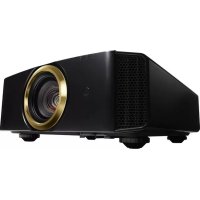



| Product Type | D-ILA Projector |
| Brand | JVC |
| Model | DLA-RS49U (also DLA-RS49) |
| Display Technology | 3 x D-ILA 0.7 inches (1920 x 1080 pixels each, total ~6.22 million pixels) |
| Native Resolution | 1920 x 1080 (Full HD), 4K compatible via e-shift (3840 x 2160) |
| Lens | Motorized zoom 2.0x (1.4:1 to 2.8:1), motorized focus, motorized lens shift |
| Screen Size | 60 to 200 inches (16:9) |
| Lamp | UHP lamp 230 W, model PK-L2312U, average lifespan 4000 h (low power mode) |
| Contrast Ratio | Not specified in the manual, but D-ILA technology offers high contrast |
| 3D Functions | 3D compatibility (Frame Packing, Side-by-side, Top-and-bottom), 2D to 3D conversion |
| Video Inputs | 2 x HDMI (HDCP 2.2 compatible) |
| Other Connections | LAN (RJ-45), RS-232C, Trigger 12V, 3D SYNCHRO (mini DIN) |
| Power Supply | AC 110-240 V, 50/60 Hz |
| Power Consumption | 360 W (normal standby 7 W, ECO standby 0.4 W) |
| Dimensions (W x H x D) | Approx. 455 x 179 x 472 mm (without feet or protrusions) |
| Weight | Approx. 14.7 kg (RS49 model) |
| Operating Temperature | 5°C to 35°C |
| Maximum Installation Altitude | Up to 1524 m (5000 feet) |
| Noise Level | ≤ 20 dB(A) per ISO 7779 (user position) |
| Spare Parts and Repairability | Replacement lamp PK-L2312U, 3D glasses PK-AG3, 3D emitter PK-EM2, air filter (part number not specified, see manual p.64) |
| Maintenance | Clean the housing with a damp cloth, lamp replacement (detailed procedure), air filter replacement (recommended every 3 years) |
| Safety | Do not look into the lens, do not obstruct vents, use only supplied power cord, mandatory grounding |
| General Information | FCC Class B compliant, THX 3D and isf certifications (on RS67/RS57 models), manufacturer's warranty included |
Frequently Asked Questions - DLARS49U JVC
User questions about DLARS49U JVC
0 question about this device. Answer the ones you know or ask your own.
Ask a new question about this device
Download the instructions for your Projector in PDF format for free! Find your manual DLARS49U - JVC and take your electronic device back in hand. On this page are published all the documents necessary for the use of your device. DLARS49U by JVC.
USER MANUAL DLARS49U JVC
The Mobile User Guide can be viewed on mobile internet devices including smartphones and tablets.
For Customer use:
Enter below the serial No. which is located on the side of the cabinet. Retain this information for future reference.
Model No. DLA-RS67U/DLA-RS57U/ DLA-RS49U
Serial No.
This product has a High Intensity Discharge (HID) lamp that contains mercury.
Disposal of these materials may be regulated in your community due to environmental considerations. For disposal or recycling information, please contact your local authorities or for USA, the Electronic Industries Alliance: http://www.eiae.org.
WARNING:
TO PREVENT FIRE OR SHOCK HAZARDS, DO NOT EXPOSE THIS APPLIANCE TO RAIN OR MOISTURE.
WARNING:
THIS APPARATUS MUST BE EARTHED.
CAUTION:
To reduce the risk of electric shock, do not remove cover. Refer servicing to qualified service personnel.
This projector is equipped with a 3-blade grounding type plug to satisfy FCC rule. If you are unable to insert the plug into the outlet, contact your electrician.
MACHINE NOISE INFORMATION (Germany only)
Changes Machine Noise Information Ordinance 3. GSGV, January 18, 1991: The sound pressure level at the operator position is equal to or less than 20 dB (A) according to ISO 7779.
For the customers in Taiwan only
Please recycle waste batteries
FCC INFORMATION (U.S.A. only)
CAUTION:
Changes or modification not approved by JVC could void the user's authority to operate the equipment.
NOTE:
This equipment has been tested and found to comply with the limits for Class B digital devices, pursuant to Part 15 of the FCC Rules. These limits are designed to provide reasonable protection against harmful interference in a residential installation. This equipment generates, uses, and can radiate radio frequency energy and, if not installed and used in accordance with the instructions, may cause harmful interference to radio communications. However, there is no guarantee that interference will not occur in a particular installation. If this equipment does cause harmful interference to radio or television reception, which can be determined by turning the equipment off and on, the user is encouraged to try to correct the interference by one or more of the following measures:
Reorient or relocate the receiving antenna. - Increase the separation between the equipment and receiver. - Connect the equipment into an outlet on a circuit different from that to which the receiver is connected. - Consult the dealer or an experienced radio/TV technician for help.
Declaration of Conformity
Model Number: DLA-RS67U/DLA-RS57U/ DLA-RS49U
Trade Name: JVC
Responsible party: JVC AMERICAS CORP.
Address: 1700 Valley Road Wayne, N. J. 07470 Telephone Number: 973-317-5000
This device complies with Part 15 of FCC Rules. Operation is subject to the following two conditions: (1) This device may not cause harmful interference, and (2) this device must accept any interference received, including interference that may cause undesired operation.
About the installation place
Do not install the projector in a place that cannot support its weight securely.
If the installation place is not sturdy enough, the projector could fall or overturn, possibly causing personal injury.
IMPORTANT SAFEGUARDS
Electrical energy can perform many useful functions. This unit has been engineered and manufactured to assure your personal safety. But IMPROPER USE CAN RESULT IN POTENTIAL ELECTRICAL SHOCK OR FIRE HAZARD. In order not to defeat the safeguards incorporated into this product, observe the following basic rules for its installation, use and service. Please read these Important Safeguards carefully before use.
- All the safety and operating instructions should be read before the product is operated.
- The safety and operating instructions should be retained for future reference.
- All warnings on the product and in the operating instructions should be adhered to.
- All operating instructions should be followed.
- Place the projector near a wall outlet where the plug can be easily unplugged.
- Unplug this product from the wall outlet before cleaning.
- Do not use liquid cleaners or aerosol cleaners. Use a damp cloth for cleaning.
- Do not use attachments not recommended by the product manufacturer as they may be hazardous.
- Do not use this product near water. Do not use immediately after moving from a low temperature to high temperature, as this causes condensation, which may result in fire, electric shock, or other hazards.
- Do not place this product on an unstable cart, stand, or table. The product may fall, causing serious injury to a child or adult, and serious damage to the product. The product should be mounted according to the manufacturer's instructions, and should use a mount recommended by the manufacturer.
- When the product is used on a cart, care should be taken to avoid quick stops, excessive force, and uneven surfaces which may cause the product and cart to overturn, damaging equipment or causing possible injury to the operator.
- Slots and openings in the cabinet are provided for ventilation. These ensure reliable operation of the product and protect it from overheating. These openings must not be blocked or covered. (The openings should never be blocked by placing the product on a bed, sofa, rug, or similar surface. It should not be placed in a built-in installation such as a bookcase or rack unless proper ventilation is provided and the manufacturer's instructions have been adhered to.)
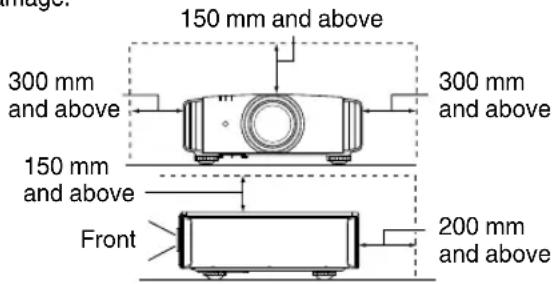
- To allow better heat dissipation, keep a clearance between this unit and its surroundings as shown below. When this unit is enclosed in a space of dimensions as shown below, use an air-conditioner so that the internal and external temperatures are the same. Overheating can cause damage.
PORTABLE CART WARNING (symbol provided by RETAC) S3126A
- Power source indicated on the label. If you are not sure of the type of power supply to your home, consult your product dealer or local power company.
- This product is equipped with a three-wire plug. This plug will fit only into a grounded power outlet. If you are unable to insert the plug into the outlet, contact your electrician to install the proper outlet. Do not defeat the safety purpose of the grounded plug.
- Power-supply cords should be routed so that they are not likely to be walked on or pinched by items placed upon or against them. Pay particular attention to cords at doors, plugs, receptacles, and the point where they exit from the product.
- For added protection of this product during a lightning storm, or when it is left unattended and unused for long periods of time, unplug it from the wall outlet and disconnect the cable system. This will prevent damage to the product due to lightning and power line surges.
- Do not overload wall outlets, extension cords, or convenience receptacles on other equipment as this can result in a risk of fire or electric shock.
- Never push objects of any kind into this product through openings as they may touch dangerous voltage points or short out parts that could result in a fire or electric shock. Never spill liquid of any kind on the product.
- Do not attempt to service this product yourself as opening or removing covers may expose you to dangerous voltages and other hazards. Refer all service to qualified service personnel.
- Unplug this product from the wall outlet and refer service to qualified service personnel under the following conditions:
a) When the power supply cord or plug is damaged. b) If liquid has been spilled, or objects have fallen on the product. c) If the product has been exposed to rain or water. d) If the product does not operate normally by following the operating instructions. Adjust only those controls that are covered by the Operation Manual, as an improper adjustment of controls may result in damage and will often require extensive work by a qualified technician to restore the product to normal operation. e) If the product has been dropped or damaged in any way. f) When the product exhibits a distinct change in performance, this indicates a need for service.
- When replacement parts are required, be sure the service technician has used replacement parts specified by the manufacturer or with the same characteristics as the original part. Unauthorized substitutions may result in fire, electric shock, or other hazards.
- Upon completion of any service or repairs to this product, ask the service technician to perform safety checks to determine that the product is in proper operating condition.
- The product should be placed more than one foot away from heat sources such as radiators, heat registers, stoves, and other products (including amplifiers) that produce heat.
- When connecting other products such as VCRs and DVD players, you should turn off the power of this product for protection against electric shock.
- Do not place combustibles behind the cooling fan. For example, cloth, paper, matches, aerosol cans, or gas lighters that present special hazards when overheated.
- Do not look into the projection lens while the illumination lamp is turned on. Exposure of your eyes to the strong light can result in impaired eyesight.
- Do not look into the inside of this unit through vents (ventilation holes), etc. Do not look at the illumination lamp directly by opening the cabinet while the illumination lamp is turned on. The illumination lamp also contains ultraviolet rays and the light is so powerful that your eyesight can be impaired.
- Do not drop, hit, or damage the light-source lamp (lamp unit) in any way. It may cause the light-source lamp to break and lead to injuries. Do not use a damaged light source lamp. If the light-source lamp is broken, ask your dealer to repair it. Fragments from a broken light-source lamp may cause injuries.
- The light-source lamp used in this projector is a high pressure mercury lamp. Be careful when disposing of the light-source lamp. If anything is unclear, please consult your dealer.
- Do not ceiling-mount the projector to a place which tends to vibrate; otherwise, the attaching fixture of the projector could be broken by the vibration, possibly causing it to fall or overturn, which could lead to personal injury.
- Use only the accessory cord designed for this product to prevent shock.
- For health reasons, please take a break of about 5-15 minutes every 30-60 minutes and let your eyes rest. Please refrain from watching any 3D-images when you feel tired, unwell or if you feel any other discomfort. Moreover, in case you see a double image, please adjust the equipment and software for proper display. Please stop using the unit if the double image is still visible after adjustment.
- Once every three years, please perform an internal test. This unit is provided with replacement parts needed to maintain its function (such as cooling fans). Estimated replacement time of parts can vary greatly depending on frequency of use and the respective environment. For replacement, please consult your dealer, or the nearest authorized JVC service center.
- When fixing the unit to the ceiling, Please note that we do not take any responsibility, even during the warranty period, if the product is damaged due to use of metal fixtures used for fixation to the ceiling other than our own or if the installation environment of said metal fixtures is not appropriate. If the unit is suspended from the ceiling during use, please be careful in regard to the ambient temperature of the unit. If you use a central heating, the temperature close to the ceiling will be higher than normally expected.
- Video images can burn into the electronic component parts. Please do not display screens with still images of high brightness or high contrast, such as found in video games and computer programs. Over a long period of time it might stick to the picture element. There is no problem with the playback of moving images, e.g. normal video footage.
- Video images can burn into the electronic component parts. Please do not display screens with still images of high brightness or high contrast, such as found in video games and computer programs. Over a long period of time it might stick to the picture element. There is no problem with the playback of moving images, e.g. normal video footage.
- Not using the unit for a long time can lead to malfunction. Please power it on and let it run occasionally. Please avoid using the unit in a room where cigarettes are smoked. It is impossible to clean optical component parts if they are contaminated by nicotine or tar. This might lead to performance degradation.
- Please watch from a distance three times the height of the projected image size. Persons with photosensitivity, any kind of heart disease, or weak health should not use 3D glasses.
- Watching 3D-images might be cause of illness. If you feel any change in your physical condition, please stop watching immediately and consult a physician if necessary.
- When watching 3D images, it is recommended to take regular breaks. As the length and frequency of the required breaks differ for every person, please judge according to your own condition.
- If your child watches while wearing 3D glasses, it should be accompanied by its parents or an adult guardian. The adult guardian should be careful to avoid situations where the child's eyes might become tired, as responses to tiredness and discomfort, etc., are hard to detect, and it is possible for the physical condition to deteriorate very quickly. As the visual sense is not yet fully developed in children under the age of 6, please consult a physician in regard to any problem concerning 3D-images if necessary.
- Note that when using the 3D feature, the video output may appear different from the original video image due to image conversion on the device.
* DO NOT allow any unqualified person to install the unit.
Be sure to ask your dealer to install the unit (e.g. attaching it to the ceiling) since special technical knowledge and skills are required for installation. If installation is performed by an unqualified person, it may cause personal injury or electrical shock.
POWER CONNECTION
For USA and Canada only Use only the following power cord.
Power cord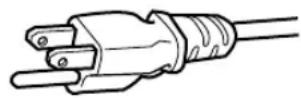
The power supply voltage rating of this product is AC110V - AC240V. Use only the power cord designated by our dealer to ensure Safety and EMC. Ensure that the power cable used for the projector is the correct type for the AC outlet in your country. Consult your product dealer.
Power cord For United Kingdom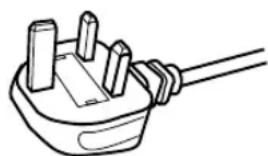
For European continent countries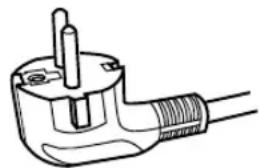
WARNING:
Do not cut off the main plug from this equipment.
If the plug fitted is not suitable for the power points in your home or the cable is too short to reach a power point, then obtain an appropriate safety approved extension lead or adapter or consult your dealer. If nonetheless the mains plug is cut off, dispose of the plug immediately, to avoid a possible shock hazard by inadvertent connection to the main supply. If a new main plug has to be fitted, then follow the instruction given below.
WARNING:
THIS APPARATUS MUST BE EARTHED.
IMPORTANT (Europe only):
The wires in the mains lead on this product are colored green and yellow in accordance with the following cord:
Green-and-yellow : Earth
Blue : Neutral
Brown : Live
As these colors may not correspond with the colored markings identifying the terminals in your plug, proceed as follows:
The wire which is colored green-and-yellow must be connected to the terminal which is marked with the letter E or the safety earth symbol or colored green or green-and-yellow. The wire which is colored blue must be connected to the terminal which is marked with the letter N or colored black.
The wire which is colored brown must be connected to the terminal which is marked with the letter L or colored red.
POWER CONNECTION (United Kingdom only)
IMPORTANT (Europe only):
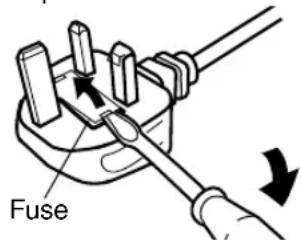
When replacing the fuse, be sure to use only a correctly rated approved type, re-fit the fuse cover.
IF IN DOUBT CONSULT A COMPETENT ELECTRICIAN.
Open the fuse compartment with the blade screwdriver, and replace the fuse.
(* An example is shown in the illustration below.)
Dear Customer,
This apparatus is in conformance with the valid European directives and standards regarding electromagnetic compatibility and electrical safety.
European representative of JVC KENWOOD Corporation is:
JVC Technical Services Europe GmbH
Information for Users on Disposal of Old Equipment and Batteries
Products
Battery
[European Union only]
These symbols indicate that equipment with these symbols should not be disposed of as general household waste. If you want to dispose of the product or battery, please consider the collection systems or facilities for appropriate recycling.
Notice: The sign Pb below the symbol for batteries indicates that this battery contains lead.
GERMAN
Safety Precautions 2
Accessories/Optional Accessories 11 Check the Accessories 11 Optional Accessories 11
Main Features 12
Controls and Features 14
Main Unit - Front 14 Main Unit - Bottom 14 Main Unit - Rear 15 Main Unit - Input Terminals 16 Remote Control 17
Loading Batteries into the Remote Control 18
Effective Range of Remote Control Unit 18
Set up
Installing the Projector 19 Precautions during Installation 19 Precautions during Mounting 20 Adjusting the Position 21
Connecting the Projector 22
Connecting to the HDMI Input Terminal (Digital Input) 22 Connecting to the LAN Terminal 23 Connecting to the RS-232C Terminal 23 Connecting to the TRIGGER Terminal 24 Connecting the Power Cord (Supplied Accessory) 24
Operate
Viewing Videos 25 Adjusting the Projector Screen 27 Adjusting the Lens According to the Projection Position 27 Saving and Retrieving Adjustment Settings 28 Adjusting Image Quality Automatically According to the Viewing Environment 30 Adjusting the Screen Size (Aspect) 31
Viewing 3D Movies 32
Installing the 3D SYNCHRO EMITTER 32 Viewing 3D Movies 33 Converting 2D Movies to 3D Movies for Viewing ....... 34 Adjusting 3D Movies 34
Adjust/Set
Selecting an Image Quality According to the Video Type 35 Setting the Picture Mode 35 Setting the Color Profile 36
Adjusting to the Preferred Color (Color Management) 38 Adjusting Movies for Increased Expressiveness (Multiple Pixel Control) 39 Fine-tuning the Image Quality 41 Adjusting the Output Value of the Projected Image (Gamma) 41 Fine-tuning to the Preferred Gamma Setting 42 Reducing the After-image of Fast-moving Images (Clear Motion Drive (C.M.D.)) 44 Viewing High Contrast Images (Lens Aperture) . 44 Adjustments and Settings in the Menu 45 List of Menu Items 45 Picture Adjust 47 Input Signal 50 Installation 52 Display Setup 58 Function 59 Information 60
Maintenance
Replacing the Lamp 61 Lamp Replacement Procedure 61 Resetting the Lamp Time 63 Maintaining the Cabinet and Remote Control 63 Cleaning and Replacing the Filter 64
Troubleshooting
Troubleshooting 65 When the following messages appear. 69
Others
External Control 70 RS-232C Specifications 70 TCP/IP Connection 70 Command Format 71 Remote Control Code 72 Communications Example 73
Specifications 74
Index 81
Symbols used in this manual
RS67 indicates a function that is supported by DLA-RS67. RS57 indicates a function that is supported by DLA-RS57. RS49 indicates a function that is supported by DLA-RS49.
Items not marked with any of the above symbols are supported by all models.
Accessories/Optional Accessories
Check the Accessories
Lens Cover RS49 1 piece
- It is attached to the main unit at the time of shipment.
Remote control 1 piece
AAA-size batteries (for operational check) 2 pieces
Power cord (for USA) (about. 2 m) 1 piece
Power cord (for UK) (about. 2 m) 1 piece
Power cord (for EU) (about. 2 m) 1 piece
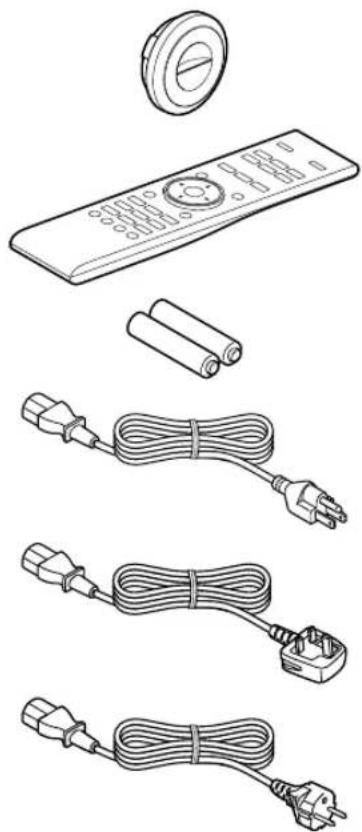
- INSTRUCTIONS (this book), warranty card, and other printed material are also included.
Optional Accessories
- Replacement lamp model: PK-L2312U 3D GLASSES: model PK-AG3 3D SYNCHRO EMITTER: model PK-EM2
Compatibility Chart for 3D SYNCHRO EMITTER and 3D GLASSES
| 3D GLASSES | ||||
| PK-AG1* (Communication Method: IR (Infrared)) | PK-AG2* (Communication Method: IR(Infrared)) | PK-AG3 (Communication Method: RF (Radio frequency)) | ||
| 3D SYNCHRO EMITTER | PK-EM1* (Communication Method: IR (Infrared)) | ○○— | ||
| PK-EM2 (Communication Method: RF (Radio frequency)) | —○ | |||
- Discontinued product Please check with your authorized dealer for details.
Main Features
New, impressive image quality with the 4K resolution
By employing JVC's unique image-processing technology (MPC), focus and blurring can be detected and adjusted in real time, allowing viewers to enjoy the enhanced expressiveness of 4K images. (p. 39)
The photos are for illustrative purposes only
3D video expressions with a highly realistic feel
With the 3D feature, you can enjoy 3D movies with a more realistic effect. (p. 32)
With the 2D-3D conversion feature, you can now enjoy 3D movies by converting 2D videos of TV programs or those that are recorded using a home video camera into 3D ones. (p. 34)
The photos are for illustrative purposes only.
Optimal image quality adjustment according to the viewing environment
Halation that occurs in environments such as a living room with white walls is taken into consideration for optimal viewing. (p. 30)
- You can utilize the optional optical sensor and dedicated software to make finer adjustments.
For more details, please refer to our website.
http://www3.jvckenwood.com/projector/support/index.html
Flexible installation
In addition to the 2x motorized zoom & focus lens, the wide coverage of the lens shift functions also makes installation of the projector more flexible. (p. 27)
The lens memory feature, which enables focus, zoom, or shift settings to be saved or retrieved, enables you to switch to different video size formats easily.
Customizable image quality adjustment feature
You can make adjustments according to the type of video images or your preferences to enjoy the videos in optimal quality. (p. 35)
The Real Color Imaging Technology (a color reproduction technology developed by JVC) enables reproduction in an image quality that is closer to the original image. (p. 36)

The photos are for illustrative purposes only
Clear video expression with little after-image (C.M.D.)
Optimal interpolation according to the content is made possible with the new high-definition image interpolation technique that supports 3D images.
Viewers can enjoy clear video expression with little after-image. (p. 44)
- C.M.D. is the abbreviation for Clear Motion Drive.
Sharp depiction of details with minimal blur
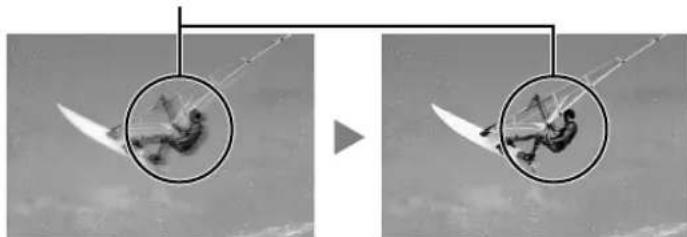
The photos are for illustrative purposes only
High-precision pixel adjustment feature
With the highly-precise "Pixel Adjust" feature, you can enjoy a clear video quality with little color fringing throughout the entire image.
(p. 53)
- Equipped with two memories, you can save the settings separately when an anamorphic lens is used and when you are using the projector with a screen.
After adjustmentBefore ad
The photos are for illustrative purposes only.
THX certification RS67 RS57

DISPLAY
For RS67 RS57, a "THX 3D Display Certification" by THX has been obtained.
In addition to 2D movies, you can also enjoy faithful reproduction of images in a "quality as intended by the filmmaker" during playback of 3D movies.
The THX 3D certification is "an indication of high definition and high resolution", which is granted to products that have cleared more than 400 image quality tests.
isf certification RS67 RS57

RS67 RS57 are isf-certified, so calibration can be performed by an isf-certified trainer. After calibration is performed, an isf mode is added to the Picture mode. For more details, please refer to the isf website. http://www.imagingscience.com/
Intelligent Lens Aperture
JVC has developed an image analysis algorithm, which analyzes the state of the video image in real time, and controls the aperture dynamically according to the image information.
This technology enables viewers to enjoy video images with enhanced contrast.
After adjustmentBefore ad
The photos are for illustrative purposes only
Controls and Features
Main Unit - Front
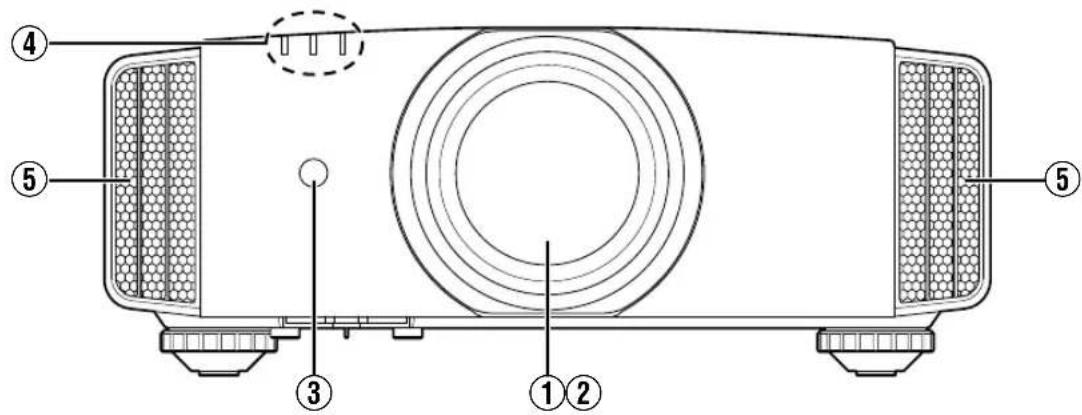
① Lens
This is a projection lens. Do not look through the lens while an image is projected.
Lens cover RS67 RS57
The lens cover opens/closes when the power supply is turned on/off. (p. 52)
- For RS49, attach the lens cover when the unit is not in use.
③ Remote Sensor (front)
Please aim the remote control at this area when using it.
- There is also a remote sensor at the rear.
Main Unit - Bottom
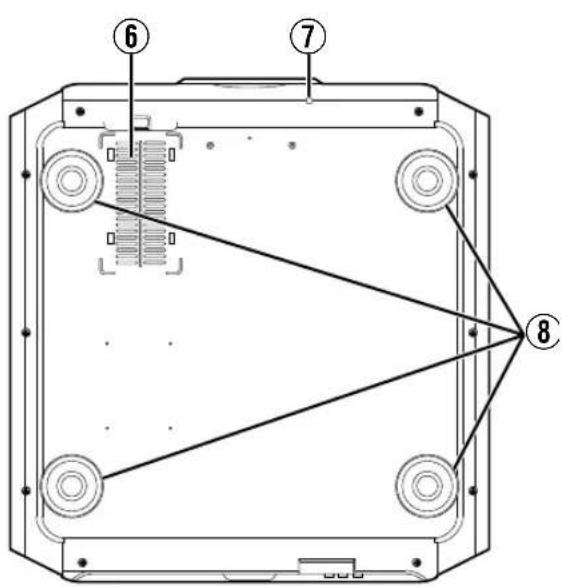
④ Indicator
Refer to "Indicator Display on the Main Unit" p. 78.
⑤ Exhaust vent
Warm air is discharged to cool down the internal temperature. Do not block the vents.
⑥ Inlets (at 3 points on the rear/bottom)
The inlets take in air to cool down the internal temperature.
Do not block or prevent the outflow of hot air. Doing so may cause the unit to malfunction.
- There are two inlets on the right and left sides at the rear of the unit.
⑦ Manual button for lens cover RS67 RS57
The lens cover can be opened when pressed down.
It is used for maintenance purposes. You can also make use of it when you need to open the lens cover urgently.
⑧ Feet
The height and angle of the projector can be adjusted by turning the foot. (0 to 5 mm) (p. 21)
When the foot is removed, it can be used as the mounting holes for the ceiling mount bracket.
Main Unit - Rear
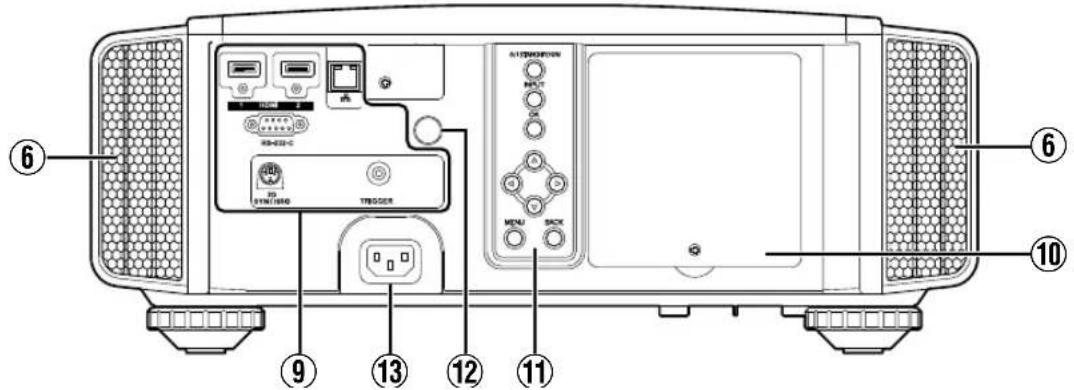
⑨ Input terminals
In addition to the video input terminal, there are also other connection terminals for devices such as controllers and optional equipment.
Please see "Main Unit - Input Terminals" p. 16 for more details about the terminals.
⑩ Lamp cover
When replacing the light source lamp, remove this cover.
① Operation panel
For more details, please refer to the "Operation panel" in the diagram below.
Operation panel
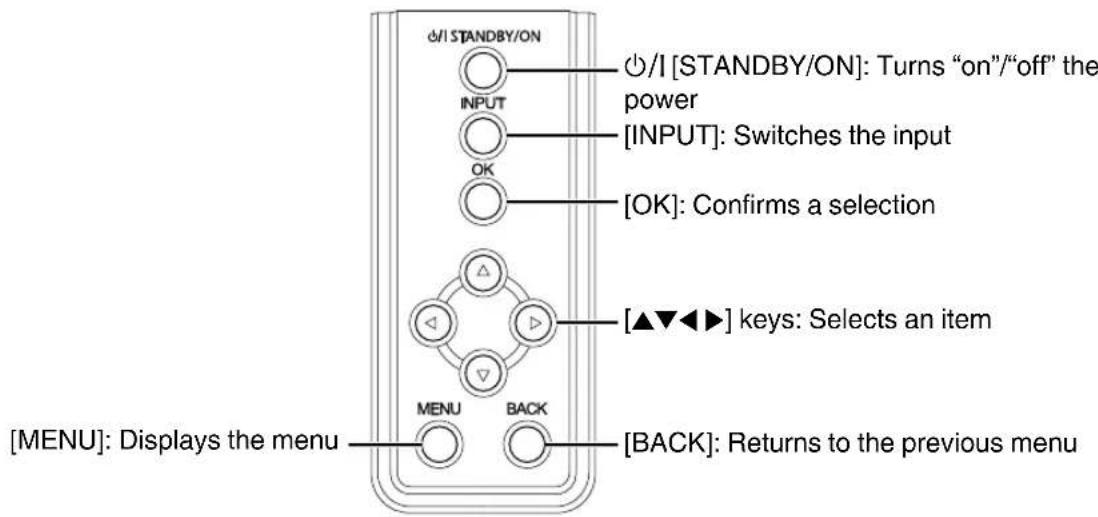
Main Unit - Input Terminals
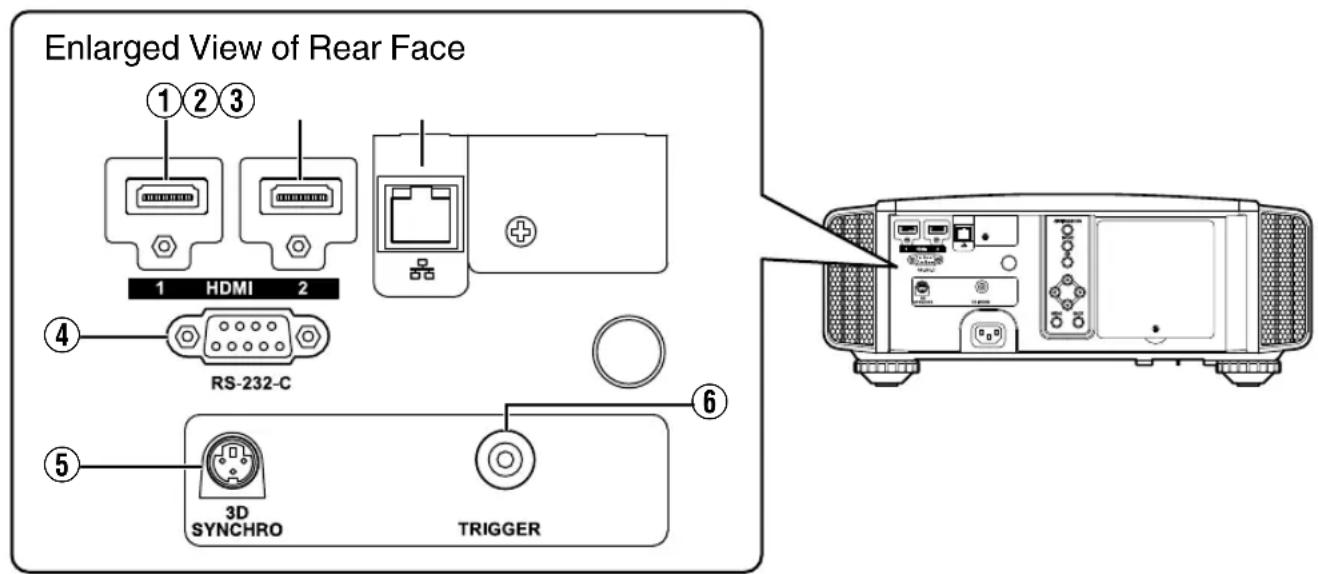
(1) [HDMI 1] input terminal (2) [HDMI 2] input terminal
For connecting to devices that support HDMI output. (p. 22)
It is fitted to the M3 lock hole. The depth of the screw hole is 3 mm.
(3) [LAN] terminal (RJ-45)
The projector can be controlled by connecting it to a PC through the computer network for control commands to be sent to the projector.
(4) [RS-232C] terminal (D-sub 9-pin male)
The projector can be controlled by connecting a PC to this terminal.
(5) [3D SYNCHRO] terminal
By connecting a 3D SYNCHRO EMITTER (sold separately) to this terminal, you can view 3D movies.
(6) [TRIGGER] terminal (Theta - Theta - Theta)
Output terminal for DC 12 V, 100 mA power supply. It is used for sending output signals to control devices such as an elevating screen that is equipped with a trigger function.
Note that improper connection may damage the projector. (Tip=DC +12 V, Sleeve=GND)
Remote Control
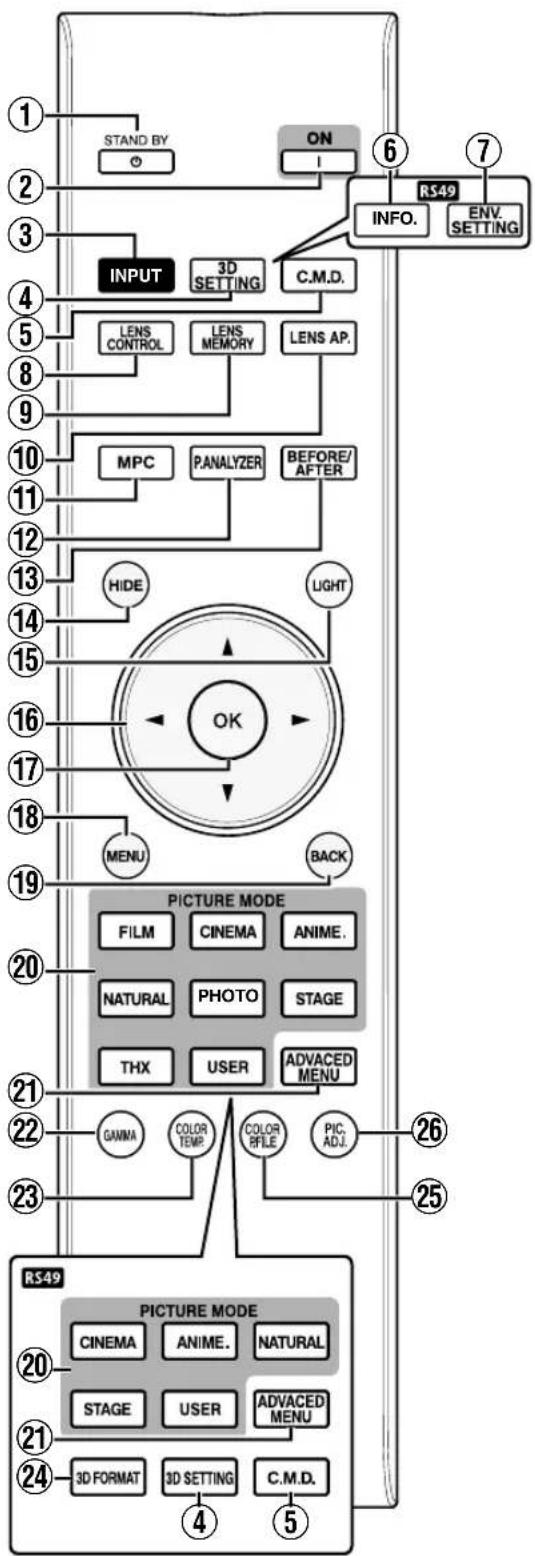
(1) [STAND BY]
Turns off the power. (p. 26)
(2) [ON]
Turns on the power. (p. 25)
(3) [INPUT]
Select an input from [HDMI 1] and [HDMI 2]. (p. 25)
(4) [3D SETTING]
Displays the 3D setting menu. (p. 33)
(5) [C.M.D.]
For setting frame interpolation. (p. 44)
(6) [INFO.]
Displays the information menu. (p. 60)
(7) [ENV SETTING]
Displays the "Environment Setting" menu, (p. 30)
(8) [LENS CONTROL]
For adjusting focus, zoom, and shift. (p. 27)
(9) [LENS MEMORY]
Switches between saving, retrieving, and editing of the lens memory. (p. 28)
[LENS AP.]
For setting the lens aperture. (p. 44)
(1) [MPC]
For setting the MPC level. (p. 39)
12 [P.ANALYZER]
Turns on/off the analysis screen. (p. 40)
[BEFORE/ABTER]
Displays the image before or after an effect is applied. This is used for MPC and Color Management. (p. 38, p. 39)
14 [HIDE]
Hides the image temporarily. (p. 25)
15 [LIGHT]
Illuminates the buttons on the remote control.
16

For selecting an item.
[OK]
Confirms a selected item.
(18) [MENU]
Displays the menu, or hides the menu if it is displayed.
[BACK]
Returns to the previous menu.
20 [PICTURE MODE]
Switches the Picture mode to [FILM], [CINEMA], [ANIME]. [NATURAL], [PHOTO], [STAGE], [THX], or [USER]. (p. 35)
- RS67 RS57 only
21 [ADVANCED MENU]
Pressing the button each time switches the menu in the following sequence: "Picture Mode" → "Color
Profile → "Color"
Temp." → "Gamma"
22 [GAMMA]
For setting the gamma level. (p. 41)
23 [COLOR TEMP.]
For setting the color temperature. (p. 48)
24 [3D FORMAT] RS49
Switches the 3D format. (p. 33)
25 [COLOR P.FILE]
Switches the color profile. (p. 36)
[PIC.ADJ.]
Switches the items for adjusting the image quality, such as contrast, brightness, etc. (p. 49)
Loading Batteries into the Remote Control
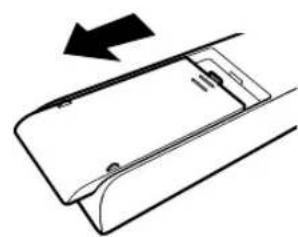
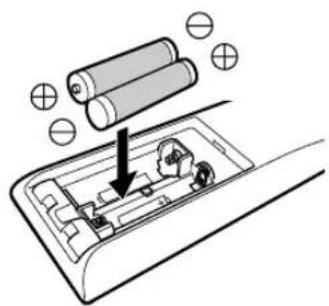
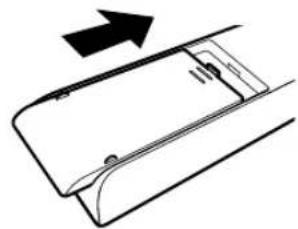
- If the remote control has to be brought closer to the projector to operate, it means that the batteries are wearing out. Replace the batteries with new ones (AAA).
- Insert the batteries according to the ⊕ ⊖ marks. Be sure to insert the ⊖ end first.
- If an error occurs while using the remote control, remove the batteries and wait for five minutes. Load the batteries again and operate the remote control.
Effective Range of Remote Control Unit
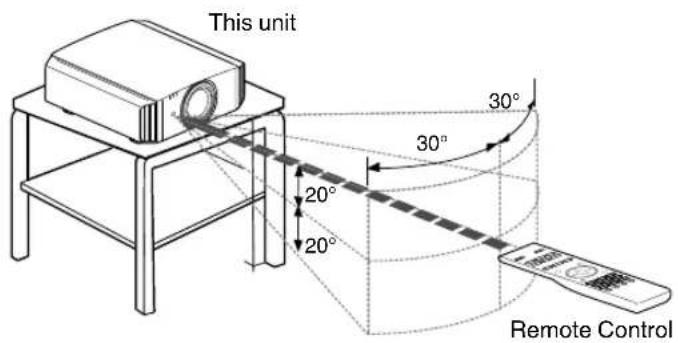
When aiming the remote control toward the sensor on this unit (front or rear), ensure that the distance to the sensor is within 7 m.
If the remote control fails to work properly, move closer to this unit.
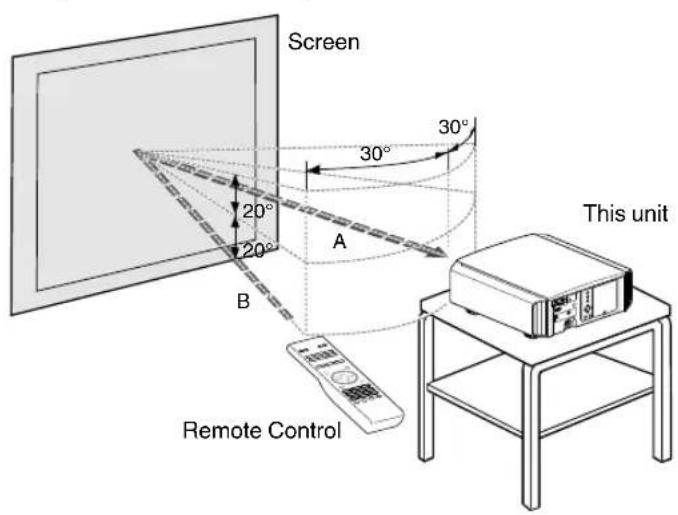
Control through reflection off a screen, etc.
Ensure that the total of distance A (between this unit and the screen) and distance B (between the remote control and the screen) is within 7 m.
- As the efficiency of signals reflected from the remote control unit varies with the type of screen used, the operable distance may decrease.

CAUTION
- Do not put the remote control in a place with exposure to direct sunlight or high temperature. It may deform due to heat, or the internal components may be adversely affected resulting in fire hazard.
- Remove the batteries from the remote control when storing the remote control. Storing the remote control for a prolonged period without removing the batteries can cause battery leakage.
Installing the Projector
Precautions during Installation
Please read the following carefully before installing this unit.
Do not install at the following
This unit is a precision device. Please refrain from installing or using it at the following locations. Otherwise, it may cause fire or malfunction.
- Dusty, wet and humid places
- Places subject to oily smoke or cigarette smoke
- On top of a carpet or bedding, or other soft surfaces
- Places exposed to direct sunlight
- Places with a high or low temperature
- Do not install this unit in a room that is oily or subject to cigarette smoke. Even a small quantity of smoke or oiliness can have a long-term impact on this unit.
- This unit produces a great amount of heat, and is designed to take in cool air to cool its optical components. Using the unit at the above locations may cause dirt to attach to the light path, thereby resulting in dark images or dull colors.
- Dirt that sticks to the optical components cannot be removed.
Maintain clearance from the wall, etc.
As the unit discharges a large amount of heat, install it with adequate clearance from the surroundings as shown below.
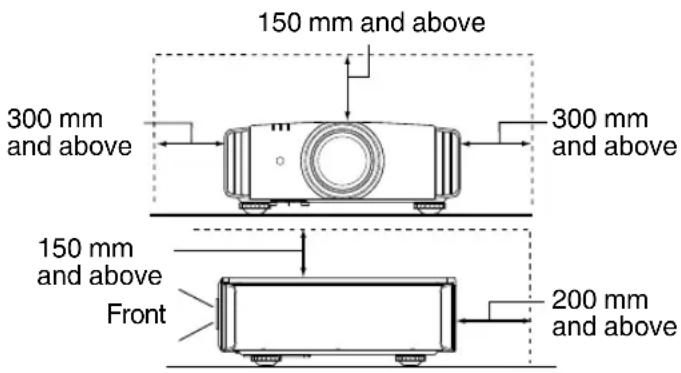
Leave the front area of the unit unblocked. If there is any obstructing object in front of the exhaust vent, hot air will flow back to the unit and cause it to heat up. Hot air flowing out of the unit may cast shadows on the screen (heat haze phenomenon).
Using the projector
This unit uses a projection lamp, which will heat up when in use.
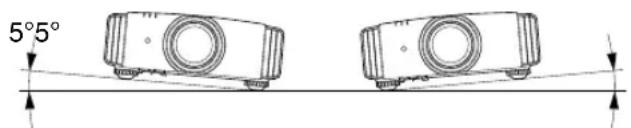
Please refrain from projecting in the following circumstances. Otherwise, it may cause fire or malfunction.
- Projection with the unit stood vertically
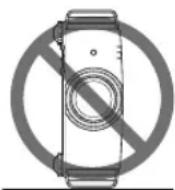
- Projection with the unit inclined at an angle Horizontal inclination: within ±5°
Vertical inclination: within ±15°
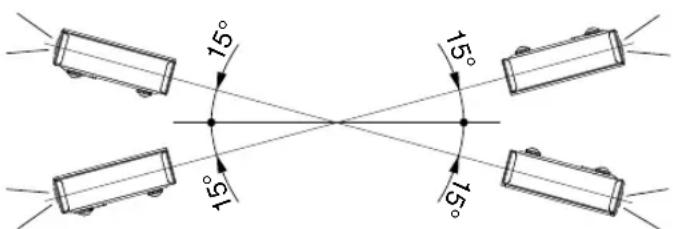
- Malfunction may occur if the angle is not set within the abovementioned range.
Installing the screen
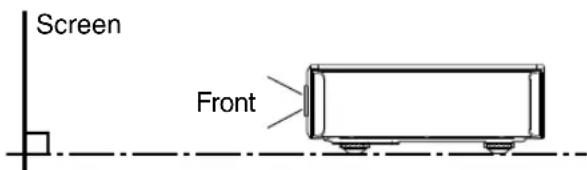
Install the unit and the screen such that they are perpendicular to each other.
- Please choose a screen material with non-uniform patterns. Uniform patterns such as checks may cause interference patterns to occur.
- In this case, you can change the size of the screen to make the interference patterns less noticeable.
Using the projector at a high altitude
When using this unit at a location that is higher than 900 m above sea level (low air pressure), set the "High Altitude Mode" to "On". (p. 54)
Precautions during Mounting
Securing (mounting) the projector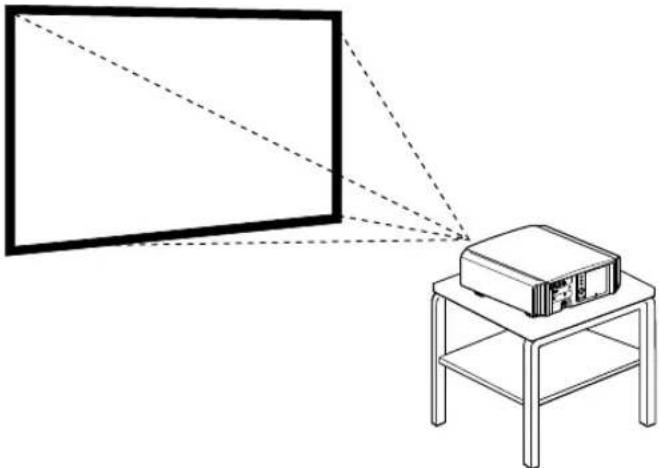
- When this unit is to be mounted to a fixed position for use, install it horizontally.
- Make sure to secure the main unit to prevent accidents such as during an earthquake.
Securing with screws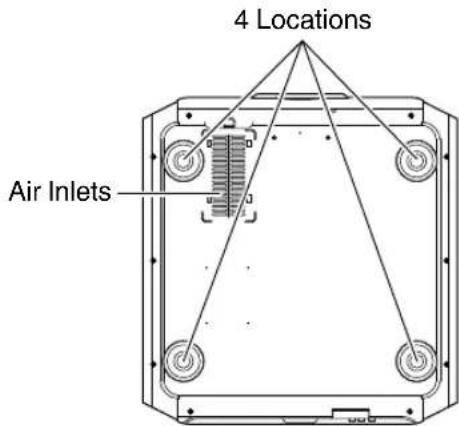
Remove the four feet at the bottom, and fasten using the screws (M5 screws, 13 to 23 mm)
- Using screws other than those designated may cause the unit to break down.
- Leave a clearance of at least 10 mm from the bottom surface of the unit to allow it to take in cool air.
Securing the projector (ceiling mount)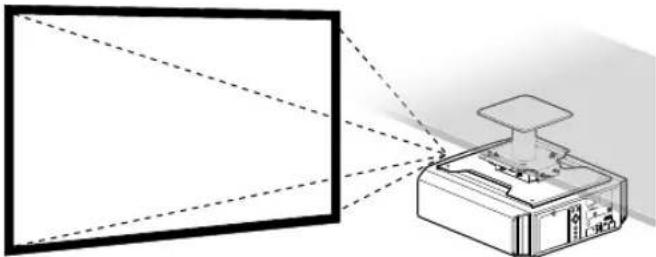
- Be sure to ask your dealer to install the unit for you. Installing the unit on your own may cause the unit to fall resulting in injury.
- Take the necessary actions to prevent the main unit from falling off such as during an earthquake.
- Regardless of the warranty period, JVC is not liable for any product damage caused by mounting the unit with non-JVC ceiling fittings or to an environment that is not suited for ceiling mount.
- When using the unit with it suspended from a ceiling, pay attention to the surrounding temperature. When a heater is in use, the temperature around the ceiling may be higher than expected.
- To attach the unit to the ceiling mount bracket, set the torque between the range of 1.5 N·m to 2.0 N·m. Tightening with torque exceeding the above range may cause damage to the unit, which may result the unit to fall.
Adjusting the Position
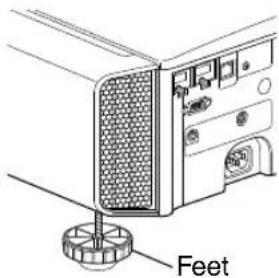
Adjusting the elevation angle of the projector
The height and inclination of the unit (0 to 5 mm) can be adjusted by turning the feet.
Lift the unit and adjust the four feet.
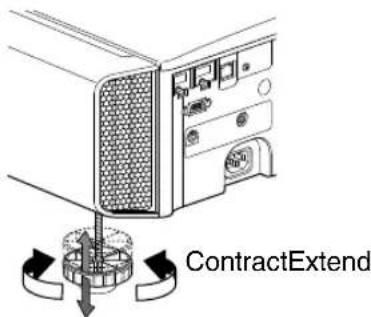
Adjusting the position of the image
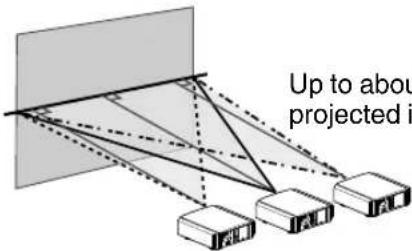
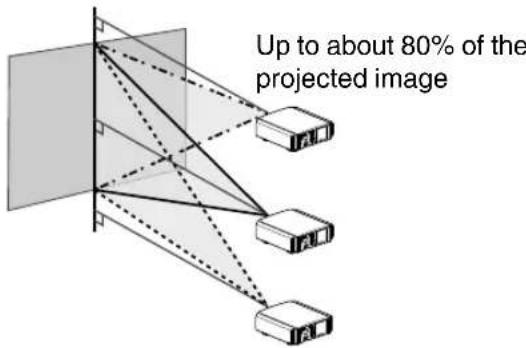
By using the lens shift feature of this unit, you can shift the image upward/downward or to the left/right. Set it to your preferred position.
→ "Adjusting the Lens According to the Projection Position" (p27)
Horizontal Position
Vertical Position: 0% (Center)
Vertical Position
Horizontal Position: 0% (Center)
Lens Shift Range
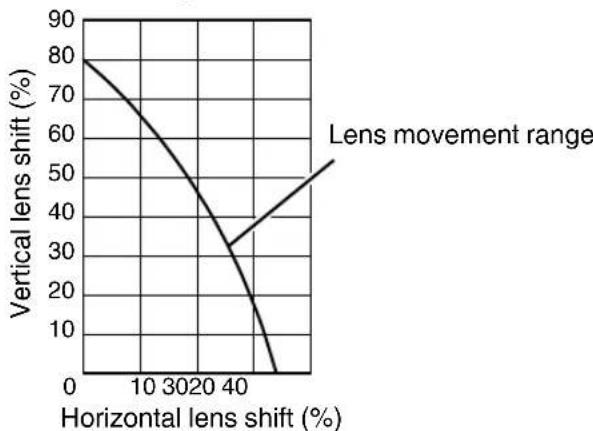
- The maximum vertical shift varies with the amount of horizontal shift. Similarly, the maximum horizontal shift also changes with the amount of vertical shift.
- The values on the graph are intended as a guide. Use them for reference during installation.
Connecting the Projector
- Do not turn on the power until connection is complete.
- The connection procedures differ according to the device used. For details, please refer to the instruction manual of the device to be connected.
- This projector is used for projecting images. To output the audio of connected devices, please connect a separate audio output device, such as an amplifier or speaker.
- The images may not be displayed depending on the devices and cables to be connected. Use only HDMI cables (sold separately) that are HDMI-certified.
- Some cables cannot be connected to this unit due to the size of their connector cover.
Connecting to the HDMI Input Terminal (Digital Input)
Connecting via HDMI cable
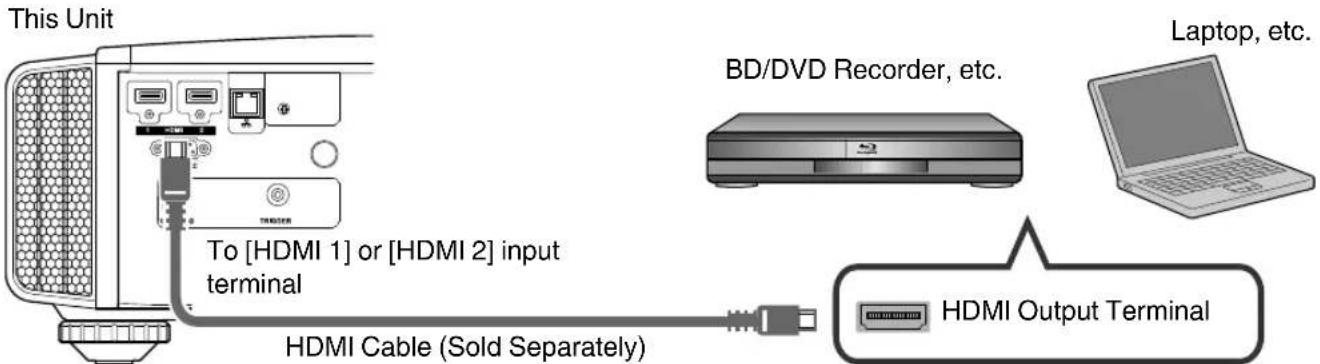
- If noise occurs, move the laptop away from this unit.
- For a transmission bandwidth in compliance with the HDMI standard, a 340 MHz cable is recommended. When using a cable with a bandwidth of 75 MHz, you are recommended to set the resolution of the equipment transmitting the video to 1080i or lower. If the video is not displayed, try to reduce the length of the cable or lower the resolution of the video transmitting equipment.
- If the source device is connected to the projector through an intermediate device such as an AV amplifier or divider, the video image may not appear depending on the specifications of the intermediate device. In this case, connect the source device directly to the projector, and check whether the video image is displayed.
Connecting via HDMI-DVI conversion cable
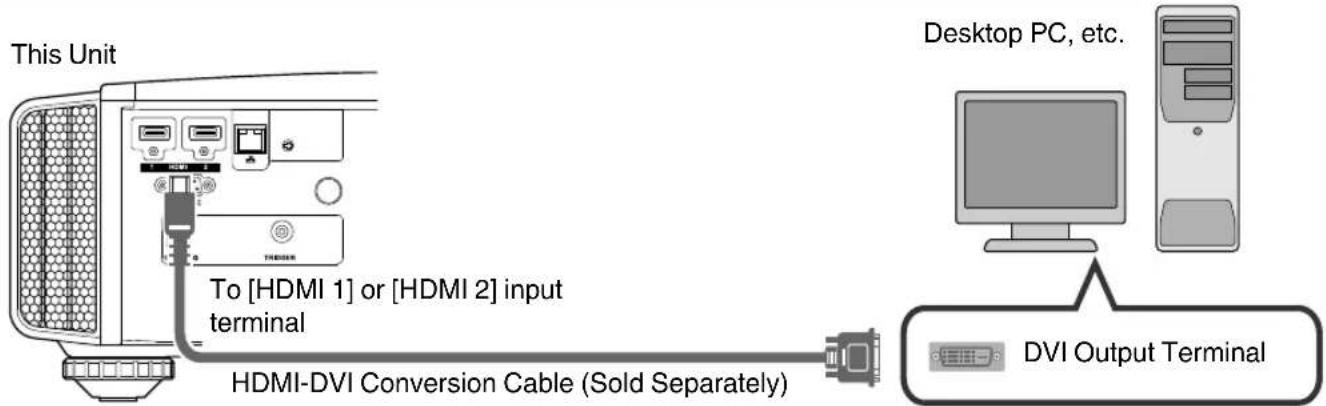
- If noise occurs, move the desktop PC away from this unit.
- If the video is not displayed, try to reduce the length of the cable or lower the resolution of the video transmitting equipment.
Connecting to the LAN Terminal
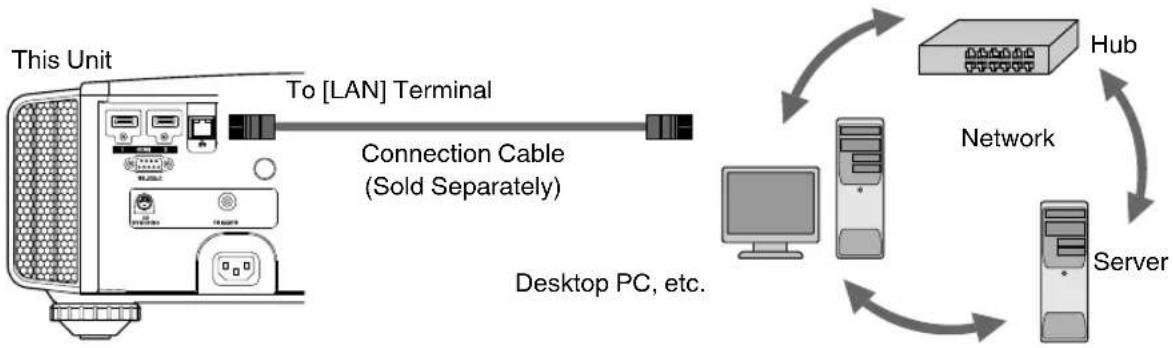
- The network is used to control this unit. It is not used for sending or receiving video signals.
- Please contact your network administrator for information concerning the network connection.
- Set "ECO Mode" to "Off" if RS-232C/LAN communication is performed or the HDMI link function is used in the Standby mode. (p. 59)
- For more information on control, please refer to "External Control" (p. 70).
Connecting to the RS-232C Terminal
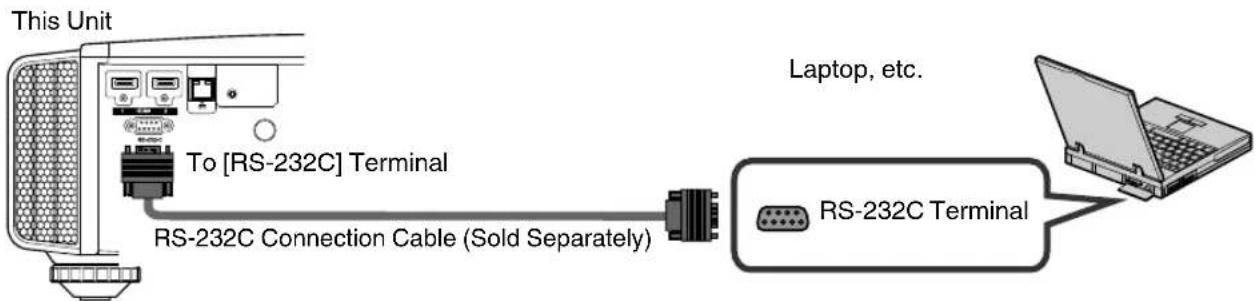
- Set "ECO Mode" to "Off" if RS-232C/LAN communication is performed or the HDMI link function is used in the Standby mode. (p. 59)
- For more information on control, please refer to "External Control" (p. 70).
Connecting to the TRIGGER Terminal
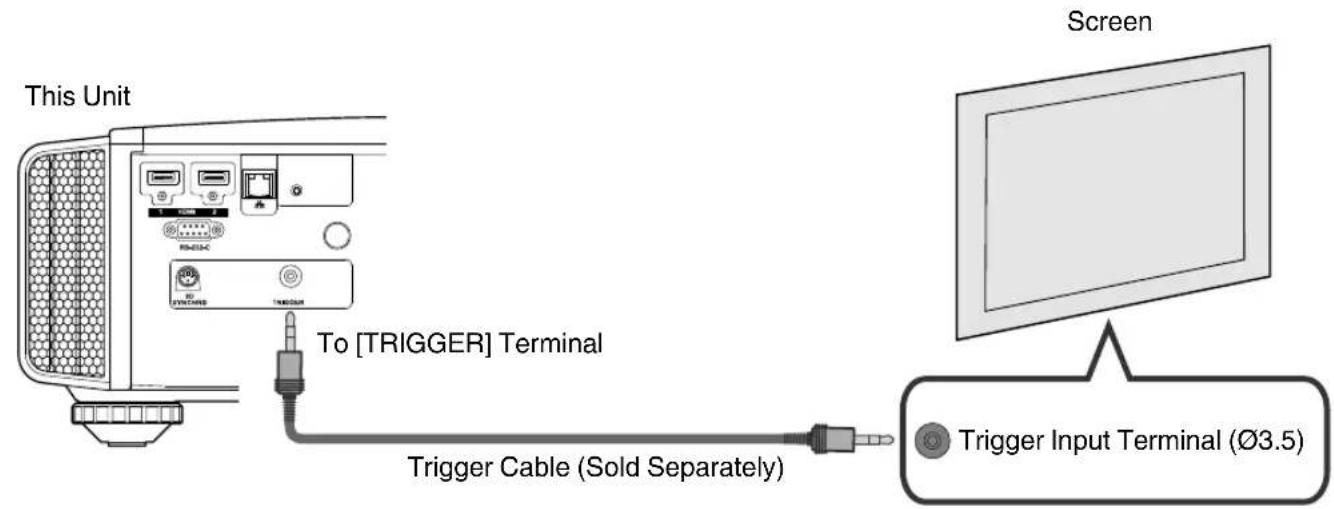
- Do not use it to supply power to other devices.
- Connecting to the audio terminal of another device may cause the device to malfunction or break down.
- Using beyond the rated value will cause the unit to malfunction.
- The trigger terminal outputs a voltage of 12 V. Exercise adequate caution to prevent short circuit.
- The factory setting is "Off". To change the setting, configure the "Trigger" item in the menu (p. 59).
Connecting the Power Cord (Supplied Accessory)
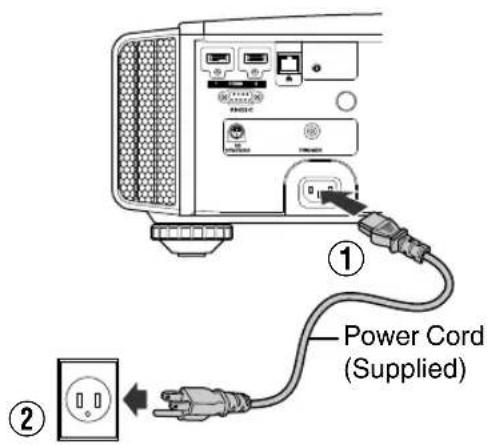
① Connect the power cord supplied to the power input terminal on the main unit. ② Insert the supplied power plug into the wall outlet.
Precautions to prevent fire and electric shock
- The voltage capacity of this unit is large. Please connect it directly to the wall outlet.
- When you are not using the equipment, please unplug the power cord from the outlet.
- Connect it using only the power cord supplied.
- Do not use a voltage other than the indicated power voltage.
- Do not damage, break or modify the power cord. Do not place a heavy object on the power cord, or heat or pull it. Doing so may damage the power cord.
- Do not unplug the power cord with wet hands.
Viewing Videos
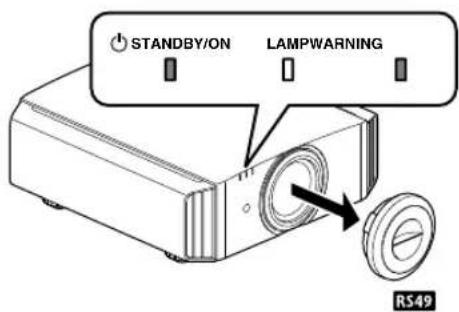
- When you are using R549, be sure to remove the lens cover.
- Connect the power cord, and ensure that the "STANDBY/ON" indicator lights up in red.
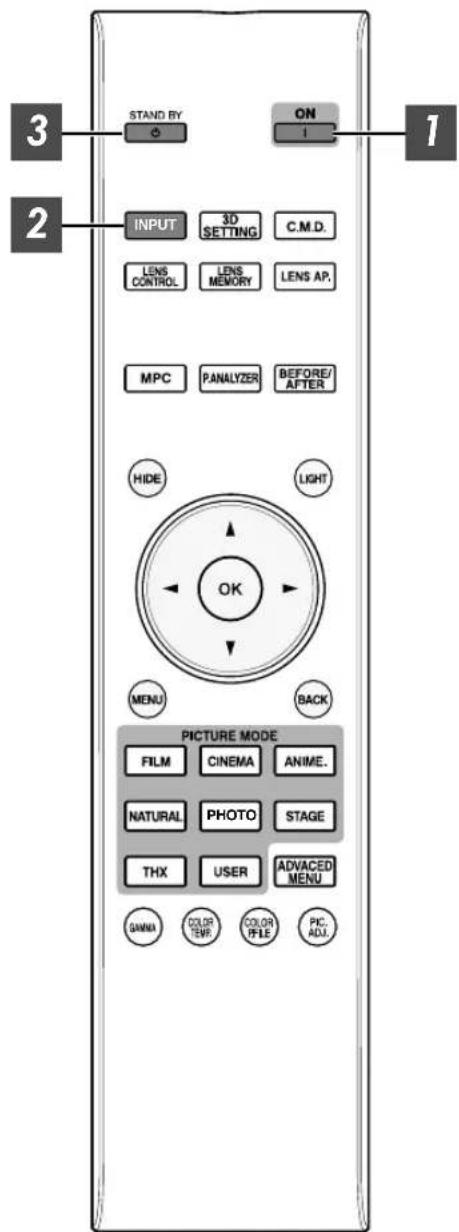
1 Turn on the power
Remote control: press the I [ON] button
Projector unit: press the O/I [STANDBY/ON] button
- The "STANDBY/ON" indicator light switches from red to green (light goes off after the unit starts up). (RS67 RS57) The motorized lens cover opens.
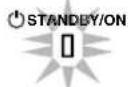
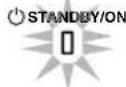
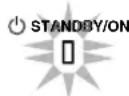
"STANDBY/ON" lights up (red) In standby state
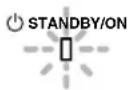
"STANDBY/ON" lights up (green) During lamp startup
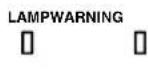
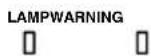
2 Choose the image to project
Pressing the [INPUT] button on the projector unit or remote control each time switches the input mode as follows.

- Play back the selected device to project the image.
To hide the image temporarily
Press the [HIDE] button on the projector unit or remote control
- The "STANDBY/ON" indicator light starts to blink in green.
- Press the [HIDE] button again to resume display of the image.
- The power cannot be turned off when the image is temporarily hidden.
3 Turn off the power
Remote control: press the [STAND BY] button.
Projector unit: press the [STANDBY/ON] button.
- While the "Are you sure you want to turn off?" message is displayed, press the button again.
- The lamp turns off, and the "STANDBY/ON" indicator switches from a green light to a red blinking light.
- After the light goes off, the fan will run for about 100 seconds to cool down the lamp (Cool-down mode). Do not disconnect the power cable while cooling is in progress. After about 100 seconds, the "STANDBY/ON" indicator switches from a blinking red to a solid red light.
"STANDBY/ON" blinking (red) In the Cool-down mode
"STANDBY/ON" lights up (red) In standby state
(RS49) Attach the lens cover. - (RS67 RS57) The motorized lens cover opens.
CAUTION
- The power cannot be turned off within approximately 60 seconds after it has been turned on.
- After the light goes off, the fan will run for about 100 seconds to cool down the lamp (Cool-down mode). Do not disconnect the power cable while cooling is in progress.
- The power cannot be turned on again while cooling is in progress (100 seconds).
- Pull out the power plug when the unit is not to be used for a prolonged period of time.
Adjusting the Projector Screen
Adjusting the Lens According to the Projection Position
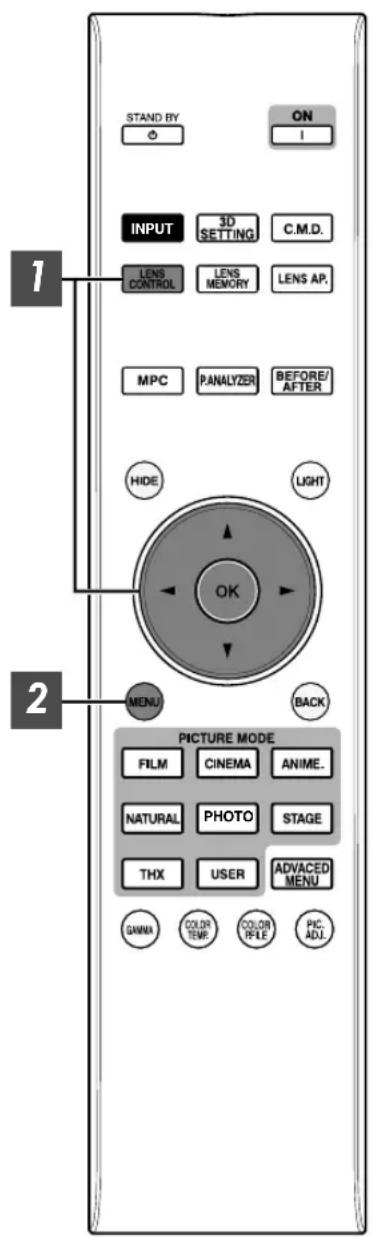
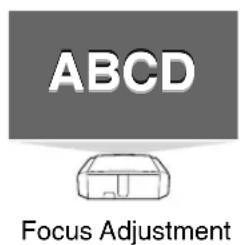
Press the [LENS CONTROL] button, and use the arrow keys to adjust Focus, Zoom (screen size), and Shift (screen position).
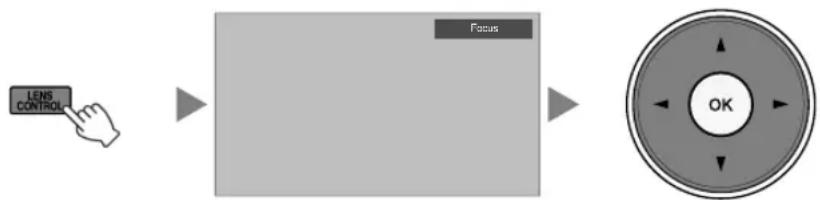
- Pressing the [LENS CONTROL] or [OK] button each time switches the mode in the following sequence:
- "Focus" → "Zoom" → "Shift" → "Focus"...
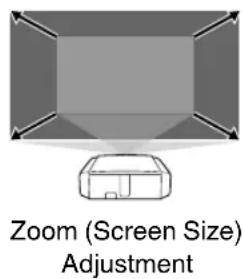
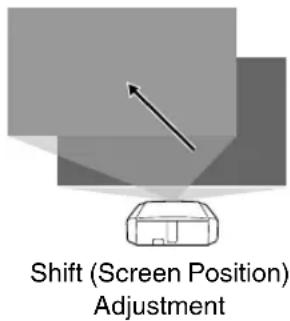
Press the [MENU] button once, or the [BACK] twice, to end adjustment.
Operation of the lens control feature is disabled when the lens lock is set to "On".
Saving and Retrieving Adjustment Settings
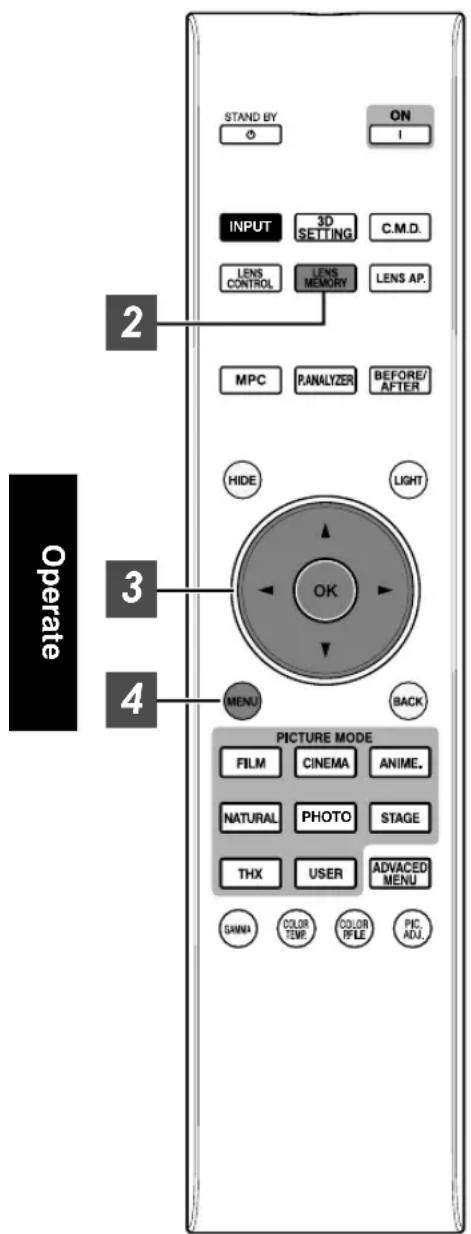
The Focus, Zoom, and Shift settings can be saved or retrieved, so you can switch easily to a different aspect ratio (screen size) according to the image.
- Pressing the [LENS MEMORY] button each time switches the mode in the following sequence: "Lens Memory Save" → "Lens Memory Select" → "Lens Memory Name Edit" → "Lens Memory Save"...
- In a state where no adjustment settings are saved (factory default), only "Lens Memory Save" is displayed.
- Operation of the lens control feature is disabled when the lens lock is set to "On".
Saving an adjustment data
Adjust focus, zoom, or shift (p. 27). Press the [LENS MEMORY] button to display "Lens Memory Save".
- You can also save adjustment data by selecting "Installation" → "Lens Control" → "Lens Memory Save" from the menu.
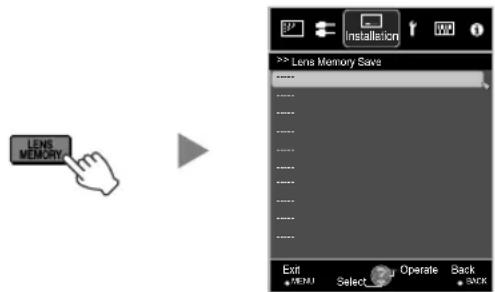
3 Select the item to save, and press the [OK] button.
The adjustment data is saved. - Items with no adjustment data saved are displayed as [-----]. - If you have selected an item for which adjustment data has already been saved, the old data will be overwritten. - You can change the name when saving an item. (p. 29) - The maximum number of items that can be saved is 10 for RS67 and 5 for RS49.
4 Press the [MENU] button to exit.
Retrieving adjustment data
Press the [LENS MEMORY] button to display "Lens Memory Select".
- Pressing the [LENS MEMORY] button each time switches the mode in the following sequence: "Lens Memory Select" → "Lens Memory Save" → "Lens Memory Name Edit" → "Lens Memory Select"...
- You can also retrieve adjustment data by selecting "Installation" → "Lens Control" → "Lens Memory Select" from the menu.
![JVC DLARS49U - Press the [LENS MEMORY] button to display "Lens Memory Select". - 1](/content/2026/03/516021/images/84fd73e91c2fc038877c489b9c983e5844571fa15b3a9d7391b8067b708fe3ed.jpg)
2 Select the adjustment data to retrieve, and press the [OK] button.
The retrieved data is adjusted automatically. - If no adjustment data has been saved, the item will be grayed out and cannot be selected.
Renaming adjustment data
Press the [LENS MEMORY] button to display "Lens Memory Name Edit".
- Pressing the [LENS MEMORY] button each time switches the mode in the following sequence: "Lens Memory Select" → "Lens Memory Save" → "Lens Memory Name Edit" → "Lens Memory Select"...
- You can also edit adjustment data by selecting "Installation" → "Lens Control" → "Lens Memory Name Edit" from the menu.
![JVC DLARS49U - Press the [LENS MEMORY] button to display "Lens Memory Name Edit". - 1](/content/2026/03/516021/images/ffd41e5ba121a619222faaaea018ff40b6653d18e71849eb8958b744aae98a44.jpg)
2 Select the adjustment data to edit, and press the [OK] button.
- An edit screen appears.
![JVC DLARS49U - Select the adjustment data to edit, and press the [OK] button. - 1](/content/2026/03/516021/images/adf3ecac682b6d3932d29f75e7563e2a6e42cdf766d32de36cf46e542125ff6e.jpg)
- You can input up to 10 characters.
- Characters that can be used include alphabets (upper or lower case), numeric characters, and symbols.
- Pressing the [Back] button cancels the content currently being edited and exits the edit mode.
3 After renaming, select "OK" and press the [OK] button.
4 Press the [MENU] button to exit.
Adjusting Image Quality Automatically According to the Viewing Environment
By configuring "Environment Setting" according to the viewing environment, image quality adjustment and correction according to environmental differences are performed automatically to minimize any influence on the image quality.
- "Environment Setting" is applied separately from the individually adjusted data.
- Screen correction cannot be performed when "Color Profile" is set to "x.v.Color".
- Front View -
Press the [MENU] button to display the menu.
RS49
Press the [ENVSETTING] button on the remote control to open the "Environment Setting" menu.
2 Select "Installation" → "Environment Setting" → "On" from the menu.
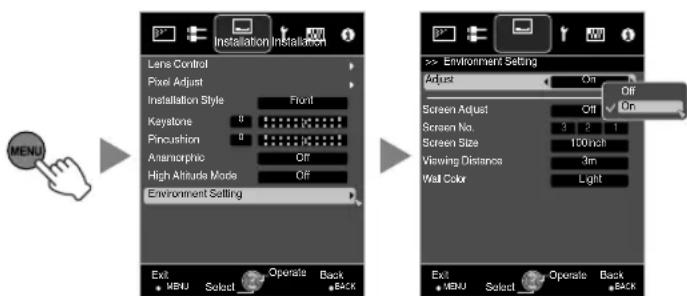
- When "Environment Setting" is set to "Off", "Screen Size", "Viewing Distance", and "Wall Color" are grayed out and cannot be selected.
3 Set Screen Adjust.
By selecting the optimal correction mode according to the characteristics of the screen in use, corrections can be performed to reproduce natural images with balanced colors.
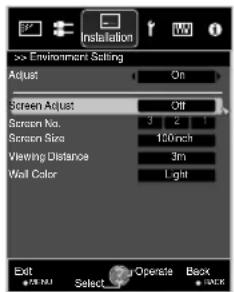
- This item is not available when "Color Profile" is set to "Off".
- Select a type from "1" to "106".
- For information on the screen and the corresponding correction mode, please visit our website.
http://www3.jvckenwood.com/english/projector/screen/
4 Select "Screen Size" to configure the screen size to use.
- Select the closest screen size setting from the range between "60inch" and "200inch" (in 10-inch increments).
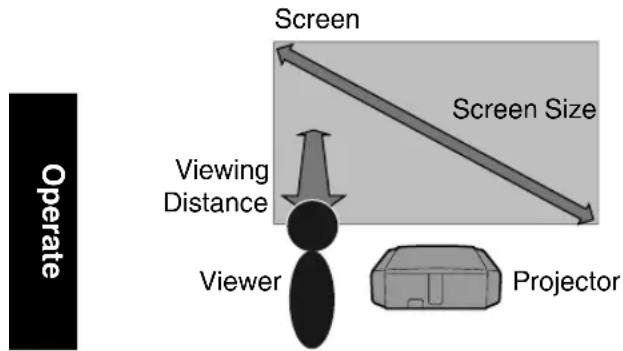
5 Select "Viewing Distance" to configure the viewing distance (distance to the screen).
- Select the closest viewing distance setting from the range between "1 m" and "10 m".
- For more details on the height, please refer to "Screen Size and Projection Distance" p. 75.
6 Select "Wall Color" to configure the wall color.
- If the wall is dark in color, select "Dark". For walls with a color other than dark color, select "Light".
7 Press the [MENU] button to exit
MEMO
- You can utilize the optional optical sensor and dedicated software to make finer adjustments. For more information on the dedicated software, please visit our website.
http://www3.jvckenwood.com/english/download/ index.html
Adjusting the Screen Size (Aspect)
The screen size of the projected image can be adjusted optimally according to the original screen size (aspect) that has been input.
Press the [MENU] button to display the menu 2 Select "Input Signal" → "Aspect" from the menu
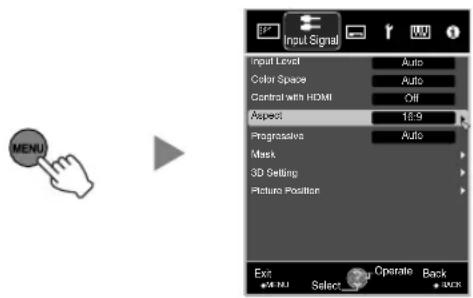
| Setting Description | ||
| 4:3 Sets the screen size to 4:3. For HD signals, the two sides are reduced. | Displayed only during video signal input. | |
| 16:9 Sets the screen size to 16:9. For SD signals, the two sides are expanded. | ||
| Zoom Enlarges the entire image. * Not selectable in the case of HD signals. | ||
| Auto Positions the image at the center with the entire image enlarged. | Displayed only during PC signal input. | |
| Just Displays the input image in the actual size. | ||
| Full Fills the entire screen with the image with the size(aspect) of the input image ignored. | ||
- This item is grayed out and cannot be adjusted when there is no signal, signal is out of range, or during 3D or 4K input.
3 Press the [MENU] button to exit
Example of input image and screen size
HDMI Signal Input
| Output Image Input Image | Setting | |||
| 4:3 | 16:9 | Zoom | ||
| 4:3 | ||||
| 2.35:1 (Cinema Scope) | ||||
PC Signal Input
| Output Image Input Image | Setting | |||
| Auto | Just | Full | ||
| 1280x1024 | ||||
| 1920x1200 | ||||
Viewing 3D Movies
By using the 3D GLASSES (PK-AG1, PK-AG2, or PK-AG3) and 3D SYNCHRO EMITTER (PK-EM1 or PK-EM2), both sold separately, you can enjoy 3D video images.
- For 3D GLASSES and 3D SYNCHRO EMITTER that are compatible with this unit, please refer to "Optional Accessories" p. 11.
Installing the 3D SYNCHRO EMITTER
1. Connect the 3D SYNCHRO EMITTER to the [3D SYNCHRO] terminal on the main unit.
![JVC DLARS49U - Connect the 3D SYNCHRO EMITTER to the [3D SYNCHRO] terminal on the main unit. - 1](/content/2026/03/516021/images/f10d7b0ab747a450045cf74ea5048d9f2c862316fc75da9dfa6a343a0a6ee22b.jpg)
2. Adjust the 3D SYNCHRO EMITTER position so that the 3D GLASSES can receive signals from the 3D SYNCHRO EMITTER.
For more details, please refer to the instruction manuals for the 3D GLASSES and 3D SYNCHRO EMITTER.
Viewing 3D Movies
1. Connect an HDMI device, and turn on the power to play back the 3D video image.
- For details on how to play back 3D video images, please refer to the instruction manual of the player or recorder in use.
- When 3D signals are received, the video image switches automatically to the 3D format.
- This unit supports the following 3D formats.
- Frame packing
- Side-by-side - Top-and-bottom
- In the default setting, "3D Format" is set to "Auto" for automatic projection of 3D images.
If the image does not switch to 3D automatically
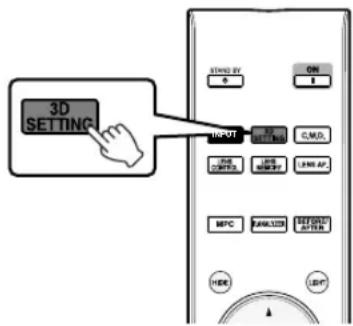
① Press the [3D SETTING] button to display "3D Setting"
② Select "3D Format"
RS49: Press the [3D FORMAT] button on the remote control
- Pressing the [3D FORMAT] button each time switches the mode in the following sequence: "Auto" → "Side by Side" → "Top and Bottom" → "2D" → "Auto"...
- You can also perform setting from "Input Signal" → "3D Setting" → "3D Format" in the menu.
| Format Description | |
| Auto The format is detected and configured automatically. | |
| Side by Side Select this is setting if the 3D input signal is of the side-by-side format. | |
| Top and Bottom Select this setting if the 3D input signal is of the top-and-bottom format. | |
| 2D Select this setting if 2D images are falsely recognized as 3D ones. |
2 Turn on the power of the 3D GLASSES and put them on
- The PK-AG1 powers on automatically.
Converting 2D Movies to 3D Movies for Viewing
Press the [3D SETTING] button to display "3D Setting"
- The [3D SETTING] button is positioned differently on the remote control depending on the model in use. (p. 17)
2 Select 2D to 3D conversion by "On", and press the [OK] button.
- You can also perform setting from "Input Signal" → "3D Setting" → "2D to 3D conversion" in the menu.
![JVC DLARS49U - Select 2D to 3D conversion by "On", and press the [OK] button. - 1](/content/2026/03/516021/images/b21dd49047de6d2308d72bf41fb6be52f7a17c0a49dab80a10313d395fcfb134.jpg)
3 Press the [MENU] button to exit
MEMO
- Depending on the movies, 3D effect may be less than what you expected.
- This item is grayed out and displayed as "Off" during 3D or 4K input.
Adjusting 3D Movies
3D video images may appear differently to different viewers. It may also be affected by your physical condition at the time of viewing.
You are therefore recommended to adjust the video images accordingly.
Press the [3D SETTING] button to display "3D Setting"
- The [3D SETTING] button is positioned differently on the remote control depending on the model in use. (p. 17)
- You can also perform setting from "Input Signal" → "3D Setting" in the menu.
Adjusting parallax (Parallax)
Adjust the displacement of the image for the left and right eyes separately to obtain the best 3D effect.
To do so, use the keys to move the cursor. - Setting range: -15 to +15
Adjusting crosstalk (Crosstalk Cancel)
Double images (overlapping of the left image with the one on the right or vice versa) can be reduced to deliver a clear quality.
To do so, use the keys to move the cursor. - Setting range: -8 to +8 - Adjustment cannot be made when "2D to 3D conversion" is set to "On".
2 Press the [MENU] button to exit
Selecting an Image Quality According to the Video Type
Setting the Picture Mode
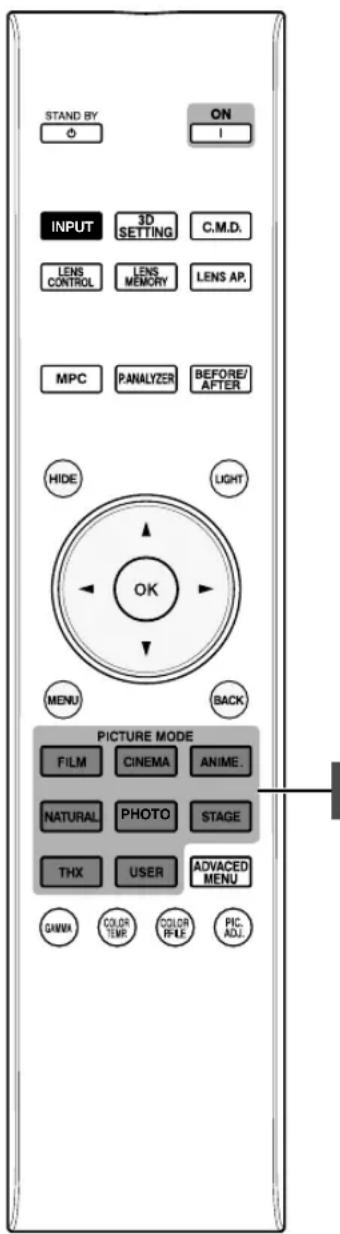
You can adjust the image quality according to the type of video image you are viewing.

Press the [PICTURE MODE] button to select "Picture Mode".
- You can also perform this setting from "Picture Adjust" → "Picture Mode" in the menu.
| Item Description | |
| Film *1 RS67 RS57 | Reproduces faithfully the texture of movie films. |
| Cinema*1 Reproduces the image in vivid colors based on the DCI standard. Suitable for all movies. *2 | |
| Animation*1 Suitable for animated works. | |
| Natural*1 | Image quality that focuses on natural color and gradation reproduction. Suitable for drama footage, etc |
| Photo*1 RS67 RS57 Setting for displaying photo images. | |
| Stage*1 Suitable for concerts or theatrical works. | |
| THX*1 RS67 RS57 Image quality certified by THX. | |
| User 1 to User 4 *3 Enables user-defined image quality data to be saved and retrieved. | |
| 4K 50/60p *4 *5 Picture mode when the input signal is “3840×2160/50Hz” or “3840×2160/60Hz”. | |
1 For Picture modes with the 1 mark, the optimal settings for 2D and 3D signals are stored separately and applied automatically according to the selected mode.
- Edited settings will also be saved separately.
- No changes will be made to the Picture mode name.
2 DCI is the abbreviation for Digital Cinema Initiatives. 3 To view videos that support the x.v.Color format, select a user setting ("User 1" to "User 4") in "Picture Mode", and set "Color Profile" to "x.v.Color". 4 When the input signal is "3840x2160/50Hz" or "3840x2160/60Hz", the picture mode is fixed at "4K 50/60p", and some functions are grayed out and cannot be adjusted. 5 This item won't be displayed when the input signal is other than "3840×2160/50Hz" or "3840×2160/60Hz".
Setting the Color Profile
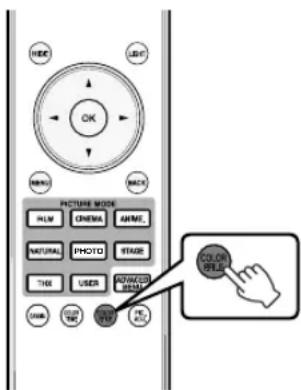
By setting the "Color Profile" (color space information) according to the "Picture Mode", you can fine-tune the image quality according to the movie you are viewing.
After configuring "Picture Mode" (p. 35), press the [COLOR P.FILE] button.
- Pressing the [COLOR P.FILE] button each time switches the "Color Profile" data for the "Picture Mode" in sequence.
- The selectable "Color Profile" settings vary according to the "Picture Mode" and also whether the signal is 2D or 3D.
- You can also perform this setting from "Picture Adjust" → "Color Profile" in the menu.
List of "Color Profile" for "Picture Mode" RS49
| Picture Mode 2D | Signal Input 3D Signa | Input Description | |
| Cinema Cinema | — | Color space suitable for all movies. | |
| Standard Standard Color space of the HDTV standard. *1 | |||
| — | 3D Cinema Color space suitable for all 3D movies. | ||
| Animation Animation | — | Color space that is suitable for animated works. | |
| Standard Standard Color space of the HDTV standard. *1 | |||
| — | 3D Animation Color space suitable for 3D animation works. | ||
| Natural Natural | — | Color space that is suitable for drama footage, etc. | |
| Standard Standard Color space of the HDTV standard. *1 | |||
| — | 3D Video Color space suitable for 3D broadcasts. | ||
| Stage Stage | — | Color space that is suitable for concerts, theatrical performances, etc. | |
| Standard Standard Color space of the HDTV standard. *1 | |||
| — | 3D Stage Color space suitable for 3D concerts, 3D theatrical works, etc. | ||
| User 1 to User 4 Standard | When "Picture Mode" is set to any of the settings from "User 1" to "User 4", you can select one of the "Color Profile" shown on the left. • See above for the description of the respective "Color Profile". | ||
| Cinema | |||
| Animation | |||
| Natural | |||
| Stage | |||
| 3D Cinema | |||
| 3D Video | |||
| 3D Animation | |||
| 3D Stage | |||
| x.v.Color*2*3 Color space that is close to that of the x.v.Color standard. | |||
| Off Disables color space adjustment. | |||
| Custom1 to Custom5 | Saves the auto calibration values. • To perform auto calibration, you need to get ready a commercially available optical sensor and a dedicated software program. For more details, please refer to our website. | ||
1 HDTV is the abbreviation for High Definition Television. 2 To view videos that support the x.v.Color format, select a user setting ("User 1" to "User 4") in "Picture Mode", and set "Color Profile" to "x.v.Color". *3 x.v.Color is a wide color space standard used in videos; it includes a wider color gamut than the HDTV standard.
List of "Color Profile" for "Picture Mode" RS67 RS57
| Picture Mode 2D Signal Input 3D Signal Input Description | |||
| Film Film 1 | — | Color space that is close to the characteristics of Eastman Kodak Company movie films. | |
| Film 2 | — | Color space that is close to the characteristics of FUJIFILM Corporation movie films. | |
| Film 3 | — | Color space suitable for digitally remastered piece of art based on a Technicolor film. | |
| — | 3D Film*1 Color space | space suitable for 3D movies recorded in film. | |
| Cinema Cinema 1 | — | Color space with rich colors that are characteristic of movies. | |
| Cinema 2 | — | Color space that is close to that of the DCI standard. | |
| Standard Standard | Color space of the HDTV standard. *2 | ||
| — | 3D Cinema Color space suitable for all 3D movies. | ||
| Animation Anime | — | Color space that is suitable for CG animation works. Ideal for animated works with bright colors. | |
| Anime 2 | — | Color space that is suitable for cel animation works. Ideal for animated works with light colors. | |
| Standard Standard | Color space of the HDTV standard. *2 | ||
| — | 3D Animation Color space suitable for 3D animation works. | ||
| Natural Video | — | Color space that is suitable for TV programs, dramas, sports programs, etc. | |
| Standard Standard | Color space of the HDTV standard. *2 | ||
| — | 3D Video Color space suitable for 3D video materials. | ||
| Photo AdobeRGB | — | Color space of the AdobeRGB standard. *3 | |
| Standard Standard | Color space of the HDTV standard. *2 | ||
| — | 3D Photo Color space suitable for 3D photo materials. | ||
| Stage Stage | — | Color space that is suitable for concerts, theatrical performances, etc. | |
| Standard Standard | Color space of the HDTV standard. *2 | ||
| — | 3D Stage Color space suitable for 3D concerts, 3D theatrical works, etc. | ||
| THX THX*4 3D THX*4 Color space of the THX standard. | |||
| User 1 to User 4 | Standard | When “Picture Mode” is set to any of the settings from “User 1” to “User 4”, you can select one of the “Color Profile” shown on the left. • See above for the description of the respective “Color Profile”. | |
| Cinema 1 | |||
| Cinema 2 | |||
| Anime 1 | |||
| Anime 2 | |||
| Video | |||
| AdobeRGB | |||
| Stage | |||
| 3D Cinema | |||
| 3D Video | |||
| 3D Animation | |||
| 3D Stage | |||
| 3D Photo | |||
| x.v.Color*5*6 | Color space of the x.v.Color standard. | ||
| Off | Disables color space adjustment. | ||
| Custom1 to Custom5 | Saves the auto calibration values. • To perform auto calibration, you need to get ready a commercially available optical sensor and a dedicated software program. For more details, please refer to our website. | ||
1 The value is fixed during 3D signal input, and selection cannot be made. 2 HDTV is the abbreviation for High Definition Television. 3 AdobeRGB is a color space with a wide gamut as defined by Adobe. Adobe is a registered trademark or trademark of Adobe Systems Incorporated in the United States and other countries. 4 Color Profile is fixed when "THX" is selected as the "Picture Mode". *5 To view videos that support the x.v.Color format, select a user setting ("User 1" to "User 4") in "Picture Mode", and set "Color Profile" to "x.v.Color". *6 x.v.Color is a wide color space standard used in videos; it includes a wider color gamut than the HDTV standard.
Adjusting to the Preferred Color (Color Management)
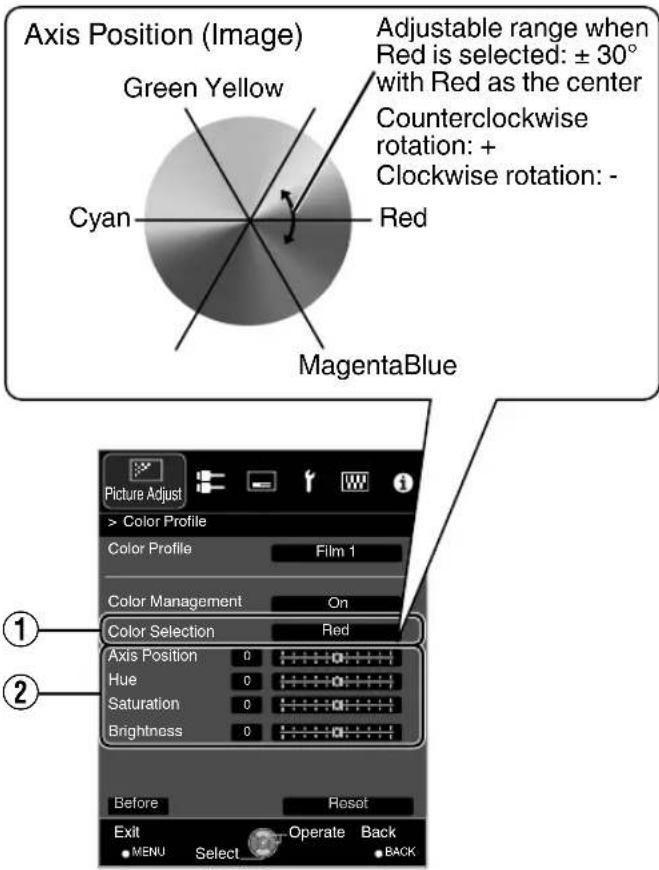
Based on the setting of the selected "Color Profile", you can adjust each of the following colors according to your preference: Red, Orange, Yellow, Green, Cyan, Blue, and Magenta.
Press the [ADVANCED MENU] button to display the "Color Profile" menu.
2 Set "Color Management" to "On", and press the [OK] button.
- You can also perform the setting from "Picture Adjust" → "Color Profile" → "Color Management" in the menu.
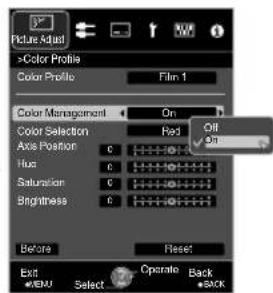
3 Adjust to the preferred color.
① Select "Color Selection", and press the keys to select the color to adjust.
- For color adjustment, select the color from the following: "Red", "Orange", "Yellow", "Green", "Cyan", "Blue", "Magenta".
② Adjust the selected color.
| Item | Setting Range | Description |
| Axis Position -30 to 30 Fine-tune the position of the central axis of the selected color. | ||
| Hue -30 to 30 Adjusts the hue (color tone). | ||
| Saturation -30 to 30 Adjusts the color saturation (vividness). -30 (dull) to +30 (vivid) | ||
| Brightness -30 to 30 Adjusts the brightness. -30 (dark) to +30 (bright) | ||
- Selecting "Reset" resets all the adjustment data.
- Pressing the [BEFORE/AFTER] button on the remote control enables you to check the image before adjustment.
4 Press the [MENU] button to exit
Adjusting Movies for Increased Expressiveness (Multiple Pixel Control)
The new image-processing algorithm developed by JVC helps to create a natural impression that is sharper at areas in focus, and softer at areas that are not in focus, enabling you to enjoy highly expressive 4K images with a greater sense of depth.
1
Press the [MPC] button to display the adjustment menu
- You can also perform setting from "Picture Adjust" → "MPC Level" in the menu.
![JVC DLARS49U - Press the [MPC] button to display the adjustment menu - 1](/content/2026/03/516021/images/240327ecb9ed6354fa513cf89616f3fea153b157de63f1bd031022dd9438ed81.jpg)
2
Make adjustments according to your preference based on the setting of the selected "Picture Mode"
- The factory setting varies with the "Picture Mode".
| Item Setting Description | ||
| 4K e-shift On (4K)/Off (2K) | Switches the display resolution. | |
| Original Resolution | Auto/4K/1080p/1080i/720p/480p | For selecting a resolution for the content you are viewing. |
| Enhance 0 to 100 Enhances the sharpness of the image. | ||
| Dynamic Contrast | 0 to 100 Enhances the contrast of the image. | |
| Smoothing 0 to 100 Enhances the blurriness of the image for a softer effect. | ||
| NR 0 to 10 For reducing the noise of the video image. | ||
- In the default "OriginalResolution" setting ("Auto"), the resolution is set automatically.
- By increasing the setting range, you can expect enhanced effects. Images are displayed in the original resolution (2K) when "4K e-shift" is set to "Off".
- The setting is fixed at "On" during 4K signal input.
- During 3D signal input and when "2D to 3D conversion" is set to "On", the setting is fixed at "Off".
- "Original Resolution", "Zone", "Enhance", "Dynamic Contrast", and "NR" can be adjusted even when "4K e-shift" is set to "Off".
- MPC is the abbreviation for Multiple Pixel Control.
3
Press the [MENU] button to exit
#
Toggling between the States before and after Adjustment
Pressing the [BEFORE/AFTER] button on the remote control enables you to toggle between the states before adjustment (BEFORE) and after adjustment (AFTER).

About the analysis screen
Pressing the [P.ANALYZER] button on the remote control displays the analysis screen. The operation varies with the state of the OSD.
Press the [P.ANALYZER] button
The frequency components of the input image are displayed.
![JVC DLARS49U - Press the [P.ANALYZER] button - 1](/content/2026/03/516021/images/09c21d65e16b113d0a5fe8fcf453c3fcf34b309b3876d865e6f2424070ade644.jpg)
The frequency components are distinguished using different colors. - When setting the "Original Resolution" manually, select "4K" if high-frequency components constitute the majority, and a lower resolution if there are more low-frequency components.
| RedYellowOrangeCyan | Blue | Purple | |
| Frequency | LowHigh |
2 Make adjustments while looking at the analysis screen
① Press the [MPC] button to display the adjustment menu. You can also perform setting from "Picture Adjust" → "MPC Level" in the menu. ② Make adjustments according to your preference based on the setting of the selected "Picture Mode".
- With the analysis screen displayed, selecting "Enhance" displays the area in "cyan" where the "Enhance" effect is applied. Pressing the [P.ANALYZER] button while "Enhance" is selected also displays the area.
- With the analysis screen displayed, selecting "Dynamic Contrast" displays the area in "yellow" where the "Dynamic Contrast" effect is applied. Pressing the [P.ANALYZER] button while "Dynamic Contrast" is selected also displays the area.
- With the analysis screen displayed, selecting "Smoothing" or "NR" displays the area in "magenta" where the "Smoothing" or "NR" effect is applied. Pressing the [P.ANALYZER] button while "Smoothing" or "NR" is selected also displays the area.
- You can make adjustments with the analysis screen displayed. Increasing the value enhances the effect and the color displayed is darker.
3 Press the [P.ANALYZER] to exit the analysis screen.
Fine-tuning the Image Quality
Adjusting the Output Value of the Projected Image (Gamma)
You can adjust the output value of the projected image with respect to the video signal input.
Example of gamma adjustment
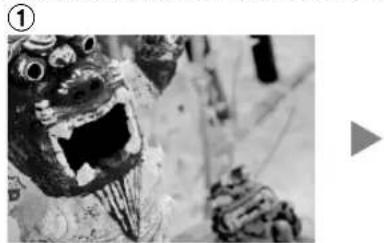
The overall image appears brighter with respect to the original image, making the dark areas more visible.
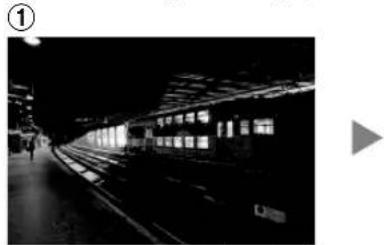
The photos are for illustrative purposes only.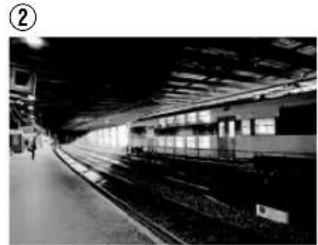
Increases the contrast with respect to the original image, creating a greater sense of depth.
The photos are for illustrative purposes only.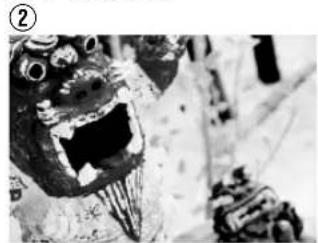
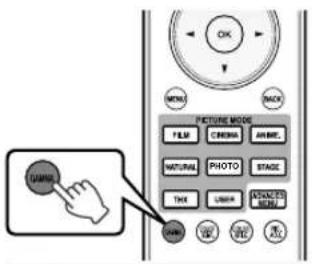
Press the [GAMMA] button.
- Pressing the [GAMMA] button each time switches the setting in sequence.
- You can also perform setting from "Picture Adjust" → "Gamma" in the menu.
- The setting value varies with the model in use, as well as the "Picture Mode".
Gamma Settings for Different "Color Profile" RS49
| Color Profile $ | electable Settings Description | |
| Standard Cinema Animation Natural Stage 3D Cinema 3D Video 3D Animation 3D Stage Off | Normal Recommended | setting for normal viewing. |
| Brightness Priority Places | more emphasis on the brightness compared to the Normal setting. | |
| Contrast Priority Places | more emphasis on the contrast compared to the Normal setting. | |
| Gradation Priority Places | more emphasis on the gradation compared to the Normal setting. | |
| Custom 1 to Custom 3 | Fine-tunes the gamma setting according to the user's preference. | |
| x.v.Color Normal | * Recommended setting for normal viewing. | |
- When "Color Profile" is set to "x.v.Color", the setting is fixed at "Normal".
Gamma Settings for Different "Color Profile" RS67 RS57
| Color Profile Selectable Settings Description | |
| Film 1 Film 1 Image | s close to the characteristics of Eastman Kodak Company movie films. |
| Film 2 Places more emphasis on the gradation compared to the "Film 1" setting. | |
| Custom 1 to Custom 3 Fine-tunes the gamma setting according to the user's preference. | |
| Film 2 Film 1 Image | s close to the characteristics of FUJIFILM Corporation movie films. |
| Film 2 Places more emphasis on the contrast compared to the "Film 1" setting. | |
| Custom 1 to Custom 3 Fine-tunes the gamma setting according to the user's preference. | |
| Film 3 Film 1 Places | emphasis on the gradation. |
| Film 2 Places emphasis on the contrast. | |
| Custom 1 to Custom 3 Fine-tunes the gamma setting according to the user's preference. | |
| 3D Film Film 1 Place | emphasis on the gradation. |
| Film 2 Places emphasis on the contrast. | |
| Custom 1 to Custom 3 Fine-tunes the gamma setting according to the user's preference. | |
| Standard Cinema 1/Cinema 2 | Normal Recommended setting for normal viewing. |
| Anime 1/Anime 2 | Brightness Priority Places more emphasis on the brightness compared to the Normal setting. |
| Video | Contrast Priority Places more emphasis on the contrast compared to the Normal setting. |
| AdobeRGB | Gradation Priority Places more emphasis on the gradation compared to the Normal setting. |
| Stage | Custom 1 to Custom 3 Fine-tunes the gamma setting according to the user's preference. |
| 3D Cinema | Recommended setting for normal viewing. |
| 3D Video | |
| 3D Animation | |
| 3D Stage | |
| 3D Photo | |
| Off | |
| x.v.Color Normal*1 | |
| THX | THX*2 Video of the THX standard. |
| 3D THX | |
1 When "Color Profile" is set to "x.v.Color", the setting is fixed at "Normal". 2 When "Color Profile" is set to "THX"/"3D THX", the setting is fixed at "THX".
Fine-tuning to the Preferred Gamma Setting
You can perform fine adjustments based on the selected gamma adjustment setting.
Press the [ADVANCED MENU] button to display the gamma menu
- You can also perform setting from "Picture Adjust"→"Gamma" in the menu.
![JVC DLARS49U - Press the [ADVANCED MENU] button to display the gamma menu - 1](/content/2026/03/516021/images/78f853947c5bf5ca997df9f51918c9b5cf4b41904db4129b4e6e61fc66f23c7a.jpg)
![JVC DLARS49U - Press the [ADVANCED MENU] button to display the gamma menu - 2](/content/2026/03/516021/images/22e2dbdcf8e092f3f49abf2e17fb2e08f4fb8dbe2e1506ef75188cc298003a1c.jpg)
2 Adjust to the preferred setting
| Item Description Setting | |
| Color Selection | Select "Color Selection", and select the color to adjust White/Red/Green/Blue |
| Picture Tone Adjusts the overall brightness automatically for a well-balanced result without compromising the gradation of the image. | -16 (darkens image for an underexposed effect) to +16 (brightens image for an overexposed effect) |
| Dark Level Adjusts the dark areas of the input image. (Each of White/Red/ Green/Blue can be adjusted.) • To do so, use the ↓ keys to move the cursor. | -7 (darkens the shadows) to +7 (brightens the shadows) |
| Bright Level Adjusts the bright areas of the input image. (Each of White/Red/ Green/Blue can be adjusted.) • To do so, use the ↓ keys to move the cursor. | -7 (darkens the highlights) to +7 (brightens the highlights) |
- Adjustment cannot be made when "Color Profile" is set to "x.v.Color".
Selecting the Default Value for Making Adjustments
- When one of "Custom 1" to "Custom 3" is selected in "Gamma", you can select a "Correction Value".
- Select "Correction Value", and press the keys to select a correction value (setting value) as a base value for adjustment.
- For details on the correction value (setting value), please refer to p. 41 and p. 42.
RS49 Normal, Brightness Priority, Contrast Priority, Gradation Priority, 1.8, 1.9, 2.0, 2.1, 2.2, 2.3, 2.4, 2.5, 2.6, import
RS67 RS57
When "Picture Mode" is set to "Film":
Film 1, Film 2, import
When "Picture Mode" is set to a value other than "Film":
Normal, Brightness Priority, Contrast Priority, Gradation Priority, 1.8, 1.9, 2.0, 2.1, 2.2, 2.3, 2.4, 2.5, 2.6, import
- The smaller the value, the brighter the dark areas of the image will become. At the same time, the bright areas will appear blown out.
- Selecting "import" enables you to import gamma data that is created externally. The factory setting for "import" is the same as the "Normal" setting.
For more details, please refer to our website.
http://www3.jvckenwood.com/projector/support/index.html

About gamma adjustment
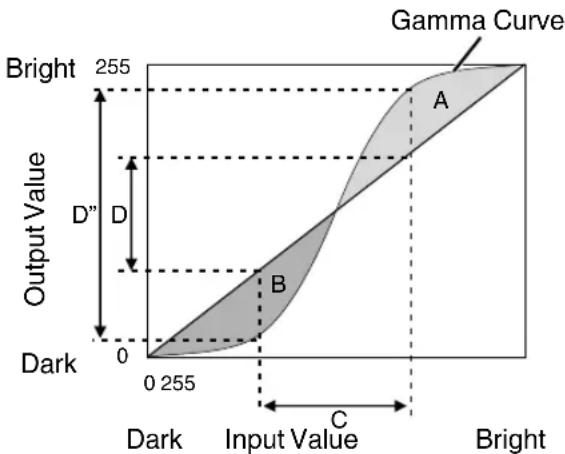
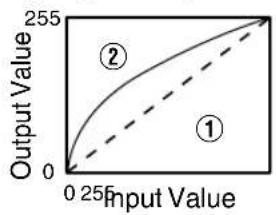
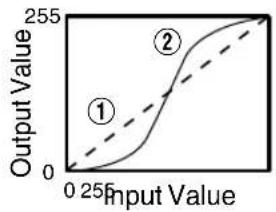
- When the gamma curve is a straight line: The brightness and contrast of the video input will be the same as that of the video output. Area for which the gamma curve is above the straight line (A): Video output appears brighter than the input. Area for which the gamma curve is below the straight line (B): Video output appears darker than the input. Area for which the slope of the gamma curve is steep (midtone) (C): The grayscale range of the video output becomes wider, and the contrast increases (D to D')
Reducing the After-image of Fast-moving Images (Clear Motion Drive (C.M.D.))
Optimal interpolation according to the content is made possible with the new high-definition image interpolation technique that supports 3D images.
For some scenes, interpolation may cause distortion in the image. In this case, set to "Off".
Original Image
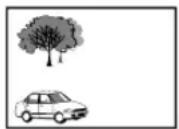

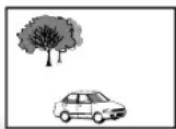

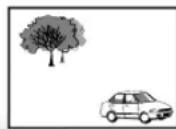
Interpolation Enabled
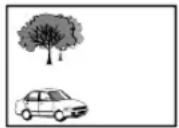
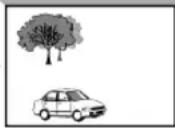
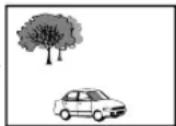
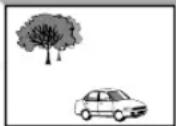
Intermediate Frame Generation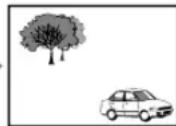
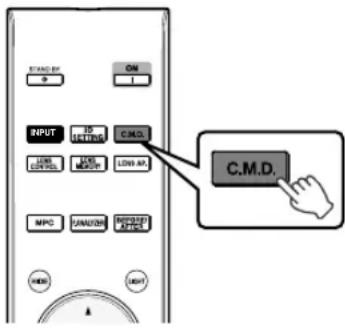
1 Press the [C.M.D.] button
- Pressing the [C.M.D.] button each time switches the mode in the following sequence: "Off" → "Low" → "High" → "Inverse Telecine" → "Off"...
| Setting Description | |
| Off Interpolation is not performed. | |
| Low Softens the image quality. | |
| High Image quality becomes softer than that of the “Low” setting. | |
| Inverse Telecine 60i/60p | video images such as those of TVs and DVDs. Suitable for original images that are 24-frame film sources. • Does not function for 24p video images. |
- C.M.D. is the abbreviation for Clear Motion Drive.
- The [C.M.D.] button is positioned differently on the remote control depending on the model in use. (p. 17)
Viewing High Contrast Images (Lens Aperture)
JVC has developed an image analysis algorithm, which analyzes the state of the video image in real time, and controls the aperture dynamically according to the image information.
This technology enables viewers to enjoy video images with enhanced contrast.
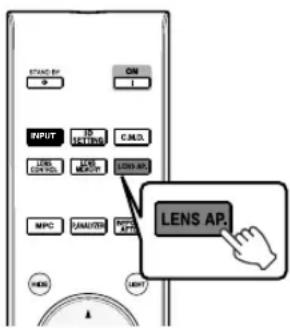
Press the [LENS AP.] button
Pressing the [LENS AP.] button each time switches the setting in sequence.
| Setting Description | |
| Auto 1 Image contrast is enhanced. | |
| Auto 2 Places emphasis on the gradation. | |
| Manual Does not perform dynamic control. Select this setting to perform adjustment manually. |
1 Manual adjustment is disabled in the "Auto 1" and "Auto 2" setting. To perform adjustment manually, select "Manual". 2 When the setting is changed to Auto after performing manual adjustment, the value set manually will be used as the aperture value for Auto.
Adjustments and Settings in the Menu
Pressing the [MENU] button displays the menu.
Press the [▲▼▲] keys to select an item, followed by pressing the [OK] button to confirm the selection.
List of Menu Items
Picture Adjust
▶ Picture Mode . p. 35
→ Clear Black . p. 47 → Lamp Power p.47 → Lens Aperture p. 47 → User Name Edit . p. 47
Color Profile . p. 36 Color Management . 48 Color Temp. p. 48 ▷ Gamma p. 41 Picture Tone . p. 48 Dark Level/Bright Level p. 48 ▷ MPC Level p. 39 Clear Motion Drive p. 44 ▷ Brightness p. 49 ▷ Contrast p. 49 Color . p. 49 Tint p. 50
Input Signal
▶ Input Level p. 50 Color Space p. 50 ▷ Control with HDMI . p. 50 ▷ Aspect p.51 ▷ Progressive p. 51 ▷ Mask . p. 51 3D Setting p. 32 ▶ Picture Position p. 51
Installation
▷ Lens Control . p. 27 → Focus . p. 27 → Zoom . p. 27 → Shift . p. 27 → Image Pattern . p. 52 → Lock . p. 52 → Lens Memory Select . p. 28 → Lens Memory Save . p. 28 → Lens Memory Name Edit . p. 28 → Lens Center . p. 52 → Lens Cover RS67 RS57 p. 52 ▶ Pixel Adjust p. 53 Installation Style p. 54 Keystone . p. 54 ▶ Pincushion . p. 54 Anamorphic p. 54 High Altitude Mode p. 54 ▷ Environment Setting p. 30 → Screen Adjust. p. 30
Display Setup
Back Color . p. 58 ▶ Menu Position . p. 58 Signal Display . p. 58 ▶Logo p. 58 ▶ Language p. 58
Function
Trigger p.59 ▷ Off Timer p.59 ECO Mode p.59 Network p. 59 Remote Code . p. 60 ▷ Lamp Reset . p. 63
Information
Information p.60
Picture Adjust
Picture Mode
You can adjust the image quality according to the type of video image you are viewing.
→ "Setting the Picture Mode" (p. 35)
Clear Black
Adjusts the difference in brightness in an image electrically to produce an image with contrast.
| Setting Description | |
| Off Does not perform correction. | |
| Low Mode with a mild effect. | |
| High Mode with a strong effect. |
Lamp Power
The brightness of the lamp can be set to "Low" or "High".
- The factory setting varies with the "Picture Mode".
- Continuous use at the "High" setting may cause the lamp to darken faster.
Lens Aperture
JVC has developed an image analysis algorithm, which analyzes the state of the video image in real time, and controls the aperture dynamically according to the image information.
This technology enables viewers to enjoy video images with enhanced contrast.
Viewing High Contrast Images (Lens Aperture) (p. 44)
- Stopping down the aperture reduces the brightness and increases the contrast.
- Setting range: -15 (stops down) to 0 (opens up)
UserID Edit
You can edit the "User 1" to "User 4" names in the Picture mode.
- Characters that are usable include alphabets (upper or lower case), numeric characters, and symbols.
- Enter not more than 10 characters.
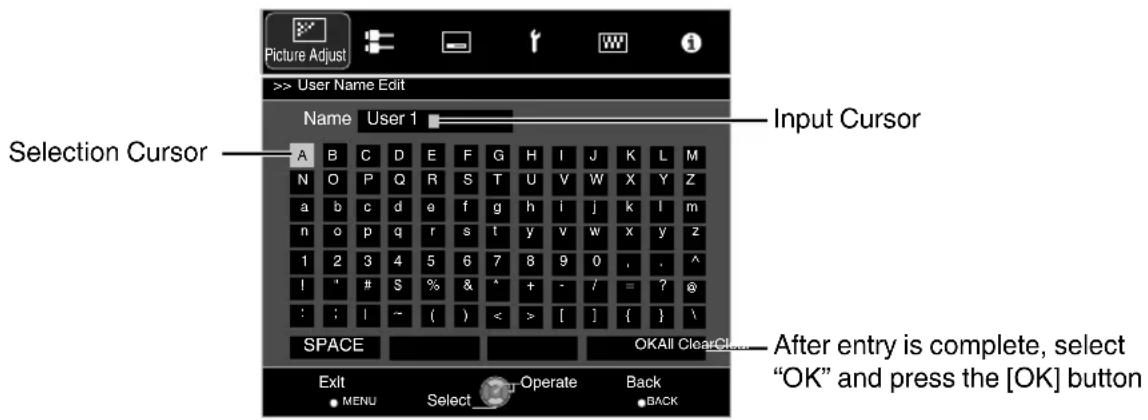
Color Profile
By setting the "Color Profile" (color space information) according to the "Picture Mode", you can fine-tune the image quality according to the movie you are viewing.
See "Setting the Color Profile" (p. 36).
Color Management
Each of the colors is adjustable according to the user's preference.
See "Adjusting to the Preferred Color (Color Management)" (p. 38).
Color Temp.
For setting the color temperature of the video image.
- When "Picture Mode" is set to "THX" and when "Color Profile" is set to "x.v.Color", the setting is fixed at 6500K.
- When "Picture Mode" is set to "4K 50/60p", offset cannot be adjusted.
Preset
| Setting Description | |
| Xenon 1 to Xenon 3 RS67 RS57 * Selectable when “Picture Mode” is set to “Film” or “Cinema”. | Color temperature that reproduces the characteristics of a xenon lamp used in cinemas. • Xenon 1: A light source color that is emitted by a film projector • Xenon 2: A light source color emitted by a projector used for digital cinema • Xenon 3: A light source color that looks cooler than that of “Xenon 2” |
| 5500K to 9500K (9 levels in increments of 500K) | Increasing the value enhances the blue tone of the video image, while decreasing the value enhances the red tone. |
| Custom 1 to Custom 3 The color temperature | of video images can be adjusted manually and saved as one of the three customized settings. |
| High Bright Color temperature that gives priority to brightness. | |
Custom
| Setting Description | |
| Gain Red, Gain Green, Gain Blue Adjusts each | color in the bright parts of the video image. • Setting range: -255 (reduces the red/green/blue tone) to 0 (enhances the red/green/blue tone) |
| Offset Red, Offset Green, Offset Blue Adjusts | each color in the dark areas of the video image. • Setting range: -50 (reduces the red/green/blue tone) to +50 (enhances the red/green/blue tone) |
Gamma
You can adjust the output value of the projected image with respect to the video signal input.
Adjusting the Output Value of the Projected Image (Gamma) (p. 41)
Picture Tone
Adjusts the overall brightness automatically for a well-balanced result without compromising the gradation of the image.
"Fine-tuning to the Preferred Gamma Setting" (p. 43)
Dark Level/Bright Level
You can adjust the image quality to produce a sharp contrast in the brightness.
"Fine-tuning to the Preferred Gamma Setting" (p. 43)
MPC Level
You can enjoy natural, expressive 4K images with a stronger sense of depth.
"Adjusting Movies for Increased Expressiveness (Multiple Pixel Control)" (p. 39)
4Ke-shift
Switches the display resolution.
- Setting values: On (4K), Off (2K)
Original Resolution
For selecting a resolution for the content you are viewing.
- Setting values: Auto, 4K, 1080p, 1080i/720p, and 480p
- The default "Original Resolution" setting is "Auto", which switches the resolution automatically according to the type of signal input.
Enhance
For adjusting the high-frequency areas. Increasing the value enhances the definition for a sharper image quality.
- Setting range: 0 to 100
Dynamic Contrast
For adjusting the medium-frequency areas. Increasing the value enhances the contrast for a more dynamic image quality.
- Setting range: 0 to 100
Smoothing
For adjusting the low-frequency areas. Increasing the value enhances the blurriness of the image for a softer effect.
- Setting range: 0 to 100
NR
Prevents noise from becoming too pronounced.
- Setting range: 0 (weak) to 10 (strong)
Clear Motion Drive
For reducing the after-image, which occurs in a fast-moving scene.
See "Reducing the After-image of Fast-moving Images (Clear Motion Drive (C.M.D.))" (p. 44)
Brightness
For adjusting the brightness of the video image.
- Setting range: -50 (darker) to +50 (brighter)
- Adjustment cannot be made when "Color Profile" is set to "x.v.Color".
Contrast
For adjusting the difference in brightness to produce an image with contrast.
- Setting range: -50 (little difference in brightness) to +50 (large difference in brightness)
- Adjustment cannot be made when "Color Profile" is set to "x.v.Color".
Color
For adjusting the color density of the video image.
- Setting range: -50 (lighter) to +50 (deeper)
- Adjustment cannot be made when "Color Profile" is set to "x.v.Color".
Tint
For adjusting the hue of the video image.
- Setting range: -50 (reddish) to +50 (greenish)
- Adjustment cannot be made when "Color Profile" is set to "x.v.Color".
Input Signal
Input Level
For setting the dynamic range (gradation) of the video input.
- If the dynamic range is not appropriate, the bright areas become overexposed, and the dark areas become underexposed.
| Setting Description | |
| Auto Sets the input signal level automatically. | |
| Standard Select this setting if you are inputting video signals (dynamic range: 16 - 235). | |
| Enhanced Select this setting if you are inputting PC signals (dynamic range: 0 - 255). | |
| Super White Select this setting when inputting Super White-compatible device signals (dynamic range: 16 - 255). |
- When Picture Mode is set to "THX", the setting is fixed at "Super White".
Color Space
For setting the color space of the input signal.
| Setting Description | |
| Auto Detects “YCbCr(4:4:4)”, “YCbCr(4:2:2)”, and “RGB” automatically. | |
| YCbCr(4:4:4) Select this setting when inputting YCbCr(4:4:4) video signals. | |
| YCbCr(4:2:2) Select this setting when inputting YCbCr(4:2:2) video signals. | |
| RGB Select this setting when inputting RGB video signals. |
- The color space setting is YCbCr(4:2:0) during 3840 × 2160/50 Hz and 3840 × 2160/60 Hz input.
Control with HDMI (CEC)
For setting the HDMI link function.
- Setting to "On" enables this unit to be operated via operation on the connected device, such as power on/off and switching of input.
Aspect
The screen size of the projected image can be adjusted optimally according to the original screen size (aspect) that has been input.
→ "Adjusting the Screen Size (Aspect)" (p. 31)
Progressive
For converting the interpolation setting of the interlaced signals.
| Setting Description | |
| Auto Performs interpolation by automatically detecting whether the interlaced signals are converted from 24p video images, such as those in film movies, or interlaced signals of video materials. | |
| Off Interpolates video images as interlaced signals of video materials, etc. | |
Mask
For hiding the peripheral area of the image with a mask (black strip).
Off
| Setting Description | |
| Off Not masked. | |
| 2.5% Masks about | 2.5% of the peripheral area of the image. |
| 5% Masks about 5. | 0% of the peripheral area of the image. |
| Custom Masks about | 0% to 5% of the four sides of the image. |
■ On
Mask: black strip around the periphery
3D Setting
For setting 3D movies for viewing.
Viewing 3D Movies (p. 32)
Picture Position (Horiz./Vert.)
Adjust the position if the edges of the image are partially missing due to the timing of horizontal and vertical synchronization signals.
- Adjustment cannot be made during 3D signal input.
Installation
Lens Control
Focus / Zoom / Shift
For adjusting the lens according to the projection position
See "Adjusting the Lens According to the Projection Position" (p. 27).
Image Pattern
| Setting Description | |
| On Displays the lens adjustment pattern. | |
| Off Displays external signals, and does not display the lens adjustment pattern. | |
Lock
| Setting Description | |
| On Locks the lens to prevent any erroneous operation on the adjustments. • Operation of the lens control feature is disabled when “On” is selected. | |
| Off Does not lock the lens. | |
Lens Memory Select / Lens Memory Save / Lens Memory Name Edit
The Focus, Zoom, and Shift settings can be saved or retrieved, so you can switch easily to a different aspect ratio (screen size) according to the image.
See "Saving and Retrieving Adjustment Settings" (p. 28).
Lens Center
Returns the lens position to the center.
Lens Cover RS67 RS57
| Setting Description | |
| Auto Opens/closes the lens cover | according to the power on/off operation. |
| Open Leaves the lens cover open | regardless of the power on/off mode. |
Pixel Adjust
Adjust
For setting the adjustment feature to On (Memory 1 or Memory 2) or Off.
- You can save the settings separately when an anamorphic lens is used and when you are using the projector with a screen.
Adjust Area
| Setting Description | |
| Whole Adjusts the entire image. | |
| Zone Enables fine adjustment of each zone by dividing the screen into 11 vertical x 11 horizontal zones. | |
Adjust Color
For selecting the color to adjust ("Red" or "Blue").
Adjust Pattern Color
For setting the adjustment pattern color to "White" or "Yellow / Cyan".
Adjust(Pixel)
When "Adjust Area" is set to "Whole", adjustment can be made by moving in units of one pixel on the screen of the color selected in "Adjust Color".
Whole Adjust (Pixel) Operation Procedure" (p. 55)
- Adjustment cannot be made when "Adjust Area" is set to "Zone".
| Setting Description | |
| H (Horizontal) Setting range: -2 (moves red/blue to the left) to +2 (moves red/blue to the right) | |
| V (Vertical) Setting range: -2 (moves red/blue downward) to +2 (moves red/blue upward) |
Adjust(Fine)
When "Adjust Area" is set to "Whole", adjustment can be made by moving in units of 1/16 pixel on the screen of the color selected in "Adjust Color".
Whole Adjust (Fine) Operation Procedure" (p. 56)
When "Adjust Area" is set to "Zone", the screen is divided into 11 vertical x 11 horizontal zones, and fine adjustment of each zone is possible.
See "Zone Adjust Operation Procedure" (p. 57).
| Setting Description | |
| H (Horizontal) Setting range: -31 (moves red/blue to the left) to +31 (moves red/blue to the right) | |
| V (Vertical) Setting range: -31 (moves red/blue downward) to +31 (moves red/blue upward) |
Reset
Restores all pixel adjustment data to the factory default.
Installation Style
For setting to "Front", "Ceiling Mount (F)", "Rear", or "Ceiling Mount (R)" according to the installation status of the projector.
- "Front" or "Ceiling Mount (F)" is set when projector is installed in the front with respect to the screen.
- "Rear" or "Ceiling Mount (R)" is set when projector is installed in the rear with respect to the screen.
Keystone
For correcting any keystone distortion that occurs when the projector is installed at an angle with respect to the screen.
Vertical setting range: -16 to +16. Increasing the value changes the aspect slightly. When "Pincushion" is set, "Keystone" is grayed out and cannot be adjusted.
Pincushion
For correcting distortion of the projection screen that occurs when projecting the image on a curved screen.
- Setting range: 0 to 16
- When "Keystone" is set, "Pincushion" is grayed out and cannot be adjusted.
Anamorphic
Configure this setting when an anamorphic lens is used.
| Setting Description | |
| A Projects the 2.35:1 image with it | stretched in the vertical direction only. |
| B Projects the 16:9 image with it compressed in the horizontal direction only. | |
| Off Projects the 2.35:1 image without any changes. | |
High Altitude Mode
Set to "On" when using the projector at a location of low atmospheric pressure (higher than 900 m above sea level).
Environment Setting
By configuring "Environment Setting" according to the viewing environment, image quality adjustment and correction according to environmental differences are performed automatically to minimize any influence on the image quality.
-> "Adjusting Image Quality Automatically According to the Viewing Environment" (p. 30)
Screen Adjust
By selecting the optimal correction mode according to the characteristics of the screen in use, corrections can be performed to reproduce natural images with balanced colors.
-> "Set Screen Adjust" (p. 30)
A frame as shown on the right appears at the center (gradation is accentuated in the illustration, but not in the actual image).
The current black tone is displayed on the right side. Adjust accordingly until the boundary line with the left frame is no longer noticeable.
Whole Adjust (Pixel) Operation Procedure
For making general adjustments to slight color fringing in the horizontal/vertical directions of the video image.
① Set "Adjust Area" to "Whole". ② Select "Adjust Color" and "Adjust Pattern Color". ③ Select "Adjust (Pixel)", and press the [OK] button.
- The selected adjustment pattern and Adjustment (Pixel) window are displayed.
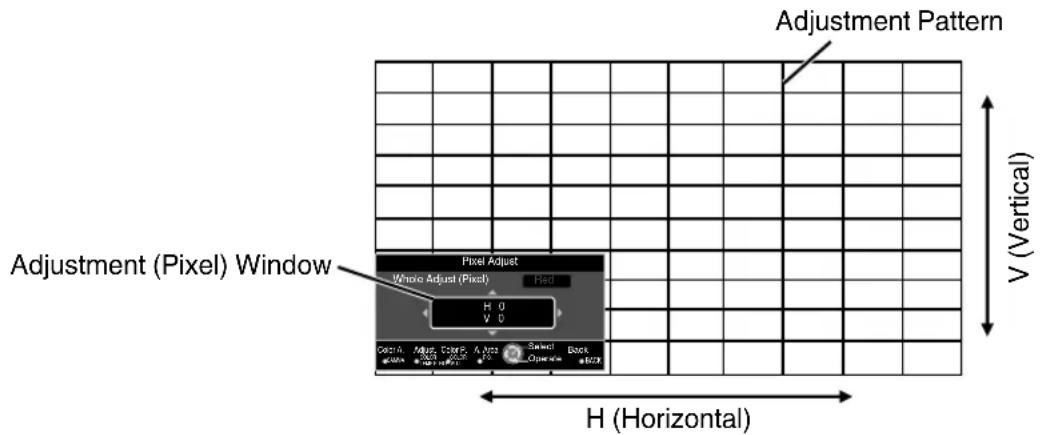
④ Press the [OK] button to enter the Adjustment mode. Use the [▲▼▲] keys to move and adjust the pixels in the vertical and horizontal directions across the entire screen.
- The adjustment setting appears at the center of the Adjustment (Pixel) window.
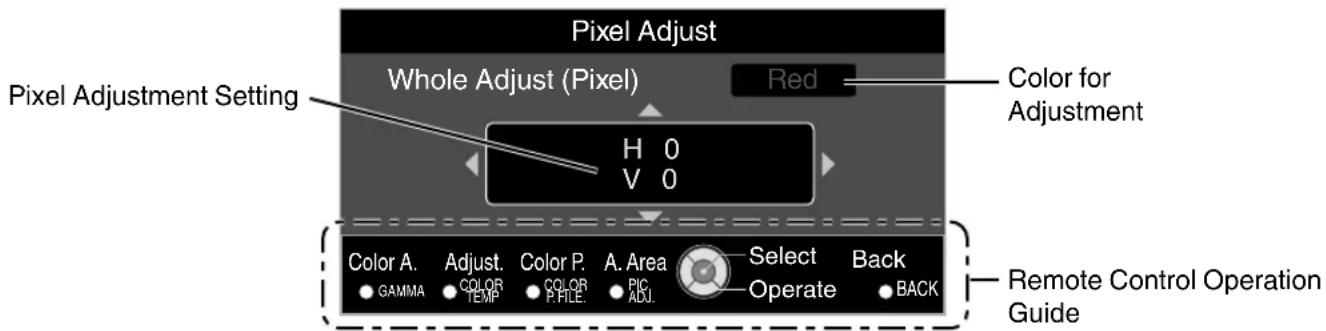
⑥ After adjustment is complete, press the [BACK] button to exit the Adjustment mode.
Remote Control Operation Guide
| Button Name Description of Operation |
| [GAMMA] Changes “Adjust Color”. |
| [COLOR TEMP.] Switches between “Adjust(Pixel)” and “Adjust(Fine)”. • Switches to “Adjust(Pixel)” when “Adjust Area” is set to “Zone”. |
| [COLOR P.FILE] Changes “Adjust Pattern Color”. |
| [PIC ADJ.] Switches “Adjust Area”. • A zone cursor appears on the adjustment pattern when the “Zone” setting is selected. |
Whole Adjust (Fine) Operation Procedure
For making general adjustments on the misalignment of the entire screen using "Adjust (Pixel)", followed by making fine adjustments.
① Set "Adjust Area" to "Whole". ② Select "Adjust Color" and "Adjust Pattern Color". ③ Select "Adjust (Fine)", and press the [OK] button.
- The selected adjustment pattern and Fine window are displayed.
- The adjustable range may be smaller depending on the pixels being adjusted on the entire screen.
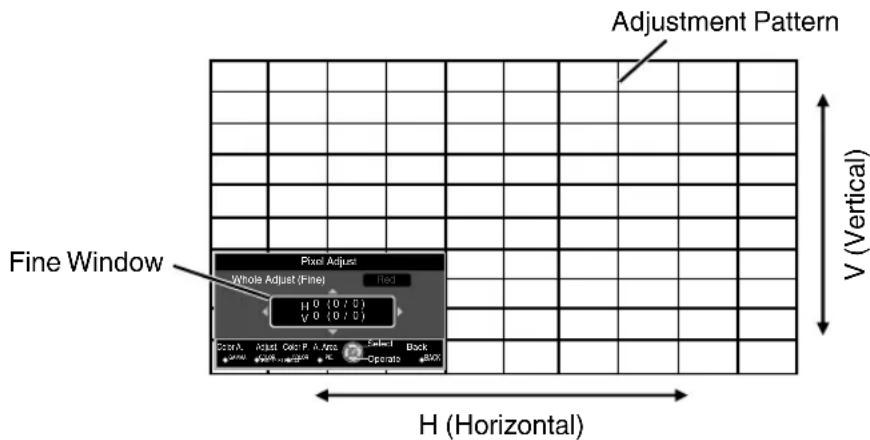
④ Press the [OK] button to enter the Adjustment mode. Use the [▲▼▲] keys to move and adjust the pixels in the vertical and horizontal directions across the entire screen.
- The adjustment setting appears at the center of the Fine window.
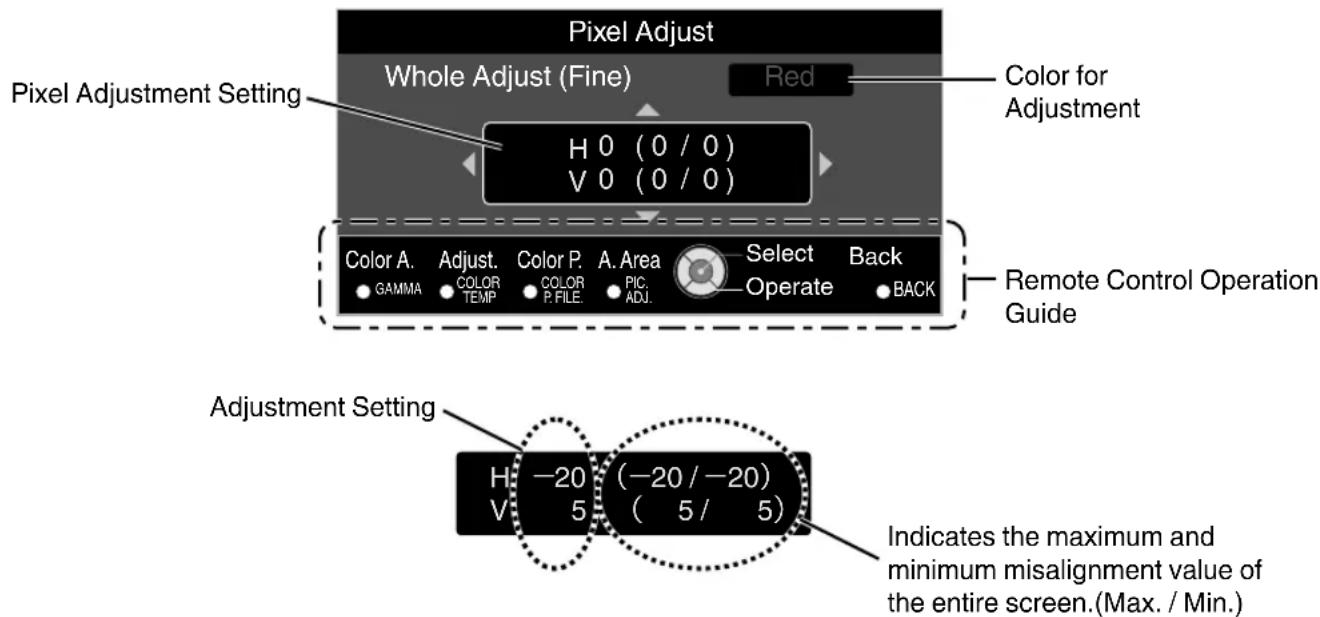
⑥ After adjustment is complete, press the [BACK] button to exit the Adjustment mode.
MEMO
- If both the maximum overall screen misalignment of H (horizontal direction) and V (vertical direction) are "31", you cannot select a value that is larger than the displayed setting even when the adjustment setting is lower than the maximum value.
- If the minimum overall screen misalignment is "31", you cannot select a value that is smaller than the displayed setting even when the adjustment setting is higher than the minimum value.
Zone Adjust Operation Procedure
For fine-tuning misalignments on a part of the screen after adjusting the overall screen misalignment using "Adjust(Pixel)" and "Adjust(Fine)".
- The screen can be divided vertically and horizontally into 10 sections for partial adjustments to be made.
① Set "Adjust Area" to "Zone" ② Select "AdjustColor" and "AdjustPatternColor" ③ Select Adjust(Fine), and press the [OK] button
- The selected adjustment pattern and Zone Adjustment window are displayed.
- The adjustable range may be smaller depending on the pixels being adjusted on the entire screen.
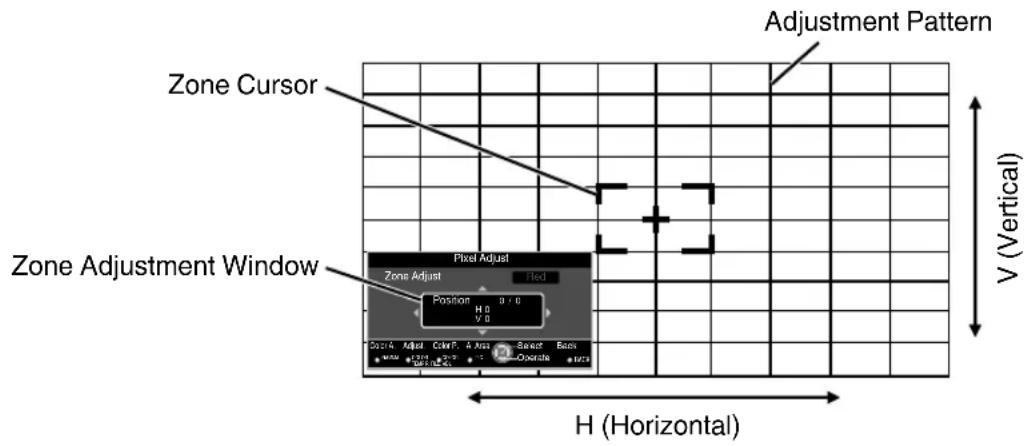
④ Press the [▲▼▲] keys to move the cursor to the point to be adjusted ⑤ Press the [OK] button to enter the Adjustment mode Use the [▲▼◆] keys to move and adjust the pixels in the vertical and horizontal directions across the entire screen.
- The adjustment setting appears at the center of the Zone Adjustment window.
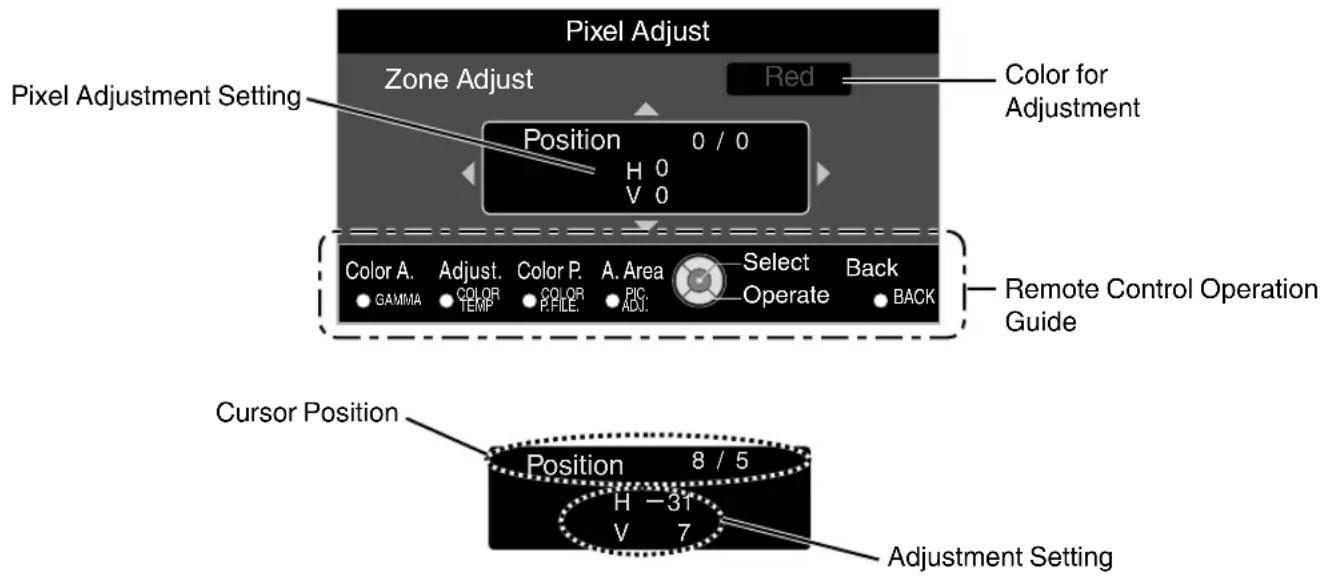
⑦ After adjustment is complete, press the [BACK] button to exit the Adjustment mode
Display Setup
Back Color
For setting the color of the background to "Blue" or "Black" when there is no signal input.
Menu Position
For setting the display position of the menu.
Signal Display
| Setting Description | |
| On Shows the input terminal for 5 seconds when input is switched. | |
| Off Not displayed. | |
Logo
| Setting Description | |
| On Displays the “D-ILA” logo for 5 seconds during startup. | |
| Off Not displayed. | |
Language
For setting the display language to "Japanese", "English", "German", "Spanish", "Italian", "French", "Portuguese", "Dutch", "Swedish", "Norwegian", "Russian", "Chinese", or "Traditional Chinese".
Function
Trigger
For setting whether to supply a 12 V output to devices such as an external screen equipped with a trigger function.
Off Timer
| Setting Description | |
| Off No output. | |
| On (Power) Outputs control signals | (12 V) from the trigger terminal when the power is turned on. • After the power is turned off, output stops when the unit shifts to the Standby mode after cooling is complete. • You can also output signals in the Standby mode by pressing the [OK] button. |
| On (Anamo) Outputs control signals | when the “Anamorphic” setting is switched from “Off” to “A” or “B”. |
For setting the duration before the power turns off automatically when the projector is not operated.
- Setting values: "1 Hour", "2 Hours", "3 Hours" and "4 Hours"
ECO Mode
For setting the "ECO Mode", which reduces power consumption when the projector is in the standby state.
Network
| Setting Description | |
| On Minimizes power consumption | in the Standby mode. • If there is no signal transmission and operation for 30 minutes while an image is projected, the power is turned off automatically. |
| Off Set to “Off” if RS-232C / LAN co | communication is performed or the HDMI link function is used in the Standby mode. |
Specify the settings below during external control such as from a PC or smartphone.
| Setting Description | ||
| DHCP Client On Obtains the IP address automatically from the DHCP server inside the connected network. | ||
| Off For configuring the network settings manually. | ||
| IP Address For configuring the IP address. | ||
| Subnet Mask For configuring the subnet mask. | ||
| Default Gateway For configuring the default gateway. | ||
| MAC Address Displays the MAC address of the unit. | ||
| Set Applies the network settings. | ||

Glossary of Network Terminology
DHCP: Abbreviation for
Dynamic Host Configuration Protocol. This is a protocol for the network to address automatically to the connected device.
IP Address : Numeric characters for identifying the device that is connected to the network.
Subnet Mask : Numeric characters that define the bit count used for the network address that is a segment of the IP address.
Default Gateway : Server for communicating beyond the network that is divided by the subnet mask.
MAC Address : Abbreviation for Media Access Control address. This is a number that is unique to each network adapter. Each of the network adapters is assigned with a unique MAC address.
Remote Code
For changing the remote control code.
- You need to configure the remote control according to the settings of this unit.
On the remote control unit, press the [MENU] and [BACK] buttons at the same time for three seconds or longer to switch the code.
- The backlight of the remote control blinks 3 times: change the remote control code to "A"
- The backlight of the remote control blinks 2 times: change the remote control code to "B"
| Setting Description | |
| A Change the remote control code | from “B” to “A”. |
| B Change the remote control code | from “A” to “B”. |
Lamp Reset
For resetting the lamp time to "0".
$ \rightarrow$ "Resetting the Lamp Time" (p. 63)
Information
| Setting Description | |
| Input Displays video input terminal. | |
| Source (Displayed only during video signal input) | Displays the input source. |
| Resolution (Displayed only during PC signal input) | Displays the image resolution. |
| H Frequency (Displayed only during PC signal input) | Displays the horizontal frequency. |
| V Frequency (Displayed only during PC signal input) | Displays the vertical frequency. |
| Deep Color Displays the color bit depth of the input video signal. ·Not displayed when YCbCr(4:2:2) is input. ·Displayed when Deep Color information is received from the source device. | |
| Color Space Displays the color space of the input signal. | |
| Lamp Time Displays the lamp time. | |
| Soft Ver. Displays the firmware version. | |
| PS Ver. | Displays the version of image quality data. |
Replacing the Lamp
The lamp is a consumable item. If the image appears dark or the lamp goes out, replace the lamp unit.
- When the lamp replacement time approaches, the user is notified with a message displayed on the screen and by the indicator. (p. 78)
Lamp Replacement Procedure

CAUTION
- Do not insert your hands into the opening of the lamp. This could cause significant deterioration in the performance of the equipment, or lead to injury and electric shock.
- Do not replace the lamp immediately after the unit has been used. Allow a cooling period of at least one hour before replacement. The temperature of the lamp is still high, and may cause burn injuries.
- Do not subject the lamp unit to shock. Doing so may cause lamp blowout.
- Do not use a flammable air duster to clean the internal parts of the unit. Doing so may cause fire.
- Use only genuine replacement parts for the lamp unit. Also, never attempt to reuse an old lamp unit. This may cause the unit to malfunction.
- Do not touch the surface of a new lamp. Doing so may shorten the lamp life and cause lamp blowout.
- When replacing the lamp, be careful not to injure yourself as the lamp may be broken.
- When replacing the lamp of a projector suspended from the ceiling, work at height is required. This is a dangerous operation. Please consult our service center.

Pull out the power plug from the power outlet.

Remove the lamp cover.
- Remove the screw of the lamp cover with a screwdriver.
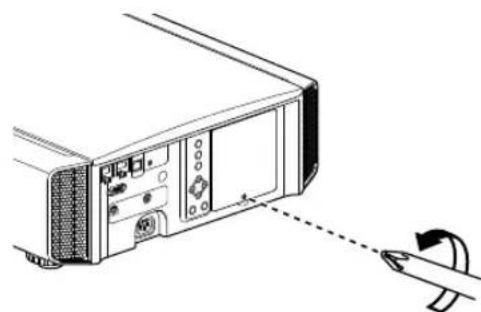

Loosen the screws of the lamp unit.
- Loosen the screws with a screwdriver.
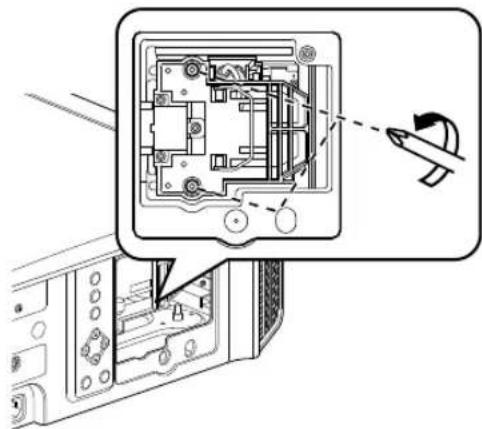

Pull out the lamp unit.
- Grasp the handle and pull out the lamp unit.
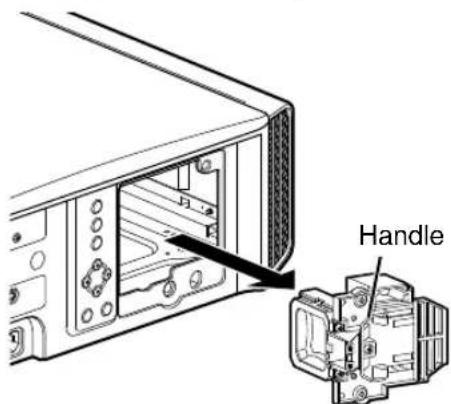
5 Install the new lamp unit.
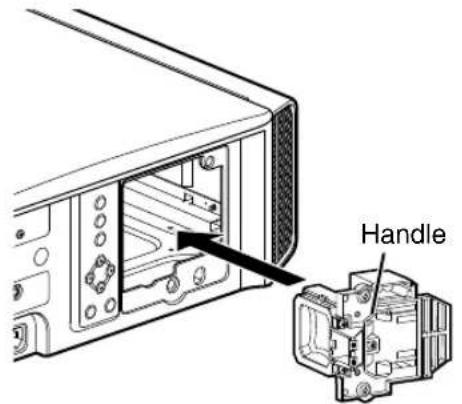
6 Tighten the screws of the new lamp unit.
- Tighten the screws with a screwdriver.
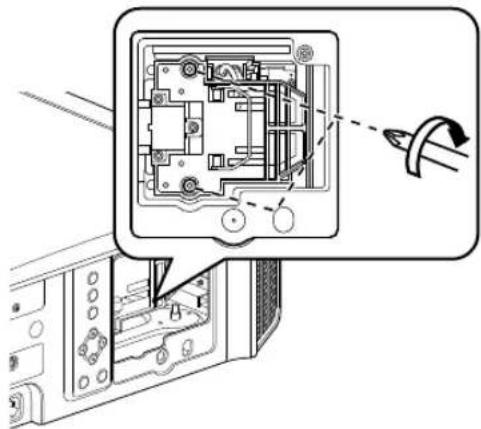
7 Attach the lamp cover.
- Insert the two tabs at the top and bottom of the lamp cover into the unit.
- Tighten the screws with a screwdriver.
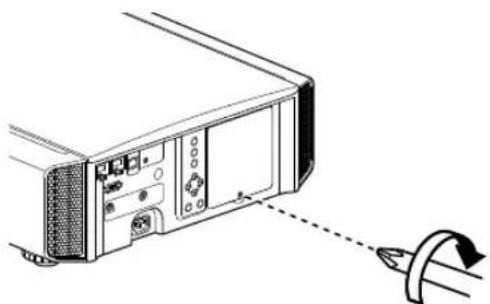
MEMO
Usable lamp life
- When the lamp is used with "Lamp Power" set to "Low", the lamp life on this unit is approximately 4000 hours. This is the average usable time and not a guaranteed value.
- The lamp life may not reach 4000 hours depending on the operating conditions.
- When the lamp has reached the end of its usable life, deterioration progresses rapidly.
- When the video image appears dark, when the color tone looks unnatural, or when the image flickers, replace the lamp unit with a new one promptly.
Purchasing a lamp unit
Please consult your authorized dealer or nearby service center.
Lamp unit Product no.: PK-L2312U Not suitable for household room illumination. Lamps with a different product number or those for other projector models cannot be used.
Information about the lamp
An ultra-high pressure mercury lamp with a high internal pressure is used in the projector.
Due to the characteristics of this lamp, it may blow out with a loud noise or go out when it is subject to shock or after using for a prolonged period of time (the time before the lamp blows out or goes out varies considerably with each lamp as well as the operating conditions).
After replacing the lamp
- Do not place the removed lamp unit at a place that is within reach by children or anywhere near inflammable items.
- Dispose used lamp units in the same way as fluorescent lamps. Follow the regulations of your local community for disposal.
Resetting the Lamp Time
Reset the lamp time when you have replaced the lamp. It provides an estimated timing for lamp replacement.
Resetting the lamp time from the menu screen
Press the [MENU] button to display the menu. 2. Select "Function" -> "Lamp Reset" from the menu.
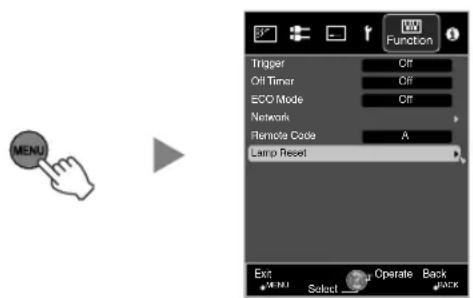
3. On the "Reset Lamp Time?" screen, select "Yes" and press the [OK] button.
The lamp time is reset to zero.
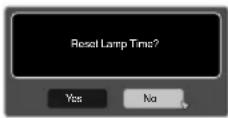
Resetting the lamp time using the remote control
Insert the power plug into the power outlet.
remote control in the Standby mode (the power plug is inserted into the outlet, but the power is not turned on).
- Press in the order as shown. Make sure that you press a button within two seconds after the last button is pressed. Press the last button for at least two seconds.


Press for 2 seconds or longer.
- The "LAMP" indicator and "STANDBY/ON" indicator blink alternately for three seconds. After that, the unit switches to the Standby mode.
MEMO
- Reset the lamp time only when you have replaced the lamp. If the lamp time is reset while a lamp is in use, you may lose track of the timing for replacing the lamp. Doing so may result in using the lamp beyond the estimated limit, thereby causing lamp blowout.
Maintaining the Cabinet and Remote Control
Gently wipe off dirt on the cabinet with a soft cloth. - If it is extremely dirty, wet a cloth in water, wring dry and use it to wipe off the dirt, followed by wiping again with a dry cloth. - Pay attention to the following as the cabinet may deteriorate in condition or the paint may come off.
- Do not wipe with thinner or benzine
- Do not allow prolonged contact with rubber or plastic products
- Do not spray volatile chemicals such as insecticide
Cleaning and Replacing the Filter
Clean the filter regularly. Otherwise, the air intake efficiency may deteriorate, and malfunction may occur.

CAUTION
- Make sure that you pull out the power plug from the outlet before cleaning or replacing the filter.
- Before turning this unit upside down and placing it on the floor or a table, make sure that you lay a soft rag in advance to prevent the projector from being scratched.
1. Remove the inner filter
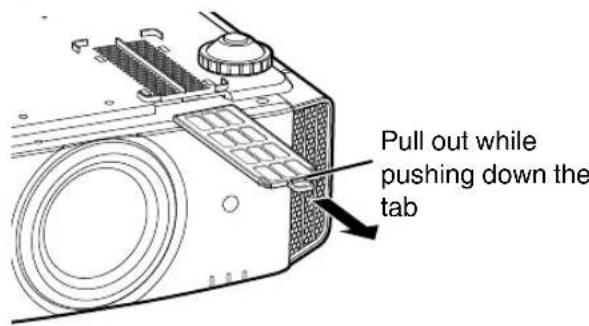
2. Clean the filter
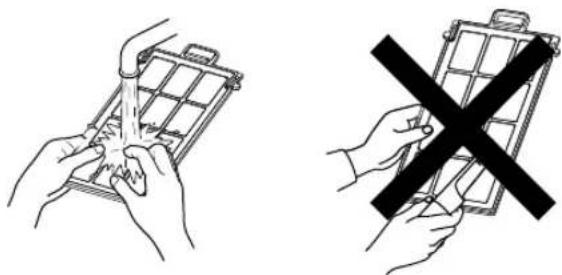
- Wash the filter with water and dry it in a shaded area. If the filter is extremely dirty, clean it with a neutral detergent. Put on rubber gloves when using a neutral detergent. After washing the filter with water, make sure that it is completely dry before reinstalling. Otherwise, electric shock or malfunction may occur.
- Do not clean the filter with a vacuum cleaner or air duster. The filter is soft and may be easily damaged.

Reinstall the inner filter
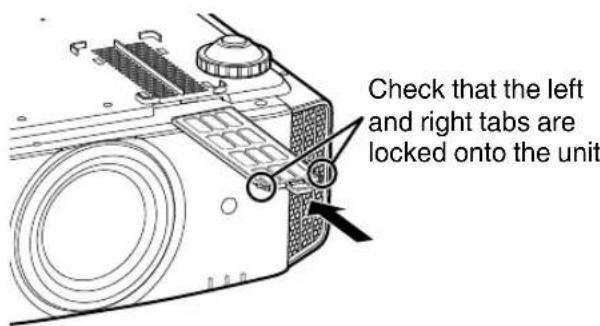

If the filter is damaged or too dirty to be cleaned
- Replace with a new filter. A dirty filter will dirty the internal parts of the unit and cause shadows to appear on the video image.
- To purchase a new filter or when there is dirt in the internal parts of the unit, consult your authorized dealer or nearby service center.
- Inner filter (exchangeable filter) Product no.: PC010661199
Troubleshooting
Before sending the unit to your authorized dealer for repair, please check the following points.
The following symptoms are not malfunctions.
You do not need to worry about the following symptoms if there is no abnormality on the screen.
- A part of the top or front surface of the unit is hot.
- A creaking sound is heard from the unit
- An operating sound is heard from the inside of the unit. Color smear occurs on some screens
This unit is a digital device. This unit may become unable to operate normally due to external static or noise. Perform the following operations when such malfunctions occur.
① If the unit is in the Standby mode, pull out the power plug, followed by inserting it again. ② Press the / I [STANDBY/ON] button on the main unit to turn on the power again
When "High Altitude Mode" is set to "On", and "Lamp Power" is set to "High" during 3D mode, the fan will make louder noise than usual since it is designed to run at high speed in 3D mode.
Power is not supplied
| Check Action Refer to | ||
| Is the power cord disconnected? Insert the power cord (plug) firmly. p. 24 | ||
| Is the lamp cover properly shut? If the unit is in the Standby mode, remove the power plug and close the lampcover properly. After that, insert the plug again. | p. 62 | |
| Is the lamp in the Cool-down mode? After exiting the Cool-down mode, turn on the power again. p. | 26 |
Power shuts down automatically
| Check Action Refer to | ||
| Has “ECO Mode” been configured? Set | “ECO Mode” to “Off”. p. 59 | |
| Has “Off Timer” been configured? Set | “Off Timer” to “Off”. p. 59 | |
| Are the air inlets and exhaust vent blocked? | Leave proper clearance when installing the unit p. 14, 15 | p. 19 |
| Is the filter dirty? Clean the filter. p. 64 |
Video image does not appear
| Check Action Refer to | ||
| Is the correct external input selected? Select the correct external input terminal. p. | 25 | |
| Is the power of the AV device turned on? Turn on the power of the AV device and play the video. | p. 22 | |
| Is the AV device properly connected? Connect the AV device properly. p. | 22 | |
| Are the correct signals being output from the AV device? Set the AV device properly. | p. 22 | |
| Is the cable in use an HDMI-certified cable? Use an HDMI-certified high-speed cable. Also, use as short a cable as possible. | p. 22 | |
| Is “Control with HDMI” set to “On”? If the | video image does not appear when “Control with HDMI” is set to “On”, change the setting to “Off” and power on this unit and the external device again. | p. 50 |
| Is the video image temporarily hidden? | Press the [HIDE] button p. 25 |
3D images do not appear
| Check Action Refer to | ||
| Do you see two images displayed side by side? | Set "3D Format" to "Side by Side"Video images in the "Side by Side" format may not be recognized automatically in the case of 3D video images. | p. 33 |
| Is an intermediate device (AV amplifier, divider, etc.) in use? | Connect the source device to the projector directly, and check whether there is any improvement in the condition. If the condition improves, it is likely that this is not caused by malfunction of the projector. | p. 22 |
| Is the cable in use an HDMI-certified cable? | Use an HDMI-certified high-speed cable. Also, use as short a cable as possible. | p. 22 |
| Is the power of the 3D GLASSES turned on? | If you are using the PK-AG2 or PK-AG33D GLASSES, turn on the power manually. | Check the instruction manual of the 3D GLASSES and 3D SYNCHRO EMITTER. |
| Are the 3D GLASSES charged? | Check whether the PK-AG1 battery of the 3D GLASSES has run out, and whether PK-AG2 and PK-AG3 are charged. | |
| Are the 3D GLASSES and 3D SYNCHRO EMITTER too far away from each other? | Position them at an appropriate distance. |
3D video image looks unnatural. Video image looks unnatural.
| Check Action Refer to | ||
| Are there overlapping video images? If there are overlapping video images partially, this is due to the crosstalk phenomenon. In this case, adjust “Crosstalk Cancel” accordingly. | p. 34 | |
| If there are overlapping video images partially, this is due to the crosstalk phenomenon. This phenomenon often occurs when there are drastic changes in the brightness. In this case, set Lamp Power to “High” | p. 47 |
Colors are unnatural.
| Check Action Refer to | ||
| Is the color space of the input signal correctly set? | The color may turn out unnatural when the input signal is different from that in the projector setting. Set the “Color Space” for “Input Signal” correctly. | p. 50 |
| Is the image correctly adjusted? Adjust “Color” and “Tint” accordingly. p. 49, p. 50 | ||
| Is the AV device properly connected? Connect the AV device properly. p. 22 | ||
- The video image may appear slightly reddish immediately after starting up. This is not a malfunction.
Video image is fuzzy.
| Check Action Refer to | ||
| Is the focus correctly adjusted? Adjust the focus. p. 27 | ||
| Is the unit placed too near or too far away from the screen? | Set the unit at a correct distance from the screen. p. 75 |
Video image flickers.
| Check Action Refer to | ||
| Do you see horizontally-extended, overlapping video images? | In this case, set “3D Format” to “Auto” p. 33 | |
| Are you viewing the video images under a fluorescent light? | This is caused by interference between the 3D glasses with the flickers of the fluorescent light.View with the fluorescent light turned off. | — |
- Flickers may sometimes occur upon starting up the projector unit, or immediately after the projector is changed from floor-standing to ceiling mounted. This is attributable to the lamp or drive mechanism, and is likely not caused by malfunction of the projector.
Projected image is dark.
| Check Action Refer to | ||
| Is the lamp near exhaustion? Check the | amp time in the “Information” menu. Prepare a new lamp unit or replace as soon as possible when the lamp is near exhaustion. | p. 60 p. 61 |
| Is the aperture closed? Set “Lens Aperture” to “Auto 1” or “Auto 2”, or set to “Manual” and open up the aperture manually. | p. 44 | |
| Is “Lamp Power” set to “Low”? Set “Lamp Power” to “High” p. 47 |
Video image appears horizontally (vertically) extended.
| Check Action Refer to | ||
| Is "3D Format" set to "Side by Side"? Set | "3D Format" to "Auto" p. 33 | |
| Is "Anamorphic" set to a setting other than "Off"? | Set "Anamorphic" to "Off" | p. 54 |
Striped patterns appear on the screen.
| Check Action Refer to | ||
| Does the fabric of the screen have a regular pattern? | Interference fringes may sometimes occur between the fabric pattern and thepixels. Please consult the authorized dealer. | — |
Video images are missing.
| Check Action Refer to | ||
| Has screen mask been configured? | Set “Mask” to “Off”. | p. 51 |
| Is the display position misaligned? | Alter the “Picture Position” value so that the entire image appears on the screen. | p. 51 |
Remote control does not work.
| Check Action Refer to | ||
| Are the batteries correctly loaded? | Match the polarities (⊕ ⊙) correctly when loading the batteries. | p. 18 |
| Are the batteries exhausted? Replace with new batteries. p. 18 | ||
| Is there an obstructing object between the remote control and remote sensor? | Remove any obstructing object. p. 18 | |
| Is the remote control held too far away from the unit? | Hold the remote control closer to the sensor during use. p. 18 | |
| Are the IR (infrared) 3D GLASSES and 3D SYNCHRO EMITTER in use? | As there is a possibility of signal interference, when you are using the IR (infrared) 3D GLASSES together with the 3D SYNCHRO EMITTER, try adjusting the orientation of the 3D SYNCHRO EMITTER. | p. 32 |
The lens cover does not close.
| Check Action Refer to | ||
| Is “Lens Cover” set to “Open”? Set “Lens | Cover” under “Lens Control” in the setting menu to “Auto”. | p. 52 |
Noise is heard.
| Check Action Refer to | ||
| Is the exhaust vent blocked? Is the unit used near a heater or air-conditioner? | Check the installation condition of the projector. When the surrounding temperature of the projector is high, the fan revolution speed increases to protect the projector unit, hence a louder operating sound. | p. 19 |
| Are you viewing 3D video images? “Lamp” Power” is set automatically to “High” to ease viewing of 3D video images, hence a louder fan operating sound. If you are bothered by the sound, set it to “Low”. | p. 47 | |
| Is the “Picture Mode” or “Color Profile” changed? | Operating sound is generated by the cinema filter. This is not a malfunction. | — |
| Did you change the “4K e-shift” setting for “MPC Level”? | Switching sound is generated. This is not a malfunction. | — |
There are small black or colored dots on the screen.
The D-ILA device is manufactured using high-precision technologies, but there may be some (less than 0.01% ) missing pixels or pixels that remain permanently lit. This is not a malfunction.
When the following messages appear…
| Message Description | Action | |
| No Input | ·No device is connected to the input terminal ·The input terminal is connected but there is no signal | Input the video signals. |
| HDMI-1 | A video signal that cannot be used with this unit has been input (The names of input terminals such as “HDMI-1” and “HDMI-2” will be displayed in yellow). | Input video signals that can be used. (p. 77) |
| Lamp replacement Back BACK | This message is displayed when the accumulated lamp time has exceeded 2900 hours. To clear the message, press the [BACK] button on the operation panel of the projector unit or the remote control. | Get ready a new lamp unit and replace as soon as possible. Reset the lamp time after replacing the lamp. (p. 61, 63) |
External Control
It is possible to control this unit by connecting it to a PC using an RS-232C cross cable (D-sub 9-pin).
The projector can be controlled by connecting it to a PC through the computer network with a LAN cable for control commands to be sent to the projector.
⇒ "Network" (p. 59)
- Please use it after you have gained proper understanding from professional books or consulting the system administrator.
RS-232C Specifications
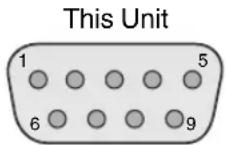
| Pin No. Signal Function Signal Direction | |||
| 2 RxD Receive data PC → This unit | |||
| 3 TxD Transmission data This unit → PC | |||
| 5 GND Signal ground | — | ||
| 1, 4, 6 - 9 N/C | — | — | |
- PC refers to the controller, such as a personal computer.
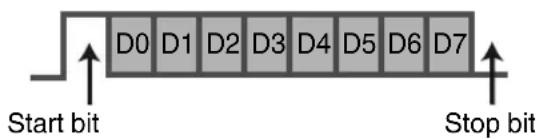
| Mode Non-synchronous | |
| Character length 8 bit | |
| Parity None | |
| Start bit 1 | |
| Stop bit 1 | |
| Data rate | 19200 bps |
| Data format | Binary |
TCP/IP Connection
Before controlling via LAN, it is necessary to establish connection of the TCP layer by a "3-way handshake", followed by sending out "PJREQ" and receiving "PJACK" within five seconds after the projector sends out "PJ_OK" for connection authentication.
If you are unable to complete sending within five seconds, or when "PJ_NG" or "PJNAK" is received, check the operating status of the projector, followed by performing the steps again starting from establishment of a TCP connection.
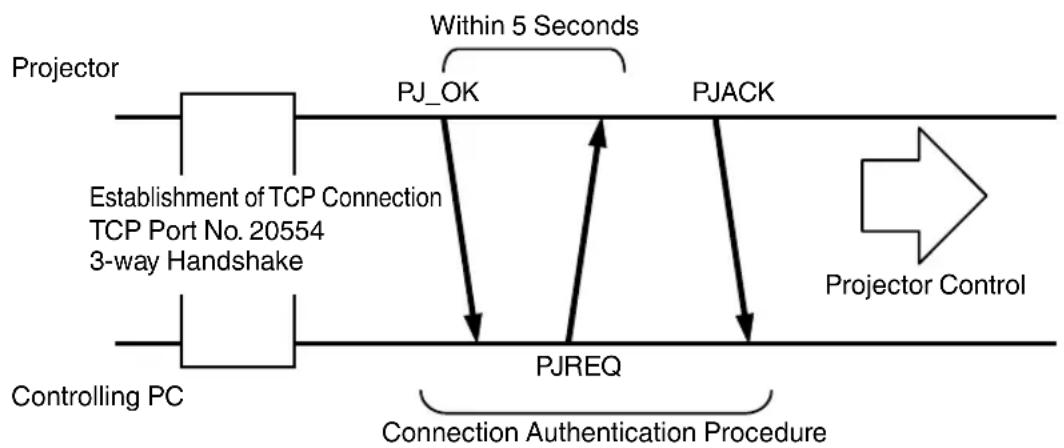
Command Format
The command between this unit and the computer consists of "Header", "Unit ID", "Command", "Data" and "End".
- Header (1 byte), Unit ID (2 bytes), Command (2 bytes), Data (n bytes), End (1 byte)
This binary code indicates the start of communication.
| Binary Code Type | Description | |
| 21 Operating command | PC → This unit | |
| 3F Reference command | PC → | This unit |
| 40 Response command | This unit → PC | |
| 06 ACK This unit → | PC (returns to PC after the command is accepted without error) |
Unit ID
This is a code that specifies the unit. The binary code is fixed at "8901".
Command and data
Operating command and data (binary code)
| Command | Type Description |
| 0000 | Connection check Check whether communication is enabled between this unit and the PC during standby. |
| 5057 Power supply | During standby31: Turns on the powerWhen power is on30: Turns off the power (Standby mode) |
| 4950 Input When power is on36:HDMI 137:HDMI 2 | |
| 5243 Remote control | Sends the same code as the supplied remote control.•“Remote Control Code”p. 72 |
Operating command and data (binary code)
| Command | Type Description | |
| 5057 Power supply | During standby or when power is on30: Standby mode31: When power is on32: In the Cool-down mode34: When error occurs on this unit | |
| 4950 Input | When power is on36: HDMI 137: HDMI 2 | |
End
This code indicates the end of communication. The binary code is fixed at "0A".
Remote Control Code
Binary code is sent during communication.
- The following applies to the case when the remote control code is "A". In the case of "B", add "36" to the beginning of the code.
| Remote Control Button Name Binary Code | |
| STAND BY 37 33 30 36 | |
| ON 37 33 30 35 | |
| INPUT 37 33 30 38 | |
| INFO. RS49 37 33 37 34 | |
| ENVSETTING RS49 37 33 35 45 | |
| 3D SETTING 37 33 44 35 | |
| C.M.D. 37 33 38 41 | |
| LENS CONTROL 37 33 33 30 | |
| LENS MEMORY 37 33 44 34 | |
| LENS AP. 37 33 32 30 | |
| MPC 37 33 46 30 | |
| P.ANALYZER 37 33 35 43 | |
| BEFORE/ABT 37 33 43 35 | |
| HI DE 37 33 31 44 | |
| ▲ | 37 33 30 31 |
| ▼ | 37 33 30 32 |
| ▶ | 37 33 33 34 |
| ← | 37 33 33 36 |
| OK | 37 33 32 46 |
| Remote Control Button Name Binary Code | |
| MENU 37 33 32 35 | |
| BACK | 37 33 30 33 |
| FILM RS67 RS57 | 37 33 36 39 |
| CINEMA | 37 33 36 38 |
| ANIME. | 37 33 36 36 |
| NATURAL | 37 33 36 41 |
| PHOTO RS67 RS57 | 37 33 38 42 |
| STAGE | 37 33 36 37 |
| THX RS67 RS57 | 37 33 36 46 |
| USER | 37 33 44 37 |
| 3D FORMAT RS49 | 37 33 44 36 |
| ADVANCED MENU | 37 33 37 33 |
| GAMMA | 37 33 37 35 |
| COLOR TEMP. | 37 33 37 36 |
| COLOR PROFILE | 37 33 38 38 |
| PIC. ADJ. | 37 33 37 32 |
Communications Example
This section shows the communication examples of RS-232C.
Operating command
| Type Command | Description | |
| Connection check PC | → This unit: 21 89 01 00 00 0AThis unit → PC: 06 89 01 00 00 0A | Connection check |
| Power (On) PC → | This unit: 21 89 01 50 57 31 0AThis unit → PC: 06 89 01 50 57 0A | When power is turned on from the Standby mode |
| Power (Off) PC → | This unit: 21 89 01 50 57 30 0AThis unit → PC: 06 89 01 50 57 0A | When power is turned off (Standby mode) from power-on mode |
| Remote control(MENU) | PC → This unit: 21 89 01 52 43 37 33 32 45 0AThis unit → PC: 06 89 01 52 43 0A | When the same operation as pressing the [MENU] button on the remote control is performed |
Reference command
| Type Command | Description | |
| Power (On) PC → This | unit: 3F 89 01 50 57 0AThis unit → PC: 06 89 01 50 57 0AThis unit → PC: 40 89 01 50 57 31 0A | When information on the power-on state is acquired |
| Input (HDMI 1) PC → This | This unit: 3F 89 01 49 50 0AThis unit → PC: 06 89 01 49 50 0AThis unit → PC: 40 89 01 49 50 36 0A | When information on HDMI 1 input is acquired |
Specifications
| Product Name D-ILA Projector | ||
| Model Name DLA-RS67, DLA-RS57, DLA-RS49 | ||
| Display Panel/Size D-ILA device *1, 2 | 0.7" (1920 x 1080 pixels) x 3 (total no. of pixels: approx. 6.22 million) | |
| Projection Lens 2.0 x power zoom lens (1.4:1 to 2.8:1), motorized zoom and focus | ||
| Light-source Lamp 230 W ultra-high pressure mercury lamp [model no.: PK-L2312U] Average lifespan: 4000 hours ("Low" mode) | ||
| Screen Size Approx. 60" to 200" (Aspect ratio of 16:9) | ||
| Projection Distance Refer to p. 75. | ||
| Input Compatibility Signal Refer to p. 77. | ||
| Display Resolution 3840 x 2160 pixels *3 | ||
| Input Terminal HDMI Input 2 system, HDMI 19 pin x 2 (HDCP-compatible) *4 | ||
| Output Terminal Trigger Terminal 1 system, Ø 3.5 mm DC Power Jack (Ø-C-Ø) DC OUT 12 V, 0.1 A | ||
| 3D synchro Dedicated terminal for 3D SYNCHRO EMITTER (1 system, mini-DIN 3-pin) | ||
| Control Terminal RS-232C Terminal 1 system, D-sub 9-pin (male) (external control) | ||
| LAN Terminal 1 system, RJ-45 plug | ||
| Power Requirements AC 110 V to 240 V, 50 Hz z/60 Hz | ||
| Power Consumption | 360 W (during normal standby: 7 W, during Eco Mode standby: 0.4 W) | |
| Operation Environment | Temperature: 5°C to 35°C; humidity: 20% to 80%; storage temperature: -10°C to 60°C | |
| Installation Height | Below 5,000 ft (1524 m) | |
| Dimensions (Width x Height x Depth) | Approx. 455 mm x 179 mm x 472 mm (excluding feet and protrusions) | |
| Mass | 15.0 kg (RS67 RS57) 14.7 kg (RS49) | |
| Accessories | Refer to p. 11. | |
1 D-ILA is the abbreviation for Direct drive Image Light Amplifier. 2 D-ILA devices are manufactured using extremely high-precision technology with a pixel effectiveness of 99.99%. Only 0.01% or less of the pixels are either missing or would remain permanently lit. 3 During 3D playback, the pixel is set to 1920 × 1080 . 4 HDCP is the abbreviation for High-bandwidth Digital Content Protection system. The image of the HDMI input terminal may not be displayed in some cases due to changes in the HDCP specifications.
- Design and specifications are subject to change without prior notice.
- Please note that some of the pictures and illustrations may have been abridged, enlarged or contextualized in order to aid comprehension. Images may differ from the actual product.
About Trademarks and Copyrights
HIGH-DEFINITION MULTIMEDIA INTERFACE
HDMI, HDMI logo and High-Definition Multimedia Interface are trademarks or registered trademarks of HDMI Licensing LLC.
x.v.Color
"x.v.Color" and the "x.v.Color" logo are trademarks of Sony Corporation
Screen Size and Projection Distance
When a 16:9 screen is used
| Screen Size Projection Distance | ||||
| Diagonal (Model) Width (mm) Height (mm) Wide-end (m) Tele-end (m) | ||||
| 60 1328 747 1.78 3.66 | ||||
| 70 1549 872 2.09 4.28 | ||||
| 80 1771 996 2.4 4.89 | ||||
| 90 1992 1121 2.7 5.51 | ||||
| 100 2214 1245 3.01 6.13 | ||||
| 110 2435 1370 3.31 6.75 | ||||
| 120 2656 1494 3.62 7.36 | ||||
| 130 2878 1619 3.92 7.98 | ||||
| 140 3099 1743 4.23 8.60 | ||||
| 150 3320 1868 4.53 9.22 | ||||
| 160 3542 1992 4.84 9.84 | ||||
| 170 3763 2117 5.14 10.45 | ||||
| 180 3984 2241 5.45 11.07 | ||||
| 190 4206 2366 5.75 11.68 | ||||
| 200 4427 2490 6.06 12.30 | ||||
When a 4:3 screen is used
| Screen Size Projection Distance | ||||
| Diagonal (Model) Width (mm) Height (mm) Wide-end (m) Tele-end (m) | ||||
| 60 1219 914 2.22 4.49 | ||||
| 70 1422 1067 2.60 5.24 | ||||
| 80 1626 1219 2.98 6.00 | ||||
| 90 1829 1372 3.36 6.75 | ||||
| 100 2032 1524 3.74 7.51 | ||||
| 110 2235 1676 4.11 8.26 | ||||
| 120 2438 1829 4.49 9.02 | ||||
| 130 2642 1981 4.87 9.77 | ||||
| 140 2845 2134 5.25 10.53 | ||||
| 150 3048 2286 5.63 11.28 | ||||
| 160 3251 2438 6.00 12.04 | ||||
- Projection to a 4:3 screen larger than 163" is equivalent to a size that is larger than 200" in the 16:9 format, and is beyond our guarantee coverage.
When a 2.35:1 screen is used
| Screen Size Projection Distance | ||||
| Diagonal (Model) Width (mm) Height (mm) Wide-end (m) Tele-end (m) | ||||
| 60 1402 597 1.95 3.91 | ||||
| 70 1636 696 2.28 4.56 | ||||
| 80 1870 796 2.60 5.21 | ||||
| 90 2103 895 2.93 5.86 | ||||
| 100 2337 995 3.26 6.51 | ||||
| 110 2571 1094 3.58 7.16 | ||||
| 120 2805 1193 3.91 7.81 | ||||
| 130 3038 1293 4.23 8.47 | ||||
| 140 3272 1392 4.56 9.12 | ||||
| 150 3506 1492 4.88 9.77 | ||||
| 160 3740 1591 5.21 10.42 | ||||
| 170 3973 1691 5.53 11.07 | ||||
| 180 4207 1790 5.86 11.72 | ||||
| 190 4441 1890 6.19 12.37 | ||||
| 200 4674 1989 6.51 13.02 | ||||
Types of Possible Input Signals
Video
| Digital Video Signal 480p, 576p, 720p/50Hz | Hz, 720p/60 Hz, 1080i/50 Hz, 1080i/60 Hz, 1080p/24Hz, 1080p/50 Hz, 1080p/60 Hz, 3840×2160/24 Hz, 3840×2160/25 Hz,3840×2160/30 Hz, 3840×2160/50 Hz(4:2:0), 3840×2160/60 Hz(4:2:0),4096×2160/24 Hz* | |
| 3D Signal Frame Packing 720p/50 Hz, 720p/60 Hz, 1080p/24 Hz | ||
| Side-by-side 1080i/60 Hz, | 1080p/60 Hz, 1080i/50 Hz, 1080p/50 Hz, 1080p/24 Hz,720p/50 Hz, 720p/60 Hz | |
| Top-and-bottom 720p/50 Hz | Hz, 720p/60 Hz, 1080p/24 Hz | |
- The display image when the input signal is 4096 × 2160
Display Area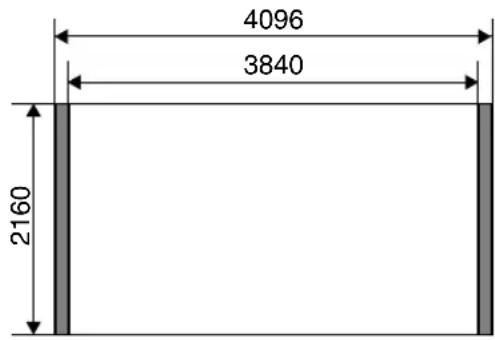
PC signal (HDMI)
| No. | Designation Resolution | fh [kHz] | fv [Hz] | dot CLK [MHz] | Total No. of Dots [dot] | Total No. of Lines [line] | No. of Effective Dots [dot] | No. of Effective Lines [line] | |
| 1 VGA | 60 640×480 | 31.500 | 60.000 | 25.200 | 800 | 525 | 640 | ||
| 2 VGA | 59.94 | 640 | ×480 | 31.469 | 59.940 | 25.1 | 75 | 800 | 525 |
| 3 | SVGA | 60 | 800×600 | 37.879 | 60.317 | 40.000 | 1,056 | 628 | 800 |
| 4 | XGA | 60 | 1024×768 | 48.363 | 60.004 | 65.000 | 1,344 | 806 | 1,024 |
| 5 | WXGA | 60 | 1280×768 | 47.760 | 60.000 | 79.998 | 1,675 | 796 | 1,280 |
| 6 | WXGA+ | 60 | 1440×900 | 55.919 | 59.999 | 106.470 | 1,904 | 932 | 1,440 |
| 7 | SXGA | 60 | 1280×1024 | 63.981 | 60.020 | 108.000 | 1,688 | 1,066 | 1,280 |
| 8 | WSXGA+ | 60 | 1680×1050 | 65.222 | 60.002 | 147.140 | 2,256 | 1,087 | 1,680 |
| 9 | WUXGA | 60 | 1920×1200 | 74.038 | 59.95 | 154.000 | 2,080 | 1,235 | 1,920 |
- Even when signals can be input, video images may not be projected properly depending on the PC or cable in use. When this occurs, switching to another compatible resolution or changing the cable may help to resolve the problem in some cases.
Indicator Display on the Main Unit
Meaning of the lighting figures


The indicator appears blinking. The indic
Operation mode display
Displays using the different colors and solid/blinking light of the "STANDBY/ON" indicator.
"STANDBY/ON" lights up (red) In standby state
STANDBY/ON

LAMPWARNING
"STANDBY/ON" lights up (green) During lamp startup
STANDBY/ON
LAMP WARNING
All lights off
During projection
STANDBY/ON
0
LAMP WARNING
0
0
0
"STANDBY/ON" blinking (red) In the Cool-down mode
STANDBY/ON

LAMP WARNING
0
0
"STANDBY/ON" blinking (green)
When the video image is temporarily hidden (HIDE is on)
STANDBY/ON
LAMP WARNING
0
0
Estimated timing for lamp replacement
Displays using the solid/blinking light of the "LAMP" indicator. The "STANDBY/ON" indicator, which shows the operating mode of the unit, is displayed simultaneously as described above.
"LAMP" lights up (orange)
STANDBY/ON
0
LAMP WARNING

0
When lamp replacement is near
(lamp time has exceeded 2900 hours)
Warning display
You can tell the details of a warning from the (repeated) displays of the "WARNING" and "LAMP" indicators. The "STANDBY/ON" indicator, which shows the operating mode of the unit, is displayed simultaneously as described above. The Warning mode is activated once the message is displayed. Projection is interrupted, and the cooling fan is turned on for about 100 seconds.
The power cannot be turned on again while cooling is in progress. Check the following after cooling is complete.
| Indicator Status (Solid/Blinking) | Blinking Frequency | Description Check and | Countermeasure |
| Display | x1 Abnormality in the power supply | ·Check that nothing is blocking the air inlets. ·Check that the external temperature is normal. Countermeasure: Leave the unit unoperated until it cools down. After that, turn on the power again. | |
| x2 Cooling | fan stopped abnormally | ||
| x3 Internal temperature is abnormally high | |||
| x4 External temperature is too high | |||
| x5 Abnormal circuit operation | |||
| Mode (Orange) (Red) Display | x1 Abnormal circuit operation | ||
| x2 | |||
| x3 | |||
| x4 Abnormal operation of the automatic lens cover | ·Check that nothing is blocking the auto lens cover. Countermeasure: Turn on the power again. | ||
| Mode (Orange) (Red) Display | x1 Lamp does not light up and unit is unable to project | ·Check that the lamp unit and lamp cover are correctly installed. Countermeasure: Turn on the power again. | |
| x2 Lamp goes out during projection | |||
| x3 When the lamp cover is removed | |||
If the Warning mode is activated again, wait for the cooling fan to stop, followed by pulling out the power plug from the outlet.
Request for repair at your authorized dealer or a nearby service center.
(*) If the scheduled time for lamp replacement is exceeded, the indicator may light up.
Dimensions
(Unit: mm)
Top Surface
Bottom Surface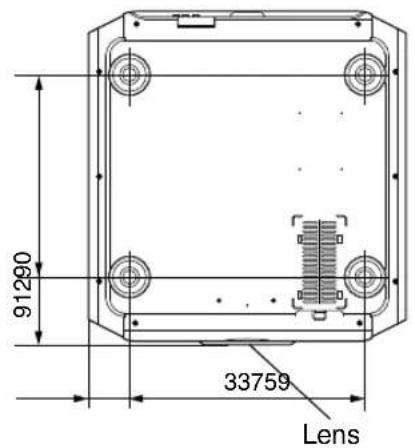
Front Rear Surface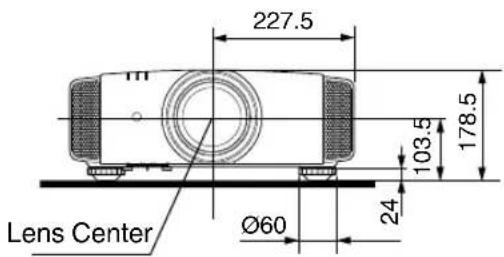
- The dimensions are identical for all the models.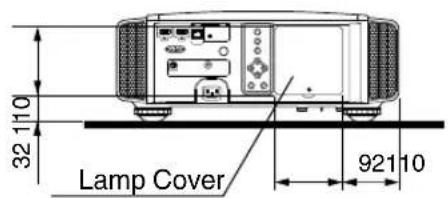
Index
A Accessories 11
Adjusting Distortion of the Projection Screen 27
Adjustment and Setting by the Menu 45
Adjustment of the Image Quality 47
ADVANCED MENU 17
Anamorphic 54
Aspect 31
B Back Color 58
BEFORE/AFTER 17
Brightness 49
C.C.M.D (Clear Motion Drive) 44
Ceiling Mount 20
Cleaning and Replacing the Filter 64
Clear Black 47
Clear Motion Drive 44
Color Density 49
Color Management 38
Color Profile 36
Color Shade 50
Color Space 50
Color Temperature 48
Connection 22
Contrast 49
Controls and Features 14
Custom Gamma 42
D Dimensions 80
Display Position 51
Distortion Correction 54
E Eco Mode 59
ENV.SAVING 17
Environment Correction 30
External Control 70
F Filter Product no. 64
Filter Replacement 64
Focus 28
Frame Interpolation 44
Frame Packing 33
G GAMMA 41
Gamma Adjustment 41
H HDMI Color Space 50
HDMI Input Level 50
HDMI Input Link 50
HDMI Input Terminal 22
HIDE 25
High Altitude Mode 54
Indicator Display 78
INFO 17
Input Resolution 60, 77
Input Signal 60, 77
Input terminals 16
Installation Method 19
Installing the 3D Syncro Emitter 32
K Keystone Correction 54
L Lamp 11
Lamp Power 47
Lamp Time 60
Language Selection 58
Lens 14
LENS AP. 17
Lens Aperture 44, 47
Lens Control 27
Lens cover 14
Lens Cover 11
Lens Memory 27
Lens Shift 27
Line Display 58
Logo Display 58
M Main Features 12
Menu Items 45
Menu Position 58
MPC LEVEL 39
N Network 59
NR 49
Off Timer 59
Optional Accessories 11
P P.ANALYZER 17
PIC. ADJ. 49
Picture Mode 35
Picture Tone 48
Pixel Adjustment 53
Precautions during Installation 19
Progressive 51
Projection Distance 75
R Remote Control 17
Replacing the Lamp 61
Resetting the Lamp 60
RGB 50
81
RS-232C 23
S Screen Correction 30
Screen Mask 51
Screen Size and Projection Distance 75
Shadow/Highlight Correction 43
Shift 28
Side by Side 33
Signal Display 60
Software Ver. 60
Specifications 74
THX 13
Top and Bottom 33
Trigger 59
Troubleshooting 65
User Name Edit 47
Viewing 3D Movies 32
Viewing Videos 25
When the following messages appear.. 69
Z Zoom 28
Symbol
2D/3D Conversion 34 3D Crosstalk Cancel 34 3D Format 33 3D Glasses 11, 32 3D Setting 34, 51 3D Synchro Emitter 11, 32
JVC
Information
Manufacture
JVC KENWOOD Corporation
3-12, Moriyacho, Kanagawa-ku, Yokohamashi, Kanagawa 221-0022, Japan
Importer (EU only)
JVC Professional Europe Ltd.
JVC House, JVC Business Park, 12 Priestley Way, London NW2 7BA, United Kingdom
D-ILA
PROJECTOR
INSTRUCTIONS
DLA-RS67
DLA-RS57
DLA-RS49
D·ILA®
HOMI
HIGH-DEFINITION MULTIMEDIA INTERFACE
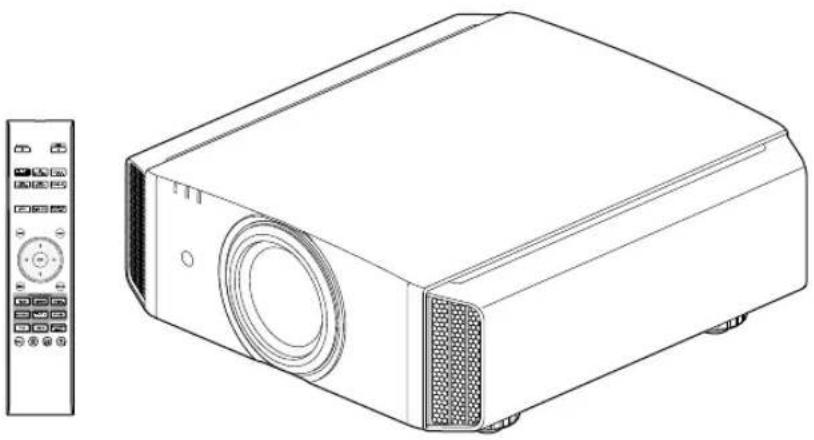

FUSE REPLACEMENT:
Information for Users on Disposal of Old Equipment and Batteries
Products
Battery
[European Union only]
These symbols indicate that equipment with these symbols should not be disposed of as general household waste. If you want to dispose of the product or battery, please consider the collection systems or facilities for appropriate recycling.
Notice: The sign Pb below the symbol for batteries indicates that this battery contains lead.
GERMAN
Flexible installation
isf certification RS67 RS57

④ RS-232C connector (D-sub 9-pin male)
Normal, Preferred brightness, Preferred contrast, Preferred gradation, 1.8, 1.9, 2.0, 2.1, 2.2, 2.3, 2.4, 2.5, 2.6, Import
RS67 RS57
Normal, Preferred brightness, Preferred contrast, Preferred gradation, 1.8, 1.9, 2.0, 2.1, 2.2, 2.3, 2.4, 2.5, 2.6, Import
C.C.M.D (Clear Motion Drive) 44
Clear Motion Drive 44
COLOR P.FILE 36
PORTABLE CART WARNING (symbol provided by RETAC)

Information for Users on Disposal of Old Equipment and Batteries
Products
Battery
[European Union only]
These symbols indicate that equipment with these symbols should not be disposed of as general household waste. If you want to dispose of the product or battery, please consider the collection systems or facilities for appropriate recycling.
Notice: The sign Pb below the symbol for batteries indicates that this battery contains lead.
GERMAN
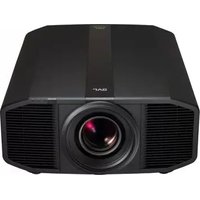
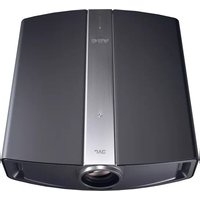
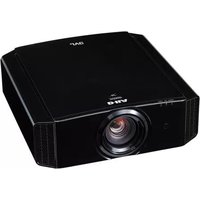
- FOR CUSTOMER USE
- WARNING
- CAUTION
- MACHINE NOISE INFORMATION (GERMANY ONLY)
- FOR THE CUSTOMERS IN TAIWAN ONLY
- FCC INFORMATION (U.S.A. ONLY)
- NOTE
- DECLARATION OF CONFORMITY
- ABOUT THE INSTALLATION PLACE
- IMPORTANT SAFEGUARDS
- DO NOT ALLOW ANY UNQUALIFIED PERSON TO INSTALL THE UNIT
- POWER CONNECTION
- DO NOT CUT OFF THE MAIN PLUG FROM THIS EQUIPMENT
- IMPORTANT (EUROPE ONLY)
- POWER CONNECTION (UNITED KINGDOM ONLY)
- IF IN DOUBT CONSULT A COMPETENT ELECTRICIAN
- INFORMATION FOR USERS ON DISPOSAL OF OLD EQUIPMENT AND BATTERIES
- [EUROPEAN UNION ONLY]
- GERMAN
- SET UP
- OPERATE
- ADJUST/SET
- MAINTENANCE
- TROUBLESHOOTING
- OTHERS
- SYMBOLS USED IN THIS MANUAL
- ACCESSORIES/OPTIONAL ACCESSORIES
- CHECK THE ACCESSORIES
- OPTIONAL ACCESSORIES
- COMPATIBILITY CHART FOR 3D SYNCHRO EMITTER AND 3D GLASSES
- MAIN FEATURES
- NEW, IMPRESSIVE IMAGE QUALITY WITH THE 4K RESOLUTION
- D VIDEO EXPRESSIONS WITH A HIGHLY REALISTIC FEEL
- OPTIMAL IMAGE QUALITY ADJUSTMENT ACCORDING TO THE VIEWING ENVIRONMENT
- FLEXIBLE INSTALLATION
- CUSTOMIZABLE IMAGE QUALITY ADJUSTMENT FEATURE
- CLEAR VIDEO EXPRESSION WITH LITTLE AFTER-IMAGE (C.M.D.)
- HIGH-PRECISION PIXEL ADJUSTMENT FEATURE
- THX CERTIFICATION RS67 RS
- ISF CERTIFICATION RS67 RS
- INTELLIGENT LENS APERTURE
- CONTROLS AND FEATURES
- MAIN UNIT - FRONT
- ① LENS
- LENS COVER RS67 RS
- ③ REMOTE SENSOR (FRONT)
- MAIN UNIT - BOTTOM
- ④ INDICATOR
- ⑤ EXHAUST VENT
- ⑥ INLETS (AT 3 POINTS ON THE REAR/BOTTOM)
- ⑦ MANUAL BUTTON FOR LENS COVER RS67 RS
- ⑧ FEET
- MAIN UNIT - REAR
- ⑨ INPUT TERMINALS
- ⑩ LAMP COVER
- ① OPERATION PANEL
- OPERATION PANEL
- MAIN UNIT - INPUT TERMINALS
- REMOTE CONTROL
- LOADING BATTERIES INTO THE REMOTE CONTROL
- EFFECTIVE RANGE OF REMOTE CONTROL UNIT
- CONTROL THROUGH REFLECTION OFF A SCREEN, ETC
- INSTALLING THE PROJECTOR
- PRECAUTIONS DURING INSTALLATION
- DO NOT INSTALL AT THE FOLLOWING
- MAINTAIN CLEARANCE FROM THE WALL, ETC
- USING THE PROJECTOR
- INSTALLING THE SCREEN
- USING THE PROJECTOR AT A HIGH ALTITUDE
- PRECAUTIONS DURING MOUNTING
- ADJUSTING THE POSITION
- ADJUSTING THE ELEVATION ANGLE OF THE PROJECTOR
- ADJUSTING THE POSITION OF THE IMAGE
- CONNECTING THE PROJECTOR
- CONNECTING TO THE HDMI INPUT TERMINAL (DIGITAL INPUT)
- CONNECTING VIA HDMI CABLE
- CONNECTING VIA HDMI-DVI CONVERSION CABLE
- CONNECTING TO THE LAN TERMINAL
- CONNECTING TO THE RS-232C TERMINAL
- CONNECTING TO THE TRIGGER TERMINAL
- CONNECTING THE POWER CORD (SUPPLIED ACCESSORY)
- PRECAUTIONS TO PREVENT FIRE AND ELECTRIC SHOCK
- VIEWING VIDEOS
- TURN ON THE POWER
- CHOOSE THE IMAGE TO PROJECT
- TURN OFF THE POWER
- ADJUSTING THE PROJECTOR SCREEN
- ADJUSTING THE LENS ACCORDING TO THE PROJECTION POSITION
- SAVING AND RETRIEVING ADJUSTMENT SETTINGS
- SAVING AN ADJUSTMENT DATA
- RETRIEVING ADJUSTMENT DATA
- PRESS THE [LENS MEMORY] BUTTON TO DISPLAY "LENS MEMORY SELECT
- SELECT THE ADJUSTMENT DATA TO RETRIEVE, AND PRESS THE [OK] BUTTON
- RENAMING ADJUSTMENT DATA
- PRESS THE [LENS MEMORY] BUTTON TO DISPLAY "LENS MEMORY NAME EDIT
- SELECT THE ADJUSTMENT DATA TO EDIT, AND PRESS THE [OK] BUTTON
- AFTER RENAMING, SELECT "OK" AND PRESS THE [OK] BUTTON
- PRESS THE [MENU] BUTTON TO EXIT
- ADJUSTING IMAGE QUALITY AUTOMATICALLY ACCORDING TO THE VIEWING ENVIRONMENT
- PRESS THE [MENU] BUTTON TO DISPLAY THE MENU
- SELECT "INSTALLATION" → "ENVIRONMENT SETTING" → "ON" FROM THE MENU
- SET SCREEN ADJUST
- SELECT "SCREEN SIZE" TO CONFIGURE THE SCREEN SIZE TO USE
- SELECT "VIEWING DISTANCE" TO CONFIGURE THE VIEWING DISTANCE (DISTANCE TO THE SCREEN)
- SELECT "WALL COLOR" TO CONFIGURE THE WALL COLOR
- MEMO
- ADJUSTING THE SCREEN SIZE (ASPECT)
- EXAMPLE OF INPUT IMAGE AND SCREEN SIZE
- VIEWING 3D MOVIES
- INSTALLING THE 3D SYNCHRO EMITTER
- CONNECT THE 3D SYNCHRO EMITTER TO THE [3D SYNCHRO] TERMINAL ON THE MAIN UNIT
- ADJUST THE 3D SYNCHRO EMITTER POSITION SO THAT THE 3D GLASSES CAN RECEIVE SIGNALS FROM THE 3D SYNCHRO EMITTER
- CONNECT AN HDMI DEVICE, AND TURN ON THE POWER TO PLAY BACK THE 3D VIDEO IMAGE
- ① PRESS THE [3D SETTING] BUTTON TO DISPLAY "3D SETTING
- ② SELECT "3D FORMAT
- TURN ON THE POWER OF THE 3D GLASSES AND PUT THEM ON
- CONVERTING 2D MOVIES TO 3D MOVIES FOR VIEWING
- PRESS THE [3D SETTING] BUTTON TO DISPLAY "3D SETTING
- SELECT 2D TO 3D CONVERSION BY "ON", AND PRESS THE [OK] BUTTON
- ADJUSTING 3D MOVIES
- ADJUSTING PARALLAX (PARALLAX)
- ADJUSTING CROSSTALK (CROSSTALK CANCEL)
- SELECTING AN IMAGE QUALITY ACCORDING TO THE VIDEO TYPE
- SETTING THE PICTURE MODE
- PRESS THE [PICTURE MODE] BUTTON TO SELECT "PICTURE MODE
- SETTING THE COLOR PROFILE
- AFTER CONFIGURING "PICTURE MODE" (P. 35), PRESS THE [COLOR P.FILE] BUTTON
- ADJUSTING TO THE PREFERRED COLOR (COLOR MANAGEMENT)
- ADJUSTING MOVIES FOR INCREASED EXPRESSIVENESS (MULTIPLE PIXEL CONTROL)
- PRESS THE [MPC] BUTTON TO DISPLAY THE ADJUSTMENT MENU
- MAKE ADJUSTMENTS ACCORDING TO YOUR PREFERENCE BASED ON THE SETTING OF THE SELECTED "PICTURE MODE
- TOGGLING BETWEEN THE STATES BEFORE AND AFTER ADJUSTMENT
- ABOUT THE ANALYSIS SCREEN
- PRESS THE [P.ANALYZER] BUTTON
- MAKE ADJUSTMENTS WHILE LOOKING AT THE ANALYSIS SCREEN
- PRESS THE [P.ANALYZER] TO EXIT THE ANALYSIS SCREEN
- FINE-TUNING THE IMAGE QUALITY
- ADJUSTING THE OUTPUT VALUE OF THE PROJECTED IMAGE (GAMMA)
- EXAMPLE OF GAMMA ADJUSTMENT
- PRESS THE [GAMMA] BUTTON
- GAMMA SETTINGS FOR DIFFERENT "COLOR PROFILE" RS
- GAMMA SETTINGS FOR DIFFERENT "COLOR PROFILE" RS67 RS
- FINE-TUNING TO THE PREFERRED GAMMA SETTING
- PRESS THE [ADVANCED MENU] BUTTON TO DISPLAY THE GAMMA MENU
- ADJUST TO THE PREFERRED SETTING
- SELECTING THE DEFAULT VALUE FOR MAKING ADJUSTMENTS
- RS49 NORMAL, BRIGHTNESS PRIORITY, CONTRAST PRIORITY, GRADATION PRIORITY, 1.8, 1.9, 2.0, 2.1, 2.2, 2.3, 2.4, 2.5, 2.6, IMPORT
- RS67 RS
- ABOUT GAMMA ADJUSTMENT
- REDUCING THE AFTER-IMAGE OF FAST-MOVING IMAGES (CLEAR MOTION DRIVE (C.M.D.))
- ORIGINAL IMAGE
- INTERPOLATION ENABLED
- PRESS THE [C.M.D.] BUTTON
- VIEWING HIGH CONTRAST IMAGES (LENS APERTURE)
- PRESS THE [LENS AP.] BUTTON
- ADJUSTMENTS AND SETTINGS IN THE MENU
- LIST OF MENU ITEMS
- PICTURE ADJUST
- INPUT SIGNAL
- INSTALLATION
- DISPLAY SETUP
- FUNCTION
- INFORMATION
- PICTURE MODE
- CLEAR BLACK
- LAMP POWER
- LENS APERTURE
- USERID EDIT
- COLOR PROFILE
- COLOR MANAGEMENT
- COLOR TEMP
- GAMMA
- PICTURE TONE
- DARK LEVEL/BRIGHT LEVEL
- MPC LEVEL
- KE-SHIFT
- ORIGINAL RESOLUTION
- ENHANCE
- DYNAMIC CONTRAST
- SMOOTHING
- NR
- CLEAR MOTION DRIVE
- BRIGHTNESS
- CONTRAST
- COLOR
- TINT
- INPUT LEVEL
- COLOR SPACE
- CONTROL WITH HDMI (CEC)
- ASPECT
- PROGRESSIVE
- MASK
- OFF
- ON
- D SETTING
- PICTURE POSITION (HORIZ./VERT.)
- LENS CONTROL
- FOCUS / ZOOM / SHIFT
- IMAGE PATTERN
- LOCK
- LENS MEMORY SELECT / LENS MEMORY SAVE / LENS MEMORY NAME EDIT
- LENS CENTER
- PIXEL ADJUST
- ADJUST
- ADJUST AREA
- ADJUST COLOR
- ADJUST PATTERN COLOR
- ADJUST(PIXEL)
- ADJUST(FINE)
- RESET
- INSTALLATION STYLE
- KEYSTONE
- PINCUSHION
- ANAMORPHIC
- HIGH ALTITUDE MODE
- ENVIRONMENT SETTING
- SCREEN ADJUST
- WHOLE ADJUST (PIXEL) OPERATION PROCEDURE
- WHOLE ADJUST (FINE) OPERATION PROCEDURE
- ZONE ADJUST OPERATION PROCEDURE
- BACK COLOR
- MENU POSITION
- LANGUAGE
- GLOSSARY OF NETWORK TERMINOLOGY
- REMOTE CODE
- LAMP RESET
- REPLACING THE LAMP
- LAMP REPLACEMENT PROCEDURE
- PULL OUT THE POWER PLUG FROM THE POWER OUTLET
- REMOVE THE LAMP COVER
- LOOSEN THE SCREWS OF THE LAMP UNIT
- PULL OUT THE LAMP UNIT
- INSTALL THE NEW LAMP UNIT
- TIGHTEN THE SCREWS OF THE NEW LAMP UNIT
- ATTACH THE LAMP COVER
- USABLE LAMP LIFE
- PURCHASING A LAMP UNIT
- INFORMATION ABOUT THE LAMP
- AFTER REPLACING THE LAMP
- RESETTING THE LAMP TIME
- RESETTING THE LAMP TIME FROM THE MENU SCREEN
- RESETTING THE LAMP TIME USING THE REMOTE CONTROL
- MAINTAINING THE CABINET AND REMOTE CONTROL
- CLEANING AND REPLACING THE FILTER
- REMOVE THE INNER FILTER
- CLEAN THE FILTER
- REINSTALL THE INNER FILTER
- IF THE FILTER IS DAMAGED OR TOO DIRTY TO BE CLEANED
- VIDEO IMAGE IS FUZZY
- VIDEO IMAGE FLICKERS
- PROJECTED IMAGE IS DARK
- VIDEO IMAGE APPEARS HORIZONTALLY (VERTICALLY) EXTENDED
- STRIPED PATTERNS APPEAR ON THE SCREEN
- VIDEO IMAGES ARE MISSING
- THERE ARE SMALL BLACK OR COLORED DOTS ON THE SCREEN
- WHEN THE FOLLOWING MESSAGES APPEAR
- EXTERNAL CONTROL
- RS-232C SPECIFICATIONS
- TCP/IP CONNECTION
- COMMAND FORMAT
- UNIT ID
- COMMAND AND DATA
- END
- REMOTE CONTROL CODE
- COMMUNICATIONS EXAMPLE
- SPECIFICATIONS
- ABOUT TRADEMARKS AND COPYRIGHTS
- X.V.COLOR
- SCREEN SIZE AND PROJECTION DISTANCE
- TYPES OF POSSIBLE INPUT SIGNALS
- INDICATOR DISPLAY ON THE MAIN UNIT
- MEANING OF THE LIGHTING FIGURES
- OPERATION MODE DISPLAY
- ESTIMATED TIMING FOR LAMP REPLACEMENT
- WARNING DISPLAY
- DIMENSIONS
- INDEX
- SYMBOL
- JVC
- MANUFACTURE
- IMPORTER (EU ONLY)
- INSTRUCTIONS
- DLA-RS
Brand : JVC
Model : DLARS49U
Category : Projector