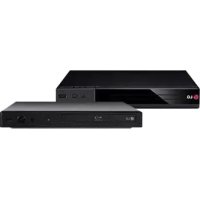
PF391P - Blu-ray player LG - Free user manual and instructions
Find the device manual for free PF391P LG in PDF.


| Product Type | Portable multimedia player (digital photo frame) |
| Brand | LG |
| Model | PF391P |
| Dimensions (W x H x D) | 213 x 147 x 103.5 mm (with support arm) |
| Net Weight | 630 g |
| Power Supply | DC 12 V, 2 A (AC adapter included, 100-240 V~) |
| Power Consumption | 10 W |
| Built-in Battery | Rechargeable, battery life approx. 1 hour, charging time ~2 hours |
| Display Type | 8-inch LCD TFT color, resolution 800 x 480 (WVGA) |
| Internal Memory | 256 MB (21 MB reserved for system software) |
| Memory Card Slot | 1 x SD/MMC/Memory Stick (FAT12/16/32) |
| USB Port | USB 2.0 (device) for PC connection or USB flash drive |
| Supported Photo Formats | JPEG (baseline, progressive) up to 8000 x 8000 pixels |
| Supported Video Formats | AVI, MPG, MPEG (max resolution 720x576, bitrate <15 Mbps) |
| Supported Audio Formats | MP3 (8-48 kHz, 32-320 kbps) |
| Main Functions | Photo viewer, video/audio player, slideshow, calendar, alarm, timer, power saving, file management (copy/delete) |
| Included Accessories | AC adapter, USB adapter cable, USB cable, removable support arm, 3 interchangeable frames |
| Safety | Do not expose to moisture, do not block ventilation openings, use only provided adapter, unplug during thunderstorms |
| Care and Cleaning | Wipe with a soft, dry cloth. Do not use chemicals or abrasives. Unplug before cleaning. |
| Operating Temperature | 5 °C to 45 °C, relative humidity 5 to 90 % |
Frequently Asked Questions - PF391P LG
User questions about PF391P LG
0 question about this device. Answer the ones you know or ask your own.
Ask a new question about this device
Download the instructions for your Blu-ray player in PDF format for free! Find your manual PF391P - LG and take your electronic device back in hand. On this page are published all the documents necessary for the use of your device. PF391P by LG.
USER MANUAL PF391P LG
PF391P-P-ABELLLLW-ENG 11/19/07 4:39 PM Page 1

LG
PF391
ENGLISH
DEUTSCH
FRANÇAIS
NEDERLANDS

P/NO:MFL42173806(R1)
Safety Precaution


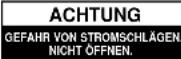
CAUTION: TO REDUCE THE RISK OF ELECTRIC SHOCK, DO NOT REMOVE COVER (OR BACK). NO USER-SERVICEABLE PARTS INSIDE. REFER SERVICING TO QUALIFIED SERVICE PERSONNEL
This lightning flash with arrowhead symbol within an equilateral triangle is intended to alert the user to the presence of uninsulated dangerous voltage within the product's enclosure that may be of sufficient magnitude to constitute a risk of electric shock to persons.
The exclamation point within an equilateral triangle is intended to alert the user to the presence of important operating and maintenance (servicing) instructions in the literature accompanying the product.
WARNING: TO PREVENT FIRE OR ELECTRIC SHOCK HAZARD,DO NOT EXPOSE THIS PRODUCT TO RAIN OR MOISTURE.
WARNING: Do not install this equipment in a confined space such as a book case or similar unit.
CAUTION: Do not block any ventilation openings. Install in accordance with the manufacturer's instructions. Slots and openings in the cabinet are provided for ventilation and to ensure reliable operation of the product and to protect it from over heating. The openings should be never be blocked by placing the product on a bed, sofa, rug or other similar surface. This product should not be placed in a built-in installation such as a bookcase or rack unless proper ventilation is provided or the manufacturer's instruction has been adhered to.
CAUTION: The apparatus should not be exposed to water (dripping or splashing) and no objects filled with liquids, such as vases, should be placed on the apparatus.
CAUTION concerning the Power Cord
Most appliances recommend they be placed upon a dedicated circuit;
That is, a single outlet circuit which powers only that appliance and has no additional outlets or branch circuits. Check the specification page of this owner's manual to be certain. Do not overload wall outlets. Overloaded wall outlets, loose or damaged wall outlets, extension cords, frayed power cords, or damaged or cracked wire insulation are dangerous. Any of these conditions could result in electric shock or fire.
Periodically examine the cord of your appliance, and If its appearance indicates damage or deterioration, unplug it, discontinue use of the appliance, and have the cord replaced with an exact replacement part by an authorized service center.
Protect the power cord from physical or mechanical abuse, such as being twisted, kinked, pinched, closed in a door, or walked upon. Pay particular attention to plugs, wall outlets, and the point where the cord exits the appliance. To disconnect power from the mains, pull out the mains cord plug. When installing the product, ensure that the plug is easily accessible.
Disposal of your old appliance
-
When this crossed-out wheeled bin symbol is attached to a product it means the product is covered by the European Directive 2002/96/EC.
-
All electrical and electronic products should be disposed of separately from the municipal waste stream via designated collection facilities appointed by the government or the local authorities.
-
The correct disposal of your old appliance will help prevent potential negative consequences for the environment and human health.
- For more detailed information about disposal of your old appliance, please contact your city office, waste disposal service or the shop where you purchased the product.
This product is manufactured to comply with the EEC DIRECTIVE 2004/108/EC, and 2006/95/EC.
PF391P-P-ABELLLLW-ENG 11/19/07 4:39 PM Page 3
Contents
Safety Precaution 2
Features 3
Main Unit . 4
Getting Started 5
- Inserting or removing a memory card 5
- Connecting an USB Device 5
- Connecting the Power Cable 6
- Turning On or Off the Unit 6
Power Save mode 6
- Installing the Stand 6
Using the Device Menu 7
Adjust the settings .7-8
Viewing a Photo file 9
Playing a Movie file 10
Playing a Music file 11
Using a File menu 12
Viewing the Calendar 13
PC Connection (USB) 14
Troubleshooting 153
Specifications 15
Features
Live picture gallery; High resolution and deep digital color from LCD wide screen.
- Easy power save mode: Better 1 second power save mode than 15 seconds power off and on.
- Portable digital album: Share your memories with built-in battery for easy mobility
- Plug-in viewer: Easy viewing photos via memory card slot and USB port
- 2,000 photo storage: 2,000 precious memories with 256MB built-in flash memory
Digital calendar & alarm clock:
For your efficient date and time scheduling
- Convenient photo explorer:
- Coolest interface navigation for easiest access to your memory
- Premium interior decorator
3 different changeable faceplate to suit various interior

PF391P-P-ABELLLLW-ENG 11/19/07 4:39 PM Page 4
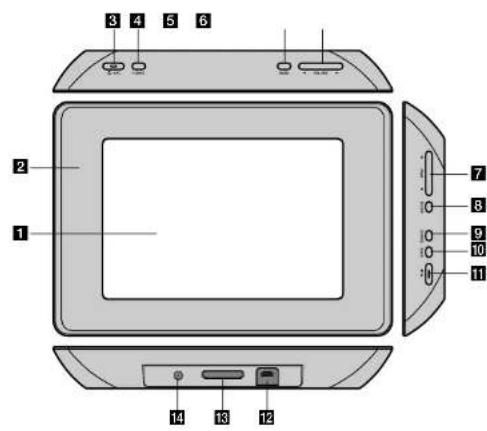
Main Unit
LCDscreen
Faceplate (interchangeable)
Four edges of the faceplate are magnetic, so that the faceplate can easily be attached or detached.
1 BAT. (Power button and Battery indicator)
Turns the unit ON or OFF and indicates the battery status.
The indicator lights in red during charging the battery.
The indicator lights in green when battery is full.
P-SAVE (Power Save)
Accesses or exits the power save mode.
5 MENU
Accesses or exits the option menu.
6VOLUME B
Adjusts the volume of the unit. To adjust the volume, press and hold
VOLUME (h or B) during playback of the movie or music file.
Left and Right buttons for selecting an item on the menu.
7PAGE
Press and hold for 2 seconds to move to the previous or next page on the [Photo], [Movie] or [Music] menu.
Up and Down buttons for selecting an item on the menu.
8ENTER
Selects an option or executes a command.
9ROTATE
Rotates the photo in full screen counterclockwise.
BACK
Returns to a previous menu or screen.
NX
Starts playback. Press to pause playback; press again to restart.
USB connector
Connect the supplied USB adapter cable then connect an USB device.
3Memory card slot
Insert a memory card (SD, MMC or MS).
14DC 12V IN
Connect the supplied AC adaptor.
Getting Started
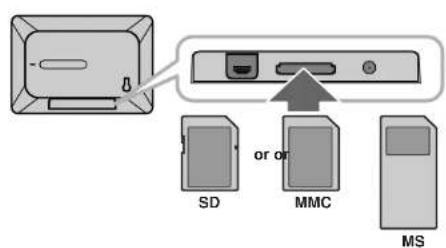
Inserting or removing a memory card
Insert a memory card to the memory card slot on the unit.
To withdraw the memory card from the slot, press on the center of the memory card then withdraw it carefully.
Card useable on this unit
- Secure Digital Card (SD)
Multi Media Card (MMC)
Memory Stick (MS) - Compatible with: FAT 12, FAT 16, or FAT 32
Only use the memory cards recommended above.
The card will only fit in one direction; do not force it.
The card should fit snugly when properly inserted.
Any memory card may not be available on the unit. - Do not extract the memory card in operating (play, copy, etc.).
Regarding Write Protect
For cards that have a write protect switch, it will not be possible to write, erase or format the card if the switch is on.
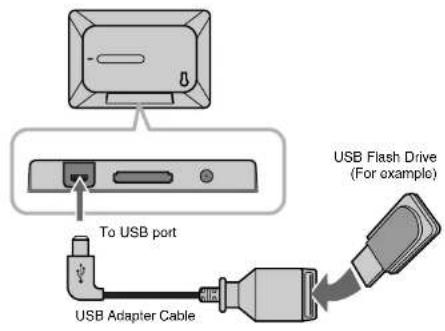
Connecting an USB Device
Connect the small end of the USB adapter cable to the USB port on the unit. Connect an USB Device and the USB adapter. Use an USB cable, if you need.
This unit supports only USB Device with FAT16 or FAT32 format.
- Do not extract the USB Device during operation (play, copy, etc.).
- USB Device: USB Device that support USB 1.1 and USB 2.0.
(For example: USB Flash Drive, Memory Card Reader, Digital Camera, etc.)
- An USB Device which requires additional program installation when you have connected it to a PC; is not supported.
PF391P-P-ABELLW-ENG 11/19/07 4:39 PM Page 6
Connecting the Power Cable
Connect the supplied power cable from the unit to a power outlet.
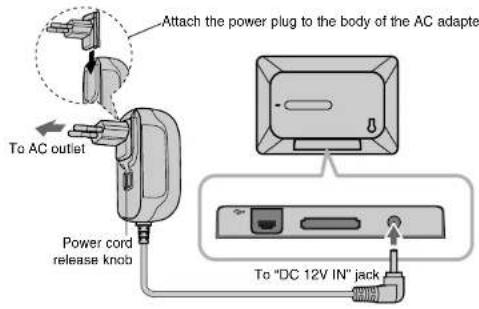
AC adapter
This AC adapter operates on 100-240V~1A 50/60Hz.
- Contact an electrical parts distributor for assistance in selecting a suitable AC
plug adapter or AC cord set
Manufactured by WANLIDA GROUP CO., LTD
Rechargeable battery
- Its internal rechargeable battery provides you with the freedom to pass it
around and play the flies without the power cord. - The internal rechargeable battery will start charging only when the unit is turned off and the AC motor is connected to the battery.
turned off and the AC adapter is connected to a Ptocher charging port . The output on the unit
The charging is stopped if you turn on the air
The charging will take approximately 2 hour.
The BAT indicator turns red in charging. If the charging is complete, the indicator changes to green color. - When the remaining time of the battery power is under 10 minutes, a will appear on the screen and the BAT. indicator flashes.
Turning On or Off the Unit
To turn on the unit, press and hold BAT for 2 seconds
The demonstration slideshow will start and then the [Device Menu] will appear. Press any button to skip the demonstration slideshow.
The demonstration photos are located in the internal memory, and you cannot change or delete them.
Press BAT again to turn off the unit.
Power Save mode
You can set up the unit into an economic power save mode. Press P-SAVE and the LCD screen is turned off. To exit the power save mode, press P-SAVE or BAT.
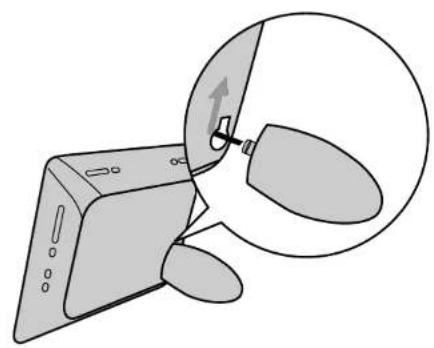
Installing the Stand
Attach the detachable stand on the back of the unit as below.
PF391P-P-ABELLLLW-ENG 11/19/07 4:39 PM Page 7
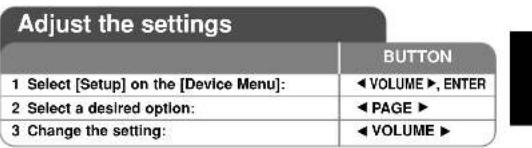
Using the Device Menu
The Device Menu will appear when the unit is turned on and you can display the Device Menu by pressing BACK repeatedly.
Use VOLUME to select an option on the [Device Menu] then press ENTER.
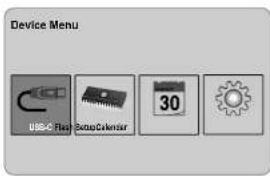
- USB-C .... USB-Z
You can play a file(s) in the connected USB device.
SD/MMC/MS
You can play a file(s) in the external memory card.
-Flash
You can play a file(s) in the internal memory card.
Calendar
You can view the current date, clock and alarm information through calendar screen.
- Setup
You can change the settings of the unit on the [Setup] menu.
Adjust the settings - more you can do
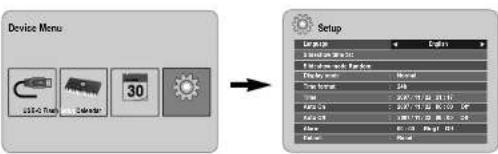
To display the [Setup] menu
Use VOLUME to select the [Setup] option on the [Device Menu] then press ENTER.
[Language]
Select a language for the Setup menu and on-screen display
[Slideshow time]
Specify how long each picture is displayed in a slideshow; 3 seconds, 5 seconds, 15 seconds, 1 minute, 15 minutes, 1 hour.
[Slideshow mode]
Specify the transition style between pictures in a slideshow: Random, Fading, Off, Bottom-To-Top, Top-To-Bottom, Left-To-Right, Right-To-Left, Door-Close, Door-Open, Hori-Cross, Verto-Cross.
If you select [Off], the slideshow does not work and the screen is fixed with one picture.
[Display mode]
Specify the display mode for viewing photo file; Normal, Fit.
(N=10) Dots Print the image of the photo.
[Nominal]: Retains the original aspect ratio of the film [Fit]: Optimizes the image to fit the screen
[Time format]
Specify the time format for displaying the clock ; 12h, 24h
[12h]: 12-hour display type with am or pm
[24h]: 24-hour display type without am or pm
[Time]
Specify the time and date of the unit to use the various timer features of the unit.
- Select [Time] option then press VOLUME
- Enter the necessary information for date and time. VOLUME (left/right): Moves the cursor to the previous or next column. PAGE (up/down): Changes the setting at the current cursor position.
- Press ENTER to confirm your setting.
[Auto On]
Specify when the unit turns on automatically.
- Select [Auto On] option then press VOLUME
- Follow step 2 as shown in [Time] above.
- Choose a desired repeat mode; [Off], [Once] or [Everyday].
Select [Off] if you do not use this function. - Press ENTER to confirm your setting.
[Auto Off]
Specify when the unit turns off automatically.
1. Select [Auto Off] option then press VOLUME
2. Follow step 2 as shown in [Time] above
3. Choose a desired repeat mode: [Off], [Onco] or [Everyday]. Select [Off] if you do not use this function.
4. Press ENTER to confirm your setting.
[Alarm]
Specify the clock for alarm function. If you set the alarm, the unit will be turned on automatically at the alarm time and the alarm will sound. To turn off the alarm sound, press any button on the unit.
- Select [Alarm] option then press VOLUME
- Enter the necessary information for clock. VOLUME (left/right): Moves the cursor to the previous or next column.
PAGE (up/down): Changes the setting at the current cursor position. - Choose a ring option; [Ring1], [Ring2] or [Ring3]. For example, if you select [Ring2]: Alarm sound (1 min.) Mute (15 sec.) Alarm sound (1 min.) Mute (15 sec.) Normal mode
- Choose a desired repeat mode: [Off], [Once] or [Everyday]. Select [Off] if you do not use this function. [Off]: Alarm function is not activated. [Once]: Alarm function is activated once after setting the alarm. [Everyday]: Alarm function is activated everyday.
- Press ENTER to confirm your setting.
[Default]
Reset the unit to its original factory settings. Select [Default] option then press ENTER.
PF391P-P-ABELLLLW-ENG 11/19/07 4:39 PM Page 9
| Viewing a Photo file | |
| BUTTON | |
| 1 Select a device on the [Device Menu]: | ▲VOLUME▼,ENTER |
| 2 Select [Photo] on the [Media Menu]: | ▲VOLUME▼,ENTER |
| 3 Select a photo file on the [Photo] menu: | ▲VOLUME▼, ▲PAGE▼ |
| 4 Display the selected file in full screen: ENTER, ▶II | |
| 5 To return to the [Photo] menu: BACK | |
![LG PF391P - [Default] - 1](/content/2026/03/514729/images/e2d797c9442782018e3f19ca5c813cfa420b116a08e68b0d6dde60ae59ff32d7.jpg)
Viewing a Photo file - more you can do
Viewing photo files as a slideshow
On the [Photo] menu, use VOLUME and PAGE to select a photo file then press to start the slideshow. Press to pause the slideshow temporarily, press again to exit pause mode.
Options during viewing a photo file in full screen
You can use various features during viewing a picture in full screen.
-
Press MENU to display the option menu.
-
Use VOLUME and ENTER to select an option and execute it.
To view the previous photo file.
To start the slideshow.
To pause the slideshow.
To view the next photo file.
To rotate the photo in 90 degrees clockwise. Press ENTER repeatedly to select a degrees.
To stop viewing the photo in full screen and returns to [Photo] menu.
To enlarge the photo image. Press ENTER repeatedly to select a zoom mode or normal mode.
To switch on or off the clock display.
To adjust the brightness of the screen. Press ENTER and the brightness menu will appear, and use VOLUME to adjust the brightness then press ENTER.
You can listen to music during slideshow, if the current media contain music and photo files together. Press ENTER and will appear lower-right side of the screen. To exit this function, press ENTER again.
3.Use MENU to exit the option menu.
Photo file requirement
JPEG file compatibility with this unit is limited as follows:
- File extensions: ".jpg"
Photo size: Less than 8,000 x 8,000 (W x H) pixel (baseline)
Less than 100,000 pixel (progressive)
Maximum Files/Media: Less than 650 recommended
Notes on JPEG file
- Lossless compression JPEG image files are not supported.
- Depending on the size and number of the JPEG files, it may take several minutes to read the contents of the media.
PF391P-P-ABELLLW-ENG 11/19/07 4:39 PM Page 10
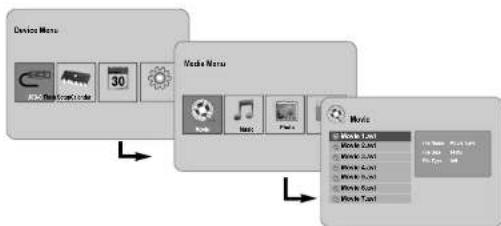
Playing a Movie file
BUTTON
| 1 Select a device on the [Device Menu]: | ↓VOLUME▶, ENTER |
| 2 Select [Movie] on the [Media Menu]: | ↓VOLUME▶, ENTER |
| 3 Select a movie file on the [Movie] menu: | ↓PAGE▶ |
| 4 Start playback: ENTER,▶II | |
| 5 To return to the [Movie] menu: BACK |
Playing a Movie file - more you can do
Options during playing a movie file
You can use various features during playing a movie file.
-
Press MENU to display the option menu during playback.
-
Use VOLUME and ENTER to select an option and execute it.
To return to the beginning of the current file. Press ENTER twice briefly
to play the previous movie file.
To play fast reverse during playback. To change the various playback speed, press ENTER repeatedly.
To start playback.
To pause playback.
To play fast during playback. To change the various playback speed, press ENTER repeatedly.
To play the next movie file
To stop playback and returns to [Movie] menu.
To select a repeat mode (TRACK, ALL, OFF).
To enlarge the video image. Press ENTER repeatedly to select a zoom mode or normal mode.
To switch on or off the clock display.
To adjust the brightness of the screen. Press ENTER and the brightness control menu will appear, and use VOLUME to adjust the brightness then press ENTER.
3.Use MENU to exit the option menu.
Movie file requirement
Movie file compatibility with this unit is limited as follows:
Available resolution size: 720x576 (W x H) pixel.
- Bit Rate: Less than 15 mips
- Movie file extensions: .avi, .mqg, .mpd
This unit does not support to display the subtitle of the movie file.
- Playable Codec format: "MPEG1", "MPEG2", "MJPEG"
- Playable Audio format: "MPEG1", "MPEG2", "MJPEG3", "RCM"
- "Not Support" will appear on the screen if the movie file is not playable.
Maximum Files/Media: Less than 650 recommended
PF391P-P-ABELLLW-ENG 11/19/07 4:39 PM Page 11
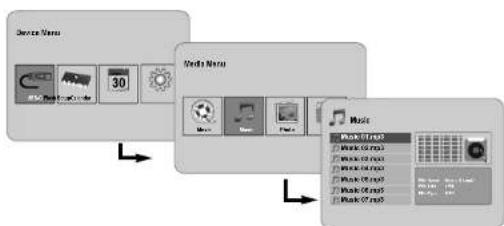
Playing a Music file
| BUTTON | |
| 1 Select a device on the [Device Menu]: | ▲ VOLUME▶, ENTER |
| 2 Select [Music] on the [Media Menu]: | ▲ VOLUME▶, ENTER |
| 3 Select a music file on the [Music] menu: | ▲ PAGE▶ |
| 4 Start playback: ENTER,▶■ | |
| 5 To return to the [Media Menu]: BACK |
Playing a Music file - more you can do
Options during playing a music file
You can use various features during playing a music file.
- Press MENU to display the option menu during playback.
- Use VOLUME and ENTER to select an option and execute it.
To return to the beginning of the current file. Press ENTER twice briefly to play the previous movie file.
To play fast reverse during playback. To change the various playback speed, press ENTER repeatedly.
To start playback.
To pause playback.
To play fast forward during playback. To change the various playback speed, press ENTER repeatedly.
To play the next music file.
To stop playback.
To select a repeat mode. (TRACK, ALL, OFF)
3.Use MENU to exit the option menu.
Music file requirement
File extensions:".mp3"
Sampling frequency: 8 - 48 kHz (Layer 1, Layer 2, Layer 3, MPEG 2.5)
8-96 kHz (PCM)
- Bit rate: 32 - 448 kbps (Layer 1), 32 - 384 kbps (Layer 2),
32-320kbps(Layer 3),8-160kbps(MPEG2.5)
Maximum Files/Media: Less than 650 recommended
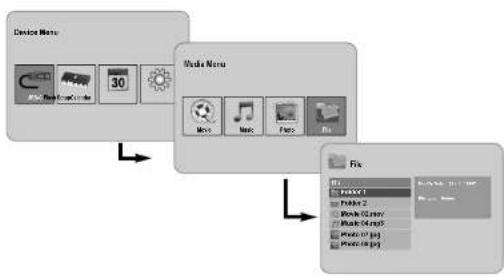
| Using a File menu | |
| BUTTON | |
| 1 Select a device on the [Device Menu]: | -volume▶ENTER |
| 2 Select [File] on the [Media Menu]: | -volume▶ENTER |
| 3 Select a file on the [File] menu: | PAGE▶ |
| 4 To return to the previous screen: BACK | |
Using a File menu - more you can do
Using [File] menu
- You can view a list of folders and files in the current media.
- You can delete or copy a file(s) in the current media.
To display a list of sub folders and files
Use PAGE to select a folder then press ENTER. The list of the files and sub folders within the folder. Press BACK to move to the upper folder.
To select multiple files on the [File] menu
You can select not only single file but also multiple files using VOLUME button. Press VOLUME at the desired files to select multiple files.
To delete a file(s) using the [File] menu
- Select a file then press VOLUME and appear on the right of the file name.
- Repeat step 1 if you need to select multiple files.
- Press ENTER and the option menu will appear.
- Use PAGE to select [Delete>] option then press ENTER.
The confirm menu will appear - Use VOLUME to select [Yes] then press ENTER and the file will be
deleted from the current media. - When the deleting is completed, press ENTER to finish.
To copy a file(s) from the current media to another media
- Select a file then press VOLUME and appear on the right of the file name.
- Repeat step 1 if you need to select multiple files.
- Press ENTER and the option menu will appear.
4.Use PAGE to select [Copy>] option then press ENTER. - Use PAGE to select a media that you would like to copy to. The free space of the selected media will be displayed on the upper-right side of the [File] menu.
-
Use VOLUME and PAGE to select a folder that you would like to copy to.
-
Press VOLUME to move to a subfolder.
-
Press VOLUME to move to a upper folder.
-
Press ENTER. The files will be copied to the selected media or folder.
- When the copying is completed, press ENTER to finish.
PF391P-P-ABELLLW-ENG 11/19/07 4:39 PM Page 13
Viewing the Calendar - more you can do
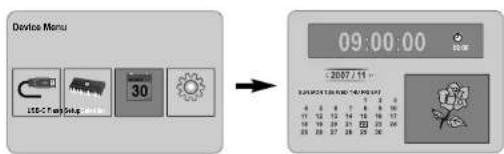
Using [Calendar] menu
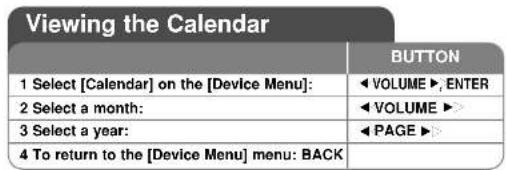
- You can view the current time and date with slideshow.
-
You can change the month and year using VOLUME and PAGE .
-
You can view the alarm information.
| PC Connection (USB) | |
| BUTTON | |
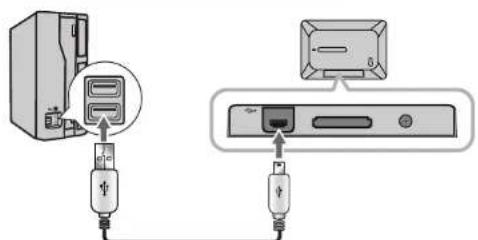
| 1 Connect the unit and PC: - | |
| 2 Turn on the unit: BAT. | |
| 3 Transfer Files: - | |
USB Cable
PC Connection (USB) - more you can do
Connecting a PC
Connect the unit to your PC using an optional USB cable. Upon connection: Your PC will automatically recognize any memory cards installed in the unit. An icon representing your installed memory cards will appear as "PF39 Memory" (Internal memory) and "Removable Disks" (External memory card) when you open "My Computer".
- It may take Windows several minutes to recognize and set up the device the first time it is connected depending on your hardware configuration.
Plug and Play Support: Windows 2000/ME/XP
- PC monitor image will appear on the screen when the unit is connected to PC and you cannot use any buttons on the unit (Except BAT, and P-SAVE buttons).
Transferring Files
The USB 2.0 High-Speed connection makes it easy to transfer music, video, or photo files (or any other data) quickly between the unit and PC. Simply use the unit as you would a USB Flash Drive using basic operating system commands.
Important Notice:
- if you need further assistance with transferring files, please refer to your operating system's instruction manual or on-screen help.
- Do not disconnect or otherwise interrupt the unit during transmission - this could damage or corrupt the unit's firmware or your files.
- If you want to format the internal memory of the unit using PC, you must format it with FAT file system.
Double-click the "My Computer" icon on your desktop and then double-click the "PF39 Memory" or "Removable Disks" icon that corresponds with the unit's internal or external memory card.
Drag your media files (or other files) to the "PF39 Memory" or "Removable Disks".
- You may choose to use folders/sub folders to organize your media and data.
Disconnecting from a PC
Disconnect the unit as instructed below to prevent data loss or file/firmware corruption.
- Double-click the green arrow in the task bar located on the lower-right side of the PC screen (Safely Remove Hardware).
- Safely Remove Hardware: Select "USB Mass Storage Device" from the list that appears and then click on "Stop". Stop a Hardware Device: Select "USB Mass Storage Device" from the list that appears and then click on "OK".
- When the "Safe to Remove Hardware" window appears, click the OK button and disconnect the USB cable from the unit and your PC.
Troubleshooting
The power does not turned on.
Ensure that the power cord has been properly connected to the power outlet.
The sound quality of the music is poor.
Try playing the file on your PC. If the sound quality is still poor, try downloading the file again or re-encoding the file yourself.
Ensure that the bit rate of the file is not too low. The higher the bit rate of the file, the better it will sound. Refer to "Music file requirement" on page 11.
Cannot transfer files to the unit from your PC.
Ensure that your PC is running a supported operating system.
- Ensure that the USB cable is securely attached to the unit and the PC.
If you have connected the unit through a USB hub, try connecting the unit directly to your PC.
Ensure that the capacity of the memory cards installed in the unit.
Cannot select a memory card.
Ensure that a memory card has been installed.
Ensure that the memory card is properly installed.
Ensure that the memory card is not defective.
Cannot copy files to a target location.
- Ensure that the target media has enough memory to contain the file.
The unit will not play a music file.
Ensure that the file is in a compatible format (MP3). Refer to "Music file requirement" on page 11.
The unit will not play a video file.
Ensure that the video file is available on the unit. Refer to "Movie file requirement" on page 10.
There is no sound.
Ensure that the volume has been set to a reasonable level.
The unit has malfunctioned.
Press BAT. button to turn off the unit then turn the unit back on.
Specifications
Power Supply DC 12 V, 2 A
Power consumption 10 W
Operating time on battery: Approx. 1 hour
Set dimensions (W x H x D) 213 x 147 x 103.5 mm with stand
Net Weight 630g
Operating temperature 5^ to 45^
Operating humidity 5 % to 90 %
Display Type 8" Wide (Full-Color TFT LCD)
Viewing area: 7.18"
Display Resolution 800 x 480 (WVGA)
Internal Memory Flash Memory (256MB*)
Memory Card Slot 1 slot for SD/MMC/MS Card
Interface USB 2.0 High-Speed (device)
Plug and Play Support Windows 2000/ME/XP
The 21MB is assigned for the unit's software.
Accessory
- AC Adapter (MPA-630)
- USB Adapter Cable
USB Cable - Detachable Stand
- 3 different changeable faceplate
PF391P-P-ABELLLW-ENG 11/19/07 4:39 PM Page 16

LG
PF391P-P-ABELLLLG-CER 11/19/07 4:41 PM Page 1

LG
PF391
DEUTSCH

P/NO:MFL42173806(R1)
Sicherheitshinweise


RISQUE D'LECTROCUTION
NE PAS OUVRIR

AVERTISSEMENT: POUR RÉDUIRE LES RÉSQUÊS DE CHOC ÉLECTRIQUE, NE PAS RÉTIRER LE COUVERCLE (NI LE PANNEAU ARRÊNER), AUCUNE PIEÇÉ INTERNE NE POTÉ ÉTRÉ RÉPARÉPARE PARS L'UTILISATEUR, L'ENTRETIEN DE L'APPEARIE, DIDIT À RETEFFECTÉ PAR UN TECHNÉQUIALIÉ.