
XR-C5109R - Car radio SONY - Free user manual and instructions
Find the device manual for free XR-C5109R SONY in PDF.



| Product Type | Cassette car stereo with RDS tuner and optional CD/MD player control |
| Brand | Sony |
| Model | XR-C5109R |
| Dimensions (W × H × D) | Approx. 188 × 58 × 181 mm |
| Mounting dimensions | Approx. 182 × 53 × 164 mm |
| Weight | Approx. 1.2 kg |
| Power supply | 12 V DC battery (negative ground) |
| Maximum output power | 40 W × 4 (at 4 ohms) |
| Speaker impedance | 4-8 ohms |
| Cassette playback | 4-track, 2-channel stereo, frequency range 30-18,000 Hz, wow and flutter 0.08% |
| FM tuner | Range 87.5-108.0 MHz, sensitivity 9 dBf, selectivity 75 dB at 400 kHz |
| MW/LW tuner | MW: 531-1,602 kHz, LW: 153-281 kHz |
| RDS functions | AF (alternative frequencies), TA (traffic announcements), PTY (program type), CT (clock time) |
| Controls | Rotary commander RM-X4S, front panel buttons |
| Cassette playback functions | AMS, intro scan, repeat, blank skip, CrO2/metal playback, ATA |
| CD/MD functions (optional) | AMS, intro scan, repeat (track/disc/all), random play, control up to 7 units |
| Sound settings | Volume, bass, treble, balance, fader, D-bass (analog/digital) |
| Attenuation | Touch ATT, automatic attenuation for telephone |
| Detachable front panel | Yes, with audible alarm |
| Maintenance | Cleaning connectors with alcohol, fuse replacement |
| Safety | Protection fuse, detachable front panel |
| Supplied accessories | Installation parts, rotary commander RM-X4S, front panel case |
| General information | Manual available in FR, EN, ES, PT, SV |
Frequently Asked Questions - XR-C5109R SONY
User questions about XR-C5109R SONY
0 question about this device. Answer the ones you know or ask your own.
Ask a new question about this device
Download the instructions for your Car radio in PDF format for free! Find your manual XR-C5109R - SONY and take your electronic device back in hand. On this page are published all the documents necessary for the use of your device. XR-C5109R by SONY.
USER MANUAL XR-C5109R SONY
FM/MW/LW Cassette Car Stereo
Operating Instructions EN
For installation and connections, see the supplied Installation/Connections manual.
Thank you for purchasing the Sony Cassette Car Stereo. This unit lets you enjoy a variety of features by using a rotary commander.
In addition to the tape playback and the radio operation you can expand your system by connecting optional CD/MD unit*.
- You can connect to a CD changer, MD changer, or a CD player, MD player.
Table of contents
This Unit Only
Getting Started
Resetting the unit 4
Detaching the front panel 4
Preparing the rotary commander 4
Setting the clock 5
Cassette Player
Listening to a tape 5
Playing a tape in various modes 6
Radio
Memorizing stations automatically - Best Tuning Memory (BTM) 7
Memorizing only the desired stations 7
Receiving the memorized stations. 8
RDS
Overview of the RDS function 8
Displaying the station name 8
Re-tuning the same programme automatically - Alternative Frequencies (AF) 9
Listening to traffic announcements 9
Preseting the RDS stations with AF and TA data 10
Locating a station by programme type 11
Setting the clock automatically 11
Other Functions
Using the rotary commander 12
Adjusting the sound characteristics 13
Attenuating the sound 13
Changing the sound and beep tone 13
With Optional Equipment
CD/MD Unit
Playing a CD/MD 14
Scanning the tracks — Intro scan 14
Playing tracks repeatedly — Repeat play 15
Playing tracks in random order Shuffle play 15
Additional Information
Precautions 16
Maintenance 17
Dismounting the unit 17
Location of controls 18
Specifications 19
Troubleshooting guide 20
Index 22
Resetting the unit
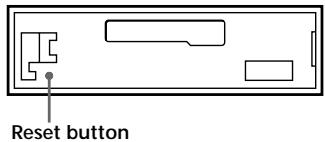
Before operating the unit for the first time or after replacing the car battery, you must reset the unit.
Press the reset button with a pointed object, such as a ball-point pen.
Note
Pressing the reset button will erase all the memorized programme and memory functions.
Detaching the front panel
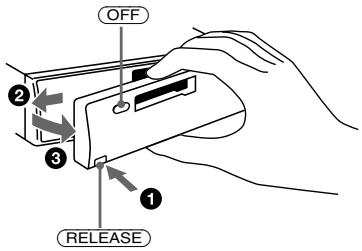
The front panel of this unit can be detached to prevent the unit from being stolen.
1 Press (OFF). 2 Press (RELEASE) to open up the front panel. Then slide the front panel a little to the left, and pull it off towards you.
Notes
- Be sure not to drop the panel when detaching it from the unit.
- If you press (RELEASE) to detach the panel while the unit is still turned on, the power will automatically turn off to protect the speakers from being damaged.
Attaching the front panel
Attach part A of the front panel to part B of the unit as illustrated and push until it clicks.
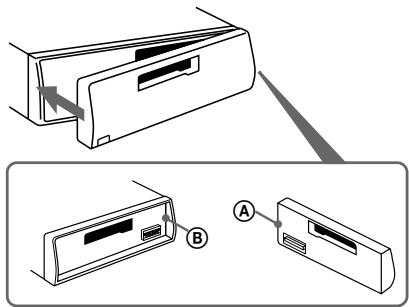
Notes
- Make sure the front panel is right side up when attaching it to the unit, as it cannot be attached upside down.
- Do not press the front panel too hard when attaching it to the unit. It can easily be attached by pressing it lightly against the unit.
- When you carry the front panel with you, keep it in the supplied case.
- Do not press hard or put excessive pressure on the display windows of the front panel.
- Do not expose the front panel to direct sunlight, heat sources such as hot air ducts, or leave it in a humid place. Never leave it on the dashboard, etc., of a car parked in direct sunlight where there may be a considerable rise in temperature inside the car.
Caution alarm
If you turn the ignition key to the OFF position without removing the front panel, the caution alarm will beep for a few seconds (only when the POWER SELECT switch is set to the A position).
If you connect an optional power amplifier to the LINE OUT, and do not use the built-in amplifier, the beep tone will be disabled.
Preparing the rotary commander
When you mount the rotary commander, attach the appropriate label, as in the illustration below.
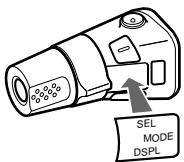
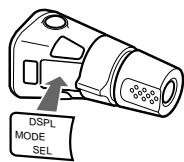
Setting the clock
The clock has a 24-hour digital indication.
For example, setting it to 10:08
1 Press OFF or DSPL during operation. 2 Press DSPL for two seconds.

The hour digit blinks.
1 Set the hour digits.

to go forward to go backward

Press SEL momentarily.

The minute digit blinks.
Set the minute digits.

to go forward
to go backward

3 Press DSPL momentarily.

The clock activates.
Note
If the POWER SELECT switch on the top of the unit is set to the 3 position, the clock cannot be set unless the power is turned on. Set the clock after you have turned on the radio.
Cassette Player
Listening to a tape
Insert a cassette.
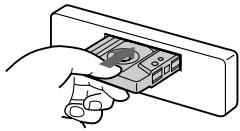
Playback will start automatically.
If a cassette is already inserted, press SOURCE repeatedly until "PLAY" is displayed.
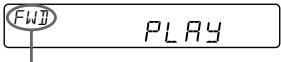
The side facing up is being played.
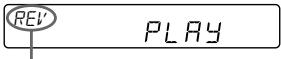
The side facing down is being played.
Tip
To change the tape transport direction, press MODE (▶) during tape playback.
| To | Press |
| Stop playback | OFF |
| Eject the cassette | ▲ |
Fast-winding the tape
During playback, press either side of (SEEK/AMS) for more than two seconds.

Fast-forward
Rewind
To start playback during fast-forwarding or rewinding, press MODE (▶).
Locating the beginning of a track
— Automatic Music Sensor (AMS)
You can skip up to nine tracks at one time.
During playback, press either side of (SEEK/AMS) momentarily.

To locate the succeeding tracks
To locate the preceding tracks
Note
The AMS function may not work when:
- the blanks between tracks are shorter than 4 seconds
- there is noise between tracks
- there are long sections of low volume or quiet sections.
Changing the displayed items
Each time you press DSPL during tape playback, the displayed item changes as follows:
* While the AF/TA function is activated.
Playing a tape in various modes
Searching for the desired track
— Intro scan
Press ① during playback.
"INTRO" appears on the display.
The first 10 seconds of all the tracks are played.
When you find the desired track, press again.
The unit returns to the normal playback mode.
Playing tracks repeatedly
— Repeat play
Press ② during playback.
"REP" appears on the display.
When the current played track is over, it will be played again from the beginning.
To cancel this function, press 2 again.
Switching to the radio while fast-winding a tape
Automatic Tuner Activation (ATA)
Press ⑤ during playback.
"ATA" appears on the display.
While fast-forwarding or rewinding, press (SEEK/AMS), after two seconds the tuner automatically turns on.
To cancel this function, press ⑤ again.
Skipping blanks during tape playback — Blank skip
Press ⑥ during playback.
"BL SKIP" appears on the display.
Blanks longer than eight seconds will automatically be skipped during tape playback.
To cancel this function, press ⑥ again.
Playing a CrO2 or metal tape
Press 4 when you want to listen to a
CrO2 (TYPE II) or metal (TYPE IV) tape.
"MTL" appears on the display.
To cancel this function, press ④ again.
Memorizing stations automatically
Best Tuning Memory (BTM)
This function selects from the currently received band the stations with the strongest signals and memorizes them in order of their frequency.
PREVENTING ACCIDENTS!
When tuning in while driving, use the automatic tuning or memory preset search function instead of manual tuning.
1 Press SOURCE repeatedly to select the tuner.
Each time you press (SOURCE), the source changes as follows:

2 Press MODE repeatedly to select the band.
Each time you press MODE, the band changes as follows:

3 Press (SENS/BTM) for two seconds.
Notes
- The unit will not store stations with weak signals on the preset number buttons. If there are only a few stations received, some preset number buttons will remain empty.
- When a preset number indicated on the display, the unit starts storing station from the one currently display.
Memorizing only the desired stations
Up to 6 stations on each band (FM1, FM2, FM3, MW and LW) can be stored on the preset number buttons in the order of your choice. Therefore, 18 FM stations can be memorized. If you try to store another station on the same preset number button, the most recent stored station will be erased.
1 Press (SOURCE) repeatedly to select the tuner. 2 Press (MODE) repeatedly to select the band. 3 Press (SEEK/AMS) to search for the station you wish to store on a preset number button. 4 Press the desired preset number button (1) to (6) for two seconds.
The number of the selected preset number button appears on the display.
Receiving the memorized stations
1 Press (SOURCE) repeatedly to select the tuner. 2 Press MODE repeatedly to select the band. 3 Press the preset number button momentarily (1 to 6) on which the desired station is stored.
Tip Press either side of PRESET/DISC to receive in order the stations stored in the memory (Preset Search Function).
If FM stereo reception is poor — Monaural mode
Press (SENS/BTM) momentarily until "MONO" lights up on the display.
The sound will improve, but it will become monaural. (The "ST" indication will disappear.)
Changing the displayed items
Each time you press DSPL, the display changes between the frequency and the clock.
If you cannot tune in a preset station
Press either side of (SEEK/AMS)
momentarily to search for the station (automatic tuning).
Scanning stops when a station is received. Press either side of the button repeatedly until the desired station is received.
Note
If the automatic tuning stops too frequently, press
(SENS/BTM) momentarily until "LCL" lights up on the display (local seek mode). Only the stations with relatively strong signals are tuned in.
Tip
If you know the frequency, press and hold either side of
SEEK/AMS until the desired station is received (manual tuning).
RDS
Overview of the RDS function
Radio Data System (RDS) is a broadcasting service that allows FM stations to send additional digital information along with the regular radio programme signal. Your car stereo offers you a variety of services. Here are just a few: Re-tuning the same programme automatically, Listening to traffic announcements and Locating a station by programme type.
Notes
- Depending on the country or region, not all of the RDS functions are available.
- RDS may not work properly if the signal strength is weak or if the station you are tuned in is not transmitting RDS data.
Displaying the station name
The name of the station currently received lights up on the display.
Select an FM station.
When you tune in an FM station that transmits RDS data, the station name lights up on the display.
F1 BBC F M
Note
The **indication means that an RDS station is being received.
Changing the displayed items
Each time you press DSPL, the displayed items change as follows:
Frequency → Time → Station name
Note
"NO NAME" lights up if the station received does not transmit RDS data.
Re-tuning the same programme automatically
Alternative Frequencies (AF)
The Alternative Frequencies (AF) function automatically selects and re-tunes the station with the strongest signal in a network. By using this function, you can continuously listen to the same programme during a long-distance drive without having to re-tune the station manually.
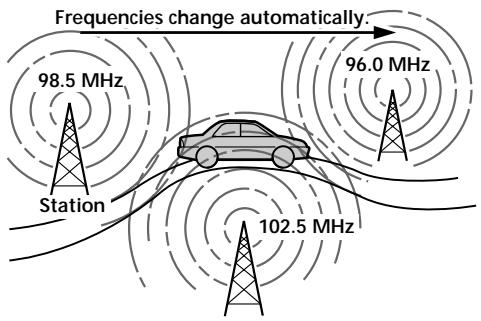
1 Select an FM station. 2 Press / TA until "AF" lights up on the display.
The unit starts searching for an alternative station with a stronger signal in the same network.
Note
When there is no alternative station in the area, and you don't need to search for an alternative station, turn the AF function off by pressing / TA until "AF" disappears.
Changing the displayed items
Each time you press / TA , the displayed items change as follows:

- Select this to turn on both AF and TA functions.
Notes
- "NO AF" and the station name flashes alternately, if the unit cannot find an alternative station in the network.
- If the station name starts flashing after selecting a station with the AF function on, this indicates that no alternative frequency is available. Press (SEEK/AMS) while the station name is flashing (within eight seconds). The unit starts searching for another frequency with the same PI (Programme Identification) data ("PI seek" appears and no sound is heard). If the unit cannot find another frequency, "NO PI" appears, and the unit returns to the originally selected frequency.
Listening to a regional programme
The "REG" (regional on) function of this unit lets you stay tuned to a regional programme without being switched to another regional station. (Note that you must turn the AF function on.) The unit is factory preset to "REG" but if you want to turn off the function, do the following.
Press AF/TA for more than two seconds until "REG" disappears.
Note that turning the "REG" function off might cause the unit to switch to another regional station within the same network.
Note
This function does not work in the United Kingdom and in some other areas.
Local link function (United Kingdom only)
The Local Link function lets you select other local stations in the area, even though they are not stored in your presets.
1 Press a preset number button that has stored a local station. 2 Within five seconds, press again the preset number button of the local station. 3 Repeat this procedure until the desired local station is received.
Listening to traffic announcements
The Traffic Announcement (TA) and Traffic Programme (TP) data let you automatically tune in an FM station that is broadcasting traffic announcements even though you are listening to other programme sources.
Press AF/TA until "TA" or "AF TA" lights up on the display.
The unit starts searching for traffic information stations. "TP" lights up on the display when the unit finds a station broadcasting traffic announcements. When the traffic announcement starts, "TA" flashes, then flashing stops when the traffic announcement is over.
Tip
When the traffic announcement starts while you are listening to another programme source, the unit automatically switches to the announcement and goes back to the original source when the announcement is over.
Notes
- "NO TP" flashes for five seconds if the received station doesn't broadcast traffic announcements. Then, the unit starts searching for a station that does broadcast traffic announcements.
- When the "EON" indication appears with "TP" on the display, the current station makes use of broadcast traffic announcements of other stations in the same network.
To cancel the current traffic announcement
Press / TA momentarily.
To cancel all traffic announcements, turn off the function by pressing / TA until "AF" disappears.
Preseting the volume of traffic announcements
You can preset the volume level of the traffic announcements beforehand, so you will not miss the announcement. When a traffic announcement starts, the volume will be automatically adjusted to the preset level.
1 Select the desired volume level. 2 Press ③ while holding down SEL. "TA VOL" appears and the setting is stored.
Receiving emergency announcements
If an emergency announcement comes in while you are listening to the radio, the programme will be automatically switched to the announcement. If you are listening to a source other than the radio, the emergency announcements will only be heard if you set AF or TA to on. The unit will then automatically switch to these announcements no matter what you are listening to at the time.
Presetting the RDS stations with AF and TA data
When you preset the RDS stations, the unit stores each station's data as well as its frequency, so you don't have to turn on the AF or TA function every time you tune in the preset station. You can select different settings (AF, TA, or both) for individual preset stations, or the same setting for all preset stations.
Presetting the same setting for all preset stations
1 Select an FM band. 2 Press AF/TA repeatedly and select either "AF", "TA" or "AF TA" (for both AF and TA functions). Note that turning the AF/TA function off stores RDS stations as well as non-RDS FM stations. 3 Press SENS/BTM for two seconds.
Presetting different settings for each preset station
1 Select an FM band, and tune in the desired station. 2 Press AF/TA repeatedly and select either "AF", "TA" or "AF TA" (for both AF and TA functions). 3 Press the desired preset number button for two seconds until "MEM" appears. Repeat from step 1 for presetting other stations.
Tip
If you want to change the preset AF and/or TA setting after you tuned in the preset station, you can do so by turning on/off the AF or TA function.
Locating a station by programme type
You can locate the station you want by selecting one of the programme types shown below.
Note
If the countries or regions where EON data is not transmitted, you can use this function only for the stations you have tuned in once.
| Programme types | Display |
| News | NEWS |
| Current Affairs | AFFAIRS |
| Information | INFO |
| Sports | SPORT |
| Education | EDUCATE |
| Drama | DRAMA |
| Culture | CULTURE |
| Science | SCIENCE |
| Varied | VARIED |
| Popular Music | POP M |
| Rock Music | ROCK M |
| Middle of the Road Music | M.O.R. M |
| Light Classical | LIGHT M |
| Classical | CLASSICS |
| Other Music Type | OTHER M |
| Weather | WEATHER |
| Finance | FINANCE |
| Children's programmes | CHILDREN |
| Social Affairs | SOCIAL A |
| Religion | RELIGION |
| Phone In | PHONE IN |
| Travel | TRAVEL |
| Leisure | LEISURE |
| Jazz Music | JAZZ |
| Country Music | COUNTRY |
| National Music | NATION M |
| Oldies Music | OLDIES |
| Folk Music | FOLK M |
| Documentary | DOCUMENT |
| Not specified | NONE |
Note
You cannot use this function in some countries where no PTY (Programme Type selection) data is available.
1 Press PTY during FM reception until "PTY" lights up on the display.
PTY INFO
The current programme type name appears if the station is transmitting the PTY data. "-----" appears if the received station is not an RDS station or if the RDS data has not been received.
2 Press PTY repeatedly until the desired programme type appears.
The programme types appear in the order as shown in the above table. Note that you cannot select "NONE" (Not specified) for searching.
PTY SPORT
3 Press either side of (SEEK/AMS).
The unit starts searching for a station broadcasting the selected programme type. When the unit finds the programme, the programme type appears again for five seconds.
"NO" and the programme type appear alternately for five seconds if the unit cannot find the programme type and it returns to the previous station.
Setting the clock automatically
By receiving CT (Clock Time) data, the clock of this unit can be set automatically.
During FM reception, press ② while pressing SEL.
"CT" will be displayed, and the clock will be set.
FM 1
To cancel the CT function
Repeat the above procedure.
Notes
- The CT function may not work even though an RDS station is being received.
- The time set by the CT function may not be exact.
Using the rotary commander
The rotary commander works by pressing buttons and/or rotating controls.
You can control the optional CD/MD unit by the rotary commander.
By pressing buttons (the SOURCE and the MODE buttons)
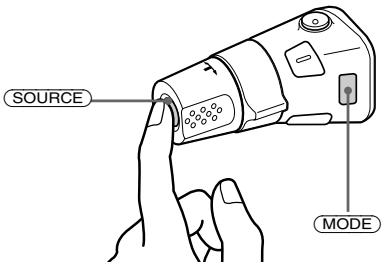
Every time you press SOURCE, the source changes as follows:
TAPE → TUNER → CD → MD
Pressing MODE changes the operation in the following ways:
- the tape transport.
- the band, FM1 → FM2 → FM3 → MW → LW.
- the CD/MD unit.
Tip
You can turn on this unit by pressing (SOURCE) on the rotary commander.
By rotating the control (the SEEK/AMS control)
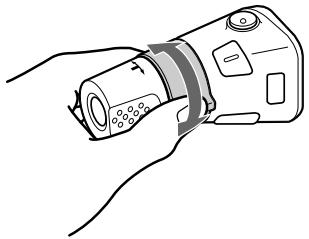
Rotate the control momentarily and release it to:
- Locate the beginnings of the tracks on the tape. Rotate and hold the control, and release it to fast-wind the tape. To playback, rotate and hold the control again, and release it.
- Locate a specific track on a disc. Rotate and hold the control until you locate the specific point in a track, then release it to start playback.
- Tune in the stations automatically. Rotate and hold the control to tune in the specific station.
By rotating the control while pushing in (the PRESET/DISC control)
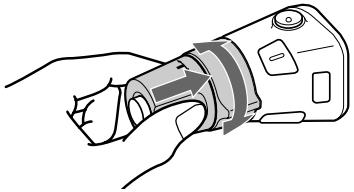
Push in and rotate the control to:
- Receive the stations memorized on the preset buttons.
- Change the disc.
Other operations
Rotate the VOL control to adjust the volume.
Press ATT to attenuate the sound.
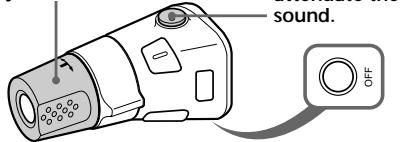
Press OFF to turn off the unit.
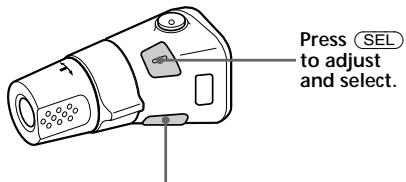
Press DSPL to change the displayed items.
Changing the operative direction
The operative direction of controls is factory preset as in the illustration below.
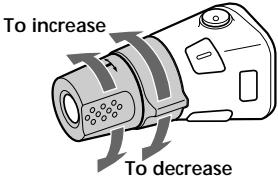
If you need to mount the rotary commander on the right side of the steering column, you can reverse the controls operative direction.
Press SEL for two seconds while pushing in the VOL control.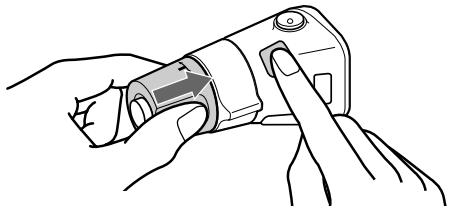
Adjusting the sound characteristics
1 Select the item you want to adjust by pressing (SEL) repeatedly.
VOL (volume) → BAS (bass) → TRE
(treble) → BAL (left-right) → FAD
(front-rear)
2 Adjust the selected item by pressing either (+) or (-).
Adjust within three seconds after selecting. (After three seconds the button will again serve as the volume control button.)
Attenuating the sound
Press ATT.
The "ATT" indication flashes.
To restore the previous volume level, press again.
Tip
The unit decreases the volume automatically when a telephone call comes in (Telephone-ATT function).
Changing the sound and beep tone
Boosting the bass sound — D-bass
You can enjoy clear and powerful bass sound. The D-bass function boosts the low frequency signal with a sharper curve than conventional bass boost.
You can hear the bass line more clearly even if the vocal volume remains the same. You can emphasize and adjust the bass sound easily with the D-BASS control. This effect is similar to the one you get when you use an optional subwoofer system.
Moreover, the Digital D-bass* function creates even sharper and more powerful bass sounds than Analog D-bass.
Digital D-bass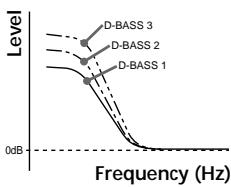
Analog D-bass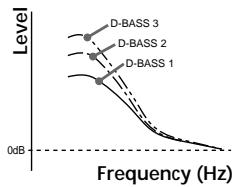
Adjusting the bass curve
Turn the D-BASS control to adjust the bass level (1, 2 or 3).
"D-BASS" * appears in the display.
To cancel, turn the control to the OFF position.
- If the CD changer has the digital D-bass function, "DIGITAL D-BASS" appears on the display during CD playback.
Note
If the bass sound becomes distorted, adjust the D-BASS control or volume button.
Attenuating the beep tone
Press ⑥ while pressing SEL.
To obtain the beep tone again, press these buttons again.
Note
If you connect an optional power amplifier to the LINE OUT and do not use the built-in amplifier, the beep tone will be disabled.
This unit can control a maximum of seven external CD/MD units in this configuration: CD unit - maximum of five, MD unit - maximum of five. Any combination up to seven will work.
Playing a CD/MD
Press SOURCE until the desired unit indication appears on the display. CD/MD playback starts.
When a CD/MD unit is connected, all the tracks play from the beginning.
Selecting CD/MD units (when several CD/MD units are connected)
Press MODE repeatedly to select the desired CD/MD unit.
Changing the displayed items
Each time you press (DSPL) during CD/MD playback, the item changes as follows:
* If the track name of an MD is not prerecorded, "NO NAME" appears in the display.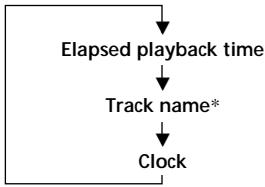
Tip: If the name of the MD is too long, only the first eight characters appear in the display.
Locating a specific track
Automatic Music Sensor (AMS)
During playback, press either side of (SEEK/AMS) once for each track you wish to skip.

To locate the succeeding tracks
To locate the preceding tracks
Locating a specific point in a track
— Manual Search
During playback, press and hold either side of (SEEK/AMS). Release the button when you have found the desired part.

To search forward
To search backward
Switching to other discs
During playback, press either side of PRESET/DISC.
To return to the previous disc
To advance to the next disc
Scanning the tracks
— Intro scan
The first 10 seconds of all the tracks on the current disc are played in order. After the first disc is over, the next disc is played.
Press ① during playback.
"INTRO" appears on the display.
When you find the desired track, press again. The unit returns to the normal CD/MD playback mode.
Playing tracks repeatedly
— Repeat play
To repeat a track
Press ② repeatedly during CD/MD playback until "REP 1" is displayed.
To repeat a disc
Press ② repeatedly during CD/MD playback until "REP 2" is displayed.
To repeat all the discs in the current unit
Press ② repeatedly during CD/MD playback until "REP 3" is displayed.
Each time you press ② the display changes as follows:
* "REP 3" only when two or more CD/MD units are connected to the unit.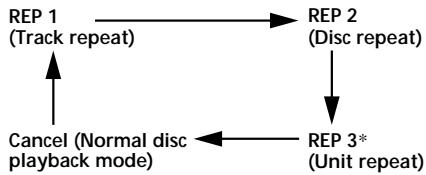
Playing tracks in random order — Shuffle play
To play the tracks on the current disc in random order
Press ③ repeatedly during CD/MD playback until "SHUF 1" is displayed.
To play all the discs in the unit in random order
Press ③ repeatedly during CD/MD playback until "SHUF 2" is displayed.
To play all the discs in the current connected CD/MD units in random order
Press ③ repeatedly during CD/MD playback until "SHUF 3" is displayed.
Each time you press ③, the display changes as follows:
* "SHUF 3" only when two or more CD/MD units are connected to the unit.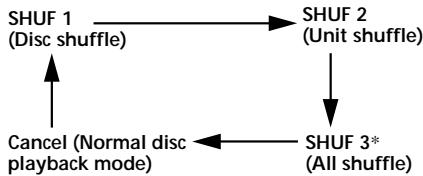
Note
CD/MD units are operated separately.
If you press ① during shuffle play, the first 10 seconds of all tracks will be played in random order.
Additional Information
Precautions
- If your car was parked in direct sunlight resulting in a considerable rise in temperature inside the car, allow the unit to cool off before operating it.
- If no power is being supplied to the unit, check the connections first. If everything is in order, check the fuse.
- If no sound comes from the speakers of a 2-speaker system, set the fader control to the center position.
- When the tape is played back for a long period, the cassette may become warm because of the built-in power amplifier. However, this is not a sign of malfunction.
If you have any questions or problems concerning your unit that are not covered in this manual, please consult your nearest Sony dealer.
To maintain high quality sound
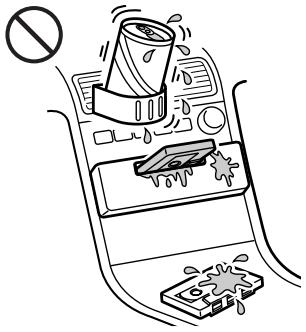
If you have drink holders near your audio equipment, be careful not to splash juice or other soft drinks onto the car audio. Sugary residues on this unit or cassette tapes may contaminate the playback heads, reduce the sound quality, or prevent sound reproduction altogether.
Cassette cleaning kits cannot remove sugar from the tape heads.
Notes on Cassettes
Cassette care
- Do not touch the tape surface of a cassette, as any dirt or dust will contaminate the heads.
- Keep cassettes away from equipment with built-in magnets such as speakers and amplifiers, as erasure or distortion on the recorded tape could occur.
- Do not expose cassettes to direct sunlight, extremely cold temperatures or moisture.
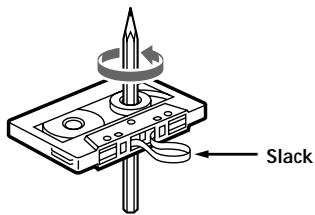
- Slack in the tape may cause the tape to be caught in the machine. Before you insert the tape, use a pencil or similar object to turn the reel and take up any slack.
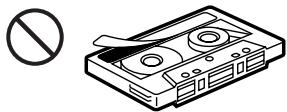
Distorted cassettes and loose labels can cause problems when inserting or ejecting tapes. Remove or replace loose labels.
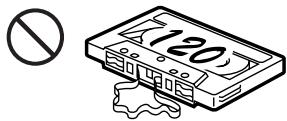
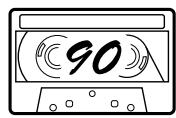
Cassettes longer than 90 minutes
The use of cassettes longer than 90 minutes is not recommended except for long continuous play. The tapes used for these cassettes are very thin and tend to be stretched easily. Frequent playing and stopping of these tapes may cause them to be pulled into the cassette deck mechanism.
Maintenance
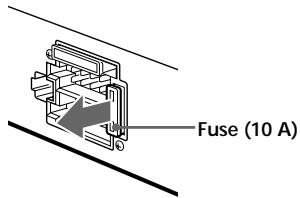
Fuse Replacement
When replacing the fuse, be sure to use one matching the amperage rating stated on the original fuse. If the fuse blows, check the power connection and replace the fuse. If the fuse blows again after replacement, there may be an internal malfunction. In such a case, consult your nearest Sony dealer.
Warning
Never use a fuse with an amperage rating exceeding the one supplied with the unit as this could damage the unit.
Cleaning the Connectors
The unit may not function properly if the connectors between the unit and the front panel are not clean. In order to prevent this, open the front panel by pressing (RELEASE) then detach it and clean the connectors with a cotton swab dipped in alcohol. Do not apply too much force. Otherwise, the connectors may be damaged.
Main unit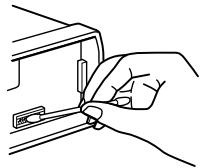
Back of the front panel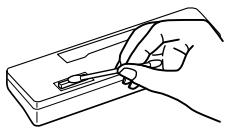
Dismounting the unit
1
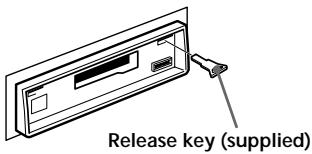
2
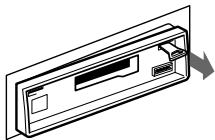
3
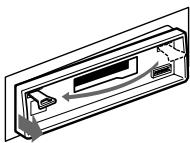
4
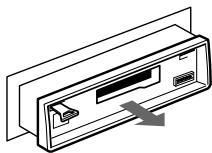
Location of controls
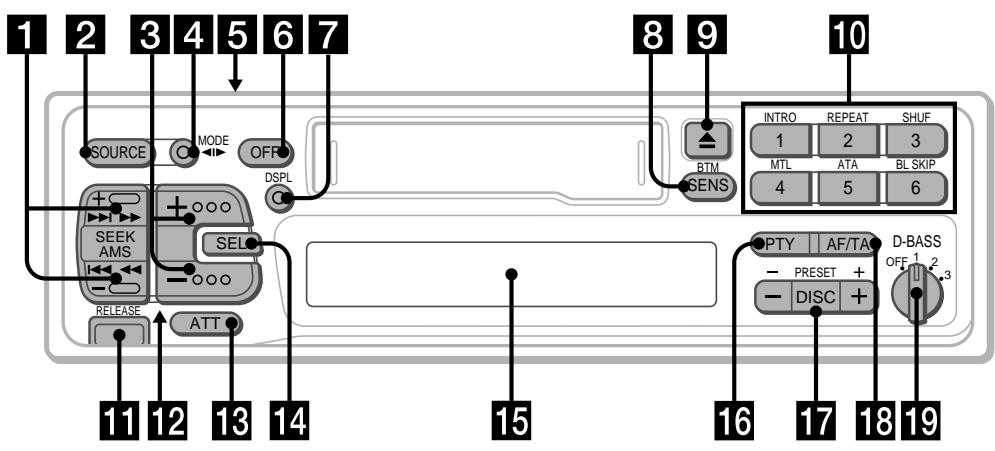
Refer to the pages for further details.
1 SEEK/AMS button 5,6,7,8,9,11,14 2 SOURCE button (TAPE/TUNER/CD/MD) 5,7,8,14 3 (+) (volume/bass/treble/left-right/front-rear control) button 5, 13 4 MODE () button During Tuner reception: BAND select 7,8
During Tape playback: Transport direction change 5
During CD/MD playback: Unit select 14
5 POWER SELECT switch (located on the top of the unit) See "POWER SELECT Switch" in the Installation/Connections manual. 6 OFF button 4,5 7 DSPL (display mode change/time set) button 5,6,8,14 3 SENS/BTM (sensitivity adjust/Best tuning memory function) button 7, 8, 10 9 (eject) button 5 10 During radio reception: Preset number buttons 7, 8, 9, 10
During tape/CD/MD playback:
INTRO button 6, 14 (2) REPEAT button 6, 15 3 SHUF (Shuffle) button 15
(4)MTL button 6 (5) ATA (Automatic Tuner Activation) button 6 6 BLSKIP(BlankSkip)button6
11 RELEASE(front panel release) button 4,17 12 Reset button (located on the front side of the unit hidden by the front panel) 4 Press this button when you use this unit for the first time, when you have changed the car battery, or when the buttons of this unit do not function properly. 13 ATT button 13 14 SEL (control mode select) button 5, 10, 11, 13, 14 15 Display window 16 PTY (programme type) button 11 17 PRESET/DISC button During Tuner reception: Preset stations select 8 During CD/MD playback: Disc change 14 18 AF/TA (alternative frequency/traffic announcement) button 9, 10 19 D-BASS control 13
Specifications
Cassette player section
Tape track 4-track 2-channel stereo
Wow and flutter 0.08% (WRMS)
Frequency response 30 - 18,000 Hz
Signal-to-noise ratio
Cassette type
61 dB
TYPE II, IV
58 dB
TYPE I
Tuner section
FM
Tuning range 87.5 - 108.0 MHz
Antenna terminal External antenna connector
Intermediate frequency 10.7 MHz
Usable sensitivity 9 dBf
Selectivity 75 dB at 400 kHz
Signal-to-noise ratio 65 dB (stereo),
68 dB (mono)
Harmonic distortion at 1 kHz
0.7% (stereo),
0.4% (mono)
Separation
35 dB at 1 kHz
Frequency response
30-15,000 Hz
MW/LW
Tuning range MW: 531 - 1,602 kHz
LW: 153 - 281 kHz
Antenna terminal
External antenna connector
Intermediate frequency
10.71 MHz/450 kHz
Sensitivity
MW: 30 μV
LW: 50 μV
General
Outputs
Telephone ATT control lead
Power amplifier control lead
Rear line out (1)
Tone controls
Bass ±8 dB at 100 Hz
Power requirements
Treble ±8 dB at 10 kHz
Dimensions
12 V DC car battery (negative ground)
Approx. 188 × 58 × 181 mm (w/h/d)
Mounting dimensions
Approx. 182 × 53 × 164 mm (w/h/d)
Mass
Approx. 1.2 kg
Supplied accessories
Parts for installation and connections (1 set)
Rotary commander RM-X4S
Front panel case (1)
Optional accessories
Bus cable (supplied with an RCA pin cord)
Source selector XAc30
Design and specifications are subject to change without notice.
Power amplifier section
Outputs Speaker outputs
(sure seal connectors)
Speaker impedance 4-8 ohms
Maximum power output 40W× 4 (at 4 ohms)
Troubleshooting guide
The following checklist will assist in the correction of most problems you may encounter with your unit.
Before going through the checklist below, refer to the operating procedures.
General
| Problem | Cause/Solution |
| No sound | ·Adjust the volume with ⊙. ·Set the fader control to the centre position for 2-speaker systems. |
| Indications do not appear on the display window. | Remove the front panel and clean the connectors. See “Cleaning the Connectors” in “Maintenance” for details. |
| No beep tone. | ·An optional power amplifier is connected to the LINE OUT and you are not using the built-in amplifier. ·The beep tone is attenuated (page 13). |
Tape playback
| Problem | Cause/Solution |
| Playback sound is distorted. | Contamination of the tape head. → Clean the head. |
| The AMS does not operate correctly. | ·There is noise in the space between tracks. ·A blank space is too short (less than four seconds). ·►on (SEEK/AMS) is pressed immediately before the following track. ·►on (SEEK/AMS) is pressed immediately after the track starts. ·A long pause, or a passage of low frequencies or very low sound level is treated as a blank space. |
Radio reception
| Problem | Cause/Solution |
| Preset tuning is not possible. | • Store the correct frequency. • The broadcast is too weak. |
| Automatic tuning is not possible. | The broadcast is too weak. → Use manual tuning. |
| The "ST" indication flashes. | • Tune in precisely. • The broadcast is too weak. → Press (SENS/BTM) to enter the MONO mode. |
RDS functions
| Problem | Cause/Solution |
| A SEEK starts after a few seconds of listening. | The station is non-TP or weaken signal. →Press (AF/TA) until “AF TA” disappears. |
| No traffic announcements | • Activate “TA”. • The station does not broadcast any traffic announcements despite being TP. →Tune in another station. |
| PTY displays “NONE”. | The station does not specify the programme type. |
Disc play
| Problem | Cause/Solution |
| Playback sound skips. | A dusty or defective disc. |
Error displays (when the optional CD/MD unit(s) is connected)
The following indications will flash for about five seconds and an alarm sound will be heard.
| Display | Cause | Solution |
| NO MAG | The disc magazine is not inserted in the CD/MD unit. | Insert the disc magazine with discs into the CD/MD unit. |
| NO DISC | No disc is inserted in the disc magazine. | Take out the magazine and insert a disc. |
| NG DISCS | A CD/MD cannot play because of some problem. | Insert another CD/MD. |
| ERROR | The disc is dirty. | Clean the disc. |
| The disc is inserted upside down. | Insert the disc correctly. | |
| RESET | The CD/MD unit cannot be operated because of some problem. | Press the reset button on the unit. |
| HI TEMP | The ambient temperature is more than 50°C. | Wait until the temperature goes below 50°C. |
If the above-mentioned solutions do not help to improve the situation, consult your nearest Sony dealer.
Index
A
Alternative Frequencies (AF) 9
ATT 13
Automatic Music Sensor (AMS) 6, 14
Automatic tuning 8
Automatic Tuner Activation (ATA) 6
B
BAL (left-right) 13
BAS (bass) 13
Beep tone 13
Best Tuning Memory (BTM) 7
Blank skip 6
C
Caution alarm 4
CD playback 14
Clock 5,11
D, E
D-Bass 13
Display 6,8,9,14
F, G, H
FAD (front-rear) 13
Fast-forward 5
Front panel 4
Fuse 17
I, J, K
Intro scan 6, 14
L
Local seek mode (LCL) 8
M, N, O
Manual search 14
Manual tuning 8
MD playback 14
METAL 6
Monaural mode 8
P, Q
Preset search 8
Programme Type (PTY) 11
R
Radio 7
Radio Data System (RDS) 8
Repeat play 6, 15
Reset 4
Rewind 5
Rotary commander 4, 12, 13
s
Shuffle play 15
15
T, U, V, W, X, Y, Z
Tape playback 5
Telephone-ATT 13
Traffic Announcement (TA) 9, 10
Traffic Programme (TP) 9, 10
TRE (Treble) 13
Welcome!
The American's function is not activated if:
Removing the front panel 4
Preparations on the rotary control..... 4
Setting the clock 5
Cassette player
Listening to a tape. 5
Removing the front panel
Searching for a desired track
— Fast search
Federal for detachable
front panel (1)
To remove the front panel 4
Preparing the rotary control 4
Setting the clock 5
Cassette player
Listening to a cassette 5
Include 23
To place the front panel
Harmonic distortion at 1 kHz
0.7% (stereo),
0.4% (mono)
- FM/MW/LW CASSETTE CAR STEREO
- TABLE OF CONTENTS
- THIS UNIT ONLY
- GETTING STARTED
- CASSETTE PLAYER
- RADIO
- RDS
- OTHER FUNCTIONS
- WITH OPTIONAL EQUIPMENT
- CD/MD UNIT
- ADDITIONAL INFORMATION
- RESETTING THE UNIT
- NOTE
- DETACHING THE FRONT PANEL
- NOTES
- ATTACHING THE FRONT PANEL
- CAUTION ALARM
- PREPARING THE ROTARY COMMANDER
- SETTING THE CLOCK
- LISTENING TO A TAPE
- TIP
- FAST-WINDING THE TAPE
- LOCATING THE BEGINNING OF A TRACK
- CHANGING THE DISPLAYED ITEMS
- PLAYING A TAPE IN VARIOUS MODES
- SEARCHING FOR THE DESIRED TRACK
- PLAYING TRACKS REPEATEDLY
- SWITCHING TO THE RADIO WHILE FAST-WINDING A TAPE
- SKIPPING BLANKS DURING TAPE PLAYBACK — BLANK SKIP
- PLAYING A CRO2 OR METAL TAPE
- MEMORIZING STATIONS AUTOMATICALLY
- PREVENTING ACCIDENTS
- MEMORIZING ONLY THE DESIRED STATIONS
- RECEIVING THE MEMORIZED STATIONS
- IF FM STEREO RECEPTION IS POOR — MONAURAL MODE
- IF YOU CANNOT TUNE IN A PRESET STATION
- OVERVIEW OF THE RDS FUNCTION
- DISPLAYING THE STATION NAME
- RE-TUNING THE SAME PROGRAMME AUTOMATICALLY
- LISTENING TO A REGIONAL PROGRAMME
- LOCAL LINK FUNCTION (UNITED KINGDOM ONLY)
- LISTENING TO TRAFFIC ANNOUNCEMENTS
- TO CANCEL THE CURRENT TRAFFIC ANNOUNCEMENT
- PRESETING THE VOLUME OF TRAFFIC ANNOUNCEMENTS
- RECEIVING EMERGENCY ANNOUNCEMENTS
- PRESETTING THE RDS STATIONS WITH AF AND TA DATA
- PRESETTING THE SAME SETTING FOR ALL PRESET STATIONS
- PRESETTING DIFFERENT SETTINGS FOR EACH PRESET STATION
- LOCATING A STATION BY PROGRAMME TYPE
- SETTING THE CLOCK AUTOMATICALLY
- TO CANCEL THE CT FUNCTION
- USING THE ROTARY COMMANDER
- BY PRESSING BUTTONS (THE SOURCE AND THE MODE BUTTONS)
- BY ROTATING THE CONTROL (THE SEEK/AMS CONTROL)
- BY ROTATING THE CONTROL WHILE PUSHING IN (THE PRESET/DISC CONTROL)
- OTHER OPERATIONS
- CHANGING THE OPERATIVE DIRECTION
- ADJUSTING THE SOUND CHARACTERISTICS
- ATTENUATING THE SOUND
- CHANGING THE SOUND AND BEEP TONE
- BOOSTING THE BASS SOUND — D-BASS
- ADJUSTING THE BASS CURVE
- ATTENUATING THE BEEP TONE
- PLAYING A CD/MD
- SELECTING CD/MD UNITS (WHEN SEVERAL CD/MD UNITS ARE CONNECTED)
- LOCATING A SPECIFIC TRACK
- AUTOMATIC MUSIC SENSOR (AMS)
- LOCATING A SPECIFIC POINT IN A TRACK
- MANUAL SEARCH
- SWITCHING TO OTHER DISCS
- SCANNING THE TRACKS
- INTRO SCAN
- TO REPEAT A TRACK
- TO REPEAT A DISC
- TO REPEAT ALL THE DISCS IN THE CURRENT UNIT
- PLAYING TRACKS IN RANDOM ORDER — SHUFFLE PLAY
- TO PLAY THE TRACKS ON THE CURRENT DISC IN RANDOM ORDER
- TO PLAY ALL THE DISCS IN THE UNIT IN RANDOM ORDER
- TO PLAY ALL THE DISCS IN THE CURRENT CONNECTED CD/MD UNITS IN RANDOM ORDER
- PRECAUTIONS
- TO MAINTAIN HIGH QUALITY SOUND
- NOTES ON CASSETTES
- CASSETTE CARE
- CASSETTES LONGER THAN 90 MINUTES
- MAINTENANCE
- FUSE REPLACEMENT
- WARNING
- CLEANING THE CONNECTORS
- DISMOUNTING THE UNIT
- LOCATION OF CONTROLS
- SPECIFICATIONS
- CASSETTE PLAYER SECTION
- TUNER SECTION
- FM
- MW/LW
- GENERAL
- OUTPUTS
- POWER AMPLIFIER SECTION
- TROUBLESHOOTING GUIDE
- ERROR DISPLAYS (WHEN THE OPTIONAL CD/MD UNIT(S) IS CONNECTED)
- INDEX
- A
- B
- C
- D, E
- F, G, H
- I, J, K
- L
- M, N, O
- P, Q
- R
- S
- T, U, V, W, X, Y, Z
- WELCOME
- REMOVING THE FRONT PANEL
- SEARCHING FOR A DESIRED TRACK
- TO PLACE THE FRONT PANEL
Brand : SONY
Model : XR-C5109R
Category : Car radio