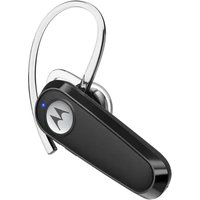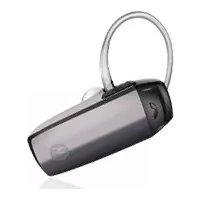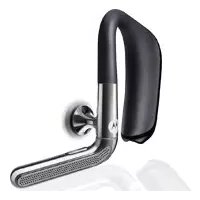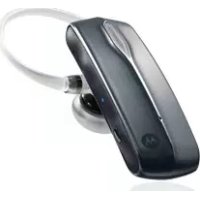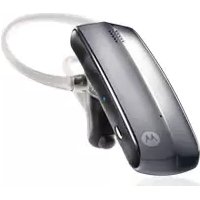
HZ800 - Earphones MOTOROLA - Free user manual and instructions
Find the device manual for free HZ800 MOTOROLA in PDF.


| Product Type | Bluetooth Headset |
| Brand | Motorola |
| Model | HZ800 |
| Noise Reduction Technology | CrystalTalk (dual microphones) |
| Isolation Mode | Yes (sensor in earpiece) |
| MotoSpeak Function | Read and reply to SMS via voice command |
| Multipoint Connection | Up to two phones simultaneously |
| Talk Time | Over 3.5 hours (high battery) |
| Battery Indicator | Red/yellow/green LED + voice message |
| Ear Cushion Type | "Stem" and "Ring" cushions (multiple sizes) |
| Cleaning | Removable cushion to clean with a soft cloth |
| Precautions | Do not apply pressure on the isolation mode sensor |
| Hearing Safety | Moderate volume recommendation to avoid injury |
| Compliance | Directive 1999/5/EC (R&TTE) |
| Recycling | Do not dispose of with household waste, follow local regulations |
| Approved Accessories | Use only Motorola chargers |
| Warranty | Void if battery is removed or non-approved accessories are used |
| Charging Temperature Range | 0°C to 45°C |
| Operating Temperature Range | -10°C to 60°C |
| Battery Type | Built-in battery (non-removable by user) |
Frequently Asked Questions - HZ800 MOTOROLA
User questions about HZ800 MOTOROLA
0 question about this device. Answer the ones you know or ask your own.
Ask a new question about this device
Download the instructions for your Earphones in PDF format for free! Find your manual HZ800 - MOTOROLA and take your electronic device back in hand. On this page are published all the documents necessary for the use of your device. HZ800 by MOTOROLA.
USER MANUAL HZ800 MOTOROLA
MOTOROLA and the Stylized M Logo are trademarks or registered trademarks of Motorola Trademark Holdings, LLC. All other product or service names are the property of their respective owners. The Bluetooth trademark and logos are owned by the Bluetooth SIG, Inc. and any use of such marks by Motorola Mobility, Inc. is under license. © 2010 Motorola Mobility, Inc. All rights reserved.
68014301063

MOTOROLAHZ800
Quick Start Guide

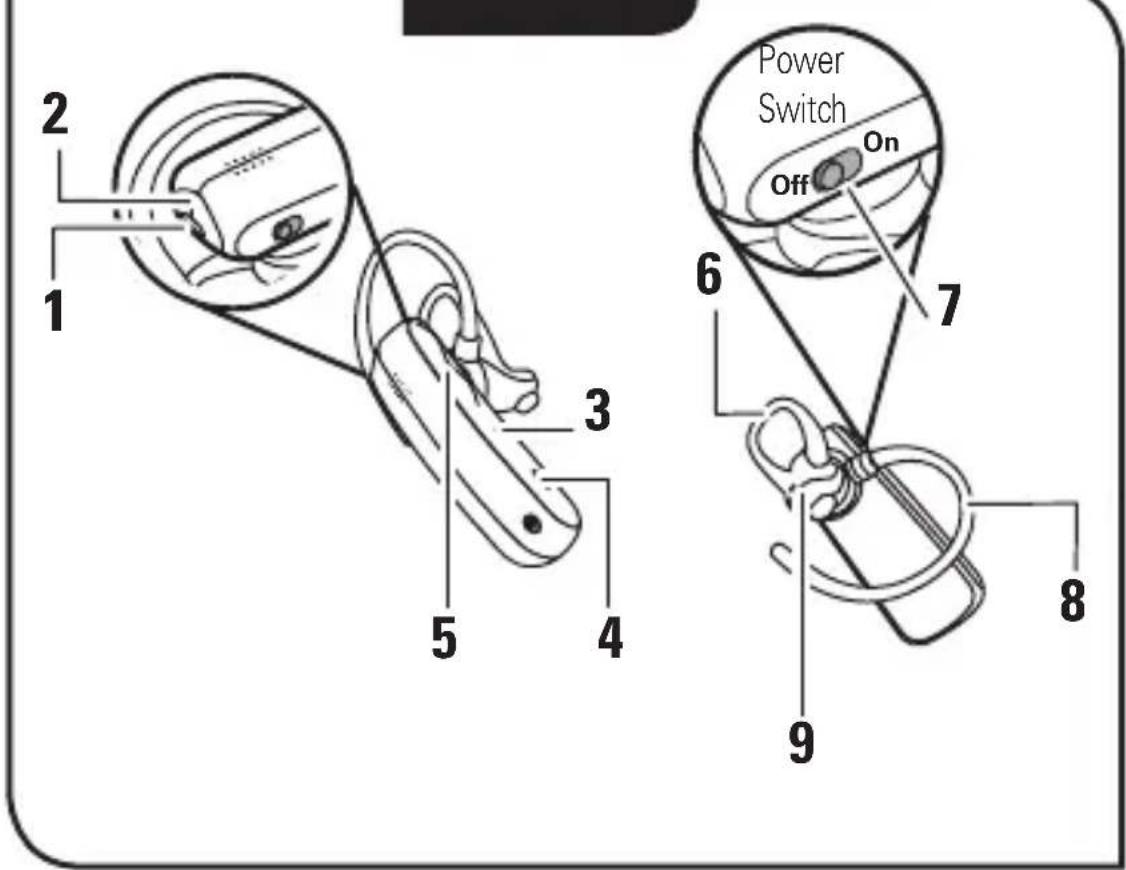
Figure 1
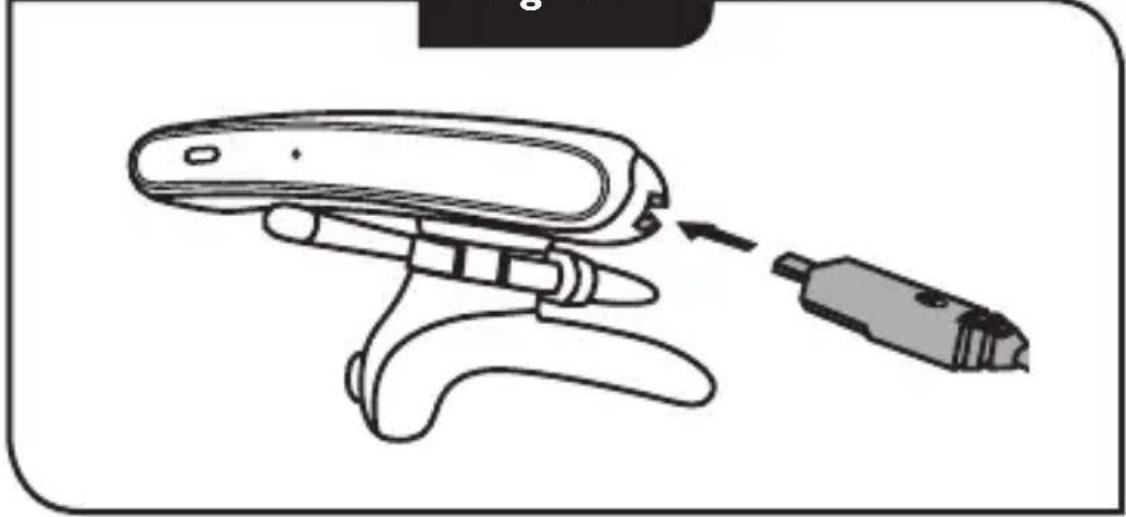
Figure 2
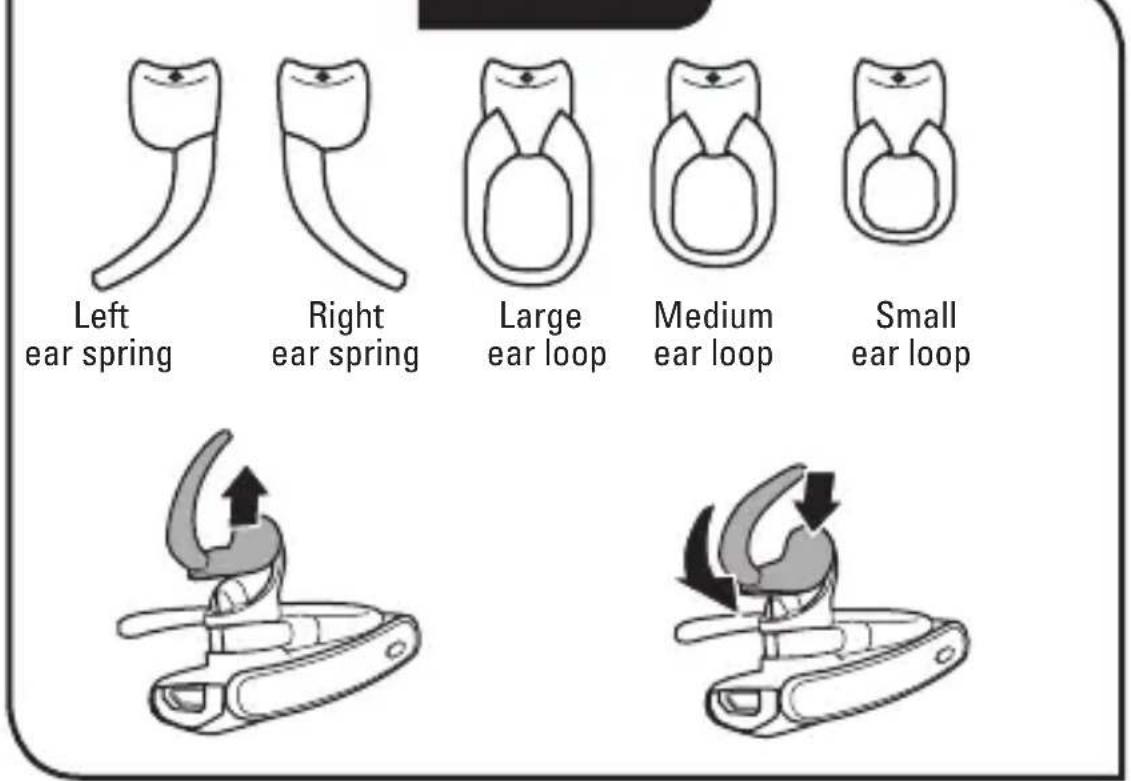
Figure 3
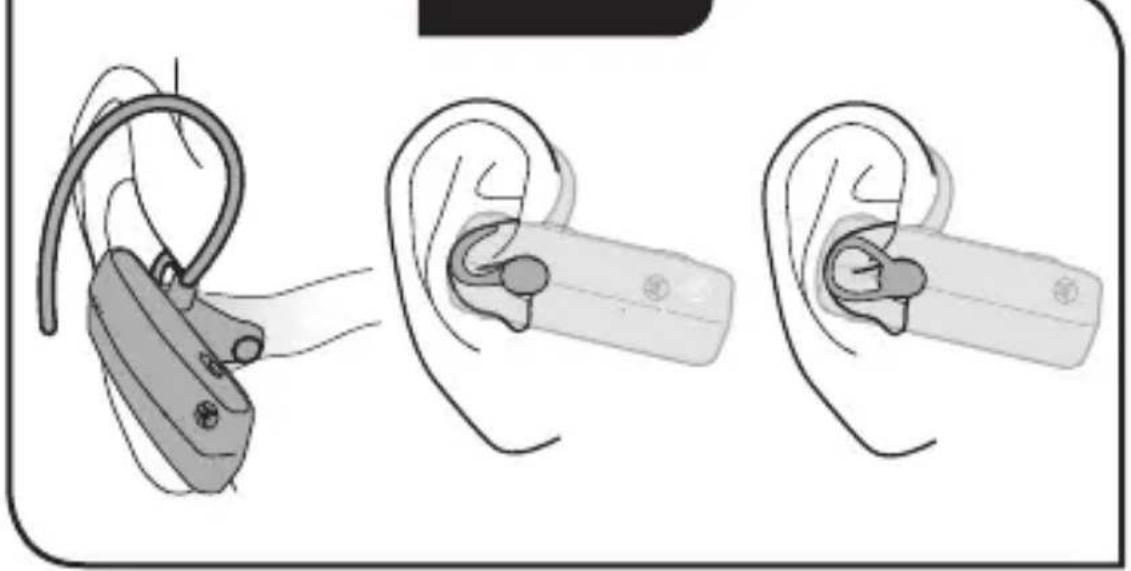
Figure 4
Welcome
Your MOTOROLA Finiti™ HZ800 headset delivers the best sound in any condition and without raising your voice.
CrystalTalkTM dual microphones are used for everyday noise cancellation, and the stealth mode for windy or extreme conditions.
Some other cool features:
- Simultaneous connect with two phones.
- Stream Bluetooth® music from your phone.
- Hear and reply to phone text messages with MotoSpeak™
- Hear the caller's name and use your voice to answer or ignore calls
- Voice prompts to guide you on connections, battery level, and other functions
English
Your headset
See figure 1 on page 1.
Take a moment to familiarize yourself with your headset.
1 Charging port
2 Call button
3 Status light
4 Stealth mode button
5 Volume buttons
6 Ear loop
7 Power switch
8 Ear hook
9 Ear piece with stealth mode sensor
Warning: do not apply pressure or squeeze the stealth mode sensor (small rubber balloon), as it can damage the parts inside and will void the warranty.
Charge your headset
See figure 2 on page 1.
Indicator light
Red/yellow -Charging
Green-Fully charged
Note: Headset is not functional while charging.
A few basics to get you started
Choose an ear fitting
See figure 3 on page 2.
Your headset comes with multiple ear fittings: Left ear spring · Right ear spring · Large ear loop · Medium ear loop · Small ear loop.
Choose your ear fitting (loop or spring) so your headset is comfortable.
1 Lift the current ear fitting up and slide it off the headset in an upward direction.
2 Slide the new ear loop or spring downward onto the earpiece, then align and push the bottom onto the groove.
Put your headset on
See figure 4 on page 2.
1 Bend spring or loop on your headset.
2 Insert headset earpiece into your ear canal.
3 Ensure stealth mode sensor is in contact with your ear canal.
4 Place spring or loop in bend of your ear.
5 Flex the ear hook and loop over your ear. Point the headset microphone towards your mouth.
Clean your headset
Keep your headset clean and dry. High humidity or perspiration can make the ear fitting feel slippery. Remove the ear fitting and wipe it with a soft cloth to remove dirt and moisture.
Note: Be very careful when wiping near the stealth mode sensor.
Turn your headset on & off
See figure 1 on page 1.
English
Pairing & connecting your headset
Pair & connect with your phone
1 Turn off any Bluetooth devices previously paired with your headset.
2 Turn on the Bluetooth feature on your phone.
3 Put headset on your ear and turn it on.
The indicator light becomes steadily lit in blue and you hear "ready to pair".
4 Follow voice prompts to connect your phone to your headset.
5 When prompted for the passkey, enter 0000.
When your headset successfully pairs with your phone, you hear "pairing complete". For daily use, make sure your headset is turned on, and your phone's Bluetooth feature is on. Your headset and phone connect automatically.
Pair & connect a second phone
1 Turn off first phone and any other Bluetooth devices previously paired with your headset.
2 Turn your headset off.
3 Turn on the Bluetooth feature on your phone.
4 Put headset on your ear and turn it on.
The indicator light becomes steadily lit in blue and you hear "ready to pair".
5 Follow voice prompts to connect your phone to your headset.
6 When prompted for the passkey, enter 0000.
When your headset successfully pairs with your phone, you hear "pairing complete". To connect to both phones, simply turn on the first phone while the second phone is connected. When you hear "
Test your connection
Place the headset on your ear and make a call from the phone. If your phone and headset are successfully connected, you hear ringing on the headset.
Using your headset
Some features are phone/network dependent.
Function Action
Answer call Press the Call button or say "answer" (only for 1st incoming call)
Reject call Press and hold a Volume button until you hear a tone or say "ignore" (only for 1st incoming call)
Make a voice dial call Press the Call button and you hear a tone
Redial last call Press and hold the Call button until you hear a tone
Mute or unmute a call Press and hold both Volume buttons
End a call Press the Call button
Answer second incoming call Press the Call button
Reject second incoming call Press and hold a Volume button until you hear a tone
Enable or disable stealth mode Press the stealth mode button
Tip: When connected to two phones, follow the voice prompts to perform functions such as voice dial, redial, and end call on the desired phone.
Hear caller's name
Note: This feature is phone dependent.
If your phone knows your caller's name, then you hear "call from
English
Enabling stealth mode
Always be heard during calls with the CrystalTalk dual microphones and the stealth mode sensor:
- CrystalTalk is the default mode and is always active to cancel out everyday background noise
- Stealth mode can be activated when noise and wind reach extreme levels to seal off all background noise
Press the stealth mode button and listen for the "stealth mode on" or "stealth mode off" prompt.
Note: It is normal for the sound of your voice to be less "natural" in stealth mode.
Listen to music
Note: This feature is phone dependent.
Your headset allows you to stream Bluetooth music from your phone. Music playback is started and controlled from your phone.
While a call is active, music pauses. When the call ends, music resumes playing.
Changing some settings
Press and hold the Call button while turning on the headset to turn these features on/off:
- Reset to factory default
Caution: This action erases all pairing information stored in your headset. - Caller ID
Voice prompts - Multipoint (two phone) connections
Follow the voice prompts to make changes to these settings.
Status indicators
Battery check
Press and hold both Volume buttons while not on a call.
Indicator light Voice prompt Talk time
Red "battery level is low" Less than 1.5 hours
Yellow "battery level is medium" Between 1.5 to 3.5 hours
Green "battery level is high" More than 3.5 hours
To save battery power, turn off the headset when you don't use it for a extended time.
Operating status
Indicator light Status
3 blue flashes Powering on/off
Steady blue Pairing/connect mode
Rapid blue/purple flashes Connection successful
Quick blue flash Incoming/outgoing call on phone 1
Quick purple flash Incoming/outgoing call on phone 2
Slow blue pulse Connected (on a call)
Slow blue flash Standby (connected to one phone)
Slow green flash Standby (connected to two phones)
Slow red flash Idle (not connected to a phone)
Slow purple pulse Connected call muted
Steady red Attempting to connect
Quick red flash Low battery
Note: After 1 minute on a call on a call or 20 minutes of inactivity, the light stops flashing to conserve power, but the headset remains on.
English
Troubleshooting
My headset will not enter pairing mode.
Make sure that any devices previously paired with the headset are turned off. If the indicator light is not steadily lit in blue, turn off both the other device and headset, wait for 10 seconds, then turn headset back on. Wait for the status light to become steadily lit in blue, indicating the headset is now in pairing mode.
My phone doesn't find my headset when searching.
Make sure the indicator light on your headset is steadily lit in blue when your phone is searching for devices. If not, press and hold the Call button and both Volume buttons until you "ready to pair" and see the indicator light lit in blue.
My headset worked before but now it's not working
Make sure your phone is on and the Bluetooth feature is turned on in your phone. If the Bluetooth feature was turned off or was turned on only temporarily, you may need to restart the Bluetooth feature and pair your phone and headset again.
The person you are talking to does not hear you
Try rotating the headset in your ear until optional sound is achieved. Also, you can switch to another ear fitting to provide a better fit and performance.
The person you are talking to does not hear you in stealth mode
Make sure the ear fitting is clean and dry.
If you have any additional questions, please call your hotline number (0870-9010-555) or visit us at www.hellomoto.com.
European Union Directives Conformance Statement
Hereby, Motorola Mobility Inc. declares that this product is in compliance with:

The essential requirements and other relevant provisions of Directive 1999/5/EC
- All other relevant EU Directives
You can view your product's Declaration of Conformity (DoC) to Directive 1999/5/EC (the R&TTE Directive) at www.motorola.com/rtte.
Caring for the Environment by Recycling
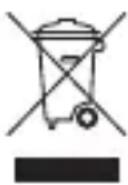
When you see this symbol on a Motorola product, do not dispose of the product with household waste.
Recycling Mobile Phones and Accessories
Do not dispose of mobile phones or electrical accessories, such as chargers or headsets, with your household waste. In some countries or regions, collection systems are set up to handle electrical and electronic waste items. Contact your regional authorities for more details. If collection systems aren't available, return unwanted mobile phones or electrical accessories to any Motorola Approved Service Centre in your region.
FCC Notice to Users
FCC Notice The following statement applies to all products that have received FCC approval. Applicable products bear the FCC logo, and/or an FCC ID in the format FCC-ID:xxxxxx on the product label.
Motorola has not approved any changes or modifications to this device by the user. Any changes or modifications could void the user's authority to operate the equipment. See 47 CFR Sec. 15.21.
This device complies with part 15 of the FCC Rules. Operation is subject to the following two conditions: (1) This device may not cause harmful interference, and (2) this device must accept any interference received, including interference that may cause undesired operation. See 47 CFR Sec. 15.19(3).
English
This equipment has been tested and found to comply with the limits for a Class B digital device, pursuant to part 15 of the FCC Rules. These limits are designed to provide reasonable protection against harmful interference in a residential installation. This equipment generates, uses and can radiate radio frequency energy and, if not installed and used in accordance with the instructions, may cause harmful interference to radio communications. However, there is no guarantee that interference will not occur in a particular installation. If this equipment does cause harmful interference to radio or television reception, which can be determined by turning the equipment off and on, the user is encouraged to try to correct the interference by one or more of the following measures:
- Reorient or relocate the receiving antenna.
- Increase the separation between the equipment and the receiver.
- Connect the equipment to an outlet on a circuit different from that to which the receiver is connected.
- Consult the dealer or an experienced radio/TV technician for help.
Approved Accessories
Use of accessories not approved by Motorola, including but not limited to batteries, antennas, and convertible covers, may cause your mobile device to exceed RF energy exposure guidelines and may void your mobile device's warranty.
Motorola recommends that you always use Motorola-branded chargers. Motorola devices are designed to work with Motorola chargers.
For approved Motorola accessories, visit our Web site at: www.motorola.com
Use & safety for battery-powered accessories
Your battery is designed to last the life of the product. It should only be removed by a recycling facility. ANY ATTEMPT TO REMOVE OR REPLACE YOUR BATTERY WILL DAMAGE THE PRODUCT.
-
Battery life may temporarily shorten in low-temperature conditions (-10^ for storage/use below 0^ for recharge) or permanently reduce in high temperature conditions (above 60^ for storage/use or above 45^ for recharge).
-
Do not let your mobile device get wet.
- Do not store your accessory in a parked car or direct sunlight.
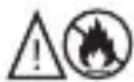
WARNING: MAY EXPLODE IF DISPOSED OF IN FIRE.
Driving Precautions
Check and obey the laws and regulations on the use of mobile devices in the area where you drive. The use of wireless devices and their accessories in your area may be prohibited or restricted. The use of wireless phones while driving may cause distraction. Discontinue a call if you can't concentrate on driving. When using your mobile device while driving, please:
- Give full attention to driving and to the road.
- Use your hands-free solution to perform hands-free calls.
- Pull off the road and park before making or answering a call if driving conditions so require.
Caution about high volume usage
Warning: Exposure to loud noise from any source for extended periods of time may temporarily or permanently affect your hearing. The louder the volume sound level, the less time is required before your hearing could be affected. Hearing damage from loud noise is sometimes undetectable at first and can have a cumulative effect. To protect your hearing:
- Start your volume control at a low setting and use as low a volume as possible.
- Limit the amount of time you use headsets or headphones at high volume.
- Where possible, use your headset in a quiet environment with low background noise.
- Avoid turning up the volume to block out noisy surrounding.
- Turn the volume down if you can't hear people speaking near you. If you experience hearing discomfort, including the sensation of pressure or fullness in your ears, ringing in your ears, or muffled speech, you should stop listening to the device through your headset or headphones and have your hearing checked by your doctor.