XPERIA C5 ULTRA - Smartphone SONY - Free user manual and instructions

Find the device manual for free XPERIA C5 ULTRA SONY in PDF.

Page 9
View the manual : Français FR English EN
Table of contents Click a title to go to the page
Manual assistant
Powered by ChatGPT
Waiting for your message
Product information

Brand : SONY

Model : XPERIA C5 ULTRA

Category : Smartphone

Download the instructions for your Smartphone in PDF format for free! Find your manual XPERIA C5 ULTRA - SONY and take your electronic device back in hand. On this page are published all the documents necessary for the use of your device. XPERIA C5 ULTRA by SONY.
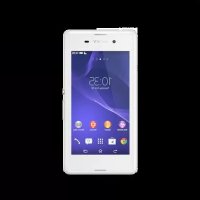
USER MANUAL XPERIA C5 ULTRA SONY

7 Il existe une version Internet de cette publication. © Imprimez-la uniquement pour usage privé.

1. Charging/Notification light

10. Main camera lens

2. Proximity/Light sensor

4. Front camera lens

13. GPS antenna area

5. Front camera light

14. Main camera light

Assembly Your device only supports nano SIM cards.

8 Il existe une version Internet de cette publication. © Imprimez-la uniquement pour usage privé.

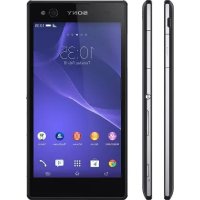
To insert the nano SIM cards Your device only supports nano SIM cards. Make sure you use the nano SIM card holder and don’t confuse the nano SIM card slot with the memory card slot.

Open the cover for the nano SIM card and memory card slots. Using a fingernail or other similar object, drag out the nano SIM card holder. Place the nano SIM card (or cards) in the relevant nano SIM card slot (or slots) in the holder, then re-insert the holder. Close the cover. If you insert a nano SIM card while the device is powered on, the device restarts automatically.

To insert a memory card Open the cover for the nano SIM card and memory card slots. Place the memory card in the memory card slot, then push the memory card all the way into the slot until you hear a clicking sound. Close the cover. Make sure you insert the memory card in the correct orientation.

To remove a nano SIM card 1 2 3 4

Open the cover for the nano SIM card and memory card slots. Using a fingernail or other similar object, drag out the nano SIM card holder. Remove the nano SIM card (or cards), then re-insert the holder. Close the cover. To remove the memory card

Turn off the device and open the cover for the nano SIM card and memory card slots. Press the memory card inwards and then release it quickly. Drag out the memory card fully and remove it. Close the cover. You can also remove the memory card without turning the device off in step 1. To use this method, you must first unmount the memory card under Réglages > Stockage > Démonter la carte SD, then follow the rest of the instructions above.

Screen protection Before using your device, remove the transparent protection film by pulling up on the protruding tab.

It is recommended to protect your device with a Sony-branded screen cover or protector intended for your Xperia™ model. The use of third party screen protection accessories may prevent your device from working by covering sensors, lenses, speakers, or microphones and it can invalidate the warranty.

Starting your device for the first time The first time you start your device, a setup guide opens to help you configure basic settings, sign in to online accounts and personalise your device. For example, if you have a Sony Entertainment Network account, you can sign in to it here and get set up straight away. You can also access the setup guide later from the Settings menu. To access the setup guide on a device with multiple users, you must be logged in as the owner, that is, the primary user.

9 Il existe une version Internet de cette publication. © Imprimez-la uniquement pour usage privé.

To turn on the device

Press and hold down the power key until the device vibrates. Enter your SIM card PIN when requested, then tap . Wait a while for the device to start.

To turn off the device Press and hold down the power key In the options menu, tap Éteindre. Tap OK.

until the options menu opens.

It may take a while for the device to shut down.

Why do I need a Google™ account? Your Xperia™ device from Sony runs on the Android™ platform developed by Google™. A range of Google™ applications and services is available on your device when you purchase it, for example, Gmail™, Google Maps™, YouTube™ and the Play Store™ application, which gives you access to the Google Play™ online store for downloading Android™ applications. To get the most out of these services, you need a Google™ account. For example, a Google™ account is mandatory if you want to: • • • • • •

Download and install applications from Google Play™. Synchronise email, contacts and the calendar using Gmail™. Chat with friends using the Hangouts™ application. Synchronise your browsing history and bookmarks using the Google Chrome™ web browser. Identify yourself as the authorised user after a software repair using Xperia™ Companion. Remotely find, lock or clear a lost or stolen device using the my Xperia™ or Android™ Device Manager services. For more information about Android™ and Google™, go to http://support.google.com. It is crucial that you remember your Google™ account username and password. In some situations, you may need to identify yourself for security reasons using your Google™ account. If you fail to give your Google™ username and password in such situations, your device is locked. Also, if you have more than one Google™ account, make sure to enter the details for the relevant account.

To set up a Google™ account on your device From your Écran d'Accueil, tap . Find and tap Réglages > Comptes > Ajouter un compte > Google. Follow the registration wizard to create a Google™ account, or sign in if you already have an account. You can also sign in to or create a Google™ account from the setup guide the first time you start your device. Or you can go online and create an account at www.google.com/accounts.

10 Il existe une version Internet de cette publication. © Imprimez-la uniquement pour usage privé.

Charging your device Your device has an embedded, rechargeable battery that should be replaced only by Sony or an authorised Sony repair centre. You should never try to open or take apart this device yourself. Opening the device can cause damage that will void your warranty. The battery is partly charged when the device is shipped from the factory. Depending on how long it was in the box before you purchased it, the battery level may be quite low. It is therefore recommended that you charge the battery for at least 30 minutes before starting up your device for the first time. You can still use your device while it is charging. Read more about how to improve the battery performance in Gestion de la batterie et de l'alimentation on page 21 . To charge your device

Plug the charger into a power outlet. Plug one end of the USB cable into the charger (or into the USB port of a computer). Plug the other end of the cable into the micro USB port on your device, with the USB symbol facing up. The notification light illuminates when charging begins. When the device is fully charged, disconnect the cable from your device by pulling it straight outwards. Make sure not to bend the connector. If the battery is completely discharged, it may take a few minutes before the notification light illuminates and the charging icon appears.

Battery notification light status Green

The battery is charging and the battery charge level is greater than 90%

The battery is charging and the battery charge level is less than 15%

The battery is charging and the battery charge level is less than 90%