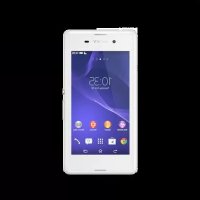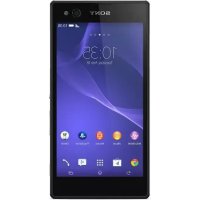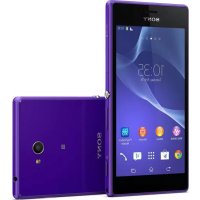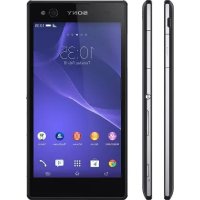
Xperia C3 Dual - Smartphone SONY - Free user manual and instructions
Find the device manual for free Xperia C3 Dual SONY in PDF.


User questions about Xperia C3 Dual SONY
0 question about this device. Answer the ones you know or ask your own.
Ask a new question about this device
Download the instructions for your Smartphone in PDF format for free! Find your manual Xperia C3 Dual - SONY and take your electronic device back in hand. On this page are published all the documents necessary for the use of your device. Xperia C3 Dual by SONY.
USER MANUAL Xperia C3 Dual SONY
A propos de ce guide de l'utilisateur. 7
Overview. 7
Assembly 8
Screen protection. 9
Starting your device for the first time. 10
Why do I need a GoogleTM account? 10
Charging your device 11
Apprendellesbases 12
Configuration One-touch 119
1 Charging/Notification light
2 Proximity/Light sensor
3 Ear speaker
4 Front camera lens
5 Front camera light
6 Micro SIM card slot cover
7 Power key
8 Volume/Zoom key
9 Camera key
10 Main microphone
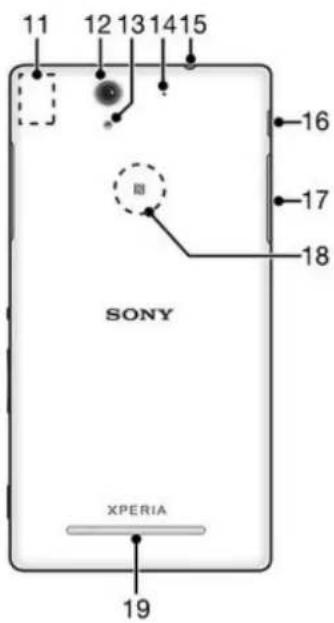
11 Wi-Fi/Bluetooth antenna area
12 Main camera lens
13 Main camera light
14 Second microphone
15 Headset Jack
16 Port for charger/USB cable
17 Memory card slot cover
18 NFCTM detection area
19 Speaker
Assembly
A protective plastic sheet is attached to the screen. You should peel off this sheet before using the touchscreen. Otherwise, the touchscreen might not function properly.
To insert the micro SIM cards
If you pull out the micro SIM card holder while the device is powered on, the device restarts automatically.
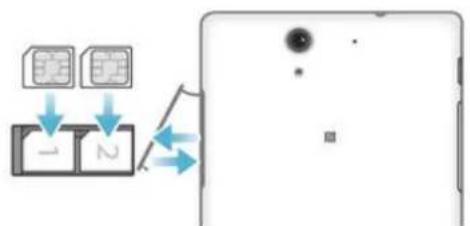
1 Insert a fingernail into the gap between the micro SIM card slots cover and the device, then detach the cover.
2 Using a fingernail, pull out the micro SIM card holder.
3 Place the micro SIM card on each holder, with the gold-coloured contacts on the micro SIM card facing up.
4 Insert the micro SIM card holder back into the device.
5 Re-attach the micro SIM card slots cover.
Do not insert an incompatible SIM card into the micro SIM card slot, for example, a nano SIM card or a non-standard card that you cut by yourself. Doing so could permanently damage
your SIM card or your device. Sony does not warrant and will not be responsible for any damage caused by the use of incompatible or modified SIM cards.
To insert a memory card
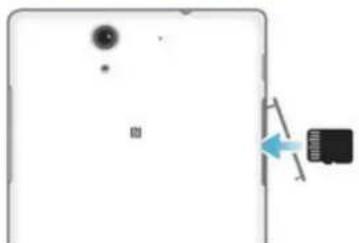
1 Insert a fingernail into the gap between the memory card cover and the device, then detach the memory card cover.
2 Place the memory card in the memory card slot, with the gold-coloured contacts facing towards you, then push the memory card all the way into the slot until you hear a locking sound.
3 Re-attach the memory card cover.
To remove the micro SIM cards
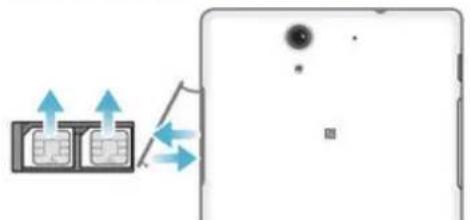
1 Detach the micro SIM card slot cover.
2 Pull out the micro SIM card holders from their slots.
3 Remove the micro SIM cards
4 Insert the micro SIM card holders back into their slots.
5 Re-attach the micro SIM card slot cover.
To remove the memory card
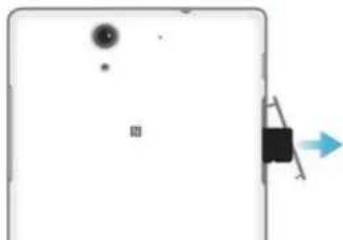
1 Turn off the device and detach the memory card slot cover.
2 Press the memory card inwards and then release it quickly.
3 Re-attach the cover.
Instead of turning off the device, you can leave it on and unmount the memory card from Reglages > Stockage > Demonter la carte SD.
Screen protection
Before using your device, remove the transparent protection film by pulling up on the protruding tab.
It is recommended to protect your device with a Sony-branded screen cover or protector intended for your Xperia™ model. The use of third party screen protection accessories may prevent your device from working by covering sensors, lenses, speakers, or microphones and it can invalidate the warranty.
Starting your device for the first time
The first time you start your device, a setup guide opens to help you configure basic settings, sign in to online accounts and personalise your device. For example, if you have a Sony Entertainment Network account, you can sign in to it here and get set up straight away.
You can also access the setup guide later from the Settings menu.
To turn on the device
Make sure that the battery is charged for at least 30 minutes before you turn on the device for the first time.
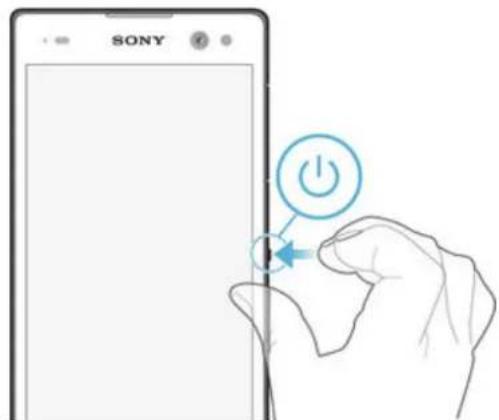
1 Press and hold down the power key until the device vibrates.
2 Enter your SIM card PIN when requested, then tap
3 Wait a while for the device to start.
To turn off the device
1 Press and hold down the power key until the options menu opens.
2 In the options menu, tap Éteindre.
It may take a while for the device to shut down.
Why do I need a Google™ account?
Your Xperia™ device from Sony runs on the Android™ platform developed by Google™. A range of Google™ applications and services is available on your device when you purchase it, for example, Gmail™, Google Maps™, YouTube™ and the Play Store™ application, which gives you access to the Google Play™ online store for downloading Android™ applications. To get the most out of these services, you need a Google™ account. For example, a Google™ account is mandatory if you want to:
Download and install applications from Google PlayTM.
Synchronise email, contacts and the calendar using GmailTM.
Chat with friends using the HangoutsTM application.
- Synchronise your browsing history and bookmarks using the Google Chrome™ web browser.
- Identify yourself as the authorised user after a software repair using Xperia™ Companion.
- Remotely find, lock or clear a lost or stolen device using the my Xperia™ or Android™ Device Manager services.
For more information about Android™ and Google™, go to http://support.google.com.
It is crucial that you remember your Google™ account username and password. In some situations, you may need to identify yourself for security reasons using your Google™ account. If you fail to give your Google™ username and password in such situations, your device is locked. Also, if you have more than one Google™ account, make sure to enter the details for the relevant account.
To set up a Google™ account on your device
1 From your Ecran d'accueil, tap
2 Find and tap Reglages > Comptes > Ajouter un compte > Google.
3 Follow the registration wizard to create a Google™ account, or sign in if you already have an account.
You can also sign in to or create a Google™ account from the setup guide the first time you start your device. Or you can go online and create an account at www.google.com/accounts.
Charging your device
Your device has an embedded, rechargeable battery that should be replaced only by Sony or an authorised Sony repair centre. You should never try to open or take apart this device yourself. Opening the device can cause damage that will void your warranty.
The battery is partly charged when the device is shipped from the factory. Depending on how long it was in the box before you purchased it, the battery level may be quite low. It is therefore recommended that you charge the battery for at least 30 minutes before starting up your device for the first time. You can still use your device while it is charging. Read more about how to improve the battery performance in Gestion de la batterie et de l'alimentation on page 22.
To charge your device
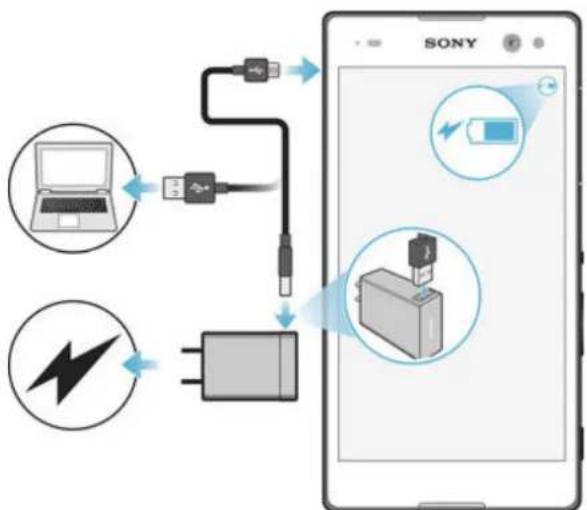
Plug the charger into a power outlet.
2 Plug one end of the USB cable into the charger (or into the USB port of a computer).
3 Plug the other end of the cable into the micro USB port on your device, with the USB symbol facing up. The notification light illuminates when charging begins.
4 When the device is fully charged, disconnect the cable from your device by pulling it straight outwards. Make sure not to bend the connector.
If the battery is completely discharged, it may take a few minutes before the notification light illuminates and the charging icon appears.
Battery notification light status
Green The battery is charging and the battery charge level is greater than 90%
Red The battery is charging and the battery charge level is less than 15%
Orange The battery is charging and the battery charge level is less than 90%
Apprendlesbases
Petites applications
WPS (Wi-Fi® Protected Setup) is a wireless networking standard that helps you establish secure wireless network connections. If you have little background knowledge of wireless security, WPS makes it easy for you to set up Wi-Fi Protected Access (WPA) encryption to secure your network. You can also add new devices to an existing network without entering long passwords.
Use one of these methods to enable WPS:
- Push button method - simply push a button on a WPS-supported device, for example, a router.
PIN method - your device creates a random PIN (Personal Identification Number), which you enter on the WPS-supported device.
To connect to a Wi-Fi® network using a WPS button
1 From your Écran d'accueil, tap #
2 Find and tap Reglages > Wi-Fi.
3 Turn on Wi-Fi if it is not already on.
4 Tap > Options avances > Bouton commande WPS, then press the WPS button on the WPS-supported device.
To connect to a Wi-Fi® network using a WPS PIN
1 From your Ecran d'accueil, tap
2 Find and tap Reglages > Wi-Fi.
3 Turn on Wi-Fi if it is not already on.
4 Tap > Options avances > Saisie code PIN WPS.
5 On the WPS-supported device, enter the PIN that appears on your device.
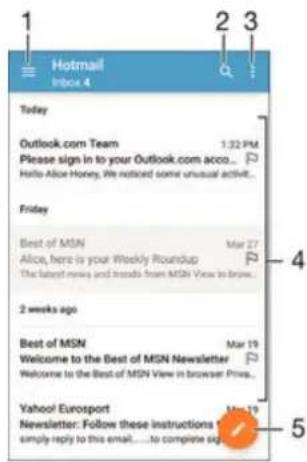
Envoyer et receivevoir des e-mails
Configuration One-touch
RecyclerVoteappareil
© 2015 Sony Mobile Communications Inc.