Xperia E3 Dual - Smartphone SONY - Free user manual and instructions

Find the device manual for free Xperia E3 Dual SONY in PDF.

Page 48
View the manual : Français FR English EN
Manual assistant
Powered by ChatGPT
Waiting for your message
Product information

Brand : SONY

Model : Xperia E3 Dual

Category : Smartphone

Download the instructions for your Smartphone in PDF format for free! Find your manual Xperia E3 Dual - SONY and take your electronic device back in hand. On this page are published all the documents necessary for the use of your device. Xperia E3 Dual by SONY.

USER MANUAL Xperia E3 Dual SONY

You can make a call by manually dialling a phone number, by tapping a number saved in

your contacts list, or by tapping the phone number in your call log view. You can also

use the smart dial feature to quickly find numbers from your contacts list and call logs.

To make a video call, you can use the Hangouts™ instant messaging and video chat

application on your device. See

Messagerie instantanée et chat vidéo

1 Open your contacts list

2 View your call log entries

3 View your favourite contacts

4 View all contact groups saved to your device

To make a call by dialling

From your Écran d'accueil, tap .

Find and tap Téléphone.

Enter the number of the recipient and tap

To make a call using smart dial

From your Écran d'accueil, tap .

Find and tap Téléphone.

Use the dialpad to enter letters or numbers that correspond to the contact you

want to call. As you enter each letter or number, a list of possible matches

Tap the contact you want to call.

Find and tap Téléphone.

Touch and hold 0 until a “+” sign appears.

Enter the country code, area code (without the initial zeros) and phone number,

To add a direct dial number to your Home screen

Touch and hold an empty area on your Écran d'accueil until the device vibrates

and the customisation menu appears.

In the customisation menu, tap Applis > Raccourcis.

Scroll through the list of applications and select Appel direct.

Select the contact and the number that you want to use as the direct dial number.

Showing or hiding your phone number

You can select to show or hide your phone number on call recipients' devices when you

To mute the ringtone for an incoming call

When you receive the call, press the volume key.

Using the answering machine

You can use the answering machine application in your device to answer calls when you

are busy or miss a call. You can enable the automatic answering function and determine

how many seconds to wait before the calls get answered automatically. You can also

manually route calls to the answering machine when you are too busy to answer them.

And you can access messages left on your answering machine directly from your device.

Before using the answering machine, you must record a greeting message.

To record a greeting message for the answering machine

Mark the Répondeur checkbox.

If you don't set a time delay for the automatic answering of calls, the default value is used.

To reject a call with the answering machine

When an incoming call arrives, drag Options de réponse upwards, then select

To set a time delay for automatic answering

Adjust the time by scrolling up and down.

To listen to messages on the answering machine

Select the voice message that you want to listen to.

You can also listen to answering machine messages directly from the call log by tapping

Rejecting a call with a text message

You can reject a call with a text message. When you reject a call with such a message,

the message is automatically sent to the caller and stored in the Messaging conversation

You can select from a number of predefined messages available on your device, or you

can create a new message. You can also create you own personalised messages by

editing the predefined ones.

To reject a call with a text message

Select a predefined message or tap

and write a new message.

To reject a second call with a text message

When you hear repeated beeps during a call, drag Options de réponse upwards,

Tap the message that you want to edit, then make the necessary changes.

Il existe une version Internet de cette publication. © Imprimez-la uniquement pour usage privé.Ongoing calls

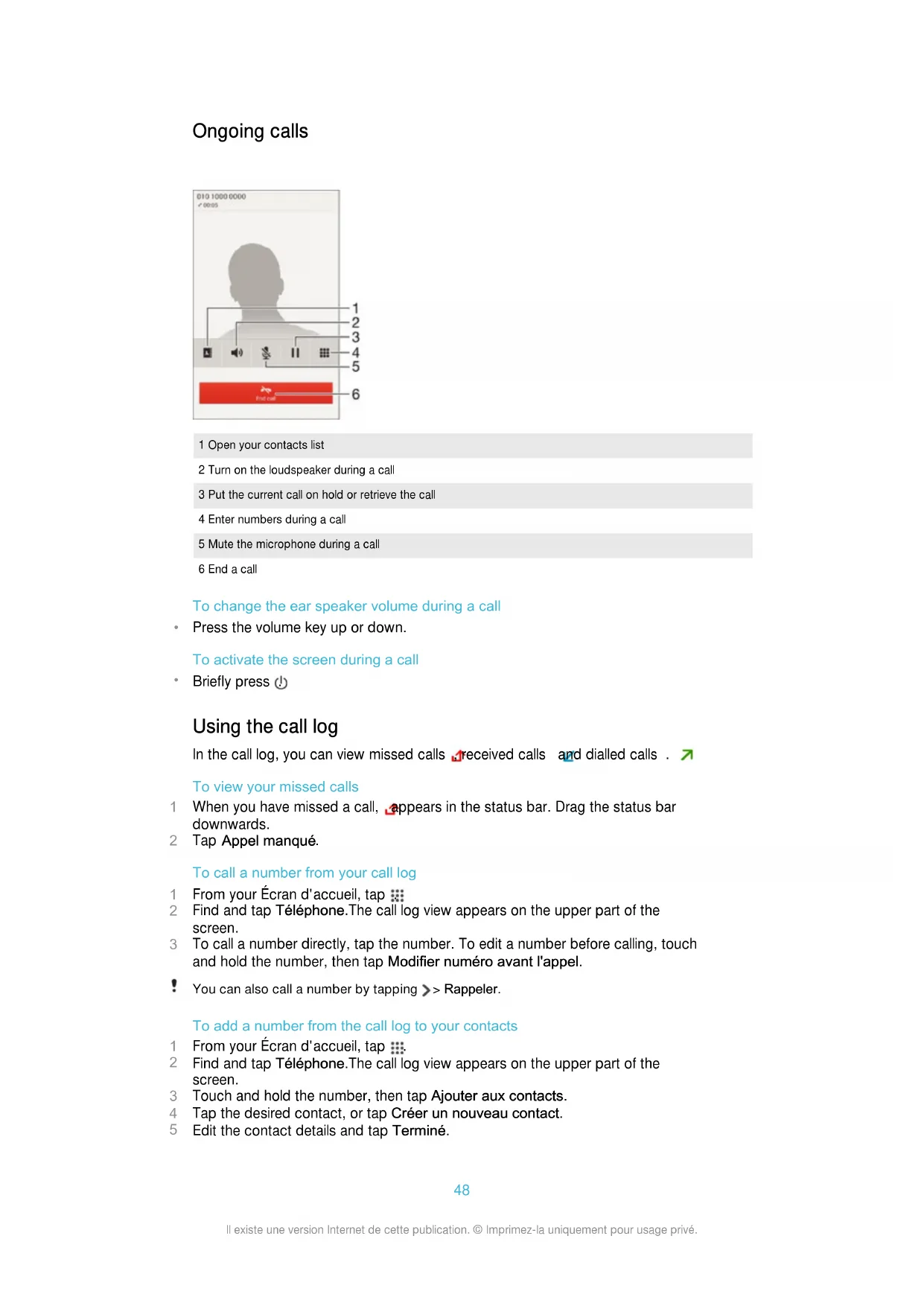
1 Open your contacts list

2 Turn on the loudspeaker during a call

3 Put the current call on hold or retrieve the call

4 Enter numbers during a call

5 Mute the microphone during a call

To change the ear speaker volume during a call

Press the volume key up or down.

To activate the screen during a call

In the call log, you can view missed calls , received calls and dialled calls .

To view your missed calls

When you have missed a call, appears in the status bar. Drag the status bar

To call a number from your call log

From your Écran d'accueil, tap .

Find and tap Téléphone.The call log view appears on the upper part of the

You can also call a number by tapping

To add a number from the call log to your contacts

Find and tap Téléphone.The call log view appears on the upper part of the

Find and tap Téléphone.

Tap > Masquer journal d'appels.

You can forward calls, for example, to another phone number, or to an answering

service. You can also forward calls that come in on SIM card 1 to SIM card 2 when SIM

card 1 is unreachable, and vice versa. This function is called Dual SIM reachability. You

must enable it manually.

Enter the number to which you want to forward calls, then tap Activer.

To turn off call forwarding

You can block all or certain categories of incoming and outgoing calls. If you have

received a PIN2 code from your service provider, you can also use a list of Fixed Dialling

Numbers (FDNs) to restrict outgoing calls. If you want to block a certain number, visit

and download applications from Google Play™ which support this function.

To block incoming or outgoing calls

Enter the password and tap Activer.

When you set up call blocking for the first time, you need to enter a password to activate the

call blocking function. You must use this same password later if you want to edit call blocking

Enter your PIN2 and tap OK.

To change the SIM card PIN2

Enter the old SIM card PIN2 and tap OK.

Enter the new SIM card PIN2 and tap OK.

Confirm the new PIN2 and tap OK.

If you have activated call waiting, you can handle multiple calls at the same time. When it

is activated, you will be notified by a beep if you receive another call.

To activate or deactivate call waiting

To answer a second call and put the ongoing call on hold

When you hear repeated beeps during a call, drag

To reject a second call

When you hear repeated beeps during a call, drag to the left.

To make a second call

During an ongoing call, tap .

Enter the number of the recipient and tap

. The first call is put on hold.

To switch between multiple calls

To switch to another call and put the current call on hold, tap

With a conference or multiparty call, you can have a joint conversation with two or more

For details about the number of participants that you can add to a conference call, contact

your network operator.

To make a conference call

During an ongoing call, tap .

Dial the number of the second participant and tap

. The first participant is put on

Tap to add the second participant to the conference call.

Repeat steps 1 to 3 to add more call participants.

To have a private conversation with a conference call participant

During an ongoing conference call, tap {0} participants.

Tap the telephone number of the participant with whom you want to talk privately.

To end the private conversation and return to the conference call, tap

During an ongoing conference call, tap the button showing the number of

participants. For example, tap 3 participants if there are three participants.

Tap next to the participant you want to release.

To end a conference call

During the conference call, tap Terminer la conférence téléphonique.

If your subscription includes a voicemail service, callers can leave voice messages for

you when you can't answer calls. Your voicemail service number is normally saved on

your SIM card. If not, you can get the number from your service provider and enter it

Enter your voicemail number.

To call your voicemail service

Find and tap Téléphone.

Your device supports international emergency numbers, for example, 112 or 911. You

can normally use these numbers to make emergency calls in any country, with or without

a SIM card inserted if you are within range of a network.

To make an emergency call

Enter the emergency number and tap . To delete a number, tap .

You can make emergency calls when no SIM card is inserted or when outgoing calls are

To make an emergency call while the SIM card is locked

From the lock screen, tap Appel d'urgence.

Enter the emergency number and tap .

www.sonymobile.com/support

While a song is playing in the Walkman® application, tap the infinite button .

services de localisation.

www.sonymobile.com/support

To restart your device

Press and hold down the power key .

In the menu that opens, tap Redémarrer. The device restarts automatically.