
DVP-FX980 - DVD player SONY - Free user manual and instructions
Find the device manual for free DVP-FX980 SONY in PDF.


| Product type | Portable DVD player |
| Brand | Sony |
| Model | DVP-FX980 |
| Dimensions (L × H × D) | 236 × 44 × 170 mm |
| Weight | Approx. 1 kg (with battery) |
| Power supply | 12 V DC 0.95 A (AC adapter), 12 V DC 1.5 A (car adapter) |
| Power consumption (DVD playback) | 6.5 W (with headphones) |
| LCD screen | 23 cm / 9 inches, resolution 800 × 480, active matrix TFT |
| Rechargeable battery | Charging time: approx. 4 h; battery life: approx. 4 h |
| Supported disc formats | DVD Video, DVD VR, VIDEO CD, Audio CD, Data CD/DVD (MP3, JPEG, video) |
| Supported file formats | MP3, JPEG, MPEG-4 (Simple Profile), Xvid |
| Connectivity | A/V output (minijack), stereo headphone jack, USB type A port |
| Main functions | Disc and USB file playback, built-in LCD screen, remote control, repeat modes, zoom, parental control |
| Included accessories | AC adapter, car adapter, audio/video adapter, remote control, batteries |
| Maintenance and cleaning | Clean with a soft dry cloth; do not use solvents; do not touch the lens |
| Safety | Class 1 laser product; do not expose to moisture; do not open the casing |
| Repairability | Repairs by qualified personnel only; spare parts from Sony after-sales service |
Frequently Asked Questions - DVP-FX980 SONY
User questions about DVP-FX980 SONY
0 question about this device. Answer the ones you know or ask your own.
Ask a new question about this device
Download the instructions for your DVD player in PDF format for free! Find your manual DVP-FX980 - SONY and take your electronic device back in hand. On this page are published all the documents necessary for the use of your device. DVP-FX980 by SONY.
USER MANUAL DVP-FX980 SONY
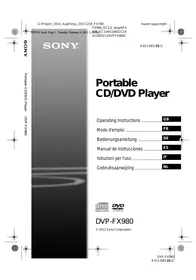
Portable CD/DVD Player
Operating Instructions GB Mode d'emploi FR Bedienungsanleitung DE Manual de instrucciones ES Istruzioni per l'uso IT Gebruiksaanwijzing NL
WARNING
To reduce the risk of fire or electric shock, do not expose this apparatus to rain or moisture.
To avoid electrical shock, do not open the cabinet. Refer servicing to qualified personnel only.
The mains lead must be changed only at a qualified service shop.
Batteries or batteries installed apparatus shall not be exposed to excessive heat such as sunshine, fire or the like.
CLASS 1 LASER PRODUCT
LASER KLASSE 1
LUOKAN 1 LASERLAITE
KCLASS 1 LASERAPPPARAT
This appliance is classified as a CLASS 1 LASER product. The CLASS 1 LASER PRODUCT MARKING is located on the bottom of the unit.
CAUTION
The use of optical instruments with this product will increase eye hazard. As the laser beam used in this CD/DVD player is harmful to eyes, do not attempt to disassemble the cabinet. Refer servicing to qualified personnel only.


Disposal of Old Electrical & Electronic Equipment (Applicable in the European Union and other European countries with separate collection systems)
This symbol on the product or on its packaging indicates that this product shall not be treated as household waste. Instead it shall be handed over to the applicable collection point for the recycling of electrical and electronic equipment. By ensuring this product is disposed of correctly, you will help prevent potential negative consequences for the environment and human health, which could otherwise be caused by inappropriate waste handling of this product. The recycling of materials will help to conserve natural resources. For more detailed information about recycling of this product, please contact your local Civic Office, your household waste disposal service or the shop where you purchased the product.

Europe Only

Disposal of waste batteries (applicable in the European Union and other European countries with separate collection systems)
This symbol on the battery or on the packaging indicates that the battery provided with this product shall not be treated as household waste.
On certain batteries this symbol might be used in combination with a chemical symbol. The
chemical symbols for mercury (Hg) or lead (Pb) are added if the battery contains more than 0.0005% mercury or 0.004% lead.
By ensuring these batteries are disposed of correctly, you will help prevent potentially negative consequences for the environment and human health which could otherwise be caused by inappropriate waste handling of the battery. The recycling of the materials will help to conserve natural resources.
In case of products that for safety, performance or data integrity reasons require a permanent connection with an incorporated battery, this battery should be replaced by qualified service staff only.
To ensure that the battery will be treated properly, hand over the product at end-of-life to the applicable collection point for the recycling of electrical and electronic equipment.
For all other batteries, please view the section on how to remove the battery from the product safely. Hand the battery over to the applicable collection point for the recycling of waste batteries.
For more detailed information about recycling of this product or battery, please contact your local Civic Office, your household waste disposal service or the shop where you purchased the product.
Do not take apart or remodel the player. Doing so can result in electric shock. Consult your nearest Sony dealer or Sony Service Center for exchange of rechargeable batteries, internal checks or repair.
Precautions
- Install this system so that the mains lead can be unplugged from the wall socket immediately in the event of trouble.
- The player is not disconnected from the AC power source (mains) as long as it is connected to the wall outlet, even if the player itself has been turned off.
- To prevent fire or shock hazard, do not place objects filled with liquids, such as vases, on the apparatus.
- Excessive sound pressure from earphones and headphones can cause hearing loss.
The manufacturer of this product is Sony Corporation, 1-7-1 Konan Minato-ku Tokyo, 108-0075 Japan. The Authorized Representative for EMC and product safety is Sony Deutschland GmbH, Hedelfinger Strasse 61, 70327 Stuttgart, Germany. For any service or guarantee matters please refer to the addresses given in separate service or guarantee documents.
IMPORTANT NOTICE
Caution: This player is capable of holding a still video image or on-screen display image on your television screen indefinitely. If you leave the still video image or on-screen display image displayed on your TV for an extended period of time you risk permanent damage to your television screen. Plasma display panel televisions and projection televisions are susceptible to this.
If you have any questions or problems concerning your player, please consult your nearest Sony dealer.
Copyrights, trademarks and software licence information
- Manufactured under licence from Dolby Laboratories. Dolby and the double-D symbol are trademarks of Dolby Laboratories. DVD Logo" is a trademark of DVD Format/Logo Licensing Corporation.
- MPEG Layer-3 audio coding technology and patents licensed from Fraunhofer IIS and Thomson.
- All other trademarks are trademarks of their respective owners. THIS PRODUCT IS LICENSED UNDER THE MPEG-4 VISUAL PATENT PORTFOLIO LICENSE FOR THE PERSONAL AND NONCOMMERCIAL USE OF A CONSUMER FOR DECODING VIDEO IN COMPLIANCE WITH THE MPEG-4 VISUAL STANDARD ("MPEG-4 VIDEO") THAT WAS ENCODED BY A CONSUMER ENGAGED IN A PERSONAL AND NONCOMMERCIAL ACTIVITY AND/OR WAS OBTAINED FROM A VIDEO PROVIDER LICENSED BY MPEG LA TO PROVIDE MPEG-4 VIDEO. NO LICENSE IS GRANTED OR SHALL BE IMPLIED FOR ANY OTHER USE. ADDITIONAL INFORMATION INCLUDING THAT RELATING TO PROMOTIONAL, INTERNAL AND COMMERCIAL USES AND LICENSING MAY BE OBTAINED FROM MPEG LA, LLC. SEE HTTP:// WWW.MPEGLA.COM
About this manual
- In this manual, "disc" is used as a general reference for the DVDs or CDs unless otherwise specified by the text or illustrations.
- Icons, such as DVD, listed at the top of each explanation indicate what kind of media can be used with the function being explained. For details, see "Playable Media" (page 21).
- NEED-to-know information (to prevent incorrect operation) is listed under the bullet icon. NICE-to-know information (tips and other useful information) is listed under the bullet icon.
Table of Contents
WARNING 2
Guide to Parts and Controls 5
Preparations 8
Checking the Accessories 8
Charging the Battery 8
Using the Car Battery Adaptor 9
Connecting to a TV 10
Playback 11
Playing Discs 11
Playing MP3, JPEG, and Video Files 12
Adjusting the Picture Size and Quality 14
Settings and Adjustments 15
Using the Setup Display 15
Additional Information 17
Troubleshooting 17
Precautions 19
Playable Media 21
Specifications 22
Index 23
Guide to Parts and Controls
The available functions differ depending on the disc or the situation.
Player
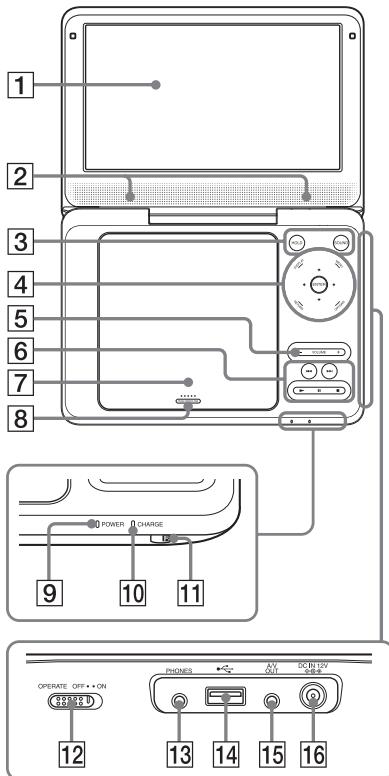
The VOLUME+ and ▶ (play) buttons have a tactile dot. Use the tactile dot as a reference when operating the player.
LCD panel (page 11) 2 Speaker 3 HOLD
Prevents accidental button operation when pressed for more than two seconds.
All the buttons on the player are locked, while the buttons on the remote remain operable.
SOUND
Switches among 4 different sound modes each time pressed.
4 DISPLAY
Displays the playback information and changes the playback mode (page 11).
MENU
Displays the DVD VIDEO's menu. When playing a JPEG file, plays a slideshow (page 13).
←/↑/↓/→
Moves the highlight to select a displayed item.
ENTER
Enters the selected item.
RETURN
Returns to the previous display.
OPTIONS
Displays the options menu.
- Disc/USB (page 13) LCD Mode (page 14)
- Setup (page 15)
- Menu/Top Menu: Displays the DVD VIDEO's menu/top menu.
- Original/Play List: Select the DVD VR's "Original" or "Play List."
5 VOLUME (sound volume) +/-
Adjusts the volume.
(previous/next)
Skipping to the previous/next chapter, track, or file.
Only the buttons on the player have the following functions.
- Fast reverses/fast forwards (▲/▶) when pressed for more than one second during playback. Press repeatedly to change the speed.
- Slow reverses/slow forwards (←/→) when pressed for more than one second during pause. Press repeatedly to change the speed. (Slow reverse play is available for DVD only. Slow forward play is available for DVD, VIDEO CD and video files.)
(play) (page 11)
Starts or re-starts playback.
(pause) (page 11)
Pauses or re-starts playback.
stop) page 11
Stops playback.
7 Disc Lid (page 11) 8 PUSH OPEN/CLOSE (page 11)
9 POWER indicator 10 CHARGE indicator (page 8) 11 (remote sensor) 12 OPERATE switch (page 11)
Opens and closes the disc lid. Turns the player on or off. 13 PHONES (headphone) jack
14 USB jack (type A) (page 13)
Connect a USB device to this jack.
15 A/V OUT jack (page 10) 16 DC IN 12V jack (page 8, 9)
Connect the AC adaptor or car battery adaptor.
Remote
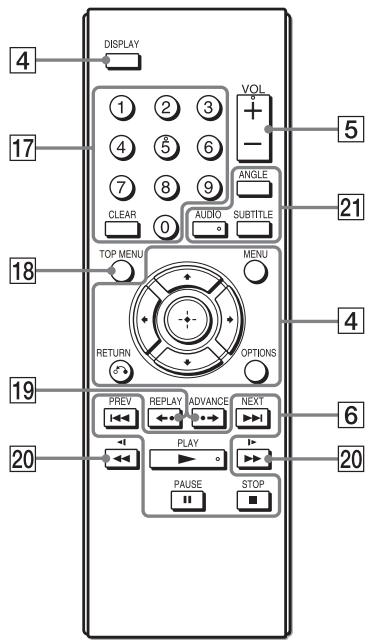
The VOL +, number 5, and AUDIO buttons have a tactile dot. Use the tactile dot as a reference when operating the player.
17 Number buttons
Enters the title/chapter numbers, etc.
CLEAR
Clears the entry field.
18 TOP MENU
Displays the DVD VIDEO's top menu.
19 <- REPLAY/ -> ADVANCE
Replays the scene/briefly fast forward the current scene (DVD only).
20 scan/slow
- Fast reverses/fast forwards when pressed during playback. Press repeatedly to change the speed.
- Slow reverses/slow forwards when pressed during pause. Press repeatedly to change the speed. (Slow reverse play is available for DVD only. Slow forward play is available for DVD, VIDEO CD, and video files.)
21 ANGLE
Changes the angles recorded on a DVD VIDEO.
AUDIO
Changes the language recorded on a DVD VIDEO with each press. When playing a CD or VIDEO CD, switches between stereo and monaural.
SUBTITLE
Changes the subtitles recorded on a DVD VIDEO each time pressed.
Preparations
Checking the Accessories
Check that you have the following items:
- AC adaptor (1)
- Car battery adaptor (1) Audio/video adaptor (1)
- Remote commander (remote) (1) R6 (size AA) batteries (2)
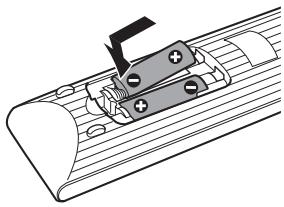
Preparing the remote
Insert two R6 (size AA) batteries by matching the + and - ends on the batteries to the markings inside the compartment.
Charging the Battery
Charge the rechargeable battery before using the player for the first time, or when the battery is depleted.
1. Connect the AC adaptor.
The CHARGE indicator lights up while charging.
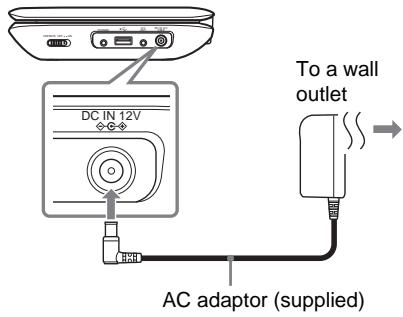

Charge the battery in an ambient temperature of between 5°C to 35°C.
Charging time and playing time
Charging time: approx. 4 hours
Playing time: approx. 4 hours
Times indicated are under the following conditions:
- Charging time - moderate temperature (20°C) - power-off
- Playing time - moderate temperature (20°C)
- headphone use
- backlight set to minimum
Depending on the ambient temperature or rechargeable battery condition, charging time may be longer, or playing time may be reduced.
To check the battery level
When the player is stopped, the battery indicator is displayed. When the battery is empty, a square symbol is displayed or the CHARGE indicator flashes.

Using the Car Battery Adaptor
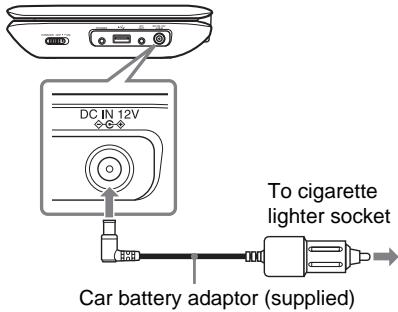
The car battery adaptor (supplied) is for a 12 V car battery, negative earth (do not use it with a 24 V car battery, positive earth).
1. Connect the car battery adaptor.
After using the player in a car
Disconnect the car battery adaptor from a cigarette lighter socket.
- The driver should not connect or disconnect the car battery adaptor while driving.
- Arrange the cord so as not to interfere with the driver. Also, do not place the LCD panel where the driver can watch.
- Clean the cigarette lighter socket. If it is dirty, it may cause contact failure or malfunction.
- Use the car battery adaptor with the car engine running. If it is used with the car engine off, the car battery may become depleted.
- Do not leave the player or accessories in the car.
Connecting to a TV
You can enjoy images on your TV or monitor.
1 Connect the player to your TV or monitor using the audio/video adaptor (supplied).
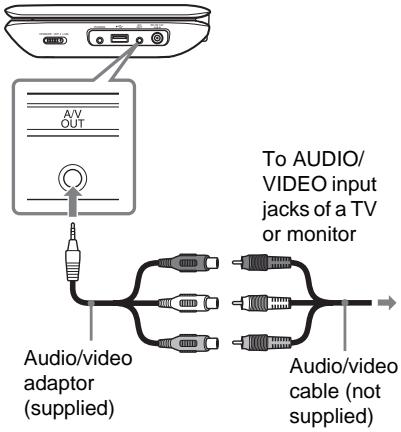
Refer to the instructions supplied with the equipment to be connected. - Before connecting, turn off the player.
Playing Discs
DVDVideo
DVDVR
VCD
CD
DATA
For playable discs, see "Playable Media" (page 21).
Charge the battery in advance or connect the AC adaptor.
1 Open the LCD panel, and turn on the player. 2 Push the PUSH OPEN/CLOSE to open the disc lid, and place the disc.
Place with the playback side down and push gently until it clicks. Do not touch the lens surface.

Playback side facing down
3 Close the disc lid, and press
The player starts playback.
Depending on the disc, a menu may appear. Press the left, up, down, or right arrow keys to select an item, and press ENTER.
Notes on the screen saver
- A screen saver image appears when you leave the player in pause or stop mode without operation for more than 15 minutes. The image disappears when you press the play button. For the setup of "Screen Saver," see page 15.
- The player goes to standby 15 minutes after starting the screen saver function. Press the play button to come out of standby mode.
To resume playback from the point where you stopped the disc (Resume Play) DVDVideo DVDVR VCD CD
When you press play again after you stop playback, the player starts playback from the point when you pressed stop.
Depending on the stop point, resume play may not start from exactly the same point. The resume point is cleared when: you open the disc lid, or you press OPTIONS and select USB.
To play VIDEO CDs with PBC Functions VCD
When you start playing a VIDEO CD with PBC (Playback Control) functions, the menu for your selection appears. For the setup of "PBC," see page 16.
Using the Playback Information Display
DVDVideo
DVDVR
VCD
You can check the playback information and change the playback mode.
When you enter the numbers, use the remote.
1 Press DISPLAY while playing a disc.
Example: When playing a DVD VIDEO
Items
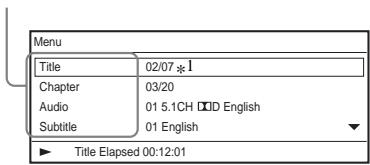
2 Select and adjust each of the following items by pressing ↑/↓ and ENTER.
- Title*2 Chapter*2 Audio
- Subtitle Angle*2 T.Time (title time) C.Time (chapter time) Repeat A-B Repeat*3
- Time Disp. (time display)
1 When a DVD (VR mode) is played, "PL" (plist) or "ORG" (original) is displayed next to the title number. 2 You can also select the number using ↑/↓. *3 Select "SET," and press ENTER. Select point A and point B by pressing ENTER.
- When a CD or VIDEO CD is played, only the available items are displayed. Depending on the disc, you may not be able to set some items.
- The Repeat setting will be cancelled after Title Search or Chapter Search.
To turn off the display
Press DISPLAY or RETURN.
Playing MP3, JPEG, and Video Files DATA
For playable files, see "Playable Media" (page 21).
When you set a DATA media, a list of albums appears. Depending on the disc, playback starts automatically.
1 Press up/down to select the album, and press ENTER.
Example: The list of MP3 files
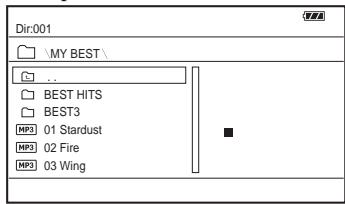
2 Press up/down to select the file, and press ENTER.
Playback starts from the selected file.
Playing JPEG files
To rotate a JPEG image
Press left/up/down/right while viewing the image file. Rotate every file.
Left/right: Rotates the image 90 degrees counterclockwise/clockwise. Up/down: Reverses the image vertically (up and down)/horizontally (left and right).
To display the list of thumbnails
Press MENU.
The image files in the album appear in 12 sub-screens.
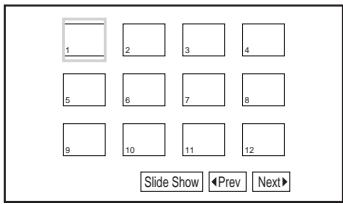
To play a Slide Show
Select the "Slide Show" from the list of thumbnails, and press ENTER.
To exit the list of thumbnails
Press MENU to return to the list of albums.
Playing data on a USB device
1 Connect a USB device to the USB jack.
USB device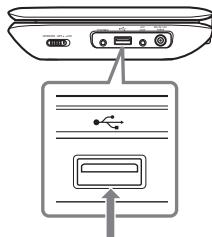
2 Press OPTIONS.
3 Press / to select "USB" and press ENTER.
To disconnect a USB device
Press OPTIONS to select "Disc" and press ENTER, then disconnect the USB device.
#
- Do not disconnect the USB device while its access indicator is flashing. Doing so may cause data corruption or loss of data.
- USB devices which can connect to the player are flash memory and digital still camera. Other devices (USB hub, etc.) cannot be connected. When an unsupported device is connected, an error message appears.
- Some USB devices may not work with this player.
- The player can recognize Mass Storage Class (MSC) devices that are FAT-compatible.
- Set the LUN setting on a digital still camera to "Single." Refer to the instructions supplied with the digital still camera.
Adjusting the Picture Size and Quality
DVDVideo DVDVR VCD DATA
You can adjust the picture displayed on the LCD screen.
1 Press OPTIONS. 2 Press ↑/↓ to select "LCD Mode" and press ENTER. 3 Select and adjust each of the following items by pressing ←/↑/↓/→ and ENTER.
- LCD Aspect: Change the picture size.
- Backlight: Adjust the brightness.
- Contrast: Adjust the difference between light and dark areas.
- Hue: Adjust the red and green color balance. Color: Adjust the richness of colors.
- Default: Return all settings to the factory defaults.
To turn off the menu display
Press OPTIONS or RETURN.
#
Depending on the disc, the screen size you can select differs.
Settings and Adjustments
Using the Setup Display
You can change the settings of the player. The default settings are underlined. Some discs have stored playback settings, which take priority.
1 Press OPTIONS when the player is in stop mode.
During Resume Play, you cannot use the setup display. Press twice and press OPTIONS.
2 Press up/down to select "Setup," and press ENTER.
3 Press up/down to select the setup category and press ENTER.
: General Setup Audio Setup A: Language Setup 6: Parental Control
4 Select and adjust each of the following items by pressing up/down and ENTER.
To turn off the setup display
Press OPTIONS or RETURN.

General Setup
TV Display (DVD only)
| 4:3 Pan Scan | Select this when you connect a 4:3 screen TV. Automatically displays a wide picture on the entire screen and cuts off the portions that do not fit. |
| 4:3 Letter Box | Select this when you connect a 4:3 screen TV. Displays a wide picture with bands on the upper and lower portions of the screen. |
| 16:9 | Select this when you connect a wide-screen TV or a TV with a wide mode function. |
Angle Mark (DVD VIDEO only)
Displays the angle mark when you can change the viewing angles during playback of DVDs recorded with multi-angles. Select "On" or "Off."
Screen Saver
The screen saver image appears. For this function, see page 11. Select "On" or "Off."
PBC (VIDEO CD only)
This function is available for VIDEO CDs with the PBC (Playback Control) function. For this function, see page 11.
Select "On" or "Off."
Default
Each function returns to its original factory settings. Note that all of your settings will be lost.
Audio Setup
Audio DRC (DVD only)
Makes low sounds clear when the volume is turned down when playing a DVD that conforms to "Audio DRC" (Dynamic
Range Control).
Select "On" or "Off."
Language Setup
OSD (On-Screen Display)
Switches the display language on the screen.
Disc Menu (DVD VIDEO only)
Switches the language for the disc's menu.
Subtitle (DVD VIDEO only)
Switches the subtitle language.
Audio (DVD VIDEO only)
Switches the language of the sound track.
Parental Control
You can limit playback of a DVD that has the parental control function.
When you operate this setting, use the remote.
Password (DVD VIDEO only)
Enter or change a password. Set the password of 4-digit.
To change the password
Select "Password" using up/down and press ENTER. Select "Change" and press ENTER. Enter your current password and new password.
If you forget your password
Enter "1369" for the current password.
Parental Control (DVD VIDEO only)
Set the limitation level. The lower the value, the stricter the limitation.
To set the parental control, you need to set the password first.
To set the parental control
Select "Parental Control" using the up/down arrows and press ENTER. Select the limitation level and press ENTER. Enter your password.
To play a disc for which Parental Control is set
Insert the disc and press. The display for entering your password appears. Enter your password.
Additional Information
Troubleshooting
If you experience any of the following difficulties while using the player, use this troubleshooting guide to help remedy the problem before requesting repairs. Should any problem persist, consult your nearest Sony dealer.
Power
The power is not turned on.
Check that the AC adaptor is connected securely (page 8). Check that the rechargeable battery is sufficiently charged (page 9).
The battery cannot be charged or charging time is long.
If the CHARGE indicator flashes while the AC adaptor is connected, the ambient temperature may not be appropriate. Charge the battery in an ambient temperature of between 5°C and 35°C. Charging takes longer if the player is turned on. Before charging, turn off the player. If you have not used the player for more than a year, the battery may have been deteriorated. Consult your nearest Sony dealer.
The black points appear and the red, blue, green points remain on the LCD.
This is a structural property of the LCD and not malfunction.
Sound
There is no sound.
The player is in pause mode or in slow play mode. The player is in fast forward or fast reverse mode.
Operation
Nothing happens when buttons are pressed.
Press HOLD for more than two seconds to enable button operation (page 5). You can also cancel the HOLD function by turning off the player.
The disc does not play.
If the disc is turned over, a "No Disc" or "Cannot play this disc." message appears. Insert the disc with the playback side facing down (page 11). The disc is not set until it clicks (page 11). The disc is dirty or flawed (page 20). The disc that cannot be played is inserted. Check the region code matches the player, and that the disc has been finalised (page 21). Parental Control has been set. Change the setting (page 16). Moisture has condensed inside the player (page 19).
The disc does not start playing from the beginning.
Repeat Play (page 11) is selected. Resume play has taken effect (page 11). The Playlist of the created disc is automatically played. To play original titles, press twice, and press OPTIONS to select "Original."
"⊙" appears and the player does not function according to the button. Depending on the disc, you may not be able to perform certain operations. Refer to the operating instructions supplied with the disc.
"Copyright Lock" appears and the screen turns blue when playing a DVD (VR mode) disc.
When images that contain copy protection signals are played, a blue screen and the message may appear instead of the images (page 21).
The remote does not function.
→ Batteries in the remote are weak. The remote is not pointed at the remote sensor on the player. → Direct sunlight or strong illumination is striking the remote sensor.
The MP3, JPEG, or video file cannot be played (page 21).
The file format does not conform. The extension does not conform. The file is damaged. The file size is too large. When the selected file is not supported, "Data Error" appears and the file will not be played. Because of the compression technology used for video files, playback may take time to start.
The player does not operate properly or the power does not turn off.
When static electricity, etc., causes the player to operate abnormally, set the OPERATE switch to "OFF" and disconnect the adaptor and leave for 30 seconds.
Hookup
There is no picture or sound on the connected equipment.
→ Re-connect the connecting cable securely (page 10). The connecting cable is damaged. → Check the setting of a connected TV or amplifier.
USB
The player does not recognise a USB device connected to the player.
→ Re-connect the USB device securely (page 13). The USB device is damaged. → Press OPTIONS to select "USB" (page 13).
Precautions
Road safety
Do not use the monitor unit and headphones while driving, cycling, or operating any motorized vehicle. Doing so may create a traffic hazard and is illegal in some areas. It can also be potentially dangerous to play your headsets at high volume while walking, especially at pedestrian crossings. You should exercise extreme caution or discontinue use in potentially hazardous situations.
On safety
Should any solid object or liquid fall into the cabinet, unplug the player and have it checked by qualified personnel before operating it any further.
On power sources
- If you are not going to use the player for a long time, be sure to disconnect the player from the wall outlet. To disconnect the AC adaptor, grasp the plug itself; never pull the cord.
- Do not touch the AC adaptor with wet hands. Doing so may cause shock hazard.
- Do not connect the AC adaptor to a traveler's electric transformer, which may generate heat and cause a malfunction.
On temperature increases
Heat may build up inside the player during charging or if it is being used for a long time. This is not a malfunction.
On placement
- Do not place the player in a confined space such as a bookshelf or similar unit.
- Do not cover the ventilation of the player with newspapers, tablecloths, curtains, etc. And do not place the player on a soft surface, such as a rug.
- Do not place the player and adaptors in a location near heat sources, or in a place subject to direct sunlight, excessive dust, sand, moisture, rain, or mechanical shock, or in a car with its windows closed.
- Do not place the player in an inclined position. It is designed to be operated in a horizontal position only.
- Keep the player and discs away from equipment with strong magnet, such as microwave ovens, or large loudspeakers.
- Do not drop or apply strong shock.
- Do not place heavy objects on the player and accessories.
On operation
- If the player is brought directly from a cold to a warm location, or is placed in a very damp room, moisture may condense on the lenses inside the player. Should this occur, the player may not operate properly. In this case, remove the disc and leave the player for about half an hour until the moisture evaporates. Wipe off moisture attached to the LCD surface with tissue etc. Turn on the power again later.
- Keep the lens on the player clean and do not touch it. Touching the lens may damage the lens and cause the player to malfunction. Leave the disc lid closed except when you insert or remove discs.
- The disc may be still spinning when the disc lid is opened. Wait until the spinning stops before removing the disc.
On Liquid Crystal Display
- Although manufactured with high precision technology, the LCD may occasionally display dots of various colours. That is not a malfunction.
- Do not place or drop any object onto the LCD surface. Also, do not apply pressure from hands or elbows.
- Do not damage the LCD surface with a sharp edged tool.
On rechargeable battery
- Because of the battery's limited life, its capacity gradually deteriorates over time and repeated use. Exchange an old one with a new one when the battery holds about only half the normal period.
- To prevent battery deterioration, charge the battery at least once every half a year or every year. Certain countries may regulate disposal of the battery used to power this product. Please consult with your local authority.
On AC adaptor and car battery adaptor
- Use the supplied adaptors for the player, as other adaptors may cause a malfunction.
- Do not disassemble or reverse-engineer.
- Do not touch the metal parts, as it may cause a short and damage the adaptors, especially if touched by other metal objects.
On adjusting volume
Do not turn up the volume while listening to a section with very low level inputs or no audio signals. If you do, the speakers may be damaged when a peak level section is played.
On headphones
- Preventing hearing damage: Avoid using headphones at high volumes. Hearing experts advice against continuous, loud, and extended play. If you experience a ringing in your ears, reduce the volume or discontinue use.
- Showing consideration for others: Keep the volume at a moderate level. This will allow you to hear outside sounds and still be considerate to the people around you.
On cleaning
- Clean the cabinet, panel, and controls with a soft cloth slightly moistened with a mild detergent solution. Do not use any type of abrasive pad, scouring powder or solvent such as alcohol or benzine.
- Wipe the LCD surface with the soft dry cloth lightly. To prevent dirt buildup, wipe it frequently. Do not wipe the LCD surface with a wet cloth. If water enters, a malfunction may result.
- If picture/sound is distorted, the lens may be covered with dust. In this case, use a commercially-available blower brush for camera lenses to clean the lens.
Avoid touching the lens directly during cleaning. Do not use cleaning discs or disc/lens cleaners.
Notes About the Discs
- To keep the disc clean, handle the disc by its edge. Do not touch the surface.
- Do not use the following discs:
-A disc that has a non-standard shape (e.g., card, heart). -A disc with a label or sticker on it. -A disc that has cellophane tape or sticker adhesive on it.
Playable Media
| Icon | Characteristics |
| DVDvideo | Commercial DVDDVD+RWs/DVD+Rs/DVD+R DLs in +VR modeDVD-RWs/DVD-Rs/DVD-R DLs in video mode |
| DVDVR | DVD-RWs/DVD-Rs/DVD-R DLs in VR (Video Recording) mode*1 |
| CD | Music CDsCD-Rs/CD-RWs in music CD format |
| VCD | VIDEO CDs (including Super VCDs)CD-Rs/CD-RWs in video CD format or Super VCD format |
| DATA | DATA CD*2/DATADVD*3 or USB devices containing MP3, JPEG, or video files. |
#
Some recordable media cannot be played on the player due to the recording quality or physical condition of the media, or the characteristics of the recording device and authoring software.
The disc will not play if it has not been correctly finalised. For more information, refer to the operating instructions for the recording device.
1 Images with CPRM (Content Protection for Recordable Media) protection may not be played. "Copyright Lock" appears. 2 DATA CDs must be recorded according to ISO 9660 Level 1, or its extended format, Joliet. 3 DATA DVDs must be recorded according to UDF (Universal Disk Format).
Playable file format
| Type | File format | Extension |
| Music | MP3 (MPEG-1 Audio Layer III) | “.mp3” |
| Photo | JPEG (DCF format) | “.jpg,”“.jpeg” |
| Video | MPEG-4 (simple profile) | “.mp4” |
| Xvid | “.avi” |

- To play a complex hierarchy of folders may take some time. Create albums as follows:
- The number of hierarchies in the media should be no more than two.
- The number of albums in the media should be 50 or less.
- The number of files in one album should be 100 or less.
- The total number of albums and files in the media should be 600 or less.
- The player plays the files in an album in the order the media was recorded.
#
- The player will play any file in the above table, even if the file format differs. Playing such data may generate noise that can result in speaker damage.
- Some DATA discs created in Packet Write format cannot be played.
- Some DATA discs created in multiple sessions may not be playable.
- Some JPEG files cannot be played.
- The player cannot play the JPEG file that is larger than 3264 (width) x 2448 (height) in normal mode, or larger than 2000 (width) x 1200 (height) in progressive JPEG.
- Some video files cannot be played.
- The player cannot play a video file of size more than 720 (width) × 576 (height)/2 GB.
- The player may not play certain video files that are longer than 3 hours.
- The player supports MP3 or AAC audio format for MPEG-4 video files.
- The player supports only MP3 audio format for Xvid video files.
- The player may not play the high bit rate video file on the DATA CD smoothly. It is recommended to play the high bit rate video file using the DATA DVD.
- The player can display a file or album name up to 14 characters. Special character appears as "*",
- The player can display only the currently playing album name. Any album located on the upper layer is displayed as "\..
- Playback information of some files may not be displayed correctly.
Notes on commercial discs
Region code
It is the system that is used to protect copyrights. The region code is shown on the DVD VIDEO packages according to the region of sale. DVD Videos labelled "ALL" or "2" will play on the player.

DVD and VIDEO CD playback operations
Some playback operations of DVDs and VIDEO CDs may be intentionally set by software producers. Since the player plays DVDs and VIDEO CDs according to the disc contents the software producers designed, some playback features may not be available. Also, refer to the instructions supplied with the DVDs and VIDEO CDs.
Notes on discs
This product is designed to playback discs that conform to the Compact Disc (CD) standard.
DualDiscs and some music discs encoded with copyright protection technologies do not conform to the Compact Disc (CD) standard. Therefore, these discs may not be compatible with this product.
Specifications
System
Laser: Semiconductor laser
Signal format system: PAL (NTSC)
Inputs/Outputs
A/V OUT (audio/video output): Minijack
PHONES (headphones): Stereo minijack
USB: USB jack Type A (For connecting USB memory)
Liquid Crystal Display
Panel size (approx.): 23 cm/9 inches wide (diagonal)
Driving system: TFT active matrix
Resolution: 800x480
General
Power requirements:
DC 12 V 0.95 A (AC Adaptor)
DC 12 V 1.5 A (Car battery adaptor)
Power consumption (DVD VIDEO Playback): 6.5 W (when used with a headphone)
Dimensions (approx.):
236 x 44 x 170 mm (width/height/depth) incl. projecting parts
Mass (approx.): 955 g
Operating temperature: 5°C to 35°C
Operating humidity: 25% to 80%
AC Adaptor: 110-240 V AC, 50/60 Hz
Car Battery Adaptor: 12 V DC
Supplied accessories
See page 8.
Specifications and design are subject to change without notice.
Index
Numerics
16:9 15
4:3 Letter Box 15
4:3 Pan Scan 15
A
Angle 7, 12
Angle Mark 15
Audio 7, 12, 16
Audio DRC 16
Audio Setup 16
C
CD 11, 21
Charging time and playing time 9
D
DATA 12, 21
Disc Menu 16
DVD 11, 21
G
General Setup 15
J
JPEG 12, 21
L
Language Setup 16
LCD Aspect 14
LCD Mode 14
M
MP3 12, 21
MPEG-4 (video file) 12, 21
0
OSD (On-Screen Display) 16
P
Parental Control 16
Password 16
PBC 11, 16
Playable Media 21
Playback Information Display 11
R
Region code 22
Repeat 12
Resume Play 11
S
Screen Saver 11, 15
Setup 15
Slide Show 13
Subtitle 7, 12, 16
T
Troubleshooting 17
TV Display 15
U
USB 13
V
VIDEO CD 11, 21
Video file (MPEG-4/Xvid) 12, 21
X
Xvid (video file) 12, 21
WARNING
4 DISPLAY
C: Parental Control
Dimensions (approx.):
Weight (approx.): 955 g
OSD (On-Screen Display)
Laser: semiconductor
OSD (On-Screen Display) 16
P
Password 16
PBC 11, 16
Presentation 13
Protection 16
Repeat 12
CLASS 1 LASER PRODUCT LASER KLASSE 1
LUOKAN 1 LASERLAITE KCLASS 1 LASERAPARAT
11 (external sensor)
12 OPERATE (operation) switch (page 11)
: General Setup (General setup) Audio Setup (Audio setup) A: Language Setup (Language setup) : Parental Control (Parental control)
General Setup (General setup)
TV Display (TV display) (DVD only)
Select "On" or "Off".
PBC (VIDEO CD only)
Select "On" or "Off".
Default (default)
Audio Setup (Audio setup)
Audio DRC (DVD only)
Select "On" or "Off".
Language Setup
OSD (On-Screen Display)
Laser: Semiconductor laser
Signal format system: PAL (NTSC)
Inputs/outputs
A/V OUT (audio/video output):
Mini jack
PHONES (headphones):
Car battery adapter: 12 V DC
Supplied accessories
See page 8.
OSD (On-Screen Display) 16
P
Parental Control 16
Password 16
PBC 11, 16
Troubleshooting 17
R
Region code 22
Repeat 12
S
Screen Saver 11, 16
Setup 15
Subtitle 7, 12, 16
T
TV Display 15
U
USB 14
V
VIDEO CD 11, 21
Video files (MPEG-4/Xvid) 13, 21
X
Xvid (video files) 13, 21

To find out useful hints, tips and information about Sony products and services please visit:
www.sony-europe.com/myproduct/
4-411-683-21(1)


- PORTABLE CD/DVD PLAYER
- WARNING
- CAUTION
- PRECAUTIONS
- IMPORTANT NOTICE
- COPYRIGHTS, TRADEMARKS AND SOFTWARE LICENCE INFORMATION
- ABOUT THIS MANUAL
- TABLE OF CONTENTS
- PREPARATIONS
- PLAYBACK
- SETTINGS AND ADJUSTMENTS
- ADDITIONAL INFORMATION
- GUIDE TO PARTS AND CONTROLS
- PLAYER
- SOUND
- MENU
- ENTER
- RETURN
- OPTIONS
- REMOTE
- TOP MENU
- ADVANCE
- SCAN/SLOW
- ANGLE
- AUDIO
- SUBTITLE
- CHECKING THE ACCESSORIES
- PREPARING THE REMOTE
- CHARGING THE BATTERY
- CONNECT THE AC ADAPTOR
- CHARGING TIME AND PLAYING TIME
- TO CHECK THE BATTERY LEVEL
- USING THE CAR BATTERY ADAPTOR
- CONNECT THE CAR BATTERY ADAPTOR
- AFTER USING THE PLAYER IN A CAR
- CONNECTING TO A TV
- PLAYING DISCS
- CLOSE THE DISC LID, AND PRESS
- NOTES ON THE SCREEN SAVER
- TO RESUME PLAYBACK FROM THE POINT WHERE YOU STOPPED THE DISC (RESUME PLAY) DVDVIDEO DVDVR VCD CD
- TO PLAY VIDEO CDS WITH PBC FUNCTIONS VCD
- USING THE PLAYBACK INFORMATION DISPLAY
- SELECT AND ADJUST EACH OF THE FOLLOWING ITEMS BY PRESSING ↑/↓ AND ENTER
- TO TURN OFF THE DISPLAY
- PLAYING MP3, JPEG, AND VIDEO FILES DATA
- PRESS UP/DOWN TO SELECT THE ALBUM, AND PRESS ENTER
- PRESS UP/DOWN TO SELECT THE FILE, AND PRESS ENTER
- PLAYING JPEG FILES
- TO ROTATE A JPEG IMAGE
- TO DISPLAY THE LIST OF THUMBNAILS
- TO PLAY A SLIDE SHOW
- TO EXIT THE LIST OF THUMBNAILS
- PLAYING DATA ON A USB DEVICE
- CONNECT A USB DEVICE TO THE USB JACK
- PRESS OPTIONS
- PRESS / TO SELECT "USB" AND PRESS ENTER
- TO DISCONNECT A USB DEVICE
- ADJUSTING THE PICTURE SIZE AND QUALITY
- TO TURN OFF THE MENU DISPLAY
- USING THE SETUP DISPLAY
- PRESS OPTIONS WHEN THE PLAYER IS IN STOP MODE
- PRESS UP/DOWN TO SELECT "SETUP," AND PRESS ENTER
- PRESS UP/DOWN TO SELECT THE SETUP CATEGORY AND PRESS ENTER
- SELECT AND ADJUST EACH OF THE FOLLOWING ITEMS BY PRESSING UP/DOWN AND ENTER
- TO TURN OFF THE SETUP DISPLAY
- GENERAL SETUP
- TV DISPLAY (DVD ONLY)
- ANGLE MARK (DVD VIDEO ONLY)
- SCREEN SAVER
- AUDIO SETUP
- LANGUAGE SETUP
- PARENTAL CONTROL
- TROUBLESHOOTING
- POWER
- THE POWER IS NOT TURNED ON
- THE BATTERY CANNOT BE CHARGED OR CHARGING TIME IS LONG
- THE BLACK POINTS APPEAR AND THE RED, BLUE, GREEN POINTS REMAIN ON THE LCD
- THERE IS NO SOUND
- OPERATION
- NOTHING HAPPENS WHEN BUTTONS ARE PRESSED
- THE DISC DOES NOT PLAY
- THE DISC DOES NOT START PLAYING FROM THE BEGINNING
- COPYRIGHT LOCK" APPEARS AND THE SCREEN TURNS BLUE WHEN PLAYING A DVD (VR MODE) DISC
- THE REMOTE DOES NOT FUNCTION
- THE MP3, JPEG, OR VIDEO FILE CANNOT BE PLAYED (PAGE 21)
- THE PLAYER DOES NOT OPERATE PROPERLY OR THE POWER DOES NOT TURN OFF
- HOOKUP
- THERE IS NO PICTURE OR SOUND ON THE CONNECTED EQUIPMENT
- USB
- THE PLAYER DOES NOT RECOGNISE A USB DEVICE CONNECTED TO THE PLAYER
- ROAD SAFETY
- ON SAFETY
- ON POWER SOURCES
- ON TEMPERATURE INCREASES
- ON PLACEMENT
- ON OPERATION
- ON LIQUID CRYSTAL DISPLAY
- ON RECHARGEABLE BATTERY
- ON AC ADAPTOR AND CAR BATTERY ADAPTOR
- ON ADJUSTING VOLUME
- ON HEADPHONES
- ON CLEANING
- NOTES ABOUT THE DISCS
- PLAYABLE MEDIA
- PLAYABLE FILE FORMAT
- NOTES ON COMMERCIAL DISCS
- REGION CODE
- DVD AND VIDEO CD PLAYBACK OPERATIONS
- NOTES ON DISCS
- SPECIFICATIONS
- SYSTEM
- INPUTS/OUTPUTS
- LIQUID CRYSTAL DISPLAY
- GENERAL
- SUPPLIED ACCESSORIES
- INDEX
- NUMERICS
- A
- C
- D
- G
- J
- L
- M
- P
- R
- S
- T
- U
- V
- X
- DISPLAY
- OSD (ON-SCREEN DISPLAY)
- (EXTERNAL SENSOR)
- OPERATE (OPERATION) SWITCH (PAGE 11)
- GENERAL SETUP (GENERAL SETUP)
- AUDIO SETUP (AUDIO SETUP)
Brand : SONY
Model : DVP-FX980
Category : DVD player