CDP-XE530 - CD Player SONY - Free user manual and instructions
Find the device manual for free CDP-XE530 SONY in PDF.


User questions about CDP-XE530 SONY
0 question about this device. Answer the ones you know or ask your own.
Ask a new question about this device
Download the instructions for your CD Player in PDF format for free! Find your manual CDP-XE530 - SONY and take your electronic device back in hand. On this page are published all the documents necessary for the use of your device. CDP-XE530 by SONY.
USER MANUAL CDP-XE530 SONY
Operating Instructions GB
Mode d'emploi FR
To prevent fire or shock hazard, do not expose the unit to rain or moisture. To avoid electrical shock, do not open the cabinet. Refer servicing to qualified personnel only.
The laser component in this product is capable of emitting radiation exceeding the limit for Class 1.
CLASS 1 LASER PRODUCT LUOKAN 1 LASERLAITE KCLASS 1 LASERAPPARAT
This appliance is classified as a CLASS 1 LASER product. The CLASS 1 LASER PRODUCT MARKING is located on the rear exterior.
Precautions
On safety
- Caution — The use of optical instruments with this product will increase eye hazard.
- Should any solid object or liquid fall into the cabinet, unplug the player and have it checked by qualified personnel before operating it any further.
On power sources
- Before operating the player, check that the operating voltage of the player is identical with your local power supply. The operating voltage is indicated on the nameplate at the rear of the player.
- The player is not disconnected from the AC power source (mains) as long as it is connected to the wall outlet, even if the player itself has been turned off.
- If you are not going to use the player for a long time, be sure to disconnect the player from the wall outlet. To disconnect the AC power cord (mains lead), grasp the plug itself; never pull the cord.
- AC power cord must be changed only at the qualified service shop.
On placement
- Place the player in a location with adequate ventilation to prevent heat build-up in the player.
- Do not place the player on a soft surface such as a rug that might block the ventilation holes on the bottom.
- Do not place the player in a location near heat sources, or in a place subject to direct sunlight, excessive dust or mechanical shock.
On operation
- If the player is brought directly from a cold to a warm location, or is placed in a very damp room, moisture may condense on the lenses inside the player. Should this occur, the player may not operate properly. In this case, remove the disc and leave the player turned on for about an hour until the moisture evaporates.
On adjusting volume
- Do not turn up the volume while listening to a portion with very low level inputs or no audio signals. If you do, the speakers may be damaged when a peak level portion is played.
On cleaning
- Clean the cabinet, panel and controls with a soft cloth slightly moistened with a mild detergent solution. Do not use any type of abrasive pad, scouring powder, or solvent such as alcohol or benzine.
If you have any questions or problems concerning your player, please consult your nearest Sony dealer.
Welcome!
Thank you for purchasing the Sony Compact Disc Player. Before operating the unit, please read this manual thoroughly and retain it for future reference.
About This Manual
The instructions in this manual are for models CDP-XE530 and CDP-XE330. The CDP-XE530 is the model used for illustration purposes. Any difference in operation is clearly indicated in the text, for example, "CDP-XE530 only."
Conventions
- Instructions in this manual describe the controls on the player. You can also use the controls on the remote if they have the same or similar names as those on the player.
- The following icons are used in this manual:

Indicates that you can do the task using the remote.

Indicates hints and tips for making the task easier.
TABLE OF CONTENTS
Getting Started
Unpacking. 4
Hooking Up the System 4
Playing a CD 6
Playing CDs
Using the Display 7
Locating a Specific Track or a Particular Point in a Track 9
Playing Tracks Repeatedly 10
Playing in Random Order (Shuffle Play) 11
Creating Your Own Programme (Programme Play) 12
Recording From CDs
Recording Your Own Programme 14
Recording a CD by Specifying Tape Length (Time Edit)
(CDP-XE530 only) 14
Fading In or Out. 15
Adjusting the Recording Level (Peak Search) 17
Additional Information
Notes on CDs. 17
Troubleshooting 18
Specifications 18
Index
Index 19
Unpacking
Check that you received the following items:
Audio connecting cord (1)
- Remote commander (remote) (1)
R6 (size AA) batteries (2)
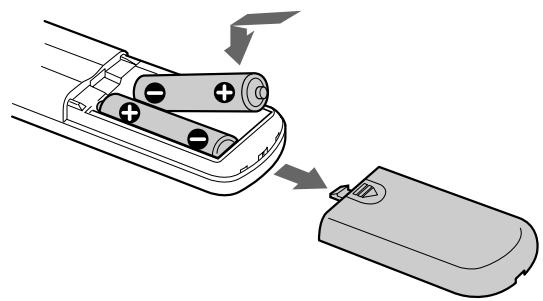
Inserting batteries into the remote
You can control the player using the supplied remote. Insert two R6 (size AA) batteries by matching the + and - on the batteries to the diagram inside the battery compartment.
Insert the negative (-) end first, then push in and down until the positive (+) end clicks into position.
When using the remote, point it at the remote sensor on the player.

When to replace batteries
With normal use, the batteries should last for about six months. When the remote no longer operates the player, replace all the batteries with new ones.
Notes
- Do not leave the remote near an extremely hot or humid place.
- Do not drop any foreign object into the remote casing, particularly when replacing the batteries.
- Do not expose the remote sensor to direct sunlight or lighting apparatuses. Doing so may cause a malfunction.
- If you don't use the remote for an extended period of time, remove the batteries to avoid possible damage from battery leakage and corrosion.
Hooking Up the System
Overview
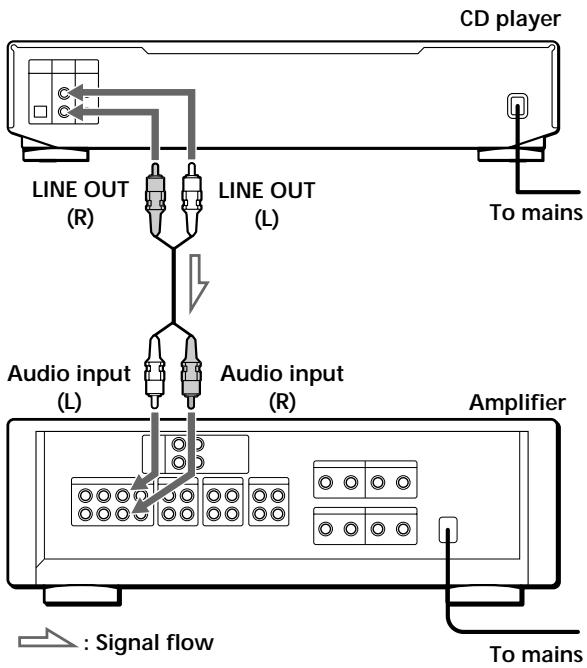
This section describes how to hook up the CD player to an amplifier. Be sure to turn off the power of each component before making the connections.
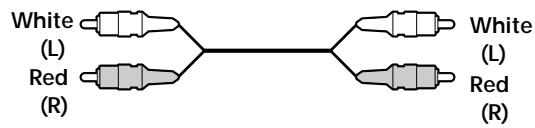
What cords will I need?
Audio cord (supplied) (1)
Hookups
When connecting an audio cord, be sure to match the colour-coded cord to the appropriate jacks on the components: Red (right) to Red and White (left) to White. Be sure to make connections firmly to avoid hum and noise.
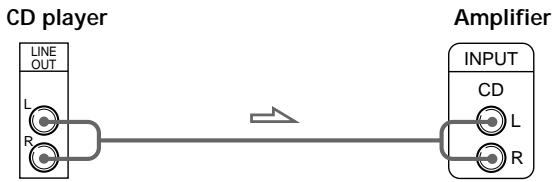

You can adjust the output level to the amplifier
Press LINE OUT LEVEL + / - on the remote. You can reduce the output level up to -20dB
When you reduce the output level, "FADE" (or for the CDP-XE330) appears in the display.
When you turn off the player, the output level automatically returns to the maximum level.
- If you have a digital component such as a digital amplifier, D/A converter, DAT, or MD
Connect the component via the DIGITAL OUT (OPTICAL) connector using the optical cable (not supplied). Take off the cap and plug in the optical cable.
Note that you cannot use the following functions when making this connection:
- Fading In or Out (see page 15)
Time Fade (see page 16) - Adjusting the output level using the LINE OUT LEVEL + / - buttons on the remote (see above)
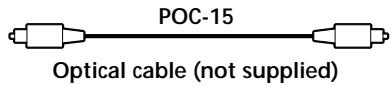
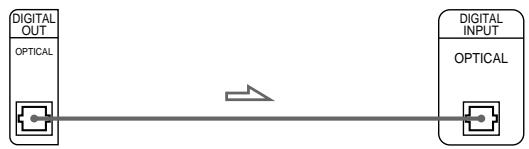
CD player
Digital component
Note
When you connect via the DIGITAL OUT (OPTICAL) connector, noise may occur when you play CD software other than music, such as a CD-ROM.

If you have a Sony component with the CONTROL A1 jack (CDP-XE530 only)
Connect the component via the CONTROL A1 jack. You can simplify the operation of audio systems composed of separate Sony components. For details, refer to the supplementary "S-LinkTM/CONTROL-A1 Control System" instructions.
Connecting the mains lead
Connect the mains lead to a wall outlet.
Where do I go next?
Now you're ready to use your player.
If you aren't familiar with how to play CDs, go to the section "Playing a CD" on page 6.
Then, go to the following sections for other operations.
Playing a CD
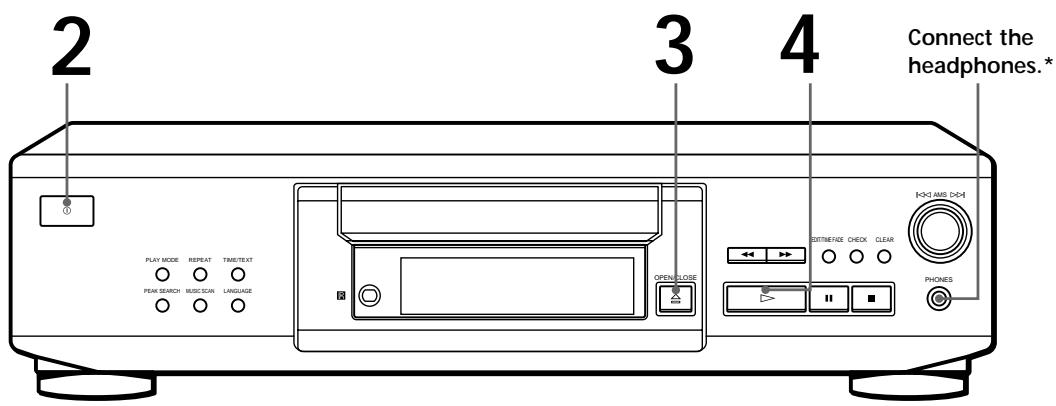
*CDP-XE530 only
See pages 4-5 for the hookup information.

If you turn on the player with a CD in the tray You can start playing automatically from the beginning of the CD. If you connect a commercially available timer, you can start playing the CD at any time you want.

You can adjust the output level with the LINE OUT LEVEL + / - on the remote

You can adjust the headphones volume on the remote (CDP-XE530 only) Connect the headphones to the PHONES jack and adjust the volume with the LINE OUT LEVEL + / - on the remote.
1 Turn on the amplifier and select the CD player position so that you can listen to the sound from this player.
2 Press ① (Power) to turn on the player.
3 Press OPEN/CLOSE, and place a disc on the disc tray.
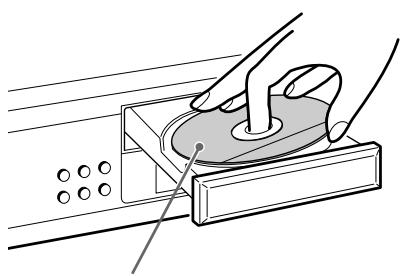
With the label side up
Press▶. The director
The disc tray closes and the player plays all the tracks once (Continuous Play).
Adjust the volume on the amplifier.
To stop playback
Press ■.
| To | You need to |
| Pause | Press■ |
| Resume play after pause | Press■or▷ |
| Go to the next track | Turn▷ AMS▷ clockwise |
| Go back to the preceding track | Turn▷ AMS▷ counterclockwise |
| Stop play and remove the CD | Press≌ OPEN/CLOSE |
Using the Display
You can check information about the disc using the display.
CDP-XE530
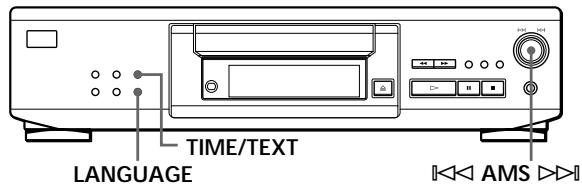
CDP-XE330
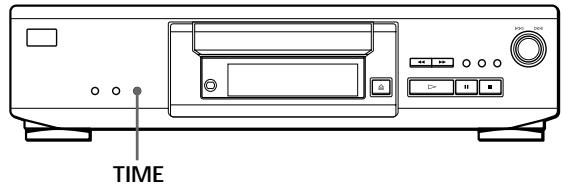
CDP-XE530
CDP-XE330
Checking the total number and playing time of the tracks
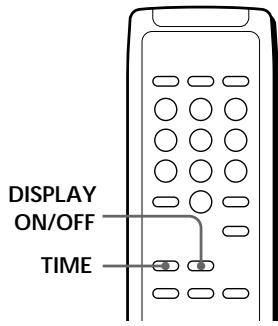
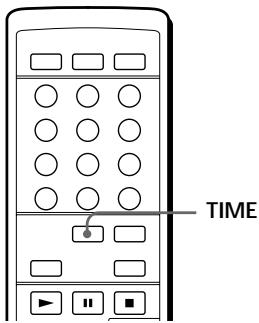
Press TIME/TEXT (or TIME on the remote and for the CDP-XE330) before you start playing.
The display shows the total number of tracks, total playing time, and music calendar.
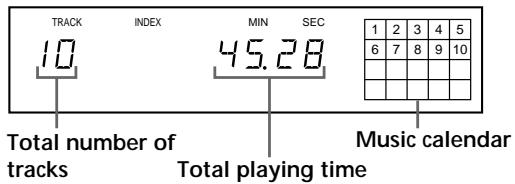
While in Shuffle Play mode ("SHUFFLE" appears in the display; see page 11), a one-second access time blank is added between each track. This increase is automatically added to the total playing time in the display.
The information also appears when you press
OPEN/CLOSE to close the disc tray.
Display information while playing a disc
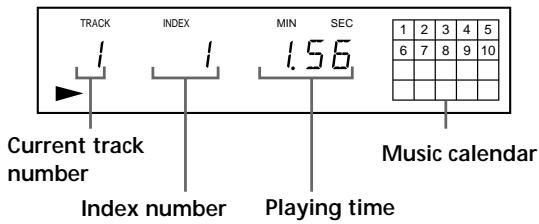
While playing a disc, the display shows the current track number, index number (CDP-XE530 only), playing time, and the music calendar.
CDP-XE530
CDP-XE330
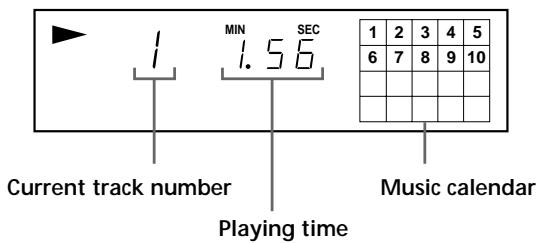
The track numbers in the music calendar disappear after they are played.
Checking the remaining time
Each time you press TIME/TEXT (or TIME on the remote and for the CDP-XE330) while playing a disc, the display changes as shown in the chart below.
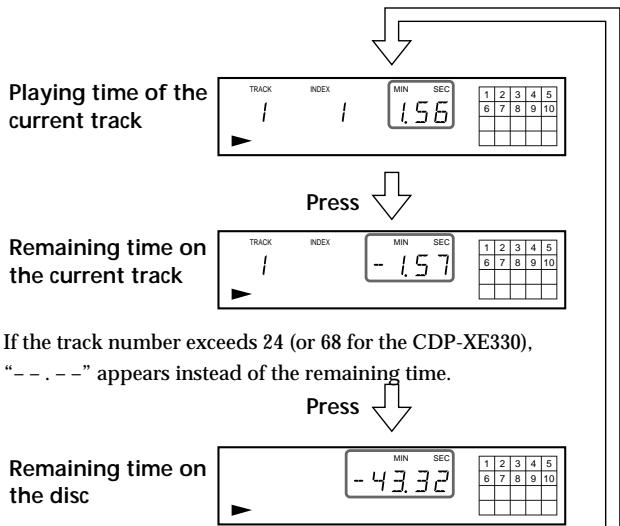
If the remaining time exceeds 100 minutes in Programme Play mode or when the disc has more than 24 (or 68 for the CDP-XE330) tracks, “- - . - - ” appears instead of the remaining time.
Press
Checking the information of CD TEXT discs (CDP-XE530 only)
CD TEXT discs have information, such as the disc titles or artist names, memorised in a blank space on the discs where, on normal discs, there is no information. The display shows the CD TEXT information of the disc so that you can check the current disc title, artist name, and track title. When the player detects CD TEXT discs, the "CD TEXT" indication appears in the display. If your CD TEXT disc has multi language capacity, "CD TEXT" and "MULTI" indications appear in the display. If you want to check the information in another language, refer to "Checking the information of CD TEXT discs in other languages" on page 8. Each time you press TIME/TEXT (or TIME on the remote), the display changes as shown in the chart below.
- Before you start playing
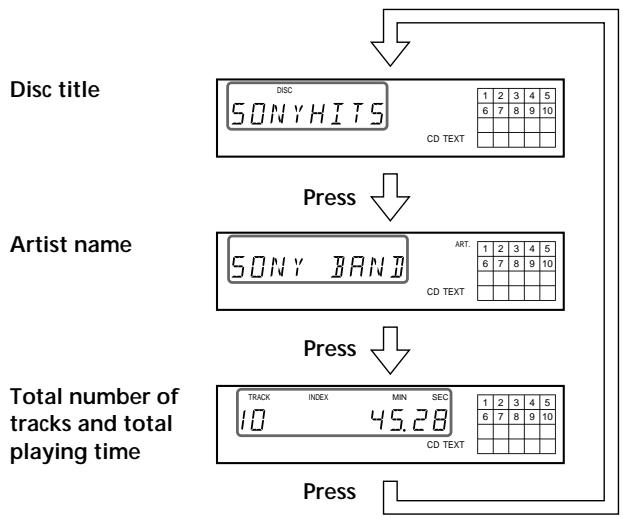
While playing a disc
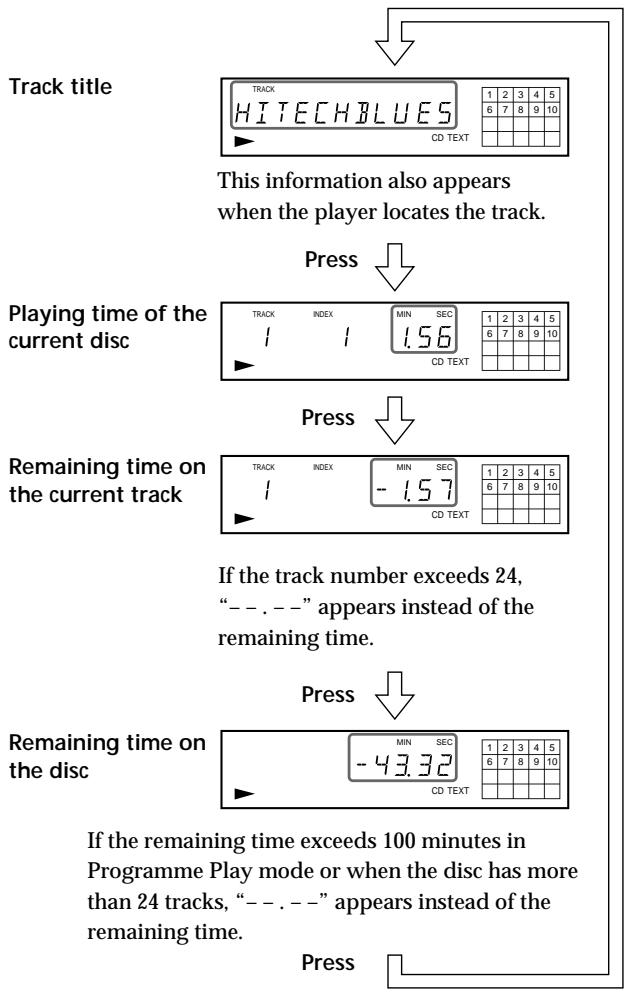
If a title or name has more than 12 characters, the first 12 characters will light up after the title or name scrolls by in the display.
Notes
- The display may not show all the characters depending on the disc.
- This player can only display the disc titles, track titles, and artist names from CD TEXT discs. Other information cannot be displayed.
Checking the information of CD TEXT discs in other languages (CDP-XE530 only)
You can change the displayed language if your CD TEXT disc has multi language capacity. When the player detects such a CD TEXT disc, the display shows the current operating language after "CD TEXT" and "MULTI" appear in the display. If the player cannot read the language memorised in a CD TEXT disc, the display shows "
1 Before playing a CD TEXT disc, press LANGUAGE. "SELECT LANG" and the current operating language appear in the display.
2 Turn < MS until the language you want to select appears in the display.
3 Push to select the language. "READING TEXT" appears momentarily, then the display shows the new selected language.
4 Press TIME/TEXT (or TIME on the remote) repeatedly until the information you want to check appears (see page 8).
Notes
- If your CD TEXT disc is not equipped with other languages, "CAN'T SELECT" appears in the display when you press the LANGUAGE button.
- If you press LANGUAGE while playing a CD TEXT disc, the current operating language appears momentarily.
- The operating language you have selected remains until you turn off the power.
Turning off indications in the display (CDP-XE530 only)
Each time you press DISPLAY ON/OFF on the remote while playing a disc, the display turns off and on alternately.
Even when the display is turned off, the display turns on if you pause or stop play. When you resume play, the display turns off again.
Before you start playing, when you press DISPLAY ON/OFF to turn off the display, "DISPLAY OFF" appears, and when you press the button to turn on the display, "DISPLAY ON" appears.
Locating a Specific Track or a Particular Point in a Track
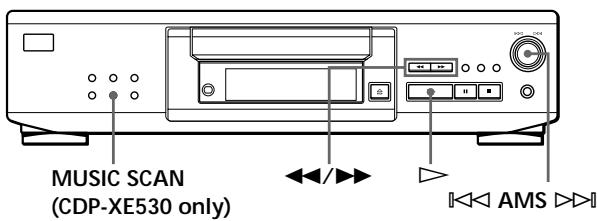
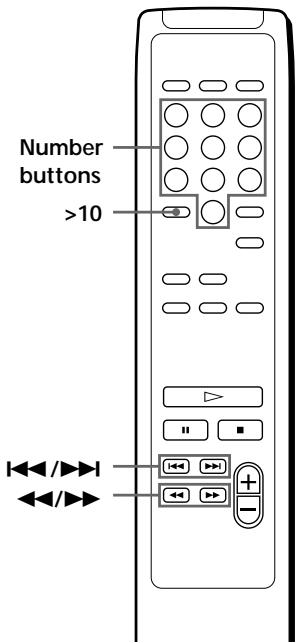
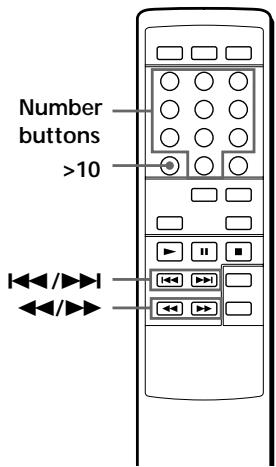
You can quickly locate any track while playing a disc using the AMS (Automatic Music Sensor) on the player or number buttons on the remote.
You can also locate a particular point in a track while playing a disc.
CDP-XE530
CDP-XE330
(Continued)
| To locate | You need to |
| The next or succeeding tracks | Turn ↓< AMS ➔ clockwise until you find the track. When using the remote, press ➔ repeatedly until you find the track. |
| The current or preceding tracks | Turn ↓< AMS ➔ counterclockwise until you find the track. When using the remote, press ➔ repeatedly until you find the track. |
| A specific track directly | Turn ↓< AMS ➔ until you find the track number you want. When using the remote, press the number button of the track. |
| By scanning each track for 10 seconds (Music Scan) (CDP-XE530 only) | Press MUSIC SCAN. When you find the track you want, press ➔ to start playing the track. |
| A point while monitoring the sound | Press ➔ (forward) or ⇌ (backward) and hold down until you find the point. |
| A point quickly by observing the display during pause | Press ➔ (forward) or ⇌ (backward) and hold down until you find the point. You will not hear the sound during the operation. |

When you directly locate a track numbered over 10
Press >10 first, then the corresponding number buttons.
To enter "0," use button 10.
Example: To play track number 30
Press >10 first, then 3 and 10.

You can extend the playing time during Music Scan (CDP-XE530 only)
Press MUSIC SCAN repeatedly until the playing time you want (10, 20 or 30) appears in the display. Each time you press the button, the playing time changes cyclically.
Note
If “-OVER-” (or “ ” for the CDP-XE330) appears in the display, the disc has reached the end while you were pressing. Press or turn AMS counterclockwise to go back.
Playing Tracks Repeatedly
You can play tracks repeatedly in any play mode.
CDP-XE530
CDP-XE330
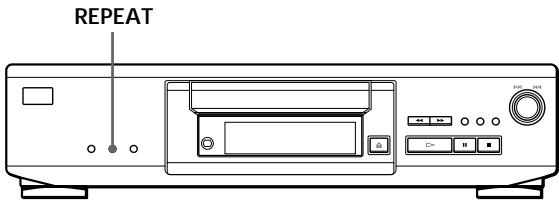
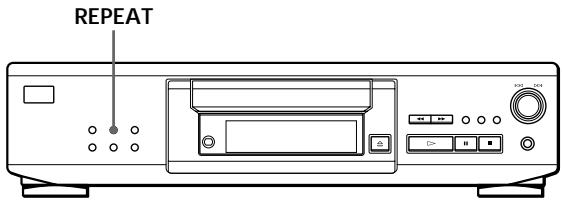
Press REPEAT while playing a disc.
"REPEAT" appears in the display. The player repeats the tracks as follows:
| When the disc is played in | The player repeats |
| Continuous Play (page 6) | All the tracks |
| Shuffle Play (page 11) | All the tracks in random order |
| Programme Play (page 12) | The same programme |
To cancel Repeat Play
Press REPEAT twice.
Repeating the current track (Repeat 1)
You can repeat only the current track in any play mode.
While the track you want is being played, press REPEAT repeatedly until "REPEAT 1" appears in the display.
To cancel Repeat 1
Press REPEAT.
Repeating a Specific Portion (A←→B Repeat) (CDP-XE530 only)
You can play a specific portion in a track repeatedly.
This might be useful when you want to memorise lyrics.
Note that you cannot repeat a portion extending to two tracks.
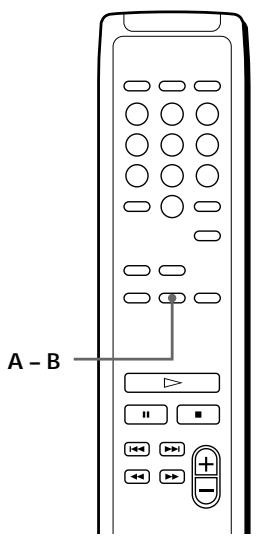
1 While playing a disc, press A - B on the remote when you find the starting point (point A) to be played repeatedly.
"A-" of "REPEAT A-" flashes in the display.
2 When you reach the ending point (point B), press A-B again.
"REPEAT A-B" appears. The player plays this specific portion repeatedly.
To cancel A B Repeat
Press REPEAT.
Setting a new starting point
You can move the repeating portion ahead by
changing the starting point.
1 Press A - B while the player is repeating the specific portion. The ending point B becomes the new starting point A. “A-” of “REPEAT A-” flashes in the display.
2 When you reach the ending point (point B), press A-B again.
"REPEAT A-B" appears. The player repeats between the new starting and ending points.

When you want to restart from the starting point A
Press during A B Repeat.
Playing in Random Order (Shuffle Play)
You can have the player "shuffle" tracks and play in a random order.
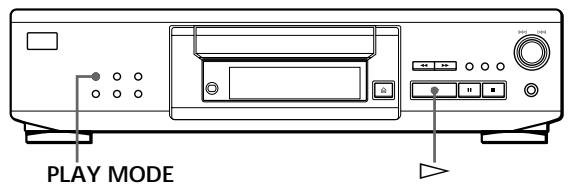
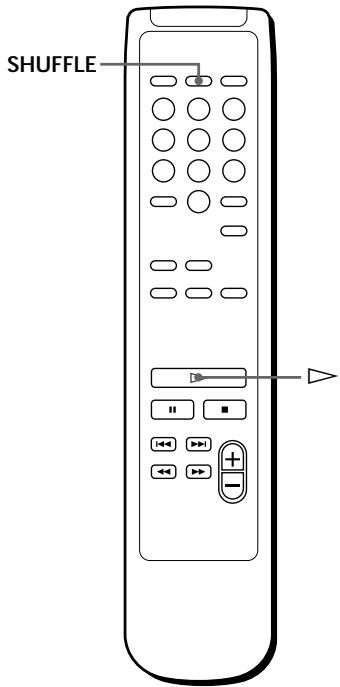
1 Press PLAY MODE repeatedly until "SHUFFLE" appears in the display.
When using the remote, press SHUFFLE.
2 Press to start Shuffle Play.
The indication appears while the player is "shuffling" the tracks.
To cancel Shuffle Play
Press PLAY MODE twice.
When using the remote, press CONTINUE.

You can start Shuffle Play while playing
Press PLAY MODE repeatedly until "SHUFFLE" appears in the display. When using the remote, press SHUFFLE.
Shuffle Play starts from the current track.
Creating Your Own Programme (Programme Play)
You can arrange the order of the tracks on a disc and create your own programme. The programme can contain up to 24 tracks.
CDP-XE530
CDP-XE330
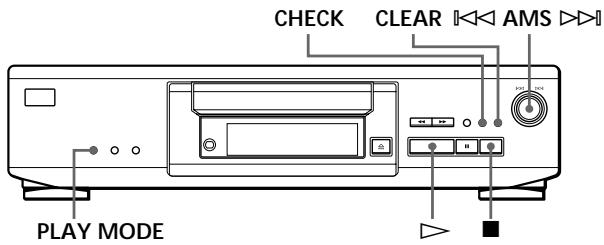
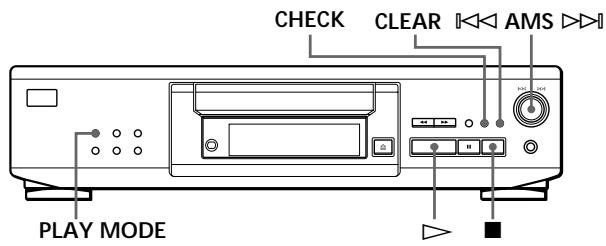
Creating a programme on the player
1 Press PLAY MODE repeatedly until "PROGRAM" appers in the display before you start playing.
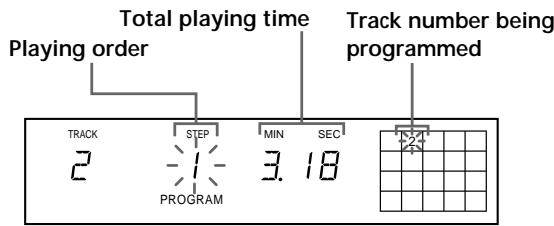
2 Turn MS until the track number you want appears in the display.
CDP-XE530
CDP-XE330
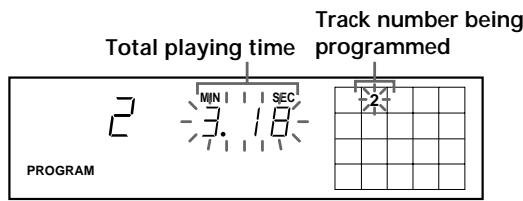
3 Push to select the track.
CDP-XE530
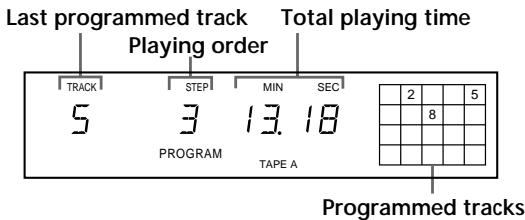
CDP-XE330
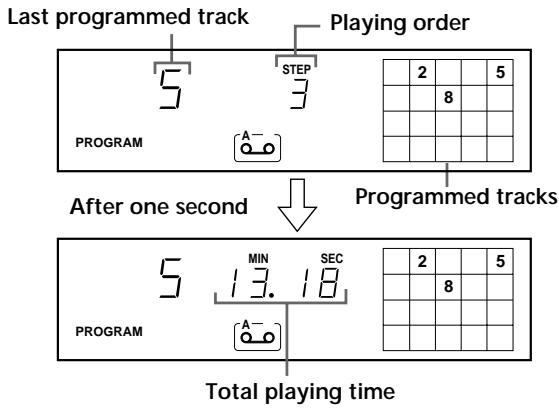
If you've made a mistake
Press CLEAR, then repeat Steps 2 and 3.
4 Repeat Steps 2 and 3 to programme the tracks in the order you want.
5 Press to start Programme Play.
To cancel Programme Play
Press PLAY MODE.

When tracks, which aren't numerically consecutive on the disc, are programmed consecutively (i.e. 1, 3, 5 etc.)
A one-second access time blank is added between the tracks.

The programme remains until erased (see page 13) or until you press OPEN/CLOSE
The programme you have created remains even after the Programme Play mode ends or you select another play mode.
Notes
- The total playing time doesn't appear in the display when it exceeds 100 minutes.
- If you programme a track numbered over 24 (or 68 for the CDP-XE330), “--. --” appears instead of the total playing time.
- "PROGRAM FULL" (or "FULL" for the CDP-XE330) appears in the display when you try to add a track to a programme which already contains 24 tracks.
Creating a programme using the remote
CDP-XE530
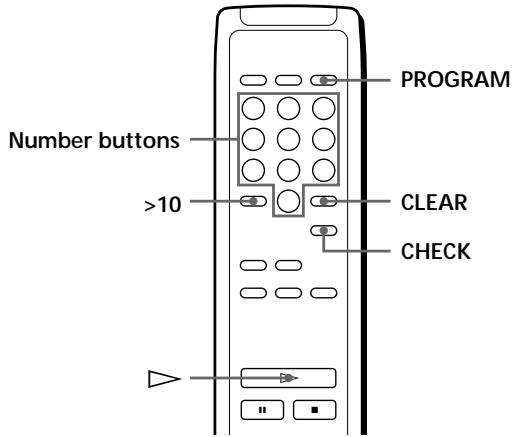
CDP-XE330
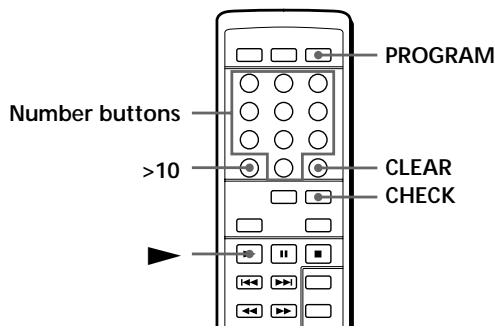
1 Press PROGRAM before you start playing. "PROGRAM" appears in the display.
2 Press the number buttons of the tracks you want to programme in the order you want.
Example: To programme the tracks 2, 8 and 5. Press the number buttons in the order 2, 8 and 5.
To select a track with a number over 10 Use >10 button (see page 10).
If you've made a mistake Press CLEAR, then press the correct track number.
3 Press (or for the CDP-XE330) to start Programme Play.
To cancel Programme Play Press CONTINUE.

You can check the total playing time while programming using the remote (Programme Edit)
To select a track, press or and check the total playing time. Then press PROGRAM to confirm your selection.
Notes
- The total playing time doesn't appear in the display when it exceeds 100 minutes.
- If you programme a track numbered over 24 (or 68 for the CDP-XE330), “--. --” appears instead of the total playing time.
- "PROGRAM FULL" (or "FULL" for the CDP-XE330) appears in the display when you try to add a track to a programme which already contains 24 tracks.
Checking the track order
You can check your programme before or after you start playing.
Press CHECK.
Each time you press this button, the display shows the track number in the programmed order. After the last track in the programme, the display shows “- END -” (or “End” for the CDP-XE330) and returns to the original display. If you check the order after you start playing, the display shows only the remaining track numbers.
Changing the track order
You can change your programme before you start playing.
| To | You need to |
| Erase a track | Press CHECK until the track you don’t want appears in the display, then press CLEAR. |
| Erase the last track in the programme | Press CLEAR. Each time you press the button, the last track will be cleared. |
| Add tracks to the end of the programme | Turn ↓<< AMS ➔ ➔ until the track number you want to add appears, then push ↓<< AMS ➔ ➔. When using the remote, press the number buttons of the tracks to be added. |
| Change the whole programme completely | Hold down CLEAR until “CLEAR” (for the CDP-XE530) or “CLEAR” (for the CDP-XE330) appears in the display. Create a new programme following the programming procedure. |
Recording Your Own Programme
You can record the programme you've created on a tape, DAT, or MD. The programme can contain up to 24 tracks.
By inserting a pause during programming, you can divide the programme into two for recording on both sides of a tape.
CDP-XE530
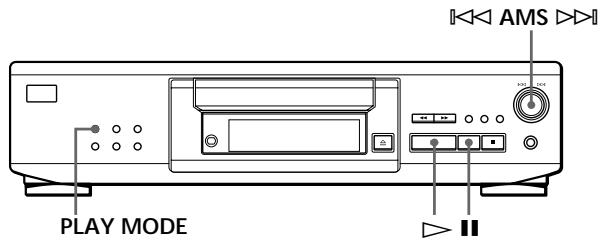
CDP-XE330
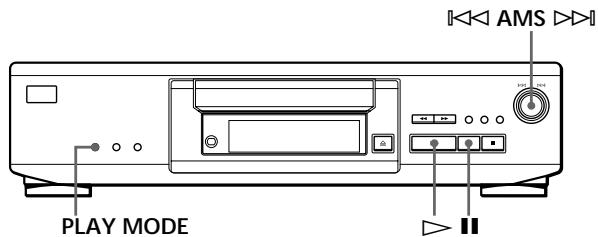
1 Create your programme (for side A when recording on a tape) while checking the total playing time indicated in the display.
Follow Steps 1 to 4 in "Creating a programme on the player" on page 12 or Steps 1 and 2 in
"Creating a programme using the remote" on page 13.
The "TAPE A" (or [-] indication for the CDP-XE330) appears in the display.
2 When you record on both sides of the tape, press to insert a pause.
The "P" and "TAPE B" (or - B indication for the CDP-XE330) appear in the display and the playing time is reset to "0.00."
When you record on one side of the tape or on a DAT or MD, skip this step and go to Step 4.
A pause is counted as one track
You can programme up to 23 tracks when you insert a pause.
3 Repeat Step 1 to create the programme for side B.
4 Start recording on the deck and then press on the player.
When you record on both sides of the tape, the player pauses at the end of the programme for side A.
5 When you record on side B, reverse the tape and press or II on the player to resume playing.
To check and change your programme See page 13.
The "TAPE A" (or - indication for the CDP-XE330) appears while checking the programme for side A and "TAPE B" (or - indication for the CDP-XE330) appears while checking the programme for side B.
When tracks, which aren't numerically consecutive on the disc, are programmed consecutively (i.e. 1, 3, 5 etc.)
A one-second access time blank is added between the tracks.
Recording a CD by Specifying Tape Length (Time Edit) (CDP-XE530 only)
You can have the player create a programme that will match the length of the tape. In this feature, the player creates a programme basically keeping the original order of the disc. However, the player may change the last track of each side to match the recording time to the tape length.
i.e. Side A: track number 1 2 3 4 8
Side B: track number 5 6 7 9 10
The programme may contain up to 24 tracks (a pause inserted between tracks is counted as one track).
Note that tracks numbered over 24 cannot be programmed in this feature.
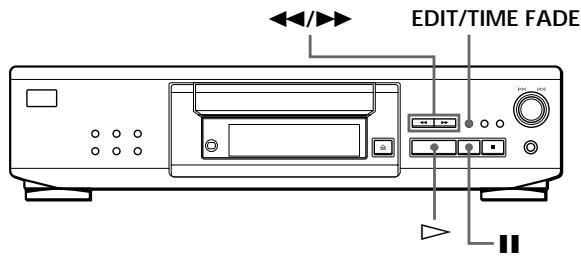
1 Press EDIT/TIME FADE before you start playing until “EDIT” appears and “TAPE A” flashes in the display.
2 Press or to specify the tape length. Each time you press these buttons, the display changes as shown below with the tape length of one side.

When you select "HALF"
The player divides the total playing time of the disc in half, keeping the original order.
Note that you cannot select "HALF" when the disc has more than 24 tracks.
3 Press EDIT/TIME FADE to have the player create the programme.
The display shows the tracks to be recorded.
"TAPE B" flashes in the display.
4 When you record on both sides of the tape, press EDIT/TIME FADE again.
The player inserts a pause, then creates the programme for side B. The display shows the programmed tracks.
When you record on one side of the tape or on a DAT or MD, skip this step.
5 Start recording on the deck and then press on the player.
When you record on both sides of the tape, the player pauses at the end of the programme for side A.
6 Reverse the tape to side B and press or II on the player to resume playing the remaining tracks.
To cancel Time Edit
Press PLAY MODE.
When using the remote, press CONTINUE.

You can specify the tape length freely
You can set the tape length using
Example: When the tape length of one side is 30 minutes and 15 seconds
1 To set the minutes, turn AMS until "30" appears in the display, then push AMS
2 To set the seconds, turn < > > until "15" appears in the display, then push < > >

When tracks, which aren't numerically consecutive on the disc, are programmed consecutively (i.e. 1, 3, 5 etc.)
A one-second access time blank is added between the tracks.

To check and change your programme
See page 13.
Fading In or Out
You can manually fade in or out to prevent tracks from starting or ending abruptly.
Note that you cannot use this effect when you use the DIGITAL OUT (OPTICAL) connector.
Fading in or out at the point you want
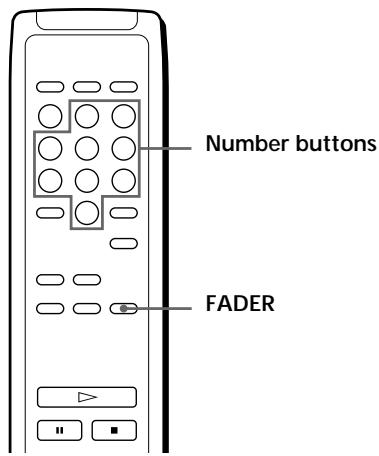
CDP-XE530
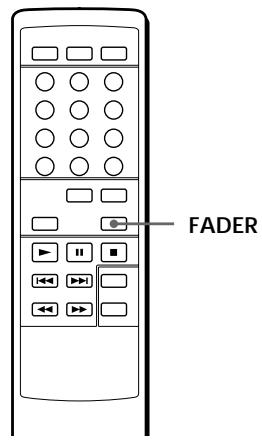
CDP-XE330
| To | Press FADER |
| Start play fading in | During pause. For the CDP-XE530, “FADE” flashes. For the CDP-XE330, [FADE] lights up and the -■ indication flashes. Then play fades in. |
| End play fading out | When you want to start fading out. For the CDP-XE530, “FADE” flashes. For the CDP-XE330, [FADE] lights up and the -■ indication flashes. Then play fades out and the player pauses. |
Fading time lasts for 5 seconds. If you press FADER during Music Scan (page 10), fading time changes to 2 seconds (CDP-XE530 only).
Changing the fading time (CDP-XE530 only)

You can change the fading time from 2 to 10 seconds before fading in or out. If you don't change it, fading lasts for 5 seconds.
1 Before you start playing, press FADER.
2 Press the number buttons to specify the fading time.
Notes
- The fading time is reset to 5 seconds when you turn off the player.
- If you press FADER during Music Scan (page 10), fading time changes to 2 seconds.
Fading out at the specified time (Time Fade) (CDP-XE530 only)
You can have the player fade out automatically by specifying the playing time. Once you set the time fade, it works twice, that is, the play fades out at the end of both sides of a tape.
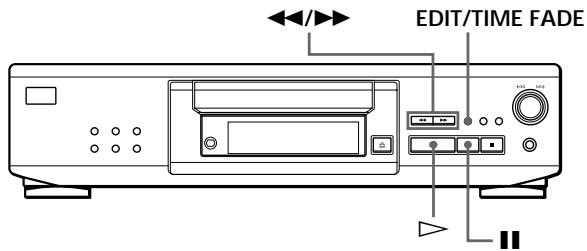
1 Press EDIT/TIME FADE repeatedly before you start playing until "T.FADE" and "TAPE A" appear in the display.
2 Press or to specify the playing time. Each time you press these buttons, the display changes as shown below with the tape length of one side.

When you select "HALF"
The player sets the playing time to a half of the total playing time.
3 Press to start playing.
At the specified time the play fades out and the player pauses. "TAPE B" appears in the display.
4 Reverse the tape to side B and press or II on the player to resume playing the remaining tracks. Again, the play fades out at the specified time.
To cancel Time Fade
Press EDIT/TIME FADE.

You can freely specify the playing time
See "You can specify the tape length freely" on page 15.

You can change discs during Time Fade
If the play ends before the specified fade-out time, (for example, when you record CD-singles on a tape) you can change the disc. The specified fade-out time is counted only during playing.

You can fade in to resume playing in Step 4
After you reverse the tape, press FADER on the remote.
Notes
- Time Fade will be cancelled if you press or during the operation.
- "HALF" does not appear when the disc has more than 24 tracks.
Adjusting the Recording Level (Peak Search)
The player locates the highest level among the tracks to be recorded to let you adjust the recording level before you start recording.
CDP-XE530
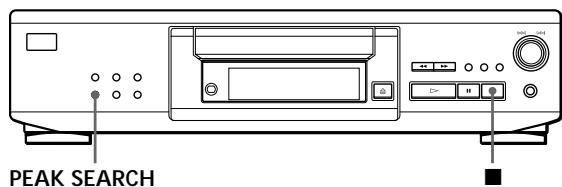
CDP-XE330
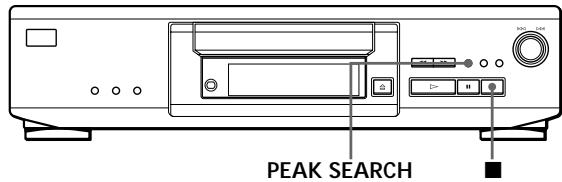
1 Before you start playing, press PEAK SEARCH. "PEAK" flashes in the display and the player starts scanning the disc searching for the highest peak level. After scanning all the tracks, the player repeats the portion with the highest peak level.
2 Adjust the recording level on the deck.
3 Press on the player to stop Peak Search. "PEAK" disappears from the display.
Note
The portion with the highest level may differ every time you try the adjustment on the same disc. The difference is, however, so slight that you won't find any problem in adjusting the recording level precisely.
Notes on CDs
On handling CDs
- To keep the disc clean, handle the disc by its edge. Do not touch the surface.
- Do not stick paper or tape on the disc.
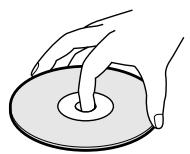
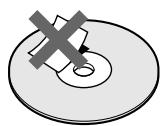
- Do not expose the disc to direct sunlight or heat sources such as hot air ducts, nor leave it in a car parked in direct sunlight as there can be considerable rise in temperature inside the car.
- Do not use any commercially available stabilizer. If you do, the disc and the player may be damaged.
After playing, store the disc in its case.
On cleaning
- Before playing, clean the disc with a cleaning cloth. Wipe the disc from the centre out.
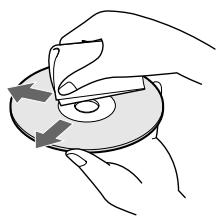
- Do not use solvents such as benzine, thinner, commercially available cleaners or anti-static spray intended for vinyl LPs.
Troubleshooting
If you experience any of the following difficulties while using the player, use this troubleshooting guide to help you remedy the problem. Should any problem persist, consult your nearest Sony dealer.
There's no sound.
- Check that the player is connected securely.
Make sure you operate the amplifier correctly.
Adjust the output level with LINE OUT LEVEL + / - on the remote.
The CD does not play.
There's no CD inside the player. " - NO DISC -" (or "no dISC" for the CDP-XE330) appears. Insert a CD.
Place the CD with the label side up on the disc tray correctly.
Clean the CD (see page 17).
Moisture has condensed inside the player. Remove the disc and leave the player turned on for about an hour (see page 2).
The recording level has changed.
The recording level changes if you adjust the output level with LINE OUT LEVEL + / - on the remote during recording.
The remote does not function.
Remove the obstacles in the path of the remote and the player.
Point the remote at the remote sensor on the player.
Replace all the batteries in the remote with new ones if they are weak.
Specifications
Compact disc player
| Laser | Semiconductor laser (λ = 780 nm) Emission duration: continuous |
| Laser output | Max 44.6 μW* * This output is the value measured at a distance of 200 mm from the objective lens surface on the Optical Pick-up block with 7 mm aperture. |
| Frequency response | 2 Hz to 20 kHz ± 0.5 dB |
| Signal-to-noise ratio | More than 100 dB |
| Dynamic range | CDP-XE530: More than 98 dB CDP-XE330: More than 92 dB |
| Harmonic distortion | CDP-XE530: Less than 0.0045% CDP-XE330: Less than 0.005% |
| Channel separation | More than 95 dB |
Outputs
| Jack type | Maximum output level | Load impedance | |
| LINE OUT | Phono jacks | 2 V (at 50 kilohms) | Over 10 kilohms |
| DIGITAL OUT (OPTICAL) | Optical output connector | -18 dBm | Wave length: 660 nm |
| PHONES (CDP-XE530 only) | Stereo phone jack | 10 mW | 32 ohms |
General
| Power requirements | 220 V – 230 V AC, 50/60 Hz |
| Power consumption | CDP-XE530: 11 W |
| CDP-XE330: 10 W | |
| Dimensions (approx.) | 430 × 110 × 290 mm |
| (w/h/d) | (17 × 4 3/8 × 11 1/2 in.) incl. projecting parts |
| Mass (approx.) | CDP-XE530: 3.4 kg (7 lbs 8 oz) |
| CDP-XE330: 3.1 kg (6 lbs 14 oz) |
Supplied accessories
| Audio cord (2 phono plugs - 2 phono plugs) (1) Remote commander (remote) (1) R6 (size AA) batteries (2) |
| Design and specifications are subject to change without notice. |
Index
A, B
A B Repeat 11
AMS 9
Automatic Music Sensor. See AMS
C, D
CD TEXT 8
Connecting 4
Continuous Play 6
CONTROL A1 5
E
Editing. See Recording
F, G
Fading 15
Time Fade 16
H, I, J, K
Half disc (HALF) 15
Handling CDs 17
Hookups 4
overview 4
L
Locating
by monitoring 10
by observing the display 10
by scanning 10
directly 10
usingAMS 10
M, N, O
Music Scan 10
P, Q
Peak Search 17
Playback
Continuous Play 6
Programme Play 12
Repeat Play 10
Shuffle Play 11
Programme 12
changing 13
checking 13
for recording 14
Programme Edit 13
R
Recording 14
a programme 14
using Time Edit 14
Remaining time 7
Remote control 4
Repeating
all 10
a specific portion 11
the current track 10
s
Scanning. See Music Scan
Searching. See Locating
Selecting the language 8
Shuffle Play 11
T
Time Edit 14
Time Fade 16
Total playing time 7
Troubleshooting 18
U, V, W, X, Y, Z
Unpacking 4
Names of controls
Buttons
A-B 11
CHECK 13
CLEAR 13
CONTINUE 11
EDIT/TIME FADE 15,16
FADER 16
LANGUAGE 9
LINE OUT LEVEL + / - 5
MUSIC SCAN 10
Number 10
OPEN/CLOSE 6
PEAK SEARCH 17
PLAY MODE 11, 12
PROGRAM 13
REPEAT 10
SHUFFLE 11
TIME 7
TIME/TEXT 7
6
6
6
10
10
10 10
Switch
① (Power) 6
Connector
DIGITAL OUT (OPTICAL) 5
Jacks
LINE OUT 4
PHONES 6
Others
Disc tray 6
Display 7
AMS 6
B 4
AVERTISSEMENT
Cable audio (fourni) (1)
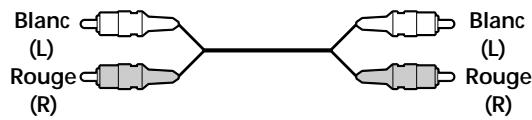
Raccordement
Consummationelectrique CDP-XE530:11W
CDP-XE330:10W
Dimensions (approx.) 430 × 110 × 290 ~mm (l/h/p) parties saillantes comprises
Masse (approx.) CDP-XE530: 3,4 kg CDP-XE330: 3,1 kg
Accessoires fournis
Cable audio (2 fiches phono - 2 fiches phono) (1)
Télécommande (1)
Piles R6 (AA) (2)
DIGITAL OUT (OPTICAL) 5
Prises
LINE OUT 4
PHONES 6
Autres
Que cables necessities?
Cable de audio (suministrado) (1)
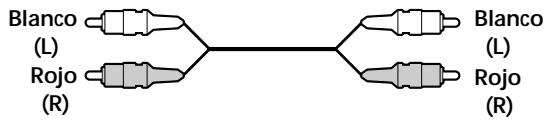
Conexiones
CDP-XE330: Inferior a 0.005%
DIGITAL OUT (OPTICAL) 5
Tomas
LINE OUT 4
PHONES 6
Otros
Bandeja de discos 6 Visor 7 1 1 AMS 6 4