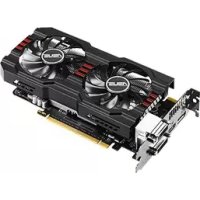
ASUS GTX660DC2OCPH2GSP - Graphic card

GTX660DC2OCPH2GSP - Graphic card ASUS - Free user manual and instructions

Find the device manual for free GTX660DC2OCPH2GSP ASUS in PDF.

📄 167 pages English EN Download 💬 AI Question 10 questions ⚙️ Specs
Notice ASUS GTX660DC2OCPH2GSP - page 3
Pick your language and provide your email: we'll send you a specifically translated version.
Product typeGraphics card
BrandAsus
ModelGTX660DC2OCPH2GSP
Graphics processorNVIDIA GeForce GTX 660
Memory2 GB GDDR5
InterfacePCI Express 3.0 x16
Video outputsHDMI, DisplayPort, DVI-D, DVI-I
Maximum resolution2560 x 1600
Power connectors1 x 6-pin PCIe
Power consumption140 W (estimated)
Form factorDual slot
Dimensions (L x W x H)approximately 265 x 113 x 40 mm
Weightapproximately 800 g
CoolingDual fan
Included softwareASUS GPU Tweak II, drivers
Main featuresOverclocking, silent mode, game mode, real-time monitoring
Maintenance and cleaningDust regularly with compressed air. Avoid moisture.
SafetyDo not expose to extreme temperatures. Use a sufficient power supply.
Spare parts and repairabilityNot user-serviceable. Contact customer service.
General informationManual available in multiple languages. VBIOS and driver updates via GPU Tweak II.

Frequently Asked Questions - GTX660DC2OCPH2GSP ASUS

How to install the ASUS GTX660DC2OCPH2GSP graphics card?
Turn off the computer, unplug the power cable, open the case, insert the card into a free PCIe x16 slot, connect the PCIe power cable, then turn on and install drivers.
What software to use to overclock the GTX660?
Use ASUS GPU Tweak II provided with the card. It allows adjusting frequency, voltage and fan speed in Simple or Professional modes.
Why is my fan not spinning?
The card has a 0 dB feature that stops the fans at low load. They will restart automatically under load. You can disable this option in GPU Tweak II.
What are the preset profiles in GPU Tweak II?
The profiles are: OC Mode (maximum performance), Gaming Mode (balanced), Silent Mode (quiet) and My Profile (custom).
How to update the driver for my GTX660?
From GPU Tweak II, go to the Info tab then Live Update to check and download the latest driver and VBIOS versions.
Which power supply is recommended for this card?
A power supply of at least 400 W with a PCIe 6-pin connector is recommended. Check the capacity of your power supply unit.
Does the card support SLI?
Yes, the GTX660 supports 2-way SLI. Use an SLI bridge (not included) and enable the option in the NVIDIA Control Panel.
Can I use the card with Windows 10?
Yes, it is compatible with Windows 7, 8, 8.1 and 10 in 32 or 64 bits. Download the latest drivers from the NVIDIA or ASUS website.
How to monitor the temperature and load of the card?
Use GPU Tweak II or the NVIDIA Control Panel. The Monitor tab of GPU Tweak II displays real-time temperature, usage and fan speed.
What to do if the card is not detected by the computer?
Check that the card is properly inserted in the PCIe slot, that the power cables are connected, that the monitor is connected to the card (not the motherboard) and that the drivers are installed.

User questions about GTX660DC2OCPH2GSP ASUS

0 question about this device. Answer the ones you know or ask your own.

Ask a new question about this device

The email remains private: it is only used to notify you if someone responds to your question.

No questions yet. Be the first to ask one.

Download the instructions for your Graphic card in PDF format for free! Find your manual GTX660DC2OCPH2GSP - ASUS and take your electronic device back in hand. On this page are published all the documents necessary for the use of your device. GTX660DC2OCPH2GSP by ASUS.

USER MANUAL GTX660DC2OCPH2GSP ASUS

ASUS GPU Tweak II User Manual

Q10790

First Edition

August 2015

Contents

English....3

繁體中文 14

简体中文 25

Français 36

日本語 47

Italiano 58

Русский....69

Čeština....80

Nederlands 91

Ελληνικά.... 102

Português.... 113

Polski....124

Español.... 135

Українська.... 146

Deutsch....157

Knowing GPU Tweak II

ASUS GPU Tweak II utility allows you to monitor and tweak the settings of your ASUS graphics card for optimal performance. It has two user interfaces, the Simple Mode and Professional Mode, that allow you to quickly monitor your preset and customized profiles, boost the GPU settings for your game-changing enjoyment, or do some advanced tweaking on the GPU settings for optimal performance.

ASUS GPU Tweak II includes these ASUS-exclusive preset power-saving and gaming profiles:

ASUS GTX660DC2OCPH2GSP - Knowing GPU Tweak II - 1

OC Mode

Silent Mode

Gaming Mode

My Profile

System requirements

• AMD 7000 Series GPU or higher
• NVIDIA 600 Series GPU or higher
• 32-/64-bit Microsoft® Windows® 10 / 8 / 8.1 / 7

Installing GPU Tweak II

  1. Ensure that you have installed the ASUS graphics card and its driver. Refer to the ASUS graphics card user manual for details on installing its driver.
  2. Locate the ASUS GPU TweakII driver folder and double-click the setup.exe file to start the installation.
  3. Follow the onscreen instructions to finish the installation.

Launching GPU Tweak II

• Double-click the GPU Tweak icon on the desktop.
- Click Start > All Programs > ASUS > GPU Tweak II to launch the program.

ASUS GTX660DC2OCPH2GSP - Launching GPU Tweak II - 1

Simple Mode

Simple Mode provides you with a quick way to monitor your GPU settings in real-time, and tweak some system settings via Gaming Booster for your game-changing enjoyment.
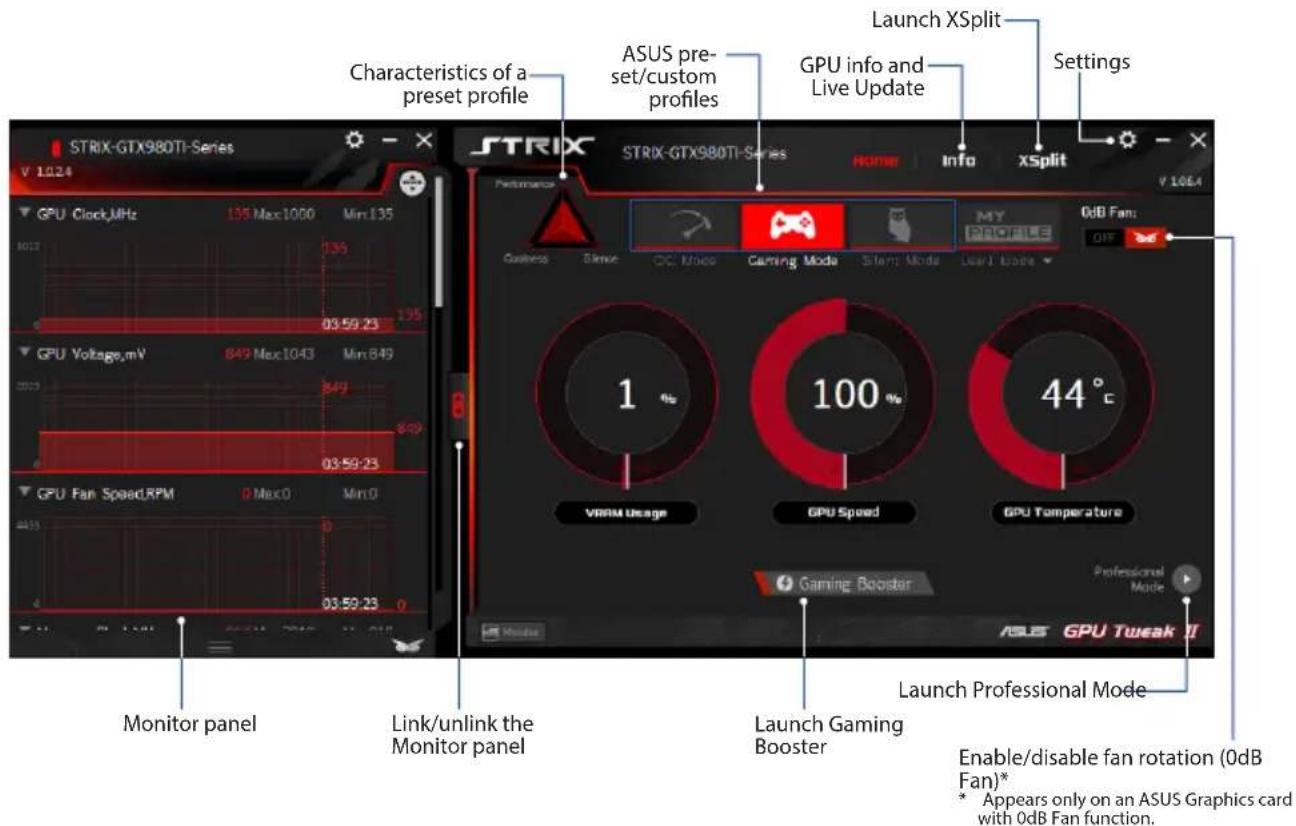
CHARACTERISTICS OF A preset profile ASUS pre- set/custom profiles GPU info and Live Update Launch XSplit Settings STRIX-GTX980TI-Series V 1024 STRIX STRIX-GTX980TI-Series HOME Info xSplit V 1064 Performance Business Skew DC Mode Gaming Mode Start Mode User Trade MY PROGRESS 0dB Fan: OFF 1 100 44 °C VRAM Usage GPU Speed GPU Temperature Gaming Booster Professional Mode Monitor panel Link/unlink the Monitor panel Launch Gaming Booster Launch Professional Mode ASUS GPU Tweak II Enable/disable fan rotation (0dB Fan)* * Appears only on an ASUS Graphics card with 0dB Fan function.

Gaming Booster

Get that game-changing performance edge with Gaming Booster, which helps optimize your system for a seamless and faster game play in your computer games.

Gaming Booster offers you these three (3) functions:

  • Visual Effects: Lets you turn off the Windows® visual effects to intensify the processor performance.
  • System Services: Lets you to automatically or manually turn off Windows® services or processes.

- System Services setting: Lets you to manually choose the services or processes that you want to stop.

- System Memory defragmentation: Lets you rearrange and clean your system memory without closing any processes.
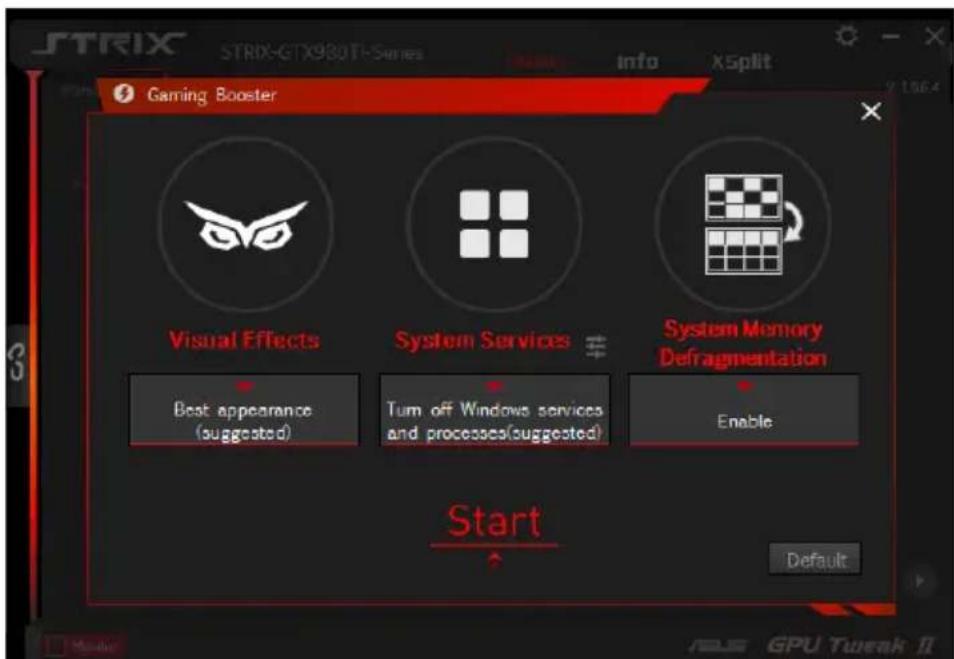
STRIX STRIX-GTX980T1-Series Info X5plit Gaming Booster Visual Effects System Services # System Memory Defragmentation Best appearance (suggested) Turn off Windows services and processes(suggested) Enable Start Default

Professional Mode

Configure the GPU settings like a pro, and get the optimal performance from your ASUS Graphics card.
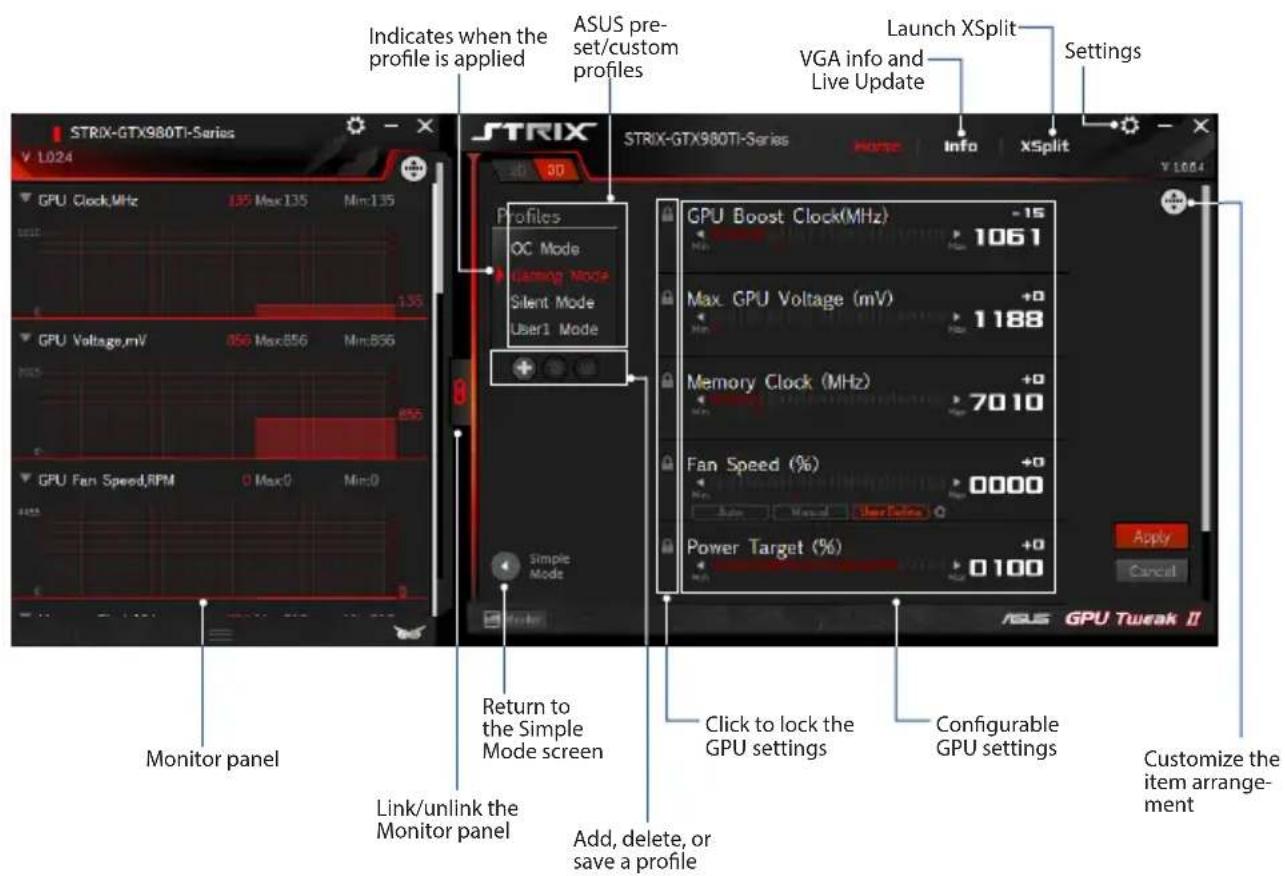
STRIX-GTX980Ti-Series Indicates when the profile is applied ASUS pre- set/custom profiles Launch XSplit VGA info and Live Update Settings STRIX STRIX-GTX980Ti-Series Home Info XSplit V L024 3D Profiles OC Mode Warning Mode Silent Mode User1 Mode GPU Boost Clock(MHz) -15 1061 Max. GPU Voltage (mV) +0 1188 Memory Clock (MHz) +0 7010 Fan Speed (%) +0 0000 Power Target (%) +0 0100 Apply Cancuit Monitor panel Return to the Simple Mode screen Click to lock the GPU settings Configurable GPU settings Link/unlink the Monitor panel Add, delete, or save a profile Customize the item arrange- ment

Configuring a profile

  1. Select the profile that you want to configure.
  2. Select the GPU setting, then key in your preferred value.
  3. When done, click Apply

Adding a profile

  1. Click + then assign the profile name.
  2. Set your preferred values.
  3. When done, click to save the profile.

Applying a profile

- Select the profile, then click to apply the profile.

Deleting a profile

- Select the profile, then click 📄 to delete the profile.

Getting the VGA info and Live Update

The Info screen provides you with information and live updates about your ASUS VGA card.

NOTE: Ensure that your computer is connected to the Internet to get the Live Update.
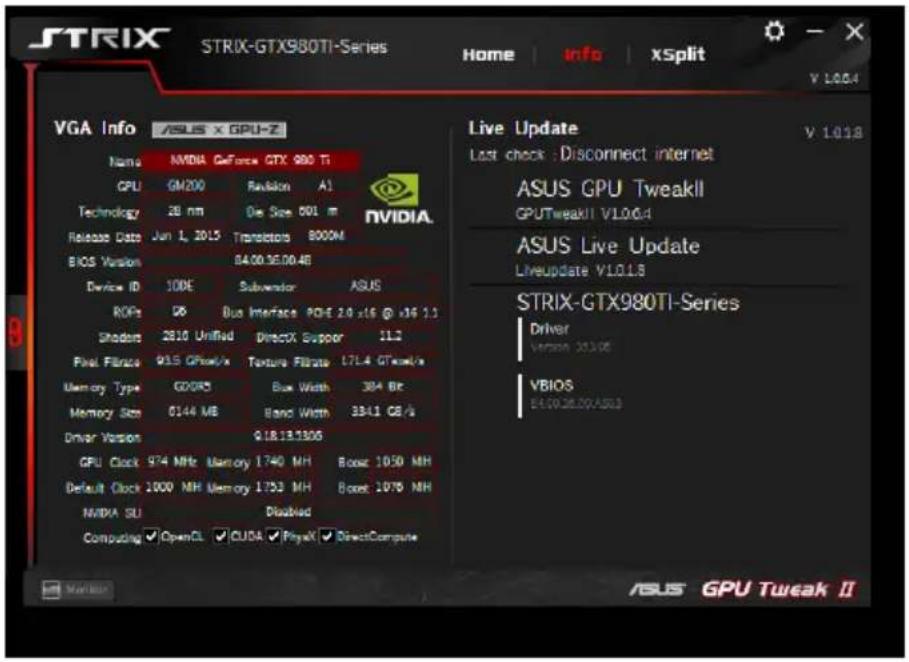
STRIX-GTX980TI-Series Home | info | xSplit V 1.0.0.4 VGA Info | ASUS x GPU-Z Name NVIDIA GeForce GTX 980 TI GPU GM200 Revision A1 Technology 28 nm Die Size 501 m Release Date Jun 1, 2015 Transistors 8000M BIOS Version 84:00:56:00:46 Device ID 10DE Subwoofer ASUS ROFs DB Bus Interface PGE 2.0 x16 @ x16 1.1 Shodors 2010 Unifed DirectX Support 11.2 Pixel Filters 915 GPin/kx Texture Filter 17L4 GTxcel/x Memory Type GD085 Bus Width 304 Bit Memory Size 6144 MB Band Width 33-1 GB/s Driver Version Q18183305 GPU Clock 974 MHz Memory 1740 MH Boost 1050 MH Default Clock 1000 MHz Memory 1753 MH Boost 1075 NH MIDIA SU Disabled Computing OpenCL CUDA PhysX DirectCompute Live Update V 1.0.18 Last check : Disconnect internet ASUS GPU TweakII GPUTweakII V1.0.0.4 ASUS Live Update Liveupdate V1.0.18 STRIX-GTX980TI-Series Driver Version 23306 VBIOS E15026.00/ASU3 ASUS GPU Tweak II

Launching XSplit

Install and launch XSplit Gamecaster from GPU Tweak II.
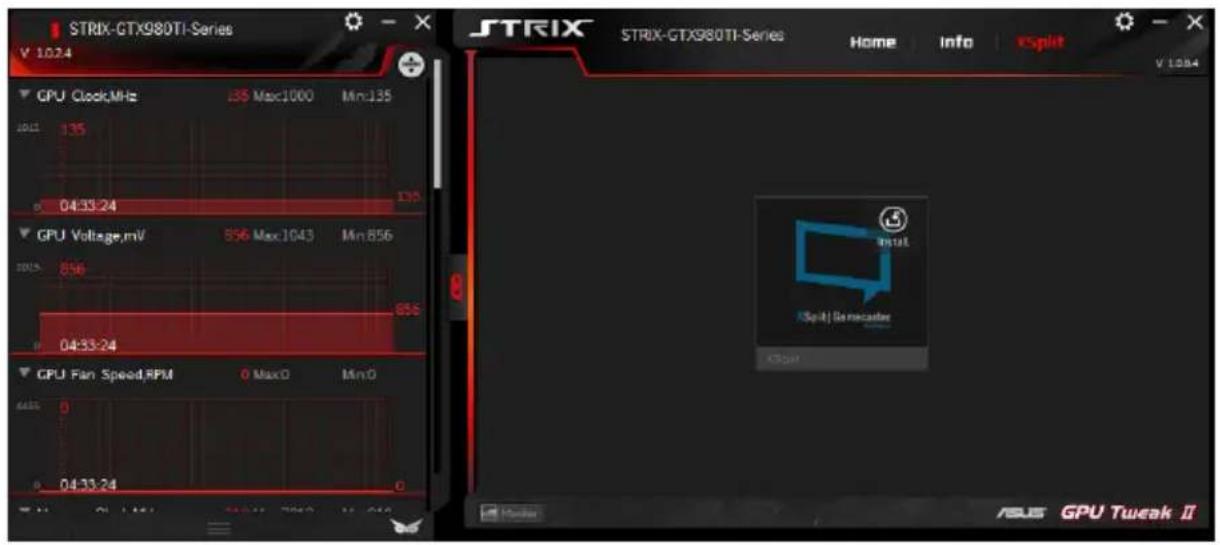
STRIX-GTX980TI-Series V 1024 GPU Clock,MHz 35 Max:1000 Min:135 10/1 135 04:33:24 135 GPU Voltage,mV 856 Max:1043 Min:856 10/15 856 04:33:24 856 GPU Fan Speed,RPM 0 Max:0 Min:0 6415 0 04:33:24 0 STRIX STRIX-GTX980TI-Series Home Info V Split V 1284 Install Split | Generator C:\Users\ GPU Tureak II

Using the Settings screen

The Settings screen allows you to configure the GPU Tweak II settings such as Main, Tuning Settings, Live Update, and Keyboard Shortcuts.

Main

From the Main settings, you can select any of these options on launching GPU Tweak II:

• Automatically launch GPU Tweak II or its Monitor panel on Windows® startup.
- Minimize GPU Tweak II or its Monitor panel once launched.
- Turn the notification window on/off.
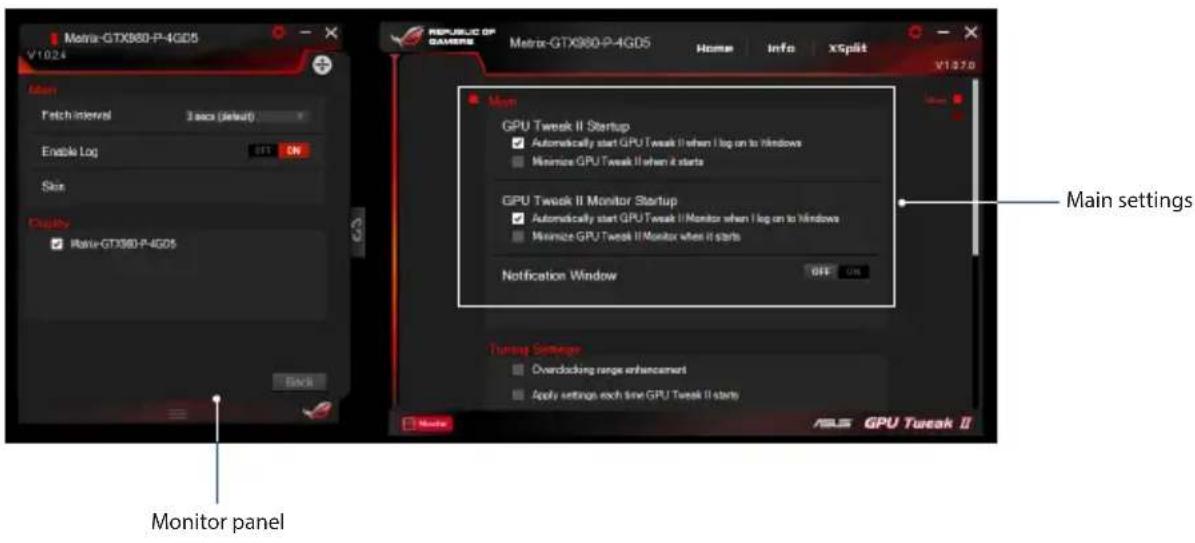
Metro-GTX860-P-4G05 V1024 Monitor panel Petch interval 3 secs (default) Enable Log ON Skin Display Rate-GTX860-P-4G05 Back REPUBLIC OF GAVENIX Metro-GTX860-P-4G05 Home Info xSplit V10270 Main GPU Tweak II Startup ✓ Automatically start GPU Tweak II when I log on to Windows ■ Minimize GPU Tweak II when it starts GPU Tweak II Monitor Startup ✓ Automatically start GPU Tweak II Monitor when I log on to Windows ■ Minimize GPU Tweak II Monitor when it starts Notification Window OFF ON Turnup Settings ■ Overdocking range enhancement ■ Apply settings each time GPU Tweak II starts ASLS GPU Tweak II

Tuning Settings

From the Tuning Settings, you can select any of these options on applying the GPU Tweak II settings:

• Enhance the overclocking range.
- Apply the settings on GPU Tweak startup.
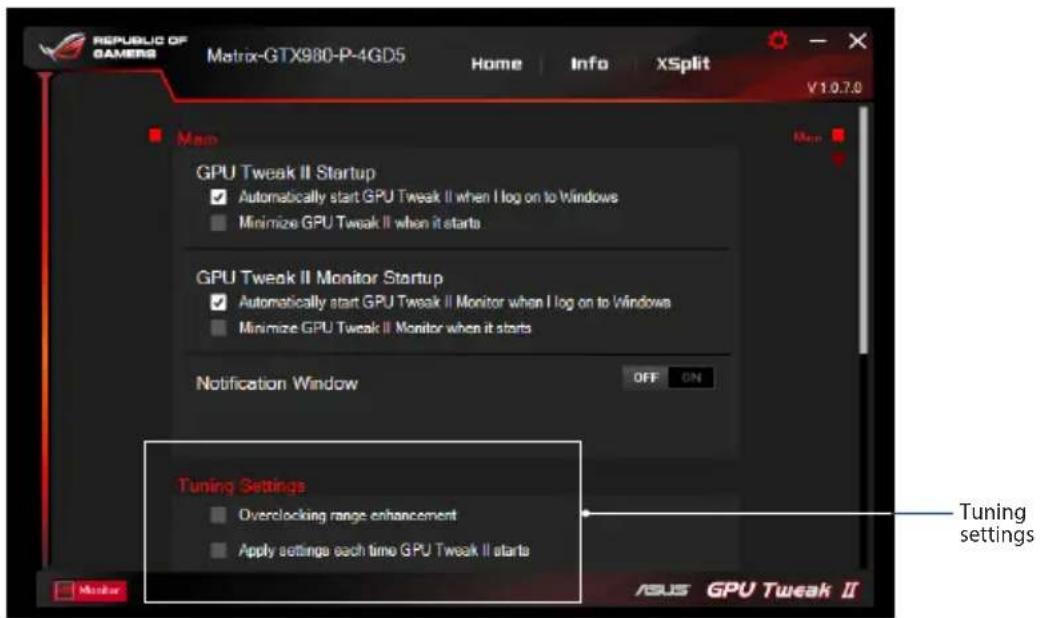
REPUBLIC OF GAMERS Matrix-GTX980-P-4GD5 Home Info XSplit V1.0.7.0 Map GPU Tweak II Startup ✓ Automatically start GPU Tweak II when I log on to Windows ■ Minimize GPU Tweak II when it starts GPU Tweak II Monitor Startup ✓ Automatically start GPU Tweak II Monitor when I log on to Windows ■ Minimize GPU Tweak II Monitor when it starts Notification Window OFF ON Tuning Settings Overclocking range enhancement Apply setting each time GPU Tweak II starts Tuning settings ASUS GPU Tweak II

Live Update

Receive notifications on the latest VBIOS and driver updates from Live Update. Configure and select the following Live Update options:

  • Set the Update check frequency as to when you want to receive the Live Update.
    • Select any of the Live Update options:

  • Download updates but let me choose whether to install them: Select this option to automatically download updates, and decide whether to manually install them.

  • Download important updates but let me choose whether to install them: Select this option to automatically download critical updates, and decide whether to manually install them.
  • Notify me but do not automatically download or install updates: Select this option to receive notifications only, and decide whether to manually download and install the updates.
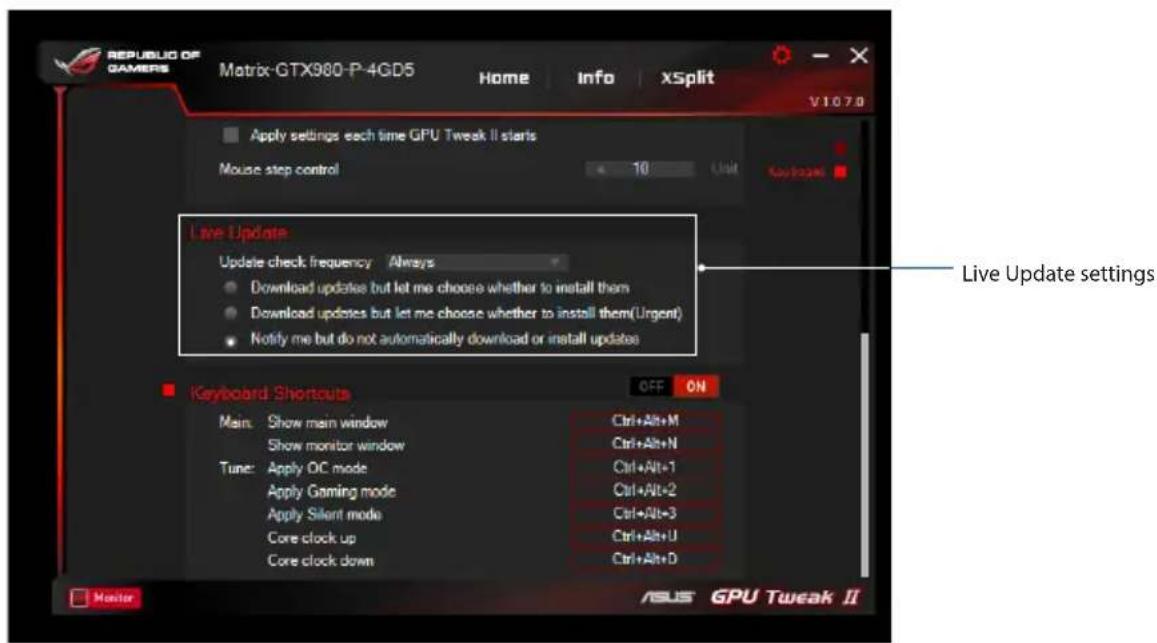
REPUBLIC OF GAMERS Matrix-GTX980-P-4GD5 Home Info xSplit V1078 Apply settings each time GPU Tweak II starts Mouse step control 10 Unit Keyboard Live Update Update check frequency Always Download updates but let me choose whether to install them Download updates but let me choose whether to install them(Urgent) Notify me but do not automatically download or install updates Live Update settings Keyboard Shortouts OFF ON Main: Show main window Show monitor window Tune: Apply OC mode Apply Gaming mode Apply Silent mode Core clock up Core clock down Ctrl+Alt+M Ctrl+Alt+N Ctrl+Alt+1 Ctrl+Alt+2 Ctrl+Alt+3 Ctrl+Alt+U Ctrl+Alt+D Monitor ASUS GPU Tweak II

Keyboard Shortcuts

Turn on/off the Keyboard Shortcuts to quickly show the main screen or apply some quick adjustments.
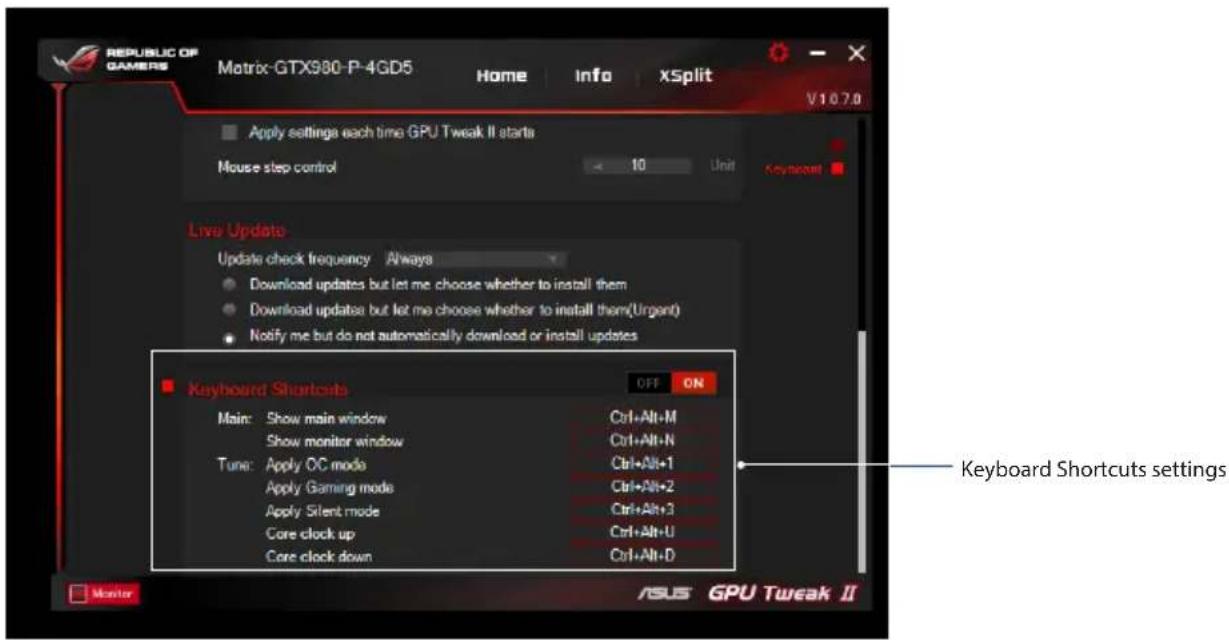
REPUBLIC OF GAMERS Matrix-GTX980-P-4GD5 Home Info XSplit V107.0 Apply settings each time GPU Tweak II starts Mouse step control 10 Unit Keyboard Live Update Update check frequency Always Download updates but let me choose whether to install them Download updates but let me choose whether to install them(Urgent) Notify me but do not automatically download or install updates Keyboard Shortcuts OFF ON Main: Show main window Show monitor window Tune: Apply OC mode Apply Gaming mode Apply Silent mode Core clock up Core clock down Ctrl+Alt+M Ctrl+Alt+N Ctrl+Alt+1 Ctrl+Alt+2 Ctrl+Alt+3 Ctrl+Alt+U Ctrl+Alt+D Keyboard Shortcuts settings Monitor ASUS GPU Tweak II

了解 GPU Tweak II

專家模式

鍵盤快捷鍵

了解 GPU Tweak II

专家模式

Live Update

键盘快捷键

Mode Professionnel

Keyboard Shortcuts (Raccourcis clavier)

GPU Tweak IIの概要

Professional Mode

キーボードショートカット

Tuning Settings (Impostazioni Tuning)

Live Update

Keyboard Shortcuts

Горячие клавиши

Profesionální režim

Professionele modus

Live Update

Sneltoetsen

Modo Profissional

Atalhos do teclado

Poznanie GPU Tweak II

Gaming Mode (Tryb Gier)

My Profile (Mój profil)

Wymagania systemowe

Professional Mode (Tryb Profesjonalny)

Modo Profesional

Professional Mode (Professioneller Modus)

Manual assistant
Powered by Anthropic
Waiting for your message
Product information

Brand : ASUS

Model : GTX660DC2OCPH2GSP

Category : Graphic card