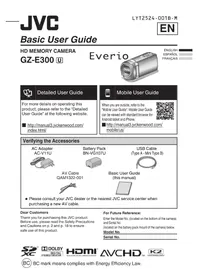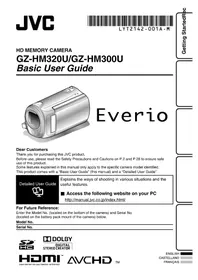
GZHM320 - Camcorder JVC - Free user manual and instructions
Find the device manual for free GZHM320 JVC in PDF.



User questions about GZHM320 JVC
0 question about this device. Answer the ones you know or ask your own.
Ask a new question about this device
Download the instructions for your Camcorder in PDF format for free! Find your manual GZHM320 - JVC and take your electronic device back in hand. On this page are published all the documents necessary for the use of your device. GZHM320 by JVC.
USER MANUAL GZHM320 JVC
natural_image
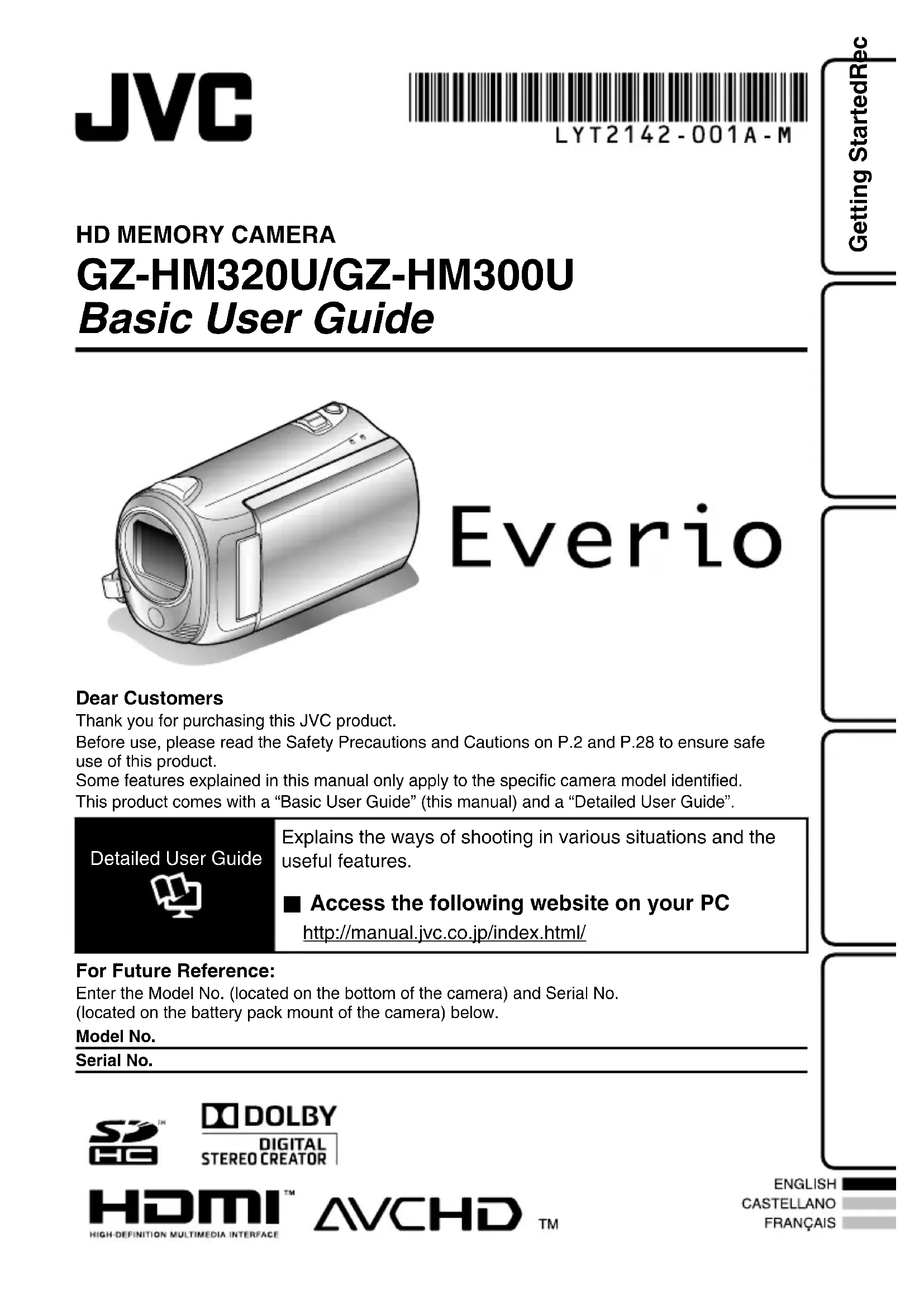
Illustration of a cylindrical device with a rectangular opening and side slots (no text or symbols)Everio
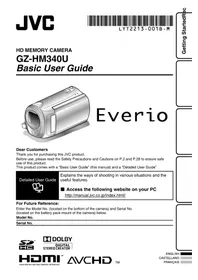
Dear Customers
Thank you for purchasing this JVC product.
Before use, please read the Safety Precautions and Cautions on P.2 and P.28 to ensure safe use of this product.
Some features explained in this manual only apply to the specific camera model identified.
This product comes with a "Basic User Guide" (this manual) and a "Detailed User Guide".
Detailed User Guide

Explains the ways of shooting in various situations and the useful features.
■ Access the following website on your PC
For Future Reference:
Enter the Model No. (located on the bottom of the camera) and Serial No. (located on the battery pack mount of the camera) below.
Model No.
Serial No.

DOLBY
DIGITAL STEREO CREATOR
HDMI ^TM
HIGH-DEFINITION MULTIMEDIA INTERFACE
AVCHD
TM

CAUTION
RISK OF ELECTRIC SHOCK DO NOT OPEN

CAUTION: TO REDUCE THE RISK OF ELECTRIC SHOCK, DO NOT REMOVE COVER (OR BACK).
NO USER-SERVICEABLE PARTS INSIDE
REFER SERVICING TO QUALIFIED SERVICE PERSONNEL.
The lightning flash with arrowhead symbol, within an equilateral triangle, is intended to alert the user to the presence of uninsulated "dangerous voltage" within the product's enclosure that may be of sufficient magnitude to constitute a risk of electric shock to persons.

The exclamation point within an equilateral triangle is intended to alert the user to the presence of important operating and maintenance (servicing) instructions in the literature accompanying the appliance.
WARNING: TO PREVENT FIRE OR SHOCK HAZARD, DO NOT EXPOSE THIS UNIT TO RAIN OR MOISTURE.
NOTES:
- The rating plate and safety caution are on the bottom and/or the back of the main unit.
- The serial number plate is on the battery pack mount.
- The rating information and safety caution of the AC adapter are on its upper and lower sides.
For USA-California Only
This product contains a CR Coin Cell Lithium Battery which contains Perchlorate Material – special handling may apply. See www.dtsc.ca.gov/hazardouswaste/perchlorate
WARNING:
The battery pack and this unit with battery installed should not be exposed to excessive heat such as direct sunlight, fire or the like.
When the equipment is installed in a cabinet or on a shelf, make sure that it has sufficient space on all sides to allow for ventilation (10 cm (3-15/16") or more on both sides, on top and at the rear). Do not block the ventilation holes.
(If the ventilation holes are blocked by a newspaper, or cloth etc. the heat may not be able to get out.)
No naked flame sources, such as lighted candles, should be placed on the apparatus.
When discarding batteries, environmental problems must be considered and the local rules or laws governing the disposal of these batteries must be followed strictly.
The apparatus shall not be exposed to dripping or splashing.
Do not use this equipment in a bathroom or places with water.
Also do not place any containers filled with water or liquids (such as cosmetics or medicines, flower vases, potted plants, cups etc.) on top of this unit. (If water or liquid is allowed to enter this equipment, fire or electric shock may be caused.)
Do not point the lens directly into the sun. This can cause eye injuries, as well as lead to the malfunctioning of internal circuitry. There is also a risk of fire or electric shock.
CAUTION!
The following notes concern possible physical damage to this unit and to the user. Carrying or holding this unit by the LCD monitor can result in dropping the unit, or in a malfunction. Do not use a tripod on unsteady or unlevel surfaces. It could tip over, causing serious damage to the unit.
CAUTION!
Connecting cables (Audio/Video, S-Video, etc.) to this unit and leaving it on top of the TV is not recommended, as tripping on the cables will cause the unit to fall, resulting in damage.
CAUTION:
The mains plug shall remain readily operable.
- Remove the mains plug immediately if this unit functions abnormally.
IMPORTANT SAFETY INSTRUCTIONS
-
Read these instructions.
-
Keep these instructions.
-
Heed all warnings.
-
Follow all instructions.
-
Do not use this apparatus near water.
-
Clean only with dry cloth.
-
Do not block any ventilation openings. Install in accordance with the manufacturer's instructions.
-
Do not install near any heat sources such as radiators, heat registers, stoves, or other apparatus (including amplifiers) that produce heat.
-
Protect the power cord from being walked on or pinched particularly at plugs, convenience receptacles, and the point where they exit from the apparatus.
-
Only use attachments/accessories specified by the manufacturer.
-
Use only with the cart, stand, tripod, bracket, or table specified by the manufacturer, or sold with the apparatus. When a cart is used, use caution when moving the cart/ apparatus combination to avoid injury from tip-o

natural_image
Symbolic icon of a person lifting a ladder, enclosed in a circle with no text or symbols-
Unplug this apparatus during lightning storms or when unused for long periods of time.
-
Refer all servicing to qualified service personnel. Servicing is required when the apparatus has been damaged in any way, such as power-supply cord or plug is damaged, liquid has been spilled or objects have fallen into the apparatus, the apparatus has been exposed to rain or moisture, does not operate normally, or has been dropped.
If this symbol is shown, it is only valid in the European Union.
Remember that this unit is intended for private consumer use only.
Any commercial use without proper permission is prohibited. (Even if you record an event such as a show, performance or exhibition for personal enjoyment, it is strongly recommended that you obtain permission beforehand.)
Trademarks
- AVCHD and AVCHD logotype are trademarks of Panasonic Corporation and Sony Corporation.
- x.v.Color™ is a trademark of S o ny Corporation.
- HDMI is a trademark of HDMI L i censing, LLC.
● Manufactured under license from Dolby Laboratories. Dolby and the double-D symbol are trademarks of Dolby Laboratories. - Windows® is either registered trademark or trademark of Microsoft Corporation in the United States and/or other countries.
● Macintosh is a registered trademark of Apple Inc. - YouTube™ and the YouTube logo are trademarks and/or registered trademarks of YouTube LLC.
- Other product and company names included in this instruction manual are trademarks and/or registered trademarks of their respective holders.
CAUTION:
- Fire or injury may result if batteries NOT approved by JVC are used.
Only use the batteries specified on page 24. - Please do not pull or bend the AC adapter plug and cable. This may damage the AC adapter.
Make a backup of important recorded data
JVC will not be responsible for any lost data. It is recommended to copy your important recorded data to a disc or other recording media for storage.
Contents
Safety Precautions ...... 2
Contents 4
Verifying the Accessories 4
Names of Parts and Functions .... 5
▶ Getting Started ...... 6
Charging the Battery Pack 6
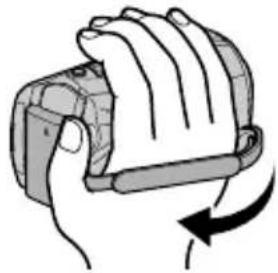
Grip Adjustment 7
Attaching the Lens Cap 7
Inserting an SD card 8
Clock Setting 11
▶ Recording 13
Video Recording 13
Still Image Recording 14
▶Playback 15
Playing Back/Deleting Files on this Unit 15
Playing Back on TV 16
▶ Copying ...... 18
Copying Files 18
Dubbing Files by Connecting to a DVD
Recorder or VCR 19
Copying to Computer 20
▶ Others ...... 23
Using the Menu 23
Recordable Time/Number of Images 24
Troubleshooting 25
Cautions 28
Specifications 30
▶ Learning About Advanced Operations
Use the "Detailed User Guide" on your PC to find out more about the advanced operations.
■ Access the following address on your PC
Verifying the Accessories
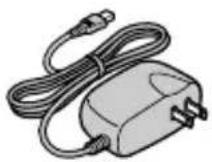
AC Adapter
AP-V30U*
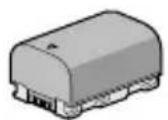
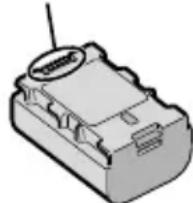
Battery Pack
BN-VG114U
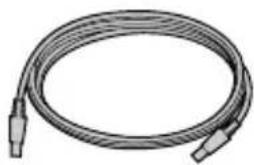
USB Cable
(Type A - Mini Type B)
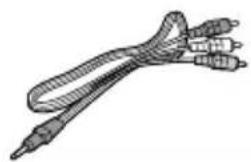
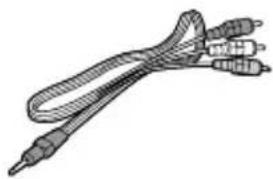
AV Cable
natural_image
Coiled cable or hose with two connectors (no text or symbols visible)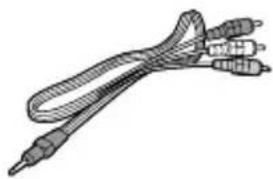
natural_image
Illustration of a coiled cable or probe with three connectors (no text or symbols)CD-ROM
Basic User Guide
(this manual)
Lens Cap

- SD cards are sold separately.
For details on the types of cards that can be used on this unit, refer to P.9.
* When using the AC adapter overseas, please prepare a commercially available converter plug for the country or region of visit.
Names of Parts and Functions
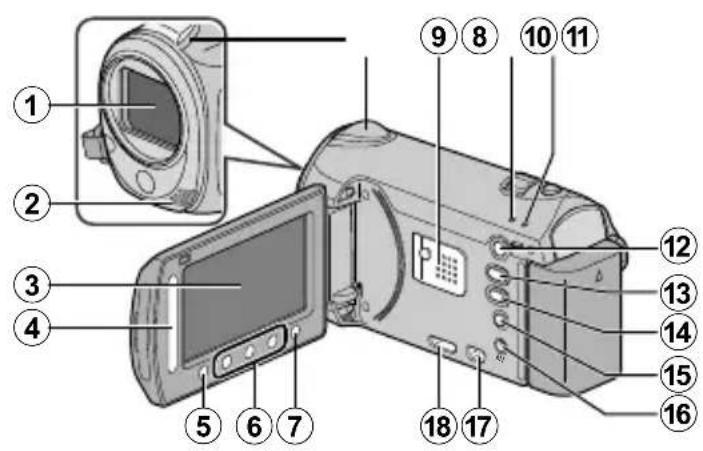
text_image
Labeled diagram of a digital camera with numbered parts for identification
text_image
Technical diagram of a device with numbered parts, likely an optical or mechanical component.① Lens
② Stereo Microphone
③ LCD Monitor Turns the power on/off by opening and closing.
④ Slider Selects an image or item.
⑤ OK Button Confirms the selected image or item.
⑥ Operation Buttons Functions differently according to the operation.
⑦ MENU (menu) Button (P.23)
⑧ Camera Sensor
⑨ Speaker
⑩ ACCESS (Access) Lamp Lights up/blinks during recording or playback.
⑪ POWER/CHARGE (Power/Charge) Lamp (P.6)
⑫ ▶ (Play/Record Mode) Button Switches between recording and playback modes.
⑬ 📋/☐ (Video/Still Image) Button Switches between video and still image modes.
⑭ UPLOAD (Upload) Button Recording : Takes videos in YouTube™ format.
Playback : Changes the video to YouTube™ format.
⑮ (Power/Information) Button Recording : Displays the remaining time as well as the battery power during continuous recording. Playback : Displays file information. Press and hold to turn the power on/off while the LCD monitor is opened.
⑯ AV Terminal (P.16, P.19)
⑰ COMPONENT (Component) Connector (P.16)
⑱ HDMI Mini Connector ( P.16)
⑲ Zoom/Volume Lever (P.13, P.15)
⑳ SNAPSHOT (Still Image Recording) Button (P.14)
②1 USB Terminal (P.22)
② DC Terminal (P.6)
②3 START/STOP (Video Recording) Button (P.13)
⑳ Grip Belt Release Lever
⑲ Grip Belt (P.7)
⑳ Tripod Mounting Hole
⑳ SD Card Slot (P.8)
⑳ Battery Release Lever (P.6)
Charging the Battery Pack
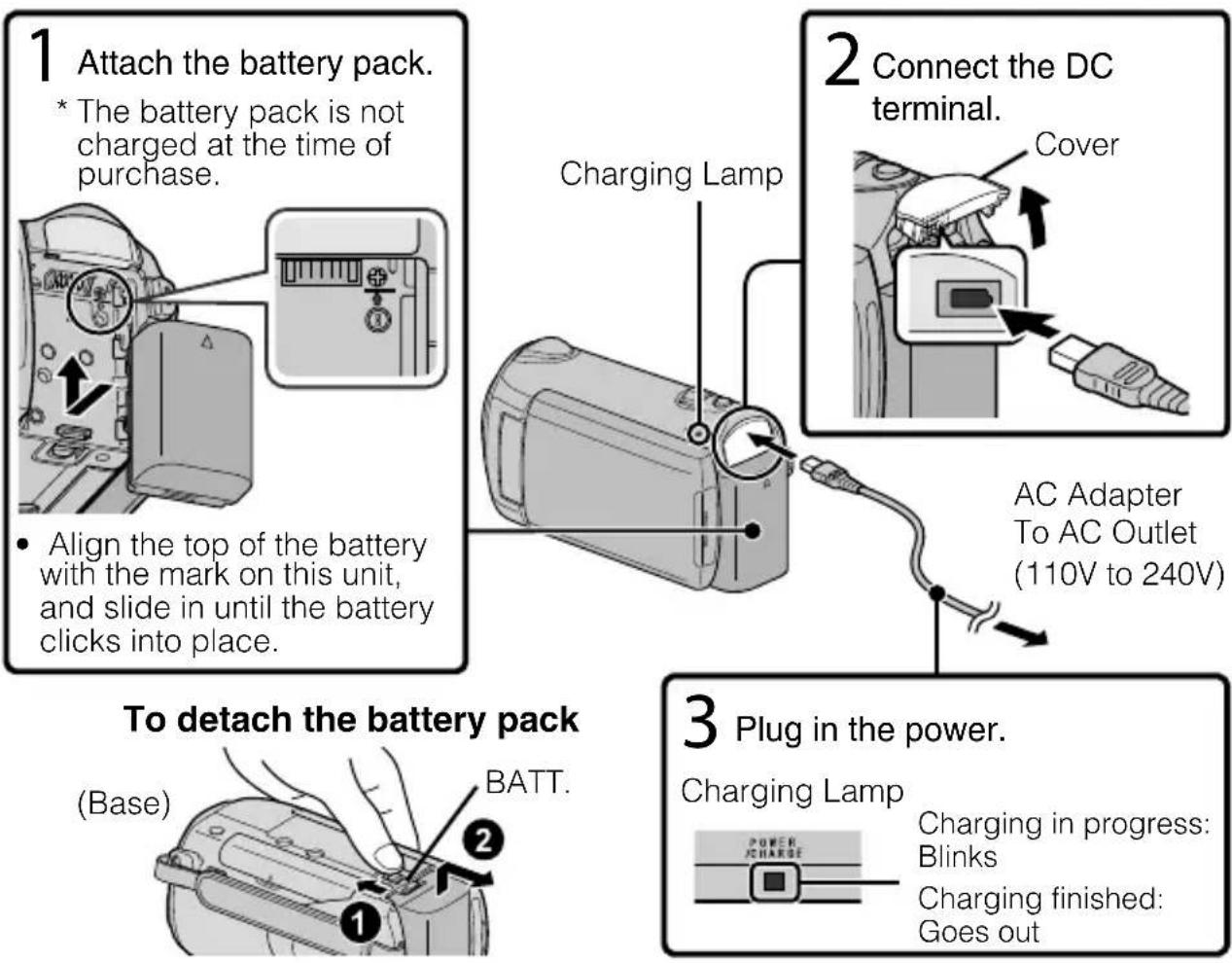
1 Attach the battery pack.
* The battery pack is not charged at the time of purchase.
- Align the top of the battery with the mark on this unit, and slide in until the battery clicks into place.
2 Connect the DC terminal.
AC Adapter
To AC Outlet
(110V to 240V)
3 Plug in the power.
Charging Lamp
Charging in progress:
Blinks
Charging finished:
Goes out
CAUTION
Be sure to use JVC battery packs.
- If you use any other battery packs besides JVC battery packs, safety and performance cannot be guaranteed.
- Charging time: Approx. 2 h 30 m (using supplied battery pack)
* The charging time is when the unit is used at 25^ C ( 77^ F). If the battery pack is charged outside the room temperature range of 10^ C - 35^ C ( 50^ F - 95^ F), charging may take a longer time or it may not start. The recordable and playable time may also be shortened under some usage conditions such as at low temperature.
Grip Adjustment
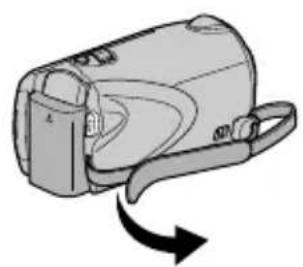
natural_image
Illustration of a handheld device with a curved arrow indicating rotation or change (no text or symbols)① Pull back the belt
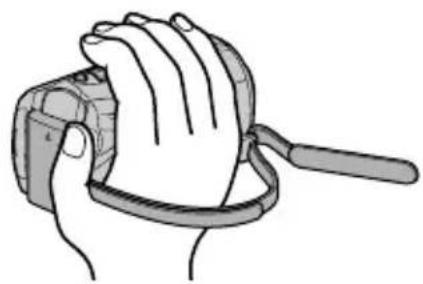
natural_image
Illustration of a hand holding a wristband with a strap (no text or symbols)② Adjust the length
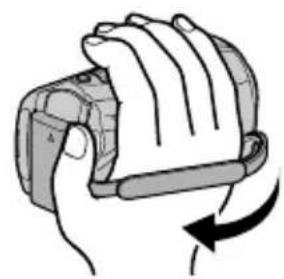
natural_image
Illustration of a hand gripping a device with a curved arrow indicating rotation (no text or symbols)③ Attach the belt
Using as a Hand Strap
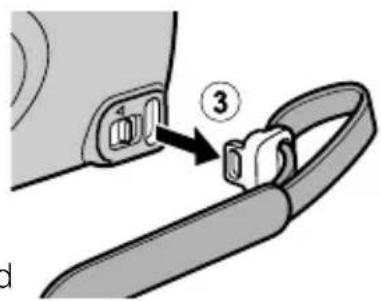
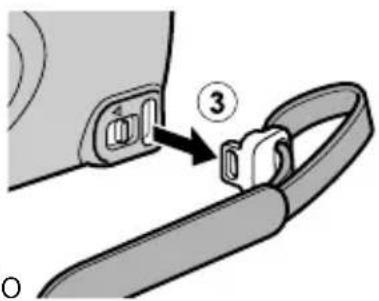
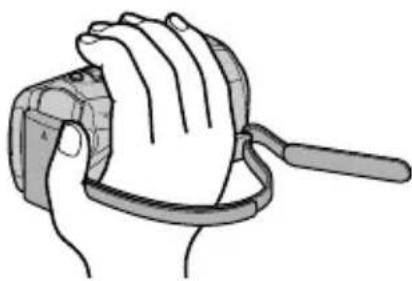
Remove the strap and loop it around your wrist. While pressing ①, pull ② and remove the strap.
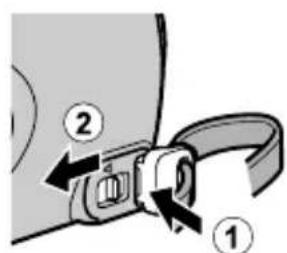
text_image
Diagram showing a car seatbelt buckle with labeled parts ① and ②, indicating mechanical components.Press and hold
text_image
Diagram showing a cable clamp being inserted into a device, labeled with step number 3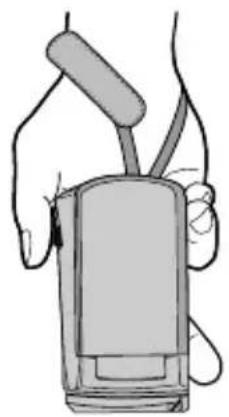
natural_image
Line drawing of a person holding a cylindrical device with a handle (no text or symbols)- When attaching the hand strap, insert ③ until it clicks into place.
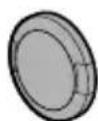
Attaching the Lens Cap
Damage may occur to the lens if this unit is stored without the lens cap attached.
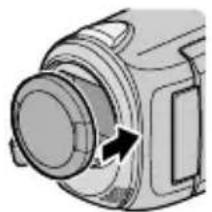
natural_image
Close-up of a mechanical component with a circular opening and directional arrow (no text or symbols)CAUTION
- Please be careful not to lose the lens cap.
■ GZ-HM320 (Models with Internal Memory)
When a commercially available SD card is inserted, recordings can still be made to the card without stopping when the remaining recording time on the internal memory runs out.
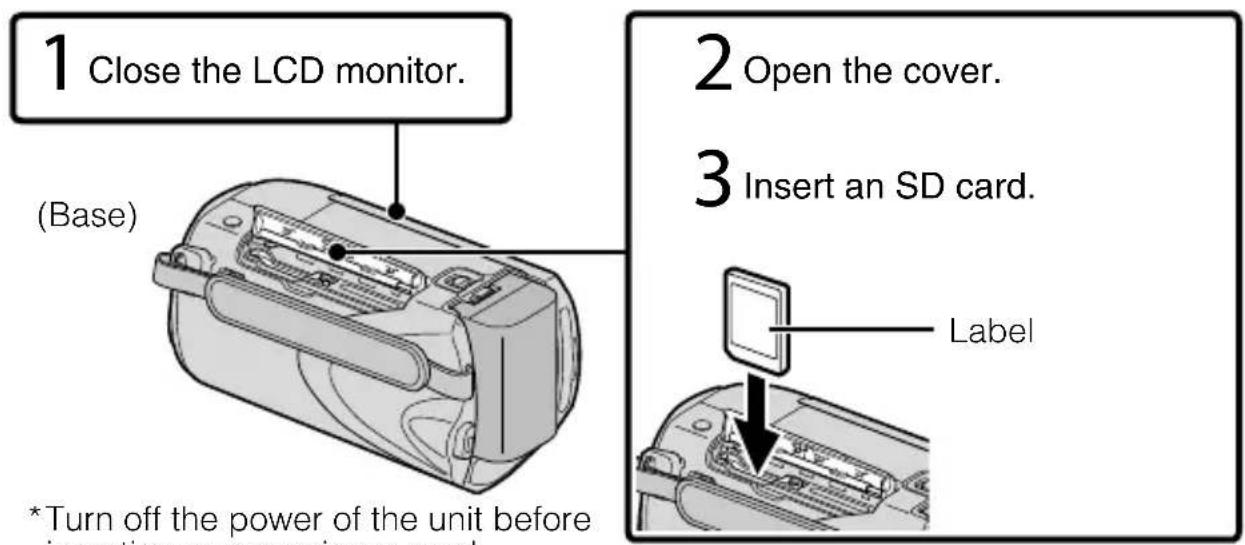
text_image
1 Close the LCD monitor. (Base) *Turn off the power of the unit before inserting an opening a card. 2 Open the cover. 3 Insert an SD card. Label■ GZ-HM300 (Models with Dual Slot)
Insert a commercially available SD card before recording.
This unit comes with two SD card slots. When two SD cards are inserted, recordings can be continued on the other card even if one card is full.
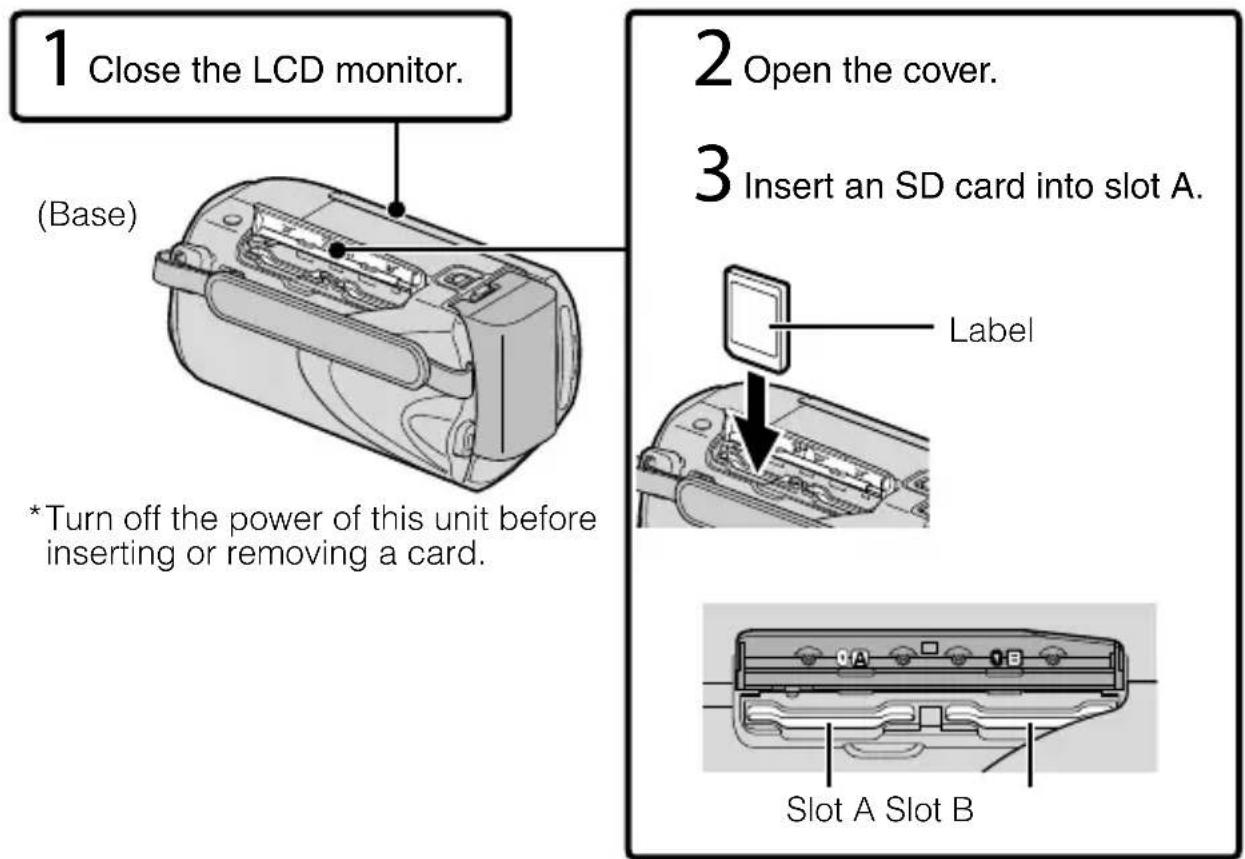
text_image
1 Close the LCD monitor. (Base) *Turn off the power of this unit before inserting or removing a card. 2 Open the cover. 3 Insert an SD card into slot A. Label Slot A Slot B■ To remove the card
Push the card inward once, then pull it out straight.
(Base)
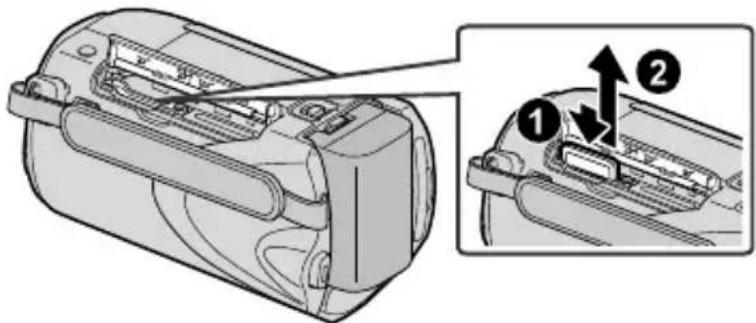
text_image
Technical diagram of a battery pack with labeled components and directional arrows indicating assembly stepsNOTE
Operations are confirmed on the following SD cards.
| Manufacturer Panasonic, TOSHIBA, SanDisk, ATP |
| Video Class 4 or higher compatible SDHC card (4 GB to 32 GB) |
| Still Image SD card (256 MB to 2 GB), SDHC card (4 GB to 32 GB) |
- Using cards other than those specified above may result in recording failure or data loss.
To use an SD card
Recording and playback can be performed on a card when “REC MEDIA FOR VIDEO” or “REC MEDIA FOR IMAGE” of media settings is set to “SD CARD”. (GZ-HM320 only)
- For GZ-HM300, set "VIDEO SLOT SELECTION" or "IMAGE SLOT SELECTION" to "SLOT A" or "SLOT B".
① Display the menu.
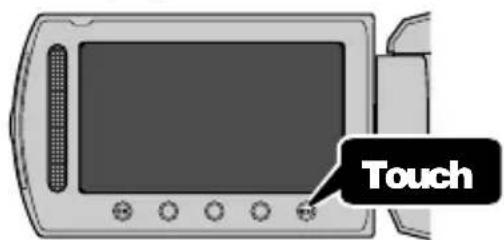
text_image
Touch② Select "MEDIA SETTINGS" and touch OK.
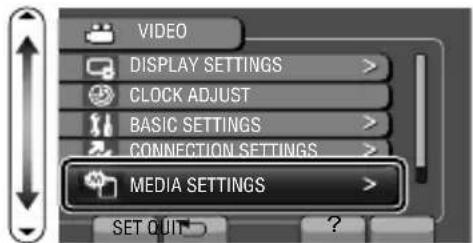
text_image
VIDEO DISPLAY SETTINGS > CLOCK ADJUST > BASIC SETTINGS > CONNECTION SETTINGS > MEDIA SETTINGS > SET QUIT ?③ Select “REC MEDIA FOR VIDEO” or “REC MEDIA FOR IMAGE”, and touch OK.
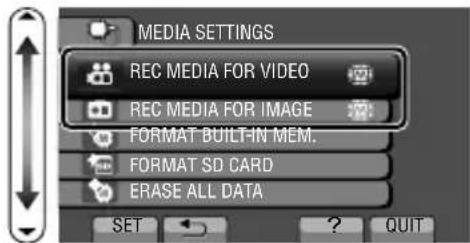
text_image
MEDIA SETTINGS REC MEDIA FOR VIDEO REC MEDIA FOR IMAGE FORMAT BUILT-IN MEM. FORMAT SD CARD ERASE ALL DATA SET ? QUIT④ Select "SD CARD" and touch OK.
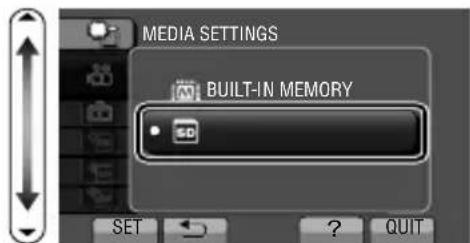
text_image
MEDIA SETTINGS BUILT-IN MEMORY SD SET ? QUITTo use SD cards that have been used on other devices
Format (initialize) the card using "FORMAT SD CARD" from media settings.
All data on the card will be deleted when it is formatted. Copy all files on the card to a PC before formatting.
① Touch Ⓜ to display the menu.
② Select "MEDIA SETTINGS" with the slider and touch Ⓞ.
③ Select "FORMAT SD CARD" and touch OK.
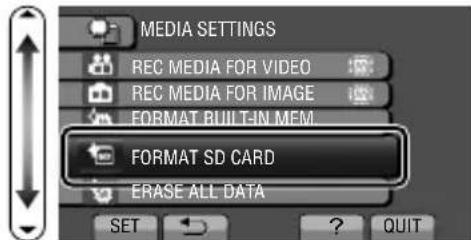
text_image
MEDIA SETTINGS REC MEDIA FOR VIDEO REC MEDIA FOR IMAGE FORMAT BUILT-IN MEM. FORMAT SD CARD ERASE ALL DATA SET ? QUIT④ (GZ-HM300 only) Select the slot inserted with the card to be formatted, and touch OK.
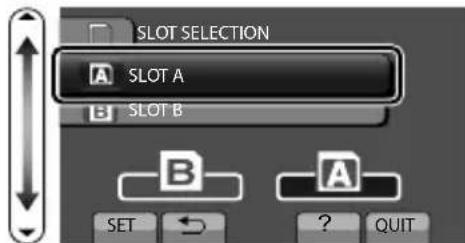
text_image
SLOT SELECTION A SLOT A B SLOT B B A SET ? QUIT⑤ Select "FILE" and touch OK.
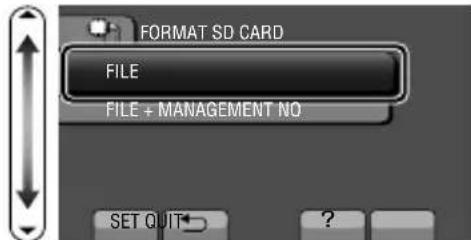
text_image
FORMAT SD CARD FILE FILE + MANAGEMENT NO. SET QUIT ?⑥ Select "YES" and touch OK.
⑦ After formatting, touch OK.
Clock Setting
1 Open the LCD monitor.

natural_image
Illustration of a digital camera with an open screen and directional arrow indicating rotation (no text or symbols)- The unit turns on. When the LCD monitor is closed, the unit turns off.
2 Select "YES" and touch OK when "SET DATE/TIME!" is displayed.
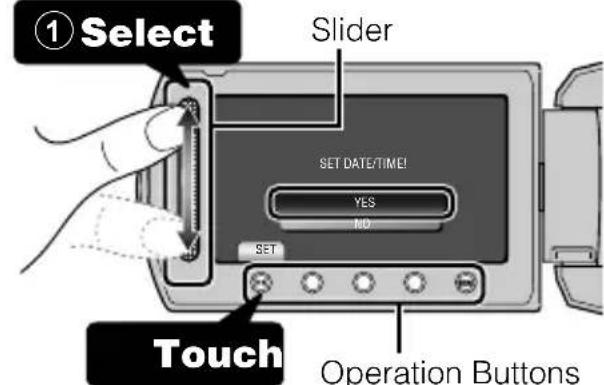
text_image
① Select Slider SET DATE/TIME! YES NO SET Touch Operation Buttons- Slide along the slider to select, then touch the operation buttons to set.
3 Set the date and time.
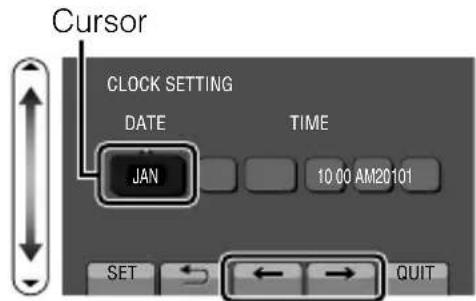
text_image
Cursor CLOCK SETTING DATE TIME JAN 10:00 AM20101 SET ← ← → QUIT- Use the slider to adjust the year, month, day, hour and minute.
- Touch the operation buttons “←” / “→” to move the cursor.
4 After setting the date and time, touch Ⓞ.
5 Select the region where you live and touch OK.
- The city name and time difference is displayed.
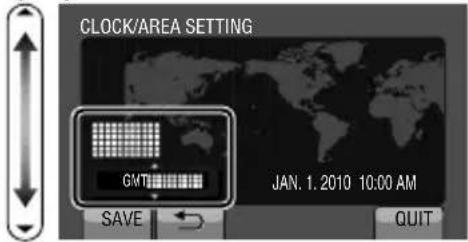
text_image
CLOCK/AREA SETTING GMT JAN. 1. 2010 10:00 AM SAVE QUITNOTE
- Touch the slider and buttons around the screen with your fingers.
- The slider and buttons do not function if you touch them with your fingernails or with gloves on.
- The displays on the screen do not work even if you touch them.
- "SET DATE/TIME!" is displayed when you turn on this unit after it has not been used for a prolonged period. Charge this unit for more than 24 hours before setting the clock. (P.6)
To reset the clock
Set the clock with "CLOCK ADJUST" from the menu.
① Display the menu.
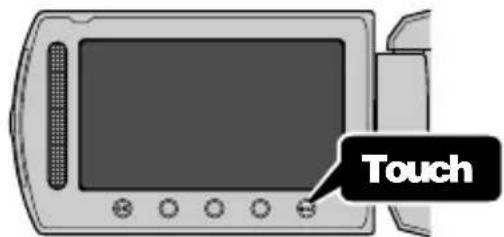
text_image
Touch② Select "CLOCK ADJUST" and touch OK.
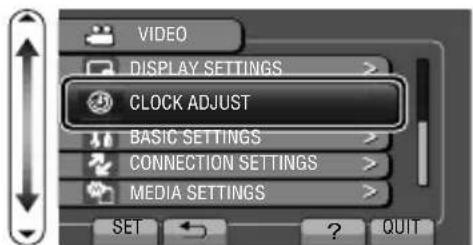
text_image
VIDEO DISPLAY SETTINGS > CLOCK ADJUST BASIC SETTINGS > CONNECTION SETTINGS > MEDIA SETTINGS > SET ? QUIT③ Select "CLOCK SETTING" and touch OK.
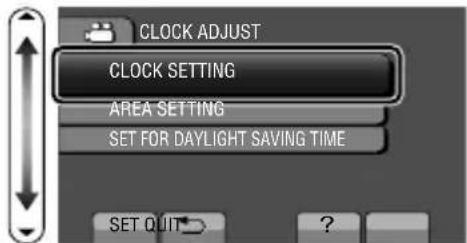
text_image
CLOCK ADJUST CLOCK SETTING AREA SETTING SET FOR DAYLIGHT SAVING TIME SET QUIT ?- The subsequent setting operations are the same as steps 3 - 5 on the previous page.
To change the display language
The language on the display can be changed.
① Display the menu.
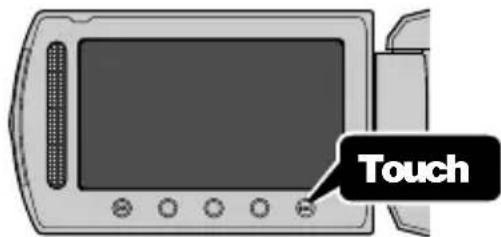
text_image
Touch② Select "DISPLAY SETTINGS" and touch OK.
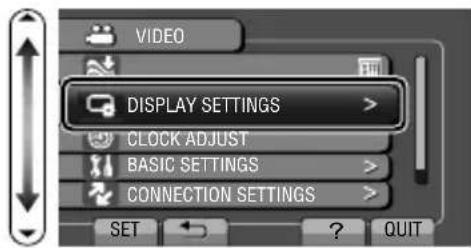
text_image
VIDEO DISPLAY SETTINGS > CLOCK ADJUST BASIC SETTINGS > CONNECTION SETTINGS > SET ? QUIT③ Select “LANGUAGE” and touch OK.
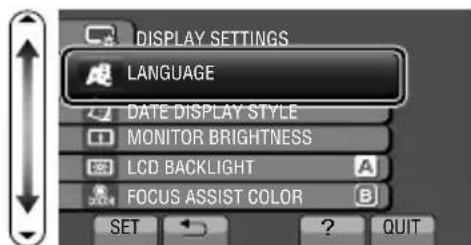
text_image
DISPLAY SETTINGS LANGUAGE DATE DISPLAY STYLE MONITOR BRIGHTNESS LCD BACKLIGHT FOCUS ASSIST COLOR SET ? QUIT④ Select the desired language and touch ⓄK.
⑤ Touch Ⓜ to exit.
Video Recording
You can record without worrying about the setting details by using the auto mode. Before recording an important scene, it is recommended to conduct a trial recording.
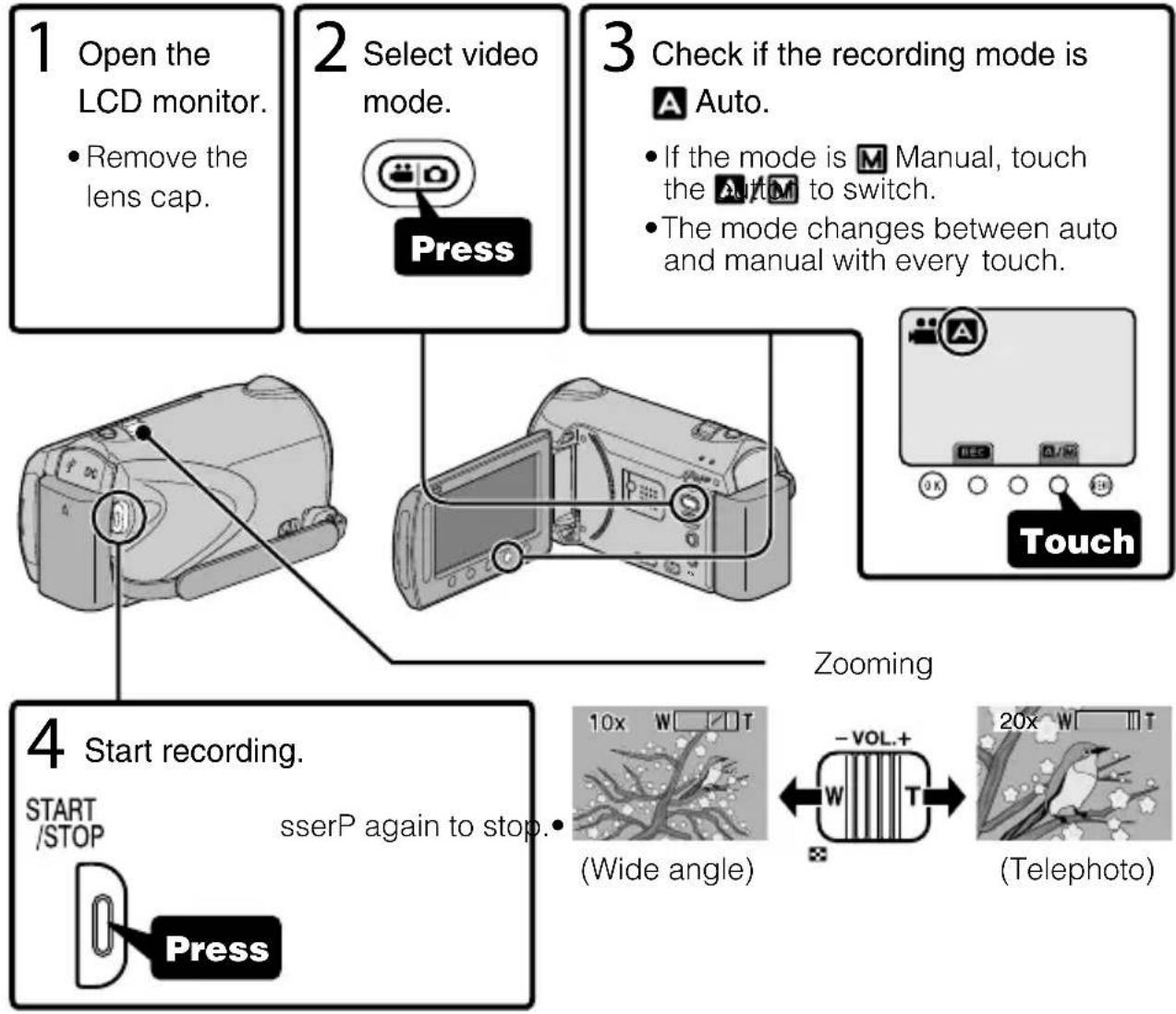
flowchart
graph TD
    A["1 Open the LCD monitor.<br>• Remove the lens cap."] --> B["2 Select video mode.<br>Press"]
    B --> C["3 Check if the recording mode is A Auto.<br>• If the mode is M Manual, touch the AUTM to switch.<br>• The mode changes between auto and manual with every touch."]
    C --> D["4 Start recording.<br>START/STOP sserP again to stop.<br>Press"]
    D --> E["Zooming"]
    E --> F["10x W □□T<br>(Wide angle) ← -VOL.+ W T → (Telephoto)"]
■ Indications during video recording
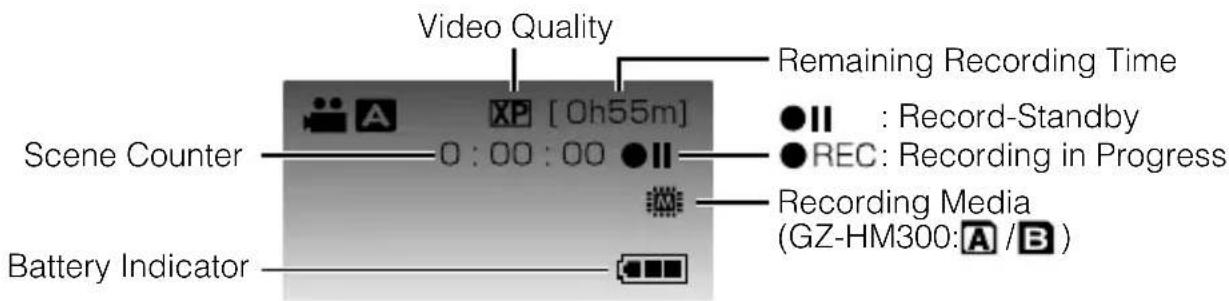
text_image
Video Quality Remaining Recording Time ● Record-Standby ● REC: Recording in Progress Recording Media (GZ-HM300:A /B) Scene Counter 0 : 00 : 00 Battery IndicatorNOTE
- The estimated recording time of the supplied battery pack is approximately 1 hour. (P.24)
Reducing Camera Shake (Video Recording)
When the image stabilizer is set, camera shake during recording can be effectively reduced.
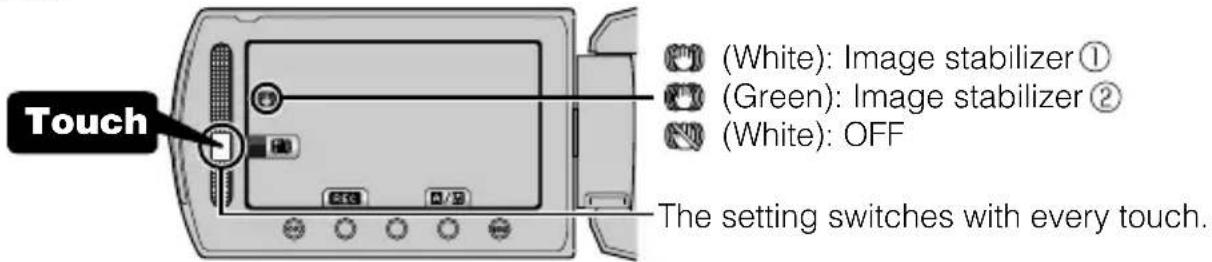
text_image
Touch (White): Image stabilizer① (Green): Image stabilizer② (White): OFF The setting switches with every touch.①: Reduces camera shake under normal shooting conditions.
② : Reduces camera shake more effectively when shooting bright scenes on the wide angle end. Only on the wide angle end (approx. 5x).
NOTE
- It is recommended to set the image stabilizer to off when shooting a subject of little movement with the unit on a tripod.
- Complete stabilization may not be possible if camera shake is excessive.
Still Image Recording
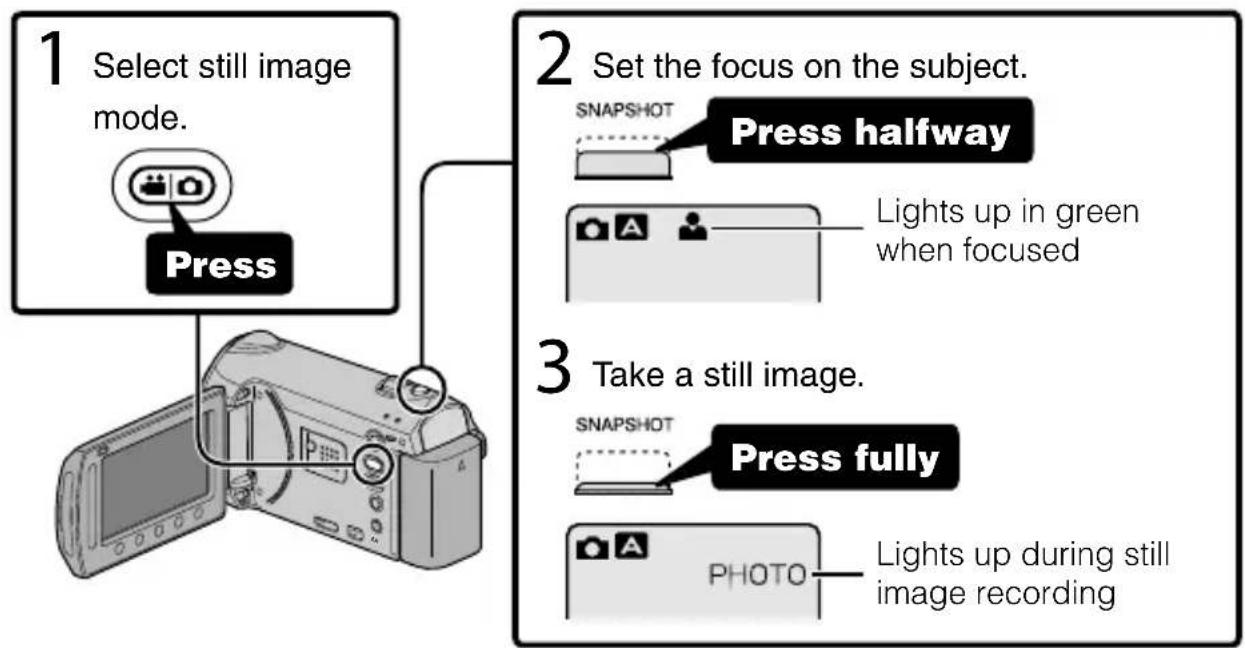
flowchart
graph TD
    A["1 Select still image mode."] --> B["Press"]
    B --> C["2 Set the focus on the subject."]
    C --> D["SNAPSHOT: Press halfway"]
    D --> E["Lights up in green when focused"]
    C --> F["3 Take a still image."]
    F --> G["SNAPSHOT: Press fully"]
    G --> H["Lights up during still image recording"]
■ Indications during still image recording
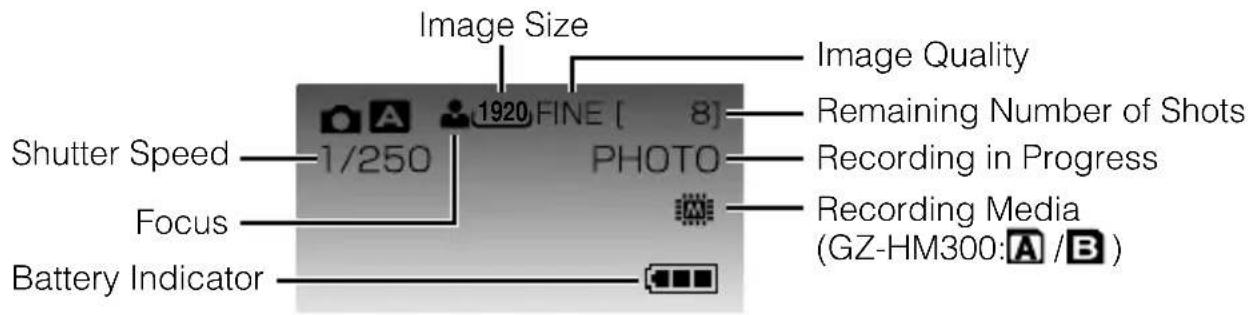
text_image
Image Size 1920 FINE [ 8] Shutter Speed 1/250 PHOTO Focus Battery Indicator Image Quality Remaining Number of Shots Recording in Progress Recording Media (GZ-HM300:A /B)Playing Back/Deleting Files on this Unit
Select and play back the recorded videos or still images from an index screen (thumbnail display). The contents of the media selected in media settings (P.10) are displayed on the index screen.
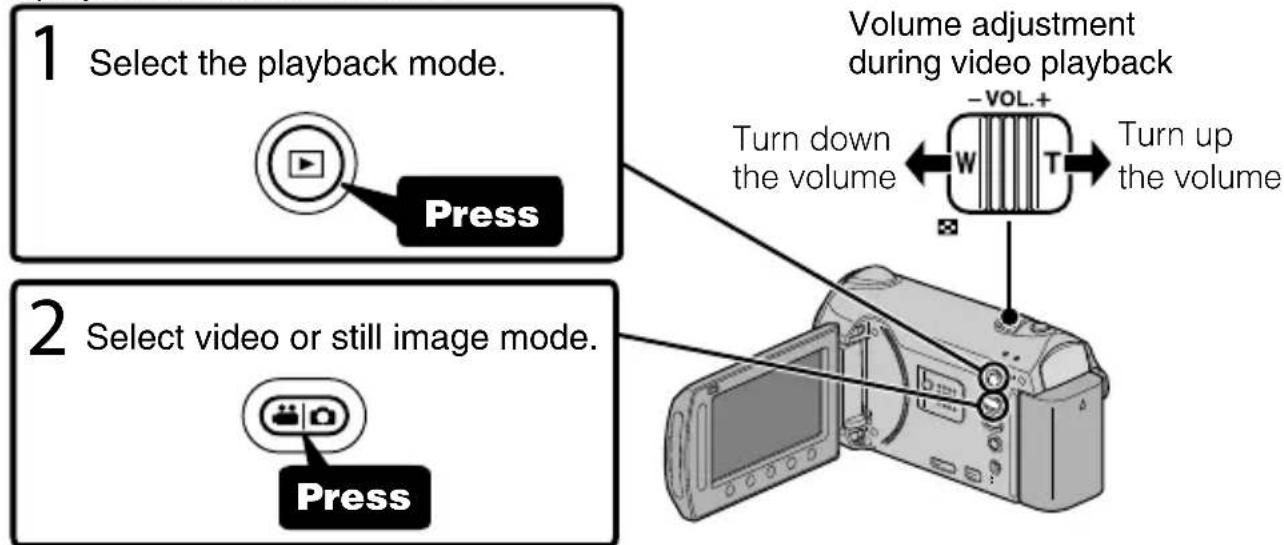
flowchart
graph TD
    A["1 Select the playback mode."] --> B["Press"]
    C["2 Select video or still image mode."] --> D["Press"]
    E["Volume adjustment during video playback"] --> F["Turn down the volume"]
    F --> G["-VOL.+"]
    G --> H["W"]
    G --> I["T"]
    H --> J["Turn up the volume"]
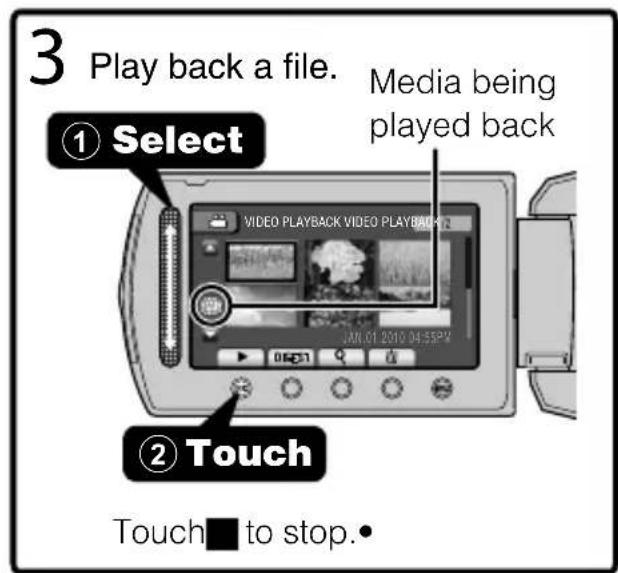
text_image
3 Play back a file. ① Select Media being played back VIDEO PLAYBACK VIDEO PLAYBACK JAN.01 2010 04:55PM 04:51 ② Touch Touch ■ to stop.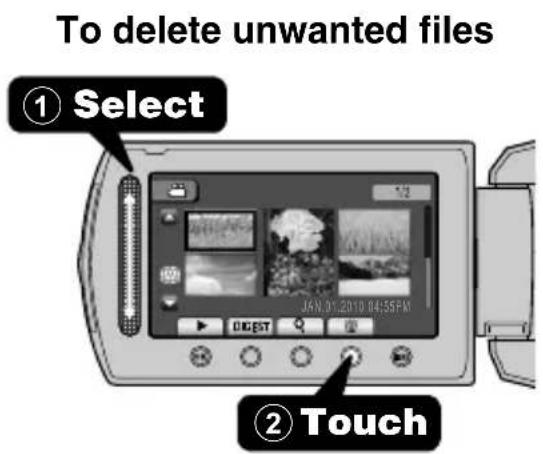
text_image
To delete unwanted files ① Select JAN.01.2010 0455FM ② Touch- Select "YES" when the confirmation message appears and touch OK
■ To capture a still image during playback
Pause the playback and press the SNAPSHOT button.
■ Usable operation buttons during playback
| Display | During video playback During | still image playback |
| ▶ / ▶ | Playback/pause Start/pause slideshow | |
| ■ | Stop (returns to thumbnail display) Stop (returns to thumbnail display) | |
| ▶▶ | Advances to the next video Advances to the next still image | |
| ◀◀ | Returns to the beginning of the scene | Returns to the previous still image |
| ▶▶ | Forward search - | |
| ◀◀ | Reverse search - | |
| ▶ | Forward slow-motion | - |
| ◀I | Reverse slow-motion | - |
1 Connect to a TV.
Refer also to the instruction manual of the TV.
** The component cable recommended is QAM1266-001.
- Press the Power button (⏻) for more than 2 seconds to turn off this unit.
To connect using the HDMI mini connector
If you are using an HDTV, you can play back in HD quality by connecting to the HDMI terminal.
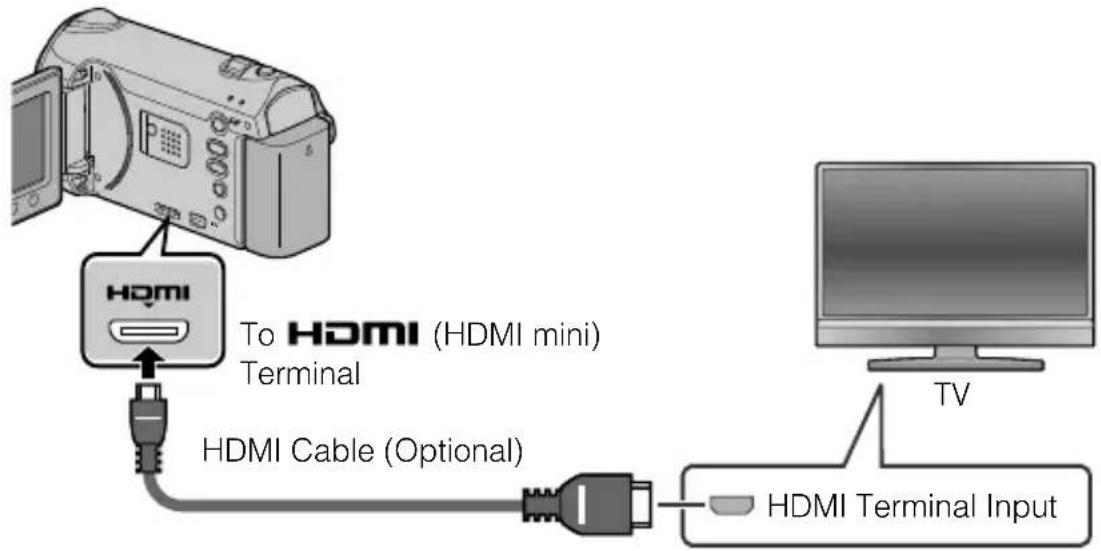
text_image
To HDMI (HDMI mini) Terminal HDMI Cable (Optional) HDMI Terminal Input TVTo connect using the COMPONENT/AV connector
If you are using an HDTV, you can play back in HD quality by connecting to the COMPONENT terminal.
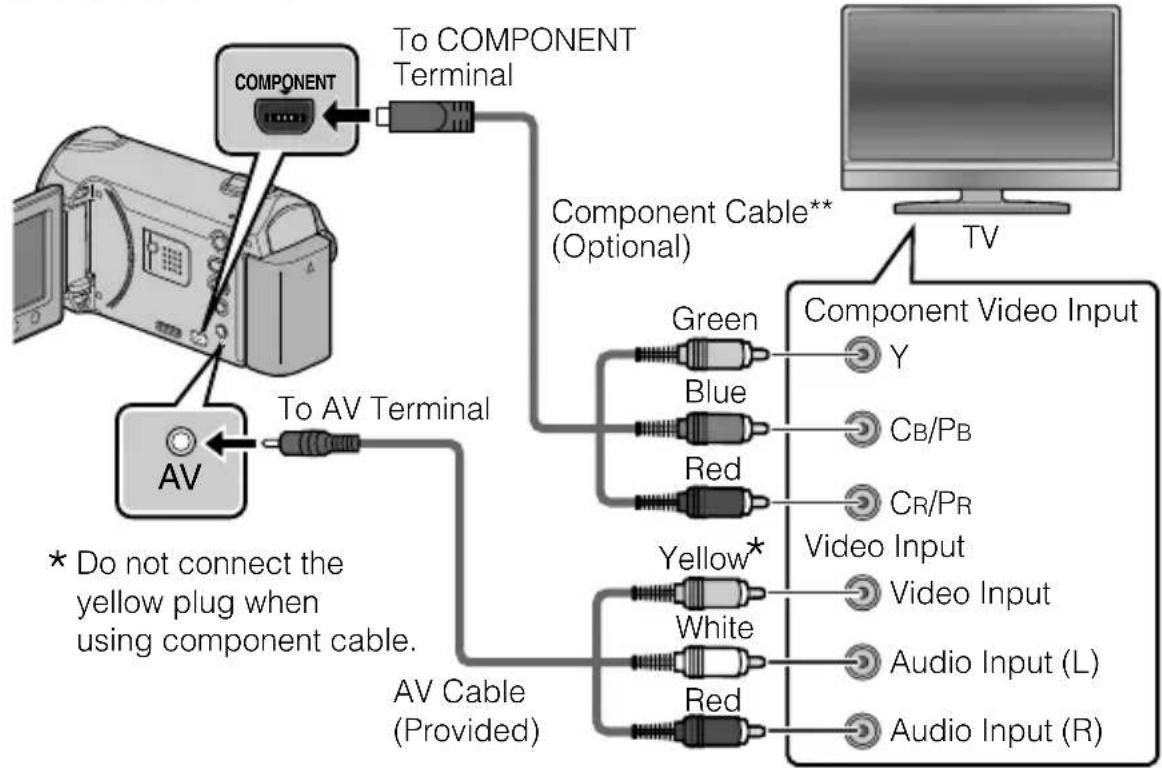
flowchart
graph TD
    A["AV"] -->|To AV Terminal| B["Component"]
    B --> C["To COMPONENT Terminal"]
    C --> D["Component Cable** (Optional)"]
    D --> E["TV"]
    E --> F["Component Video Input Y"]
    E --> G["Blue CB/PB"]
    E --> H["Red CR/PR"]
    E --> I["Yellow* Video Input"]
    E --> J["White Audio Input (L)"]
    E --> K["Red Audio Input (R)"]
    L["* Do not connect the yellow plug when using component cable."] --> M["AV Cable (Provided)"]
2 Connect the AC adapter. (P.6)
- This unit powers on automatically when the AC adapter is connected.
3 Select the TV input switch.
4 Play back a file. (P.15)
■ To play back with date/time display
Set "DISPLAY ON TV" in the "CONNECTION SETTINGS" menu to "ON". Set "ON-SCREEN DISPLAY" in the playback menu to "DISPLAY DATE ONLY".
■ When images look unnatural on the TV
| Images do not appear on the TV properly. | · Disconnect the cable and connect again. · Restart this unit by turning off and on. |
| The color of images looks strange. | · When the video was recorded with “x.v.Color” set to “ON”, set the x.v.Color setting of the TV to on. · Adjust the TV's screen accordingly. |
NOTE
- Please contact the TV manufacturer on questions or problems with setting the TV to the correct mode.
- We recommend using the Category 2 HDMI cable (High Speed cable) for viewing in higher picture quality.
Copying Files
You can create discs or copy the files on this unit by connecting it to various devices.
- Copying files by connecting to a DVD writer is not supported.
| Devices |  |  |  | Page |
DVD Recorder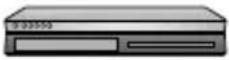 | √ √ √ | 19 | ||
VCR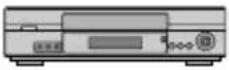 | √ | -- 19 | ||
PC | - | * | √ | 20 |
* For details on how to create a disc using a computer, refer to the Detailed User Guide.
Dubbing Files by Connecting to a DVD Recorder or VCR
You can dub videos in standard quality by connecting to a DVD recorder or VCR. Refer also to the instruction manual of the TV, DVD recorder, VCR, etc.
1 Connect to a VCR/DVD recorder.
- Press the Power button (⏻) for more than 2 seconds to turn off this unit.
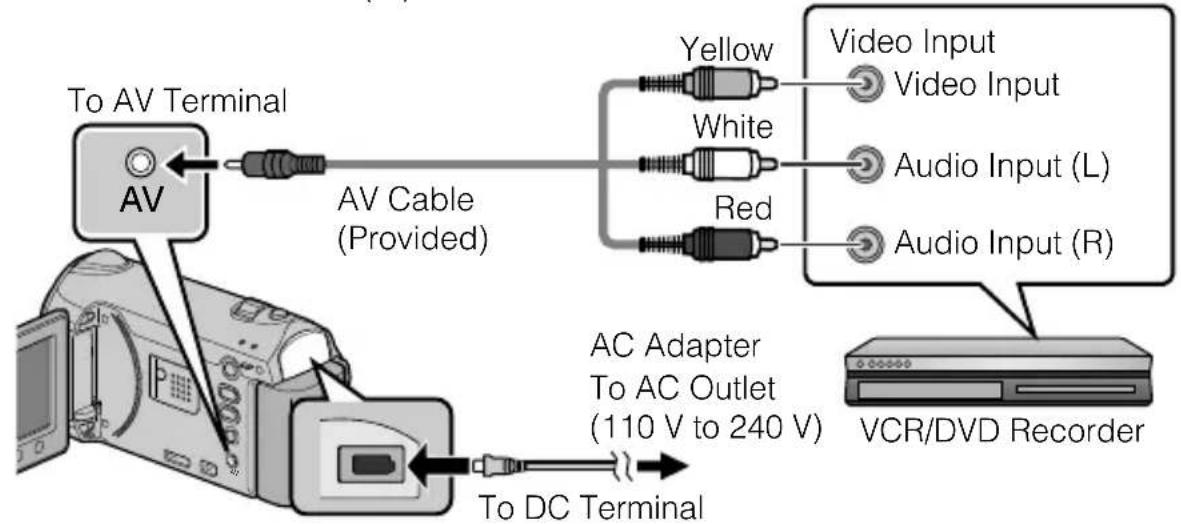
flowchart
graph LR
    A["To AV Terminal"] --> B["AV Cable (Provided)"]
    B --> C["Yellow"]
    B --> D["White"]
    B --> E["Red"]
    C --> F["Video Input"]
    D --> G["Audio Input (L)"]
    E --> H["Audio Input (R)"]
    I["To DC Terminal"] --> J["AC Adapter To AC Outlet (110 V to 240 V)"]
    J --> K["VCR/DVD Recorder"]
- This unit powers on automatically when the AC adapter is connected.
2 Select the playback mode.
- Turn on this unit.
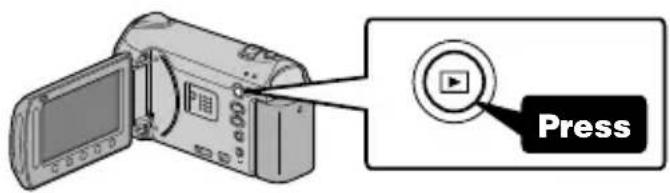
text_image
Press3 Prepare to record.
Preparation on TV and VCR/DVD recorder
- Switch to a compatible external input.
- Insert compatible blank DVD or VHS to dub.
Preparation on this unit
- Set "VIDEO OUTPUT" in the connection settings menu to the aspect ratio ("4:3" or "16:9") of the connecting TV.
- To include the date during dubbing, set "DISPLAY ON TV" in the "CONNECTION SETTINGS" menu to "ON". Set "ON-SCREEN DISPLAY" in the playback menu to "DISPLAY DATE ONLY".
4 Start recording.
- Start playback on this unit (P.15) and press the record button on the recorder.
• After playback is complete, stop the recording.
Verifying System Requirements (Guideline)
Windows PC
You can copy files to a PC using the provided software.
Right-click on "Computer" (or "My Computer") in the "Start" menu and select "Properties" to check the following items.
■ Windows Vista/Windows 7
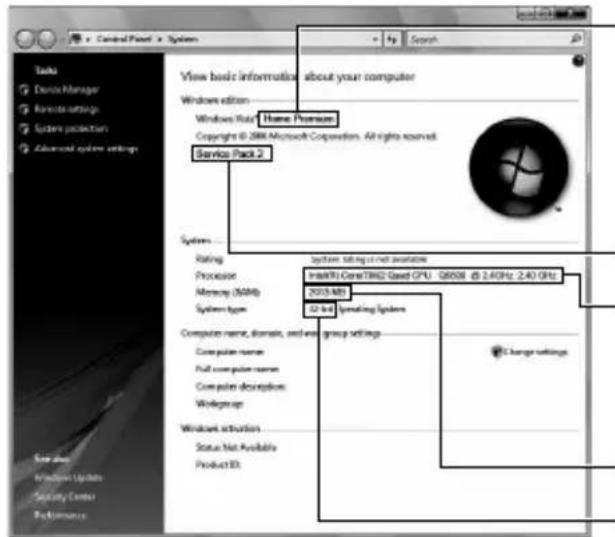
text_image
Control Panel > System View basic information about your computer Windows edition Windows Rate: Home Premium Copyright © IBM Microsoft Corporation. All rights reserved. Service Pack 2 System Rating Processor Memory (MMP) System type Computer name, domain, and web group settings Core plan name Full computer name Core plan description Workgroup Windows situation Status Not Available Product ID System taking out net positioning Intel® CoreTM32 Gout CPU GB508 @ 2.4GHz, 2.40 GHz 52-bit Operating System Change settingsWindows Vista
Home Basic or Home Premium
(Pre-installed versions only)
Windows 7
Home Premium
(Pre-installed versions only)
Service Pack 2 (Windows Vista only)
Processor:
Intel Core Duo CPU 1.66 GHz or higher
Intel Core 2 Duo CPU 2.13 GHz or
higher recommended
Memory: At least 2 GB
System type: 32-bit / 64-bit
Windows XP
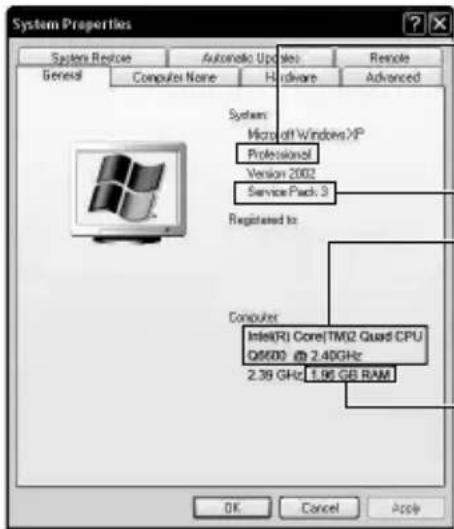
text_image
System Properties System Restore Automatic Updates Remote General Computer Name Hardware Advanced System: Microsoft Windows XP Professional Version 2002 Service Pack 3 Registered to: Computer Intel(R) Core(TM)2 Quad CPU Q9500 @ 2.40GHz 2.39 GHz 1.96 GB RAM OK Cancel ApplyWindows XP
Home Edition or Professional (Pre-installed versions only)
Service Pack 3
Processor:
Intel Core Duo CPU 1.66 GHz or higher Intel Core 2 Duo CPU 2.13 GHz or higher recommended
Memory: At least 1 GB
NOTE
- If your PC does not meet the above system requirements, the provided software cannot be used.
- Still images cannot be recorded to discs using the provided software.
- For more information, contact your PC's manufacturer.
• Mac users may use the software provided with the Mac computer.
Mac
Copy the video and still image files to a computer using the following method.
① Close the LCD monitor and connect to a PC. (P.22)
② Open the LCD monitor and display the USB menu.
③ Select "PLAYBACK ON PC" and touch OK.
④ Double-click on the "EVERIO_MEM" or "EVERIO_SD" icon on the desktop.
⑤ Click on the column display icon.
⑥ Copy the files to any folder in the PC (desktop, etc).
column display icon Copy the files
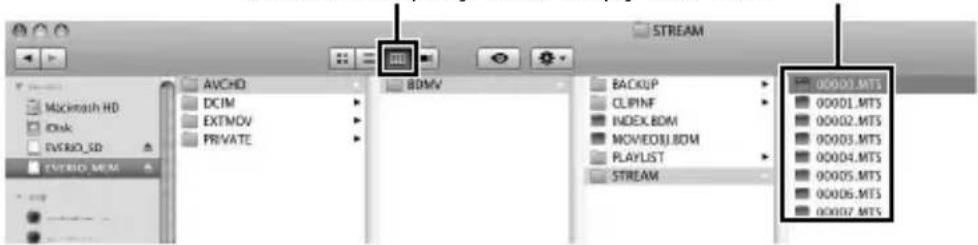
text_image
AVCHD DCIM EXTMOV PRIVATE BDMV BACKUP CLIPINF INDEX.BDM MOVED3J.BDM PLAYLIST STREAM 00001.MTS 00001.MTS 00002.MTS 00003.MTS 00004.MTS 00005.MTS 00006.MTS 00007.MTS- When the folders or files are deleted/moved/renamed in the computer, they cannot be played back on this unit anymore.
- When removing this unit from the computer, drag & drop the "EVERIO_MEM" or "EVERIO_SD" icon on the desktop to the trash bin.
Installing the Provided Software
You can display the recorded images in calendar format and perform simple editing using the provided software.
1 (Windows Vista/Windows 7 only)
Load the provided CD-ROM into your PC.
① Click "Run INSTALL.EXE" in the auto play dialog box.
② Click “Continue” on the user account control screen.
- "Software Setup" appears after a while.
- If it doesn't appear, double-click the CD-ROM icon in "My Computer".
2 Click "Easy Installation".
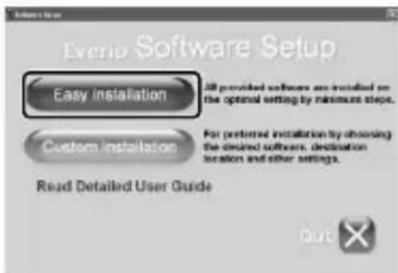
text_image
Everio Software Setup Easy Installation Custom Installation For preferred installation by choosing the desired software, destination location and other settings. Read Detailed User Guide- Follow the on-screen instructions.
NOTE
Viewing the Detailed User Guide
- Connect to the internet and click "Read Detailed User Guide".
3 Click "Finish".
4 Click "Quit".

Everio
MediaBro...

Everio
MediaBro...
- Exits installation of Everio MediaBrowser and icons are created on the desktop.
Backing Up All Files
Before making backup, make sure that there is enough free space in the PC's HDD.
1 Connect the USB cable and AC adapter.
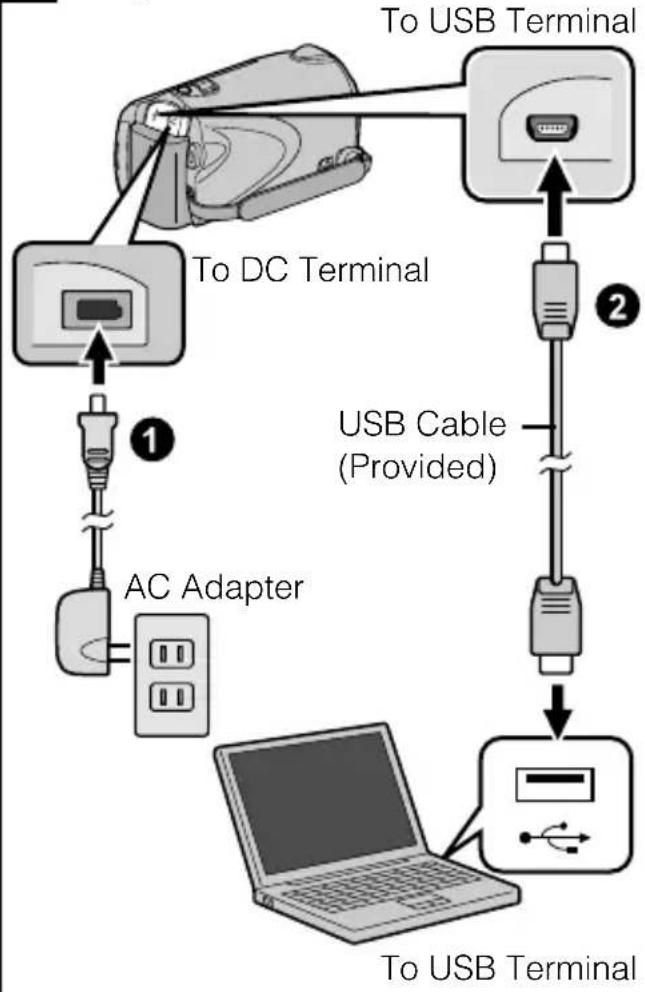
flowchart
graph TD
    A["Device"] -->|To USB Terminal| B["Switch"]
    A -->|To DC Terminal| C["AC Adapter"]
    C -->|1| D["Laptop"]
    B -->|USB Cable (Provided)| E["Switch"]
    E --> F["USB Cable"]
    F --> G["To USB Terminal"]
2 Open the LCD monitor.
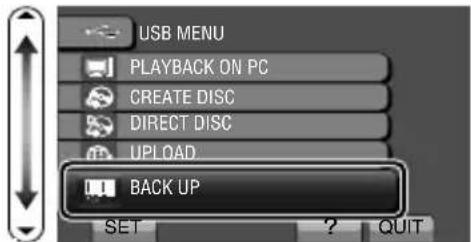
3 Select "BACK UP" and touch OK.
text_image
USB MENU PLAYBACK ON PC CREATE DISC DIRECT DISC UPLOAD BACK UP SET ? QUIT- The provided software Everio MediaBrowser starts up on the PC. The subsequent operations are to be performed on the PC.
4 Select the volume.
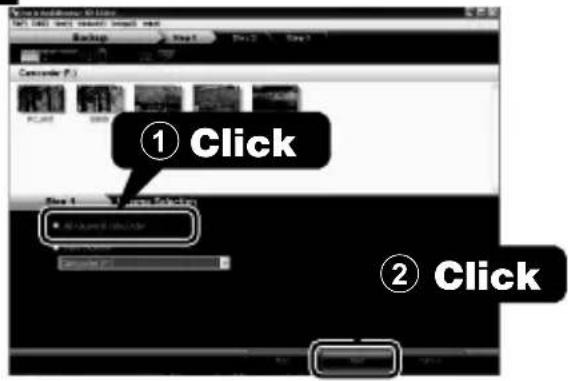
text_image
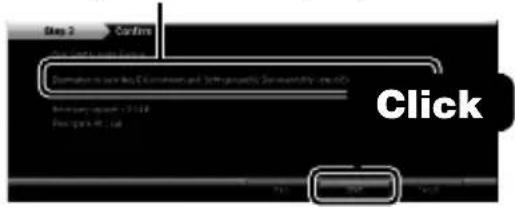
① Click ② Click5 Start backup.
Saving destination (PC)
text_image
Step 2 Confirm Description to save key C environment, and get appropriate settings by the RDS Binary: app: -1.014 First: park.ecl.13 Click6 After backup is complete, click "OK".
If you encounter any problems with the provided software Everio MediaBrowser, please consult the "Pixela User Support Center".
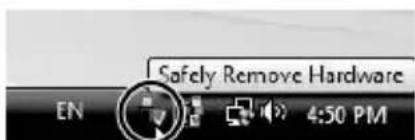
■ To disconnect this unit from the PC
① Click "Safely Remove Hardware".
text_image
Safely Remove Hardware EN 4:50 PM② Click "Safely Remove USB Mass Storage Device".
③ (For Windows Vista) Click "OK".
④ Disconnect the USB cable and close the LCD monitor.
Using the Menu
You can configure various settings using the menu.
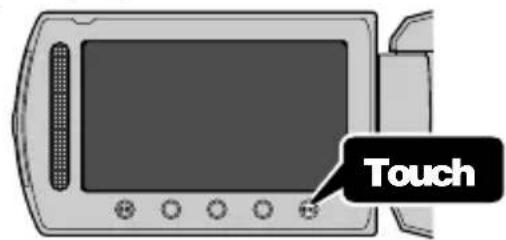
1 Display the menu.
text_image
Touch- The menu differs according to the mode in use.
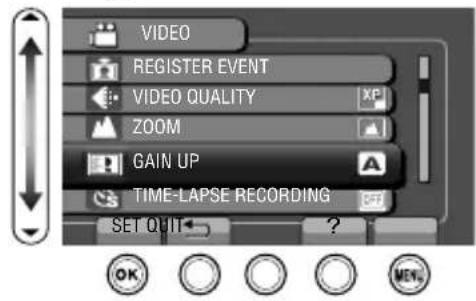
2 Select the desired menu and touch OK.
text_image
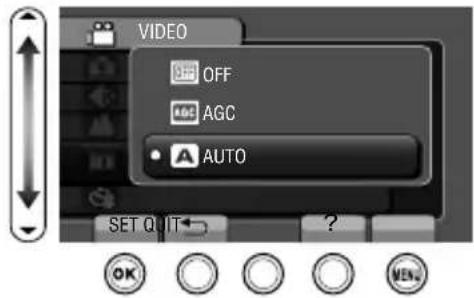
VIDEO REGISTER EVENT VIDEO QUALITY ZOOM GAIN UP TIME-LAPSE RECORDING SET QUIT OK ?3 Select the desired setting and touch OK.
text_image
VIDEO OFF AGC AUTO SET Q 1T ?■ To exit the screen
Touch Ⓜ (quit).
■ To return to the previous screen
Touch "⊃".
■ To display the help file
Touch “?”.
- For more information on the settings, refer to the Detailed User Guide.
Customer Support Information
Use of this software is authorized according to the terms of the software license.
JVC (for inquires regarding this unit)
When contacting the nearest JVC office or agency in your country (refer to the JVC Worldwide Service Network at http://www.jvc-victor.co.jp/english/worldmap/index-e.html) about this software, please have the following information ready.
- Product Name, Model, Serial Number, Problem, Error Message
• PC (Manufacturer, Model (Desktop/Laptop), CPU, OS, Memory (MB/GB), Available Hard Disk Space (GB))
Please note that it may take some time to respond to your questions, depending on their subject matter. JVC cannot answer questions regarding basic operation of your PC, or questions regarding specifications or performance of the OS, other applications or drivers.
Pixela (for inquires regarding the provided software)
| Region | Language | Phone # |
| USA and Canada | English | +1-800-458-4029 (toll-free) |
| Europe (UK, Germany, France, and Spain) | English/German/French/Spanish | +800-1532-4865 (toll-free) |
| Other Countries in Europe | English/German/French/Spanish | +44-1489-564-764 |
| Asia (Philippines) | English | +63-2-438-0090 |
| China | Chinese | 10800-163-0014 (toll-free) |
Homepage: http://www.pixela.co.jp/oem/jvc/mediabrowser/e/
Please check our website for latest information and downloading.
Recordable Time/Number of Images
You can check the video recording time by pressing the ⏻ (Power/Information) button.
Approximate Video Recording Time
| Quality | Built-in Memory | SD Card/SDHC Card | |||
| 4 GB 8 GB | B 16 GB 32 GB | ||||
| UXP 40 m 20 | m 40 m 1 h 2 | 20 m 2 h 40 m | |||
| XP 1 h 30 m | 1 h 2 h 4 h | ||||
| SP 1 h 25 m | 44 m 1 h 28 | m 2 h 56 m 5 | h 52 m | ||
| EP 3 h 35 m | 1 h 50 m 3 h | 40 m 7 h 20 | m 14 h 40 m | ||
• Built-in memory applies to GZ-HM320 only.
- The approximate recording time is only a guide. The actual recording time may shorten depending on the shooting environment.
Approximate Number of Still Images (Unit: Number of Shots)
| Image size / Quality | Built-in Memory | SD Card / SDHC Card | ||||||||
| 256 MB | $12 MB | 1 GB 2 | GB 4 GB | 8 GB | 16 GB 3 | 2 GB | ||||
| 16:9 | 1920 × 1080 / FINE | 8260 | 260 | 510 | 1030 | 2100 | 4140 | 8330 | 9999 | 9999 |
| 1920 × 1080 / STANDARD | 9999 | 410 | 810 | 1620 | 3210 | 6310 | 9999 | 9999 | 9999 | |
| 4:3 | 1440 × 1080 / FINE | 9999 | 340 | 680 | 1360 | 2770 | 5450 | 9999 | 9999 | 9999 |
| 1440 × 1080 / STANDARD | 9999 | 540 | 1070 | 2140 | 4360 | 8570 | 9999 | 9999 | 9999 | |
| 640 × 480 / FINE | 9999 | 1690 | 3330 | 6670 | 9999 | 9999 | 9999 | 9999 | 9999 | |
| 640 × 480 / STANDARD | 9999 | 3050 | 5990 | 9999 | 9999 | 9999 | 9999 | 9999 | 9999 | |
- Up to 9999 still images may be recorded on the SD cards with at least 16 GB capacity (regardless of image size and quality).
Approximate Recording Time (Using Battery)
| Battery Pack | Approximate Charging Time | Actual Recording Time | Continuous Recording Time |
| BN-VG114U | 2 h 30 m | 1 h | 1 h 45 m |
| BN-VG121U | 3 h 30 m | 1 h 30 m | 2 h 40 m |
- The above are values when "LCD BACKLIGHT" is set to "STANDARD".
- The actual recording time may be shorter if zooming is used or if recording is stopped repeatedly. (It is recommended to prepare battery packs ready for three times the expected recording time.)
- When the battery life is reached, the recording time becomes shorter even if the battery pack is fully charged. (Replace the battery pack with a new one.)
Troubleshooting
Before requesting service, consult the following chart or the "Troubleshooting" section in the Detailed User Guide.
If the solutions indicated in the chart do not solve the problem, consult your nearest JVC dealer or JVC service center for instructions. Refer also to the FAQ of new products on JVC's website.
Refer also to the Q&A information of new products on JVC's website (http://www.jvc.com).
This unit is a microcomputer-controlled device. Electrostatic discharge, external noise and interference (from a TV, a radio, etc.) might prevent it from functioning properly. In such a case, reset this unit.
■ Reset this unit when it does not function properly or when “... Error” appears on the screen.
① Turn off the power. (Close the LCD monitor.)
② Remove the AC adapter and battery pack from this unit, reattach them, and turn on the power again.
Troubleshooting
| Trouble Action Page | |||
| Power | POWER/CHARGE lamp starts blinking when the monitor is closed. | The battery pack is being charged. | 6 |
| Recording | Recording/snapshot cannot be performed. | Check the / mode.Set to the recording mode with the ▶ button. | 1315 |
| Recording stops by itself. | Insert a commercially available SD card.Recording stops automatically after 12 hours of non-stop recording.The media used for recording is out of space. To ensure continuous recording, set “SEAMLESS RECORDING” to “ON” before you start recording. The unit switches to another media and records continuously without frame loss. | 8-- | |
| Playback | No date/time display. | Set “ON-SCREEN DISPLAY” in the playback menu accordingly. | - |
| Sound or video is interrupted. | Sometimes playback is interrupted at the connecting section between two scenes. This is not a malfunction. | - | |
| Cannot find a recorded video. | Select “PLAYBACK OTHER FILE” then search the video on the index screen. (Video files that have damaged management information can be played back.)Cancel group display and date search functions.Change the setting in “REC MEDIA FOR VIDEO” or “REC MEDIA FOR IMAGE”. (Files on other media are not displayed.) | - | |
| The color of images looks strange. | When recording the white balance was not correctly adjusted.When the video was recorded with “x.v.Color” set to “ON”, change the setting as desired on TV.Set “EFFECT” to “OFF”. | - | |
| Other problems | The lamp does not flash during battery pack charging. | Check the remaining battery power. (When the battery pack is fully charged, the lamp does not flash.)When charging in either a hot or cold environment, ensure that battery is being charged within the permitted temperature range. (Otherwise, charging may stop to protect the battery pack.) | 136 |
| The slider and operation buttons do not work. | Remove any gloves.Touch the slider and buttons with your fingers to operate. (They do not function if you touch them with your fingernails or pen tips.) | - | |
| This unit heats up. | This is not a malfunction. (This unit may become warm when used for a long time.) | - | |
| When connecting to the HDMI cable, the image or sound does not appear on the TV properly. | The image or sound may not appear on the TV properly depending on the TV connected. In such cases, perform the following operations.1 Disconnect and reconnect the HDMI cable.2 Turn off and on this unit again. | - | |
HDMI-CEC functions do not work properly and the TV does not work in conjunction with this unit.
- Some TVs may operate differently depending on the specifications even if they are HDMI-CEC compliant. Therefore, the HDMI-CEC function of this unit cannot be guaranteed to operate in combination with all TVs. In such cases, set "HDMI CONTROL" to "OFF".
Warning Indications
| Warning Indications | Action Page | |
| RECORDING FAILURE | Turn off and on this unit again. | - |
| UNSUPPORTED SCENE! (Video)/ UNSUPPORTED FILE! (Still image) | Make use of a file recorded with this unit. (Files recorded with other devices may not be playable. If the file was recorded with this unit, then it is corrupted.) | - |
| BACK UP RECORDED DATA ON PC OR DISC PERIODICALLY | Connect and copy your data to a PC. | 22 |
| DATA RECORDED IS TOO LITTLE UNABLE TO SAVE | If a video recording is stopped with the actual recording time displayed at "0:00:00:17" and below, the video cannot be saved. | - |
| MEMORY CARD ERROR! | Turn off and on this unit again.Remove the AC adapter and battery pack, then remove and re-insert the SD card.Remove any dirt from the SD card terminals.Format the SD card by executing "FORMAT SD CARD" in the media settings menu. (All data is deleted.) | - - - - |
| CHECK LENS COVER | Appears for 5 seconds after power is turned on if the lens cap is attached or when it is dark. | - |
AC Adapter
When using the AC adapter in areas other than the USA
The provided AC adapter features automatic voltage selection in the AC range from 110 V to 240 V.
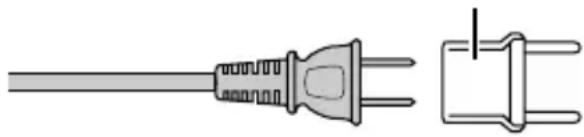
USING HOUSEHOLD AC PLUG ADAPTER
In case of connecting the unit's power cord to an AC wall outlet other than American National Standard C73 series type use an AC plug adapter, called a "Siemens Plug", as shown.
For this AC plug adapter, consult your nearest JVC dealer.
Plug Adapter
natural_image
Pure electrical plug diagram without any text, numbers, or symbolsBattery Pack
The supplied battery pack is a lithium-ion battery. Before using the supplied battery pack or an optional battery pack, be sure to read the following cautions:
Terminals
natural_image
3D rendering of a mechanical component with internal channels and a central hub (no text or symbols)- To avoid hazards
...do not burn.
...do not short-circuit the terminals. Keep it away from metallic objects when not in use. When transporting, carry the battery in a plastic bag.
...do not modify or disassemble.
...do not expose the battery to temperatures exceeding 60°C (140°F), as this may cause the battery to overheat, explode or catch fire.
... use only specified chargers.
- To prevent damage and prolong service life ... do not subject to unnecessary shock.
... charge within the temperature range of 10^ C to 35^ C ( 50^ F to 95^ F). Cooler temperatures require longer charging time, or in some cases stop charging at all.
Warmer temperatures prevent complete charging, or in some cases stop charging at all.
... store in a cool, dry place. Extended exposure to high temperatures will increase natural discharge and shorten service life.
... fully charge and then fully discharge the battery every 6 months when storing the battery pack over a long period of time.
... remove from charger or powered unit when not in use, as some machines use current even when switched off.
ATTENTION:

The product you have purchased is powered by a rechargeable battery that is recyclable.
Please call 1-800-8-BATTERY for information on how to recycle this battery.
Valid in USA
Recording Medium
- Be sure to follow the guidelines below to prevent corruption or damage to your recorded data.
- Do not bend or drop the recording medium, or subject it to strong pressure, jolts or vibrations.
- Do not splash the recording medium with water.
- Do not use, replace, or store the recording medium in locations that are exposed to strong static electricity or electrical noise.
- Do not turn off this unit's power or remove the battery or AC adapter during shooting, playback, or when otherwise accessing the recording medium.
- Do not bring the recording medium near objects that have a strong magnetic field or that emit strong electromagnetic waves.
- Do not store the recording medium in locations with high temperature or high humidity.
- Do not touch the metal parts.
LCD Monitor
- To prevent damage to the LCD monitor, DO NOT
... push it strongly or apply any shocks.
... place this unit with LCD monitor on the bottom.
• To prolong service life
... avoid rubbing it with coarse cloth.
Main Unit
- For safety, DO NOT
... open the unit's chassis.
... disassemble or modify the unit.
... allow inflammables, water or metallic objects to enter the unit.
... remove the battery pack or disconnect the power supply while the power is on.
... leave the battery pack attached when the unit is not in use.
... place naked flame sources, such as lighted candles, on the apparatus.
... expose the apparatus to dripping or splashing.
... leave dust or metal objects adhered to the power plug or an AC wall outlet.
... insert any objects in the unit.
- Avoid using the unit
... in places subject to excessive humidity or dust.
... in places subject to soot or steam such as near a cooking stove.
... near a television set.
... near appliances generating strong magnetic or electric fields (speakers, broadcasting antennas, etc.).
... in places subject to extremely high (over 40°C or 104°F) or extremely low (under 0°C or 32°F) temperatures.
• DO NOT leave the unit
... in places of over 50°C (122°F).
... in places where humidity is extremely low (below 35%) or extremely high (above 80%).
... in direct sunlight.
... in a closed car in summer.
... near a heater.
... in high places such as on a TV. Leaving the unit in high places while a cable is connected may result in a malfunction if the cable is caught and the unit falls onto the floor.
• To protect the unit, DO NOT
... allow it to become wet.
... drop the unit or strike it against hard objects.
... subject it to shock or excessive vibration during transportation.
... keep the lens directed at extremely bright objects for long periods.
... expose the lens to direct sunlight.
... swing it excessively when using the hand strap.
... swing the soft camcorder case excessively when the unit is inside it.
... place the unit in dusty or sandy areas, such as on a beach.
• To prevent the unit from dropping,
- Fasten the grip belt securely.
- When using the unit with a tripod, attach the unit to the tripod securely.
If the unit drops, you may be injured and the unit may be damaged.
When a child uses the unit, there must be parental guidance.
Declaration of Conformity
Model Number : GZ-HM320U/GZ-HM300U Trade Name : JVC
Responsible party : JVC AMERICAS CORP. Address : 1700 Valley Road Wayne, N. J. 07470 Telephone Number : 973-317-5000
This device complies with Part 15 of FCC Rules. Operation is subject to the following two conditions: (1) This device may not cause harmful interference, and (2) this device must accept any interference received, including interference that may cause undesired operation.
Changes or modifications not approved by JVC could void the user's authority to operate the equipment. This equipment has been tested and found to comply with the limits for a Class B digital device, pursuant to Part 15 of the FCC Rules. These limits are designed to provide reasonable protection against harmful interference in a residential installation. This equipment generates, uses, and can radiate radio frequency energy and, if not installed and used in accordance with the instructions, may cause harmful interference to radio communications. However, there is no guarantee that interference will not occur in a particular installation. If this equipment does cause harmful interference to radio or television reception, which can be determined by turning the equipment off and on, the user is encouraged to try to correct the interference by one or more of the following measures: Reorient or relocate the receiving antenna. Increase the separation between the equipment and receiver. Connect the equipment into an outlet on a circuit different from that to which the receiver is connected. Consult the dealer or an experienced radio/TV technician for help.
This Class B digital apparatus complies with Canadian ICES-003.
| Model name GZ-HM320 GZ-HM300 | ||
| Power supply Using AC adapter: DC 5.2 V,Using battery pack: DC 3.6 V | ||
| Power consumption 2.6 W (when “LCD BACKLIGHT” is set to“STANDARD”)2.8 W (when “LCD BACKLIGHT” is set to “BRIGHTER”)Rated Current Consumption: 1A | ||
| Dimensions (W x H x D) 52 mm | x 62 mm x 110 mm (2-1/16" x 2-2/5" x 4-3/8")(excluding grip belt) | |
| Mass Approx. 215 g (0.47 lbs) | CAMERA only),Approx. 255 g (0.56 lbs) (including supplied batterypack) | |
| Operating environment Allowable operating temperature:0°C to 40°C (32°F to 104°F)Allowable storage temperature:-20°C to 50°C (-4°F to 122°F)Allowable operating humidity: 35 % to 80 % | ||
| Image pickup device 1/5.8" 1,370,000 pixels (progressive CMOS) | ||
| Recording area (Video) (16:9) | 750,000 to 1,090,000 pixels (optical zoom) | |
| Recording area (Still image) (4:3) | 560,000 to 820,000 pixels(16:9) 750,000 to 1,090,000 pixels | |
| Lens | F1.8 - 3.5, f= 3.0 mm to 60.0 mm(35 mm conversion: 46.4 mm to 928 mm) | |
| Zoom (Video) Optical zoom: Up to 20xDigital zoom: Up to 200x | ||
| Zoom (Still image) Optical zoom: Up to 20x | ||
| Video recording format | AVCHD standard, Video: AVC/H.264, Audio: Dolby Digital(2ch) | |
| Still image recording format JPEG standard | ||
| Recording media Internal Memory (8 GB),SD/SDHC card(commercially available) | SD/SDHC card(commercially available) | |
| Clock battery Rechargeable battery | ||
| Connectors | HDMI HDMITM Mini Connector (V.1.3 with x.v.ColorTM) | |
| Component output | Y, Pb, Pr component outputY: 1.0 V (p-p), 75 Ω Pb/Pr: 0.7 V (p-p), 75 Ω | |
| AV output | Video output: 1.0 V (p-p), 75 ΩAudio output: 300 mV (rms), 1 kΩ | |
| USB | Mini USB type B, USB 2.0 compliant | |
AC Adapter (AP-V30U)*
| Power supply AC 110 V to | 240 V, 50 Hz/60 Hz |
| Output DC 5.2 V, 1.8 A | |
| Allowable operating temperature | 0°C to 40°C (32°F to 104°F)10°C to 35°C (50°F to 95°F) during charging |
| Dimensions (W x H x D) 78 | mm x 34 mm x 46 mm (3-1/8" x 1-3/8" x 1-13/16")(excluding cord and AC plug) |
| Mass Approx. 107 g (0.24 lbs) | |
* When using the AC adapter overseas, please prepare a commercially available converter plug for the country or region of visit.
- The specifications and appearance of this product are subject to changes for further improvement without prior notice.
Index
A AC Adapter 6,28
AV Connection 16,19
B Battery Pack 6,28
C CD-ROM .... 21 Clock Adjust .... 12 Copy (Back Up) .... 18, 19, 22
D Date/Time Setting .... 11 Deleting Files .... 15 Dubbing (Duplicate) .... 22
F Format SD Card 10
I Installation 21
L Language Setting 12
LCD Monitor 28
M Mac 21 Menu Settings 23
N Number of Images 24
R Recordable Time .... 24 Recording Media for Image .... 10
S SD Card 8,24 Software 20
U USB Cable 22
V Viewing Files on TV 16
W Windows 20
Z Zoom 13
JVC
VIDEOCÁMARA
GZ-HM320U/GZ-HM300U
natural_image
Line drawing of a cylindrical electronic device with a flat screen and control buttons (no text or symbols)Everio
Estimado cliente:
natural_image
Symbolic icon of a person lifting a ladder inside a circle (no text or symbols)natural_image
Coiled cable with two connectors (no text or symbols visible)Cable AV
natural_image
Illustration of a coiled medical or laboratory probe with three tubes (no text or symbols)CD-ROM

text_image
Labeled diagram of a digital camera with numbered parts for identification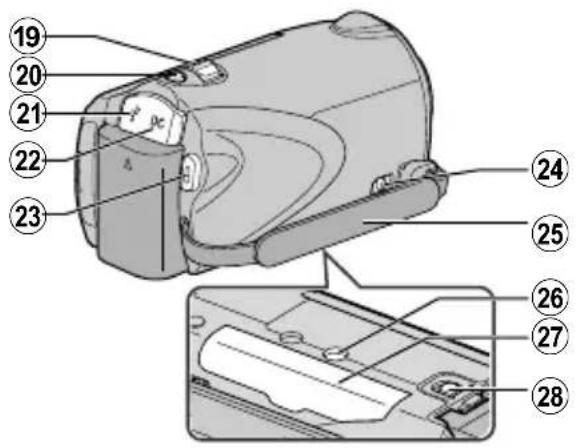
text_image
Technical diagram of a device with numbered parts, showing internal components and exploded viewnatural_image
Illustration of a handheld device with a curved arrow indicating rotation or change (no text or symbols)natural_image
Illustration of a hand gripping a device with a strap (no text or symbols)② Regule la longitud Ajuste la ③correa
natural_image
Illustration of a hand holding a camera with a curved arrow indicating rotation (no text or symbols)text_image
Diagram showing a cable buckle with labeled parts and directional arrows indicating movement or assembly.Mantenga presionado
text_image
Diagram showing a cable clamp being inserted into a seatbelt, labeled with step number 3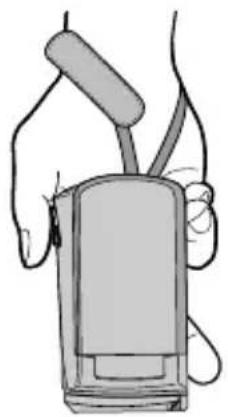
natural_image
Line drawing of a person holding a medical device (no text or symbols)natural_image
Mechanical component diagram showing a circular dial with an arrow indicating rotation (no text or symbols)PRECAUCIÓN
text_image
Technical diagram of a battery pack with labeled parts and directional arrows indicating assembly stepsNOTA
natural_image
Illustration of a digital camera with an open screen and a black arrow indicating rotation (no text or symbols)natural_image
Illustration of a CD and DVD device with an open screen showing a disc (no text or symbols present)text_image
Evergr Software Setup Easy installation Custom installation Read Detailed User Guidetext_image
① Clic ② Clictext_image
Step 2 Confir Click to use Confir in the case of a location Click to use a local plan to access a local plan to the location Circled verification: 100 Implied version: 100 Click to Use Confirnatural_image
Illustration of a straight electrical plug with two terminal leads, shown in side view (no text or symbols)Baterías
natural_image
Illustration of a battery pack with a screwdriver inserted (no text or symbols)natural_image
Line drawing of a cylindrical electronic device with a flat screen and control panel (no text or symbols)Everio
Chers clients,
natural_image
Symbolic icon of a person lifting a large stack of objects, enclosed in a circle with no text or symbols.natural_image
Coiled cable or connector with two connectors (no text or symbols visible)Protège-objectif
Câble AV
natural_image
Illustration of a coiled cable or probe with three connectors (no text or symbols)text_image
Labeled diagram of a digital camera with numbered parts for identification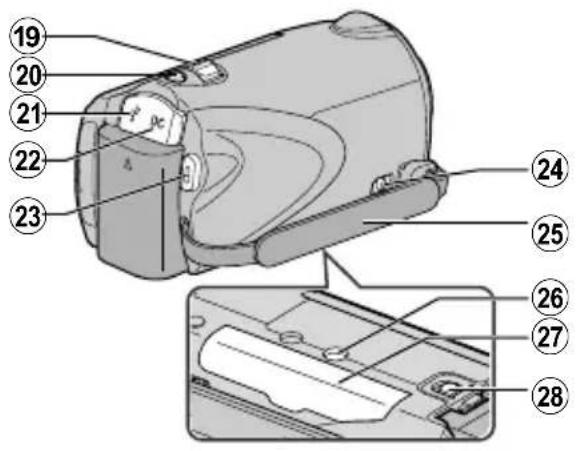
text_image
Technical diagram of a device with numbered parts, likely an optical or mechanical component.(Alimentation/Recharge) (P.6)
⑫ Touche ▶ (Lecture/Enregistrement)
⑮ Touche ⏻ (Alimentation/Information)
natural_image
Illustration of a handheld device with a curved arrow indicating rotation (no text or symbols)① Tirez la dragonne
natural_image
Illustration of a hand holding a digital camera with a wrist strap (no text or symbols)natural_image
Illustration of a hand holding a device with a curved arrow indicating rotation (no text or symbols)③ Attachez la dragonne