AVICZ7110DAB - GPS Navigation System PIONEER - Free user manual and instructions
Find the device manual for free AVICZ7110DAB PIONEER in PDF.


| Product Type | GPS navigation system with radio and multimedia player |
| Brand | Pioneer |
| Model | AVICZ7110DAB |
| Dimensions (W x H x D) | 178 x 100 x 160 mm (standard double DIN) |
| Weight | Approximately 1.8 kg |
| Power Supply | 12 V DC (vehicle), max current 10 A |
| Screen | 6.2-inch color LCD touchscreen, resolution 800 x 480 |
| Main Functions | GPS navigation with maps, voice guidance, real-time traffic, DAB+/FM/AM radio, hands-free Bluetooth, audio streaming, key backlighting, detachable faceplate |
| Connectivity | Bluetooth 4.0, USB port, AUX input, video output, rear camera input, GPS and radio antenna |
| Supported Audio Formats | MP3, WMA, AAC, WAV, FLAC |
| Supported Video Formats | MP4, AVI, DivX, WMV |
| Maintenance and Cleaning | Clean with a soft dry cloth. Avoid solvents. Remove the faceplate in case of high heat. |
| Security | Detachable faceplate to deter theft. Security code available depending on region. |
| Spare Parts and Repairability | Faceplate, GPS antenna, cables. Repair by Pioneer authorized center. |
| General Information | User manual available for free download. Map updates via SD or USB. |
Frequently Asked Questions - AVICZ7110DAB PIONEER
User questions about AVICZ7110DAB PIONEER
0 question about this device. Answer the ones you know or ask your own.
Ask a new question about this device
Download the instructions for your GPS Navigation System in PDF format for free! Find your manual AVICZ7110DAB - PIONEER and take your electronic device back in hand. On this page are published all the documents necessary for the use of your device. AVICZ7110DAB by PIONEER.
USER MANUAL AVICZ7110DAB PIONEER
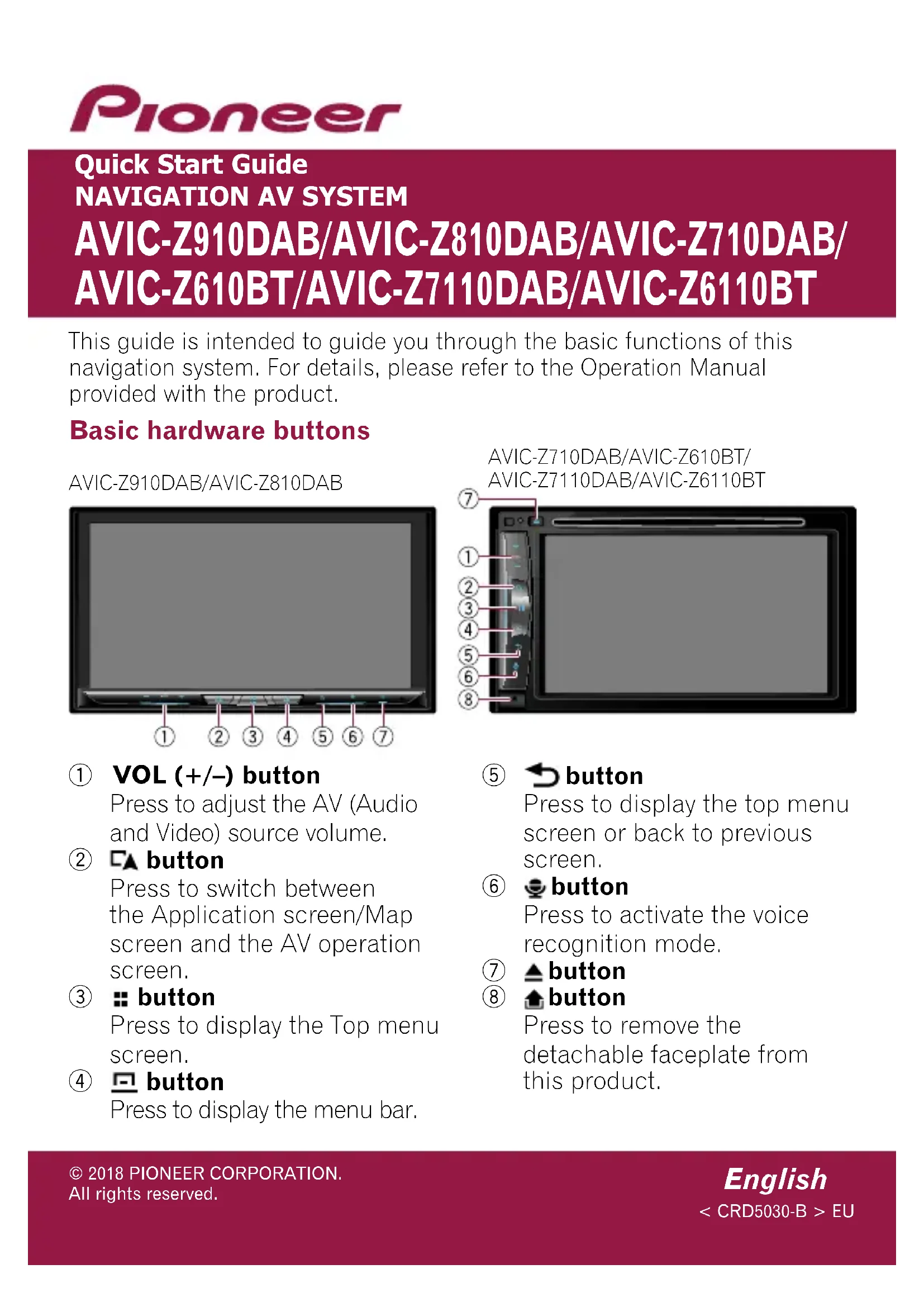
This guide is intended to guide you through the basic functions of this navigation system. For details, please refer to the Operation Manual provided with the product.
Basic hardware buttons
AVIC-Z910DAB/AVIC-Z810DAB
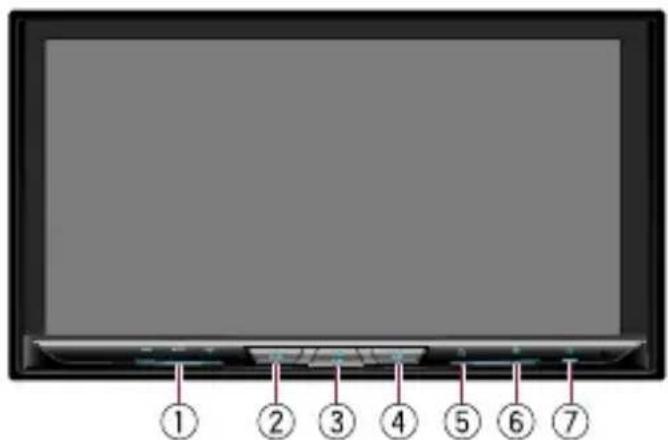
① VOL (+ / -) button
Press to adjust the AV (Audio and Video) source volume.
②按钮
Press to switch between the Application screen/Map screen and the AV operation screen.
③ :button
Press to display the Top menu screen.
④ button
Press to display the menu bar.
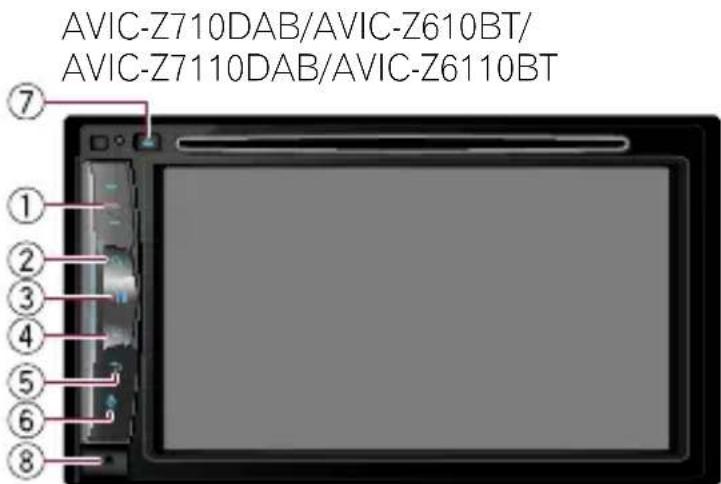
⑤ button
Press to display the top menu screen or back to previous screen.
6 button
Press to activate the voice recognition mode.
⑦ ▲button
8 button
Press to remove the detachable faceplate from this product.
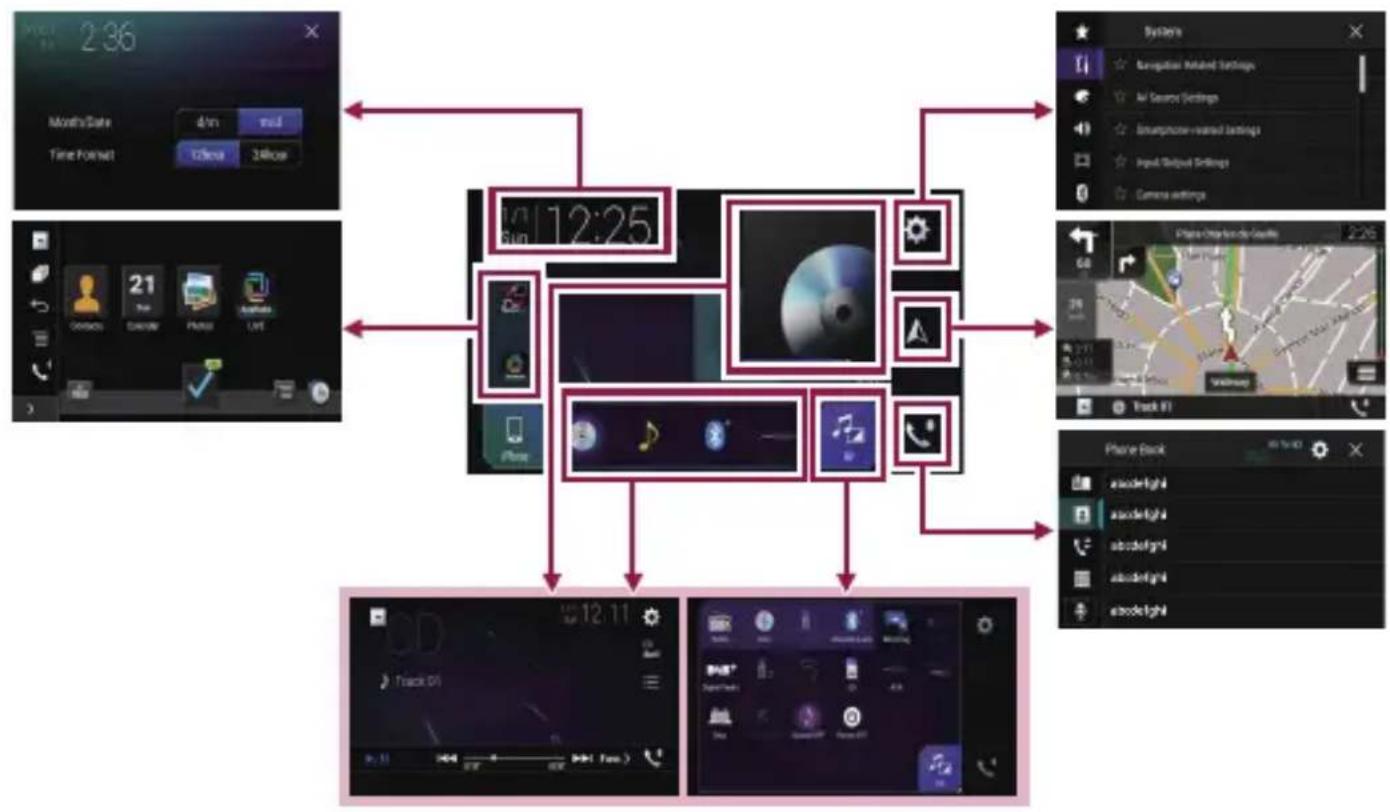
Switching screens using the touch panel keys
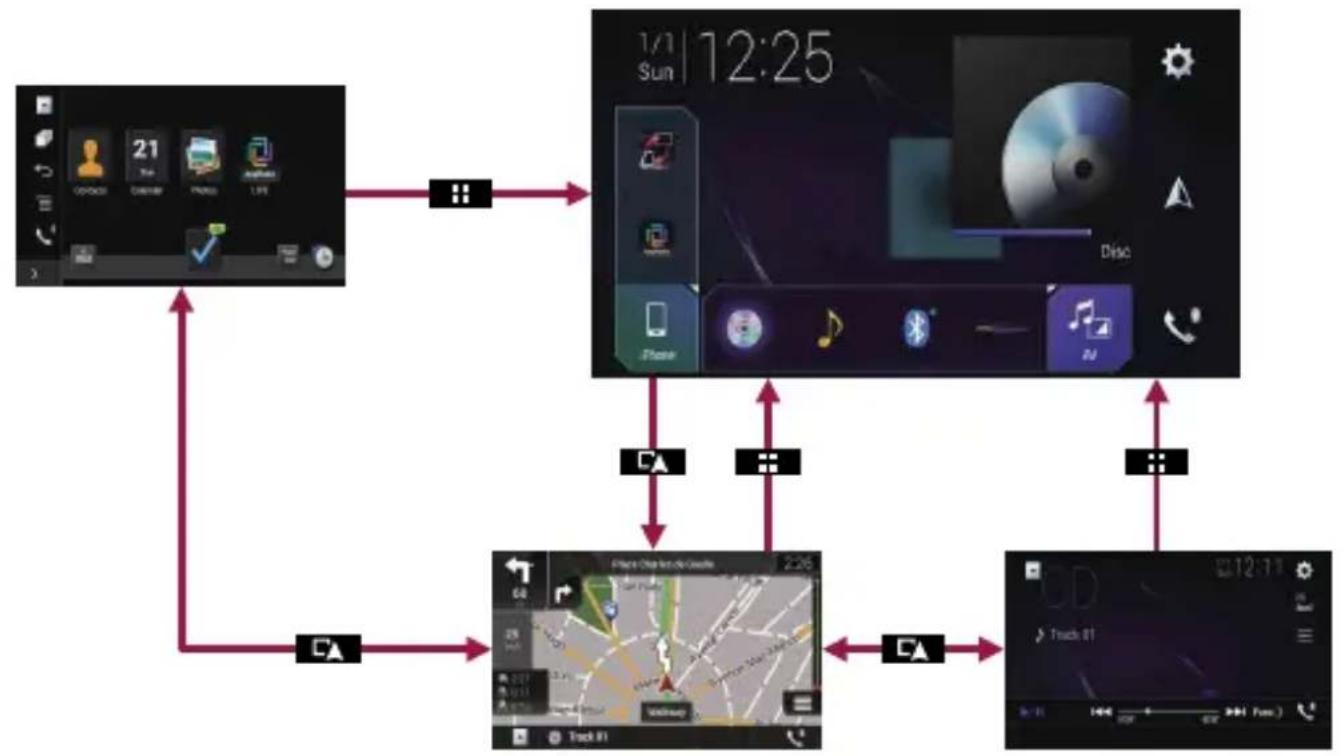
Switching screens using the hardware buttons
How to use the navigation menu screens
You can use various functions such as the route guidance and related settings.
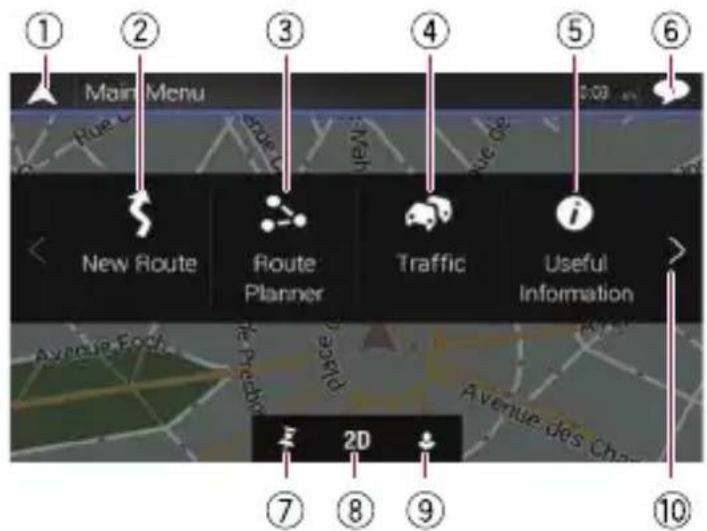
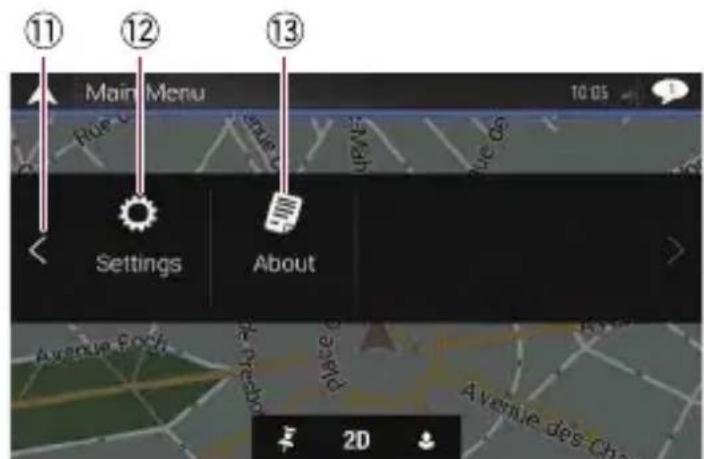
① Returns to the Map screen.
(2) Searches for your destination by the address or coordinates, or searches for the selected place of interest, etc.
③ Builds your route or edits the route currently set.
④ Displays the traffic information.
⑤ Displays useful information to support your driving.
⑥ Displays notifications that contain important information.
⑦ Displays the location that you saved as a favourite.
Switches among 2D, 3D, and 2D North up view modes.
⑨ Displays the "User Profiles" screen where you can create new profiles or edit the existing profiles.
⑩ Displays the next page of the navigation menu.
⑪ Displays the previous page of the navigation menu.
12 Configures the navigation-related settings and enables you to access the "SyncTool" screen.
⑬ Displays the information of your navigation system (the version information, or licences, for example).
Searching for a location by address
1 Press EA button. The Map screen appears.
2 Touch to display the navigation menu on the Map screen.
3 Touch [New Route].
4 Touch [Address].
5 Input the information for the location you want to set as the destination.
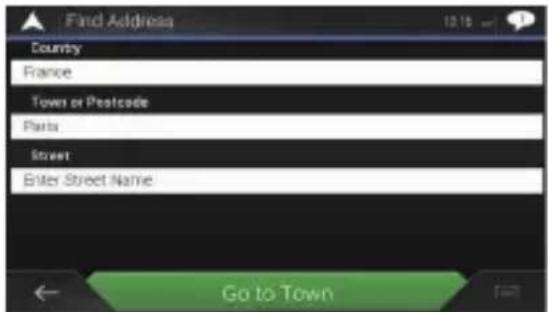
Touching the item next to each option displays the screen to enter the character or select one of options. After narrowing down your destination, the searched location appears on the Map screen.
6 Touch [Select as Destination].
![PIONEER AVICZ7110DAB - Touch [Select as Destination]. - 1](/content/2026/03/507217/images/01a829a19f26276385380ec5c93859b1727ecf03bb8ed13fc9dc99ddb722962f.jpg)
After a short summary of the route parameters, a map appears showing the entire route. The route is automatically calculated.
7 Touch [Start Navigation].
![PIONEER AVICZ7110DAB - Touch [Start Navigation]. - 1](/content/2026/03/507217/images/deb30c2a395fab4e5e8d6a0faaad52587a5462cc579a306f585654e5bbecafb1.jpg)
Your navigation system starts the route guidance.
How to use the map
Most of the information provided by your navigation system can be seen on the map. You need to become familiar with how the information appears on the map.
The following information marked with an asterisk (*) appears only when a route is set.
AV information is displayed at the bottom of the Map screen.
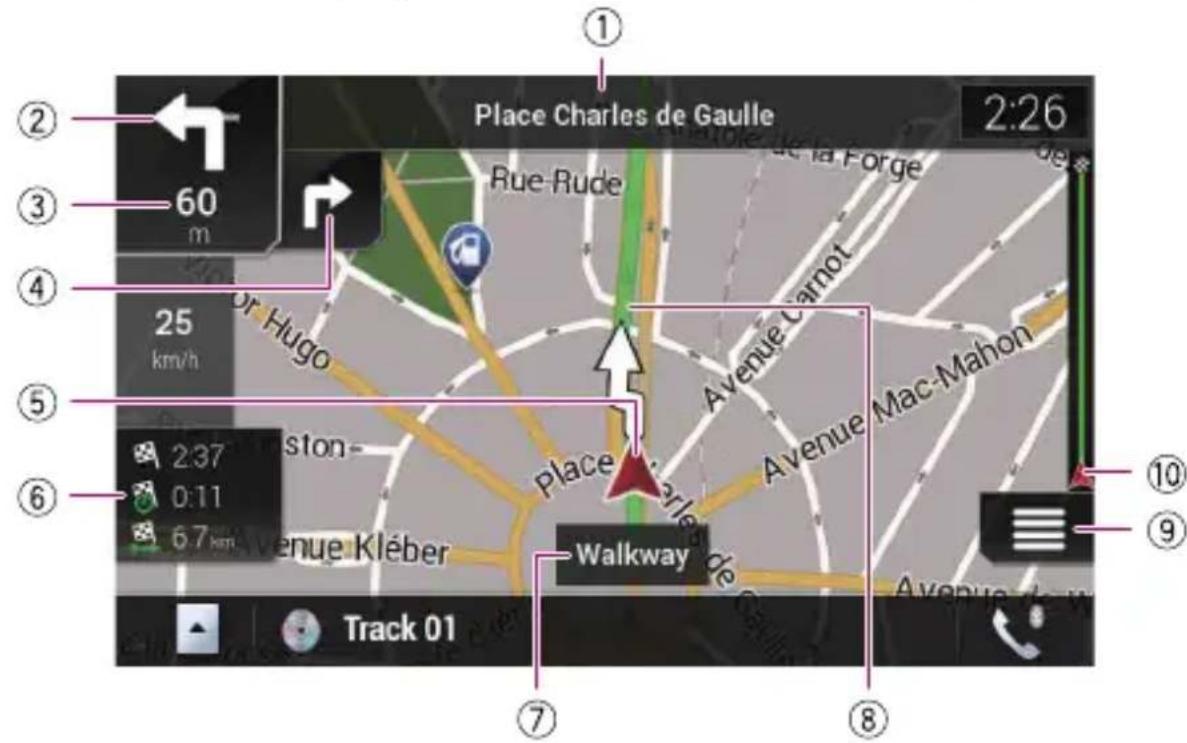
(1) Shows the number and name of the street to be used (or next guidance point).
(2) Shows the next guidance point (manoeuvre).
③ Shows the distance to the next guidance point (manoeuvre).
(4) Shows the manoeuvre after the next manoeuvre.
Indicates the current location of your vehicle.
⑥ Displays the time and distance information for your route.
⑦ Shows the name of the street (or city) that your vehicle is travelling on (or in).
⑧ Indicates the current route.
⑨ Displays the Navigation menu screen.
10 Indicates the progress to the final destination.*
Pairing your Bluetooth® devices
You can use various functions (hands-free phoning and Bluetooth audio etc.) by connecting your Bluetooth devices to this navigation system. To use the functions, pair the devices with the navigation system in advance.
1 Activate the Bluetooth wireless technology on your devices.
2 Press the button to display the Top menu screen.
3 Touch and then The "Bluetooth" screen appears.
4 Touch [Connection].
5 Touch. The system searches for Bluetooth devices waiting for a connection and displays them in the list if a device is found.
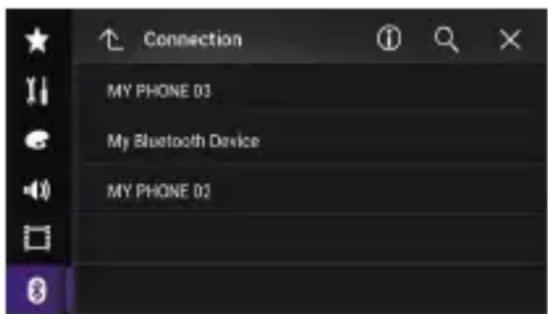
6 Touch the Bluetooth device name you want to register.
After the device is successfully registered, a Bluetooth connection is established by the system. Once the connection is established, the device name is displayed on the list.
Using hands-free phoning
If your mobile phone features Bluetooth technology, this navigation system can be connected to your mobile phone wirelessly. Using this hands-free function, you can operate the navigation system to make or receive phone calls. You can also transfer the phone book data stored in your mobile phone to the navigation system.
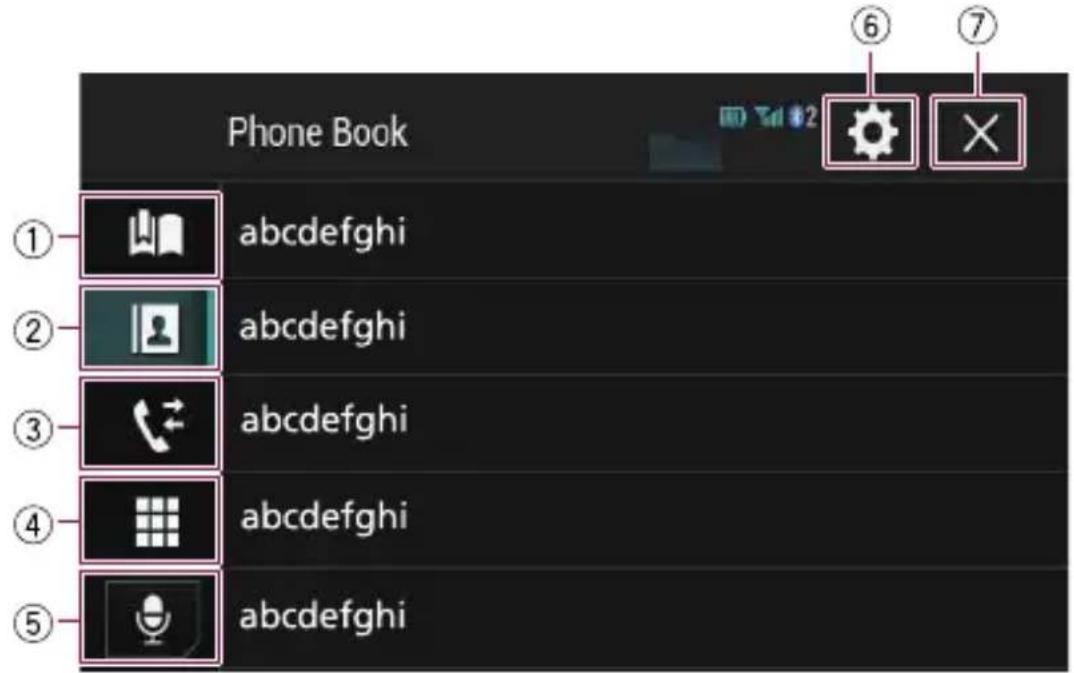
① Displays the preset dial screen.
⑥ Displays the Setting menu screen.
② Switches to the phone book list.
(7) Closes the screen.
③ Switches to the missed, received and dialled call lists.
(4) Switches the mode to enter the phone number directly.
⑤ Switches to the voice recognition function.
Using the radio
You can listen to the radio using this product.
Once you have stored broadcast channels, you can easily recall preset channels from memory with a single touch of a key.
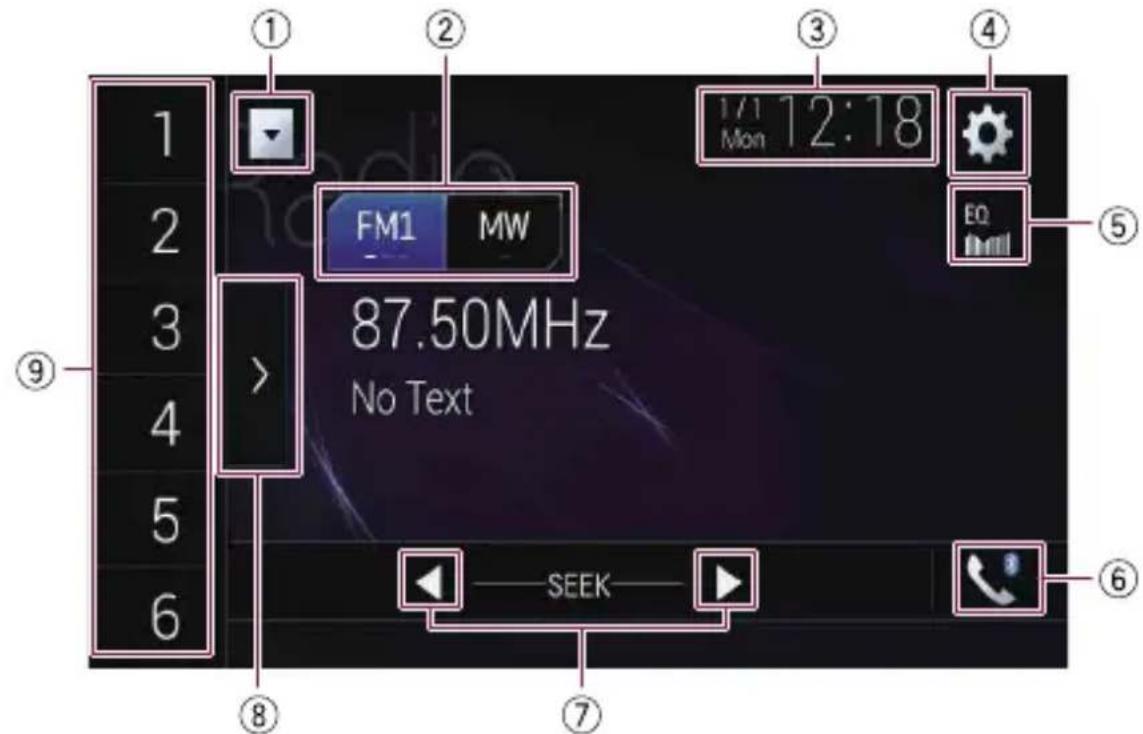
① Displays the source list.
(2) Selects a band.
③ Displays the Time and date setting screen.
④ Displays the Setting menu screen.
(5) Recalls equaliser curves.
⑥ Displays the Phone menu screen.
(7) Performs manual tuning or seek tuning.
(8) Displays the preset channels.
(9) Recalls the preset channel stored to a key from memory with a single touch of the key.
Stores the current broadcast frequency to a key for later recall by continuing to touch the key.