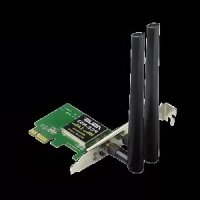
ASUS PCEN53 - Network card

PCEN53 - Network card ASUS - Free user manual and instructions

Find the device manual for free PCEN53 ASUS in PDF.

📄 34 pages English EN Download 💬 AI Question 10 questions ⚙️ Specs
Notice ASUS PCEN53 - page 5
View the manual : Français FR English EN
Pick your language and provide your email: we'll send you a specifically translated version.
Product Type PCI Express Wireless Network Card
Network Standards IEEE 802.11a/b/g/n
Frequency Bands 2.4 GHz and 5 GHz
Maximum Data Rate 300 Mbps (theoretical)
Interface PCI Express
Antennas 2 External Dipole Antennas
Wireless Security WEP, WPA/WPA2-PSK, WPA/WPA2
Special Features WPS (button), Software Access Point (Soft AP) mode
Supported Operating Systems Windows 7, Vista, XP
System Requirements Available PCI-E slot, 200 MB RAM, CD-ROM drive
LED Indicators Link (solid green), Tx/Rx (blinking green)
Package Contents Card, 2 antennas, Support CD, Quick Start Guide, Warranty Card
Provided Software ASUS WLAN Control Center, dual-band configuration utility
Care and Cleaning Clean with a soft, dry cloth. Avoid moisture and chemicals.
Safety Use a stable power supply. Do not open the case. Follow electrical standards.
Spare Parts and Repairability Contact ASUS support or an authorized reseller for parts and repairs.

Frequently Asked Questions - PCEN53 ASUS

How to install the driver and utilities for the PCE-N53 card?
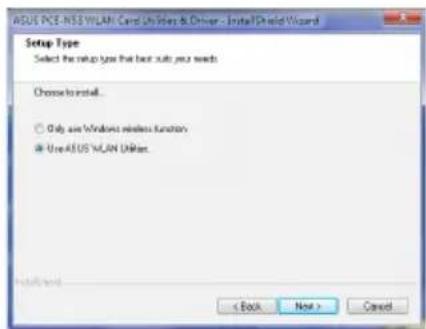
Before installing the driver, insert the card into a free PCI-E slot. Place the support CD into the drive, select the language, then click Install Utilities/Driver. Follow the wizard and restart the computer. After restart, choose Use ASUS WLAN utilities to manage the card with the ASUS utility.
How to connect the card to a wireless network using the ASUS utility?
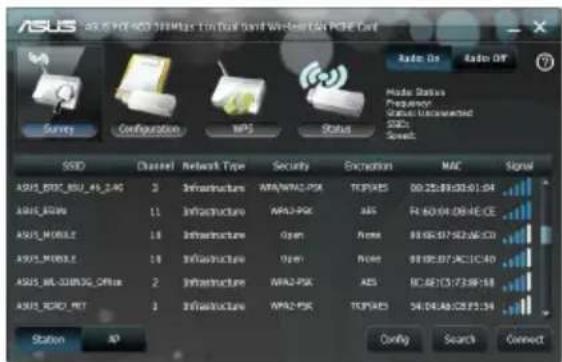
Right-click the ASUS utility icon in the system tray, then select Wireless Settings. Click Survey then Search to display available networks. Select your network, configure security if needed, then click Connect. The connection is established.
How to use the WPS button to connect the card?
Make sure your access point supports WPS. In the ASUS utility, go to the WPS tab, select Use the WPS button, then click Next. Press the WPS button on the access point. The connection establishes automatically. You can also use a PIN code by selecting Use PIN code.
What to do if the network card is not detected by the computer?
Check that the card is properly inserted into the PCI-E slot. Go to Device Manager (right-click My Computer > Properties > Hardware > Device Manager). If the card appears with an exclamation mark, reinstall the driver from the CD. If it does not appear, try another PCI-E slot or contact support.
How to enable Soft AP mode?
First connect your computer to a wired network. In the ASUS utility, click AP (access point). Go to the General tab then click ICS. Select the shared network and click Apply. The card switches to Soft AP mode. You can configure the band (2.4 GHz or 5 GHz) and access control in Configuration > Edit Config.
What is the difference between Infrastructure and Ad Hoc modes?
Infrastructure mode uses an access point (router) to connect the card to a wired network. Ad Hoc mode allows direct connection between two wireless stations without an access point. For home use, Infrastructure mode is recommended. In Ad Hoc, all devices must use the same SSID and channel.
How to configure WPA2 security on the card?
In the ASUS utility, go to Configuration > Encryption. For Network Authentication, select WPA2-PSK. For Data Encryption, choose AES. Enter the network key (passphrase) in the Wireless network key field. Click Save. The card will now use WPA2-AES encryption.
Signal strength is weak, how to improve the connection?
Move the card away from interference sources like microwave ovens or large metal objects. Adjust the antennas by positioning them vertically. Move the card closer to the access point. You can also change the Wi-Fi channel on the router to avoid interference from other networks.
How to use the ASUS WLAN Control Center utility?
The utility is accessible from Start > All Programs > ASUS Wireless LAN Card. The system tray icon allows you to enable/disable WiFi, search for networks, or launch the configuration utility. Right-click gives access to wireless settings, WPS wizard, and help. Double-click opens the full interface for configuring the connection.
How to turn off the WiFi radio on the card?
Left-click the ASUS utility icon in the system tray. Select WiFi Off to disable the radio. To reactivate, select WiFi On. You can also do this from the utility interface by clicking Radio Off.

User questions about PCEN53 ASUS

0 question about this device. Answer the ones you know or ask your own.

Ask a new question about this device

The email remains private: it is only used to notify you if someone responds to your question.

No questions yet. Be the first to ask one.

Download the instructions for your Network card in PDF format for free! Find your manual PCEN53 - ASUS and take your electronic device back in hand. On this page are published all the documents necessary for the use of your device. PCEN53 by ASUS.

USER MANUAL PCEN53 ASUS

natural_image Technical line drawing of a computer hardware component with no visible text or symbols

Federal Communications Commission

This device complies with FCC Rules Part 15. Operation is subject to the following two conditions:

• This device may not cause harmful interference, and
- This device must accept any interference received, including interference that may cause undesired operation.

This equipment has been tested and found to comply with the limits for a class B digital device pursuant to part 15 of the FCC Rules. These limits are designed to provide reasonable protection against harmful interference in a residential installation. This equipment generates, uses and can radiate radio frequency energy and, if not installed and used in accordance with the instructions, may cause harmful interference to radio communications. However, there is no guarantee that interference will not occur in a particular installation. If this equipment does cause harmful interference to radio or television reception, which can be determined by turning the equipment off and on, the user is encouraged to try to correct the interference by one or more of the following measures:

  • Reorient or relocate the receiving antenna.
  • Increase the separation between the equipment and receiver.
  • Connect the equipment into an outlet on a circuit different from that to which the receiver is connected.
  • Consult the dealer or an experienced radio/TV technician for help.

ASUS PCEN53 - Federal Communications Commission - 1

WARNING: Any changes or modifications not expressly approved by the party responsible for compliance could void the user's authority to operate the equipment.

Prohibition of Co-location

This device and its antenna(s) must not be co-located or operating in conjunction with any other antenna or transmitter.

FCC Radiation Exposure Statement

This equipment complies with RFCC radiation exposure limits set forth for an uncontrolled environment.

This equipment should be installed and operated with minimum 20cm between the radiator and your body.

CE Mark Warning

This is a Class B product, in a domestic environment, this product may cause radio interference, in which case the user may be required to take adequate measures.

Operation Channels: Ch1\~11 for N. America, Ch1\~14 Japan, Ch1\~13 Europe (ETSI)

IC Warning Statement

Under Industry Canada regulations, this radio transmitter may only operate using an antenna of a type and maximum (or lesser) gain approved for the transmitter by Industry Canada. To reduce potential radio interference to other users, the antenna type and its gain should be so chosen that the equivalent isotropically radiated power (e.i.r.p.) is not more than that necessary for successful communication.

This radio transmitter(IC: 3568A-PCEN53) has been approved by Industry Canada to operate with the antenna types listed below with the maximum permissible gain and required antenna impedance for each antenna type indicated. Antenna types not included in this list, having a gain greater than the maximum gain indicated for that type, are strictly prohibited for use with this device.

This Class [B] digital apparatus complies with Canadian ICES-003.

For product available in the USA/Canada market, only channel 1\~11 can be operated. Selection of other channels is not possible.

IC Radiation Exposure Statement:

This equipment complies with IC RSS-102 radiation exposure limits set forth for an uncontrolled environment. This equipment should be installed and operated with minimum distance 20cm between the radiator & your body.

Operation is subject to the following two conditions: (1) this device may not cause interference, and (2) this device must accept any interference, including interference that may cause undesired operation of the device.

Takeback Services

ASUS recycling and takeback programs come from our commitment to the highest standards for protecting our environment. We believe in providing solutions for our customers to be able to responsibly recycle our products, batteries and other components as well as the packaging materials. Please go to http://csr.asus.com/english/Takeback.htm for detail recycling information in different region.

REACH

Complying with the REACH (Registration, Evaluation, Authorisation, and Restriction of Chemicals) regulatory framework, we published the chemical substances in our products at ASUS REACH website at http://csr.asus.com/english/REACH.htm.

EC Declaration of Conformity

ASUS PCEN53 - EC Declaration of Conformity - 1

We, the undersigned,

Manufacturer:ASUSTek COMPUTER INC.
Address, City:No. 150, LI-TE RD., PEITOU, TAIPEI 112, TAIWAN R.O.C.
Country:TAIWAN
Authorized representative in Europe:ASUS COMPUTER GmbH
Address, City: HARKORT STR. 21-23, 40880 RATINGEN
Country:GERMANY

declare the following apparatus:

Product name : ASUS 300Mbps Wireless Dual-Band PCI-E Card
Model name : PCE-N53

conform with the essential requirements of the following directives:

2004/108/EC-EMC Directive

EN 55022:2006 : 2010 (Class B)EN 61000-3-2:2006/A1 : 2009/A2 : 2009EN 55024 : 2010EN 61000-3-3:2008

1999/5/EC-R &TTE Directive

☒ EN 300 328 V1.7.1(2006-10)☒ EN 301 893 V1.6.1(2011-11)☒ EN 62311 : 2008☒ EN 301 489-1 V1.9.2(2011-09)☒ EN 301 489-17 V2.1.1(2009-05)

2006/95/EC-LVD Directive

☒ EN 60950-1:2006 / A12:2011 EN 60065:2002+A1:2006+A11:2008

□2009/125/EC-ErP Directive

Regulation (EC) No. 1275/2008☐ EN 62301:2005Regulation (EC) No. 642/2009☐ EN 62301:2005Regulation (EC) No. 278/2009☐ EN 62301:2005Ver. 111121

CE marking

ASUS PCEN53 - EC Declaration of Conformity - 2

(EC conformity marking)

Declaration Date: May 18, 2012

Year to begin affixing CE marking:2012

Position: CEO

Name: Jerry Shen

ASUS PCEN53 - EC Declaration of Conformity - 3

Signature :

FabricantASUSTeK Computer Inc.Tél: +886-2-2894-3447Adresse: No. 150, LI-DE RD., PEITOU, TAIPEI 112, TAIWAN
Représentant légal en EuropeASUS Computer GmbHAdresse: HARKORT STR. 21-23, D-40880RATINGEN, DEUTSCHLAND
Revendeurs autorisés en TurquieBOGAZICI BIL GISAYAR SAN. VE TIC. A.S.Tél: +90 212 3311000Adresse: AYAZAGA MAH. KEMERBURGAZ CAD. NO.10 AYAZAGA/ISTANBUL
CIZGI Elektronik San. Tic. Ltd. Sti.Tél: +90 212 3567070Adresse: CEMAL SURURI CD. HALIM MERIC IS MERKEZINo: 15/C D:5-6 34394 MECIDIYEKOY/ISTANBUL
text_image ASUS Wireless LAN Card Install ASUS WLAN Card Userless Driver Uninstall ASUS WLAN Card UserlessDriver Read/Install User Documentation Explore this CD Browse our Web Site Install Language: English
text_image ASUS PCI-MSI VR/AN Card Utilities & Driver - InstallShield Wizard Welcome to the InstallShield Wizard for ASUS PCI-MSI VR/AN Card Utilities & Driver The InstallShield Wizard will install ASUS PCI-MSI VR/AN Card Utilities & Driver on your computer. To continue, click filed. < Back Next > Cancel
text_image ASUI PCE-NS5 WLAN: Cess Utilies & Drivers: Install/Shared Wizard Ready to install the Program The record is ready to begin installation. Click install to begin installation: If you want to review or change any of your installation settings, click Back. Click Cancel to exit the user! + Back Install Cancel
text_image AGUS PCIe NOS/VLAN Card Utilities & Driver - InstallShield Wizard InstallShield Wizard Complete The InstallShield Wizard has successfully installed (AGUS) PCI2 NOS/VLAN Card Utilities & Driver. Click Finish is set the void < Back Finish Cancel

ASUS PCEN53 - EC Declaration of Conformity - 4

text_image ASUS PCE-RSS WLAN Card Privacy & Driver - InstallShield Wizard Setup Type Select the setup type that best suit your needs Choose to install. Only use Windows wireless functions Use ASUS WLAN UNIast. < Back Next > Cancel
text_image Wireless Setting Active Configuration Help WPS About Control Center Exit

ASUS PCEN53 - EC Declaration of Conformity - 5

text_image ASUS ASUS POWER02 NUMBERS FOR NEW SODI Wireless CAN PCE Cart Survey Configuration MP5 Status SDCL SODI Channel Network Type Security Encryption MAC Signal ASUS_PDC_BRU_45_ZAG 3 Infrastructure ARA/WA2-PSK TPSP/ABS 00:25:89:00:01:04 ASUS_ROW 1 Infrastructure ARA/PSK ABS R1:60:04:08:4E CE ASUS_MOBILE 1.8 Infrastructure Open Name B1:05:07:02:AC/CD ASUS_MOUSE 1.8 Infrastructure Open Name B1:05:07:AC/IC40 ASUS_WL_CUBSC_OFF 2 Infrastructure ARA/PSK ABS BC:61:C3:73:8F18 ASUS_SORD_MET 2 Infrastructure ARA/PSK TPSP/ABS 54:04:06:25:23 Station AP Config Search Connect
text_image ASUS Windows PCI-AMD 200MHz 11th Total band wireless LAN PCI4 Card Encryption Network Authentication: Dense Data encryption: Disabled Wireless networks key: Key Format: Nccategorical digits Key Length: 64 bits(13 digits) Key 1: Key 2: Key 3: Key 4: Saved one at user default key: Key 1 Peripherals Advanced Back Save Cancel

ASUS PCEN53 - EC Declaration of Conformity - 6

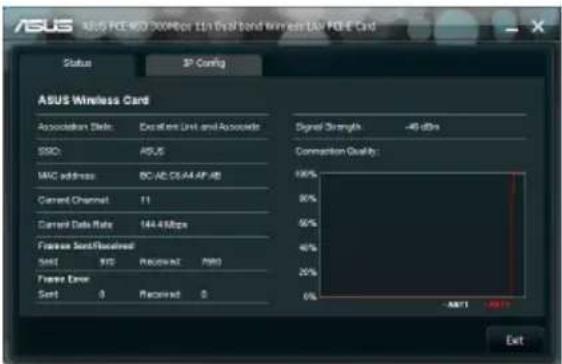
text_image ASUS ASUS PDS-80 Connection 1.0 Vial band transmission Our PDS Card Status SP Config ASUS Wireless Card Association Date: Execution Unit and Associate SSO: AUS MAC address: 8C AC 25A4 AP AB Current Channel: 11 Current Data Rate: 144.43 Mbps Frontset Sent/Received Send: 976 Request: 7980 Frontset Error Send: 0 Request: 0 Signal Strength -40 dBm Connection Quality: 100% 90% 50% 40% 20% 0% ANT1 ANT2 Exit
text_image ASUS WPS Wizard 20CMager The Dual Band Wireless Unit WPS Card WPS Wizard Choose a connection type Please select the method you want to your network Use the WPS button Use PIN code Next Cancel
text_image Applying the wireless setting... Cancel

ASUS PCEN53 - EC Declaration of Conformity - 7

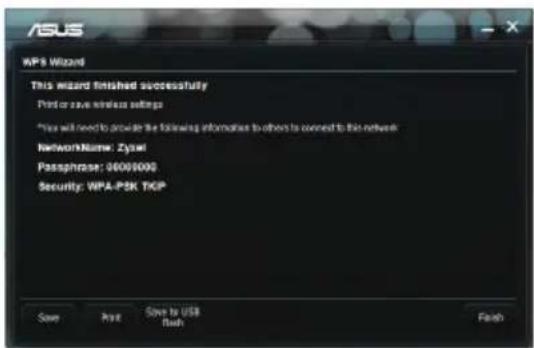
text_image WPS Wizard This wizard finished successfully Printer or save wireless settings *You will need to provide the following information to others to connect to this network NetworkName: Zyper Passphrase: 0009000 Security: WPS-PSK TCP Save Print Save to USB flash Finish
text_image ASUS WPS Wizard 104862.10.10 Dual Band Wireless/Car PDS Card WPS Wizard Choose a connection type Please select the method you want to your network Use the WPS button Use PIN code Next Cancel

ASUS PCEN53 - EC Declaration of Conformity - 8

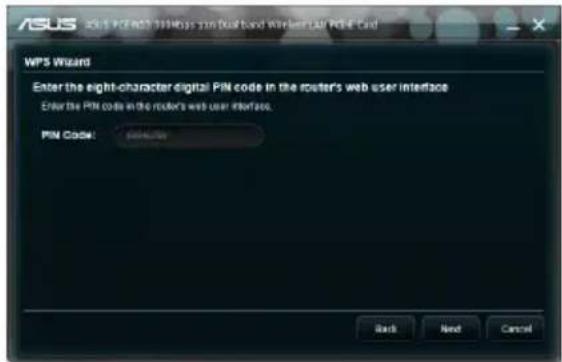
text_image ASUS WPS Wizard 100Mbps mini dual-band wireless CAN PSF Card WPS Wizard Enter the eight-character digital PIN code in the router's web user interface Enter the PIN code in the router's web user interface. PIN Code: Back Next Cancel
text_image WPS Wizard This wizard finished successfully Print or save wireless settings *You will need to provide the following information to others is accessed to this network NetworkName: Zynel Passphrase: 00000000 Security: WPA-PSK THGP Save Print Save to USB Back Finish
text_image ASUS DOS PCI 208Mbps I/O dual band Wireless PCI PCI Card General Configuration Status Mode: IP Frequency: 2.9GHz Status: Corrected GSD: IP/Read_id_126x ADD MAC Address Status Status: IP ICS
text_image ASUS XPS 402 T9806 (The Red Band Wireless) XPS Card Available Networks Connection Name Device Name 1910 Intel IX: PCU/350 GF Desktop Adapter 1910 2 Analysis PCIe GEE Family Controller Apply Cancel
text_image Successfully configured the Internet Connection Sharing (ICS) OK
text_image ASUS 9.0E-MSI Knowledge Kit Dual Band Wireless EDA PS4 Card General Configuration Status Mode AP Frequency:2.8GHz Status: Connected SUD: U_Reed_56_32fs Configuration Name Type Description 7. Reed_16_32fs AP Status New Config Delete Edit Config Connect

ASUS PCEN53 - EC Declaration of Conformity - 9

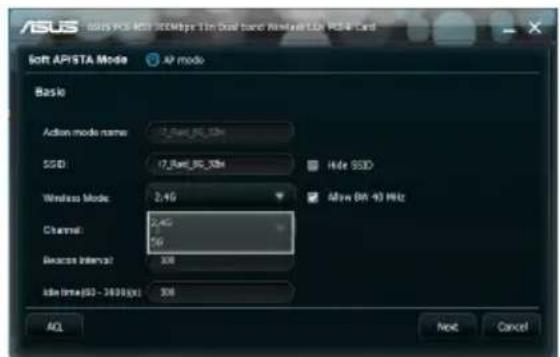
text_image ASUS Soft API STA Mode AP mode Basic Action mode name: 17_Rad_80_326x SSD: 17_Rad_80_326x Hide SSD Wireless Mode: 2.40 Allow BER 40 MHz Channel: 2.40 Access Interval: 16 Size time(50 - 3600 dpi) 306 ACL Next Cancel
text_image ASUS NAS-5 PUE AND 200MHz LAN Dual-band Windows UAV PS4.6 Card Soft API/STA Mode AP mode Basic Advice mode name: 17_Rad_36_128 SSD: 17_Rad_36_128 Hide SSD Wireless Mode: 2.45 Allow RW-48 MHz Channel: 1 Swimming/Video: 300 HDD Interface - 260000C: 300 ACI Next Cancel

ASUS PCEN53 - EC Declaration of Conformity - 10

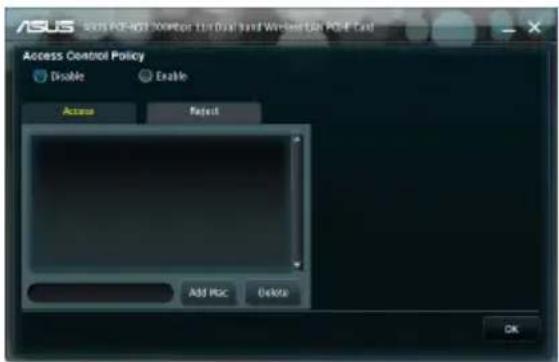
text_image ASUS Access Control Policy Disable Enable Add PC Add PSC Delete OK
text_image Wireless Setting Active Configuration ▶ Help ▶ WPS About Control Center Exit
text_image Copyright (C) ASUSTek COMPUTER INC. All Rights Reserved Version: 1.0.0.5 MAC: 00:0C:43:55:92:14 OK

- Exit Control Center (Quitter Control Center) - Ferme le Centre de contrôle sans fil ASUS the ASUS.

text_image ✓ Wireless Radio on Wireless Radio off Search & Connect
text_image ASUS ASUS PCI-NEO 30Wbps LTE Dual band Wireless/AN PCI-E Cart Soft API/STA Mode Station mode Basic Infrastructure Ad Proc Action mode name: ASUS SUID: ASUS Channel Auto Data Rate Fully Auto Advanced Next Cancel
text_image ASUS BIOS BIOS 120MHz To Build based Wi-Fi access to DOS Card Advanced This page is for advanced user only. We don't recommend you to change this page. BOS Threshold: 2947 (8 - 2347) Fragmentation Threshold: 2946 (256 - 2346) Preamble Mode: Auto * OK Cancel
text_image Wireless Setting Active Configuration Help WPS About Control Center Exit

6. Dépannage

BSA (Basic Service Area)

Broadband (Large bande)

DHCP (Dynamic Host Configuration Protocol)

DSL Modem (Modem DSL)

Extended Service Set (ESS)

IEEE (Institute of Electrical and Electronics Engineers)

LAN (Local Area Network)

MAC Address (Media Access Control)

NAT (Network Address Translation)

NIC (Network Interface Card)

PCMCIA (Personal Computer Memory Card International Association)

TCP (Transmission Control Protocol)

WECA (Wireless Ethernet Compatibility Alliance)

WPA (Wi-Fi Protected Access)

Manual assistant
Powered by Anthropic
Waiting for your message
Product information

Brand : ASUS

Model : PCEN53

Category : Network card