SCL141CTP - Laptop SCHNEIDER - Free user manual and instructions
Find the device manual for free SCL141CTP SCHNEIDER in PDF.



| Product type | 14.1" clamshell laptop |
| Processor | Intel Atom x5-8350 Quad Core (2 MB cache, up to 1.92 GHz) |
| Operating system | Windows 10 |
| Internal storage | 32 GB eMMC |
| RAM | 2 GB DDR3 |
| Display | 14.1-inch IPS, 1920x1080 resolution |
| Storage expansion | Micro SD card up to 128 GB |
| Wireless connectivity | Bluetooth 4.0 EDR |
| Front camera | 0.3 MP |
| Power supply | AC adapter input 100-240 V AC, output 5 V / 3 A |
| Battery | Li-ion polymer 10000 mAh, 3.7 V |
| Ports | USB, HDMI, 3.5 mm headphone jack, TF card slot |
| Safety | Do not disassemble, avoid exposure to water and humidity |
| Care and cleaning | Clean with a soft, dry cloth; do not use chemical products |
| Repairability | Battery not user-replaceable; any repair voids warranty |
Frequently Asked Questions - SCL141CTP SCHNEIDER
User questions about SCL141CTP SCHNEIDER
0 question about this device. Answer the ones you know or ask your own.
Ask a new question about this device
Download the instructions for your Laptop in PDF format for free! Find your manual SCL141CTP - SCHNEIDER and take your electronic device back in hand. On this page are published all the documents necessary for the use of your device. SCL141CTP by SCHNEIDER.
USER MANUAL SCL141CTP SCHNEIDER
Thank you for purchasing the SCL141CTP which comes with the Intel Atom Quad Core CPU technology, 2GB DDR RAM for fast multitasking, 32GB of internal storage, a clear and sharp 14.1 inch FHD screen, and the latest Windows 10 software.
This user manual will help you understand the features and functions of your new laptop. Please read this user manual carefully before using this device. It is recommended to fully charge the device before the first use.
Contents
- Safety Precautions 2
ii. Buttons and Ports 3
III. Desktop 4
iv. Setting up a Microsoft Account 5-6
v. Start Menu and the Windows Store 7
vi. Action Center and OneDrive 8
vii. Task View, Start Screen and Restoring Windows 9
viii. Tips & Tricks 10-14
ix. Specifications 15
Safety Precautions
- This device is suitable for use in non-tropical areas below 2,000 meters.
- Do not drop the device or apply strong force.
- Avoid extended use in extreme cold, hot, humid or dusty environments. Avoid exposing the device to direct sunlight for extended periods of time.
- Avoid using the device near strong magnetic fields and in static environments.
- Keep the device away from water and other liquids. In the event that water or other liquids get on or into the device, power off the device immediately and ensure the device remains off and unplugged until fully dry.
- Do not clean the device with any chemical or other liquid to avoid causing damage due to corrosion and moisture. Clean with a dry soft cloth only.
- We are not responsible for loss of data due to malfunction, misuse, modification, or other accident.
- Please back up your important data regularly to avoid loss.
- Please do not attempt to disassemble or repair the product on your own, as it will void the warranty.
- Do not attempt to change the battery on your own. Using an incompatible battery may cause explosion.
- To reduce the risk of fire or electric shock, do not expose this device to rain or moisture. The device should not be exposed to dripping or splashing. Never place objects filled with liquids, such as vases, on the device.
- Windows Software receives updates directly from Microsoft. The device will update automatically, or you may manually check to see if there are updates available from Microsoft.
- Remember your passwords – Manufactures and resell outlets cannot assist in unlocking your device due to forgotten passwords. Setting up a Microsoft account vs. local account is best if requesting any assistance from Microsoft for any issue.
- Handle your device with care - any misuse or abuse which causes malfunction of the unit, voids all warranty. This includes cracked display screens.
- We reserve the right to change the contents of this manual.
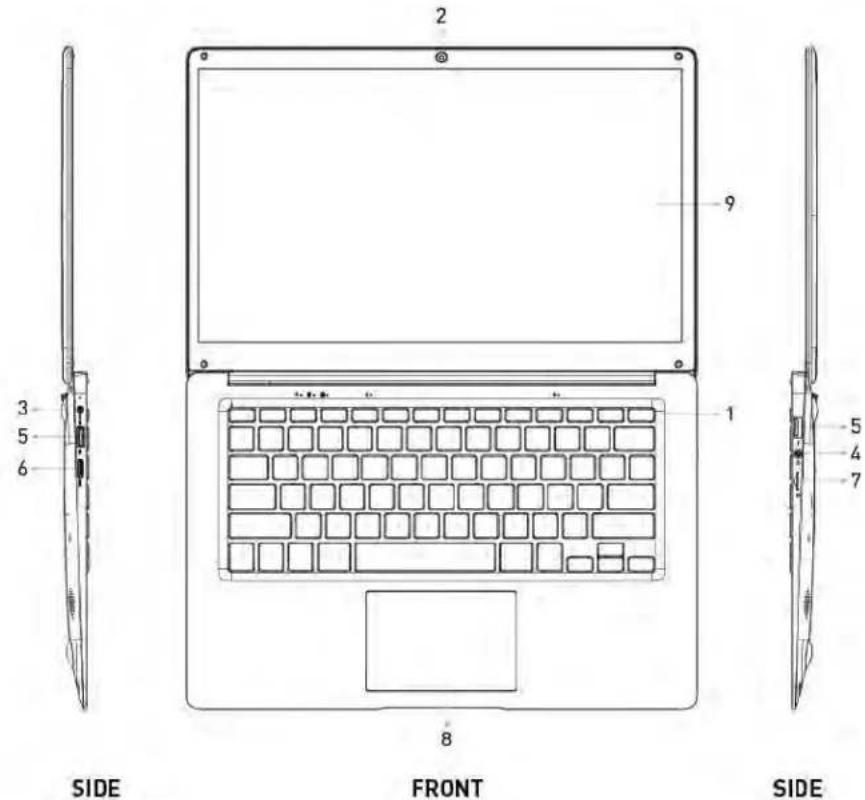
Appearance and buttons:
1.Power Button
2.Front Camera
3.+5V DC
4. Headphone Connection
5.USB Port
6.HDMI Port
7.TF Card
8. Track pad
9.Display Screen
Buttons and Ports
- Power Button : To power on/off the device, long press the power button for about 2-3 seconds.
- Front Camera: For taking photos or videos.
- DC port: Used to connect the power supply and recharge the device.
- Headphone port: Audio out used to connect headphones or portable speaker using a 3.5mm connection.
- USB port: Used to connect USB accessories such as a keyboard, mouse, USB drive or other portable storage.
- HDMI port: HDMI out used to connect the device to a TV or other HDMI input.
- TF card slot: Used to insert a Micro SD (TF) card to expand the memory. Supports Micro SD cards up to 128GB.
- Track Pad: Translates the motion and position of a user's fingers to navigate and request functions on the device.
- Display Screen
Desktop
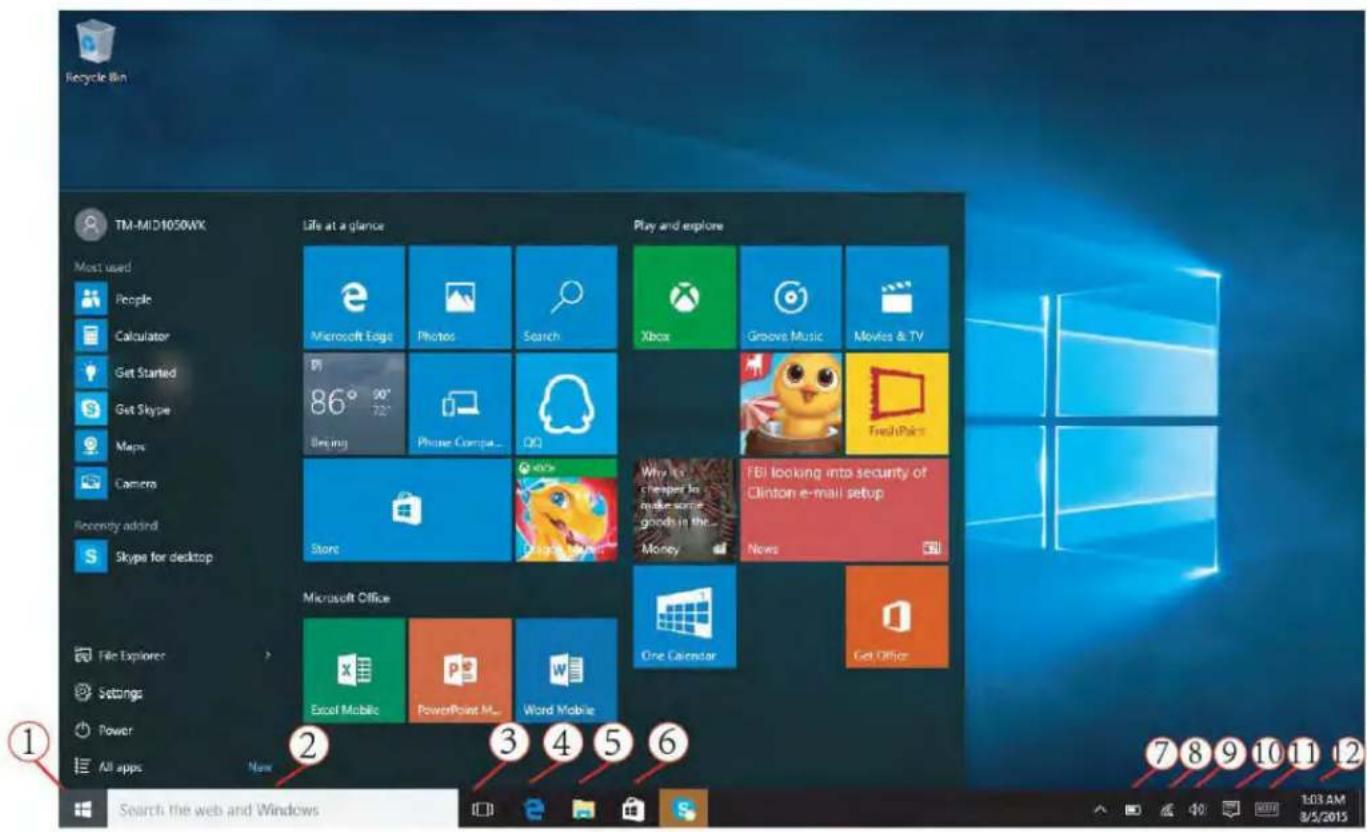
- Windows (Start) Icon
- Search Bar 8. Wi
- View all open windows
- Browser 10. Action Center
-
File Explorer
-
Windows Store
-
Battery
·Fi
-
Volume
-
Keyboard Settings
- Date and Time Setting
Setting up a Microsoft Account
NOTE: We highly recommend using a Microsoft Account instead of a local account. If you use a local account and forget your password you will be locked out of the device.
Setting up a Microsoft account allows you to sign in and use the various features provided on your tablet, including:OneDrive, Outlook.com, Xbox Live, Office 365, Skype and more. Setting up a Microsoft account makes using your device easier. If you do not already have a Microsoft account, you can create one for free.
Some of the benefits include:
- You only have to sign in once. If you use a Microsoft Account to sign into Windows, you do not need to sign in again to use Microsoft related apps and services such as Skype, Outlook.com, OneDrive and more.
You are connected and synchronized across all your Windows based devices you have sign in under.
You will be prompted to sign into your existing Microsoft Account when accessing Windows. You can click "Sign up" to create one if needed.
To create a Microsoft Account, select Sign Up on the log in page.
- You can also go to Microsoft.com/account
NOTE: You can use your existing email address to sign up, even if it is not a Microsoft provided address. If you do not have an existing email address, you can click "get a new email address" to sign up for one.
If you just choose a Local Account, you will not get the benefits of only having to sign in once and having your settings syncd across devices. Create a Microsoft Account to use these features.
Switching from a Local Account to a Microsoft Account
If you do sign in with a local account, you can choose to switch to a Microsoft account at any time.
- Click on the Windows (Start) Icon
- Click on Settings
- Click on Accounts
- Click Sign in with a Microsoft Account instead
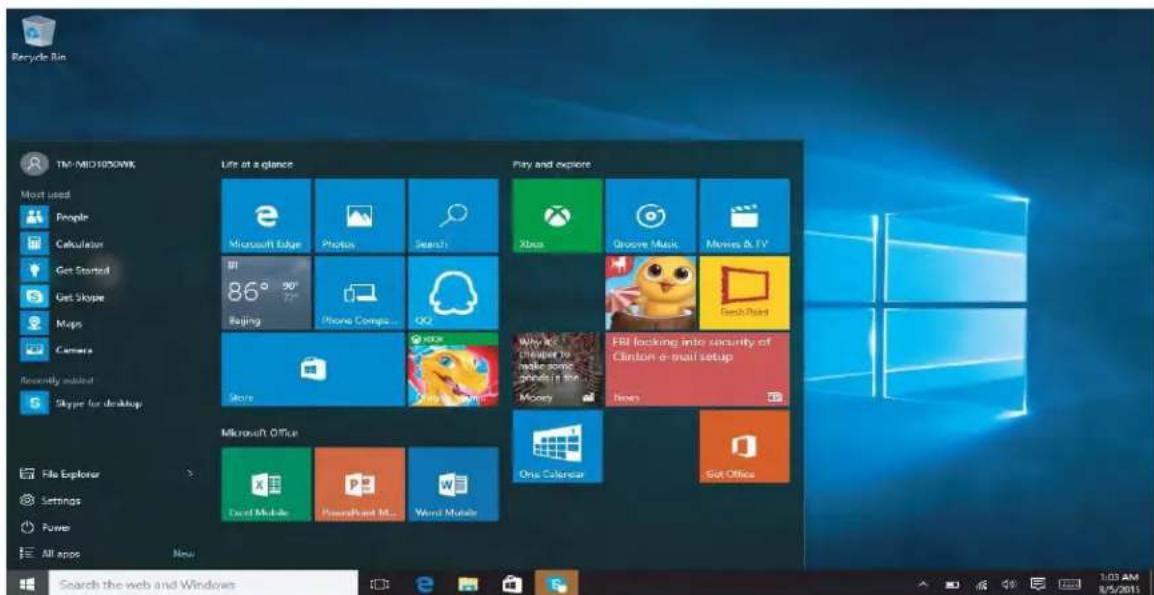
Start Menu
The Start Menu is accessed by clicking the Windows icon in the lower left corner of the screen.
The Start Menu provides access to the Apps you have installed, system Settings, and other important features.
You can use All Apps to view all installed apps in a list. You can pin frequently used apps to the Start menu by holding your finger on the app icon for a few seconds and then choosing "Pin to Start" or "Pin to Task bar."
The Windows Store
The Windows Store is where you can install new apps for your device. To access the Windows Store, choose Store from the Start Menu or click the shopping bag icon in the toolbar at the bottom.
- Search for the app you wish to download
- Click the app to view more information
- Click Install if it is a free app, or Buy to purchase the app and install it. NOTE: You need to be signed in to your Microsoft Account to install apps from the Windows Store.
Action Center
The Action Center is accessed by tapping the notification icon on the lower right.
The Action Center provides quick access to important notifications, and allows you to change some common settings.
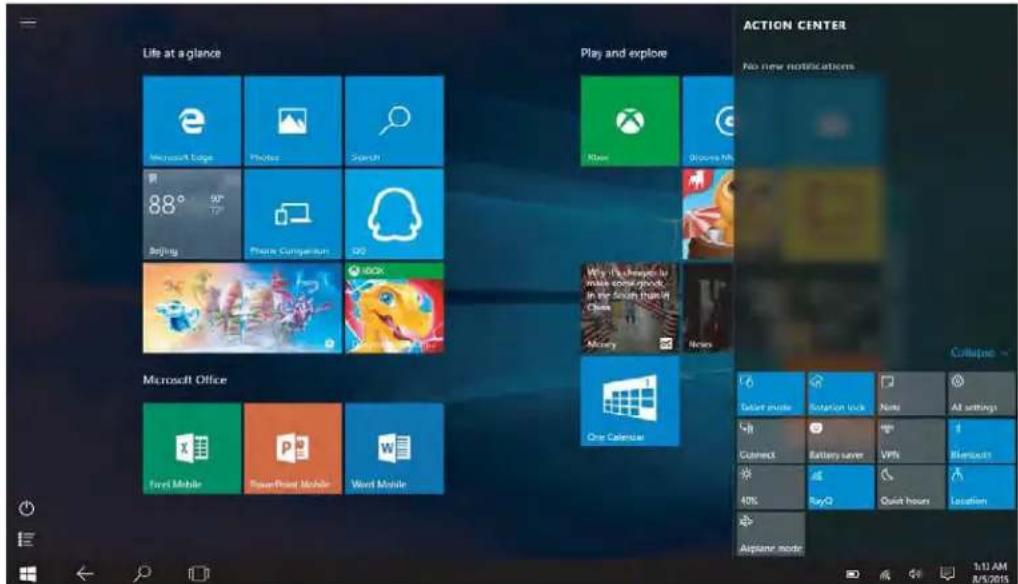
From the Action Center, you can turn Airplane Mode on or off. When Airplane Mode is on, all Wi-Fi and other connections are disabled.
One Drive
OneDrive is an online cloud storage provided by Microsoft. When you create a Microsoft Account, you get some online storage free through OneDrive.
You can access OneDrive through the Microsoft Edge browser by going to https://onedrive.com
Sign in with your Microsoft Account if prompted.
By default, a local folder is also created forOneDrive.
You can find the OneDrive folder under
C:\Users[ACCOUNT_NAME]\OneDrive (where [ACCOUNT_NAME] is your username.
Task View
Task View allows you to quickly switch between and close open apps. To launch Task View, click the icon shown below on the bottom toolbar.

Start Screen
If you prefer using the full Windows Start Screen instead of the Desktop View, you can switch by using the steps below:
- Click on the Windows (Start) Icon.
- Click Settings
- Click Personalization
- Choose Start on the left
- To the right, turn the setting that says "Use Start full screen" to ON.
You can also switch back the full Windows Start Screen to Desktop View by turning the option off. NOTE: You may need to sign out and back in for these changes to take effect.
Restoring Windows
If your device is encountering errors which you have been unable to resolve, you can restore Windows to the original state.
- Click on the Windows (Start) Icon.
- Click Settings
- Click Update and Security
- Click Recovery
- Under Reset this PC, click Get Started
NOTE: If you want to keep any files, select Keep my files. If you do not wish to keep your files, or you have backed them using an external method, click Remove Everything.
Tips and Tricks
1. Creating a Recovery Drive
It is recommended you create a recovery drive when you first get your tablet. A recovery drive can help you troubleshoot and fix problems with your PC, even if it won't start. To create one, all you need is a USB drive.
- From the task bar, search for Create a recovery drive and then select it. You might be asked to enter an admin password or confirm your choice.
- When the tool opens, make sure Back up system files to the recovery drive is selected and then select Next.
- Connect a USB drive to your PC, select it, and then select Next > Create. A lot of files need to be copied to the recovery drive, so this might take a while.
- When it's done, you might see a Delete the recovery partition from your PC link on the final screen. If you want to free up drive space on your PC, select the link and then select Delete. If not, select Finish.
2. Using Bluetooth to Send and Receive files:
. Click on the Windows (Start) Icon
- Click on Settings
- Click on Devices
- Click on Bluetooth and turn Bluetooth ON
After Bluetooth is turned ON, your tablet will begin to search for nearby Bluetooth devices.
NOTE: You will need to ensure that the device you wish to pair also has Bluetooth enabled and is visible to nearby devices.
Once the search is complete, it will display available nearby devices. You can pair your tablet with another device by selecting it from the list.
NOTE: You may need to confirm a pass key on both devices to finish pairing.
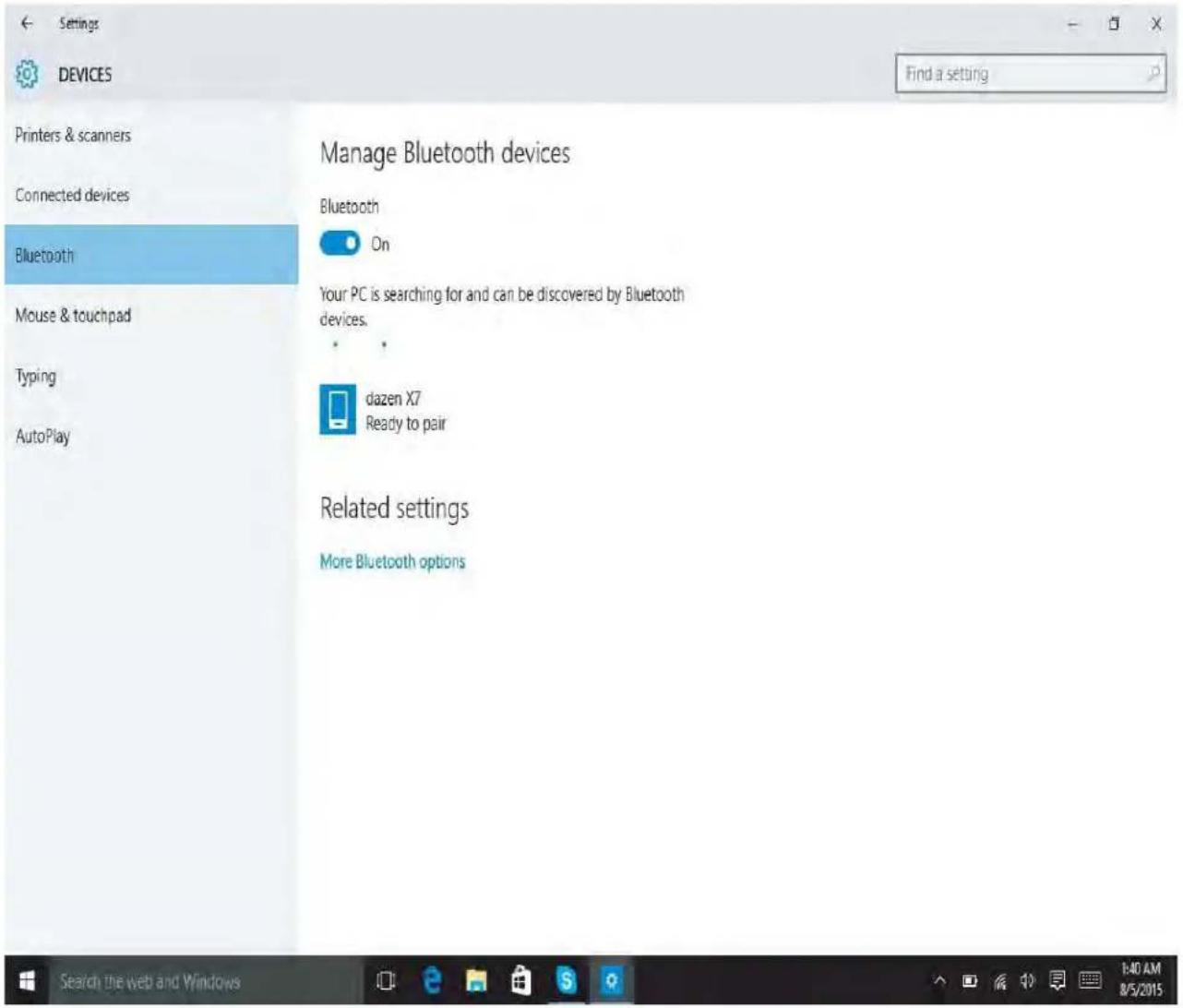
- After pairing the devices click on the Bluetooth icon on the task bar, at the bottom-right.
- To transfer a file to your tablet, click on "receive a file." You will see a "waiting for connection" window.
- Go to your other device, select the file you wish to send and use the option to share or send via Bluetooth.
- Select the tablet from the list of paired devices to send.
- The tablet will begin downloading the file and will provide an option to save.
NOTE: The same process can be used to send files from tablet to other device.
3. Resizing Icons and Fonts in Desktop View:
- Click on the Windows (Start) Icon
- Click on Settings
- Click on System
- Choose Display
Here you can choose from 100% , 125% , 150% or click "custom sizing options".
NOTE: If you go over 150% , some menu options may no longer be accessible. It is recommended you use the magnifier tool instead if you need the font to be larger.
4. Shutting Down and Powering On:
When you shut down the PC, allow the PC to shut down completely. It is recommended to wait five minutes before turning it back on to ensure all internal hardware has completed the shutdown cycle.
5. Power Saver:
This device has a built-in rechargeable battery. We recommend you keep the screen brightness on medium and only turn it up when needed to conserve battery power.
To access the Power Saving options:
- Click the battery icon in the task bar on the lower right
-
Select "Additional Power Settings"
Here you can "Choose or Customize a Power Plan" -
Changing the Language and Keyboard Input Method:
-
Click on the Windows (Start) Icon
- Click on Settings
- Click on Time & Language
- Choose Region & Language
- Choose Add a language and select the language you want to use.
After this, you will see the selected language in the list. Choose options to download the language pack if needed and to assign it as an input method for the keyboard.
7. Date and Time:
The correct date and time is required for many applications to function properly. Generally the date and time is set automatically when connected to the Internet. However, if this is not working properly or you are offline, you can set the time and date manually.
- Click on the Windows (Start) Icon
- Click on Settings
- Choose Time and Language
Here you can choose your time zone and, if needed, turn off automatic time and manually set it by clicking "change."
| Specifications | |
| Product | 14.1" Intel Quad Core CPU Clamshell laptop with Windows 10 OS |
| Processor | Intel Atom x5-8350 Quad Core Processor (2M Cache, up to 1.92 GHz) |
| Operating System Windows | 10 OS |
| Memory 32 GB Built | -in Memory (eMMC Fast Memory) |
| Expansion | micro SD card slot (supports up to 128GB max) |
| Resolution / Screen | 1920*1080 IPS |
| RAM Memory | 2 GB DDR3 Built-in |
| Bluetooth Built | -in Bluetooth V4.0 EDR |
| Camera Front: 0.3 MP | |
| Power Adapter | Input AC100 – 240V 50-60Hz, Output DC 5V/3A |
| Battery Rechargeable Li | -ion Polymer battery 10000 mAh 3.7V |
Portál de concha Windows 10 Intel Quad Core de 14,1"
Manual del usuario
Introduccion
- Contents
- Safety Precautions
- Appearance and buttons:
- Buttons and Ports
- Desktop
- Setting up a Microsoft Account
- Some of the benefits include:
- Switching from a Local Account to a Microsoft Account
- Start Menu
- The Windows Store
- Action Center
- One Drive
- Task View
- Start Screen
- Restoring Windows
- Tips and Tricks
- Creating a Recovery Drive
- Using Bluetooth to Send and Receive files:
- Resizing Icons and Fonts in Desktop View:
- Shutting Down and Powering On:
- Power Saver:
- To access the Power Saving options:
- Date and Time:
- Manual del usuario
- Introduccion
Brand : SCHNEIDER
Model : SCL141CTP
Category : Laptop