NVU84 - Gps SONY - Free user manual and instructions
Find the device manual for free NVU84 SONY in PDF.



| Brand | Sony |
| Model | NVU84 |
| Product type | Automotive navigation GPS |
| Screen | Color touch screen, dimensions not specified |
| Power source | Built-in rechargeable battery + 12V cigarette lighter adapter |
| Battery life | Not specified, typical battery life 2 to 4 hours |
| Main functions | GPS navigation with preloaded maps, address and point of interest search, voice guidance, route calculation, 2D/3D map mode |
| Data storage | Memory Stick Duo (for photos, audio and video on compatible models) |
| Connectivity | USB port, headphone jack, built-in GPS antenna |
| Update | Software and map updates via Sony website (http://esupport.sony.com/) |
| Mounting support | Suction cup for windshield or dashboard |
| Maintenance | Clean the screen and suction cup with a soft, damp cloth; do not use solvents |
| Safety | Install the device so as not to obstruct the driver's view; remove the mount after each use |
| Included accessories | Car battery adapter, quick start guide, warranty card |
| Repair | If problems occur, contact Sony support or reset the device via the RESET button |
| General information | Manual available as PDF download on notice-facile.com; 104 pages |
Frequently Asked Questions - NVU84 SONY
User questions about NVU84 SONY
0 question about this device. Answer the ones you know or ask your own.
Ask a new question about this device
Download the instructions for your Gps in PDF format for free! Find your manual NVU84 - SONY and take your electronic device back in hand. On this page are published all the documents necessary for the use of your device. NVU84 by SONY.
USER MANUAL NVU84 SONY
Following registration enables Sony to send you periodic mailings about software, firmware updates and other important product information. To register your product, please visit our website at:
U.S.A.
http://productregistration.sony.com
Canada
http://www.sonystyle.ca/registration
Thank you.
Note
Illustrations in this manual may differ from the actual device.
Table of contents
US
Getting Started .... 4
Installation / Connection .... 8
Navigation 16
Basic Settings .... 27
Bluetooth® Hands-free Calling (NV-U94T only) ..... 28
Audio / Video Playback (NV-U94T only) .... 32
Photo Playback .... 33
Questions / Problems .... 34
Extra Items .... 35
Getting Started
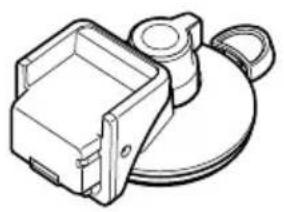
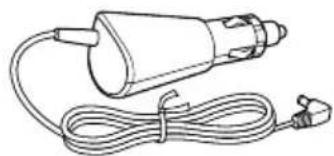
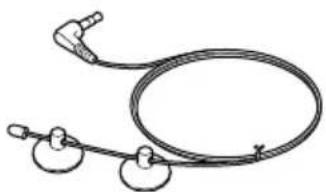
Checking the box contents
US
Make sure you have received all items.

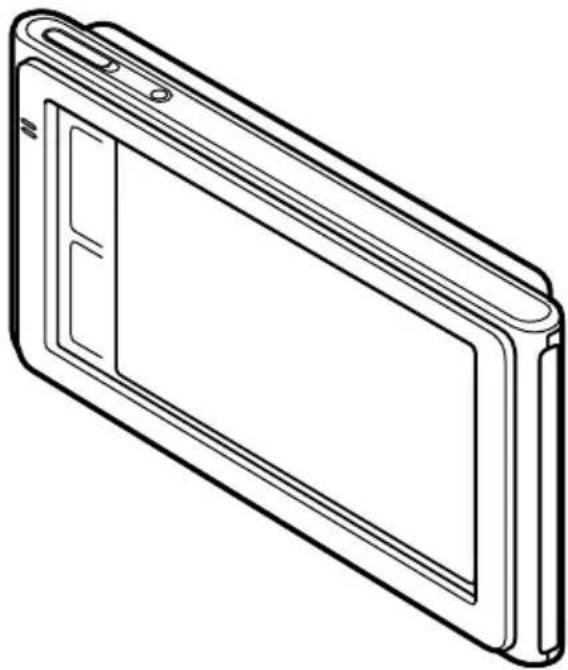
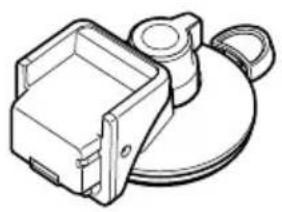
Main unit
natural_image
Line drawing of a rectangular electronic device with a flat screen and side panels (no text or symbols)Cradle USB cable
natural_image
Technical line drawing of a mechanical component with a square housing and circular base (no text or symbols)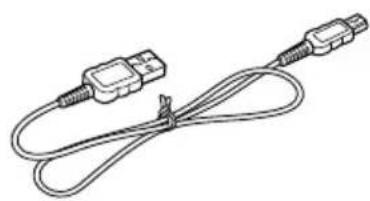
natural_image
Line drawing of a USB cable with two connectors (no text or symbols)Car battery adapter Quick Start Guide
(this manual)
natural_image
Line drawing of a handheld electrical device with coiled cable and plug (no text or symbols)Important Information
End-User License Agreement
Warranty Card
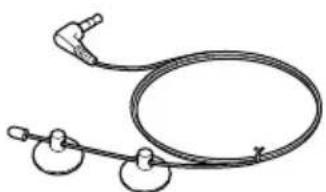
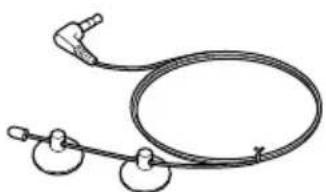
TMC antenna
(NV-U94T only)
natural_image
Simple line drawing of a medical or laboratory device with a coiled cable and two circular components (no text or symbols)Getting Started
Location of controls
US
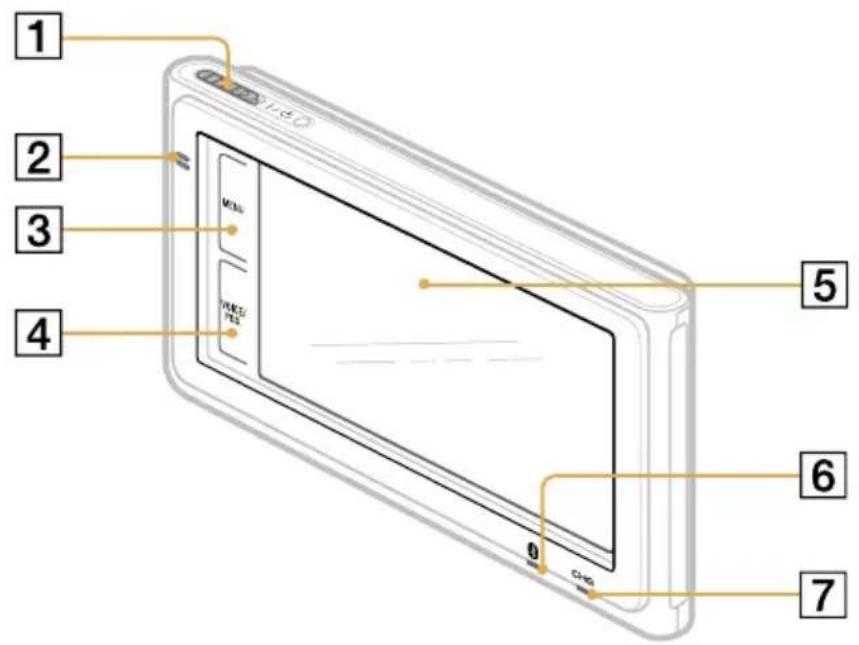
text_image
1 2 3 4 5 6 7 MINI MINI/FEI 0 C#NG1 I/ ^① (on/standby) switch
2 Built-in microphone for hands-free calling (NV-U94T only)
3 MENU button
4 VOICE/POS. button
Shows the current position and repeats the last voice guidance.
5 Display window/touch screen
6 Bluetooth) indicator (NV-U94T only)
7 CHG (battery charge) indicator
Red: charging.
Green: fully charged.
Off: adapter disconnected.
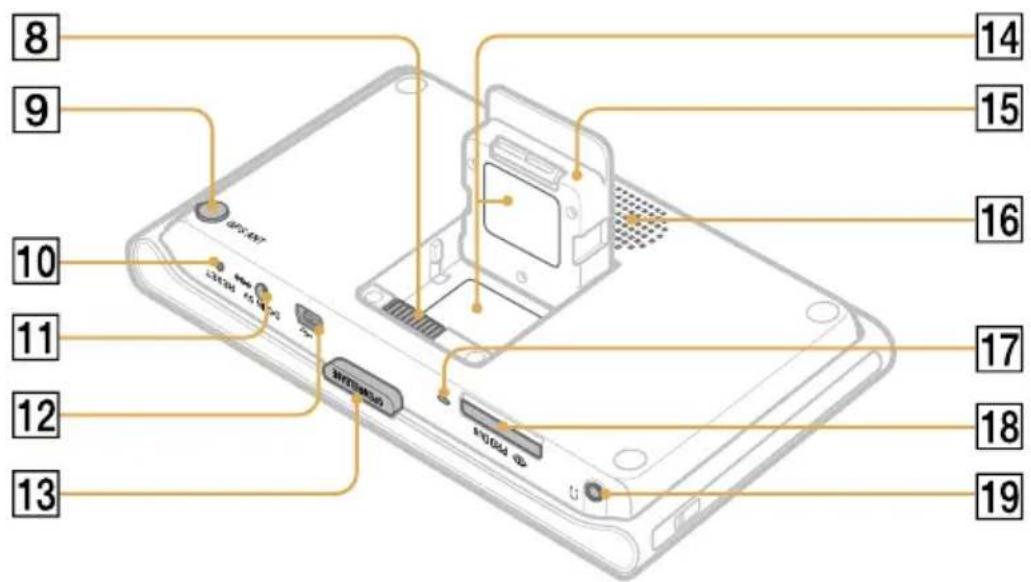
text_image
8 9 10 11 12 13 14 15 16 17 18 198 Cradle connector
9 GPS ANT (GPS antenna) jack
10 RESET button
11 DC IN 5V jack
Connects to the optional AC adapter XA-AC13.
12 ⬤(USB) jack
13 OPEN/RELEASE button
14 Nameplate
15 Built-in GPS antenna
16 Speaker
17 Memory Stick access indicator
18 (Memory Stick Duo) slot
19 (headphones) jack
US
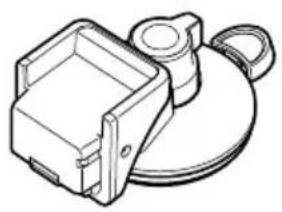
Attaching the cradle to your car
1 Remove the protection cover.
Use the cover to keep the suction cup clean when not in use.
2 Select the installation location on the dashboard.
Choose a clean, smooth surface with an unobstructed view of the sky.
3 Press firmly, then turn the lever counterclockwise to lock into the position.
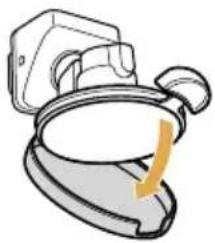
natural_image
Illustration of a toilet with a handle and lid, showing a yellow arrow indicating airflow or direction (no text or symbols)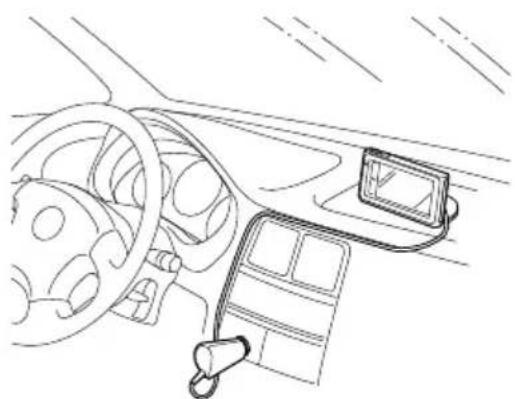
natural_image
Line drawing of a car interior showing steering wheel, dashboard, and navigation device (no text or symbols)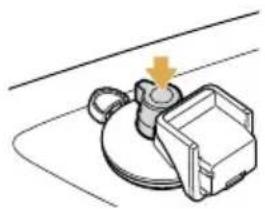
natural_image
Mechanical component diagram showing a lever and housing assembly (no text or symbols)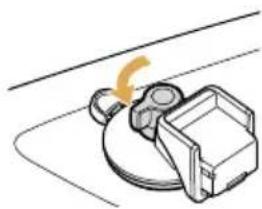
natural_image
Mechanical component diagram showing a lever and base assembly (no text or symbols)Note
Clean the surface of the suction cup with a soft, damp, lint-free cloth if it becomes dirty and attachment strength weakens. Be sure to dry the suction cup before reattaching.
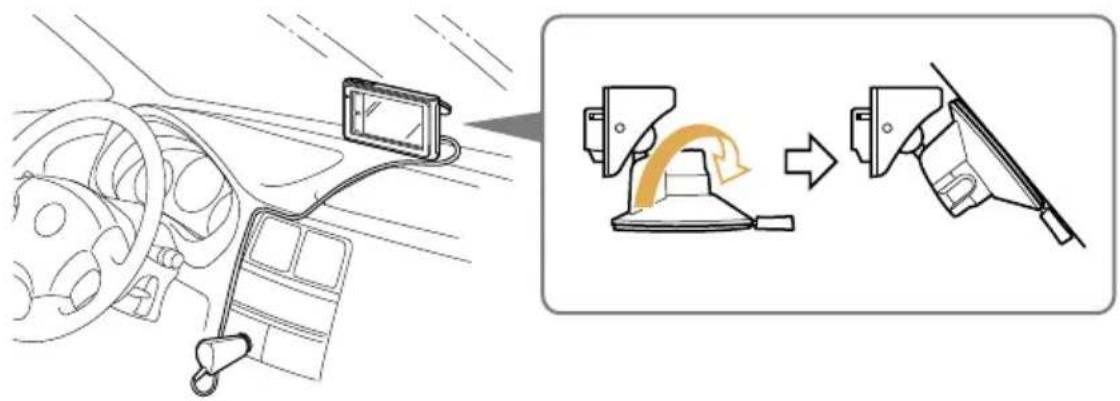
To install on the windshield
Rotate the suction cup before attaching.
Any other procedure is the same as for installing on the dashboard.
text_image
Diagram illustrating car interior and steering wheel assembly with labeled parts and motion arrowsInstallation / Connection
Connecting the power
US
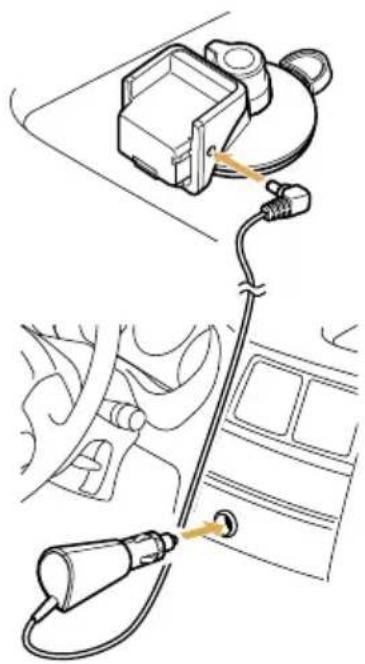
Connect the cradle to the cigarette lighter socket with the supplied car battery adapter.
natural_image
Diagram showing car interior connection with cable and plug, no text or symbols presentAttaching the unit to the cradle
US
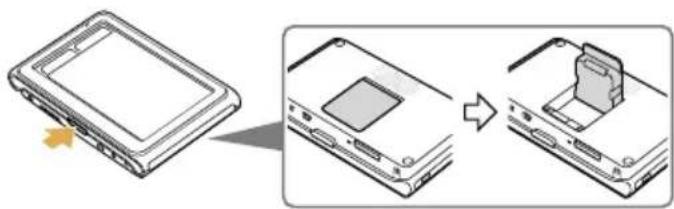
1 Press OPEN/RELEASE to open the built-in GPS antenna.
natural_image
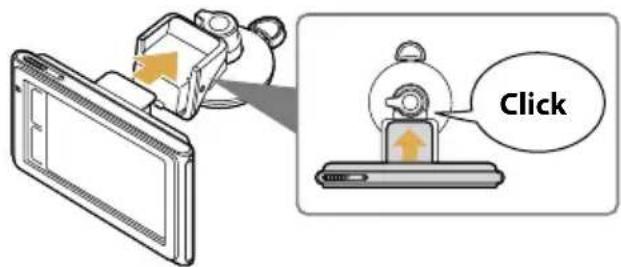
Diagram showing a device being processed into a device, with no visible text or symbols.2 Insert the unit firmly into the cradle until it clicks into place.
text_image
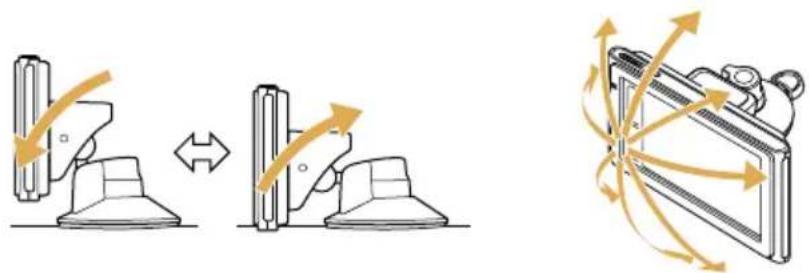
Click3 Adjust the monitor angle for optimal viewing.
natural_image
Diagram showing a mechanical device transitioning from a left-hand tool to a right-hand tool, with motion arrows indicating rotational or directional movement (no text or symbols present)Installing the TMC antenna (NV-U94T only)
US
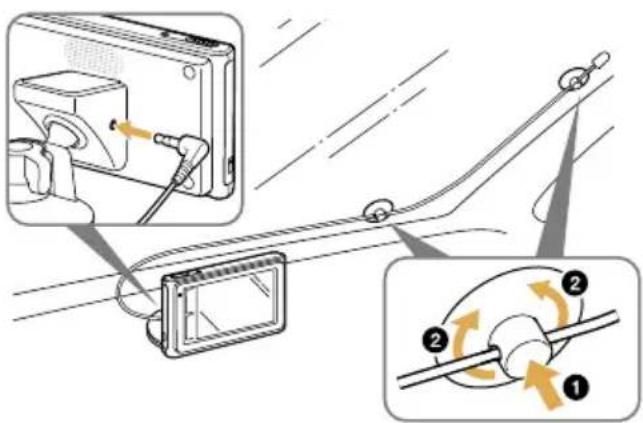
1 Plug the cord to the cradle.
2 Attach the suction cups to the inside of the car's windshield.
To expel air inside the suction cups, press the center ① and periphery ② firmly.
text_image
Diagram illustrating cable connection and rotation process with labeled parts ①, ②, and ③ showing cable routing and cable positioning.Activating the TMC service
After the 90-day free trial, the TMC (Traffic Message Channel) service requires a fee.
Follow the procedure below to activate the TMC service.
1 Purchase the TMC activation code at: http://www Id navigation.com/sony
For details, follow the instructions at the above website.
2 Activate the service on the unit.
Touch MENU → ☐ → "Traffic Information" → "Settings" → "Activate TMC Service" → "Activate."
Enter the purchased activation code.
Installation / Connection
Detaching the unit
US
1 Press and hold OPEN/RELEASE to release the unit.
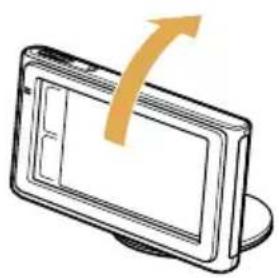
natural_image
Illustration of a device with an arrow indicating rotation or movement (no text or symbols)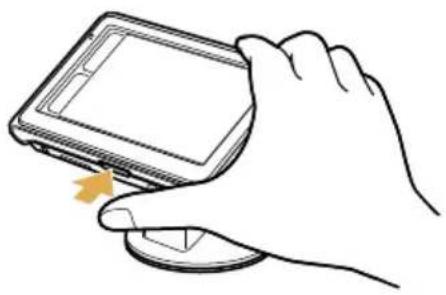
natural_image
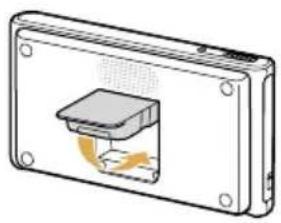
Line drawing of a hand holding a smartphone with a scroll wheel (no text or symbols)2 Close the built-in GPS antenna.
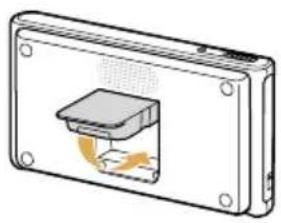
natural_image
Diagram of a rectangular electronic device with a central component and internal circuit (no text or symbols)Detaching the cradle
US
IMPORTANT
Follow the instructions below to avoid damaging the surface of the suction cup.
1 Turn the lever clockwise to unlock the cradle.
2 Use the tab to detach the cradle from surface.
3 Attach the protection cover.
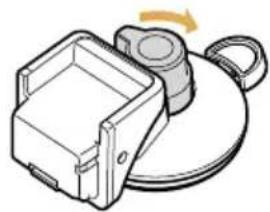
natural_image
Illustration of a mechanical device with a rotating knob and handle (no text or symbols)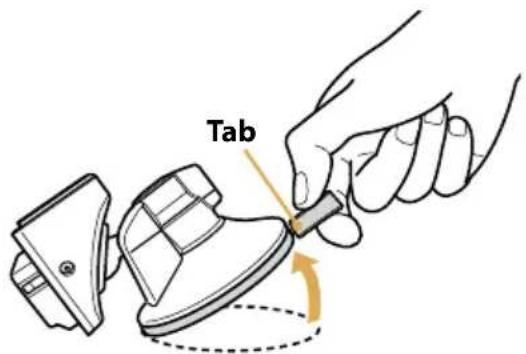
text_image
Tab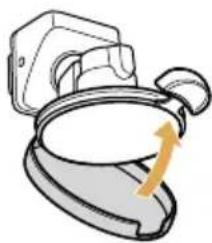
natural_image
Illustration of a toilet with a handle and lid, showing a yellow arrow indicating rotation (no text or symbols)Note
After each use, detach the cradle from the dashboard or windshield.
Turning on the unit
1 Park your car in a safe, open place where the unit has a clear view of the sky.
2 Slide I/⏻.
3 Follow the on-screen instructions of the Startup Configuration Wizard before the first use.
4 Read the warning, then touch "Agree."
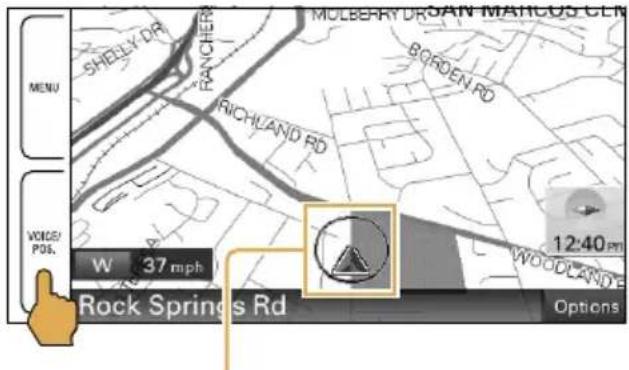
5 Touch VOICE/POS.
6 Wait until the current position calculation completes via GPS signals.
The icon will turn red to indicate sufficient GPS signal strength.
text_image
MULBERRY DRY SAN MAHCOO CEN SHELLY CR RANCHER BORDEN RD RICHLAND RD 12:40 PM W 37 mph WOODLAND WORKERS RD Rock Springs Rd OptionsCurrent position icon
Gray: Position not fixed (insufficient signals).
Orange: Reception temporarily interrupted.
Red: Position fixed.
Notes
- The calculation may take as long as 10 minutes the first time you use the unit.
- The default position is displayed on the map until the calculation is complete.
Main menu
US
text_image
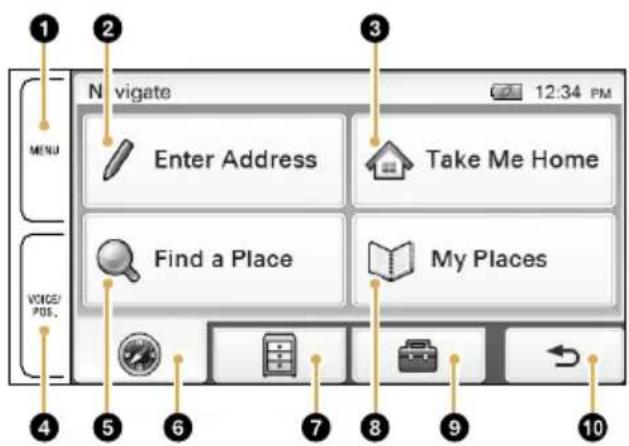
1 2 3 Navigate Enter Address Take Me Home Find a Place My Places MENU VOICE/ POS. 4 5 6 7 8 9 10① Touch to show the main menu.
② Touch to show the address input menu.
③ Touch to start the route guidance to your home.
④ Touch to show the current position on the map.
⑤ Touch to show the place search menu.
⑥ Touch to show the navigation menu.
⑦ Touch to show the application menu.
⑧ Touch to show the stored/recent destinations search menu.
⑨ Touch to show the setting menu.
10 Touch to return to the previous display.
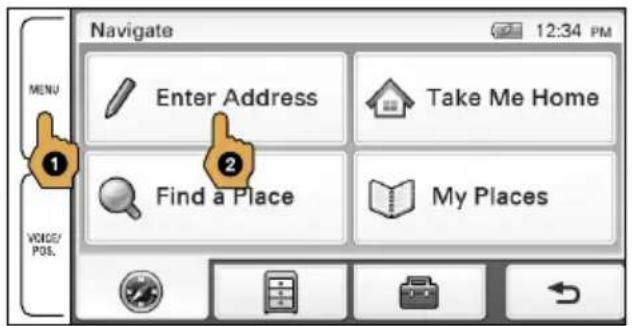
Searching by address
1 Touch MENU, then "Enter Address."
text_image
Navigate 12:34 PM MENU Enter Address Take Me Home ① ② Find a Place My Places VOICE/POS.2 Enter the house number.
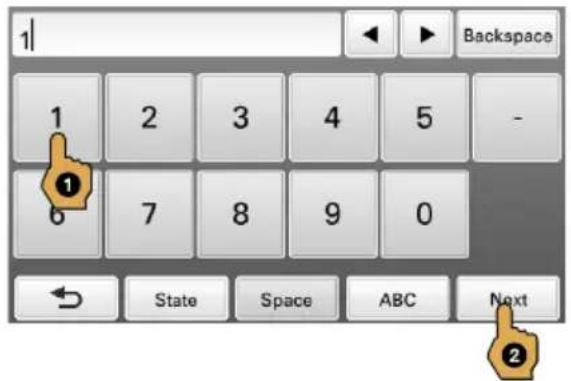
Touch "Next" after entering the house number.
To change the state, touch "State" before touching "Next."
text_image
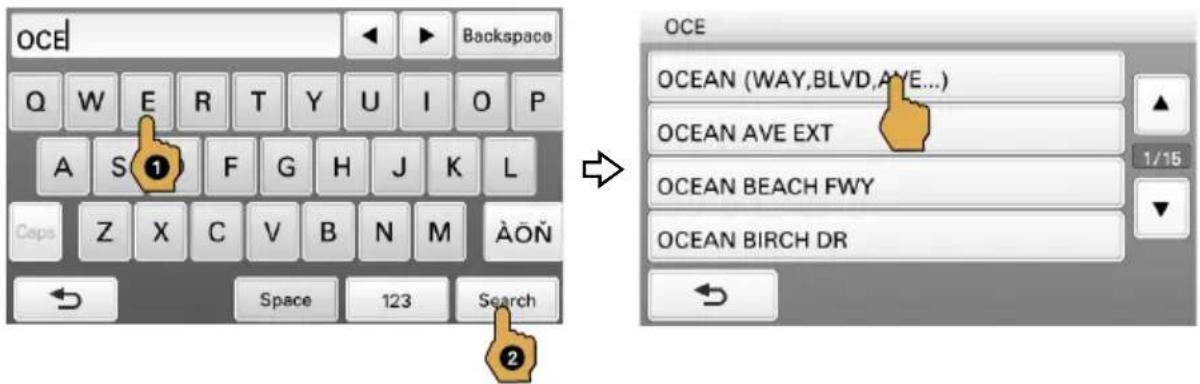
1 Backspace 1 2 3 4 5 - 6 7 8 9 0 State Space ABC Next3 Set the street name.
Enter the name, touch "Search," then select from the list.
text_image
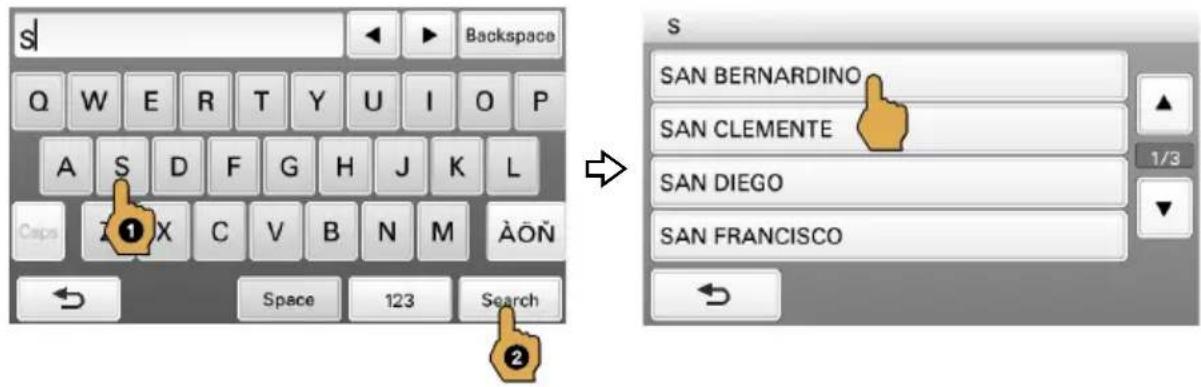
OCE Backspace Q W E R T Y U I O P A S ① F G H J K L Caps Z X C V B N M ÀÖÑ Space 123 Search OCE OCEAN (WAY,BLVD,AYE...) OCEAN AVE EXT 1/15 OCEAN BEACH FWY OCEAN BIRCH DR →4 Set the city name.
Enter the name, touch "Search," then select from the list.
text_image
Backspace Q W E R T Y U I O P A S D F G H J K L Caps ① X C V B N M ÀOÑ Space 123 Search → SAN BERNARDINO SAN CLEMENTE SAN DIEGO SAN FRANCISCO S 1/3 ←5 Touch "Go."
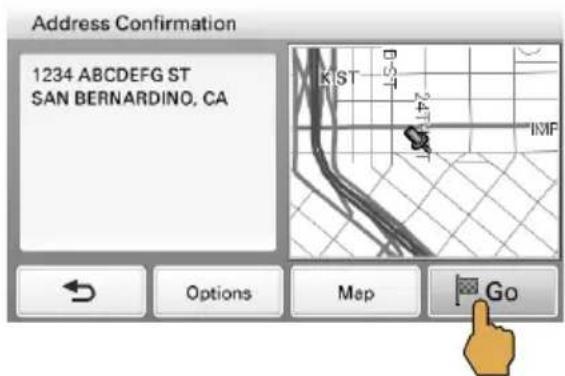
text_image
Address Confirmation 1234 ABCDEFG ST SAN BERNARDINO, CATips
- By entering just the first few letters of a street, city, or state name, its candidate list will be generated after touching "Search."
- The state can be set by entering its standard 2-letter abbreviation (e.g., NY for New York).
Navigation
Searching by POI (Points Of Interest) name
US
1 Touch MENU, then "Find a Place."
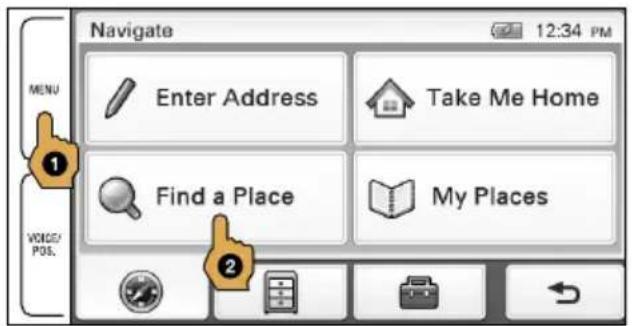
text_image
Navigate 12:34 PM MENU Enter Address Take Me Home Find a Place My Places VOICE/POS. 22 Touch "Points of Interest."
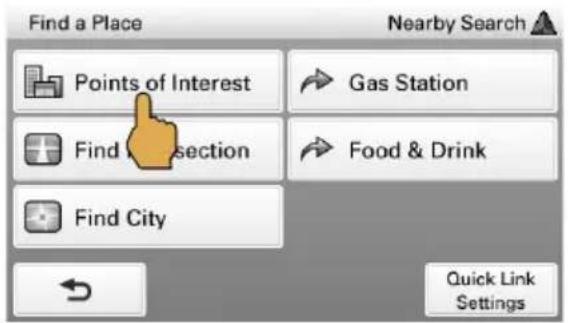
text_image
Find a Place Nearby Search Points of Interest Gas Station Find Intersection Food & Drink Find City Quick Link Settings3 Touch "By Name."
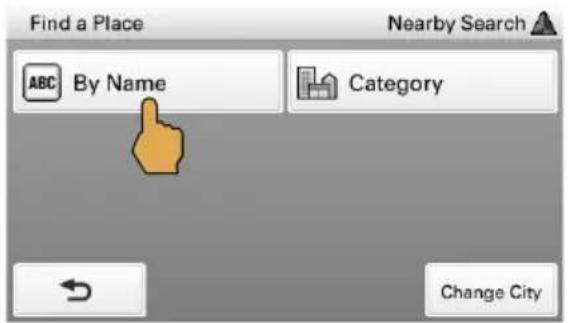
text_image
Find a Place Nearby Search ABC By Name Category Change City4 Enter the POI name, then touch "Search."
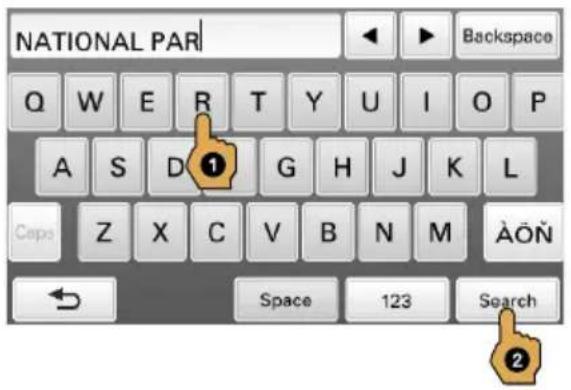
text_image
NATIONAL PAR Backspace Q W E R T Y U I O P A S D ① G H J K L Ceps Z X C V B N M AÖÑ Space 123 Search5 Touch the desired POI in the list.
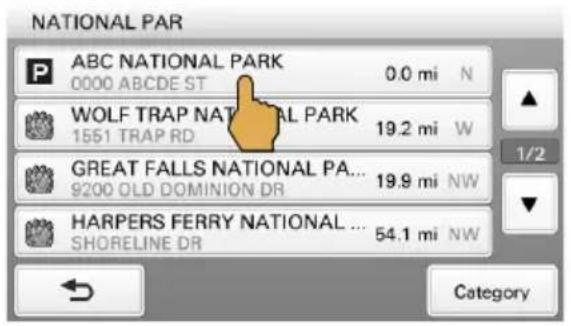
text_image
NATIONAL PAR ABC NATIONAL PARK 0000 ABCDE ST 0.0 mi N WOLF TRAP NATIONAL PARK 1551 TRAP RD 19.2 mi W GREAT FALLS NATIONAL PA... 9200 OLD DOMINION DR 19.9 mi NW HARPERS FERRY NATIONAL ... SHORELINE DR 54.1 mi NW Category6 Touch "Go."
To search by POI category
Select "Find a Place" → "Points of Interest" → "Category" → the desired category → the desired POI → "Go."
Tip
You can find local airports by entering their 3-letter abbreviations (e.g., LAX for Los Angeles International Airport).
Navigation
Map display
US
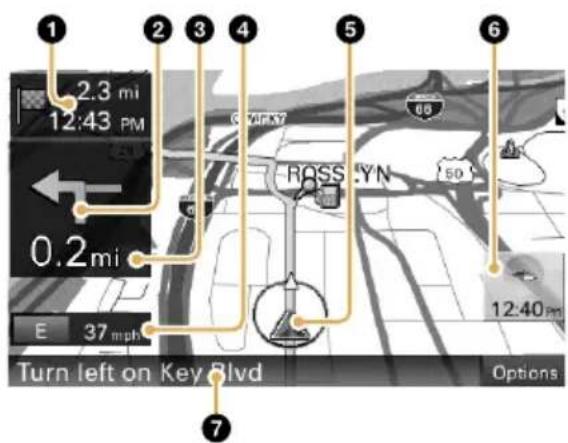
text_image
1 2.3 mi 12:43 PM 0.2 mi E 37 mph Turn left on Key Blvd Options 6 5 ROSS YN 68 50 12:40 pm 7① Distance/ETA (Estimated Time of Arrival) to destination
② Next turn instruction
③ Distance to next turn
4 Current direction/speed
⑤ Current position/GPS status indication
⑥ North indicator/current time
⑦ Next instruction
Dual view
Approaching a freeway junction Approaching a street intersection
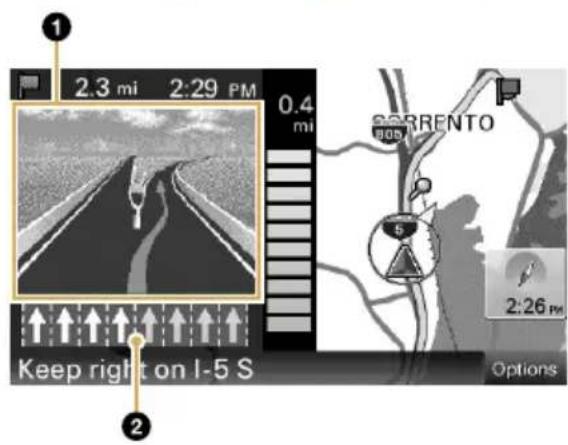
text_image
1 2.3 mi 2:29 PM 0.4 mi Keep right on I-5 S 2:26 pm Options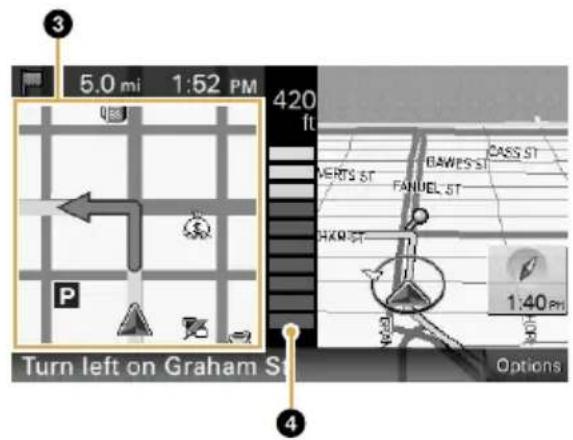
text_image
5.0 mi 1:52 PM 420 ft Turn left on Graham St BAWES ST MAETS ST FANUEL ST HARST 1:40 PM Options① 3D junction image
② Lane guide (correct lane in yellow)
③ Magnified view of an intersection
④ Distance bar
Navigation
Map tools
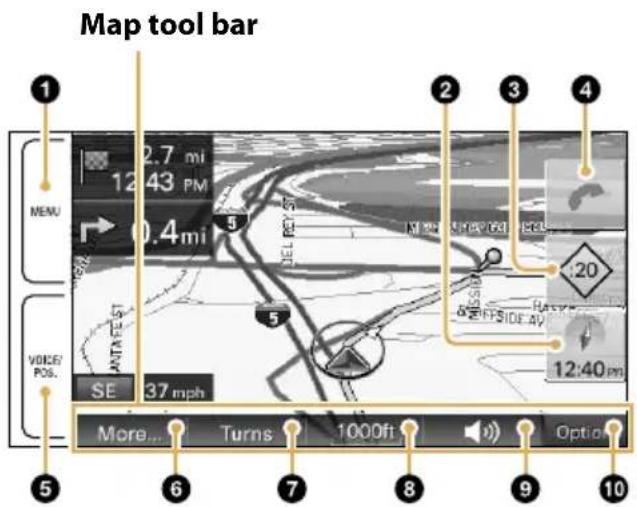
Touch "Options" to show the map tool bar.
text_image
Map tool bar 1 MENU 2.7 mi 12:43 PM 0.4 mi 5 SELL RUST 13 min SIP P 641 HOS 20 VOICE/POS. AATA FLEST 5 BELL SIDE AV 12:40 pm SE 37 mph More... Turns 1000ft Option 5 6 7 8 9 10① Touch to show the main menu.
② Touch to toggle the map orientation (heading up/north up).
3 Touch to show the traffic messages. (NV-U94T only)
20: Checks the delay time (minutes) and shows messages on the current route.
i: Shows messages not on the current route.
④ Touch to show the call in progress display.
(NV-U94T only, during a hands-free call)
5 During route guidance:
Touch to repeat the last voice guidance.
In other cases:
Touch to return to the current position display.
⑥ Touch to show additional map options.
(E.g., "Save This Location," "Quit Navigation," etc.)
⑦ Touch to show the turn-by-turn list. (Only during route guidance)
⑧ Touch to zoom in/out the map.
Touch Ⓧ.
⑨ Touch to adjust the voice guidance volume.
Touch + -
To turn off the sound, touch ✦
10 Touch to hide the map tool bar.
Navigation
US
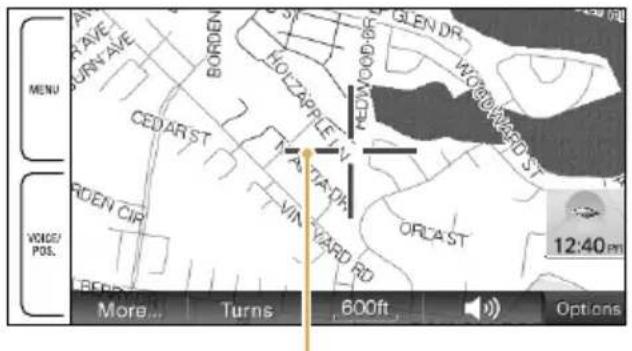
Map scrolling mode
1 Touch the map to switch to the scrolling mode.
2 Place the desired point into the crosshair.
To scroll a map
Drag the screen.
To move the desired point to the center of the screen
Touch the point.
To pan the map
Touch and hold the center of the crosshair until the beep sounds, then drag it in the desired direction.
text_image
MENU AVEN AVE TURN AVE BORDEN HOLZAPPLE V CEDAR ST TAKTA DR. VIN YARD RD ORCAST 12:40 PM WORKY POS. BORN CIR. BEER More... Turns 600ft OptionsCrosshair
To exit the map scrolling mode
Touch VOICE/POS. (the current position reappears).
Basic Settings
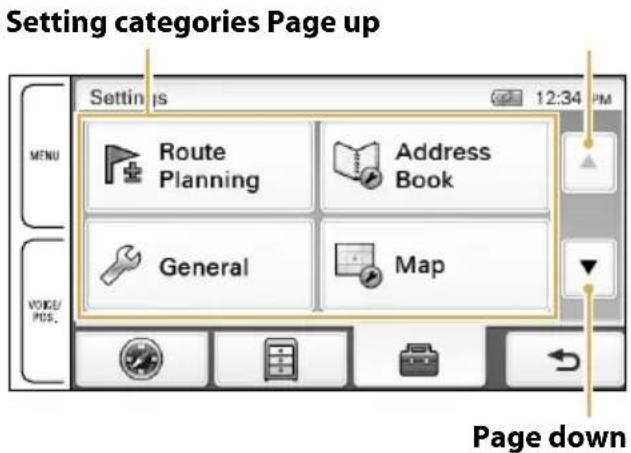
Touch MENU → 📋 show the setting menu.
text_image
Setting categories Page up Settin is 12:34 PM Route Planning Address Book General Map Page downThe setting menu includes the following categories:
- "Route Planning": Future route planning by adding interim destinations
- "Address Book": Saved locations edit
- "General": Menu settings and device information
- "Map": Map display settings
- "Route Profile": Route calculation settings
- "Guide": Route guidance voice and zoom settings
- "Bluetooth" (NV-U94T only): General Bluetooth setups
- "Phone" (NV-U94T only): Bluetooth hands-free setups
Bluetooth® Hands-free Calling (NV-U94T only)
Step 1: Pairing
First, register ("pair") your cellphone with this unit. This registration (pairing) is required only for the first time.
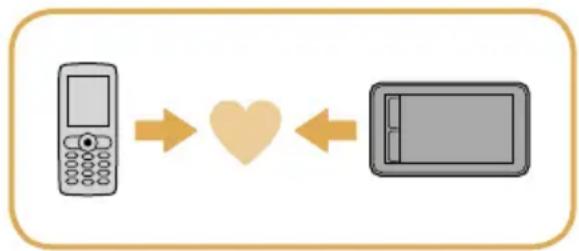
flowchart
graph LR
    A["Mobile Phone"] --> B["Heart Symbol"]
    B --> C["Tablet Icon"]
1 Set the cellphone to allow for searching (discoverable).
2 Touch MENU.
3 Touch 📁en "Bluetooth."
4 Touch "Bluetooth Signal" to set to "ON."
The Bluetooth indicator lights up in blue.
5 Touch "Add Devices," then "OK."
6 In the list, touch the cellphone to register.
7 Enter the same passkey on this unit and the cellphone.
The passkey is a 4 or more digit number (e.g., 1234), which is either selected by yourself or determined by the cellphone.
For details, see also the manual of the cellphone.
Step 2: Connecting
Connect this unit and the cellphone for hands-free calling.
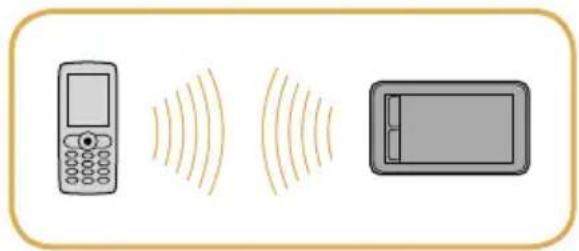
natural_image
Illustration of a mobile phone, wireless signals, and a tablet device (no text or symbols)Once paired, the unit automatically connects to the last connected cellphone. To connect manually, follow the procedure below.
1 Touch MENU.
2 Touch 📋 en "Phone."
3 Touch "Select Phone."
4 In the list, touch the cellphone to connect, then "OK."
The unit is connected to the cellphone.
Note
The Bluetooth signal must be active both on this unit and the cellphone in order to connect.
Bluetooth® Hands-free Calling (NV-U94T only)
Step 3: Hands-free calling
US
Once the unit is connected to the cellphone, you can make/receive a hands-free call.
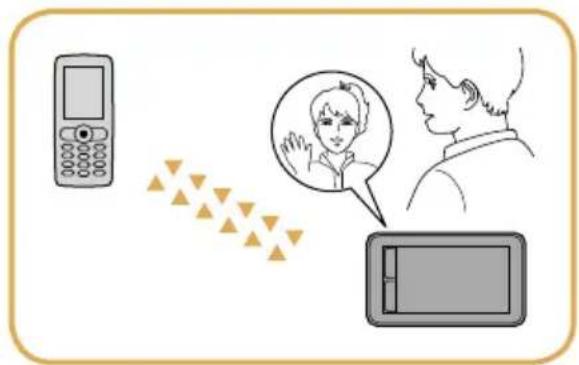
natural_image
Illustration showing a mobile phone connected to a screen with a person inside, and a tablet nearby (no text or symbols)Making a call
1 Touch MENU.
2 Touch then "Phone."
3 Touch "Make a Call," then "Numeric Input."
4 Enter the phone number.
5 Touch
To end the call
Touch
Receiving a call
The following display indicates an incoming call, along with the ring tone.
Touch to answer.
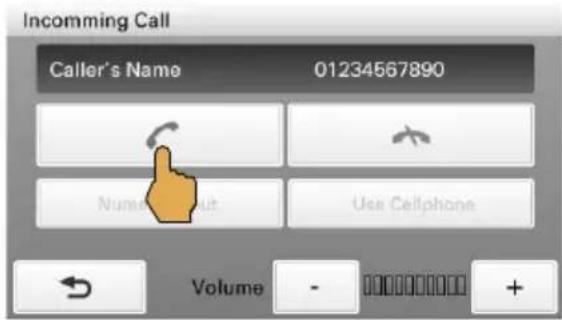
text_image
Incoming Call Caller's Name 01234567890 Numeric Out Use Cellphone Volume - +To reject the call
Touch
To end the call
Touch
Audio / Video Playback (NV-U94T only)
You can play audio/video files stored on a "Memory Stick Duo."
To start playback, touch MENU → "Audio" or "Video."
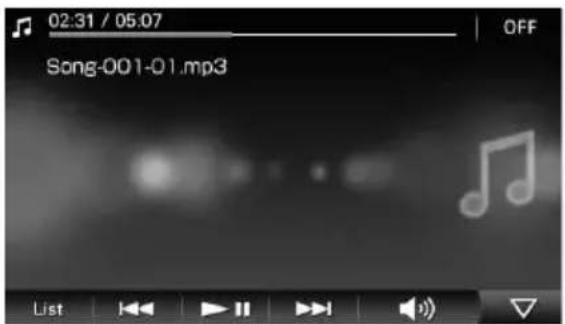
Audio playback display
text_image
02:31 / 05:07 OFF Song-001-01.mp3 ListMP3 and AAC files* are played.
Use the tool bar to control playback.
* Files stored in "MUSIC" folder on 1st level of "Memory Stick Duo."
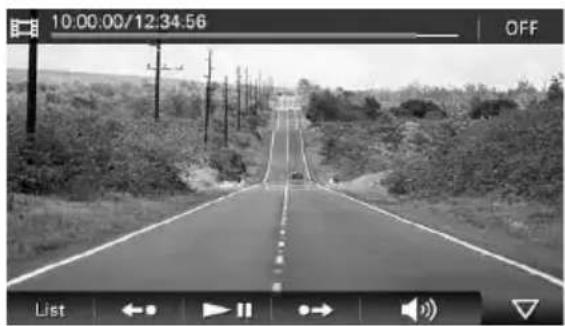
Video playback display
text_image
10:00:00/12:34:56 OFF List ←→ ▶→MP4 files* are played.
Use the tool bar to control playback.
* Files stored in "VIDEO" folder on 1st level of "Memory Stick Duo."
For details on compatible file type and how to transfer files to the "Memory Stick Duo," see "Instruction Manual" (PDF)*.
You can view photo files on a "Memory Stick Duo."
To start playback, touch MENU → "Photo."
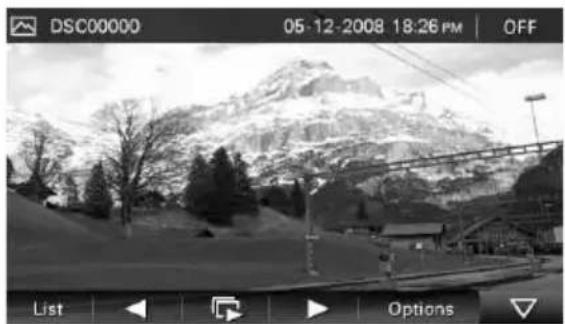
Photo playback display
natural_image
Black-and-white photo of a snowy mountain range with trees and a ski resort in the foreground (no visible text or symbols)JPEG files shot by a Sony digital still camera are played.
Use the tool bar to control playback.
For details on compatible file type, see "Instruction Manual" (PDF)*.
Questions / Problems
If you have any question or problem with this product, try the following first.
US
1 Read Troubleshooting in the supplied "Important Information."
If the problem persists
2 Reset the unit by pressing RESET.
Note
Stored data/destinations such as in the following items will not be erased.
- "Address Book"
- "Recent Destinations"
- "Phone Book" (NV-U94T only)

text_image
RESETIf the problem still persists
3 Please contact:
U.S.A.
Call 1-800-222-7669
URL http://www.sony.com/nav-u/support
Canada
Call 1-877-899-7669
URL http://www.sony.ca/nav-u
Extra Items
To get the most out of the unit, download and install the following items on your computer.
Instruction Manual (PDF): Contains descriptions of all functions.
PC application software: For firmware upgrades and data management.
1 Go to http://esupport.sony.com/
2 Enter your model number (e.g., NV-U94T), then click "Continue."
3 Download the desired item.
To download the manual, select "Documentation" → "Instruction Manual."
To download the software, select "Drivers" → "nav-u tool."
For details, follow the instructions at the website.
Avertissement
FR
VEUILLEZ LIRE CE MANUEL AINSI QUE LE MANUEL « INFORMATION IMPORTANTE » FOURNI DANS LEUR INTÉGRALITÉ AVANT D'INSTALLER OU DE FAIRE FONCTIONNER VOTRE SYSTÈME DE NAVIGATION PERSONNEL. UNE INSTALLATION OU UNE UTILISATION INCORRECTE DE CET APPAREIL PEUT ENTRAÎNER UN ACCIDENT, DES BLESSURES OU LA MORT.
ENREGISTREMENT DU PRODUIT
Installation / Raccordement ....8
Navigation 16
Réglages de base .... 27
Appels Bluetooth® en mains libres (NV-U94T uniquement) .... 28
natural_image
Line drawing of a rectangular electronic device with a flat screen and side panels (no text or symbols)Support Câble USB
natural_image
Technical line drawing of a mechanical component with a square housing and a circular base (no text or symbols)natural_image
Line drawing of a handheld electrical device with coiled cable and terminal connector (no text or symbols)Antenne TMC (NV-U94T uniquement)
natural_image
Simple line drawing of a medical or laboratory device with a coiled cable and two circular components (no text or symbols)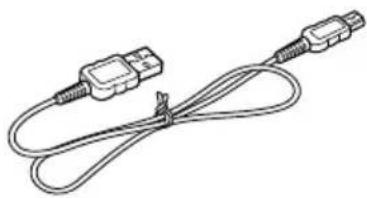
natural_image
Line drawing of two USB connectors tied together with a coiled cable (no text or symbols)text_image
1 2 3 4 5 6 7 MINI MINI/YES 0 CINGnatural_image
Illustration of a toilet with a handle and lid, showing a yellow arrow indicating rotation (no text or symbols)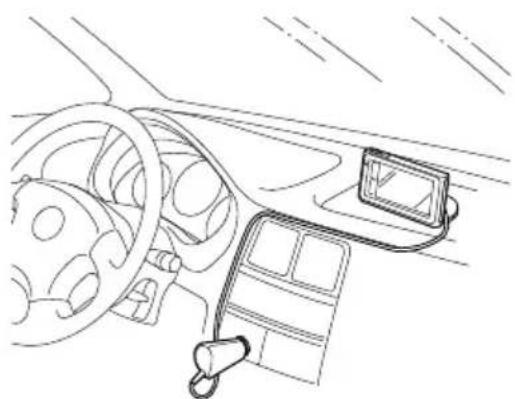
natural_image
Line drawing of a car interior showing steering wheel, dashboard, and mounted device (no text or symbols)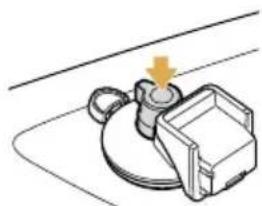
natural_image
Mechanical component diagram showing a lever and housing assembly (no text or symbols)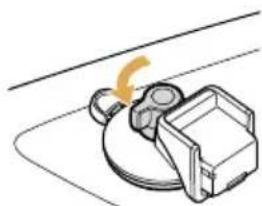
natural_image
Simple line drawing of a mechanical device with a curved arrow indicating motion (no text or symbols)Remarque
natural_image
Diagram showing a car interior with a mounted device and a close-up of the device's seatbelt mechanism (no text or symbols present)FR
Installation / Raccordement
natural_image
Diagram showing car head wiring connections with a connector and cable (no text or symbols)natural_image
Diagram showing a device being processed into a device, with no visible text or symbols.natural_image
Diagram showing a mechanical device transitioning from a left-side lever to a right-side lever, with directional arrows indicating motion (no text or symbols present)text_image
Diagram illustrating cable connection and rotation process with labeled parts ①, ②, and ③ showing cable routing and cable positioning.Activation du service TMC
Installation / Raccordement
natural_image
Illustration of a device with an arrow indicating rotation or movement (no text or symbols)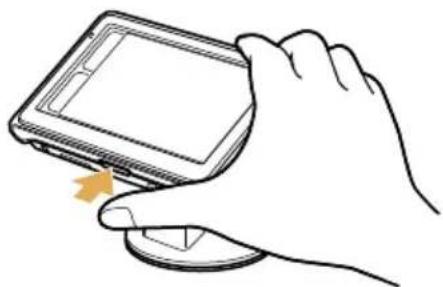
natural_image
Line drawing of a hand holding a smartphone with a scroll wheel (no text or symbols)natural_image
Diagram of a rectangular electronic device with a central component and directional arrows indicating flow or movement (no text or symbols)Retrait du support
IMPORTANT
natural_image
Illustration of a mechanical device with a rotating knob and handle (no text or symbols)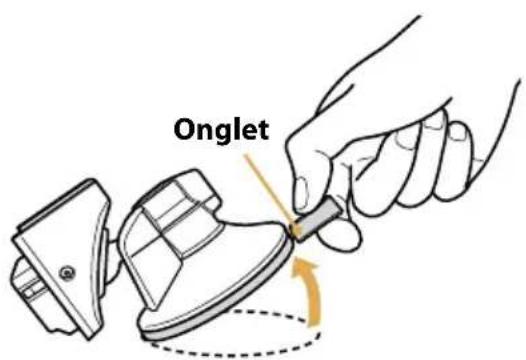
text_image
Onglet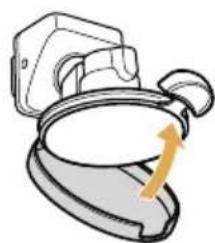
natural_image
Illustration of a toilet with a handle and lid, showing a yellow arrow indicating rotation (no text or symbols)Remarque
natural_image
Illustration of a mobile phone, wireless signals, and a tablet device (no text or symbols)FR
natural_image
Illustration showing a mobile phone connected to a screen with a cartoon face, and a person looking out of the screen (no text or symbols present)Effectuer un appel
text_image
10:00:00/12:34:56 DESACT. Liste ← ▶ ▶ → ▶natural_image
Line drawing of a rectangular electronic device with a flat panel and side slots (no text or symbols)Base Cable USB
natural_image
Technical line drawing of a mechanical component with a square housing and a circular base (no text or symbols)natural_image
Line drawing of a handheld electrical device with coiled cable and terminal connector (no text or symbols)Antena TMC (solo el modelo NV-U94T)
natural_image
Simple line drawing of a medical or laboratory device with a coiled cable and two circular components (no text or symbols)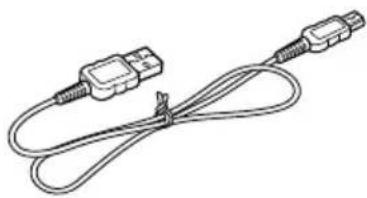
natural_image
Line drawing of two USB connectors tied together with a coiled cable (no text or symbols)natural_image
Illustration of a toilet with a handle and lid, showing a yellow arrow indicating rotation (no text or symbols)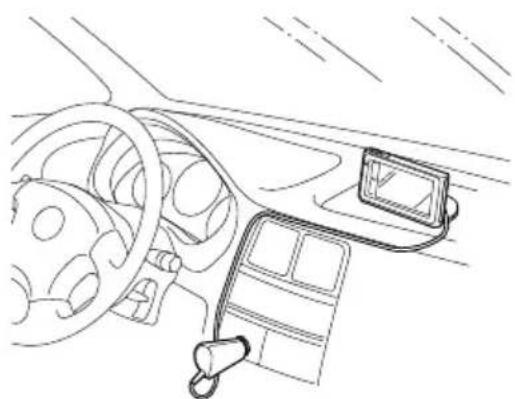
natural_image
Line drawing of a car interior showing steering wheel, dashboard, and mounted device (no text or symbols)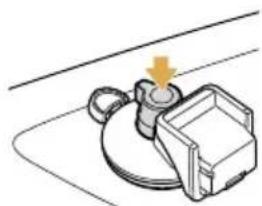
natural_image
Mechanical component diagram showing a lever and housing assembly (no text or symbols)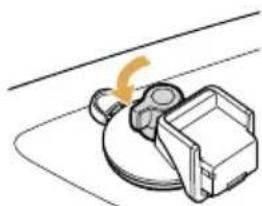
natural_image
Simple line drawing of a mechanical device with a curved arrow indicating motion (no text or symbols)Nota
text_image
Diagram illustrating car interior and steering wheel assembly with labeled components and motion arrowsES
natural_image
Diagram showing car interior connection with cable and plug, no text or symbols presentnatural_image
Diagram showing a device being processed into a device, with no visible text or symbols.natural_image
Diagram showing a mechanical press mechanism transforming from a lever to a flat plate, with directional arrows indicating motion (no text or symbols present)text_image
Diagram illustrating cable connection and rotation mechanism with labeled parts ① and ②natural_image
Illustration of a device with an arrow indicating rotation or change (no text or symbols)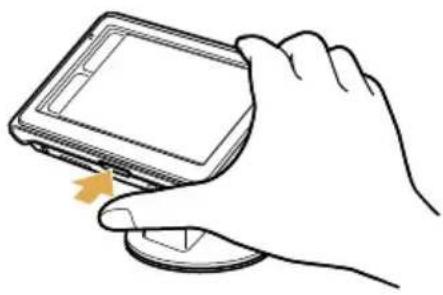
natural_image
Line drawing of a hand holding a smartphone with a scroll wheel (no text or symbols)2 Cierre la antena GPS incorporada.
natural_image
Illustration of a rectangular electronic device with a central component and mounting holes (no text or symbols)natural_image
Illustration of a mechanical device with a rotating knob and handle (no text or symbols)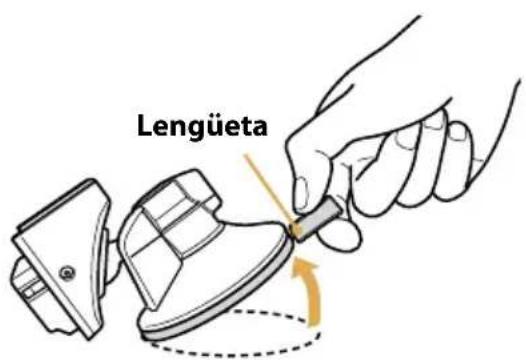
text_image
Lengüeta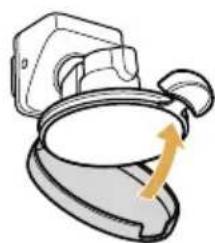
natural_image
Illustration of a toilet with a handle and lid, showing a yellow arrow indicating rotation (no text or symbols)Nota
natural_image
Illustration of a mobile phone, wireless signal waves, and a tablet device (no text or symbols)ES
natural_image
Illustration showing a mobile phone connected to a screen with a person inside, and a tablet nearby (no text or symbols)ES