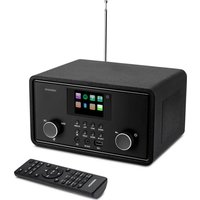
LIFE E85052 (MD 87267) - Radio MEDION - Free user manual and instructions
Find the device manual for free LIFE E85052 (MD 87267) MEDION in PDF.



User questions about LIFE E85052 (MD 87267) MEDION
0 question about this device. Answer the ones you know or ask your own.
Ask a new question about this device
Download the instructions for your Radio in PDF format for free! Find your manual LIFE E85052 (MD 87267) - MEDION and take your electronic device back in hand. On this page are published all the documents necessary for the use of your device. LIFE E85052 (MD 87267) by MEDION.
USER MANUAL LIFE E85052 (MD 87267) MEDION
Model: YN12W-1200080VZ
Hersteller: Winna,
China
www.medion.com/conformity.
C∈2522
Selection de services radio
Keep network connected
Fabricant: Winna, Chine
Chiffrement: WEP/WPA/WPA2
6.1. Bediening in de menu's
Bediening via de afstandsbediening
Keep network connected
1. Notes on how to use these instructions 129
1.1. Symbols and key words used in these instructions 129
FR
2. Proper use
3. Safety instructions
3.1. People not permitted to use this device 130
3.2.Setting up the device safely 131
3.3. Mains connection
3.4. Thunderstorms 132
3.5. Never carry out repairs yourself 132
3.6. Safe handling of batteries 133
4. Getting started
4.1. Check package contents 134
4.2. Inserting the battery in the remote control 134
4.3. Connections 135
4.4. Resetting the device in case of malfunction 135
5. Overview of WLAN radio 136
5.1. Front 136
5.2. Rear 137
5.3. Remote control 138
6. Menu structure 139
6.1.Navigating the menus.. 140
7. Internet radio settings 140
7.1. Network requirements
8. Network configuration 141
9. Connecting to a power supply 141
10. Using the device for the first time 141
10.1. Select language 141
10.2. Setting the time and date 141
10.3. Maintain network connection 142
10.4. Select WLAN region 142
10.5. Establishing a connection to a network 142
10.6.WLAN connection via WPS 143
10.7. Enter network key 144
11. Listening to music 144
12. Listening to Internet radio 144
12.1. Connection to an Internet radio station/a podcast 148
13. Listening to FM radio 149
13.1. Setting radio stations 150
13.2. Saving radio stations 150
13.3. Main menu in FM radio mode 150
14. Listening to audio files from the network 151
14.1. Using the WLAN radio as media client 151
14.2. Connection between the Internet radio and a media server 151
14.3.Music player mode 152
14.4. Playback display 153
15. Settings in the System Settings menu 154
15.1. Equalizer 154
15.2. Network (Internet settings) 154
15.3.Time/Date 155
15.4. Language 155
15.5. Factory reset 155
15.6. Software Update 155
15.7. Setup wizard (start wizard) 156
15.8. Info 156
15.9. Backlight 156
16. Settings in the Main Menu 156
16.1. Sleep 156
16.2. Alarm 156
17. Playing audio signals from external devices 158
18. Accessing the web interface of the Internet radio 158
19. Control using the Lifestream IR application 158
19.1. Installation via direct link 158
19.2. Installation via Google Play or the Apple App Store 158
19.3. Using the app 159
20. Troubleshooting 160
21. Cleaning 162
22. Disposal 162
23. Technical data 163
24. Conformity and licence information 164
25. Licence agreements for end users 164
25.1. Audio products for use with Internet radio 164
26. Legal notice 165
1. Notes on how to use these instructions

Before using the device for the first time, you should read these operating instructions thoroughly and follow the safety advice!
Please keep these instructions in a safe place for future reference. Always include these instructions, if you pass the device on to a new owner.
1.1. Symbols and key words used in these instructions

DANGER!
Warning: immediate mortal danger!
WARNING!
Warning: possible mortal danger and/or serious irreversible injuries!
WARNING!
Warning: possible minor or moderate injuries!

WARNING!
Warning of risk of electric shock!

CAUTION!
Please follow the guidelines to avoid property damage!

PLEASE NOTE!
Additional information on using the device!

PLEASE NOTE!
Please follow the guidelines in the operating instructions!
- Bullet point/information on operating steps and results
Tasks to be performed
2. Proper use
This device is used for playing audio files streamed over the Internet or via a network. In addition, the device can be used for playing FM radio signals.
- The device is intended for private use only and not for industrial/commercial use.
Please note that we shall not be liable in cases of improper use: - Do not modify the device without our consent and do not use any auxiliary equipment which we have not approved or supplied.
- Use only spare parts and accessories which we have supplied or approved.
- Heed all the information in these operating instructions, especially the safety information. Any other use is deemed improper and can cause personal injury or damage to the device.
- Do not use the device in areas where there is a risk of explosion. These areas include e.g. tank farms, fuel storage depots, or areas in which solvents are processed. It is also not permitted to use this device in areas where the air is polluted with fine particles (e.g. flour dust or sawdust).
- Do not expose the device to any extreme conditions. The following should be avoided:
-High humidity or moisture
-Extremely high or low temperatures
-Direct sunlight
-Open fire
3. Safety instructions
3.1. People not permitted to use this device
Keep the device and its accessories out of reach of children.
- This device is not intended for use by people (including children) with reduced physical, sensory or mental abilities
or by those without experience and/or knowledge, unless they are supervised by a person responsible for their safety or they have been instructed in its use by that person. Children should be supervised to ensure they do not play with this device.
- DANGER! Keep plastic packaging out of the reach of children. There is a risk of suffocation!
3.2. Setting up the device safely
- Set up and operate all the components on a stable, level and vibration-free surface to prevent the product from falling.
- Do not subject the product to knocks and vibrations. Knocks and vibrations may damage the sensitive electronics.
- Do not place the product near heat sources (e.g. heaters) that could affect it.
- Do not place naked flames (e.g. lit candles) on or near the product.
- Make sure that the vents are never covered so as to ensure that there is always adequate ventilation.
- Do not place any objects on the cables to avoid damaging them.
- Maintain a minimum distance of approx. 10cm between the product or mains adapter and any walls. Ensure adequate ventilation.
- Do not place liquid-filled containers, such as vases, on or near the device. The container may tip over and the liquid may impair the electrical safety of the device. Keep the device away from moisture and from water in droplet or spray form.
- In order to prevent malfunctions, avoid knocks, dust, heat and direct sunlight. The operating temperature is 5 - 35^ C .
- Do not use the device outdoors as it could be damaged by rain, snow, etc.
- To avoid malfunctions, keep the device at a distance of at least one metre from high-frequency or magnetic
interference sources (televisions, loudspeakers, mobile telephones, etc.). If any malfunctions occur, set up the device at a different location.
- Major changes in temperature or fluctuations in humidity can cause moisture to build up within the device due to condensation – this can cause an electrical short circuit.
3.3. Mains connection
- Connect the mains adapter only to a power socket (AC 100–240 V ~ 50/60 Hz) that is easy to reach and close to the place where you have set up the device. The socket outlet must be freely accessible so that you can unplug the device from the mains quickly if necessary.
- Only use the power cable supplied with the product. Never try to connect the mains adapter to other connectors as this may cause damage.
- If the device has been moved from a cold room to a warm room, wait before connecting it to the power supply. The resulting condensation may damage the device. The device can be operated safely as soon as it has reached room temperature.
- Make sure that the mains cable does not present a trip hazard. Do not allow the connecting cable to become trapped or squashed.
3.4. Thunderstorms
Pull out the mains plug if you are away for a long period of time or if there is a thunderstorm.
3.5. Never carry out repairs yourself
- If the plug, cable or device is damaged, immediately unplug the device from the mains.
- Do not use the device if it or the connecting cables are visibly damaged or if the device itself has been dropped.

WARNING!
Never try to open and/or repair a component yourself. There is a risk of electric shock!
- In the event of a fault, contact our Service Centre or another suitable professional repair workshop.
3.6. Safe handling of batteries
The remote control of the device requires a button cell battery. Please note the following:
- Keep batteries away from children. They can be fatal if swallowed. If a battery is swallowed, please obtain immediate medical assistance.
- Do not throw batteries into a fire; do not short-circuit them and do not dismantle them.
- If necessary, clean the battery and device contacts before insertion.
- Please note the polarity (+ / -) when inserting the battery.
- Remove the battery if the device is not going be used for long periods.
- Remove spent batteries immediately from the device! There is an increased risk of leakage!
- Do not expose the battery to extreme conditions; for example, do not place the device on top of radiators! There is an increased risk of leakage!
- Never try to recharge non-rechargeable batteries! There is a risk of explosion!
- Immediately remove leaking batteries from the remote control. Clean the contacts before inserting a new battery. There is a risk of skin irritations from battery acid!
- If battery acid has leaked out, under no circumstances allow it to come into contact with the skin, eyes and mucous membranes! If the acid does come into contact with skin, immediately rinse the affected areas with plenty of clear water and consult a doctor immediately.
4. Getting started
4.1. Check package contents
Remove all packaging materials including the film on the display.

DANGER!
Do not let children play with the plastic film. There is a risk of suffocation!
Please check your purchase to ensure that all items are included. If anything is missing, please contact us within 14 days of purchase. The following items are supplied with the product you have purchased:
- Internet radio
- Remote control and battery (button cell 3 V, CR2025)
Audio cable - Mains adapter (model YN12W-1200080VZ, manufacturer: Winna)
These operating instructions - Guarantee conditions
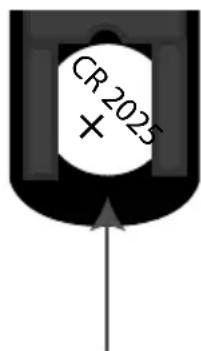
4.2. Inserting the battery in the remote control
The remote control works with one 3 V button battery, type CR2025.

WARNING!
There is a risk of explosion if batteries are replaced incorrectly.
Replace batteries only with the same or equivalent type.
Slide down the battery compartment cover on the back of the remote control. Remove any spent batteries by pushing them down and out of the guide and dispose of them at a collection point for used batteries.
Insert a fresh CR 2025 battery into the battery compartment with the positive pole facing up. Ensure the + / - terminals are correct.
Replace the cover.
4.3. Connections
WLAN mode: The device has an integrated Wi-Fi antenna.
Operation of the FM radio: Align the aerial towards the rear of the device for reception.
- Mains adapter: Connect the connector plug on the mains adapter (supplied) to the DC IN port and plug the mains power plug into an AC 100-240 V ~ 50/60 Hz socket.
LINE OUT: Connect a 3.5mm stereo jack to the LINE OUT socket to transfer the stereo sound output of the Internet radio to other audio devices.
AUX IN: Connect a 3.5 mm stereo jack to the AUX IN socket to play back stereo sound output from other audio devices via the Internet radio.
4.4. Resetting the device in case of malfunction
If your device does not respond, disconnect the device from the mains by pulling out the mains plug. Connect it to the mains again after a few seconds.
Then reset the menu settings to the factory settings by accessing the menu SYSTEM SETTINGS -> FACTORY RESET and confirming the prompt with YES.
You will have to repeat the installation process.

NOTE!
Please note that all settings, e.g. the network WEP key, will be irretrievably lost and will need to be input again after the device has been reset.
5. Overview of WLAN radio
5.1. Front
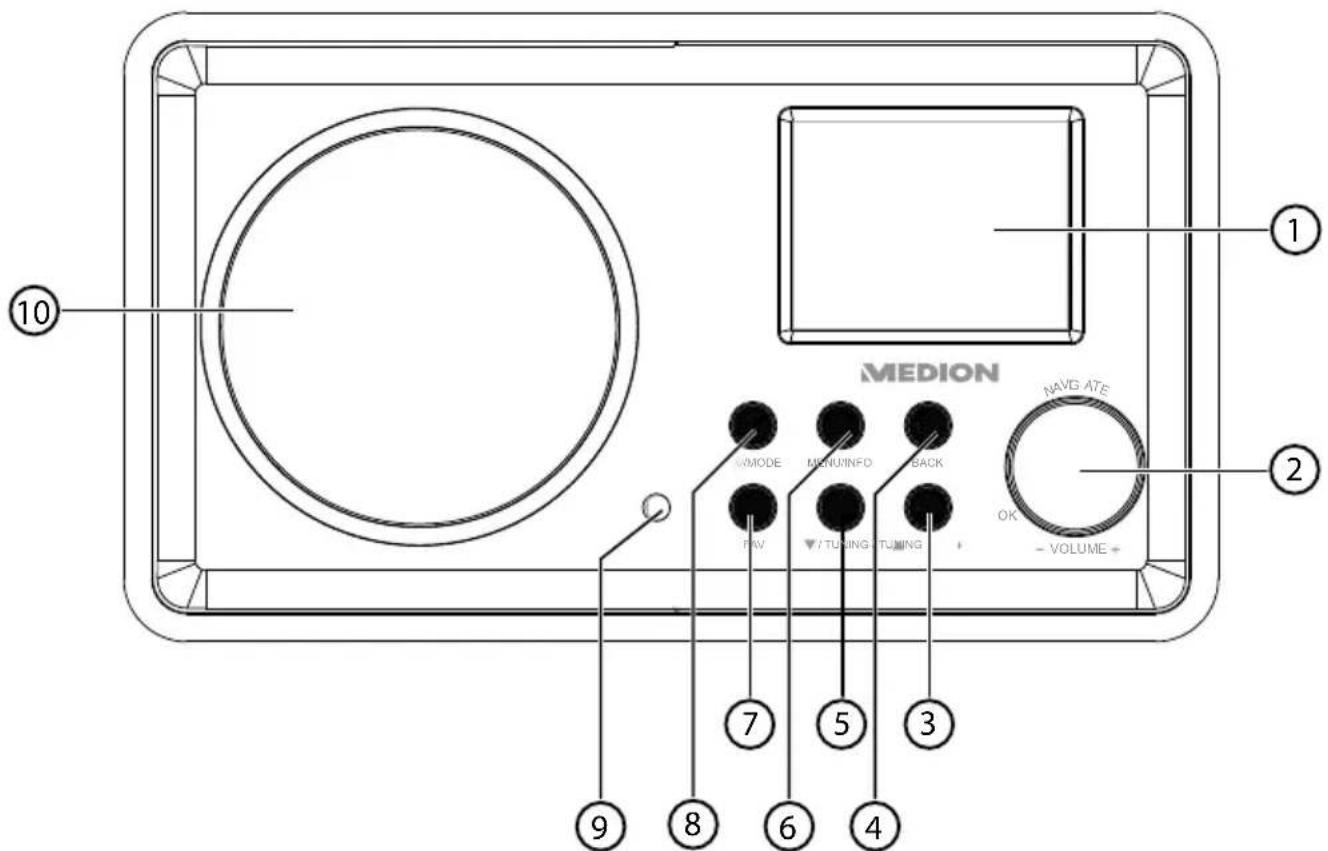
1) Display
2) Dial NAVIGATE/-VOLUME+: Volume control/menu navigation; Push button OK: Confirm/select entries
3) /TUNING: Play back next track, FM station search forwards
4) TUNING: Play back previous track, FM station search backwards
5) BACK: Back one menu level
6) MENU/INFO: Call up settings menu; call up station/track information
7) FAV: Open save favourites list
8) ①: Switch the device into standby mode/ MODE: Select operating mode
9) Infrared receiver for remote control
10) Speaker
5.2. Rear
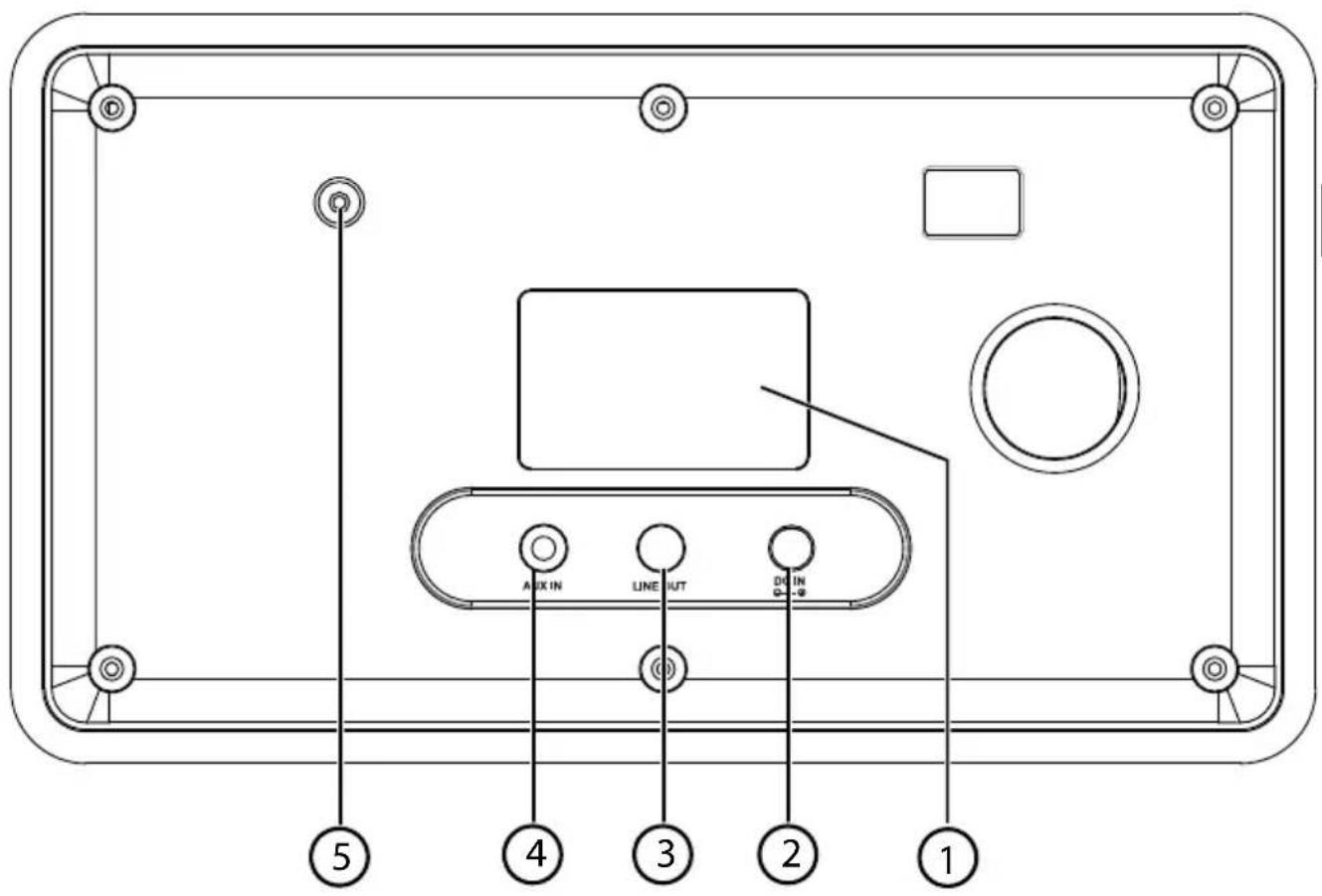
1) Identification plate
2) DC IN: Socket for the mains power adapter
3) LINE OUT: Audio output, 3.5 mm stereo socket
4) AUX IN: Audio input, 3.5 mm stereo socket
5) Aerial
5.3. Remote control
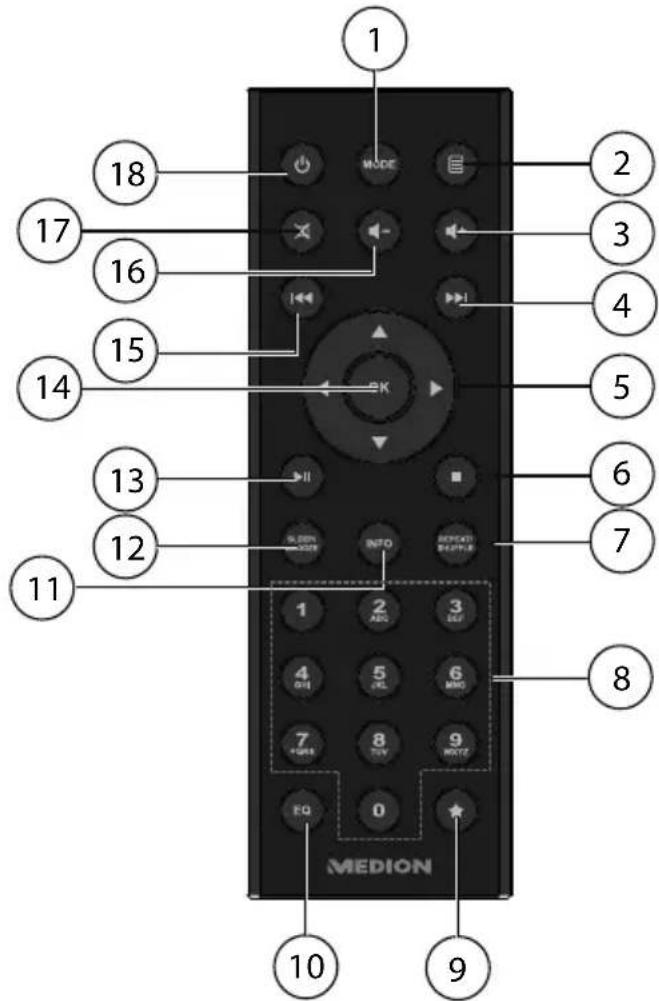
1) MODE: Select operating mode
2) 目: Open menu
3) : Increase volume
4) Play back next track, FM station search forwards
5) Navigation buttons
6) STOP: Stop playback
7):RepeaT function/random playback
8) NUMBER KEYS: For entering characters
9) : Open favourites
10) EQ: Setting the equaliser
11) INFO: Change displays
12) :SrepeP/snooze time
13) II:Start/pause playback
14) OK: Confirm entries;
keep pressed down to add track to playback list
15) Play back previous track, FM station search backwards
16) : Reduce volume
17) Mute
18) : Switch the device into standby mode
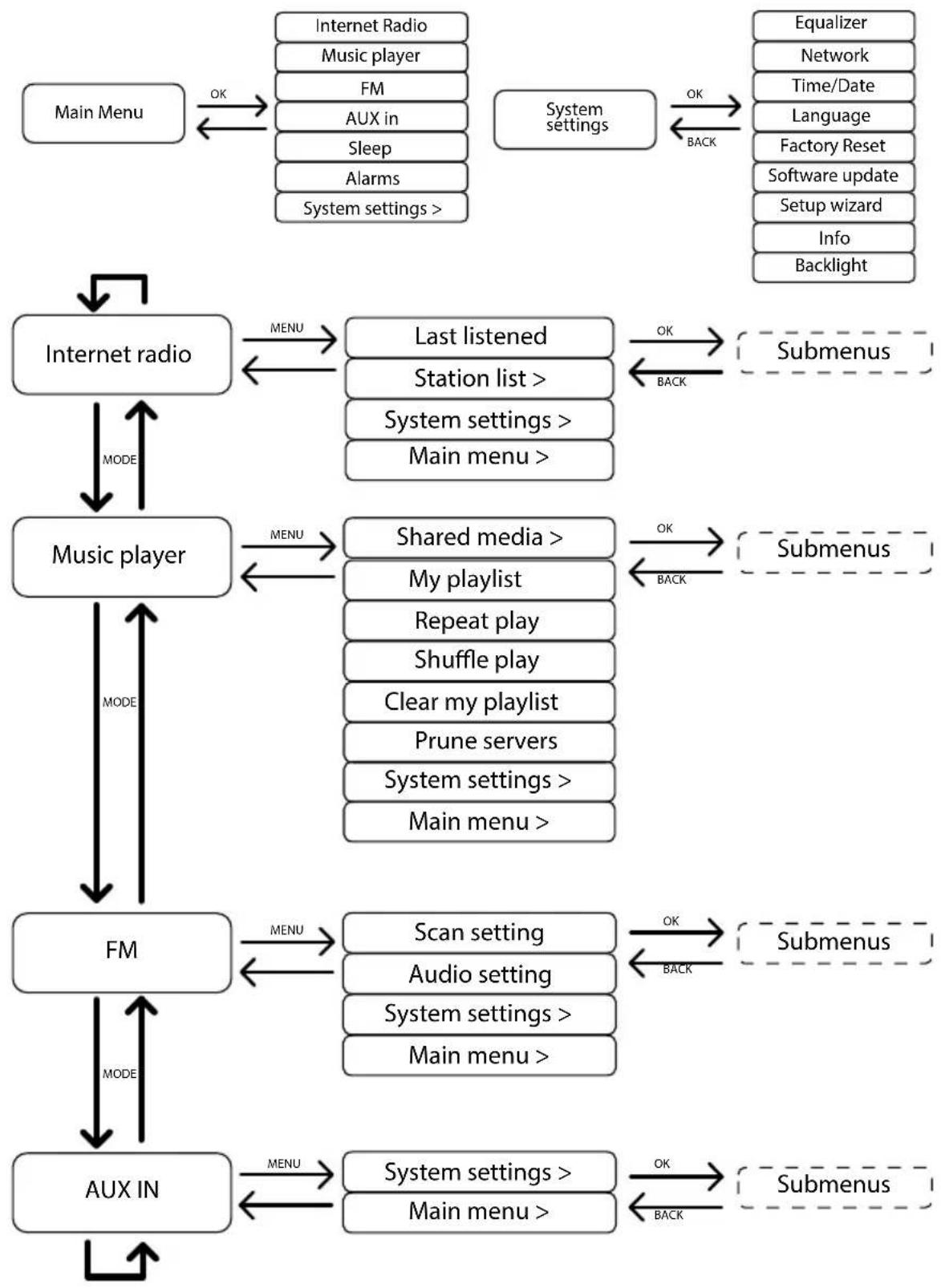
6. Menu structure
The radio has the following menu structure:

NOTE!
The menus MAIN MENU and SYSTEM SETTINGS can be accessed from any operating mode. You can also access the SYSTEM SETTINGS from the MAIN MENU.
6.1. Navigating the menus
Remote control operation
All functions can be operated using the remote control as well as the control buttons on the device. However, some functions are easier and more immediate to operate using the remote control:
- Enter symbols and numbers by repeatedly pressing the digit/symbol buttons
- Music playback functions PLAY, STOP, previous/next track, track search
Navigating in the menus
Press the / MODE button on the device and turn the OK dial to select an operating mode or press the MODE button on the remote control and select an operating mode (INTERNET RADIO, MUSIC PLAYER, FM or AUX IN) using the arrow keys. Confirm the mode selection by pressing OK.
Press the MENU button to open the main menu for the corresponding mode.
- Use the dial on the device or the arrow keys on the remote control to select an entry and confirm your selection by pressing OK. Press the MENU or BACK button to return to a previous menu level.
7. Internet radio settings
When connected to the internet, the radio is logged into a service providing Internet radio stations. It enables you to receive more than 13,000 radio stations from around the world. You can save up to 500 stations in a favourites list.
You can connect the radio to the Internet via an access point to a PC:
- Wireless in WLAN mode: The radio's WiFi antenna receives the signals from your DSL router.
The PC does not need to be switched on for the radio to receive radio stations.

NOTE!
The station list on your Internet radio is provided free of charge and is updated regularly.
If a radio station is not available, this can be due to a variety of reasons on the part of the radio station operator. This is not, however, a device fault.
When connecting to Internet radio stations, there may be temporary delays due to the high occurrence of requests. Try to set up a connection to the Internet service again at a later time.
7.1. Network requirements
The network must meet the following requirements for the device to function as a WLAN radio:
- The router used for the network must have a DHCP server function so it can
automatically assign the device a network IP address.
- If your router is configured in this way, you can connect your WLAN radio to the network without further action.
8. Network configuration
The network configuration for the Internet radio is entered in WLAN mode (wireless).
- If you have a wireless 802.11 b/g/n network, you can connect the Internet radio to the Internet via Wi-Fi:
On first use, you will need to select an access point (AP) and, if necessary, enter the network key. The radio will then always tune in to this AP automatically. A message will appear if the device is unable to find the AP.
9. Connecting to a power supply
Plug the mains cable supplied (model number YN12W-1200080VZ) into the DC IN socket on the device.
10. Using the device for the first time
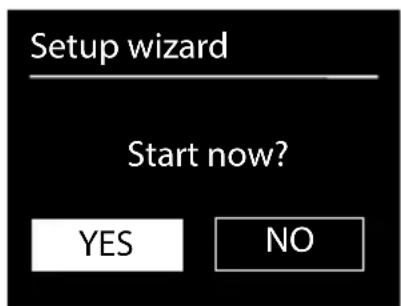
On first use, confirm the query SETUP WIZARD START NOW? with YES to start the setup wizard.

NOTE!
If you select NO, you can specify in the next display whether the wizard should start the next time you switch on the device.
10.1. Select language
- Select the desired language by turning the dial and press it to confirm the language.
10.2. Setting the time and date
In the menu select 12/24 TIME FORMAT 12 or 24.
- Specify whether the time is to be updated automatically via FM reception (UPDATE FROM FM) or via the network (UPDATE FROM NET).
UPDATE VIA INTERNETONST.
If you have selected the option UPDATE FROM NET, proceed as follows:
In the next query window set your time zone.
Then set the automatic setting of summer/winter time to ON or OFF.
NO UPDATE
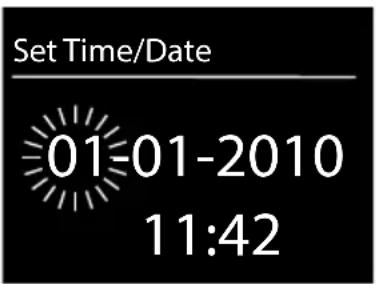
If you have selected the last option (NO UPDATE), set the time manually as follows:
The digits indicating the day will flash. Use the dial to set the day and then press the dial to confirm your selection or set the day with the arrow keys on the remote control and confirm your selection with the OK button.
The digits indicating the month will flash. Use the OK dial to set the month and then press the dial to confirm your selection or set the month with the arrow keys on the remote control and confirm your selection with the OK button.
The digits indicating the year will flash. Use the OK dial to set the year and then press the dial to confirm your selection or set the year with the arrow keys on the remote control and confirm your selection with the OK button.
The digits indicating the hours will flash. Use the OK dial to set the hour and then press the dial to confirm your selection or set the hour with the arrow keys on the remote control and confirm your selection with the OK button.
The digits indicating the minutes will flash. Use the OK dial to set the minutes and then press the dial to confirm your selection or set the minutes with the arrow keys on the remote control and confirm your selection with the OK button.
10.3. Maintain network connection
If the network connection is to be maintained even in standby mode or operation modes which do not require WLAN (AUX IN, FM radio), select the setting YES. If you select the setting NO, the network connection is re-established when the Internet radio is switched back on from the standby mode.
10.4. Select WLAN region
- Select the region in which you are operating the Internet radio. The device will then start searching for available WLAN networks (access points).
10.5. Establishing a connection to a network
Any networks found will be listed by their name (SSID). WLAN access points which provide a connection over WPS are displayed with [WPS].
Below these you will see the entries:
RESCAN: Start a new search
MANUAL CONFIG: Enter the connection data manually
Connection via WLAN:
- Select the WLAN access point via which the Internet radio is to be connected and press the dial to confirm.
If this is an unencrypted (open) WLAN access point, the Internet radio will establish the connection automatically.
To connect via an encrypted network, please note the following sections.
10.6. WLAN connection via WPS
If a WLAN network has been selected that allows a connection via WPS, the WPS menu appears. If you do not want to establish a connection via WPS, then select the entry SKIP WPS here.
WPS button
- Select the PUSH BUTTON option, in order to use the WPS function by means of the WPS button on the router.
- Then press the WPS button on the router and confirm the connection on the Internet radio by pressing the dial on the device or the OK button on the remote control.

NOTE!
Please also refer to the instructions for the router.
The device will now establish a connection with the network. A successful connection will be indicated by a corresponding message.
The device can now play back media over the network and also receive Internet radio stations – as long as there is an Internet connection via the network.
The device saves the connection data so that it does not need to be entered again for the next connection.
Entering the PIN
If the router does not have a WPS button but provides the possibility of WPS connection via PIN entry in the router's web interface, select the option PIN.
When prompted in the router's web interface, enter the PIN number specified on the display of the Internet radio and confirm the entry by pressing the dial on the device or the OK button on the remote control.

NOTE!
Please also refer to your instructions for the router, if required.
The device will now establish a connection with the network. A successful
connection will be indicated by a corresponding message.
Press the OK button to confirm.
The device saves the connection data so that it does not need to be entered again for the next connection.
The device can now play back media over the network and also receive Internet radio stations – as long as there is an Internet connection via the network.
10.7. Enter network key
If you have skipped the WPS menu, the network key entry will appear.
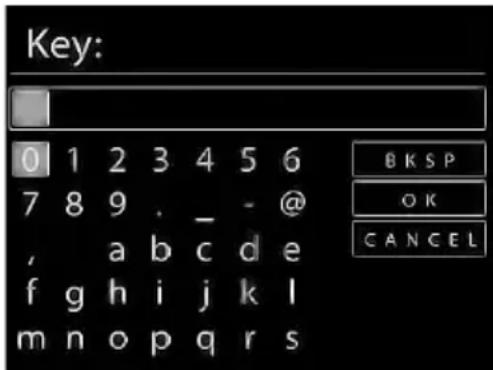
Enter the network key for the WLAN access point here using the digit/symbol buttons on the remote control. You can also enter the network key on the device:
To do so, select a character using the dial and then press the dial (OK) to confirm.
To delete a character, select the entry BKSP and press the dial (OK).
To cancel the input, select the entry CANCEL and press the dial (OK).
- When you have entered the network key, select the entry OK and confirm with the dial (OK).
The device saves this key, which means you do not have to enter it the next time it connects to the network.
The device will now establish a connection with the network. A successful connection will be indicated by a corresponding message.
Press the dial (OK) to confirm.
The device can now play back media over the network and also receive Internet radio stations – as long as there is an Internet connection via the network.
11. Listening to music
You can use your Internet radio to listen to music from various sources: Internet radio, FM radio or the audio files on your computer.
The following section describes how you can listen to audio from these sources on your radio.
12. Listening to Internet radio
To listen to Internet radio, select the entry INTERNET RADIO in the main
menu and confirm with OK or press the MODE button and then select the INTERNET RADIO icon and confirm with OK.
The first screen contains two entries in addition to the menu items:
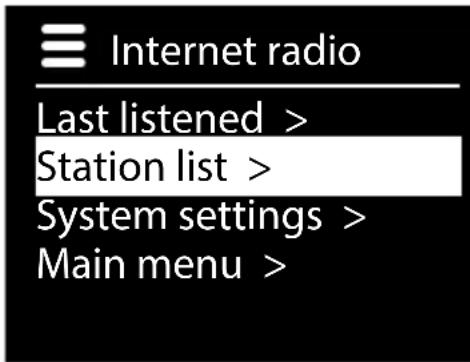
LAST LISTENED: Selects the station you listened to last
STATION LIST: Calls up the available Internet radio services from the Internet server.
Select radio services
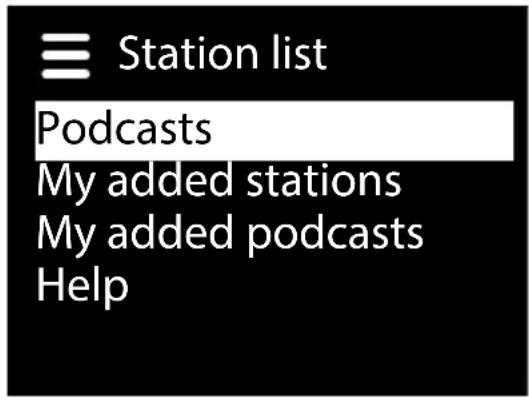
Select the Station List entry in order to select the following services:
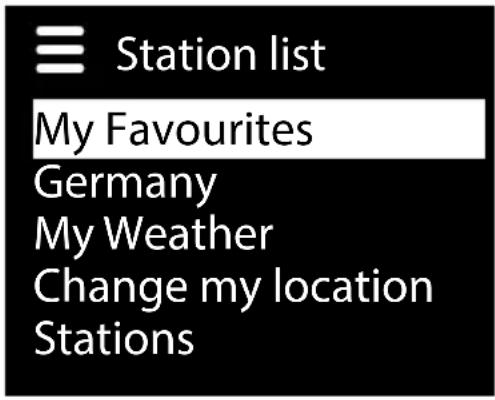
My favourites
Here you can open the stored stations.
Region [Deutschland]
Here you can view all the stations that are assigned to the region (here: Germany) in which the Internet radio has accessed the Internet.
My weather
The Internet radio has an Internet-based weather service which you can use to retrieve weather data and forecasts.
If you select this menu entry, the weather display for your region appears. With the OK dial you can now scroll forwards and backwards through 4 days of weather data.
The following symbols are displayed to indicate the weather situation:
| Daytime display Night time display | |
| Sunny Clear | |
| Partly sunny Cloudy | |
| Overcast Cloudy with snow | |
| Hazy | |
| Cloudy with rain | |
| Rain showers | |
| Heavy rain | |
| Thunderstorms | |
| Cloudy with snow | |
| Snowfall | |
| Heavy snowfall | |
| Fog | |
Change my location
Open this menu entry to change the regional setting for the weather data: SEARCH CITY: Enter the first letter or the entire name of the city you are searching for and confirm with OK.
Then select the corresponding city from the results list and confirm with OK. COUNTRY BROWSE: First select the country from the list here and then confirm with OK.
Then select a city from the list and confirm with OK.

NOTE!
If your city cannot be found, select a city that is close by. Press and hold down OK to save the set location as a favourite.
Stations
Select this entry in order to select Internet radio stations based on the following criteria.
LOCATION: Select stations according to country
GENRE: Select stations according to genre
SEARCH STATIONS: Search for stations by name
POPULAR STATIONS: Select a station from a list of popular stations
NEW STATIONS: Select a station from a list of the latest stations
Select a station based on the previous search criteria and press the OK dial.
Podcasts
Here you can select podcasts based on the following criteria:
LOCATION: Select a region from the list here and confirm with OK. Then select a podcast and confirm with OK.
GENRE: Select a genre from the list here and confirm with OK. Then select a podcast and confirm with OK.
SEARCH PODCASTS: Search for podcasts by name
My added stations
You can register free of charge on the website http://intenetradio.medion.com.
Here you can register your Internet radio using the access code. You will receive the access code as follows:
Switch to Internet radio mode and select HELP/GET ACCESS CODE.
My added podcasts
Here you can open the stored podcasts.
Help
Here you can request the access code for your Internet radio.
12.1. Connection to an Internet radio station/a podcast
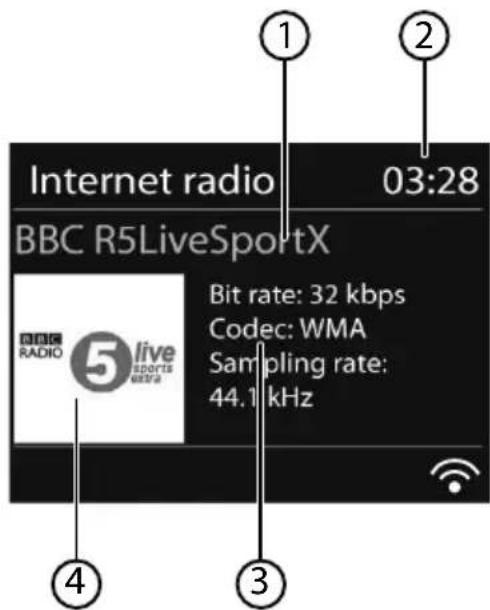
After you have selected a station/podcast as described previously, the radio connects to the Internet radio server. The following will be displayed:
1) Name of radio station
2) Time
3) Additional radio station information
4) Radio station icon
The radio has successfully connected to the Internet server and is receiving the Internet radio station.

NOTE!
If an error message appears, it means the radio is unable to locate the Internet server.
Saving radio stations
Press the button on the remote control or press the FAV button on the device until the list of memory spaces appears on the display.
Select a memory space from 1-9 using the number keys on the remote control and hold down the relevant number key. The radio station will be stored.
To access the station again, press the button on the remote control or the FAV button on the device and select the station from the list using the arrow keys on the remote control or the dial on the device. Press the OK dial on the device or the OK button on the remote control to play back the station.
13. Listening to FM radio
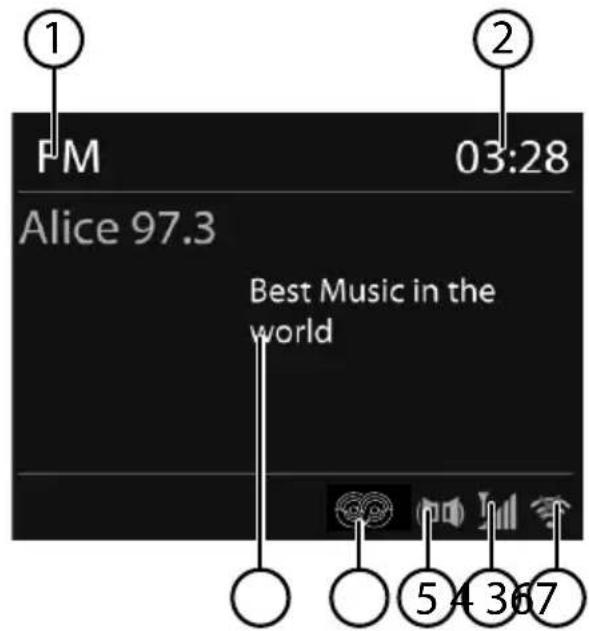
To listen to FM radio, select the entry FM RADIO in the main menu and confirm with OK or press the MODE button and then select the FM RADIO icon and confirm with OK.
The FM radio display will appear:
1) Station name (for RDS reception)/frequency display
2) Time
3) WLAN reception strength
4) FM reception strength
5) FM stereo reception
6) RDS reception
7) Frequency, PTY information, date, radio text (press INFO button)
13.1. Setting radio stations
- Turn the OK dial to the left and right to set the radio frequency. Alternatively, you can press the button on the remote control several times.
Press the OK dial or the OK button on the remote control to start an automatic station search. The automatic search will run either forwards or backwards – depending on the direction you last turned the dial.
Alternatively, you can also keep the and buttons on the remote control pressed down until automatic search starts.
13.2. Saving radio stations
Press the button on the remote control or press the FAV button on the device until the list of memory spaces appears on the display.
- Select a memory space from 1-9 using the number keys on the remote control and hold down the relevant number key. The radio station will be stored.
To access the station again, press the button on the remote control or the FAV button on the device and select the station from the list using the arrow keys on the remote control or the dial on the device. Press the OK dial on the device or the OK button on the remote control to play back the station.
13.3. Main menu in FM radio mode
Press the MENU/INFO button or the button on the remote control to display the menu for the FM radio mode.
Station search settings
Confirm the following query STRONG STATIONS ONLY? with
- YES, if the radio should only search for stations with a strong signal;
- NO, if the radio should also search for stations with a weak signal.
Audio settings
Confirm the following query LISTEN IN MONO ONLY? with
- YES, if you want the radio to play stations in mono. Use this setting for weak signals.
- NO, if you want the radio to only play stations in stereo.
14. Listening to audio files from the network

NOTE!
To stream audio files from the network over the radio, you must use media server software in the network.
14.1. Using the WLAN radio as media client
Your WLAN radio supports the UPnP (Universal Plug-and-Play) protocol. This means you can wirelessly stream audio files from your PC to the WLAN radio if you have UPnP software installed.
The Internet radio supports the connection as a digital media renderer (DMR). You can play back music files from the computer on the Internet radio and also adjust the volume from the computer.

NOTE!
In Windows XP, the UPnP protocol is only available as of Windows Media Player 11.
In Windows 7, the UPnP connection must be confirmed on the computer beforehand. Also read the corresponding documentation for your operating system!
14.2. Connection between the Internet radio and a media server
Connect your radio to the media server as follows:
- Open the MUSIC PLAYER menu in the main menu and select the entry SHARED MEDIA.
The radio starts to search for available media content in the network. After a few seconds, the media server name will be displayed, if found, e.g.: NAS server living room
If you wish to connect the installed media server to the radio, press the OK button on the remote control or press the dial (OK).
The folders and music files on the media server will appear. You can now select and play music files.

NOTE!
You may also need to confirm and authorise the connection on your PC!
14.3. Music player mode
Shared media
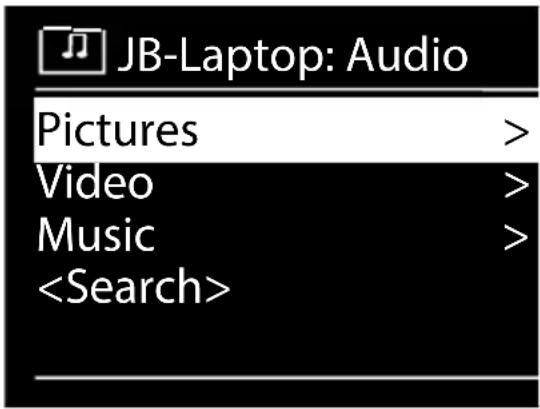
Confirm the entry to search for audio files on the network.
Once a media server has been found, a selection menu appears on the display that allows you to select items that can be streamed from the media server. The selection menu may look like this:
My Playlist
Confirm the entry to search for playlists on the network.
Repeat Play
Set this function to ON to repeat the current folder.
Shuffle Play
Set this function to ON to play the files in the current folder/playlist in random order.
Clear My Playlist
Confirm to delete the entries in the playlist.
Prune Servers
Select this setting and confirm the subsequent dialogue PRUNE SHARED MEDIA WAKE ON LAN SERVERS? with YES, if inactive media servers are to be displayed. You can then select a media server and "wake it up" (WOL; 'wake on LAN' function) in order to play back media content.
14.4. Playback display
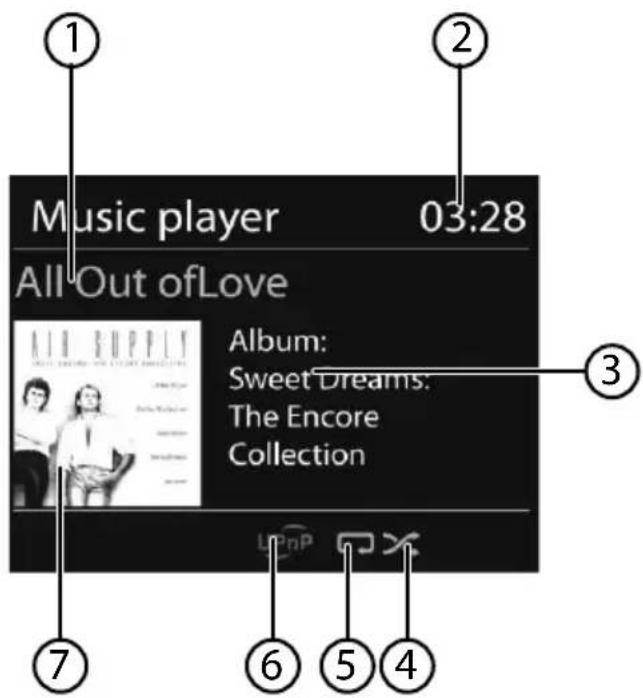
1) Track name
2) Time
3) ID3 day display (Press INFO to display more information)
4) Random playback mode
5) Repeat mode
6) Media playback over server
7) Album cover (if available)

NOTE!
You can use the playback buttons during playback as you would on a normal CD player.
The formats supported are: .mp3, .wma, .wav, .flac.
15. Settings in the System Settings menu
15.1. Equalizer
Here you can select a default sound format or configure your own.
Select one of the following sound formats
NORMAL, FLAT, JAZZ, ROCK, MOVIE, CLASSIC, POP, NEWS, MY EQ or MY EQ PROFILE SETUP and confirm with the OKdial. The
setting will take effect immediately.
MY EQ
If you have set up your own sound format in the following entry, select MY EQ to directly apply the sound format.
MY EQ PROFILE SETUP
Here you can configure your own sound format for the MY EQ setting.
Adjust the bass, treble and volume by turning the OK dial and press the OK button to store the entry.
Confirm the following query with YES to save the sound format.
15.2. Network (Internet settings)
Network Wizard
Select this menu item to start a network search.
Then enter the WEP/WPA key to connect the device to the wireless AP.
PBC Wlan Setup
Here you can set up a WPS connection:
Activate the WPS connection on the device which supports WPS and then confirm the connection on the Internet radio by selecting YES and confirm with the OK button.
ViewSettings
Information on the currently connected network and the device's MAC address is displayed here.
WLAN region
Here you can select the WLAN region in which you are operating the device.
Manual Settings
Select Cable (Ethernet) or Wireless (WLAN) and set the respective DHCP function to On or Off.
NetRemotePIN-Setup
In this entry you can assign a new four-digit code which needs to be entered when connecting using the Lifestream IR application on a smartphone or tablet PC.
Network profile
The device stores the last 4 WLAN networks to which it has been connected.
- Select a network and press OK. Confirm the subsequent query with YES to delete the network from the list.

NOTE!
The currently connected network cannot be deleted.
Keep the network connection on standby
Select this menu item and set the function to YES if you want the Internet radio to remain connected to the network even when in standby mode or when using operating modes that do not require WLAN (AUX IN, FM radio). Other media players can then access the Internet radio and "wake it up".
If the network connection is not to be maintained, set the function to NO. In this setting, the WLAN function will also be switched off for operating modes which do not use WLAN (AUX IN, FM radio). It will not be possible to control the device using the Lifestream IR app if this is the case.

NOTE!
Please note that when a network connection is maintained in standby (setting YES), the Internet radio will consume more power in standby mode than indicated in the technical data.
15.3. Time/Date
Set the time and date here as described in the section 'Using the device for the first time'.
15.4. Language
You can set the menu language here.
15.5. Factory reset
Select this menu item and confirm the subsequent query with YES to reset the device to the factory settings.
All existing network information will be deleted and will have to be re-entered to establish a network connection.
15.6. Software Update
You can search for and install software updates using this function.
Auto-update
Select YES to enable regular automatic searches for software updates.
Check now
Starts search for software updates immediately.
15.7. Setup wizard (start wizard)
Starts the setup wizard as described in the section 'Using the device for the first time'.
15.8. Info
This section displays the software version and the device's radio ID.
15.9.Backlight
You can adjust the display lighting with this function:
-Dim the display in standby mode after a specified time
-Display brightness
Set dimming time
Select the entry TIMEOUT: and then turn the OK dial to select ON, 10, 20, 30, 45, 60, 90, 120 or 180 seconds.
Display brightness during operation
Select the entry POWER-ON LEVEL by turning and then pressing the OK dial and then set the desired brightness level to HIGH, MEDIUM, or LOW.
16. Settings in the Main Menu
You can access the operating modes from the Main Menu just as you would with the MODE button:
INTERNET RADIO
MUSIC PLAYER
FM
AUX IN
You can also set the snooze and radio alarm function here.
16.1. Sleep
- Select this entry and use the OK dial to select the following automatic switch-off settings:
SLEEP OFF - 15 MINS - 30 MINS - 45 MINS - 60 MINS
When the SLEEP OFF setting is activated no switch-off time is set.
You can set the switch-off time by pressing the SLEEP/SNOOZE button on the remote control several times.
16.2. Alarm
You can set two alarm times on your Internet radio.

NOTE!
Before you can set an alarm, you need to set the clock ("10.2. Setting the time and date" on page 141).
- Select an alarm clock and press the OK dial on the device or the OK button on the remote control.
- Select one of the following entries and press the OK dial on the device or the OK button on the remote control to confirm the settings:
Enable
Select OFF to deactivate the alarm.
Select DAILY, ONCE, WEEKENDS or WEEKDAYS to activate the alarm.
Time
Set the alarm time here.
Mode
Set the mode for the alarm clock here:
BUZZER: Wake up to the alarm buzzer
INTERNET RADIO: Wake up to the Internet radio
FM: Wake up to the FM radio
Preset
- Select a station memory position if you selected either the Internet radio alarm or FM radio alarm options.
Volume
Set the alarm volume here.
Save settings
To accept the above settings for the alarm clock, select the entry SAVE and press the dial on the device or the OK button on the remote control.
17. Playing audio signals from external devices
There is an audio input (AUX IN) at the back of the device.
- Use the 3.5mm audio cable to connect the AUX IN socket to the audio output of an external device to play back the audio signal on the Internet radio.
- Then select the AUX IN menu. You can also press the MODE button on the remote control and then select the operating mode with the arrow buttons and confirm with OK.
The audio signals from the external device are now played back via the loudspeakers of the Internet radio.
18. Accessing the web interface of the Internet radio
- When you enter the IP address of the Internet radio in your browser, the web interface of the Internet radio appears.
You can find the current IP address under SYSTEM SETTINGS/
NETWORK/VIEW SETTINGS ("View Settings" on page 154).
Here you can assign a new friendly name for your Internet radio (factory setting is [MEDION]+[MAC-Adresse].
19. Control using the Lifestream IR application
You can control your Internet radio using the Lifestream IR application on your smartphone or tablet PC.
In addition to the established setting options such as start, stop, repeat or the creation of favourites lists and station searches, the Lifestream IR application makes it possible to individually customise the sound output.
19.1. Installation via direct link
Scan the adjacent QR code to be directed to the download page for the Lifestream IR app on Google Play or the App Store from Apple:
19.2. Installation via Google Play or the Apple App Store

- Open Google Play or the Apple App Store and search for the term MEDION Lifestream IR1.
Install the Medion Lifestream IR app. Follow the installation instructions on the screen.

NOTE
In order to be able to install the Lifestream IR application, there must be an Internet connection.
19.3. Using the app
After you have installed the app, you must connect the Internet radio to your smartphone/tablet PC.
To do this, start the app and switch on the Internet radio. Make sure that the smartphone/tablet PC and Internet radio are logged in to the same WLAN network.
- When started for the very first time, the app will list all compatible Internet radios detected in the WLAN network by their friendly name (see also "18. Accessing the web interface of the Internet radio" on page 158).
Select the right Internet radio in order to use the app.
- When prompted, enter the code 1234. You can also reassign this NetRemote PIN for the Internet radio ("NetRemote PIN-Setup" on page 154).

NOTE
If the WLAN function is deactivated in operating modes that do not require WLAN (AUX IN, FM radio) (setting "Keep the network connection on standby" on page 155), you will not be able to control the radio via the Lifestream IR app.
20. Troubleshooting
If the device malfunctions, please check first if you can eliminate the error yourself with the help of the following overview.
Never try to repair the devices yourself. Contact our Service Centre or other qualified personnel if a repair is necessary.
| Problem Possible | cause Solution | ||
| The remote control is not working. | Are the batteries inserted correctly? | Correctly insert the batteries. | |
| Are you more than 7 metres from the radio? | Move closer. | ||
| Is the space between the remote control and the infrared sensor clear of obstructions? | Remove obstacles. | ||
| Is the remote control pointing at the sensor? | Point the remote control correctly. | ||
| The display remains blank. | Is the mains cable connected properly at both ends? | Plug the mains cable of the supplied adapter into the DC IN socket of the device. Plug the mains plug into an AC 100-240 V ~ 50/60 Hz power outlet. | |
| The selected station cannot be heard. | You need to confirm the choice of station with OK. | ||
| Mute is activated. Press the | |||
| Volume level too low. Check the volume level. | |||
| No reception. Check the network settings. | |||
| FM reception is disrupted. | Aerial not directed properly. | Direct the aerial. | |
| No access to Internet radio. | No WLAN connection. Check the WLAN router or connections. | ||
| No access from PC as AP (Media Server) to radio. | Radio encryption. Enter the code. To do this, note also the enabling settings on your PC. | ||
| Alarm does not work. Function is not activated. Check the alarm settings. | |||
| Problems with the router connection. | No DHCP server is activated. | Check the router settings. | |
| An incorrect encryption algorithm was entered into the network. | Re-enter the network encryption algorithm. | ||
| WiFi module is faulty Contact the Service Centre. | |||
| No IP address found. No response from DNS (domain name server). | Check the DNS settings on your router. | ||
| The DNS used does not recognise the vTuner.com name. | Use a different DNS server. | ||
| No connection to the server. | Internet access is blocked. | Try again. | |
| The server for the Internet radio service provider is not in operation or is overloaded. | Check the server. | ||
| Registration was not successful. | Repeat the registration procedure. | ||
| The radio station's streamer is not available or is overloaded. | Try again. | ||
| The Internet radio does not support the radio station's service type. | - | ||
| Problems with the Internet buffer. The bandwidth is not sufficient to provide stable data streams. | Increase the bandwidth as necessary. | ||
| The Internet radio booted as normal but did not receive an IP address. | There is no DHCP server activated. | Check the router settings. | |
| Incorrect WiFi encryption algorithm entered. | Re-enter the WiFi encryption algorithm. | ||
| There is a problem with the network interfaces. | Check the interfaces. | ||
| The Internet radio cannot by controlled by the Lifestream app. | Internet radio and smartphone/tablet PC are not on the same WLAN network. | Check the network status of the Internet radio and smartphone/tablet PC. | |
21. Cleaning
Switch off the device before cleaning it.
Use a soft, dry cloth to wipe the device. Never use rough cloths, abrasive detergent, thinners or solutions containing alcohol to clean the device. These can damage the device.
22. Disposal

Packaging
Your device is packaged to protect it from transportation damage. Packaging is raw material and can be reused or added to the recycling system.
Device
Do not dispose of the device in the household rubbish at the end of its service life. Take it to a local collection point for used appliances in order to comply with environmental regulations. Contact your local authority to find out where your nearest collection point is located.
Batteries
Batteries must be properly disposed of. Retailers who stock batteries and local authority collection points have appropriate disposal containers for this purpose. You can contact your local waste disposal company or municipal authorities for further information.
23. Technical data
Mains adapter
Model:
YN12W-1200080VZ
Manufacturer:
Winna,
China
Input voltage: AC 100-240 V ~ 50/60 Hz 0.3 A
Output voltage: 12V


0.8A
Remote control
Battery for remote control: 1x button cell battery 3 V, type CR2025
Device
Loudspeaker:
5W
Dimensions (L x W x H) approx. 118 x 200 x 115 mm
Weight: approx. 1 kg
WLAN
Frequency range: 2.4 GHz
WiFi standard: 802.11 b/g/n
Encryption:
WEP/WPA/WPA2
Range: inside approx. 35 - 100m/
outside approx. 100 - 300m
Radio
Frequency range FM: 87.5-108 MHz
Connections
Mains adapter input:
12V-0.8A
Line out:
3.5 mm stereo jack
AUX in:
3.5 mm stereo jack
24. Conformity and licence information
The device uses the weather information service provided by Adaptive Navigation GmbH.
The weather data is provided by www.wetter.net.
This device is supplied with the following wireless features:
- Wireless LAN
Medion AG hereby declares that the product conforms to the following European requirements:
R&TTE Directive 1999/5/EC
- Ecodesign Directive 2009/125/EC
RoHS Directive 2011/65/EU.
Full declarations of conformity are available at www.medion.com/conformity.
C∈2522
25. Licence agreements for end users
25.1. Audio products for use with Internet radio
This document is the property of MEDION. It may not be copied nor its contents disclosed without written permission by MEDION. All third parties to whom this document is issued must sign a non-disclosure agreement.
This document replaces all previous versions. In accordance with its respective principle of continual improvements to its products, services and documentation, MEDION, the providers of online content and web services reserve the right to make changes without prior notice.
MEDION shall not be held liable for losses that are alleged to have occurred from the use of this document or its associated products.
Audio coding technology MPEG Layer 3:
licensed by Fraunhofer IIS and by Thomson.
This product contains software. You have the single and non-transferable right to use the software only in the form of the object code and only to operate the product.
The rights to the intellectual property of the software contained in this product remain with the providing contract party (or with the respective licensor). All their rights remain reserved.
It is strictly prohibited to modify, translate or use reverse engineering to reconstruct, decompile, disassemble or try to determine the source code in any other manner,
Fraunhofer

Institut
or to attempt to replicate the function of the software contained in this product as far as this restriction is not explicitly inadmissible in accordance with the applicable legislation.
We assume no guarantee whatsoever for the function or performance of the software, and neither we nor our suppliers or licensors shall be held liable for indirect damages, special, incidental or consequential damages (such as loss of profit) arising from the use of the software contained in this product, unless such an exclusion of liability is inadmissible for the region in which you have acquired this product.
These provisions apply to all updates of the software which you carry out on the product.
This product is protected by certain intellectual property rights belonging to Microsoft. Without a licence issued by Microsoft, any use or distribution of this technology not linked to the product is prohibited.
Eric Young hereby declares his right to be recognised as the author of parts of the OpenSSL software library that is used in this tool.
UPnP™ is a brand of the UPnP Implementers Corporation.
26. Legal notice
Copyright © 2015
All rights reserved.
This operating manual is protected by copyright.
Mechanical, electronic and any other form of reproduction is prohibited without the written permission of the manufacturer.
Copyright is owned by the company:
Medion AG
Am Zehnhof 77
45307 Essen
Germany

The operating manual can be reordered via the service hotline and is available for download via the service portal at www.medion.com/gb/service/start/.
You can also scan the QR code above and download the operating manual onto your mobile device via the service portal.
MEDION
DE
Medion Electronics Ltd.
120 Faraday Park, Faraday Road, Dorcan Swindon SN3 5JF, Wiltshire
United Kingdom
Hotline: 0333 32 13 106 (National rate) Fax: 01793 71 57 16
To contact us by email please visit the "Service and Support" section of our website at www.medion.co.uk.
www.medion.co.uk
FR