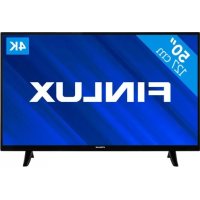
Finlux FL5032UHD - TV

FL5032UHD - TV Finlux - Free user manual and instructions

Find the device manual for free FL5032UHD Finlux in PDF.

English EN Download 💬 AI Question 10 questions ⚙️ Specs
📄

Document temporarily unavailable

The manual is currently being transferred to our new server. It will be accessible again in a few hours. Thank you for your patience.

View the manual : Français FR Dansk DA English EN Nederlands NL
Pick your language and provide your email: we'll send you a specifically translated version.
Product Type LED UHD 4K TV
Brand Finlux
Model FL5032UHD
Screen Size 50 inches (127 cm)
Resolution Ultra HD (3840 x 2160 pixels)
HDR Technology HDR10 / HLG
Built-in Tuners DVB-T2/C/S2 (terrestrial, cable, satellite)
Connectivity 3 HDMI inputs (including ARC), 2 USB ports, VGA input, YPbPr, PC audio, optical SPDIF output, headphone jack, Ethernet LAN, CI+
Wi-Fi 802.11 a/b/g/n compatible via USB dongle (not included)
Audio Power 2 x 10 W RMS
Audio System Dolby Audio, stereo sound, Nicam, AVL
Smart Functions Smart TV, HbbTV, Internet browser, apps (Netflix, Amazon Prime Video, YouTube), Smart Center, Alexa Ready, FollowMe TV
USB Recording Yes (direct and time-shifted recording, FAT32 format)
Parental Control Menu lock, maturity control, child lock, Internet lock
Power Consumption 135 W (max), < 2 W standby
Power Supply 220-240 V AC, 50 Hz
Dimensions with stand (W x H x D) 1134 x 722 x 250 mm
Dimensions without stand (W x H x D) 1134 x 670 x 91 mm
Weight (estimated) Approximately 18 kg (with stand)
VESA Wall Mount 200 x 200 mm, M6 screws (length 10-13 mm)
Operating Temperature 0 °C to 40 °C
Included Accessories Remote control, AAA batteries (2), instruction manual
Maintenance and Cleaning Unplug before cleaning; use a soft dry cloth; do not use chemicals
Spare Parts and Repairability Repairs must be carried out by qualified personnel; do not open the casing

Frequently Asked Questions - FL5032UHD Finlux

How to set up the TV for the first time?
On first startup, a wizard guides you: select language, country, and optionally a PIN. Then configure the network connection and start automatic channel search (DVB-T, cable, or satellite).
How to connect the TV to the Internet?
Go to Settings > Network. Choose Wireless connection (if WiFi dongle is plugged in) or Wired connection via LAN port. Follow the instructions to scan networks or enter IP settings.
How to use the parental control function?
Go to Settings > System > Parental. Enter the PIN (default 0000 or 1234). You can then lock menus, limit channel access by age, enable child lock, or restrict Internet.
How to record a program on a USB stick?
Connect a USB stick (FAT32 format, minimum 2 GB). Press the Record button on the remote for instant recording, or schedule a timer from the Electronic Program Guide (EPG). The hard disk can be formatted in TV > Recordings > Settings.
What to do if the picture is blurry or distorted?
Check the source (antenna, HDMI). Go to Settings > Picture and adjust Sharpness, Contrast, and Brightness. Enable Noise Reduction if necessary. For a PC source, use the auto adjustment in PC Position.
How to use the FollowMe TV function?
Install the Smart Center app on your tablet or smartphone. Make sure the mobile device and TV are on the same network. Launch the app, press the FollowMe TV icon to stream the TV program to your device.
Can I control the TV with my voice?
Yes, if you have an Amazon Alexa device. Link your TV via the Smart Center app: press the Amazon logo, follow instructions to link your account. Then say, for example, 'Alexa, turn on the living room TV'.
How to connect a headphone?
Plug the headphone into the jack on the side of the TV. In Settings > Sound, set Headphone/Line Out to Headphone (to avoid excessive volume). Adjust headphone volume in the same menu.
What to do if the TV does not turn on?
Check that the power cord is properly plugged into a mains socket (220-240 V). Try turning on with the remote or the central button on the TV. If the indicator does not light up, unplug for 1 minute then plug back in. If the problem persists, contact a professional.
How to update the TV software?
Go to Settings > System > Software Update. Choose Online Search if the TV is connected to the Internet, or USB after downloading the update on your computer. Follow the on-screen instructions.

User questions about FL5032UHD Finlux

0 question about this device. Answer the ones you know or ask your own.

Ask a new question about this device

The email remains private: it is only used to notify you if someone responds to your question.

No questions yet. Be the first to ask one.

Download the instructions for your TV in PDF format for free! Find your manual FL5032UHD - Finlux and take your electronic device back in hand. On this page are published all the documents necessary for the use of your device. FL5032UHD by Finlux.

USER MANUAL FL5032UHD Finlux

Manual assistant
Powered by Anthropic
Waiting for your message
Product information

Brand : Finlux

Model : FL5032UHD

Category : TV