
28FLZ274B - Television Finlux - Free user manual and instructions
Find the device manual for free 28FLZ274B Finlux in PDF.


| Product type | LED TV |
| Brand | Finlux |
| Model | 28FLZ274B |
| Screen size | 28 inches (71 cm) |
| Resolution | HD Ready (1366 x 768 pixels) |
| Tuner | DTT, cable, satellite |
| Connectivity | 2 x HDMI, 1 x USB, antenna input, headphone output |
| Dimensions (without stand) | Approximately 64 x 39 x 8 cm |
| Dimensions (with stand) | Approximately 64 x 43 x 18 cm |
| Weight (without stand) | Approximately 4.5 kg |
| Weight (with stand) | Approximately 5 kg |
| Power supply | 220-240 V ~ 50 Hz |
| Power consumption (standby) | Less than 0.5 W |
| Power consumption (usage) | Approximately 35 W |
| Speakers | 2 x 5 W |
| Main functions | Electronic Program Guide (EPG), teletext, timer, parental control |
| Maintenance and cleaning | Unplug before cleaning; use a soft, dry cloth. Do not use abrasive products. |
| Safety | Do not expose to moisture; ventilate properly; use a grounded wall outlet. |
| Spare parts and repairability | Spare parts are available through the Finlux after-sales service. Repairability index not disclosed. |
| General information | User manual available for download in PDF format at notice-facile.com. |
Frequently Asked Questions - 28FLZ274B Finlux
User questions about 28FLZ274B Finlux
0 question about this device. Answer the ones you know or ask your own.
Ask a new question about this device
Download the instructions for your Television in PDF format for free! Find your manual 28FLZ274B - Finlux and take your electronic device back in hand. On this page are published all the documents necessary for the use of your device. 28FLZ274B by Finlux.
USER MANUAL 28FLZ274B Finlux
natural_image
Black-and-white photo of a man and woman relaxing on a sofa in an office setting, with no visible text or symbols.bedienungsanleitung
owner's manual
natural_image
Close-up of a black remote control case with a battery inserted, showing three steps: adding an arrow (no text or symbols visible)Safety Information....18
Getting Started....19
Notifications & Features & Accessories......19
Features 19
Inserting the Batteries into the Remote 20
Connect Power 20
Antenna Connection 20
Remote Control 21
Connections.... 22
Media Browser Menu.... 24
TV Menu Features and Functions 25
General TV Operation 27
Using the Channel List 27
Configuring Parental Settings....27
Electronic Programme Guide (EPG) 27
Software Upgrade.... 28
Troubleshooting & Tips 28
AV and HDMI Signal Compatibility 29

CAUTION
RISK OF ELECTRIC SHOCK
DO NOT OPEN

CAUTION: TO REDUCE THE RISK OF ELECTRIC SHOCK DO NOT REMOVE COVER (OR BACK).
NO USER-SERVICEABLE PARTS INSIDE. REFER SERVICING TO QUALIFIED SERVICE PERSONNEL
To operate your TV in extreme ambient conditions may cause the damage of the device.

In extreme weather (storms, lightning) and long inactivity periods (going on holiday) disconnect the TV set from the mains. The mains plug is used to disconnect the TV set from the mains and therefore it must remain readily operable.

This sign is present wherever there is very important information regarding the operation and maintenance of the appliance in the literature accompanying it.
Note: Follow the on screen instructions for operating the related features.

IMPORTANT - Please read these instructions fully before installing or operating

WARNING: Never let people (including children) with reduced physical, sensory or total capabilities or lack of experience and / or knowledge use electrical devices unsupervised.
- For ventilation purposes, leave a free space of at least 10 cm all around the set.
- Do not block ventilation holes.
- Do not place the TV on sloping or unstable surfaces, the TV may tip over.
- Use this device in moderate climates.
- The power cord plug should be easily accessible. Do not place the TV, furniture, etc. on the power cord. A damaged power cord/plug can cause fire or give you an electric shock. Handle the power cord by the plug, do not unplug the TV by pulling the power cord. Never touch the power cord/plug with wet hands as this could cause a short circuit or electric shock. Never make a knot in the power cord or tie it with other cords. When damaged it must be replaced, this should only be done by qualified personnel.
- Do not use this TV in a humid or damp environment. Do not expose the TV to liquids. In case the cabinet contacts any liquids unplug the TV immediately and have it checked by qualified personnel before operating it any further.
- Do not expose the TV to direct sunlight, open flames or place it near intense heat sources such as electric heaters.

- Listening in excessive volumes from earphones and headphones may cause hearing loss.
- Ensure that no open flame sources, such as lit candles, are placed on top of the TV.

- To prevent injuries, this TV must be securely attached to a wall carefully by following the instructions (if the option is available).
- Occasionally, a few non-active pixels may appear on the screen as a fixed blue, green or red point. Please note that this does not affect the performance of your product. Take care not to scratch the screen with fingernails or other hard objects.
- Before cleaning, unplug the TV from the wall socket. Only use a soft, dry cloth while cleaning.
 | Warning | Serious injury or death risk |
 | Risk of electric shock | Dangerous voltage risk |
 | Caution | Injury or property damage risk |
 | Important | Operating the system correctly |
| [GWKS] | Notice | Additional notes marked |
Getting Started
Notifications & Features & Accessories
Environmental Information
This television is designed to consume less energy to help save the environment. To reduce energy consumption, you should take the following steps: If you set the Power Save Mode as Eco, the TV will switch to energy-saving mode. The Power Save Mode settings can be found in the 'Picture' section of the Main Menu. Note that some picture settings will be unavailable to be changed.
If Picture Off is selected, "Screen will be off in 3 seconds." message will be displayed. Select PROCEED and press OK to continue. The screen will be off immediately.
When the TV is not in use, please switch off or disconnect the TV from the mains plug. This will also reduce energy consumption.
Standby Notifications
1) If the TV does not receive any input signal (e.g. from an aerial or HDMI source) for 5 minutes, the TV will go into standby. When you next switch-on, the following message will be displayed: "Standby Cause No Signal" Press OK to continue.
2) If the TV has been left on and not been operated for a while, the TV will go into standby. When you next switch-on, the following message will be displayed. "Standby Cause No Operation" Press OK to continue.
Features
- Remote controlled colour TV.
- Fully integrated digital terrestrial/cable/satellite TV (DVB-T/C/S-S2)
- HDMI inputs to connect other devices with HDMI sockets.
- USB input.
- OSD menu system.
- Scart socket for external devices (such as DVD Players, PVR, video games, etc.)
- Stereo sound system.
- Teletext.
• Headphone connection.
• Automatic programming system. - Manual tuning.
• Automatic power down after up to six hours. - Sleep timer.
- Child lock.
• Automatic sound mute when no transmission. - NTSC playback.
• AVL (Automatic Volume Limiting).
- PLL (Frequency Search).
- PC input.
- Plug&Play for Windows 98, ME, 2000, XP, Vista, Windows 7.
• Game Mode (Optional).
Accessories Included
- Remote Control
- Batteries: 2 x AAA
- Instruction Book
TV Control Switch & Operation

- Up direction
- Down direction
- Programme/Volume / AV / Standby-On selection switch
The Control button allows you to control the Volume/Programme/ Source and Standby-On functions of the TV.
To change volume: Increase the volume by pushing the button up. Decrease the volume by pushing the button down.
To change channel: Press the middle of the button, the channel information banner will appear on screen. Scroll through the stored channels by pushing the button up or down
To change source: Press the middle of the button twice, the source list will appear on screen. Scroll through the available sources by pushing the button up or down.
To turn the TV off: Press the middle of the button down and hold it down for a few seconds, the TV will turn into standby mode.
Inserting the Batteries into the Remote
Lift the cover on the back of the remote upward gently. Install two AAA batteries. Make sure to match the + and - ends of the batteries in the battery compartment (observe the correct polarity) Replace the cover.
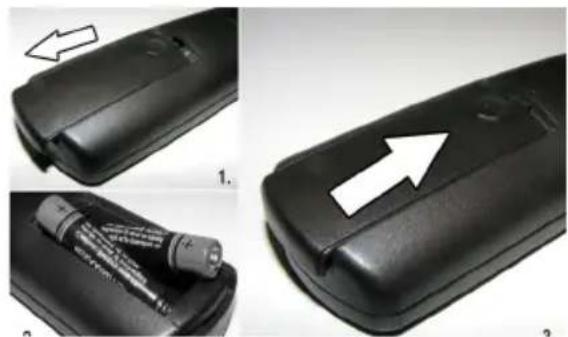
natural_image
Close-up of a black remote control casing with two views showing internal components and an arrow indicating rotation (no text or symbols)Connect Power
IMPORTANT: The TV set is designed to operate on 220-240V AC, 50 Hz socket. After unpacking, allow the TV set to reach the ambient room temperature before you connect the set to the mains. Plug the power cable to the mains socket outlet.
Antenna Connection
Connect the aerial or cable TV plug to the AERIAL INPUT (ANT) socket or satellite plug to SATELLITE INPUT (LNB) socket located on the back of the TV.

Notification
Manufactured under license from Dolby Laboratories.
TRADEMARK ACKNOWLEDGMENT
"Dolby" and the double-D symbol are trademarks of Dolby Laboratories.

"HDMI, the HDMI logo and High-Definition Multimedia Interface are trademarks or registered trademarks of HDMI Licensing LLC."

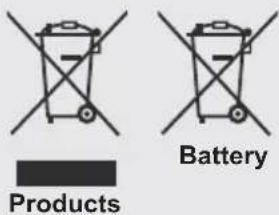
Information for Users on Disposal of Old Equipment and Batteries
[European Union only]
These symbols indicate that equipment with these symbols should not be disposed of as general household waste. If you want to dispose of the product or battery, please consider the collection systems or facilities for appropriate recycling.
Notice: The sign Pb below the symbol for batteries indicates that this battery contains lead.
Specification
| TV Broadcasting PAL B/G D/K K I/I' | |
| Receiving Channels | VHF (BAND I/III) - UHF(BAND U) - HYPERBAND |
| Digital Reception | Fully integrated digital terrestrial-cable-satellite TV(DVB-T-C-S)(DVB-S2 compliant) |
| Number of Preset Channels | 10000 |
| Channel Indicator On Screen Display | |
| RF Aerial Input 75 Ohm (unbalanced) | |
| Operating Voltage 220-240V AC, 50Hz. | |
| Audio German+Nicam Stereo | |
| Audio Output Power (WRMS.) (10% THD) | 2 x 6 |
| Power Consumption 40W | |
| Weight 5,70 | |
| TV Dimensions DxLxH (with foot) | 185 x 640 x 427 |
| TV Dimensions DxLxH (without foot) | 38/65 x 640 x 387 |
| Operation temperature and operation humidity: | 0°C up to 40°C, 85% humidity max |
Teletext
Press "button to enter. Press again to activate mix mode. Press once more to exit. Follow the instructions displayed on digital teletext screen.
MY BUTTON (1)
Press MY BUTTON 1 for five seconds when on a desired source, channel or link, until the "MY BUTTON IS SET" message is displayed on the screen. This confirms that the selected MY BUTTON is now associated with the selected function.
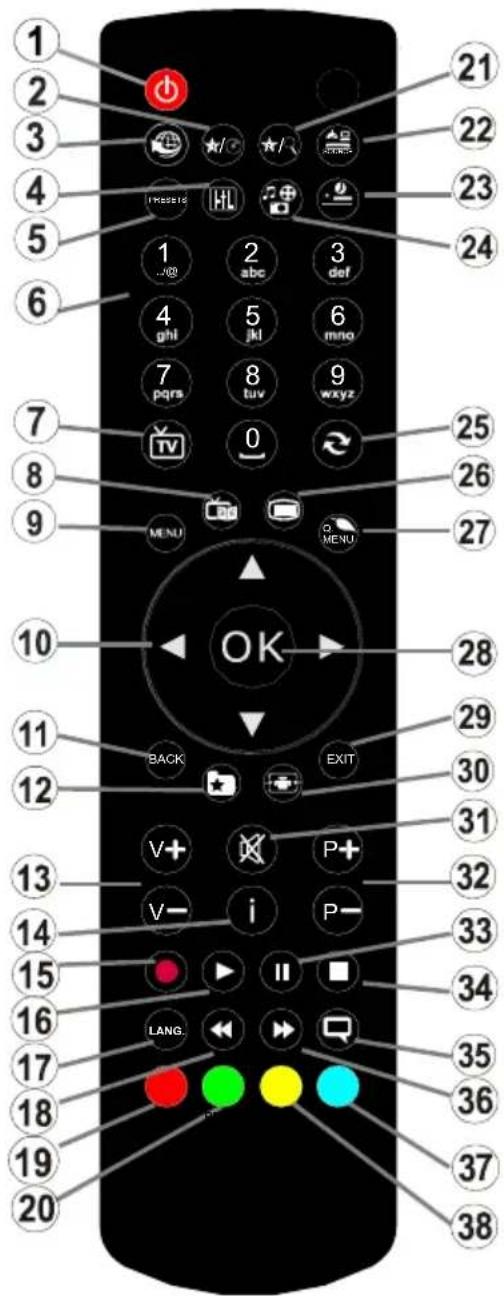
- Standby / on
- My button 1 (*)
- No Function
- Changes equalizer modes
- Picture mode selection
- Numeric buttons
- TV - AV / TV Channel list
- Electronic programme guide (in DVB channels)
- Menu on-off
- Navigation buttons / Left-Right (TXT Subpages)
- Back / Index page (in TXT mode)
- Favourite channels
- Volume Up / Down
- Info / Reveal (in TXT mode)
- No Function
- Play (in media browser mode)
- Mono-Stereo Dual I-II / Current language (in DVB channels)
- Rapid reverse
- Red button
- Green button
- My button 2 (**)
- AV / Source selection
- Sleep timer
- Media browser
- Previous programme
- Teletext - Mix
- Quick Menu
- OK / Select / Hold (in TXT mode)
29.Exit / Return - Image size
- Mute
- Program up / down
- Pause (in media browser mode)
- Stop (in media browser mode)
- Subtitle on-off (in DVB channels & media browser mode)
- Rapid advance
- Blue button
- Yellow button
MY BUTTON (2)
This button's main function is to switch between DVB-T, DVB-C and DVB-S broadcasts. However, if you press MY BUTTON 2 for five seconds, you can set a function to it as described in My Button 1.
Note that if you perform first time installation, MY BUTTON 2 will return to its default function, switching between DVB-T, DVB-C and DVB-S broadcasts.
| Connector Type Cables Device | |||
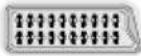 | Scart Connection (back) |  |  |
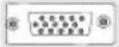
 | VGA Connection (back) |  |  |
SIDE AV  | PC/YPbPr Audio Connection (side) |  Side AudioYPbPr or PCConnection Cable Side AudioYPbPr or PCConnection Cable |  |
| [22WD] | HDMI Connection (back) |  |  |
 SPDIF SPDIF | SPDIFF Connection (back) |  |  |
 | Side AV (Audio/Video) Connection (side) |  |  |
HEADPHONE  | Headphone Connection (side) |  | |
 YPBPR YPBPR | YPbPr Video Connection (side) | 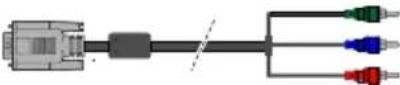 YPbPr Connection Cable YPbPr Connection Cable |  |
 | USB Connection (side) |  |  |
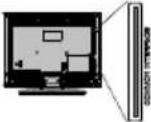 | CI Connection (side) |  |  |

NOTE: When connecting a device via the Side AV input, you must use a connection cable to enable connection. See the illustrations above. To enable PC audio, you will need to use the SIDE AV CONNECTION cable's WHITE & RED inputs. If an external device is connected via the SCART socket, the TV will automatically switch to AV mode. When receiving DTV channels (Mpeg4 H.264) or while in Media Browser mode, output will not be available via the scart socket. When using the wall mounting kit (optional), we recommend that you plug all your cables into the back of the TV before mounting on the wall. Insert or remove the CI module only when the TV is SWITCHED OFF. You should refer to the module instruction manual for details of the settings.
Switching On/Off
To Switch the TV On
Connect the power cord to the 220-240V AC, 50 Hz.
To switch on the TV from standby mode either:
Press the "button, P+ / P- or a numeric button on the remote control.
Press the side function switch until the TV comes on from standby.
To Switch the TV Off
Press the "button on the remote control or press the side function switch until the TV switches into standby mode.
To power down the TV completely, unplug the power cord from the mains socket.
Note: When the TV is switched to standby mode, the standby LED can blink to indicate that features such as Standby Search, Over Air Download or Timer is active. The LED can also blink when you switch on the TV from standby mode.
First Time Installation
When turned on for the first time, the language selection screen is displayed. Select the desired language and press OK.
The First Time Installation (FTI) screen will be displayed next. Set your preferences using the navigation buttons and when finished, press OK to continue.
You can activate Store mode option to be available in “Other settings” menu and your TV’s features will be illustrated on the top of the screen. A confirmation screen will be displayed. Select YES to proceed.
If Home Mode is selected, Store mode will not be available after the First Time Installation. Press OK button to continue.
Aerial Installation
If you select AERIAL option from the Search Type screen, the television will search for digital terrestrial TV broadcasts.

NOTE: You can press MENU button to cancel.
After all the available stations are stored, the Channel List will be displayed on the screen. If you like how the channels are sorted according to the LCN (*), please select "Yes" and then press OK.
Press MENU button to quit channel list and watch TV.
(*) LCN is the Logical Channel Number system that organizes available broadcasts in accordance with a recognizable channel sequence (if available).
Cable Installation
If you select CABLE option and press OK button on the remote control. To continue, please select YES and press OK. To cancel operation, select NO and press OK. You can select frequency ranges from this screen.
Enter the frequency range manually by using the numeric button.
Note: Searching duration will change depending on the selected search step.
Satellite Installation
If you select Satellite option from the Search Type screen, you can set a satellite and watch the satellite channels. When you select Satellite installation, Antenna Type menu will be displayed.
There are three types of antenna selection. You can select Antenna type as Direct, Unicable or DiSEqC switch by using “◀or “”buttons.
Direct: If you have a single receiver and a direct satellite dish, select this antenna type. After selecting Direct, another menu screen will be displayed. Select an available satellite and press OK to scan for services.
Unicable: If you have multiple receivers and a unicable system, select this antenna type. Press OK to continue. Configure settings by following instructions on the screen. Press OK to scan for services.
DiSEqC switch: If you have multiple satellite dishes and a DiSEqC switch, select this antenna type. After selecting DiSEqC switch, another menu screen will be displayed. You can set four DiSEqC options (if available). Press GREEN button to scan all satellites or press YELLOW button to scan only the highlighted satellite. To save and exit press OK button.
Media Playback via USB Input
You can connect a 2.5" and 3.5" inch (hdd with external power supply) external hard disk drives or USB memory stick to your TV by using the USB inputs of the TV.
IMPORTANT! Back up your files before making any connections to the TV. Manufacturer will not be responsible for any file damage or data loss. Certain types of USB devices (e.g. MP3 Players) or USB hard disk drives/memory sticks may not be compatible with this TV. The TV supports FAT32 and NTFS disk formatting.
While formatting a USB hard disk that has 1TB (Tera Byte) or more file capacity, you can experience problems with the formatting process. Do not repeatedly quickly plug and unplug the drive. This may cause physical damage to the USB player and USB device itself. Do not pull out USB module while playing a file.
Media Browser Menu
You can play photo, music, and movie files stored on a USB disk by connecting it to your TV. Connect a USB disk to one of the USB inputs located on the side of the TV. Pressing the MENU button while in the Media Browser mode will access the Picture, Sound and Settings menu options. Pressing the MENU button again will exit from this screen. You can set your Media Browser preferences by using the Settings Menu.
| Loop/Shuffle Mode Operation | |
| Start playback with ▶ and activate 📄 | TV plays next file and loop the list. |
| Start playback with OK and activate 📄 | The same file will be played in a loop (repeat). |
| Start playback with OK and activate 📄 | The file will be played in a shuffle. |
Quick Menu
Quick Settings menu allows you to access some options quickly. This menu includes Power Save Mode, Picture Mode, Equalizer Settings, Favourites and Sleep Timer options. Press Q.MENU button on the remote control to view quick menu. See the following chapters for the details of the listed features.
TV Menu Features and Functions
| Picture Menu Contents | |
| Mode | You can change the picture mode to suit your preference or requirements. Picture mode can be set to one of these options: Cinema, Game, Dynamic and Natural. |
| Contrast Sets the lightness and darkness values of the screen. | |
| Brightness Sets | the brightness value for the screen. |
| Sharpness Sets | the sharpness value for the objects displayed on the screen. |
| Colour Sets the colour value, adjusting the colors. | |
| Power Save Mode | To set the Power Save Mode as Eco, Picture Off and Disabled.(When the Mode is Dynamic, Power Save mode is automatically set as disabled.) |
| Backlight (Optional) | This setting controls the backlight level. The backlight function will be inactive if the Power Save Mode is set to Eco. The backlight cannot be activated in VGA, Media Browser mode or while the picture mode is set to Game. |
| Noise Reduction | If the broadcast signal is weak and the picture is noisy, use the Noise Reduction setting to reduce the amount of noise. |
| Advanced Settings | |
| Dyanmic Contrast | You can change the Dynamic Contrast ratio to desired value. |
| Colour Temp Sets the desired colour tone. | |
| Picture Zoom | Sets the desired picture size from picture zoom menu.Note: Auto (Only available in Scart mode with SCART PIN8 high voltage/low voltage switching) |
| Film Mode | Films are recorded at a different number of frames per second to normal television programmes. Turn this feature on when you are watching films to see the fast motion scenes clearly. |
| Skin Tone Skin tone can be changed between -5 and 5. | |
| Colour Shift Adjusts the desired colour tone. | |
| RGB Gain You can configure the colour temperature values using the RGB Gain feature. | |
| Reset Resets the picture settings to factory default settings.(Except Game Mode) | |
| Autoposition (in PC mode) | Automatically optimizes the display. Press OK to optimize. |
| H Position (in PC mode) | This item shifts the image horizontally to the right hand side or left hand side of the screen. |
| V Position (in PC mode) | This item shifts the image vertically towards the top or bottom of the screen. |
| Dot Clock (in PC mode) | Dot Clock adjustments correct the interference that appear as vertical banding in dot intensive presentations like spreadsheets or paragraphs or text in smaller fonts. |
| Phase (in PC mode) | Depending on the resolution and scan frequency that you input to the TV set, you may see a hazy or noisy picture on the screen. In such a case you can use this item to get a clear picture by trial and error method. |
| While in VGA (PC) mode, some items in Picture menu will be unavailable. Instead, VGA mode settings will be added to the Picture Settings while in PC mode. | |
| Sound Menu Contents | |
| Volume Adjusts the volume level. | |
| Equalizer | Selects the equalizer mode. Custom settings can be made only when in user mode. |
| Balance This setting is used for emphasizing left or right speaker balance. | |
| Headphone Sets headphone volume. | |
| Sound Mode You can select a sound mode. (If the selected channel supports). | |
| AVL (Automatic Volume Limiting) | Function sets the sound to obtain fixed output level between programmes. |
| Digital Out Sets digital out audio type. | |
| Settings Menu Contents | |
| Conditional Access Controls conditional access modules when available. | |
| Language | Configures language settings (may change depending on the country selected). Preferred and current settings will be available. Current settings can be changed only if the broadcaster supports. |
| Parental | Enter correct password to change parental settings. You can easily adjust menu lock, maturity lock(may change depending on the country selected) and child lock in this menu. You can also set new pin number. |
| Timers | Sets sleep timer to turn off the TV after a certain time. Sets timers for selected programmes. |
| Date/Time Sets date and time. | |
| Sources Enables or disables selected source options. | |
| Satellite Settings Displays the satellite settings. | |
| Other Settings: Displays other setting options of the TV set: | |
| Menu Timeout | Changes timeout duration for menu screens. |
| Scan Encrypted Channels | When this setting is on, the search process will locate the encrypted channels as well. |
| Blue Background | Activates or deactivates the blue background system when the signal is weak or absent. |
| Software Upgrade | To ensure that your TV always has the most up to date firmware. |
| Application Version | Displays application version. |
| Hard of Hearing | Enables any special feature sent from the broadcaster. |
| Audio Description | Audio description refers to an additional narration track for blind and visually impaired viewers of visual media, including television and movies. You can use this feature, only if the broadcaster supports that additional narration track. Note: Audio description sound feature cannot be available in recording or time shifting mode.. |
| Auto TV Off | You can set the timeout value of auto off feature. When the timeout value is reached and the TV has not been operated for a selected time, the TV will go into standby mode. |
| Standby Search (Optional) | If the Standby Search is set to On, when the TV is in standby mode, available broadcasts will be searched. If the TV locates any new or missing broadcasts, a menu screen will be displayed, asking you whether or not to execute these changes. Channel list will be updated and changed after this process. |
| Store Mode | If you are displaying the TV in a store, you can activate this mode. Whilst Store Mode is enabled, some items in the TV menu may not be available. |
| Power Up Mode This setting configures the power up mode preference. | |
| Biss Key | Biss is a satellite signal scrambling system that is used for some broadcasts. If you need to enter BISS key on a broadcast, you can use Biss Key setting locate in the Other Settings menu. Highlight Biss Key and press OK to enter keys on the desired broadcast. |
| Install and Retune Menu Contents | |
| Automatic Channel Scan (Retune) (If available) | Displays automatic tuning options.Digital Aerial: Searches and stores aerial DVB stations.Digital Cable: Searches and stores cable DVB stations.Analogue: Searches and stores analogue stations.Digital Aerial & Analogue: Searches and stores aerial DVB and analogue stations.Digital Cable & Analogue: Searches and stores cable DVB and analogue stations.Satellite: Searches and stores satellite stations. |
| Manual Channel Scan This feature can be used for direct broadcast entry. | |
| Network Channel Scan S | Searches for the linked channels in the broadcast system. |
| Analogue Fine Tune | You can use this setting for fine tuning analogue channels. This feature is not available if no analogue channels are stored. |
| First Time Installation | Deletes all stored channels and settings, resets TV to factory settings. |
General TV Operation
Using the Channel List
The TV sorts all stored stations in the Channel List. You can edit this channel list, set favourites or set active stations to be listed by using the Channel List options.
Configuring Parental Settings
To prohibit viewing of certain programmes, channels and menus can be locked by using the parental control system. To display parental lock menu options, the PIN number should be entered. The factory default PIN number is 0000. After coding the correct PIN number, parental settings menu will be displayed.
Menu Lock: Menu lock setting enables or disables the menu access.
Maturity Lock: When set, this option gets the maturity information from the broadcast and if this maturity level is disabled, disables access to the broadcast.
Child Lock: When Child Lock is set, the TV can only be controlled by the remote control. In this case the control panel buttons will not work.
Set PIN: Defines a new PIN number.
Note: If the Country option is set to France, you can use 4725 as the default code.
Electronic Programme Guide (EPG)
Some, but not all channels send information about the current and next programmes. Press the “” button to view the EPG menu.
Red button (Prev Day): Displays the programmes of previous day.
Green button (Next day): Displays the programmes of the next day.
Yellow button (Zoom): Expands programme information.
Blue button (Filter): Views filtering options.
“☐”: Press “☐” button to view Select Genre menu. Using this feature, you can search the programme guide database in accordance with the genre. Info available in the programme guide will be searched and results matching your criteria will be listed.
(i) INFO: Displays, in detailed, information on the programme selected.
Numeric buttons (Jump): Jumps to the preferred channel directly via numeric buttons.
OK: Displays programme options.
Text (Search): Displays "Guide Search" menu.
(Now) : Shows the current programme.
P+P- : More event info
IMPORTANT: Connect a USB disk to your TV while the TV is switched off. You should then switch on the TV to enable the recording feature.
Note: Switching to a different broadcast or source is not available during a recording.
Programme Options
In EPG menu, press the OK button to enter the Event Options menu.
Select Channel
In EPG menu, using this option, you can switch to the selected channel.
Set Timer / Delete Timer
After you have selected a programme in the EPG menu, press the OK button. Select the Set Timer on Event option and press the OK button. You can set a timer for future programmes. To cancel an already set timer, highlight that programme and press the OK button. Then select "Delete Timer" option. The timer will be cancelled.
Software Upgrade
Your TV is capable of finding and updating automatically via the Aerial/Cable/Satellite signal.
Software upgrade search via user interface
Simply navigate on your main menu. Choose Settings and select Other Settings menu. In Other Settings menu navigate on to the Software for Upgrade item and press OK button to check for a new software upgrade.
3 AM search and upgrade mode
While the TV is connected to an aerial signal. I Automatic scanning in the Upgrade Options menu is enabled, the TV wakes up at 03:00 and searches broadcast channels for new software upgrades. If new software is found and downloaded successfully, the next time the TV powers up, it will have the new software version.
Note: If the TV fails to come on after the upgrade unplug the TV for 2 minutes and plug in again.
Troubleshooting & Tips
Tv will not turn on
Make sure the power cord is plugged in securely to wall outlet. The batteries in the remote control may be exhausted. Press the Power button on the TV.
Poor picture
- Have you selected the correct TV system?
- Low signal level can cause picture distortion. Please check antenna access.
- Check if you have entered the correct channel frequency if you have done manual tuning.
- The picture quality may degrade when two devices are connected to the TV at the same time. In such a case, disconnect one of the devices.
No picture
- No Picture means that your TV is not receiving a transmission. Have you selected the correct button on the remote control? Try once more. Also make sure the correct input source has been selected.
• Is the antenna connected properly?
• Is the antenna cable damaged? - Are suitable plugs used to connect the antenna?
- If you are in doubt, consult your dealer.
No sound
- Has the TV been set to mute? To cancel mute, press the "button, or increase the volume level.
- Sound is coming from only one speaker. Is the balance set to one extreme? See Sound Menu section.
Remote control - does not operate
- The batteries may be exhausted. Replace the batteries.
Input sources - can not be selected
- If you cannot select an input source, it is possible that no device is connected. if not
- Check the AV cables and connections if you have tried to connect a device.
The following table is an illustration of some of the typical video display modes. Your TV may not support all resolutions. Your TV supports up to 1920x1080.
| Index | Resolution | Frequency |
| 1 | 800x600 | 56 Hz |
| 2 | 800x600 | 60 Hz |
| 3 | 1024x768 | 60 Hz |
| 4 | 1024x768 | 66 Hz |
| 5 | 1280x768 | 60 Hz |
| 6 | 1280x960 | 60 Hz |
| 7 | 1280x1024 | 60 Hz |
| 8 | 1360x768 | 60 Hz |
| 9 | 1400x1050 | 60 Hz |
| 10 | 1600x1200 | 60 Hz |
| 11 | 1920x1080 | 60 Hz |
AV and HDMI Signal Compatibility PC Input Typ
| Source S | Supported Signals Available | ||
| EXT(SCART) | PAL 50/60 O | ||
| NTSC 60 O | |||
| RGB 50 O | |||
| RGB 60 O | |||
| Side AV | PAL 50/60 O | ||
| NTSC 60 O | |||
| PC/YPbPr | 480I, 480P 60Hz O | ||
| 576I, 576P 50Hz O | |||
| 720P 50Hz,60Hz O | |||
| 1080I 50Hz,60Hz O | |||
| 1080P 50Hz,60Hz O | |||
| HDMI1 | 480I 60Hz O | ||
| 480P 60Hz O | |||
| 576I, 576P 50Hz O | |||
| 720P 50Hz,60Hz O | |||
| 1080I 50Hz,60Hz O | |||
| 1080P | 24Hz, 25Hz30Hz, 50Hz,60Hz | O | |
(X: Not Available, O: Available)
In some cases a signal on the LED TV may not be displayed properly. The problem may be an inconsistency with standards from the source equipment (DVD, Set-top box, etc.). If you do experience such a problem please contact your dealer and also the manufacturer of the source equipment.
Supported File Formats for USB Mode
| Media | File Extension | Format | Remarks(Maximum resolution/Bit rate/Frame rate etc.) | |
| Video | Audio | |||
| Movie | mpg, mpeg | MPEG1, MPEG2 MP@HL | AC3/MP3/MPEG1 layer 1/2/DD+ | 1920x1080, frame rate 30 fps |
| dat MPEG1, | MPEG2 MP@HL | |||
| vob | MPEG2 MP@HL | |||
| mov, mp4, 3gp | MPEG4, H.263, H.264 | PCM/MP3/MPEG4 AAC/MPEG2 AAC/ MPEG1 layer1/2 | ||
| mkv | H.264, MPEG1-2-4 | AC3 | ||
| avi | MPEG4, motion jpeg H.264, XviD | PCM/AC3/MPEG4 AAC/MPEG2 AAC/ MPEG1 layer1/2 | ||
| flv | H.264 | |||
| Music | mp3 | - | MPEG 1 Layer 1 / 2 (MP3) | - |
| Photo | jpg, jpeg | Baseline JPEG | - | max WxH = 8192x8192 |
| Progressive JPEG | - | max WxH = 3000x3000 | ||
| bmp, gif, png | still image only | - | max WxH = 8192x8192 | |
| Subtitle | sub, srt | - | - | - |
Table des matières
RISQUE D'ELECTROCUTION NE PAS OUVRIR

ATTENTION: POUR EVITER TOUT RISQUE D'ELECTROCUTION, NE RETIREZ PAS LE COUVERCLE.L'ENTRETIEN DES PIÈCES INTERNES EST INTERDIT AUX UTILISATEURS. VEUILLEZ CONFIER L'ENTRETIEN A UN PERSONNEL QUALIFIE.
natural_image
Close-up of a black remote control case with two views showing battery and plug, no text or symbols visibleConnexions (Connections)
| A | Product Fiche | ||
| B | Commercial Brand: FINLUX | ||
| C | Product No. 10089168 | ||
| D | Model No. 28FLZ274B | ||
| E | Energy efficiency class A | ||
| F | Visible screen size (diagonal, approx.) (inch/cm) | 28 inches 71 cm | |
| G | On mode average power consumption (Watt) | 33 | |
| H | Annual energy consumption (kWh/annum) | 48 | |
| I | Standby power consumption (Watt) | 0,5 | |
| J | Off mode power consumption (Watt) | 0 | |
| K | Display resolution (px) 1366 x 768 | ||
| A B C D E F | ||||||
| English | Product Fiche Commercial Brand Product No. Model No. Energy efficiency class | Visible screen size (diagonal, approx.) (inch/cm) | ||||
| Deutsch | Produkt-Datenblatt | Markenzeichen | Produkt-Nr. | Modell-Nr. | Energieeffizienzklasse | Sicmbare Biösschirmgroße (diagonal,ca.) (Zoll /cm) |
| عربي | الإستعمال | الإستعمال | الإستعمال | الإستعمال | الإستعمال | الإستعمال (الإستعمال) |
| Български | Справочен лист с техническите данни | Търговска марка | Продукт No | Модел No | Клас на енергийна ефективност | Видим размер на екрана (диагонал,прибл.) (инча /см ) |
| čeština | Informačni list | Značka výrobce | Číslo produktu | Model č. | Energetická třída | Viditelnă velikost obrazovky (úhlopřicka,přibl.)(palců /cm) |
| Dansk | Produktoplysningsskema | Varemærke | Produktnr. | Model nr. | Energieffektivitetsklasse | Synlig skærmstørrelse (diagonalt,ca.) (HK/cm) |
| Suomi | Tuote fiche | Kaupallinen merkki | Tuote nro. | Malli nro. | Virran tehokkuusluokka | Näkyvän kuvaruudun koko (diagonaalinen,n.) (tuumaa/cm) |
| Français | Fiche du produit | Marque commerciale | Produit N° | Modèle N° | Classe d'efficacité énergétique | Taille d'écran visible (diagonale,approx) (pouces/cm) |
| Hrvatski | SAŽETAK PROIZVODA | Trgovačka marka | Br. proizvoda | Br. modela | Klasa energetske učinkovitosti | Vidljiva veličina ekrana (dijagonalna,približno) (inča/cm) |
| Nederlands | Productfiche | Commercieel merk. | Productnr. | Modelnr. | Energie efficiëntie klasse | Zichtbare schermgrootte (diagonaal,ca.) (inches/cm) |
| Español | Ficha del Producto | Marca Comercial | No de Producto | No de Modelo | Clasificación Energética | Tamaño de pantalla visible (diagonal,aprox.) (pulgadas/cm) |
| Svenska | Produktspecifikation | Varumärke | Produktnr. | Modellnr. | Energiklass | Synlig skärmsforlek (diagonal,ungefärlig) (tum/cm) |
| Itallano | Scheda prodotto | Marchio commerciale | Numero prodotto | Numero modello | Classe di efficienza energetica | Dimensioni visibili dello schermo (diagonale,circa)(pollici/cm) |
| Polski | KARTA PRODUKTU | Marka produktu | Nr produktu | Nr modelu | Klasa efektywności energetycznej | Widoczny obraz ekranu (przekątna,około)(cali/cm) |
| Magyar | Termékismertető adatlap | Kereskedelmi márka | Termékszám | Modellszám | Energiahatékonysági osztály | Látható képtartomány (diagonális,kb.) (inches/cm) |
| Norsk | Produktinformasjon | Kommersiell merkevare | Produkt nr. | Modell nr. | Energieffektivitet klasse | Synlig skjermstørrelse (diagonal, ca.) (tommer/cm) |
| Português | Ficha do produto | Marca Comercial | Produto N° | Modelo N° | Classificação eficiência energética | Tamanho ecrà visivel (diagonal, aprox. (polegadas/cm) |
| Română | Fişă produs | Marcă comercială | Nr. Produs | Nr. Model | Clasa de eficiență energetică | Dimensiunea ecranului vizibil (diagonală, aprox.) (inch/cm) |
| Русский | Справочный листок технических данных изделия | Торговая марка | Номер изделия | Номер модели | Класс энергопотребления | Видимый размер экрана (по диагонали, Около) (дюймов/см) |
| беларуская | Справочный листок технических данных изделия | Торговая марка | Номер изделия | Номер модели | Класс энергопотребления | Видимый размер экрана (по диагонали,Около)(дюймов/см ) |
| македонски | Технички податоци | Комерцијална марка | Производ бр. | Модел бр. | Класа на енергетска ефикасност | Големина на видлив екран (дијагонала, окуль) (инчи/см) |
| український | Технічнідані | Кормеційна марка | Артикул | Модель | Клас енергоспоживання | Видимий розмір екрана (диагональ, Приблизно) (дюймів/см) |
| Srpski | Tehnicke odlike | Komercijalna marka | Proizvod br. | Model br. | Klasa energetske efikasnosti | Veličina vidljivog ekrana (diagonala, tokom) (inča/cm) |
| Slovenčina | Informačný list | Značka výrobcu | Číslo produktu | Model č. | Energetická trieda | Viditelnă velikost'obrazovky (uhlopriečka, zhruba) (palcov/cm) |
| Slovenščina | Opis izdelka | Komercialna znamka | Št. izdelka | Št. Modela | Razred energetske učinkovitosti | Vidna velikost zaslona (diagonala, pribl.) (palcev/cm) |
| Еллянік | Делтіо проїєктіс | Емторікі огініка | Ар. Проїєктіс | Ар. Монтелю | Катуровія евергейскі ато́добостів | Орато мёге́вос овів’ніς (діау́віюс, пір). (івтізєс/см) |
| Bosanski | Tehnički podaci | Komercijalna marka | Produkt br. | Model br. | Klasa energetske efikasnosti | Vidljiva veličina ekrana (diagonala, približno.) (inča/cm) |
| түйүүүүүүүүүүүүүүүүүүүүүүүүүүүүүүүүүүүүүүүүүүүүүүүүүүүүүүүүүүүүүүүүүүүүүүүүүүүүүүүүүүүүүүүүүүүүүүүүүүүү | түйүүүүүүүүүүүүүүүүүүүүүүүүүүүүүүүүүүүүүүүүүүүүүүүүүүүүүүүүүүүүүүүүүүүүүүүүүүүүүүүүүүүүүүүүүүүүүүү | |||||
| Türkçe | Ürün fişi | Ticari Marka | Ürün No. | Model No. | Enerji verimiliği sınıfı | Görülen ekran boyutu (çapraz, yakışk.) (inch/cm) |
| Shqip | Tê dhênat e produktit | Marka tregtare | Nr. i produktit. | Nr. i modelit. | Klasa e eficiencès sê energjisê | Madhésia e ekranit tê dukshēm (diagonal, afërsisht) (inch/cm) |
| Lietuvių | Gaminio etiketė | Gamintojas | Gaminio Nr. | Modelio Nr. | Energetinio efektyvumo klasé | Matomas ekrano dydis (istrižainé, approx.) (colių/cm) |
| Latviešu | Produkta apraksts | Marka | Produkta nr. | Modelja nr. | Energoeffektivitätes klase | Ekrána izmërs (pa diognăli, apmçram) (collas/cm) |
| Eesti | TOOTEKIRJELDUS | Tootja fima | Toote nr. | Mudeli nr. | Energiaklass | Vaadatava ekrani suurus (diagonaal, umbes) (tolli/cm) |
| فرمسي | منخصفت محصول | مارک نجاری | شماره محصول | شماره منل | گروه کازایی اترزی | (انداره صندче قابن مستده (اهندسی, غریب) (ملتی متر) |
| GHIJ | K | ||||
| English | On mode average power consumption (Watt) | Annual energy consumption (kWh/annum) | Standby power consumption (Watt) | Off mode power consumption (Watt) | Display resolution (px) |
| Deutsch | Durchschnittlicher Stromverbrauch im eingeschaltetem Zustand (Watt) | Jährlicher Energieverbrauch (kWh/Jahr) Standby-Stromverbrauch (Watt) | Stromverbrauch im ausgeschaltetem Zustand (Watt) Display-Auflösung (px) | ||
| عربية | متوسط استهلاك الطاقة عند انتشعت (أوفاط) | (استهلاك الطاقة في وtrightIns�تعداد) (فولاط) | (استهلاك الطاقة في وtrightIns�تعداد) (فولاط) | (استهلاك الطاقة في وtrightIns�تعداد) (فولاط) | (وصجع للشانه) (بکمل) |
| Български | Средна консумация на електроенергия във включено състояние(Watt) | Годишна консумация на електроенергия (kWh/Годишна) | Консумация на електроенергия в режим на готовность (Watt) | Консумация на електроенергия в изключено състояние (Watt) | Разделителна способност на дисплея(пиксела) |
| čeština | Průměrná spotřeba elektrické energie v zapnutém režimu (Wattů) | Roční spotřeba energie (kWh/Roční) | Spotřeba elektrické energie v pohotovstním režimu (Wattů) | Spotřeba elektrické energie ve vypnutém režimu (Wattů) Rozlišení dispelje (px) | Peje (px) |
| Dansk | Gennemsnitligt stromforbrug i taëndt tilstand (Watt) | Ärligt energiforbrug (kWh/Ärligt) | Strømforbrug (standby)(Watt) | Strømforbrug i slukket tilstand (Watt) | Skærmoplosning (px) |
| Suomi | Păällă-tilan keskimăäräinen virrankulutus (Wattia) | Vuosittainen sähkönkulutu (kWh/Vuosittainen) | Vakiovirran kulutus (Wattia) | Pois-tilan virrankulutus (Wattia) | Näytön erotteluiky (pikselia) |
| Français | Consommation énergétique moyenne en mode "marche" (Watt) | Consommation énergétique annuelle (kWh/annuel) | Consommation d'énergie en veille (Watt) | Consommation d'énergie en mode "arrêt" (Watt) | Résolution de l'écran (px) |
| Hrvatski | Prosječna potrošnja el. energije kada je proizvod uključen (Watta) | Godišnja potrošnja el. Energije (kWh/Godišnja) | Potrošnja el. energije u modu pripravnosti (Watta) | Potrošnja el. energije kada je proizvod isključen (Watta) | Rezolucija zaslona (piksela) |
| Nederlands | Aan-modus gemiddeld stroomverbruik (Watt) | Jaarlijks energieverbruik(kWh/Jaarlijks ) | Stand-by stroomverbruik (Watt) | Uit-modus stroomverbruik (Watt) | Schemresolutie (px) |
| Español | Consumo eléctrico medio, en funcionamiento (Vatio) | Consumo eléctrico anual (kWh/anual) | Consumo en modo en espera (Vatio) | Consumo eléctrico modo apagado (Vatio) | Resolución de pantalla (px) |
| Svenska | Strômkonsuntion i PÁ-läge (Watt) | Energioksumtion per ár (kWh/Ärlig) | Strômkonsuntion i viloläge (Watt) | Strômkonsuntion i AV-läge (Watt) | Skärmupplösning (pixlar) |
| Italiano | Consumo di corrente medio da accesa (Watt) | Consumo annuale di energia (kWh/annuo) | Consumo di corrente in modalità standby (Watt) | Consumo di corrente da spenta (Watt) | Risoluzione del display (px) |
| Polski | Średnie zużycie energii w trybie włączonym (Watów) | Roczne zużycie energii (kWh/Roczne) | Średnie zużycie energii w trybie oczekiwania (Watów) | Zużycie energii w trybie włączonym (Watów) | Rozdzielczość obrazu (pikseli) |
| Magyar | Energiafogyasztás bekapcsolva hagyott üzemmodban (Watt) Éves energiafogyasztás | (kWh/Éves) | Energiafogyasztás standby üzemmodban (Watt) | Energiafogyasztás kikapcsolt üzemmodban (Watt) | Kepernyðfelbontás (px) |
| Norsk | Pámodus gjennomsnittlig stromforbruk (Watt) | Ärlig stromforbruk (kWh/Ärlig) | Hvilemodus stromforbruk (Watt) | Av-modus stromforbruk (Watt) | Skjermopplösning (piksel) |
| Português | Consumo energia em modo médio (Watt) | Consumo annual energia (kWh/anual) | Consumo energia em stand-by (Watt) | Consumo energia em modo alimentação (Watt) | Resolução do visor (pixel) |
| Română | Consum electric mediu in modul pomit (Watj) | Consum anual de energie (kWh/anual) | Consum electric in stare de repaus (Watj) | Consum electric in modul oprit (Watj) | Rezoluța ecranului (pixeli) |
| Русский | Средний расход энергии в режиме включения (ватт) | Ежегодный расход энергии (кВтч/Годовое) | Расход энергии в режиме ожидания (ватт) | Расход энергии в режиме выключения (ватт) | Разрешение экрана (пикселей) |
| беларуская | Средний расход энергии в режиме включения (ватт) | Ежегодный расход энергии (kWh/гадавое) | Расход энергии в режиме ожидания (ватт) | Расход энергии в режиме выключения (ватт) | Разрешение экрана (пикселей) |
| македонски | Просечна потрошувачка кога е включен | Годишна потрошувачка на енергія (kWh/Годишна) | Потрошувачка во мирување (вати) | Потрошувачка кога е исклучен (вати) | Резолуција на екран (пиксели) |
| український | Середня сложивана потужність у робочому режимі (Вт) | Середньорічна сложивана потужність (kWh/Річне) | Сложивана потужність у режимі очікування (Вт) | Сложивана потужність у вимкненому стані (Вт) | Роздільна здатність екрана (пикселів) |
| Srpski | Prosečna potrošnja kada je uključeni (Vati) | Godišnja potrošnja energije (kWh/Godišnja) | Potrošnja tokom mirovanja (Vati) | Potrošnja kada je isključeni (Vati) | Rezolucija displeja (piks.) |
| Slovenčina | Priemerná spotreba elektrickej energie v zapnutom režime (Wattov) | Ročná spotreba energie (kWh/Ročná) | Spotreba elektrickej energie v pohotovostnom režime (Wattov) | Spotreba elektrickej energie vo vypnutom režime (Wattov) | Rezilšenie displeja (pixl.) |
| Slovenščina | Poraba elektricne energije v povprečnem načinu (Wattov) | Letna poraba energije (kWh/Letna) | Poraba energije v stanju pripravljenosti (Wattov) | Poraba energije načinu izklopa (Wattov) | Resolucija zaslona (piks.) |
| Еллінік | Ме́он като́дішо́н ре́ймато́с клютуру́йос (Watt) | Ет́н́діа като́дішо́н evé́рyeи́аς (kWh/Eт́н́діа) | Ката́діа́шо́н ре́ймато́с стітн ава́ювн́ (Watt) | Ката́діа́шо́н ре́ймато́с сте ате́веруото́йсян (Watt) | Ава́луоан о́бόνης (Пі́єл) |
| Bosanski | Prosječna potrošnja kada je uključen (Watt) | Godišnja potrošnja energije (kWh/Godišnja) | Potrošnja tokom mirovanja (Watt) | Potrošnja kada je isključen (Watt) | Rezolucija ekrana (piks.) |
| Түйүүүүүүүүүүүүүүүүүүүүүүүүүүүүүүүүүүүүүүүүүүүүүүүүүүүүүүүүүүүүүүүүүүүүүүүүүүүүүүүүүүүүүүүүүүүүүүүүүүүү | (то́ні́сі́з“доміз”) та́ні́сі́з та́ні́сі́з та́ні́сі́з та́ні́сі́з та́ні́сі́з та́ні́сі́з та́ні́сі́з та́ні́сі́з та́ні́сі́з та́ні́сі́з та́ні́сі́за́ні́сі́з та́ні́сі́з та́ні́сі́за́ні́сі́з та́ні́сі́за́ні́сі́за́ні́сі́за́ні́сі́за́ні́сі́за́ні́сі́за́ні́сі́за́ні́сі́за́ні́сі́за́ні́сі́за́ні́сі́за́ні́сі́за́ні́сі́за́ні‘и | (то́ні́сі́з“доміз”) та́ні́сі́з та́ні́сі́з та́ні́сі́з та́ні́сі́з та́ні́сі́з та́ні́сі́з та́ні́сі́з та́ні́сі́з та’и | (то́ні́сі́з“доміз”) та́ні́сі́з та́ні́сі́з та́ні́сі́з та́ні́сі́з та́ні́сі́з та́ні́сі́з та’и | (то́ні́сі́з“доміз”) та́ні́сі́з та́ні́сі‘и | |
| Türkçe | Açık moddaki ortaiama güç tüketimi (Watt) | Yıllık enerji tüketimi (kWh/yıllık) | Bekleme durumunda enerji tüketimi (Watt) | Kapali moddaki güç tüketimi (Watt) | Ekran çözünürlügû (piks.) |
| Shqip | Konsumi mesatar i energijšë si i ndezur (Watt) | Konsumi vjetor i energijšë (kWh/vjetor) | Konsumi i energijšë si në gatishmëri (Watt) | Konsumi i energijšë si i fikur (Watt) | Rezolucioni i ekranit (piks.) |
| Lietuvlu | Vidutinés energijos sąnaudos jungus (Vatai) | Metinés energijos sąnaudos (kWh/Metines) | Energijos sąnaudos budëjimo režimu (Vatai) | Energijos sąnaudos išjungus (Vatai) | Ekrano skiriamoji geba (pikseliq) |
| Latviešu | Enerújas patérinš aktívă režimă (Vati) | Gada enerújas patérinš (kWh/gada) | Enerújas patérinš gaidišanas režimă (Vati) | Enerújas patérinš izslëgtă stävoklī (Vati) | Displeja rezolúcią (pikseliēm) |
| Eesti | Keskmine energiakulu töörežimil (Vatti) | Aastane energiakulu (kWh/aastane) | Energiakulu ooterežimil (Vatti) | Energiakulu väljalülitatud olekus (Vatti) | Ekraani resolutsion (pikslt) |
| فارسی | (مYZAN) مزاز متوسط مصفر بいか رن خال ف鹦 (وات) | (مYZAN) مزاز اززی مصفری نر سال(کیابут) (سانتابدر سال) | (م Azure) م Azure ج Altت آндاده به کار (وات) | (م Azure) م Azure صفری بいか رن خال عیر Oman (وات) | (م Azure) نمیزک (HNATK) |
Herstellergarantie
D
natural_image
Portrait of a woman wearing a headset, smiling (no visible text or symbols)SERVICE-HOTLINE (FESTNETZPREIS)
089 21129 000



- IMPORTANT - Please read these instructions fully before installing or operating
- Getting Started
- Notifications & Features & Accessories
- Environmental Information
- Standby Notifications
- Features
- Accessories Included
- TV Control Switch & Operation
- Inserting the Batteries into the Remote
- Connect Power
- Antenna Connection
- Notification
- TRADEMARK ACKNOWLEDGMENT
- Information for Users on Disposal of Old Equipment and Batteries
- [European Union only]
- Teletext
- MY BUTTON (1)
- MY BUTTON (2)
- Switching On/Off
- To Switch the TV On
- To Switch the TV Off
- To power down the TV completely, unplug the power cord from the mains socket.
- First Time Installation
- Aerial Installation
- Cable Installation
- Satellite Installation
- Media Playback via USB Input
- Media Browser Menu
- Quick Menu
- General TV Operation
- Using the Channel List
- Configuring Parental Settings
- Electronic Programme Guide (EPG)
- Programme Options
- Select Channel
- Set Timer / Delete Timer
- Software Upgrade
- Software upgrade search via user interface
- AM search and upgrade mode
- Troubleshooting & Tips
- Tv will not turn on
- Poor picture
- No picture
- No sound
- Remote control - does not operate
- Input sources - can not be selected
- Table des matières
- Connexions (Connections)
- Herstellergarantie
- SERVICE-HOTLINE (FESTNETZPREIS)
- 21129 000
Brand : Finlux
Model : 28FLZ274B
Category : Television