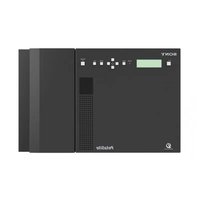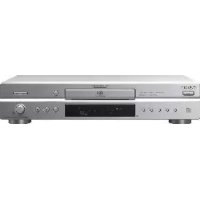
SCDXE597 - Cd player/recorder SONY - Free user manual and instructions
Find the device manual for free SCDXE597 SONY in PDF.



| Product Type | Super Audio CD / CD Player |
| Brand | Sony |
| Model | SCD-XE597 |
| Dimensions (W x H x D) | 430 × 95 × 283 mm (projections included) |
| Weight | Approx. 3.1 kg |
| Power Supply | 230 V AC, 50/60 Hz |
| Power Consumption | 15 W |
| Compatible Formats | Super Audio CD (2-channel and multi-channel), CD audio |
| Analog Audio Outputs | ANALOG 5.1CH OUT (phono jacks): FRONT L/R, SURR L/R, CENTER, SUB WOOFER; level 2 Vrms |
| Digital Audio Output | DIGITAL (CD) OUT OPTICAL (CD audio only) |
| Optical Block | Dual laser: Super Audio CD (650 nm), CD (780 nm) |
| Laser Class | Class 1 |
| Playback Functions | Continuous, random, program (up to 32 tracks), repeat (disc/track) playback |
| Multi-Channel Management | Speaker mode adjustment (Large/Small), balance, level, distance (1.0 to 7.0 m) |
| Display | Display window with TEXT information (title, artist, track) and time |
| Remote Control | Supplied (RM-SX800) with CD1/CD2 selector to control a second Sony player |
| Supplied Accessories | Audio connection cord (Red/White × 2), remote control RM-SX800 |
| Maintenance and Cleaning | Clean with a soft, slightly damp cloth; do not use solvents |
| Safety | Do not expose to rain or moisture; do not block ventilation; unplug in case of problems |
| Service | Refer servicing to qualified personnel; contact your Sony dealer |
Frequently Asked Questions - SCDXE597 SONY
User questions about SCDXE597 SONY
0 question about this device. Answer the ones you know or ask your own.
Ask a new question about this device
Download the instructions for your Cd player/recorder in PDF format for free! Find your manual SCDXE597 - SONY and take your electronic device back in hand. On this page are published all the documents necessary for the use of your device. SCDXE597 by SONY.
USER MANUAL SCDXE597 SONY
Super Audio CD Player
Operating Instructions ____ GB
Mode d'emploi FR
To reduce the risk of fire or electric shock, do not expose this apparatus to rain or moisture.
To avoid electrical shock, do not open the cabinet. Refer servicing to qualified personnel only.
To prevent fire, do not cover the ventilation of the apparatus with news papers, table-cloths, curtains, etc. And don't place lighted candles on the apparatus.
To prevent fire or shock hazard, do not place objects filled with liquids, such as vases, on the apparatus.
text_image
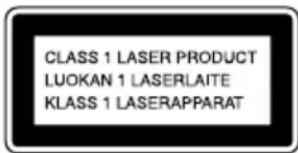
CLASS 1 LASER PRODUCT LUOKAN 1 LASERLAITE KLASS 1 LASERAPPARATThis appliance is classified as a CLASS 1 LASER product. This marking is located on the rear exterior.
Don't throw away the battery with general house waste, dispose of it correctly as chemical waste.
NOTICE FOR THE CUSTOMERS IN THE UNITED KINGDOM
A moulded plug complying with BS1363 is fitted to this equipment for your safety and convenience.
Should the fuse in the plug supplied need to be replaced, a fuse of the same rating as the supplied one and approved by ASTA or BSI to BS1362, (i.e.,
marked with or mark) must be used.
If the plug supplied with this equipment has a detachable fuse cover, be sure to attach the fuse cover after you change the fuse. Never use the plug without the fuse cover. If you should lose the fuse cover, please contact your nearest Sony service station.
Table of Contents
Features of the player ....4
Compatible Disc Types ....4
About the Super Audio CD ....5
Getting Started
Inserting batteries into the remote....6
Hooking Up the Audio Components....6
Playing Discs
Playing a Disc....9
Using the Display ....10
Locating a Particular Point in a Track....12
Playing Tracks Repeatedly....13
— Repeat Play
Playing Tracks in Random Order....13
— Shuffle Play
Creating Your Own Program ....14
— Program Play
Enjoying a Multi-channel Super Audio CD....15
— Multi-channel management function
Additional Information
Precautions ......19
Notes on Discs....20
Troubleshooting....21
Specifications 22
Index to Parts and Controls ....23
Features of the player Compatible Disc Types
This player is designed to play back 2-channel and Multi-channel Super Audio CDs, and conventional CDs, and provides the following features:
- Mounted with a Discrete Dual Laser Optical Pickup, capable of reading a Super Audio CD or conventional CD depending on the exclusive wavelength.
- Quicker track access performance enabled by an advanced servo mechanism.
- A Multi-Channel Management function that allows you to adjust the multi-channel playback environment according to the allocation and size of your speakers.
- A Super Audio D/A Converter, which allows higher-quality sound reproduction.
- A Super Audio CD can mark up to 255 track numbers. This feature applies to SCD-XE597.
- The supplied remote is capable of controlling both the SCD-XE597 and a conventional Sony CD player.
You can play the following types of discs on this player.
- Super Audio CDs
- Audio CDs
This player cannot play the following discs. If you try to play them, the error message “TOC ERROR” or “NO DISC” will appear.
• C D - R O M s
- DVDs, etc.
Music discs encoded with copyright protection technologies
This product is designed to playback discs that conform to the Compact Disc (CD) standard. Recently, various music discs encoded with copyright protection technologies are marketed by some record companies. Please be aware that among those discs, there are some that do not conform to the CD standard and may not be playable by this product.
Notes on CD-R/CD-RW playback
Discs recorded on CD-R/CD-RW drives may not be played back because of scratches, dirt, recording condition, or the drive's characteristics. Besides, the discs, which are not yet finalized at the end of recording, cannot be played back. In these cases, "READING" will remain or "TOC ERROR" will appear in the display.
Note on dts-CDs
Do not play a dts-CD on this player. If you do, severe noise will be generated.
About the Super Audio CD
Super Audio CD is a new high-quality audio disc standard where music is recorded in the DSD (Direct Stream Digital) format (conventional CDs are recorded in the PCM format). The DSD format, using a sampling frequency 64 times higher than that of a conventional CD, and with 1-bit quantization, achieves both a wide frequency range and a wide dynamic range across the audible frequency range, and so provides music reproduction extremely faithful to the original sound.
Types of Super Audio CDs
There are two types of discs, depending on the SA-CD layer and CD layer combination.
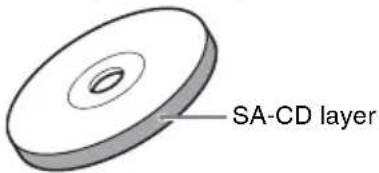
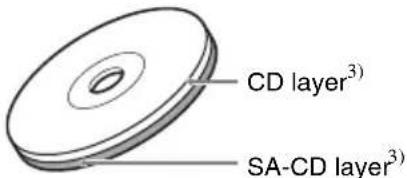
SA-CD layer: A high-density signal layer for Super Audio CD
CD layer ^1) : A layer that is readable by a conventional CD player
Single layer disc
(a disc with a single SA-CD layer)
text_image
SA-CD layerHybrid disc ^2)
(a disc with an SA-CD layer and a CD layer)
text_image
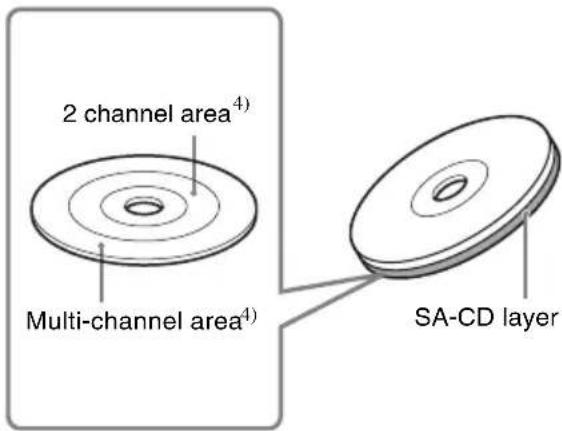
CD layer³) SA-CD layer³)An SA-CD layer consists of the 2 channel area or the multi-channel area.
2 channel area: An area in which 2 channel stereo tracks are recorded
Multi-channel area:
An area in which multi-channel (up to 5.1 channels) tracks are recorded
Example:
When the 2 channel area and the multi-channel area are recorded on an SA-CD layer of a hybrid disc
text_image
2 channel area⁴) Multi-channel area⁴) SA-CD layer1) You can play the CD layer on a conventional CD player.
2) Since both layers are on one side, it is not necessary to turn the disc over.
3) Press SA-CD/CD to select the layer you want to listen to (see page 9).
4) In case of a disc with both areas, press MULTI/2CH to select the area you want to listen to (see page 9).
Getting Started
Inserting batteries into the remote
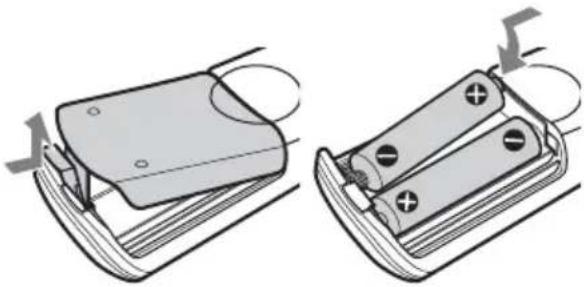
Insert two R6 (size-AA) batteries into the battery compartment with the + and - correctly oriented to the markings. When using the remote, point it at the remote sensor on the player.
natural_image
Two-step diagram showing battery mounting process: left panel with switch and cable, right panel with battery housing and clamps (no text or symbols)Tip
Under normal conditions, the batteries should last for about six months. When the remote no longer operates the player, replace both batteries with new ones.
Notes
- Do not leave the remote in an extremely hot or a humid place.
- Do not drop any foreign object into the remote casing, particularly when replacing the batteries.
- Do not use a new battery with an old one.
- Do not expose the remote sensor to direct sunlight or lighting apparatus. Doing so may cause a malfunction.
- If you do not intend to use the remote for an extended period of time, remove the batteries to avoid possible damage from battery leakage and corrosion.
Hooking Up the Audio Components
Connect the Super Audio CD player to an audio component. Be sure to turn off the power of all components before making connections and connect securely to prevent noise.
Connecting a multi-channel amplifier
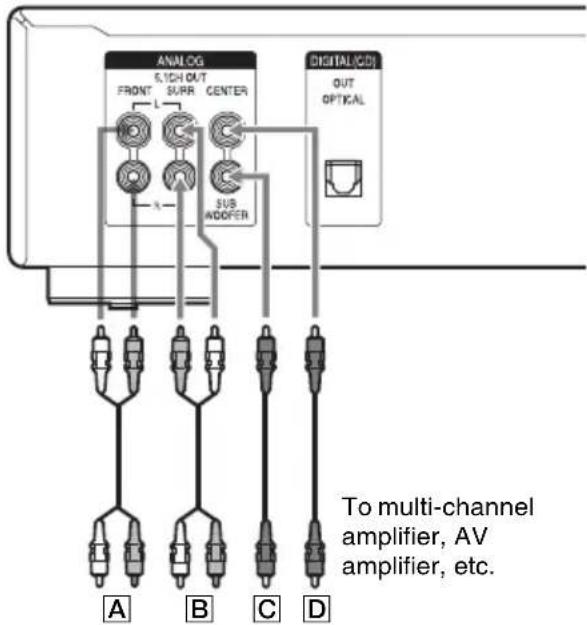
When you have an amplifier equipped with the 5.1CH input jacks (multi-channel amplifier, AV amplifier, etc.) and connect the player and the amplifier through the ANALOG 5.1CH OUT jacks (FRONT L/R, SURR L/R, CENTER, SUB WOOFER), you can play a Multi-channel Super Audio CD and enjoy the multi-channel playback.
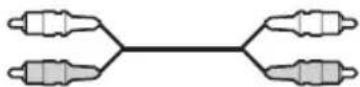
Use audio connecting cords for this connection. For FRONT or SURR connection, use the connecting cords (Red and White jacks) and be sure to match the color-coded pin to the appropriate jacks: white (left) to white and red (right) to red. For CENTER and SUB WOOFER connection, use the connecting cords (Black).
FRONT or SURR connection
Audio connecting cords (one cord is supplied)
White (L)
Red (R)
CENTER or SUB WOOFER connection
Audio connecting cords (not supplied)
Black

text_image
ANALOG 6,7CH OUT FRONT SUPR CENTER SUB ADOFER DIGITAL(CD) OUT OPTICAL A B C D To multi-channel amplifier, AV amplifier, etc.A: To front speaker input jacks (L/R)
B: To surround or rear speaker input jacks (L/R)
C: To sub woofer input jack
D: To center speaker input jack
Note
There are 5CH, 4CH, and 3CH Super Audio CD. When you play these discs, the signal does not output from all the jacks of the ANALOG 5.1CH OUT. For details of the playback, see the cover or instructions of the Super Audio CD.
Connecting a stereo amplifier or MD deck
When you connect a stereo amplifier or make an analog connection with an MD deck, connect the player and the component through the ANALOG 5.1CH OUT FRONT L/R jacks.
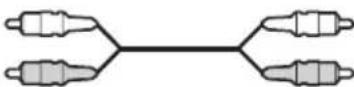
Use an audio connecting cord for this connection. Be sure to match the color-coded pin to the appropriate jacks: white (left) to white and red (right) to red.
Audio connecting cord (supplied)
White (L)
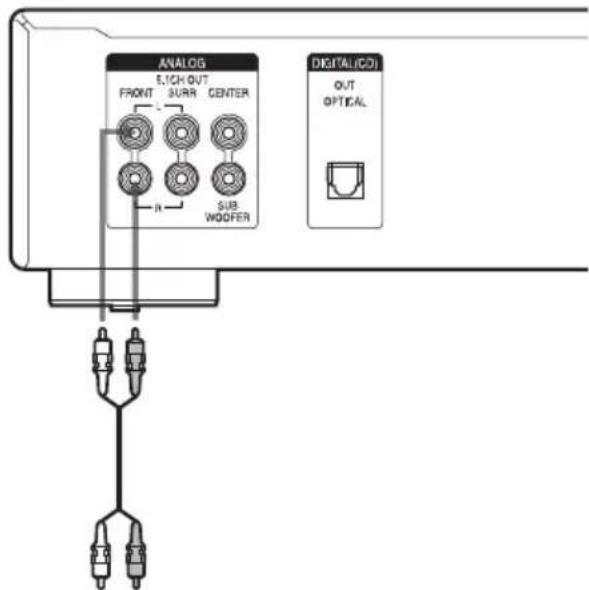
text_image
ANALOG E,ICH OUT FRONT SURA CENTER SUB WOOFER DIGITAL(C) OUT OPTICALTo CD (Super Audio CD) or line input jacks (L/R) on a stereo amplifier, MD deck, etc.
Note
When a disc with the 2 channel area and multi-channel area is played through the ANALOG 5.1CH OUT FRONT L/R jacks, change the default playback area to "SEL-2ch" (2 channel playback area) (see page 9). If you do not, the multi-channel playback area will be automatically played back and only the signal to the front speakers will be output. In this case, the vocals or other sounds may not be heard, depending on the disc.
Connecting a digital component
When you connect an MD deck or another digital component through the DIGITAL (CD) OUT OPTICAL connector, you can make a digital recording.
Use an optical digital cable for this connection. When connecting the optical digital cable to the DIGITAL (CD) OUT OPTICAL connector, push the cable plug in until it clicks into place. Be careful not to bend or twist the optical cable.
Optical digital cable (not supplied)
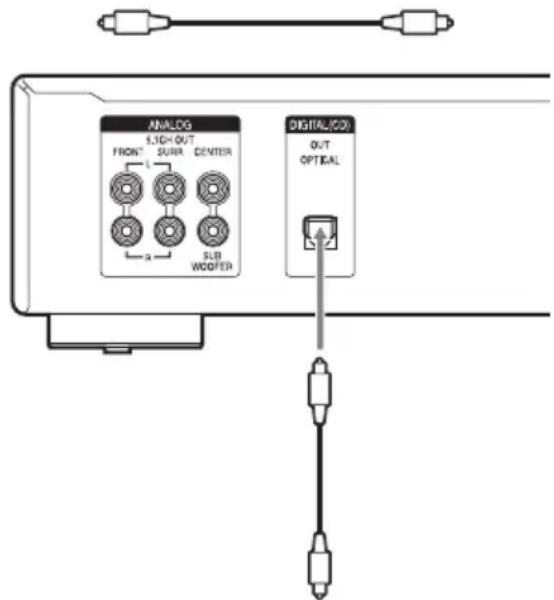
text_image
ANALOG SICH OUT FRONT SURA CENTER SLB WOOFER DIGITAL/COS OUT OPTICALTo CD optical digital input connector on an MD deck, etc.
Note
Only the audio signals of conventional CDs can be output from the DIGITAL (CD) OUT OPTICAL connector. Those of the Super Audio CD cannot be output through the DIGITAL (CD) OUT OPTICAL connector.
Connecting the AC power cord
Connect the AC power cord to a wall outlet.
Note
Install this system so that the power cord can be unplugged from the wall socket immediately in the event of trouble.
When using another Sony CD player in conjunction with this player
You can set the supplied remote to be effective on this player only by changing the command mode of the remote.
To set the command mode of the remote
- If the other player's command mode can be set:
Set the CD1/2 switch of this player's remote to CD1 (factory setting), and set the other player's remote to CD2. - If the other player's command mode cannot be set:
Set the CD1/2 switch of this player's remote to CD2.
To set the command mode of this player
1 Press MENU on the player.
2 Turn ◀◀◀ AMS ▷▶▶ (or press ◀◀◀/▶▶▶ on the remote repeatedly) to select "CD1/2 SEL".
3 Press ◀◀ AMS ▶▶ (or ENTER on the remote).
The current command mode appears.
4 Turn I◀◀ AMS ▷▶▶ (or press I◀◀/▶▶▶ on the remote) to select “CD – 1” or “CD – 2”, then press I◀◀ AMS ▷▶▶ (or ENTER on the remote).
Playing Discs
Playing a Disc
The operations for normal play and the basic operations during play are explained below.
1 Turn on the amplifier. Turn down the volume level to the lowest.
2 Select the player position using the input selector on the amplifier.
3 Press POWER on the player to turn on the player.
4 Press ≅ on the player to open the disc tray, and place a disc on the tray.
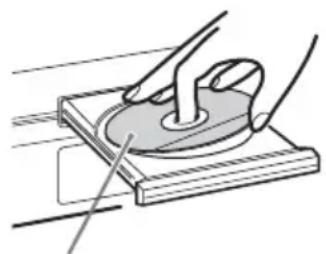
natural_image
Illustration of hands using a tool to press or install a circular component on a base (no text or symbols visible)With the label side up
5 Press ▷.
Playback starts from the first track. If you want to start playing from a specific track, turn ◀◀◀ AMS ▶▶▶ (or press ◀◀◀/▶▶▶ on the remote repeatedly) to select the track number before pressing ▷.
6 Adjust the volume on the amplifier.
Basic operations during play
| To Do the following: | |
| Stop play Press ■. | |
| Pause play Press ■■. | |
| Resume play after pausing | Press ■■ or ▷. |
| Select a track | Turn ◀◀◀ AMS ▷▶▶ (or press ◀◀◀/▶▶▶ on the remote repeatedly). |
| Eject a disc Press ≈ on the player. | |
Tip
If you turn on the player when a disc is already loaded, playback starts automatically. If you connect a commercially available timer, you can set it to start playing the disc at any time you want.
Note
During playback, increase the volume level gradually starting from the lowest level. The output from this player may contain band width that is out of the normal listening range. This may cause damage to the speakers or ears.
Selecting the playback layer
When playing a hybrid disc with an SA-CD layer and a CD layer (page 5), you can select the layer you want to listen to. Also, since both layers are on one side, it is not necessary to turn the disc over.
Press SA-CD/CD to select the desired playback layer.
To select the default playback layer
1 Press MENU on the player.
2 Turn ◀◀◀ AMS ▷▶▶ (or press ◀◀◀ /▶▶▶ on the remote repeatedly) until “LAYER SEL” appears in the display.
3 Press ◀◀ AMS ▶▶▶ (or ENTER on the remote).
The current default layer appears.
4 Turn ◀◀◀ AMS ▷▶▶ (or press ◀◀◀ /▶▶▶ on the remote) to select the desired playback layer.
5 Press ◀◀ AMS ▶▶▶ (or ENTER on the remote).
Selecting the playback area
When playing a disc with the 2 channel playback area and the multi-channel playback area (page 5), you can select the playback area you want to listen to.
Press MULTI/2CH to select the desired playback area.
To select the default playback area
1 Press MENU on the player.
2 Turn ◀◀ AMS ▶▶ (or press ◀◀/▶▶ on the remote repeatedly) until “M/2ch SEL” appears in the display.
3 Press ◀◀ AMS ▶▶ (or ENTER on the remote).
The current default area appears.
4 Turn ◀◀ AMS ▷▶ (or press ◀◀/▶▶ on the remote) to select the desired playback area.
5 Press ◀◀◀ AMS ▶▶▶ (or ENTER on the remote).
Note
The multi-channel playback area is automatically selected whenever you start playback because “SEL-Mch” (multi-channel playback area) is the factory setting. Select “SEL-2ch” (2 channel playback area) when only the ANALOG 5.1CH OUT FRONT L/R jacks are connected.
Using the Display
The display window shows various information about the disc or track being played. This section describes the current disc information and information that appears for each play status.
Disc information when a disc is loaded
The display shows the total number of tracks and total playing time.
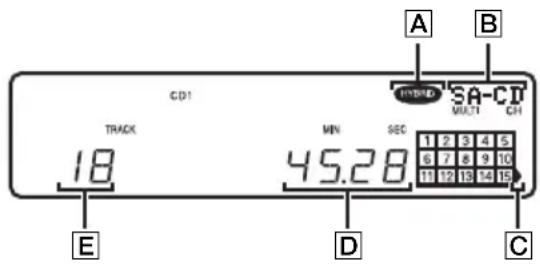
text_image
CD1 TRACK 18 MIN 45.28 SEC A B HYBRID SA-CD MULTI CH 1 2 3 4 5 6 7 8 9 10 11 12 13 14 15 D E CA: Hybrid disc
B: Currently loaded disc and number of playable channels
C: Track 16 and above (for discs with 16 or more tracks)
D: Total playing time
E: Total number of tracks
Displaying the information
TEXT discs contain information, such as the disc name or artist name, as well as the audio signals. This player can display the disc name, artist name, and current track name as TEXT information.
When the player detects a TEXT disc, "TEXT" appears in the display. If your TEXT disc has several languages, "MULTI-TEXT" appears in the display. When you want to check the information in another language, see
"Displaying the information of a TEXT disc in other languages" on page 12.
If a name has 13 or more characters, the first 12 characters will remain after the name scrolls by in the display.
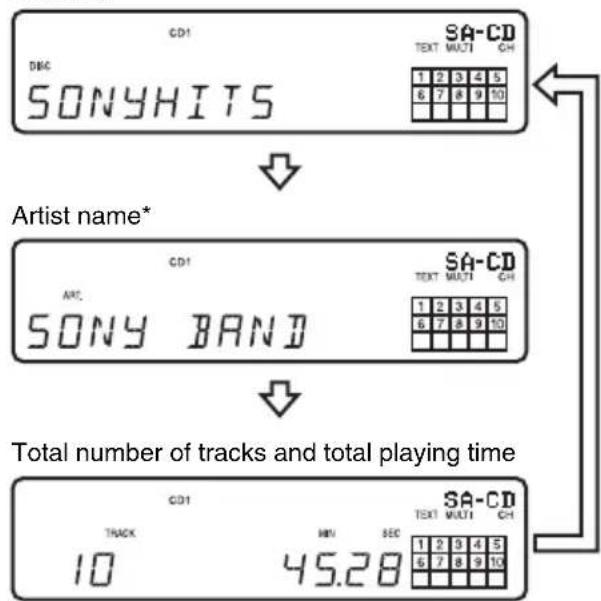
Before you start playing
Press TIME/TEXT repeatedly.
Each time you press the button, the disc name or artist name appears in the display. When you select the artist name, "ART." appears in the display.
Disc title*
text_image
CD1 DEC SONYHITS SA-CD TEXT MULTI CH 1 2 3 4 5 6 7 8 9 10 Artist name* CD1 ARC SONY BAND SA-CD TEXT MULTI CH 1 2 3 4 5 6 7 8 9 10 Total number of tracks and total playing time CD1 TRACK 10 MIN SEC 45.28 SA-CD TEXT MULTI CH 1 2 3 4 5 6 7 8 9 10* Only for TEXT discs
While playing a disc
Press TIME/TEXT repeatedly.
When the player detects a Multi-channel Super Audio CD, the channel information appears for a few seconds after the track title appears.
Playing time of the current track
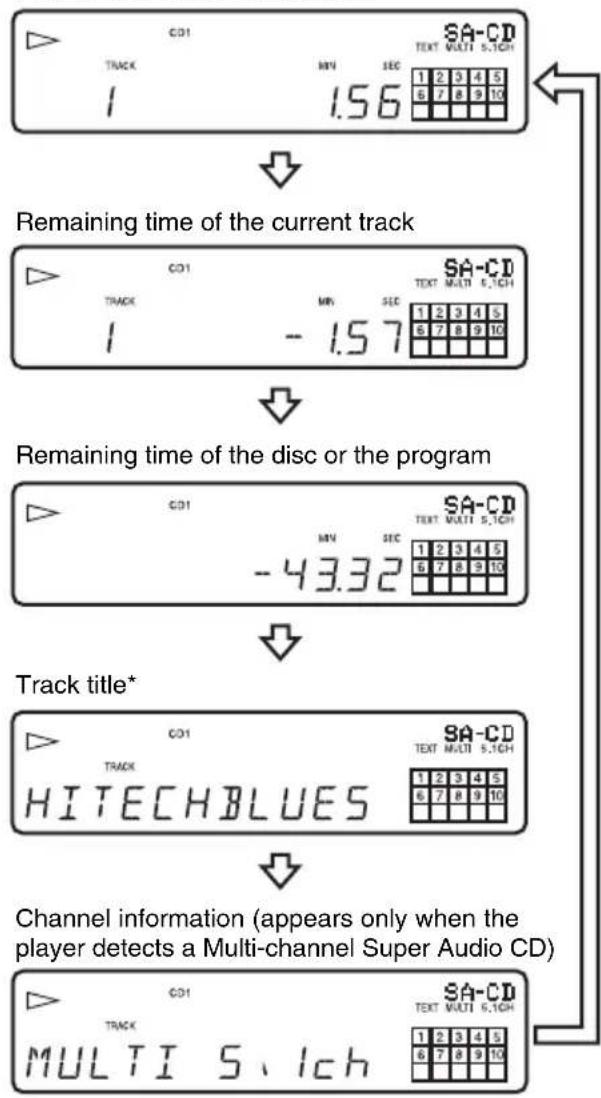
flowchart
graph TD
    A["Start: Track 1.56"] --> B["Remaining time of the current track"]
    B --> C["Remaining time of the disc or the program"]
    C --> D["Track title*"]
    D --> E["Channel information (appears only when the player detects a Multi-channel Super Audio CD)"]
* Only for TEXT discs
Notes
- The display may not show all the characters, depending on the disc.
- This player can display only the disc name, artist name, and track names from TEXT discs. Other information cannot be displayed.
Turning off the information in the display
Press DISPLAY MODE on the remote.
Each time you press the button while playing a disc, the display turns off and on alternately. Even when the display is turned off, it will turn on when certain buttons are pressed, and then turn off again after a few seconds.
Before you start playing, when you press the button to turn off the display, "DISP OFF" appears, and when you press the button to turn on the display, "DISP ON" appears.
Displaying the information of a TEXT disc in other languages
You can change the displayed language if the TEXT disc has multi language capacity. When the player detects such a TEXT disc, “MULTI-TEXT” appears in the display. Change the language according to the procedures below.
1 Press MENU on the player.
2 Turn ◀◀ AMS ▷▶ (or press ◀◀/▶▶ on the remote repeatedly) until “LANGUAGE” appears in the display.
3 Press ◀◀ AMS ▶▶ (or ENTER on the remote).
The current selected language (ENGLISH, FRENCH, GERMAN, etc.) flashes. If the player cannot display the language used in a TEXT disc, “OTHER LANG” appears in the display.
4 Turn ◀◀ AMS ▷▶ (or press ◀◀/▶▶ on the remote repeatedly) until the desired language appears in the display.
5 Press ◀◀ AMS ▶▶ (or ENTER on the remote).
After a few seconds, the information appears in the selected language.
Locating a Particular Point in a Track
You can locate a particular point in a track during play or play pause.
Locating a point Do the following:
| While monitoring the sound (Search) | Press and hold ◀◀/▶▶ during play. |
| By observing the time indication (High-Speed Search) | Press and hold ◀◀/▶▶ during play pause. |
| By setting the start time (Time Search) | 1 Turn ◀◀ AMS ▷▶▶ (or press ◀◀/▶▶▶ on the remote repeatedly) in stop mode to select the desired track.2 Press and hold ◀◀/▶▶ to set the time to start play while looking at the display, then press ▷. |
Tip
When “OVER” appears in the display, the disc has reached its end. Press and hold ◀◀ to go back.
Note
Tracks that are only a few seconds long may be too short for monitoring. In this case, the player may not search correctly.
Playing Tracks Repeatedly
— Repeat Play
You can play an entire disc or a specific track repeatedly. This function can be used with Shuffle Play to repeat all the tracks in random order (page 13), or with Program Play to repeat all the tracks in a program (page 14).
Press REPEAT on the remote repeatedly until "REP" or "REP1" appears in the display.
REP: For all the tracks on the disc(s).
REP1: For a single track only.
When “REP” is selected, Repeat Play changes according to the selected play mode.
| When the play mode is | The player repeats |
| Continuous Play (page 9) | All the tracks in sequential order. |
| Shuffle Play (page 13) | All the tracks in random order. |
| Program Play (page 14) | All the tracks in the program in sequential order. |
To cancel Repeat Play
Press REPEAT on the remote repeatedly until both “REP” and “REP1” disappear.
Notes
- If you turn off the player or disconnect the power cord, Repeat Play is canceled.
- Repeat Play stops automatically after all the tracks have been repeated five times.
Playing Tracks in Random Order
— Shuffle Play
When Shuffle Play is selected, the player will play all the tracks on the disc in random order.
1 Press PLAY MODE (or SHUFFLE on the remote) repeatedly in stop mode until "SHUF" appears in the display.
2 Press ▷.
“ ” appears while the player is “shuffling” the tracks. The player will stop after playing all the tracks once.
To resume Continuous Play
Press PLAY MODE repeatedly (or CONTINUE on the remote) in stop mode until “SHUF” and “PGM” disappear.
Note
The player does not go back to tracks which have already been played.
Creating Your Own Program
— Program Play
You can pick out the tracks that you like and specify the playback order in a program containing up to 32 steps (or 999 min. 59 sec. in total program time).
1 Press PLAY MODE repeatedly (or PROGRAM on the remote) in stop mode until "PGM" appears in the display.
2 Turn ◀◀ AMS ▶▶▶ (or press ◀◀/▶▶▶ on the remote repeatedly) to select the desired track number.
3 Press ◀◀ AMS ▷▶ (or ENTER on the remote).
If you entered the wrong track number
Press CLEAR on the remote. Then repeat Steps 2 and 3 to enter the correct track number.
4 Repeat Steps 2 through 3 to enter other tracks.
Each time you enter a track number, the total number of program steps appears in the display.
5 Press ▷.
Program Play starts.
To resume Continuous Play
Press PLAY MODE repeatedly (or CONTINUE on the remote) in stop mode until “SHUF” and “PGM” disappear.
Tip
The program remains even after Program Play ends. Press ▷ to play from the beginning of the program again. The program remains even if you stop play.
Notes
- If you turn off the player, disconnect the power cord, press on the player, or switch the playback layer or area, the program will be erased.
- If you switch the playback layer or area during Program Play, a single track only will be played back from its beginning, and then the program will be erased.
Checking the contents of the program
Before you start playing or while the player is playing, press CHECK on the remote repeatedly.
Each time you press the button, the track numbers will appear in the display in the programmed order.
If you press CHECK on the remote while the player is playing, the programmed track numbers will appear starting with the currently playing program step.
Changing the contents of the program
You can change the contents of the program in stop mode.
To Do the following:
| Erase a track 1 Press CHECK on the remote repeatedly until the track number you want to erase appears.2 Press CLEAR on the remote. | |
| Erase from the last track in the program | Press CLEAR on the remote.Each time you press the button, the last track of the program is erased. |
| Add a track to the end of the program | Perform Steps 2 through 3. |
| Erase all tracks Hold down CLEAR on the remote or ■ (for about 2 seconds) until “PGM CLEAR” appears in the display. | |
Enjoying a Multi-channel Super Audio CD
— Multi-channel management function
This player is equipped with a Multi-channel management function that sets the playback mode of the Super Audio CD by the DSD-DSP (built into the player) according to the layout or size of your speaker.
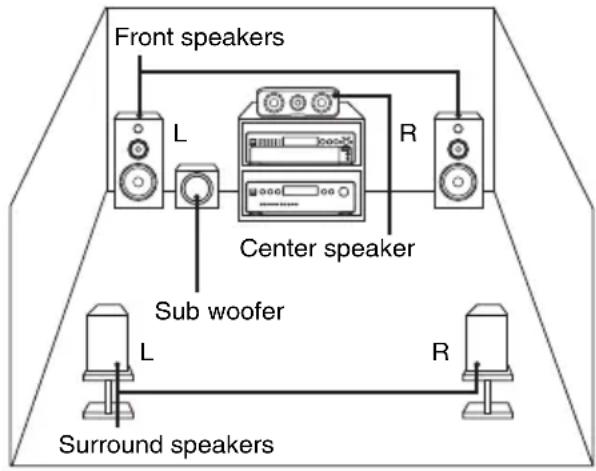
text_image
Front speakers L Center speaker R Sub woofer L R Surround speakersTo set the Multi-channel management function, select the appropriate preset playback mode (2 channel mode or Multi-channel mode), and then adjust the output level balance for each speaker (only in the case of Multi-channel mode).
Notes
- This features only work when you play the Super Audio CD.
- You may not be able to adjust the output level balance depending on the speaker layout mode that you selected.
Selecting the playback mode
1 Press MENU on the player.
2 Turn I◀◀ AMS ▷▶▶ (or press I◀◀/▶▶▶ on the remote repeatedly) until the desired channel mode appears in the display.
2chSP MODE: To play a 2 channel Super Audio CD.
MchSP MODE: To play a Multi-channel Super Audio CD.
3 Press ◀◀◀ AMS ▶▶▶ (or ENTER on the remote).
The playback mode appears in the display.
4 Turn I◀◀ AMS ▷▶▶ (or press I◀◀/▶▶▶ on the remote repeatedly) until the desired playback mode appears in the display.
In 2 channel mode
Playback mode F SW
In Multi-channel mode
| Playback mode F | C | SR | SW | |
| Mch DIRECT* | ○ | ○ | ○ | ○ |
| 5-LARGE+SW | L | L | L | ○ |
| 5-LARGE | L | L | L | — |
| 5-SMALL+SW | S | S | S | ○ |
| F-LARGE+SW | L | S | S | ○ |
| F-LARGE | L | S | S | — |
| NO-CNTR+SW | L | — | L | ○ |
| NO-CNTR | L | —L | — |
* Each signal outputs directly from each speaker.
Explanation of table symbols
F: Front speakers
C: Center speaker
SR: Surround speakers
SW: Sub woofer
○: Signal is output
—: Signal is not output
L: Large
S: Small
About "Large" or "Small" speaker
An “L” speaker is a speaker that can reproduce bass frequencies plentifully. If you select “S” for the surround speakers, the bass frequencies will come from the front speakers and/or sub woofer.
For normal use, select “Mch DIRECT” or set all the speakers to “L” (ex. “5-LARGE+SW”, “5-LARGE”, etc.). If the sound is noisy or the Multi-channel playback is not effective while playing a Multi-channel Super Audio CD, change the settings of the speakers concerned to “S”.
5 Press ◀◀◀ AMS ▷▶▶ (or ENTER on the remote).
To return to the normal display, press MENU on the player.
Notes
- The Multi-channel management function does not work when you select “Mch DIRECT” (you cannot set the output level balance of each speaker).
- The front speaker setting is set to “L” automatically when you set the sub woofer to “—”.
- When you play a track that does not contain the LFE* signal, the signal for the sub woofer does not output. Therefore, when you select “Mch DIRECT”, “5-LARGE+SW”, or “NO-CNTR+SW”, no signal outputs from the sub woofer. However, when you select “5-SMALL+SW” or “F-LARGE+SW” (when you set the speaker setting to “S”), the bass frequencies will come from the sub woofer.
* Low Frequency Enhancement (described as “.1 CH”)
- If you select a playback mode other than “2ch DIRECT” or “Mch DIRECT” using the Multi-channel management function, the sound distribution to the speakers will change, possibly causing a decrease in overall sound volume. If this occurs, adjust the volume with the volume control on the connected amplifier.
- If you change the playback mode while the player is in Multi-channel mode, the output level balance settings will be canceled.
- This function cannot be used during CD playback.
Adjusting the output level balance of each speaker
You can adjust the following items in the case of Multi-channel mode:
SURR BAL
The relative output level balance between the front speakers (FRONT L/R) and the surround speakers (SURR L/R)
CNTR BAL
The relative output level balance between the front speakers (FRONT L/R) and the center speaker (CENTER)
SW BAL
The relative output level balance between the front speakers (FRONT L/R) and the sub woofer (SUB WOOFER)
Notes
- Some adjustment may not work depending on the Multi-channel mode that you selected.
- You cannot adjust the speaker level when “Mch DIRECT” is selected.
To adjust the output level balance on the front panel of the player
You can adjust the output level balance of each speaker while listening during playback. You can also adjust it while listening to the test tone during stop mode.
1 Press MENU.
2 Turn ◀◀ AMS ▶▶ until “LEVEL ADJ” appears in the display.
3 Press ◀◀◀ AMS ▷▶▶.
During playback, go to Step 6.
4 Turn ◀◆ AMS ▶◆ until "TONE ON" appears in the display.
5 Press ◀◀◀ AMS ▷▶▶.
The test tone issues from the speakers in sequence with the speaker type appearing in the display.
6 Turn ◀◀ AMS ▷▶ until the desired item appears in the display.
Select the item from "SURR BAL", "CNTR BAL", or "SW BAL".
Note
When you set the sub woofer to “—” in the Multichannel mode (page 15), “SW BAL” cannot be adjusted (“NOT IN USE” appears). Similarly, “CNTR BAL” or “SURR BAL” cannot be adjusted (“NOT IN USE” appears) when you set the corresponding speaker to “—”.
7 Press ◀◀◀ AMS ▷▶.
The balance adjustment display appears.
In stop mode, the test tone is output from the selected speaker.
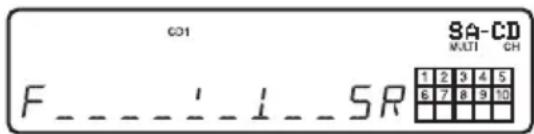
Example:
When you select “SURR BAL” during stop mode, the test tone is output from the front speakers and surround speakers.
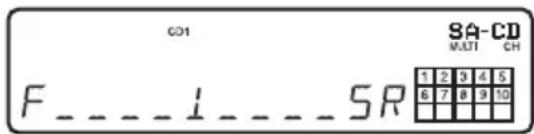
text_image
CO1 SA-CD MULTI CH F _ _ _ 1 _ _ _ 5R 1 2 3 4 5 6 7 8 9 108 Turn ◀◀◀ AMS ▷▶▶ to adjust the output level.
text_image
CO1 SA-CD MULTI CH F _ _ _ _ _ _ _ _ _ _ _ _ _ _ _ _ _ 1 2 3 4 5 6 7 8 9 10Note
The output level balance can be adjusted in up to 24 steps. Since fine adjustments can be made, it may be difficult to observe the movement of needle.
9 Press ◀◀◀ AMS ▷▶.
The player status returns to Step 6.
Repeat Steps 6 through 9 for more adjustments.
10 Press MENU after you finish adjusting.
The display returns to the normal display.
To adjust the output level from the remote
You can adjust the output level of each speaker from the listening position by using the supplied remote.
1 Press LEVEL ADJ during playback or stop mode.
During playback, go to Step 4.
2 Press I◀◀/▶▶I repeatedly until "TONE ON" appears in the display.
3 Press ENTER.
The test tone issues from the speakers in sequence with the speaker type appearing in the display.
4 Press I◄◄/►►I repeatedly until the desired item appears in the display.
Select the item from “SURR BAL”, “CNTR BAL”, or “SW BAL”.
Note
When you set the sub woofer to “—” in the Multi-channel mode (page 15), “SW BAL” cannot be adjusted (“NOT IN USE” appears). Similarly, “CNTR BAL” or “SURR BAL” cannot be adjusted (“NOT IN USE” appears) when you set the corresponding speaker to “—”.
5 Press ENTER.
The balance adjustment display appears.
In stop mode, the test tone is output from the selected speaker.
Example:
When you select “SURR BAL” during stop mode, the test tone is output from the front speakers and surround speakers.
6 Press I◄◄/►►I repeatedly to adjust the output level.
Note
The output level balance can be adjusted in up to 24 steps. Since fine adjustments can be made, it may be difficult to observe the movement of needle.
7 Press ENTER.
The player status returns to Step 4. Repeat Steps 4 through 7 for more adjustments.
8 Press LEVEL ADJ after you finish adjusting.
The display returns to the normal display.
Adjusting the speaker distance
You can adjust the speaker distance when the connected amplifier does not have the setting menu for speaker distance. If the amplifier has this function, we recommend that you set the speaker distance on the amplifier. This setting is available only for the Multi-channel Super Audio CD.
Note
When you set the speaker distance on this player and the amplifier, both of the setting may work and you may not be able to get the proper result.
FRT DIST
The distance from your listening position to the front speakers
You can adjust from 1.0 meter to 7.0 meters (3 to 23 feet) in 0.1 meter (1 foot) steps.
If both front speakers are not placed an equal distance from your listening position, set the distance to the closest speaker.
SURR DIST
The distance from your listening position to the surround speakers
You can adjust from 1.0 meter to 7.0 meters (3 to 23 feet) in 0.1 meter (1 foot) steps.
If both surround speakers are not placed an equal distance from your listening position, set the distance to the closest speaker.
CNTR DIST
The distance from your listening position to the center speaker
You can adjust from 1.0 meter to 7.0 meters (3 to 23 feet) in 0.1 meter (1 foot) steps.
SW DIST
The distance from your listening position to the sub woofer
You can adjust from 1.0 meter to 7.0 meters (3 to 23 feet) in 0.1 meter (1 foot) steps.
DIST UNIT
The unit of measure for setting distances (meter or feet)
The initial setting is “SEL-FEET” for the North American model and “SEL-METER” for the European model.
Note
Speaker distance cannot be adjusted in the following cases.
- When the player is reading the disc information of CD (or the CD area of Super Audio CD)
- When the player is reading the 2 channel area of Super Audio CD
1 Press MENU on the player.
2 Turn ◀◀◀ AMS ▶▶▶ (or press ◀◀◀/▶▶▶ on the remote repeatedly) until “SPK DIST” appears in the display.
3 Press ◀◀ AMS ▶▶ (or ENTER on the remote).
4 Turn ◀◀◀ AMS ▶▶▶ (or press ◀◀◀ /▶▶▶ on the remote repeatedly) until the desired item appears in the display.
Select the item from "FRT DIST", "SURR DIST", "CNTR DIST" or "SW DIST".
Note
When you set the sub woofer to “—” in the Multichannel mode (page 15), “SW DIST” cannot be adjusted (“NOT IN USE” appears). Similarly, “CNTR DIST” cannot be adjusted (“NOT IN USE” appears) when you set the center speaker to “—”.
5 Press ◀◀ AMS ▶▶ (or ENTER on the remote).
The speaker distance adjustment display appears.
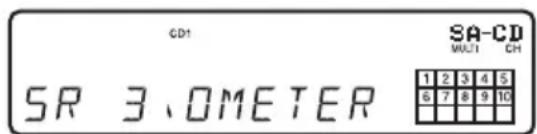
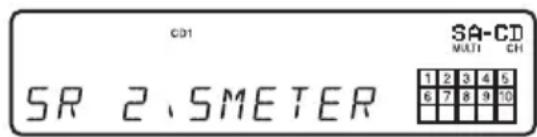
Example:
When you select "SURR DIST" (with "DIST UNIT" set to "SEL-METER").
text_image
CD1 SA-CD MULTI CH SR 3.0METER 1 2 3 4 5 6 7 8 9 106 Turn AMS (or press / on the remote repeatedly) to adjust the speaker distance.
text_image
CD1 SA-CD MULTI CH SR 2.5METER 1 2 3 4 5 6 7 8 9 107 Press ◀◀◀ AMS ▶▶▶ (or ENTER on the remote).
The player status returns to Step 4.
Repeat Steps 4 through 7 for more adjustments.
8 Press MENU on the player after you finish adjusting.
The display returns to the normal display.
Selecting the distance unit
In Step 4 above, select "DIST UNIT".
Turn AMS (or press / on the remote) to select "SEL-METER" or "SEL-FEET", then press AMS (or ENTER on the remote).
Setting speaker distances back to the default
Set all speaker distances to 3 meters (10 feet).
Additional Information
Precautions
On safety
- Caution – The use of optical instruments with this product will increase eye hazard.
- Should any solid object or liquid fall into the cabinet, unplug the player and have it checked by qualified personnel before operating it any further.
- AC power cord must be changed only at the qualified service shop.
- The unit is not disconnected from the AC power source (mains) as long as it is connected to the wall outlet, even if the unit itself has been turned off.
On power sources
- Before operating the player, check that the operating voltage of the player is identical with your local power supply. The operating voltage is indicated on the nameplate at the rear of the player.
- The player is not disconnected from the mains as long as it is attached to the mains, even if the player itself has been turned off.
- If you are not going to use the player for a long time, be sure to disconnect the player from the mains. To disconnect the mains lead, grasp the plug itself; never pull the cord.
On placement
- Place the player in a location with adequate ventilation to prevent heat build-up in the p
- Do not place the player on a soft surface such as a rug that might block the ventilation holes on the bottom.
- Do not place the player in a location near heat sources, or in a place subject to direct sunlight, excessive dust or mechanical shock.
On operation
- If the player is brought directly from a cold to a warm location, or is placed in a very damp room, moisture may condense on the lenses inside the player. Should this occur, the player may not operate properly. In this case, remove the disc and leave the player turned on for about an hour until the moisture evaporates.
- During power on, some noise may be heard while the disc is being loaded into the Super Audio CD player. This is not a malfunction.
On adjusting the volume
Do not turn up the volume too much while listening to a portion with very low level inputs or no audio signals. If you do, the speakers may be damaged when a peak level portion is played.
On inserting a disc
You may hear a transmission or a mechanical sound from the player. This indicates that the player is automatically adjusting its internal mechanisms according to the inserted disc.
You may also hear the mechanical sound from the player when you insert a warped disc.
On cleaning
Clean the cabinet, panel, and controls with a soft cloth slightly moistened with a mild detergent solution. Do not use any type of abrasive pad, scouring powder, or solvent such as alcohol or benzine.
On transportation
- Be sure to remove the disc on the tray.
- Be sure to close the disc tray.
If you have any questions or problems concerning your player, please consult your nearest Sony dealer.
Notes on Discs
On handling discs
- To keep the disc clean, handle the disc by its edge. Do not touch the surface.
- Do not stick paper or tape on the disc.
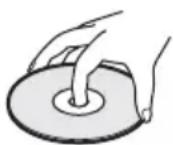
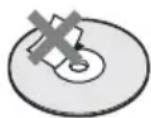
- Use only round-shaped discs. If you use a special shaped disc (e.g., star-shaped, heart-shaped, or square-shaped, etc.), the player may be damaged.
- Do not use a disc with a seal attached on such as on a used disc or rental disc.
On keeping discs
- Do not expose the disc to direct sunlight or heat sources such as hot air ducts.
• After playing, store the disc in its case. If you put it on top of another disc without the case, the disc may be damaged.
On placing discs on the disc tray
Make sure the disc is positioned securely on the tray. If not, the player or the disc may be damaged.
On cleaning
- If the disc is dirty with fingerprints or dust, it may lessen the quality of the audio out.
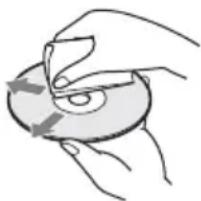
- Before playing, clean the disc with a cleaning cloth. Wipe the disc from the center out.
natural_image
Illustration of hands holding a CD or DVD disc with arrows indicating rotation (no text or symbols)- Clean the disc with a soft cloth slightly moistened with water, and remove moisture with a dry cloth.
- Do not use solvents such as benzine, thinner, record cleaners, or anti-static spray.
Troubleshooting
If you experience any of the following difficulties while using the player, use this troubleshooting guide to help you remedy the problem. Should any problem persist, consult your nearest Sony dealer.
There is no sound.
- Check that the player is connected securely.
- Make sure you operate the amplifier correctly.
There is no sound from the DIGITAL (CD) OUT OPTICAL connector.
- The audio signals of the Super Audio CD cannot be output from the DIGITAL (CD) OUT OPTICAL connector.
The disc does not play.
• There is no disc inside the player.
- Place the disc on the disc tray with the label side up.
- The disc is placed at an angle. Reload the disc.
- Clean the disc (see page 20).
- Moisture has condensed inside the player. Remove the disc and leave the player turned on for about an hour.
- There is an incompatible disc on the tray (see page 4).
The remote does not function.
- Remove any obstacles in the path of the remote and the player.
- Point the remote at the remote sensor on the player.
- If the batteries in the remote are weak, replace with new ones.
- Be sure that the command mode of the remote (position of the CD1/2 switch) (page 24) matches the command mode of the player (page 8).
There is no sound from the SUB WOOFER jack.
- Select a playback mode in which the sub woofer signal is output from the SUB WOOFER jack. The mode indication is displayed with “+ SW” (page 15) when such a mode is selected.
- When you play a track that does not contain the LFE signal, the signal outputs from the SUB WOOFER jack only when you select “5-SMALL+SW” or “F-LARGE+SW” for Multi-channel mode (page 15).
A disc cannot be ejected and "LOCKED" appears in the front panel display.
- Contact your Sony dealer or local authorized Sony service facility.
After you have attempted the prescribed corrective actions
If the player still does not operate properly, or if other problems not described above occur, turn off the player, unplug it from the power outlet for a few minutes, then reinsert the plug into the power outlet.
Specifications
When a Super Audio CD is played
Playing frequency range 2 Hz to 100 kHz
Frequency response 2 Hz to 40 kHz (-3 dB)
Dynamic range 100 dB or more
Total harmonic distortion rate
0.0035 % or less
Wow and flutter Value of measurable limit
(±0.001 % W. PEAK) or
less
When a CD is played
Frequency response 2 Hz to 20 kHz
Dynamic range 96 dB or more
Total harmonic distortion rate
0.0039 % or less
Wow and flutter Value of measurable limit
(±0.001 % W. PEAK) or
less
Output connector
| Jack type | Output level | Load impedance | |
| ANALOG5.1CH OUT | Phono jacks | 2 Vrms (at 50 kilohms) | Over 10 kilohms |
| DIGITAL(CD) OUT | Square optical output connector | -18 dBm (Light emitting wave length: 660 nm) | |
| OPTICAL* | |||
* Output only the audio signals of the CD
General
Laser Semiconductor laser
(Super Audio CD: λ= 650
nm) (CD: = 780 nm)
Emission duration:
continuous
Power requirements 230 V AC, 50/60 Hz
Power consumption 15 W
Dimensions (w/h/d) 430 × 95 × 283 mm incl.
projecting parts
Mass (approx.) 3.1 kg
Supplied accessories
Audio connecting cord Red and White × 2 (1)
Remote commander RM-SX800 (1)
Battery R6 (size-AA) (2)
Design and specifications are subject to change without notice.
Index to Parts and Controls
Further details are provided on the pages indicated in parentheses.
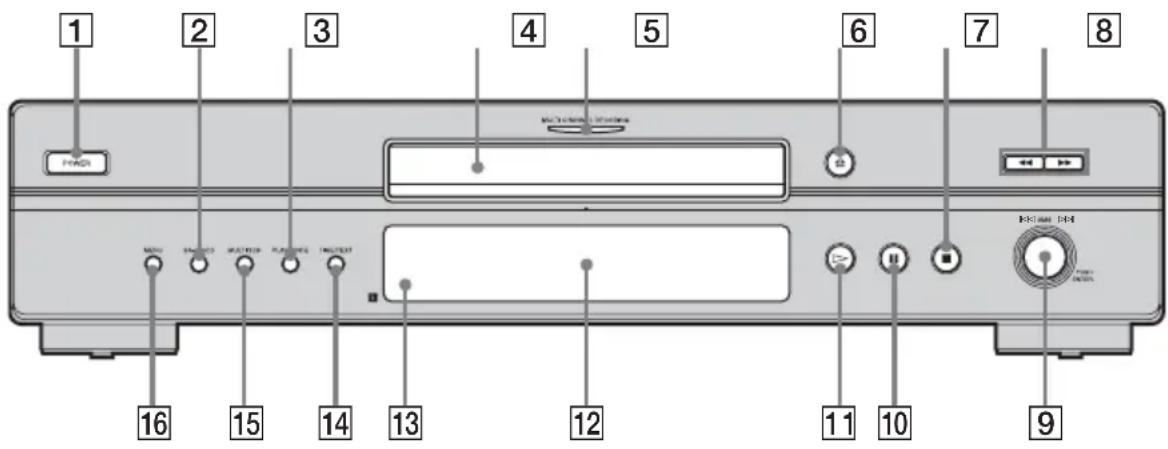
Instructions in this manual describe the controls on the player. You can also use the controls on the remote if they have the same or similar names as those on the player.
Front Panel
text_image
1 2 3 4 5 6 7 8 F-DRD MULTI CABBAGE SWITCH MENU STRAWB SWITCH PLANNING MULTIFLET 16 15 14 13 12 11 10 91 POWER switch (9)
2 SA-CD/CD button (5, 9)
Each time you press the button while playing back a hybrid disc, the layer to be played back switches between the SA-CD layer and the CD layer.
3 PLAY MODE button (13, 14)
Press to select the play mode.
4 Disc tray (9)
5 MULTI CHANNEL DECODING indicator
Turns on when you turn on the player, or when the Multi-channel Super Audio CD is loaded and select the multi-channel playback area by pressing MULTI/2CH.
6 ≜ button (9)
7■ button (9, 14)
8◀◀/▶▶ buttons (12)
9 AMS dial
(AMS: Automatic Music Sensor) (8, 9, 10, 12, 14, 15, 16, 18)
10 II button (9)
11▷ button (9, 12, 13, 14)
12 Display window (10)
13 Remote sensor (6)
14TIME/TEXT button (11)
Each time you press the button, the playing time of the track, the remaining time of the disc, or TEXT information appears in the display.
15 MULTI/2CH button (5, 9)
Press to select the playback area when a disc with the 2 channel area and the multi-channel area (page 5) is loaded.
16 MENU button (8, 9, 10, 12, 15, 16, 18)
Press to enter the menu.
Press to exit from the menu and return to the normal display.
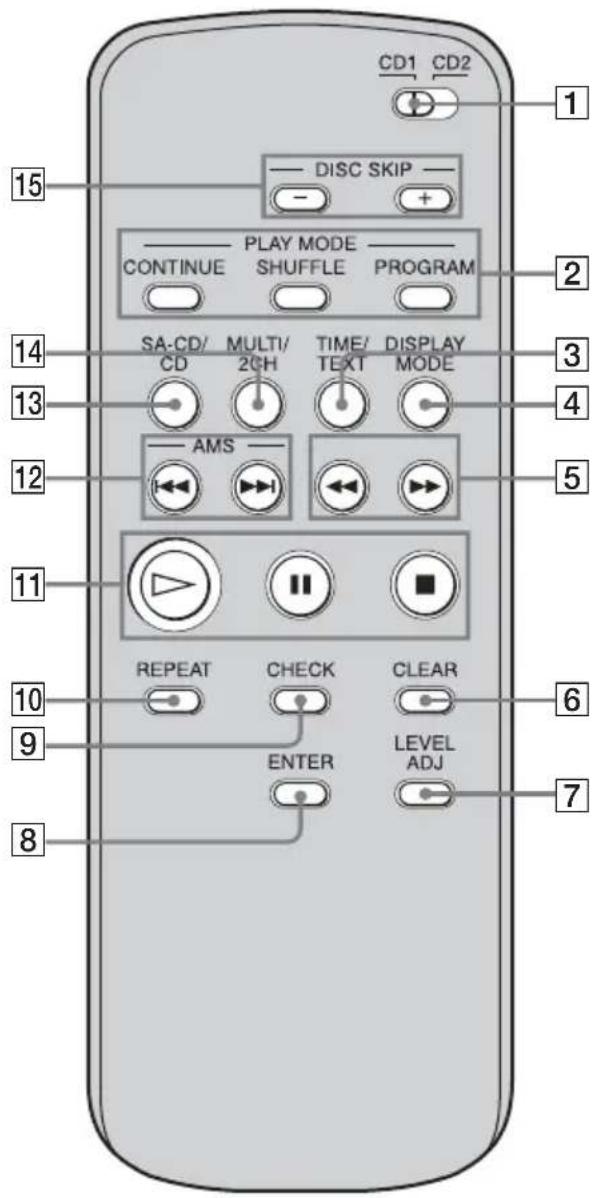
Remote
text_image
CD1 CD2 DISC SKIP CONTINUE PLAY MODE SHUFFLE PROGRAM SA-CD/ MULTI/ TIME/ DISPLAY CD 2CH TEXT MODE AMS REPEAT CHECK CLEAR ENTER LEVEL ADJ 15 2 3 4 5 6 71CD1/2 (command mode) switch (8)
Select the command mode.
② CONTINUE button (13, 14)
Press to resume Continuous Play from Shuffle Play or Program Play.
SHUFFLE button (13)
PROGRAM button (14)
3TIME/TEXT button (11)
Each time you press the button, the playing time of the track, the remaining time of the disc, or TEXT information appears in the display.
4 DISPLAY MODE button (12)
Press to turn the display information off or on.
5◀◀/▶▶ buttons (12)
6 CLEAR button (14)
Press to delete a programmed track number.
7 LEVEL ADJ button (17)
Press to adjust the output level balance for the Multi-channel management function (page 15).
8 ENTER button (8, 9, 10, 12, 14, 15, 17, 18)
⑨ CHECK button (14)
Press to check the programmed order.
10REPEAT button (13)
11▷ button (9, 12, 13, 14)
II button (9)
■ button (9, 14)
12 AMS I ◀◀/▶▶I buttons
(AMS: Automatic Music Sensor) (8, 9, 10, 12, 14, 15, 17, 18)
13SA-CD/CD button (5, 9)
Each time you press the button while playing back a hybrid disc, the layer to be played back switches between the SA-CD layer and the CD layer.
14 MULTI/2CH button (5, 9)
Press to select the playback area when a disc with the 2 channel area and the multi-channel area (page 5) is loaded.
15DISC SKIP +/- buttons*
Press to select the disc.
*This button cannot be used in this player.
AVERTISSEMENT
natural_image
Diagram showing two battery holder assemblies with arrows indicating movement (no text or symbols)Conseil
text_image
Blanc (L) Rouge (R)text_image
ANALOG 5.1CH OUT FRONT Surr CENTER R SUB WOOFER DIGITALCOI OUT OPTICALtext_image
ANALOG 5.1CH OUT FRONT SURA CENTER SUB WOOFER DIGITALICO OUT OPTICALnatural_image
Illustration of hands using a tool to press or install a circular component on a base (no text or symbols visible)natural_image
Illustration of hands holding a CD or DVD disc with arrows indicating rotation (no text or symbols)Piles R6 (format AA) (2)
text_image
1 2 3 4 5 6 7 8 FICO MCC S MCC MCC MCC MCC MCC MCC MCC MCC MCC MCC MCC MCC MCC MCC MCC MCC MCC MCC MCC MCC MCC MCC MCC MCC MCC MCC MCC MCC MCC MCC MCC MCC MCC MCC9 10 11 12 13 14 16
(AMS : Automatic Music Sensor) (8, 9, 10, 12, 14, 15, 16, 18)
16 Touche MENU (8, 9, 10, 12, 15, 16, 18)
8 Touche ENTER (8, 9, 10, 12, 14, 15, 17, 18)
9 Touche CHECK (14)
11 Touche ▷ (9, 12, 13, 14)
Touche II (9)
Touche ■ (9, 14)
12 Touches AMS I ◀◀/▶▶I
(AMS : Automatic Music Sensor) (8, 9, 10, 12, 14, 15, 17, 18)
13 Touche SA-CD/CD (5, 9)
natural_image
Diagram showing two battery charging setups with a clip and plug, no text or symbols presentTipp
text_image
ANALOG 5.ICH OUT FRONT Surr CENTER SUB WOOFER DIGITAL COI OUT OPTICALtext_image
ANALOG 5.1CH OUT FRONT SURA CENTER SUB WOOFER DIGITAL/CDI OUT OPTICALnatural_image
Illustration of hands using a tool to press or install a circular component on a base (no text or symbols visible)Label nach oben
5 Drücken Sie ▷.
natural_image
Illustration of hands holding a CD or DVD disc with a circular arrow indicating rotation (no text or symbols)(AMS: automatischer Musiksensor) (8, 9, 10, 12, 13, 14, 16, 17, 19)
10Taste II (9)
11Taste ▷ (9, 13, 14)
12 Display (10)
13 Fernbedienungssensor R (6)
14 Taste TIME/TEXT (11)
16Taste MENU (8, 9, 10, 12, 16, 17, 19)
6Taste CLEAR (14, 15)
8 Taste ENTER (8, 9, 10, 12, 14, 16, 18, 19)
9Taste CHECK (15)
(AMS: automatischer Musiksensor) (8, 9, 10, 12, 13, 14, 16, 18, 19)
13Taste SA-CD/CD (5, 9)
natural_image
3D illustration of a circular mechanical part with a central hole and a small protrusion (no text or symbols)Capa de SA-CD
natural_image
3D illustration of a circular mechanical part with a central hole (no text or symbols)Capa de CD ^3)
Capa de SA-CD ^3)
natural_image
Two-step diagram showing battery charging process: one with switch, the other with battery pack (no text or symbols)Sugerencia
text_image
ANALOG 5.1CH OUT FRONT Surr CENTER SUB WOOFER DIGITAL COI OUT OPTICALtext_image
ANALOG SIGHT OUT FRON: SURA CENTER L SUB WOOFER DIGITAL/CCI OUT OPTICALnatural_image
Illustration of hands using a tool to press or install a circular component on a base (no text or symbols visible)text_image
Altavoces L R Altavoz central Subwoofer L R Altavoces surroundSR: Altavoces surround
SW: Subwoofer
O: Señal de salida
natural_image
Illustration of a hand holding a CD or DVD disc with arrows indicating rotation (no text or symbols)mensurable (±0,001% W
mensurable (±0,001% W
(Super Audio CD: λ= 650
nm) (CD: = 780nm )
8Botón ENTER (8, 9, 10, 12, 14, 15, 17, 18)
9Botón CHECK (14)