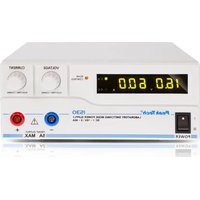
1570 - Measuring equipment PeakTech - Free user manual and instructions
Find the device manual for free 1570 PeakTech in PDF.



| Brand | PeakTech |
| Model | 1570 |
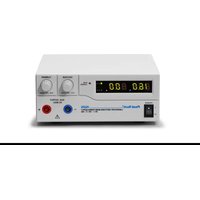
| Product type | DC switching laboratory power supply |
| Output voltage | 1 - 16 V DC (continuously adjustable) |
| Max. output current | 60 A (main output + AUX) |
| Voltage stability (load 0-100%) | 50 mV |
| Residual ripple voltage (rms) | 5 mV |
| Efficiency | 85 % |
| Displays | 3-digit LED for voltage and current (+/- 0.2% + 3 digits) |
| Input voltage | 220 - 240 V AC, 50/60 Hz |
| Max. input current | 4.7 A |
| Dimensions (W x H x D) | 200 x 90 x 325 mm |
| Weight | 3.2 kg |
| Protections | Overload (CC), short circuit, overvoltage (OVP), overheating (OTP) |
| Additional functions | 3 Preset presets (P1/P2/P3), remote control, USB interface, remote sensing |
| Cooling | Temperature-controlled fan |
| Operating temperature | 0 ... +50°C, RH < 70% |
| Cleaning | Lint-free damp cloth, mild detergent; disconnect before cleaning |
| Spare parts and repairability | Replacement fuse of same rating (T3.15A/250V or according to model); repair by qualified technician |
| General information | Indoor use, CE/UKCA compliance, annual calibration recommended |
Frequently Asked Questions - 1570 PeakTech
User questions about 1570 PeakTech
0 question about this device. Answer the ones you know or ask your own.
Ask a new question about this device
Download the instructions for your Measuring equipment in PDF format for free! Find your manual 1570 - PeakTech and take your electronic device back in hand. On this page are published all the documents necessary for the use of your device. 1570 by PeakTech.
USER MANUAL 1570 PeakTech
Switching Mode DC Power Supplies with USB /
External Timed Program Description:
| Command code & return value | Function | Example |
| Input Command: GMAX[CR] | Get PS maximum Voltage ¤t value | Input command: GMAX[CR] |
| Return value: <voltage><current>[CR] OK[CR] | <voltage>=??? | Return value: 180200[CR] OK[CR] |
| <current>=??? | ||
| Meaning: Maximum Voltage is 18.0V Maximum Current is 20.0A | ||
| Input Command: SOUT(status)[CR] | Switch on/off the output of PS | Input command: SOUT0[CR] |
| Return value: OK[CR] | <status>=0/1 (0=ON, 1=OFF) | Return value: OK[CR] |
| Meaning: Switch on the output of PS | ||
| Input Command: VOLT(voltage)[CR] | Preset Voltage value <voltage>=000<???<Max-Volt | Input command: VOLT127[CR] |
| Return value: OK[CR] | *Max-Volt value refer to product specification | Return value: OK[CR] |
| Meaning: Set Voltage value as 12.7V | ||
| Input Command: CURR(current)[CR] | Preset Current value <current>=000<???<Max-Curr | Input command: CURR120[CR] |
| Return value: OK[CR] | *Max-Curr value refer to product specification | Return value: OK[CR] |
| Meaning: Set Current value as 12.0A | ||
| Input Command: GETS[CR] | Get PS preset Voltage & Current value | Input command: GETS[CR] |
| Return value: <voltage><current>[CR] OK[CR] | <voltage>=??? | Return value: 150180[CR] OK[CR] |
| <current>=??? | ||
| Meaning: The Voltage value set at 15V and Current value set at 18A | ||
| Input Command:GETD[CR]Return value:<voltage><current><status>OK[CR] | Get PS Display values of Voltage, Current and Status of CC/CV<voltage>=?????<current>=?????<status>=0/1 (0=CV, 1=CC) | Input command:GETD[CR]Return value:150016001[CR]OK[CR]Meaning:The PS Display value is 15V and 16A.It is in CC mode. |
| Input Command:PROM<voltage0><current0><voltage1><current1><voltage2><current2>[CR]Return value:OK[CR] | Save Voltage and Current value into 3 PS memory locations<voltageX>=?????<currentX>=????? (X is memory location number start from 0 to 2) | Input command:PROM11111022122033133[CR]Return value:OK[CR]Meaning:Preset Memory 0 as 11.1V and 11.1A Preset Memory 1 as 2.2V and 12.2A Preset Memory 2 as 3.3V and 13.3A |
| Input Command:GETM[CR]Return value:<voltage0><current0>[CR]<voltage1><current1>[CR]<voltage2><current2>[CR]OK[CR] | Get saved Voltage and Current value from 3 PS memory locations<voltageX>=?????<currentX>=????? (X is memory location number start from 0 to 2) | Input command:GETM[CR]Return value:111111[CR]122122[CR]133133[CR]OK[CR]Meaning:PS return following preset value from 3 memory locations;Memory 0 is 11.1V and 11.1AMemory 1 is 12.2V and 12.2AMemory 2 is 13.3V and 13.3A |
| Input Command:RUNM<memory>[CR]Return value:OK[CR] | Set Voltage and Current using values saved in memory locations<memory>=0/1/2 | Input command:RUNM1[CR]Return value:OK[CR]Meaning:Set Voltage and Current using values saved in memory location 1 |
| Input Command:GOUT[CR]Return value:<status>OK[CR]Reamrk:Only for unit software version 3.1 or above | Get Output Status of the PS<status>=0/1 (0=ON, 1-OFF) | Input Command:GOUT[CR]Return valvue:OK[CR]Meaning:The Output of the PS is on |
| Input Command: GOVP[CR] | Get preset upper limit of output Voltage | Input command: GOVP[CR] |
| Return value: <voltage>[CR] | <voltage>=??? | Return value: 111[CR] |
| OK[CR] | OK[CR] | |
| Meaning: The preset upper limit of output Voltage is 11.1V | ||
| Input Command: SOVP<voltage>[CR] | Preset upper limit of output Voltage | Input command: SOVP151[CR] |
| Return value: OK[CR] | Return value: OK[CR] | |
| Meaning: Preset upper limit of output Voltage as 15.1V | ||
| Input Command: GOCP[CR] | Get preset upper limit of output Current | Input command: GOCP[CR] |
| Return value: <current>[CR] | <current>=??? | Return value: 111[CR] |
| OK[CR] | OK[CR] | |
| Meaning: The preset upper limit of output Current is 11.1A | ||
| Input Command: SOCP<voltage>[CR] | Preset upper limit of output Current | Input command: SOCP151[CR] |
| Return value: OK[CR] | Return value: OK[CR] | |
| Meaning: Preset upper limit of output Current as 15.1A | ||
| Input Command: Return value: <error code>OK[CR] Remark: Only for unit software version 3.1 or above | Get Error Code, of the PS Error code=000, normal and no fault Error code=001, Over Voltage Protected Error code=002, Over Current Protected Error code=003, Over Temperature Protected Error code=004, RECALL or MODE switch defeated Erro code=006, Temperature returned to normal after OTP | Input command: GERR[CR] Return valvue: 000OK[CR] Meaning: The PS is normal |
This product complies with the requirements of the following directives of the European Union for CE conformity: 2014/30/EU (electromagnetic compatibility), 2014/35/EU (low voltage), 2011/65/EU (RoHS).
We herewith confirm that this product meets the essential protection standards, which are given in directions of council for adaptation of the administration regulations for UK of Electromagnetic Compatibility Regulations 2016 and the Electrical Equipment (safety) regulations 2016.

To ensure safe operation of the equipment and eliminate the danger of serious injury due to short-circuits (arcing), the following safety precautions must be observed.
Damages resulting from failure to observe these safety precautions are exempt from any legal claims whatever.
- Read these operating instructions carefully and make them available to subsequent users as well.
- It is essential to observe the warning notices on the device, do not cover or remove them.
-
Familiarize yourself with the functions of the device and its accessories before using it for the first time.
-
Do not operate the device unsupervised or only protected against unauthorized access.
- Use the device only for the purpose of its intended use and pay particular attention to the warning notices on the device and information on the maximum input and output values.
- Before connecting the device to a socket, check that the voltage setting on the device corresponds to the existing mains voltage
- Only connect the device to sockets with an earthed neutral conductor.
- Do not place the device on a damp or wet surface.
- It is essential to keep the ventilation slots in the housing free (if the cover is covered, there is a risk of heat build-up inside the device).
- Do not insert any metal objects through the ventilation slots.
- Do not place any liquids on the device (risk of short circuit if it tips over).
- Never use the device if it is not completely closed.
- Replace defective fuses only with a fuse that corresponds to the original value.
- Never short-circuit the fuse or fuse holder.
- Check the device and accessories for possible damage or bare or kinked cables and wires before commissioning. If in doubt, do not take any measurements.
- It is essential to observe the warning notices on the device.
- Do not expose the device to extreme temperatures, direct sunlight, extreme humidity or moisture.
- Avoid strong vibrations.
- Do not operate the device near strong magnetic fields (motors, transformers, etc.).
- Clean the housing regularly with a damp cloth and a mild cleaning agent. Do not use any corrosive abrasives.
- This device is only suitable for indoor use only.
- Avoid any proximity to explosive and flammable substances.
- Opening the device and maintenance and repair work may only be carried out by qualified service technicians.
- Never short-circuit the remote sensor connections
- Do not make any technical changes to the device.
Cleaning the cabinet
Prior to cleaning the cabinet, withdraw the mains plug from the power outlet. Clean only with a damp, soft cloth and a commercially available mild household cleanser. Ensure that no water gets inside the equipment to prevent possible shorts and damage to the equipment.
1.1. Introduction
The models PeakTech 1565 / 1570 / 1575 / 1580 and 1585 Switching Mode DC Power Supplies provide high power output with it small size and lightweight. They are suitable for a variety of uses, especially for DC operated radio equipment.
Please read through this operation instruction carefully and follow the instructions to prevent from abuse or misuse. This manual must be kept for reference at anytime in need.
NOTE:
Laboratory Power Supplies are not designed for charging batteries. Any use of this type can cause serious damage to the device, which are exempt from any legal claims whatever.
Operation with inductive loads
Please note that our power supplies are designed for resistive or capacitive loads. When using an inductive load, e.g. Electric motors, it may damage the power supply. The power supply has protective functions against short circuit and overload, but it is not a protection against inductive reverse voltages, which can be caused by electric motors or batteries.
2. Features
- Lightweight and Small Size: Switching mode power supply has the advantages of lightweight and small size. Comparing with linear mode power with the same power output, it is much lighter and smaller.
- High Efficiency: The unit is operated with efficiency over 85% (P 1565/1570); 87% (P 1575); 86% (P 1580); 88% (P 1585) under the best condition.
- Overload Protection: The constant current limiting protection is adopted to prevent from overload. The overload indicator will be lighted up when the unit is overloaded.
- Over Temperature Protection: The over temperature circuitry is functioned when the unit is over a certain high temperature to prevent the unit from damage by the high temperature. When the circuitry is functioned, the output voltage and current will drop down to a safety value.
- Over Voltage Protection: The over voltage circuitry the unit and the loading equipment form damage by abnormal high output voltage.
- High RFI Stability: The high protection circuitry against RFI (Radio Frequency Interference) provides a stable operation.
- Variable Voltage Output: The variable range of output voltages enables good fits with various uses.
3. Controls and Indications (P 1565 / P 1575 / P 1585)
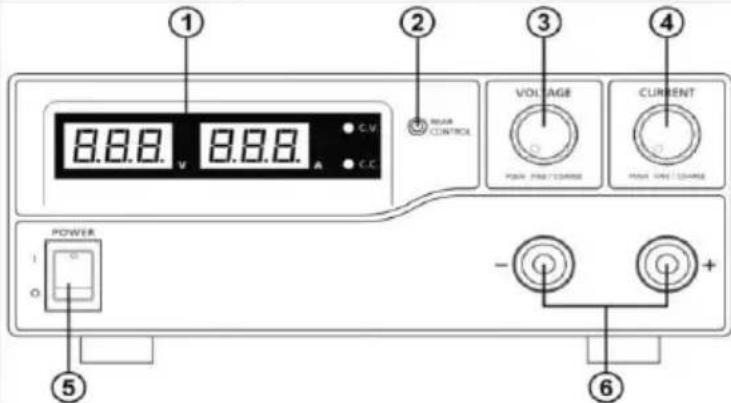
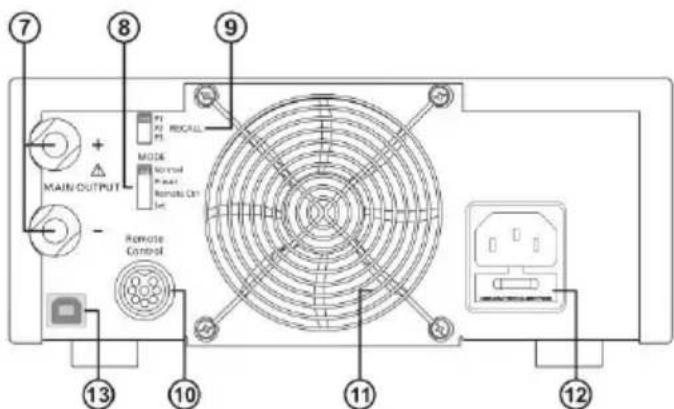
- LED panel meter display with CC/CV Indictor
- Rear Control Indicator (lights up when using Preset/ Remote Control/ Set mode)
- Output Voltage Control Knob (control both the main and auxiliary output voltage)
- Output Current Control Knob (control both the main and auxiliary output current limit)
- Power ON/OFF Switch
- Aux. output terminal (max 5A)
Note: The total rated current is 40 A (P 1565); 20 A (P 1575); 15 A (P 1585) (Aux.+Main)
- Output Terminal
- Mode Selection Switch (Normal, Preset, Remote Control, Set Modes)
- Recall Selection Switch
- Remote Control Terminal
- Cooling Fan Air Intake Grille
- AC Input Plug
- USB port. For access to computer to run cyclical operation with programmable voltage, current, period time and cycle.
4. Controls and Indications (P 1570 and P 1580)
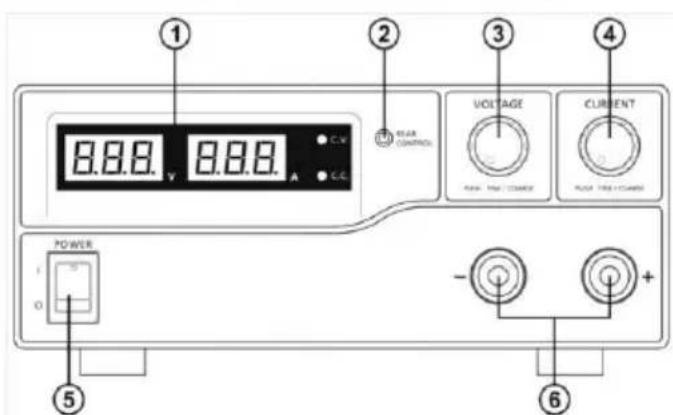
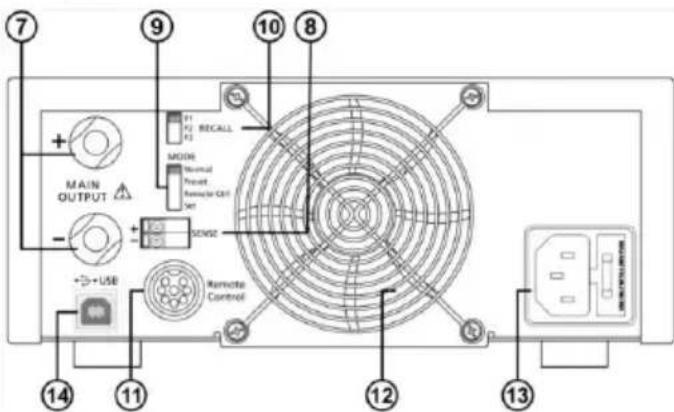
- LED panel meter display with CC/CV Indictor
- Rear Control Indicator (lights up when using Preset/ Remote Control/ Set mode)
- Output Voltage Control Knob (control both the main and auxiliary output voltage)
- Output Current Control Knob (control both the main and auxiliary output current limit)
- Power ON/OFF Switch
- Aux. output terminal (max 5A)
Note: The total rated current is 60 A (P 1570) resp. 30 A (P 1580) (Aux.+Main)
- Output Terminal
- Remote Sensing Terminal (P 1570 only)
-
Mode Selection Switch (Normal, Preset, Remote Control, Set Modes)
-
Recall Selection Switch
-
Remote Control Terminal
- Cooling Fan Air Intake Grille
- AC Input Plug
- USB port: For access to computer to run cyclical operation with programmable voltage, current period time and cycle.
5. Installation
- Make grounding the unit to prevent from electric shock at high voltage caused by leakage or lightning.
- Do not place the unit in high humid, dusty and/or sunshiny places.
- Place the unit in a location where allows free air circulation.
- Couple with an AC outlet directly, as source via distribution cables may heat plugs and cable.
- Put the unit horizontally for accurate meter readings.
For Indoor Use Only.
- Do not use the unit for the equipment requiring higher current input respectively starting current than the designed value otherwise damages the unit.
- Do not replace the fuse before ceasing problems and the assigned value of fuse must be used in place. (P 1565/1575/1585 = T4L250V; P 1570/1580 = T8AL250V)
- If the external flexible cable or cord of this power supply is damaged, it shall be replaced by a special cord or assembly available from the manufacturer or his service agent.
5.1. Safety Precautions
-
Never touch the unit when your hands are wet.
-
Never operate the unit if foreign materials such as metallic objects, water, or other debris have fallen inside. Contact your dealer for check and repair.
- Never allow foreign objects to touch the DC Power Output Terminals.
- Laboratory Power Supplies are not designed for charging batteries. Any use of this type can cause serious damage to the device, which are exempt from any legal claims whatever.
5.2. Connection and Operation
- Make sure the AC power source fits the input of voltage unit labelled and plug it in the AC outlet.
- Turn ON the unit and adjust the output voltage to match with the input voltage of the equipment. Then turn OFF the unit.
- Connect the equipment to the unit. Red (+) is connected to the positive polarity input of the equipment and Black (-) is connected to the negative polarity input of the equipment.
- First turn ON the unit and then turn the equipment ON.
- When and operation is finished, turn off the equipment first and then turn OFF the unit.
6. Additional Functions
The following steps explain how to use the special features: remote sensing and remote control. You can use the features at the same time or separately. F position (rear panel).
6.1. Remote Sensing (P 1570)
Take note of the warnings, wrong disconnection sequence will damage the Power Supply Warning: Never short the Remote Sensing Terminal Always disconnect Remote Sensing Terminal first.
Connection: 1. First complete the power connections between power supply and equipment.
- Check and make sure the power connections are secure.
- Then make connections between Remote Sensing and equipment.
Warning!: Never short the Remote Sensing Terminal
Never connect the Remote Sensing Terminal in reverse polarity
Fig.3 Showing connection between Remote Sensing, Power output and Equipment.
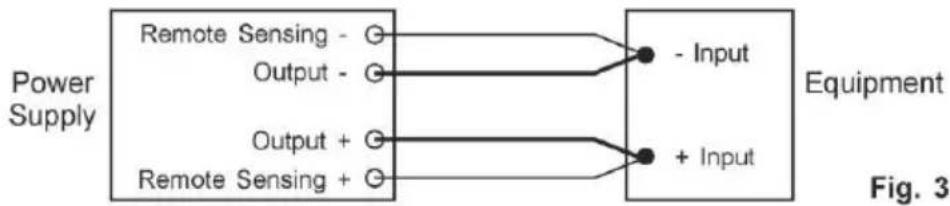
The remote sensing wire should be AT LEAST 22 AWG (0,33mm^2) wire size. Disconnection: Wrong disconnect sequence will damage power supply
- First disconnect the remote sensing connections.
- Then disconnect the power connections between the power supply and equipment.
6.2. Control Mode Selection
There are 4 modes, Normal, Preset, Set and Remote Control mode for the power supply.
Slide the Mode Selection Switch (8) P 1565/1575/1580 or (9) P 1570 to your desired Mode.
The power supply is factory preset to Normal Mode with maximum current level CC.
6.3. Normal Mode
This is the factory preset mode and the power supply output V, I are controlled by the dual action volume knobs.
Push the knobs to toggle the coarse and fine tuning, notice the subtle changes in brightness of related LED.
Adjust the knobs to your desired values by trying coarse and fine tuning.
To check the preset current level, just turn the Current Knob lightly in any direction.
The display will resume its normal brightness after few seconds to double confirm your adjustment.
6.4. Preset Mode
- In this mode, the Rear Control Light is on to indicate panel V & I controls are de-activated.
- There are 3 preset output P1/ P2/ P3 at the Recall Selection Switch (9) P 1565/1575/1585 or (10) P 1570/1580.
- The preset values are factory set as following table.
- End user can set his own output rating, please refer to paragraph 6.5.
| Recall No. | Output Voltage | Output Current |
| P 1 | 5V | maximum |
| P 2 | 13,8V | maximum |
| P 3 | PeakTech 1565: 16V PeakTech 1570: 16V PeakTech 1575: 32V PeakTech 1580: 25V PeakTech 1585: 55V | maximum |
6.5. Set Mode
First enter into the Set Mode by pushing Switch (8) to Set Mode slot. The power supply is then ready to be preset.
6.5.1. To define the preset output P1/ P2/ P3
- Select the Recall Switch to the position P1, P2 or P3 which you want to set
- Adjust the front panel voltage control knob to set your desired voltage value
- Adjust the front panel current control knob to set your desired current limit value
- Repeat the procedure for remaining recalls P1, P2, P3 if desired.
- Move Mode Switch from Set to Preset position to confirm your settings.
Remarks:
All the set values in the presets will be kept even after the power supply has been turned off. Always check output voltage of Presets before connect to Load. To check the preset values, move Mode Switch to Preset position. Move the Recall Switch to P1, P2 or P3. The V and I settings of corresponding RECALL P1, P2, P3 will be show on the panel meters.
6.5.2. To reset the 3 preset output P1/P2/P3 to factory setting
In session 6.51., you learning how to set 3 preset output to you preferred value. In case you need to reset it to factory default, you can do it in MENU mode.
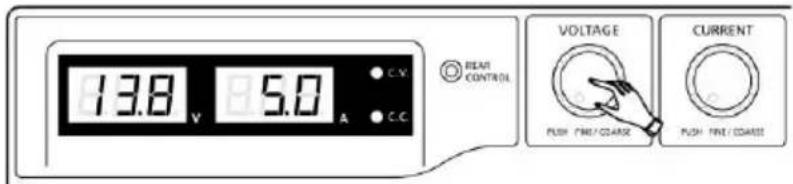
Press and hold Voltage Control Knob for 30s to enter MENU mode.
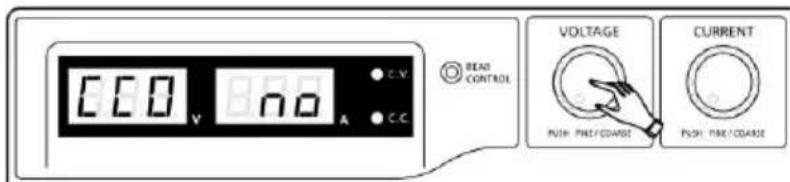
When it is showing "CCO", rotate Voltage Control Knob until Voltage meter shows "rPr".
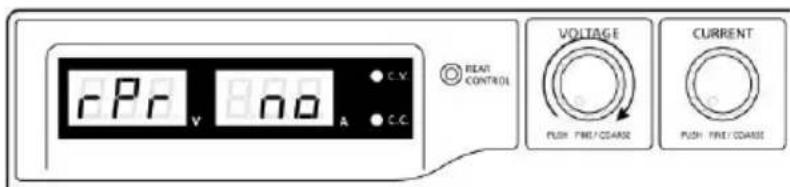
The Current meter is showing "no" at this time. Then rotate Current Control Knob until Current meter shows "YES".
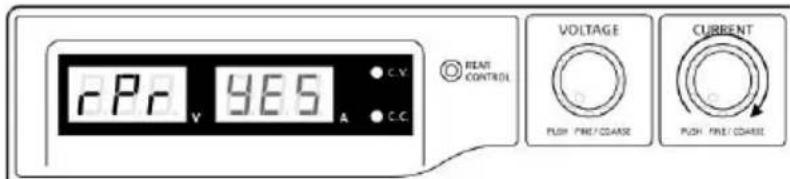
Press Current Control Knob once to confirm. The "YES" will be lighted after preset output being reset to factory default value.
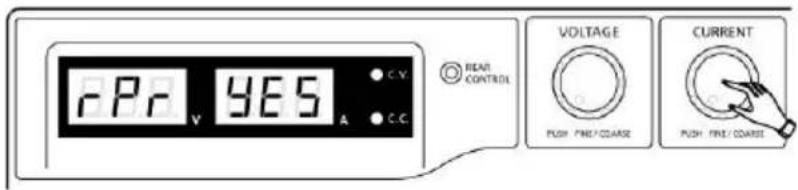
Finally press Voltage Control Knob to exit MENU mode
6.5.3. Manually zeroing Current Meter Offset
The power supply will auto-zeroing the current meter offset when powered up. In case it is needed to reset current meter to zero during test and you do not want to restart power supply. You can manually reset it to zero in menu mode.
Press and hold Voltage Control Knob for 30s to enter MENU mode. It shows
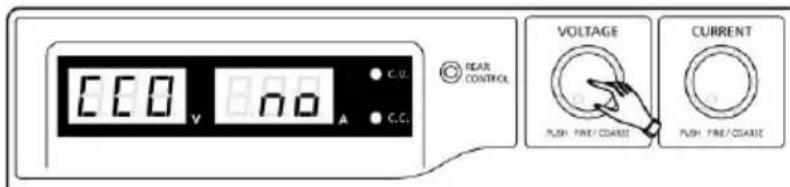
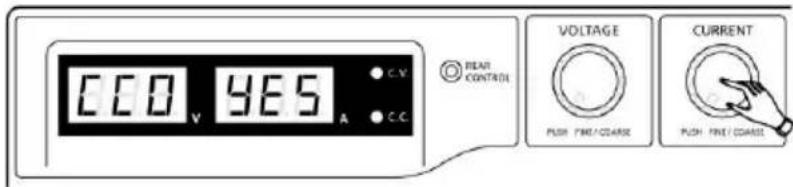
Rotate Current Control Knob until the Current meter showing

Then press Current Control Knob once to confirm. The "YES" will be lighted after successful zeroing current meter offset.
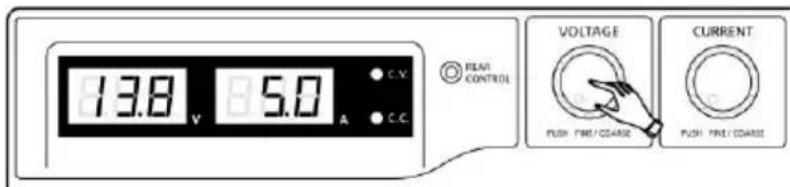
Finally, press Voltage Control Knob to exit MENU mode.
6.6. Remote Control Mode
To control the output voltage and current by remote control connector (10)
7. Using the power supply
- This series has 4 models. Make sure you have used the correct one. They have different output voltage range and current as following:
| Model Number | Output Voltage Range | Total Rated Current |
| PeakTech®1565 | 1 – 16 V | 0 - 40 A |
| PeakTech®1570 | 0 - 60 A | |
| PeakTech®1575 | 1 – 32 V | 0 - 20 A |
| PeakTech®1580 | 0 - 30 A | |
| PeakTech®1585 | 1 ~ 60 V | 0 - 15 A |
- Make sure that the correct model is selected before operation.
- Make sure the Mode Switch is at Normal Position.
- The power supply will perform a series of self checks when it is switched on. The LED and other indicators on the front panel will be on by turn. When the cooling fan is being checked, a high speed wind noise can be heard. After the self checks, the CV, V and A LED indicators are lit up displaying voltage and 0.0 current. To find out about the set CC current level, just turn the current control knob one click in either direction. The current display returns to 0.0 after a few seconds.
Below table to show the self test sequence
| Self test display and Sequence | Test contents |
| FEUv 1.5A | To show software version |
| BBB、BBB、BBB、 | Segment check |
| C.V. | C.V. Indicator check |
| C.C. | C.C. Indicator check |
| REAR CONTROL and C.V. | Rear control indicator check |
| C.V. | Return to C.V. |
| EE、SE、A | Start to check |
| OUP、CHE、 | Over voltage protection check |
| OEP、EHE、 | Over load protection check |
| OEP、EHE、 | Over temperature protection check |
| FAN、CHE、 | Fan check |
| OFF、 | Output off (remote control mode) |
8. Using the control knobs
- The rotary encoder control knobs have fine and coarse tuning with clicking movement. Push the knobs to toggle between coarse and fine tuning, notice the subtle changes in brightness of related LED. Adjust the knobs to your desired values by trying coarse and fine tuning. The display will resume its normal brightness after few seconds to confirm your adjustment.
- Connect the equipment to the power supply. Red (+) is connected to the positive polarity input of the equipment and Black (-) is connected to the negative polarity input of the equipment.
- Switch on the power supply first and the panel meter & green CV Indicator should light up again.
- Switch on the equipment and the panel meter & green CV Indicator should still remain in green.
- You can now operate the equipment. When an operation is finished, switch off the equipment first and then switch off the power supply.
9. Remote Control Mode
9.1. Remote Control Mode (P 1565 / 1575 / 1585)
There are two methods for remote control of current and voltage adjustment.
Both methods require current remote control part to be set up in order for remote control mode to be functional, otherwise unit will be in CC mode all the time.
Method A:
Using two external variable DC voltage sources.
| Remote Socket Pin Assignment for external variable voltage source | ||
| PIN | Functions | Remarks |
| 1 | Internal DC +5V | Less than 50 mA |
| 2 | Voltage Adjustment | 0 – 5 V |
| 3 | Current Adjustment | 0 – 5 V |
| 4 | Ground | |
| 5 | Output OFF | Short to Ground |
| 6 | N.A. | |
| 7 | N.A. | |
| 8 | N.A. | |
CC current setting by remote control.
Short circuit the main output with 12AWG (3,3mm^2) wire.
Adjust the CC current using external power supply connected to Pin 3.
Output voltage setting by remote control
Check the output voltage range of the power supply by varying the external voltage source connected to Pin 2.
Method B:
Using two 0-5K Ohm variable resistors
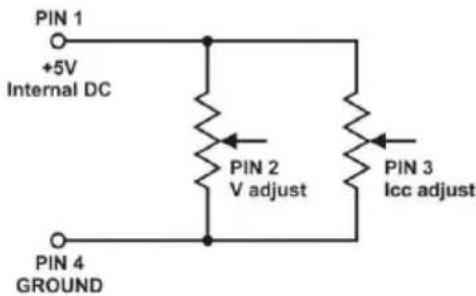
Remark: variable resistors 5KOhm
| Remote Socket Pin Assignment for variable resistor | ||
| PIN | Functions | Remarks |
| 1 | Internal DC +5V | Resistor end |
| 2 | Voltage Adjust | Variable part of resistor |
| 3 | Current Adjust | Variable part of resistor |
| 4 | Ground | Another resistor end |
| 5 | Output OFF | Short to Ground |
| 6 | N.A. | |
| 7 | N.A. | |
| 8 | N.A. | |
CC current setting by remote control.
Short circuit the main output with 12AWG (3,3mm^2) wire.
Adjust the CC current setting using the 0-5k Ohm variable resistor.
Output voltage setting by remote control
Check the output voltage range of the power supply by adjusting the 5Kohm variable resistor.
9.2. Remote Output ON/OFF Control (PeakTech 1565/1575/1585)
This remote output on/off control can be activated in any of the modes Normal, Preset, Remote and Set mode.
- By default, Pin 5 is open and output is on.
- Shorting Pin 5 to Pin 4 (ground) and output is off.
- When output is off, the C.V. & C. C. LED's will flash. The current output voltage and current setting will show on the panel meter.
- You can also adjust the output by voltage & current control knob to your desired value, when output is off.
Remark: using the 8pin remote plug provided and connect with 22AWG (0,33mm^2) wires.
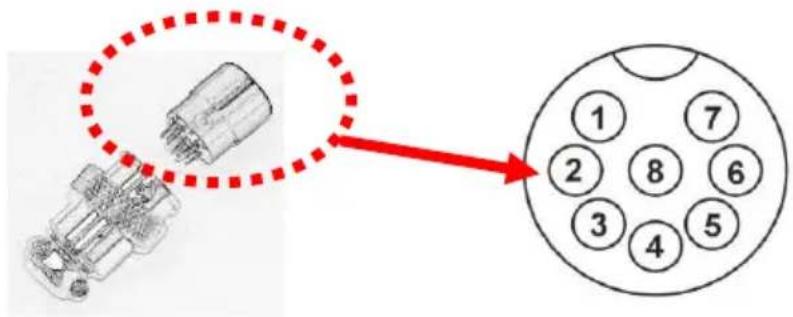
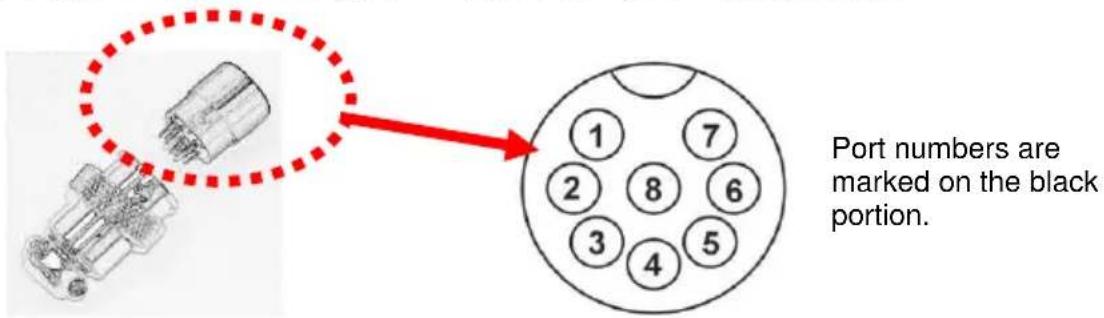
Pin numbers are marked on the black portion.
9.3. Remote Control (PeakTech 1570/1580)
You can use the voltage and current remote control at the same time or separately. Set up the provided remote connector plug.
a.) Remove the black portion of the remote control connector plug by removing the screw.
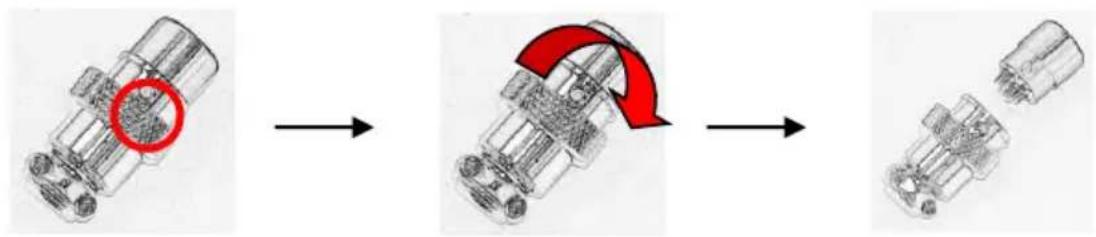
b.) Solder 3 wires 22AWG (0,33mm^2) to PORT 1, 2 & 4 of black portion.
- Remove the screw
- Rotate the black portion
- Black portion / silver portion
c.) Make sure the load is disconnected and the power supply is OFF.
d.) Plug the remote connector plug into the remote control terminal of the power supply.
e.) Secure the remote connector plug to the terminal socket by locking connector ring.
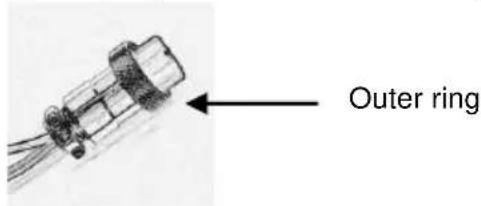
Then, you can choose either method A or B below to use the remote control feature:
Method A:
Using Voltage Source
A variable external voltage source of 0 - 5V is fed into the remote control terminal to adjust the output voltage level.
Warning:
Do not input higher than 5V otherwise the Over Voltage Protection (OVP) will be triggered.
-
Make sure the load is disconnected and the power supply is OFF.
-
Use Only wires from port 2 and 4. Then, connect port 2 to positive polarity of the external voltage source and port 4 to negative polarity of the external voltage source.
- Switch on the power supply.
- Vary the external input voltage 0 - 5V to check and verify for the full output voltage range of power supply.
- Switch off the power supply.
Method B:
Using 5k Variable Resistor
- Make sure the load is disconnected and the power supply is OFF.
- Prepare a 5k variable resistor and use wires from port 1, 2 and 4.
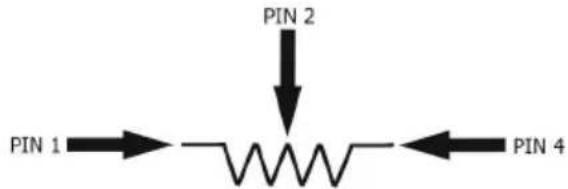
- Switch on the power supply.
- Adjust the 5k variable resistor from one end to other end to check and verify for the full output voltage range of power supply.
- Switch off the power supply.
9.4. Current Remote Control
a.) Using the same connector plug in section 9.1. Remove the black portion of the remote control connector plug by removing the screw.
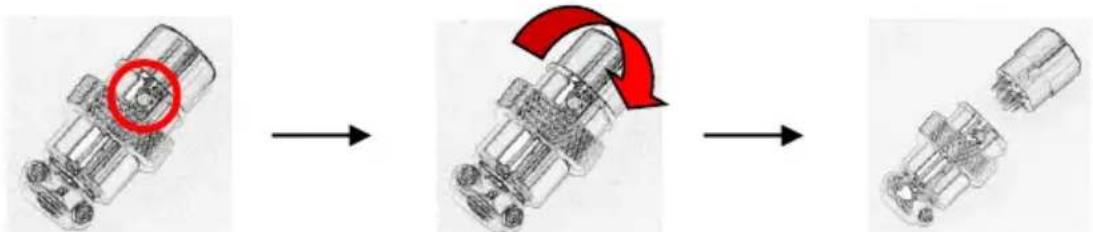
- Remove the screw
- Rotate the black portion
- Black portion / silver portion
b.) Solder 3 wires 22AWG (0,33mm^2) to PORT 1, 3 & 4 of black portion as shown.
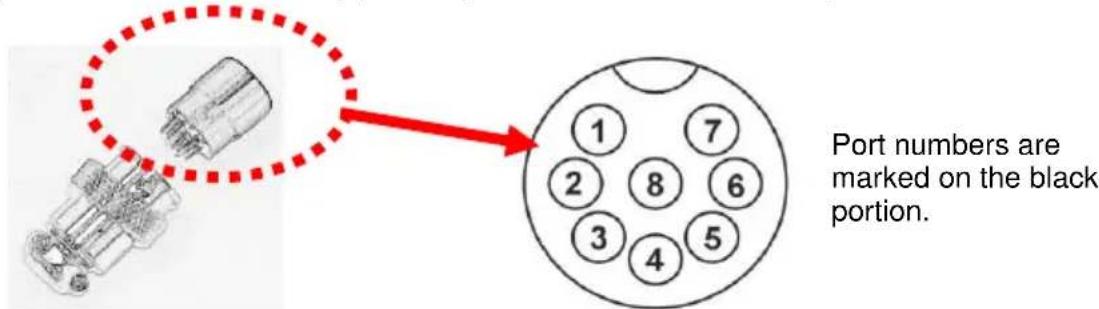
c.) Make sure the load is disconnected and the power supply is OFF.
d.) Plug the remote connector plug into the remote control terminal of the power supply.
e.) Secure the remote connector plug to the terminal socket by locking connector ring.
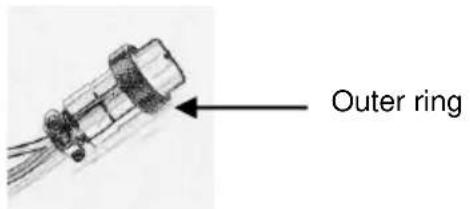
Then, you can choose either method A or B below to use the remote control feature:
Method A:
Using Voltage Source
A variable external voltage source of 0 - 5V is fed into the remote control terminal to adjust the output voltage level.
Warning:
Do not input higher than 5V otherwise it may damage the unit.
- Make sure the load is disconnected and the power supply is OFF.
- Use Only wires from port 3 and 4. Then, connect port 3 to positive polarity of the external voltage source and port 4 to negative polarity of the external voltage source.
- Use a 8AWG (8,35mm^2) wire to short circuit the main output terminal in the rear panel.
- Switch on the power supply.
- Vary the external input voltage 0 - 5V to check and verify for the full output current range of power supply.
- Switch off the power supply and disconnect the 8AWG (8,35mm^2) wire.
Method B:
Using 5k Variable Resistor
-
Make sure the load is disconnected and the power supply is OFF.
-
Prepare a 5k variable resistor and use wires from port 1, 3 and 4.
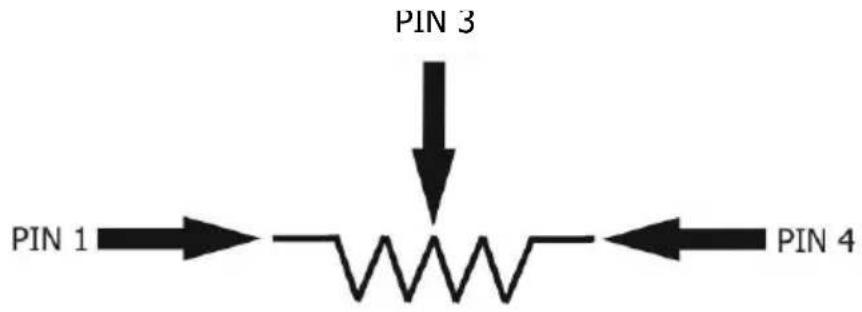
- Use a 8AWG (8,35mm^2) wire to short circuit the main output terminal in the rear panel.3.
- Switch on the power supply.
- Adjust the 5k variable resistor from one end to other end to check and verify for the full output current range of power supply.
- Switch off the power supply and disconnect the 8AWG (8,35mm^2) wire.
9.5. Remote Control Mode (P 1570 / 1580)
There are two methods for remote control of current and voltage adjustment. Both methods require current remote control part to be set up in order for remote control mode to be functional, otherwise unit will be in CC mode all the time.
Method A:
Using two external variable DC voltage sources.
Method B:
| PIN | Funktionen | Beschreibung |
| 1 | Internal DC +5V | Less than 50mA |
| 2 | Voltage Adjust | 0 ~ 5 V |
| 3 | Current Adjust | 0 ~5 V |
| 4 | Ground | |
| 5 | Output OFF | Short to Ground |
| 6 | N.A. | |
| 7 | N.A. | |
| 8 | N.A. |
Check the output voltage range of the power supply by varying the external voltage source. Short circuit the main output with 8AWG (8,35mm^2) wire to check the display for CC setting varying the external voltage source.
Using two 0-5K Ohm variable resistors
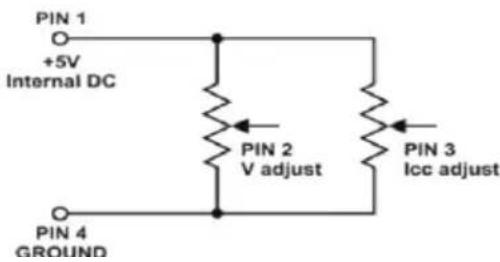
Remark: variable resistors 5KOhm
| PIN | Function | Remarks |
| 1 | Internal DC +5V | Resistor end |
| 2 | Voltage Adjust | Variable part of resistor |
| 3 | Current Adjust | Variable part of resistor |
| 4 | Ground | Another resistor end |
| 5 | Output OFF | Short to Ground |
| 6 | N.A. | |
| 7 | N.A. | |
| 8 | N.A. |
Check the output voltage range of the power supply by adjusting the 5Kohm variable resistor. Short circuit the main output with 8AWG (8,35mm^2) wire to check the display for CC setting by adjusting the variable resistor.
- Specifications
| Model | P 1565 | P 1570 | P 1575 | P 1580 | P 1585 |
| Output | |||||
| Variable Output Voltage | 1 – 16V DC | 1 – 16V DC | 1 – 32V DC | 1 – 32V DC | 1 – 60V DC |
| Variable Output Current | 0 - 40A | 0 – 60 A | 0 - 20A | 0 – 30A | 0 – 15A |
| Voltage Regulation | |||||
| Load (0-100%) | 50mV | ||||
| Line (170 – 264V AC Variation) | 20mV | ||||
| Current Regulation | |||||
| Load (10-90% Rated Voltage) | 150mA | 200mA | 100mA | 150mA | 100mA |
| Line (170 – 264V AC Variation) | 50mA | ||||
| Ripple & Noise | |||||
| Ripple & Noise (rms) | 5mV | ||||
| Ripple & Noise (Spitze-Spitze) Voltage | 50mV | 100mV | |||
| Current Ripple & Noise (rms) | 70mA | 100mA | 30mA | 40mA | 15mA |
| Meter Type & Accuracy | |||||
| Voltage Meter | 3-stellige LED-Anzeige (+/-0,2% + 3 dgt.) | ||||
| Current Meter | 3-stellige LED-Anzeige (+/-0,2% + 3 dgt.) | ||||
| General | |||||
| Input Voltage | 220 – 240V AC 50/60Hz | ||||
| Full Load Input current | 3,15A | 4,7A | 3,1A | 4,5A | 4,5A |
| Efficiency | 85,50% | 85,00% | 87,00% | 86,00% | 88% |
| Switching Frequency | 65 - 85kHz | 65 - 85kHz | 75 - 85kHz | 75 - 95kHz | 65 - 85kHz |
| Transient Response Time (50-100% Load) | 1,5ms | ||||
| Power Factor Control (PFC) | Power Factor Correctionr >0,95 at optimal Load | ||||
| Cooling Method | Thermostatic Control Fan from Zero to full speed | ||||
| Protections | Uberlast, Kurzschlusssschutz im CC-Modus, Uberspannungsschutz, Übertemperaturschutz | ||||
| Special Functions | 3 User defined VI preset, Remote control V, I and output on-off | ||||
| Operation Temperature | 0 ... +50°C; RH < 70 % | ||||
| Storage Temperature | -10 ... +60°C; RH < 80 % | ||||
| Dimensions (BxHxT) in mm | 200x90x255 | 200x90x325 | 200x90x255 | 200x90x315 | 200x90x275 |
| Weight | 2,6kg | 3,2kg | 2,6kg | 3,2kg | 3,2kg |
11. Faults and Trouble Shooting
11.1. OVP: Over Voltage Protection
This unit has a built-in tracking over voltage protection feature. In the event of output voltage becoming greater than the set value (see specified range from specifications table), protection will be triggered and the output power will be cut off and OUP warning appears as below.
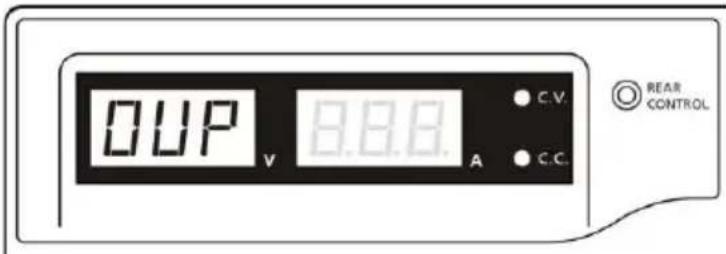
To reset the warning, switch off the unit and remove all loading.
Switch the unit back on again and it should resume normal operation.
If this problem persists, please contact and consult with your agent.
11.2. OTP: Over Temperature Protection
There is a thermo sensor inside the unit to monitor and to prevent the unit to gets too hot inside. At OTP, there is no output and the following warning will appear on the LED display. When you get this warning, switch off the unit and remove all loading.
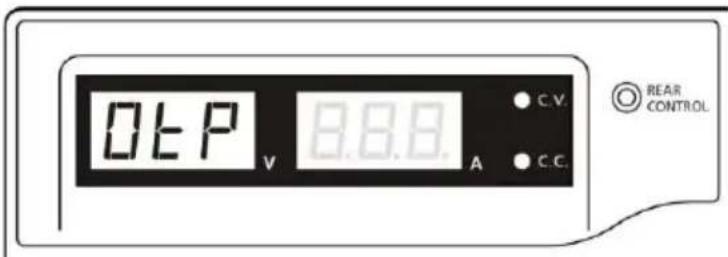
Check your load and output setting. Allow the unit to cool down for at least 30 minutes.
Check if any of the ventilation is blocked, check enough clearance around power supply.
Listen carefully for the short wind noise from the cooling fan when you turn on the unit again.
If you cannot hear this routine self test wind noise on switch on, the fan is fault and do not use the power supply, contact your agent.
11.3. OLP: Over Load Protection
Normally the overload protection is sustained by the CC constant current mode.
When the CC mode fails and goes undetected, it may cause serious damage to your test piece or load.
The OLP is to minimize the extent of damage to your loads as power supplies do fail some day.
Switch off your power supply as soon as you see this warning as shown below.
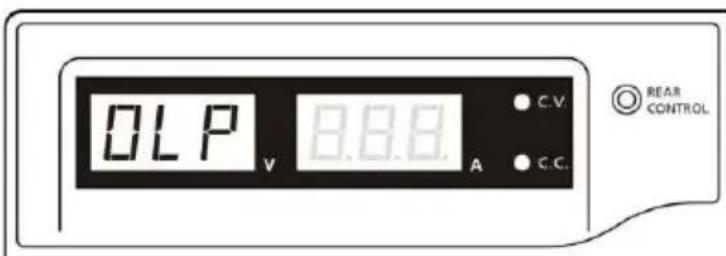
To reset this warning, switch off the unit and remove all loading.
Switch the unit back on again and double check with caution.
If this problem cannot be fixed, please contact and consult with your agent.
12. PC Interface Control
Support OS: Windows XP/Vista/7 (32bits/64bits)
Driver: Silicon Lab CP210x USB driver
(Included in CDROM folder "USB CP210x Drivers V6.5 for Win_XP_S2K3_Vista_7")
12.1. Main Display
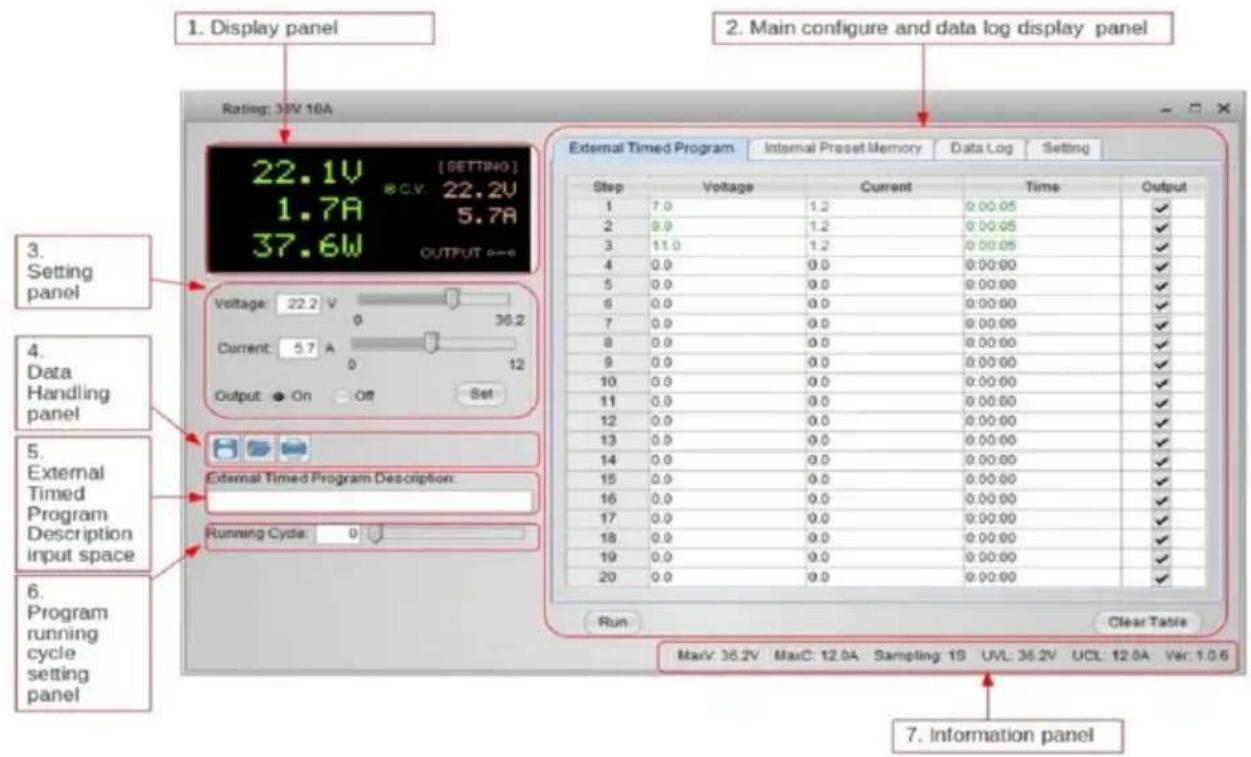
The Main interface divided into 7 panels.
- Display panel - use to display real-time information of power supply.
- Main configuration and data log display panel - use to change general setting of program and display data log.
- Voltage and Current setting panel - use to set incident output value and output On/Off.
- Data handling panel - use to save, load and print data.
- External Timed Program Description input space - use to enter description of External Timed Program.
- Program running cycle setting panel - use to set running cycle for External Timed Program.
- Information panel - use to display Maximum voltage/ current, Sampling time, upper voltage/ current limit and software version.
12.2. Display panel
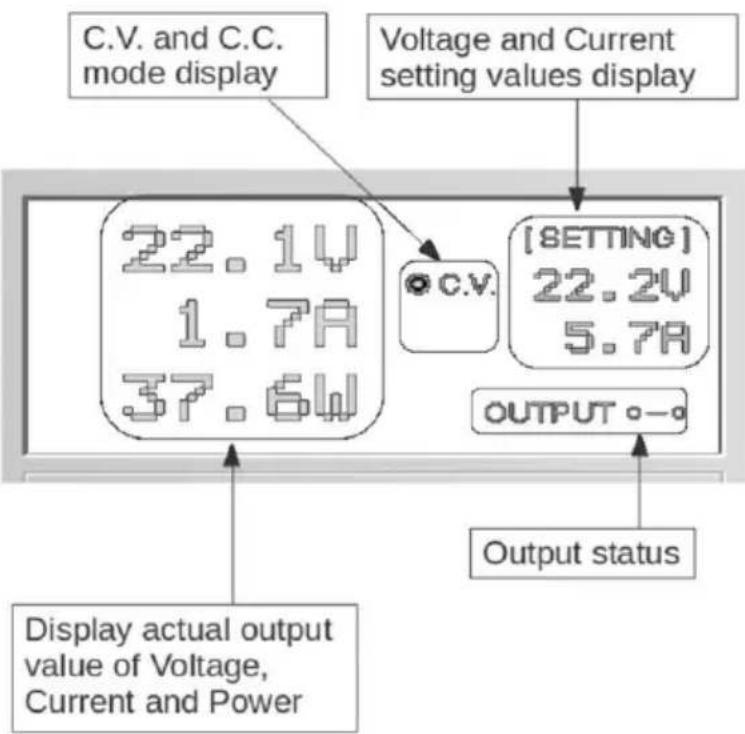
The display show following information
- Output Voltage value
- Output Current value
- Output Power value
- Output On/Off status
C.V./ C.C. Model - Setting values
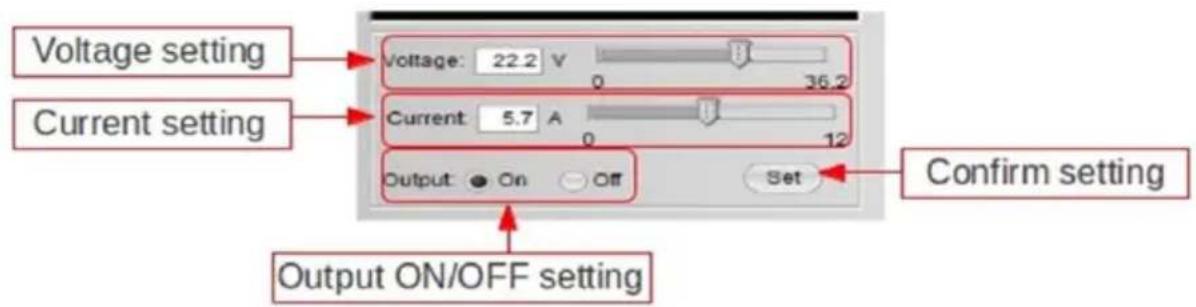
12.3. Set output value and On/Off status
You can directly type the desired output voltage & output current and then click "Set" button to set the value. Or you can use slide bar to adjust the value.
12.4. External Timed Program
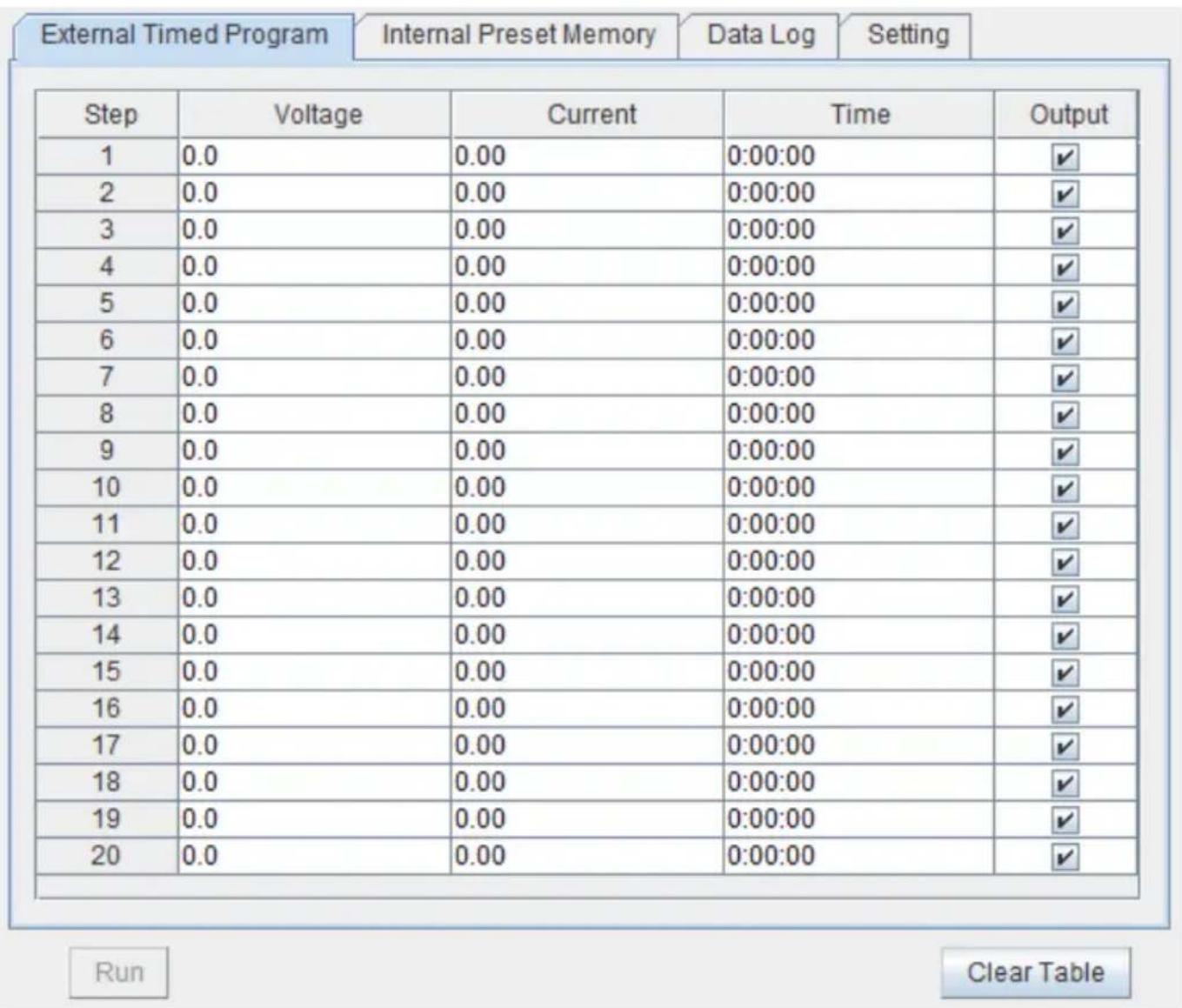
External Timed Program is completely controlled by PC, PC counts the time and changes voltage and current of power supply.
Select External Timed Program tab to switch to the External Timed Program tab.
- Double click on the cell that you would like to set value. For example Step 2 voltage.
- Slide the bar to configure the value.
| Step | Voltage | Current | Time | Output |
| 1 | 10.0 | 1.00 | 0:00:15 | ✓ |
| 2 | 20.0 | 0.00 | 0:00:00 | ✓ |
| 3 | 0.0 | 0.00 | 0:00:00 | ✓ |
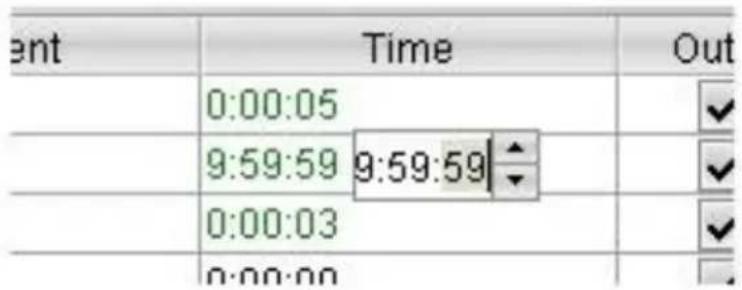
-Set time for this step to be running. The time range is between 0 to 9 hours 59 minutes 59 seconds. You can click up/down button to change value or directly input value. If the time value is set to 0, this step will be skipped.
-Select running cycle between 0-999. You can use slide bar to select or directly input value in text box. Input 0 means run the program forever.
Running Cycle:


- Click on button to start running cycle.
- In between program running cycle, click button to stop program.
Clear Table
- Click to clear the setting.
12.5. Internal Preset Memory
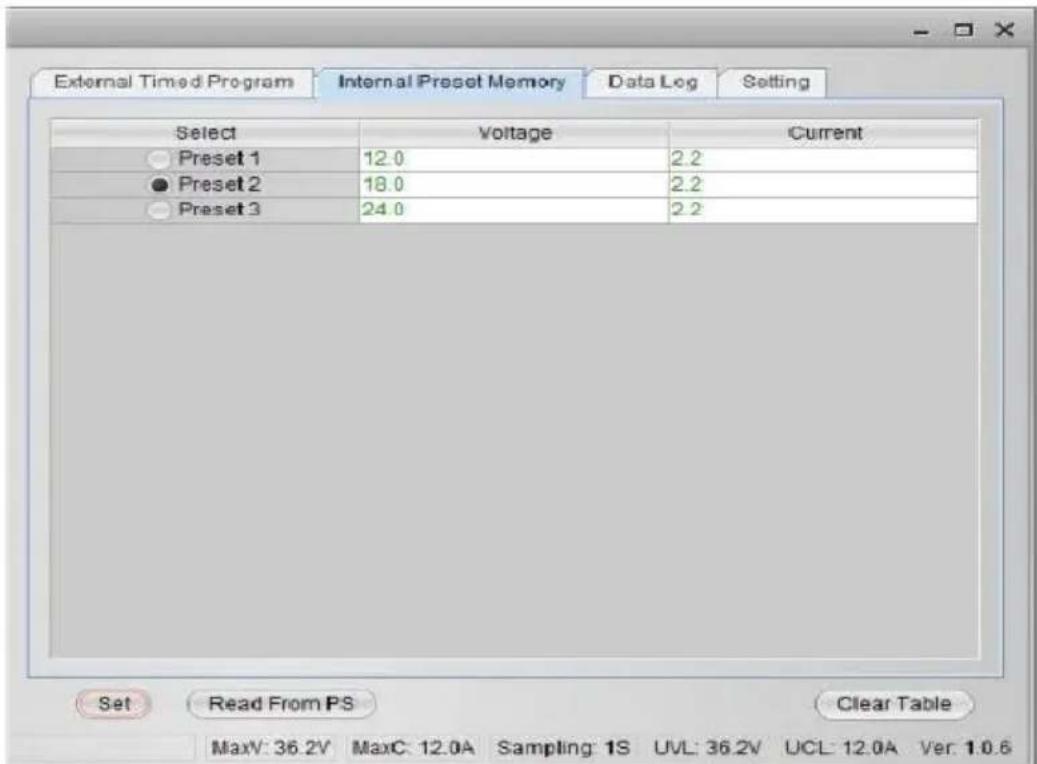
The PC interface remote mode really eliminates the tedious process in keying in groups of entries on the power supply. Because all the data are displayed together in the monitor, possibility of wrong entry is greatly reduced. Data of different groups can be classified, stored, exported and retrieved for use at any time.
Furthermore, retrieved data will be in red color if they exceed the present preset limits of voltage in upper voltage level or current limiting value.
Clear Table ---- Delete all data on the Display Table to ready for new data entry.
Read for PS ---- Get data from the Power Supply.
12.6. Data Log
Data Log window
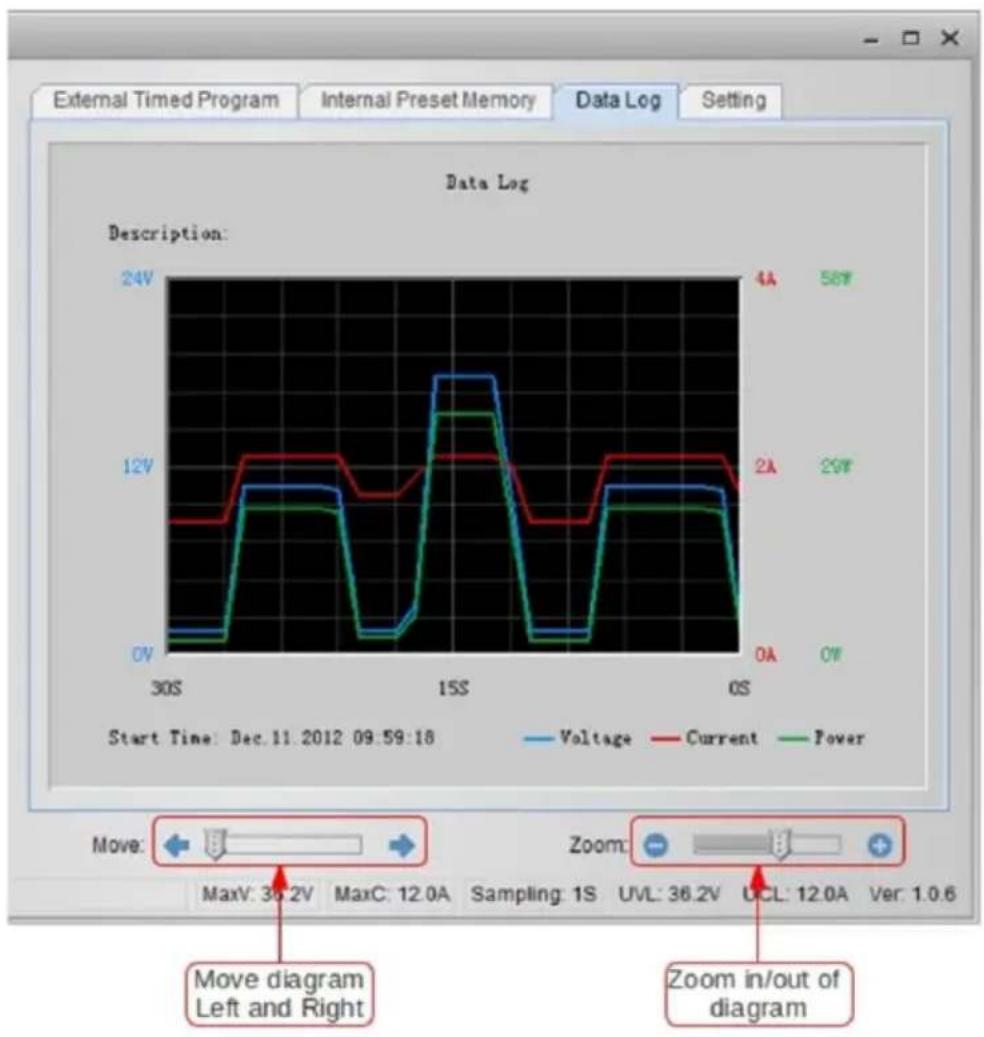
Data log window is used to display output Voltage, Current and Power against time in graphical view.
You can move the diagram left and right by adjust "Move:" slide bar.
You can zoom in/out the diagram by adjust "Zoom:" slide bar.
You can save the data in CSV file for analysis later.

Click to save Data log to CSV file.

Click to open and load data from CSV file to program for analysis.

Click to print the setting to print.
12.7. Save, Load and print setting
In previous session, the above 3 buttons are used to save, load and print log data. In addition, these buttons can be used to save, load and print setting for External Timed Program and Internal Preset Memory.
First, select tab in Main configure and data log display panel.
When "External Timed Program" tab is being selected, the buttons are used to save and load the setting of External Timed Program.

Click to save External Timed Program setting to CSV file.

Click to open and load setting from CSV file to program.

Click to print the setting to print.
If you want to add description for your setting, input the description in following "External Timed Program Description:" space to before save.
External Timed Program Description:
When "Internal Preset Memory" tab is being selected, the buttons are used to save and load the setting of Internal Preset Memory.

Click to save Internal Preset Memory setting to CSV file.

Click to open and load setting from CSV file to program.

Click to print the setting to print
12.8. Setting
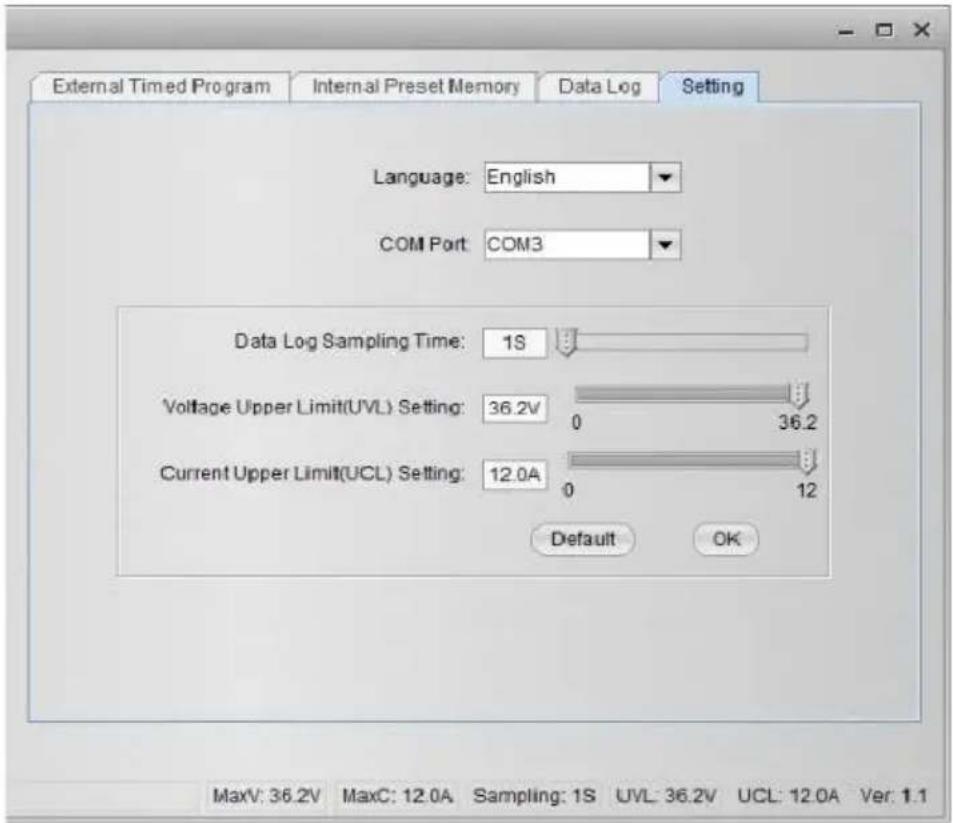
In the setting page, you can do general setting for the program.
You can select language for the program
You can select the COM Port for power supply connected
You can set sampling time for data log by adjust slide bar
You can set your output voltage upper limit (UVL) value to further safeguard your low voltage applications.
You can set your output current upper limit (UCL) value to further safeguard your low current applications.
12.9. Command Set
Command line format
COMMAND
Remark:
| Command code & return value | Function | Example |
| Input Command: GMAX[CR] | Get PS maximum Voltage ¤t value | Input command: GMAX[CR] |
| Return value: <voltage><current>[CR] OK[CR] | <voltage>=??? | Return value: 180200[CR] OK[CR] |
| <current>=??? | ||
| Meaning: Maximum Voltage is 18.0V Maximum Current is 20.0A | ||
| Input Command: SOUT(status>[CR] | Switch on/off the output of PS | Input command: SOUT0[CR] |
| Return value: OK[CR] | <status>=0/1 (0=ON, 1=OFF) | Return value: OK[CR] |
| Meaning: Switch on the output of PS | ||
| Input Command: VOLT(voltage)[CR] | Preset Voltage value <voltage>=000<???<Max-Volt | Input command: VOLT127[CR] |
| Return value: OK[CR] | *Max-Volt value refer to product specification | Return value: OK[CR] |
| Meaning: Set Voltage value as 12.7V | ||
| Input Command: CURR(current)[CR] | Preset Current value <current>=000<???<Max-Curr | Input command: CURR120[CR] |
| Return value: OK[CR] | *Max-Curr value refer to product specification | Return value: OK[CR] |
| Meaning: Set Current value as 12.0A | ||
| Input Command: GETS[CR] | Get PS preset Voltage & Current value | Input command: GETS[CR] |
| Return value: <voltage><current>[CR] OK[CR] | <voltage>=??? | Return value: 150180[CR] OK[CR] |
| <current>=??? | ||
| Meaning: The Voltage value set at 15V and Current value set at 18A | ||
| Input Command:GETD[CR]Return value:<voltage><current><status>[CR]OK[CR] | Get PS Display values ofVoltage, Current andStatus of CC/CV<voltage>=?????current>=?????status>=0/1 (0=CV,1=CC) | Input command:GETD[CR]Return value:150016001[CR]OK[CR]Meaning:The PS Display value is 15V and16A.It is in CC mode. |
| Input Command:PROM<voltage0><current0><voltage1><current1><voltage2><current2>[CR]Return value:OK[CR] | Save Voltage and Currentvalue into 3 PS memorylocations<voltageX>=?????currentX>=????(X is memory locationnumber start from 0 to 2) | Input command:PROM11111022122033133[CR]Return value:OK[CR]Meaning:Preset Memory 0 as 11.1V and11.1APreset Memory 1 as 2.2V and12.2APreset Memory 2 as 3.3V and13.3A |
| Input Command:GETM[CR]Return value:<voltage0><current0>[CR]<voltage1><current1>[CR]<voltage2><current2>[CR]OK[CR] | Get saved Voltage andCurrent value from 3 PSmemory locations<voltageX>=?????currentX>=????(X is memory locationnumber start from 0 to 2) | Input command:GETM[CR]Return value:111111[CR]122122[CR]133133[CR]OK[CR]Meaning:PS return following preset valuefrom 3 memory locations;Memory 0 is 11.1V and 11.1AMemory 1 is 12.2V and 12.2AMemory 2 is 13.3V and 13.3A |
| Input Command:RUNM<memory>[CR]Return value:OK[CR] | Set Voltage and Currentusing values saved inmemory locations<memory>=0/1/2 | Input command:RUNM1[CR]Return value:OK[CR]Meaning:Set Voltage and Current usingvalues saved in memory location 1 |
| Input Command:GOUT[CR]Return value:<status>OK[CR]Reamrk:Only for unit software version3.1 or above | Get Output Status of the PS<status>=0/1 (0=ON, 1-OFF) | Input Command:GOUT[CR]Return valvue:0OK[CR]Meaning:The Output of the PS is on |
| Input Command: GOVP[CR]Return value: <voltage>[CR]OK[CR] | Get preset upper limit of output Voltage <voltage>=??? | Input command: GOVP[CR]Return value: 111[CR]OK[CR]Meaning: The preset upper limit of output Voltage is 11.1V |
| Input Command: SOVP[voltage][CR]Return value: OK[CR] | Preset upper limit of output Voltage <voltage>=000<????Max-Volt *Max-Volt value refer to product specification | Input command: SOVP151[CR]Return value: OK[CR]Meaning: Preset upper limit of output Voltage as 15.1V |
| Input Command: GOCP[CR]Return value: <current>[CR]OK[CR] | Get preset upper limit of output Current <current>=??? | Input command: GOCP[CR]Return value: 111[CR]OK[CR]Meaning: The preset upper limit of output Current is 11.1A |
| Input Command: SOCP[voltage][CR]Return value: OK[CR] | Preset upper limit of output Current <current>=000<????Max-Curr *Max-Curr value refer to product specification | Input command: SOCP151[CR]Return value: OK[CR]Meaning: Preset upper limit of output Current as 15.1A |
| Input Command: Return value: <error code>OK[CR]Remark: Only for unit software version 3.1 or above | Get Error Code, of the PS Error code=000, normal and no fault Error code=001, Over Voltage Protected Error code=002, Over Current Protected Error code=003, Over Temperature Protected Error code=004, RECALL or MODE switch defeated Erro code=006, Temperature returned to normal after OTP | Input command: GERR[CR]Return valvue: 000OK[CR]Meaning: The PS is normal |
All rights, also for translation, reprinting and copy of this manual or parts are reserved.
Reproduction of all kinds (photocopy, microfilm or other) only by written permission of the publisher. This manual considers the latest technical knowing. Technical changing which are in the interest of progress reserved.
We herewith confirm, that the units are calibrated by the factory according to the specifications as per the technical specifications. We recommend to calibrate the unit again, after one year.
PeakTech 02/2017/MP
(P 1565/1575/1585) = T4AL250V; P 1570/1580 = T8AL250V
External Timed Program
Internal Preset Memory
Data Log
Setting
| Step | Voltage | Current | Time | Output |
| 1 | 0.0 | 0.00 | 0:00:00 | ✓ |
| 2 | 0.0 | 0.00 | 0:00:00 | ✓ |
| 3 | 0.0 | 0.00 | 0:00:00 | ✓ |
| 4 | 0.0 | 0.00 | 0:00:00 | ✓ |
| 5 | 0.0 | 0.00 | 0:00:00 | ✓ |
| 6 | 0.0 | 0.00 | 0:00:00 | ✓ |
| 7 | 0.0 | 0.00 | 0:00:00 | ✓ |
| 8 | 0.0 | 0.00 | 0:00:00 | ✓ |
| 9 | 0.0 | 0.00 | 0:00:00 | ✓ |
| 10 | 0.0 | 0.00 | 0:00:00 | ✓ |
| 11 | 0.0 | 0.00 | 0:00:00 | ✓ |
| 12 | 0.0 | 0.00 | 0:00:00 | ✓ |
| 13 | 0.0 | 0.00 | 0:00:00 | ✓ |
| 14 | 0.0 | 0.00 | 0:00:00 | ✓ |
| 15 | 0.0 | 0.00 | 0:00:00 | ✓ |
| 16 | 0.0 | 0.00 | 0:00:00 | ✓ |
| 17 | 0.0 | 0.00 | 0:00:00 | ✓ |
| 18 | 0.0 | 0.00 | 0:00:00 | ✓ |
| 19 | 0.0 | 0.00 | 0:00:00 | ✓ |
| 20 | 0.0 | 0.00 | 0:00:00 | ✓ |
Run
Clear Table
| ent | Time | Out |
| 0:00:05 | ✔ | |
| 9:59:59 9:59:59 | ✔ | |
| 0:00:03 | ✔ | |
| 0:00:00 | - |
External Timed Program Description:
Timed Program Description":