
MDSJE530 - Dictaphone SONY - Free user manual and instructions
Find the device manual for free MDSJE530 SONY in PDF.


| Product type | MiniDisc Deck |
| Dimensions (W × H × D) | 430 × 95 × 280 mm |
| Weight | 3.4 kg |
| Power supply | 230 V AC, 50/60 Hz |
| Power consumption | 16 W |
| Recording functions | Stereo/mono recording, synchronized recording (Music Synchro, CD Synchro), time machine recording (6 seconds), automatic silence deletion (Smart Space/Auto Cut) |
| Playback functions | Normal, random, programmed playback, repeat (Repeat All, Repeat 1, Repeat A-B), fade-in/out playback, speed control (Pitch Control) |
| Editing | Erasing, dividing, combining, moving tracks, titling (up to 1700 characters per disc) |
| Input connectors | LINE (ANALOG) IN (RCA), DIGITAL OPTICAL IN (square), DIGITAL COAXIAL IN (RCA) |
| Output connectors | LINE (ANALOG) OUT (RCA), DIGITAL OPTICAL OUT (square), PHONES (stereo jack) |
| Frequency response | 5 to 20,000 Hz ±0.3 dB |
| Signal-to-noise ratio | Greater than 98 dB (playback) |
| Wow and flutter | Unmeasurable |
| Laser class | Class 1 |
| Supplied accessories | Audio connecting cords (2), optical cable (1), remote control RM-D29M, R6 (AA) batteries (2) |
| Maintenance | Clean the cabinet with a soft cloth and a mild detergent solution. Do not use solvents. |
| Safety | Class 1 laser product. Do not open the cabinet. Avoid exposure to rain or moisture. |
| Repairability | Refer all servicing to qualified personnel. |
| Compatibility | CONTROL A1II control system, SCMS (copy protection) |
Frequently Asked Questions - MDSJE530 SONY
User questions about MDSJE530 SONY
0 question about this device. Answer the ones you know or ask your own.
Ask a new question about this device
Download the instructions for your Dictaphone in PDF format for free! Find your manual MDSJE530 - SONY and take your electronic device back in hand. On this page are published all the documents necessary for the use of your device. MDSJE530 by SONY.
USER MANUAL MDSJE530 SONY
To prevent fire or shock hazard, do not expose the unit to rain or moisture. To avoid electrical shock, do not open the cabinet. Refer servicing to qualified personnel only.
This appliance is classified as a CLASS 1 LASER product.
The CLASS 1 LASER PRODUCT
MARKING is located on the rear exterior.
The following caution label is located inside the unit.
A946
IN NO EVENT SHALL SELLER BE LIABLE FOR ANY DIRECT, INCIDENTAL OR CONSEQUENTIAL DAMAGES OF ANY NATURE, OR LOSSES OR EXPENSES RESULTING FROM ANY DEFECTIVE PRODUCT OR THE USE OF ANY PRODUCT.
Welcome!
Thank you for purchasing the Sony MiniDisc Deck. Before operating the deck, please read this manual thoroughly and retain it for future reference.
About This Manual
The instructions in this manual are for the MDS-JE530 MiniDisc Deck.
Conventions
Controls in these instructions are those on the deck; these may, however, be substituted by controls on the supplied remote that are similarly named, or, when different, appear in the instructions within parentheses.
Example: Turn AMS clockwise (or press repeatedly).
- The following icons are used in this manual:
Indicates a procedure that requires use of the remote.
Indicates hints and tips for making the task easier.
TABLE OF CONTENTS
Getting Started 4
Before You Start the Hookup 4
Hooking Up the Audio Components 5
Location and Function of Parts 8
Front Panel Parts Description 8
Remote Parts Descriptions 10
Using the Display 11
Recording on MDs 14
Notes on Recording 14
Recording on an MD 15
Adjusting the Recording Level 17
Recording Tips 17
Marking Track Numbers While Recording (Track Marking) 19
Starting Recording With Six Seconds of Prestored Audio Data (Time Machine Recording) 20
Synchro-recording With the Audio Component of Your Choice (Music Synchro-recording) 21
Synchro-recording With a Sony CD Player (CD Synchro-recording) 21
Playing MDs 23
Playing an MD 23
Playing a Specific Track 24
Locating a Particular Point in a Track 25
Playing Tracks Repeatedly 26
Playing Tracks in Random Order (Shuffle Play) 27
Creating Your Own Programme (Programme Play) 27
Tips for Recording From MDs to Tape 29
Editing Recorded MDs 30
Erasing Tracks 31
Dividing Tracks 33
Combining Tracks 34
Moving Tracks 35
Naming a Track or MD 35
Undoing the Last Edit 39
Other Functions 40
Changing the Pitch (Pitch Control Function) 40
Fade In and Fade Out 41
Falling asleep to Music (Sleep Timer) 42
Using a Timer 43
Additional Information 45
Precautions 45
Handling MDs 46
System Limitations 46
Troubleshooting 47
Specifications 48
Display Messages 49
Edit Menu Table 50
Setup Menu Table 50
Self-Diagnosis Function 51
Index 52
Getting Started
This chapter provides information on the supplied accessories, things you should keep in mind while hooking up the system, and how to connect various audio components to the MD deck. Be sure to read this chapter thoroughly before you actually connect anything to the deck.
Before You Start the Hookup
Checking the supplied accessories
This MD deck comes with the following items:
Audio connecting cords (2), Optical cable (1), Remote commander (remote) RM-D29M (1), R6 (size-AA) batteries (2)
Inserting batteries into the remote
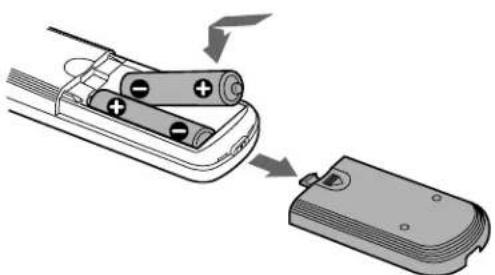
Insert two R6 (size-AA) batteries with the + and - properly oriented to the markings into the battery compartment. When using the remote, point it at the remote sensor on the deck.

When to replace the batteries
Under normal conditions, the batteries should last for about six months. When the remote no longer operates the deck, replace both batteries with new ones.
Notes
- Do not leave the remote in an extremely hot or humid place.
- Do not drop any foreign object into the remote casing, particularly when replacing the batteries.
- Do not use a new battery with an old one.
- Do not expose the remote sensor to direct sunlight or lighting apparatus. Doing so may cause a malfunction.
- If you don't use the remote for an extended period of time, remove the batteries to avoid possible damage from battery leakage and corrosion.
Hooking Up the Audio Components
Digital equipment with a DIGITAL OUT connector only *Digital equipment with both DIGITAL IN and OUT connectors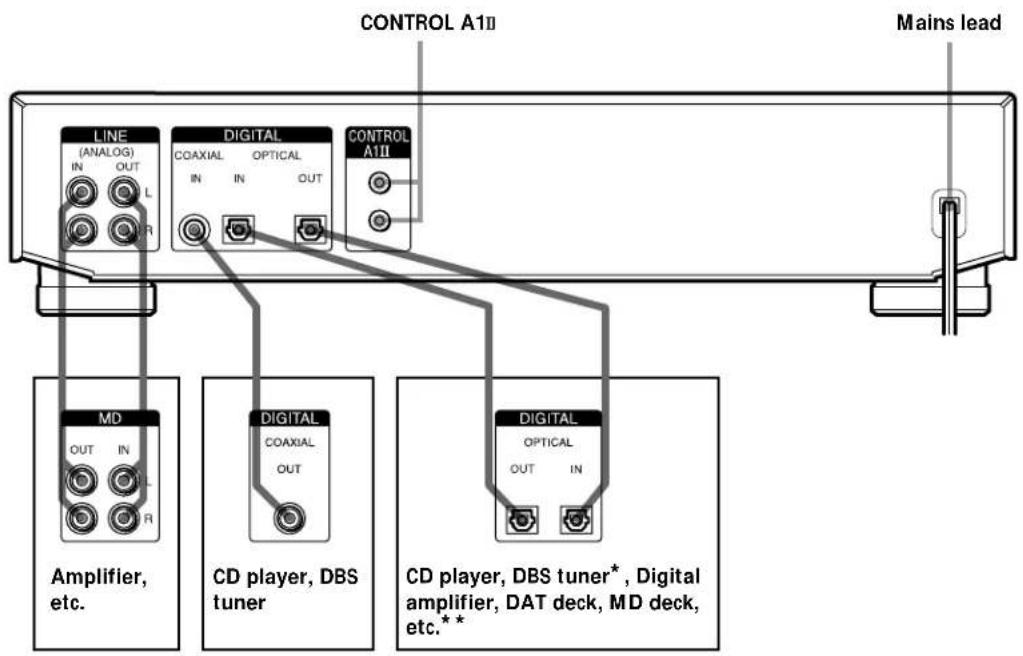
Required cords
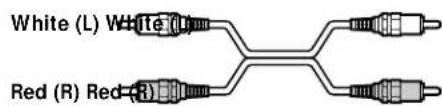
Audio connecting cords (2) (supplied)
When connecting an audio connecting cord, be sure to match the colour-coded pins to the appropriate jacks: white (left) to white and red (right) to red.
Optical cables (2) (only one supplied)
- When connecting an optical cable, take the caps off the connectors and insert the cable plugs straight in until they click into place.
- Do not bend or tie the optical cables.

Coaxial digital connecting cable (1) (not supplied)

Things you should keep in mind while hooking up the system
- Turn off the power to all components before making any connections.
- Do not connect any mains lead until all the connections are completed.
- Be sure the connections are firm to prevent hum and noise.
Jacks (connectors) for connecting audio components
Connect To the
Amplifiers LINE (ANALOG) IN/OUT jacks
CD players or DBS tuners DIGITAL COAXIAL IN jack or DIGITAL OPTICAL IN connector
Digital amplifiers, DAT decks, DIGITAL OPTICAL IN/OUT or another MD deck connectors
Connecting the mains lead
Connect the mains lead of the deck to a wall outlet.
Note
If you use a timer, connect the mains lead to the outlet of the timer.
About the CONTROL Control System
This MD deck is compatible with the CONTROL A11 Control System.
The CONTROL A1II Control System was designed to simplify the operation of audio systems composed of separate Sony components. CONTROL A1II connections provide a path for the transmission of control signals which enable automatic operation and control features usually associated with integrated systems.
Currently, CONTROL A1II connections between a Sony MD deck, CD player, amplifier (receiver), and cassette deck provide automatic function selection and synchronized recording.
In the future the CONTROL A1II connection will work as a multifunction bus allowing you to control various functions for each component.
Note
The CONTROL A1II Control System is designed to maintain upward compatibility as the Control System is upgraded to handle new functions. In this case, however, older components will not be compatible with the new functions.
CONTROL A1II and CONTROL A1 compatibility
The CONTROL A1 control system has been updated to the CONTROL A1II which is the standard system in the SONY 300 disc CD changer and other recent Sony components. Components with CONTROL A1 jacks are compatible with components with CONTROL A1II, and can be connected to each other. Basically, the majority of the functions available with the CONTROL A1 control system will be available with the CONTROL A1II control system.
However, when making connections between components with CONTROL A1 jacks and components with CONTROL A1II jacks, the number of functions that can be controlled may be limited depending on the component. For detailed information, refer to the operating instructions supplied with the component(s).
Connecting the CONTROL A1II Control System
Connect monaural (2P) mini-plug cords in series to the CONTROL A1II jacks on the back of each component. You can connect up to ten CONTROL A1II compatible components in any order. However, you can connect only one of each type of component (i.e., 1 CD player, 1 MD deck, 1 tape deck and 1 receiver).
(You may be able to connect more than one CD player or MD deck, depending on the model. Refer to the operating instructions supplied with the respective component for details.)
Example

Amplifier (Receiver)
CD player MD deck Tape deck Other component
In the CONTROL A1II control system, the control signals flow both ways, so there is no distinction of IN and OUT jacks. If a component has more than one CONTROL A1II jack, you can use either one, or connect different components to each jack.
Jacks and connection examples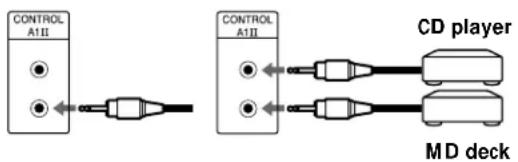
On CONTROL A1 jacks and connections
It is possible to make connections between CONTROL A1 and CONTROL A1II jacks. For details regarding particular connections or setup options, refer to the operating instructions supplied with component(s).
About the connecting cable
Some CONTROL A1I compatible components are supplied with a connecting cable as an accessory. In this case, use the connecting cable for your connection. When using a commercially available cable, use a monaural (2P) mini-plug cable less than 2 meters long, with no resistance (like the Sony RK-G69HG).
Basic Functions of the CONTROL A1II Control System
Automatic function selection
When you connect CONTROL A11 compatible Sony components using CONTROL A11 cables (not supplied), the function selector on the amplifier (or receiver) automatically switches to the correct input when you press the play button on one of the connected components.
(If you press ▶ (play button) on the MD deck while the CD is playing, the function selector on the amplifier switches from CD to MD.)
Notes
- This function only works when the components are connected to the amplifier (or receiver) inputs according to the names on the function buttons. Certain receivers allow you to switch the names of the function buttons. In this case, refer to the operating instructions supplied with the receiver.
- When recording, do not play any components other than the recording source. It will cause the automatic function selection to operate.
Synchronized recording
This function lets you conduct synchronized recording between the MD deck and selected source component.
1 Set the source selector on the amplifier (or receiver) to the source component. 2 Set the source component to pause mode (make sure both the ▶ and indicators light together).
3 Set the deck to recording pause mode. 4 Press II on the deck.
The source component is released from the pause mode, and recording begins shortly thereafter. When playback ends from the source component, recording stops.
Notes
- Do not set more than one component to the pause mode.
- This MD deck is equipped with a special synchronized recording function that uses the CONTROL A1 Control System (see "Making a CD Synchro-recording from a Sony CD player connected with a control A1 cable" on page 22).
Location and Function of Parts
This chapter tells you about the location and function of the various buttons and controls on the front panel and the supplied remote. Further details are provided on the pages indicated in the parentheses. It also tells you about the information that appears in the display window.
Front Panel Parts Description
1 I (power) switch (15, 23, 47, 49)
Press to turn the deck on. When you turn the deck on, the STANDBY indicator turns off. When you press the switch again, the deck turns off and the indicator lights up.
2 FADER button (41, 42)
Press to perform Fade-in Play/Recording or Fade-out Play/Recording.
3 SCROLL button (13)
Press to scroll the name of a track or MD.
LEVEL/DISPLAY/CHAR button (12, 13, 17, 28, 36)
- Press during recording pause to adjust the recording level.
- Press when the deck is stopped to display disc information or the contents of a programme.
- Press during recording to display information on the track being recorded.
- Press during play to display information on the current track.
- Press while editing an MD to select the type of characters to be input.
Display window (11-13, 17, 36, 40)
Shows various information.

MD insertion slot (15, 23)
Insert the MD as illustrated below.
With the labelled side up With the arrow pointing towards the deck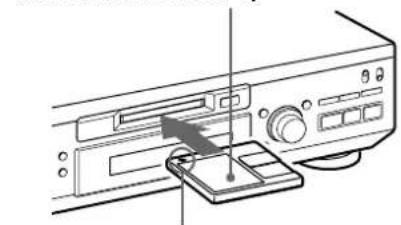
7 EJECT button (16, 17, 23)
Press to eject the MD.
8 MENU/NO button (18, 19, 27, 29-42, 50)
Press to display "Edit Menu" or "Setup Menu."
9 YES button (18,19,27-42)
Press to carry out the selected operation.
10 / buttons (25, 27, 28, 30, 32, 33, 36)
Press to locate a portion within a track, change the contents of a programme, or change the input character.
11 REC MODE selector (15)
Use to set the REC MODE to STEREO or MONO.
12 INPUT selector (14, 15, 17, 18, 47)
Use to select the input jack (or connector) of the programme source to be recorded.
13 REC button (16, 17, 19, 22, 39)
Press to record on the MD, monitor the input signal, or mark track numbers.
14 button (16, 23, 43)
Press to stop play or recording, or cancel the selected operation.
15 button (7, 16, 22, 23)
Press to pause play or recording. Press again to resume play or recording.
16 button (7, 16, 22-24, 27, 28, 43)
Press to start play.
17 AMS control (16-20, 23, 24, 27-42)
Turn to locate tracks, adjust the recording level, select the input characters, or select a menu item.
18 CLEAR button (27, 28, 36, 51)
Press to cancel the selection.
Remote sensor (4)
Point the remote towards this sensor (F) for remote operations.
20 TIME button (12, 13, 17, 22)
Press to display the remaining time.
21 REPEAT button (26)
Press to play tracks repeatedly.
22 PLAY MODE button (27, 28, 43)
Press to select Shuffle Play or Programme Play.
23 PHONE LEVEL control (23)
Use to adjust the volume of the headphones.
24 PHONES jack (23)
Connect headphones to this jack.
25 TIMER selector (43)
Use to set the timer for recording (REC) or playing (PLAY). Set to OFF to turn the timer off.
Remote Parts Descriptions
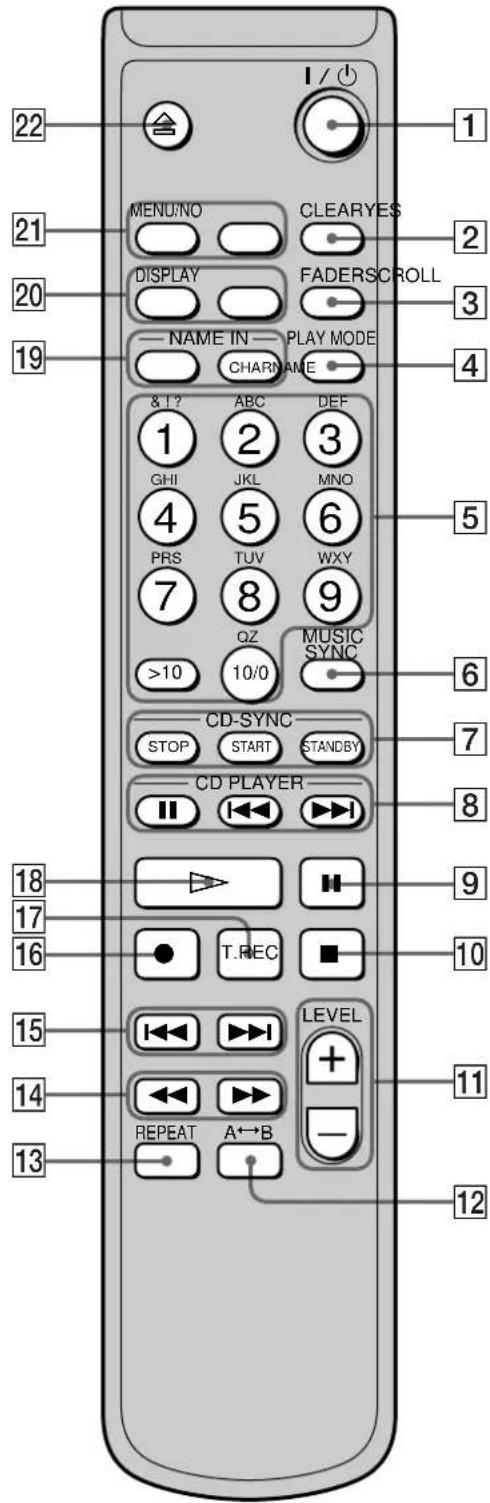
1 I/(power) switch (15, 23, 47, 49)
Press to turn the deck on. When you turn the deck on, the STANDBY indicator on the deck turns off. When you press the switch again, the deck turns off and the indicator lights up.
2 CLEAR button (27, 28, 36-38, 51)
Press to cancel the selection.
3 FADER button (41, 42)
Press to perform Fade-in Play/Recording or Fade-out Play/Recording.
4 PLAY MODE button (27, 28, 43)
Press to select Shuffle Play or Programme Play.
Letter/number buttons (25, 27, 37)
Press to input letters or numbers.
6 MUSIC SYNC button (21, 39)
Press to start Music Synchro-recording.
CD-SYNC STOP button (22)
Press to stop CD Synchro-recording.
CD-SYNC START button (21, 22)
Press to start CD Synchro-recording.
CD-SYNC STANDBY button (21, 22)
Press to enter standby for CD Synchro-recording.
CD PLAYER II button (22)
Press to pause the CD play. Press again to resume CD play.
CD PLAYER I▶I buttons (22)
Press to locate tracks on the CD.
9 1 button (16,23)
Press to pause play or recording. Press again to resume play or recording.
10 button (16, 23, 43)
Press to stop play, stop recording, or cancel the selected operation.
LEVEL + / - buttons (17, 24)
Press to adjust the recording level.
12 A → B button (26)
Press to select Repeat A-B Play.
13 REPEAT button (26)
Press to play tracks repeatedly.
14 / buttons (25-28, 32, 33, 36, 37)
Press to locate a portion within a track, change the contents of a programme, or shift the cursor to the right.
15 I/ltI buttons (16-19, 23, 24, 27-29, 31-35, 37-42)
Press to locate tracks, adjust the recording level, or select a menu item.
16 ● button (16, 17, 19, 39)
Press to record on the MD, monitor the input signal, or mark track numbers.
T.REC button (20)
Press to start Time Machine Recording.
18 button (16, 23, 24, 27, 28)
Press to start play.
19 NAME button (37, 38)
Press to add the name or change the name of a track or MD.
CHAR button (37)
Press to select the type of characters to be input.
20 DISPLAY button (12, 13, 17, 28)
Press to select the information to be displayed in the window.
SCROLL button (13)
Press to scroll the name of a track or MD.
21 MENU/NO button (18, 19, 27, 29, 31-42, 50)
Press to display "Edit Menu" or "Setup Menu."
YES button (18, 19, 27-42)
Press to carry out the selected operation.
22 EJECT button (16, 17, 23)
Press to eject the MD.
Using the Display
The display window shows information about the MD or track. This section describes the information that appears for each deck status.
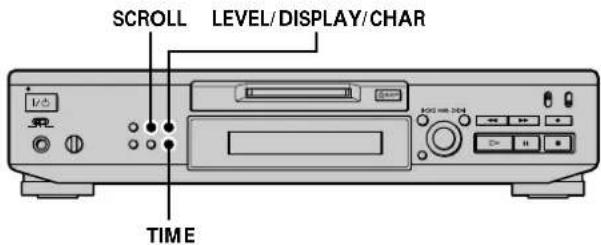
Note
The display format that you've selected in each of the deck statuses (play, recording, etc.) will appear whenever the deck enters that status and you press LEVEL/DISPLAY/CHAR (or DISPLAY) or TIME until you change the format to another (see the following sections for details). If you disconnect the mains lead, however, all the displays will revert to their default (i.e., the factory set display) the next time you turn the deck on.
When you insert an MD
The following display appears.
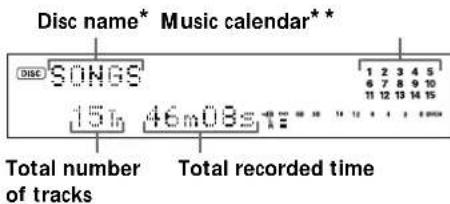
- The track name appears instead of the disc name during play. When the MD or the track has no name, "No Name" appears.
**A music calendar shows all the track numbers within a grid if the MD is a premastered disc, or without a grid if the MD is a recordable disc. If the total number of tracks exceeds 15, ▷ appears to the right of number 15 in the music calendar.
While the deck is stopped
Press LEVEL/DISPLAY/CHAR (or DISPLAY) repeatedly to change the display.
Each press of the button changes the display as follows:
Total number of tracks and total recorded time (default display)


The contents of a programme (only when "PROGRAM" lights up)


Level of the input signal


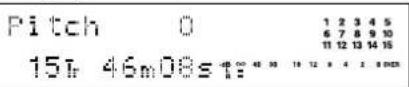
Pitch display

You can check the remaining recordable time on the MD. Press TIME. Each press of the button changes the display as follows:
Total number of tracks and total recorded time (default display)


Total number of tracks and remaining recordable time on the MD (recordable MDs only)*



While the deck is recording
Press LEVEL/DISPLAY/CHAR (or DISPLAY) repeatedly to change the display.
Each press of the button changes the display as follows:
Track number and recorded time of the current track (default display)
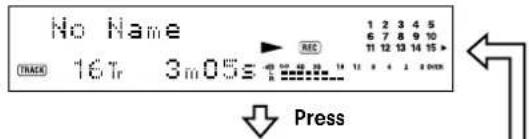
Level of the input signal


Sampling frequency indication


"FS--kHz" appears while the analog signal is input.
You can check the remaining recordable time on the MD. Press TIME. Each press of the button changes the display as follows:
Track number and recorded time of the current track (default display)


Track number and remaining recordable time on the MD



The Peak Hold Function freezes the peak level meters at the highest level reached by the input signal
1 While the deck is stopped or playing, press MENU/NO twice. "Setup Menu" appears in the display. 2 Turn AMS (or press the arrow buttons repeatedly) until "P.Hold Off" (factory setting) appears, then press AMS or YES. 3 Turn AMS (or press the arrow buttons repeatedly) to select "P.Hold On", then press AMS or YES. 4 Press MENU/NO.
To turn off the Peak Hold Function, select "P.Hold Off" in step 3 above.
While the deck is playing
Press LEVEL/DISPLAY/CHAR (or DISPLAY) repeatedly to change the display.
Each press of the button changes the display as follows:
Track number and elapsed time of the current track (default display)


Press
The contents of a programme (only when "PROGRAM" lights up)


Press
Disc name and track name


Press
Level of the output signal


Press
Pitch display


You can check the remaining time
Press TIME. Each press of the button changes the display as follows:
Track number and elapsed time of the current track (default display)
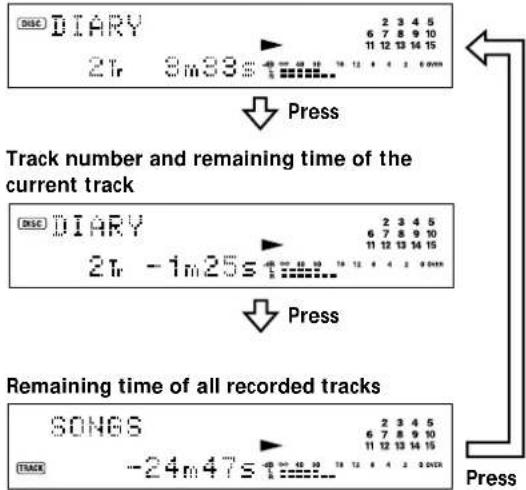

You can check the track name at any time while playing.
Press SCROLL.
The track name appears and scrolls. While the disc name is scrolling, press the button again to pause scrolling, and again to continue scrolling.
Recording on MDs
This chapter explains the various ways to record to an MD, as well as how to mark track numbers and perform synchro-recording with other components.
Notes on Recording
About indications which appear while recording
When "Protected" and "C11" alternate in the display
The record-protect slot is open and the MD is record-protected. To record on the MD, slide the tab to close the slot. For details, see "To prevent accidental erasure of the recorded material" on page 16.
When "Din Unlock" and "C71" alternate in the display
- The digital component selected with the INPUT selector is not connected correctly. Check the connection.
- The selected digital component is not turned on. Turn on the component.
When "Cannot Copy" appears in the display
The MD deck uses the Serial Copy Management System. MDs recorded through the digital input connector can't be copied to other MDs or DAT tapes through the digital output connector. For details, see "Guide to the Serial Copy Management System" on page 15.
When "TRACK" flashes in the display
The MD deck is recording over existing track(s) (see "Recording on an MD" on page 15). The indication stops flashing when the deck reaches the end of the recorded portion.
About indications which appear after recording
When "TOC" lights up in the display
Recording has finished but the TOC (Table of Contents) on the MD has not been updated to reflect the recording results. The recording will be lost if you disconnect the mains lead while the indication is on. The TOC will be updated only when you eject the MD or turn off the MD deck.
When "TOC Writing" flashes in the display
The deck is updating the TOC. Do not disconnect the mains lead or move the deck while the indication flashes.
Automatic conversion of digital sampling rates during recording
A built-in sampling rate converter automatically converts the sampling frequency of various digital sources to the 44.1 kHz sampling rate of the MD deck. This allows you to monitor and record sources such as 32- or 48-kHz DAT tape or satellite broadcasts, as well as the CDs and MDs.
Guide to the Serial Copy Management System
Digital audio components, such as CDs, MDs, and DATs make it easy to produce high-quality copies of music by processing music as a digital signal.
To protect copyrighted music sources, this deck uses the Serial Copy Management System which allows you to make only a single copy of a digitally recorded source through digital-to-digital connections.
You can make only a first-generation copy through a digital-to-digital connection.
Examples are given as follows:
- You can make a copy of a commercially available digital sound programme (for example, a CD or MD), but you can't make a second copy from the first-generation copy.
- You can make a copy of a digital signal from a digitally recorded analog sound programme (for example, an analog record or a music cassette tape) or from a digital satellite broadcast programme, but you can't make a second copy from the first-generation copy.
- A first-generation copy means the first recording of a digital audio source through the deck's digital input connector. For example, if you record from a CD player connected to the DIGITAL IN connector, that copy is a first-generation copy.
Note
The restrictions of the Serial Copy Management System don't apply when you make a recording through the analog-to-analog connections.
Recording on an MD
The operations for normal recording are explained below. If the MD has recorded material on it, the deck will automatically start recording from the end of the recorded portion.
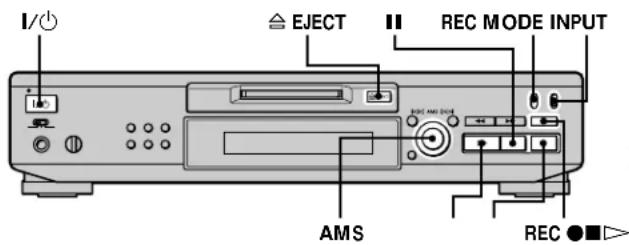
1 Turn on the amplifier and programme source, and select the source on the amplifier. 2 Press I/O to turn on the deck. The STANDBY indicator turns off.
3 Insert a recordable MD. 4 Set INPUT to the position that corresponds to the input jacks (connector) connected to the programme source.
| If the source is connected to the Set INPUT to |
| DIGITAL OPTICAL IN connector OPT |
| DIGITAL COAXIAL IN jack COAX |
| LINE (ANALOG) IN jacks ANALOG |
5 Set REC MODE to the recording mode you want to record in.
| To record in Set REC MODE | to |
| Stereo STEREO | |
| Monaural MONO |
Recording on an MD
6 If necessary, locate the point on the MD to start recording from.
If you want to record on a new MD or start recording from the end of the recorded portion, go to step 7.
To record over from the beginning of an existing MD track
Turn AMS (or press Vdash / Vdash repeatedly) until the number of the track to be recorded over appears.
To record over from the middle of an MD track
Turn AMS (or press / repeatedly) until the number of the track to be recorded over appears, then press to start playback. Press at the point you want to start recording from.
7 Press REC
The deck changes to recording pause.
8 If necessary, adjust the recording level.
For details, see "Adjusting the Recording Level" on page 17.
9 Press or II.
Recording starts.
10Start playing the programme source.
Operations you may want to do during recording
| To Press |
| Stop recording |
| Pause recording |
| Resume recording after pausing ▷ or ▪ |
| Eject the MD ≢ EJECT after stopping recording |
When you pause recording
The track number increases by one. For example, if you paused recording while recording track 4, the track number will be 5 when you resume recording.
To prevent accidental erasure of the recorded material
To make it impossible to record on an MD, slide the record-protect tab in the direction of the arrow (see illustration below) to open the slot. To enable recording, close the slot.
Bottom side of the MD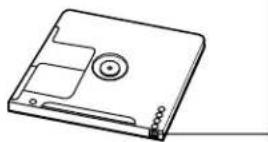
Record-protect tab Slide in the direction of arrow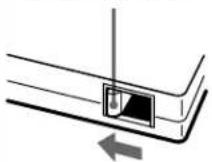
To play the tracks you just recorded
Press immediately after stopping recording.
The deck starts to play from the first track of the material just recorded.

To play from the first track of the MD after recording
1 Press again after stopping recording. 2 Press
The deck starts to play from the first track of the MD.
Notes
- If you switch REC MODE during recording or recording pause, recording stops.
- Monaural mode allows you to record about twice as much material as stereo. Even if you set REC MODE to MONO, the monitor signal during recording does not become monaural.
- You can't record over existing material when Shuffle Play (page 27) or Programme Play (page 27) has been selected. "Impossible" appears in the display at this time.
Adjusting the Recording Level
You can adjust the recording level for both analog and digital recording.
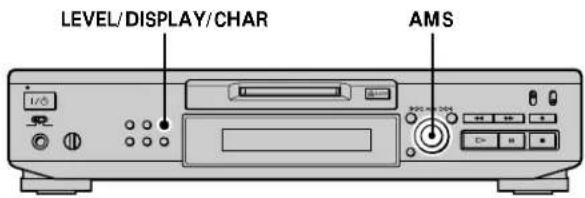
1 Do steps 1 to 7 of "Recording on an MD" on pages 15 and 16. 2 Play the portion of the programme source with the strongest output. 3 Press LEVEL/DISPLAY/CHAR (or DISPLAY) repeatedly until the level of the input signal appears. 4 While monitoring the sound, turn AMS (or press repeatedly) to raise the recording level to its highest level without turning on the two rightmost indicators on the peak level meters.
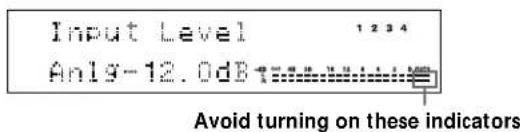
5 Stop playing the programme source. 6 To start recording, continue from step 9 of "Recording on an MD" on page 16.
You can adjust the recording level using the remote. During recording or recording pause, press LEVFL + / - repeatedly. You can use Setup Menu to adjust the recording level. During recording or recording pause, select "Ain," "Coax," or "Opt" in Setup Menu.
You can adjust the recording level regardless of the source selected in the INPUT selector.
Note
The volume can only be increased up to +12.0 dB (for analog recording) or +18.0 dB (for digital recording). Therefore, if the output level of the connected component is low, it may not be possible to set the recording level to maximum.
Recording Tips
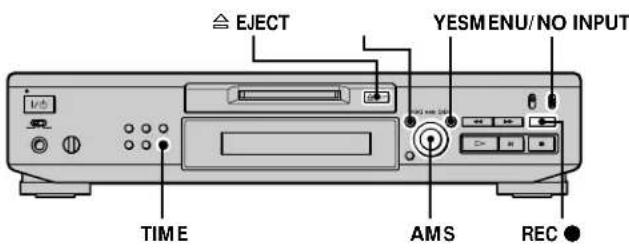
Checking the remaining recordable time on the MD
Press TIME repeatedly.
While the deck is The following information appears
Stopped Total recorded time ↔ Remaining recordable time on the MD
Recording Recorded time of the current track ↔ Remaining recordable time on the MD
For details, see page 12.
Monitoring the input signal (Input Monitor)
You can monitor the selected input signal even when you're not recording it.
1 Press ▲ EJECT to eject the MD. 2 Set INPUT to the position that corresponds to the jacks (connector) where the signal you want to monitor is being input.
3 Press REC ●
When INPUT is set to ANALOG
The analog signal input from the LINE (ANALOG) IN jacks is output to the DIGITAL OUT connector after A/D conversion, and then to the LINE (ANALOG) OUT jacks after D/A conversion. "AD - DA" appears in the display at this time.
Recording Tips
When INPUT is set to OPT or COAX
The digital signal input from the DIGITAL IN connector is output to the DIGITAL OUT connector after passing through the sampling rate converter, and then to the LINE (ANALOG) OUT jacks and PHONES jack after D/A conversion. "DA" appears in the display at this time.
Erasing blank portions automatically (Smart Space/Auto Cut)
The deck can be set to automatically erase any blanks that are produced when the signal is interrupted during recording. The function which activates (Smart Space or Auto Cut) depends on the length of the interruption, as described below.
Smart Space
If the signal is interrupted for less than 30 seconds, Smart Space replaces the blank portion with a blank space of about three seconds, then continues the recording. "Smart Space" appears in the display during this time.
Auto Cut
If the signal is interrupted for about 30 seconds, Auto Cut replaces the blank portion with a blank space of about three seconds, then pauses the recording. "Auto Cut" appears in the display during this time.
Do the procedure below to turn Smart Space and Auto Cut on or off.
1 While the deck is stopped, press MENU/NO twice. "Setup Menu" appears in the display. 2 Turn AMS (or press I Vdash /repeatedly) until "SSPACE On" appears, then press AMS or YES.
3 Turn AMS (or press ↓ ↓ / ↑ ↑ repeatedly) to select the setting, then press AMS or YES.
To Select
Turn on Smart Space and Auto Cut S.Space On (factory setting)
Turn off Smart Space and Auto Cut SSPACE Off
4 Press MENU/NO.
Notes
- If you start recording with no signal input, Smart Space and Auto Cut will not operate regardless of the setting.
- Smart Space does not affect the order of the track numbers being recorded, even if the blank space occurs in the middle of a track.
- Auto Cut is automatically turned on or off in tandem with Smart Space.
- If you turn off the deck or disconnect the mains lead, the deck will store the last setting ("S.Space On" or "S.Space Off") and recall it the next time you turn on the deck.
Marking Track Numbers While Recording (Track Marking)
You can mark track numbers either manually or automatically while recording. By marking track numbers at specific points, you can quickly locate the points later or edit the MD easily.
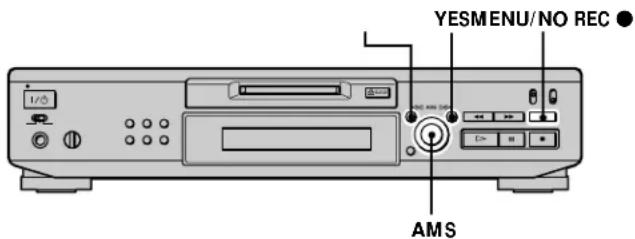
Marking track numbers manually (Manual Track Marking)
Press REC at the point where you want to add a track number while recording.
Marking track numbers automatically (Automatic Track Marking)
When recording from a CD player or MD deck connected to the DIGITAL IN connector, the deck marks track numbers in the same sequence as the source. When recording from other sources connected to the DIGITAL IN connector or a source connected to the LINE (ANALOG) IN jacks, do the procedure below to mark track numbers automatically.
1 While the deck is stopped, press MENU/NO twice. "Setup Menu" appears in the display. 2 Turn AMS (or press I/ repeatedly) until "T.Mark Lsyn" appears, then press AMS or YES.
3 Turn AMS (or press / repeatedly) to select the setting, then press AMS or YES.
To Select
Turn on Automatic Track Marking T.Mark Lsyn (factory setting)
Turn off Automatic Track Marking T.Mark Off
4 Press MENU/NO.
The deck marks a track number whenever the input signal level drops to -50 dB (the trigger level for Automatic Track Marking) or below for at least 1.5 seconds.
To change the trigger level for Automatic Track Marking
Do the procedure below to change the signal level that triggers Automatic Track Marking.
1 While the deck is stopped, press MENU/NO twice. "Setup Menu" appears in the display. 2 Turn AMS (or press down/down/up/up repeatedly) until "LS(T)" appears, then press AMS or YES. 3 Turn AMS (or press left/right repeatedly) to select the level, then press AMS or YES.
You can set the level at any value between -72 dB and 0 dB, in 2 dB steps.
4 Press MENU/NO.
Marking Track Numbers While Recording
(Track Marking)

Additional information on Automatic Track Marking
- When recording from a CD player or MD deck connected to the DIGITAL IN connector, the entire material may be recorded as a single track in the following cases:
- When you consecutively record the same track two or more times using single-track repeat play.
- When you consecutively record two or more tracks with the same track number but from different CDs or MDs.
- When you record tracks from certain CD or multi-disc players.
Also, if the source is an MD, a track number may not be marked for tracks less than four seconds long.
- When recording from a component connected to the LINE (ANALOG) IN jacks with "T.Mark Off" selected or when recording from a DAT deck or DBS tuner connected to the DIGITAL IN connector, the entire material may be recorded as a single track.
- When recording from a DAT deck or DBS tuner connected to the DIGITAL IN connector, the deck will mark a track number whenever the sampling frequency of the input signal changes, regardless of the track marking parameter setting ("T.Mark Lsyn" or "T.Mark Off").

You can mark track numbers even after recording has
finished
See "Dividing Tracks" on page 33.
Note
If you turn off the deck or disconnect the mains lead, the deck will store the last settings ("T.Mark Lsyn" or "T.Mark Off" and the trigger level) and recall them the next time you turn on the deck.
Starting Recording With Six Seconds of Prestored Audio Data (Time Machine Recording)
Whenever the deck is in recording pause, the deck's buffer memory continuously stores the latest six seconds worth of audio data. When you press AMS (or T.REC), the recording then starts with the data in the buffer memory. Time Machine Recording thus allows you to avoid missing the beginning of material recorded live from an FM or satellite broadcast.
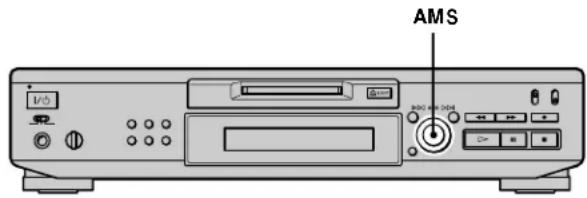
1 Do steps 1 to 7 of "Recording on an MD" on pages 15 and 16.
The deck changes to recording pause.
2 Start playing the programme source.
3 Press AMS (or T.REC) at the point where you want to start recording.
Recording starts with the six seconds of prestored data in the buffer memory, then continues recording via the buffer memory thereafter.
To stop Time Machine Recording
Press
Note
The storage of data in the buffer memory starts from the moment the deck changes to recording pause. Thus, if you start recording less than six seconds after changing to recording pause, less than six seconds worth of data will be recorded from the buffer memory. The same is true if the programme source had been playing for less than six seconds at the time you start recording.
Synchro-recording With the Audio Component of Your Choice (Music Synchro-recording)

The Music Synchro-recording allows you to automatically synchronize recording on the MD deck with the playing of the selected programme source. The Track Marking function, however, will differ according to the programme source. For details, see "Marking Track Numbers While Recording" on page 19.
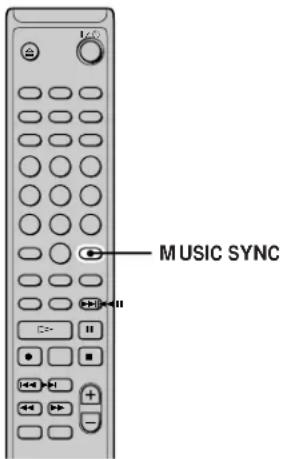
1 Do steps 1 to 6 of "Recording on an MD" on pages 15 and 16. 2 Press MUSIC SYNC.
The deck changes to recording pause. 3 Start playing the programme source. Recording starts automatically.
To stop Music Synchro-recording Press
Note
During Music Synchro-recording, Smart Space and Auto Cut will operate regardless of their setting ("S.Space On" or "S.Space Off").
Synchro-recording With a Sony CD Player
(CD Synchro-recording)
When the deck is connected to a Sony CD player or Hi-Fi component system, you can easily copy the contents of CDs to the MD using the deck's remote. As the same remote operates both the MD deck and the CD player or CD player section of the component system, make sure to place the MD deck and the CD player as close together as possible.
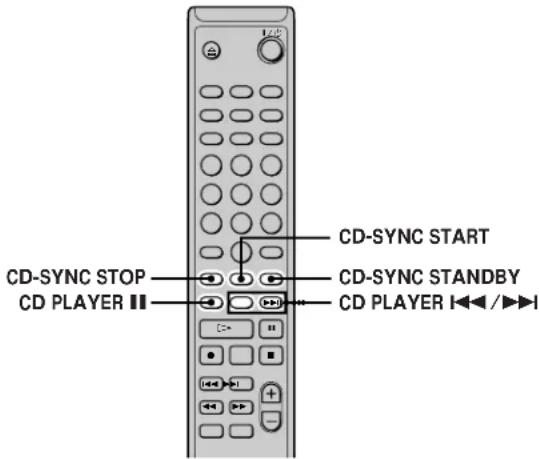
1 Turn on the amplifier and the CD player, and select CD on the amplifier. 2 Do steps 2 to 6 of "Recording on an MD" on pages 15 and 16. 3 Insert a CD into the CD player and select the playback mode (Shuffle Play, Programme Play, etc.) on the CD player. 4 Press CD-SYNC STANDBY.
The CD player changes to play standby and the MD deck changes to recording standby.
5 Press CD-SYNC START.
The deck starts recording and the CD player starts to play.
The track number and elapsed recording time of the track appear in the display.
If the CD player doesn't start playing
Some CD players may not respond when you press CD-SYNC START. Press on the CD player's remote instead to start play on the CD player.
Synchro-recording With a Sony CD Player (CD
Synchro-recording)
Operations you may want to do during CD Synchro-recording
To Press
Stop recording CD-SYNC STOP
Pause recording CD-SYNC STANDBY or CD
PLAYER
Locate the next track to be recorded during recording pause
CD PLAYER
Resume recording after pausing
CD-SYNC START or CD PLAYER
Check the remaining recordable time on the MD
TIME on the deck (page 12)

You can use the remote of the CD player during CD Synchronized recording.
Press To change the deck to And change the CD player to
Recording Play
Recording pause Stop
Recording pause Pause

During CD Synchro-recording, track numbers are marked in the following ways:
- When the CD player is connected to the DIGITAL IN connector, track numbers are automatically marked as they appear on the CD.
- When the CD player is connected to the LINE (ANALOG) in jacks, track numbers are automatically marked when "T.Mark Lsyn" has been selected (page 19).
- When you resume recording after recording pause, a new track number is automatically marked, regardless of the track marking parameter setting ("T.Mark Lsyn" or "T.Mark Off").

You can change CDs during CD Synchro-recording
1 Press on the CD player's remote. 2 Change the CD. 3 Press on the CD player's remote. Recording resumes.

You can also perform synchro-recording with a Sony video player
By reprogramming the MD's remote, you can use the procedure above to perform synchro-recording with a Sony video CD player.
Press number button 2 while pressing down I/ on the MD deck's remote. You can now operate the MD deck and the video CD player with the remote. To control the CD player again, press number button 2 while pressing down I/ on the MD deck's remote.

During CD Synchro-recording, the deck copies CD text riation (CD text and disc memos) as it is to the MD (Disc no Copy Function)
The Disc Memo Copy function operates when you make a CD Synchro-recording from a Sony CD player connected with a control A11lcable (not supplied) to the MD deck.
Notes
- When performing CD Synchro-recording with a CD player with a mode selector, be sure to set the selector to CD1.
- When you record tracks from certain CD or multi-disc players, the entire material may be recorded as a single track.
- The Disc Memo Copy Function may not operate for extremely short CD tracks.
- Text information may not be copied for some CDs.
Making a CD Synchro-recording from a Sony CD player connected with a control A1II cable (not supplied)
1 Do steps 1 to 3 of "Synchro-recording with a Sony CD player" on page 21. 2 Set the CD player to playback pause mode. 3 Press REC ● on the deck.
The MD deck changes to recording pause.
4 Press ▶ or II on the deck.
The deck starts recording and the CD player starts to play. When CD play finishes, recording stops.
Playing MDs
This chapter explains the various ways to play MDs.
Playing an MD
The operations for normal play are explained below.
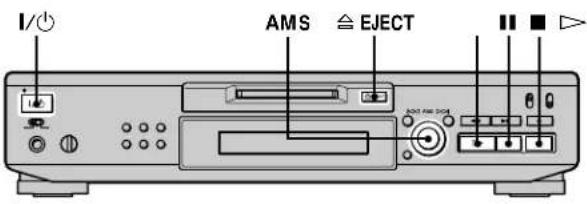
1 Turn on the amplifier and select MD on the amplifier. 2 Press I/O to turn on the deck. The STANDBY indicator turns off. 3 Insert an MD. 4 If necessary, turn AMS (or press repeatedly) to locate the track you want to start playing from. If you want to play from the first track, go to step 5. 5 Press. The deck starts to play. 6 Adjust the volume on the amplifier.
Operations you may want to do during play
| To Press or turn | |
| Stop play■ | |
| Pause play■ | |
| Resume play after pausing ▷or■ | |
| Locate a succeeding track AMS clockwise (or press ➔repeatedly) | |
| Locate the beginning of the AMS counterclockwise (or press■repeatedly) current track or a preceding track | |
| Eject the MD ≦ EJECT after stopping play |
To use headphones
Connect them to PHONES jack. Use PHONE LEVEL to adjust the volume.
Playing an MD
You can adjust the analog signal level output to the LINE (ANALOG) OUT jacks and the PHONES jack
1 While the deck is playing, press LEVEL/DISPLAY/CHAR (or DISPLAY) repeatedly until the line output adjustment display appears. 2 Turn AMS (or press LEVEL +/- repeatedly) to adjust the output signal level. You can use Setup Menu to adjust the analog output level While the deck is playing, select "Aout" in Setup Menu.
Note
When you eject the MD or turn off the deck, the output level is reset to the factory setting (0.0 dB).
Playing a Specific Track
While the deck is playing or stopped, use the procedure below to quickly play any track.
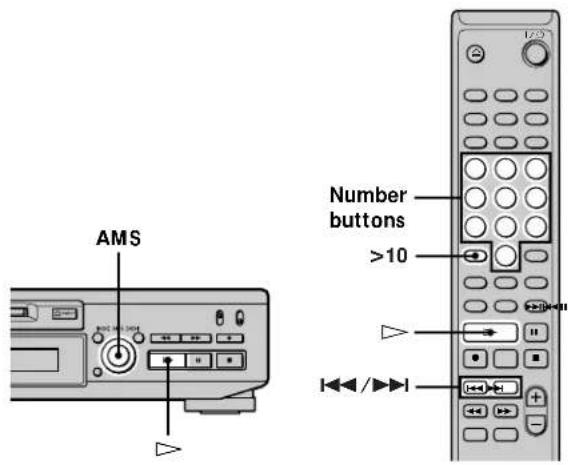
Locating a track with AMS*
| To go to Do the following: | |
| The next or a succeeding track during play | Turn AMS clockwise (or press ➔ repeatedly). |
| A preceding track during play | Turn AMS counterclockwise (or press ➔ repeatedly). |
| The beginning of the current track during play | Turn AMS counterclockwise (or press ➔ once). |
| A specific track while the deck is stopped | Turn AMS (or press ➔ / ➔ ➔ repeatedly) until the track number you want to go to flashes in the display, then press AMS or ➔. |
- Automatic Music Sensor
To locate the last track of the MD quickly
While the deck is stopped, turn AMS counterclockwise (or press once).
If you locate a track while the deck is stopped or paused
The deck will still be stopped or paused at the beginning of the located track.
Playing a track by entering the track number
Press the number button(s) to enter the track number of the track you want to play.
To enter a track number over 10
1 Press >10 2 Enter the corresponding digits.
To enter 0, press 10/0 instead.
Examples:
To play track number 30, press >10 then 3 and 10/0. To play track number 108, press >10 twice, then 1, 10/0, and 8.

If you enter a track number while the deck is stopped or paused,
the deck will still be stopped or paused at the beginning of the track.
Locating a Particular Point in a Track
You can locate a particular point in a track during play or play pause.
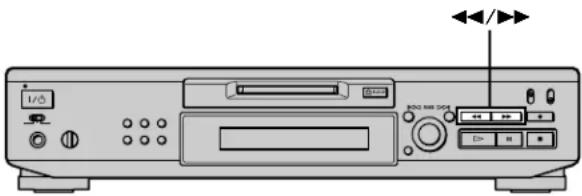
Locating a point while monitoring the sound
Press down ◁/▷ during play.
You will hear intermittent playback as the disc goes forward or in reverse. When you reach the point, release the button.
Notes
- If the disc reaches the end while you're pressing ▷, the deck stops.
- Tracks that are only a few seconds long may be too short for monitoring. For such tracks, play the MD at normal speed.
Locating a point by observing the time indication
Press down ◁/▷ during play pause.
The elapsed playing time of the track appears in the display. When you reach the point, release the button. No sound is output during this time.

When “- Over -” appears in the display
The disc has reached the end while you're pressing. Turn AMS counterclockwise (or press) or press to go back.
Playing Tracks Repeatedly
You can play an entire MD repeatedly. This function can be used with Shuffle Play to repeat all the tracks in random order (page 27), or with Programme Play to repeat all the tracks in the programme (page 27). You can also repeat a specific track or portion within a track.
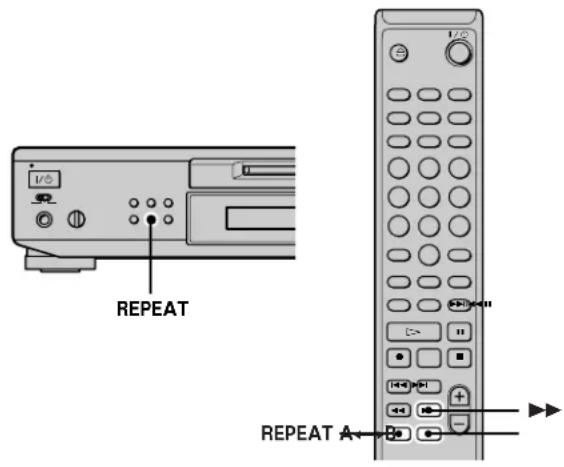
Note
If you turn off the deck or disconnect the mains lead, the deck will store the last setting of the repeat play ("Repeat All" or "Repeat 1") and recall it the next time you turn on the deck.
Repeating all the tracks on the MD (Repeat All Play)
Press REPEAT repeatedly until "Repeat All" appears in the display.
When you play an MD, the deck repeats the tracks as follows:
| When the play mode is The deck repeats | |
| Normal play (page 23) All the tracks in sequence | |
| Shuffle Play (page 27) | All the tracks in random order |
| Programme Play (page 27) | All the tracks in the programme in sequence |
To stop Repeat All Play
Press ■.
To resume normal play
Press REPEAT repeatedly until "Repeat Off" appears in the display.
Repeating the current track (Repeat 1 Play)
While the track you want to repeat is being played, press REPEAT repeatedly until "Repeat 1" appears in the display.
Repeat 1 Play starts.
To stop Repeat 1 Play
Press
To resume normal play
Press REPEAT repeatedly until "Repeat Off" appears in the display.
Repeating a specific portion within a track (Repeat A-B Play)
You can specify one portion within a track to be played repeatedly. Note that the portion you specify must be within the boundaries of a single track.
1 While the deck is playing, press A↔B at the starting point (point A) of the portion to be played repeatedly.
"REPEAT A-" lights up and "B" flashes in the display.
2 Continue playing the track or press ▶ to locate the ending point (point B), then press A↔B.
"REPEAT A-B" lights up and Repeat A-B Play starts.
To stop Repeat A-B Play and resume normal play, press REPEAT or CLEAR.
You can set a new starting point and ending point during Repeat A-B Play.
You can change the current ending point to a new starting point, then specify a new ending point to repeat a portion right after the current portion.
1 During Repeat A-B Play, press A↔B. The current ending point changes to the new starting point (point A). "REPEAT A-" lights up and "B" flashes in the display.
2 Locate the new ending point (point B) and press A↔B. "REPEAT A-B" lights up and the deck starts to repeat the newly specified portion.
Playing Tracks in Random Order (Shuffle Play)
When you select Shuffle Play, the deck plays all the tracks on the MD in random order.
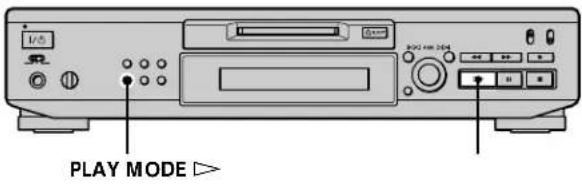
1 While the deck is stopped, press PLAY MODE repeatedly until "SHUFFLE" lights up in the display. 2 Press ▶
Shuffle Play starts.
appears while the deck is "shuffling" the tracks.
To resume normal play
While the deck is stopped, press PLAY MODE repeatedly until "SHUFFLE" turns off.

You can locate tracks during Shuffle Play
Turn AMS (or press ◀/▶ repeatedly).
- To locate the next track or a later track to be played, turn AMS clockwise (or press ▶ repeatedly).
- To locate the beginning of the current track, turn AMS counterclockwise (or press ◀). Note that you can't locate and play the tracks that have already been played once.
Creating Your Own Programme (Programme Play)
You can pick out the tracks that you like and specify the playback order in a programme containing up to 25 tracks.
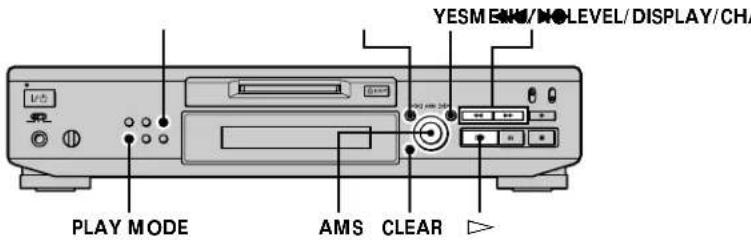
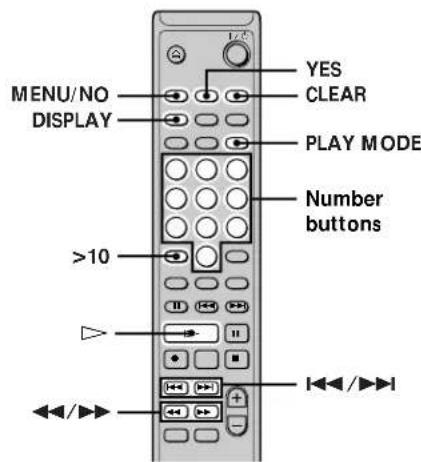
Programming the tracks
1 While the deck is stopped, press MENU/NO twice. "Setup Menu" appears in the display. 2 Turn AMS (or press the arrow buttons repeatedly) until "Program ?" appears, then press AMS or YES. 3 Turn AMS until the track number you want to add to the programme appears, then press AMS or (or use the number button(s) to enter the track directly).
If you entered the wrong track number
Press the left/right arrow buttons repeatedly until the wrong track number flashes, then do step 3 above again or press CLEAR to erase the track number. If "0" flashes, press
Creating Your Own Programme (Programme Play)
To enter a track number over 10
Use the >10 button. For details, see page 25.
To check the total playing time of the programme
Press LEVEL/DISPLAY/CHAR (or DISPLAY).
4 Repeat step 3 to enter other tracks.
The entered track is added to the location where the "0" flashes.
Each time you enter a track, the total programme time appears in the display.
5 Press YES.
"Complete!!" appears and the programme is completed.
6 Press PLAY MODE repeatedly until "PROGRAM" lights up in the display.
7 Press the play button.
Programme Play starts.
To stop Programme Play
Press ■.
To resume normal play
Press PLAY MODE repeatedly until "PROGRAM" turns off.

The programme remains even after Programme Play ends or stops.
Press ▶ to play the programme again.
Notes
- If you turn off the deck or disconnect the mains lead, the programme will be lost.
- The display shows "--- m -- s" when the total playing time of the programme exceeds 199 minutes.
- "ProgramFull!" appears when you try to programme the 26th track.
Checking the contents of the programme
While the deck is stopped and "PROGRAM" lights up, press LEVEL/DISPLAY/CHAR (or DISPLAY) repeatedly.
The first several tracks in the programme appear in the display. To see the rest of the programme, turn AMS (or press ◀◀/▶▶ repeatedly).
Changing the contents of the programme
While the deck is stopped and "PROGRAM" lights up, do steps 1 and 2 of "Programming the tracks" on page 27, followed by one of the procedures below:
To Do the following:
| Erase a track | Press \( \langle < ,\parallel \rangle \) repeatedly until the number of the unwanted track flashes, then press CLEAR. |
| Erase all tracks Press CLEAR repeatedly until all the track numbers disappear. | |
| Add a track at the beginning of the programme | Press \( \langle < ,\parallel \rangle \) repeatedly until "0" flashes before the first track number, then do steps 3 to 5 of "Programming the tracks" on pages 27 and 28. |
| Add a track in the middle of the programme | Press \( \langle < ,\parallel \rangle \) repeatedly until the track number which will precede the new track flashes. Press AMS to display flashing "0," then do steps 3 to 5 of "Programming the tracks" on pages 27 and 28. |
| Add a track to the end of the programme | Press \( \blacktriangleright \blacktriangleright \) repeatedly until "0" flashes after the last track number, then do steps 3 to 5 of "Programming the tracks" on pages 27 and 28. |
| Replace a track | Press \( \langle < ,\parallel \rangle \) repeatedly until the number of the track to be changed flashes, then do steps 3 to 5 of "Programming the tracks" on pages 27 and 28. |
Tips for Recording From MDs to Tape
Inserting blanks between tracks during play (Auto Space)
The MD deck can be set to automatically insert a three-second blank between tracks during play. This function is useful when you're recording from an MD to an analog tape since the three-second blank enables you to use the Multi-AMS function later to locate the beginning of tracks on the tape.
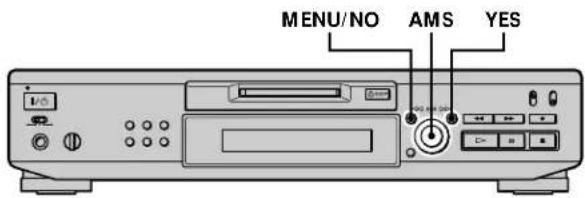
1 While the deck is stopped, press MENU/NO twice. "Setup Menu" appears in the display. 2 Turn AMS (or press 山 山 /repeatedly) until "Auto Off" appears, then press AMS or YES. 3 Turn AMS (or press / repeatedly) to select the setting, then press AMS or YES.
To Select
Turn on Auto Space Auto Space
Turn off Auto Space Auto Off (factory setting)
4 Press MENU/NO.
Notes
- If you select "Auto Space" and record a selection containing multiple track numbers (for example, a medley or symphony), blank spaces will be created on the tape in between the various sections.
- If you turn off the deck or disconnect the mains lead, the deck will store the last setting ("Auto Space" or "Auto Off") and recall it the next time you turn on the deck.
Pausing after each track (Auto Pause)
You can set the MD deck so that it pauses after each track to give you time to locate the next track to be recorded.
1 While the deck is stopped, press MENU/NO twice. "Setup Menu" appears in the display. 2 Turn AMS (or press I/ repeatedly) until "Auto Off" appears, then press AMS or YES. 3 Turn AMS (or press I▶/▶I repeatedly) to select the setting, then press AMS or YES.
To Select
Turn on Auto Pause Auto Pause
Turn off Auto Pause Auto Off (factory setting)
4 Press MENU/NO.
To resume play after pausing
Press ▶
Note
If you turn off the deck or disconnect the mains lead, the deck will store the last setting ("Auto Pause" or "Auto Off") and recall it the next time you turn on the deck.
Editing Recorded MDs
This chapter explains how to edit the tracks that have been recorded on an MD.
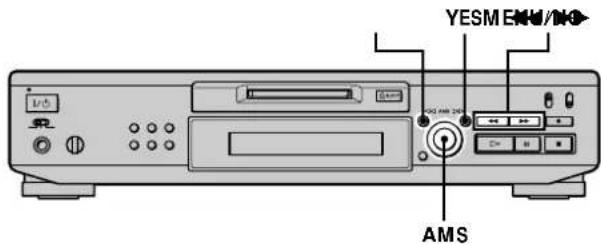
Brief descriptions of buttons and control used to edit MDs
The buttons and the control below are used to erase, divide, move, or combine tracks on the MD.
Note
The operation of these buttons and the control is different when naming a track or MD. For details, see "Naming a Track or MD" on page 35.
MENU/NO button: While the deck is stopped, playing, or paused, press to edit tracks. While editing, press to cancel editing.
AMS control: Turn to select an editing operation or track number, then press to enter your selection. You can also use the control to specify points in a track for erasure or track division.
YES button: Press this button instead of the AMS control to enter a selection.
◁◁ buttons: Press to specify the unit (minute, second, or frame) by which the MD is advanced when the AMS control is turned. You can also use these buttons to locate the end point of the portion to be erased.
For further details on the function of each button and control, see the sections on editing operations.
About indication which appears while editing
When "Protected" appears in the display
The record-protect slot is open. To edit the MD, slide the tab to close the slot. For details, see "To prevent accidental erasure of the recorded material" on page 16.
About indications which appear after editing
When "TOC" lights up in the display
Editing has finished but the TOC (Table of Contents) on the MD has not been updated to reflect the editing results. The editing will be lost if you disconnect the mains lead while the indication is on. The TOC will be updated only when you eject the MD or turn off the MD deck.
When "TOC Writing" flashes in the display
The deck is updating the TOC. Do not disconnect the mains lead or move the deck while the indication flashes.
Erasing Tracks
You can erase a track or part of a track simply by specifying the number of the track or the portion within a track to be erased. You can also erase all the tracks on an MD at one time.
Erasing a track
Specify the number of the track you want to erase.
Example: Erasing the second track
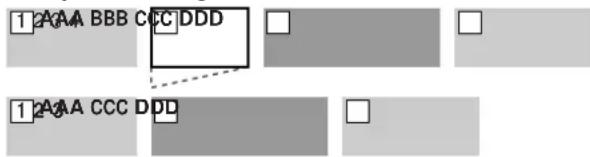
When you erase a track, all the tracks after the one erased are automatically renumbered. For example, if you erase track number 2, the previous track number 3 becomes track number 2 and the previous track number 4 becomes track number 3, and so on.
1 While the deck is stopped, playing, or paused, press MENU/NO. "Edit Menu" appears in the display. 2 Turn AMS (or press I▶/▶I repeatedly) until "Tr Erase ?" appears, then press AMS or YES. The deck starts to play the track indicated by the number in the display. 3 Turn AMS (or press I repeatedly) until the track number you want to erase appears. 4 Press AMS or YES.
"Complete!!" appears for a few seconds and the track is erased. The track following the erased track starts to play. If the erased track is the last one on the MD, the track preceding the erased track starts to play.
To cancel the operation
Press MENU/NO or ■.
Erasing Tracks

If "Erase ???" appears in step 4 above
The track has been record-protected on another MD deck. If you still want to erase the track, press AMS or YES again while the indication appears.

To avoid confusion when erasing more than one track
Start erasing from the highest numbered track. This way you'll avoid renumbering the tracks that you plan to erase.

You can undo the erasure
For details, see "Undoing the Last Edit" on page 39.
Erasing all the tracks on an MD
Do the procedure below to erase all the tracks, track names, and disc name at once.
1 While the deck is stopped, playing, or paused, press MENU/NO. "Edit Menu" appears in the display. 2 Turn AMS (or press |—|—| repeatedly) until "All Erase ?" appears, then press AMS or YES. "All Erase??" appears in the display. 3 Press AMS or YES.
"Complete!!" appears for a few seconds and all the tracks, track names, and disc name are erased.
To cancel the operation Press MENU/NO or

You can undo the erasure
For details, see "Undoing the Last Edit" on page 39.
Erasing a portion of a track
You can easily erase a portion of a track by specifying the starting and ending points of the erasure.
This is useful for erasing the unnecessary portions of a track recorded from a satellite or FM broadcast.
Example: Erasing portion "B2" of the second track
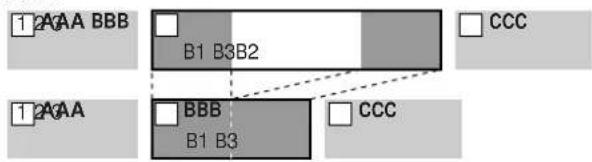
1 While the deck is stopped, playing, or paused, press MENU/NO. "Edit Menu" appears in the display. 2 Turn AMS (or press I < / repeatedly) until "A-B Erase ?" appears, then press AMS or YES. 3 Turn AMS (or press I/ repeatedly) until the number of the track containing the portion to be erased appears, then press AMS or YES. "Rehearsal-" and "Point A ok?" alternate in the display and the deck plays the first several seconds of the track repeatedly. 4 While monitoring the sound, turn AMS (or press |—/— repeatedly) to locate the starting point of the portion to be erased (point A).
The time indication ("m (minute)," "s (second)," and "f (frame = 1/86 second)") of the current point is displayed and several seconds of the track from that point play back repeatedly.
To find a point quickly
Specify a unit (minute, second, or frame) by which the MD is advanced when you turn AMS (or press ↑ repeatedly).
To do this, press / in step 4 repeatedly to select "m," "s," or "f." The selected unit flashes in the display.
5 Repeat step 4 until you've located point A. 6 Press AMS or YES to enter point A.
"Point B set" appears and several seconds of the track from point A play back repeatedly.
7 Continue playing the track or press to locate the ending point of the portion to be erased (point B), then press AMS or YES. "A-B Ers" and "Point B ok?" alternate in the display and a few seconds of the track before point A and after point B play back repeatedly. 8 Repeat step 4 until you've located point B. 9 Press AMS or YES to enter point B.
"Complete!!" appears for a few seconds and the portion between point A and B is erased.
To cancel the operation
Press MENU/NO or ■.

You can undo the erasure
For details, see "Undoing the Last Edit" on page 39.
Note
In the following cases, "Impossible" appears and you can't erase a portion of a track:
- The point B you entered comes before point A.
- After repeated editing of a track, it may become impossible to erase a portion of the track any further. This is a technical limitation of the MD system and is not a mechanical error.
Dividing Tracks
You can divide a recorded track at any point simply by adding a track mark at that point. This is especially useful when you want to divide recorded material which contains multiple tracks but only one track number (see page 20), or when you want to locate a certain point in the track.
Example: Dividing the second track
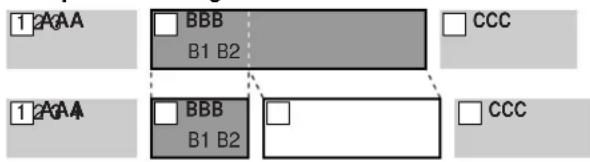
When you divide a track, the total number of tracks increases by one and all tracks following the divided track are automatically renumbered.
Dividing a track after selecting the track
1 While the deck is stopped, playing, or paused, press MENU/NO. "Edit Menu" appears in the display. 2 Turn AMS (or press I repeatedly) until "Divide ?" appears, then press AMS or YES. 3 Turn AMS (or press repeatedly) until the number of the track you want to divide appears, then press AMS or YES.
"Rehearsal-" appears and the track starts to play.
4 While monitoring the sound, turn AMS (or press repeatedly) to locate the dividing point.
The time indication ("m," "s," and "f") of the current point is displayed and several seconds of the track from that point play back repeatedly.
To find a point quickly
Specify a unit (minute, second, or frame) by which the MD is advanced when you turn AMS (or press repeatedly).
To do this, press in step 4 repeatedly to select "m," "s," or "f." The selected unit flashes in the display.
Dividing Tracks
5 Repeat step 4 until you've located the dividing point. 6 Press AMS or YES.
"Complete!!" appears for a few seconds and the track is divided. The deck starts to play the newly created track. Note that new track has no name.
To cancel the operation
Press MENU/NO or ■.

You can undo the track division
For details, see "Undoing the Last Edit" on page 39.

You can divide tracks while recording
For details, see "Marking Track Numbers While Recording" on page 19.
Dividing a track after selecting the dividing point
1 While the deck is playing, press AMS at the point you want to divide the track. " - Divide - " and " -Rehearsal- " alternate in the display and the deck starts to play from the selected point. 2 If necessary, do step 4 of "Dividing a track after selecting the track" on page 33 to finely adjust the dividing point. 3 Press YES.
"Complete!!" appears for a few seconds and the track is divided. The deck starts to play the newly created track. Note that new track has no name.
To cancel the operation
Press MENU/NO or ■

You can undo the track division
For details, see "Undoing the Last Edit" on page 39.

You can divide tracks while recording
For details, see "Marking Track Numbers While Recording" on page 19.
Combining Tracks
This function allows you to combine any two tracks into a single track. The two tracks need not to be consecutive nor chronological. You can combine several tracks into a single medley, or several independently recorded portions into a single track. When you combine two tracks, the total number of tracks decreases by one and all tracks following the combined track are renumbered.
Example: Combining the second track and the fourth track
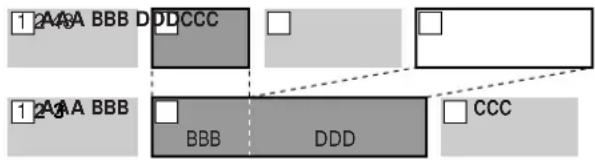
If both of the combined tracks have a track name, the name of the second track is erased.
1 While the deck is stopped, playing, or paused, press MENU/NO.
"Edit Menu" appears in the display.
2 Turn AMS (or press I repeatedly) until "Combine ?" appears, then press AMS or YES. 3 Turn AMS (or press I repeatedly) until the number of the first track of the two to be combined appears, then press AMS or YES.
The display for selecting a second track appears and the deck plays the portion where joining will occur (the end of the first track and the beginning of the track following it) repeatedly.
4 Turn AMS (or press the down/up arrows repeatedly) until the number of the second track of the two to be combined appears, then press AMS or YES.
"Complete!!" appears for a few seconds and the tracks are combined. The deck starts to play the combined track.
To cancel the operation
Press MENU/NO or ■.

You can undo the combination
For details, see "Undoing the Last Edit" on page 39.
Note
If "Impossible" appears in the display, the tracks can't be combined because repeated editing has been done to the track(s). This is a technical limitation of the MD system and is not a mechanical error.
Moving Tracks
This function lets you change the order of any track.
Example: Moving the second track after the third track
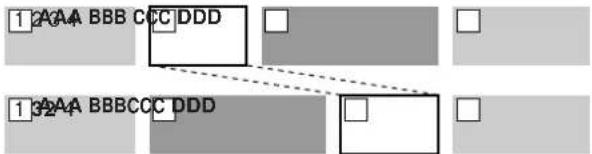
After you move a track, the tracks are renumbered automatically.
1 While the deck is stopped, playing, or paused, press MENU/NO. "Edit Menu" appears in the display. 2 Turn AMS (or press I/ repeatedly) until "Move ?" appears, then press AMS or YES. 3 Turn AMS (or press / repeatedly) until the number of the track to be moved appears, then press AMS or YES. 4 Turn AMS (or press / repeatedly) until the new track position appears, then press AMS or YES.
"Complete!!" appears for a few seconds and the track is moved. The deck starts to play the moved track.
To cancel the operation
Press MENU/NO or ■.

You can undo the track move
For details, see "Undoing the Last Edit" on page 39.
Naming a Track or MD
You can enter a name for a recorded MD as well as for individual tracks. Names can consist of uppercase and lowercase letters, numbers, and symbols. A total number of 1,700 characters can be stored for all the names on the MD.
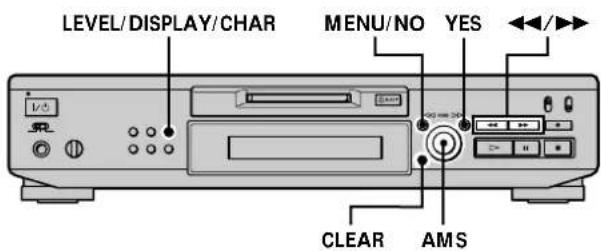
Note
If you name a track while it is being recorded, be sure to finish the naming operation before the track ends. If the track ends before you finish, the entered character data will be discarded and the track will remain unnamed. Also, you can't name tracks while the deck is recording over existing material.
Naming a track or MD using the controls on the deck
1 Press MENU/NO while the deck is in one of the operating statuses listed below, depending on what you want to name:
To name Press while the deck is
A track or the MD Stopped, playing, or paused
The track being recorded Recording the track
"Edit Menu" appears in the display.
2 Turn AMS until "Name ?" appears, then press AMS or YES. While the deck is recording, a flashing cursor appears in the display and you can enter a name for the track being recorded. In this case, go to step 6. 3 Turn AMS until "Nm In ?" appears, then press AMS or YES. 4 Turn AMS until the track number (when naming a track) or "Disc" (when naming the MD) flashes, then press AMS or YES. 5 Press AMS or YES again.
A flashing cursor appears.
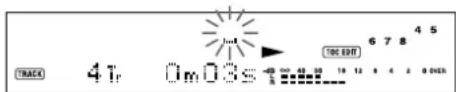
6 Press LEVEL/DISPLAY/CHAR repeatedly to select the character type.
To select Press repeatedly until
Uppercase letters "A" appears in the display
Lowercase letters "a" appears in the display
Numbers "0" appears in the display
Symbols "!" appears in the display
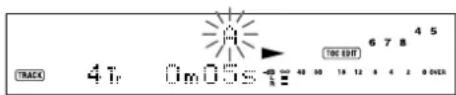
To enter a space
Press▶ while the cursor is flashing.
7 Turn AMS to select the character.
The selected character flashes.
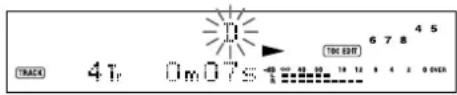
To change a selected character
Repeat steps 6 and 7.
8 Press AMS.
The selected character is entered and lights continuously. The cursor shifts to the right, flashes, and waits for the input of the next character.

9 Repeat steps 6 to 8 to enter the rest of the name.
To change a character
Press / repeatedly until the character to be changed flashes, then repeat steps 6 to 8.
To erase a character
Press / repeatedly until the character to be erased flashes, then press CLEAR.
10 Press YES.
The whole name appears in the display.
To cancel the operation
Press MENU/NO or ■.

You can undo the naming of a track or MD
For details, see "Undoing the Last Edit" on page 39.
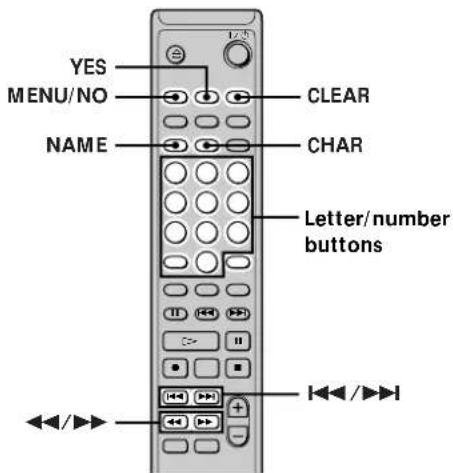
Naming a track or MD using the remote
1 Press NAME while the deck is in one of the operating statuses listed below, depending on what you want to name:
To name Press while the deck is
A track Playing, paused, recording, or stopped with the track number displayed
The MD Stopped with no track number displayed
A flashing cursor appears in the display.
2 Press CHAR repeatedly to select the character type.
To select Press repeatedly until
Uppercase letters "AB" appears in the display
Lowercase letters "ab" appears in the display
Numbers "12" appears in the display
3 Enter a character.
If you've selected uppercase or lowercase letters
1 Press the corresponding letter/number button repeatedly until the character to be entered flashes. Or, press the button once and press [144/10] repeatedly. To select symbols, press [CHAR] repeatedly while "A" is flashing.
2 Press. The flashing character is entered and lights continuously and the cursor shifts to the right.
If you've selected numbers
Press the corresponding number button. The number is entered and the cursor shifts to the right.
4 Repeat steps 2 and 3 to enter the rest of the name.
To change a character
Press ◁ / ▷ repeatedly until the character to be changed flashes, press CLEAR to erase the character, then repeat steps 2 and 3.
5 Press NAME.
The whole name appears in the display.
To cancel the operation
Press MENU/NO or ■
You can undo the naming of a track or MD
For details, see "Undoing the Last Edit" on page 39.
Copying a track or disc name
You can copy an existing track or disc name and use it to name another track on the same disc or the disc itself.
1 While the deck is stopped, playing, or paused, press MENU/NO. "Edit Menu" appears in the display. 2 Turn AMS (or press I ⇔ / repeatedly) until "Name ?" appears, then press AMS or YES. 3 Turn AMS (or press I < / < repeatedly) until "Nm Copy ?" appears, then press AMS or YES. 4 Turn AMS (or press ⊢ / ⊢ repeatedly) until the number of the track (when copying the track name) or "Disc" (when copying the disc name) flashes, then press AMS or YES to copy the selected name.
When "No Name" appears in the display
The selected track or disc has no name.
5 Turn AMS (or press I/ repeatedly) until the number of the track (when naming a track) or "Disc" (when naming a disc) flashes, then press AMS or YES to enter the copied name.
"Complete!!!" appears for a few seconds and the name is copied.
To cancel the operation
Press MENU/NO or
Naming a Track or MD

When "Overwrite ??" appears in step 5 above
The track or the disc selected in step 5 already has a name. If you wish to replace the name, press AMS or YES again while the indication appears in the display.

You can undo the copying of a track or disc name
For details, see "Undoing the Last Edit" on page 39.
Renaming a track or MD
1 Press NAME while the deck is in one of the operating statuses listed below, depending on what you want to rename:
To rename Press while the deck is
A track Playing, paused, recording, or stopped with the track number displayed
The MD stopped with no track number displayed.
A track or disc name appears in the display.
2 Press down CLEAR until the selected name is erased completely. 3 Do steps 6 to 9 of "Naming a track or MD using the controls on the deck" on page 36 or steps 2 to 4 of "Naming a track or MD using the remote" on page 37. 4 Press NAME.
Erasing a track or disc name
Use this function to erase the name of a track or disc.
1 While the deck is stopped, playing, recording, or paused, press MENU/NO. "Edit Menu" appears in the display. 2 Turn AMS (or press I < / > I repeatedly) until "Name ?" appears, then press AMS or YES. 3 Turn AMS (or press I < > I repeatedly) until "Nm Erase ?" appears, then press AMS or YES.
4 Turn AMS (or press < | > repeatedly) until the number of the track (when erasing the track name) or "Disc" (when erasing the disc name) flashes, then press AMS or YES.
"Complete!!" appears for a few seconds and the name is erased.
To cancel the operation
Press MENU/NO or ■.

You can undo the erasing of a track or disc name
For details, see "Undoing the Last Edit" on page 39.
Erasing all the names on the MD
You can erase all the track names and the disc name on an MD in a single operation.
1 While the deck is stopped, playing, or paused, press MENU/NO.
"Edit Menu" appears in the display.
2 Turn AMS (or press I < / > I repeatedly) until "Name ?" appears, then press AMS or YES. 3 Turn AMS (or press I / repeatedly) until "Nm AllErs ?" appears, then press AMS or YES.
"Nm AllErs??" appears in the display.
4 Press AMS or YES.
"Complete!!" appears for a few seconds and all the names on the MD are erased.
To cancel the operation
Press MENU/NO or ■.

You can undo the erasing of all the names on the MD
For details, see "Undoing the Last Edit" on page 39.

You can erase all the recorded tracks and names on the MD
For details, see "Erasing all the tracks on an MD" on page 32.
Undoing the Last Edit
You can undo the last edit operation and restore the contents of the MD to the condition that existed before the operation. Note, however, that you can't undo an edit operation if you perform any of the following operations after the edit:
- Press REC • on the deck.
- Press • or MUSIC SYNC on the remote.
- Turn off the deck or eject the MD.
- Disconnect the mains lead.
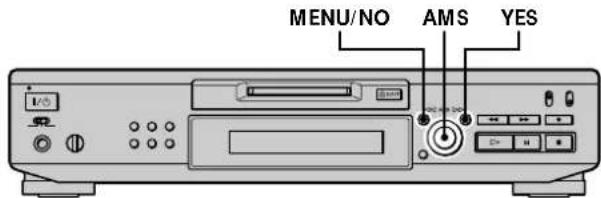
1 While the deck is stopped and no track number appears in the display, press MENU/NO.
"Edit Menu" appears in the display.
2 Turn AMS (or press I /repeatedly) until
"Undo?" appears.
"Undo?" doesn't appear if no editing has been done.
3 Press AMS or YES.
One of the following messages appears depending on the last edit operation.
Last edit operation Message
Erasing a track
Erasing all the tracks on an MD Erase Undo?
Erasing a portion of a track
Naming a track or MD
Copying a track or disc name
Renaming a track or MD Name Undo?
Erasing a track or disc name
Erasing all the names on the MD
4 Press AMS or YES.
"Complete!!" appears for a few seconds and the MD is restored to the condition that existed before the edit operation.
To cancel the operation
Press MENU/NO or ■
Other Functions
This chapter explains other useful functions that are available on the MD deck.
Changing the Pitch (Pitch Control Function)
You can change the MD playback speed (pitch). The tone rises at higher pitches, and falls at lower pitches.
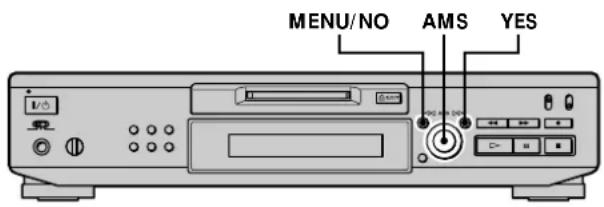
Setting the pitch automatically in steps (Auto Step Control Function)
You can increase the pitch by up to 2 steps* or lower the pitch by up to 48 steps.
- One octave equals 12 steps.
1 While the deck is playing, press MENU/NO twice. "Setup Menu" appears in the display. 2 Turn AMS (or press I ⇔ /repeatedly) until "Pitch" appears, then press AMS or YES. 3 Turn AMS (or press I ◁ / ▷ I repeatedly) until the desired step value appears, then press AMS or YES. 4 Press MENU/NO.
Notes
- When you change the step value, the playback sound drops out momentarily.
- The step value returns to "0" (factory setting) when you turn off the deck or eject the MD.
- When a dot (. ) appears to the right of the step value in the pitch display, this indicates that you have performed fine adjustment (see the next page) and the pitch value is between steps. (The step and fine control values are linked.)
Pitch -12.
Finely controlling the pitch (Fine Control Function)
You can fine control the playback speed in 0.1% increments from -98.5% to +12.5%.
1 While the deck is playing, press MENU/NO twice. "Setup Menu" appears in the display. 2 Turn AMS (or press I < / repeatedly) until "Pfine" appears, then press AMS or YES. 3 Turn AMS (or press < / > repeatedly) until the desired value appears, then press AMS or YES.
4 Press MENU/NO.
Notes
- The playback sound drops out momentarily when you change the fine control value. The fine control value reverts to 0% (factory setting) when you turn off the deck or eject the MD.
- The step and fine control values are linked; changing one value also changes the other.
Fade In and Fade Out
You can use Fade-in Play to gradually increase the signal level to the LINE (ANALOG) OUT jacks and the PHONES jack at the start of playback. Fade-out Play gradually decreases the signal level at the end of playback. Fade-in Recording gradually increases the signal level at the start of recording. Fade-out Recording gradually decreases the signal level at the end of recording.
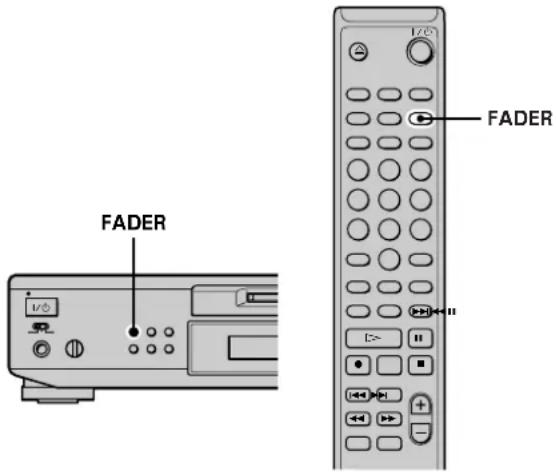
Note
The level of the signal output from the DIGITAL OUT connector does not change during Fade-in Play nor Fade-out Play.
Fade-in Play and Fade-in Recording
During play pause (for Fade-in Play) or recording pause (for Fade-in Recording), press FADER.
riangleleft flashes in the display and the deck performs Fade-in Play or Fade-in Recording for five seconds (factory setting) until the counter reaches "0.0s."
Fade In and Fade Out
Fade-out Play and Fade-out Recording
During play (for Fade-out Play) or recording (for Fade-out Recording), press FADER.
riangleright flashes in the display and the deck performs Fade-out Play or Fade-out Recording for five seconds (factory setting) until the counter reaches "0.0s," then pauses.
You can change the duration of Fade-in and Fade-out Play/Recording
1 While the deck is stopped, press MENU/NO twice. "Setup Menu" appears in the display. 2 Turn AMS (or press $ Vdash / Vdash$ repeatedly) to select the setting, then press AMS or YES.
To change the duration of Select
Fade-in Play/Recording F.in
Fade-out Play/Recording F.out
3 Turn AMS to select the duration, then press AMS or YES. Both the Fade-in and Fade-out durations can be set in 0.1 second steps. 4 Press MENU/NO.
Falling Asleep to Music (Sleep Timer)
You can set the deck so that it turns off automatically after a specified number of minutes.
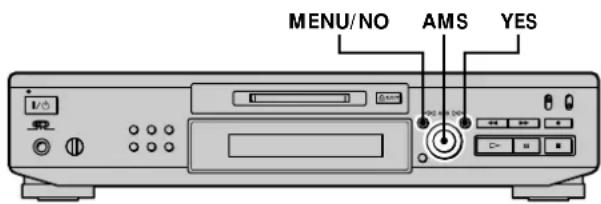
1 While the deck is stopped, press MENU/NO twice. "Setup Menu" appears in the display. 2 Turn AMS (or press I repeatedly) until "Sleep Off" appears in the display, then press AMS or YES. 3 Turn AMS (or press the down/up arrows repeatedly) to select the setting, then press AMS or YES.
To Select
Turn on Sleep Timer: Sleep On
Turn off Sleep Timer: Sleep Off (factory setting)
4 Turn AMS (or press I repeatedly) until "Sleep 60min" appears in the display, then press AMS or YES. 5 Turn AMS (or press the left/right arrows repeatedly) to select the time to be turned off ("30min," "60min" (factory setting), "90min," or "120min"), then press AMS or YES. 6 Press MENU/NO.
To turn off Sleep Timer
Repeat the procedure above, selecting "Sleep Off" in step 3.
Using a Timer
By connecting a timer (not supplied) to the deck, you can start and stop playback/recording operations at specified times. For further information on connecting the timer or setting the starting and ending times, refer to the instructions that came with the timer.
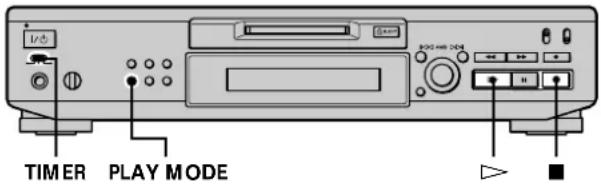
Playing an MD using a timer
1 Do steps 1 to 3 of "Playing an MD" on page 23. 2 Press PLAY MODE repeatedly to select the play mode you want.
To play only specific tracks, create a programme (see page 27).
To specify the time for the end of playback, press the play button to start playing, then go to step 3.
3 Set TIMER on the deck to PLAY. 4 Set the timer as required.
- When you have set the time for the start of playback, the deck turns off. When the specified time arrives, the deck turns on and starts playing.
- When you have set the time for the end of playback, playback continues. When the specified time arrives, the deck stops playing and turns off.
- When you have set the time for both the start and end of playback, the deck turns off. When the starting time arrives, the deck turns on and starts playing. When the ending time arrives, the deck stops playing and turns off.
5 After you have finished using the timer, set TIMER on the deck to OFF.
Recording on an MD using a timer
1 Do the following steps of "Recording on an MD" on pages 15 and 16 as requested.
To specify the time for Do
The start of recording Steps 1 to 7, then press
The end of recording Steps 1 to 10
Both start and end of recording Steps 1 to 7, then press
2 Set TIMER on the deck to REC.
3 Set the timer as required.
- When you have set the time for the start of recording, the deck turns off. When the specified time arrives, the deck turns on and starts recording.
- When you have set the time for the end of recording, recording continues. When the specified time arrives, the deck stops recording and turns off.
- When you have set the time for both the start and end of recording, the deck turns off. When the starting time arrives, the deck turns on and starts recording. When the ending time arrives, the deck stops recording and turns off.
4 After you have finished using the timer, set TIMER on the deck to OFF. Then change the deck to standby status by plugging the mains lead of the deck into a wall outlet or set the timer to continuous operation.
- If TIMER is left at REC, the deck will automatically start recording the next time you turn the deck on.
- If you do not change the deck to standby status for more than a week after timer recording has finished, the recorded contents may disappear.
Using a Timer
Make sure to change the deck to standby status within a week after timer recording is completed.
The TOC on the MD is updated and recorded contents are written to the MD when you turn the deck on. If the recorded contents have disappeared, "Initialize" flashes when you turn the deck on.
Notes
- It may take about 30 seconds after the deck is turned on until recording starts. When recording at a specified time using the timer, be sure to take this time into account when setting the recording start time.
- During timer recording, new material is recorded from the end of the recorded portion on the MD.
- Material recorded during timer recording will be saved to the disc the next time you turn the deck on. "TOC Writing" will flash in the display at that time. Do not disconnect the mains lead or move the deck while the indication flashes.
- Timer recording will stop if the disc becomes full.
Additional Information
This chapter provides additional information that will help you understand and maintain your MD deck system.
Precautions
On safety
Should any solid object or liquid fall into the cabinet, unplug the deck and have it checked by qualified personnel before operating it any further.
On power sources
- Before operating the deck, check that the operating voltage of the deck is identical with your local power supply. The operating voltage is indicated on the nameplate at the rear of the deck.
- The unit is not disconnected from the AC power source (mains) as long as it is connected to the wall outlet, even if the unit itself has been turned off.
- If you are not going to use the deck for a long time, be sure to disconnect the deck from the wall outlet. To disconnect the AC power cord (mains lead), grasp the plug itself; never pull the cord.
- AC power cord (mains lead) must be changed only at the qualified service shop.
On condensation in the deck
If the deck is brought directly from a cold to a warm location, or is placed in a very damp room, moisture may condense on the lenses inside the deck. Should this occur, the deck may not operate properly. In this case, remove the MD and leave the deck turned on for several hours until the moisture evaporates.
On the MiniDisc cartridge
- Do not open the shutter to expose the MD.
- Do not place the cartridge where it will be subject to extremes of sunlight, temperature, moisture or dust.
On cleaning
Clean the cabinet, panel and controls with a soft cloth slightly moistened with a mild detergent solution. Do not use any type of abrasive pad, scouring powder or solvent such as alcohol or benzine.
If you have any questions or problems concerning your deck, please consult your nearest Sony dealer.
Handling MDs
The MD is enclosed in a cartridge to protect the disc from debris or fingerprints and to make it easy to handle. However, the presence of debris or a warped cartridge may inhibit the disc from operating properly. To assure that you can always listen to the highest quality music, follow the precautions below:
- Do not touch the internal disc directly. Forcing the shutter open may damage the internal disc.
- Be sure to stick the labels supplied with the MD to the appropriate positions. The shape of the labels may vary depending on the MD brand.
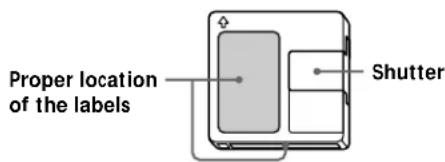
Where to keep the MDs
Do not place the cartridge where it may be exposed to direct sunlight or extremely high heat and humidity.
Regular maintenance
Wipe dust and debris from the surface of the cartridge with a dry cloth.
System Limitations
The recording system in your deck is radically different from those used in cassette and DAT decks and is characterized by the limitations described below. Note, however, that these limitations are due to the inherent nature of the MD recording system itself and not to mechanical causes.
"Disc Full" appears in the display even before the MD has reached the maximum recording time
When 255 tracks have been recorded on the MD, "Disc Full" appears regardless of the total recorded time. More than 255 tracks can't be recorded on the MD. To continue recording, erase unnecessary tracks or use another recordable MD.
"Disc Full" appears before the maximum number of tracks is reached
Fluctuations in emphasis within tracks are sometimes interpreted as track intervals, incrementing the track count and causing "Disc Full" to appear.
The remaining recording time does not increase even after erasing numerous short tracks
Tracks under 12 seconds in length are not counted and so erasing them may not lead to an increase in the recording time.
The total recorded time and the remaining recordable time on the MD may not total the maximum recording time.
Recording is done in minimum units of 2 seconds each, no matter how short the material. The contents recorded may thus be shorter than the maximum recording capacity. Disc space may also be further reduced by scratches.
Limitations when recording over an existing track
- The correct remaining recordable time may not be displayed.
- You may find it impossible to record over a track if that track has been recorded over several times already. If this happens, erase the track (see page 31).
- The remaining recordable time may be shortened out of proportion to the total recorded time.
- Recording over a track to eliminate noise is not recommended since this may shorten the duration of the track.
- You may find it impossible to name a track while recording over an existing track.
Tracks created through editing may exhibit sound dropout as you're searching for a point while monitoring the sound.
Some tracks can't be combined with others
Tracks may not be combined if they have been edited.
Track numbers are not marked correctly
Incorrect assignment or marking of track numbers may result when CD tracks are divided into several smaller tracks during digital recording. Also, when the
Automatic Track Marking is activated during recording, track numbers may not be marked as in the original, depending on the programme source.
"TOC Reading" appears for a long time.
If the inserted recordable MD is brand new, "TOC
Reading" appears in the display longer than for MDs that have already been used.
The correct recorded/playing time may not be displayed during playback of MDs recorded in monaural mode.
Troubleshooting
If you experience any of the following difficulties while using the deck, use this troubleshooting guide to help you remedy the problem. Should any problem persist, consult your nearest Sony dealer.
The deck does not operate or operates poorly.
The MD may be dirty or damaged. Replace the MD.
The deck does not play.
→ Moisture has formed inside the deck. Take the MD out and leave the deck in a warm place for several hours until the moisture evaporates. The deck is not on. Press I/O to turn the deck on. The deck may not be connected to the amplifier correctly. Check the connection. The MD is inserted in the wrong direction. Slide the MD into the disc slot with the label side up and the arrow pointing towards the slot. The MD may not be recorded. Replace the disc with one that has been recorded.
The sound has a lot of static.
→ Strong magnetism from a television or a similar device is interfering with operations. Move the deck away from the source of strong magnetism.
The deck does not record.
The MD is record-protected. Slide the record-protect tab and close the slot. The deck is not connected properly to the programme source. Check the connection. → Select the correct programme source using INPUT. The recording level is not adjusted properly. Adjust the recording level. A premastered MD is inserted. Replace it with a recordable MD. There is not enough time left on the MD. Replace it with another recordable MD with fewer recorded tracks, or erase unnecessary tracks. There has been a power failure or the mains lead has been disconnected during recording. Data recorded to that point may be lost. Repeat the recording procedure.
The deck does not perform synchro-recording with a CD player or video CD player.
The remote supplied with the MD deck is not set correctly. Reset the remote.
A message and a three-digit alphanumeric code alternate in the display.
The Self-Diagnosis Function is on. See the table on page 51.
Specifications
System: MiniDisc digital audio system
Disc: MiniDisc
Laser: Semiconductor laser (λ = 780 nm)
Emission duration: continuous
Laser output: Less than 44.6 μW
- This output is the value measured at a distance of 200 mm from the objective lens surface on the Optical Pick-up Block with 7 mm aperture.
Laser diode: Material: GaAlAs
Revolutions (CLV): 400 rpm to 900 rpm
Error correction: Advanced Cross Interleave Reed Solomon Code (ACIRC)
Sampling frequency: 44.1 kHz
Coding: Adaptive Transform Acoustic Coding (ATRAC)
Modulation system: EFM (Eight-to-Fourteen Modulation)
Number of channels: 2 stereo channels
Frequency response: 5 to 20,000 Hz ± 0.3 dB
Signal-to-noise ratio: Over 98 dB during playback
Wow and flutter: Below measurable limit
Inputs
LINE (ANALOG) IN: Jack type: phono
Impedance: 47 kilohms
Rated input: 500 mVrms
Minimum input: 125 mVrms
DIGITAL OPTICAL IN: Connector type: square optical
Impedance: 660 nm (optical wavelength)
DIGITAL COAXIAL IN: Jack type: phono
Impedance: 75 ohms
Rated input: 0.5 Vp-p, ±20%
Outputs
PHONES Jack type: stereo phone
Rated output: 28 mW
Load impedance: 32 ohms
LINE (ANALOG) OUT
Jack type: phono
Rated output: 2 Vrms (at 50 kilohms)
Load impedance: over 10 kilohms
DIGITAL OPTICAL OUT
Connector type: square optical
Rated output: -18 dBm
Load impedance: 660 nm (optical wave length)
General
Power requirements 230 V AC, 50/60 Hz
Power consumption 16 W
Dimensions (approx.) 430 x 95 x 280 mm (w/h/d) incl. projecting parts and controls
Mass (approx.) 3.4 kg
Supplied accessories
See page 4.
US and foreign patents licensed from Dolby Laboratories Licensing Corporation.
Design and specifications are subject to change without notice.
Display Messages
The following table explains the various messages that appear in the display. Messages are also displayed by the deck's Self-Diagnosis function (see page 51).
| Message Meaning |
| Auto Cut The Auto Cut function is on (page 18). |
| Blank Disc A new (blank) or erased MD has been inserted. |
| Cannot Copy An attempt was made to make a second copy from a digitally dubbed MD (page 15). |
| Cannot Edit An attempt was made to edit the MD during Programme or Shuffle Play. Or the MD is record-protected. |
| Disc Full The MD is full (page 46). |
| Impossible The deck cannot do the specified operation (pages 16 and 33). |
| Initialize (flashing) The Setup Menu settings have been lost. Or the contents recorded by timer have disappeared over time and are not be available for saving to disc, or Programme Play could not be activated since the programme has disappeared over time. (The message flashes for about four seconds when you turn on the deck by pressing I/().) |
| Name Full The naming capacity of the MD has reached its limit (about 1,700 characters). |
| No Disc There is no MD in the deck. |
| No Name The track or disc has no name. |
| No Program!! You tried to start Programme Play when no programme exists. |
| Premastered An attempt was made to record on a premastered MD. |
| ProgramFull! The programme contains the maximum number of tracks. You cannot add any more tracks. |
| REMOTE The MD is being controlled by an external device connected to the deck.* |
| Smart Space The Smart Space function is on (page 18). |
| TOC Reading The deck is checking the TOC (Table Of Contents) on the MD. |
- If "REMOTE" appears under other circumstances, turn off the deck, then turn it on again.
Edit Menu Table
The following table provides a quick guide to the various editing functions that you can perform using the Edit Menu.
To access the Edit Menu
Press MENU/NO to display "Edit Menu."
Note
The available menu items may vary according to the current status of the deck.
| Menu item Sub-item Function Reference page(s) | |
| Name? Nm In? Names a track or an MD. 36 | |
| Nm Erase? Erases a name. 38 | |
| Nm AllErs? Erases all the names on an MD. 38 | |
| Nm Copy? Copies a name to a track or an MD. 37 | |
| Tr Erase? — Erases a track. 31 | |
| Move? — Moves a track. 35 | |
| Combine? — Combines tracks. | 34 |
| Divide? — Divides a track. | 33 |
| A-B Erase? — Erases a portion of a track. | 32 |
| All Erase? — Erases all the tracks on an MD. | 32 |
| Undo? — Undoes the last edit operation. | 39 |
| Setup? — Enters Setup Menu (below) directly. | — |
Setup Menu Table
The following table provides an overview of the various Setup Menu items, including their parameters, factory settings, and reference page(s) in the manual.
To access the Setup Menu
While the deck is stopped, press MENU/NO twice to display "Setup Menu."
| Menu item | Function | Parameters | Factory setting | Reference page(s) |
| Program? | Creates a programme. | — | —27 | |
| T.Mark | Turns Automatic Track Marking on or off. | Lsyn/Off | Lsyn | 19 |
| LS(T) | Changes the trigger level for Automatic Track Marking. | -72 to 0dB* | -50dB | 19 |
| Auto | Turns Auto Space and Auto Pause on or off. | Off/Space/Pause | Off | 29 |
| S.Space | Turns Smart Space and Auto Cut on or off. | On/Off | On | 18 |
| P.Hold | Turns Peak Hold on or off. | On/Off | Off | 13 |
| Fin | Sets the duration of Fade-in Play and Recording. | 1.0 to 15.0s | 5.0s | 42 |
| Fout | Sets the duration of Fade-out Play and Recording. | 1.0 to 15.0s | 5.0s | 42 |
* Adjustable in 2 dB steps.
Menu item | Function | Parameters | Factory setting | Reference page(s)
| Pitch Changes the playback speed by auto steps. -48 to +2 0 40 | ||||
| Pfine Fine controls the playback speed. -98.5 to +12.5% 0% 41 | ||||
| Ain | Adjusts the analog signal level input through the LINE (ANALOG) IN jacks. | -∞ to +12.0dB 0.0dB 17 | ||
| Coax | Adjusts the digital signal level input through the DIGITAL COAXIAL IN jack. | -∞ to +18.0dB 0.0dB 17 | ||
| Opt | Adjusts the digital signal level input through the DIGITAL OPTICAL IN connector. | -∞ to +18.0dB 0.0dB 17 | ||
| Aout Adjusts the analog signal level output to the LINE (ANALOG) OUT and PHONES jacks. | -20.2 to 0.0dB | 0.0dB 24 | ||
| Sleep | Sets the duration of Sleep Timer. | 30/60/90/120min | 60min | 42 |
| Sleep | Turns Sleep Timer on or off. | On/Off | Off | 42 |
To recall a factory setting
Press CLEAR while selecting the parameter.
Self-Diagnosis Function
The deck's self-diagnosis function automatically checks the condition of the MD deck when an error occurs, then issues a three-digit code and an error message on the display. If the code and message alternate, find them in the following table and perform the indicated countermeasure. Should the problem persist, consult your nearest Sony dealer.
| Three-digit code/Message | Cause/Remedy |
| C11/Protected | The inserted MD is record-protected.→Take out the MD and close the record-protect slot (page 16). |
| C13/REC Error The recording was not made properly.→Set the deck in a stable surface, and repeat the recording procedure. | |
| The inserted MD is dirty (with smudges, fingerprints, etc.), scratched, or substandard in quality.→Replace the disc and repeat the recording procedure. | |
| C13/Read Error | The deck could not read the TOC on the MD properly.→Take out the MD and insert it again. |
| C14/Toc Error | The deck could not read the TOC on the MD properly.→Insert another disc.→If possible, erase all the tracks on the MD (page 32). |
| C71/Din Unlock | The sporadic appearance of this message is caused by the digital signal being recorded. This will not affect the recording. |
| While recording from a digital component connected through the DIGITAL IN connector, the digital connecting cable was unplugged or the digital component turned off.→Connect the cable or turn the digital component back on. | |
Index
A
Accessories
optional 48
supplied 4
AMS 23
Audio connecting cord 4,5
Auto Cut 18
Auto Pause 29
Auto Space 29
Automatic Track Marking additional information 20 how to 19 trigger level 19
B
Battery 4
Blank
erasing during recording. See Smart Space and Auto Cut
inserting during play. See Auto Space
C
CD Synchro-recording 21
Combining 34
Control A1II Control System 6,7
D
Displaying
disc name 11,13
remaining recordable time 12
total number of tracks 11, 12
total recorded time 11, 12
track name 11, 13
Dividing
after selecting the point 34
after selecting the track 33
E
Erasing
a name 38
a portion of a track 32
a track 31
all names 38
all tracks 32
F, G, H
Fade-in
Play 41
Recording 41
Fade-out
Play 42
Recording 42
I, J, K
Input Monitor 17
L
Level
input signal 12
output signal 13,24
recording 17
Locating
particular point 25
tracks 24
M
Manual Track Marking 19
MD (MiniDisc)
ejecting 16, 17, 23
premastered 12
recordable 12, 15
record-protect tab 16
Monitoring input signal. See Input Monitor
Moving 35
Music Synchro-recording 21
N
Naming
copying 37
how to 35, 36
renaming 38
0
Optical cable 4,5
P, Q
Pausing
after each track. See Auto Pause
play 29
recording 16
Peak Hold Function 13
Peak level meters 17
Pitch Control Function 40
Playing
entering the number 25
from the first track 23
specific track. See Locating
Programme Play
changing the contents 28
checking the contents 28
programming 27
R
Recording
how to 15, 16
mode 15
over existing tracks 16
Remote 4
Repeat A-B Play 26
Repeat All Play 26
Repeat 1 Play 26
Repeating
a portion. See Repeat A-B Play
all tracks. See Repeat All Play
current track. See Repeat 1 Play
S
Sampling rate converter 15
SCMS. See Serial Copy Management System
Scrolling the name 13
Serial Copy Management System 15
Shuffle Play 27
Sleep Timer 42
Smart Space 18
T
Table of contents. See TOC
Time Machine Recording 20
Timer
playing 43
recording 43
TOC 14,31
U, V, W, X, Y, Z
Undoing 39
WARNING
15 Button II (7, 16, 22, 23)
10 Button (16, 23, 43)
15 Buttons I/▶I (16-19, 23, 24, 27-29, 31-35, 37-42)
16 Button (16, 17, 19, 39)
18 Button (16, 23, 24, 27, 28)
Repeat 1 playback starts.
To stop Repeat 1 playback
Press ■.
ATRAC (Adaptive Transform Acoustic Coding) encoding
Impedance: 47 kilohms
Nominal input: 500 mV rms
Minimum input: 125 mV rms
DIGITAL OPTICAL IN
Dimensions (approx.)
Repeat A-B playback 26
Repeat All playback 26
Locating
a point 25
a track 24
M
4 LEVEL/DISPLAY/CHAR button (12, 13, 17, 28, 36)
7 EJECT button (16, 17, 23)
8 MENU/NO button (18, 19, 27, 29-42, 50)
Press to view "Edit Menu" or "Setup Menu".
9 YES button (18, 19, 27-42)
Buttons (25, 27, 28, 30, 32, 33, 36)
11 REC MODE selector (15)
12 INPUT selector (14, 15, 17, 18, 47)
13 REC button (16, 17, 19, 22, 39)
14 Button (16, 23, 43)
15 II button (7, 16, 22, 23)
17 AMS control (16-20, 23, 24, 27-42)
18 CLEAR button (27, 28, 36, 38, 51)
CLEAR button (27, 28, 36-38, 51)
10 Button (16, 23, 43)
16 button (16, 17, 19, 39)
18 button (16, 23, 24, 27, 28)
21 MENU/NO button (18, 19, 27, 29, 31-42, 50)
Press to view "Edit Menu" or "Setup Menu".
YES button (18, 19, 27-42)
- WELCOME
- ABOUT THIS MANUAL
- CONVENTIONS
- TABLE OF CONTENTS
- GETTING STARTED
- LOCATION AND FUNCTION OF PARTS
- RECORDING ON MDS
- PLAYING MDS
- EDITING RECORDED MDS
- OTHER FUNCTIONS
- ADDITIONAL INFORMATION
- BEFORE YOU START THE HOOKUP
- CHECKING THE SUPPLIED ACCESSORIES
- INSERTING BATTERIES INTO THE REMOTE
- WHEN TO REPLACE THE BATTERIES
- NOTES
- HOOKING UP THE AUDIO COMPONENTS
- REQUIRED CORDS
- AUDIO CONNECTING CORDS (2) (SUPPLIED)
- OPTICAL CABLES (2) (ONLY ONE SUPPLIED)
- COAXIAL DIGITAL CONNECTING CABLE (1) (NOT SUPPLIED)
- THINGS YOU SHOULD KEEP IN MIND WHILE HOOKING UP THE SYSTEM
- JACKS (CONNECTORS) FOR CONNECTING AUDIO COMPONENTS
- CONNECT TO THE
- CONNECTING THE MAINS LEAD
- NOTE
- ABOUT THE CONTROL CONTROL SYSTEM
- CONTROL A1II AND CONTROL A1 COMPATIBILITY
- CONNECTING THE CONTROL A1II CONTROL SYSTEM
- ON CONTROL A1 JACKS AND CONNECTIONS
- ABOUT THE CONNECTING CABLE
- BASIC FUNCTIONS OF THE CONTROL A1II CONTROL SYSTEM
- AUTOMATIC FUNCTION SELECTION
- SYNCHRONIZED RECORDING
- FRONT PANEL PARTS DESCRIPTION
- MD INSERTION SLOT (15, 23)
- EJECT BUTTON (16, 17, 23)
- MENU/NO BUTTON (18, 19, 27, 29-42, 50)
- YES BUTTON (18,19,27-42)
- BUTTONS (25, 27, 28, 30, 32, 33, 36)
- REC MODE SELECTOR (15)
- INPUT SELECTOR (14, 15, 17, 18, 47)
- REC BUTTON (16, 17, 19, 22, 39)
- BUTTON (16, 23, 43)
- BUTTON (7, 16, 22, 23)
- BUTTON (7, 16, 22-24, 27, 28, 43)
- AMS CONTROL (16-20, 23, 24, 27-42)
- CLEAR BUTTON (27, 28, 36, 51)
- REMOTE SENSOR (4)
- TIME BUTTON (12, 13, 17, 22)
- REPEAT BUTTON (26)
- PLAY MODE BUTTON (27, 28, 43)
- PHONE LEVEL CONTROL (23)
- PHONES JACK (23)
- TIMER SELECTOR (43)
- REMOTE PARTS DESCRIPTIONS
- USING THE DISPLAY
- WHEN YOU INSERT AN MD
- WHILE THE DECK IS STOPPED
- WHILE THE DECK IS RECORDING
- THE PEAK HOLD FUNCTION FREEZES THE PEAK LEVEL METERS AT THE HIGHEST LEVEL REACHED BY THE INPUT SIGNAL
- WHILE THE DECK IS PLAYING
- PRESS LEVEL/DISPLAY/CHAR (OR DISPLAY) REPEATEDLY TO CHANGE THE DISPLAY
- TRACK NUMBER AND ELAPSED TIME OF THE CURRENT TRACK (DEFAULT DISPLAY)
- THE CONTENTS OF A PROGRAMME (ONLY WHEN "PROGRAM" LIGHTS UP)
- DISC NAME AND TRACK NAME
- LEVEL OF THE OUTPUT SIGNAL
- PITCH DISPLAY
- YOU CAN CHECK THE REMAINING TIME
- YOU CAN CHECK THE TRACK NAME AT ANY TIME WHILE PLAYING
- NOTES ON RECORDING
- ABOUT INDICATIONS WHICH APPEAR WHILE RECORDING
- WHEN "PROTECTED" AND "C11" ALTERNATE IN THE DISPLAY
- WHEN "DIN UNLOCK" AND "C71" ALTERNATE IN THE DISPLAY
- WHEN "CANNOT COPY" APPEARS IN THE DISPLAY
- WHEN "TRACK" FLASHES IN THE DISPLAY
- ABOUT INDICATIONS WHICH APPEAR AFTER RECORDING
- WHEN "TOC" LIGHTS UP IN THE DISPLAY
- WHEN "TOC WRITING" FLASHES IN THE DISPLAY
- AUTOMATIC CONVERSION OF DIGITAL SAMPLING RATES DURING RECORDING
- GUIDE TO THE SERIAL COPY MANAGEMENT SYSTEM
- YOU CAN MAKE ONLY A FIRST-GENERATION COPY THROUGH A DIGITAL-TO-DIGITAL CONNECTION
- RECORDING ON AN MD
- IF NECESSARY, LOCATE THE POINT ON THE MD TO START RECORDING FROM
- TO RECORD OVER FROM THE BEGINNING OF AN EXISTING MD TRACK
- TO RECORD OVER FROM THE MIDDLE OF AN MD TRACK
- PRESS REC
- IF NECESSARY, ADJUST THE RECORDING LEVEL
- PRESS OR II
- START PLAYING THE PROGRAMME SOURCE
- WHEN YOU PAUSE RECORDING
- TO PREVENT ACCIDENTAL ERASURE OF THE RECORDED MATERIAL
- TO PLAY THE TRACKS YOU JUST RECORDED
- TO PLAY FROM THE FIRST TRACK OF THE MD AFTER RECORDING
- ADJUSTING THE RECORDING LEVEL
- RECORDING TIPS
- CHECKING THE REMAINING RECORDABLE TIME ON THE MD
- MONITORING THE INPUT SIGNAL (INPUT MONITOR)
- WHEN INPUT IS SET TO OPT OR COAX
- ERASING BLANK PORTIONS AUTOMATICALLY (SMART SPACE/AUTO CUT)
- SMART SPACE
- AUTO CUT
- TURN AMS (OR PRESS ↓ ↓ / ↑ ↑ REPEATEDLY) TO SELECT THE SETTING, THEN PRESS AMS OR YES
- PRESS MENU/NO
- MARKING TRACK NUMBERS WHILE RECORDING (TRACK MARKING)
- MARKING TRACK NUMBERS MANUALLY (MANUAL TRACK MARKING)
- MARKING TRACK NUMBERS AUTOMATICALLY (AUTOMATIC TRACK MARKING)
- TO SELECT
- MARKING TRACK NUMBERS WHILE RECORDING
- ADDITIONAL INFORMATION ON AUTOMATIC TRACK MARKING
- YOU CAN MARK TRACK NUMBERS EVEN AFTER RECORDING HAS
- FINISHED
- STARTING RECORDING WITH SIX SECONDS OF PRESTORED AUDIO DATA (TIME MACHINE RECORDING)
- DO STEPS 1 TO 7 OF "RECORDING ON AN MD" ON PAGES 15 AND
- PRESS AMS (OR T.REC) AT THE POINT WHERE YOU WANT TO START RECORDING
- TO STOP TIME MACHINE RECORDING
- SYNCHRO-RECORDING WITH THE AUDIO COMPONENT OF YOUR CHOICE (MUSIC SYNCHRO-RECORDING)
- SYNCHRO-RECORDING WITH A SONY CD PLAYER
- (CD SYNCHRO-RECORDING)
- OPERATIONS YOU MAY WANT TO DO DURING CD SYNCHRO-RECORDING
- YOU CAN USE THE REMOTE OF THE CD PLAYER DURING CD SYNCHRONIZED RECORDING
- PRESS TO CHANGE THE DECK TO AND CHANGE THE CD PLAYER TO
- DURING CD SYNCHRO-RECORDING, TRACK NUMBERS ARE MARKED IN THE FOLLOWING WAYS
- YOU CAN CHANGE CDS DURING CD SYNCHRO-RECORDING
- YOU CAN ALSO PERFORM SYNCHRO-RECORDING WITH A SONY VIDEO PLAYER
- DURING CD SYNCHRO-RECORDING, THE DECK COPIES CD TEXT RIATION (CD TEXT AND DISC MEMOS) AS IT IS TO THE MD (DISC NO COPY FUNCTION)
- MAKING A CD SYNCHRO-RECORDING FROM A SONY CD PLAYER CONNECTED WITH A CONTROL A1II CABLE (NOT SUPPLIED)
- PLAYING AN MD
- YOU CAN ADJUST THE ANALOG SIGNAL LEVEL OUTPUT TO THE LINE (ANALOG) OUT JACKS AND THE PHONES JACK
- PLAYING A SPECIFIC TRACK
- TO LOCATE THE LAST TRACK OF THE MD QUICKLY
- IF YOU LOCATE A TRACK WHILE THE DECK IS STOPPED OR PAUSED
- PLAYING A TRACK BY ENTERING THE TRACK NUMBER
- LOCATING A PARTICULAR POINT IN A TRACK
- LOCATING A POINT WHILE MONITORING THE SOUND
- LOCATING A POINT BY OBSERVING THE TIME INDICATION
- PLAYING TRACKS REPEATEDLY
- REPEATING ALL THE TRACKS ON THE MD (REPEAT ALL PLAY)
- PRESS REPEAT REPEATEDLY UNTIL "REPEAT ALL" APPEARS IN THE DISPLAY
- TO STOP REPEAT ALL PLAY
- TO RESUME NORMAL PLAY
- REPEATING THE CURRENT TRACK (REPEAT 1 PLAY)
- TO STOP REPEAT 1 PLAY
- REPEATING A SPECIFIC PORTION WITHIN A TRACK (REPEAT A-B PLAY)
- TO STOP REPEAT A-B PLAY AND RESUME NORMAL PLAY, PRESS REPEAT OR CLEAR
- PLAYING TRACKS IN RANDOM ORDER (SHUFFLE PLAY)
- YOU CAN LOCATE TRACKS DURING SHUFFLE PLAY
- CREATING YOUR OWN PROGRAMME (PROGRAMME PLAY)
- PROGRAMMING THE TRACKS
- REPEAT STEP 3 TO ENTER OTHER TRACKS
- PRESS YES
- PRESS PLAY MODE REPEATEDLY UNTIL "PROGRAM" LIGHTS UP IN THE DISPLAY
- TO STOP PROGRAMME PLAY
- CHECKING THE CONTENTS OF THE PROGRAMME
- CHANGING THE CONTENTS OF THE PROGRAMME
- TIPS FOR RECORDING FROM MDS TO TAPE
- INSERTING BLANKS BETWEEN TRACKS DURING PLAY (AUTO SPACE)
- PAUSING AFTER EACH TRACK (AUTO PAUSE)
- TO RESUME PLAY AFTER PAUSING
- BRIEF DESCRIPTIONS OF BUTTONS AND CONTROL USED TO EDIT MDS
- ABOUT INDICATION WHICH APPEARS WHILE EDITING
- WHEN "PROTECTED" APPEARS IN THE DISPLAY
- ABOUT INDICATIONS WHICH APPEAR AFTER EDITING
- ERASING TRACKS
- ERASING A TRACK
- EXAMPLE: ERASING THE SECOND TRACK
- TO CANCEL THE OPERATION
- IF "ERASE ???" APPEARS IN STEP 4 ABOVE
- TO AVOID CONFUSION WHEN ERASING MORE THAN ONE TRACK
- YOU CAN UNDO THE ERASURE
- ERASING ALL THE TRACKS ON AN MD
- ERASING A PORTION OF A TRACK
- EXAMPLE: ERASING PORTION "B2" OF THE SECOND TRACK
- TO FIND A POINT QUICKLY
- DIVIDING TRACKS
- EXAMPLE: DIVIDING THE SECOND TRACK
- DIVIDING A TRACK AFTER SELECTING THE TRACK
- DIVIDING A TRACK AFTER SELECTING THE DIVIDING POINT
- COMBINING TRACKS
- MOVING TRACKS
- EXAMPLE: MOVING THE SECOND TRACK AFTER THE THIRD TRACK
- NAMING A TRACK OR MD
- NAMING A TRACK OR MD USING THE CONTROLS ON THE DECK
- NAMING A TRACK OR MD USING THE REMOTE
- PRESS NAME WHILE THE DECK IS IN ONE OF THE OPERATING STATUSES LISTED BELOW, DEPENDING ON WHAT YOU WANT TO NAME
- PRESS CHAR REPEATEDLY TO SELECT THE CHARACTER TYPE
- ENTER A CHARACTER
- IF YOU'VE SELECTED UPPERCASE OR LOWERCASE LETTERS
- IF YOU'VE SELECTED NUMBERS
- REPEAT STEPS 2 AND 3 TO ENTER THE REST OF THE NAME
- PRESS NAME
- COPYING A TRACK OR DISC NAME
- WHEN "OVERWRITE ??" APPEARS IN STEP 5 ABOVE
- YOU CAN UNDO THE COPYING OF A TRACK OR DISC NAME
- RENAMING A TRACK OR MD
- ERASING A TRACK OR DISC NAME
- YOU CAN UNDO THE ERASING OF A TRACK OR DISC NAME
- ERASING ALL THE NAMES ON THE MD
- YOU CAN UNDO THE ERASING OF ALL THE NAMES ON THE MD
- YOU CAN ERASE ALL THE RECORDED TRACKS AND NAMES ON THE MD
- UNDOING THE LAST EDIT
- WHILE THE DECK IS STOPPED AND NO TRACK NUMBER APPEARS IN THE DISPLAY, PRESS MENU/NO
- TURN AMS (OR PRESS I /REPEATEDLY) UNTIL
- PRESS AMS OR YES
- CHANGING THE PITCH (PITCH CONTROL FUNCTION)
- SETTING THE PITCH AUTOMATICALLY IN STEPS (AUTO STEP CONTROL FUNCTION)
- FINELY CONTROLLING THE PITCH (FINE CONTROL FUNCTION)
- FADE IN AND FADE OUT
- FADE-IN PLAY AND FADE-IN RECORDING
- FADE-OUT PLAY AND FADE-OUT RECORDING
- DURING PLAY (FOR FADE-OUT PLAY) OR RECORDING (FOR FADE-OUT RECORDING), PRESS FADER
- YOU CAN CHANGE THE DURATION OF FADE-IN AND FADE-OUT PLAY/RECORDING
- FALLING ASLEEP TO MUSIC (SLEEP TIMER)
- TO TURN OFF SLEEP TIMER
- USING A TIMER
- PLAYING AN MD USING A TIMER
- RECORDING ON AN MD USING A TIMER
- MAKE SURE TO CHANGE THE DECK TO STANDBY STATUS WITHIN A WEEK AFTER TIMER RECORDING IS COMPLETED
- PRECAUTIONS
- ON SAFETY
- ON POWER SOURCES
- ON CONDENSATION IN THE DECK
- ON THE MINIDISC CARTRIDGE
- ON CLEANING
- HANDLING MDS
- WHERE TO KEEP THE MDS
- REGULAR MAINTENANCE
- SYSTEM LIMITATIONS
- DISC FULL" APPEARS IN THE DISPLAY EVEN BEFORE THE MD HAS REACHED THE MAXIMUM RECORDING TIME
- DISC FULL" APPEARS BEFORE THE MAXIMUM NUMBER OF TRACKS IS REACHED
- THE REMAINING RECORDING TIME DOES NOT INCREASE EVEN AFTER ERASING NUMEROUS SHORT TRACKS
- THE TOTAL RECORDED TIME AND THE REMAINING RECORDABLE TIME ON THE MD MAY NOT TOTAL THE MAXIMUM RECORDING TIME
- LIMITATIONS WHEN RECORDING OVER AN EXISTING TRACK
- SOME TRACKS CAN'T BE COMBINED WITH OTHERS
- TRACK NUMBERS ARE NOT MARKED CORRECTLY
- TOC READING" APPEARS FOR A LONG TIME
- TROUBLESHOOTING
- THE DECK DOES NOT OPERATE OR OPERATES POORLY
- THE DECK DOES NOT PLAY
- THE SOUND HAS A LOT OF STATIC
- THE DECK DOES NOT RECORD
- THE DECK DOES NOT PERFORM SYNCHRO-RECORDING WITH A CD PLAYER OR VIDEO CD PLAYER
- A MESSAGE AND A THREE-DIGIT ALPHANUMERIC CODE ALTERNATE IN THE DISPLAY
- SPECIFICATIONS
- INPUTS
- OUTPUTS
- GENERAL
- SUPPLIED ACCESSORIES
- DISPLAY MESSAGES
- EDIT MENU TABLE
- TO ACCESS THE EDIT MENU
- SETUP MENU TABLE
- TO ACCESS THE SETUP MENU
- TO RECALL A FACTORY SETTING
- SELF-DIAGNOSIS FUNCTION
- INDEX
- A
- B
- C
- D
- E
- F, G, H
- I, J, K
- L
- M
- N
- P, Q
- R
- S
- T
- WARNING
- BUTTON II (7, 16, 22, 23)
- TO STOP REPEAT 1 PLAYBACK
- YES BUTTON (18, 19, 27-42)
- II BUTTON (7, 16, 22, 23)
- CLEAR BUTTON (27, 28, 36, 38, 51)
Brand : SONY
Model : MDSJE530
Category : Dictaphone