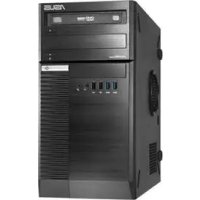
BM1845 - Desktop computer ASUS - Free user manual and instructions
Find the device manual for free BM1845 ASUS in PDF.



| Product type | Desktop computer |
| Brand | ASUS |
| Model | BM1845 |
| Power supply | Power supply with voltage selector 115V/230V |
| Front connectors | 2 USB 2.0 ports, 2 USB 3.0 ports, microphone jack, headphone jack, optical drive |
| Rear connectors | PS/2 mouse+keyboard port, 4 USB 2.0 ports, 2 USB 3.0 ports, Gigabit RJ-45 network port, optical S/PDIF output, HDMI, DVI-D, VGA ports, 8-channel audio ports |
| Preinstalled operating system | Windows 7 |
| Included utilities | ASUS AI Suite II, AI Manager, ASUS WebStorage, ASUS Easy Update, ASUS Secure Delete, Nero 9 (optional) |
| Optical drive | DVD-ROM / CD-RW / DVD-RW drive |
| Maintenance and cleaning | Use a clean cellulose sponge or a damp chamois cloth with a non-abrasive detergent solution |
| Safety | Do not expose to water, do not open the power supply, disconnect before maintenance, observe ambient temperatures 0-40°C |
| General information | ASUS desktop computer with high performance, reliability and futuristic design |
Frequently Asked Questions - BM1845 ASUS
User questions about BM1845 ASUS
0 question about this device. Answer the ones you know or ask your own.
Ask a new question about this device
Download the instructions for your Desktop computer in PDF format for free! Find your manual BM1845 - ASUS and take your electronic device back in hand. On this page are published all the documents necessary for the use of your device. BM1845 by ASUS.
USER MANUAL BM1845 ASUS
natural_image
Black desktop computer tower with ventilation slots and drive bays (no visible text or labels)BM1845

natural_image
Black desktop computer tower with front panel and drive slots (no visible text or labels)BM1645/MD250
User Manual
E7330
First Edition
April 2012
Copyright © 2012 ASUSTeK Computer Inc. All Rights Reserved.
No part of this manual, including the products and software described in it, may be reproduced, transmitted, transcribed, stored in a retrieval system, or translated into any language in any form or by any means, except documentation kept by the purchaser for backup purposes, without the express written permission of ASUSTeK Computer Inc. ("ASUS").
Product warranty or service will not be extended if: (1) the product is repaired, modified or altered, unless such repair, modification of alteration is authorized in writing by ASUS; or (2) the serial number of the product is defaced or missing.
ASUS PROVIDES THIS MANUAL "AS IS" WITHOUT WARRANTY OF ANY KIND, EITHER EXPRESS OR IMPLIED, INCLUDING BUT NOT LIMITED TO THE IMPLIED WARRANTIES OR CONDITIONS OF MERCHANTABILITY OR FITNESS FOR A PARTICULAR PURPOSE. IN NO EVENT SHALL ASUS, ITS DIRECTORS, OFFICERS, EMPLOYEES OR AGENTS BE LIABLE FOR ANY INDIRECT, SPECIAL, INCIDENTAL, OR CONSEQUENTIAL DAMAGES (INCLUDING DAMAGES FOR LOSS OF PROFITS, LOSS OF BUSINESS, LOSS OF USE OR DATA, INTERRUPTION OF BUSINESS AND THE LIKE), EVEN IF ASUS HAS BEEN ADVISED OF THE POSSIBILITY OF SUCH DAMAGES ARISING FROM ANY DEFECT OR ERROR IN THIS MANUAL OR PRODUCT.
SPECIFICATIONS AND INFORMATION CONTAINED IN THIS MANUAL ARE FURNISHED FOR INFORMATIONAL USE ONLY, AND ARE SUBJECT TO CHANGE AT ANY TIME WITHOUT NOTICE, AND SHOULD NOT BE CONSTRUED AS A COMMITMENT BY ASUS. ASUS ASSUMES NO RESPONSIBILITY OR LIABILITY FOR ANY ERRORS OR INACCURACIES THAT MAY APPEAR IN THIS MANUAL, INCLUDING THE PRODUCTS AND SOFTWARE DESCRIBED IN IT.
Products and corporate names appearing in this manual may or may not be registered trademarks or copyrights of their respective companies, and are used only for identification or explanation and to the owners' benefit, without intent to infringe.
Contents
Notices 5
Safety information 7
Conventions used in this guide....8
Where to find more information 8
Package contents 9
Chapter 1 Getting started
Welcome! 11
Getting to know your computer ....11
Setting up your computer.... 17
Turning your computer ON/OFF 19
Chapter 2 Using Windows ^® 7
Starting for the first time.... 21
Using Windows ^® 7 desktop 22
Managing your files and folders.... 24
Restoring your system settings.... 26
Protecting your computer.... 27
Getting Windows® Help and Support 28
Chapter 3 Connecting devices to your computer
Connecting a USB storage device.... 29
Connecting microphone and speakers 30
Chapter 4 Using your computer
Proper posture when using your Desktop PC.... 33
Using the optical drive (on selected models only) 34
Configuring the USB ports using the BIOS.... 35
Chapter 5 Connecting to the Internet
Wired connection 37
Chapter 6 Using the utilities
ASUS AI Suite II 39
ASUS AI Manager 46
ASUS Webstorage.... 49
ASUS Easy Update 51
ASUS Secure Delete 52
Contents
Nero 9 53
Recovering your system 54
Chapter 7 Troubleshooting
Troubleshooting 57
ASUS contact information.... 64
Notices
ASUS Recycling/Takeback Services
ASUS recycling and takeback programs come from our commitment to the highest standards for protecting our environment. We believe in providing solutions for you to be able to responsibly recycle our products, batteries, other components, as well as the packaging materials. Please go to http://csr.asus.com/english/Takeback.htm for the detailed recycling information in different regions.
REACH
Complying with the REACH (Registration, Evaluation, Authorisation, and Restriction of Chemicals) regulatory framework, we published the chemical substances in our products at ASUS REACH website at http://csr.asus.com/english/REACH.htm
Federal Communications Commission Statement
This device complies with Part 15 of the FCC Rules. Operation is subject to the following two conditions:
- This device may not cause harmful interference; and
- This device must accept any interference received including interference that may cause undesired operation.
This equipment has been tested and found to comply with the limits for a Class B digital device, pursuant to Part 15 of the FCC Rules. These limits are designed to provide reasonable protection against harmful interference in a residential installation. This equipment generates, uses and can radiate radio frequency energy and, if not installed and used in accordance with manufacturer's instructions, may cause harmful interference to radio communications. However, there is no guarantee that interference will not occur in a particular installation. If this equipment does cause harmful interference to radio or television reception, which can be determined by turning the equipment off and on, the user is encouraged to try to correct the interference by one or more of the following measures:
- Reorient or relocate the receiving antenna.
- Increase the separation between the equipment and receiver.
- Connect the equipment to an outlet on a circuit different from that to which the receiver is connected.
- Consult the dealer or an experienced radio/TV technician for help.

The use of shielded cables for connection of the monitor to the graphics card is required to assure compliance with FCC regulations. Changes or modifications to this unit not expressly approved by the party responsible for compliance could void the user's authority to operate this equipment.
RF exposure warning
This equipment must be installed and operated in accordance with provided instructions and the antenna(s) used for this transmitter must be installed to provide a separation distance of at least 20 cm from all persons and must not be co-located or operating in conjunction with any other antenna or transmitter. End-users and installers must be provide with antenna installation instructions and transmitter operating conditions for satisfying RF exposure compliance.
Canadian Department of Communications Statement
This digital apparatus does not exceed the Class B limits for radio noise emissions from digital apparatus set out in the Radio Interference Regulations of the Canadian Department of Communications.
This class B digital apparatus complies with Canadian ICES-003.
Macrovision Corporation Product Notice
This product incorporates copyright protection technology that is protected by method claims of certain U.S. patents and other intellectual property rights owned by Macrovision Corporation and other rights owners. Use of this copyright protection technology must be authorized by Macrovision Corporation, and is intended for home and other limited viewing uses only unless otherwise authorized by Macrovision Corporation. Reverse engineering or disassembly is prohibited.
Lithium-Ion Battery Warning
CAUTION: Danger of explosion if battery is incorrectly replaced. Replace only with the same or equivalent type recommended by the manufacturer. Dispose of used batteries according to the manufacturer's instructions.
Safety information

Disconnect the AC power and peripherals before cleaning. Wipe the Desktop PC using a clean cellulose sponge or chamois cloth dampened with solution of nonabrasive detergent and a few drops of warm water then remove any extra moisture with a dry cloth.
- DO NOT place on uneven or unstable work surfaces. Seek servicing if the casing has been damaged.
• DO NOT expose to dirty or dusty environments. DO NOT operate during a gas leak. - DO NOT place or drop objects on top and do not shove any foreign objects into the Desktop PC.
- DO NOT expose to strong magnetic or electrical fields.
- DO NOT expose to or use near liquids, rain, or moisture. DO NOT use the modem during electrical storms.
- Battery safety warning: DO NOT throw the battery in fire. DO NOT short circuit the contacts. DO NOT disassemble the battery.
- Use this product in environments with ambient temperatures between 0^ (32°F) and 40^ (104°F).
- DO NOT cover the vents on the Desktop PC to prevent the system from getting overheated.
- DO NOT use damaged power cords, accessories, or other peripherals.
- To prevent electrical shock hazard, disconnect the power cable from the electrical outlet before relocating the system.
- Seek professional assistance before using an adapter or extension cord. These devices could interrupt the grounding circuit.
- Ensure that your power supply is set to the correct voltage in your area. If you are not sure about the voltage of the electrical outlet you are using, contact your local power company.
- If the power supply is broken, do not try to fix it by yourself. Contact a qualified service technician or your retailer.
Conventions used in this guide
To ensure that you perform certain tasks properly, take note of the following symbols used throughout this manual.

DANGER/WARNING: Information to prevent injury to yourself when trying to complete a task.

CAUTION: Information to prevent damage to the components when trying to complete a task.

IMPORTANT: Instructions that you MUST follow to complete a task.

NOTE: Tips and additional information to help you complete a ask.
Where to find more information
Refer to the following sources for additional information and for product and software updates.
ASUS websites
The ASUS website provides updated information on ASUS hardware and software products. Refer to the ASUS website www.asus.com.
ASUS Local Technical Support
Visit ASUS website at http://support.asus.com/contact for the contact information of local Technical Support Engineer.
Package contents
 |  |  |
| ASUS Desktop PC Keyboard x1 Mouse x1 | ||
 |  |  |
| Power cord x1 Support | DVD x1 (Optional) Recovery DVD x1 (Optional) | |
 |  |  |
| Nero 9 burning software DVD x1 (Optional) | Installation Guide x1 Warranty card x1 | |

- If any of the above items is damaged or missing, contact your retailer.
- The illustrated items above are for reference only. Actual product specifications may vary with different models.
Chapter 1
Getting started
Welcome!
Thank you for purchasing the ASUS Desktop PC!
The ASUS Desktop PC provides cutting-edge performance, uncompromised reliability, and user-centric utilities. All these values are encapsulated in a stunningly futuristic and stylish system casing.

Read the ASUS Warranty Card before setting up your ASUS Desktop PC.
Getting to know your computer

Illustrations are for reference only. The ports and their locations, and the chassis color vary with different models.
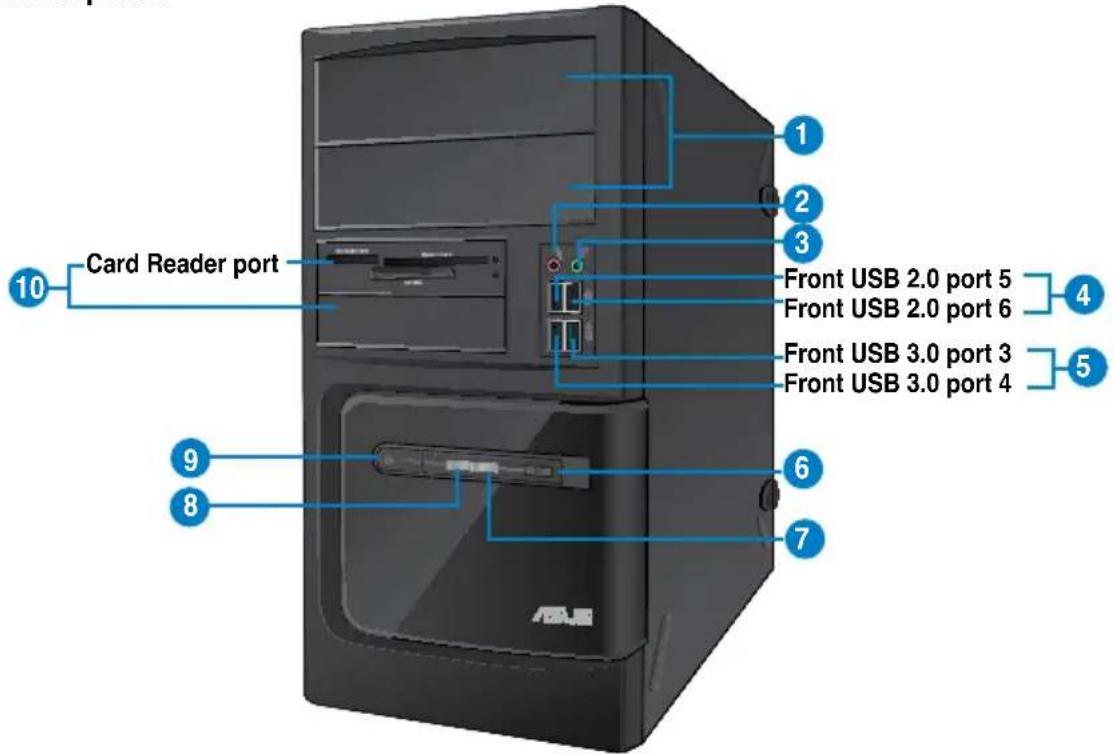
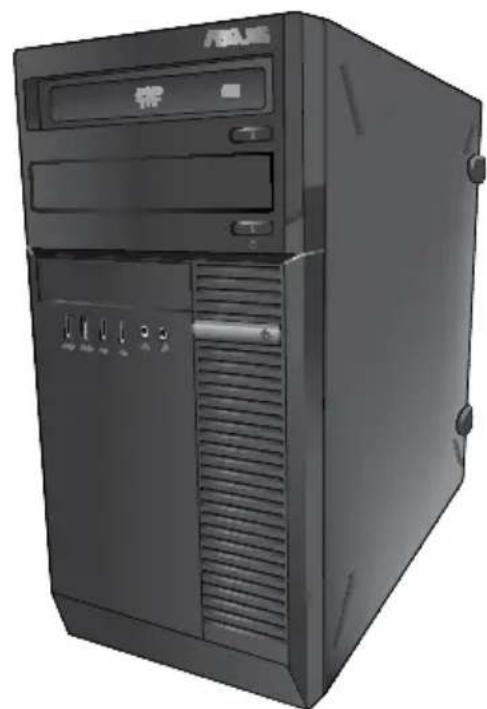
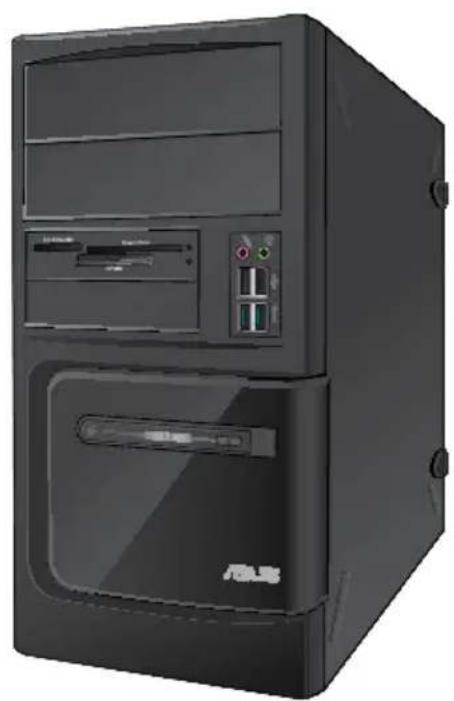
BM1845
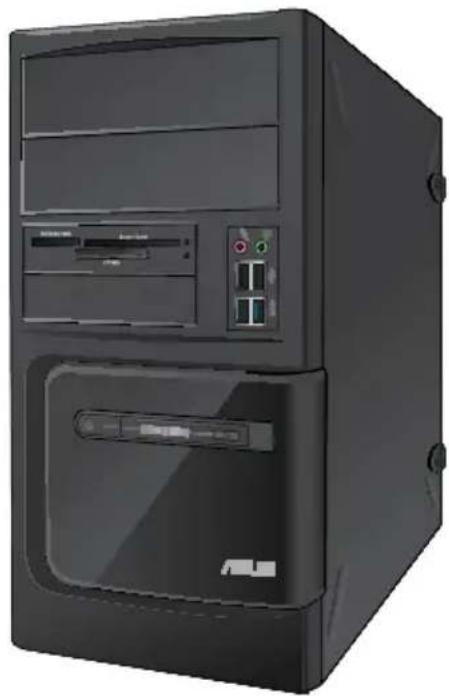
Front panel

- 5.25 inch optical disk drive bay. The 5.25 inch optical disk drive bay is for 5.25 inch DVD-ROM / CD-RW / DVD-RW devices.
- Optical disk drive eject button. Press this button to eject the optical disk drive tray.
- Optical disk drive bay (empty). You may install an additional optical disk drive in this bay.
- HDD LED. This LED lights up when the hard disk drive operates.
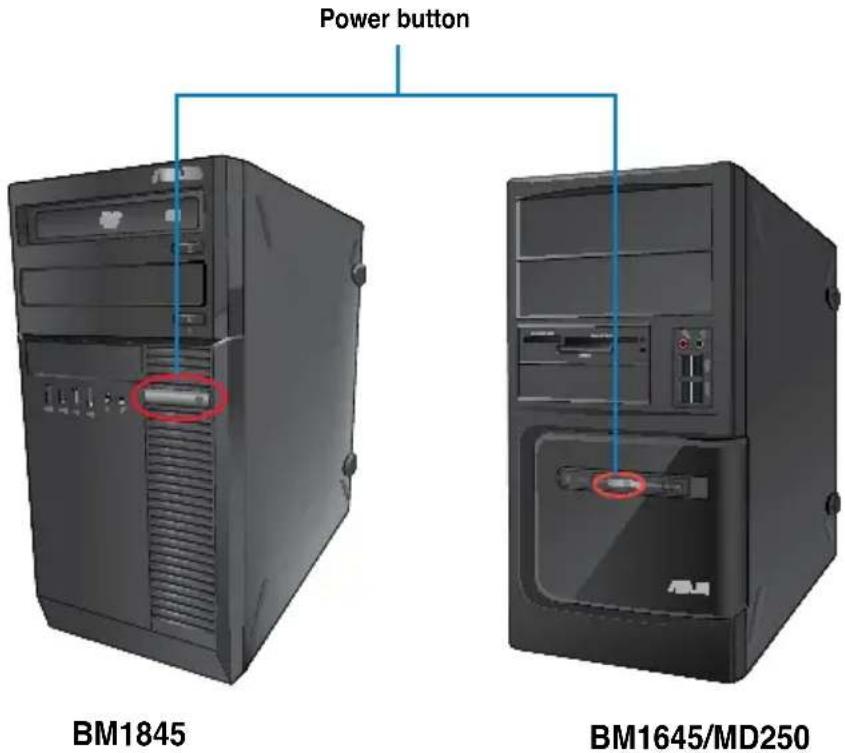
- Power button. Press this button to turn on your computer.
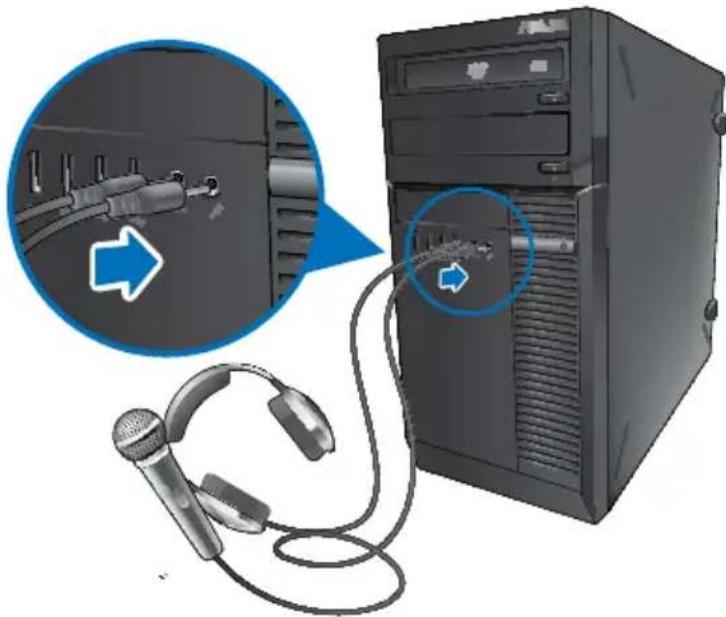
- Microphone. This port connects to a microphone.
- Headphone port. This port connects to a headphone or speaker.
- USB 3.0 ports. These two 9-pin Universal Serial Bus (USB) ports connect to USB 3.0/2.0 devices.

- DO NOT connect a keyboard / mouse to any USB 3.0 port when installing Windows ^® operating system.
- Due to USB 3.0 controller limitation, USB 3.0 devices can only be used under Windows® OS environment and after the USB 3.0 driver installation.
-
USB 3.0 devices can only be used as data storage only.
• We strongly recommend that you connect USB 3.0 devices to USB 3.0 ports for faster and better performance for your USB 3.0 devices. -
USB 2.0 ports. These Universal Serial Bus 2.0 (USB 2.0) ports connect to USB 2.0 devices such as a mouse, printer, scanner, camera, PDA, and others.
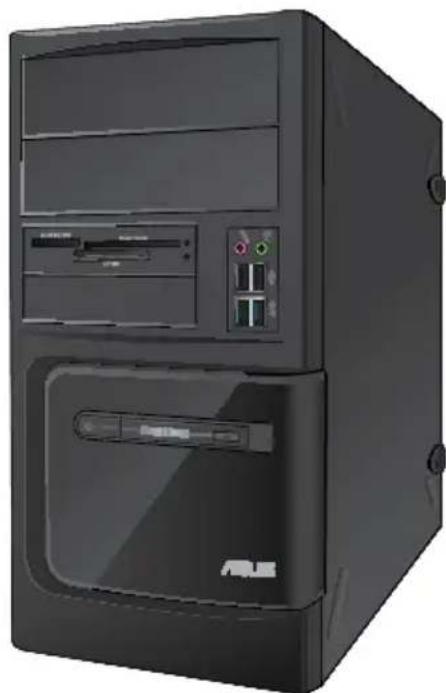
BM1645/MD250
Front panel
- 2 x 5.25 inch optical disk drive bays. The 5.25 inch optical disk drive bays are for 5.25 inch DVD-ROM / CD-RW / DVD-RW devices.
- Microphone port (pink). This port connects to a microphone.
- Headphone port (lime). This port connects to a headphone or speaker.
- USB 2.0 ports. These Universal Serial Bus 2.0 (USB 2.0) ports connect to USB 2.0 devices such as a mouse, printer, scanner, camera, PDA, and others.
- USB 3.0 ports. These Universal Serial Bus 3.0 (USB 3.0) ports connect to USB 3.0 devices such as a mouse, printer, scanner, camera, PDA, and others.

- DO NOT connect a keyboard / mouse to any USB 3.0 port when installing Windows® operating system.
- Due to USB 3.0 controller limitation, USB 3.0 devices can only be used under Windows OS environment and after the USB 3.0 driver installation.
-
USB 3.0 devices can only be used as data storage only.
• We strongly recommend that you connect USB 3.0 devices to USB 3.0 ports for faster and better performance for your USB 3.0 devices. -
Reset button. Press this button to reboot your computer.
- HDD LED. This LED lights up when the hard disk drive operates.
- Power LED. This LED lights up when you turn on your computer.
- Power button. Press this button to turn on your computer.
- 2 x 3.5 inch drive bays. The 3.5 inch drive bays are for 3.5 inch hard disk drives / memory card readers.
Rear panel

- Voltage selector switch. Use this switch to select the appropriate system input voltage according to the voltage supply in your area. If the voltage supply in your area is 100-127V, set the switch to 115V. If the voltage supply in your aear is 200-240V, set the switch to 230V.

Setting the switch to 115V in a 230V environment or 230V in a 115V environment will seriously damage the system!
-
Power connector. Plug the power cord to this connector.
-
Air vents.Air vents. These vents allow air ventilation.

DO NOT block the air vents on the chassis. Always provide proper ventilation for your computer.
-
PS/2 Keyboard / Mouse Combo port (purple/green). This port is for a PS/2 keyboard or PS/2 mouse.
-
USB 2.0 ports. These Universal Serial Bus 2.0 (USB 2.0) ports connect to USB 2.0 devices such as a mouse, printer, scanner, camera, PDA, and others.
-
Optical S/PDIF output port. This port connects to an external audio output device via an optical S/PDIF cable.
-
HDMI port. This port is for a High-Definition Multimedia Interface (HDMI) connector, and is HDCP compliant allowing playback of HD DVD, Blu-ray, and other protected content.
-
DVI-D port. This port is for any DVI-D compatible device and is HDCP compliant allowing playback of HD DVD, Blu-ray, and other protected content.
-
VGA port.VGA port. This port is for VGA-compatible devices such as a VGA monitor.
-
USB 3.0 ports. These Universal Serial Bus 3.0 (USB 3.0) ports connect to USB 3.0 devices such as a mouse, printer, scanner, camera, PDA, and others.

- DO NOT connect a keyboard / mouse to any USB 3.0 port when installing Windows® operating system.
- Due to USB 3.0 controller limitation, USB 3.0 devices can only be used under Windows® OS environment and after the USB 3.0 driver installation.
- USB 3.0 devices can only be used as data storage only.
-
We strongly recommend that you connect USB 3.0 devices to USB 3.0 ports for faster and better performance for your USB 3.0 devices.
-
USB 2.0 ports. These Universal Serial Bus 2.0 (USB 2.0) ports connect to USB 2.0 devices such as a mouse, printer, scanner, camera, PDA, and others.
-
LAN (RJ-45) port. This port allows Gigabit connection to a Local Area Network (LAN) through a network hub.
LAN port LED indications
| Activity/Link LED | Speed LED | |
| Status Description Status Description | ||
| OFF No link OFF 10Mbps connection | ||
| ORANGE Linked ORANGE 100Mbps connection | ||
| BLINKING Data activity GREEN 1Gbps connection | ||
ACT/LINK SPEED
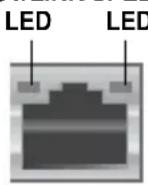
LAN port
-
Rear Speaker Out port (black). This port connects to the rear speakers in a 4, 6, and 8-channel audio configuration.
-
Side Speaker Out port (gray). This port connects to the side speakers in an 8-channel audio configuration.
-
Microphone port (pink). This port connects to a microphone.
-
Line Out port (lime). This port connects to a headphone or speaker. In a 4, 6, or 8-channel configuration, the function of this port becomes Front Speaker Out.
-
Center/Subwoofer port (orange). This port connects to the center/subwoofer speakers.
-
Line In port (light blue). This port connects to a tape, CD, DVD player, or other audio sources.

Refer to the audio configuration table below for the function of the audio ports in a 2, 4, 6, or 8-channel configuration.
Audio 2, 4, 6, or 8-channel configuration
| Port | Headset2-channel | 4-channel 6-channel 8-channel | ||
| Light Blue Line In Line In Line In | Line In | |||
| Lime | Line Out | Front Speaker Out | Front Speaker Out | Front Speaker Out |
| Pink | Mic In | Mic In | Mic In | Mic In |
| Orange | - | - | Center/Subwoofer | Center/Subwoofer |
| Black | - | Rear Speaker Out | Rear Speaker Out | Rear Speaker Out |
| Gray | - | - | - | Side Speaker Out |
- ASUS Graphics Card (on selected models only). The display output ports on this optional ASUS Graphics Card may vary with different models.
- ASUS WLAN Card (on selected models only). This optional WLAN card allows your computer to connect to a wireless network.
- Expansion slot bracket. Remove the expansion slot bracket when installing an expansion card.
Setting up your computer
This section guides you through connecting the main hardware devices, such as the external monitor, keyboard, mouse, and power cord, to your computer.
Using the onboard display output ports
Connect your monitor to the onboard display output port.
To connect an external monitor using the onboard display output ports:
- Connect your monitor to the VGA port, DVI-D port, or display port of your computer.
- Plug your monitor to a power source.

natural_image
Diagram showing a computer monitor connected to an internal server rack, with a close-up of the cable being inserted (no text or symbols visible)
If your computer comes with an ASUS Graphics Card, the graphics card is set as the primary display device in the BIOS. Hence, connect your monitor to a display output port on the graphics card.
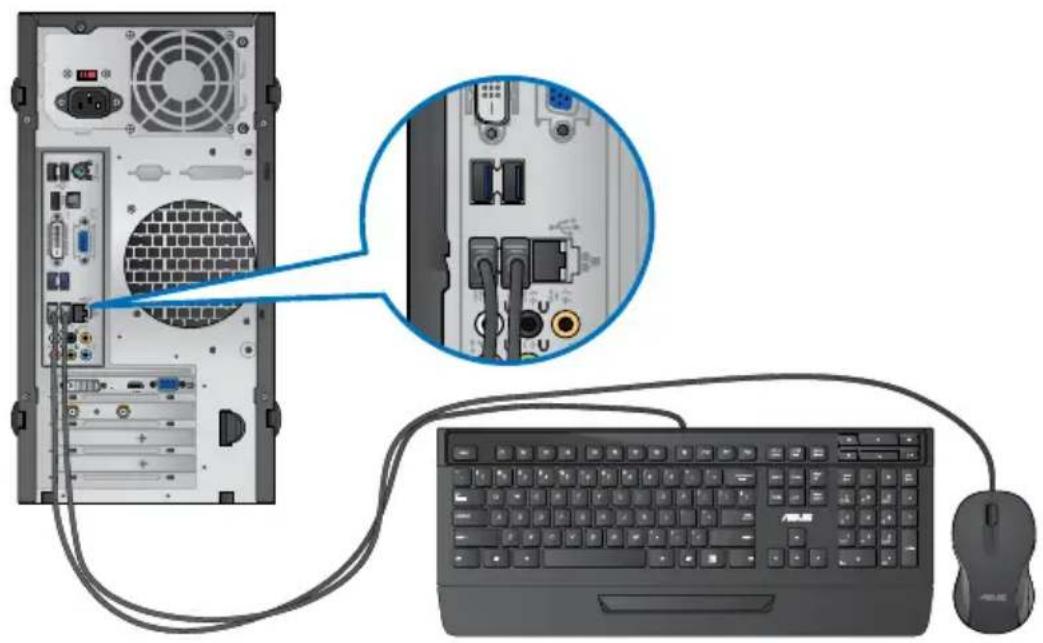
Connecting a USB keyboard and a USB mouse
Connect a USB keyboard and a USB mouse to the USB ports on the rear panel of your computer.
natural_image
Diagram showing a desktop computer setup with an open tower, internal components, and connected keyboard and mouse (no text or symbols present)Connecting the power cord
Connect one end of the power cord to the power connector on the rear panel of your computer and the other end to a power source.

natural_image
Diagram showing connections between a computer tower, power strip, and internal components (no text or symbols present)Turning your computer ON/OFF
This section describes how to turn on/off your computer after setting up your computer.
Turning your computer ON
To turn your computer ON:
- Turn your monitor ON.
- Turn the power switch ON (for BM6630/MD510 and BM6330 only).
- Press the power button on your computer.
- Wait until the operating system loads automatically.
Turning your computer OFF
To turn your computer OFF:
- Close all running applications.
- Click on the Windows ^® desktop.
- Click to shut down the operating system.
Chapter 2
Using Windows® 7
Starting for the first time
When you start your computer for the first time, a series of screens appear to guide you in configuring the basic settings of your Windows ^® 7 operating system.
To start for the first time:
- Turn your computer on. Wait for a few minutes until the Set Up Windows screen appears.
- From dropdown list, select your language, then click Next.
- From the dropdown lists, select your Country or region, Time and currency, and Keyboard layout, then click Next.
- Key in unique names for the user name and computer name, then click Next.
- Key in the necessary information to set up your password, then click Next. You may also click Next to skip this step without entering any information.

If you want to set up a password for your account later, refer to the section Setting up a user account and password in this chapter.
- Carefully read the license terms. Tick I accept the license terms and click Next.
- Select Use recommended settings or Install important updates only to set up the security settings for your computer. To skip this step, select Ask me later.
- Review your date and time settings. Click Next. The system loads the new settings and restarts. You may now start using your computer.
Using Windows ^® 7 desktop

Click the Start icon > Help and Support to obtain more information about Windows
^③ 7.
Using the Start menu
The Start menu gives you access to programs, utilities, and other useful items on your computer. It also provides you with more information about Windows 7 through its Help and Support feature.
Launching items from the Start menu
To launch items from the Start menu:
- From the Windows ^® taskbar, click the Start icon

- From the Start menu, select the item that you want to launch.

You may pin programs that you want constantly displayed on the Start menu. For more details, refer to the section Pinning programs on the Start menu or taskbar on this chapter.
Using the Getting Started item
The Getting Started item on the Start menu contains information about some basic tasks such as personalizing Windows ^® , adding new users, and transferring files to help you to familiarize yourself with using Windows ^® 7.
To use the Getting Started item:
- From the Windows ^ taskbar, click the Start icon to launch the Start menu.
- Select Getting Started. The list of available tasks appears.
- Select the task that you want to do.
Using the taskbar
The taskbar allows you to launch and manage programs or items installed on your computer.
Launching a program from the taskbar
To launch a program from the taskbar:
- From the Windows program. ^® taskbar, click an icon to launch it. Click the icon again to hide the

You may pin programs that you want constantly displayed on the taskbar. For more details, refer to the section Pinning programs on the Start menu or taskbar on this chapter.
Pinning items on the jumplists
When you right-click an icon on the taskbar, a jumplist launches to provide you with quick-access to the program's or item's related links. You may pin items on the jumplist such as favorite websites, often-visited folders or drives, or recently played media files.
To pin items to the jumplist:
- From the taskbar, right-click an icon.
- From the jumplist, right-click the item that you want to pin, then select Pin to this list.
Unpinning items from the jumplist
To unpin items from the jumplist:
- From the taskbar, right-click an icon.
- From the jumplist, right-click the item that you want to remove from the jumplist, then select Unpin from this list.
Pinning programs on the Start menu or taskbar
To pin programs on the Start menu or taskbar:
- From the Windows ^ taskbar, click the Start icon to launch the Start menu.
- Right-click the item that you want to pin on the Start menu or taskbar.
- Select Pin to Taskbar or Pin to Start menu.

You may also right-click on the icon of a running program on the taskbar, then select Pin this program to taskbar.
Unpinning programs from the Start menu
To unpin programs from the Start menu:
- From the Windows ^ taskbar, click the Start icon to launch the Start menu.
- From the Start menu, right-click the program that you want to unpin, then select Remove from this list.
Unpinning programs from the taskbar
To unpin programs from the taskbar:
- From the taskbar, right-click the program that you want to remove from the taskbar, then select Unpin this program from taskbar.
Using the notification area
By default, the notification area shows these three icons:
 | Action Center notificationClick this icon to display all the alert messages/notifications and launch the Windows®Action Center. |
 | Network connectionThis icon displays the connection status and signal strength of the wired or wireless network connection. |
 | VolumeClick this icon to adjust the volume. |
Displaying an alert notification
To display an alert notification:
- Click the Notification icon, then click the message to open it.

For more details, refer to the section Using Windows® Action Center in this chapter.
Customizing icons and notifications
You may choose to display or hide the icons and notifications on the taskbar or on the notification area.
To customize icons and notifications:
- From the notification area, click on the arrow icon .

-
Click Customize.
-
From the dropdown list, select the behaviors for the icons or items that you want to customize.
Managing your files and folders
Using Windows® Explorer
Windows® Explorer allows you to view, manage, and organize your files and folders.
Launching Windows® Explorer
To launch Windows Explorer:
-
From the Windows ^ taskbar, click the Start icon to launch the Start menu.
-
Click Computer to launch Windows Explorer.
Exploring files and folders
To explore files and folders:
- Launch Windows ^® Explorer.
- From the navigation or view pane, browse for the location of your data.
- From the breadcrumb bar, click the arrow to display the contents of the drive or folder.
Customizing the file/folder view
To customize the file/folder view:
-
Launch Windows Explorer.
-
From the navigation pane, select the location of your data.
-
From the toolbar, click the View icon .

- From the View menu, move the slider to select how you want to view the file/folder.

You may also right-click anywhere on the View pane, click View, and select the view type that you want.
Arranging your files
To arrange your files:
- Launch Windows Explorer.
- From the Arrange by field, click to display the dropdown list.
- Select your preferred arrangement type.
Sorting your files
To sort your files:
- Launch Windows Explorer.
- Right-click anywhere on the View pane.
- From the menu that appears, select Sort by, then select your preferred sorting type.
Grouping your files
To group your files:
- Launch Windows Explorer.
- Right-click anywhere on the View pane.
- From the menu that appears, select Group by, then select your preferred grouping type.
Adding a new folder
To add a new folder:
- Launch Windows Explorer.
- From the toolbar, click New folder.
- Key in a name for the new folder.

You may also right-click anywhere on the View pane, click New > Folder.
Backing up your files
Setting up a backup
To set up a backup:
- Click > All Programs > Maintenance > Backup and Restore.
- Click Set up backup. Click Next.
- Select your backup destination. Click Next.
- Select Let Windows choose (recommended) or Let me choose as your backup mode.

If you select Let Windows choose, Windows will not back up your programs, FAT-formatted files, Recycle Bin files, or temporary files that are 1GB or more.
- Follow the onscreen instructions to finish the process.
Restoring your system settings
The Windows® System Restore feature creates a restore point where the computer's system settings are stored at certain time and date. It allows you to restore or undo changes to your computer's system settings without affecting your personal data.
To restore your system:
- Close all running applications.
- Click > All Programs > Accessories > System Tools > System Restore.
- Follow the onscreen instructions to complete the process.
Protecting your computer
Using Windows ^® 7 Action Center
Windows® 7 Action Center provides you with alert notifications, security information, system maintenance information, and the option to automatically troubleshoot and fix some common computer problems.

You may customize the notifications. For more details, refer to the previous section Customizing icons and notifications in this chapter.
Launching Windows ^® 7 Action Center
To launch Windows® 7 Action Center:
- To launch Windows 7 Action Center, click the Notification icon 📋, then click Open Action Center.
- From Windows 7 Action Center, click the task that you want to do.
Using Windows® Update
Windows Update allows you to check and install the latest updates to enhance the security and performance of your computer.
Launching Windows® Update
To launch Windows® Update:
- From the Windows ^ taskbar, click the Start icon to launch the Start menu.
- Select All Programs > Windows Update.
- From the Windows Update screen, click the task that you want to do.
Setting up a user account and password
You may create user accounts and passwords for people who will use your computer.
Setting up a user account
To set up a user account:
- From the Windows ^ taskbar, click >Getting Started >Add new users.
- Select Manage another account.
- Select Create a new account.
- Key in the name of the new user.
- Select either Standard user or Administrator as the user type.
- When done, click Create Account.
Setting up a user's password
To set up a user's password:
- Select the user that you would like to set a password.
- Select Create a password.
- Key in a password and confirm it. Key in your password's hint.
- When done, click Create password.
Activating the anti-virus software
Trend Micro Internet Security is pre-installed on your computer. It is a third-party anti-virus software protecting your computer from virus. It is purchased separately. You have a 30-day trial period after activating it.
To activate Trend Micro Internet Security:
- Run the Trend Micro Internet Security application.
- Carefully read the license terms. Click Agree & Activate.
- Input your e-mail address and select your location. Click Next.
- Click Finish to complete the activation.
Getting Windows® Help and Support
Windows® Help and Support provides you with guides and answers in using the applications in Windows® 7 platform.
To launch Windows® Help and Support, click > Help and Support.

Ensure that you are connected to the Internet to obtain the latest Windows ^® online help.
Chapter 3
Connecting devices to your computer
Connecting a USB storage device
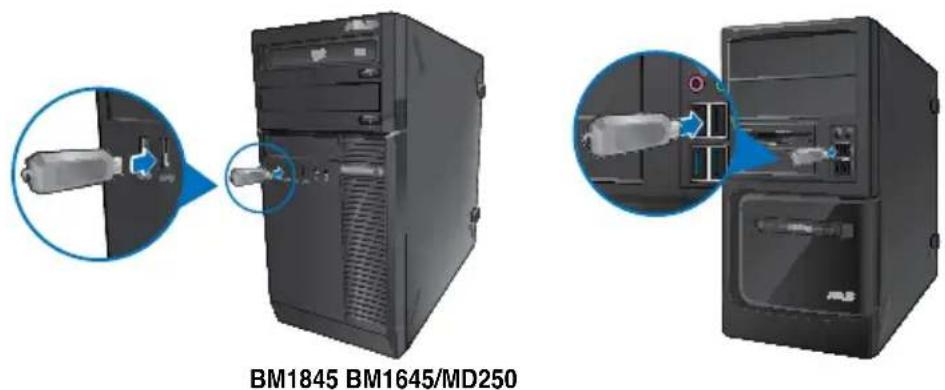
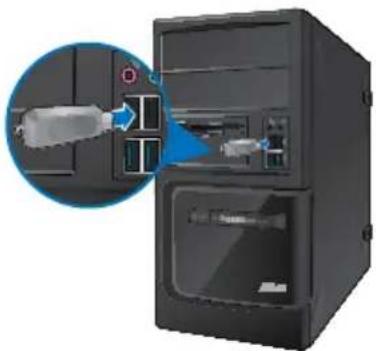
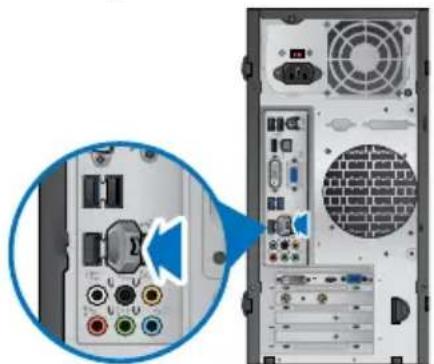
This desktop PC provides USB 2.0/1.1 ports on both the front and rear panels. The USB ports allow you to connect USB devices such as storage devices.
To connect a USB storage device:
- Insert the USB storage device to your computer.
Front panel
Rear panel

natural_image
Back view of a desktop computer tower showing internal components and a magnified inset highlighting a speaker icon (no text or symbols present)To remove a USB storage device:
- Click from the Windows notification area on your computer, then click Eject USB2.0 FlashDisk.
- When the Safe to Remove Hardware message pops up, remove the USB storage device from your computer.

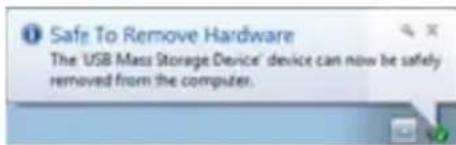

DO NOT remove a USB storage device when data transfer is in progress. Doing so may cause data loss or damage the USB storage device.
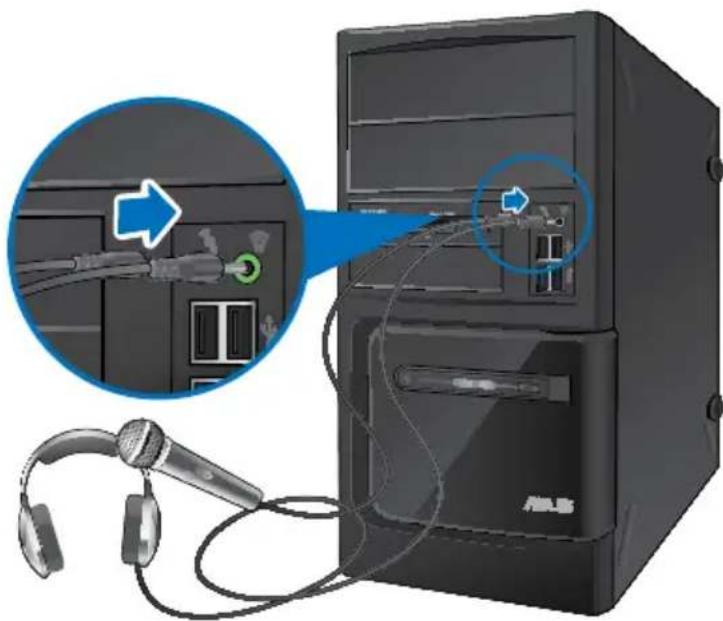
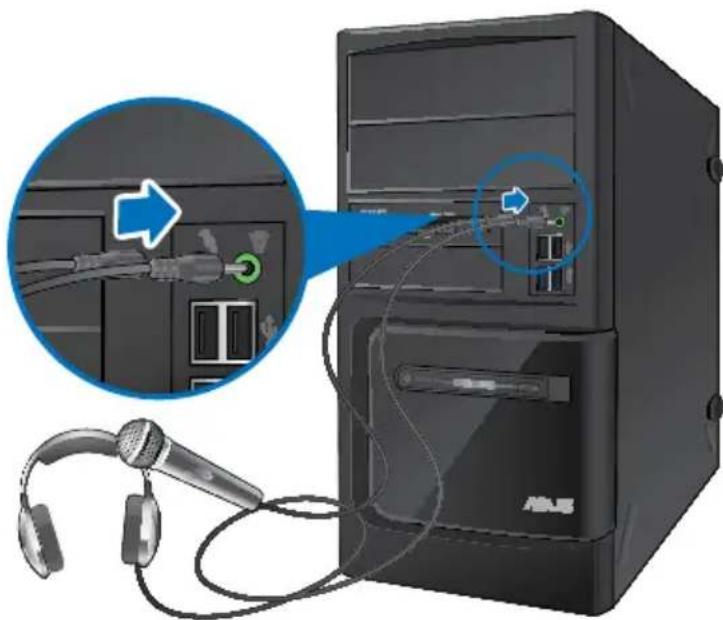
Connecting microphone and speakers
This desktop PC comes with microphone ports and speaker ports on both the front and rear panels. The audio I/O ports located on the rear panel allow you to connect 2-channel, 4-channel, 6-channel, and 8-channel stereo speakers.
Connecting Headphone and Mic
BM1845
natural_image
Illustration of a desktop computer tower connected to an earphone, with a magnified inset showing cable routing (no text or symbols)BM1645/MD250

natural_image
Illustration of a desktop computer tower connected to an earphone, showing cable routing and a close-up of the tower's internal components (no text or symbols visible)Connecting 2-channel Speakers
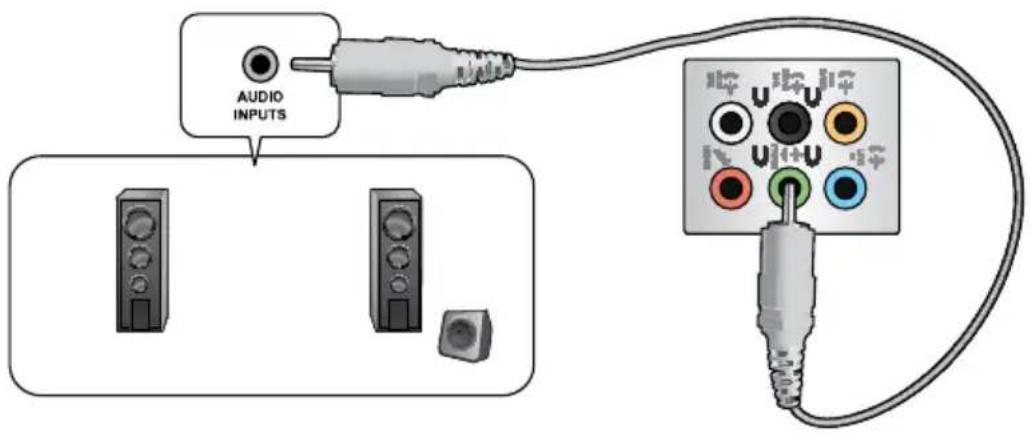
Connecting 4-channel Speakers
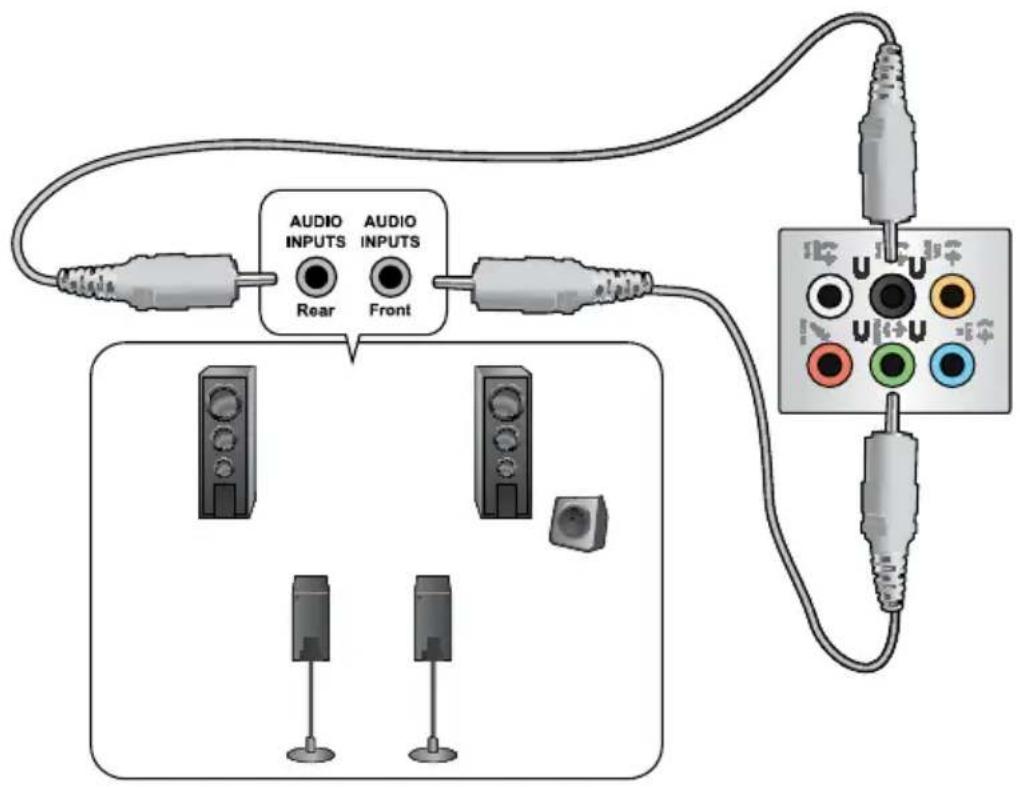
Connecting 6-channel Speakers

Connecting 8-channel Speakers
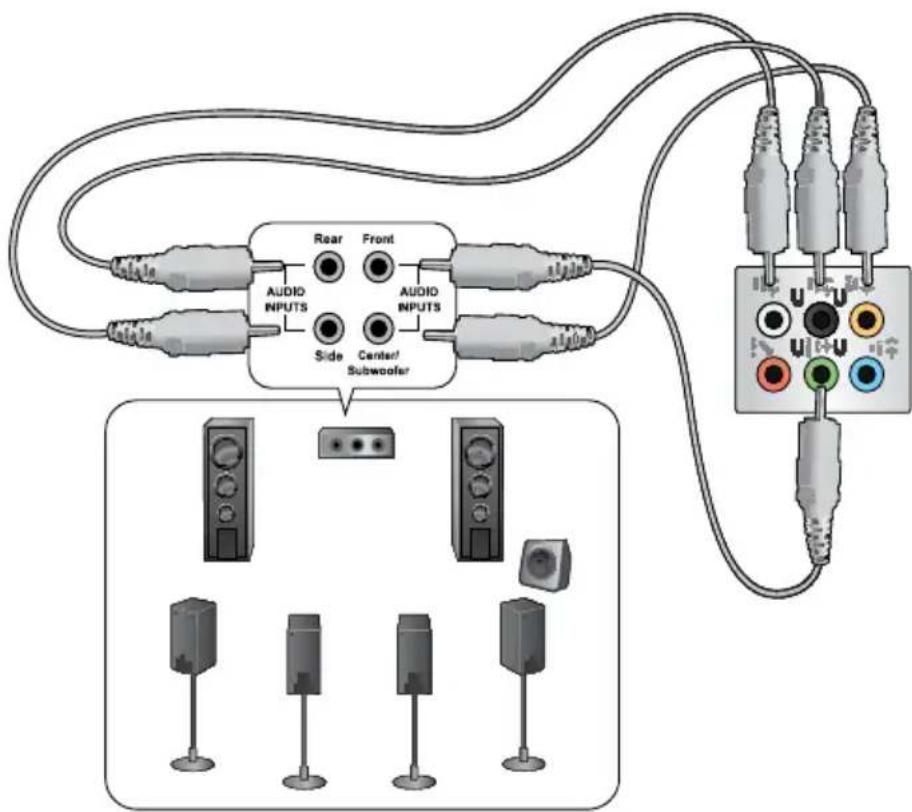
Chapter 4
Using your computer
Proper posture when using your Desktop PC
When using your Desktop PC, maintaining the proper posture is necessary to prevent strain to your wrists, hands, and other joints or muscles. This section provides you with tips on avoiding physical discomfort and possible injury while using and fully enjoying your Desktop PC.

To maintain the proper posture:
- Position your computer chair to make sure that your elbows are at or slightly above the keyboard to get a comfortable typing position.
- Adjust the height of your chair to make sure that your knees are slightly higher than your hips to relax the backs of your thighs. If necessary, use a footrest to raise the level of your knees.
- Adjust the back of your chair so that the base of your spine is firmly supported and angled slightly backward.
- Sit upright with your knees, elbows and hips at an approximately 90^ angle when you are at the PC.
- Place the monitor directly in front of you, and turn the top of the monitor screen even with your eye level so that your eyes look slightly downward.
- Keep the mouse close to the keyboard, and if necessary, use a wrist rest for support to reduce the pressure on your wrists while typing.
- Use your Desktop PC in a comfortably-lit area, and keep it away from sources of glare such as windows and straight sunlight.
• Take regular mini-breaks from using your Desktop PC.
Using the optical drive (on selected models only)

natural_image
Front view of a desktop computer tower with a blue circular icon highlighting a specific drive (no text or symbols visible)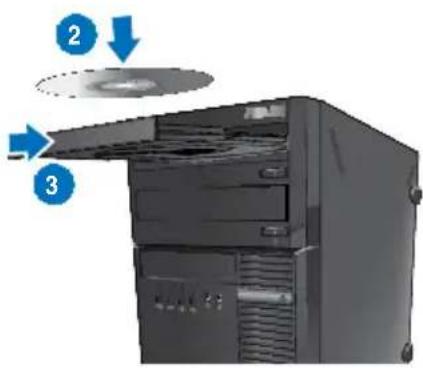
Inserting an optical disc
To insert an optical disc:
- While your system is on, press the eject button below the drive bay cover to open the tray.
- Place the disc to the optical drive with the label side facing up.
- Push the tray to close it.
- Select a program from the AutoPlay window to access your files.

If AutoPlay is NOT enabled in your computer, click Windows ^® 7 Start button on the taskbar, click Computer, and then double-click the CD/DVD drive icon to access the data on it.
Removing an optical disc
To remove an optical disc:
-
While the system is on, do either of the following to eject the tray:
-
Press the eject button below the drive bay cover.
• Right-click the CD/DVD drive icon on the Computer screen, and then click Eject. -
Remove the disc from the disc tray.
Configuring the USB ports using the BIOS
You can enable or disable the front and rear USB 2.0 and USB 3.0 ports from the BIOS Setup.
To disable or enable the USB ports:
- Press
to enter the BIOS Setup at startup. - From the BIOS Setup screen, click Advanced > USB Configuration.
- Select the USB port that you want to enable or disable.
-
Press
to enable or disable the selected USB port. -
Click Exit and select Save Changes & Reset to save the changes made.
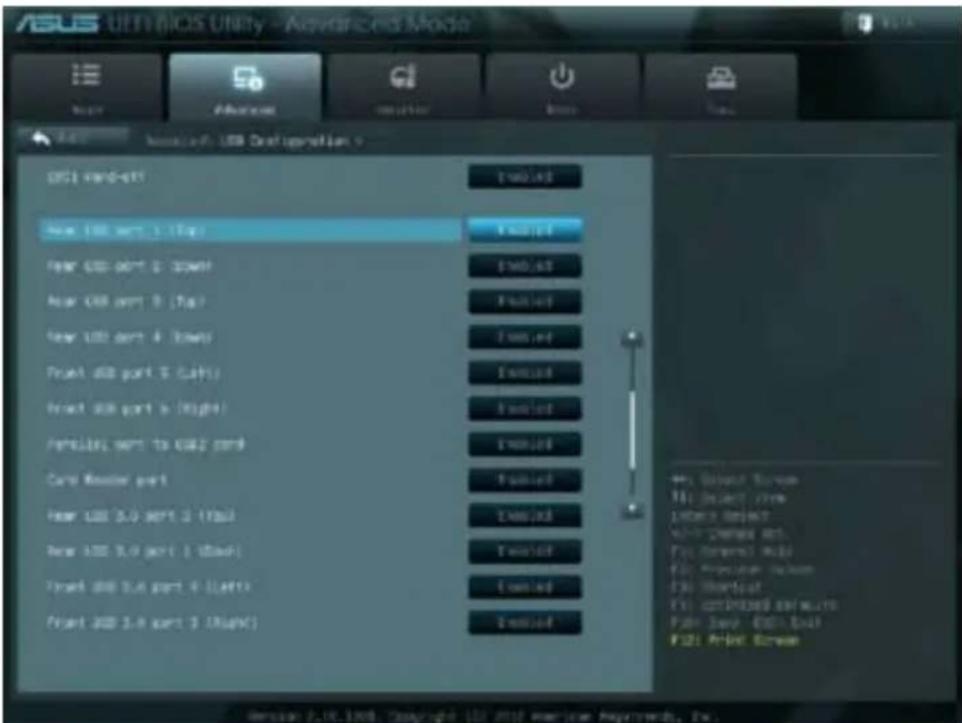

Refer to Chapter 1 for the locations of the USB ports.
Chapter 5
Connecting to the Internet
Wired connection
Use an RJ-45 cable to connect your computer to a DSL/cable modem or a local area network (LAN).
Connecting via a DSL/cable modem
To connect via a DSL/cable modem:
- Set up your DSL/cable modem.

Refer to the documentation that came with your DSL/cable modem.
- Connect one end of an RJ-45 cable to the LAN (RJ-45) port on the rear panel of your computer and the other end to a DSL/cable modem.

-
Turn on the DSL/cable modem and your computer.
-
Configure the necessary Internet connection settings.

Contact your Internet Service Provider (ISP) for details or assistance in setting up your Internet connection.
Connecting via a local area network (LAN)
To connect via a LAN:
- Connect one end of an RJ-45 cable to the LAN (RJ-45) port on the rear panel of your computer and the other end to your LAN.
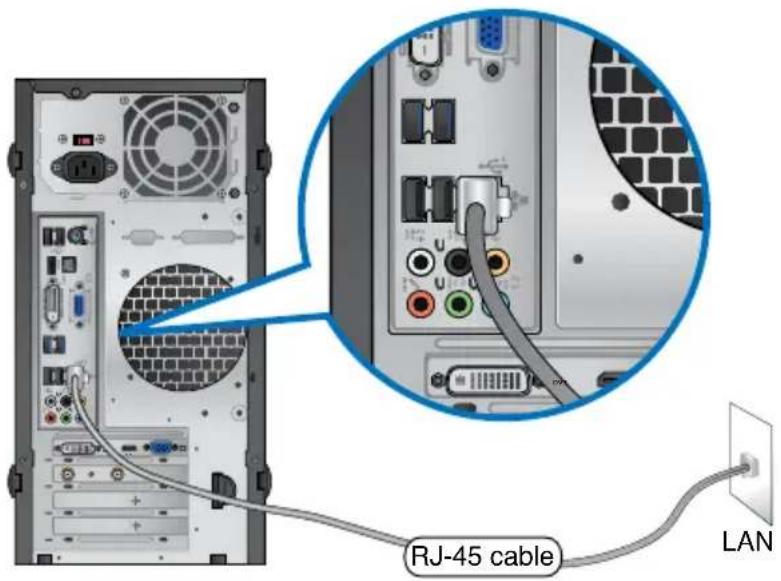
- Turn on your computer.
- Configure the necessary Internet connection settings.

Contact your network administrator for details or assistance in setting up your Internet connection.
Chapter 6
Using the utilities

The Support DVD and Recovery DVD may not be included in the package. You may use the Recovery Partition feature to create the Support DVD and Recovery DVD. For details, refer to Recovering your system in this chapter.
ASUS AI Suite II
ASUS AI Suite II is an all-in-one interface that integrates several ASUS utilities and allows users to launch and operate these utilities simultaneously.

This utility is pre-installed on some models. For models without an operating system, follow the steps below to install this utility.
Installing AI Suite II
To install AI Suite II:
- Place the support DVD in the optical drive. The Drivers installation tab appears if Autorun is enabled.
- Click the Utilities tab, then click ASUS AI Suite II.
- Follow the onscreen instructions to complete the installation.
Using AI Suite II
AI Suite II automatically starts when you enter the Windows® operating system. The AI Suite II icon appears in the Windows® notification area. Click the icon to open the AI Suite II main menu bar.
Click each button to select and launch a utility, to monitor the system, to update the motherboard BIOS, to display the system information, and to customize the settings of AI Suite II.
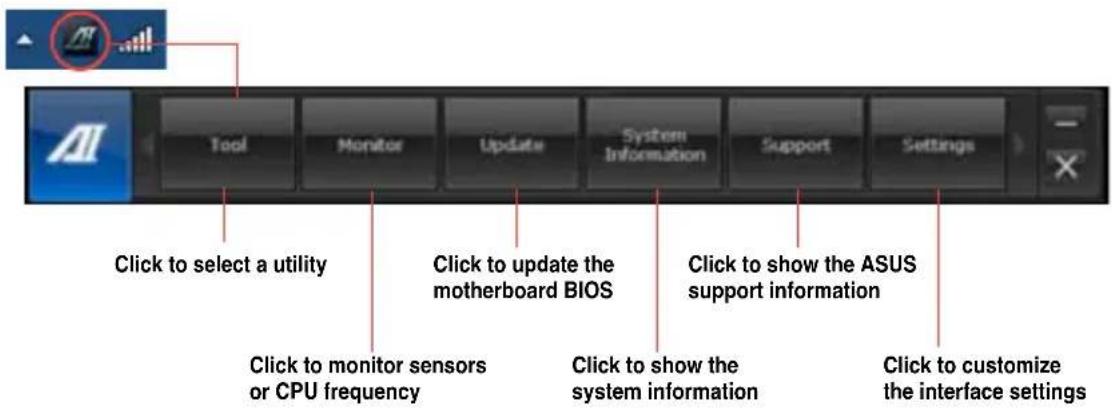

- The applications in the Tool menu vary with models.
- The screenshots of AI Suite II in this user manual are for reference only. The actual screenshots vary with models.
The Tool menu
The Tool menu includes the EPU, Probe II, and Sensor Recorder panels.
Launching and configuring EPU
EPU is an energy-efficient tool that provides you with a total power-saving solution. It detects the current loading and intelligently adjusts the power usage in real-time. When you select the Auto mode, the system changes modes automatically according to the current system status. It allows you to customize each mode through configuring the settings such as CPU frequency, vCore Voltage, and Fan Control.
To launch EPU:
- Click Tool > EPU on the AI Suite II main menu bar.
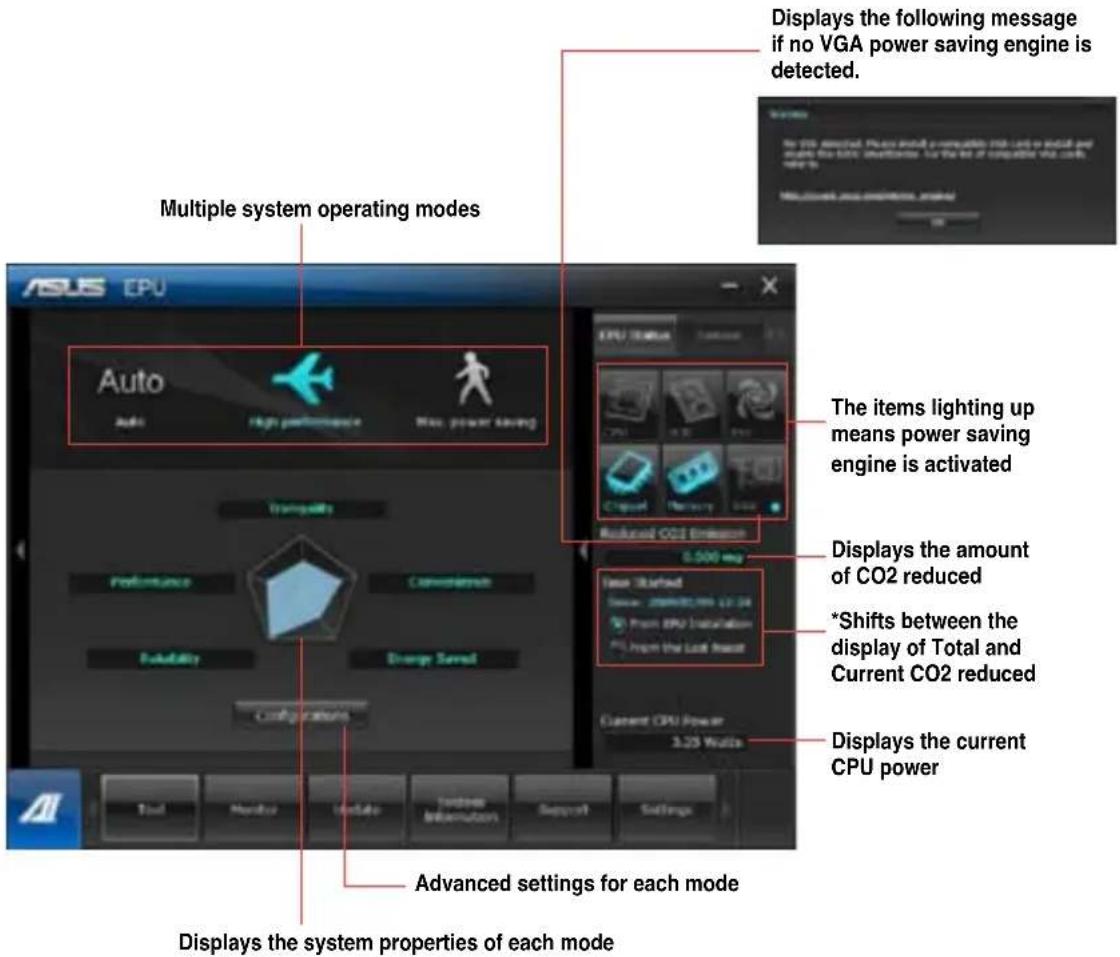

- * Select From EPU Installation to show the CO2 that has been reduced since you installed EPU.
- * Select From the Last Reset to show the total CO2 that has been reduced since you click the Clear button
Launching and configuring Probe II
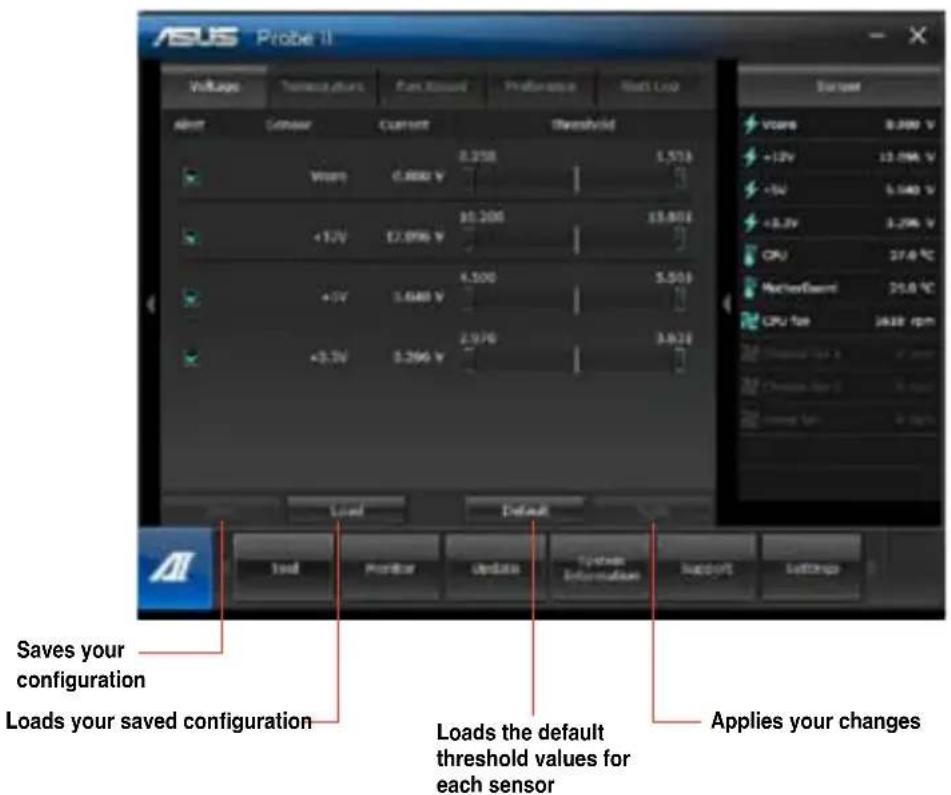
Probe II is a utility that monitors the computer's vital components, and detects and alerts you of any problem with these components. Probe II senses fan rotations, CPU temperature, and system voltages, among others. With this utility, you are assured that your computer is always at a healthy operating condition.
To launch Probe II:
- Click Tool > Probe II on the AI Suite II main menu bar.
To configure Probe II:
- Click the Voltage/Temperature/Fan Speed tabs to activate the sensors or to adjust the sensor threshold values.
- The Preference tab allows you to customize the time interval of sensor alerts, or change the temperature unit.
Launching and configuring Sensor Recorder
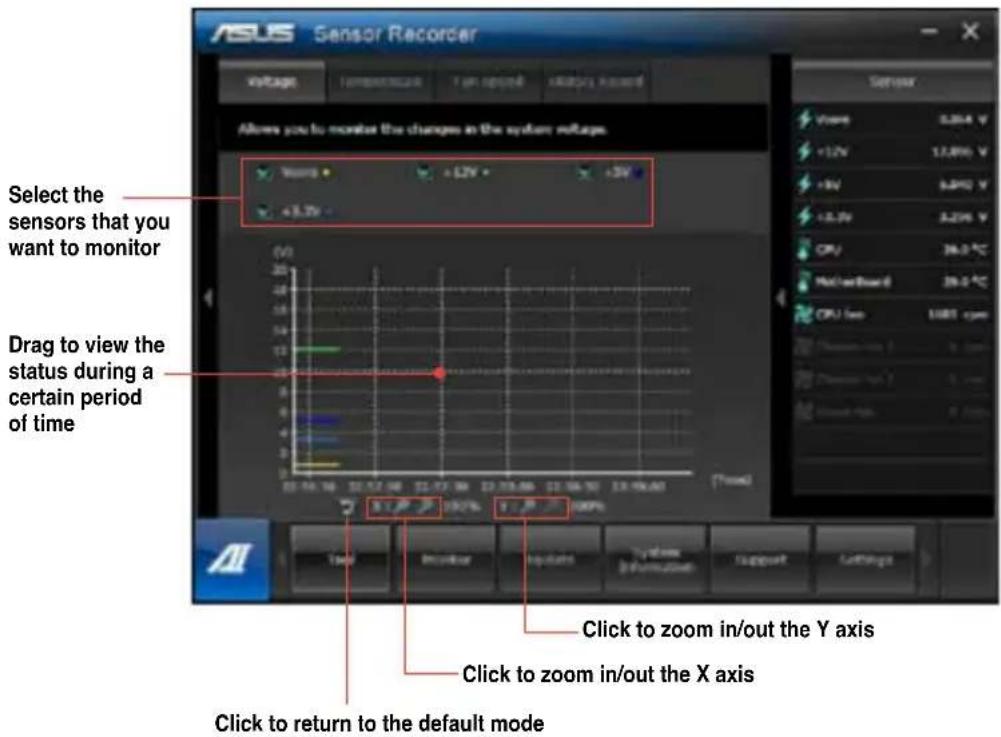
Sensor Recorder allows you to monitor the changes in the system voltage, temperature, and fan speed, as well as recording the changes.
To launch Sensor Recorder:
- Click Tool > Sensor Recorder on the AI Suite II main menu bar.
To configure Sensor Recorder:
- Click the Voltage/Temperature/Fan Speed tabs and select the sensors that you want to monitor.
- The History Record tab allows you to record the changes in the sensors that you enable.
The Monitor menu
The Monitor menu includes the Sensor and CPU Frequency panels.
Launching Sensor
The Sensor panel displays the current value of a system sensor such as fan rotation, CPU temperature, and voltages.
To launch Sensor:
- Click Monitor > Sensor on the AI Suite II main menu bar.
Launching CPU Frequency
The CPU Frequency panel displays the current CPU frequency and CPU usage.
To launch CPU frequency:
- Click Monitor > CPU Frequency on the AI Suite II main menu bar.
The Update menu
The Update menu allows you to update the motherboard BIOS and the BIOS boot logo with the ASUS designed update utilities.
ASUS Update
The ASUS Update is a utility that allows you to manage, save, and update the motherboard BIOS in Windows® OS. The ASUS Update utility allows you to update the BIOS directly from the Internet, download the latest BIOS file from the Internet, update the BIOS from an updated BIOS file, save the current BIOS file or view the BIOS version information.
Updating the BIOS through the Internet
To update the BIOS through the Internet:
- From the ASUS Update screen, select Update BIOS from Internet, then click Next.
- Select the ASUS FTP site nearest you to avoid network traffic.
Tick the two items if you want to enable the BIOS downgradable and Auto-BIOS backup functions.
- Select the BIOS version that you want to download, then click Next.
When no updated version is detected, a message is displayed informing you that there is no new BIOS file from the BIOS server.
- Click Yes if you want to change the boot logo, which is the image appearing on screen during the Power-On Self-Tests (POST). Otherwise, click No.
- Follow the onscreen instructions to complete the update process.
Updating the BIOS through a BIOS file
To update the BIOS through a BIOS file:
- From the ASUS Update screen, select Update BIOS from file, then click Next.
- Locate the BIOS file from the Open window, click Open, and click Next.
- Click Yes if you want to change the boot logo, which is the image appearing on screen during the Power-On Self-Tests (POST). Otherwise, click No.
- Follow the onscreen instructions to complete the update process.
MyLogo
ASUS MyLogo allows you to customize the boot logo. The boot logo is the image that appears on screen during the Power-On Self-Tests (POST). ASUS MyLogo allows you to:
- Change the current BIOS boot logo of your motherboard
- Change the boot logo of a downloaded BIOS file and update this BIOS to your motherboard
- Change the boot logo of a downloaded BIOS file without updating this BIOS to your motherboard

Ensure that the BIOS item Full Screen Logo is set to [Enabled] to display the boot logo. See the section Boot Settings Configuration of the BIOS Setup chapter in the user manual.
Changing the BIOS boot logo
- From the AI Suite II main menu bar, click Update > MyLogo.
-
Select any of these three options, then click Next:
-
Change the BIOS boot logo of my motherboard
- Change the boot logo of a downloaded BIOS file and update this BIOS to my motherboard
- Change the boot logo of a downloaded BIOS file (But do not update this BIOS to my motherboard)

Before using the last two options, ensure that you download a BIOS file to your computer using ASUS Update.
- Locate the picture file that you want to use as the boot logo (and the downloaded BIOS if required) and then click Next.
- Move the Resolution slider or click Auto Tune for the system to automatically adjusts the screen resolution.
- Click the Booting Preview button to preview the way the picture is displayed during the POST. Left-click the mouse to return to the setting screen.
- Click Next when the adjustment is finished.
- Click Flash and follow the onscreen instructions to complete the process.
The System Information screen
The System Information screen displays the information about the motherboard, CPU, and memory slots.
- Click the MB tab to see the details on the motherboard manufacturer, product name, version, and BIOS.
- Click the CPU tab to see the details on the processor and the Cache.
- Click the Memory tab and then select the memory slot to see the details on the memory module installed on the corresponding slot.
- Click the Disk tab and then select each disk to see the details on it.
The Support screen
The Support screen displays the information about the ASUS website, technical support website, download support website, or contact information.
The Settings screen
The Settings screen allows you to customize the main menu bar settings and the interface's skin.
- Application allows you to select the application that you want to enable.
- Bar allows you to modify the bar setting,
- Skin allows you to customize the interface's contrast, brightness, saturation, hue, and gamma.
ASUS AI Manager
ASUS AI Manager is a utility which gives you quick and easy access to frequently-used applications.
Installing AI Manager
To install AI Manager:
- Place the support DVD in the optical drive. If Autorun is enabled, the Drivers installation wizard appears.

If Autorun is disabled, double-click the setup.exe file from the ASUS AI Manager folder in the support DVD.
-
Click the Utilities tab, then click ASUS AI Manager.
-
Follow the onscreen instructions to complete the installation.
Launching AI Manager
To launch the AI Manager from the Windows ^® desktop, click Start > All Programs > ASUS > AI Manager > AI Manager 1.xx.xx. The AI Manager quick bar appears on the desktop.
After launching the application, the AI Manager icon appears in the Windows® taskbar.
Right-click this icon to switch between the quick bar and the main window, and to launch the AI Manager either from the quick bar or taskbar.
AI Manager quick bar
The AI Manager quick bar saves the desktop space and allows you to launch the ASUS utilities or display system information easily. Click any of the Main, My Favorites, Support or Information tab to display the menu's contents.

Click the Maximize/restore button to switch between full window and quick bar. Click the Minimize button to keep the AI Manager on the taskbar. Click the Close button to quit the AI Manager.
Main
The Main menu contains three utilities: AI Disk, AI Security, and AI Booting. Click the arrow on the Main menu icon to browse through the utilities in the main menu.
AI Disk
AI Disk allows you to easily clear temporary IE files, IE cookies, IE URLs, IE history, or the Recycle Bin. Click the AI Disk icon on the quick bar to display the full AI Disk window and select the items you want to clear. Click Apply when done.
AI Security
AI Security enables you to set a password to secure your devices, such as USB flash disks and CD/DVD disks, from unauthorized access.
To lock a device:
- When using AI Security for the first time, you are asked to set a password. Key in a password with at most 20 alphanumeric characters.
- Confirm the password.
- Key in the password hint (recommended).
- When done, click Ok.
- Select the device you want to lock, then click Apply.
- Key in the password you have set previously, then click Ok.
To unlock the device:
- Deselect the locked device, then click Apply.
- Key in the password you have set previously, then click Ok.
To change the password:
- Click Change Password, then follow the onscreen instructions to change password.
AI Booting
AI Booting allows you to specify the boot device priority sequence.
To specify the boot sequence:
- Select a device, then click the left/right button to specify the boot sequence.
- When done, press Apply.
My Favorites
My Favorites allows you to add applications that you frequently use, saving you from searching for the applications throughout your computer.
To add an application:
- Click Add, then locate the application you want to add to My Favorites.
- Click Open on the file location window. The application is added to My Favorites list.
Right click on the application icon to launch, delete, or rename the selected application. You can also double click to launch the selected application.
Support
Click any links on the Support window to go to the ASUS website, technical support website, download support website, or contact information.
Information
Click the tab on the Information window to see the detailed information about your system, motherboard, CPU, BIOS, installed device(s), and memory.
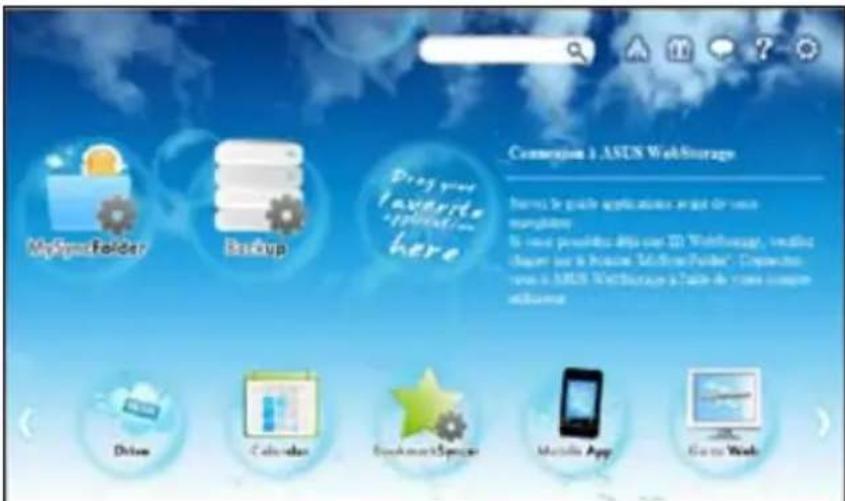
ASUS Webstorage
ASUS webstorage is designed to help you retrieve your data to your notebooks, smartphones or tablets wherever there is internet connection.
Installing webstorage
To install webstorage:
Place the support DVD in the optical drive. Double-click the setup.exe file from the ASUS WebStorage folder in the Software folder in the support DVD.
Launching Webstorage
To launch the WebStorage from the Windows ^® desktop, click Start > All Programs > ASUS
Webstorage. The webstorage quick bar appears in the Windows ^ taskbar. Right-click this icon to switch between the quick bar and the main window


Drive
Allows your to retrieve all your backups, synced files, share groups and password protected data from here. Right-click the mouse to preview files before downloading or generating a sharing URL.
Backup
To backup your most important data with simple steps: preset a backup shcedure with your preferences in cloud storage; or select "Auto Backup" for complete data backup.
MySyncFolder
To store the updated files to MySyncFolder for easy access and share of all types of files without the limitation of location or device.
Calendar
ASUS WebStorage automatically syncs the most updated calendar events to all personal computers so that you know the exact events no matter which PC is in use.
BookmarkSyncer
The convenient BookmarkSyncer keeps our browser preference and bookmark to the cloud automatically synchronized in multiple computer.
MobileApp
ASUS WebStorage mobile applications sync your files between multiple devices. It also supports transcoding technology that allows preview and files streaming on your mobile phone.
Go to Web
Experience the value-added cloud service through ASUS WebStorage, without the risk of losing data.
Settings
- Click the Settings icon, the settings interface appears.
- Follow the onscreen instructions to complete the configuration.

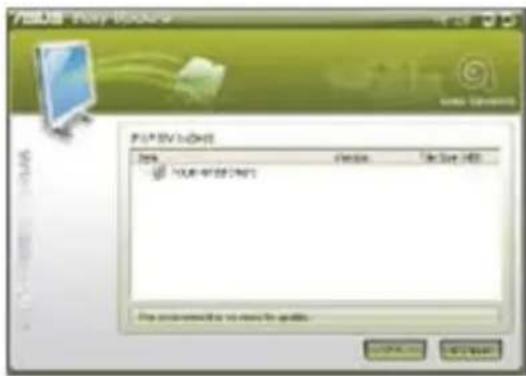
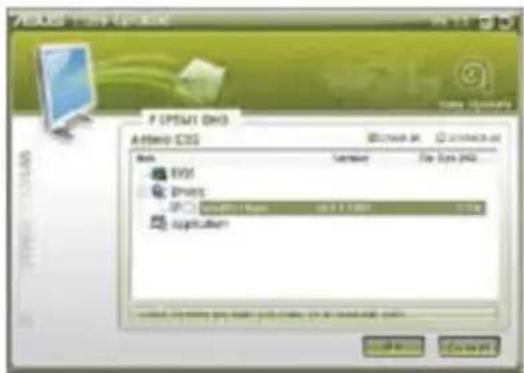
ASUS Easy Update
ASUS Easy Update is a software tool that automatically detects the latest drivers and applications for your system.
-
From the Windows ^ notification area, right-click the ASUS Easy Update icon.
-
Select Schedule to set how often you want to update your system.
-
Select Update to activate the update.
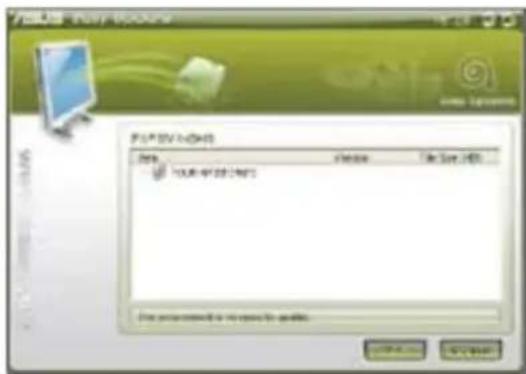
-
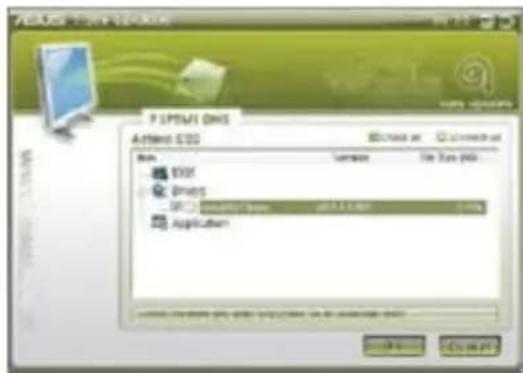
Click OK to display the items you can download.
-
Check the item(s) you want to download, and then click OK.

natural_image
Toolbar with icons including headphones, Bluetooth, and a gear icon (no readable text or labels)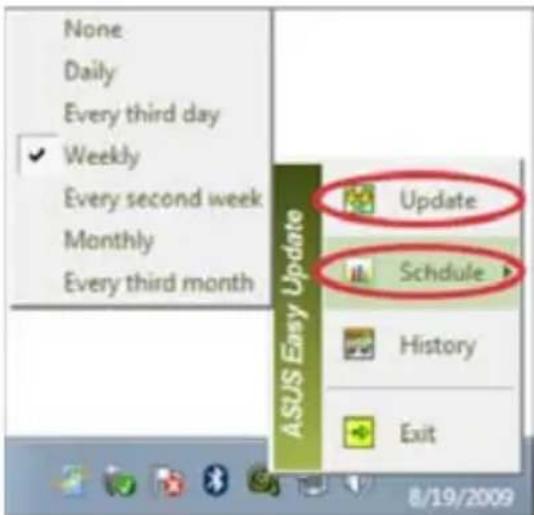

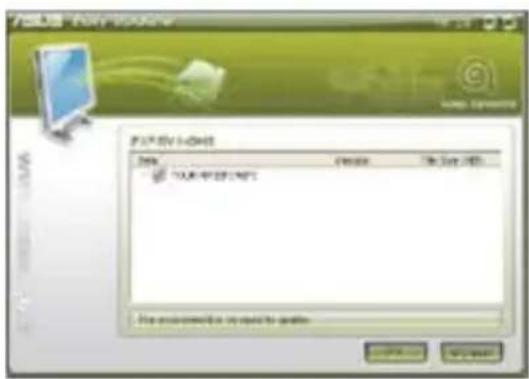
ASUS Secure Delete
ASUS Secure Delete makes deleted files completely irrecoverable via a simple drag-and-drop interface, thus protecting your data security.
To Use ASUS Secure Delete
-
Do either of the following to launch ASUS Secure Delete:
-
Click the ASUS Secure Delete shortcut on the Windows ^ desktop,
-
Click Start > All Programs > ASUS > ASUS Secure Delete.
-
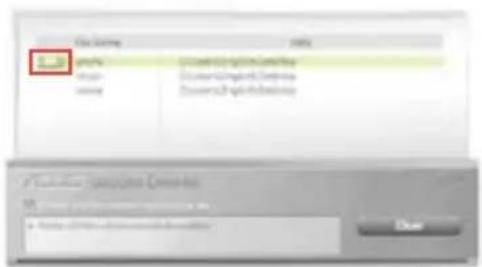
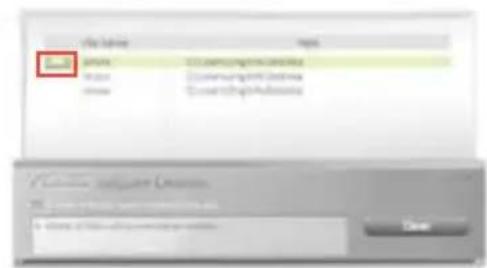
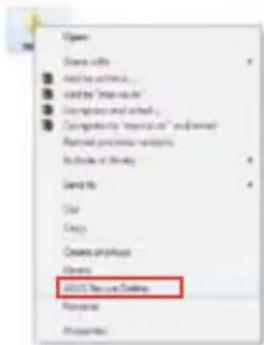
Do any of the following to add files to the deletion box:
- Drag and drop the files to the box.
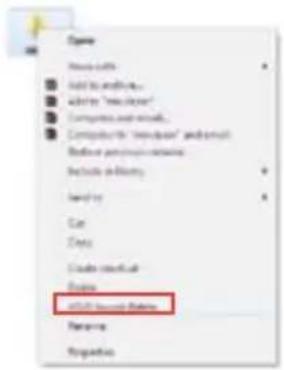
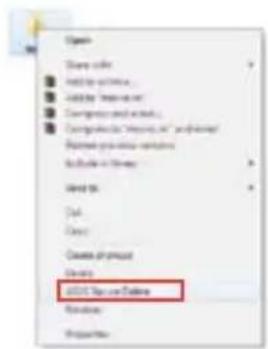
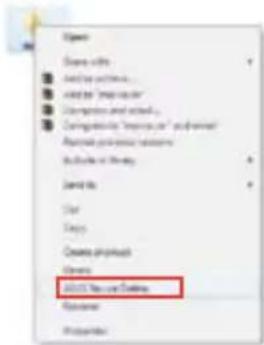
- Right-click the file then select ASUS Secure Delete.
-
To remove a file from the deletion list, select the file then click .
-
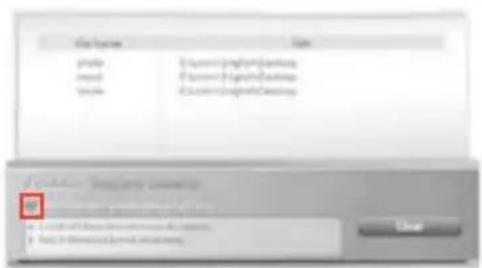
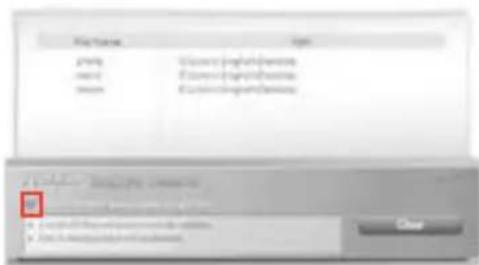
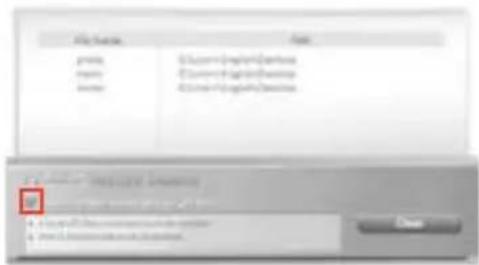
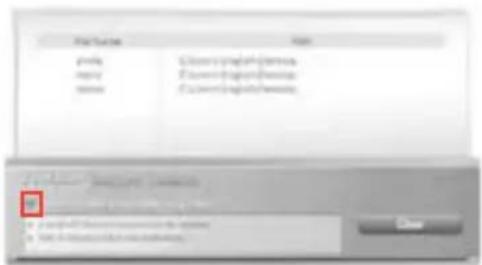
Tick Delete the files listed in the recycle bin if you want to permanently delete all the files in the recycle bin.
-
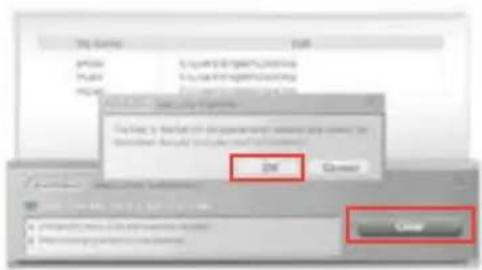
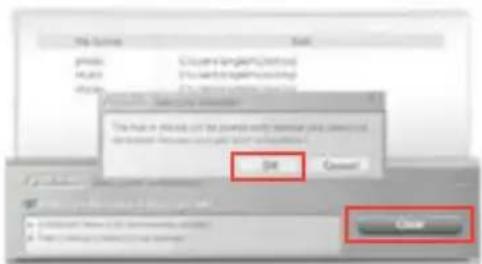
Click Clear, and then click OK on the confirmation message to permanently delete all the files listed in the deletion box and the recycle bin (if selected in step 3).

Nero 9
Nero 9 allows you to create, copy, burn, edit, share, and update different kinds of data.
Installing Nero 9
To install Nero 9:
- Insert the Nero 9 DVD into your optical drive.
- If Autorun is enabled, the main menu appears automatically.

If Autorun is disabled, double-click the SeupX.exe file from the main directory of your Nero 9 DVD.
- From the main menu, click Nero 9 Essentials.
- Select the language you want to use for Installation Wizard. Click Next.
- Click Next to continue.
- Tick I accept the License Conditions. When done, click Next.
- Select Typical then click Next.
- Tick Yes, I want to help by sending anonymous application data to Nero then click Next.
- When done, click Exit.
Burning files
To burn files:
- From the main menu, click Data Burning > Add.
- Select the files that you want to burn. When done, click Add.
- After selecting files that you want to burn, click Burn to burn the files to a disc.

For more details about using Nero 9, refer to the Nero website at www.nero.com
Recovering your system
Using the system recovery partition
The system recovery partition quickly restores your Desktop PC's software to its original working state. Before using the system recovery partition, copy your data files (such as Outlook PST files) to USB storage devices or to a network drive and make note of any customized configuration settings (such as network settings).
About the system recovery partition
The system recovery partition is a reserved space on your hard disk drive used to restore the operating system, drivers, and utilities installed on your Desktop PC at the factory.

DO NOT delete the system recovery partition, which is the partition without volume label on Disk 0. The system recovery partition is created at the factory and cannot be restored if deleted. Take your Desktop PC to an authorized ASUS service center if you have problems with the recovery process.
Using the system recovery partition:
- Press
during bootup. - Highlight Windows Setup [EMS Enabled] and press
. - From the Recover system to a partition screen, click
. - Follow the onscreen instructions to complete the recovery process.

Visit the ASUS website at www.asus.com for updated drivers and utilities.
Using the Recovery DVD (on selected models)

Remove the external hard disk drive before performing system recovery on your Desktop PC. According to Microsoft, you may lose important data because of setting up Windows on the wrong disk drive or formatting the incorrect drive partition.
To use the Recovery DVD:
- Insert the Recovery DVD into the optical drive. Your Desktop PC needs to be powered ON.
- Restart the Desktop PC and press
on bootup and select the optical drive (may be labeled as "CD/DVD") and press to boot from the Recovery DVD. - Select OK to start to restore the image.
- Select OK to confirm the system recovery.

Restoring will overwrite your hard drive. Ensure to back up all your important data before the system recovery.
- Follow the onscreen instructions to complete the recovery process.

DO NOT remove the Recovery disc, unless instructed to do so, during the recovery process or else your partitions will be unusable.

Visit the ASUS website at www.asus.com for updated drivers and utilities.
Chapter 7
Troubleshooting
Troubleshooting
This chapter presents some problems you might encounter and the possible solutions.
? My computer cannot be powered on and the power LED on the front panel does not light up
- Check if your computer is properly connected.
- Check if the wall outlet is functioning.
- Check if the Power Supply Unit is switched on. Refer to the section Turning your computer ON/OFF in Chapter 1.
? My computer hangs.
- Do the following to close the programs that are not responding:
- Simultaneously press
+ + keys on the keyboard, then click Start Task Manager. - Click Applications tab.
- Select the program that is not responding, then click End Task.
- If the keyboard is not responding. Press and hold the Power button on the top of your chassis until the computer shuts down. Then press the Power button to turn it on.
? I cannot connect to a wireless network using the ASUS WLAN Card (on selected models only)?
- Ensure that you enter the correct network security key for the wireless network you want to connect to.
- Connect the external antennas (optional) to the antenna connectors on the ASUS WLAN Card and place the antennas on the top of your computer chassis for the best wireless performance.
? The arrow keys on the number key pad are not working.
Check if the Number Lock LED is off. When the Number Lock LED is on, the keys on the number key pad are used to input numbers only. Press the Number Lock key to turn the LED off if you want to use the arrow keys on the number key pad.
? No display on the monitor.
- Check if the monitor is powered on.
- Ensure that your monitor is properly connected to the video output port on your computer.
- If your computer comes with a discrete graphics card, ensure that you connect your monitor to a video output port on the discrete graphics card.
- Check if any of the pins on the monitor video connector is bent. If you discover bent pins, replace the monitor video connector cable.
- Check if your monitor is plugged to a power source properly.
- Refer to the documentation that came with your monitor for more troubleshooting information.
? When using multiple monitors, only one monitor has display.
- Ensure that the both monitors are powered on.
- During POST, only the monitor connected to the VGA port has display. The dual display function works only under Windows.
- When a graphics card is installed on your computer, ensure that you connect the monitors to the output port on the graphics card.
- Check if the multiple displays settings are correct. Refer to section Connecting multiple external displays in Chapter 3 for details.
? My computer cannot detect my USB storage device.
- The first time you connect your USB storage device to your computer, Windows automatically installs a driver for it. Wait for a while and go to My Computer to check if the USB storage device is detected.
- Connect your USB storage device to another computer to test if the USB storage device is broken or malfunctions.
I want to restore or undo changes to my computer's system settings without affecting my personal files or data.
The Windows ^® System Restore feature allows you to restore or undo changes to your computer's system settings without affecting your personal data such as documents or photos. For more details, refer to the section Restoring your system in Chapter 2.
? The picture on the HDTV is distorted.
- It is caused by the different resolutions of your monitor and your HDTV. Adjust the screen resolution to fit your HDTV. To change the screen resolution:
- Do any of the following to open the Screen Resolution setting screen:
- Click > Control Panel > Appearance and Personalization > Display > Change display settings.
- Right click anywhere on your Windows desktop. When the pop-up menu appears, click Personalize > Display > Change display settings.
-
Adjust the resolution. Refer to the documentation came with your HDTV for the resolution.
-
Click Apply or OK. Then click Keep Changes on the confirmation message.
? My speakers produce no sound.
- Ensure that you connect your speakers to the Line out port (lime) on the front panel or the rear panel.
- Check if your speak is connected to a electrical source and turned on.
- Adjust your speakers' volume.
- Ensure that your computer's system sounds are not Muted.
- If it is muted, the volume icon is displayed as . To enable the system sounds, click from the Windows notification area, then click .
- If it is not muted, click and drag the slider to adjust the volume.
- Connect your speakers to another computer to test if the speakers are working properly.
? The DVD drive cannot read a disc.
- Check if the disc is placed with the label side facing up.
- Check if the disc is centered in the tray, especially for the discs with non-standard size or shape.
- Check if the disc is scratched or damaged.
? The DVD drive eject button is not respond.
- Click > Computer.
- Right-click, then click Eject from the menu.
Power
| Problem Possible Cause Action | ||
| No power (The power indicator is off) | Incorrect power voltage | Set your computer's power voltage switch to your area's power requirements.Adjust the voltage settings. Ensure that the power cord is unplugged from the power outlet. |
| Your computer is not turned on. | Press the power key on the front panel to ensure that your computer is turned on. | |
| Your computer's power cord is not properly connected. | Ensure that the power cord is properly connected.Use other compatible power cord. | |
| PSU (Power supply unit) problems | Try installing another PSU on your computer. | |
Display
| Problem Possible Cause Action | ||
| No display output after turning the computer on (Black screen) | The signal cable is not connected to the correct VGA port on your computer. | Connect the signal cable to the correct display port (onboard VGA or discrete VGA port).If you are using a discrete VGA card, connect the signal cable to the discrete VGA port. |
| Signal cable problems Try connecting to another monitor. | ||
LAN
| Problem Possible Cause Action | ||
| Cannot access the Internet | The LAN cable is not connected. | Connect the LAN cable to your computer. |
| LAN cable problems | Ensure the LAN LED is on. If not, try another LAN cable. If it still does not work, contact the ASUS service center. | |
| Your computer is not properly connected to a router or hub. | Ensure that your computer is properly connected to a router or hub. | |
| Network settings | Contact your Internet Service Provider (ISP) for the correct LAN settings. | |
| Problems caused by the anti-virus software | Close the anti-virus software. | |
| Driver problems Reinstall the | LAN driver | |
Audio
| Problem Possible Cause Action | ||
| No Audio | Speaker or headphone is connected to the wrong port. | Refer to your computer's user manual for the correct port.Disconnect and reconnect the speaker to your computer. |
| Speaker or headphone does not work. | Try using another speaker or headphone. | |
| The front and back audio ports do not work. | Try both the front and back audio ports. If one port failed, check if the port is set to multi-channel. | |
| Driver problems Reinstall the audio driver | ||
System
| Problem Possible Cause Action | ||
| System speed is too slow | Too many programs are running. | Close some of the programs. |
| Computer virus attack | ·Use an anti-virus software to scan for viruses and repair your computer.·Reinstall the operating system. | |
| The system often hangs or freezes. | Hard disk drive failure | ·Send the damaged hard disk drive to ASUS Service Center for servicing.·Replace with a new hard disk drive. |
| Memory module problems | ·Replace with compatible memory modules.·Remove the extra memory modules that you have installed, then try again. | |
| There is not enough air ventilation for your computer. | Move your computer to an area with better air flow. | |
| Incompatible softwares are installed. | Reinstall the OS and reinstall compatible softwares. | |
CPU
| Problem Possible Cause Action | ||
| Too noisy right after turning on the computer. | Your computer is booting up. | It is normal. The fan runs on its full speed when the computer is powering on. The fan slows down after entering the OS. |
| The BIOS settings have been changed. | Restore the BIOS to its default settings. | |
| Old BIOS version | Update the BIOS to the latest version. Visit the ASUS Support site at http://support.asus.com to download the latest BIOS versions. | |
| Computer is too noisy when in use. | The CPU fan has been replaced. | Ensure that you are using a compatible or ASUS-recommended CPU fan. |
| There is not enough air ventilation for the computer. | Ensure that your computer is working in an area with good air flow. | |
| The system temperature is too high. | Update the BIOS.If you know how to reinstall the motherboard, try to clean the inner space of the chassis. | |

If the problem still persists, refer to your Desktop PC's warranty card and contact the ASUS Service Center. Visit the ASUS Support site at http://support.asus.com for the service center information.
ASUS contact information
ASUSTeK COMPUTER INC.
Address 15 Li-Te Road, Peitou, Taipei, Taiwan 11259
Telephone +886-2-2894-3447
Fax +886-2-2890-7798
E-mail info@asus.com.tw
Online support support.asus.com
ASUS COMPUTER INTERNATIONAL (America)
Address 800 Corporate Way, Fremont, CA 94539, USA
Telephone +1-510-739-3777
Fax +1-510-608-4555
Web site usa.asus.com
Technical Support
Telephone +1-812-282-2787
Support fax +1-812-284-0883
Online support support.asus.com
ASUS COMPUTER GmbH (Germany and Austria)
Address Harkort Str. 21-23, D-40880 Ratingen, Germany
Fax +49-2102-959911
Web site www.asus.de
Online support support.asus.com
* EUR 0.14/minute from a German fixed landline; EUR 0.42/minute from a mobile phone.
| Manufacturer: | ASUSTeK Computer Inc. |
| Address: | No.150, LI-TE RD., PEITOU, TAIPEI 112, TAIWAN |
| Authorised representative in Europe: | ASUS Computer GmbH |
| Address: | HARKORT STR. 21-23, 40880 RATINGEN, GERMANY |
ASUS Desktop PC
natural_image
3D rendering of a black desktop computer tower with ventilation slots and control panel (no visible text or symbols)BM1845
natural_image
Exterior view of a black desktop computer tower case with drive bays and ventilation slots (no visible text or labels)BM1645/MD250
Benutzerhandbuch
G7330
Erste Ausgabe
Juni 2012
ASUS Easy Update ....115
ASUS Secure Delete 116
Nero 9 117
CAUTION: Danger of explosion if battery is incorrectly replaced. Replace only with the same or equivalent type recommended by the manufacturer. Dispose of used batteries according to the manufacturer's instructions.
natural_image
Illustration of a computer setup with an open drive, cable, and monitor connected to a remote control unit (no text or symbols visible)
natural_image
Diagram showing a computer setup with an open tower, internal components, and connected keyboard (no text or symbols visible)natural_image
Diagram showing a computer tower connected to an internal CPU socket, with a close-up view of the socket and cable (no text or symbols present)natural_image
Back view of a computer tower showing internal components and a magnified inset highlighting a speaker icon (no text or symbols visible)natural_image
Illustration of a desktop computer tower connected to a microphone and earphones, with an inset showing a cable being inserted (no text or symbols visible)BM1645/MD250
natural_image
Computer tower connected to a headset via cable, showing internal components and a magnified view of the tower's cable connector (no text or symbols visible)Kapitel 4
Computer verwenden
natural_image
Front view of a desktop computer tower with a blue circular icon labeled '1' pointing to the right side (no text or symbols on the tower itself)


natural_image
Five computer application icons: Windows, Ecosystem, File, Play, and Open (no text or symbols)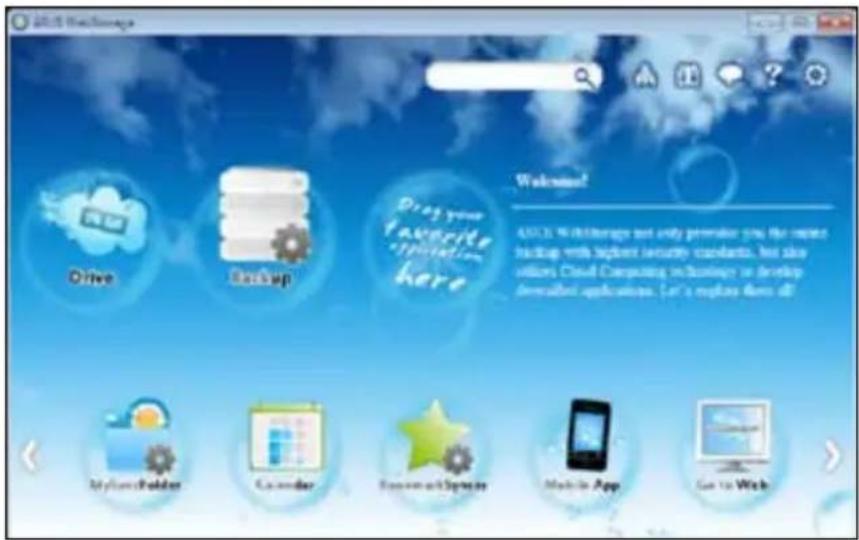
Drive
ASUS Easy Update
natural_image
Toolbar with icons including headphones, Bluetooth, and a circular icon (no readable text or symbols)

ASUS Secure Delete
Online-Support support.asus.com
ASUS COMPUTER INTERNATIONAL (Amerika)
Adresse 800 Corporate Way, Fremont, CA 94539, USA
Telefon +1-510-739-3777
Fax +1-510-608-4555
Online-Support support.asus.com
Adresse Harkort Str. 21-23, D-40880 Ratingen, Germany
Fax +49-2102-959911
Online-Support support.asus.com
natural_image
Illustration of a black desktop computer tower with ventilation slots and drive bays (no text or symbols visible)BM1845

natural_image
Black desktop computer tower with visible drive bays and ventilation slots (no text or symbols)BM1645/MD250
F73307330
Première édition
Juin 2012
ASUS Secure Delete 180
Nero 9 181
Support technique ASUS local
natural_image
Diagram showing a computer monitor connected to an open rear panel with a cable and a remote control unit, highlighting internal components (no text or symbols present)
natural_image
Laptop keyboard connected to a computer mouse via cable, showing internal hardware components (no text or symbols visible)natural_image
Diagram showing a computer tower connected to an internal CPU socket, with a magnified view of the socket's internal structure (no text or symbols present)Lancer Windows® Update
natural_image
Back view of a computer tower internal structure showing drive bays, ventilation fans, and a speaker icon (no text or symbols)natural_image
Illustration of a desktop computer tower connected to an earphone, with a magnified inset showing cable routing (no text or symbols visible)BM1645/MD250

natural_image
Illustration of a desktop computer tower connected to an earphone, showing internal cable routing and a close-up of the tower's cable (no text or symbols present)natural_image
Black desktop computer tower with ventilation slots and a blue circular button labeled '1' (no readable text or symbols beyond the label)

Installer AI Manager
Drive
natural_image
Toolbar with icons including headphones, Bluetooth, and a green circular icon (no readable text or symbols)
ASUS Secure Delete


Nero 9
natural_image
Black desktop computer tower with ventilation slots and drive bays (no visible text or labels)BM1845
natural_image
Exterior view of a black desktop computer tower case (no visible text or labels)BM1645/MD250
Manuale Utente
17330
Prima Edizione
Maggio 2012
Copyright © 2012 ASUSTeK Computer Inc. Tutti i Diritti Riservati.
ASUS Secure Delete 246
Nero 9 247
Ripristino del sistema.... 248
Dichiarazione FCC (Federal Communications Commission)
natural_image
Diagram showing a computer monitor connected to an internal server rack, with a close-up of the cable being inserted into a device (no text or symbols visible)
natural_image
Diagram showing a computer setup with an open desktop tower, internal components, and connected keyboard and mouse (no text or symbols present)natural_image
Diagram showing a computer tower connected to an internal power socket, with a magnified view of the socket's cable and ports (no text or symbols present)natural_image
Exterior view of a desktop computer tower with a close-up inset showing internal components (no text or symbols visible)BM1845
natural_image
Black desktop computer tower with internal ports and a magnified inset showing a device being inserted (no text or symbols visible)BM1645/MD250
Pannello posteriore
natural_image
Interior view of a computer tower showing audio equipment and a speaker icon (no text or symbols visible)
natural_image
Illustration of a desktop computer tower connected to a microphone and earphone, with an inset showing a cable being inserted (no text or symbols visible)BM1645/MD250

natural_image
Computer tower connected to a headset via cable, with an inset showing cable routing and a close-up of the tower's cable (no text or symbols visible)natural_image
Front view of a black desktop computer tower with a blue circular indicator labeled '1' pointing to the front panel (no readable text or symbols on the tower itself)

natural_image
Row of five computer application icons (Windows, Chrome, PDF, Play, Email) on a plain background, no text or symbols present.Drive
ASUS Easy Update
natural_image
Toolbar with icons including headphones, Bluetooth, and a circular icon (no readable text or symbols)ASUS Secure Delete

Nero 9
Supporto Online support.asus.com
ASUS COMPUTER INTERNATIONAL (America)
Indirizzo 800 Corporate Way, Fremont, CA 94539, USA
Telefono +1-510-739-3777
Fax +1-510-608-4555
Sito Web usa.asus.com
Supporto Tecnico
Telefono +1-812-282-2787
Fax Supporto +1-812-284-0883
Supporto Online support.asus.com
ASUSTeK ITALY S.r.l (Italia)
natural_image
Black desktop computer tower with ventilation slots and drive bays (no visible text or labels)BM1845
natural_image
Black desktop computer tower case with drive bays and ventilation slots (no visible text or labels)BM1645/MD250
Manual del usuario
S7330
Primera edición
Junio 2012
ASUS Secure Delete 310
Nero 9 311
natural_image
Illustration of an electronic device setup with a computer monitor, cable, and a server rack (no text or symbols visible)
natural_image
Laptop keyboard connected to a computer mouse via cable, showing internal hardware and port connections (no text or symbols visible)natural_image
Diagram showing a computer tower with connected cables and a close-up of the internal components (no text or symbols visible)natural_image
Back view of a computer tower internal panel showing audio equipment and ventilation (no text or symbols visible)

natural_image
Illustration of a desktop computer tower connected to a headset via cable, with an inset showing a cable being inserted (no text or symbols visible)BM1645/MD250
natural_image
Illustration of a desktop computer tower connected to an earphone, showing cable routing and a close-up of the tower's internal components (no text or symbols visible)natural_image
Front view of a black desktop computer tower with a blue circular icon labeled '1' pointing to the right side (no text or symbols on the tower itself)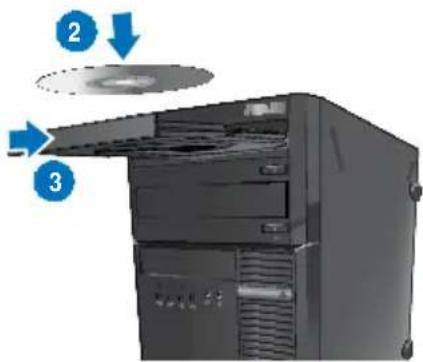
natural_image
Illustration of a desktop computer tower with an open drive and numbered arrows indicating components (no text or symbols present)Para instalar AI Manager:
natural_image
Four computer application icons: Windows, Chrome, PDF, and email (no text or symbols)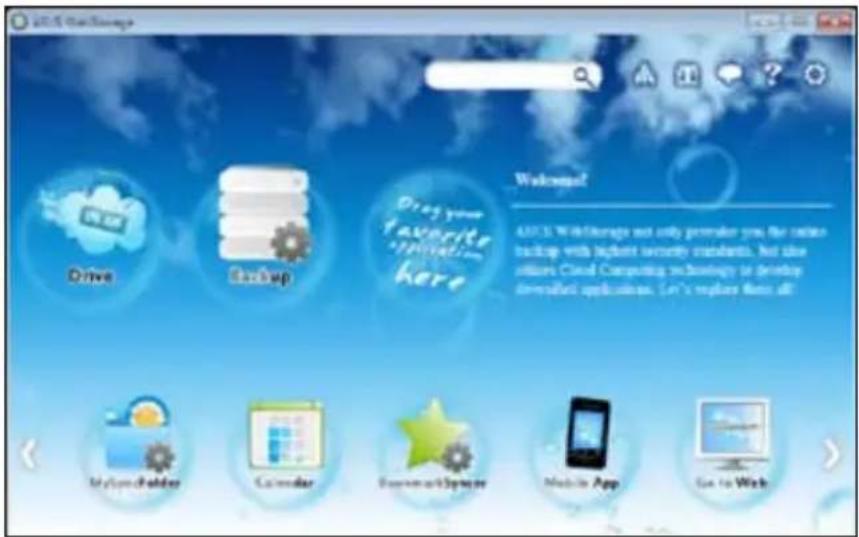
Unidad
ASUS Easy Update
natural_image
Toolbar with icons including headphones, Bluetooth, and a gear icon (no readable text or labels)
ASUS Secure Delete

Nero 9
natural_image
Exterior view of a black desktop computer tower with ventilation slots and drive bays (no visible text or labels)BM1845

natural_image
Black desktop computer tower with front panel and drive slots (no visible text or labels)BM1645/MD250
ASUS Secure Delete 374
Nero 9 375
Uw systeem herstellen.... 376
ACT/
KOPPELINGS-LED SNELHEIDS-LED

LAN-poort
natural_image
Diagram showing a computer monitor connected to an internal server rack, with a close-up of the cable being inserted (no text or symbols visible)
natural_image
Diagram showing a computer setup with an open desktop tower, internal components, and connected keyboard and mouse (no text or labels present)De stroomkabel verbinden
natural_image
Diagram showing a computer tower connected to an internal CPU socket, with a close-up view of the socket's cable and ports (no text or symbols present)Uw computer AAN/UIT-schakelen
Uw computer AAN-schakelen
natural_image
Back view of a desktop computer tower showing internal components and a magnified inset highlighting a speaker icon (no text or symbols present)
natural_image
Illustration of a desktop computer tower connected to an earphone, with a magnified inset showing cable routing (no text or symbols)BM1645/MD250
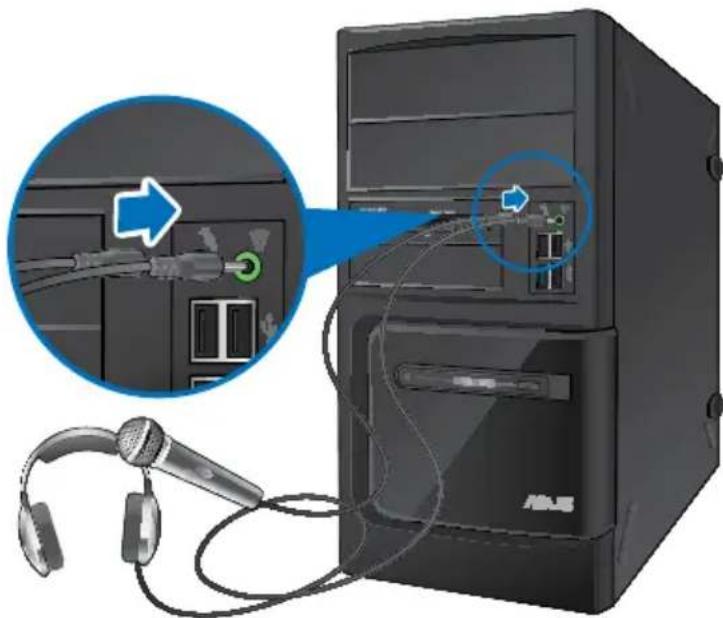
natural_image
Illustration of a desktop computer tower connected to an earphone, showing cable routing and a close-up of the tower's internal components (no text or symbols visible)natural_image
Front view of a desktop computer tower with a blue circular icon labeled '1' pointing to the front panel (no readable text or symbols beyond icons)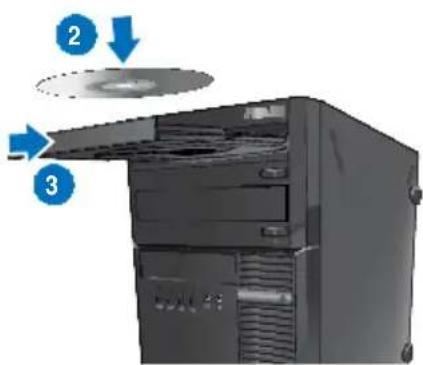

Station
ASUS Easy Update
natural_image
Toolbar with icons including headphones, Bluetooth, and a green circular icon (no readable text or symbols)

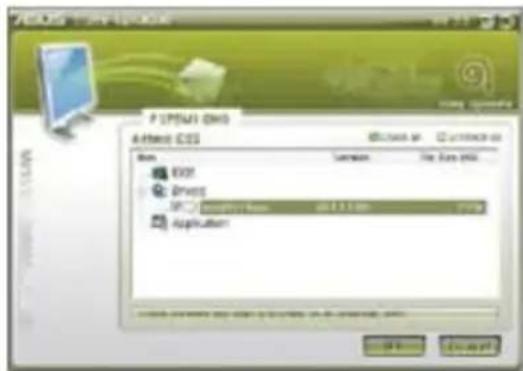
ASUS Secure Delete


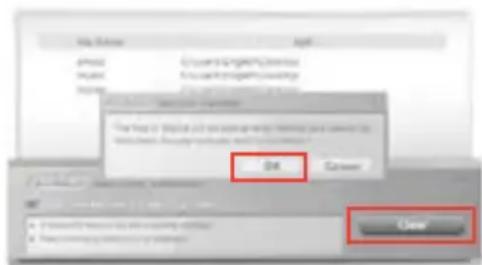
Nero 9
Online support support.asus.com
ASUS COMPUTER GmbH (Germany and Austria)
Adres Harkort Str. 21-23, D-40880 Ratingen, Germany
Fax +49-2102-959911
Web site www.asus.de
natural_image
Black desktop computer tower with ventilation slots and drive bays (no visible text or labels)BM1845
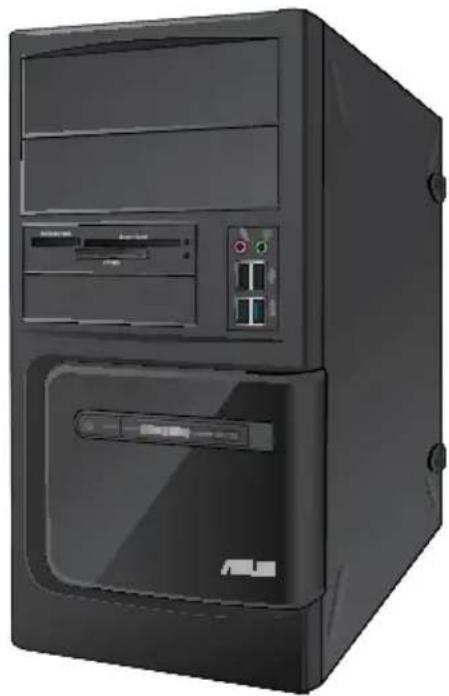
natural_image
Black desktop computer tower with front panel and drive slots (no visible text or labels)BM1645/MD250
Manual do Utilizador
PG7330
Primeira edição
Junho 2012
ASUS Secure Delete 438
Nero 9 439
natural_image
Diagram showing a computer setup with an open drive, cable, and monitor connected to a wall-mounted remote control unit (no text or symbols visible)
natural_image
Diagram showing a computer setup with an open desktop tower, internal components, and connected keyboard and mouse (no text or labels visible)natural_image
Diagram showing a computer tower connected to a rack-mounted power supply via cable, with an inset close-up of the internal components (no text or symbols visible)natural_image
Back view of a desktop computer tower showing internal components and a close-up of the speaker drive (no text or symbols visible)
natural_image
Illustration of a desktop computer tower connected to an earphone, with a magnified inset showing cable routing (no text or symbols)BM1645/MD250

natural_image
Illustration of a desktop computer tower connected to an earphone, showing cable routing and a close-up of the tower's cable (no text or symbols visible)Ligar altifalantes de 2 canais
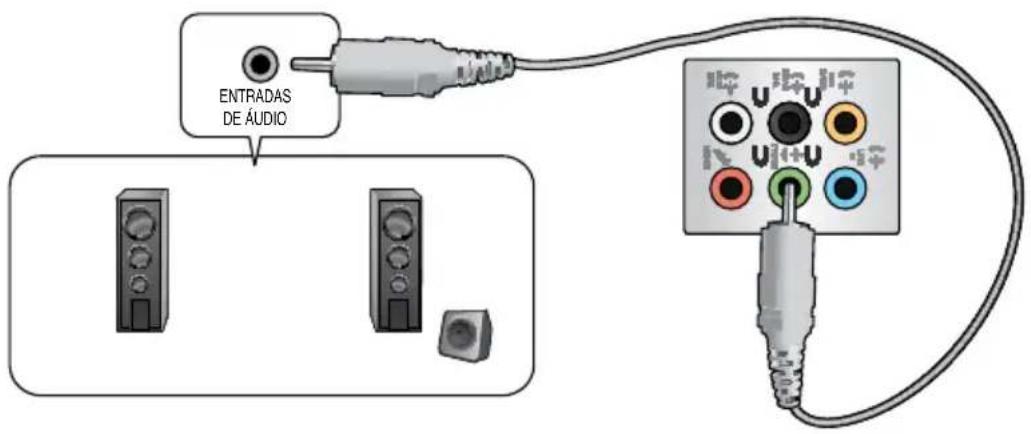
Ligar altifalantes de 4 canais
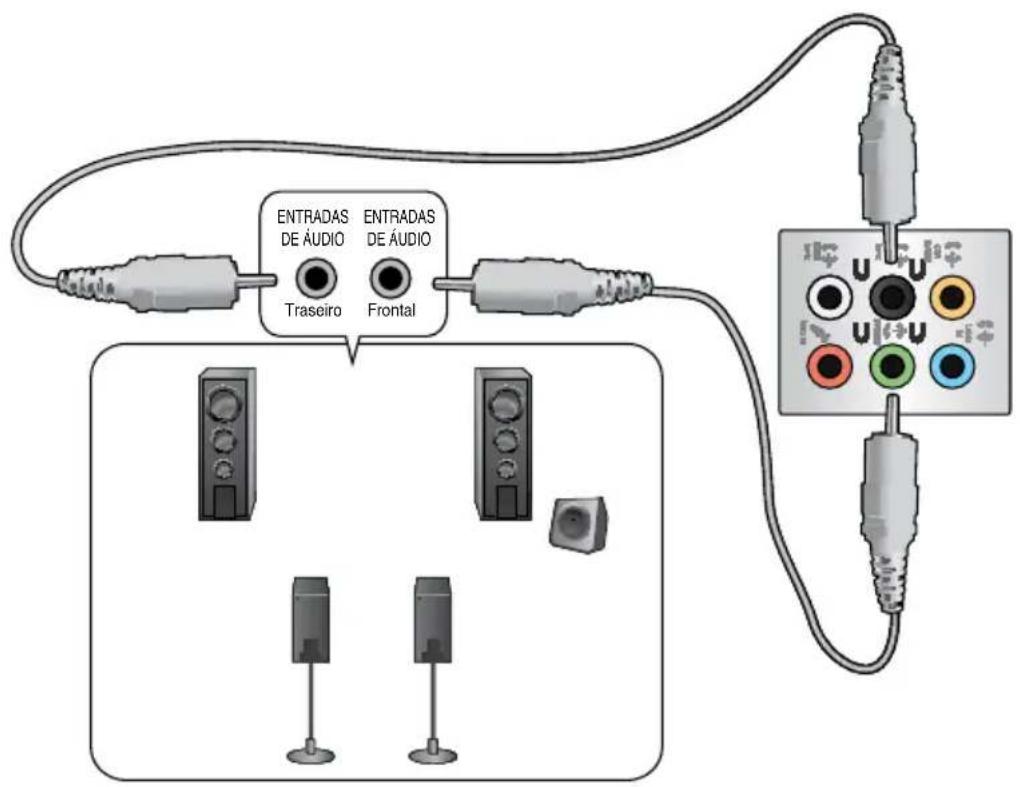
Ligar altifalantes de 6 canais
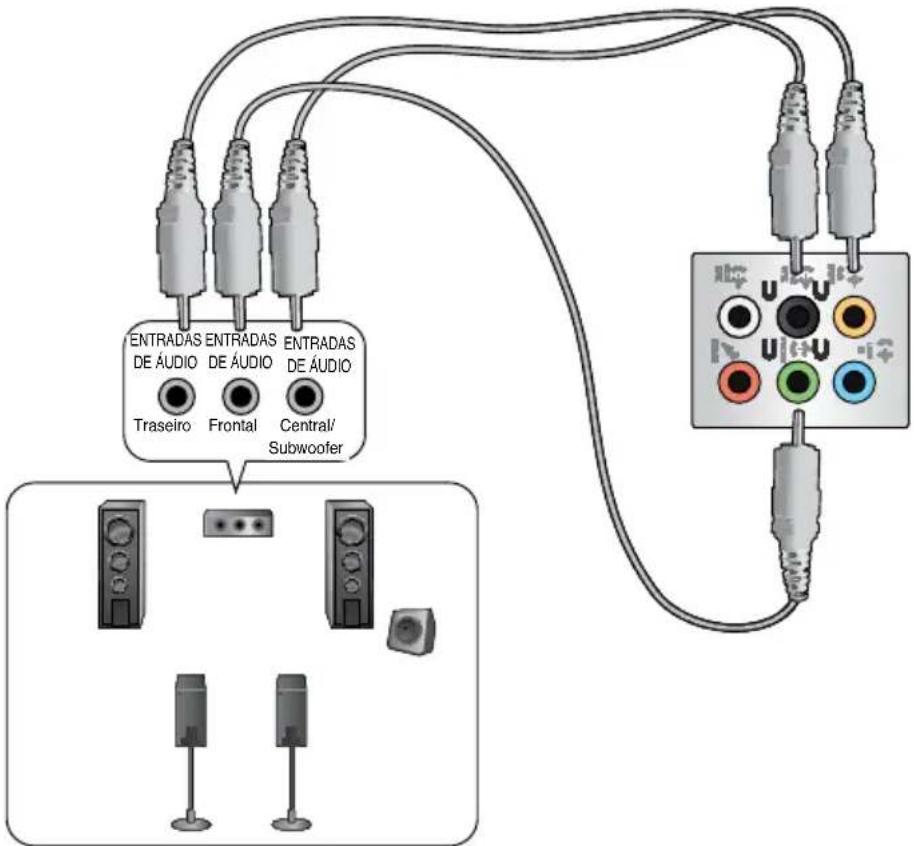
Ligar altifalantes de 8 canais
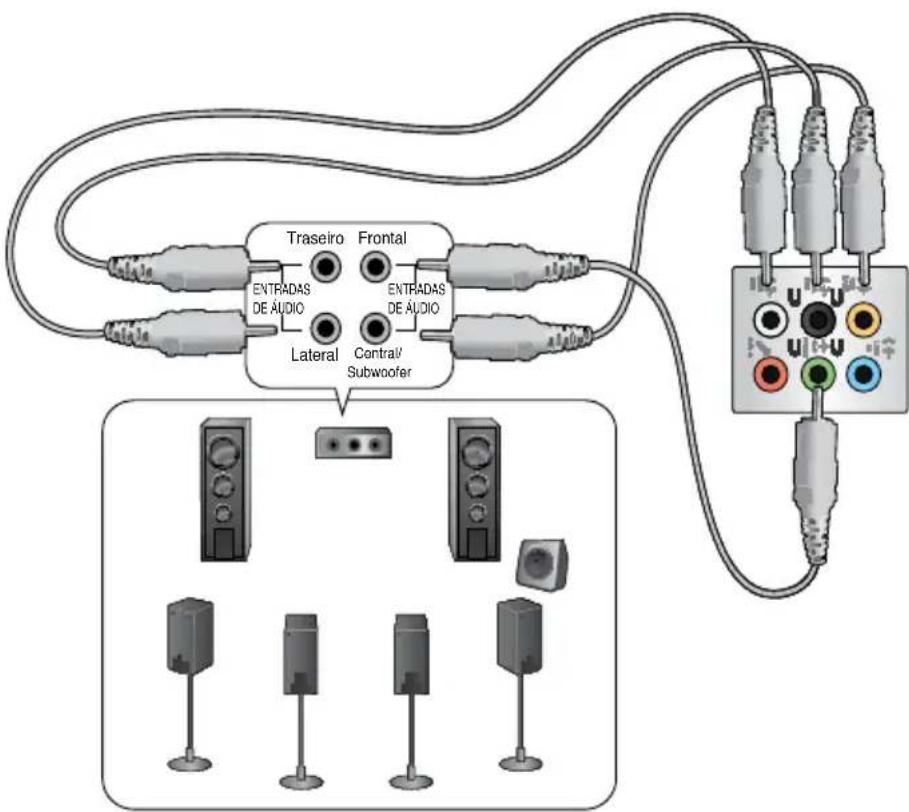
Capítulo 4
natural_image
Black desktop computer tower with a blue circular icon labeled '1' pointing to the front panel (no readable text or symbols beyond the label)
natural_image
Computer tower with open lid and CD/DVD drive, showing three numbered arrows indicating components (no text or symbols on the device itself)
Registo do sensor
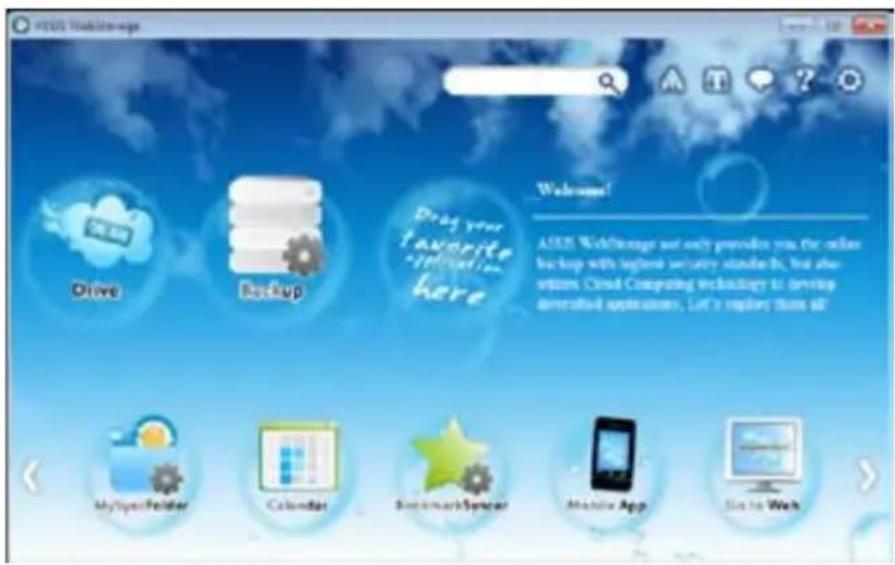
Unidade
ASUS Easy Update
natural_image
Toolbar with icons including headphones, Bluetooth, and a gear icon (no readable text or labels)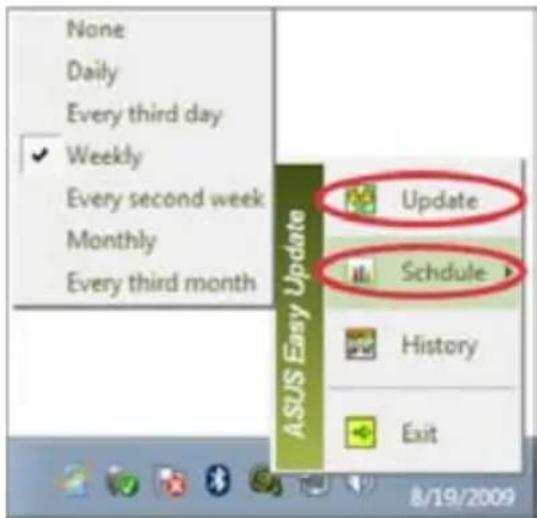
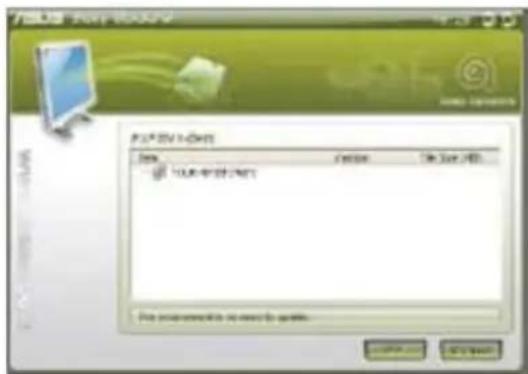
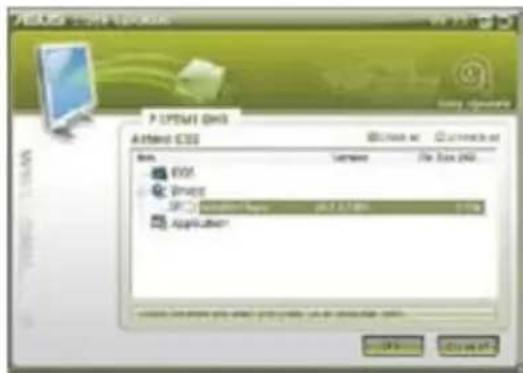
ASUS Secure Delete
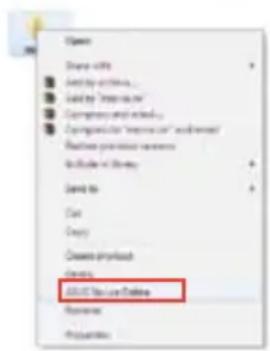
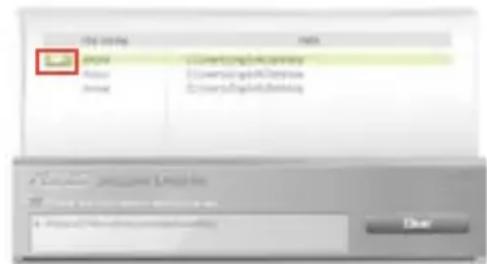
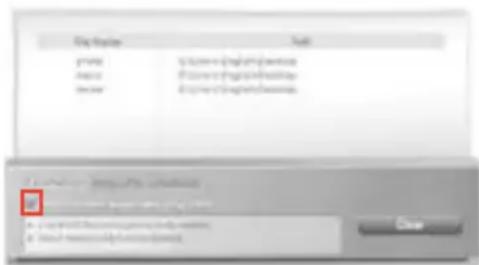
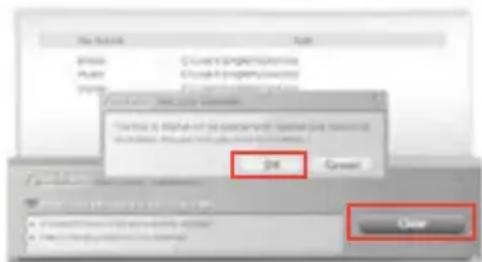
Nero 9
natural_image
Black desktop computer tower with ventilation slots and drive bays (no visible text or labels)BM1845
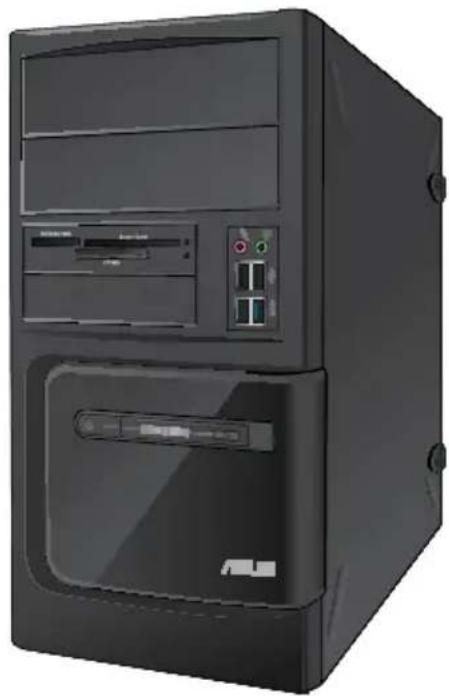
natural_image
Black desktop computer tower case with drive bays and ventilation slots (no visible text or labels)BM1645/MD250
ASUS Secure Delete 502
Nero 9 503
natural_image
Diagram showing a computer monitor connected to an open CPU socket with a cable and a remote control unit (no text or symbols present)
natural_image
Diagram showing a computer setup with an open desktop tower, internal components, and connected keyboard and mouse (no text or symbols present)natural_image
Diagram showing a computer tower connected to an internal CPU socket, with a close-up view of the socket and cable (no text or symbols present)WŁĄCZANIE/WYŁĄCZANIE komputera
natural_image
Back view of a desktop computer tower showing internal components and a speaker icon (no text or symbols)
natural_image
Illustration of a desktop computer tower connected to a headset via cable, with an inset showing a cable being inserted (no text or symbols present)BM1645/MD250

natural_image
Illustration of a desktop computer tower connected to an earphone, showing cable routing and a close-up of the tower's internal components (no text or symbols present)natural_image
Front view of a desktop computer tower with a blue circular icon labeled '1' pointing to the right side (no text or symbols on the tower itself)

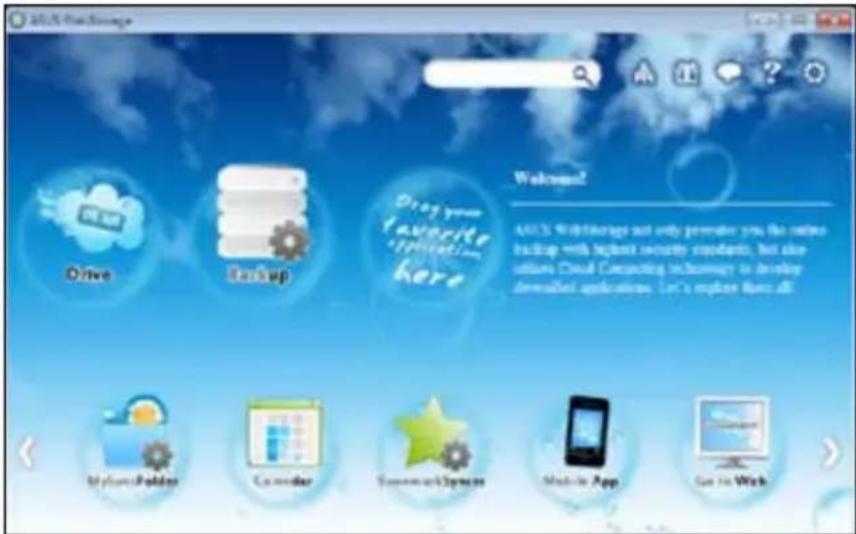
Naped
ASUS Easy Update
natural_image
Toolbar with icons including headphones, Bluetooth, and a spiral icon (no readable text or labels)

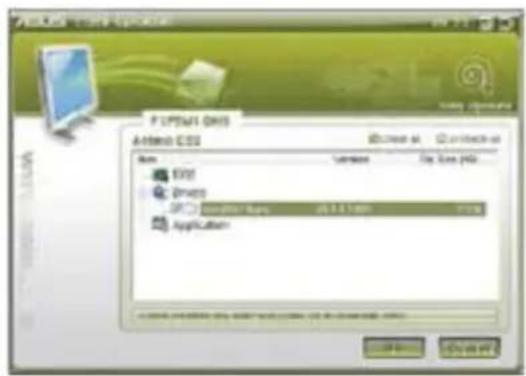
ASUS Secure Delete
Nero 9
Adres 15 Li-Te Road, Peitou, Taipei, Taiwan
11259
Telefon +886-2-2894-3447
Faks +886-2-2890-7798
E-mail info@asus.com.tw
Strona internetowa www.asus.com.tw
Pomoc techniczna
Telefon +86-21-38429911
Wsparcie online support.asus.com
Adres 800 Corporate Way, Fremont, CA
94539, USA
Telefon +1-510-739-3777
natural_image
3D rendering of a black desktop computer tower with ventilation slots and drive bays (no visible text or labels)BM1845

natural_image
Exterior view of a black desktop computer tower case with drive bays and ventilation slots (no visible text or symbols)BM1645/MD250
Kullanım Kılavuzu
TR7330
Birinci Baskı
Haziran 2012
Telif Hakki © 2012 ASUSTeK Computer Inc. Her Hakki Saklıdır.
ASUS AI Manager....560
ASUS Webstorage....563
ASUS Easy Update 565
ASUS Secure Delete 566
Nero 9 567
Sisteminizi kurtarmav.... 568
natural_image
Illustration of a computer setup with an open drive, cable, and monitor connected to a server rack (no text or symbols visible)
natural_image
Laptop keyboard connected to a computer via cable, showing internal hardware and a close-up of the device (no text or symbols visible)natural_image
Diagram showing a computer tower connected to an internal CPU socket, with a close-up view of the socket's internal structure (no text or symbols visible)natural_image
Back view of a computer tower showing internal components and a magnified inset highlighting a speaker icon (no text or symbols visible)
natural_image
Illustration of a desktop computer tower connected to a headset, with an inset showing a cable being inserted (no text or symbols present)BM1645/MD250
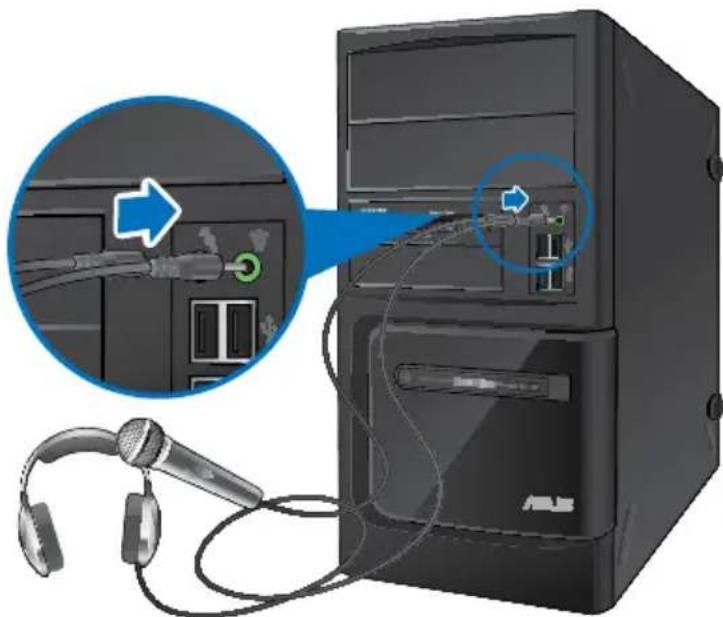
natural_image
Computer tower connected to a headset via cable, showing internal components and a close-up of the tower's cable (no text or symbols visible)natural_image
Front view of a desktop computer tower with a blue circular icon labeled '1' pointing to the right side (no readable text or symbols on the tower itself)
natural_image
Row of five computer and media application icons (Windows, Chrome, PDF, YouTube, Google Cloud) on a light background, no text or symbols present.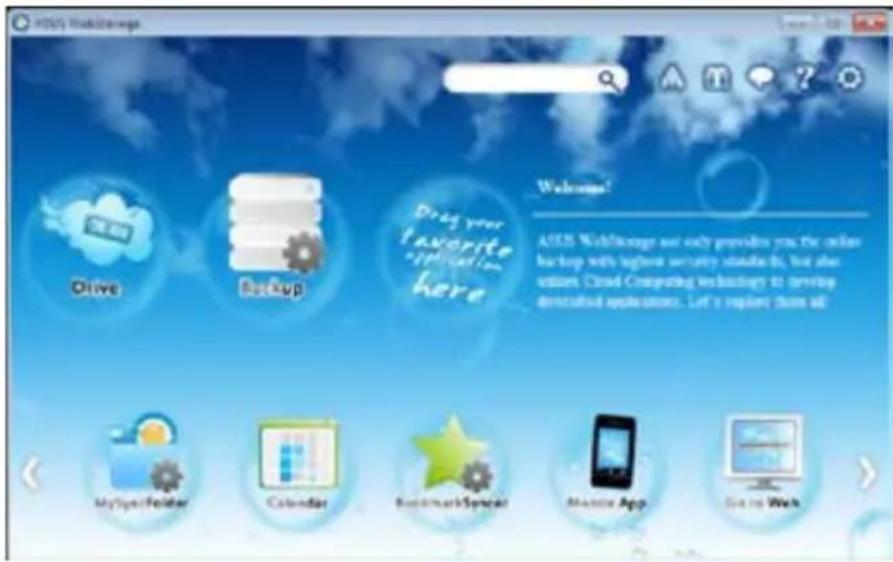
Sürücü
ASUS Easy Update
natural_image
Toolbar with icons including headphones, Bluetooth, and a gear icon (no readable text or symbols)

ASUS Secure Delete
Nero 9
Visit the ASUS website at www.asus.com for updated drivers and utilities.
natural_image
Black desktop computer tower with ventilation slots and drive bays (no visible text or labels)BM1845
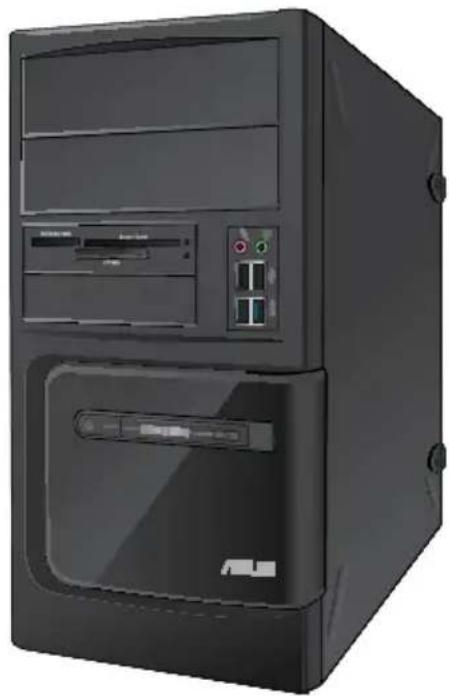
natural_image
Black desktop computer tower case with drive bays and ventilation slots (no visible text or labels)BM1645/MD250
ASUS AI Manager....624
ASUS Webstorage 627
ASUS Easy Update 629
ASUS Secure Delete....630
Nero 9 631
natural_image
Diagram showing a computer monitor connected to an open CPU socket with a cable and a remote control unit (no text or symbols present)
natural_image
Diagram showing a desktop computer setup with an open tower, internal components, and connected keyboard and mouse (no text or symbols present)natural_image
Diagram showing connections between a computer tower, power strip, and internal components (no text or symbols present)natural_image
Back view of a computer tower internal panel showing audio equipment and ventilation slots (no text or symbols visible)
natural_image
Illustration of a desktop computer tower connected to a headset, with an inset showing cable routing and a blue arrow indicating direction (no text or symbols present)BM1645/MD250
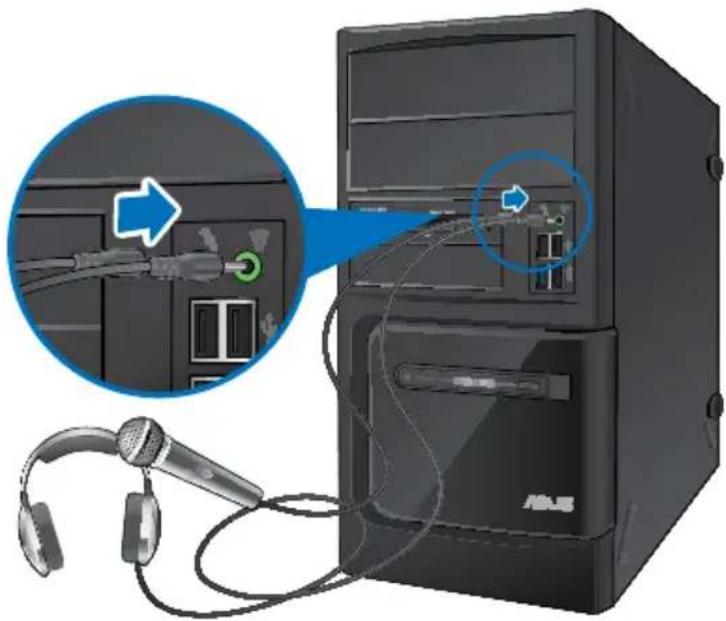
natural_image
Computer tower connected to a headset via cable, showing internal network and port (no text or symbols visible)natural_image
Front view of a desktop computer tower with a highlighted drive unit (no visible text or labels)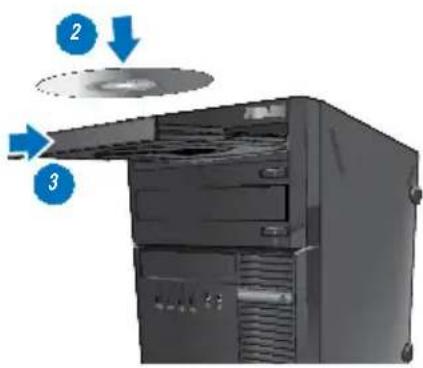


Drive
ASUS Easy Update
natural_image
Toolbar with icons including headphones, Bluetooth, and a speech bubble (no readable text or symbols)

ASUS Secure Delete

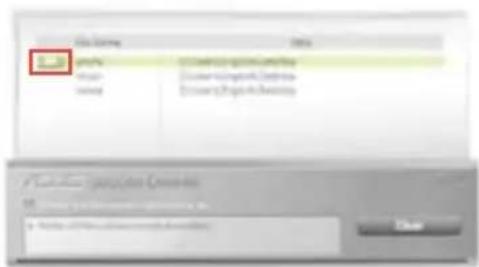
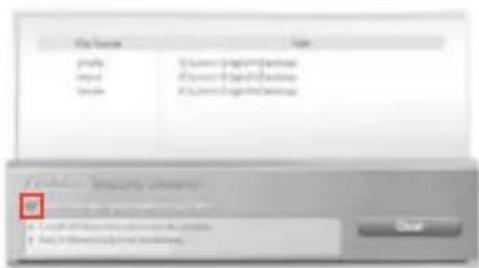

Nero 9
- User Manual
- Copyright © 2012 ASUSTeK Computer Inc. All Rights Reserved.
- Contents
- Chapter 1 Getting started
- Chapter 2 Using Windows ® 7
- Chapter 3 Connecting devices to your computer
- Chapter 4 Using your computer
- Chapter 5 Connecting to the Internet
- Chapter 6 Using the utilities
- Chapter 7 Troubleshooting
- Notices
- ASUS Recycling/Takeback Services
- REACH
- Federal Communications Commission Statement
- RF exposure warning
- Canadian Department of Communications Statement
- Macrovision Corporation Product Notice
- Lithium-Ion Battery Warning
- Safety information
- Conventions used in this guide
- Where to find more information
- ASUS websites
- ASUS Local Technical Support
- Package contents
- Chapter 1
- Getting started
- Welcome!
- Getting to know your computer
- BM1845
- Front panel
- BM1645/MD250
- Rear panel
- Setting up your computer
- Using the onboard display output ports
- To connect an external monitor using the onboard display output ports:
- Connecting a USB keyboard and a USB mouse
- Connecting the power cord
- Turning your computer ON/OFF
- Turning your computer ON
- To turn your computer ON:
- Turning your computer OFF
- To turn your computer OFF:
- Chapter 2
- Using Windows® 7
- Starting for the first time
- To start for the first time:
- Using Windows ® 7 desktop
- Using the Start menu
- Launching items from the Start menu
- To launch items from the Start menu:
- Using the Getting Started item
- To use the Getting Started item:
- Using the taskbar
- Launching a program from the taskbar
- To launch a program from the taskbar:
- Pinning items on the jumplists
- To pin items to the jumplist:
- Unpinning items from the jumplist
- To unpin items from the jumplist:
- Pinning programs on the Start menu or taskbar
- To pin programs on the Start menu or taskbar:
- Unpinning programs from the Start menu
- To unpin programs from the Start menu:
- Unpinning programs from the taskbar
- To unpin programs from the taskbar:
- Using the notification area
- Displaying an alert notification
- To display an alert notification:
- Customizing icons and notifications
- To customize icons and notifications:
- Managing your files and folders
- Using Windows® Explorer
- Launching Windows® Explorer
- To launch Windows Explorer:
- Exploring files and folders
- To explore files and folders:
- Customizing the file/folder view
- To customize the file/folder view:
- Arranging your files
- To arrange your files:
- Sorting your files
- To sort your files:
- Grouping your files
- To group your files:
- Adding a new folder
- To add a new folder:
- Backing up your files
- Setting up a backup
- To set up a backup:
- Restoring your system settings
- To restore your system:
- Protecting your computer
- Using Windows ® 7 Action Center
- Launching Windows ® 7 Action Center
- To launch Windows® 7 Action Center:
- Using Windows® Update
- Launching Windows® Update
- To launch Windows® Update:
- Setting up a user account and password
- Setting up a user account
- To set up a user account:
- Setting up a user's password
- To set up a user's password:
- Activating the anti-virus software
- To activate Trend Micro Internet Security:
- Getting Windows® Help and Support
- Chapter 3
- Connecting devices to your computer
- Connecting a USB storage device
- To connect a USB storage device:
- To remove a USB storage device:
- Connecting microphone and speakers
- Connecting Headphone and Mic
- Chapter 4
- Using your computer
- Proper posture when using your Desktop PC
- To maintain the proper posture:
- Using the optical drive (on selected models only)
- Inserting an optical disc
- To insert an optical disc:
- Removing an optical disc
- To remove an optical disc:
- Configuring the USB ports using the BIOS
- To disable or enable the USB ports:
- Chapter 5
- Connecting to the Internet
- Wired connection
- Connecting via a DSL/cable modem
- Connecting via a local area network (LAN)
- To connect via a LAN:
- Chapter 6
- Using the utilities
- ASUS AI Suite II
- Installing AI Suite II
- To install AI Suite II:
- Using AI Suite II
- The Tool menu
- Launching and configuring EPU
- To launch EPU:
- Launching and configuring Probe II
- To launch Probe II:
- To configure Probe II:
- Launching and configuring Sensor Recorder
- To launch Sensor Recorder:
- To configure Sensor Recorder:
- The Monitor menu
- Launching Sensor
- To launch Sensor:
- Launching CPU Frequency
- To launch CPU frequency:
- The Update menu
- ASUS Update
- Updating the BIOS through the Internet
- To update the BIOS through the Internet:
- Updating the BIOS through a BIOS file
- To update the BIOS through a BIOS file:
- MyLogo
- Changing the BIOS boot logo
- The System Information screen
- The Support screen
- The Settings screen
- ASUS AI Manager
- Installing AI Manager
- To install AI Manager:
- Launching AI Manager
- AI Manager quick bar
- Main
- AI Disk
- AI Security
- To lock a device:
- To unlock the device:
- To change the password:
- AI Booting
- To specify the boot sequence:
- My Favorites
- To add an application:
- Support
- Information
- ASUS Webstorage
- Installing webstorage
- Launching Webstorage
- Drive
- Backup
- MySyncFolder
- Calendar
- BookmarkSyncer
- MobileApp
- Go to Web
- Settings
- ASUS Easy Update
- ASUS Secure Delete
- To Use ASUS Secure Delete
- Nero 9
- Installing Nero 9
- To install Nero 9:
- Burning files
- To burn files:
- Recovering your system
- Using the system recovery partition
- About the system recovery partition
- Using the system recovery partition:
- Using the Recovery DVD (on selected models)
- To use the Recovery DVD:
- Chapter 7
- Troubleshooting
- ? My computer cannot be powered on and the power LED on the front panel does not light up
- ? My computer hangs.
- ? I cannot connect to a wireless network using the ASUS WLAN Card (on selected models only)?
- ? The arrow keys on the number key pad are not working.
- ? No display on the monitor.
- ? When using multiple monitors, only one monitor has display.
- ? My computer cannot detect my USB storage device.
- I want to restore or undo changes to my computer's system settings without affecting my personal files or data.
- ? The picture on the HDTV is distorted.
- ? My speakers produce no sound.
- ? The DVD drive cannot read a disc.
- ? The DVD drive eject button is not respond.
- LAN
- Audio
- CPU
- ASUS contact information
- ASUSTeK COMPUTER INC.
- ASUS COMPUTER INTERNATIONAL (America)
- Technical Support
- ASUS COMPUTER GmbH (Germany and Austria)
- ASUS Desktop PC
- Benutzerhandbuch
- Kapitel 4
- Computer verwenden
- ASUS COMPUTER INTERNATIONAL (Amerika)
- Support technique ASUS local
- Lancer Windows® Update
- Installer AI Manager
- Manuale Utente
- Copyright © 2012 ASUSTeK Computer Inc. Tutti i Diritti Riservati.
- Dichiarazione FCC (Federal Communications Commission)
- Supporto Tecnico
- ASUSTeK ITALY S.r.l (Italia)
- Para instalar AI Manager:
- Unidad
- De stroomkabel verbinden
- Uw computer AAN/UIT-schakelen
- Uw computer AAN-schakelen
- Station
- Manual do Utilizador
- Capítulo 4
- Registo do sensor
- Unidade
- Production (Company, Microsoft)
- Product/Production (Company)
- WŁĄCZANIE/WYŁĄCZANIE komputera
- Naped
- Pomoc techniczna
- Kullanım Kılavuzu
- Telif Hakki © 2012 ASUSTeK Computer Inc. Her Hakki Saklıdır.
- Sürücü
Brand : ASUS
Model : BM1845
Category : Desktop computer