
TLWA901N - Access Point TP-LINK - Free user manual and instructions
Find the device manual for free TLWA901N TP-LINK in PDF.
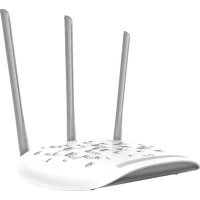



| Product Type | Wi-Fi Access Point |
| Brand | TP-Link |
| Model | TL-WA901N |
| Wi-Fi Standards | IEEE 802.11b/g/n (2.4 GHz) |
| Maximum Data Rate | 300 Mbps |
| Ports | 1 Ethernet 10/100 Mbps Port (RJ-45) |
| Operating Modes | Access Point, Wi-Fi Repeater, Client, Multi-SSID |
| Power Supply | Power adapter (included) or passive PoE injector (cable < 30 m) |
| Configuration Method | Web Interface via http://tplinkap.net or 192.168.0.254 |
| Wireless Security | WPA/WPA2, WEP |
| Reset Button | Reset Button (press and hold until the power LED blinks) |
| PoE Compatibility | Yes (passive PoE injector included) |
| Operating Conditions | Operating Temperature: 0°C to 40°C; Humidity: 10% to 90% (non-condensing) |
| Maintenance | Keep away from water, fire, humidity or any hot environment. Do not disassemble. |
| Usage Safety | Do not use a damaged charger. Do not use in areas where wireless communications are prohibited. |
Frequently Asked Questions - TLWA901N TP-LINK
User questions about TLWA901N TP-LINK
0 question about this device. Answer the ones you know or ask your own.
Ask a new question about this device
Download the instructions for your Access Point in PDF format for free! Find your manual TLWA901N - TP-LINK and take your electronic device back in hand. On this page are published all the documents necessary for the use of your device. TLWA901N by TP-LINK.
USER MANUAL TLWA901N TP-LINK
TP-Link Technologies Co., Ltd. South Building (floors 1, 3, 4, 5) and 2B (floors 1-4), Central Science
TP Link Deutschland GmbH Robert Bosch Straße 9, 65719 Hofheim am Taunus, Germany
TP-Link UK Limited Unit 2 & 3 Overview (142-144), Cardiff Road, Reading, RG1 8EW
TP-Link (India Srl)
BrrnreEaoue, 1518 Vuae Mora
Morti Barbosa Gnd Sutara Sokka No 150
17-Link SgR Herodion 100 Ltd. St Ser 46, Barvings Hall, London WC1N 8AZ. Tel: 34775 209-34775
TP-Link IBERIA S.L. Calle Quintanavides 17, 3rd E, 28050 Madrid, Spain
TP-Link Netherlands B.V. Archimedesbaan 18, 3439 ME Nieuwegein
TP-Link (Nordic) AB Forumvagen 14, Plan 13, 13153 Nocka, Sweden TEL: +40 8629-10000
NWS.TP-Link Portugal, Unipersonal, Lda. Avenida da Libertad, n'245, 7th E 1250-143 Lisboa, Portugal
Specifications are subject to change without notice.
Tectiiong Co. Ltd. Other brands and product names are trademarks or registered trademarks of their respective biherors
No part of the specifications may be reproduced in any form or by any means or used to make any
TP-Link Technologies Co., Ltd. Copyright © 2019 TP-Link Technologies Co., Ltd. All rights reserved.
www.tp-link.com

For technical support, the user guide and other information, please visit
https://www.tp-link.com/support, or simply scan the QR code.
74085409V200


tp-link
Quick Installation Guide
Wireless Access Point
CONTENTS
01 / Deutsch 06 / English 11 / Español 16 / Ελληνικά 21 / Français 26 / Italiano 31 / Português 36 / Suomi 41 / Nederlands 46 / Svenska 51 / Norsk 56 / Dansk
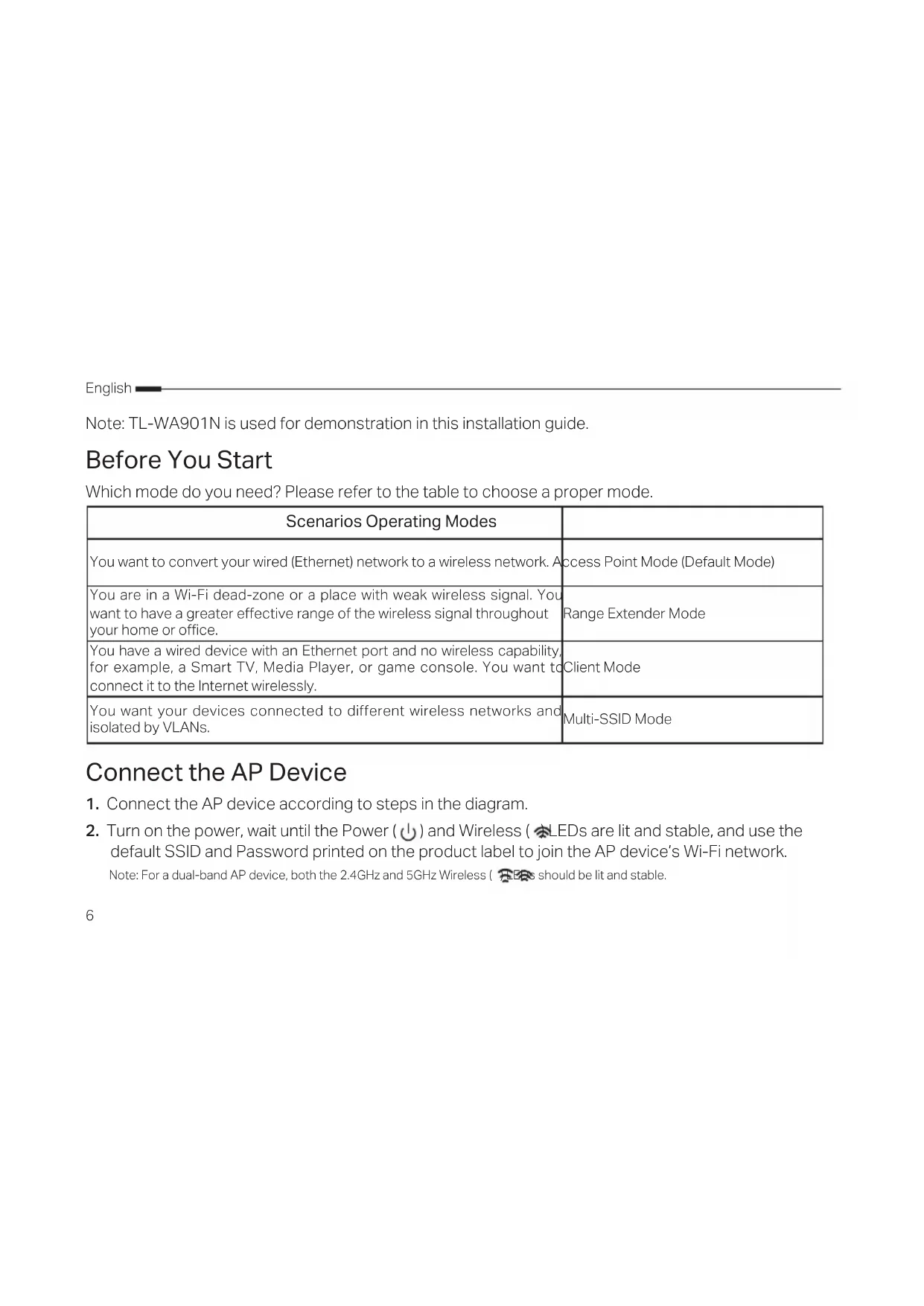
Note: TL-WA901N is used for demonstration in this installation guide.
Before You Start
Which mode do you need? Please refer to the table to choose a proper mode.
| Scenarios Operating Modes | |
| You want to convert your wired (Ethernet) network to a wireless network. Access Point Mode (Default Mode) | |
| You are in a Wi-Fi dead-zone or a place with weak wireless signal. You want to have a greater effective range of the wireless signal throughout your home or office. | Range Extender Mode |
| You have a wired device with an Ethernet port and no wireless capability, for example, a Smart TV, Media Player, or game console. You want to connect it to the Internet wirelessly. | Client Mode |
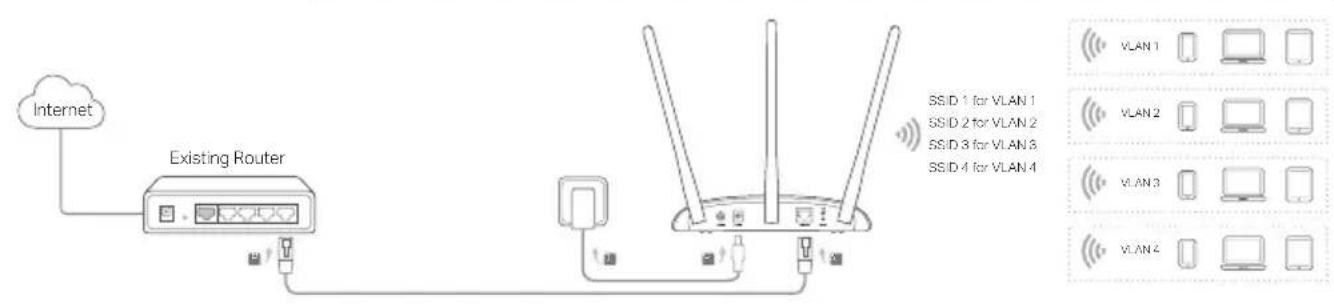
| You want your devices connected to different wireless networks and isolated by VLANs. | Multi-SSID Mode |
Connect the AP Device
- Connect the AP device according to steps in the diagram.
- Turn on the power, wait until the Power (↓) and Wireless LEDs are lit and stable, and use the default SSID and Password printed on the product label to join the AP device's Wi-Fi network.
Note: For a dual-band AP device, both the 2.4GHz and 5GHz Wireless LEDs should be lit and stable.
Access Point Mode (Default) Transforms your existing wired network to a wireless one.
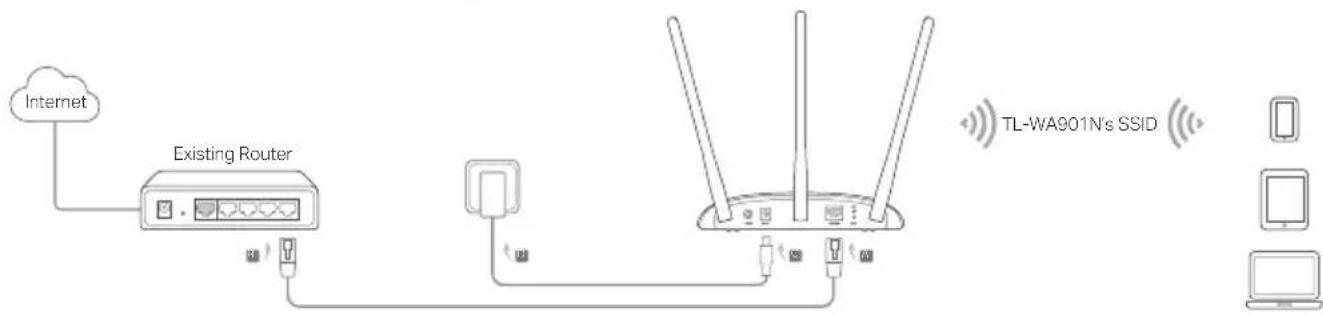
Note: You can enjoy internet surfing now. For your wireless network security, it is recommended to change the default SSID (network name) and the password of your Wi-Fi network. To do so, refer to Configure the AP Device.
- Range Extender Mode Extends the range of an existing Wi-Fi network.
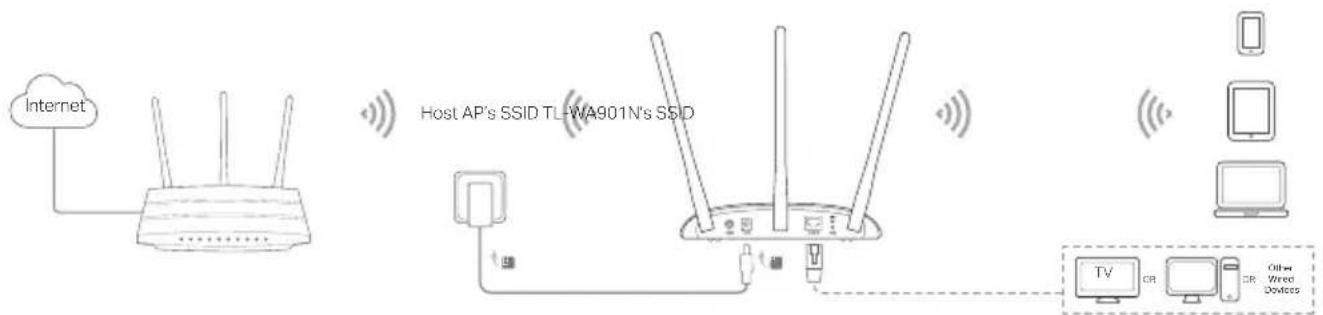
- Client Mode Connects your wired devices to a wireless network.
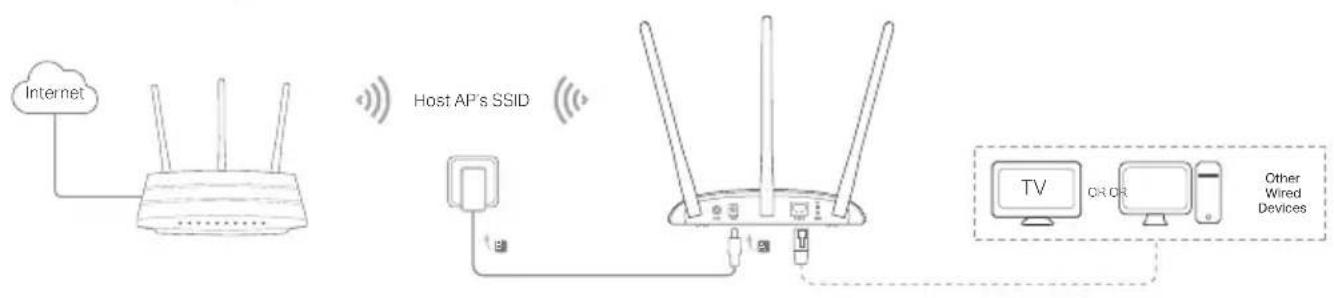
Multi-SSID Mode Creates multiple wireless networks to provide different security and VLAN groups.
Configure the AP Device
- Launch a web browser and enter http://tplinkap.net. Create a password to log in.
- Click Quick Setup, select your corresponding mode and click Next. Follow the step-by-step instructions to complete the configuration.
- Now, reconnect your devices to the AP device.
Note: In Client mode, only the wired connected devices can enjoy the internet surfing. In Multi-SSID mode, connect your wireless devices to the different Wi-Fi networks to be isolated by VLANs.
Power on via PoE Injector
Power the device with the included passive PoE injector when the device is located far from a power outlet. Note: The passive PoE injector supports a cable length up to 30 meters due to the environment.

English
Frequently Asked Questions (FAQ)
Q1. How do I restore the AP device to its factory default settings?
With the device powered on, use a pin to press and hold the RESET button until the Power LED starts blinking, then release the button.
Note: Upon resetting, all previous configurations will be cleared, and the AP device will reset to the default Access Point Mode.
Q2. What can I do if the login window does not appear?
- Change the computer's static IP address to obtain an IP address automatically.
- Verify if http://tplinkap.net or http://192.168.0.254 is correctly entered in the web browser.
- Use another web browser and try again.
- Reboot your AP device and try again. Power off your host AP and enter http://tplinkap.net into the web browser to try again.
Q3. How do I recover the AP device's web management password or retrieve my Wi-Fi password?
If you forget the password required to access the AP device's web management page, you must restore the AP device to its factory default settings. - If you forget your Wi-Fi password, but are able to access the AP device's management interface, connect a computer or mobile device to the AP device via wired or wireless. Log in and go to Wireless > Wireless Security to retrieve or reset your Wi-Fi password.
Q4. What can I do if my wireless is not stable?
It may be caused by too much interference, you can try the following methods:
- Set your wireless channel to a different one.
- Move the AP device to a new location away from Bluetooth devices and other household electronics, such as cordless phones, microwaves, and baby monitors, to minimize signal interference.
Configure the AP Device
- Keep the device away from water, fire, humidity, or hot environments.
- Do not attempt to disassemble, repair, or modify the device.
- Do not use a damaged charger or USB cable to charge the device.
- Do not use any chargers other than those recommended.
- Do not use the device where wireless devices are not allowed.
- The adapter shall be installed near the equipment and shall be easily accessible.
Please read and follow the above safety information when operating the device. We cannot guarantee that no accidents or damage will occur due to improper use of the device. Please use this product with care and operate at your own risk.
TP-Link Three Years Limited Product Warranty
For TP-Link Branded Products Only.
THIS WARRANTY GIVES YOU SPECIFIC LEGAL RIGHTS, AND YOU MAY HAVE OTHER RIGHTS THAT VARY FROM STATE TO STATE (OR BY COUNTRY OR PROVINCE).
TO THE EXTENT ALLOWED BY LOCAL LAW, THIS WARRANTY AND THE REMEDIES SET FORTH ARE EXCLUSIVE AND IN LIEU OF ALL OTHER WARRANTIES, REMEDIES AND CONDITIONS.
TP-Link warrants the TP-Link branded hardware product contained in the original packaging against defects in materials and workmanship when used normally in accordance with TP-Link's guidelines for a period of THREE YEARS from the date of original retail purchase by the end-user purchaser.
Spanish
TP-Link hereby declares that the device is in compliance with the essential requirements and other relevant provisions of directives 2014/53/EU, 2009/125/EC and 2011/65/EU and (EU)2015/863.
The original EU declaration of conformity may be found at http://www.tp-link.com/en/ce
Greek
- QUICK INSTALLATION GUIDE
- CONTENTS
- BEFORE YOU START
- CONNECT THE AP DEVICE
- CONFIGURE THE AP DEVICE
- POWER ON VIA POE INJECTOR
- ENGLISH
- FREQUENTLY ASKED QUESTIONS (FAQ)
- Q1. HOW DO I RESTORE THE AP DEVICE TO ITS FACTORY DEFAULT SETTINGS
- Q2. WHAT CAN I DO IF THE LOGIN WINDOW DOES NOT APPEAR
- Q3. HOW DO I RECOVER THE AP DEVICE'S WEB MANAGEMENT PASSWORD OR RETRIEVE MY WI-FI PASSWORD
- Q4. WHAT CAN I DO IF MY WIRELESS IS NOT STABLE
- TP-LINK THREE YEARS LIMITED PRODUCT WARRANTY
- SPANISH
- GREEK
Brand : TP-LINK
Model : TLWA901N
Category : Access Point