KD49X720E - TV SONY - Free user manual and instructions
Find the device manual for free KD49X720E SONY in PDF.


User questions about KD49X720E SONY
0 question about this device. Answer the ones you know or ask your own.
Ask a new question about this device
Download the instructions for your TV in PDF format for free! Find your manual KD49X720E - SONY and take your electronic device back in hand. On this page are published all the documents necessary for the use of your device. KD49X720E by SONY.
USER MANUAL KD49X720E SONY
Operating Instructions (Setup Guide)
Sony Customer Support
U.S.A.:
http://www.sony.com/tvsupport
Canada:
http://www.sony.ca/support
United States Canada 1.800.222.SONY 1.877.899.SONY
Please Do Not Return the Product to the Store
Preventing the TV from Toppling . . . . . 7
Recommended Measures to Secure
the TV. 8
Precautions 9
Parts and Controls
TV. 10
Remote Control 11
Guidelines for Remote Control .13
Connecting TV to the Internet
Setting up the Internet
Connection 14
Type 1: Secured network with Wi-Fi
Protected SetupTM (WPS) 14
Type 2: Secured network without
Wi-Fi Protected SetupTM (WPS) 15
Type 3: Unsecured network with
any type of wireless LAN router 15
Type 4: Wired network set-up .15
Preparing a Wired Network 16
Viewing the Network Status 16
If You Cannot Connect to the
Internet 16
Privacy Policy 16
Watching TV
Select Your Content Source. 17
Adjust Screen Shape and Aspect
Ratio 17
Customize Sound and Picture
Quality. 17
Changing the Viewing Style 18
Changing the Wide Mode 18
Setting Scene Select. 18
Navigating through Home Menu
All Apps. 19
Photo Sharing Plus. 19
Using the TV as a Photo Frame
Mode 20
Favorites 20
Media 21
Playback Photo/Music/Video via
USB 21
Playback Photo/Music/Video via
Home Network 22
Settings. 23
Preferences. 23
Customer Support 32
Accessibility 33
Viewing Pictures from Connected Equipment
Connection Diagram. 34
Connecting the TV 35
Showing a Set Top Box with HDMI connection 35
Showing a Set Top Box with Component connection 36
Cable System or VHF/UHF Antenna System 36
Showing HD BRAVIA® Sync™ Basic Connection 37
Showing HD Basic Connection with Home Theater System 38
Showing PC Connection with SD VCR/DVD 39
Using Audio and Video
Equipment 40
Using Screen Mirroring. 40
Additional Information
Installing the TV to the Wall 41
Installing the TV against a wall or enclosed area. 42
Troubleshooting. 43
Picture. 43
Sound 44
Channels 44
Network 44
General 45
Specifications. 46
Introduction
Thank you for choosing this Sony product. Before operating the TV, please read this manual thoroughly and retain it for future reference.
Note
Images and illustrations used in the Setup Guide and this manual are for reference only and may differ from the actual product.
The 55" class has a 54.6 inch (138.8 cm) viewable image size, 49" class has a 48.5 inch (123.2 cm) viewable image size and 43" class has a 42.5 inch (108.0 cm) viewable image size (measured diagonally).
Location of the Setup Guide
Setup Guide is placed on top of the cushion inside the TV carton.
Location of the identification label
Labels for the TV Model No. and Power Supply rating are located on the rear of the TV.
For models with supplied AC adapter: Labels for the AC adapter Model No. and Serial No. are located on the bottom of the AC adapter.
IMPORTANT NOTICE
Owner's Record
The model and serial numbers are located at the side and/or rear of the TV. Record these numbers in the spaces provided below. Refer to them whenever you call upon your Sony dealer regarding this TV.
Model Name
Serial No.
CAUTION
To prevent electric shock and blade exposure, do not use this AC plug with an extension cord, receptacle or other outlet unless the blades can be fully inserted.
- Operate the TV only on DC 19.5 V (with AC adapter).
- Operate the TV only on 110 V - 240 V AC (U.S.A./Canada 120 V AC) (except models with supplied AC adapter).
Note
This television includes a QAM demodulator which should allow you to receive unscrambled digital cable television programming via subscription service to a cable service provider. Availability of digital cable television programming in your area depends on the type of programming and signal provided by your cable service provider.
Cleaning
When cleaning, be sure to unplug the power cord to avoid any chance of electric shock.
- Wipe the LCD screen gently with a soft cloth.
- Stubborn stains may be removed with a cloth slightly moistened with a solution of mild soap and warm water.
- If using a chemically pretreated cloth, please follow the instruction provided on the package.
- Never use strong solvents such as a thinner, alcohol or benzine for cleaning.
See the supplied Safety Booklet for additional information.
Safety Information
Declaration of Conformity
Trade Name:SONY
Model: KD-55X720E / 49X720E / 43X720E
Responsible Party: Sony Electronics Inc.
Address: 16535 Via Esprillo, San Diego, CA 92127 U.S.A.
Telephone Number: 858-942-2230
This device complies with part 15 of the FCC rules. Operation is subject to the following two conditions:
(1) This device may not cause harmful interference, and
(2) this device must accept any interference received, including interference that may cause undesired operation.
FCC Related Information
This equipment has been tested and found to comply with the limits for a Class B digital device, pursuant to Part 15 of the FCC Rules. These limits are designed to provide reasonable protection against harmful interference in a residential installation. This equipment generates, uses and can radiate radio frequency energy and, if not installed and used in accordance with the instructions, may cause harmful interference to radio communications. However, there is no guarantee that interference will not occur in a particular installation. If this equipment does cause harmful interference to radio or television reception, which can be determined by turning the equipment off and on, the user is encouraged to try to correct the interference by one or more of the following measures:
- Reorient or relocate the receiving antenna.
- Increase the separation between the equipment and receiver.
- Connect the equipment into an outlet on a circuit different from that to which the receiver is connected.
- Consult the dealer or an experienced radio/TV technician for help.
Pursuant to FCC regulations, you are cautioned that any changes or modifications not expressly approved in this manual could void your authority to operate this equipment.
Safety and Regulatory
This device complies with Industry Canada's licence-exempt RSSs. Operation is subject to the following two conditions:
(1) This device may not cause interference; and
(2) This device must accept any interference, including interference that may cause undesired operation of the device.
This equipment complies with FCC/IC radiation exposure limits set forth for an uncontrolled environment and meets the FCC radio frequency (RF) Exposure Guidelines and RSS-102 of the IC radio frequency (RF) Exposure rules. This equipment should be installed and operated keeping the radiator at least 20 cm or more away from person's body (excluding extremities: hands, wrists, feet and ankles).
This device and its antenna(s) must not be co-located or operating with any other antenna or transmitter except Grant condition.
WARNING
Never place a television set in an unstable location. A television set may fall, causing serious personal injury or death. Many injuries, particularly to children, can be avoided by taking simple precautions such as:
-Using cabinets or stands recommended by the manufacturer of the television set.
-Only using furniture that can safely support the television set.
- Ensuring the television set is not overhanging the edge of the supporting furniture.
-Not placing the television set on tall furniture (for example, cupboards or bookcases) without anchoring both the furniture and the television set to a suitable support.
-Not placing the television set on cloth or other materials that may be located between the television set and supporting furniture.
-Educating children about the dangers of climbing on furniture to reach the television set or its controls.
-Keep small accessories out of the reach of children, so that they are not mistakenly swallowed.
If your existing television set is being retained and relocated, the same considerations as above should be applied.
NOTE ON AC ADAPTER (models with supplied AC adapter only)
Warning
To reduce the risk of fire or electric shock, do not expose this apparatus to rain or moisture.
To prevent fire or shock hazard, do not place objects filled with liquids, such as vases, on the apparatus.
Do not install this equipment in a confined space, such as a bookshelf or similar unit.
- Please ensure that the AC power outlet is installed near the equipment and shall be easily accessible.
- Be sure to use the supplied AC adapter and AC power cord. Otherwise it may cause a malfunction.
-
Connect the AC adapter to an easily accessible AC power outlet.
-
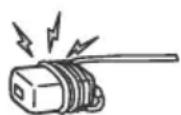
Do not coil the AC power cord around the AC adapter. The core wire may be cut and/or it may cause a malfunction of the TV.
- Do not touch the AC adapter with wet hands.
- If you notice an abnormality in the AC adapter, disconnect it from the AC power outlet immediately.
- The set is not disconnected from the AC source as long as it is connected to the AC power outlet, even if the set itself has been turned off.
- As the AC adapter will become warm when it is used for a long time, you may feel hot when touching it by hand.
The BRAVIA® 4K TV Experience
Thank you for choosing Sony! Your new BRAVIA® TV opens the door to the "4K TV Experience." This document will help you get the most out of your TV. Please take a moment to register your TV at:
U.S.A.:
http://productregistration.sony.com Canada:
http://www.sony.ca/registration
Four Steps to a 4K TV Experience
Set, Source, Sound, and Setup.
1 Set
Now that you have made the best selection in LED backlit LCD TV technology, be sure to remove all of the accessories from the packaging before setting up your TV.
2 Source
To experience the stunning detail of your BRAVIA TV, you need access to HD programming.
-
Upgrade your signal or content source to high-definition (4K) by contacting your HD service provider.
-
Bring the astonishing resolution of your Sony 4K Ultra HD TV to life with Sony 4K Ultra HD Media Player. (The availability depends on region)
- Receive over-the-air HD broadcasts with an HD-quality antenna connected directly to the back of your TV. Visit http://www.antennaweb.org for more information on antenna selection and setup.
- Discover the wealth of entertainment now available on super-high resolution Blu-ray Disc^TM player and other Sony HD equipment.
3 sound
Complete the high-definition experience with a BRAVIA Sync™ surround sound system or A/V receiver from Sony.
4 Setup
Install your TV and connect your sources. See page 34 for sample connection diagrams. To help assure the highest quality for your 4K experience, use Sony HDMI (High-Definition Multimedia Interface) cables.
To learn more about 4K TV, visit:
U.S.A.: http://www.sony.com/HDTV
Canada: http://www.sony.ca/hdtv
This TV displays all video input signals in a resolution of 3,840 dots × 2,160 lines.
The following chart shows the high-definition (HD) and standard-definition (SD) video formats supported by your BRAVIA TV inputs.
| INPUT | VIDEO | AUDIO | SUPPORTED FORMATS | |||||||||
| 4K*1 1080/24p/30p | 1080p*1 1080i 720/24p/30p | 1080i 720p*1 480p 480i PC*1 | ||||||||||
| 4K/HD | HDMI | ✓ | ✓ | ✓ | ✓ | ✓ | ✓ | ✓ | ✓ | ✓ | ||
| COMPONENT | Y PB PR | Audio L/R | ✓ | ✓ | ✓ | ✓ | ✓ | |||||
| SD | VIDEO | Composite video connection | Audio L/R | ✓ | ||||||||
*1 For details of supported formats, refer to the "Specifications" in this manual.
Getting Started
Setting Up Your TV
Some TV models are packaged with a detached Table-Top Stand so you can mount your TV to a wall right away. See page 41 (Installing the TV to the Wall) if you want to mount the TV to a wall. If you are not mounting the TV to a wall, you will need to attach the Table-Top Stand. You will need a Phillips screwdriver (not supplied) and the supplied screws to complete the task. Look for the supplied Setup Guide. Be sure to consider the following while setting up your TV:
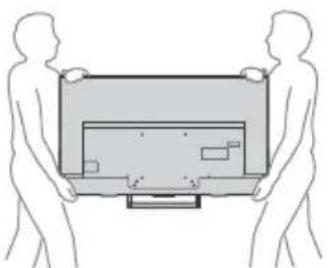
- Disconnect all cables when carrying the TV.
- Carry the TV with the adequate number of people; larger size TVs require two or more people.
- Correct hand placement while carrying the TV is very important for safety and to avoid damage.
- Do not put stress on the LCD panel or the frame around the screen.
- Ensure your TV has adequate ventilation, see page 42.
- For best picture quality, do not expose the screen to direct illumination or sunlight.
- Avoid installing the TV in a room with reflective wall and floor materials.
- Avoid moving the TV from a cold area to a warm area. Sudden room temperature changes may cause moisture condensation. This may cause the TV to show poor picture and/or poor color. Should this occur, allow moisture to evaporate completely before powering the TV on.
Securing the TV

Sony strongly recommends taking measures to prevent the TV from toppling over. Unsecured TVs may topple and result in property damage, serious bodily injury or even death.
Preventing the TV from Toppling
- Secure the TV to a wall and/or stand.
- Do not allow children to play or climb on furniture and TV sets.
- Avoid placing or hanging items on the TV.
- Never install the TV on: - slippery, unstable and/or uneven surfaces.
furniture that can easily be used as steps, such as a chest of drawers.
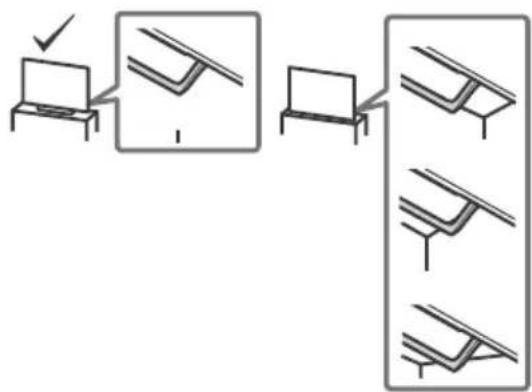
Install the TV where it cannot be pulled, pushed, or knocked over. - Install the TV so that the TV's Table-Top Stand does not protrudes out from the Stand (not supplied). If the Table-Top Stand protrudes out from the Stand, it may cause TV set to topple over, fall down, and cause personal injury or damage to the TV.
- Route all AC power cords and connecting cables so that they are not accessible to curious children.
Recommended Measures to Secure the TV
Consider the following measures when securing your TV to a Stand (not supplied).
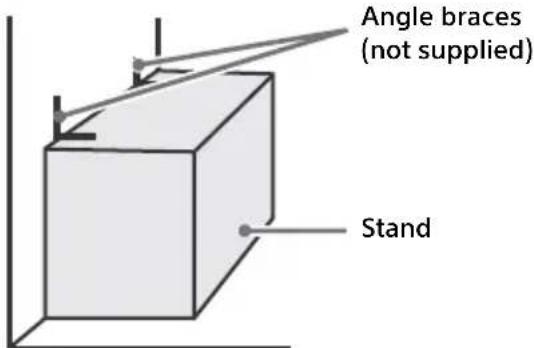
1 Secure the Stand for the TV. Make sure the Stand can adequately support the weight of the TV. Use two angle braces (not supplied) to secure the Stand. For each angle brace use the appropriate hardware to:
- Attach one side of the angle brace to the wall stud.
- Attach the other side to the Stand.
2 Secure the TV to the Stand. Use the optional hardware listed as follows (not supplied):
- M6 machine screws (screwed into the TV's rear cover).
- A screw or similar (attach it to the Stand).
- Rope or chain (strong enough to support the weight of the TV). Make sure that there is no excess slack in the rope or chain.
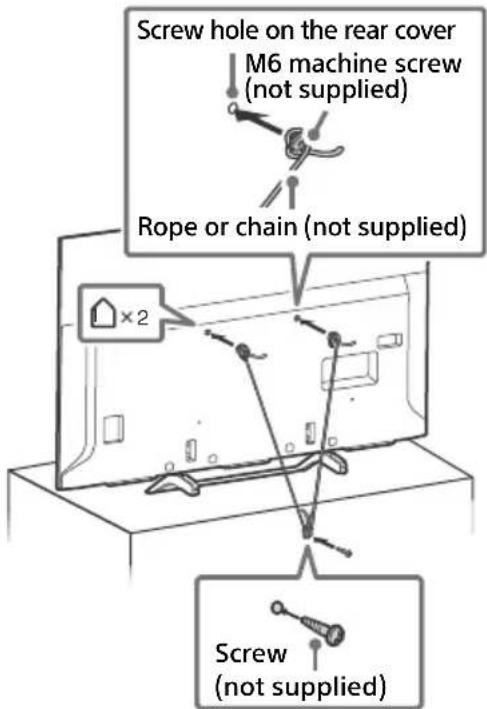
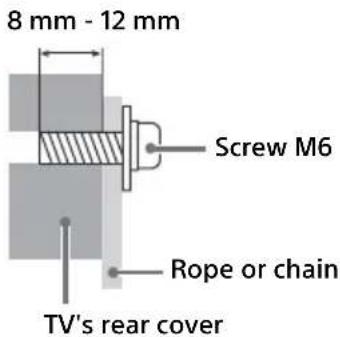
The length of the M6 machine screw differs depending on the rope or chain diameter. Please refer to below illustration.
3 Anchor the TV to the wall by using bolts, wall anchor and chain (or rope).
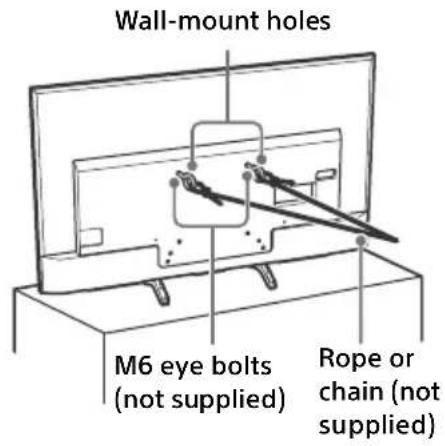
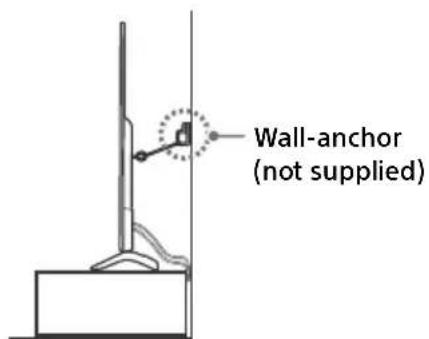
Please see below illustration for M6 eye bolt length.
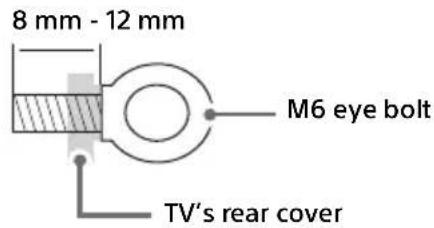
Note
- Your TV is shipped with screws attached to the rear of the TV depending on the TV model. (They are fastened in the screw holes for wall mounting.) Be sure to remove the upper two screws prior to anchoring the TV to a wall.
Securing the TV to the Stand without securing the TV and the Stand to the wall provides minimum protection against the TV toppling over. For further protection, be sure to follow the three measures recommended.
Precautions
How to care for your BRAVIA TV
Safety is very important. Please read and follow the safety documentation (Safety Booklet) separately provided.
Unplug the TV and other connected equipment from the wall outlet before you begin cleaning your TV.
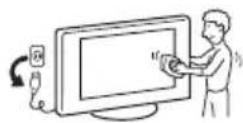
- Wipe the LCD screen gently with a soft cloth.
- Stubborn stains may be removed with a cloth slightly moistened with a solution of mild soap and warm water.
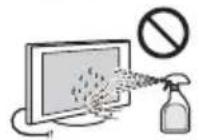
If using a chemically pretreated cloth, please follow the instruction provided on the package. - Never spray water or detergent directly on the TV set. It may drip to the bottom of the screen or exterior parts and enter the TV set, and may cause damage to the TV set.
- Never use strong solvents such as a thinner, alcohol or benzine for cleaning.
- Do not plug in the TV into the wall outlet until the moisture from cleaning has evaporated.
- Do not touch the TV if your hand is covered in any chemical substance such as hand cream or sunblock. The TV should also be placed on a stable surface to prevent it from toppling over (see page 7). If you have young children or pets at home, check regularly to ensure the TV is securely fastened.
Parts and Controls
TV


(Power) 1 + 1 -
Short press to turn the TV on. Long press until the TV turn off.
When the TV is on, Volume
Press + or - button to increase/decrease the volume.
You can also press until notification is displayed. Increases/decreases the volume by pressing the + or - button.
Input
Press until notification is displayed.
Moves the selected input source by pressing + (up) or - (down) button.
Channel
Press until CH notification is displayed.
Select the channel by pressing + (up) or - (down) button.

(Sensors/LED indicator)
- Receives signals from the remote control.
Do not put anything over the sensor.
Doing so may affect its function. - Lights up in amber when the [Sleep Timer] or [On Timer] is set (page 29), or the TV is in Photo Frame Mode (page 20).
- Lights up in white when [Power Saving] is set to [Picture Off] (page 32).
- Lights up in white when the TV is turned on.
- Does not light up when the TV is in standby mode.
- Flashes while the remote control is being operated.
Note
Make sure that the TV is completely turned off before unplugging the AC power cord.
- To disconnect the TV from the AC power completely, pull the plug from the mains socket.
- Please wait for a while when perform input selection to change to other input.
Remote Control
The remote control shape, location, availability and function of remote control button may vary depending on your region/country/TV model.
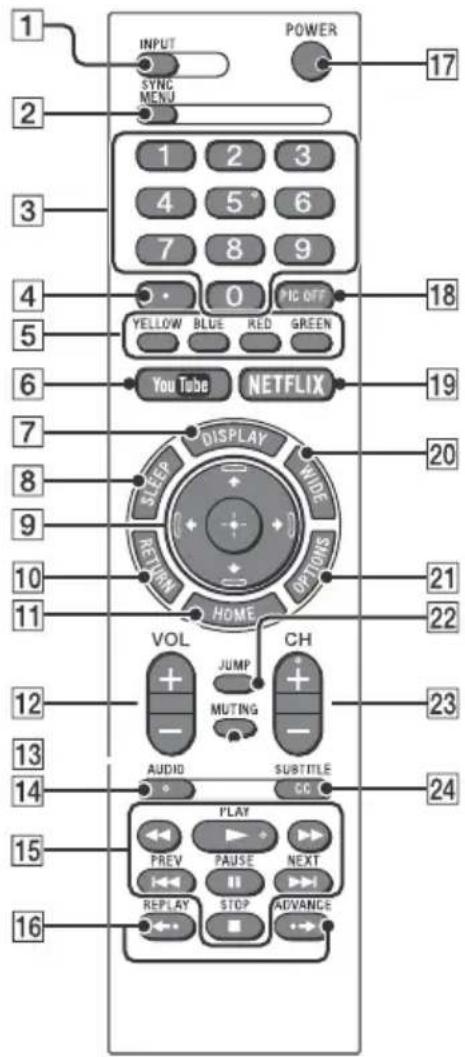
1 INPUT
Displays and selects the input source.
2 SYNC MENU
Press to display the BRAVIA Sync Menu and then select connected HDMI equipment from [Device Selection]. The following options can be selected from BRAVIA Sync Menu.
Device Control:
Use the [Device Control] to operate equipment that is compatible with BRAVIA Sync Control. Select options from [Home (Menu)], [Options], [Content List] and [Power Off] to operate the equipment.
Speakers:
Select [TV Speakers] or [Audio System] to output the TV's sound from the TV speakers or connected audio equipment.
TV Control:
Use the [TV Control] menu to operate the TV from the [Home (Menu)] or [Options] menu.
Return to TV:
Select this option to return to TV program.
US
3 0-9
Select channels. For channel numbers 10 and above, enter the next digit quickly.
4
Use with 0-9 to select digital channels. For example, to enter 2.1, press 2 and
5 Color buttons
Displays operation guide (when colored buttons are available).
6 YouTube (Only on limited region/ country/TV model)
Accesses the "YouTube" online service.
7 DISPLAY
Displays information. Press once to display information about the program/ input you are viewing. Press again to remove the display from the screen.
8 SLEEP
Press repeatedly until the TV displays the time in minutes [Off]/[15 min]/[30 min]/[45 min]/[60 min]/[90 min]/[120 min] that you want the TV to remain on before shutting off. To cancel the sleep timer, press SLEEP repeatedly until [Off] appears.
9
- Select or adjust items.
- Confirm selected items.
RETURN
- Returns to the previous screen of any displayed menu.
- Stops playback when playing photo/music/video file.
11 HOME
Displays or cancels the menu.
12 VOL + / -
Adjust the volume.
13 MUTING
Mutes the sound. Press again to restore the sound.
14 AUDIO
Selects the sound of multilingual source or dual sound for the program currently being viewed (depending on program source).
15 (fast rewind)/PLAY/
fast forward)1 (PREV)/
II (PAUSE)/■ (STOP)/▶I (NEXT)
-
Operate media contents on TV and connected BRAVIA Sync-compatible device.
-
This key also can be used to operate VOD (Video on Demand) service playback.
Availability is depend on VOD service.
16 (REPLAY)/ (ADVANCE)
Replays the scene/briefly fast forwards the scene (USB and IPTV Video playback only).
17 POWER
Turns the TV on or switches to standby mode.
PIC OFF
Press to turn picture off, and sound remains on.
19 NETFLIX (Only on limited region/ country/TV model)
Accesses the "NETFLIX" online service.
20 WIDE
Adjusts the screen display. Press repeatedly to select the desired wide mode (page 18).
21 OPTIONS
Displays a list that contains shortcuts to some setting menus.
The listed options vary depending on the current input and content.
22 JUMP
Returns to the previous channel or input viewed more than 15 seconds.
23 CH+/-
Select the next (+) or previous (-) channel.
24 CC/SUBTITLE
Changes the subtitle setting (page 29).
Hint
- The number 5, ▶, CH + and AUDIO buttons have a tactile dots. Use the tactile dots as references when operating the TV.
Guidelines for Remote Control
- Point your remote control directly at the IR sensor located on your TV.
Make sure that no objects are blocking the path between the remote control and the IR sensor on your TV.
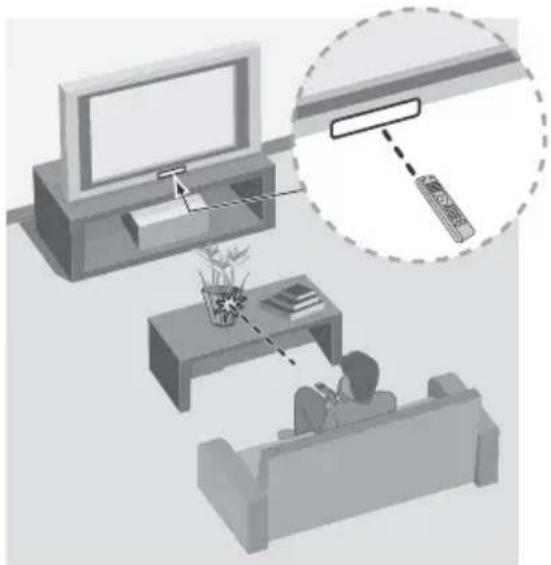
- Fluorescent lamps can interfere with your remote control; try turning off the fluorescent lamps.
- If you are having problems with the remote control, reinsert or replace your batteries and make sure that they are correctly inserted.
Connecting TV to the Internet
Setting up the Internet Connection
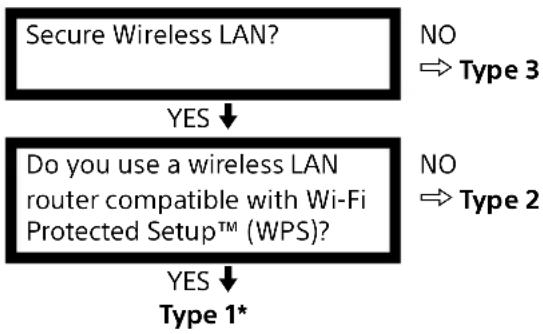
To use the network features of your TV it needs to be connected to the Internet. The set-up procedure differs depending on the type of network and LAN router. Before setting up the Internet connection, be sure to set up a LAN router. Check your wireless LAN environment using the following chart.
Wireless LAN
Wired LAN Type 4
- Type 1 is easier to set up if your router has an automatic setting button, e.g. Air Station One-Touch Secure System (AOSS). Most of the latest routers have this function. Check your router.
Type 1: Follow the configuration for Secured network with Wi-Fi Protected SetupTM (WPS).
Type 2: Follow the configuration for Secured network without Wi-Fi Protected SetupTM (WPS).
Type 3: Follow the configuration for Unsecured network with any type of wireless LAN router.
Type 4: Follow the configuration for Wired network set-up.
Type 1: Secured network with Wi-Fi Protected SetupTM (WPS)
The WPS standard makes security of a wireless home network as straightforward as pressing the WPS button on the wireless LAN router. Before setting up a wireless LAN, check the location of the WPS button on the router and verify how to use it. For security purpose, [WPS (PIN)] provides a PIN code for your router. PIN code is renewed every time you select [WPS (PIN)].
1 Press HOME, then select [Settings] [Preferences] [Setup] [Network] [Network Setup].
2 IP Address setting/Proxy server: automatic setting: [Set up network connection] [Easy] manual setting: [Set up network connection] [Expert] [Wired Set-up] or [Wireless Set-up]
3 Select [WPS (Push Button)] for Push Button method or [WPS (PIN)] for PIN method. Note Button name of the WPS may differ depending on the router (e.g. AOSS button).
4 Follow the instructions on the set-up screen.
Note
- If you use WPS for network set-up, the security settings of the wireless LAN router activate, and any equipment previously connected to the wireless LAN in a non-secure status will be disconnected from the network.
In this case, activate the security settings of the disconnected equipment and then reconnect. Or, you can deactivate the security settings of the wireless LAN router, and then connect the equipment to a TV in a non-secure status.
To use the network with IPv6, select [Settings] [Preferences] [Setup] [Network] [IPv6/IPv4 Priority] [IPv6], then select [Easy] in [Set up network connection].
- When IPv6 is selected, HTTP Proxy cannot be set.
Type 2: Secured network without Wi-Fi Protected SetupTM (WPS)
To set up a wireless LAN, SSID (wireless network name) and security key (WEP or WPA key) will be required. If you do not know them, consult the instruction manual of your router.
1 Press HOME, then select [Settings] [Preferences] [Setup] [Network] [Network Setup].
2 IP Address setting/Proxy server: automatic setting: [Set up network connection] [Easy] manual setting: [Set up network connection] [Expert] [Wired Set-up] or [Wireless Set-up]
3 Select [Scan], then select a network from the list of scanned wireless networks.
4 Follow the instructions on the set-up screen.
Note
- To use the network with IPv6, select [Settings] [Preferences] [Setup] [Network] [IPv6/IPv4 Priority] [IPv6], then select [Easy] in [Set up network connection].
- When IPv6 is selected, HTTP Proxy cannot be set.
- Please make sure your surrounding is secure when you key in your password.
Type 3: Unsecured network with any type of wireless LAN router
To set up a wireless LAN, SSID (wireless network name) will be required.
1 Press HOME, then select [Settings] [Preferences] [Setup] [Network] [Network Setup].
2 IP Address setting/Proxy server: automatic setting: [Set up network connection] [Easy] manual setting: [Set up network connection] [Expert] [Wired Set-up] or [Wireless Set-up]
3 Select [Scan], then select a network from the list of scanned wireless networks.
4 Follow the instructions on the set-up screen.
Note
- Security key (WEP or WPA key) will not be required because you do not need to select any security method in this procedure.
To use the network with IPv6, select [Settings] [Preferences] [Setup] [Network] [IPv6/IPv4 Priority] [IPv6], then select [Easy] in [Set up network connection]. - When IPv6 is selected, HTTP Proxy cannot be set.
Type 4: Wired network set-up
Enter the respective alphanumeric values for your router if necessary. The items that need to be set (e.g. IP Address, Subnet Mask, DHCP) may differ depending on the Internet service provider or router. For details, refer to the instruction manuals provided by your Internet service provider, or those supplied with the router.
1 Press HOME, then select [Settings] [Preferences] [Setup] [Network] [Network Setup].
2 IP Address setting/Proxy server: automatic setting: [Set up network connection] [Easy] manual setting: [Set up network connection] [Expert] [Wired Setup] or [Wireless Set-up]
3 Follow the instructions on the set-up screen.
[Network Setup] can also be set from [Initial Setup] menu.
Note
- Allows automatic configuration of your wired/ wireless network.
- When connecting with LAN cable: Wired
- When connecting with built-in Wireless LAN: Wireless
- When connecting with both of the cables: Wired
- Set to [Easy], sets the IP address automatically. For proxy server is not use.
To use the network with IPv6, select [Settings] [Preferences] [Setup] [Network] [IPv6/IPv4 Priority] [IPv6], then select [Easy] in [Set up network connection]. - When IPv6 is selected, HTTP Proxy cannot be set.
Preparing a Wired Network
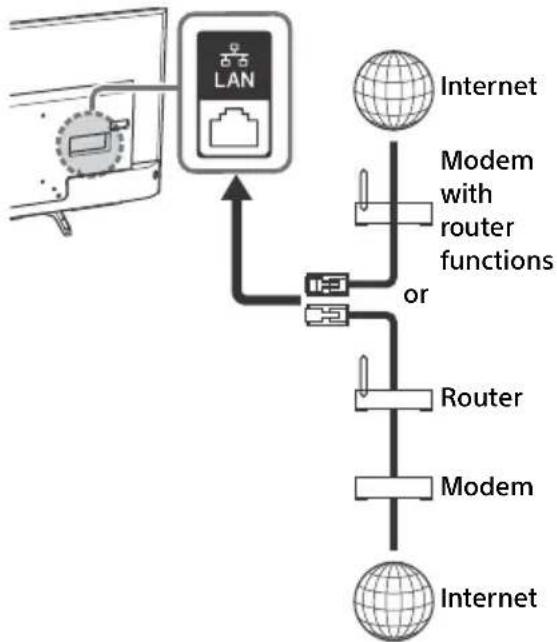
TV
Note
- For LAN connections, use a Category 7 cable (not supplied).
Viewing the Network Status
You can confirm your network status.
1 Press HOME, then select [Settings] [Preferences] [Setup] [Network] [Network Setup].
2 Select [Network Status].
If You Cannot Connect to the Internet
Use the diagnosis to check possible causes for network connection failures, and settings.
1 Press HOME, then select [Settings] [Preferences] [Setup] [Network] [Network Setup].
2 Select [Network Status].
3 Select [Check Connection]. This may take several minutes. You cannot cancel the diagnosis after selecting [Check Connection].
Privacy Policy
When you use the following functions to connect to the Internet, certain information will be sent to Sony Corporation's global servers, which is considered to be personal information, and requires your agreement in order for that service providers to use it.
- System software updates by connecting to Sony Corporation's global servers via the Internet.
- Internet contents or other Internet services from service providers like Youtube.
This TV has the setting screens in Initial Setup or Setting Menu to confirm your agreement to this after you read the detail of the Privacy Policy. If you want to use these functions, please check [Agree] in each setting screen. If [Disagree] is checked, the above two functions are not available.
However, even in this case, if [On] is selected at [Automatic Software Download] in Initial Setup or Setting Menu, the system software updating is available.
You can change this setting by pressing HOME, then select [Settings] [Preferences] [Setup] [Privacy Policy].
Watching TV
1 Press on the TV or POWER on the remote control to turn on the TV.
2 Press PIC OFF to turn picture off, and sound remains on.
3 Press the number buttons or CH +/- to select a TV channel.
4 Press VOL + / - to adjust the volume.
Select Your Content Source
Whether you are watching cable, satellite or broadcast TV; playing a VCR, DVD or Blu-ray Disc; or connecting to your PC, you need to choose the correct input using your remote control:
- Press the INPUT button repeatedly until your selection is highlighted on-screen.
Adjust Screen Shape and Aspect Ratio
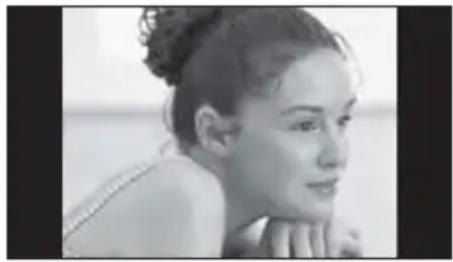
High Definition and Standard Definition signals are transmitted with different aspect ratios (the width-to-height ratio of the image).
The 16:9 aspect ratio (common to most HD signals) looks perfect on your BRAVIA.

The boxy 4:3 aspect ratio (common to most SD signals) must be adjusted to fill the screen.
US
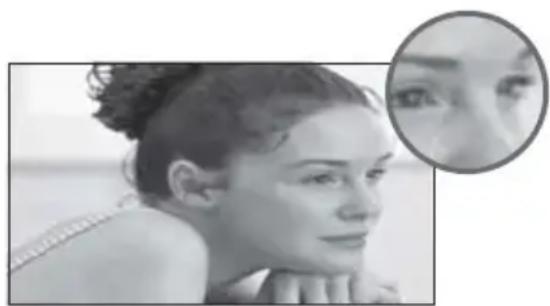
- Press the WIDE button on your remote control to display the [Wide Mode] setting of your preference.
Customize Sound and Picture Quality
You can choose optimum sound and picture settings to match the content you are displaying on your TV:
- Press the remote control's HOME button, select [Settings] [Preferences], then select the [Picture] and [Sound] settings to adjust the picture and sound quality of your content.
Refer to your operating instructions manual for more information on adjusting or customizing your settings.
Changing the Viewing Style
Changing the Wide Mode
1 Press WIDE repeatedly to select the wide mode.
[WideZoom]* [Normal]
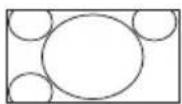
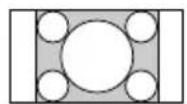
[Full] [Zoom]*
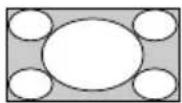
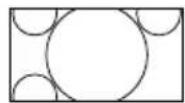
- Parts of the top and bottom of the picture may be cut off.
For HDMI PC Input (PC timing)
[Normal] [Full 1]
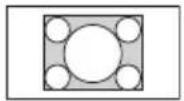
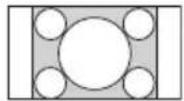
[Full 2]
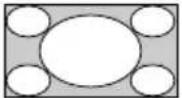
For HDMI DCI 4K (4096 × 2160p)
[Normal] [Full 1]
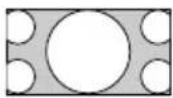
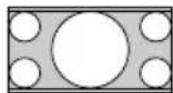
[Full 2]
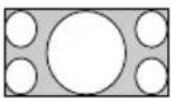
Setting Scene Select
1 Press OPTIONS.
2 Press then to select [Scene Select].
When you select the desired scene option, the optimum picture and sound quality for selected scene are automatically set. The options you can select may vary. Unavailable options are greyed out.
Navigating through Home Menu
The HOME button allows you to access a variety of TV settings and features.
All Apps
Internet Contents delivers a variety of on-demand entertainment straight to your TV. You can enjoy your favorite internet content, Photo Sharing Plus and Photo Frame Mode.
Note
- Be sure to connect your TV to the Internet and complete [Network Setup] (page 28).
To use Internet Contents
1 Press HOME, then select [All Apps].
2 Press 口 / 口 /口 /口 to select the desired internet service in service list.
3 Press to launch the desired internet contents.
4 Press the yellow/blue/red/green button to filter the app category by Photo/Music/Video/All.
To exit Internet Contents
Press HOME.
Note
- If you experience difficulties with this feature, check that the Internet connection is set up properly.
- The interface to Internet content depends on the Internet content providers.
- To update Internet Contents services, Press HOME, then select [Settings] [Preferences] [Setup] [Network] [Refresh Internet Content].
To use NETFLIX
Press NETFLIX button on the remote control to launch menu.
Note
- It is possible that Netflix cannot be used via a Proxy server.
Photo Sharing Plus
Connect, view and save favourite photos on TV using your devices (eg. smartphones or tablets).
HOME [All Apps] [Photo Sharing Plus]
Note
- Follow the instructions on the screen to connect your device to the TV.
- Open web browser on device after all connections are established, then follow the instructions on the screen to access the URL.
To display photo on TV
1 Tap on your device to start.
2 Select a photo. The selected photo will be displayed automatically on TV.
To save a photo displayed on TV
1 Tap thumbnail on your device, then hold the photo to open the context menu.
2 Select [OK].
Note
- Connect a USB flash drive to store up to 50 photos.
- Up to 10 smartphones or tablets can be connected to the TV at the same time.
Maximum file size of each photo is 20 MB. - You can also throw a background music with a maximum file size of 30 MB.
- The default browser for Android 2.3 or later is supported.
- The default browser for iOS is supported; however, some functions cannot be used depending on the version of your iOS.
Using the TV as a Photo Frame Mode
Photo Frame Mode displays the clock and calendar at the same time as displaying a photo and listening to music.
HOME [All Apps] [Photo Frame Mode]
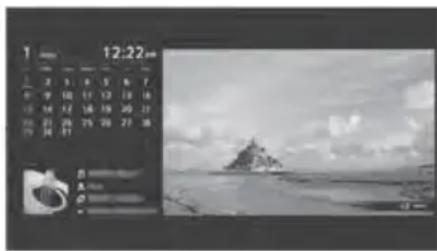
To launch Photo Frame Mode while playback USB media
1 Press OPTIONS while playback a photo or music file.
2 Press then to select [Photo Frame Mode] to launch Photo Frame.
To select Display mode
You can change the Photo Frame Mode display by selecting [Display Mode] in the Photo Frame Settings.
To select Clock Display mode
You can select among three clock display modes by selecting [Clock Display] in the [Photo Frame Settings] (page 28).
Note
- This TV does not have a battery powered backup for the clock. If there is a power failure or if you disconnect the power cord, the current date and time will reset automatically.
Duration
To save power, the TV continually plays back in Photo Frame Mode for up to 24 hours before powering off automatically. After automatic power off, do not use Photo Frame Mode for at least one hour to avoid panel burn-in. You can change the setting of the [Duration] in the [Photo Frame Settings] (page 28).
To avoid panel burn-in, the position of the photo, clock and calendar are switched automatically every hour.
Favorites
1 Press HOME.
2 Press 山 /山 then to select [Favorites].
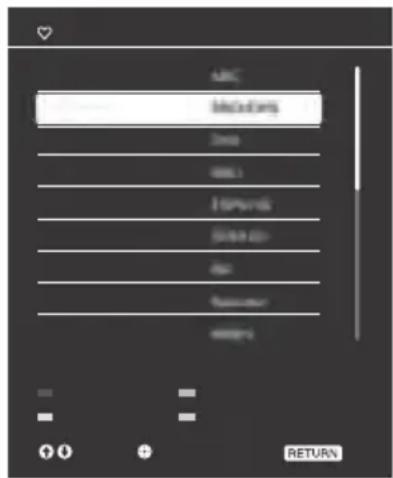
3 Press / / / then to select a program.
Media
Playback Photo/Music/Video via USB
You can enjoy photo/music/video files stored in a Sony digital still camera/ camcorder/smarphone (depending on models)* through a USB cable or USB storage device on your TV.
1 Connect a supported USB device to the TV.
- Device needs to be in Media transfer mode (MTP).
2 Press HOME.
3 Press then to select [Media].
4 Press then to select [Photo], [Music] or [Video].
5 [Device Selection] appears. Press 串 /串 then to select a device.
6 Press / / then to select a file or folder.
Playback Method
Press the yellow color button in thumbnail view to display list of USB playback settings.
Display Settings
Press OPTIONS in thumbnail view to display the option to change the thumbnail view to list view.
To adjust the picture and sound quality of USB media
Press OPTIONS during media playback then select [Picture] or [Sound].
Note
- Press / / / then to select and adjust an item.
To play a photo as a slideshow (Photo)
1 Press the blue button in thumbnail/list view to start slideshow.
To set [Slideshow Effect] and [Slideshow Speed], press OPTIONS → [Playback Method].
To stop a slideshow, press RETURN.
Note
- While the TV is accessing the data on a USB device, observe the following:
- Do not turn off the TV.
- Do not disconnect the USB cable.
- Do not remove the USB device.
The data on the USB device may be damaged. - Sony will not be held liable for any damage to, or loss of, data on the recording media due to a malfunction of any connected devices or the TV.
- USB Auto Start shows photo files in the newest digital still camera folder (DCF-compliant, highest-numbered "DCIM" folder).
- USB Auto Start may not work automatically when some digital still cameras are connected.
- When you connect a Sony digital still camera, set the camera's USB connection mode to "Auto" or "Mass Storage." For more information about USB connection mode, refer to the instructions supplied with your digital camera.
- Use a USB storage device that is compliant with USB Mass Storage Class standards.
- The file system on the USB device supports FAT16, FAT32 and NTFS.
- The file name and folder name may not display correctly in some cases.
- If a selected file has incorrect container information, or is incomplete, it cannot be played back.
USB Video format
- AVI (.avi)
Video Codec: MPEG1, MPEG2, Xvid, MPEG4, H.264, Motion JPEG
Audio Codec: PCM, MPEG1 Layer1/2, MP3, MPEG2 AAC (2ch), MPEG4 AAC (2ch), MPEG4 HE-AAC (2ch), Dolby Digital (2ch), WMA v8, Dolby Digital Plus (2ch)
- ASF (.wmv, .asf)
Video Codec: WMV v9, Xvid, VC-1
Audio Codec: MP3, WMA v8
- MP4 (.mp4, .mov, .3gp)
Video Codec: MPEG4, H.264, H.263
Motion JPEG, H.265
Audio Codec: MPEG1 Layer1/2, MP3, MPEG2 AAC, MPEG4 AAC, MPEG4 HE-AAC
- MKV (.mkv)
Video Codec: WMV v9, MPEG4, H.264, VC-1, VP8, VP9, H.265
Audio Codec: PCM, MPEG1 Layer1/2, MP3, MPEG2 AAC (2ch), MPEG4 AAC (2ch), MPEG4 HE-AAC (2ch), Dolby Digital (2ch), WMA v8, Dolby Digital Plus (2ch), DTS, FLAC, VORBIS
- WebM (.webm)
Video Codec: VP8, VP9
Audio Codec: VORBIS
- Playback of the above file formats is not guaranteed.
Playback Photo/Music/Video via Home Network
You can enjoy various content (e.g. photo/ music/video files) stored on DLNA
Certified™ media servers. The home network feature allows you to enjoy network content in other rooms.
Playing photo/music/video
1 Press HOME, then select [Media] [Photo], [Music] or [Video] the desired media server.
2 Select files or folders to play from the list.
Note
- The server is required to be DLNA Certified™.
- Files from a network device need to be in the following formats:
- Still images: JPEG
- Music: MP3, linear PCM, WMA
- Video: AVCHD, MPEG2, MPEG1, MP4 (AVC), MP4 (MPEG4), WMV
Depending on the file, playback may not be possible even when using the supported formats.
Renderer
You can play back photo, music and video files stored in network devices (e.g. digital still cameras, mobile phones, PC) on the TV screen by directly operating the target device. The network should also be renderer-compatible devices.
Renderer settings
Press HOME, then select [Settings] [Preferences] [Setup] [Network] [Home Network Setup] [Renderer].
Display Settings for Media Servers
Select home network servers to be displayed in the Home Menu. Up to 10 servers can be displayed.
1 Press HOME, then select [Settings] [Preferences] [Setup] [Network] [Home Network Setup] [Show/Hide Media Servers].
2 Select the server to display in the Device Selection.
Settings
Preferences
Note
- The options you can adjust vary depending on the situation. Unavailable options are greyed out or not displayed.

Picture
Picture Mode
Sets a picture mode.
Reset
Reset s all the [Picture] settings except [Picture Mode] to the default settings.
Brightness
Adjust the backlight luminance.
Contrast
Adjust the picture white level.
Black level
Adjust the picture black level.
Color
Adjust the color saturation level.
Hue
Adjust the green and red tones.
Color Temperature
Adjust the color temperature.
Sharpness
Adjust the picture detail.
Reality Creation
Adjusts fineness and noise for realistic picture.
Resolution: Adjusts fineness and clarity. Select [Manual] from [Reality Creation] to adjust the [Resolution].
Mastered in 4K
Optimizes picture quality for Blu-ray Discs mastered in 4K. Applies to 1080/24p signals only.
Random noise reduction
Reduce repetitive random noise.
Digital noise reduction
Reduce video compression noise.
Motionflow
Refines moving images.
CineMotion
Provides improved picture movement when playing BD (Blu-ray Disc), DVD or VCR images taken on film. Select [Auto] to represent original film-based content as it is.
Note
- If the image contains irregular signals or too much noise, [CineMotion] is automatically turned off even if [Auto] is selected.
Advanced Settings
Sets [Picture] settings in more detail.
Reset: Resets all the advanced settings to the factory settings.
Adv. Contrast Enhancer:
Automatically adjusts the contrast based on picture brightness.
Black adjust: Enhance the black in images for stronger contrast.
Gamma: Adjust the light and dark balance.
Live Color: Improve the vividness of colors.
Adv. color temperature: Adjust the color temperature in detail.
Color Gamma Adjustment Points This function is for advanced users and requires professional picture calibration tools. 10 adjustment points are available to alter pixel drive at 10 input signal levels.

Sound
ClearAudio+
Let you enjoy the best sound quality by the combination of a well-balanced digital signal processing technology.
Sound Mode
Select according to content you want to enjoy.
Reset
Reset [Surround], [Surround effect], [Sound restoration (DSEE)], [Equalizer], [Voice Zoom], [Advanced auto volume], [Balance], and [Volume Offset] settings.
Surround
Virtually reproduce realistic surround sound.
Surround effect
Adjust the surround sound effect.
Sound restoration (DSEE)
Reproduce the spatial natural sound quality by decoding high frequencies and small sound often lost by digital compression.
Equalizer
Adjusts sound frequency settings.
Voice Zoom
Emphasize voice or ambient audio.
Advanced auto volume
Automatically compensates for the volume level that may vary by program or input.
Balance
Emphasizes left or right speaker balance.
Volume Offset
Adjusts the volume level of the current input relative to other inputs.
MTS Audio
Enjoy stereo, bilingual and mono programs.
Stereo: Select for stereo reception when viewing a program broadcast in stereo.
Auto SAP: Select to automatically switch the TV to second audio programs when a signal is received. If no SAP signal is present, the TV remains in [Stereo] mode.
Mono: Select for mono reception. Use to reduce noise during weak stereo broadcasts.
Alternate Audio
Digital channels only.
Select among the available options to switch among the alternate audio streams. The program you are tuned to may be broadcasted in a different language in the alternate audio streams.
Advanced Settings
Dynamic Range: Compensates for differences in the audio level between different channels.
Note
- The effect may not function or may vary depending on the program regardless of the [Dynamic Range] setting.
Dolby Digital Plus Out: Select
[Auto] to pass through Dolby Digital Plus stream to ARC when Dolby Digital Plus is available through connected Audio System. During Dolby Digital Plus stream is output, Digital Audio Out (optical) is muted. Select [Off] to convert Dolby Digital Plus stream to Dolby Digital for both ARC (Audio system) and Digital Audio Out (optical).
HE-AAC Audio Level: Adjust the HE-AAC audio sound level.
MPEG Audio Level: Adjusts the MPEG audio sound level.

Screen
Wide Mode
For details about wide mode, see page 18.
Auto Wide
Automatically changes the wide mode according to the input signal from an external equipment.
4:3 Default
Sets the default [Wide Mode] for a 4:3 input signal.
Auto Display Area
Select [On] to automatically adjusts the display area based upon the content or [Off] to choose from the [Display Area] options.
Display Area
Adjusts the picture display area.
Horizontal Center
Adjusts the horizontal position of the picture.
Vertical Center
Adjusts the vertical position of the picture.
Vertical Size
Adjusts the vertical size of the picture when [Wide Mode] is set to [Wide Zoom].
PC / DCI 4K Settings
Select [Wide Mode], see page 18.

Channel
Signal Type
Cable: Select if you are receiving cable channels via Cable TV provider.
Antenna: Select if you are using an antenna.
Auto Program
Automatically sets up the channel list on the TV for all receivable channels. Select [Auto Program]. Select [OK] to automatically sets up the channel list.
Add Digital Channels
Select [Add Digital Channels]. Select [OK] to add digital channels.
Show/Hide Channels
Allows you to show or hide channels that appear when you use the CH +/- buttons.
Press to scroll through the channels until you find the channel you want to show or hide. Then press to select it.
Press 日 /日 to determine if the channel will be shown or hidden. Then press to select it.
Edit Channel Labels
Allows you to assign labels (such as station call letters) to channel numbers.
Press 12 to scroll through the channel numbers. Then press to select the channel number that you want to assign a label.
Press 口 /口 to scroll through the label characters ([A-Z], [0-9], etc.). Press to move to the next character. Repeat the previous steps to add up to seven characters to the label. When finished, press
Analog Channel Adjustment
Channel: Selects a channel number.
Analog Fine Tune: [Custom] selection allows you to fine-tune the selected analog channel manually if you feel that a slight tuning adjustment may improve picture quality. Select [Auto] to adjust to the most appropriate analog channel.
Audio Filter: Select [Low] or [High] to improve the sound of individual channels when distortion occurs in mono broadcasts.

Parental Lock
Password
Sets a PIN code to block channels, external inputs and Internet services. Use 0-9 on the remote to enter a four-digit password.
Change Password
Select to change your password.
Country
U.S.A. Select to use U.S.A. ratings (page 27).
Canada: Select to use Canadian ratings (page 27).
Rating
Off: Turn parental rating off. No programs are blocked from viewing.
Child: Maximum ratings permitted are:
U.S.: TV-Y, TV-G, G
Canada: C, G, TV-Y, TV-G
Youth: Maximum ratings permitted are:
U.S.: TV-Y, TV-Y7, TV-G, TV-PG, G, PG
Canada: C, G, C8+, PG, 8 ans+, TV-Y, TV-Y7, TV-G, TV-PG
Young Adult: Maximum ratings permitted are:
U.S.: TV-Y, TV-Y7, TV-G, TV-PG, TV-14, G, PG, PG-13
Canada: C, G, C8+, PG, 14+, 8 ans+, 13 ans+, TV-Y, TV-Y7, TV-G, TV-PG, TV-14
Custom: Select to set ratings manually.
U.S.: See page 27 for details.
Canada: See page 27 for details.
Downloadable U.S. Rating
(Available only in U.S.A. where advanced ratings exist)
Off: Turn [Downloadable U.S. Rating] off. No programs that contain downloadable ratings are blocked from viewing.
Custom: Select to block programs based on downloadable ratings.
Clear All: Select to clear the entire downloadable rating system.
Unrated
(Available only when Country is set to U.S.A.)
Allow: Allows programs and movies that are broadcasted without a rating.
Block: Blocks all programs and movies that are broadcasted without a rating.
Channel Block
Allows you to block channels regardless of program ratings.
To View a Blocked Channel
Press when tuned to the blocked channel then enter the password.
External Input Block
Locks an external input from being watched. To view a blocked external input, select [Unblocked].
Note
-
Entering the correct password for blocked channel or external input will temporarily deactivate the [Parental Lock] feature. To reactivate the [Parental Lock] settings, turn off and on the TV.
-
Selecting [Clear All] will delete the current [Downloadable U.S. Rating] menu and the menu will no longer be available until the TV is tuned to a channel that contains downloadable ratings.
Hint
If you lost your password, see page 45.
US Models: Selecting Custom Parental Lock Rating Options
To select custom rating options for the U.S., select [U.S.A.] in the [Country] setting (page 26).
Movie Rating
G: All children and general audience.
PG: Parental guidance suggested.
PG-13: Parental guidance for children under 13.
R: Restricted viewing, parental guidance is suggested for children under 17.
NC-17 and X: No one 17 or under allowed.
TV Rating
Block programs by their rating, content or both
Age-Based Ratings
TV-Y: All children.
TV-Y7: Directed to children age 7 and older.
TV-G: General audience.
TV-PG: Parental guidance suggested.
TV-14: Parents strongly cautioned.
TV-MA: Mature audience only.
Content-Based Ratings
FV: Fantasy violence.
D: Suggestive dialog.
L: Strong language.
S: Sexual situations.
V: Violence.
Canadian Models: Selecting Custom Parental Lock Rating Options
To select custom rating options for Canada, select [Canada] in the [Country] setting (page 26).
English Rating
C: All children.
C8+: Children 8 years and older.
G: General programming.
PG: Parental guidance.
14+: Viewers 14 and older.
18+: Adult programming.
French Rating
G: General programming.
8 ans+: Not recommended for young children.
13 ans+: Not recommended for ages under 13.
16 ans+: Not recommended for ages under 16.
18 ans+: Not recommended for ages under 18.
U.S.A. Rating
See "US Models" on page 27 for details.
Internet Lock
Locks internet contents from being watched.
To view an internet contents, select [Unblocked].

Setup
Network
Network Setup: Sets the network status settings.
IPv6/IPv4 Priority: Switch between [IPv6] and [IPv4 (Recommended)].
Note
- To use the network with [IPv6], select [IPv6], then select [Easy] in [Set up network connection].
- When IPv6 is selected, HTTP Proxy cannot be set.
- When IPv6 is selected, some Internet browser sites, applications or contents cannot be watched.
Built-in Wi-Fi: Turns the built-in Wi-Fi [On] or [Off].
Set to [Off], if you do not use the built-in Wi-Fi.
When you switch from [Off] to [On], establish the network connection via [Network Setup].
Wi-Fi Direct: Turns on/off to connect your TV with Wi-Fi Direct device such as PC, mobile phone or digital camera.
Wi-Fi Direct Settings: Set to connect a Wi-Fi direct device to the TV using the Wi-Fi Direct function. If you cannot connect, press OPTIONS key and select [Manual].
Device Name: Change the name of the TV shown on the connected device.
Refresh Internet Content: Connect to the internet to receive available Internet content services.
Samba Interactive TV: Select [Enable] to activate this feature. Connect your devices to Samba Interactive TV by downloading apps that work with your TV.
Note
Network feature is subject to change without notice.
Home Network Setup:
Show/Hide Media Servers
Displays the connected server list.
You can select the server to display in the Device Selection.
Media Server Troubleshooting
Diagnoses whether the TV can connect to each server on the home network.
Remote start
This feature allows connected device in the home network to turn on the TV.
Note
- The standby power consumption will increase if [On] is set.
Renderer
Renderer
Enables the TV to play media files on a device (e.g. digital still camera).
Renderer Access Control
Allows access from a specified control device.
Renderer Options
Adjusts the [Renderer Options] detailed settings.
Privacy Policy
Select [Agree] or [Disagree] for Privacy Policy confirmation. (page 16)
Photo Frame Settings
Display Mode: Allows you to select the display mode. Select from [Image and Clock], [Full Screen Image] and [Full Screen Clock].
Clock Display: Allows you to select the clock display.
Note
- This option is available when [Display Mode] is set to [Image and Clock] or [Full Screen Clock].
Audio Application: Sets [Music] or [Off] as audio application.
Image Selection: Select image.
Music Selection: Select music.
Slideshowhow Setting: Select from showing slideshow mode or single view photo.
Music Playback Setting: Select from listening to all tracks or a single music track.
Duration: Select the time period after which the TV automatically switches to standby mode.
First day of the week: Sets [Sunday] or [Monday] as the first day of the week on the calendar.
USB Auto Start
When USB device is connected to the USB port, select [On] to automatically view the thumbnail of the last played Photo/Music/Video.
Closed Captions (CC)
Allows you to select from several closed caption modes (for programs that are broadcast with closed captioning).
CC Display:
On
[Closed Captions (CC)] is turned on. Off
[Closed Captions (CC)] is turned off.
On when Muting
[Closed Captions (CC)] is turned on when the TV is muted.
Analog CC: Allows you to select basic analog (EIA-608) closed caption options.
CC1, CC2, CC3, CC4
Displays a printed version of the dialog or sound effects of a program. (Should be set to [CC1] for most programs.)
Displays network/station information presented using either half or the whole screen (if available).
Digital CC: When the digital closed caption service is available, select from the [Service 1-6] or [CC1-4].
Digital CC Options: Allows you to make additional settings for digital closed caption options. Select [As Broadcast] or [Custom].
Custom: Allows you to customize
the following settings:
Character Size
Small, Standard, Large
Character Style
Style 1-7
Character Color
Color 1-8
Character Opacity
Solid, Flashing, Translucent
Edge Type
None, Raised, Depressed, Uniform,
Left Shadow, Right Shadow
Edge Color
Color 1-8
Background Color
Color 1-8
Background Opacity
Solid, Translucent
Window Color
None, Color 1-8
Window Opacity
Solid, Translucent
Audio Description
Provides an audio description (narration) of visual information, when available.
Info Banner
Displays the information related to the input signal you are watching. Select [Small] to display minimal channel and program title or select [Large] to display detailed channel and program information along with the TV icon if you are viewing the TV. Select [Hidden] to hide information about the TV channel or program. This information will appear if it is available from the broadcaster. Info banner appears on the screen each time the channel and external inputs are changed or when DISPLAY on the remote control is pressed.
Clock/Timers
Sets the timer and clock.
Sleep Timer: Sets the time in minutes that you would like the TV to remain on before shutting off automatically.
On Timer: Turns on the TV from standby mode at a time you set, and tuned to a channel or input of your preference or Photo Frame Mode. Before setting this function, make sure you set the correct current time.
Current Time: Sets the current time and date.
Date (Month/Day/Year)
Set current date.
Time
Set Current Time.
Initial Setup
Starts the initial setup procedure. This option allows you to retune the TV after moving houses, or to search for new channels that have been launched by broadcasters.
Language
Select the language in which the menus are displayed.
Physical keyboard (for web browser only)*
Select the physical keyboard language when physical keyboard is connected to the TV.
- Only on limited region/ country/ TV model.
Start-up Logo
Select [On] to display the logo when the TV is turned on. Select [Off] to disable it.
LED Indicator
Select [On] to light up the LED indicator. Select [Off] to disable it.
AV Setup
Manage Inputs: Assigns name to external equipment input. Select [Auto] to display names when the equipment is connected, or [Always] to display regardless of connection status or [Off] to disable input (only for TV).
Speakers: Select sound output from the TV speakers or external audio equipment.
Headphone/Audio Out: Sets the sound output to headphone external audio systems or Active Subwoofer connected to the TV. Disconnect headphone from the TV when you select [Audio out (Fixed)], [Audio out (Variable)] or [Subwoofer].
Audio out (Fixed)
The audio output of the TV is fixed. Use your audio receiver's volume control to adjust the volume (and other audio settings) through your audio system.
Audio out (Variable)
When using an external audio system, volume output from audio out can be controlled using the TV's remote control.
Headphone Speaker Link: Switches the TV's internal speakers on/off when you connect headphone to the TV.
Headphone Volume: Adjusts the volume of the headphone.
Note
- This option is not available, when [Headphone/Audio Out] is set to [Audio out (Fixed)], [Audio out (Variable)] or [Subwoofer].
Subwoofer: To enable, set [Headphone/Audio Out] to [Subwoofer].
Subwoofer Level
Adjust subwoofer volume level.
Phase
Select the phase polarity.
Subwoofer Sync
Adjusts the time lag of Subwoofer sound.
Digital Audio Out: Sets the audio signal that is output by connecting using digital audio output (optical) cable or HDMI cable.
Auto 1
Output compressed audio without change.
Auto 2
Output only compressed audio for multichannel content without change.
PCM
Always output in PCM.
TV Position: Improves the speaker settings when set as [Table-Top Stand] or [Wall Mount] according to your TV's position.
HDMI signal format
Standard
Standard HDMI format for normal use.
Enhanced
Set only for devices supporting High-Quality HDMI formats such as 4K 60p 4:2:0 10bit, 4:4:4, 4:2:2. Be sure to use a Premium High Grade HDMI Cable that supports speed of 18 Gbps bearing the HDMI logo. (Refer to the specification of the cable).
Note
HDMI IN 2 and IN 3 only.
- Change to [Standard] if the picture and sound do not output correctly in [Enhanced].
BRAVIA Sync Settings
Allows the TV to communicate with equipment that is compatible with the BRAVIA Sync Control function, and connected to the HDMI ports of the TV. Note that communication settings must also be made on the connected equipment.
BRAVIA Sync Control: Sets whether or not to link the operations of the TV and the connected equipment that is compatible with BRAVIA Sync Control. When set to [On], the following functions are available. If the specific Sony equipment that is compatible with BRAVIA Sync Control is connected, this setting is applied to the connected equipment automatically.
Device Auto Power Off: When set to [On], the connected equipment that is compatible with BRAVIA Sync Control turns off when your TV goes to standby mode.
TV Auto Power On: When set to [On], the TV turns on when you turn on the connected equipment that is compatible with BRAVIA Sync Control.
BRAVIA Sync Device List: Displays a list of connected equipment that is compatible with BRAVIA Sync Control.
Select [Enable] to update the [BRAVIA Sync Device List].
Device Control Keys: Select button functions of the TV's remote control to operate the connected equipment.
None
Deactivates the control by the TV's remote control.
Normal
For basic operations, such as navigation buttons (up, down, left or right, etc).
Tuning Keys
For basic operations and operation of channel-related buttons, such as CH + / - or (0-9), etc. Useful when you control a tuner or set-top box, etc; via the remote control.
Menu Keys
For basic operations and operation of the HOME/OPTIONS buttons.
Useful when you select menus of a BD player, etc; via the remote control.
Tuning and Menu Keys
For basic operations and operation of channel-related buttons and HOME/OPTIONS button.
Note
- Some equipment with [BRAVIA Sync Control] does not support the [Device Control Keys] feature.
Picture Adjustments Lock
Select [Lock] so no adjustment can be made to items grayed out, except [Picture Mode] and [CineMotion]. Select [Unlock] to allow adjustment to any of the [Picture] settings.
Customer Support
Provides information of your TV's model, software, and others. For details, see page 32.

Eco
Reset
Resetsthe current Eco settings to the default values.
Power Saving
Reduces power consumption of the TV by adjusting the backlight.
When you select [Picture Off], the picture is switched off. The sound remains unchanged.
Idle TV Standby
Turns the TV off after it has been kept idle for the preset length of time.
Auto Shut Off
Select [On] to automatically power off the TV when no input signal is detected for a certain period of time.
Select [Off] to disable this function.
Customer Support
Model Name
Displays model name of your TV.
Software Version
Displays current software version of your TV.
TV
Selects [Signal Diagnostics] to display channel information of your TV.
External Inputs
View Manage Inputs: Allows you to view or manage the TV and external inputs.
Picture Check
View Test Picture: Allows you to check the picture condition on the display.
Software Update
Updates the TV system using USB memory or via Network.
Note
- Software update via the internet may vary depending on your region/country/TV model.
- To update the software, please visit Sony support website.
Automatic Software Download
Select [On] to download the software automatically. Select [Off] to disable it.
Initial Setup
Starts the initial setup procedure. This option allows you to retune the TV after moving houses, or to search for new channels that have been launched by broadcasters.
Initialize Personal Information
You can erase your personal information stored in the TV.
Contact Sony
Displays your TV's product information.
Accessibility
- Configures the settings of accessibility features and services to help users to navigate through the TV easily.
- Select the text on your TV screen to hear the selection sound, or enlarge the text on the TV.
Hint
To use the speech function, set [Screen reader] to [On].
To use the zoom function, set [Zoom] to [On].
US
Connection Diagram
You can connect a wide range of optional equipment to your TV.
Note
- Depending on TV model, connecting a large USB device may interfere with other connected devices beside it.
- When connecting a large USB device, connect only 1 USB jack.
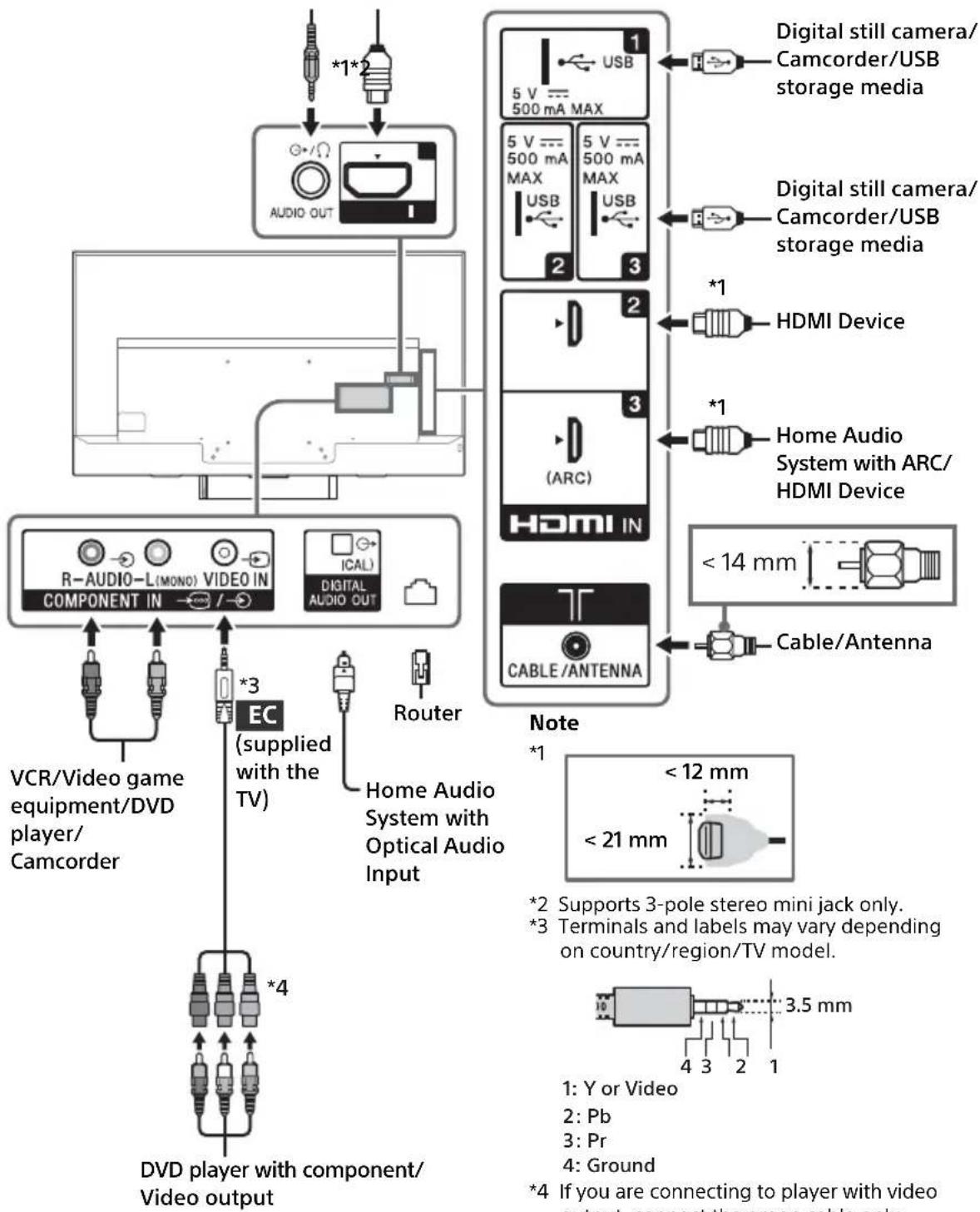
Headphone/Home Audio System/Subwoofer HDMI Device
Connecting the TV
Note
- Use an antenna cable connector no greater than 14mm thick.
- When connecting the cable to the Cable/ Antenna, input finger tighten only, over tightening the connection can damage the TV.
- Use an HDMI cable connector within 12mm (thickness) × 21mm (width).
Recommendation for an F type plug
Projection of the inner wire from the connection part must be less than 1.5mm
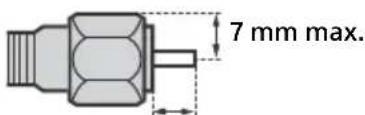
1.5 mm max.
(Reference drawing for an F type plug)
connection
Showing a
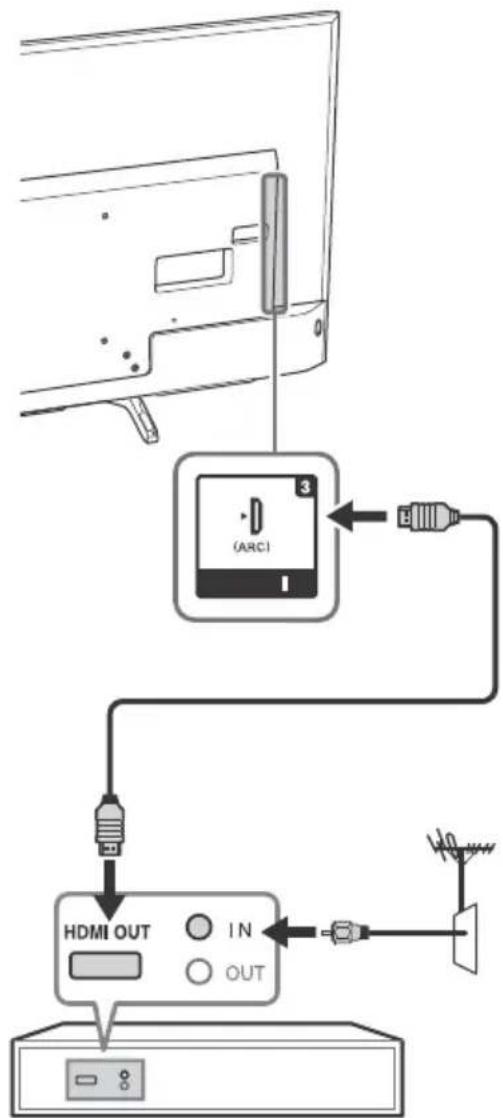
Set Top Box
Showing a Set Top Box with Component connection System
Cable System or VHF/UHF Antenna
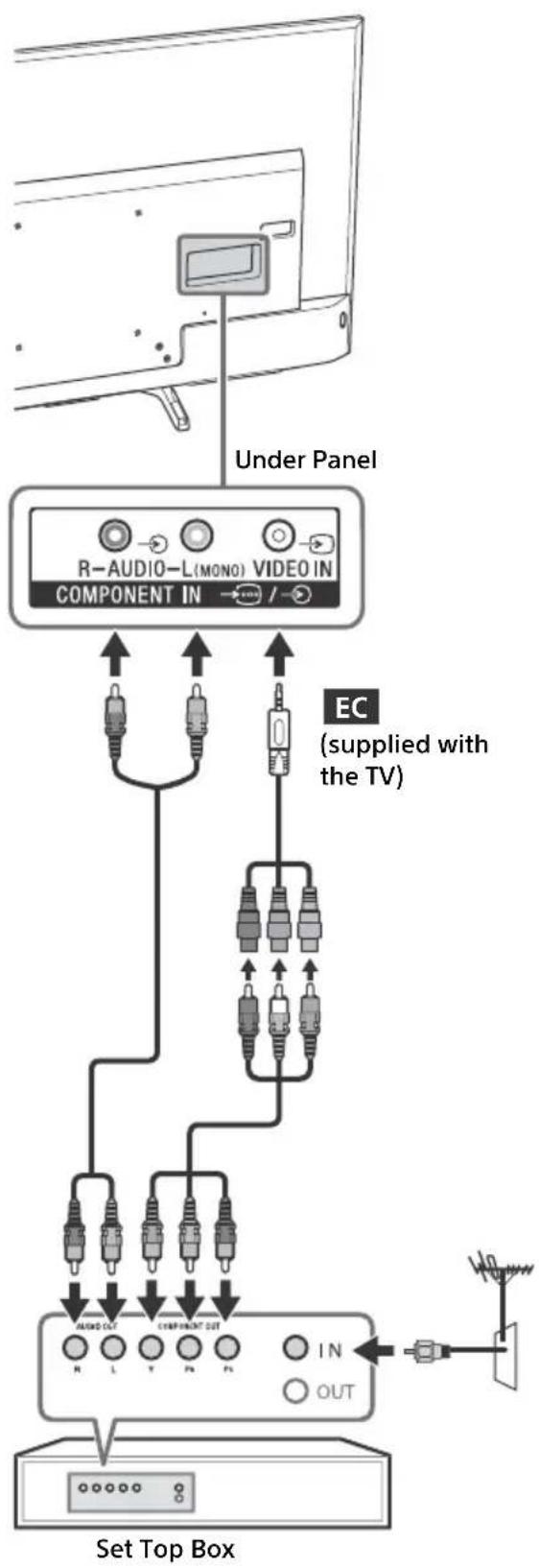
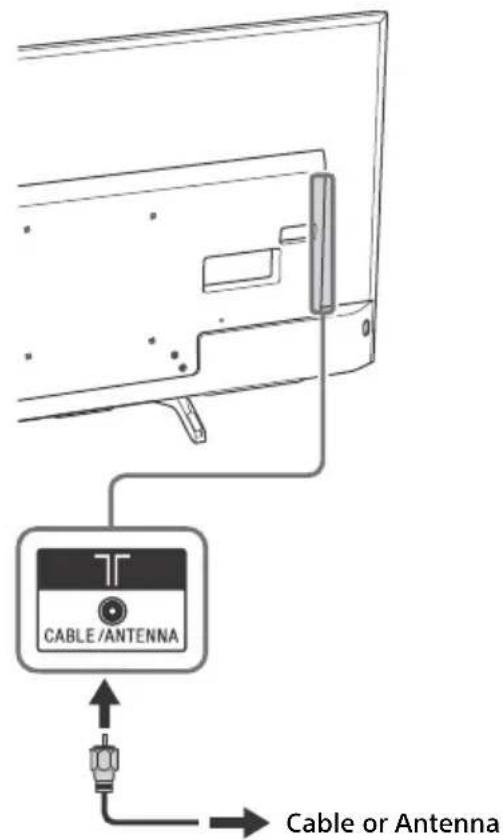

1 Signifies a BRAVIA Sync capable device.
2 The optical connection is only needed for A/V receivers that do not support ARC (Audio Return Channel).
Showing HD Basic Connection with Home Theater System
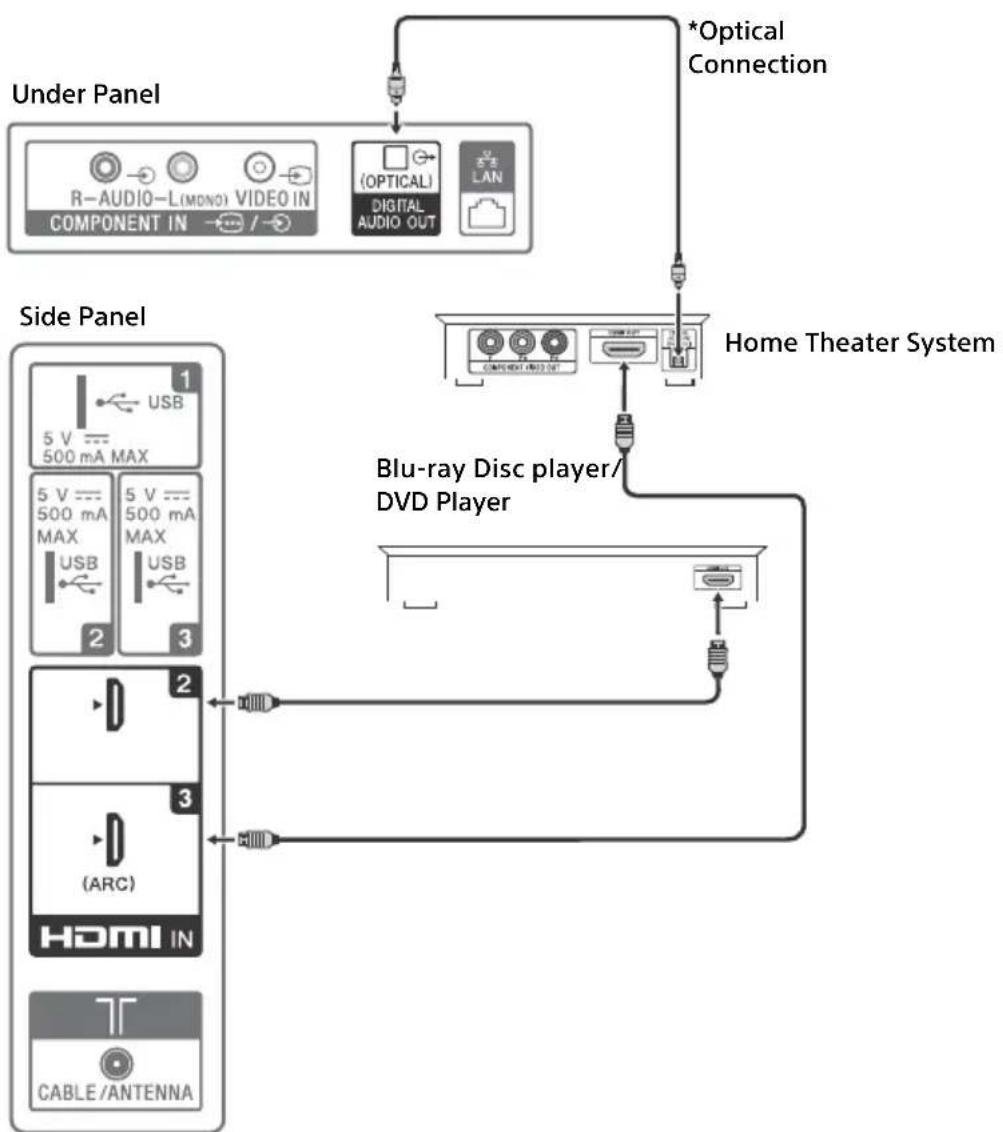
* The optical connection is only needed for home theater system that do not support ARC (Audio Return Channel) when connecting with HDMI.
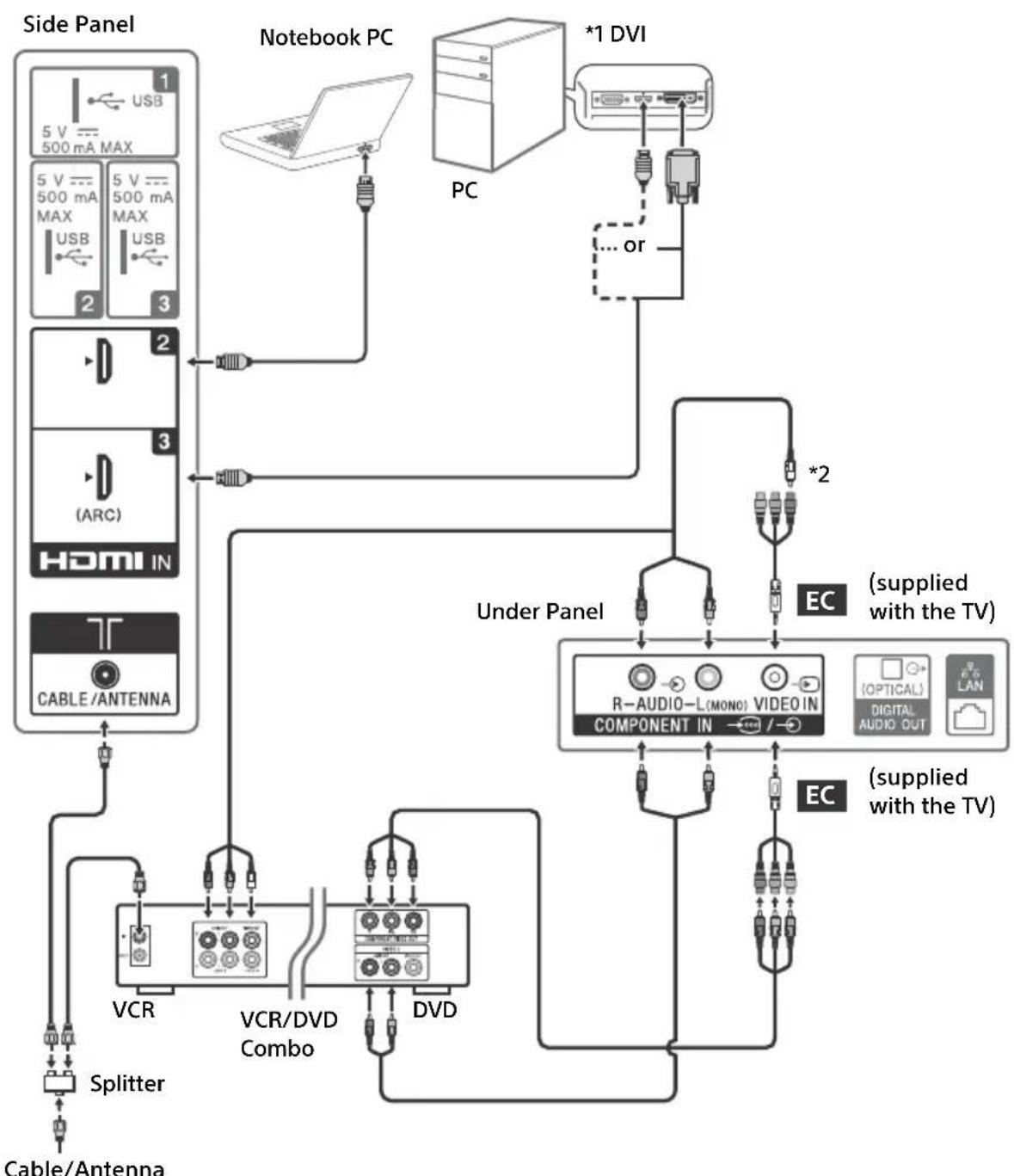
1 DVI does not support audio signals. Connect the audio output of the PC to the PC speakers or an A/V receiver to listen to sound from the PC.
2 If you are connecting to player with video output, connect the green cable only.
Using Audio and Video Equipment
1 Turn on the connected equipment.
2 Press INPUT to display the input source.
3 Press / then to select the desired input source.
The highlighted item is selected if 5 seconds pass without any operation.
Note
- When connecting a digital audio system not compatible with Audio Return Channel (ARC) technology using an HDMI cable, you need to connect an optical audio cable to the DIGITAL AUDIO OUT (OPTICAL) to output digital sound.
- When connecting with an HDMI cable, be sure to use HighSpeed HDMI Cable with Cable Type Logo. When devices supporting High-Quality HDMI formats such as 4K 60p 4:2:0 10bit, 4:4:4, 4:2:2 to HDMI IN 2 or IN 3, please use a Premium High Grade HDMI Cable that supports speed of 18 Gbps bearing the HDMI logo. (Recommended SONY Cable).
- When connecting mono equipment, connect the audio cable to the L (mono) jack.
To use BRAVIA Sync devices
When connecting the TV to BRAVIA Sync compatible equipment, you can control them together. Be sure to perform the necessary settings in advance. The BRAVIA Sync Control settings must be set on both the TV and the connected equipment. See [BRAVIA Sync Settings] (page 31) for the settings on the TV side. Refer to the connected equipment operating instructions for the settings on the connected equipment side.
Using Screen Mirroring
Screen mirroring displays the screen of a compatible device (e.g. smartphones) on your large TV screen by Miracast technology. No wireless router (or access point) is required to use this feature.
1 Press INPUT button, then select [Screen mirroring] using 串 /串 buttons.
2 Operate the Screen mirroring compatible device to connect with the TV. Once connected, the device screen will be displayed on the TV.
To show connected devices/delete device
When the waiting screen for the Screen mirroring is displayed, press OPTIONS, then select [Show Device List / Delete]. To deregister a device, select the device in the list to delete, press . Then, select [Yes] in the confirmation display.
To display registration notification when attempting to connect a device with the TV
Activating this function can avoid an unintended device from being connected. When the standby screen for Screen mirroring is displayed, press OPTIONS, then select [Registration Notification] [On]. Note that once you decline registration request from a device, you will not be able to connect the device unless you delete it from the device list.
To change the band setting (for experts)
When the standby screen for Screen mirroring is displayed, press OPTIONS, then select [Band Setting].
Note
-
Connecting devices must conform to the following:
-
Screen mirroring compatible devices: 2.4GHz connection (5GHz not supported).
-
For information about the supported wireless band of your device, refer to the instruction manual of your device.
Additional Information
Installing the TV to the Wall
This TV's instruction manual only shows the steps on preparing the installation of the TV before installing to the wall.
Your TV can be mounted on a wall using a Wall-Mount Bracket (not supplied) out of the box as packaged. If the Table-Top Stand is attached to the TV, the TV may require detaching the Table-Top Stand; see page (Detaching the Table-Top Stand from the TV).
Prepare the TV for the Wall-Mount Bracket before making cable connections.
For product protection and safety reasons, Sony strongly recommends that installation of your TV on the wall be performed by qualified professionals. Do not attempt to install it yourself.
- Follow the instruction guide provided with the Wall-Mount Bracket for your model. Sufficient expertise is required in installing this TV, especially to determine the strength of the wall for withstanding the TV's weight.
- The length of the screw for Wall-Mount Bracket differs depending on the Wall-Mount Bracket thickness. Please see below illustration.
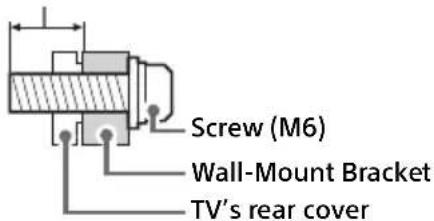
8mm-12mm
- Be sure to store the unused screws and Table-Top Stand in a safe place until you are ready to attach the Table-Top Stand. Keep the screws away from small children.
Note
- Read the supplied Safety Booklet for additional safety information.
1 Detaching the Table-Top Stand from the TV.
To detach the Table-Top Stand from the TV, remove the screws.
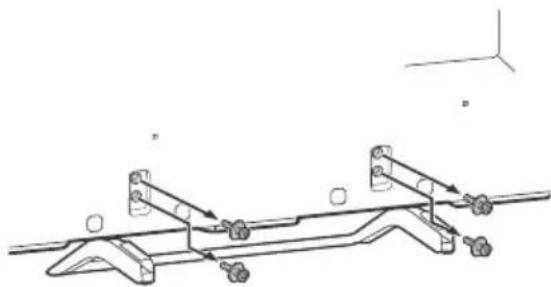
KD-55X720E only
US
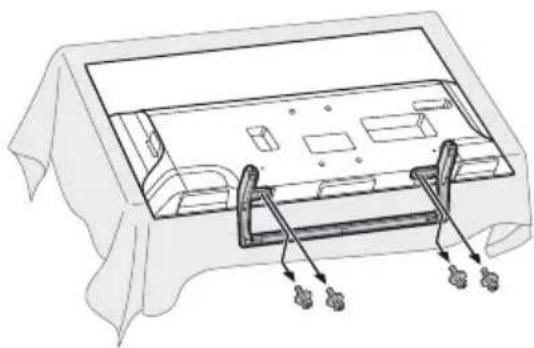
KD-49X720E, KD-43X720E only
Note
- Do not remove the Table-Top Stand for any reason other than to install corresponding accessories on the TV.
- Be sure the TV is vertical before turning on. To avoid uneven picture uniformity do not power on the TV with the LCD panel facing down.
- When attaching the Table-Top Stand again, be sure to fasten the screws (previously removed) to the original holes on the rear of the TV.
KD-49X720E, KD-43X720E only)
- When removing the Table-Top Stand from the TV, lay the display face down on a stable work surface that is larger than the TV.
- To prevent damaging the surface of the LCD display, make sure to place a soft cloth on the work surface.
2 Attach the Wall-Mount Bracket (not supplied) using the screws (not supplied).
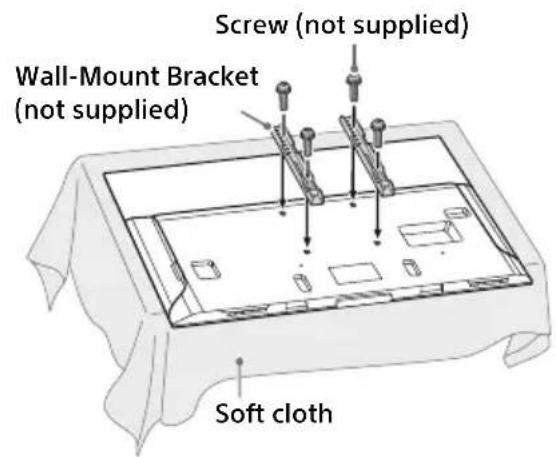
KD-55X720E only
KD-49X720E, KD-43X720E only
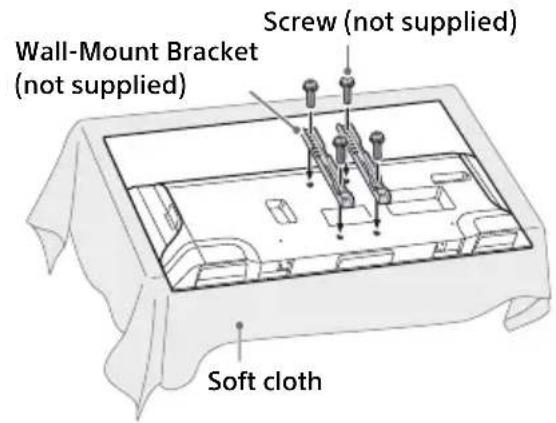
Note
If using an electric screwdriver, set the torque at approximately 1.5N· m {15 kgf·cm}.
Installing the TV against a wall or enclosed area
Ventilation
- Never cover the ventilation holes or insert anything in the cabinet.
- Leave space around the TV set as shown below.
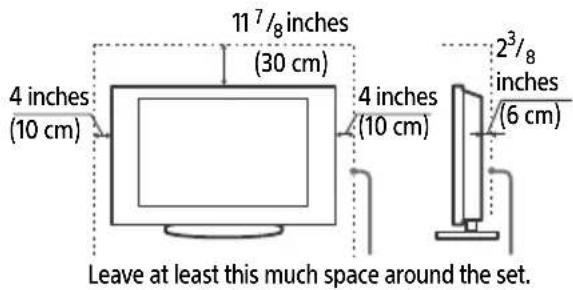
Installed with Stand

Installed on the wall
Never install the TV set as follows:
Air circulation is Air circulation is blocked. blocked.
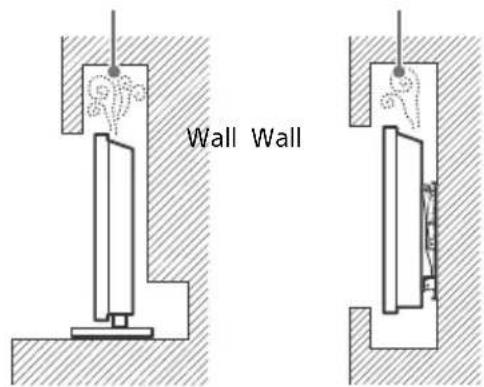
Note
- Inadequate ventilation can lead to overheating of the TV and may cause TV damage or cause a fire.
Troubleshooting
When the LED indicator is flashing red, count how many times it flashes (interval time is three seconds).
If the LED indicator flashes red, reset the TV by disconnecting the AC power cord from the TV for two minutes, then turn on the TV. If the problem persists, contact Sony Customer Support (information provided on the front cover) with the number of times the LED indicator flashes red (interval time is three seconds).
Press on the TV to turn it off, disconnect the AC power cord, and contact Sony Customer Support.
When the LED indicator is not flashing, check the items as follows.
If the problem persists, have your TV serviced by qualified service personnel.
Picture
No picture (screen is dark) and no sound
- Check the cable/antenna connection.
- Connect the TV to the AC power outlet, and press on the TV or POWER on the remote control.
No picture or no menu information from equipment connected to the video input jack appears on the screen
- Press INPUT to display the connected equipment list, then select the desired input.
- Check the connection between the optional equipment and the TV.
Double images or ghosting
- Check the cable/antenna connection, location or direction.
Only snow and noise appear on the screen
- Check if the antenna is broken or bent.
- Check if the antenna has reached the end of its serviceable life (three to five years in normal use, one to two years at the seaside).
Distorted picture (dotted lines or stripes)
- Keep the TV away from electrical noise sources such as cars, motorcycles, hairdryers or optional equipment.
- When installing optional equipment, leave some space between the optional equipment and the TV.
-
Check the cable/antenna connection.
-
Keep the antenna cable away from other connecting cables.
Picture or sound noise when viewing a TV channel
Make sure that the antenna is connected using a 75-ohm coaxial cable (not supplied).
- Keep the antenna cable away from other connecting cords.
- To avoid TV interference, make sure to use an undamaged antenna cable.
Tiny black points and/or bright points appear on the screen
- The picture of a display unit is composed of pixels. Tiny black points and/or bright points (pixels) on the screen do not indicate a malfunction.
Picture contours are distorted
- Change the current setting of [CineMotion] to other settings (page 23).
No color on programs
- Select [Reset] (page 23).
No color or irregular color when viewing a signal from the Y, P_B P_R jacks of
- Check the connection of the Y, PB, PR jacks of - and check if each jacks are firmly seated in their respective jacks.
- Check TV input mode after Mini Plug Video Adapter connected to TV and ensure Mini Plug Video Adapter connection is correctly insert.
No picture from the connected equipment appears on the screen
- Turn the connected equipment on.
- Check the cable connection.
- Press INPUT to display the connected equipment list, then select the desired input.
- Correctly insert the memory card or other storage device in the digital still camera.
- Use a digital still camera memory card or other storage device that has been formatted according to the instruction manual supplied with the digital still camera.
- Operations are not guaranteed for all USB devices. Also, operations differ depending on the features of the USB device and the video being played.
Cannot select the connected equipment on the menu or cannot switch the input
- Check the cable connection.
Sound
No sound, but good picture
- Press VOL +/- or MUTING.
- Check if [Speakers] in [AV Setup] is set to [TV Speakers] (page 30).
- Check if the headphone plug is connected to the TV.
No sound or noisy sound
- Check if the TV system setting is appropriate (page 23).
Channels
The desired channel cannot be selected
- Switch between [Cable] and [Antenna] to select the desired digital/analog channel.
Some channels are blank
- The channel is for scrambled/subscription service only. Subscribe to a pay TV service.
- Channel is used only for data (no picture or sound).
- Contact the broadcaster for transmission details.
Network
What kind of devices can be connected to use the Screen mirroring function?
- Sony Screen mirroring compatible devices (Xperia) can be connected.
Video or sound sometimes cuts out
Devices emitting radio waves, such as other wireless LAN devices or microwave ovens, may interfere with the Screen mirroring function using wireless LAN. Keep the TV or Sony Screen mirroring compatible devices (Xperia) away from such devices, or turn them off if possible.
- Communication speed may change according to the distance or obstacles between devices, device configuration, radio wave condition, line congestion or what device you use. Communication may cut out due to the radio wave condition.
Some pay contents cannot be played
- The source device needs to be compatible with HDCP (High-bandwidth Digital Content Protection) 2.0/2.1 system. Some pay contents may not be displayed via a non-compatible source device.
Apps are inaccessible
- Check that the LAN cable or AC power cord of the router/modem* has been connected properly.
- Your router/modem must be set in advance to connect to the Internet. Contact your Internet service provider for router/modem settings.
Try using apps later. The app content provider's server may be out of service.
Sometimes video streaming quality is poor when using the wireless LAN
- The wireless network connection quality varies depending on the distance or obstacles (e.g. wall) between the TV and the wireless router (access point), environment interference, and quality of the wireless router (access point).
Wireless LAN connection fails or radio reception conditions are poor
-
Check the installation location of the TV and wireless router (access point). Signal condition may be affected for the following reasons.
-
Other wireless devices, microwaves, fluorescent lights, etc., are placed nearby.
- There are floors or walls between the wireless router (access point) and TV. If the problem persists even after checking the above, try making a wired LAN connection.
Poor picture on Internet Video
- Quality depends on the original video provided by the internet contents provider and your connection bandwidth.
Certain internet contents displays a loss of detail, especially during fast-motion or dark scenes
Video quality and picture size depend on broadband speed and delivery by content providers.
Good picture quality but no sound on the internet contents
- Quality depends on the original content provided by the internet contents provider and your connection bandwidth.
- Due to the nature of Internet video, not all videos will contain sound.
Your TV cannot connect to the server
- Check the LAN cable or connection to your server and your TV.
- Check if your network is properly configured on your TV.
A message appears stating that the TV cannot connect to your network
- Check the current network settings. Press HOME, then select [Settings] [Preferences] [Setup] [Network] [Network Setup] [Network Status]. If all of your network settings are " - ", your server may not be connected properly. Check your network connections and/or server's instruction manual for connection information.
- Reconfigure your network settings.
- If the LAN cable is connected to an active server and the TV has acquired an IP address, check your DLNA Certified™ media server's connections and configurations.
Note
- Your IP address configuration can be viewed by selecting the [Network Status] option.
DLNA Certified™ media server is inaccessible although it is listed under [Media] in the Home Menu
- Check your LAN cable/connection or your server connections. The TV may have lost connection with the server.
- Perform [Media Server Troubleshooting] to check if your media server is properly communicating with the TV. Press HOME, then select [Settings] [Preferences] [Setup] [Network] [Home Network Setup] [Media Server Troubleshooting].
When using the renderer function, music files cannot be played back
- Some applications display a photo file pre-installed in the PC simultaneously with music playback when using the renderer function. Depending on the pre-installed photo file, music playback may not be possible, but may become possible by changing the photo file.
You could not connect Internet
- Check that the LAN cable or AC power cord of the router/modem* has been connected properly.
- Your router/modem must be set in advance to connect to the Internet. Contact your Internet service provider for router/modem settings.
You do not have YouTube ID
- If you do not have a YouTube ID and password, register them through the address below. http://www.google.com/device (You can also register a YouTube ID and password from your PC.) After registering your ID, you can use it immediately.
General
US
The TV turns off automatically (the TV enters standby mode)
- Check if the [Sleep Timer] is activated (page 29).
- Check if the [Duration] is activated by [On Timer] (page 30) or [Photo Frame Settings] (page 28).
- Check if the [Idle TV Standby] is activated (page 32).
Some input sources cannot be selected
- Select [Manage Inputs] and select [Always] of the input source (page 30).
The remote control does not function
- Replace the batteries.
HDMI equipment does not appear on BRAVIA Sync Device List
- Check that your equipment is compatible with BRAVIA Sync Control.
Cannot select Off in BRAVIA Sync Control
- If you have connected any audio system that is compatible with BRAVIA Sync Control, you cannot select [Off] in this menu. To change the audio output to the TV speaker, select [TV Speakers] in the [Speakers] menu (page 30).
The Parental Lock password has been forgotten
- Enter 4357 for the password.
- Update password by selecting [Settings] [Preferences] [Parental Lock] [Change Password].
Store Display Mode or Promoting Feature Logo appears on the screen
- On the remote control, press RETURN then press HOME and select [Settings] [Preferences] [Setup] [Initial Setup]. Be sure to select [Home] in [Location].
How to reset the TV to factory settings
- Turn on the TV. While long press on the remote control, press on the TV. (The TV will turn itself off, then back on again.) Release .
Specifications
System
Television system
NTSC: American TV standard
ATSC (8VSB Terrestrial): ATSC compliant 8VSB
QAM on Cable: ANSI/SCTE 07 2000 (Does not
include CableCARD functionality)
Channel coverage
Analog terrestrial: 2 - 69 / Digital terrestrial:
2-69
Analog Cable: 1 - 135 / Digital Cable: 1 - 135
Panel system
LCD (Liquid Crystal Display) Panel, LED
Backlight
Speaker output
10W+10W
Wireless technology
Protocol IEEE802.11b/g/n
Input/Output jacks
CABLE/ANTENNA
75 ohms external terminal for RF inputs

COMPONENT IN/VIDEO IN

COMPONENT IN
Supported formats: 1080p(60Hz),
1080i(60Hz), 720p(60Hz), 480p, 480i
Y: 1.0 Vp-p, 75 ohms unbalanced, sync
negative
Pb: 0.7 Vp-p, 75 ohms
(Support 4K resolution, HDCP 2.2-
compatible)
HDMI Video: 4096 × 2160p (24, 60 Hz),
3840 × 2160p (24, 30, 60 Hz), 1080p (30,
60 Hz), 1080/24p, 1080i (60 Hz), 720p (30,
60 Hz), 720/24p, 480p, 480i
- HDMI IN 2 and IN 3 support High-Quality HDMI formats such as 4K 60p 4:2:0 10bit, 4:4:4, 4:2:2.
PC input: (Resolution (Horizontal frequency, Vertical frequency))
640× 480 ,31.5kHz,60Hz
800× 600 ,37.9kHz,60Hz
1,024×768,48.4kHz,60Hz
1,280×1,024,64.0kHz,60Hz
1,152×864,67.5kHz,75Hz
1,600×900,55.9kHz,60Hz
1,680× 1,050 65.3kHz 60Hz
1,920×1,080,67.5kHz,60Hz*
- The 1080p timing when applied to the HDMI input will be treated as a video timing and not PC timing for Wide mode.
Audio: Two channel linear PCM: 32, 44.1 and 48 kHz, 16, 20 and 24 bits, Dolby Digital, Dolby Digital Plus, DTS
ARC (Audio Return Channel) (HDMI IN 3 only)
(Two channel linear PCM: 48 kHz, 16 bits, Dolby Digital, Dolby Digital Plus, DTS)
AUDIO OUT/ (Stereo mini jack) Headphone, Audio output, Subwoofer
DIGITAL AUDIO OUT (OPTICAL)
Digital optical jack (Two channel linear PCM: 48 kHz, 16 bits, Dolby Digital, DTS)
1,2,3 USB port
DC IN 19.5 V - C + (models with supplied
AC adapter only) AC adapter input
LAN
10BASE-T/100BASE-TX connector (Connection speed may differ depending on the network environment. 10BASE-T/ 100BASE-TX communication rate and communication quality are not guaranteed for this TV.)
Others
Operating temperature 32^ - 104^(0^ - 40^)
Power and others
Power requirements except models with supplied AC adapter 110 V -240 V AC,50/60 Hz (U.S.A./Canada 120 V AC,60 Hz) models with supplied AC adapter only 19.5 V DC with AC adapter Rating: Input 110 V -240 V AC,50/60 Hz USA / Canada AC 120 V,60 Hz
Power consumption
in use:
KD-55X720E:136W
KD-49X720E:114W
KD-43X720E:101W
instandby*1*2:
Less than 0.50 W with 120 V AC and less than 0.50 W with 240 V AC
Screen size (measured diagonally)(Approx.)
KD-55X720E: 54.6 inches (55" Class)
KD-49X720E: 48.5 inches (49" Class)
KD-43X720E: 42.5 inches (43" Class)
Display resolution
3,840 dots (horizontal) × 2,160 lines (vertical)
Dimensions (Approx.)
with stand
KD-55X720E: 1,238 × 775 × 252 ~mm
48^3 / 4 × 30^5 / 8 × 10 inches
KD-49X720E: 1,102 × 694 × 252 mm /
4312 × 27^3 / 8 × 10 inches
KD-43X720E: 971× 620× 242mm /
3814 × 2412 × 958 inches
without stand
KD-55X720E: 1,238 × 722 × 58 ~mm
48^3 / 4 × 28^1 / 2 × 2^3 / 8 inches
KD-49X720E: 1,102 × 646 × 70 ~mm /
43^1 / 2× 25^1 / 2× 2^7 / _8 inches
KD-43X720E: 971 × 571 × 70 ~mm
38^1 / 4× 22^1 / 2× 2^7 / 8 inches
wall-mount hole pattern
KD-55X720E: 300 × 200 ~mm
KD-49X720E: 200 × 200 ~mm
KD-43X720E: 100 × 200 ~mm
wall-mount screw size (mm)
M6 (length: refer to diagram on page 41)
Mass (Approx.)
with stand
KD-55X720E: 18.6 kg / 41 lb
KD-49X720E: 12.1 kg / 26.7 lb
KD-43X720E: 10.0 kg / 22.1 lb
without stand
KD-55X720E: 17.7 kg / 39 lb
KD-49X720E: 11.4kg / 25.2 lb
KD-43X720E: 9.3 kg / 20.5 lb
*1 Specified standby power is reached after the TV finishes necessary internal processes.
*2 Standby power consumption will increase when your TV is connected to the network.
Note
- Optional accessories availability depends on countries/region/TV model/stock.
- Design and specifications are subject to change without notice.
Licensing Information
- The terms HDMI and HDMI High-Definition Multimedia Interface, and the HDMI Logo are trademarks or registered trademarks of HDMI Licensing LLC in the United States and other countries.
- Manufactured under license from Dolby Laboratories. Dolby, Dolby Audio, and the double-D symbol are trademarks of Dolby Laboratories.
- "BRAVIA" and BRAVIA, S-Force, Motionflow, BRAVIA Sync, and are trademarks or registered marks of Sony Corporation.
- Opera Devices SDK. Copyright 1995-2016 Opera TV AS. All rights reserved.
- Wi-Fi, Wi-Fi Direct, Miracast, Wi-Fi Protected Setup and Wi-Fi CERTIFIED Logo are trademarks or registered trademarks of Wi-Fi Alliance.
- "Blu-ray Disc", "Blu-ray" and "Blu-ray Disc" logo are trademarks of Blu-ray Disc Association.
- For DTS patents, see http:// patents.dts.com. Manufactured under license from DTS, Inc. DTS, the Symbol, & DTS and the Symbol together are registered trademarks, and DTS Digital Surround is a trademark of DTS, Inc. © DTS, Inc. All Rights Reserved.
- TUXERA is a registered trademark of Tuxera Inc. in the US and other countries.
- Windows Media is either a registered trademark or trademark of Microsoft Corporation in the United States and/or other countries.
- This product contains technology subject to certain intellectual property rights of Microsoft. Use or distribution of this technology outside of this product is prohibited without the appropriate license(s) from Microsoft.


Opera TV

dt
Di ital Surround

YOUR DATA - WHERE YOU WANT IT

Actual resolution: 3840 x 2160 pixels.
Table des matieres
AVIS IMPORTANTS. 4
Protected SetupTM (WPS) 17
Protected SetupTM (WPS) 18
Partie responsible : Sony Electronics Inc.
Adresse: 16535 Via Esprillo,
San Diego, CA 92127 U.S.A.
DIGITAL AUDIO OUT (OPTICAL)
| For Your Convenience | |
| Online Registration: | Be sure to register your TV. United States http://productregistration.SONY.com Canada http://www.SONY.ca/registration |
| Software Updates: | Your TV is capable of receiving software updates. For the latest information about software updates for your TV, visit: United States http://www.SONY.com/tvsupport Canada http://www.SONY.ca/support NOTE: If your TV is connected to the Internet, you can check for software updates by pressing HOME, then select [Settings] → [Customer Support] → [Software Update]. |