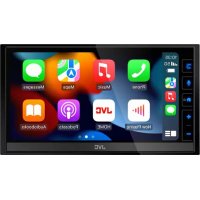
KWM650BT - Car stereo JVC - Free user manual and instructions
Find the device manual for free KWM650BT JVC in PDF.



User questions about KWM650BT JVC
0 question about this device. Answer the ones you know or ask your own.
Ask a new question about this device
Download the instructions for your Car stereo in PDF format for free! Find your manual KWM650BT - JVC and take your electronic device back in hand. On this page are published all the documents necessary for the use of your device. KWM650BT by JVC.
USER MANUAL KWM650BT JVC
MONITOR WITH DVD RECEIVER
MONITEUR AVEC RÉCEPTEUR DVD
MONITOR CON RECEPTOR DVD
KW-V850BT
KW-V85BT
MONITOR WITH RECEIVER
MONITEUR AVEC RÉCEPTEUR
MONITOR CON RECEPTOR
KW-M750BT
KW-M75BT
KW-M650BT
Quick Start Guide
About the Quick start guide....2
How to read this manual ....2
Precautions....3
Initial Settings....4
Adjusting the volume 5
Functions of the Buttons on the Front Panel ...6
Turning on the Unit 7
Source control screen descriptions 9
Playing a disc 10
Connecting a USB device 10
Connect iPod/iPhone....10
DVD/ VCD Basic Operation....11
Tuner Basic Operation 12
Music CD/ Disc media/USB Basic Operation...13
iPod/iPhone Basic Operation 14
Bluetooth Setup....15
Using the Hands-Free Unit....16
Before Installation....18
Installing the unit....20
About this Unit....28
About the Quick start guide
This Quick Start Guide describes basic functions of this unit.
For functions not described in this Guide, refer to the Instruction Manual on the following website:
To refer to Instruction manual, a PC loaded with Microsoft® Windows 7 sp1/8/8.1/10 or Mac OS X® v10.11/macOS v10.12/10.13/10.14 or later is required in addition to Adobe® Acrobat Reader™ DC or Adobe® Acrobat® DC or later.
The Instruction manual is subject to change for modification of specifications and so forth. Be sure to download the latest edition of the Instruction manual for reference.
How to read this manual
NOTE
- The panels shown in this guide are examples used to provide clear explanations of the operations. For this reason, they may be different from the actual panels. If above icons are showed, read the article applicable to the unit you use.
- The screens and panels shown in this manual are examples used to provide a clear explanation of operations. For this reason, they may be different from the actual screens or panels, or some display patterns may be different from the actual ones.
- Display language: English is used for the purpose of explanation. You can select a display language from the [SETUP] menu. See User Interface Setup (P.68) in the Instruction Manual.
Precautions
⚠️ WARNINGS
To prevent injury or fire, take the following precautions:
• To prevent a short circuit, never put or leave any metallic objects (such as coins or metallic tools) inside the unit.
- Do not watch or fix your eyes on the unit's display when you are driving for any extended period.
- If you experience problems during installation, consult your JVC dealer.
Precautions on using this unit
- When you purchase optional accessories, check with your JVC dealer to make sure that they work with your model and in your area.
- You can select a language to display menus, audio file tags, etc. See User Interface Setup (P.68) in the Instruction Manual.
- The Radio Data System or Radio Broadcast Data System feature won't work in areas where the service is not supported by any broadcasting station.
Protecting the monitor
- To protect the monitor from damage, do not operate the monitor using a ball point pen or similar tool with a sharp tip.
Cleaning the unit
- If the faceplate of this unit is stained, wipe it with a dry soft cloth such as a silicon cloth. If the faceplate is stained badly, wipe it with a cloth moistened with neutral cleaner, then wipe it again with a clean soft dry cloth.
NOTE
- Applying spray cleaner directly to the unit may damage its mechanical parts. Wiping the faceplate with a hard cloth or using a volatile liquid such as thinner or alcohol may scratch the surface or erase the screened print.
Lens fogging
When you turn on the car heater in cold weather, dew may form on the lens in the disc player of the unit due to condensation. This condensation on the lens (also called lens fogging) may not allow discs to play. In such a situation, remove the disc and wait for the dew to evaporate. If the unit still does not operate normally after a while, consult your JVC dealer.
Precautions on handling discs
- Do not touch the recording surface of the disc.
- Do not stick tape etc. on the disc, or use a disc with tape stuck on it.
- Do not use disc type accessories.
- Clean the disc from the center toward the outside rim.
- When removing a disc from this unit, pull it out horizontally.
- If the disc center hole or outside rim has burrs, use the disc only after removing the burrs with a ballpoint pen etc.
• Discs that are not round cannot be used.


- 8-cm (3 inch) discs cannot be used.
• Discs with coloring on the recording surface or discs that are dirty cannot be used. - This unit can only play the following types of CDs.


- This unit may not correctly play discs which do not have the mark.
- You cannot play a disc that has not been finalized. (For the finalization process, see your writing software and your recorder's instruction manual.)
Initial Settings
Initial setup
Perform this setup when you use this unit first time.
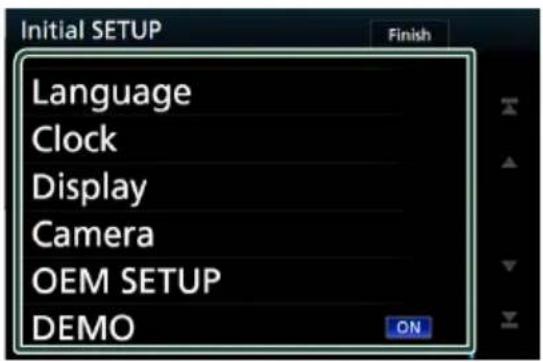
1 Set each item as follows.
text_image
Initial SETUP Finish Language Clock Display Camera OEM SETUP DEMO ON[Language]
Select the language used for the control screen and setting items. Default is "American English(en)".
① Touch [Language].
② Touch [Language Select].
③ Select the desired language.
④ Touch [7].
For details of operation, see User Interface Setup (P.68) in the Instruction Manual.
[Clock]
Sets the synchronization of the clock and adjusts it.
For detailed operation, see Calendar/clock settings (P.5).
[Display]
Set the button illumination color.
If it is hard to see the image on the screen even, adjust the viewing angle.
① Touch [Display].
② Touch [Key Color].
③ Select the desired color.
④ Touch[7].
⑤ Touch [Viewing Angle].
⑥ Select an angle
⑦ Touch [ ]
For details of, see Display Setup (P.70) in the Instruction Manual.
[Camera]
Set the parameters for the camera.
① Touch [Camera].
② Set each item and touch [7].
For details of, see Camera Setup (P.53) in the Instruction Manual.
[OEM SETUP]
This function requires a commercial adaptor. Consult your JVC dealer for details.
[DEMO]
Set the demonstration mode. Default is "ON". ① Touch [DEMO] and select ON or OFF.
2 Touch [Finish].
![JVC KWM650BT - Touch [Finish]. - 1](/content/2026/03/485046/images/2eae0140ab82caa0a6b6314ff7db38d8ff62613dca8be8401913ad33e9e6e43b.jpg)
text_image
Initial SETUP Language Clock Display Camera OEM SETUP DEMO Finish ONNOTE
• These settings can be made from the SETUP menu. See Setup (P.67) in the Instruction Manual.
Calendar/clock settings
1 Press the [FNC] button.
▶ Popup menu appears.
2 Touch

text_image
HOME DISP Phone Camera Screen Adjust AudioHOME screen appears.
3 Touch

text_image
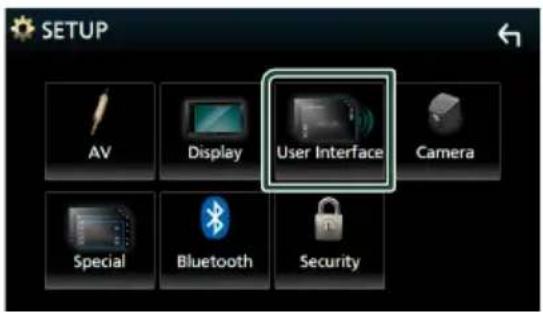
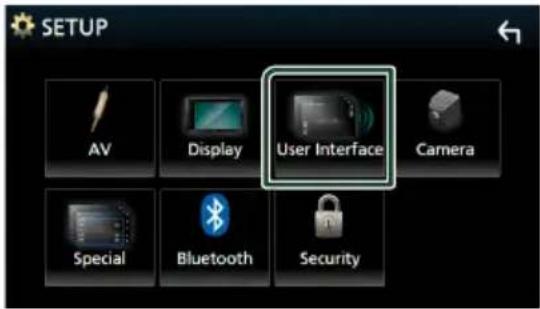
Tuner Phone4 Touch [User Interface].
![JVC KWM650BT - Touch [User Interface]. - 1](/content/2026/03/485046/images/7b0412219e588e5f8504e17bed28b9663d524a88b8f9e545f82b17a853f2aa1f.jpg)
text_image
SETUP AV Display User Interface Camera Special Bluetooth Security▶ User Interface screen appears.
5 Touch [Time Zone].
6 Select the time zone.
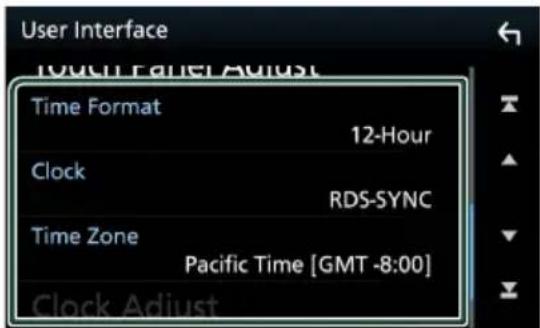
7 Set each item as follows. Scroll the page to show hidden items.
text_image
User Interface 12-Hour Clock RDS-SYNC Time Zone Pacific Time [GMT -8:00] Clock Adjust[Time Format]
Select the time display format.
[12-Hour] (Default)/ [24-Hour]
[Clock]
[RDS-SYNC]: Synchronizes the clock time with the RDS.
[Manual]: Set the clock manually.
[Time Zone]
Select the time zone.
[Clock Adjust]
If you select [Manual] for Clock, adjust the date and time manually (P.69) in the Instruction Manual.
NOTE
- Please set the date and time. If they are not set, some functions may not work.
Adjusting the volume
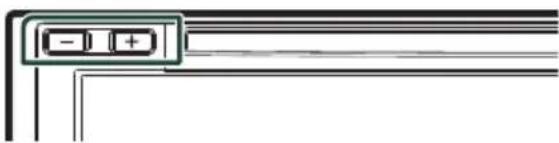
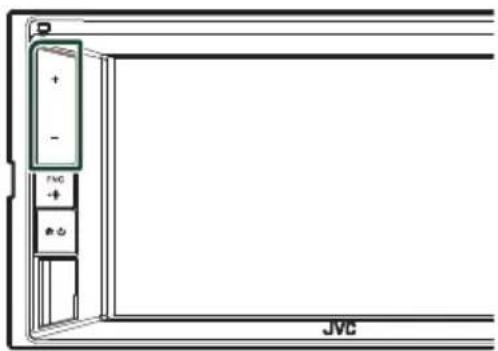
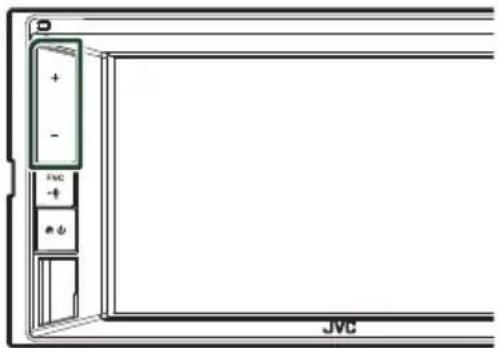
You can adjust the volume (0 to 40).
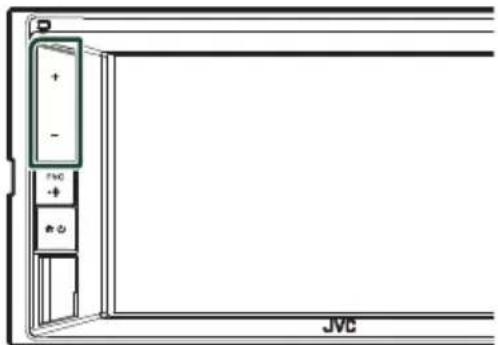
Press [+] to increase, and press [-] to decrease. Holding [+] increases the volume continuously to level 15.
KW-V850BT/KW-V85BT/
KW-M750BT/KW-M75BT
natural_image
Pure electrical circuit lines without any symbolsKW-M650BT
text_image
+ - + - + - JVCBasic Operations
Functions of the Buttons on the Front Panel
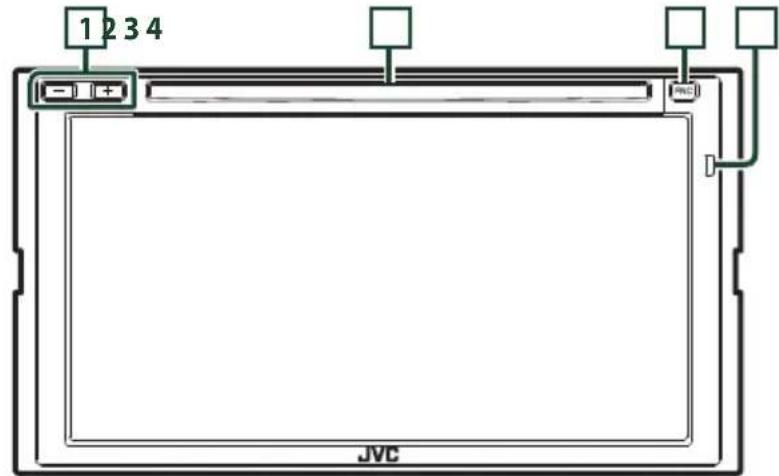
KW-V850BT/KW-V85BT
text_image
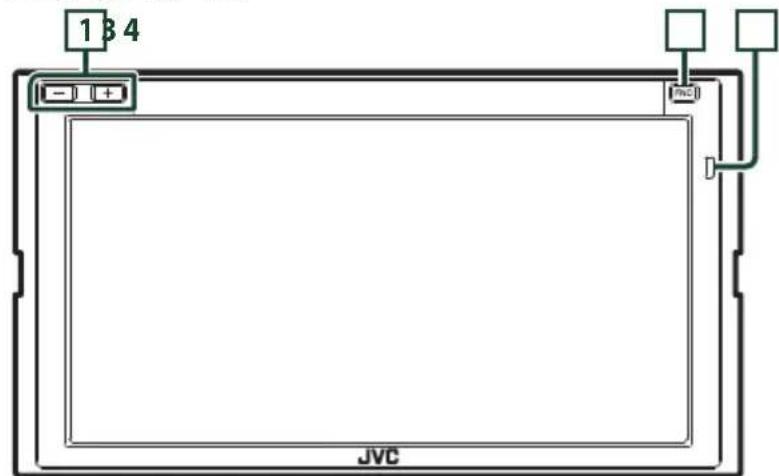
1 2 3 4 JVCKW-M750BT/KW-M75BT
text_image
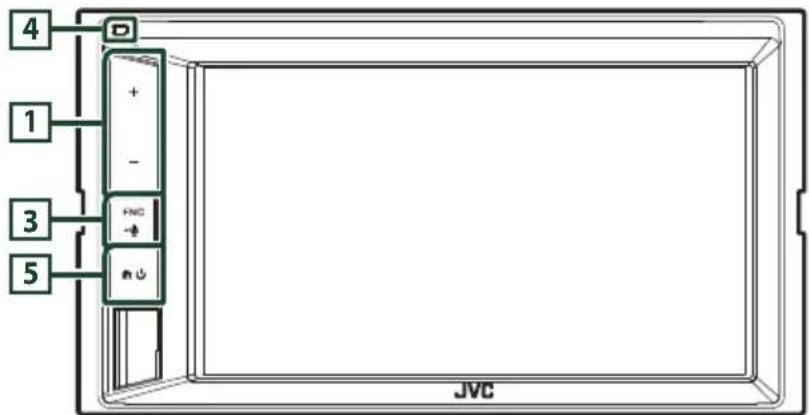
1 B 4 JVCKW-M650BT
text_image
4 1 3 5 + - FNC - m JVCNOTE
- The panels shown in this guide are examples used to provide a clear explanation of operations. For this reason, they may be different from the actual panels.
| Number | Name Motion | |
| 1 | -, + (Volume) | • Adjusts the volume.The volume will go up to 15 when you keep pressing [+]. |
| 2 | Disc insert slot | • A slot to insert a disc media. |
| 3 | FNC [IMAGE] | • Displays the popup menu screen.• Pressing for 1 second displays the Voice Recognition screen (P.63)in the Instruction Manual.• When the power is off, turns the power on. |
| 4 | Remote Sensor | • Receives the remote control signal. |
| 5 | [IMAGE] | • Displays the HOME screen (P.13) in the Instruction Manual.• Pressing for 1 second turns the power off.• When the power is off, turns the power on. |
Turning on the Unit
The method of turning on is different depending on the model.
KW-V850BT/KW-V85BT/KW-M750BT/KW-M75BT
1 Press the [FNC] button.
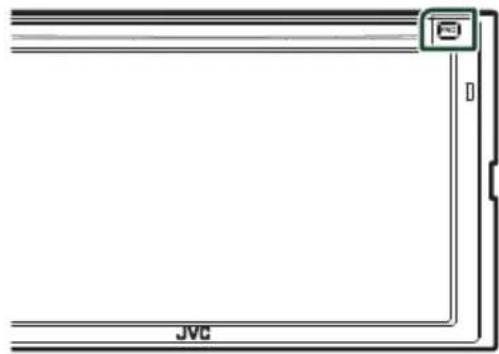
natural_image
Pure architectural line drawing of a window frame with JVC label and control panel (no text or symbols beyond labels)The unit is turned on.
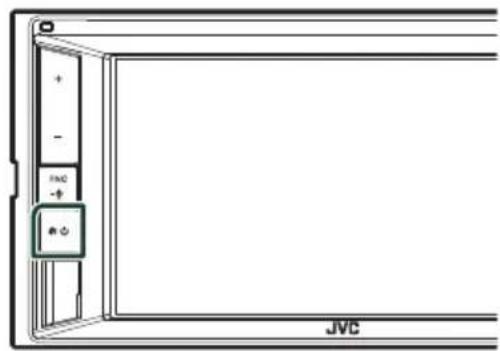
KW-M650BT
1 Press the button.
text_image
+ - FMC - + - JVCThe unit is turned on.
NOTE
- If it is your first time to turn the unit on after installation, it will be necessary to perform Initial setup (P.4).
Select the playback source
1 Press the [FNC] button.
▶ Popup menu appears.
2 Touch
HOME screen appears.
3 Touch
From the screen, you can select the following sources and functions.


- [Apple CarPlay]: Switches to the Apple CarPlay screen from the connected iPhone.
- [Android Auto]: Switches to the Android Auto screen from the connected Android device. ^*1
• Displays the Hands Free screen. When connecting as Apple CarPlay or Android Auto, it works as a phone provided in Apple CarPlay or Android Auto.
• Switches to the Radio broadcast.
- Switches to the SiriusXM® satellite radio broadcast.
- Plays a Bluetooth audio player.
- Plays a disc.
- Plays an iPod/iPhone.
- Plays files on a USB device.
• Switches to Pandora.
• Switches to Spotify.
- Switches to an external component connected to the AV-IN input terminal.
• Displays the Audio screen.
• Turns off the AV source.
- Turns off the unit. *
- For sources and information displayed when an ADS adapter is connected, see OEM Features Operation (P.55) in the Instruction Manual.
*1 Except KW-M650BT
* KW-V850BT/ KW-V85BT only
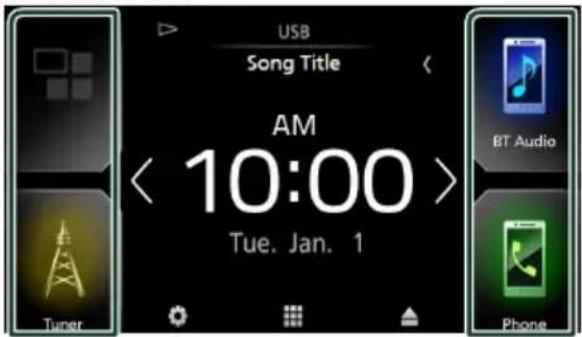
To select the playback source on the HOME screen
text_image
USB Song Title AM < 10:00 > Tue. Jan. 1 BT Audio Turner PhoneThe 4 items displayed on the source selection screen with large icons are shown on the HOME screen.
You can change the items displayed on this area by customizing the source selection screen. (P.9)
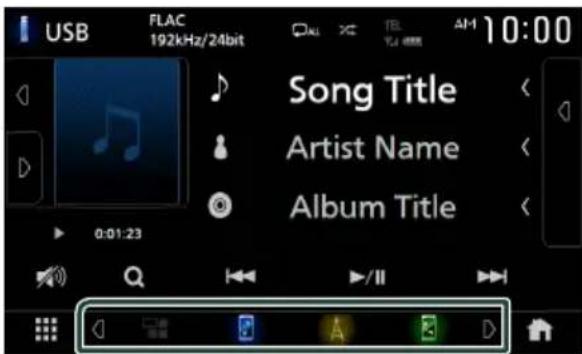
To select the playback source on the source control screen
text_image
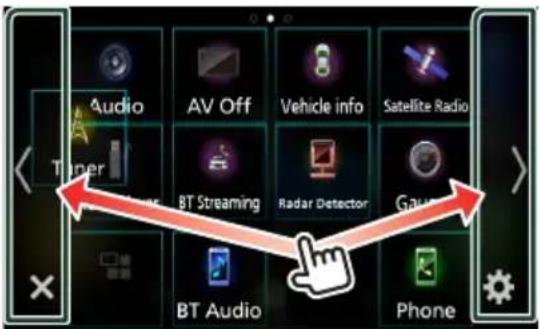
USB FLAC 192kHz/24bit CAM TV AM 10:00 Song Title Artist Name Album Title 0:01:23 A BDisplay source selection buttons by touching 📄/[p] or flicking left or right on the source control screen, then select a playback source.
To turn off the AV source
1 Press the [FNC] button. ➢ Popup menu appears.
2 Touch ➤ HOME screen appears.
3 Touch
4 Touch [AV Off].
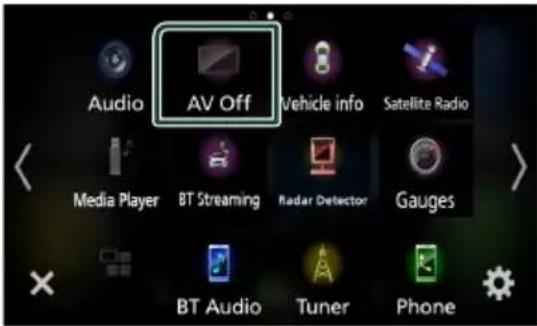
text_image
Audio AV Off Vehicle info Satellite Radio Media Player BT Streaming Radar Detector Gauges BT Audio Tuner PhoneCustomize Short-cut buttons on HOME screen
You can arrange the positions of the source icons as you like.
1 Press the [FNC] button.
▶ Popup menu appears.
2 Touch
HOME screen appears.
3 Touch
4 Touch and hold the icon which you want to move in the customizing mode.
5 Drag the icon to the desired position.
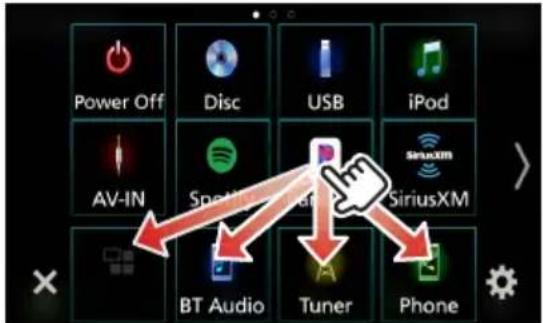
text_image
Power Off Disc USB iPod AV-IN Spotting SiriusXM BT Audio Tuner PhoneChanges the page
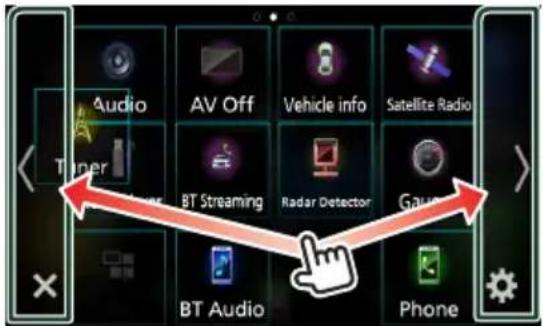
text_image
Audio AV Off Vehicle info Satellite Radio Tuner BT Streaming Radar Detector Gauge BT Audio PhoneSource control screen descriptions
There are some functions which can be performed from most screens.
Indicators
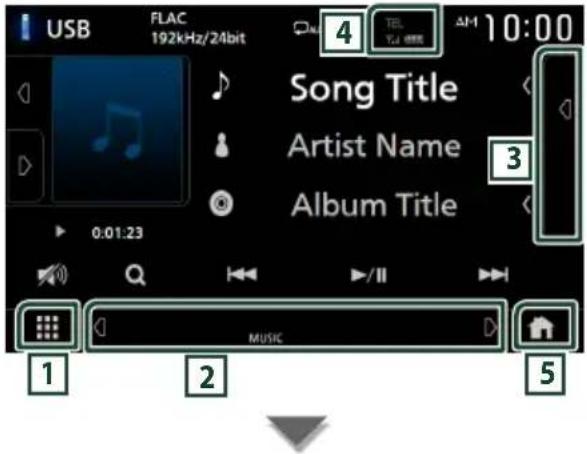
text_image
USB FLAC 192kHz/24bit 4 TEL TJ 0000 AM 10:00 Song Title Artist Name Album Title 0:01:23 MUSICShort-cut buttons

1 AI sources icon
Displays the source selection screen. (P.8)
2 Secondary screen
• [4] / 2 ] : The Secondary screen changes to another one every time you touch it. You can also change the Secondary screen by flicking left or right on the screen.
- Indicators: Displays the current source condition and so on.
- [ATT]: The attenuator is active.
– [DUAL]: The dual zone function is active.
- [LOUD]: The loudness control function is active.
- Short-cut buttons: The source changes to the one you have set with a short-cut. For the short-cut setting, refer to Customize Short-cut buttons on HOME screen (P.9).
3 Content list
Displays the track/file/station/channel list.
4 TEL 7.1
Connected Bluetooth device information.
5 HOME button
Displays the HOME screen (P.12) in the Instruction Manual.
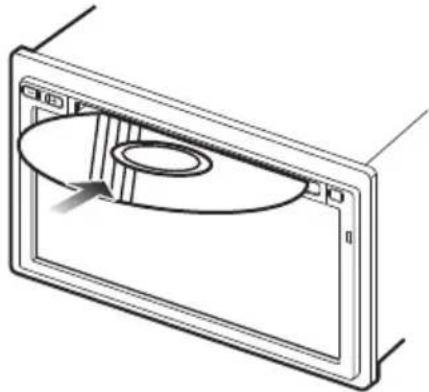
Playing a disc (KW-V850BT/ KW-V85BT)

Insert a disc
1 Insert the disc into the slot.
natural_image
Technical line drawing of a mechanical component with a circular recess and mounting holes (no text or symbols)The unit loads the disc and playback starts.

Eject a disc
1 Press the [FNC] button.
▶ Popup menu appears.
2 Touch [▲].
![JVC KWM650BT - Touch [▲]. - 1](/content/2026/03/485046/images/e22937675af1e8ab352491eda2797311073f2e26df3a836542b409f2b004c088.jpg)
text_image
BT Audio Tuner PhoneWhen removing a disc, pull it horizontally.
NOTE
- This is not displayed on the popup menu screen of Apple CarPlay or Android Auto source. Change Apple CarPlay or Android Auto source to other one to display the popup menu screen.
Connecting a USB device
1 Connect the USB device with the USB cable. (P.25)
2 Press the [FNC] button.
▶ Popup menu appears.
3 Touch

HOME screen appears.
4 Touch

5 Touch [USB].

Disconnect the USB device
1 Press the [FNC] button.
▶ Popup menu appears.
2 Touch

HOME screen appears.
3 Touch a source other than [USB].
4 Detach the USB device.
Connect iPod/iPhone
Wired connection
1 Connect the iPod/iPhone using the KS-U62. (P.26)
2 Press the [FNC] button.
▶ Popup menu appears.
3 Touch

HOME screen appears.
4 Touch

5 Touch [iPod].
●To disconnect the iPod/iPhone connected with the cable:
1 Detach the iPod/iPhone.
Bluetooth connection
Pair the iPhone through Bluetooth. (P.15)
DVD/ VCD Basic Operation (KW-V850BT/ KW-V85BT)
NOTE
- The screen shot below is for DVD. It may be different from the one for VCD.
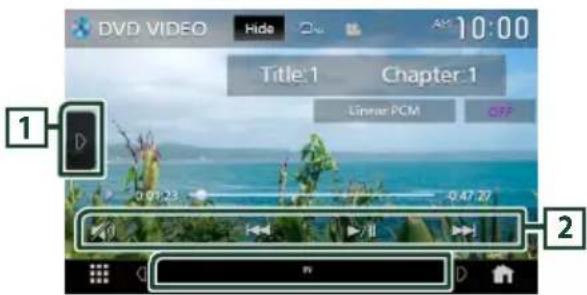
1 When the operation buttons are not displayed on the screen, touch 4 area.
Control screen
text_image
DVD VIDEO Hide 10:00 Title 1 Chapter 1 Linear PCM OFF 0.01.23 - 0.47.27 1 2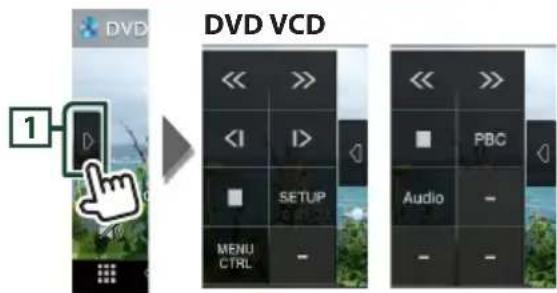
text_image
DVD VCD 1 << >> << I > SETUP MENU CTRL - PBC Audio -Video screen
natural_image
Scenic coastal landscape with multiple framed photos of plants and sea, numbered 3 to 5 annotations (no text or symbols on the main image area)1 Function panel
Touch the left side of the screen to display the function panel. Touch again to close the panel.
2 Operation keys
- [I◄◄◄] [►►►I]: Searches for the previous/next content. Touch and hold to fast-forward or fast-backward the disc.
- [▶Ⅱ] : Plays or pauses. - 📋 ] : Touch to attenuate/restore the sound.
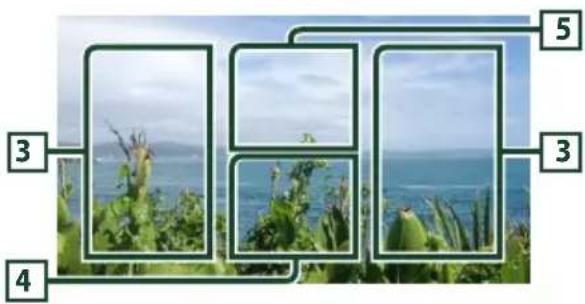
3 Searching area
Touch to search for the next/previous content.
4 Key display area
Touch to display the control screen.
5 [MENU CTRL] (DVD only)
Touch to display the DVD-VIDEO disc menu control screen. See DVD Disc Menu Operation (P.23) in the Instruction Manual.
NOTE
- The control screen disappears when no operation is done for 5 seconds. - If you use a remote control, you can jump directly to the desired image by entering the chapter number, scene number, play time, etc. (P.84) in the Instruction Manual.
Tuner Basic Operation
Control screen
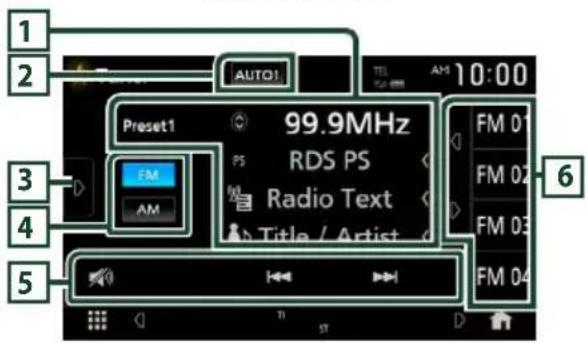
text_image
1 2 AUTO1 TEL AM 10:00 Preset1 99.9MHz RDS PS Radio Text Title / Artist FM AM 3 4 5 6Open the drawer
text_image
Tuner AUTO1 10:00 TI SETUP SSM PTY MOND - - FM 01 99.9MHz FM 02 99.9MHz FM 03 99.9MHz FM 04 99.9MHz 3 6Close the drawer
text_image
Tuner AUTO1 TL AM 10:00 Preset1 FM PS 99.9MHz RDS PS Radio Text Title / Artist 3 61 Information display
Displays the information on the current station.
2 Seek mode
Touch to switch seek mode in the following sequence: [AUTO1], [AUTO2], [MANUAL].
• [AUTO1]: Tunes in a station with good reception automatically.
- [AUTO2]: Tunes in the memorized stations one after another.
- [MANUAL]: Switches to the next frequency manually.
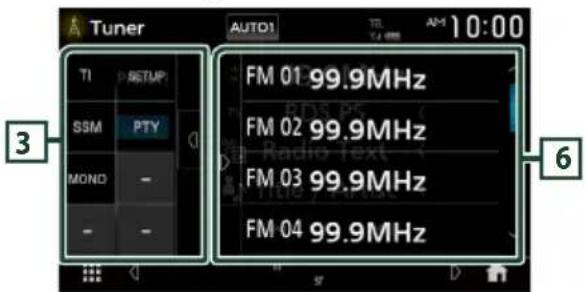
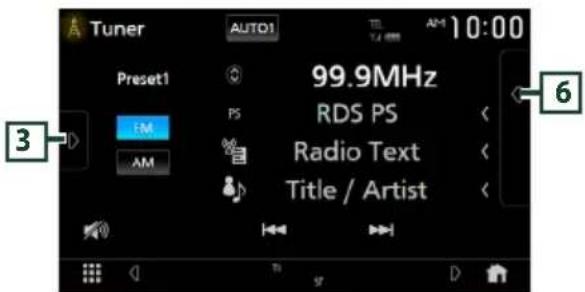
3 Function panel
Touch the left side of the screen to display the function panel. Touch again to close the panel.
4 Band buttons
Switches bands (between FM and AM).
5 Operation keys
- [I◄◄] [►►I]: Tunes in a station. The method of switching frequencies can be changed (see 2 Seek mode).
• 📷]: Touch to attenuate/restore the sound.
6 Preset list
- Touching [☐]/☐ ] allows you to change the display size.
• Recalls the memorized station. - When touched for 2 seconds, stores the currently being received station in the memory.
Music CD/ Disc media/USB Basic Operation
NOTE
- In this manual, "Music CD" means a general CD which includes music tracks.
"Disc media" means a CD/DVD disc which includes audio or video files. - The screen shot below is for disc media. It may be different from the one for CD.
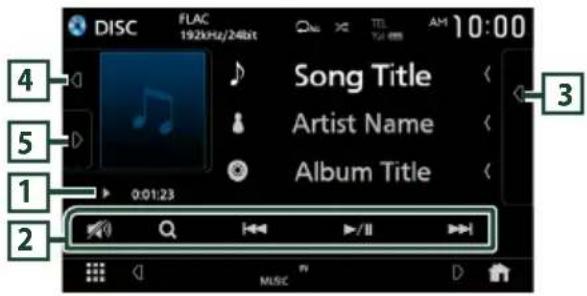
Control screen
text_image
DISC FLAC 192kHz/24bit Song Title Artist Name Album Title 0:01:23 2 3 4 5 1 2 MUSICOpen the drawer
text_image
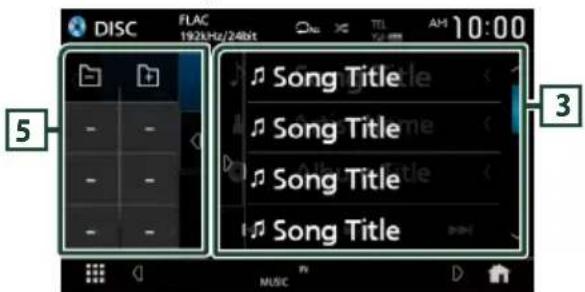
DISC FLAC 192kHz/240bit 5 3 Song Title Song Title Song Title Song Title MUSICClose the drawer
text_image
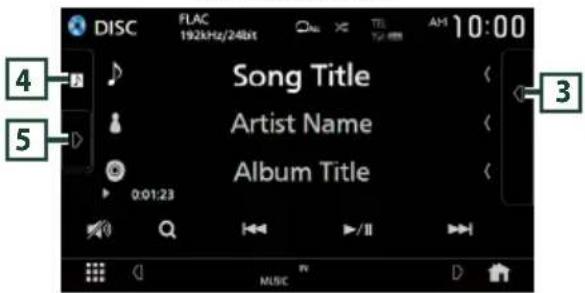
DISC FLAC 192kHz/24bit Audio Télé AM 10:00 4 Song Title Artist Name Album Title 3 5 0:01:23 MUSIC1 Play mode indicator/ Playing time
- ▶, ▶▶, etc.: Current play mode indicator
Meanings of the icons are as follows: ▶ (play),
▶▶ (fast forward), ◀◀ (fast backward),
■ (pause).
- For confirmation of current playing position. You can drag the circle left or right to change the playing position. (Video file only)

2 Operation keys
• [Q] (Disc media only): Searches files. For details on search operation, see File search Operation (P.22) in the Instruction Manual.
- [◀◀] [▶▶] : Searches for the previous/next content. Touch and hold to fast-forward or fast-backward the disc.
- [▶III] : Plays or pauses. - 📋] : Touch to attenuate/restore the sound.
3 Content list
- Touch the right side of the screen to display the Content list. Touch again to close the list.
- Displays the playing list. When you touch a track/file name on the list, playback will start.
4 Artwork/VU meter
• Displays/hides artwork area.
• The jacket of the currently playing file is displayed. (Disc media only)
- When touched, switches the artwork to the VU meter.
5 Function panel (Disc media only)
Touch the left side of the screen to display the function panel. Touch again to close the panel.
text_image
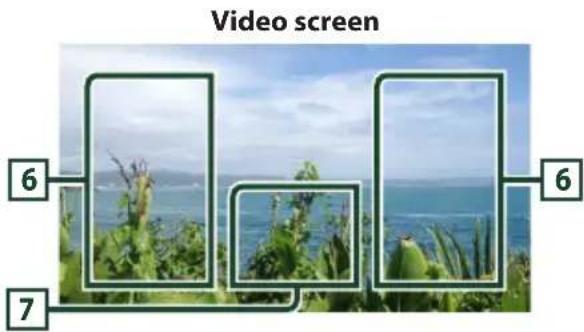
Video screen 6 7 66 File search area (Video file only)
Touch to search for the next/previous file.
7 Key display area (Video file only)
Touch to display the control screen.
iPod/iPhone Basic Operation

Connectable iPod/iPhone
The following models can be connected to this unit.
Made for
- iPhone 7 Plus
- iPhone 5s
- iPhone 7
- iPhone 5c
- iPhone SE
- iPhone 5
- iPhone 6s Plus
- iPod touch (6th generation)
- iPhone 6s
- iPhone 6 Plus
- iPhone 6
Control screen
text_image
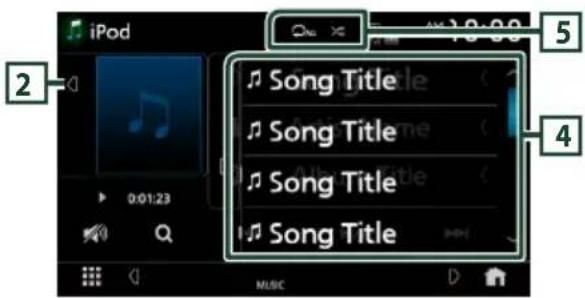
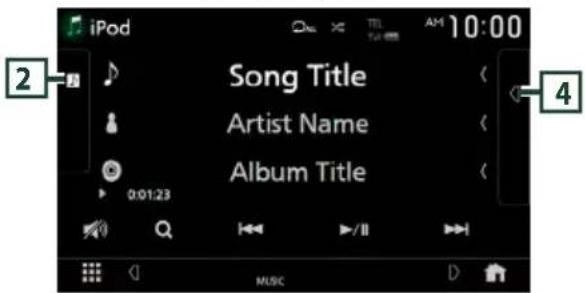
iPod 10:00 Song Title Artist Name Album Title 0:01:23 2 3 4 MUSICOpen the drawer
text_image
iPod 2 0:01:23 Music Song Title Song Title Song Title Song Title 5 4Close the drawer
text_image
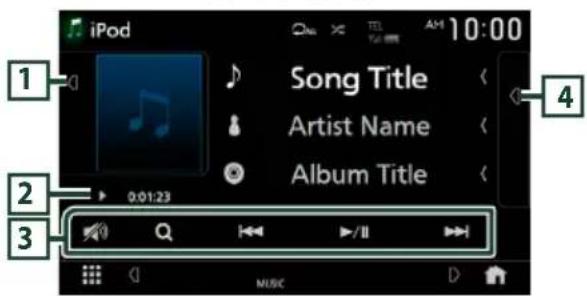
iPod Song Title Artist Name Album Title 0:01:23 Music1 Artwork/ VU meter
• Displays/hides artwork area.
- The jacket of the currently being played file is displayed.
- When touched, switches the artwork to the VU meter.
2 Play mode indicator/ Playing time
- ▶, ▶▶, etc.: Current play mode indicator Meanings of individual icons are as follows:
▶ (play), ▶▶ (fast forward), ◀◀ (fast backward), Ⅱ (pause).
3 Operation keys
• Q]: Searches for a track/file. For details on search operation, see File search Operation (P.37) in the Instruction Manual.
- [◀◀] [▶▶▶] : Searches for the previous/next track/file.
Touch and hold to fast forward or fast backward.
• [▶III]: Plays or pauses.
• [ ] : Touch to attenuate/restore the sound.
4 Content list
- Touch the right side of the screen to display the Content list. Touch again to close the list.
- Displays the playing list. When you touch a track/file name on the list, playback will start.
5 [0]
• 📄 ] : Repeats the current track/album. Each time you touch the key, repeat modes are switched in the following sequence:
Song repeat ( 📄 ll songs repeat ( ), 📋 ALL Repeat off ( 📃 )
• 📄: Randomly plays all tracks in the current album. Each time you touch the key, random modes are switched in the following sequence:
Song random (×) random off ( )
Bluetooth Setup
1 Press the [FNC] button.
▶ Popup menu appears.
2 Touch


text_image
HOME DISP Phone Camera Screen Adjust AudioHOME screen appears.
3 Touch


text_image
Tuner Phone▶ SETUP screen appears.
4 Touch [Bluetooth].
![JVC KWM650BT - Touch [Bluetooth]. - 1](/content/2026/03/485046/images/844918c243e358392250bc3eac6160becc48e17d8692ba579aa3a8637bd30104.jpg)
text_image
SETUP AV Display User Interface Camera Special Bluetooth SecurityBluetooth Setup screen appears.
See the following section for each setting.
- Connect the Bluetooth device (P.15)
- Change the device name (P.59) in the Instruction Manual.
- Change the PIN Code (P.59) in the Instruction Manual.
![JVC KWM650BT - Touch [Bluetooth]. - 2](/content/2026/03/485046/images/72357d3e9a6ce9e43a28672c9e593f7d8e20d34d4facb3e14e6aa7e3129cb2a9.jpg)
Connect the Bluetooth device
1 Touch [Select Device] on the Bluetooth Setup screen.
![JVC KWM650BT - Touch [Select Device] on the Bluetooth Setup screen. - 1](/content/2026/03/485046/images/ee9e0e50da35b37450987879c4722943ae5d2d279aa4569abfbbbd887aa0cbd2.jpg)
text_image
Bluetooth Setup Bluetooth ON Select Device Device Name KW-V**** PIN Code 0000 Device Address2 Touch the name of the device you want to connect.
text_image
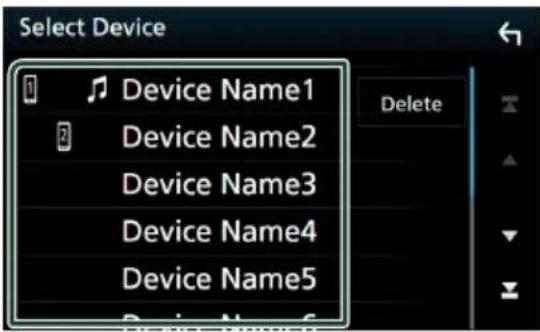
Select Device Device Name1 Device Name2 Device Name3 Device Name4 Device Name5 Delete▶ Profile select screen appears.
NOTE
- If the icon is lighted, it means that the unit will use that device.
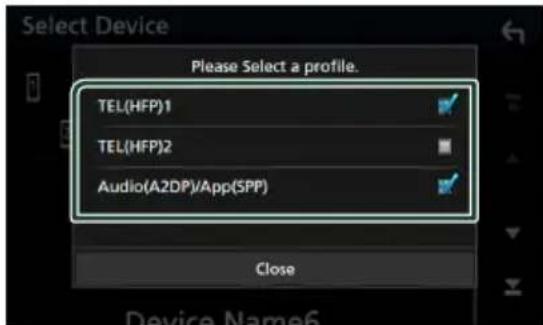
3 Set each profile as follows.
text_image
Select Device Please Select a profile. TEL(HFP)1 TEL(HFP)2 Audio(A2DP)/App(SPP) Close[TEL (HFP) 1], [TEL (HFP) 2]
Select when the device is connected with the unit as hands-free phone 1 or 2.
[Audio (A2DP)/App (SPP)]
Select to interwork with an application installed in a smartphone or to use as an audio player.
4 Touch [Close].
Using the Hands-Free Unit
You can use the telephone function by connecting the Bluetooth telephone to this unit.
NOTE
- While Apple CarPlay or Android Auto is connected, the Bluetooth Hands-Free function and two Bluetooth devices connections cannot be used. Only the Apple CarPlay or Android Auto Hands-Free function can be used.

Make a call
1 Press the [FNC] button.
▶ Popup menu appears.
2 Touch [Phone].
![JVC KWM650BT - Touch [Phone]. - 1](/content/2026/03/485046/images/91a43dba886c6d225a2073343f1e9cd6eb5d678257da6a237049d083b89d2aa4.jpg)
text_image
HOME DISP Phone Camera Screen Adjust Audio▶ Hands Free screen appears.
NOTE
- If your cell-phone supports PBAP, you can display the phone book and call lists onto the touch panel screen when the cell-phone is connected. - Phone book: up to 1000 entries - Up to 50 entries including dialed calls, received calls, and missed calls
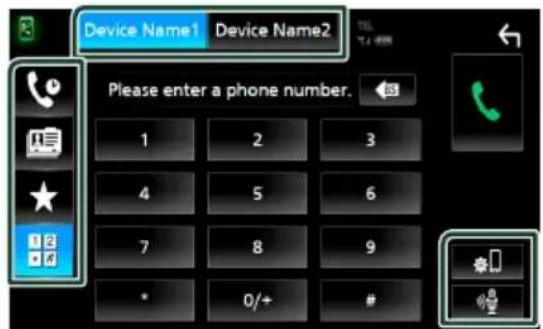
3 Select a dialing method.
text_image
Device Name1 Device Name2 Please enter a phone number. 1 2 3 4 5 6 7 8 9 * 0/+ #• [ ] Call using call records
• [图标]: Call using the phonebook
• [★]: Call using the preset number
• [ ]: Call by entering a phone number
- Select the cell-phone to use
When you connect two cell-phones
1) Touch [Device Name1 Device Name2] to select the phone you want to use.
●Bluetooth Setup
1) Touch [O]. Bluetooth Setup screen appears.
●Voice Recognition
1) Touch [mechanical]
NOTE
- Status icons such as battery and antenna icons may differ from those displayed on the cell-phone.
- Setting the cell-phone in the private mode can disable the hands-free function.
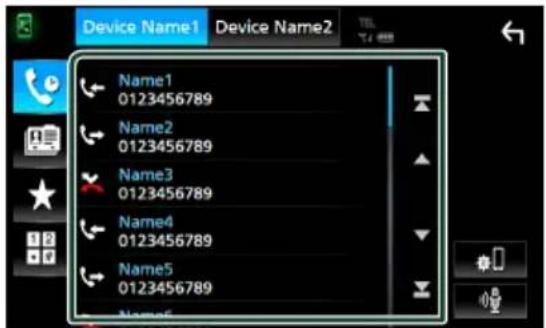
Call using call records
1 Touch

2 Select the phone number from the list.
text_image
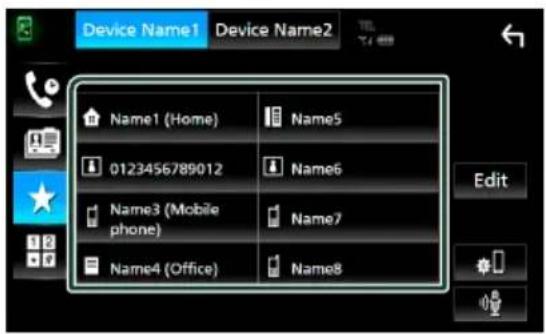
Device Name1 Device Name2 Name1 0123456789 Name2 0123456789 Name3 0123456789 Name4 0123456789 Name5 0123456789 Name6Call using the preset number
1 Touch

2 Touch the name or phone number.
text_image
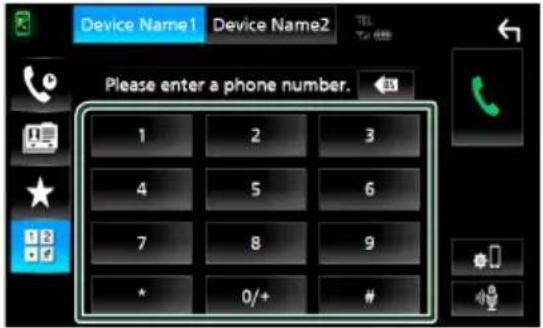
Device Name1 Device Name2 Name1 (Home) Name5 0123456789012 Name6 Name3 (Mobile phone) Name7 Name4 (Office) Name8 EditCall by entering a phone number
1 Touch

2 Enter a phone number with number keys.
text_image
Device Name1 Device Name2 TEL Please enter a phone number. 1 2 3 4 5 6 7 8 9 * 0/+ #3 Touch

Call using the phonebook
1 Touch

2 Touch

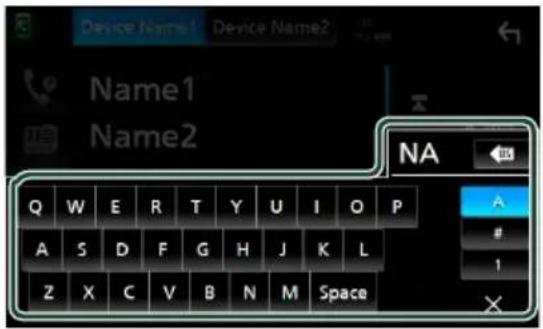
3 Select the initial.
text_image
Device Name1 Device Name2 Name1 Name2 NA Q W E R T Y U I O P A S D F G H J K L Z X C V B N M Space• Characters with no corresponding name will not appear.
- A first character with an accent character such as "ü" can be searched for with a non-accent character "u". A character with an accent character in a sentence cannot be searched for.
4 Select the person you want to call from the list.
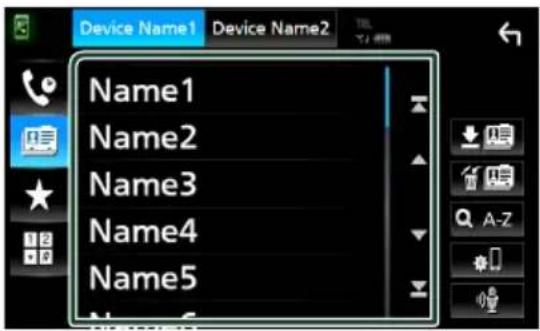
text_image
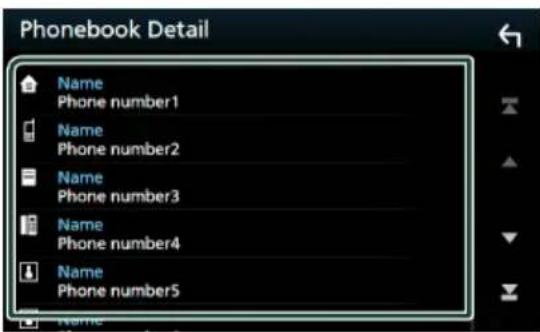
Device Name1 Device Name2 Name1 Name2 Name3 Name4 Name55 Select the phone number from the list.
text_image
Phonebook Detail Name Phone number1 Name Phone number2 Name Phone number3 Name Phone number4 Name Phone number5Connection/Installation
Before Installation
Before installation of this unit, please note the following precautions.
⚠️ WARNINGS
- If you connect the ignition wire (red) and the battery wire (yellow) to the car chassis (ground), you may cause a short circuit, that in turn may start a fire. Always connect those wires to the power source running through the fuse box.
- Do not cut out the fuse from the ignition wire (red) and the battery wire (yellow). The power supply must be connected to the wires via the fuse.
CAUTION
• Install this unit in the console of your vehicle. Do not touch the metal part of this unit during and shortly after the use of the unit. Metal part such as the heat sink and enclosure become hot.
NOTE
- Mounting and wiring this product requires skills and experience. For best safety, leave the mounting and wiring work to professionals.
- Make sure to ground the unit to a negative 12V DC power supply.
- Do not install the unit in a spot exposed to direct sunlight or excessive heat or humidity. Also avoid places with too much dust or the possibility of water splashing.
- Do not use your own screws. Use only the screws provided. If you use the wrong screws, you could damage the unit.
-
If the power is not turned ON ("There is an error in the speaker wiring. Please check the connections." is displayed), the speaker wire may have a short-circuit or touched the chassis of the vehicle and the protection function may have been activated. Therefore, the speaker wire should be checked.
-
If your car's ignition does not have an ACC position, connect the ignition wires to a power source that can be turned on and off with the ignition key. If you connect the ignition wire to a power source with a constant voltage supply, such as with battery wires, the battery may be drained.
- If the console has a lid, make sure to install the unit so that the front panel will not hit the lid when closing and opening.
- If the fuse blows, first make sure the wires aren't touching to cause a short circuit, then replace the old fuse with one with the same rating.
• Insulate unconnected wires with vinyl tape or other similar material. To prevent a short circuit, do not remove the caps on the ends of the unconnected wires or the terminals. - Connect the speaker wires correctly to the terminals to which they correspond. The unit may be damaged or fail to work if you share the wires or ground them to any metal part in the car.
- When only two speakers are being connected to the system, connect the connectors either to both the front output terminals or to both the rear output terminals (do not mix front and rear). For example, if you connect the connector of the left speaker to a front output terminal, do not connect the connector to a rear output terminal.
• After the unit is installed, check whether the brake lamps, blinkers, wipers, etc. on the car are working properly. - Mount the unit so that the mounting angle is 30^ or less.
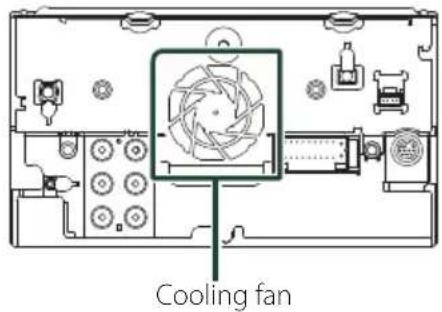
- This unit has the cooling fan to decrease the internal temperature. Do not mount the unit in a place where the cooling fan of the unit is blocked. Blocking these openings will inhibit the cooling of the internal temperature and result in malfunction.
(KW-V850BT/ KW-V85BT)
- Do not press hard on the panel surface when installing the unit to the vehicle. Otherwise scars, damage, or failure may result.
- Reception may drop if there are metal objects near the Bluetooth antenna.
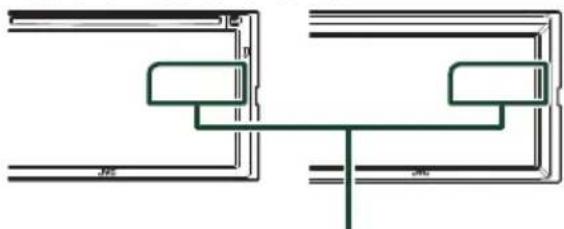
natural_image
Pure electrical circuit lines without any symbolsBluetooth antenna unit
Supplied accessories for installation
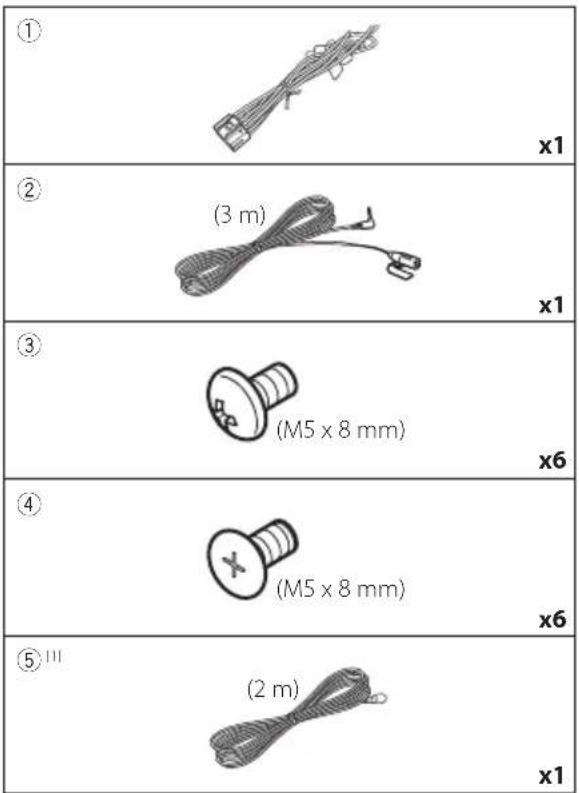
text_image
① x1 ② (3 m) x1 ③ (M5 x 8 mm) x6 ④ (M5 x 8 mm) x6 ⑤ (2 m) x1[1] KW-M750BT/ KW-M75BT/ KW-M650BT only
Installation procedure
1) To prevent a short circuit, remove the key from the ignition and disconnect the terminal of the battery.
2) Make the proper input and output wire connections for each unit.
3) Connect the speaker wires of the wiring harness.
4) Connect the wiring harness wires in the following order; ground, battery, ignition.
5) Connect the wiring harness connector to the unit.
6) Install the unit in your car.
7) Reconnect the ⊖ terminal of the battery.
8) Perform the Initial Setup. See Initial setup (P.4).
Installing the unit
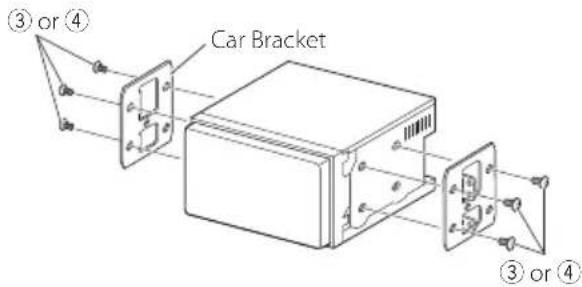
text_image
③ or ④ Car Bracket ③ or ④NOTE
- Make sure that the unit is installed securely in place. If the unit is unstable, it may malfunction (eg, the sound may skip).

Microphone unit
1) Check the installation position of the microphone (accessory ②).
2) Clean the installation surface.
3) Remove the separator of the microphone (accessory ②), and stick the microphone to the place shown below.
4) Wire the microphone cable up to the unit with it secured at several positions using tape or other desired method.
5) Adjust the direction of the microphone (accessory ②) to the driver.
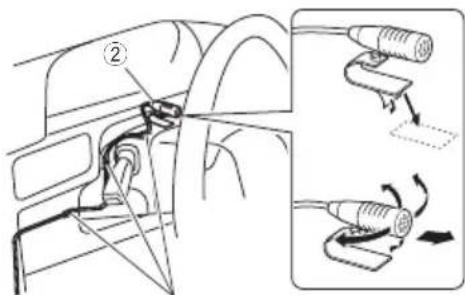
text_image
Diagram showing car seatbelting and cable insertion steps with labeled parts and directional arrowsFix a cable with a commercial item of tape.

Connecting wires to terminals
●KW-V850BT/ KW-V85BT
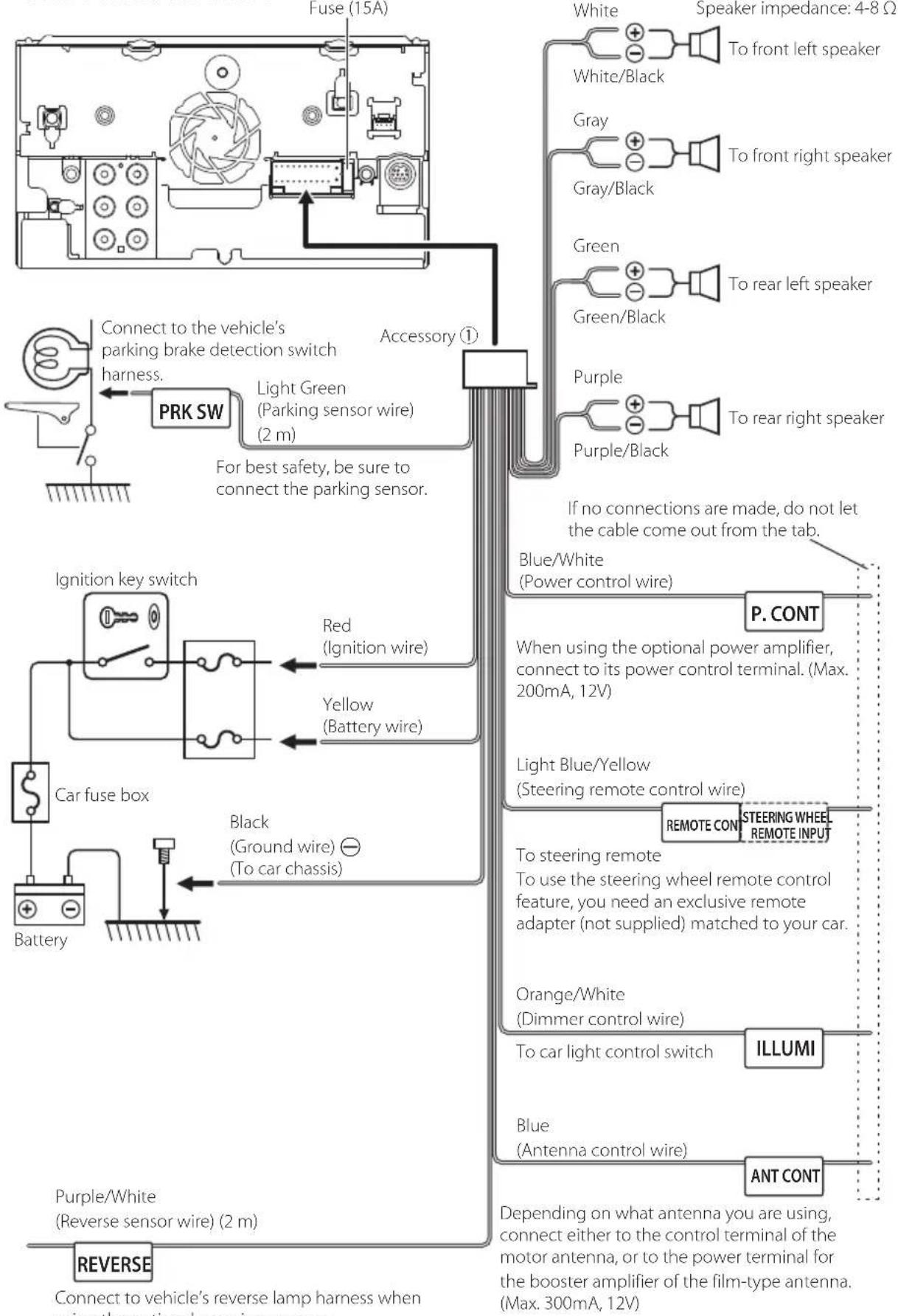
flowchart
graph TD
    A["Residential Power Control System"] --> B["Fuse (15A)"]
    B --> C["PRK SW"]
    C --> D["Connect to the vehicle's parking brake detection switch harness."]
    D --> E["Light Green (Parking sensor wire) (2 m)"]
    E --> F["For best safety, be sure to connect the parking sensor."]
    F --> G["Accessory ①"]
    G --> H["Blue/White (Power control wire)"]
    G --> I["Purple/Black"]
    G --> J["Purple"]
    G --> K["Purple"]
    G --> L["Purple"]
    G --> M["Purple"]
    G --> N["Purple"]
    G --> O["Purple"]
    G --> P["Purple"]
    G --> Q["Purple"]
    G --> R["Purple"]
    G --> S["Purple"]
    G --> T["Purple"]
    G --> U["Purple"]
    G --> V["Purple"]
    G --> W["Purple"]
    G --> X["Purple"]
    G --> Y["Purple"]
    G --> Z["Purple"]
    G --> AA["Purple"]
    G --> AB["Purple"]
    G --> AC["Purple"]
    G --> AD["Purple"]
    G --> AE["Purple"]
    G --> AF["Purple"]
    G --> AG["Purple"]
    G --> AH["Purple"]
    G --> AI["Purple"]
    G --> AJ["Purple"]
    G --> AK["Purple"]
    G --> AL["Purple"]
    G --> AM["Purple"]
    G --> AN["Purple"]
    G --> AO["Purple"]
    G --> AP["Purple"]
    G --> AQ["Purple"]
    G --> AR["Purple"]
    G --> AS["Purple"]
    G --> AT["Purple"]
    G --> AU["Purple"]
    G --> AV["Purple"]
    G --> AW["Purple"]
    G --> AX["Purple"]
    G --> AY["Purple"]
    G --> AZ["Purple"]
    G --> BA["Purple"]
    G --> BB["Purple"]
    G --> BC["Purple"]
    G --> BD["Purple"]
    G --> BE["Purple"]
    G --> BF["Purple"]
    G --> BG["Purple"]
    G --> BH["Purple"]
    G --> BI["Purple"]
    G --> BJ["Purple"]
    G --> BK["Purple"]
    G --> BL["Purple"]
    G --> BM["Purple"]
    G --> BN["Purple"]
    G --> BO["Purple"]
    G --> BP["Purple"]
    G --> BQ["Purple"]
    G --> BR["Purple"]
    G --> BS["Purple"]
    G --> BT["Purple"]
    G --> BU["Purple"]
    G --> BV["Purple"]
    G --> BW["Purple"]
    G --> BX["Purple"]
    G --> BY["Purple"]
    G --> BZ["Purple"]
    G --> CA["Purple"]
    G --> CB["Purple"]
    G --> CC["Purple"]
    G --> CD["Purple"]
    G --> CE["Purple"]
    G --> CF["Purple"]
    G --> CG["Fire Engine 100% Power Switch"]
●KW-M750BT/ KW-M75BT/ KW-M650BT
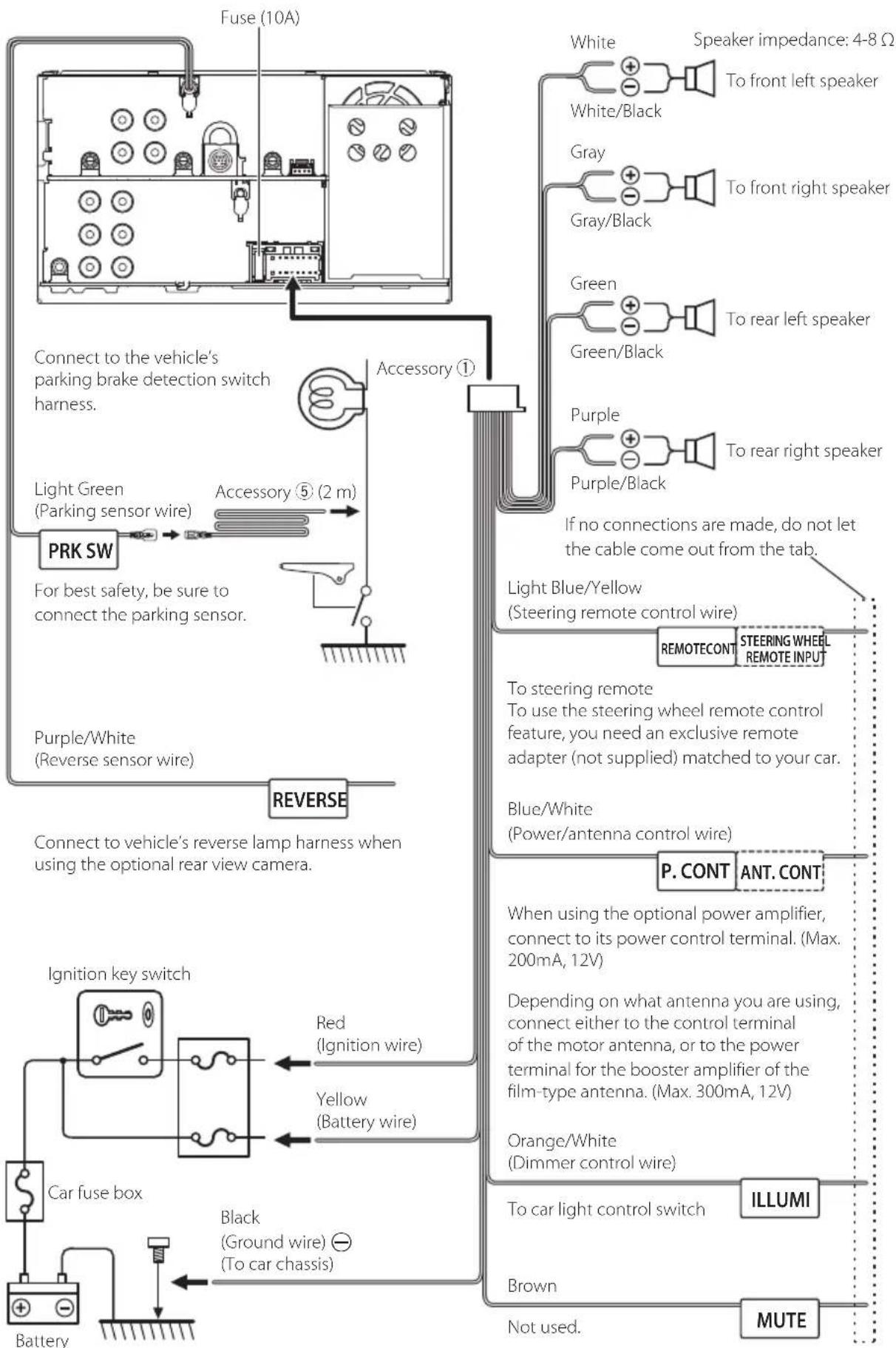
flowchart
graph TD
    A["PRK SW"] -->|For best safety, be sure to connect the parking sensor.| B["Fuse (10A)"]
    A -->|For best safety, be sure to connect the parking sensor.| C["Light Green (Parking sensor wire)"]
    C --> D["Reversible"]
    D --> E["IREVERSE"]
    E --> F["Car fuse box"]
    F --> G["Battery"]
    G --> H["Black (Ground wire) ⊖ (To car chassis)"]
    H --> I["Ignition key switch"]
    I --> J["Red (Ignition wire)"]
    J --> K["Yellow (Battery wire)"]
    K --> L["Blue/White (Power/antenna control wire)"]
    L --> M["P. CONT ANT. CONT"]
    M --> N["When using the optional power amplifier, connect to its power control terminal. (Max. 200mA, 12V)"]
    N --> O["Depending on what antenna you are using, connect either to the control terminal of the motor antenna, or to the power terminal for the booster amplifier of the film-type antenna. (Max. 300mA, 12V)"]
    O --> P["Orange/White (Dimmer control wire)"]
    P --> Q["To car light control switch"]
    Q --> R["ILLUMI"]
    R --> S["Brown"]
    S --> T["MUTE"]
    T --> U["Not used."]
    U --> V["If no connections are made, do not let the cable come out from the tab."]
    V --> W["Light Blue/Yellow (Steering remote control wire)"]
    W --> X["REMOTECONT STEERING WHEEL REMOTE INPUT"]
    X --> Y["Speaker impedance: 4-8 Ω"]
    Y --> Z["White/Black To front left speaker"]
    Y --> AA["Gray/Black To front right speaker"]
    Y --> AB["Green/Black To rear left speaker"]
    Y --> AC["Purple/Black To rear right speaker"]

3-way speaker system setup
●KW-V850BT/ KW-V85BT
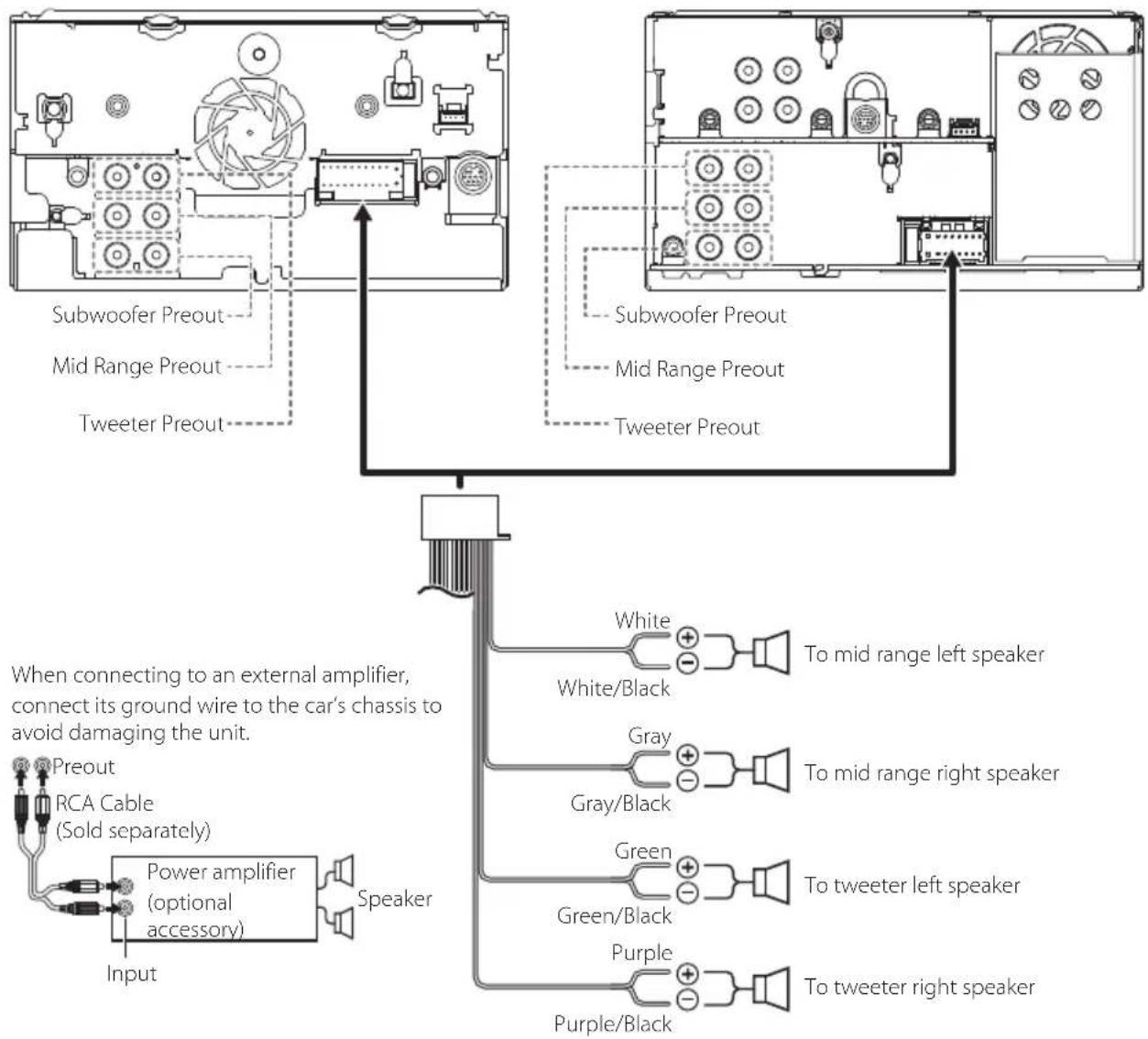
flowchart
graph TD
    A["Input"] --> B["Preout"]
    B --> C["RCA Cable (Sold separately)"]
    C --> D["Power amplifier (optional accessory)"]
    D --> E["Speaker"]
    E --> F["Subwoofer Preout"]
    E --> G["Mid Range Preout"]
    E --> H["Tweeter Preout"]
    I["White"] --> J["To mid range left speaker"]
    K["White/Black"] --> L["To mid range left speaker"]
    M["Gray"] --> N["To mid range right speaker"]
    O["Gray/Black"] --> P["To mid range right speaker"]
    Q["Green"] --> R["To tweeter left speaker"]
    S["Green/Black"] --> T["To tweeter left speaker"]
    U["Purple"] --> V["To tweeter right speaker"]
    W["Purple/Black"] --> X["To tweeter right speaker"]
●KW-M750BT/ KW-M75BT/ KW-M650BT
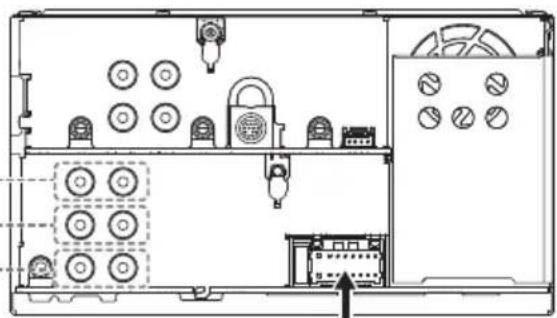
natural_image
Technical line drawing of an electrical enclosure with multiple circular components and a door (no text or labels)Subwoofer Preout
Mid Range Preout
Tweeter Preout
When connecting to an external amplifier, connect its ground wire to the car's chassis to avoid damaging the unit.
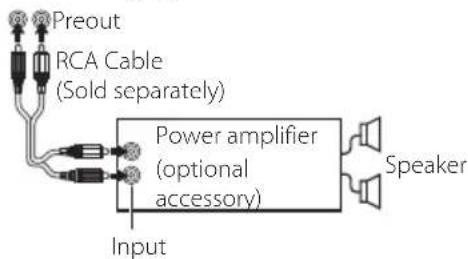
text_image
Preout RCA Cable (Sold separately) Power amplifier (optional accessory) Input SpeakerWhite
White/Black
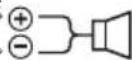
To mid range left speaker
Gray
Gray/Black

To mid range right speaker
Green
Green/Black

To tweeter left speaker
Purple
Purple/Black

To tweeter right speaker
Speaker impedance: 4-8 Ω
NOTE
- For speaker system setup, see 3-way speaker system setup (P.73) in the Instruction Manual.
- For speaker setup and crossover setup, see Speaker / X'over setup (P.74) in the Instruction Manual.
- For how to connect speaker wires to terminals other than speaker terminals and Preout terminals, see Connecting the system and external components (P.24) and Connecting wires to terminals (P.21).
Connecting the system and external components
●KW-V850BT/ KW-V85BT
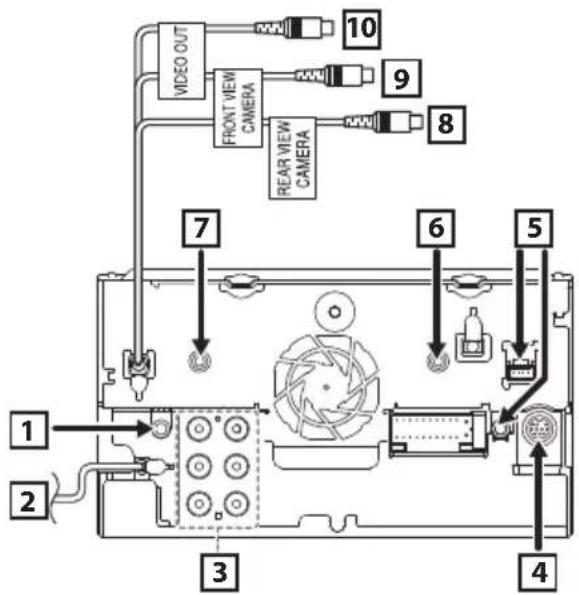
text_image
VIDEO OUT FRONT VIEW CAMERA REAR VIEW CAMERA 10 9 8 7 6 5 1 2 3 4●KW-M750BT/ KW-M75BT/ KW-M650BT
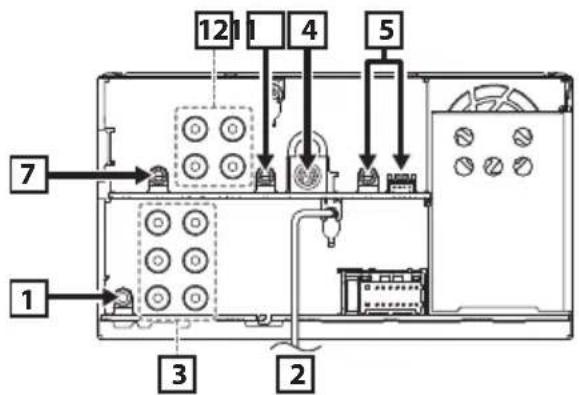
text_image
1 2 3 4 5 7 12| 1 | AV Audio output (ø3.5 mini jack) |
| 2 | FM/AM antenna input |
| 3 | When connecting to an external amplifier, connect its ground wire to the car's chassis to avoid damaging the unit.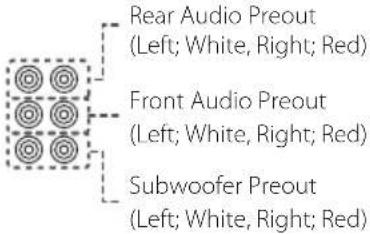 |
| 4 | SiriusXM Connect Vehicle Tuner connector For more information on how to install the SiriusXM Connect Vehicle tuner, consult the installation guide included with the tuner. |
| 5 | iDatalink connector |
| 6 | AV-IN input (1; Left audio, 2; Right audio, 3; Ground, 4; Visual) (KW-V850BT/ KW-V85BT only)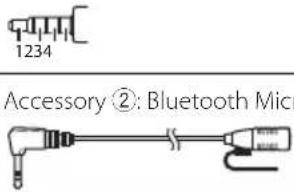 |
| 7 | |
| 8 | Rear view camera input (Yellow)(KW-V850BT/ KW-V85BT only) |
| 9 | Front view camera input (Yellow)(KW-V850BT/ KW-V85BT only) |
| 10 | VIDEO Output (Yellow)(KW-V850BT/ KW-V85BT only) |
| 11 | Audio input(KW-M750BT/ KW-M75BT/ KW-M650BT only) |
| 12 | 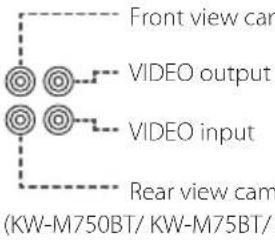 |

Connecting a USB device
●KW-V850BT/ KW-V85BT
text_image
USB cable (1 m) USB terminal[1] USB device[2] ●KW-M750BT/ KW-M75BT USB cable (1 m)●KW-M650BT
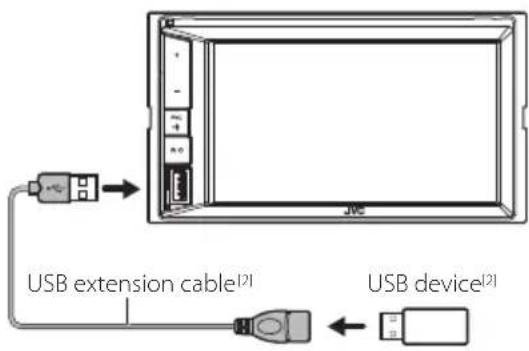
text_image
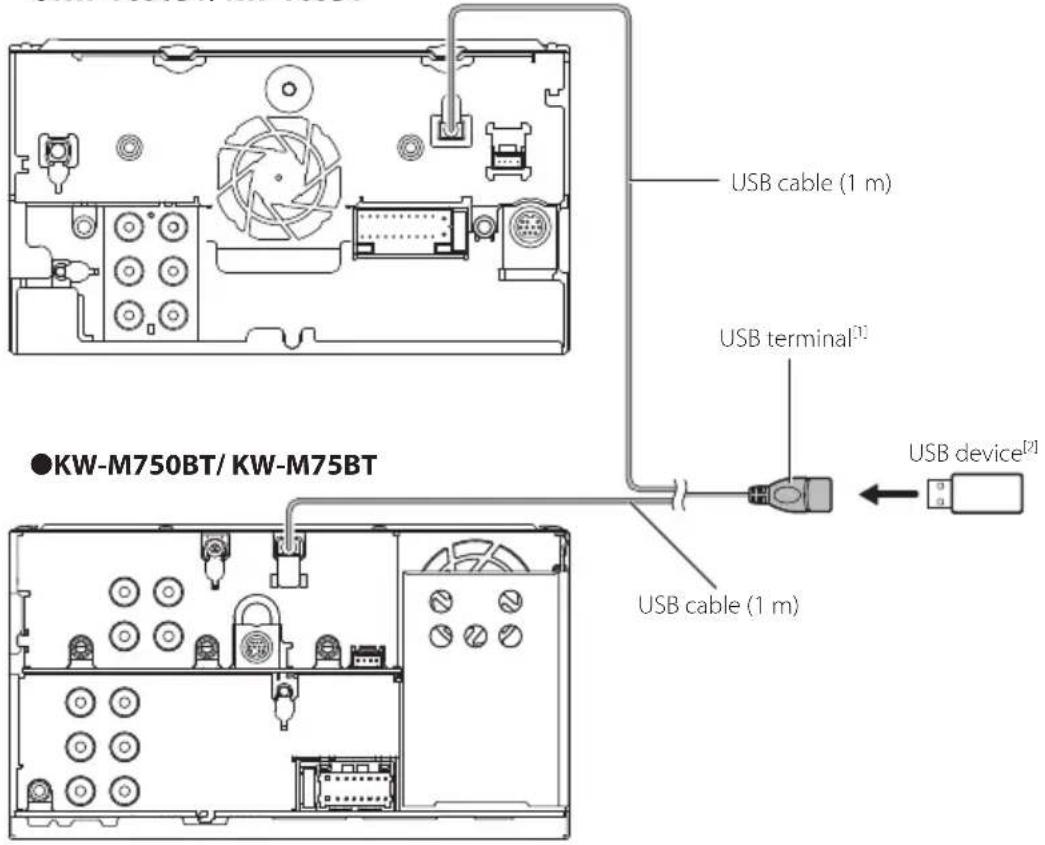
USB extension cable[2] USB device[2][1] USB maximum power supply current : DC 5 V = 1.5 A
[2] Sold separately

Connecting an iPod/iPhone
●KW-V850BT/ KW-V85BT
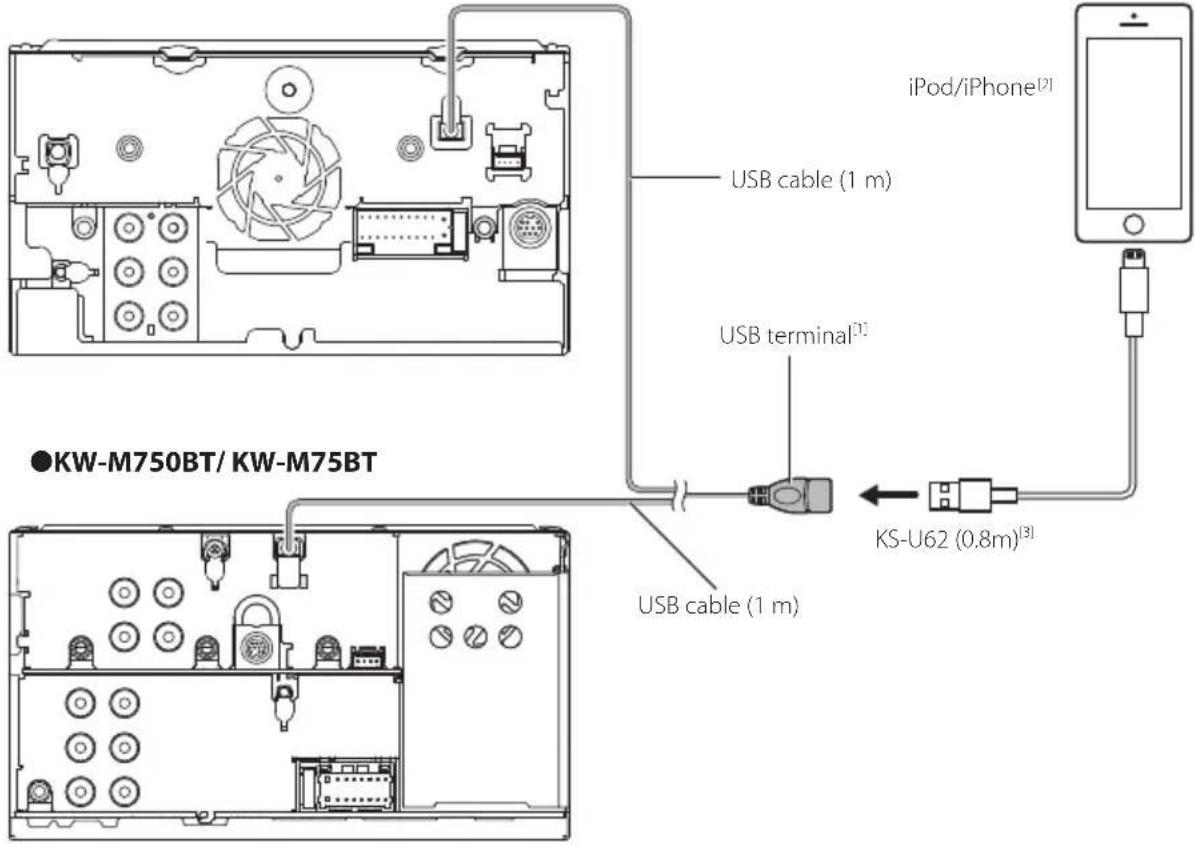
text_image
iPod/iPhone[2] USB cable (1 m) USB terminal[1] KS-U62 (0.8m)[3] USB cable (1 m) KW-M750BT/ KW-M75BT●KW-M650BT
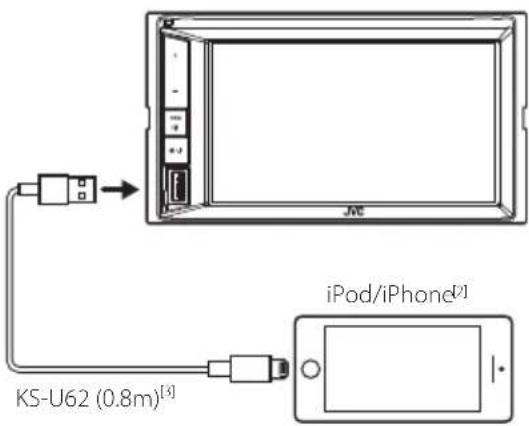
text_image
KS-U62 (0.8m)[3] iPod/iPhone[2][1] USB maximum power supply current: DC 5 V = 1.5 A
[2] Sold separately
[3] Optional accessory

Connecting an Android smartphone
●KW-V850BT/ KW-V85BT
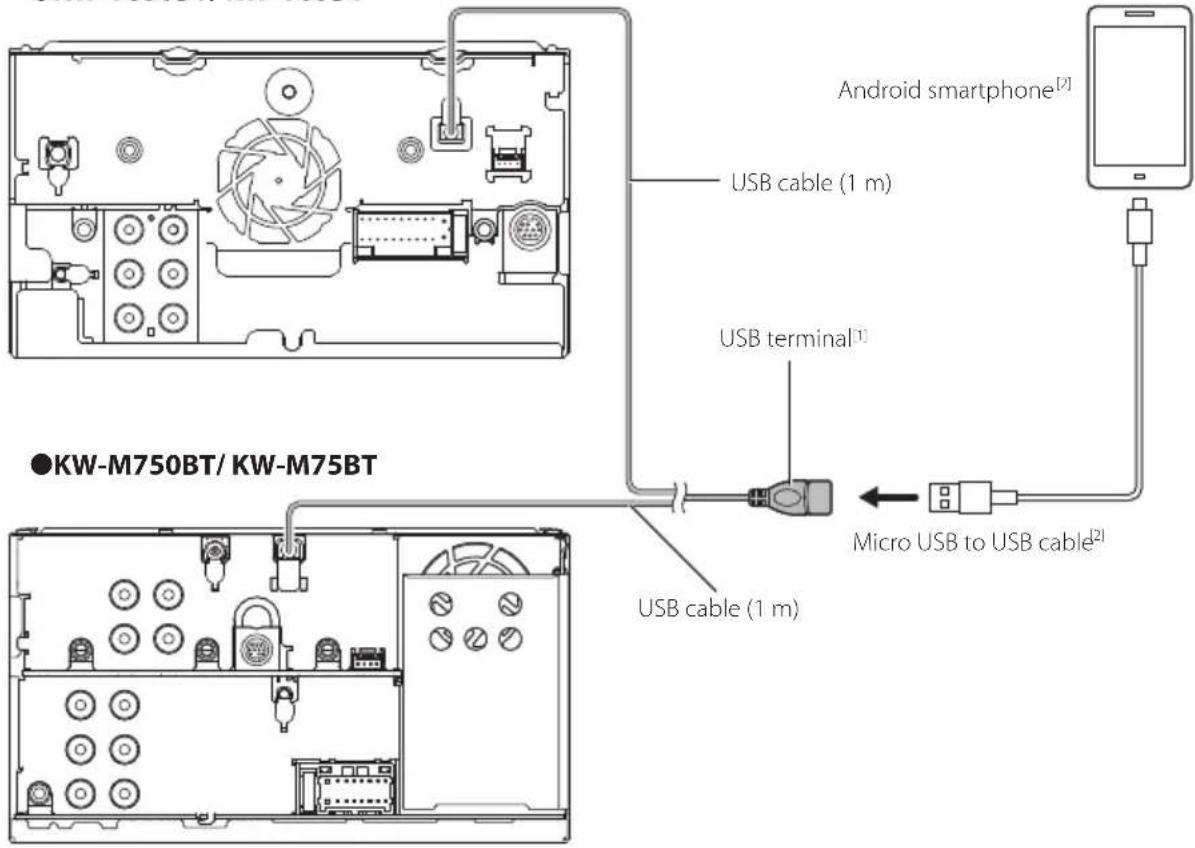
text_image
Android smartphone[2] USB cable (1 m) USB terminal[1] ●KW-M750BT/ KW-M75BT Micro USB to USB cable[2] USB cable (1 m)●KW-M650BT
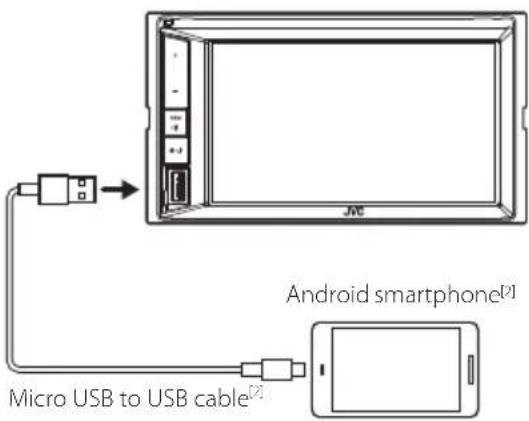
text_image
Micro USB to USB cable Android smartphone[1] JMC[1] USB maximum power supply current:
DC 5 V = 1.5 A
[2] Sold separately
About this Unit
■Copyrights
- The Bluetooth® word mark and logos are registered trademarks owned by the Bluetooth SIG, Inc. and any use of such marks by JVC KENWOOD Corporation is under license. Other trademarks and trade names are those of their respective owners.
- Manufactured under license from Dolby Laboratories. Dolby, Dolby Audio and the double-D symbol are trademarks of Dolby Laboratories.
• DVD is a trademark of DVD Format/Logo Licensing Corporation registered in the U.S., Japan and other countries.
- This item incorporates copy protection technology that is protected by U.S. patents and other intellectual property rights of Rovi Corporation. Reverse engineering and disassembly are prohibited.
- Microsoft and Windows Media are either registered trademarks or trademarks of Microsoft Corporation in the United States and/or other countries.
- This software is based in part on the work of the independent JPEG Group.
- The "AAC" logo is a trademark of Dolby Laboratories.
- Use of the Made for Apple badge means that an accessory has been designed to connect specifically to the Apple product(s) identified in the badge, and has been certified by the developer to meet Apple performance standards. Apple is not responsible for the operation of this device or its compliance with safety and regulatory standards. Please note that the use of this accessory with an Apple product may affect wireless performance.
• Apple, iPhone, iPod, iPod touch, and Lightning are trademarks of Apple Inc., registered in the U.S. and other countries.
• Apple, Siri, Apple CarPlay and Apple CarPlay logo are trademarks of Apple Inc., registered in the U.S. and other countries.
- Sirius, XM and all related marks and logos are trademarks of Sirius XM Radio Inc. All rights reserved.
- Pandora, the Pandora logo, and the Pandora trade dress are trademarks or registered trademarks of Pandora Media, Inc., used with permission.
- SPOTIFY and the Spotify logo are among the registered trademarks of Spotify AB.
- Android, Android Auto, Google Play and other marks are trademarks of Google LLC.
- BlackBerry®, RIM®, Research In Motion® and related trademarks, names and logos are the property of Research In Motion Limited and are registered and/or used in the U.S. and countries around the world. Used under license from Research In Motion Limited.
- This product includes FontAvenue® fonts licenced by NEC Corporation.FontAvenue is a registered trademark of NEC Corporation.
FontAvenue
- This product includes "Ubiquitous QuickBoot TM" technology developed by Ubiquitous Corp. Ubiquitous QuickBoot TM is a trademark of Ubiquitous Corp. Copyright© 2017 Ubiquitous Corp. All rights reserved.

- THIS PRODUCT IS LICENSED UNDER THE AVC PATENT PORTFOLIO LICENSE FOR THE PERSONAL USE OF A CONSUMER OR OTHER USES IN WHICH IT DOES NOT RECEIVE REMUNERATION TO (j)ENCODE VIDEO IN COMPLIANCE WITH THE AVC STANDARD ("AVC VIDEO") AND/OR (jj)DECODE AVC VIDEO THAT WAS ENCODED BY A CONSUMER ENGAGED IN A PERSONAL ACTIVITY AND/OR WAS OBTAINED FROM A VIDEO PROVIDER LICENSED TO PROVIDE AVC VIDEO. NO LICENSE IS GRANTED OR SHALL BE IMPLIED FOR ANY OTHER USE. ADDITIONAL INFORMATION MAY BE OBTAINED FROM MPEG LA, L.L.C. SEE HTTP://WWW.MPEGLA.COM
- THIS PRODUCT IS LICENSED UNDER THE MPEG-4 VISUAL PATENT PORTFOLIO LICENSE FOR THE PERSONAL AND NON-COMMERCIAL USE OF A CONSUMER FOR (i) ENCODING VIDEO IN COMPLIANCE WITH THE MPEG-4 VISUAL STANDARD ("MPEG-4 VIDEO") AND/OR (ji) DECODING MPEG-4 VIDEO THAT WAS ENCODED BY A CONSUMER ENGAGED IN A PERSONAL AND NON-COMMERCIAL ACTIVITY AND/OR WAS OBTAINED FROM A VIDEO PROVIDER LICENSED BY MPEG LA TO PROVIDE MPEG-4 VIDEO. NO LICENSE IS GRANTED OR SHALL BE IMPLIED FOR ANY OTHER USE. ADDITIONAL INFORMATION INCLUDING THAT RELATING TO PROMOTIONAL, INTERNAL AND COMMERCIAL USES AND LICENSING MAY BE OBTAINED FROM MPEG LA, LLC. SEE HTTP://WWW.MPEGLA.COM.
- THIS PRODUCT IS LICENSED UNDER THE VC-1 PATENT PORTFOLIO LICENSE FOR THE PERSONAL AND NON-COMMERCIAL USE OF A CONSUMER TO (i) ENCODE VIDEO IN COMPLIANCE WITH THE VC-1 STANDARD ("VC-1 VIDEO") AND/OR (ii) DECODE VC-1 VIDEO THAT WAS ENCODED BY A CONSUMER ENGAGED IN A PERSONAL AND NON-COMMERCIAL ACTIVITY AND/OR WAS OBTAINED FROM A VIDEO PROVIDER LICENSED TO PROVIDE VC-1 VIDEO. NO LICENSE IS GRANTED OR SHALL BE IMPLIED FOR ANY OTHER USE. ADDITIONAL INFORMATION MAY BE OBTAINED FROM MPEG LA, L.L.C. SEE HTTP://WWW.MPEGLA.COM
- libFLAC Copyright (C) 2000-2009 Josh Coalson Copyright (C) 2011-2013 Xiph.Org Foundation Redistribution and use in source and binary forms, with or without modification, are permitted provided that the following conditions are met:
- Redistributions of source code must retain the above copyright notice, this list of conditions and
the following disclaimer.
– Redistributions in binary form must reproduce the above copyright notice, this list of conditions and the following disclaimer in the documentation and/or other materials provided with the distribution.
– Neither the name of the Xiph.org Foundation nor the names of its contributors may be used to endorse or promote products derived from this software without specific prior written permission.
THIS SOFTWARE IS PROVIDED BY THE COPYRIGHT HOLDERS AND CONTRIBUTORS ``AS IS'' AND ANY EXPRESS OR IMPLIED WARRANTIES, INCLUDING, BUT NOT LIMITED TO, THE IMPLIED WARRANTIES OF MERCHANTABILITY AND FITNESS FOR A PARTICULAR PURPOSE ARE DISCLAIMED. IN NO EVENT SHALL THE FOUNDATION OR CONTRIBUTORS BE LIABLE FOR ANY DIRECT, INDIRECT, INCIDENTAL, SPECIAL, EXEMPLARY, OR CONSEQUENTIAL DAMAGES (INCLUDING, BUT NOT LIMITED TO, PROCUREMENT OF SUBSTITUTE GOODS OR SERVICES; LOSS OF USE, DATA, OR PROFITS; OR BUSINESS INTERRUPTION) HOWEVER CAUSED AND ON ANY THEORY OF LIABILITY, WHETHER IN CONTRACT, STRICT LIABILITY, OR TORT (INCLUDING NEGLIGENCE OR OTHERWISE) ARISING IN ANY WAY OUT OF THE USE OF THIS SOFTWARE, EVEN IF ADVISED OF THE POSSIBILITY OF SUCH DAMAGE.
- libvorbis
Copyright (c) 2002-2008 Xiph.org Foundation Redistribution and use in source and binary forms, with or without modification, are permitted provided that the following conditions are met:
– Redistributions of source code must retain the above copyright notice, this list of conditions and the following disclaimer.
– Redistributions in binary form must reproduce the above copyright notice, this list of conditions and the following disclaimer in the documentation and/or other materials provided with the distribution.
- Neither the name of the Xiph.org Foundation nor the names of its contributors may be used to endorse or promote products derived from this software without specific prior written permission.
THIS SOFTWARE IS PROVIDED BY THE COPYRIGHT HOLDERS AND CONTRIBUTORS ``AS IS'' AND ANY EXPRESS OR IMPLIED WARRANTIES, INCLUDING, BUT NOT LIMITED TO, THE IMPLIED WARRANTIES OF MERCHANTABILITY AND FITNESS FOR A PARTICULAR PURPOSE ARE DISCLAIMED. IN NO EVENT SHALL THE FOUNDATION OR CONTRIBUTORS BE LIABLE FOR ANY DIRECT, INDIRECT, INCIDENTAL, SPECIAL, EXEMPLARY, OR CONSEQUENTIAL DAMAGES (INCLUDING, BUT NOT LIMITED TO, PROCUREMENT OF SUBSTITUTE GOODS OR SERVICES; LOSS OF USE, DATA, OR PROFITS; OR BUSINESS INTERRUPTION) HOWEVER CAUSED AND ON ANY THEORY OF LIABILITY, WHETHER IN CONTRACT, STRICT LIABILITY, OR TORT (INCLUDING NEGLIGENCE OR OTHERWISE) ARISING IN ANY WAY OUT OF THE USE OF THIS SOFTWARE, EVEN IF ADVISED OF THE POSSIBILITY OF SUCH DAMAGE.
- libogg
Copyright (c) 2002, Xiph.org Foundation Redistribution and use in source and binary forms, with or without modification, are permitted provided that the following conditions are met:
– Redistributions of source code must retain the above copyright notice, this list of conditions and the following disclaimer.
– Redistributions in binary form must reproduce the above copyright notice, this list of conditions and the following disclaimer in the documentation and/or other materials provided with the distribution.
– Neither the name of the Xiph.org Foundation nor the names of its contributors may be used to endorse or promote products derived from this software without specific prior written permission.
THIS SOFTWARE IS PROVIDED BY THE COPYRIGHT HOLDERS AND CONTRIBUTORS ``AS IS'' AND ANY EXPRESS OR IMPLIED WARRANTIES, INCLUDING, BUT NOT LIMITED TO, THE IMPLIED WARRANTIES OF MERCHANTABILITY AND FITNESS FOR A PARTICULAR PURPOSE ARE DISCLAIMED. IN NO EVENT SHALL THE FOUNDATION OR CONTRIBUTORS BE LIABLE FOR ANY DIRECT, INDIRECT, INCIDENTAL, SPECIAL, EXEMPLARY, OR CONSEQUENTIAL DAMAGES (INCLUDING, BUT NOT LIMITED TO, PROCUREMENT OF SUBSTITUTE GOODS OR SERVICES; LOSS OF USE, DATA, OR PROFITS; OR BUSINESS INTERRUPTION) HOWEVER CAUSED AND ON ANY THEORY OF LIABILITY, WHETHER IN CONTRACT, STRICT LIABILITY, OR TORT (INCLUDING NEGLIGENCE OR OTHERWISE) ARISING IN ANY WAY OUT OF THE USE OF THIS SOFTWARE, EVEN IF ADVISED OF THE POSSIBILITY OF SUCH DAMAGE.
■Compatible iPhone devices
You can use CarPlay with the following iPhone models.
- iPhone 7 Plus - iPhone 6 Plus
- iPhone 7 - iPhone 6
- iPhone SE - iPhone 5s
- iPhone 6s Plus - iPhone 5c
- iPhone 6s - iPhone 5
■Note for specifications
- Bluetooth section
Frequency
:2.402 - 2.480 GHz
Output Power
: Power Class2
- General
Speaker Impedance
:4-8Ω
Operating Voltage
: 12 V DC car battery
Table des matières
text_image
Initial SETUP Finish Language Clock Display Camera OEM SETUP DEMO ON[Language]
text_image
Initial SETUP Language Clock Display Camera OEM SETUP DEMO FinishREMARQUE
text_image
HOME DISP Phone Camera Screen Adjust Audiotext_image
Tuner Phone4 Touchez [User Interface].
text_image
SETUP AV Display User Interface Camera Special Bluetooth Securitytext_image
User Interface Touch Panel Adjust Time Format 12-Hour Clock RDS-SYNC Time Zone Pacific Time [GMT -8:00] Clock Adjust[Time Format]
natural_image
Pure electrical circuit lines without any symbolsKW-M650BT
text_image
+ - + - + - JVC JVCKW-V850BT/KW-V85BT/KW-M750BT/KW-M75BT
text_image
Diagram showing a device panel with labeled ports and JVC label, likely from an electronics or CAD software interface.natural_image
Technical line drawing of a mechanical component with a circular recess and mounting holes (no text or symbols)text_image
BT Audio Tuner Phonetext_image
HOME DISP Phone Camera Screen Adjust Audiotext_image
Tuner Gear Phonetext_image
SETUP AV Display User Interface Camera Special Bluetooth Securitytext_image
Select Device Please Select a profile. TEL(HFP)1 TEL(HFP)2 Audio(A2DP)/App(SPP) Close Device Name6[TEL (HFP) 1], [TEL (HFP) 2]
text_image
HOME DISP Phone Camera Screen Adjust Audiotext_image
Phonebook Detail Name Phone number1 Name Phone number2 Name Phone number3 Name Phone number4 Name Phone number5text_image
Diagram showing car seatbelt switch mechanism with labeled parts and exploded view of cable assemblynatural_image
Technical line drawing of a mechanical or electrical enclosure with multiple circular components and no visible text or symbols• DVD is a trademark of DVD Format/Logo Licensing Corporation registered in the U.S., Japan and other countries.
- This item incorporates copy protection technology that is protected by U.S. patents and other intellectual property rights of Rovi Corporation. Reverse engineering and disassembly are prohibited.
- Microsoft and Windows Media are either registered trademarks or trademarks of Microsoft Corporation in the United States and/or other countries.
- This software is based in part on the work of the independent JPEG Group.
• The "AAC" logo is a trademark of Dolby Laboratories.
- Use of the Made for Apple badge means that an accessory has been designed to connect specifically to the Apple product(s) identified in the badge, and has been certified by the developer to meet Apple performance standards. Apple is not responsible for the operation of this device or its compliance with safety and regulatory standards. Please note that the use of this accessory with an Apple product may affect wireless performance.
• Apple, iPhone, iPod, iPod touch, and Lightning are trademarks of Apple Inc., registered in the U.S. and other countries.
• Apple, Siri, Apple CarPlay and Apple CarPlay logo are trademarks of Apple Inc., registered in the U.S. and other countries.
- Sirius, XM and all related marks and logos are trademarks of Sirius XM Radio Inc. All rights reserved.
- Pandora, the Pandora logo, and the Pandora trade dress are trademarks or registered trademarks of Pandora Media, Inc., used with permission.
- SPOTIFY and the Spotify logo are among the registered trademarks of Spotify AB.
- Android, Android Auto, Google Play and other marks are trademarks of Google LLC.
- BlackBerry®, RIM®, Research In Motion® and related trademarks, names and logos are the property of Research In Motion Limited and are registered and/or used in the U.S. and countries around the world. Used under license from Research In Motion Limited.
- This product includes FontAvenue® fonts licenced by NEC Corporation.FontAvenue is a registered trademark of NEC Corporation.
FontAvenue
- This product includes "Ubiquitous QuickBoot TM" technology developed by Ubiquitous Corp. Ubiquitous QuickBoot TM is a trademark of Ubiquitous Corp. Copyright© 2017 Ubiquitous Corp. All rights reserved.
Ubiquitous
- THIS PRODUCT IS LICENSED UNDER THE AVC PATENT PORTFOLIO LICENSE FOR THE PERSONAL USE OF A CONSUMER OR OTHER USES IN WHICH IT DOES NOT RECEIVE REMUNERATION TO (j)ENCODE VIDEO IN COMPLIANCE WITH THE AVC STANDARD ("AVC VIDEO") AND/OR (jj)DECODE AVC VIDEO THAT WAS ENCODED BY A CONSUMER ENGAGED IN A PERSONAL ACTIVITY AND/OR WAS OBTAINED FROM A VIDEO PROVIDER LICENSED TO PROVIDE AVC VIDEO. NO LICENSE IS GRANTED OR SHALL BE IMPLIED FOR ANY OTHER USE. ADDITIONAL INFORMATION MAY BE OBTAINED FROM MPEG LA, L.L.C. SEE HTTP://WWW.MPEGLA.COM
- THIS PRODUCT IS LICENSED UNDER THE MPEG-4 VISUAL PATENT PORTFOLIO LICENSE FOR THE PERSONAL AND NON-COMMERCIAL USE OF A CONSUMER FOR (i) ENCODING VIDEO IN COMPLIANCE WITH THE MPEG-4 VISUAL STANDARD ("MPEG-4 VIDEO") AND/OR (ji) DECODING MPEG-4 VIDEO THAT WAS ENCODED BY A CONSUMER ENGAGED IN A PERSONAL AND NON-COMMERCIAL ACTIVITY AND/OR WAS OBTAINED FROM A VIDEO PROVIDER LICENSED BY MPEG LA TO PROVIDE MPEG-4 VIDEO. NO LICENSE IS GRANTED OR SHALL BE IMPLIED FOR ANY OTHER USE. ADDITIONAL INFORMATION INCLUDING THAT RELATING TO PROMOTIONAL, INTERNAL AND COMMERCIAL USES AND LICENSING MAY BE OBTAINED FROM MPEG LA, LLC. SEE HTTP://WWW.MPEGLA.COM.
- THIS PRODUCT IS LICENSED UNDER THE VC-1 PATENT PORTFOLIO LICENSE FOR THE PERSONAL AND NON-COMMERCIAL USE OF A CONSUMER TO (i) ENCODE VIDEO IN COMPLIANCE WITH THE VC-1 STANDARD ("VC-1 VIDEO") AND/OR (ii) DECODE VC-1 VIDEO THAT WAS ENCODED BY A CONSUMER ENGAGED IN A PERSONAL AND NON-COMMERCIAL ACTIVITY AND/OR WAS OBTAINED FROM A VIDEO PROVIDER LICENSED TO PROVIDE VC-1 VIDEO. NO LICENSE IS GRANTED OR SHALL BE IMPLIED FOR ANY OTHER USE. ADDITIONAL INFORMATION MAY BE OBTAINED FROM MPEG LA, L.L.C. SEE HTTP://WWW.MPEGLA.COM
- libFLAC Copyright (C) 2000-2009 Josh Coalson Copyright (C) 2011-2013 Xiph.Org Foundation Redistribution and use in source and binary forms, with or without modification, are permitted provided that the following conditions are met:
– Redistributions of source code must retain the above copyright notice, this list of conditions and the following disclaimer.
- Redistributions in binary form must reproduce the
above copyright notice, this list of conditions and the following disclaimer in the documentation and/or other materials provided with the distribution.
- Neither the name of the Xiph.org Foundation nor the names of its contributors may be used to endorse or promote products derived from this software without specific prior written permission.
THIS SOFTWARE IS PROVIDED BY THE COPYRIGHT HOLDERS AND CONTRIBUTORS ``AS IS'' AND ANY EXPRESS OR IMPLIED WARRANTIES, INCLUDING, BUT NOT LIMITED TO, THE IMPLIED WARRANTIES OF MERCHANTABILITY AND FITNESS FOR A PARTICULAR PURPOSE ARE DISCLAIMED. IN NO EVENT SHALL THE FOUNDATION OR CONTRIBUTORS BE LIABLE FOR ANY DIRECT, INDIRECT, INCIDENTAL, SPECIAL, EXEMPLARY, OR CONSEQUENTIAL DAMAGES (INCLUDING, BUT NOT LIMITED TO, PROCUREMENT OF SUBSTITUTE GOODS OR SERVICES; LOSS OF USE, DATA, OR PROFITS; OR BUSINESS INTERRUPTION) HOWEVER CAUSED AND ON ANY THEORY OF LIABILITY, WHETHER IN CONTRACT, STRICT LIABILITY, OR TORT (INCLUDING NEGLIGENCE OR OTHERWISE) ARISING IN ANY WAY OUT OF THE USE OF THIS SOFTWARE, EVEN IF ADVISED OF THE POSSIBILITY OF SUCH DAMAGE.
- libvorbis
Copyright (c) 2002-2008 Xiph.org Foundation Redistribution and use in source and binary forms, with or without modification, are permitted provided that the following conditions are met:
- Redistributions of source code must retain the above copyright notice, this list of conditions and the following disclaimer. - Redistributions in binary form must reproduce the above copyright notice, this list of conditions and the following disclaimer in the documentation and/or other materials provided with the distribution.
- Neither the name of the Xiph.org Foundation nor the names of its contributors may be used to endorse or promote products derived from this software without specific prior written permission.
THIS SOFTWARE IS PROVIDED BY THE COPYRIGHT HOLDERS AND CONTRIBUTORS ``AS IS'' AND ANY EXPRESS OR IMPLIED WARRANTIES, INCLUDING, BUT NOT LIMITED TO, THE IMPLIED WARRANTIES OF MERCHANTABILITY AND FITNESS FOR A PARTICULAR PURPOSE ARE DISCLAIMED. IN NO EVENT SHALL THE FOUNDATION OR CONTRIBUTORS BE LIABLE FOR ANY DIRECT, INDIRECT, INCIDENTAL, SPECIAL, EXEMPLARY, OR CONSEQUENTIAL DAMAGES (INCLUDING, BUT NOT LIMITED TO, PROCUREMENT OF SUBSTITUTE GOODS OR SERVICES; LOSS OF USE, DATA, OR PROFITS; OR BUSINESS INTERRUPTION) HOWEVER CAUSED AND ON ANY THEORY OF LIABILITY, WHETHER IN CONTRACT, STRICT LIABILITY, OR TORT (INCLUDING NEGLIGENCE OR OTHERWISE) ARISING IN ANY WAY OUT OF THE USE OF THIS SOFTWARE, EVEN IF ADVISED OF THE POSSIBILITY OF SUCH DAMAGE.
- libogg
Copyright (c) 2002, Xiph.org Foundation Redistribution and use in source and binary forms, with or without modification, are permitted provided that the following conditions are met:
- Redistributions of source code must retain the above copyright notice, this list of conditions and the following disclaimer. - Redistributions in binary form must reproduce the above copyright notice, this list of conditions and the following disclaimer in the documentation and/or other materials provided with the distribution.
- Neither the name of the Xiph.org Foundation nor the names of its contributors may be used to endorse or promote products derived from this software without specific prior written permission. THIS SOFTWARE IS PROVIDED BY THE COPYRIGHT HOLDERS AND CONTRIBUTORS ``AS IS'' AND ANY EXPRESS OR IMPLIED WARRANTIES, INCLUDING, BUT NOT LIMITED TO, THE IMPLIED WARRANTIES OF MERCHANTABILITY AND FITNESS FOR A PARTICULAR PURPOSE ARE DISCLAIMED. IN NO EVENT SHALL THE FOUNDATION OR CONTRIBUTORS BE LIABLE FOR ANY DIRECT, INDIRECT, INCIDENTAL, SPECIAL, EXEMPLARY, OR CONSEQUENTIAL DAMAGES (INCLUDING, BUT NOT LIMITED TO, PROCUREMENT OF SUBSTITUTE GOODS OR SERVICES; LOSS OF USE, DATA, OR PROFITS; OR BUSINESS INTERRUPTION) HOWEVER CAUSED AND ON ANY THEORY OF LIABILITY, WHETHER IN CONTRACT, STRICT LIABILITY, OR TORT (INCLUDING NEGLIGENCE OR OTHERWISE) ARISING IN ANY WAY OUT OF THE USE OF THIS SOFTWARE, EVEN IF ADVISED OF THE POSSIBILITY OF SUCH DAMAGE.
text_image
Initial SETUP Language Clock Display Camera OEM SETUP DEMO Finish[Language]
text_image
Initial SETUP Language Clock Display Camera OEM SETUP DEMO Finish ONNOTA
text_image
HOME DISP Phone Camera Screen Adjust Audiotext_image
Tuner Phone4 Toque [User Interface].
text_image
SETUP AV Display User Interface Camera Special Bluetooth Securitytext_image
User Interface 12-Hour Clock RDS-SYNC Time Zone Pacific Time [GMT -8:00] Clock Adjust[Time Format]
natural_image
Pure electrical circuit lines without any symbolsKW-M650BT
text_image
+ - FMC + • 心 JVCFunciones básicas
KW-V850BT/KW-V85BT/KW-M750BT/KW-M75BT
text_image
Diagram showing a device panel with labeled ports and JVC label, likely from an electronics or CAD software interface.text_image
Power Off Disc USB iPod AV-IN Spoting SiriusXM BT Audio Tuner PhoneCambia la página.
text_image
Audio AV Off Vehicle info Satellite Radio Tuner BT Streaming Radar Detector Gauss BT Audio Phonenatural_image
Technical line drawing of a mechanical component with a circular recess and mounting holes (no text or symbols)text_image
8T Audio Tuner Phonetext_image
HOME DISP Phone Camera Screen Adjust Audiotext_image
Tuner Gear Phonetext_image
SETUP AV Display User Interface Camera Special Bluetooth Securitytext_image
Select Device Please Select a profile. TEL(HFP)1 TEL(HFP)2 Audio(A2DP)/App(SPP) Close[TEL (HFP) 1], [TEL (HFP) 2]
text_image
HOME DISP Phone Camera Screen Adjust AudioAparece la pantalla Hands Free.
NOTA
text_image
Phonebook Detail Name Phone number1 Name Phone number2 Name Phone number3 Name Phone number4 Name Phone number5natural_image
Top-down schematic of a mechanical or electrical component layout with no visible text, numbers, or symbols.natural_image
Interior layout diagram of a storage or warehouse with labeled equipment and storage tanks (no text or symbols)natural_image
Pure electrical circuit lines without any symbols[1] KW-M750BT/KW-M75BT/KW-M650BT solamente
text_image
Diagram showing car seatbelting and cable installation steps with labeled parts and directional arrowstext_image
Micro USB a cable USB[2] Smartphone Android[2]• DVD is a trademark of DVD Format/Logo Licensing Corporation registered in the U.S., Japan and other countries.
- This item incorporates copy protection technology that is protected by U.S. patents and other intellectual property rights of Rovi Corporation. Reverse engineering and disassembly are prohibited.
- Microsoft and Windows Media are either registered trademarks or trademarks of Microsoft Corporation in the United States and/or other countries.
- This software is based in part on the work of the independent JPEG Group.
- The "AAC" logo is a trademark of Dolby Laboratories.
- Use of the Made for Apple badge means that an accessory has been designed to connect specifically to the Apple product(s) identified in the badge, and has been certified by the developer to meet Apple performance standards. Apple is not responsible for the operation of this device or its compliance with safety and regulatory standards. Please note that the use of this accessory with an Apple product may affect wireless performance.
• Apple, iPhone, iPod, iPod touch, and Lightning are trademarks of Apple Inc., registered in the U.S. and other countries.
• Apple, Siri, Apple CarPlay and Apple CarPlay logo are trademarks of Apple Inc., registered in the U.S. and other countries. - Sirius, XM and all related marks and logos are trademarks of Sirius XM Radio Inc. All rights reserved.
- Pandora, the Pandora logo, and the Pandora trade dress are trademarks or registered trademarks of Pandora Media, Inc., used with permission.
- SPOTIFY and the Spotify logo are among the registered trademarks of Spotify AB.
- Android, Android Auto, Google Play and other marks are trademarks of Google LLC.
- BlackBerry®, RIM®, Research In Motion® and related trademarks, names and logos are the property of Research In Motion Limited and are registered and/or used in the U.S. and countries around the world. Used under license from Research In Motion Limited.
- This product includes FontAvenue® fonts licenced by NEC Corporation.FontAvenue is a registered trademark of NEC Corporation.
FontAvenue
- This product includes "Ubiquitous QuickBoot TM" technology developed by Ubiquitous Corp. Ubiquitous QuickBoot TM is a trademark of Ubiquitous Corp. Copyright© 2017 Ubiquitous Corp. All rights reserved.

- THIS PRODUCT IS LICENSED UNDER THE AVC PATENT PORTFOLIO LICENSE FOR THE PERSONAL USE OF A CONSUMER OR OTHER USES IN WHICH IT DOES NOT RECEIVE REMUNERATION TO (j)ENCODE VIDEO IN COMPLIANCE WITH THE AVC STANDARD ("AVC VIDEO") AND/OR (jj)DECODE AVC VIDEO THAT WAS ENCODED BY A CONSUMER ENGAGED IN A PERSONAL ACTIVITY AND/OR WAS OBTAINED FROM A VIDEO PROVIDER LICENSED TO PROVIDE AVC VIDEO. NO LICENSE IS GRANTED OR SHALL BE IMPLIED FOR ANY OTHER USE. ADDITIONAL INFORMATION MAY BE OBTAINED FROM MPEG LA, L.L.C. SEE HTTP://WWW.MPEGLA.COM
- THIS PRODUCT IS LICENSED UNDER THE MPEG-4 VISUAL PATENT PORTFOLIO LICENSE FOR THE PERSONAL AND NON-COMMERCIAL USE OF A CONSUMER FOR (i) ENCODING VIDEO IN COMPLIANCE WITH THE MPEG-4 VISUAL STANDARD ("MPEG-4 VIDEO") AND/OR (ii) DECODING MPEG-4 VIDEO THAT WAS ENCODED BY A CONSUMER ENGAGED IN A PERSONAL AND NON-COMMERCIAL ACTIVITY AND/OR WAS OBTAINED FROM A VIDEO PROVIDER LICENSED BY MPEG LA TO PROVIDE MPEG-4 VIDEO. NO LICENSE IS GRANTED OR SHALL BE IMPLIED FOR ANY OTHER USE. ADDITIONAL INFORMATION INCLUDING THAT RELATING TO PROMOTIONAL, INTERNAL AND COMMERCIAL USES AND LICENSING MAY BE OBTAINED FROM MPEG LA, LLC. SEE HTTP://WWW.MPEGLA.COM.
- THIS PRODUCT IS LICENSED UNDER THE VC-1 PATENT PORTFOLIO LICENSE FOR THE PERSONAL AND NON-COMMERCIAL USE OF A CONSUMER TO (i) ENCODE VIDEO IN COMPLIANCE WITH THE VC-1 STANDARD ("VC-1 VIDEO") AND/OR (ii) DECODE VC-1 VIDEO THAT WAS ENCODED BY A CONSUMER ENGAGED IN A PERSONAL AND NON-COMMERCIAL ACTIVITY AND/OR WAS OBTAINED FROM A VIDEO PROVIDER LICENSED TO PROVIDE VC-1 VIDEO. NO LICENSE IS GRANTED OR SHALL BE IMPLIED FOR ANY OTHER USE. ADDITIONAL INFORMATION MAY BE OBTAINED FROM MPEG LA, L.L.C. SEE HTTP://WWW.MPEGLA.COM
- libFLAC Copyright (C) 2000-2009 Josh Coalson Copyright (C) 2011-2013 Xiph.Org Foundation Redistribution and use in source and binary forms, with or without modification, are permitted provided that the following conditions are met:
– Redistributions of source code must retain the above copyright notice, this list of conditions and the following disclaimer.
– Redistributions in binary form must reproduce the above copyright notice, this list of conditions and the following disclaimer in the documentation and/or other materials provided with the distribution.
- Neither the name of the Xiph.org Foundation nor the names of its contributors may be used to endorse or promote products derived from this software without specific prior written permission. THIS SOFTWARE IS PROVIDED BY THE COPYRIGHT HOLDERS AND CONTRIBUTORS ``AS IS'' AND ANY EXPRESS OR IMPLIED WARRANTIES, INCLUDING, BUT NOT LIMITED TO, THE IMPLIED WARRANTIES OF MERCHANTABILITY AND FITNESS FOR A PARTICULAR PURPOSE ARE DISCLAIMED. IN NO EVENT SHALL THE FOUNDATION OR CONTRIBUTORS BE LIABLE FOR ANY DIRECT, INDIRECT, INCIDENTAL, SPECIAL, EXEMPLARY, OR CONSEQUENTIAL DAMAGES (INCLUDING, BUT NOT LIMITED TO, PROCUREMENT OF SUBSTITUTE GOODS OR SERVICES; LOSS OF USE, DATA, OR PROFITS; OR BUSINESS INTERRUPTION) HOWEVER CAUSED AND ON ANY THEORY OF LIABILITY, WHETHER IN CONTRACT, STRICT LIABILITY, OR TORT (INCLUDING NEGLIGENCE OR OTHERWISE) ARISING IN ANY WAY OUT OF THE USE OF THIS SOFTWARE, EVEN IF ADVISED OF THE POSSIBILITY OF SUCH DAMAGE.
- libvorbis
Copyright (c) 2002-2008 Xiph.org Foundation Redistribution and use in source and binary forms, with or without modification, are permitted provided that the following conditions are met:
– Redistributions of source code must retain the above copyright notice, this list of conditions and the following disclaimer.
– Redistributions in binary form must reproduce the above copyright notice, this list of conditions and the following disclaimer in the documentation and/or other materials provided with the distribution.
- Neither the name of the Xiph.org Foundation nor the names of its contributors may be used to endorse or promote products derived from this software without specific prior written permission.
THIS SOFTWARE IS PROVIDED BY THE COPYRIGHT HOLDERS AND CONTRIBUTORS ``AS IS'' AND ANY EXPRESS OR IMPLIED WARRANTIES, INCLUDING, BUT NOT LIMITED TO, THE IMPLIED WARRANTIES OF MERCHANTABILITY AND FITNESS FOR A PARTICULAR PURPOSE ARE DISCLAIMED. IN NO EVENT SHALL THE FOUNDATION OR CONTRIBUTORS BE LIABLE FOR ANY DIRECT, INDIRECT, INCIDENTAL, SPECIAL, EXEMPLARY, OR CONSEQUENTIAL DAMAGES (INCLUDING, BUT NOT LIMITED TO, PROCUREMENT OF SUBSTITUTE GOODS OR SERVICES; LOSS OF USE, DATA, OR PROFITS; OR BUSINESS INTERRUPTION) HOWEVER CAUSED AND ON ANY THEORY OF LIABILITY, WHETHER IN CONTRACT, STRICT LIABILITY, OR TORT (INCLUDING NEGLIGENCE OR OTHERWISE) ARISING IN ANY WAY OUT OF THE USE OF THIS SOFTWARE, EVEN IF ADVISED OF THE POSSIBILITY OF SUCH DAMAGE.
- libogg
Copyright (c) 2002, Xiph.org Foundation Redistribution and use in source and binary forms, with or without modification, are permitted provided that the following conditions are met:
– Redistributions of source code must retain the above copyright notice, this list of conditions and the following disclaimer.
– Redistributions in binary form must reproduce the above copyright notice, this list of conditions and the following disclaimer in the documentation and/or other materials provided with the distribution.
- Neither the name of the Xiph.org Foundation nor the names of its contributors may be used to endorse or promote products derived from this software without specific prior written permission.
THIS SOFTWARE IS PROVIDED BY THE COPYRIGHT HOLDERS AND CONTRIBUTORS ``AS IS'' AND ANY EXPRESS OR IMPLIED WARRANTIES, INCLUDING, BUT NOT LIMITED TO, THE IMPLIED WARRANTIES OF MERCHANTABILITY AND FITNESS FOR A PARTICULAR PURPOSE ARE DISCLAIMED. IN NO EVENT SHALL THE FOUNDATION OR CONTRIBUTORS BE LIABLE FOR ANY DIRECT, INDIRECT, INCIDENTAL, SPECIAL, EXEMPLARY, OR CONSEQUENTIAL DAMAGES (INCLUDING, BUT NOT LIMITED TO, PROCUREMENT OF SUBSTITUTE GOODS OR SERVICES; LOSS OF USE, DATA, OR PROFITS; OR BUSINESS INTERRUPTION) HOWEVER CAUSED AND ON ANY THEORY OF LIABILITY, WHETHER IN CONTRACT, STRICT LIABILITY, OR TORT (INCLUDING NEGLIGENCE OR OTHERWISE) ARISING IN ANY WAY OUT OF THE USE OF THIS SOFTWARE, EVEN IF ADVISED OF THE POSSIBILITY OF SUCH DAMAGE.
This equipment may generate or use radio frequency energy. Changes or modifications to this equipment may cause harmful interference unless the modifications are expressly approved in the instruction manual. The user could lose the authority to operate this equipment if an unauthorized change or modification is made.
- This equipment has been tested and found to comply with the limits for a Class B digital device, pursuant to Part 15 of the FCC Rules. These limits are designed to provide reasonable protection against harmful interference in a residential installation.
- This equipment generates, used and can radiate radio frequency energy and, if not installed and used in accordance with the instructions may cause harmful interference to radio communications. However, there is no guarantee that interference will not occur in a particular installation. If this equipment does cause harmful interference to radio or television reception, which can be determined by turning the equipment off and on, the user is encouraged to try to correct the interference by one or more of the following measures:
- Reorient or relocate the receiving antenna.
– Increase the separation between the equipment and receiver. - Connect the equipment into an outlet on a circuit different from that to which the receiver is connected.
- Consult the dealer or an experienced radio/TV technician for help.
CAUTION
Use of controls or adjustments or performance of procedures other than those specified herein may result in hazardous radiation exposure.
In compliance with Federal Regulations, following are reproductions of labels on, or inside the product relating to laser product safety.
JVC KENWOOD Corporation
2967-3, ISHIKAWA-MACHI,
THIS PRODUCT COMPLIES WITH DHHS RULES 21 CFR SUBCHAPTER J IN EFFECT AT DATE OF MANUFACTURE.
Location
KW-V850BT/KW-V85BT: Top plate
KW-M750BT/KW-M75BT/KW-M650BT: Bottom plate This transmitter must not be co-located or operated in conjunction with any other antenna or transmitter.
■IC (Industry Canada) Notice
This device complies with Industry Canada's applicable licence-exempt RSSs.
Operation is subject to the following two conditions:
(1) This device may not cause interference, and
(2) this device must accept any interference, including interference that may cause undesired operation of the device.
CAUTION
This equipment complies with FCC/IC radiation exposure limits set forth for an uncontrolled environment and meets the FCC radio frequency (RF) Exposure Guidelines and RSS-102 of the IC radio frequency (RF) Exposure rules. This equipment should be installed and operated keeping the radiator at least 20cm or more away from person's body.
Contains FCC ID: 2ALS3-3903
Contains IC: 22661-3903
Supplier's Declaration of Conformity
Trade Name: JVC
Products: MONITOR WITH DVD RECEIVER
Model Name: KW-V850BT/KW-V85BT
Products: MONITOR WITH RECEIVER
Model Name: KW-M750BT/ KW-M75BT/ KW-M650BT
Responsible Party: JVCKENWOOD USA CORPORATION
2201 East Dominguez Street,
Long Beach, CA 90810, U.S.A.
PHONE: 310 639-9000
THIS DEVICE COMPLIES WITH PART 15 OF THE FCC RULES. OPERATION IS SUBJECT TO THE FOLLOWING TWO CONDITIONS:
(1) THIS DEVICE MAY NOT CAUSE HARMFUL INTERFERENCE, AND
(2) THIS DEVICE MUST ACCEPT ANY INTERFERENCE RECEIVED, INCLUDING INTERFERENCE THAT MAY CAUSE UNDESIRED OPERATION.
CALIFORNIA, USA
This product contains a CR Coin Cell Lithium Battery which contains Perchlorate Material – special handling may apply.
See www.dtsc.ca.gov/hazardouswaste/perchlorate.