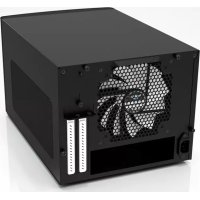
Node 304 - Desktop Computer Fractal Design - Free user manual and instructions
Find the device manual for free Node 304 Fractal Design in PDF.



| Product Type | Desktop computer case |
| Brand | Fractal Design |
| Model | Node 304 |
| Dimensions (H x W x D) | 250 x 374 x 320 mm |
| Weight | Approximately 7.2 kg |
| Power Supply | ATX, up to 160 mm length |
| Compatible Graphics Cards | Up to 310 mm (with a hard drive bracket removed) |
| Included Fans | 3 hydraulic R2 140 mm fans |
| Air Filters | Removable front filter, removable PSU filter, non-removable side filter |
| Fan Controller | 3 positions: 5V (low), 7V (medium), 12V (high) |
| Modular Interior | Removable hard drive brackets for more space |
| Hard Drives | Installation on white brackets, up to 6 drives |
| CPU Cooling | Compatible with tower coolers or water cooling |
| Front Panel | Removable for access to filter |
| Maintenance | Regular cleaning of air filters |
| Warranty | 24 months against material and manufacturing defects |
| Product Support | support@fractal-design.com (Europe/ROW) |
| Design | Minimalist Scandinavian, sound-dampened |
Frequently Asked Questions - Node 304 Fractal Design
User questions about Node 304 Fractal Design
0 question about this device. Answer the ones you know or ask your own.
Ask a new question about this device
Download the instructions for your Desktop Computer in PDF format for free! Find your manual Node 304 - Fractal Design and take your electronic device back in hand. On this page are published all the documents necessary for the use of your device. Node 304 by Fractal Design.
USER MANUAL Node 304 Fractal Design
About Fractal Design - our concept
Without a doubt, computers are more than just technology - they have become an integral part of our lives. Computers do more than make living easier, they often define the functionality and design of our homes, our offices and ourselves.
The products we choose represent how we want to describe the world around us and how we want others to perceive us. Many of us are drawn to designs from Scandinavia, which are organized, clean and functional while remaining stylish, sleek and elegant. We like these designs because they harmonize with our surroundings and become nearly transparent. Brands like Georg Jensen, Bang Olufsen, Skagen Watches and Ikea are just a few that represent this Scandinavian style and efficiency.
In the world of computer components, there is only one name you should know, Fractal Design.
For more information and product specifications, visit www.fractal-design.com

Support
Europe and Rest of World: support@fractal-design.com
North America: support.america@fractal-design.com
DACH: support.dach@fractal-design.com
China: support.china@fractal-design.com
Table of Contents:
EXPLODED VIEW 1
ENGLISH 3
GERMAN 5
SPANISH 8
ITALIAN. 11
CHINESE 14
JAPANESE 16
KOREAN 18
POLISH 20
RUSSIAN 22
FRENCH 25
SWEDISH 28
fractalt design
www.fractal-design.com
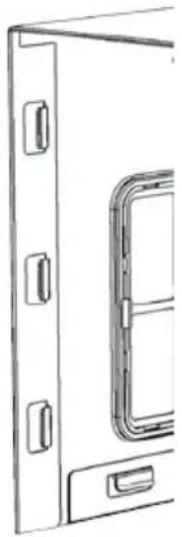
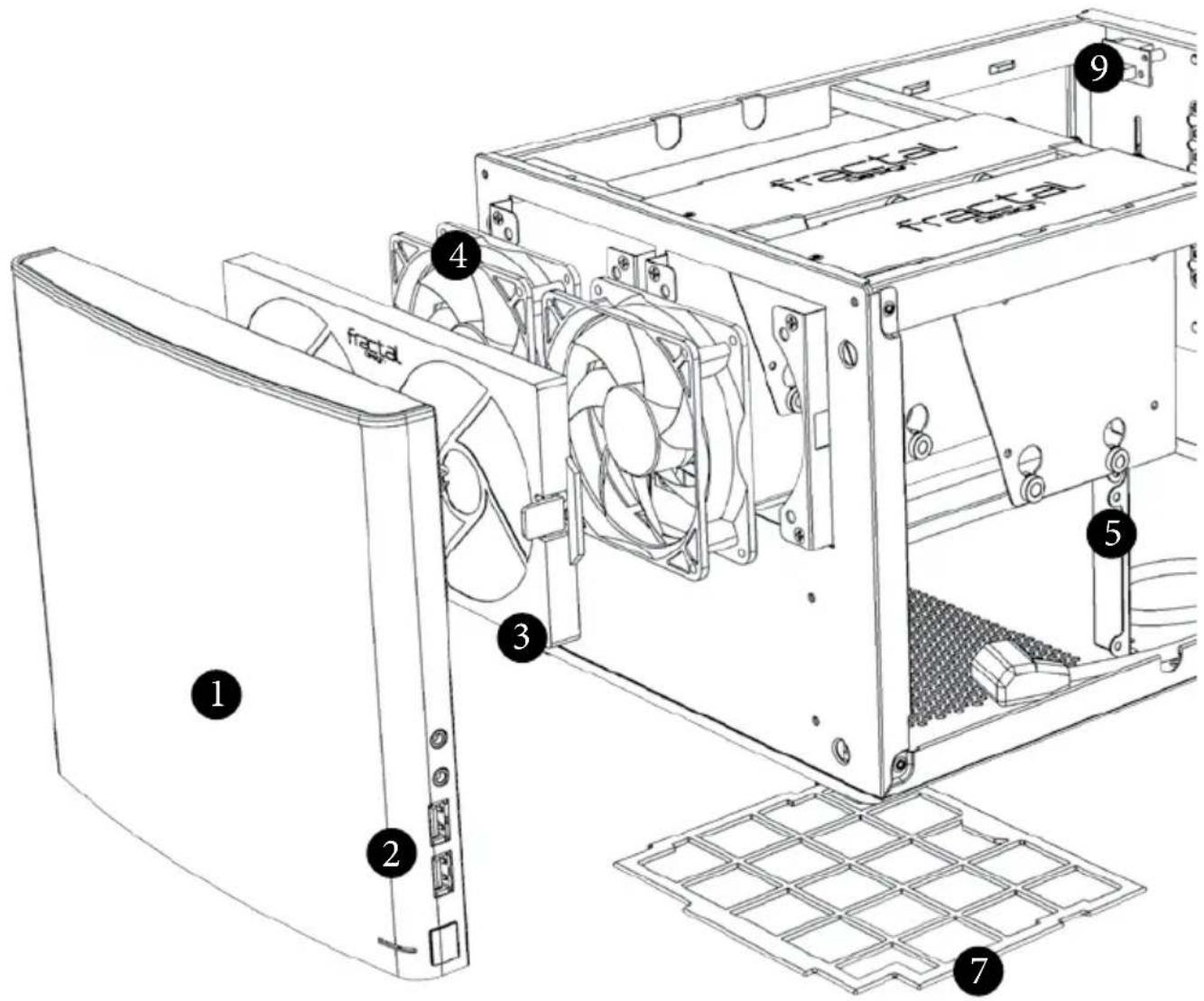
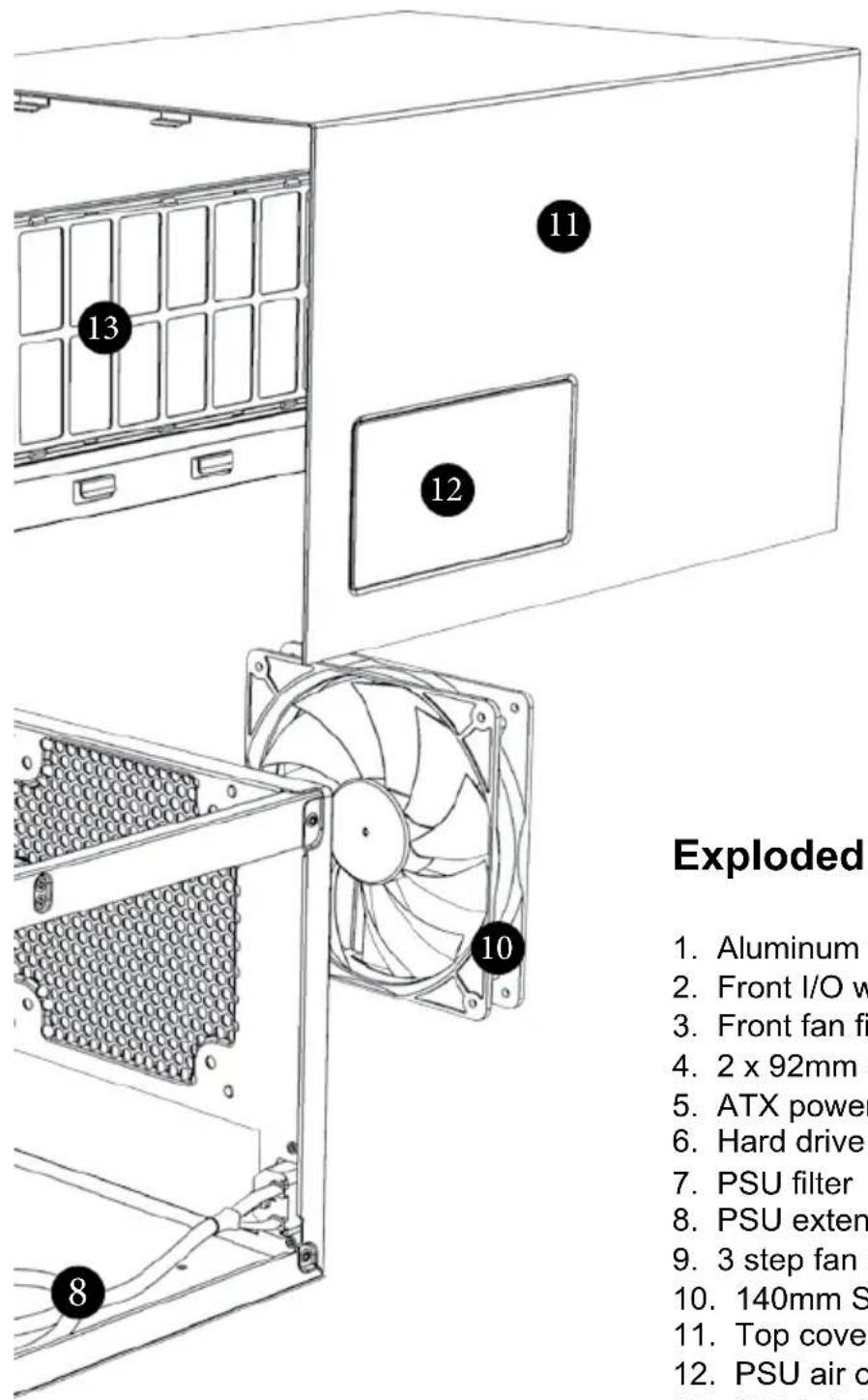
Exploded View Node 304
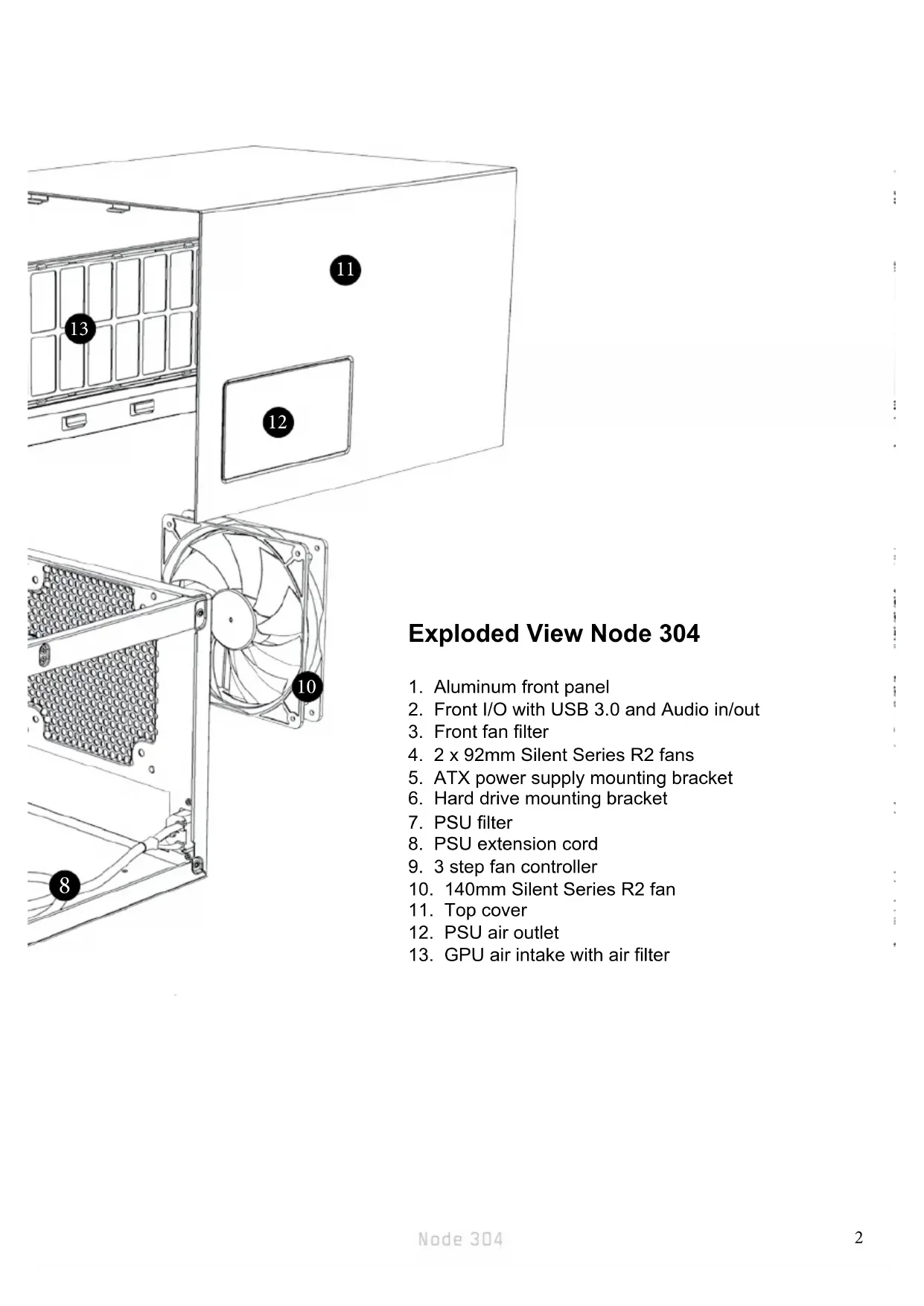
- Aluminum front panel
- Front I/O with USB 3.0 and Audio in/out
- Front fan filter
- 2 x 92mm Silent Series R2 fans
- ATX power supply mounting bracket
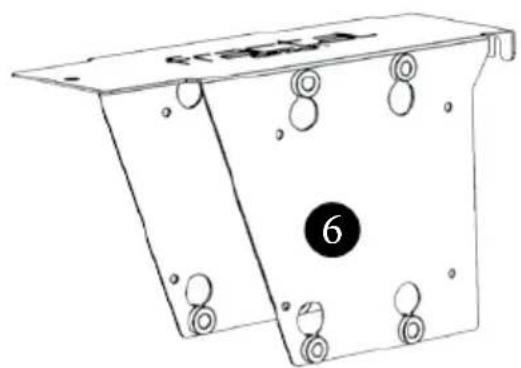
- Hard drive mounting bracket
- PSU filter
- PSU extension cord
- 3 step fan controller
- 140mm Silent Series R2 fan
- Top cover
- PSU air outlet
- GPU air intake with air filter
Node 304 computer case
The Node 304 is a compact computer case with a unique and versatile modular interior that allows you to adapt it according to your needs and components. Whether you want a cool file server, a quiet home theater PC or a powerful gaming system, the choice is yours.
The Node 304 comes complete with three hydraulic bearing fans, with the option of using tower CPU coolers or a water cooling system. All air intakes are equipped with easy-to-clean air filters, which reduce dust from getting into your system. The strategic placement of the hard drives directly facing two front-mounted Silent Series R2 fans ensures that all your components remain at optimal cool temperatures. Unused hard drive disk brackets can be easily removed to make room for long graphic cards, increased airflow, or additional space for organizing cables.
The Node 304 carries on the Fractal Design legacy of minimalistic and sleek Scandinavian design combined with maximum functionality.
Installation / instructions
To take full advantage of the improved features and benefits of the Node 304 computer case, the following information and instructions are provided.
System installation
The following steps are recommended for mounting components in a Node 304:
- Remove the three hard drive mounting brackets.
- Mount the motherboard using the provided motherboard standoffs and screws.
- Install the ATX power supply using the screws provided (see detailed description below).
- If desired, mount a graphics card (see detailed description below).
- Mount the hard drive(s) to the white bracket(s) using the provided screws.
- Mount the hard drive brackets(s) back into the case.
- Connect the power supply and motherboard cables to the components.
- Connect the power supply extension cable to the power supply.
Installing hard drives
Installing hard drives in the Node 304 is similar to standard computer cases:
- Dismount the hard drive brackets from the case by removing the screw located in the front with a Phillips screwdriver and the two thumb screws in the back.
- Mount the hard drives with their connectors facing to the rear of the case, using the screws provided in the accessory box.
- Put the bracket back into the case and secure it before plugging in the connectors; unused hard drive brackets can be left out for increased airflow.
Installing the power supply
The power supply is easiest to install after the motherboard has been installed:
- Slide the PSU into the case, with the power supply fan facing downwards.
- Secure the power supply by fastening it with the three screws provided in the accessory box.
- Plug in the pre-mounted extension cable in your power supply.
- Lastly, plug in the cable that came with the power supply at the back of the case and turn on your power supply.
The Node 304 is compatible with ATX power supply units (PSU) up to 160mm in length. PSUs with modular connectors on the back typically need to be shorter than 160mm when used in combination with a long graphics card.
Installing graphics cards
The Node 304 was designed with the most powerful components in mind. In order to install a graphics card, one of the hard drive brackets, located on the same side as the motherboard's PCI slot, must first be removed. Once removed, the graphics card can be inserted onto the motherboard.
The Node 304 is compatible with graphics cards up to 310mm in length, when 1 HDD bracket is removed. Please note that graphics cards longer than 170mm will conflict with PSUs longer than 160mm .
Cleaning the air filters
Filters are installed at air intakes to help prevent dust from entering the case. To ensure optimal cooling, filters should be cleaned at regular intervals:
To clean the PSU filter, simply slide the filter toward the rear of the case and remove it; clean any dust gathered on it.
- To clean the front filter, first remove the front panel by pulling it straight out and using the bottom as a handle. Be careful not to damage any cables while doing this. Once the front panel is off, remove the filter by pushing the two clips on the sides of the filer. Clean the filters, then reinstall the filter and front panel in reverse order.
- By design, the side filter is not removable; the side filter can be cleaned when the top part of the case is removed.
Fan controller
The fan controller is located at the rear of the case over the PCI slots. The controller has three settings: low speed (5v), medium speed (7v) and full speed (12v).
Limited warranty and limitations of liability
Fractal Design Node 304 computer cases are guaranteed for twenty four (24) months from the date of delivery to end-user, against defects in materials and/or workmanship. Within this limited warranty period, products will either be repaired or replaced at Fractal Design's discretion. Warranty claims must be returned to the agent who sold the product, shipping prepaid.
The warranty does not cover:
- Products which have been used for rental purposes, misused, handled carelessly or applied in such a way that is not in accordance with its stated intended use.
- Products damaged from an Act of Nature including, but not limited to, lightning, fire, flood and earthquake.
- Products whose serial number and/or the warranty sticker have been tampered with or removed.
Product support
For product support, please use the following contact information:
In North America: support.amERICA@
In DACH (Germany-Switzerland-Austria): support.dach@fractal-design.com
In China: support.china@fractal-design.com
In Europe and/or Rest of World: support@fractal-design.com
support.america@fractal-design.com
support.china@fractal-design.com
In DACH (Germania-Svizzera-Austria): support.dach@fractal-design.com
In Cina: support.china@fractal-design.com
In Europa e/o resto del mondo: support@fractal-design.com
Node 304 机箱
support.america@fractal-design.com
support.dach@fractal-design.com
support.china@fractal-design.com
support@fractal-design.com
Node 304 썼류터 키이스
DACH (默写-StwSs-0sTtRiA): support.dach@fractal-design.com
W Chiny: support.china@fractal-design.com
W Europie i/lub reszcie swiata: support@fractal-design.com
KoMnIbIoTepeHbI KOpnyc Node 304
KOMnakThbIKOMnbIOTePbI KOpnyc Node 304 OTnuaeTcay yHnkaIbHOu yHnBepcaJIbHOJ MOyIbHO BHyTpEHNHe KOHCTpyKUnei, NO3BOJIAOUsN aAdaNTnPOBaTb KOpnyc K NOTpe6HOCTaM NOb3OBaTeJIa NcNoJIb3yEmbIM KOMNOHEHTam. Tpe6yeTcra JIN Bam OTnunHbIΦaII-cepBep, TnxN PIK dJa DomaShero KInHOteaTpa IIN MoUHa rIrpOBa cNCTema, BblOp ocTaETcra 3a Bam.
Kopnyc Node 304 ochaшитtemя BeHTnIaTOpAMN C rIrpocTaTnueckmN NOdunHnKaMNI dOnyckaet yctaHObky npoceccopHoro KylepaДЯ KOPnycoB Tuna tower nIN CNCTeMbI BOJHOrO oxJaXdeHn. Bce Bo3dyxO3a6OpHbIe OTBepCTna OChauSeHbI φnIbTpamN, KOtOpBie NERKO YnCTnTB i KOTOpBie cOKpaUaHOT KOLNuCeTBO nblN, NOnaDaHouSei BCSCTemy. BlaorapnpoDymaHHOMy paCNOJoxEHNIO JecTKNX DnCKOB HeNoCpeDCTBeHNOpeNdBvMy nepeDnHMn BeHTnIaTOpAMN bcSWMHOcPmR2 noDpeKnBaETcONTMaJIbHOe OXJaXDeHne BCEX KOMnoHETOB CnCTeMbI. HenCNoJIb3yEmbIe KPOHSTeHbIDJRAcTKNX DnCKOB JERKO CHIMaHTcR, Blaorapy ChmAHTcR, blaorapy YeMy OCBo6OJdaeTcRdoONHITeHBHOe pOcTpaHCTBO DnIA DnIHbIX BVideOKaprN INpOKnAdKn KaBeJe, a TAKKe yLyuShaTeTcNurkYlauZyA.
Kopnyc Node 304 OTINuAeTcM MHNMaJIncTcKIM N eJIeRaHTbIM cKaHdINHaBCKIM dN3aHOM, XapaKTepHBIM dIЯ KOpnycoB Fractal Design, B coUeTaHIn C MaKcImaJIbHOJ cyHKUHOHaJIbHOCTbIO.
YcTaHOBka N NHCTpyKcN
UTo6bI nCNoJb30BaTb BCE npEnMyuEcTb I nepeDoBble BO3MOXHOCTN KOMNbIOTePHORO Kopnyca Node 304, O3HaKoMbTeCb C npNBedeHbIMn HIXe CBeDeHnAaMn I NHCtpyKcIyMaN.
C6opka cnCTembl
Hnke npBedeHa peKomeHdoBaHHa npOeDypa yCTaHOBKn KOMnoHeHTOB B Kopnyc Node 304:
- Chmnte Tpr KpeNexKbIX KpoHsTeHa dJa JecTKnX DnCKOB.
- YctaHOBnte MaTePNHcKyIO nnaty, npn NOMOuIN BXODAUX B KOMNJIeKT CTOEK IN BnHTOB DnMaTePNHcKoN PnAToI.
- YctaHOBnTe 6Iok nITaanr ATX n 3akpenTe erO npn NOMoU BxOJaux B KOMnKeT BnHTOB (IOdpObHbIe IHcTpkykUu CM. Hxke).
- Ipn Heo6xoDnMoCTn yCTaHOBnTe BnDeOkaTpY (noDpo6HbIe IHCTpyKcIIN cm. HnKe).
- 3akpenTe OINH INI HecKOJIbKO JecTKIX DnCKOB Ha 6eJIbIX KPOHJTeiHax npn NOMOUI BXODAUX B KOMNJIeKT BNHTOB.
- YcTaHOBInTe KPOHHTeINbI C XeCTKIMN DnCKaMn O6paTHO B KOpNyc.
- Поdkлочи Te Kaбени OT 6лOKа пntаня И MaTeprHcKo I NaTbI K OCTaJIbHbIM KOMnoHEHTam.
- IopKnHouHTe ydInnHtBHyk a6eJb 6Joka nITaHna K 6NOKy nITaHna.
YcTaHOBka XeCTKnx IINCKOB
YcTaHOBka JecTkIX DnCKOB B Kopnyc Node 304 BbINOJHReTcA hAnOriuHo yCTaHOBKe DnCKOB B dpyrHe KOMNbIOTePbIe Kopnyca:
- OToCoEduHnTe OT Kopnyca KPOHUsTeHbI IJRA JxecTKnx DnCKOB, ydaJIINB pacNoIOXeHHbI cpeDu BnHT npN NOMOuN KpeCToBOr OTBepTKn I DaBa pacNOIOXeHHbIX C3aDn BnHTa C HaKaTaHHoI rOIOBkoI.
-
YctaHOBnTe JecTKne DnCKn pa3beMaMn K 3aHHei YaCTN Kopnyca n 3akpeNTe INX BnHTaMn, HaxOJaIIMmC8 B KOpO6Ke C npHaJNeJxHocTAmN.
-
YctaHOBnte KPOHHTeH C JecTKM DnCKOM B KOpNc N 3akpeNTe erO nepeI NOKJIIOUHeHem pa3bEmOB. HeicNoJIb3OBAHHbI eKPOHHTeHbI dIy JecTKHX DnCKOB MOxHO He yCTaHaBnBaTb B KOpNc IJRA yNuYuHeHra cnpKyIpyn BO3dyxa.
YctaHObKa 6JIOka NITaHnIa
Блok петаши (БП) лерve BCero yctaHOBNTb nocle yctaHOBKn MaTePHNcKoi nlaTbI:
- 3aBnBte Bn B 3aHIOU yacTb Kopnyca TaK, YTo6bI BeHTnJIrTop Bn 6bl HappaBneH Ha3aI.
- 3akpennte Bn TpeMn HaxoJumncB Kopo6Ke C npHaJIeKHOCTaMn.
- POnkIouHTe npedBapntelbNo oDcoeHHeHbYdHnHTeNbHbKa6eJIb Bn.
- Hakoheu, NOdkIouHe cTeBoi Ka6eB NtAHHa, npnilaraOuNcK Bn, K rHe3dy Ha 3aDnei NaHEn KOpNyCa N BKIOUHTe Bn.
Kopnyc Node 304 coBmecTUM c BП ATX Дпноу 160 MM. БП с мodyльныmpa3beMaMu Na 3aДнe ПанeЛ n OБчH NOdoJxHbI bItb KopoYe 160 MM B cIyaeИСПОЛьЗOBAHЯ CДПИНHOВИDEOKAPToI.
YcTaHOBka BnIeOKapT
Kopnyc Node 304 paccuHa Ha yctaHOBky cMbIX MOUHbIX KOMNOHETOB.ДЯ uCTaHOBKN BnDEOKapTbI Heo6XODIMO ydaNtB OINH n3 KPOHSTeHOB dJa JxecTKNX DnCKOB, paCNoJoxeHHbI co cToPOhbl CnoTa PCl Ha MaTePNckO nnate. NocJe ydaJIeHnja KPOHSTeHa MoXHO yCTaHOBtB BnDEOKapTy Ha MaTePNckyIO nnatY.
Kopnyc Node 304 coBmecTm c BndeokapTam nIHHoJ do 310 MM, ecn ydaJeH 1 KPOHSTeH dIy JecTKO rNcKa. CJIeNyET yUHTbIBaTb, YTO BndeokapTy dIHHHee 170 MM HeIb3a YCTaHOBtB BMeCTe C 6IOKOM NITaHnA dIHHHee 160 MM.
OuNTka BO3dUshhblx qnilbTpOB
KuTaI: support.china@fractal-design.com
Ebpona n ocTaJIbHbIe cTpaHbI Mnpa: support@fractal-design.com
Installation / instructions
Chine: support.china@fractal-design.com
www.fractal-design.com
- About Fractal Design - our concept
- Support
- Table of Contents:
- fractalt design
- Exploded View Node 304
- Node 304 computer case
- Installation / instructions
- System installation
- Installing hard drives
- Installing the power supply
- Installing graphics cards
- Cleaning the air filters
- Fan controller
- Limited warranty and limitations of liability
- Product support
- Node 304 机箱
- Node 304 썼류터 키이스
- KoMnIbIoTepeHbI KOpnyc Node 304
- YcTaHOBka N NHCTpyKcN
- C6opka cnCTembl
- YcTaHOBka XeCTKnx IINCKOB
- YctaHObKa 6JIOka NITaHnIa
- YcTaHOBka BnIeOKapT
- OuNTka BO3dUshhblx qnilbTpOB
Brand : Fractal Design
Model : Node 304
Category : Desktop Computer