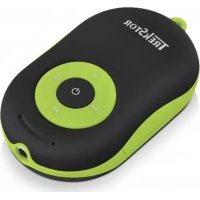
I.Beat soundboxx BT - Mp3 player TrekStor - Free user manual and instructions
Find the device manual for free I.Beat soundboxx BT TrekStor in PDF.



| Product Type | MP3 player with Bluetooth speaker |
| Brand | TrekStor |
| Model | I.Beat soundboxx BT |
| Dimensions (W x H x D) | 50 x 84 x 23 mm |
| Weight | Approximately 57 g |
| Power supply | Rechargeable Li-polymer battery via Micro USB |
| Maximum battery life | Approximately 5 hours |
| Charging time | Approximately 2 hours |
| Supported audio formats | MP3, WMA |
| Storage media | microSD(HC) memory card up to 32 GB (FAT32) |
| Interfaces | Micro USB 2.0, 3.5 mm headphone jack, Bluetooth |
| Main functions | MP3 player, Bluetooth speaker, hands-free function, built-in microphone |
| Housing material | Rubberized plastic |
| Color | Not specified (default black) |
| Operating temperature | 10 °C to 40 °C |
| Cleaning and care | Soft, dry cloth; do not use solvents |
| Safety | Do not open the housing, do not cover during charging, avoid impacts |
| Package contents | Device, Micro USB cable, user manual |
| Warranty | 24 months statutory |
| Manufacturer | TrekStor GmbH |
Frequently Asked Questions - I.Beat soundboxx BT TrekStor
User questions about I.Beat soundboxx BT TrekStor
0 question about this device. Answer the ones you know or ask your own.
Ask a new question about this device
Download the instructions for your Mp3 player in PDF format for free! Find your manual I.Beat soundboxx BT - TrekStor and take your electronic device back in hand. On this page are published all the documents necessary for the use of your device. I.Beat soundboxx BT by TrekStor.
USER MANUAL I.Beat soundboxx BT TrekStor
i.Beat soundboxx BT
L
INDEX
DE 4
EN 23
IT 40
ES 57
FR 74
SE 92
BEDIENUNGSANLEITUNG
We hope you enjoy your TrekStor MP3-Player i.Beat sounboxx BT. Please read the following passages carefully to familiarise yourself with the functions of this product and how to operate it.
IMPORTANT!
Follow the safety information in Section 2.
IMPORTANT!
Please keep these instructions in a safe place for future reference. Should the device change hands, pass these instructions on to the new owner.
Up-to-date product information is available on the TrekStor website: www.trekstor.de
Visit www.trekstor-onlineshop.de for additional products and accessories.
1) About the TrekStor i.Beat soundboxx BT
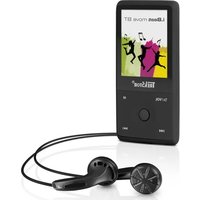
The TrekStor i.Beat soundboxx BT is a multi-functional MP3-Player with headphone port (3.5 mm) for playing back audio files from an inserted microSD or microSDHC memory card (not supplied). The device also doubles up as a Bluetooth® active speaker with speakerphone function for smartphones.
Never use the device for anything other than its intended purpose. The manufacturer is not liable for damages resulting from improper use. Furthermore, the manufacturer shall not be responsible for damages or loss of data and any subsequent damage caused.
2) Safety information
These instructions use the following warning symbols and key words:
DANGER
Indicates possible danger to life and / or danger of severe, irreversible injuries.

CAUTION
Follow instructions to avoid injuries and material damage.

WARNING
Follow instructions to avoid material damage.

NOTE
Further information about the use of the device!
Operational safety
CAUTION Those who,
Those who, as a result of their physical, sensory or mental capabilities, or lack of experience or knowledge, are not in a position to use the product safely must not be allowed in the vicinity of the product without supervision or instruction by a person responsible for their safety. Supervise children around the product.

DANGER
Keep packaging materials out of reach of children (e. g., plastic sheets). There is a danger of suffocation.
DANGER
Some accessories can pose a choking hazard for babies and young children. Keep these accessories out of reach of babies and young children.
DANGER
Never open the casing of the device: This may cause an electrical shock, short circuit or fire!

DANGER
Do not insert any object into the ports or openings of the device (electrical shock, short circuit or fire)!
DANGER
Do not cover the device or charger during operation or while charging. This may cause the device to overheat and potentially catch fire!
CAUTION
This device can generate high sound volumes. Never listen at high volumes for long periods. Doing so can result in immediate or gradual hearing damage. Remember: Permanent hearing damage may only emerge later in life. You may become used to listening to high volumes over time, making them appear normal to you. However, your hearing may have already been damaged. The higher you set the volume, the more quickly your hearing can be damaged.
DANGER
Your safety is very important to us! Safety always has first priority in road transport. Protect yourself and other road users by operating the device only if the traffic situation allows it and you do not endanger or hinder anyone. Adjust the volume of the device for your safety so that you can continue to react to all the sounds around you. Local legislation in force applies.
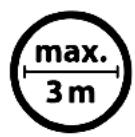
Avoid using USB cables over 3 m in length.
Exposing the device to electrostatic discharge can interrupt the data transfer between the device and the computer or impair the functions of the device. Should this happen, disconnect the device from the USB port and reconnect it.
Repair

WARNING
No parts inside the device require maintenance or cleaning.

WARNING
Should water enter into the device, turn it off immediately. Ensure the device is checked for operational safety before using it again.
Intended operating conditions

Protect the device from extremely high or temperatures and fluctuations in temperature. Use it at an ambient temperature between 10° C and 40° C .


Do not place the device near a heatce and protect it from direct sunlight.

Ensure you use and store the device in a -free environment.
Power supply

CAUTION
Do not use or charge the device if the battery is damaged or leaks.
Care and maintenance

Never clean the surface of the device with ents, paint thinners, cleaning agents or er chemical products. Use a soft, dry h or a soft paintbrush.
3) Technical specifications
Interfaces: Micro-USB 2.0, audio out (3.5 mm jack),
microphone, memory Bluetooth®
card
Supported card formats: microSD(HC)* (max. 32 GB, file
system: FAT32)
Dimensions (W x H x D): 50 x 84 x 23 mm
Weight: approx. 57 g
Housing material: Plastic (rubber)
playable audio formats: MP3, WMA
Power source: Lithium polymer battery**
Maximum playing time: approx. 6 hours
Battery recharged via: Micro-USB socket
Charging time: approx. 2 hour
* It is not possible to guarantee 100 per cent compatibility of microSD(HC) cards.
** The battery in this product cannot be easily replaced by users themselves.
4) Package contents
- TrekStor i.Beat soundboxx BT
- Micro-USB cable
- Operating instructions
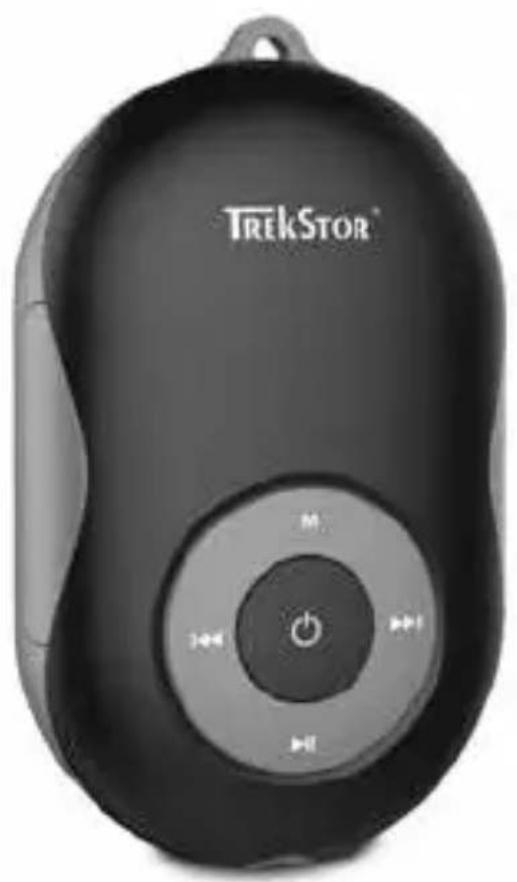
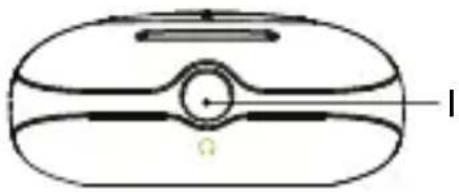
5) Controls and ports
A) Mounting lug
B) M button
C) button
D) button
E) ⏻ button
F) ▶ button
G) Microphone
H) Status LED
I) Earphone jack (3,5 mm)
J) Micro-USB port / Charging socket
K) Memory card slot
L) Speaker
6) Charging the MP3-Player
Please fully charge your MP3-Player before using it for the first time.
To charge your MP3-Player, connect it to a computer using the supplied Micro-USB cable. Your MP3-Player is fully charged after approximately two hours.
The charging LED is lit red while the device is charging. The LED light goes out once the battery is fully charged.

The maximum battery life is reached after proximately 10 charging cycles.

If the battery level is low, you will hear the image "Low battery" shortly before the ice switches off.
7) Switching the MP3-Player on and off
Press and hold the ⏻ button for approximately four seconds. The MP3-Player switches on. If a memory card has been inserted (not supplied), the MP3-Player then begins to play back music.

When you switch on the MP3-Player with a memory card inserted, you will hear the message "Card reader". If no memory card been inserted, you will hear the message "Connection".
If you want to switch off your MP3-Player, press and hold the ⏻ button for approximately two seconds.

A signal tone will sound to confirm that the -Player has switched off.
8) Operating the MP3-Player
8.1) Mode: MP3-Player
In this mode, you can play back the audio files on an inserted memory card through connected headphones or the integrated speaker.
Inserting and removing a memory card
Slide the memory card into the memory card slot with the contacts facing up. You should hear a click sound when the card locks into place.

Make sure that the microSD(HC) memory is formatted with the FAT32 file system.
To remove a memory card, press it briefly. The memory card disengages from the device and you can now remove it.
Playback and pause
After you have switched on the MP3-Player, it will automatically begin to play back the audio files located on the memory card.
If the MP3-Player is switched off and later back on again or if it is switched from Bluetooth® mode back to Music mode, and if the memory card has not been removed in the meantime, then playback will start at the last track that was played.
Briefly press the ▶ button in order to pause or resume playback of an audio file.
Change track
Briefly press the ▶ button to play the next track. Press the ◀ button in order to revert back to the previous track.
Controlling the volume
Press and hold the ▶ button to increase the volume. Press and hold the ◀ button to decrease the volume.
8.2) Mode: Bluetooth®
In this mode, you can play back audio files (for example, on your smartphone) via Bluetooth® through connected headphones or the integrated speakers.
Switching to Bluetooth® mode
Switch on the MP3-Player. If no memory card with audio files is inserted into the device, the MP3-Player automatically goes into Bluetooth® mode and searches for devices to connect to.

In this mode, the status LED flashes blue.
If there is a memory card in the MP3-Player, briefly press the Ⓜ button to switch to Bluetooth® mode.
Connection setup and playback
After switching to Bluetooth ® mode, turn on the Bluetooth ® function on the device you wish to connect. Then connect to the MP3-Player.

A signal tone will sound to confirm that the two devices have successfully connected to each other.
Now select an audio file on the connected device to begin playback.
To exit Bluetooth ® mode, briefly press the ☐ button on the MP3-Player or turn off the Bluetooth ® function on the connected device.

Either way, when the connection is terminated, you will hear the message
"Disconnection".
Speakerphone function
If you have connected the MP3-Player and a smartphone via Bluetooth ® , you can make a call or conduct a telephone conversation in the usual way thanks to the speakers and the integrated microphone.
You can use the ▶ button in Bluetooth® mode to answer or end incoming calls on your smartphone. If you press the ▶ button twice, the last number to be dialled is redialled.
9) Transferring data to or from a computer
Insert a memory card into the MP3-Player, and connect the MP3-Player to a USB port on your computer using the Micro-USB cable provided.
9.1) Windows ® 10 / 8.1 / 8 / 7 / Vista ® / XP
The memory card in the MP3-Player is automatically recognised and added under "My COMPUTER" / "COMPUTER".
a) Highlight the files or folders you wish to copy using the mouse.
b) Position the mouse pointer over the selected files or folders and right-click. Then click "COPY" on the shortcut menu.
b) Select under "MY COMPUTER" / "COMPUTER", where (the memory card) you want to copy the files or folders.
c) Right-click and then click "PASTE" to start the copy process. The data will be available on the destination drive once the copy process has completed.

You can also copy files with "Drag & Drop".
9.2) Mac® OS X 10.6 onwards
Highlight the desired files using the mouse. Drag the files in the "FINDER" to the drive icon of your MP3-Player.
10) Logging off the MP3-Player from the computer

Please follow the recommended logout procedure to prevent damage to the device or data loss!
10.1) Windows ® 10 / 8.1 / 8 / 7 / Vista ® / XP
At the bottom right on the task bar, left-click the "SAFELY REMOVE HARDWARE AND EJECT MEDIA" icon. In the popup menu that appears, leftclick "EJECT I.BEAT JUMP BT" to select it. You can now disconnect your MP3 player from the computer.
10.2) Mac OS X 10.6 onwards
You must remove the drive from the "DESKTOP" before you disconnect your MP3 player. Click the relevant drive icon and drag it to the trash icon.
11) Notes on copyright and trademarks
Copyright law prohibits the copying of the content of these operating instructions (illustrations, reference documents etc.), in whole or in part, without the permission of the copyright holder.
The Bluetooth word mark and logos are registered trademarks owned by Bluetooth SIG, Inc. and any use of such marks by TrekStor GmbH is under license.
Mac OS and OS X are trademarks of Apple Inc., registered in the U.S. and other countries.
Microsoft, Windows and Windows Vista are either registered trademarks or trademarks of Microsoft Corporation in the United States and/or other countries.
TrekStor and i.Beat are registered trademarks of TrekStor Ltd. in the European Community and other countries.
Copyright © 2016 TrekStor GmbH. All rights reserved. Some product or company names mentioned elsewhere may be brand names or trade names of the respective proprietor.
12) Notes on disposal
Disposal
This symbol indicates that this product and or the battery used contain components that are harmful to the environment and / or human health if not disposed of correctly. As the owner of a used electrical or electronic device, you may not dispose of this device together with unsorted domestic waste.
Remove the battery from the device before disposing of your old device. Contact your city or municipal authority for information on how to correctly dispose of the device and its battery.
Recycling
Our device and its sales packaging consist of valuable raw materials, which must be recycled in the interest of environmental protection.
Contact your city or municipal authority for information on the correct method of disposal.
13) Notes on liability and warranty
The manufacturer shall reserve the right to constantly further develop the product. These changes may be made without any direct reference to them in the operating instructions. As a result, the information contained in the operating instructions does not need to reflect the current technical design.
The statutory warranty period for consumer products is 24 months. There is no warranty beyond this.
Unauthorised modifications to the device (particularly installing external firmware not approved by the manufacturer or modifications to the device hardware) may result in a loss of all warranty claims.
14) Support information
If you have questions about your TrekStor product or problems, please proceed as follows:
-
Carefully read the operating instructions.
• Take a look at our FAQ section of our website, where you will find answers to the most frequently asked questions about your product. -
Check whether you have entered the correct settings on your device using the product features and functions as points of reference.
- Consult the respective product detail page for up-to-date information (such as newly available firmware updates) on your product.
If you have taken these measures and the problem persists, please contact our service team directly.
Our professional service employees will discuss all of the additional necessary steps with you and provide individual support to help you quickly and easily continue to address your concern.
Directly contacting us, the manufacturer, via our service hotline or by filling out our service form allows us to address your concern more quickly and allows you to benefit from high-quality consulting and support. You can find out how to reach our service team here:
www.trekstor.de/support-en.html

ISTRUZIONI PER L'USO
The Bluetooth word mark and logos are registered trademarks owned by Bluetooth SIG, Inc. and any use of such marks by TrekStor GmbH is under license.
Mac OS and OS X are trademarks of Apple Inc., registered in the U.S. and other countries.
Microsoft, Windows and Windows Vista are either registered trademarks or trademarks of Microsoft Corporation in the United States and / or other countries.
TrekStor and i.Beat are registered trademarks of TrekStor Ltd. in the European Community and other countries.
Out (clavija de 3.5 mm),
The Bluetooth word mark and logos are registered trademarks owned by Bluetooth SIG, Inc. and any use of such marks by TrekStor GmbH is under license.
Mac OS and OS X are trademarks of Apple Inc., registered in the U.S. and other countries.
Microsoft, Windows and Windows Vista are either registered trademarks or trademarks of Microsoft Corporation in the United States and/or other countries.
TrekStor and i.Beat are registered trademarks of TrekStor Ltd. in the European Community and other countries.
8.1) Mode : MP3 player
The Bluetooth word mark and logos are registered trademarks owned by Bluetooth SIG, Inc. and any use of such marks by TrekStor GmbH is under license.
Mac OS and OS X are trademarks of Apple Inc., registered in the U.S. and other countries.
Microsoft, Windows and Windows Vista are either registered trademarks or trademarks of Microsoft Corporation in the United States and/or other countries.
TrekStor and i.Beat are registered trademarks of TrekStor Ltd. in the European Community and other countries.
The Bluetooth word mark and logos are registered trademarks owned by Bluetooth SIG, Inc. and any use of such marks by TrekStor GmbH is under license.
Mac OS and OS X are trademarks of Apple Inc., registered in the U.S. and other countries.
Microsoft, Windows and Windows Vista are either registered trademarks or trademarks of Microsoft Corporation in the United States and/or other countries.
TrekStor and i.Beat are registered trademarks of TrekStor Ltd. in the European Community and other countries.
- I.BEAT SOUNDBOXX BT
- INDEX
- BEDIENUNGSANLEITUNG
- IMPORTANT
- ABOUT THE TREKSTOR I.BEAT SOUNDBOXX BT
- SAFETY INFORMATION
- DANGER
- CAUTION
- WARNING
- NOTE
- OPERATIONAL SAFETY
- CAUTION THOSE WHO
- REPAIR
- INTENDED OPERATING CONDITIONS
- POWER SUPPLY
- CARE AND MAINTENANCE
- TECHNICAL SPECIFICATIONS
- PACKAGE CONTENTS
- CONTROLS AND PORTS
- CHARGING THE MP3-PLAYER
- SWITCHING THE MP3-PLAYER ON AND OFF
- OPERATING THE MP3-PLAYER
- MODE: MP3-PLAYER
- INSERTING AND REMOVING A MEMORY CARD
- PLAYBACK AND PAUSE
- CHANGE TRACK
- CONTROLLING THE VOLUME
- MODE: BLUETOOTH®
- SWITCHING TO BLUETOOTH® MODE
- CONNECTION SETUP AND PLAYBACK
- SPEAKERPHONE FUNCTION
- TRANSFERRING DATA TO OR FROM A COMPUTER
- WINDOWS ® 10 / 8.1 / 8 / 7 / VISTA ® / XP
- MAC® OS X 10.6 ONWARDS
- LOGGING OFF THE MP3-PLAYER FROM THE COMPUTER
- MAC OS X 10.6 ONWARDS
- NOTES ON COPYRIGHT AND TRADEMARKS
- NOTES ON DISPOSAL
- DISPOSAL
- RECYCLING
- NOTES ON LIABILITY AND WARRANTY
- SUPPORT INFORMATION
- IF YOU HAVE QUESTIONS ABOUT YOUR TREKSTOR PRODUCT OR PROBLEMS, PLEASE PROCEED AS FOLLOWS
- ISTRUZIONI PER L'USO
- MODE : MP3 PLAYER
Brand : TrekStor
Model : I.Beat soundboxx BT
Category : Mp3 player