
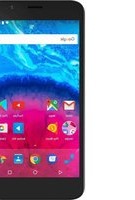
35b Titanium - Smartphone ARCHOS - Free user manual and instructions
Find the device manual for free 35b Titanium ARCHOS in PDF.



| Product type | Smartphone |
| Brand | ARCHOS |
| Model | 35b Titanium |
| Operating System | Android (version not specified) |
| Network | 3G/EDGE, WiFi 802.11 b/g/n |
| Screen | 3.5 inches (estimated) |
| Camera | Yes, with flash |
| Battery | Lithium-ion rechargeable, removable |
| SIM card | Dual SIM (Micro-SIM) |
| External memory | microSD card support |
| Connectivity | Micro-USB, 3.5 mm headphone jack |
| Main features | Calls, SMS, Internet, Camera, Media player, GPS (via Google Maps) |
| Box contents | Phone, Battery, Hands-free kit, Micro SIM adapter, USB cable, Charger, Quick guide, Warranty guide |
| Security | PIN code, PUK code (available from the operator) |
| Power supply | 5V mains charger included |
Frequently Asked Questions - 35b Titanium ARCHOS
User questions about 35b Titanium ARCHOS
0 question about this device. Answer the ones you know or ask your own.
Ask a new question about this device
Download the instructions for your Smartphone in PDF format for free! Find your manual 35b Titanium - ARCHOS and take your electronic device back in hand. On this page are published all the documents necessary for the use of your device. 35b Titanium by ARCHOS.
USER MANUAL 35b Titanium ARCHOS
ARCHOS_35b_Titanium_book.indd 101/12/2014 10:36:54

Package Contents
Check your product box for the following items:
-ARCHOS 35b Titanium
-Battery
-Headset
-Micro SIM adaptor
-USB cable
-Charger
-Quick start guide
-Warranty Legal & Safety notices
The items supplied with your device and available accessories may vary depending on your region or service provider.
The supplied items are designed only for your device and may not be compatible with other devices.
Unapproved accessories may cause your device to malfunction.
2
ARCHOS_35b_Titanium_book.indd 301/12/2014 10:36:55

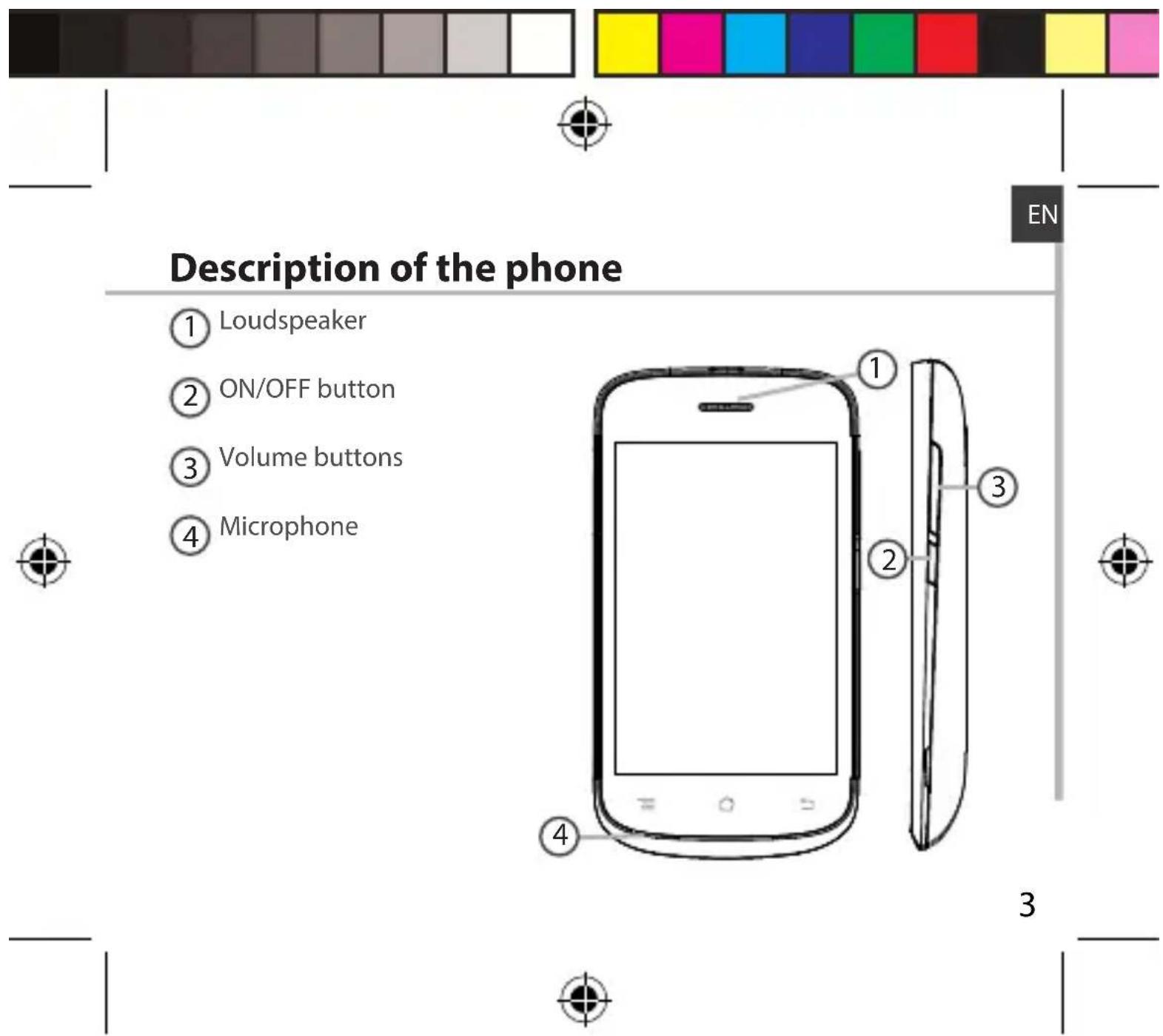
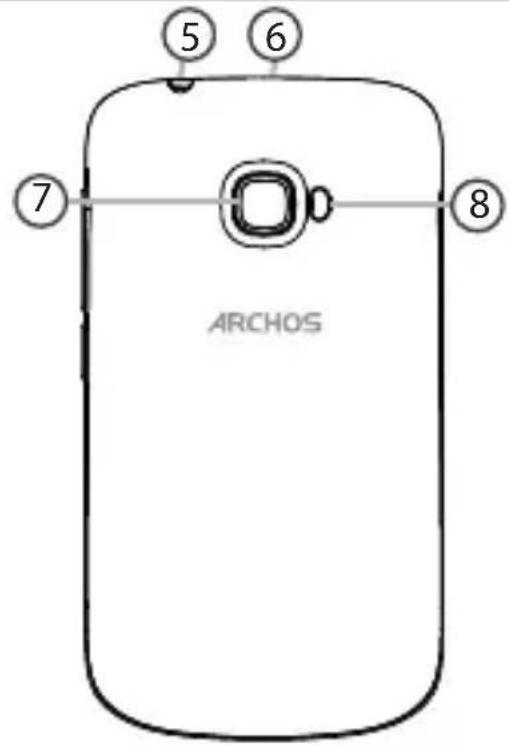
Description of the phone
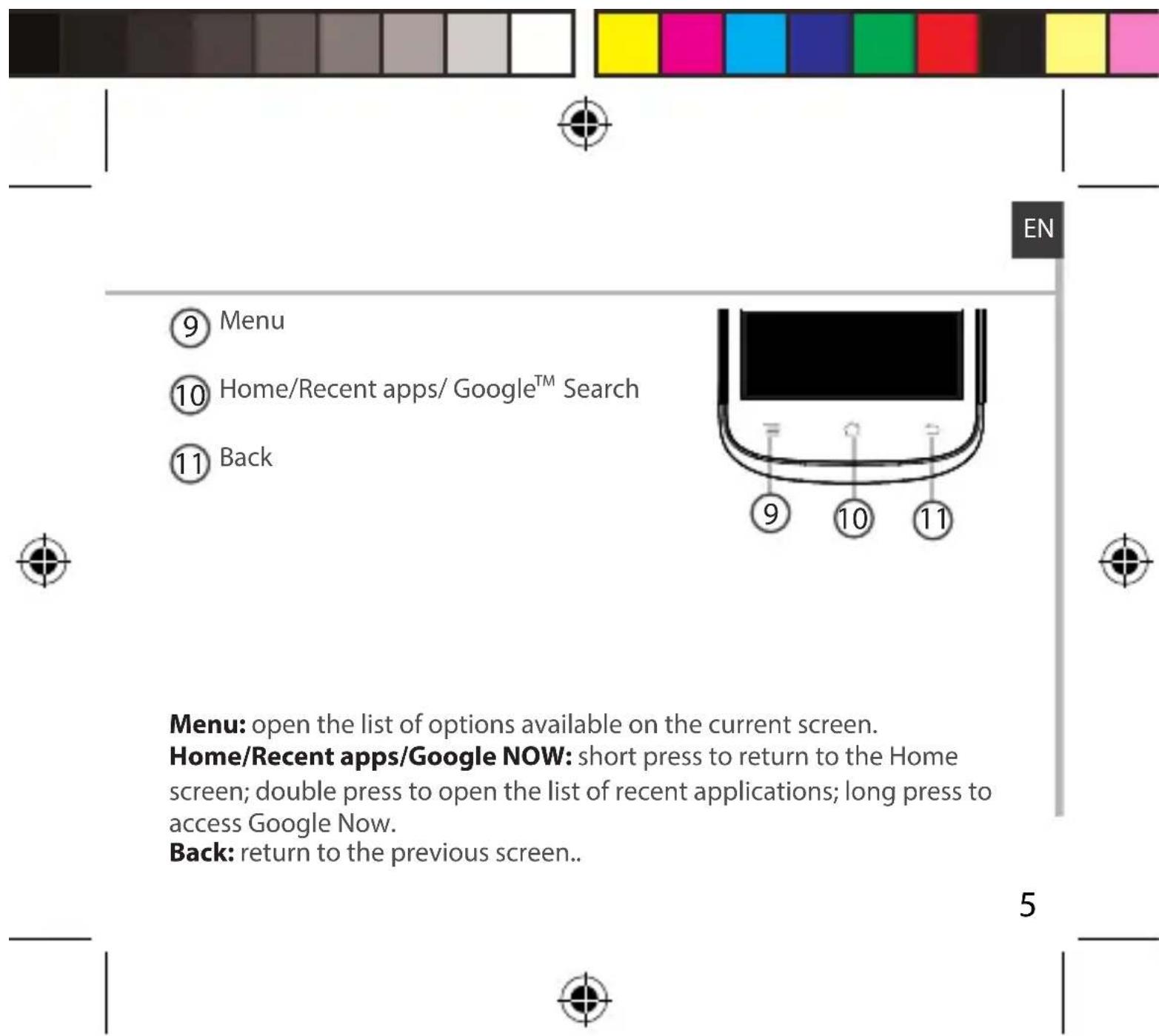
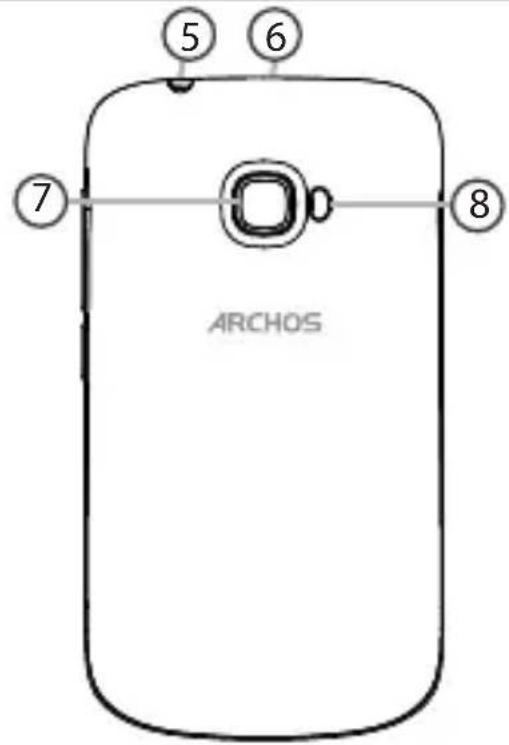
5 Headset jack
Micro-USB port
7 Camera
8 Flash
4
ARCHOS_35b_Titanium_book.indd 501/12/2014 10:36:56

Assembling
Opening
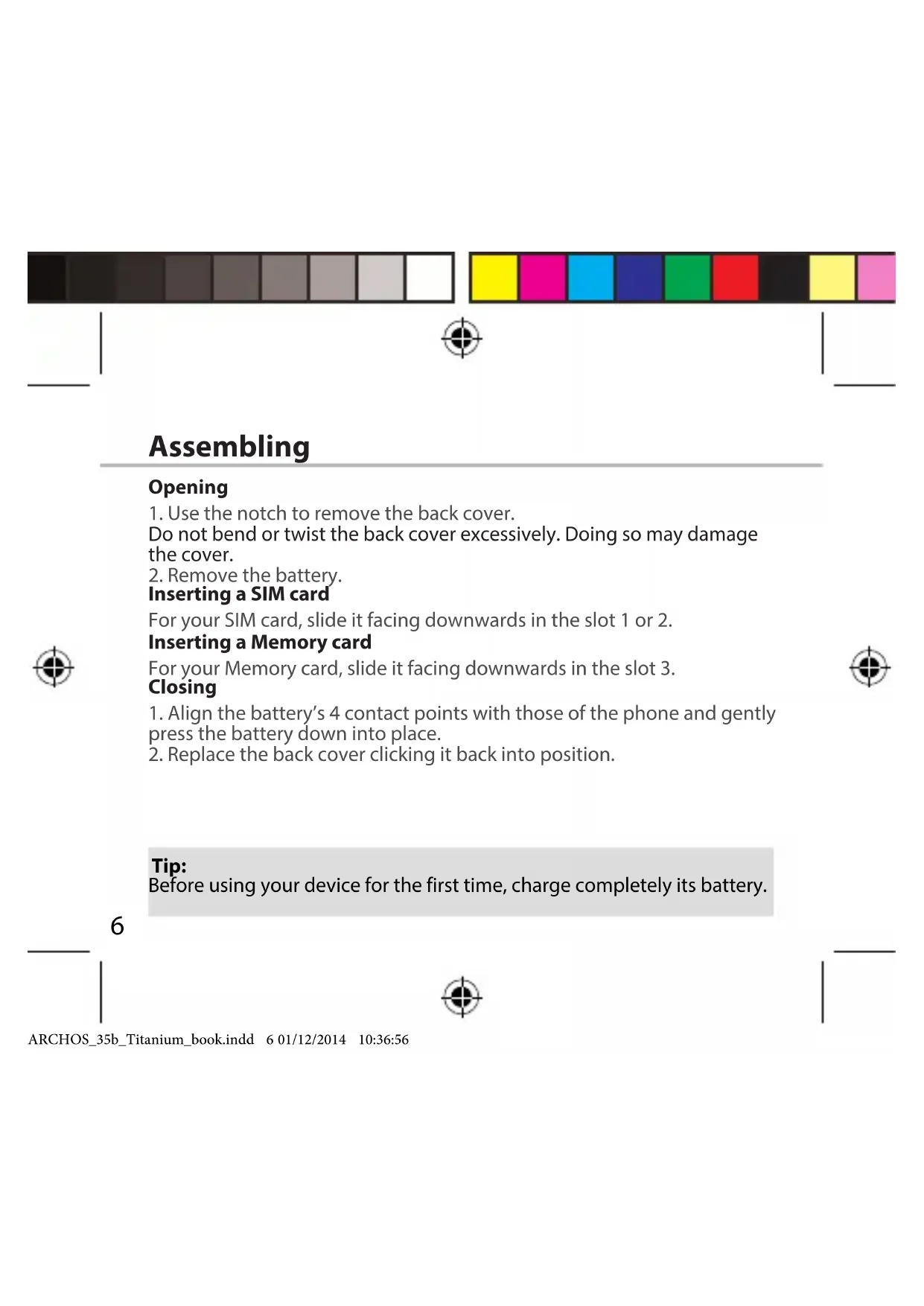
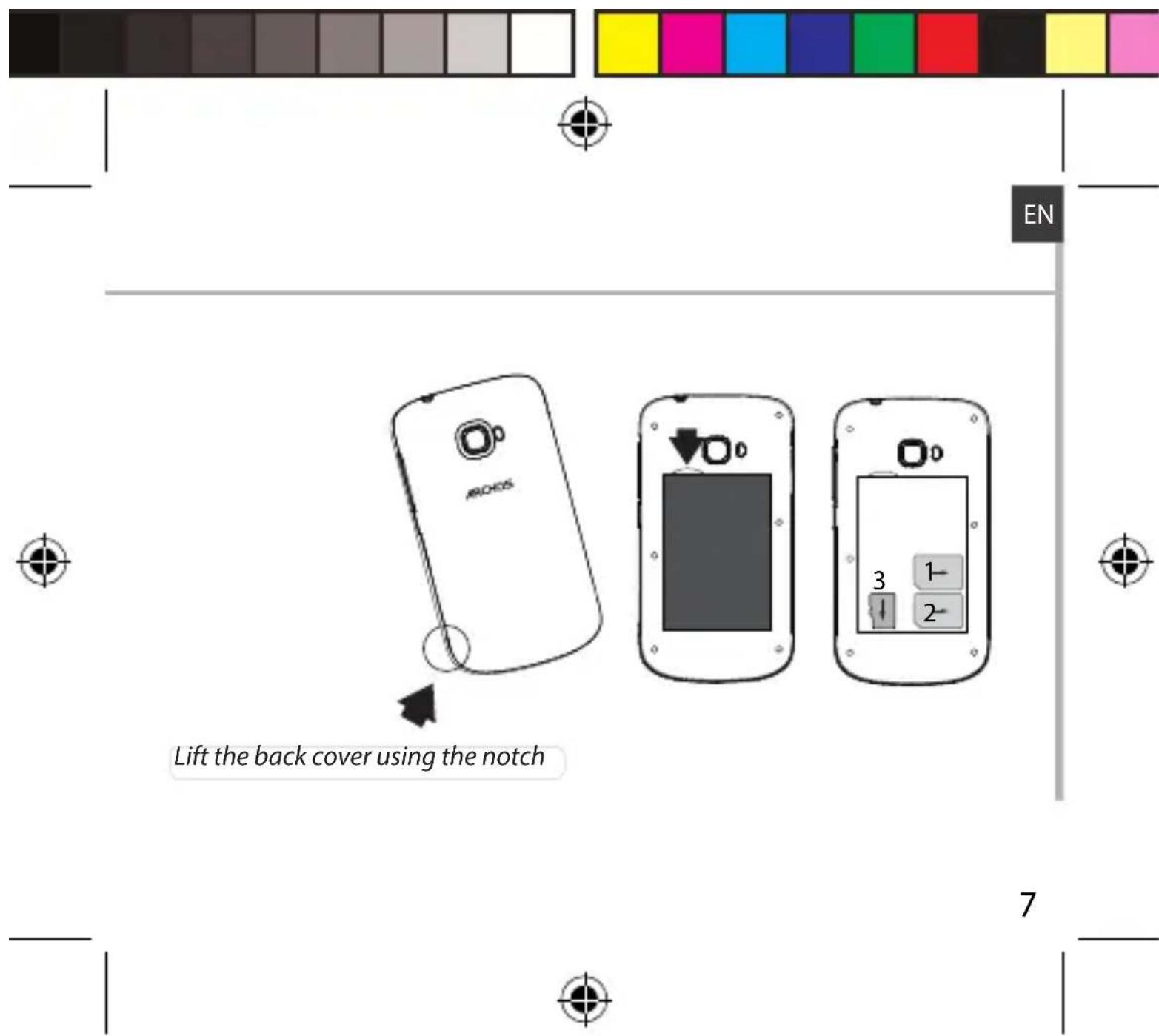
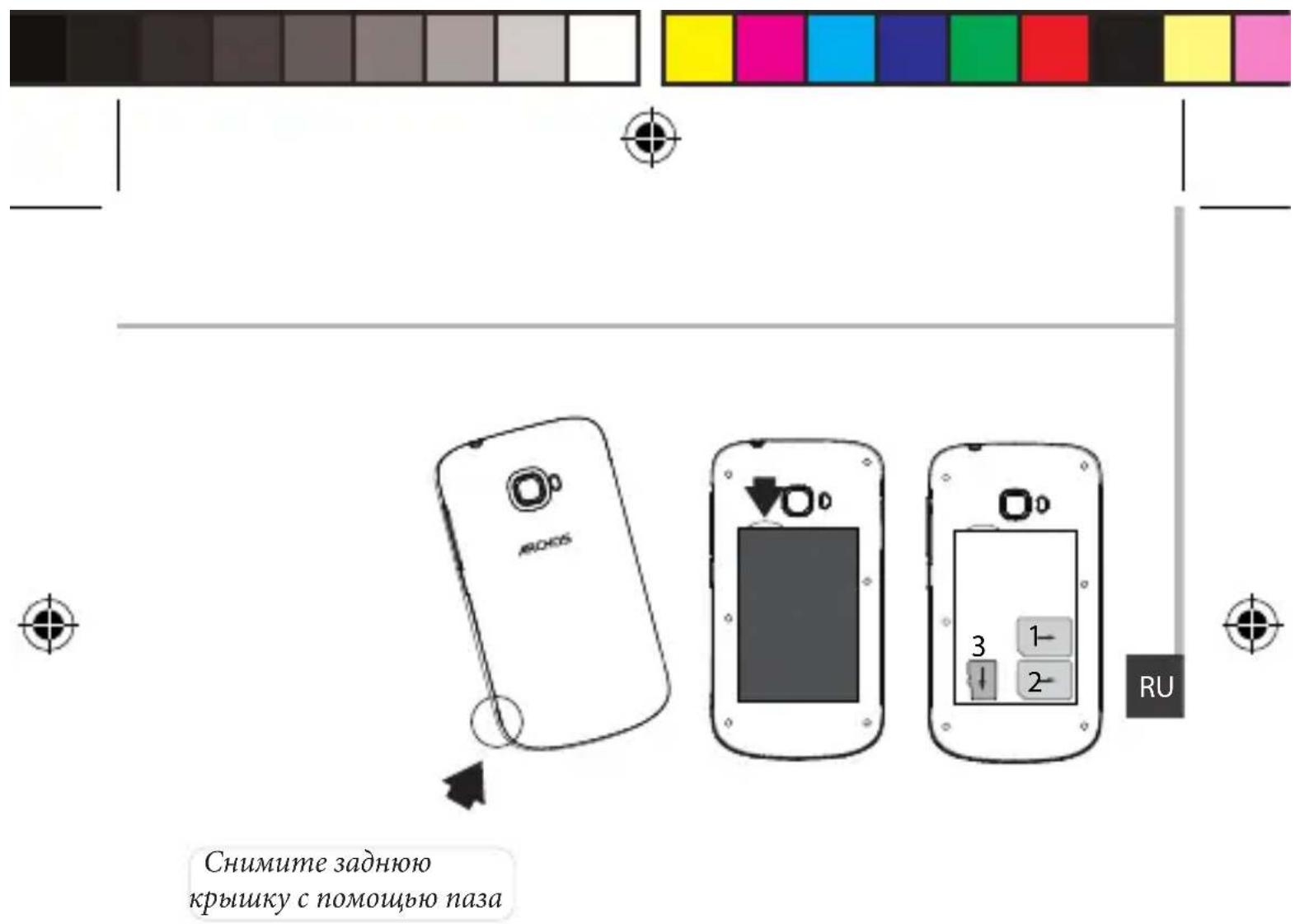
- Use the notch to remove the back cover.
Do not bend or twist the back cover excessively. Doing so may damage the cover.
- Remove the battery.
Inserting a SIM card
For your SIM card, slide it facing downwards in the slot 1 or 2.
Inserting a Memory card
For your Memory card, slide it facing downwards in the slot 3.
Closing
- Align the battery's 4 contact points with those of the phone and gently press the battery down into place.
- Replace the back cover clicking it back into position.
Tip: Before using your device for the first time, charge completely its battery.
6

ARCHOS_35b_Titanium_book.indd 701/12/2014 10:36:57

Getting started
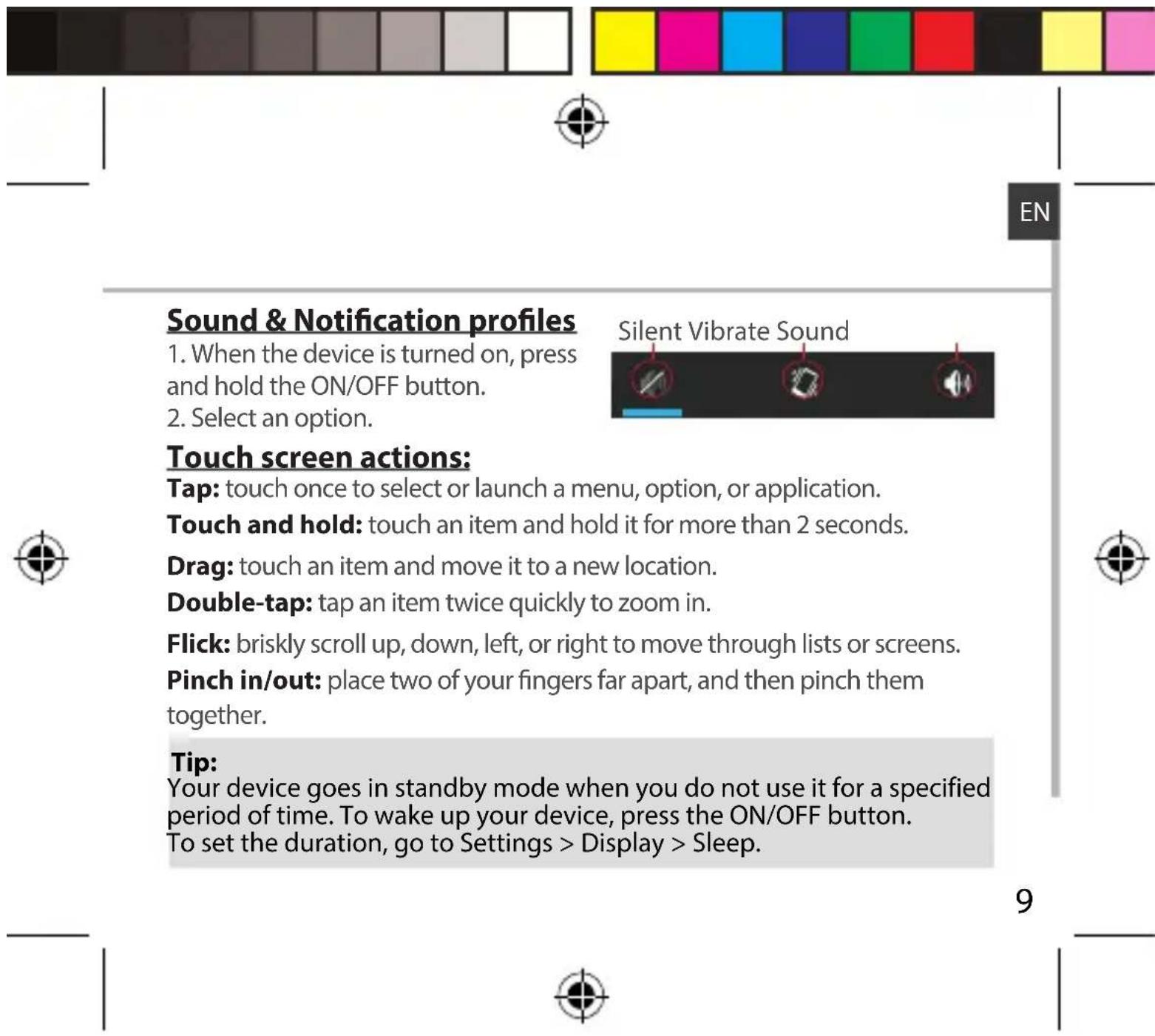
Turn ON
- Press and hold the ON/OFF button to turn on the device.
When you turn on your device, a PIN code may be requested. - Type the PIN code supplied with your SIM card.
Beware of typing a wrong PIN code. - Select 'OK'.

Through the wizard
The first time you start up your ARCHOS, the installation wizard will help you set up your device:

-Language
-Date & time
-WiFi connection
-Location service options
Turn OFF
To turn off your device, press and hold the ON/OFF button, and then select Power off > OK.
8


3G & WiFi connection
3G connection
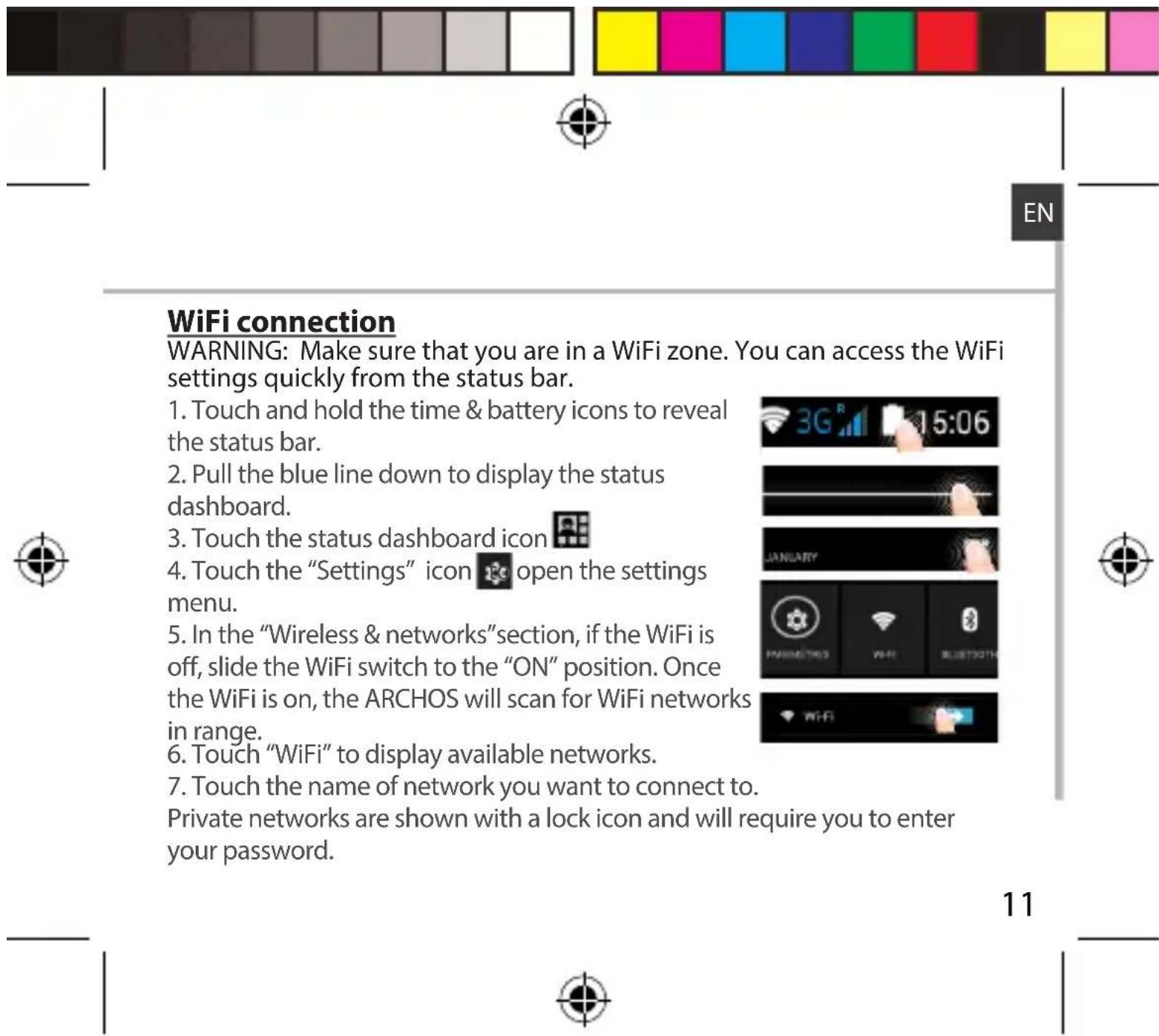
With your SIM card, you should be connected to the Internet without any further setup. The ARCHOS will only have signal if you are in an area covered by your provider's 3G network. When connected to the 3G network, the 3G icon is displayed in the status bar.
Activating the mobile data
To be able to access Internet, the mobile data icon must be activated.
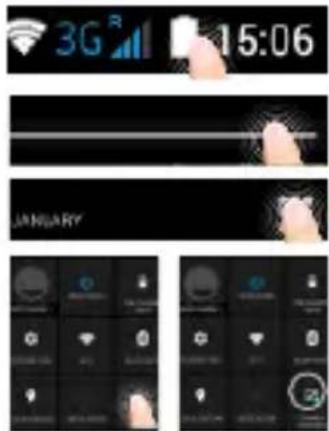
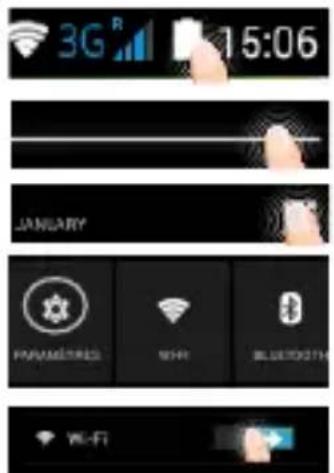
- Touch and hold the time & battery icons to reveal the status bar.
- Pull the white line down to display the status dashboard.
- Touch the status dashboard icon
- Touch the mobile data icon to activate it.

Tip: If you encounter connection problem's, see the FAQs on www.archos. com or contact your 3G network connection provider.
ARCHOS_35b_Titanium_book.indd 11 01/12/2014 10:36:58

Google & Contacts
Adding a Google account
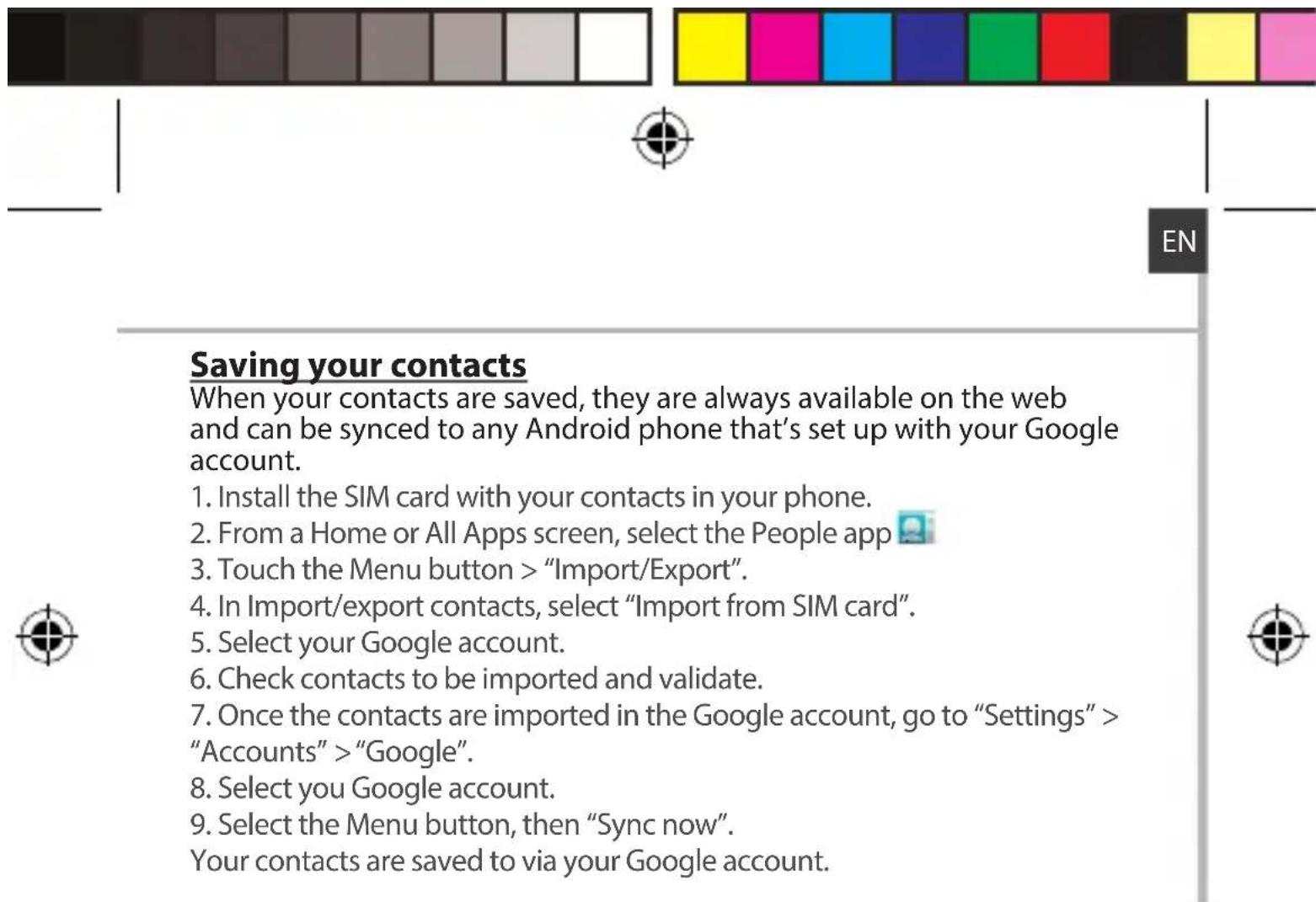
A Google account lets you take full advantage of any Google apps and services that you may want to use.
- Go to "Settings" > "Accounts" > "Add account".
- Select the account type "Google" to add.
- Follow the onscreen instructions to enter information about the account. Once the account is created, you can access Play Store, Gmail, Hangouts, Maps and many other apps.
Synchronizing info
Information must be sync to be saved. Your data is backed up on Google servers.
- Go to "Settings" > "Accounts" > "Google".
- Select your account.
The list of information that can be sync are displayed.
Automatic sync should be activated. To launch the sync, press the Menu button, then Sync now. You can get them back in case of loss of your device or SIM card. When your Google account is added to a new device, all your saved information is transferred.
12

Hints & tips for Android™
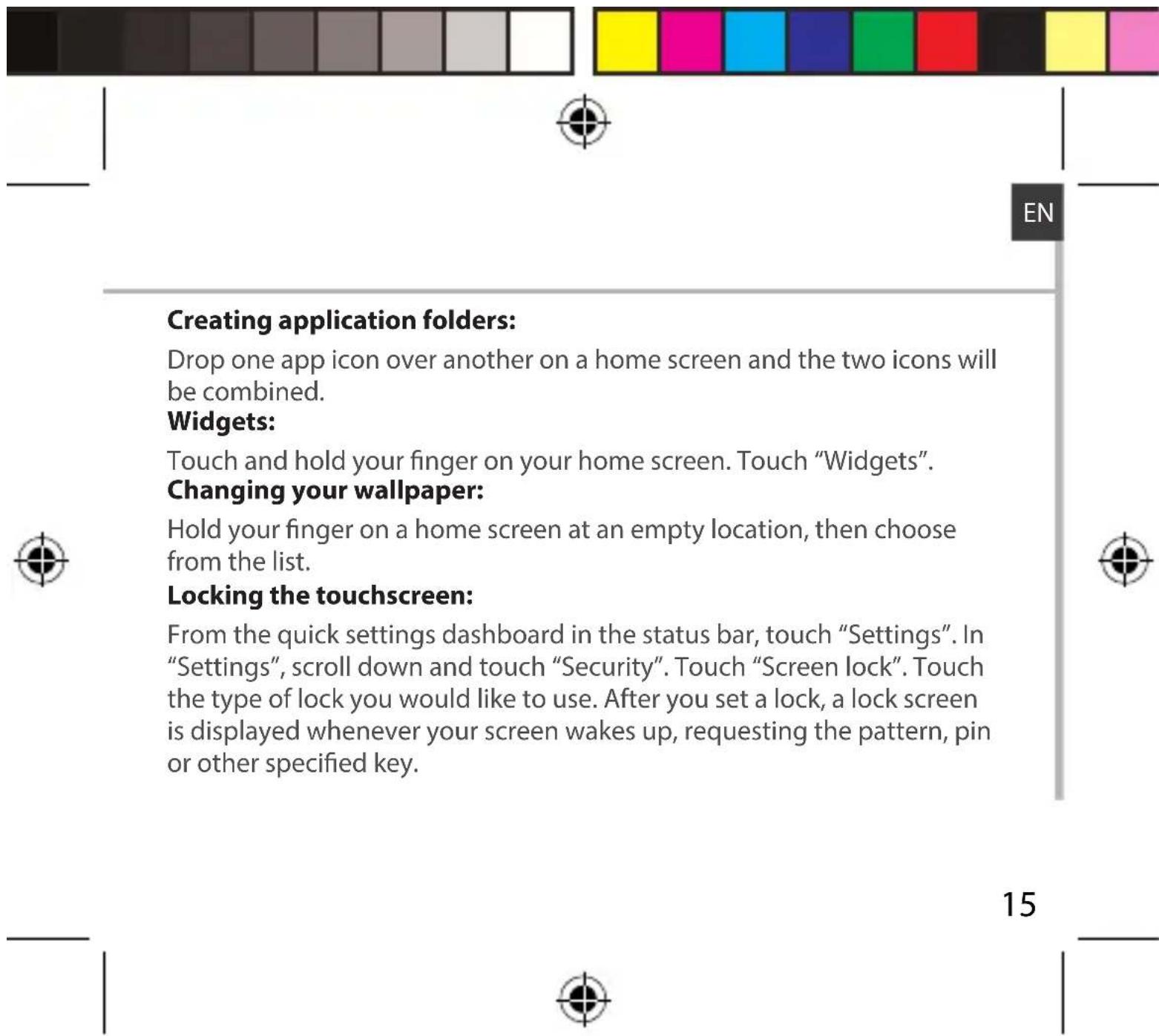
The extended home screen:
You have by default one home screen. You can create as many home screens you want. Select an app icon and slide it right. A new home screen will be created. Select another app icon and slide it right to create a third home screen.
Moving a home screen item:

Touch and hold your finger onto it until the positioning gridlines appear, then slide it to the desired location, and release your finger.
Removing a home screen item:
Touch and hold it, slide your finger towards the top of the screen and drop it over the "Remove" icon.
Uninstalling an item:
From the "All apps" screens, touch and hold it, slide your finger towards the top of the screen and drop it over "Uninstall" bin.
14

ARCHOS_35b_Titanium_book.indd 15 01/12/2014 10:36:58

Troubleshooting
My phone is frozen or cannot switch on
Check the battery contacts, remove and reinstall your battery, then turn your phone on. Check the battery power level, charge for at least 20 minutes.
My phone cannot connect to a network or "No service" is displayed
Try connecting in another location. Verify the network coverage with your operator.
Unable to make outgoing calls
Make sure your phone is connected to a network, and the network is not overloaded or unavailable.
Unable to receive incoming calls
Make sure your phone is switched on and connected to a network (check for overloaded or unavailable network).
SIM card PIN locked
Contact your network operator to obtain the PUK code (Personal Unblocking Key).
To configure a new 3G network:
On your device, tap Settings.
Select Wireless & networks > More... > Mobile networks.
Select Network settings. In Network operators, select your operator.
In Access Point Names, select the correct access point name and enter the exact connection parameters provided by your 3G provider.
Table des matieres
-KpaTKoe pyKOBOIDCTBO
-「rapaHTn n nHcTpkykun no 6e30NaCHOCTn
KOMnoHEnTbI, BXOJaUeB KOMnJIeKT NOCTaBKn yCTPOJCTBa, IN DOCTyNtBle aKCeCCyApbl MOryt pa3JIuHaTbcra B 3aBnCmOcTn OT PerNoHa IIN NoCTaBUnka ycnyr. KomnoHEnTbI, BXoJaUeB KOMnJIeKT, npeiHa3NaueHbI DnI NCNoJIb3OBaHnra TOnbKO C DaHHbIM yCTPOJCTBOM IM OMyr 6bITb HecOBMeCTnMbIMn C dpyrUmN yCTPOJCTBaMn. NcNoJIb3OBaHne akceccyapOB, KOToPbIe He 6bln pa3peWeHbI K npImeHeHnIO C daHHbIM yCTPOJCTBOM, MoXeT pInBeCTN K erO HeNCnPaBHOCTn.
114
ARCHOS_35b_Titanium_book.indd 115 01/12/2014 10:37:18

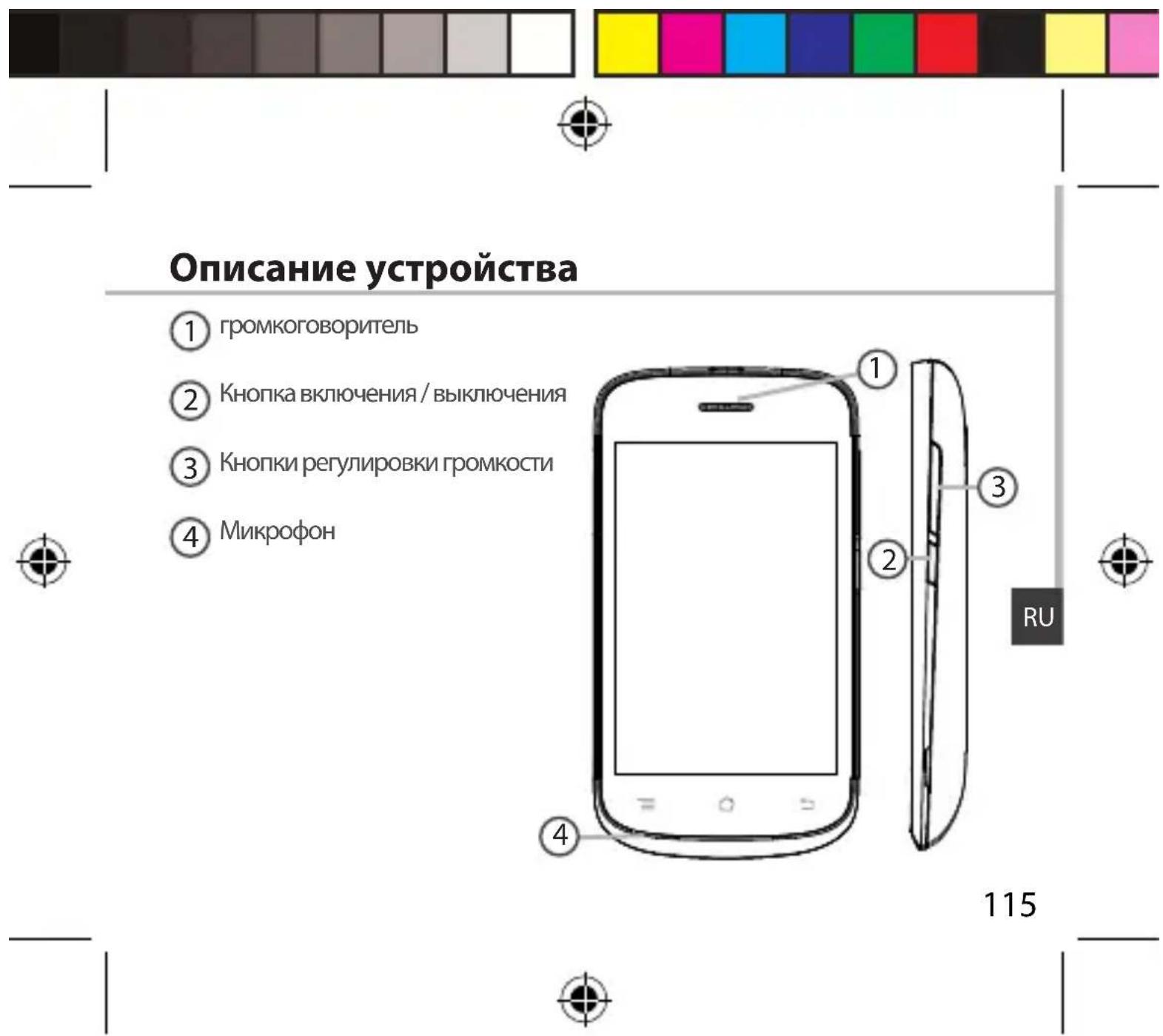
Описиме устюйства
5 THe3doDnra raphNtypbI
6 Nopt micro-USB
Kamepa
8ΦoHaPnK
116
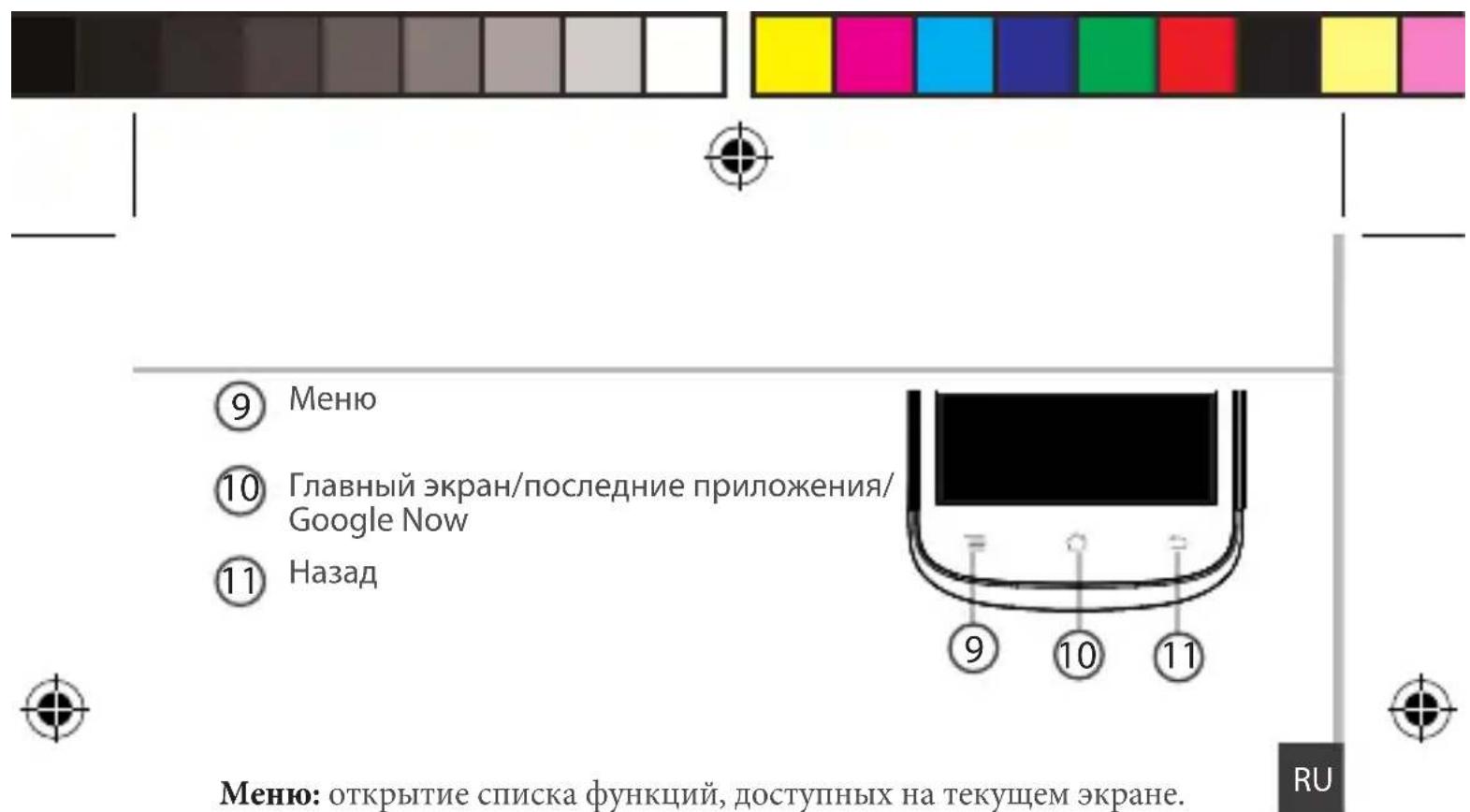
MeHIO:OTKpbTHe cINsKa yHKnI,IOCTyINbIX Ha TeKyIeM 3KpaHe.
Главный кран/послеснейпрлобковes/Google Now:HaЖмITEоин pa3ДЯВОЗВPaTaHaТlaВьИйЭКраH;HaЖМITEДВаЖДыДЯOTКpbITиCПИСКА ПОСLEДнIX Прлобкови.сделаТБДЛNTeLbHO HaЖMITE,ЧTOбы OTKpbITb Прлобкове"Google Now"
Ha3aI: BO3BpaT K IIpeIbIyIeMy 3KpaHy.

C6opka
OTKpbITne
- Chmnte 3aHIOKpbIiKy.
He n3rnbaiTe n He cKpyuNbaiTe KpbIshky CnIshkom CnIbHo. 3To MoXeT npNBecTn Ke ee NOBpeJdeHnIO.
2.ИЗВЛЕКИТебатapeю.
BcTabKa SIM-KapT
BcTaBbTe KapTy SIM KOHTaKTHoN 06JaCTbIO BHN3 B rHe3Do 1 & 2.
BCTaBka KapTbI naMaTn
BCTaBbTe KapTu NaMaTn KOHTaKTHoI O6JaCtBuO BHN3 BrHe3do 3.
3aKpbTMe
- COBmecnte 4 TOUKN KOHTaKTOB aKKymyIaTOPa C COOTBeTCTByIOuIMN ToUKAMn Ha TeJefoHe N OCTOpOxHo Ha aKaMyIaTOP BHN3, YTO6bl 3aDbHHTb erO Ha MeCTO.
- YctaHOBInTe KpbIshky aKKymyIaTOPa, TaK yTO6bI OHa CO IeJukOM CTana Ha MeCTO.
POncka3Kn.
IpeenepBbIM nCNoJIb3OBAHnem yCTpoiCTBa NOLHOCTbIO 3apJNTe aKKymyIaTOp.

Hauano pa60tbi
BkIouHne
- Haxmnte n ydepxnBaTe KHONky BkIIOueHnN N BbIKIOueHnN, YTO6bl BKIOuHTb yCTpOInCTBO.
PnBkIoueHIn yCTpoiCTBa MoKeT NOBntbCz anpoc Ha BBOD PIN-KoJa. - BBeInTe PIN-KoI, npeIoocTaBnaEmbIc SIM-KapToI.
- HaxmTe OK.
Mactep HacTroponKn
PpOfHn3ByKOB N yBeDOMneHn
- Korla yctpoiCTBO BKIOUeHO, HaKMITE u ydepKINBaIte KHOIIKy
120


BKIOUOeHn/BBIKIOUeHn.
- BbI6epNTe OIMN I3 BapNaHTOB.
Be3 3Byka Bn6paIIa Co 3BykOM

Kacahne u yepxahanhe: KocHTecb 3JeMeHt a u yepxuBaIte ero He Mehee 2 cekyHd.
NepetacknBaHne:Kochntecb 3JIeMeHTa IN nepemecTITe erO B HOBOE MECTO.
Двоиhoe kacahne: bblcTo pДBaJkbI KOCHnTeCb 3JIeMeHTa.
Побedingнe:БьICTpo npOBeNTe NOэКрану пальсeМВВерх,BHn3, BJIeBO nIN BnpaBO,чTO6bl npOKpyTntb CnncOK nIN COpeKImOe эКраHa.
Ckatae:Pa3BeiTe IBa nalba,a 3aTeM CBeiTe IX uINKOBbIM DnIXKeHnEM.
Iopcka3Kn. Ecn yctpojCTBO He nCnoJb3yeTcB TeueHne onpeJeHHO BpeMeHN, ceHCOPHbN 3KpaH BblIOuaeTcR. YTo6bl BKIOHTb 3KpaH, HaxMNTe KHOKNy BKIOUeHn N BblIOUeHn. YTo6bl 3aTaB dInTeNbHOCTb, nepeINTE K MeHIO Settings > Display > Sleep (HaCtpoiKN > DInCpJIeN > PeXIM cHa).
RU


Uyeha 3ainnc Google n03Bolaret noIb3ObaTbCnpeMMyeCTBaMn IIO6bIX npInoJxHn yCnyr Google, KOTOpBle Bbl 3axOTNe NcNoJIb3OBA Tb.
- Пенидente К раздени Settings Accounts > Add account (Hастpoиу >Учейные заимси > Добавпь учeyну заимсь).
- BbIbepnte Tn IOabAЯMoY yueTHoN 3aHncn Google.
- BbINOJHnIe INHCTpyKuIN Ha 3KpaHe IINBBOa INHOpMaUIN O6 yueTHoN 3aInc.N. KaTToJIbKO uyeTHa 3aIncb 6yJeT COzDaHa, Bbl 6yJeTe IMeTb DOCTyn K Play Store, Gmail, Hangouts, Maps n MHorIM dpyrIM npInOxKeHNM.
CnHxpoHn3aun HOpMaun
Для coхpaHeHЯинфОрмaцисinнхpoHn3ИpyuTe ee. Pe3epBHoe KOnIpOBaHne BaIxN daHHbIX BblONJIrHЯТСЯ сервepbl Google.
- Пелейдente К раздени Settings > Accounts > Google (Hастюки > У老龄化 Запис > Google).
- BbI6epNTe yueTHyIO 3aNNcB. OTo6paXaaTeCnncOK CBeDeHn, KOtOpbIe MoxHO cINHXPOHN3NPOBaTb. CneDyET BKNIOHTb FyHKUIO aBTOMaTNueCKo CNHXPOHN3aUIN.ДЯ 3aYnCs Ka cINHXPOHN3aUIN HaxMITE KhoNky Menu (MeHIO) n 3aTeM BbI6epNTe pyHKT Sync now (CInHXPOHN3NPOBaTb ceuac). C NOMOuBIO FOyHKUIN cINHXPOHN3aUIN MOxHO BOCCTaHOBNTb DaHHbIe B Cnyuae UyTeP uYCTpOJCTBa IIN SIM-KapTb.Ipn perNCTpaUIN BaWe yueTHoN 3aNNcG Google Ha HOBOM yCTpOJCTBe BblONHReTc6Op BCEi COxpaHeHNo HA He M INHΦOpMaUIN.
124


CoxpaheHne KOHTaKTOB
Bce Baun KOHTaKtBi B IIO6oM OMeH TIOCTUINbI B CeT N MOryT 6bITb CnHXPOHN3NPOBaHbI C IIO6bIM TeNefoHOM Android, HAcTpoEHbIM Ha Ty Xe yueTHyO 3aNNcB Google.
1.YctahOBtE B TeIefoh SIM-KapTy,Ha KOTOpOy 3aNNCaHbI KOHTaKTbl.
2. Ha rnaBHom ekpahe nnn 3kpahe All Apps (Bce npinoxehn) BbI6epnte npinoxehne People (KoHTaKTbl)
3. KocHTecb KhoIKN «MeHIO» > Import/Export (Umnopt/3Kcnpot).
4. B pa3dene nMnopTa/3KcnpTa KOHTaKTOB bbl6epuTe Import from SIM card (mnpT c SIM-kapTbI).
5. BbIepeIte BaIy yUeTHyIO 3aIncs Google.
6. OTMeTbTe KOHTaKTbI, KOTOpbIe Heo6xOJIMO NmNOpTnPOBaTb, I NOdTBePdnte Bbl6Op.
7. После заBERPшЕня ИМПОТа KOHTaKTOВ B yUeTHyIO 3aINcь Googleперейдente в MeHIO Settings > Accounts > Google (HactpoIKN > YUeTHbIe 3aINcN > Google).
8. BbIbePte BaUy yUeTHyIO 3aNcB Google.
9. Haxmte KhoNky «MeHIO», 3aTeM BbI6epnte Sync now (CnHxpoHn3npoBaTb ceuac). KoHTaKTbI 6yDyT coXpaHeHbI B BaWei yUeTHOJ 3aNNcGoogle.
RU


3HaKOMCTBO C AndroidTM
Khonka Home:
Y Bac cectb no yMOnuHaHIO OINH DOMaUHNI 3KpaH. Bbl MoXeTe co3daTb CTolbKO pa6OuHX CTOJOB, KOTOpBIE Bbl XOTnTE. Bbl6epnTE 3HaUOK npINOxKeHNI cDInHbTe ee BnPaBO. HOBBI DOMaUHNI 3KpaH 6yJeT CO3DaH. Bbl6paTB dpyroN 3HaUOK npINOxKeHNI cDInHbTe ee BnPaBO dIa CO3DaHNI TpeTbeH DOMaUHNI 3KpaH.
IepemeueHne 3JeMeHTa DomauHero 3KpaHa:
PpIKoCHNTecb K 3IeMeHTy u ydepXnBaIte naIeU, noka He NOBnTcR ceTka P03uHIOHPOBaHn, 3aTe m npemecTnte erO B Tpe6yEmoe noLoxKeHne, n OTnyCTnte naIeU.
YdaneHne 3nemehTa DomaHero 3KpaHa:
PpIKoCHNTecb K 3JIeMeHTy n yIepKINBaJ naJeU, npOBeInte erO K BepXHeJ uactn 3KpaHa n OTnyCTnte HAD NIKTORpAMMOr Remove (ydaIITb).
Демпаллaria заlemеHTa:
Teleoh He pearpyet Ha deiCTBnHn He BkIOyaeTc
PpOBepbTe KOHTaKtbl aKKyMyJrTOpa, n3BnEKeNTe INoBTOPOH YoCTaHOYcTaHObITe aKKyMyJrTOp, 3aTeM CHOBA BkIOUHTe TeJefoH. PpOBepbTe ypoBeHb 3apra aKKyMyJrTOpA, BbIOJIHNTe 3apRky B TeueHne He MeHee 20 MmHyT.
He ydaetcnoiknouhtb teneoh He moKet K cetn, nIIN oTo6paXaETcA coo6ueHne No service (Het cetn)
PonbTaItecb yctaHOBnTc coeHHeHne B pyrom MecTe. PpOBepbTe y onepaTopa hainuHne NOKpbITncaTn. PpOBepbTe y onepaTopa, deCTBaTBeHa nBaHa SIM-kapTa. POnbTaItecb Bbl6paTb DoCTyHcyo ceTb (ceTn) BpyHyIO. POnbTaItecb yCTaHOBnTc coeHHeHne No3Ke, eCNI cTe b nepeRpyKeHa.
He ydaetcBbInonHrTb NcXoJaune Bbl3OBbl
Y6eHITecb, YTO TeNEoH NIOKJIIOUeH K CETN, N YTO CTe B IOCTyINHa N He NepepyKeHa.
He ydaetc npHIMaTb BXOJaIe Bbl3OBbl
Y6eIITecb, YTO TeJIefoH BKIOUeH IN IOKIOUeH K CeTn (npOBepbTe, YTO Cetb DOCTyINHa I He neperpyxeha).
3a6JokpoBaH PIN-KoI SIM-KapTbI
O6paTntecb K onepatopy MobnIbHoi CBa3n dny noIyueHna PUK-KoJa (Personal Unblocking Key — nepcoHaIbHb pa36NoKpyUoJn KoJ).
ДлгНастюй HOBOI CETN 3G
Ha ekpahe yctpoiCTBa KocHnTeCb nyHKta Settings (HacTPOiKn).
Bb6epnte Wireless & networks (BecnpoBnHa cB3b n cTe) > More... (BoIbSe...) > Mobile networks (Mo6NlbHbIe cTe).
Bb6epnte npHKT Network settings (CteBbIe HacTPOIKu). B pa3dene Network operators (OnepaTOpbl cTe) BB6epnte cBoero noctabuika ycIyr. B pa3dene Access Point Names (ImeHa touek doCTyna) npaBnIbHO BBeNTe IMr TOcK NIOCTyNA I TOUHbIe NapaMeTpbl coeINHeHNA, npedocTabLeHHbIe NOCTaBUnKOM ycIyr cTeN 3G.
ARCHOS_35b_Titanium_book.indd 129 01/12/2014 10:37:20

∴ 4b > 3a
cfo 0d ool bfoi, ollo wll poe o aioo oio gno doa oiaowll g
.0gswl<0gwl<0la1ylydolal
168


aSLwUaJU
J 1 J 1 J 1 J 1 J 1 J 1 J 1 J 1 J 1 J 1 J 1 J 1 J 1 J 1 J 1 J 1 J 1 J 1 J 1 J 1 J 1 J 1 J 1 J 1 J 1 J 1 J 1 J 1 J 1 J 1 J 1 J 1 J 1 J 1 J
jglgdlalbllgagglgajlgldol1..
jaiw 2 .iJd
3...1J1J1J1a0gJ a
-
∴ SΔACD = SΔCOD + SΔBDO
-
aSLwUaWUJ
.
6.
∴ a1 = 2/3,an + 1 = n2 - 2an
a05 JlOJouaiuoll no 11b, a4. 19g a05 g2g dIg
.
170




aaaJ&3G
3Gdd
3G 450000000000000000000000000000000000000000000000000000000000
. aUJI bJ
iull l aod jld
.1
- 1.3
.4

∴ ab > 30
a a a a a a a a a a a a a a a a a a a a a a
.
:aajjaaaijno jiae j
a"000dall kall 3 aag y a calio ngly ouuauai ay gdoal jaisll je bally
∴ | x - 1| = | x + 2| = 1 - | x + 2| < | x + 2| < ∞
:jaic c
3 1
. 15201 g 3 3 3 " c 151" 15201 j k d
a


lglolg|blylsl
aill jiee jie jie
. 400 g Jaaai aaii ul g, aaiy wlll Jaaai oo Sll
Jolka Jlaaalg
.(aio g Jaoi aai jg),aui Juaio g Jaaiaai jn nn ao ai
aPin j
.PUK jor Jc Jgauu aai Jusoo JUaill
3G 13
jol, jgaoaaiagllk<uijoll <k&uill & aLswlll k&uill jol, cduyll lJgssly
aall clogall g aall Jgssal aboal jol o, klljessy b, aull
.3G aous Jusoo Jds Jo Juaa
aJg j 10000000000000000000000000000000000000000000
.
176

J 1000000000000000000000000000000000000000000000000000000000000000000000000000000000000

Open Source Software Offer
The software bundled with this product includes software files subject to certain open source license requirements. Such open source software files are subject solely to the terms of the relevant open source software license. Such open source software is provided on an "AS IS" basis to the maximum extent permitted by applicable law.
For the open source files contained herein, please access "Open source license" section located at: Settings\About phone\Legal information on the device for the relevant copyright and licensing terms. You may obtain a copy of Apache License, Version 2.0 at http://www.apache.org/licenses/License-2.0. You may also obtain a copy of GNU General Public License, Version 2 at the Free Software Foundation, INC, 51 Franklin Street, Fifth Floor, Boston, MA 02110-1301, USA.
Until the date that is three years after our last shipment of this product, you may obtain a copy of the source code corresponding to the binaries for any GPL-Licensed file by contacting ARCHOS customer service at http://www.archos.com and ARCHOS will send you a link to such source code or will provide instructions to get the source on a physical medium.
This offer is valid to anyone in receipt of this information.


National restrictions
This device is intended for home and office use in all EU countries (and other countries following the EU directive 1999/5/EC) without any limitation except for the countries mentioned below:
Country Restriction ReasonRemark
Bulgaria None General authorization required for outdoor use and public service

France Outdoor use
limited to 10
Military Radiolocation use. Refarming of the
mWe.i.r.p.
2.4 GHz band has been ongoing in recent
within the
years to allow current relaxed regulation. Full
band 2454-
implementation planned 2012
2483.5 MHz
Italy None If used outside of own premises, general
authorization is required.
Luxembourg None General authorization required for network and service supply (not for spectrum)
180


Norway Implemented This subsection does not apply for the geographical aera within a radius of 20km from the centre of Ny-Alesund
Russian None Only for indoor applications Federation
Note: Frequency 2454-2483.5MHZ are restricted to indoor use in France.
Consult the declaration of conformity on http://www.archos.com/products/ declaration_conformity.html


SAR
After the laboratory measurement, this mobile phone SAR value is:
Head: 1.206 W/kg Body: 0.730 W/kg Archos company declares that this device is in compliance with the essential requirements and other relevant provisions of Directive 1999/5/EC
C∈0700
181



- PACKAGE CONTENTS
- DESCRIPTION OF THE PHONE
- ASSEMBLING
- OPENING
- INSERTING A MEMORY CARD
- CLOSING
- GETTING STARTED
- TURN ON
- THROUGH THE WIZARD
- TURN OFF
- G & WIFI CONNECTION
- G CONNECTION
- ACTIVATING THE MOBILE DATA
- GOOGLE & CONTACTS
- ADDING A GOOGLE ACCOUNT
- SYNCHRONIZING INFO
- HINTS & TIPS FOR ANDROID™
- THE EXTENDED HOME SCREEN
- MOVING A HOME SCREEN ITEM
- REMOVING A HOME SCREEN ITEM
- UNINSTALLING AN ITEM
- TROUBLESHOOTING
- MY PHONE IS FROZEN OR CANNOT SWITCH ON
- MY PHONE CANNOT CONNECT TO A NETWORK OR "NO SERVICE" IS DISPLAYED
- UNABLE TO MAKE OUTGOING CALLS
- UNABLE TO RECEIVE INCOMING CALLS
- SIM CARD PIN LOCKED
- TO CONFIGURE A NEW 3G NETWORK
- TABLE DES MATIERES
- ОПИСИМЕ УСТЮЙСТВА
- C6OPKA
- OTKPBITNE
- BCTABKA SIM-KAPT
- BCTABKA KAPTBI NAMATN
- AKPBTME
- PONCKA3KN
- HAUANO PA60TBI
- BKIOUHNE
- MACTEP HACTROPONKN
- PPOFHN3BYKOB N YBEDOMNEHN
- CNHXPOHN3AUN HOPMAUN
- COXPAHEHNE KOHTAKTOB
- HAKOMCTBO C ANDROIDTM
- KHONKA HOME
- IEPEMEUEHNE 3JEMEHTA DOMAUHERO 3KPAHA
- YDANEHNE 3NEMEHTA DOMAHERO 3KPAHA
- ДЕМПАЛЛARIA ЗАLEMЕHTA
- TELEOH HE PEARPYET HA DEICTBNHN HE BKIOYAETC
- HE YDAETCNOIKNOUHTB TENEOH HE MOKET K CETN, NIIN OTO6PAXAETCA COO6UEHNE NO SERVICE (HET CETN)
- HE YDAETCBBINONHRTB NCXOJAUNE BBL3OBBL
- HE YDAETC NPHIMATB BXOJAIE BBL3OBBL
- A6JOKPOBAH PIN-KOI SIM-KAPTBI
- ДЛГНАСТЮЙ HOBOI CETN 3G
- ASLWUAJU
- AAAJ&3G
- GDD
- LGLOLG|BLYLSL
- OPEN SOURCE SOFTWARE OFFER
- NATIONAL RESTRICTIONS
- SAR
- C∈
Brand : ARCHOS
Model : 35b Titanium
Category : Smartphone