
TDM-IP50 - Audio System SONY - Free user manual and instructions
Find the device manual for free TDM-IP50 SONY in PDF.


| Product Type | Audio system for iPod/iPhone |
| Brand | Sony |
| Model | TDM-IP50 |
| Dimensions (approx.) | 95 × 23 mm (h) |
| Weight (with cable) | Approx. 225 g |
| Power supply | DC IN 5 V, 0.7 A via DIGITAL MEDIA PORT |
| iPod/iPhone compatibility | iPod touch, nano, classic, iPhone (see manual for full list) |
| Video output | Composite 1 Vp-p / 75 ohms (VIDEO OUT jack) |
| Interface | DIGITAL MEDIA PORT (proprietary connector) |
| Charging function | Charges the iPod/iPhone battery when connected |
| Operating modes | iPod display mode (control via iPod) and on-screen display mode (control via AV system) |
| PAL/NTSC switching | Yes, via switch at bottom of unit |
| Included dock adapters | 1 set of adapters for different iPod models |
| Care and cleaning | Clean with a soft cloth slightly dampened with a mild detergent solution. Do not use solvents. |
| Safety | Do not install in a confined space; unplug if problem occurs; avoid heat, moisture, dust. |
| Spare parts and repairability | Dock adapters available. For repair, contact Sony dealer. |
| Included accessories | Unit, composite video cable, dock adapters for iPod, instruction manual |
| Intended use | Connection to a Sony AV system via DIGITAL MEDIA PORT to play audio, video and photos from an iPod/iPhone |
Frequently Asked Questions - TDM-IP50 SONY
User questions about TDM-IP50 SONY
0 question about this device. Answer the ones you know or ask your own.
Ask a new question about this device
Download the instructions for your Audio System in PDF format for free! Find your manual TDM-IP50 - SONY and take your electronic device back in hand. On this page are published all the documents necessary for the use of your device. TDM-IP50 by SONY.
USER MANUAL TDM-IP50 SONY
DIGITAL MEDIA PORT Adapter
Sony Corporation Printed in Malaysia
http://www.sony.net/
Operating Instructions GB
Mode d'emploi FR
Do not install the appliance in a confined space, such as a bookcase or built-in cabinet.
The nameplate is located on the bottom exterior.
Install this system so that the power cord can be unplugged from the wall socket immediately in the event of trouble.
The unit is not disconnected from the AC power source (mains) as long as the connected AV system is connected to the wall outlet.

Disposal of Old Electrical & Electronic Equipment (Applicable in the European Union and
other European countries with separate collection systems)
This symbol on the product or on its packaging indicates that this product shall not be treated as household waste. Instead it shall be handed over to the applicable collection point for the recycling of electrical and electronic equipment. By ensuring this product is disposed of correctly, you will help prevent potential negative consequences for the environment and human health, which could otherwise be caused by inappropriate waste handling of this product. The recycling of materials will help to conserve natural resources. For more detailed information about recycling of this product, please contact your local Civic Office, your household waste disposal service or the shop where you purchased the product.
Notice for the customer in the countries applying EU Directives
The manufacturer of this product is Sony Corporation, 1-7-1 Konan Minato-ku Tokyo, 108-0075 Japan. The Authorized Representative for EMC and product safety is Sony Deutschland GmbH, Hedelfinger Strasse 61, 70327 Stuttgart, Germany. For any service or guarantee matters please refer to the addresses given in separate service or guarantee documents.
C E
The validity of the CE marking is restricted to only those countries where it is legally
enforced, mainly in the countries EEA (European Economic Area).
On copyrights
- iPod is a trademark of Apple Inc., registered in the U.S. and other countries.
- iPhone is a trademark of Apple Inc.
- All other trademarks and registered trademarks are of their respective holders. In this manual, ^TM and ^ marks are not specified.
Compatible iPod models
The compatible iPod models are as follows. Update your iPod to use the latest software before you use it.
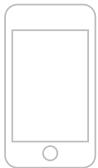
iPod touch

iPod nano 3rd generation (video)
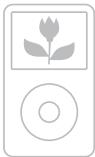
iPod classic
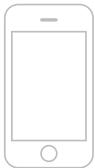
iPhone

iPod nano 2nd generation (aluminum)

iPod 5th generation (video)

iPod nano 1st generation

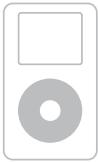
iPod 4th generation (color display)

iPod 4th generation

iPod mini
Notes
- This unit is designed for iPod only. You can not connect any other portable audio players.
- In these Operating Instructions, "iPod" is used as a general reference for the iPod functions on the iPod and iPhone, unless otherwise specified by the text or illustrations.
- Sony cannot accept responsibility in the event that data recorded to iPod is lost or damaged when using an iPod connected to this unit.
- For details on supplied iPod Dock Adapters, refer to the instructions supplied with the Dock Adapters. When you use other iPod models, a compatible Dock Adapter from Apple Inc. will need to be purchased separately.
- This product has been designed specifically to work with iPhone and iPod and has been certified to meet Apple performance standards.
Table of Contents
Overview. 5
Getting Started
1: Checking supplied items...6
2: List of parts locations......6
3: Installing the TDM-iP50...7
Operating the Unit
Selecting the operating mode. 10
Using iPod Display mode....10
Using the On Screen Display mode. 12
Additional Information
Troubleshooting 16
Precautions 18
Specifications. 19
Overview
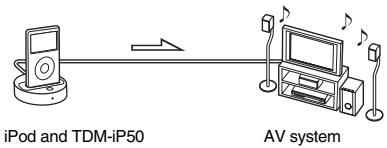
You can enjoy iPod audio, video and photo contents by connecting this unit to an AV system with DIGITAL MEDIA PORT interface (Sony DAV series, etc.).
- You can operate your iPod by its control buttons, the control buttons of the AV system and the remote supplied with the AV system (page 10).
- While browsing information on the iPod screen or on your TV screen in On Screen Display mode, you can operate your iPod (pages 10, 12).
- You can also use this unit as a battery charger (page 9).
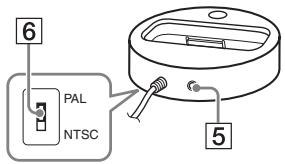
- You can switch the on screen display between PAL and NTSC with the PAL/NTSC switch on the bottom of the unit (page 6).
Note
DIGITAL MEDIA PORT is occasionally abbreviated as DMPORT.
Getting Started
1: Checking supplied items
Unit (1)
Composite video cable (1)
Operating Instructions (1)
iPod Dock Adapters (1 set)
For details on supplied iPod Dock Adapters, refer to the instructions supplied with the Dock Adapters.
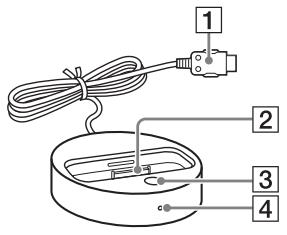
2: List of parts locations
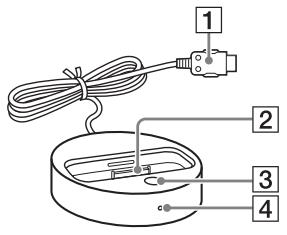
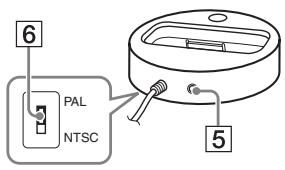
DIGITAL MEDIA PORT cable (page 7)
2 iPod connector (page 8)
3 OPR MODE button (page 10)
4 LED status indicator (page 10)
iPod Display mode (page 10): Lights up in amber.
On Screen Display mode (page 12): Lights up in green.
VIDEO OUT jack (page 7)
6 PAL/NTSC switch
Select the PAL/NTSC setting according to your TV.
3: Installing the TDM-iP50
Connect and position the TDM-iP50 as illustrated below.
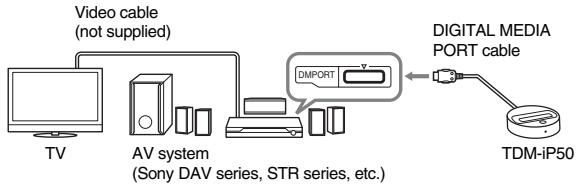
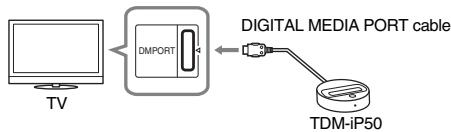
If your AV system cannot output video signals when the system is in DMPORT function
Connect the supplied composite video cable to the VIDEO OUT jack of this unit.
Refer to the user's guide of your AV system for further information.
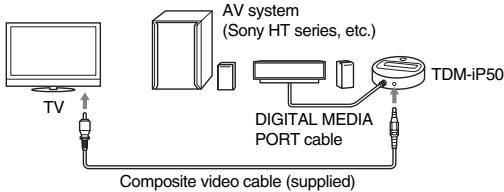
Notes
- This unit turns on/off automatically whenever the connected AV system (DAV series, etc.) turns on/off.
- When connecting a video cable to a TV that has a SCART (EURO AV) jack, use a commercially available conversion connector.
- When connecting the composite video cable to the VIDEO OUT jack of the unit, no image is output from the DIGITAL MEDIA PORT cable of the unit.
To connect/disconnect the unit
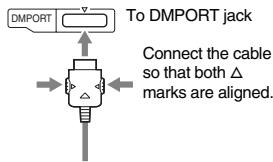
To remove the DIGITAL MEDIA PORT cable from the DMPORT jack, press both side buttons and pull it out.
Connecting
1 Connect the DIGITAL MEDIA PORT cable of this unit to the DIGITAL MEDIA PORT jack of an AV system (DAV series, etc.). Make sure the AV system is turned off before connecting.
2 Turn on the AV system with a DIGITAL MEDIA PORT jack connected to this unit, and select the DIGITAL MEDIA PORT function.
Disconnecting
Before disconnecting, turn off the AV system.
To put the iPod into the unit
1 Choose the iPod Dock Adapter that fits your iPod. For details on supplied iPod Dock Adapters, refer to the instructions supplied with the Dock Adapters.
2 Insert the Dock Adapter into the unit.
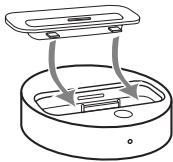
3 Place the iPod into the unit.
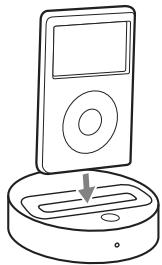
Notes
- When placing or removing the iPod, handle the iPod in the same angle as that of the iPod connector on this unit and do not twist or sway the iPod to prevent connector damage.
- Do not carry the unit with an iPod set on the connector. Doing so may cause a malfunction.
- When placing or removing the iPod, brace the unit with one hand and take care not to press the controls of the iPod by mistake.
To use the unit as a battery charger
You can use the unit as a battery charger. While the POWER indicator is lit, the battery can be charged. The charging status appears in the iPod display. For details, see the user's guide of your iPod.
To remove the iPod Dock Adapter
To remove the iPod Dock Adapter, pull it up with your fingernail or a flat object using the slot inside the adapter.
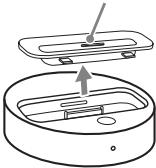
Operating the Unit
Selecting the operating mode
You can operate your iPod by the AV system with DIGITAL MEDIA PORT interface (Sony DAV series, etc.).
Switch the operating mode by pressing OPR MODE on the unit.
iPod Display mode
You can operate the unit by the connected iPod's buttons, the connected AV system's buttons or its remote.
■ On Screen Display mode
You can operate the unit by the connected AV system's buttons or its remote while displaying the iPod information menu screen on the TV.
Note
The mode cannot be switched, except for the DIGITAL MEDIA PORT function.
Using iPod Display mode
Press OPR MODE on the unit to switch the mode to iPod Display mode.
While the unit is in iPod Display mode, the unit's LED indicator lights up in amber.
Notes
- To use an iPod, refer to the user's guide of your iPod.
- Before disconnecting the iPod, pause playback.
Basic Operations
| Press | To |
| ▶ | Start play. |
| ||/|| | Pause play. |
| ↑/↓ | Select a menu or track for playback. |
| →/(⊕)/ENTER | Execute the selected menu or play the selected track. |
| |←/→| | Press and release to skip to the next (previous) song/video or chapter of audiobook/podcast. Hold down to fast-forward (fast-rewind). |
| </{> | Fast-forward (fast-rewind) play. |
| ←/MENU/ DISPLAY/RETURN | Works much like the Menu button on the iPod. |
| OPR MODE/ MODE | Switch the operating modes. |
| VOLUME +/- | Adjust the volume level. |
Notes
- Point the remote at the AV system.
- Depending on the connected AV system, the operation or buttons may differ. Refer to the AV system's operating instructions.
- Depending on the connected iPod, operations may differ.
Before enjoying video, adjust the video settings on the iPod to the appropriate settings according to your situation. - It may take time to start playback depending on the contents.
- The volume (except for the iPhone ring volume) cannot be adjusted using the volume control on the iPod when it is connected to the AV system.
Hold down / / to fast-forward (fast-rewind) while playing video if / / does not function. - When the iPhone is connected to the AV system and you receive a call during playback, playback will pause and you can take an incoming call.
- The iPhone rings as the ring volume set on the iPhone even when it is connected to the AV system. Adjust the ring volume to the appropriate setting on the iPhone.
Using the On Screen Display mode
Press OPR MODE on the unit to switch the mode to On Screen Display mode.
While the unit is in this mode, the unit's LED indicator lights up in green.
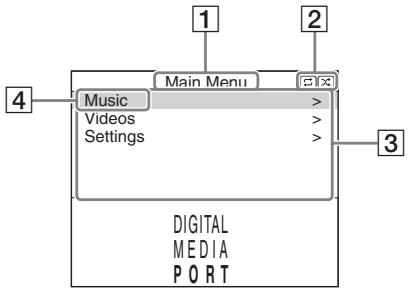
1 Selected menu title
2 Current settings (Repeat, Shuffle)
[Main Menu] list ([Music], [Videos], [Settings])
4 Selected menu
To enjoy music and video while browsing information on the on screen display
Example: Music playlists
1 Select [Music] from [Main Menu], then press ENTER. The [Music] menu display appears.
2 Select [Playlists] from [Music] menu, then press ENTER. The [Playlists] menu display appears.
3 Select the desired playlist, then press ENTER. Tracks in the selected playlist appear.
4 Select the desired track, then press ENTER. The selected track starts playback.
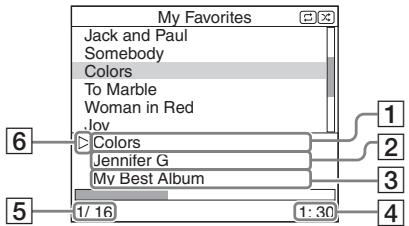
Current playing track
2 Artist name
3 Album name
4 Elapsed time
⑤ Currently playing track number/total number of tracks
⑥Playback status (Play, Pause, Fast-forward, Fast-rewind)
Notes
- In this mode, you cannot use the iPod's control buttons.
- When the TDM-iP50 cannot display a character, it is displayed as “*”.
- Depending on the connected iPod, switching to iPod Display mode (page 10) will be necessary in order to display video/photo images.
- Before disconnecting the iPod, pause playback.
- While "Loading..." is displayed on the TV, do not disconnect the iPod.
- It may take time to start playback depending on the contents.
- Before enjoying video, adjust the video settings on the iPod to the appropriate settings according to your situation.
Basic operations
| Press | To |
| ▶ | Start play. |
| ■/■ | Pause play. |
| →/⊕/ENTER | Select the menu/go to the next menu display/start playback. |
| ←/MENU/DISPLAY/RETURN | Go to previous menu display. |
| ↑/↓ | Move cursor. |
| ↓/▲/▶ | Press and release to skip to the next (previous) song or chapter of audiobook/podcast.Hold down to fast-forward (fast-rewind). |
| ←/▶ | Fast-forward (fast-rewind) play. |
| OPR MODE/MODE | Switch the operating modes. |
| VOLUME+/- | Adjust the volume level. |
Settings menu
In the Settings menu, you can select this unit's settings: [Screen Saver], [Color Theme], [Shuffle], [Repeat], [Audiobooks]. The setting switches by pressing ENTER, ,or repeatedly. The default settings are underlined.
Note
[Screen Saver] and [Color Theme] can be selected by pressing ENTER, and their settings can be changed even when the iPod is not placed into the unit.
■ Screen Saver
The screen saver image appears on the TV after about 15 minutes of inactivity. Press any button to cancel the screen saver.
| [ON] | Turns on the screen saver. |
| [OFF] | Turns off the screen saver. |
The display does not switch to the screen saver image while playing video.
Color Theme
Selects the on screen display color on the connected TV.
| [Auto] | The color is selected automatically according to your iPod. |
| [White] | The color is white. |
| [Black] | The color is black. |
| [Green] | The color is green. |
| [Red] | The color is red. |
| [Blue] | The color is blue. |
Shuffle
Plays the songs/albums in random order.
The setting is determined by the iPod settings.
| [OFF] | Does not play in random order. |
| [Songs] | Plays songs in random order. |
| [Albums] | Plays albums in random order. |
Note
When video contents are played, the [Shuffle] setting turns [OFF] automatically.
Repeat
Plays songs repeatedly.
The setting is determined by the iPod settings.
| [OFF] | Does not play repeatedly. |
| [Repeat to One] | Repeat one song. |
| [Repeat to All] | Repeat all songs. |
Audiobooks
Changes the Audiobook playback speed.
The setting is determined by the iPod settings.
| [Slower] | Plays Audiobook slowly. |
| [Normal] | Plays Audiobook at normal speed. |
| [Faster] | Plays Audiobook rapidly. |
Additional Information
Troubleshooting
Should you encounter a problem with your unit, find your problem in the troubleshooting checklist below and take the indicated corrective action. If the problem persists, contact your Sony dealer. Note that if service personnel changes some parts during repair, these parts may be retained.
When bringing the system in for repairs, be sure to bring in the entire system.
This product is a system product, and the entire system is needed to determine the location requiring repair.
The LED indicator flashes.
- Remove the iPod, and turn the AV system off, then on again.
If the LED indicator still flashes, consult your nearest Sony dealer.
The remote does not function.
- Update your iPod to use the latest software before you use it.
- Remove any obstacles.
- Point the remote at the AV system (DAV series, etc.)'s sensor.
- The distance between the remote and the AV system is too far.
-
Replace the battery.
-
Make sure the iPod* is securely connected.
- Select the DMPORT function on the AV system.
- Turn on and off the AV system.
Video/photo image from the iPod does not appear on the TV screen.
- Set the operating mode to iPod Display mode to display photo images (page 10).
- Make the connection according to your AV system (page 7).
- When browsing the on screen display through the DIGITAL MEDIA PORT cable:
Disconnect the video cable from theVIDEO OUT jack.
- When browsing the on screen display through theVIDEO OUT jack:
Switch the TV input to the video input connected to this unit. - Check that the PAL/NTSC setting on the iPod* is correct.
- Check that the TV output setting on the iPod is on (Refer to the user's guide of your iPod).
- Check that the iPod* is compatible with video output (Refer to the user's guide of your iPod).
Video/photo image from the iPod does not appear on the iPod display.
- Adjust the video/photo image output settings to the appropriate settings.
On screen display does not appear on the TV screen.
- Check that the operating mode is set to On Screen Display mode (page 12).
- Make the connection according to your AV system (page 7).
- When browsing the on screen display through the DIGITAL MEDIA PORT cable: Disconnect the video cable from the VIDEO OUT jack.
- When browsing the on screen display through the VIDEO OUT jack: Switch the TV input to the video input connected to this unit.
- Check that the PAL/NTSC setting on the unit is correct (page 6).
There is no sound.
- Update your iPod to use the latest software before you use it.
- Check the connections.
Make sure the unit is securely connected. - Make sure the iPod* is securely connected.
- Make sure the iPod* is playing music.
- It may take time to start playback depending on the contents.
There is severe hum or noise.
- Move the unit away from the source of noise.
The sound is distorted.
- Reduce the volume of the connected AV system.
- Set the "EQ" setting of the iPod to "Off" or "Flat".
Ring volume of the iPhone does not change.
-
Adjust the ring volume on the iPhone.
-
See "Compatible iPod models" (page 3).
Precautions
On safety
Should any solid object or liquid fall into the system, unplug the system and have it checked by qualified personnel before operating it any further.
On placement
- Do not place the unit in an inclined position.
-
Do not place the unit in locations where it is;
-
Extremely hot or cold
- Dusty or dirty
- Very humid
- Subject to vibrations
-
Subject to direct sunlight.
-
Use caution when placing the unit on surfaces that have been specially treated (with wax, oil, polish, etc.) as staining or discoloration of the surface may result.
On heat buildup
- Although the unit heats up during operation, this is not a malfunction.
- Place the unit in a location with adequate ventilation to prevent heat buildup in the unit.
If you have any questions or problems concerning your unit, please consult your nearest Sony dealer.
Cleaning the unit
Clean the unit with a soft cloth slightly moistened with mild detergent solution. Do not use any type of abrasive pad, scouring powder or solvent such as thinner, benzine or alcohol.
Specifications
Output
Video: 1 Vp-p 75 ohm (Composite Video out)
General
Power requirements:
DC IN: 5 V,
0.7 A (via
DIGITAL MEDIA
PORT)
Dimensions: Approx. 95× 23(h) mm
Mass: Approx. 225g
(includes cable)
Cable length: Approx. 1.5m
Design and specifications are subject to change without notice.
AVERTISSEMENT

m = 311 ;
iPod-dockadapters (1 set)
Ljudet later forvrangt.
- generation (aluminium)

iPod
- generation (video)

iPod nano
- generation

iPod
- generation (far微观play)
iPod
- generation

iPod mini
Bemærkninger
2: List over delenes placering
DIGITAL MEDIA PORT-kabel (side 7)
2 iPod-konnektor (side 8)
3 OPR MODE-knap (side 10)
4 LED-statusindicator (side 10)
iPod-visningstilstand (side 10): Lyser gult.

iPod nano 3rd generation (video)
iPod classic
iPhone

iPod nano 2nd generation (alumni)

iPod 5th generation (video)

iPod nano 1st generation

iPod 4th generation (varinaytto)

iPod 4th generation

iPod mini
Huomautuksia

iPod nano of 3 gerasation (video)
iPod classic
iPhone

iPod nano de 2gerao (alumino)

- DIGITAL MEDIA PORT Adapter
- Disposal of Old Electrical & Electronic Equipment (Applicable in the European Union and
- other European countries with separate collection systems)
- Notice for the customer in the countries applying EU Directives
- C E
- On copyrights
- Compatible iPod models
- Notes
- Table of Contents
- Getting Started
- Operating the Unit
- Additional Information
- Overview
- Note
- 1: Checking supplied items
- 2: List of parts locations
- 3: Installing the TDM-iP50
- If your AV system cannot output video signals when the system is in DMPORT function
- To connect/disconnect the unit
- Connecting
- Disconnecting
- To put the iPod into the unit
- To use the unit as a battery charger
- To remove the iPod Dock Adapter
- Selecting the operating mode
- Switch the operating mode by pressing OPR MODE on the unit.
- iPod Display mode
- ■ On Screen Display mode
- Using iPod Display mode
- Press OPR MODE on the unit to switch the mode to iPod Display mode.
- Using the On Screen Display mode
- Press OPR MODE on the unit to switch the mode to On Screen Display mode.
- To enjoy music and video while browsing information on the on screen display
- Example: Music playlists
- Basic operations
- Settings menu
- ■ Screen Saver
- Color Theme
- Shuffle
- Repeat
- Audiobooks
- Troubleshooting
- The LED indicator flashes.
- The remote does not function.
- Video/photo image from the iPod does not appear on the TV screen.
- Video/photo image from the iPod does not appear on the iPod display.
- On screen display does not appear on the TV screen.
- There is no sound.
- There is severe hum or noise.
- The sound is distorted.
- Ring volume of the iPhone does not change.
- Precautions
- On safety
- On placement
- On heat buildup
- Cleaning the unit
- Specifications
- Output
- General
- AVERTISSEMENT
- Ljudet later forvrangt.
- Bemærkninger
- 2: List over delenes placering
- Huomautuksia
Brand : SONY
Model : TDM-IP50
Category : Audio System