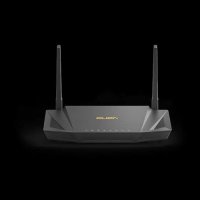
RTAX56U - Wireless Router ASUS - Free user manual and instructions
Find the device manual for free RTAX56U ASUS in PDF.



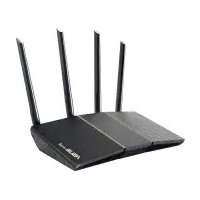
| Product type | Wireless router Wi-Fi 6 (802.11ax) |
| Brand | ASUS |
| Model | RT-AX56U |
| Dimensions (L x W x H) | Approximately 230 x 160 x 50 mm |
| Weight | Approximately 400 g |
| Power supply | DC power adapter, dedicated power connector |
| Operating temperature | 0 °C to 40 °C |
| Storage temperature | 0 °C to 70 °C |
| Operating humidity | 50 to 90 % |
| Frequency bands | 2.4 GHz and 5 GHz |
| Wi-Fi standards | 802.11ax (Wi-Fi 6), backward compatible 802.11a/b/g/n |
| Network ports | 1 WAN port (Internet) RJ-45, 4 LAN ports RJ-45 |
| USB ports | 1 USB 3.1, 1 USB 2.0 |
| Buttons | Reset, WPS, Power switch |
| LED indicators | Power, 2.4 GHz band, 5 GHz band, LAN (1-4), WAN (Internet) |
| Main functions | Configuration via web interface http://router.asus.com or ASUS Router app, Wi-Fi security (password), network management, WPS |
| Maintenance and cleaning | Unplug before cleaning; use a soft, dry cloth; avoid chemical products and liquids. |
| Safety | Unplug during thunderstorm; do not use if damaged; maintain a minimum distance of 24 cm from body; indoor use only for 5 GHz band (5150-5350 MHz). |
| Spare parts and repairability | Use exclusively the supplied power adapter; contact a qualified electrician or the retailer for any repairs. |
| General information | Dual-band router compatible with Wi-Fi 6; supports ASUS Router app; ensures optimal indoor coverage. |
Frequently Asked Questions - RTAX56U ASUS
User questions about RTAX56U ASUS
0 question about this device. Answer the ones you know or ask your own.
Ask a new question about this device
Download the instructions for your Wireless Router in PDF format for free! Find your manual RTAX56U - ASUS and take your electronic device back in hand. On this page are published all the documents necessary for the use of your device. RTAX56U by ASUS.
USER MANUAL RTAX56U ASUS
U15721 / First Edition / July 2019
Table of contents
English 3
BbIrapckn 9
Hrvatski 15
Cestina 21
Dansk 27
Nederland 33
Eesti 39
Français 45
Suomi 51
Deutsch 57
Eaannvika 63
Magyar 69
Italiano 75
Lietuviu 81
Latviešu 87
Norsk. 93
Portugues. 99
Polski 105
Pycckn 111
Romana 117
Espanol 123
Srpski 129
Slovenský 135
Slovensca 141
Svenska 147
Türkce 153
yKpaIHcbKa 159
Package contents
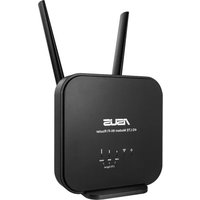
RT-AX56U Wireless Router AC adapter
Network cable (RJ-45) Quick Start guide
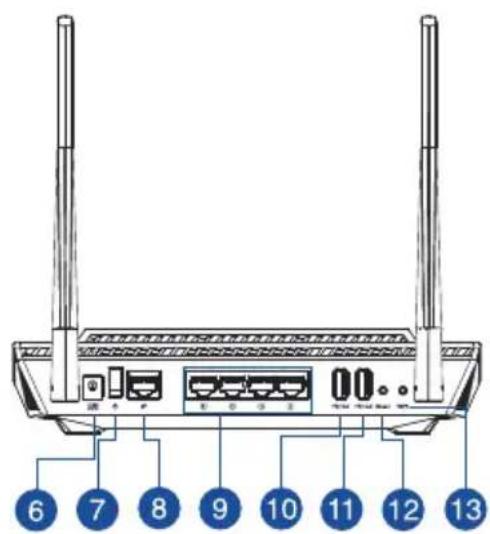
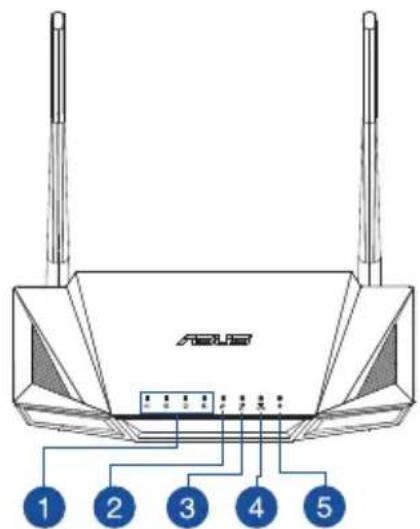
A quick look at RT-AX56U

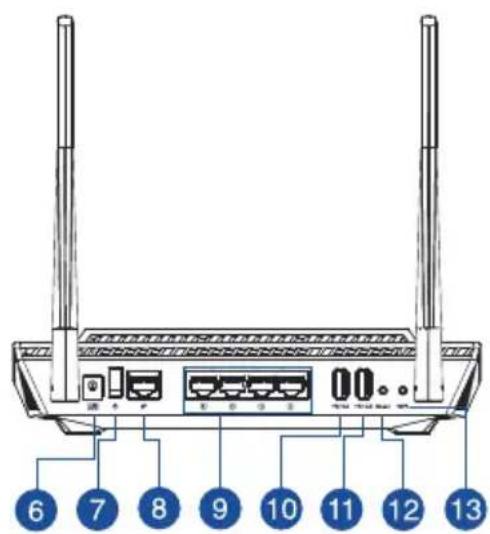
| 1 LAN 1~4 LEDs WAN (Internet) port | 8 |
| 2 WAN (Internet) LAN 1 ~ 4 ports | 9 |
| 3 5GHz LED USB 3.1 port | 10 |
| 4 2.4GHz LED USB 2.0 port | 11 |
| 5 Power LED Reset button | 12 |
| 6 Power (DC-IN) port WPS button | 13 |
| 7 Power switch |
Position your wireless router
For optimal wireless transmission between the wireless router and connected wireless devices, ensure that you:
sunlight.
shown in the drawing below.

NOTES:
adapters may damage the device.
| Operating Temperature | 0~40 °C Storage | age 0~70 | °C |
| Operating Humidity 50~90% Storage 20~90% | |||
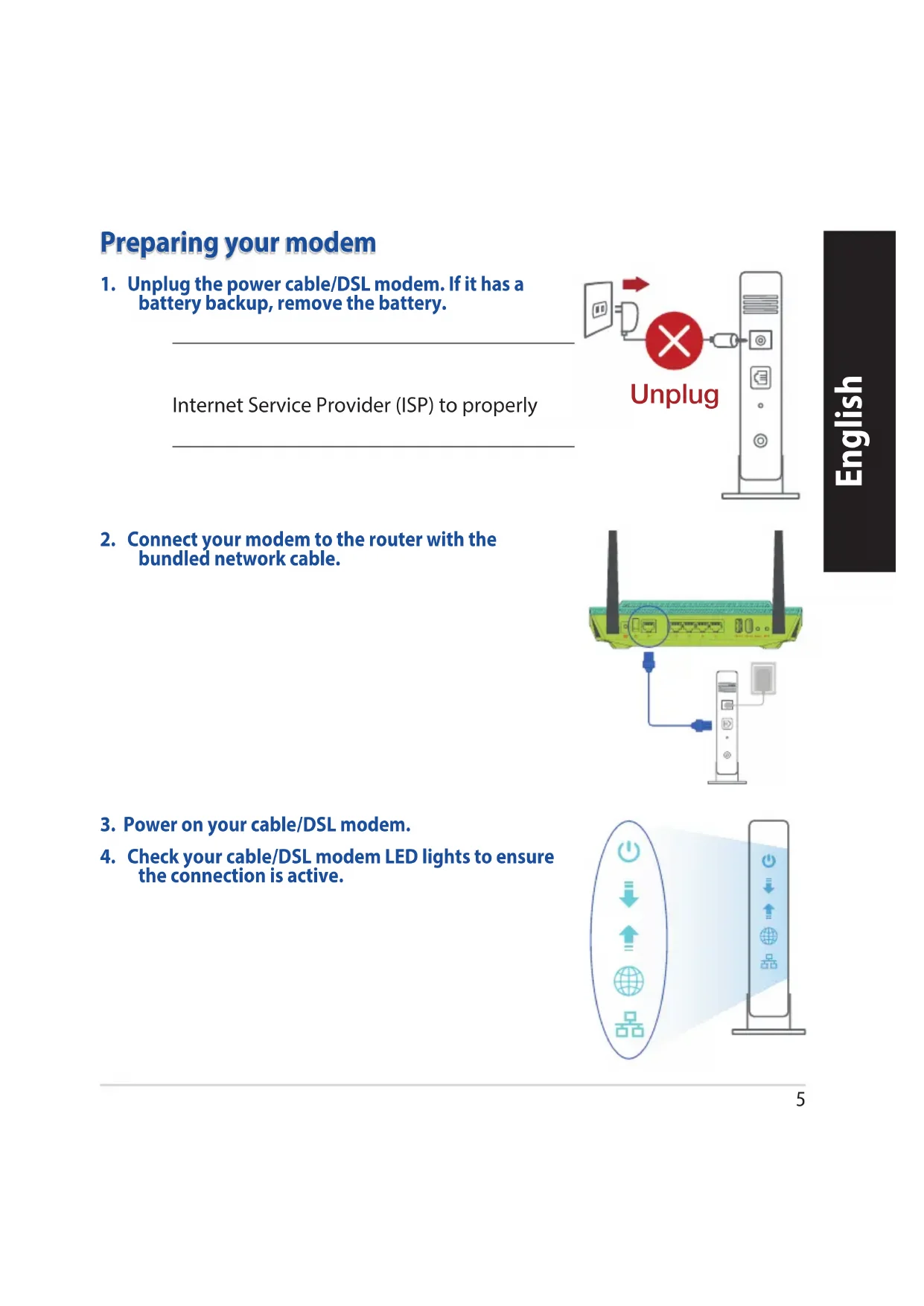
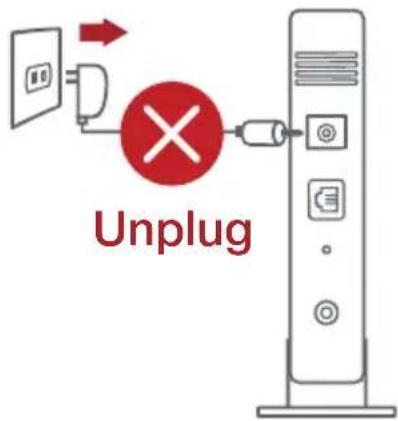
Preparing your modem
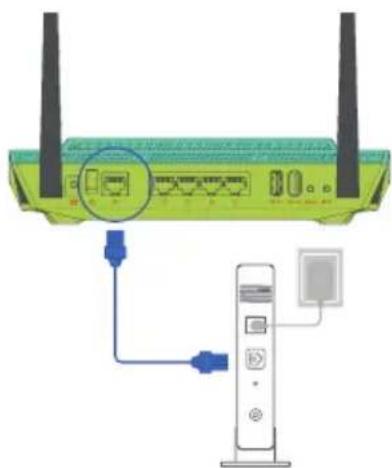
- Unplug the power cable/DSL modem. If it has a battery backup, remove the battery.
Internet Service Provider (ISP) to properly
- Connect your modem to the router with the bundled network cable.
-
Power on your cable/DSL modem.
-
Check your cable/DSL modem LED lights to ensure the connection is active.

Setting up your RT-AX56U
You can set up your router via wired or wireless connection.
A. Wired connection
- Plug your router into a power outlet and power it on. Connect the network cable from your computer to a LAN port on your router.

- The web GUI launches automatically when you open a web browser. If it does not auto-launch, enter http://router.asus.com.
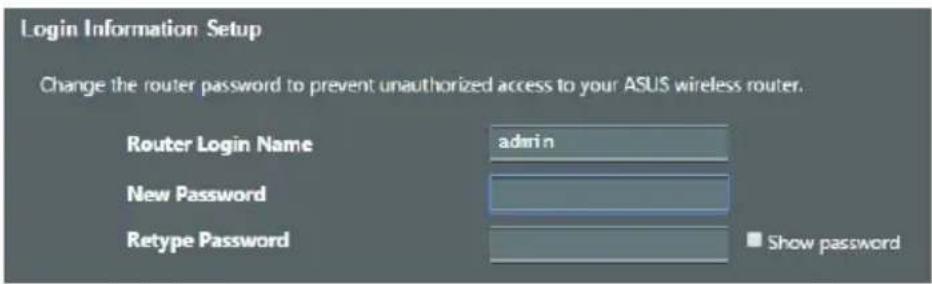
- Set up a password for your router to prevent unauthorized access.

B. Wireless connection
- Plug your router into a power outlet and power it on.

- Connect to the network with SSID shown on the product label on the back side of the router. For better network security, change to a unique SSID and assign a password.

Wi-Fi Name (SSID): ASUS XX
- You can choose either the web GUI or ASUS Router app to set up your router. a. Web GUI Setup
Once connected, the web GUI launches automatically when you open a web browser. If it does not auto-launch, enter http://router.asus.com.
Set up a password for your router to prevent unauthorized access.
b. App Setup
Download ASUS Router App to set up your router via your mobile devices.
Turn on Wi-Fi on your mobile devices and connect to your router's network.
Follow ASUS Router App setup instructions to complete the setup.
ASUS Router



ASUS Router
Remembering your wireless router settings
| Router Name: Password: | |
| 2.4 GHz network SSID: Password: | |
| 5GHz network SSID: Password: |
FAQ
Guide
Бьрз перлед
RT-AX56U AanTep 3a npomeHnTOK
MpekoB ka6en (RJ-45) PbKOBOcO 3a 6bp3 cTapT
Ha 6pay3epa. Ako He ce BkIoun aBToMaTmUHo, BbBeJeTe http://router.asus. com.
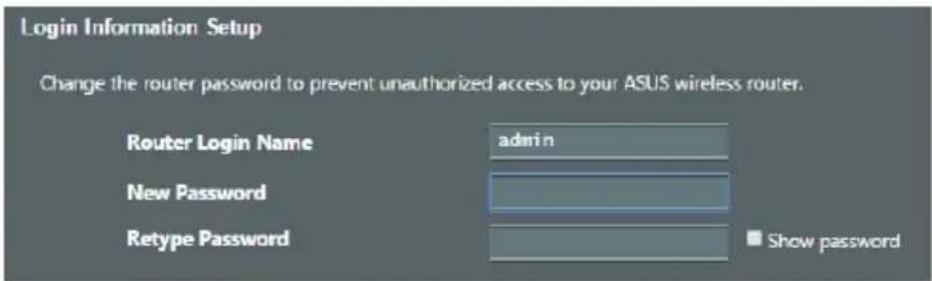
HacptoTe napola 3a pytepa, 3a da npedotbpatnte HeOTOpn3npan doctbn.
b. HactpoikKa Ha npiloxkeHneTo
I3terlneTpnpnoXeHMeTOASUSRouter (ASUSpyTe),3a da KOHpurnypupaTe pyTepa 4pe3 CBOnte MObnnu yCTpoiCTBa.

ASUS Router
Bknoute Wi-Fi Ha BaunTe Mo6nHn yctpoiCTBa N CBpbKTe C MpeKaTa Ha RT-AX56U.
CneBaIte mHcTpyKuNTe 3a NaCTpoIka Ha npInoJxHeNTo ASUS Router (ASUS pyTe), 3a da 3aBbPunTe NaCTpoIkaTa.

ASUS Router
3anametrahe ha 6e3xnuHnte hactpoKn Ha Baun pyTep
Ha pyTepa.
| Иme на рутера: Параза: | |
| 2,4 GHz мраза SSID: Параза: | |
| 5G Hz мраза SSID: Параза: |
FAQ
https://www.asus.com/support
Sadržaj pakiranja

RT-AX56U

Download on the App Store

ASUS Router
Sādan husker du dine tradløse routerindstillinger

Download on the App Store

ASUS Router
https://www.asus.com/support
Pakendi sisu
RT-AX56U Vahelduvvooluadapte
Vörgukaabel (RJ-45) Lühijuhend
https://www.asus.com/support
Verpackungsinhalt
https://www.asus.com/support
Innhold i pakken
RT-AX56U
AC-adapter


Download an this App Store

ASUS Router
Huske innstillinger for den tradlse ruteren
Husk de trädløse innstillingene du har utfører ruteroppsettet.
| Ruternavn: Passord: | |
| 2,4 GHz-nettverks-SSID: Passord: | |
| 5GHz-nettverks-SSID: Passord: |
Spørsmål og svar
Download on the App Store
móveis e ligue à rede do RT-AX56U.
https://www.asus.com/support
KoMnJIeKT nOcTaBKn
BecnpoBoHno poyTeP RT-AX56U BnntaHna
Ceteboi Ka6eIb (RJ-45) KpaTkoepykoDCTBO
БыICTpbIо63op RT-AX56U

3aaiTe napoiB poyTepa InI npedOTbpaueHn HecaHKcnoHnpoBaHHoro doctyna.

b. Hac troika uepe3 npiloxeHne
Сачайтприлхени ASUS Routerдянachtpoик роутepа с moшьны ectrpoиctba.
BkIouTe Wi-Fi Ha Mo6nIbHOM yCTpOuICTBe I NOdKIOUHTecb K CeTN pouTepa.
CnédyIe nHCTpyKzIyM Ha 3KpaHe dJa 3aBepseHn npocecca hAcTpoiKn.

ASUS Router


ASUS Router
3anomnHaHne Hactpoek 6ecnpobodhoro poutepa
poytera.
https://www.asus.com/support
Obsah balenia
RT-AX56U Adapter striedaveho prdu
Sietovy kabel (RJ-45) Strucny nadv na obsluhu
Stručný prehlad vášho zariadenia RT-AX56U

| 1 LAN 1~4 LEDs Tlačidlo WAN (Internet) | |
| 2 WAN (Internet) LED Porty LAN 1 ~ 49 | |
| 3 LED indikátor pre 5 GHz Port USB 310 | |
| 4 LED indikátor pre 2,4 GHz Port USB 120 | |
| 5 LED indikátor napájania Tlačidlo našetovanie | |
| 6 Port napájania (DC-IN – vstup)\ jednosmerného prúdu) | 13 Tlačidlo WPS |
| 7 Napájania vypínač | |
https://www.asus.com/support/faq
hitri zagon
https://www.asus.com/support
Kablosuz yönlendirici ve yönlendiriciye®,®,®,®,®,®,®,®,®,®,®,®,®,®,®,®,®,®,®,®,®,®,®,®,®,®,®,®,®,®,®,®,®,®,®,®,®,®,®,®,®,®,®,®,®,®,®,®,®,®,®,®,®,®,®,®,®,®,®,®,®,®,®,®,®,®,®,®,®,®,®,®,®,®,®,®,®,®,®,®,®,®,®,®,®,®,®,®,®,®,®,®,®,®,®,®,®,®,®,®,®. Kablosuz sinalyaktarimi,—çin—asagidakileri)—sagliy—in:
Download on the App Store
BnKohyTe iHCTpyKcii 3 hanaTuBaHH nporpamn MapuTy3aTopa ASUS, o6 3aBepuHTn hanaTuBaHH.

ASUS Router
ASUS recycling and takeback programs come from our commitment to the highest standards for protecting our environment. We believe in providing solutions for you to be able to responsibly recycle our products, batteries, other components, as well as the packaging materials. Please go to http://csr.asus.com/english/Takeback.htm for the detailed recycling information in different regions.
REACH
Complying with the REACH (Registration, Evaluation, Authorisation, and Restriction of Chemicals) regulatory framework, we published the chemical substances in our products at ASUS REACH website at http://csr.asus.com/ english/REACH.htm
Federal Communications Commission Statement
This device complies with Part 15 of the FCC Rules. Operation is subject to the following two conditions:
that may cause undesired operation.
This equipment has been tested and found to comply with the limits for a class B digital device, pursuant to part 15 of the FCC Rules. These limits are designed to provide reasonable protection against harmful interference in a residential installation.
This equipment generates, uses and can radiate radio frequency energy and, if not installed and used in accordance with the instructions, may cause harmful interference to radio communications. However, there is no guarantee that interference will not occur in a particular installation. If this equipment does cause harmful interference to radio or television reception, which can be determined by turning the equipment off and on, the user is encouraged to try to correct the interference by one or more of the following measures:
which the receiver is connected.

the party responsible for compliance could void the user's authority to operate the equipment.
Prohibition of Co-location
This device and its antenna(s) must not be co-located or operating in conjunction with any other antenna or transmitter.
IMPORTANT NOTE:
Radiation Exposure Statement: This equipment complies with FCC radiation
follow operation instruction as documented in this manual.

WARNING! This equipment must be installed and operated in accordance with provided instructions and the antenna(s) used for this transmitter must be installed to provide a separation distance of at least 24cm from all persons and must not be co-located or operating in conjunction with any other antenna or transmitter.
Compliance Statement of Innovation, Science and Economic Development Canada (ISED)
This device complies with Innovation, Science and Economic Development
two conditions: (1) this device may not cause interference, and (2) this device must accept any interference, including interference that may cause undesired operation of the device.
Operation in the band 5150-5250 MHz is only for indoor use to reduce the potential for harmful interference to co-channel mobile satellite systems.
CANICES-3(B)/NMB-3(B)
Radio Frequency (RF) Exposure Information
The radiated output power of the ASUS Wireless Device is below the Innovation,
The ASUS Wireless Device should be used in such a manner such that the potential for human contact during normal operation is minimized.
This equipment should be installed and operated with a minimum distance of 24cm between the radiator any part of your body.
This device has been certified for use in Canada. Status of the listing in the Innovation, Science and Economic Development Canada's REL (Radio Equipment List) can be found at the following web address:
http://www.ic.gc.ca/eic/site/ceb-bhst.nsf/eng/h_tt00020.html
following web:
https://www.ic.gc.ca/eic/site/smt-gst.nsf/eng/sf08792.html
Precautions for the use of the device
a. Pay particular attention to the personal safety when use this device in airports, hospitals, gas stations and professional garages.
b. Medical device interference: Maintain a minimum distance of at least 15cm (6 inches) between implanted medical devices and ASUS products in order to reduce the risk of interference.
c. Kindly use ASUS products in good reception conditions in order to minimize the radiation's level.
d. Keep the device away from pregnant women and the lower abdomen of the teenager.
https://www.asus.com/support/
English
CE statement
Simplified EU Declaration of Conformity
ASUSTek Computer Inc. hereby declares that this device is in compliance with the essential requirements
at https://www.asus.com/Networking/RT-AX56U/HelpDesk_Declaration/.
Declaration of Conformity for Ecodesign directive 2009/125/EC
Testing for eco-design requirements according to (EC) No 1275/2008 and (EU) No 801/2013 has been conducted. When the device is in Networked Standby Mode, its I/O and network interface are in sleep mode and may not work properly. To wake up the device, press the WPS button.
equipment should be installed and operated with minimum distance 24cm between the radiator & your body.
All operational modes:
2412-2472MHz (802.11g 6 Mbps): 19.96 dBm
The device is restricted to indoor use only when operating in the 5150 to 5350 MHz frequency range. The adapter shall be installed near the equipment and shall be easily accessible.
| ATBE BG CZ DK EE FR | |||
| DE IS IE IT EL ES CY | |||
| NO PL PT RO SI SK TR | |||
| FI SE CH UK HR UA |
Safety Notices
this rating.
storms.
retailer.
relocating the system.
Bulgarian
I3aBHeHne OTHoCHO CE
OnpocteHa deKlapaun3a cbOTBeTCTBne Ha EC
RT-AX56U/HelpDesk Declaration/.
ДeКларачиязсбOTВETCTBNE3aДиpeKТИBa 3a ekOДиЗанHa 2009/125/EO
yctpoiCTBOTo,HaTnCHTe Wi-Fi on/off (Wi-Fi Bk#./n3K#.),LED on/off (LED Bk#./n3K#.),reset (HynipaHe) nn6ytoHa WPS.
HeKoHTpOJIpaHa cpea. Toba 6OpUdBaHc Tp86Ba da ce HcTajnpu n3nOJ3Ba npu pa3ctOJHne ha-
2.4GHz: 802.11b, 802.11g, 802.11n (HT20), 802.11n (HT40),
2412-2472MHz (802.11g 6 Mbps): 19.96 dBm
YcTPOIcTBOTe o rpaHnueHo 3a n3noJ3BaHe B NOMeueHna eINHCTBeHO, KOraTO Oneepnpa B YecToTeH dNa3OH ot 5150 do 5350 MHz.
Белеки за 6e3oNaCHOCT
M3NCKBaHnTtA.
Да пемechтente снтумета.
Croatian
CE izjava
Pojednostavljena EU Izjava o sukladnosti
direktive 2014/53/EU. Cijeli tekst EU izjave o sukladnosti dostupan je na https://www.asus.com/Networking/RT-AX56U/HelpDesk Declaration/.
Izjava o sukladnosti za direktivu o ekodizajnu 2009/125/EZ
Provedeno je testiranje zahtjeva na ekodizajn u skladu s (EC) No 1275/2008 i (EU) No 801/2013. Kada je
2.4GHz: 802.11b, 802.11g, 802.11n (HT20), 802.11n (HT40),
2412-2472MHz (802.11g 6 Mbps): 19.96 dBm
do 5350 MHz.
Sigurnosne napomene
proizvod.
Czech
Prohlášeni CE
Zjednoduşené prohláşné o shoděs EU
www.asus.com/Networking/RT-AX56U/HelpDesk Declaration/.
com/Networking/RT-AX56U/HelpDesk Declaration/.
Atbilstibas pazinojums ekodizaina Direktivai Nr. 2009/125/EK
2.4GHz: 802.11b, 802.11g, 802.11n (HT20), 802.11n (HT40),
2412-2472MHz (802.11g 6 Mbps): 19.96 dBm
Drosibas pazinojumi
parametriem.
Littuanian
CE pareiskimas
Supaprastinta ES atitikties deklaracija
https://www.asus.com/Networking/RT-AX56U/HelpDesk_Declaration/.
Ekologinio projetavimo direktyvos 2009/125/EB atitikties deklaracija
2.4GHz: 802.11b, 802.11g, 802.11n (HT20), 802.11n (HT40),
2412-2472MHz (802.11g 6 Mbps): 19.96 dBm
Saugos pranesimai
atitinka tas charakteristikas.
per elektros audras.
Polish
https://www.asus.com/Networking/RT-AX56U/HelpDesk Declaration/.
HelpDesk_Declaration/.
AnwOn OumuOpwpwnc yia tnv odnyia Ecodesign (Oikooyiokoc oxεδiaoμoc) 2009/125/EK
2.4GHz: 802.11b, 802.11g, 802.11n (HT20), 802.11n (HT40),
2412-2472MHz (802.11g 6 Mbps): 19.96 dBm
https://www.asus.com/Networking/RT-AX56U/HelpDesk_Declaration/.
em https://www.asus.com/Networking/RT-AX56U/HelpDesk_Declaration/.
www.asus.com/Networking/RT-AX56U/HelpDesk_Declaration/.
Försakran om übernssstammelse for Ecodesign-directivet 2009/125/EC
2.4GHz: 802.11b, 802.11g, 802.11n (HT20), 802.11n (HT40),
2412-2472MHz (802.11g 6 Mbps): 19.96 dBm
Sakerhetsinformation
- Table of contents
- Package contents
- A quick look at RT-AX56U
- Position your wireless router
- NOTES:
- Preparing your modem
- Setting up your RT-AX56U
- Wired connection
- Wireless connection
- b. App Setup
- Remembering your wireless router settings
- FAQ
- Бьрз перлед
- b. HactpoikKa Ha npiloxkeHneTo
- 3anametrahe ha 6e3xnuHnte hactpoKn Ha Baun pyTep
- Sadržaj pakiranja
- Sādan husker du dine tradløse routerindstillinger
- Pakendi sisu
- Verpackungsinhalt
- Innhold i pakken
- Huske innstillinger for den tradlse ruteren
- Spørsmål og svar
- KoMnJIeKT nOcTaBKn
- БыICTpbIо63op RT-AX56U
- b. Hac troika uepe3 npiloxeHne
- 3anomnHaHne Hactpoek 6ecnpobodhoro poutepa
- Obsah balenia
- Stručný prehlad vášho zariadenia RT-AX56U
- REACH
- Federal Communications Commission Statement
- Prohibition of Co-location
- IMPORTANT NOTE:
- Compliance Statement of Innovation, Science and Economic Development Canada (ISED)
- Radio Frequency (RF) Exposure Information
- Precautions for the use of the device
- English
- CE statement
- Simplified EU Declaration of Conformity
- Declaration of Conformity for Ecodesign directive 2009/125/EC
- Safety Notices
- Bulgarian
- Белеки за 6e3oNaCHOCT
- Croatian
- CE izjava
- Sigurnosne napomene
- Czech
- Prohlášeni CE
- Drosibas pazinojumi
- Littuanian
- CE pareiskimas
- Saugos pranesimai
- Polish
Brand : ASUS
Model : RTAX56U
Category : Wireless Router