Facile Ciao - Smartphone NGM - Free user manual and instructions
Find the device manual for free Facile Ciao NGM in PDF.



| Product Type | Smartphone |
| Brand | NGM |
| Model | Facile Ciao |
| Power | Rechargeable lithium-ion battery via mains charger or micro USB cable |
| Dual SIM | Yes, two SIM slots |
| Display | Not specified (typical basic) |
| Keyboard | Physical (alphanumeric keys) |
| Camera | Built-in, access via Multimedia menu |
| FM Radio | Yes, built-in, works without headphones |
| Media player | Music, video, audio recorder |
| Expandable memory | Micro SD card (not included) |
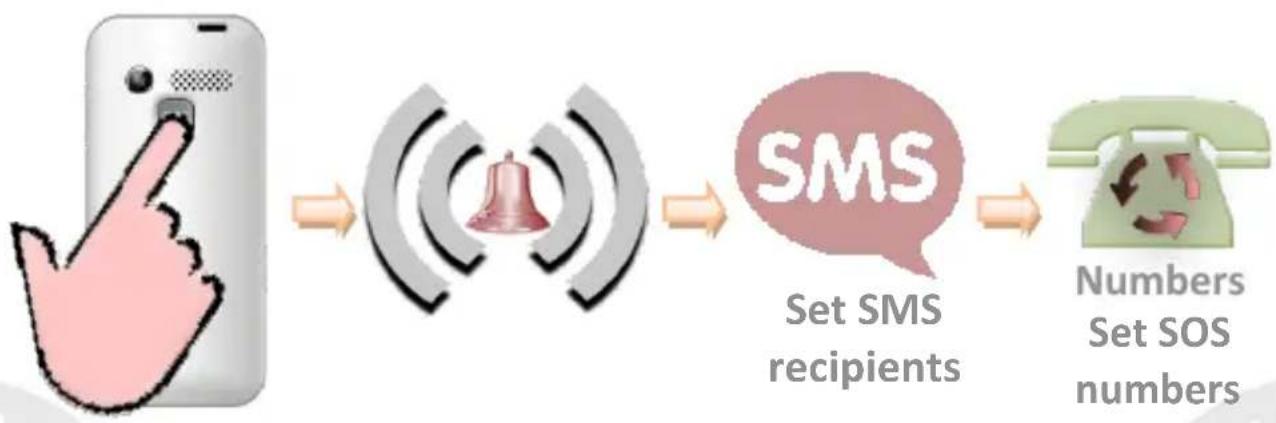
| SOS function | Yes, dedicated button on back, sends SMS and calls up to 5 numbers |
| PC connectivity | Via USB cable, mass storage mode |
| Ringtone | Customizable per SIM, quick vibration by holding key |
| Key lock | Side key, adjustable auto-lock timing |
| Maintenance recommendations | Use original NGM chargers, charge in a dry and sheltered place |
| Warranty | Valid only with original accessories |
| Factory reset | Settings menu, default code: 1122 |
Frequently Asked Questions - Facile Ciao NGM
User questions about Facile Ciao NGM
0 question about this device. Answer the ones you know or ask your own.
Ask a new question about this device
Download the instructions for your Smartphone in PDF format for free! Find your manual Facile Ciao - NGM and take your electronic device back in hand. On this page are published all the documents necessary for the use of your device. Facile Ciao by NGM.
USER MANUAL Facile Ciao NGM
Copyright © 2015 NGM Italia
Welcome to the NGM world. Thank you for purchasing NGM FACILE Ciao. With this Dual SIM Easy Phone you can easily make phone calls, send and receive SMS.
Thanks to the SOS key you can start an automatic procedure to call some previously set numbers in case of emergency.
By visiting the official website www.ngm.eu you can appreciate the whole range of NGM mobile phones, ask for after sales assistance, access the forum for technical assistance and download software updates.
24ENGLISH
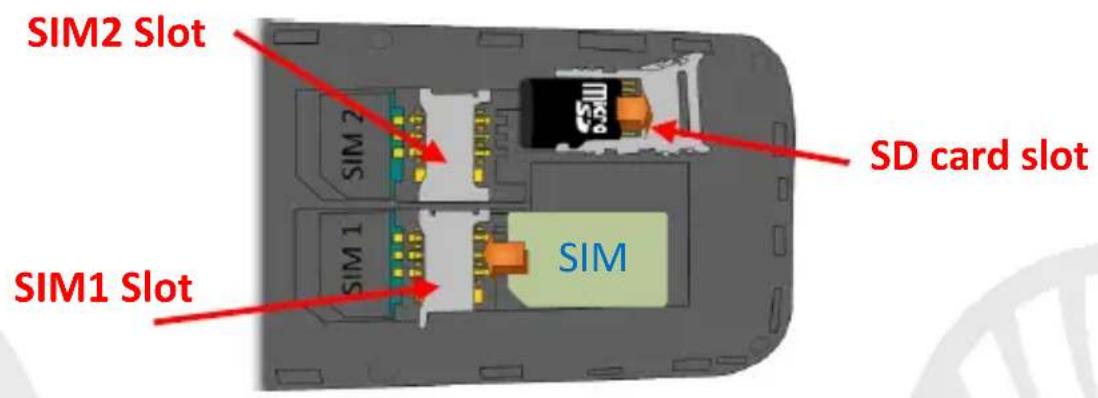
Inserting the SIM card: the SIM cards contain your phone numbers, PIN codes, links to operator services, contacts and SMS text messages. To access the compartment containing the SIM slot, turn off the phone and lift up the back cover starting from the slit on the bottom right corner. Remove the battery. Insert the SIM cards into the slots with their gold contacts facing downwards.
25ENGI
Inserting a memory card: in order to use the camera and media player functions of NGM FACILE Ciao, a micro-SD memory card is required (not included in the package): the card must be placed on the backside of the phone, next to the SIM2 slot. Unlock the grid by pushing it towards "open". Slide in SD card, as shown below, with the gold contacts facing downwards. Lock the grid onto the micro-SD by sliding it to the opposite direction ("close").
Camera: to activate the camera from the main menu select Multimedia > Camera. Take the picture by pressing the key. In order to access the camera app, you can also press and hold the key from the home screen.
26ENGLISH
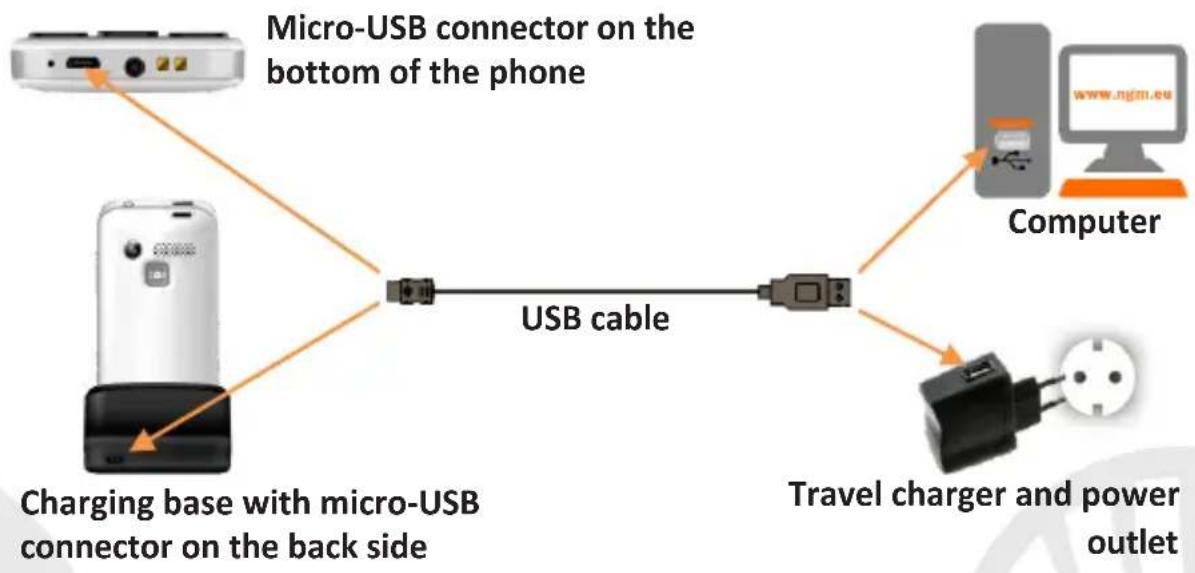
Connecting to a PC: use the USB cable to connect NGM FACILE Ciao to a computer. Select USB Storage on your phone. You can save songs to play with the music player in "My Music" folder, on the SD card.
27ENGI
Inserting the battery
Your device is provided with a lithium-ion battery and is designed to be used exclusively with original NGM batteries and chargers. Insert the battery into the battery compartment with the contacts facing up, matching those of the phone. When done, put the hind cover back into position as shown in the following illustrations.
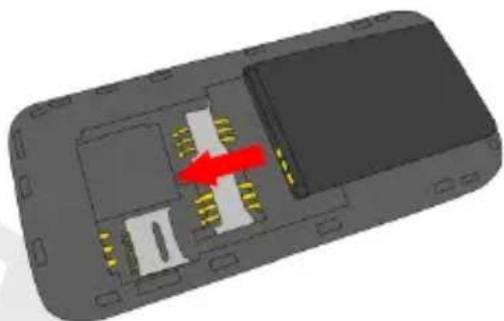
Inserting the battery
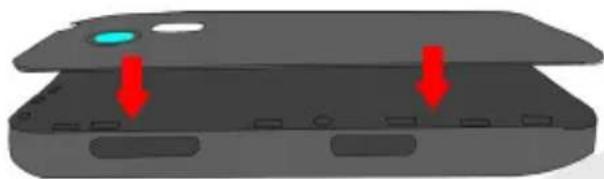
Placement of the cover
28ENGLISH
Charging the battery: charge the battery before starting to use the device. Connect the charger to a provided wall socket adapter and then plug the jack into the charging base or insert it directly into its connector on the lower side of the phone. The charging base can also be connected to a micro USB cable to charge your phone. A animation on the screen will indicate the charging is in progress and a pop-up will indicate that charging is complete and the device may be disconnected safely from the grid.
Warning: To preserve the functionality of the product and the integrity of the warranty, we recommend the use of original NGM chargers. Please charge the battery indoors, in a dry and favorable environment. It's normal for the battery to get slightly warm during the charging process. The battery will reach its full capacity when cycled several times.
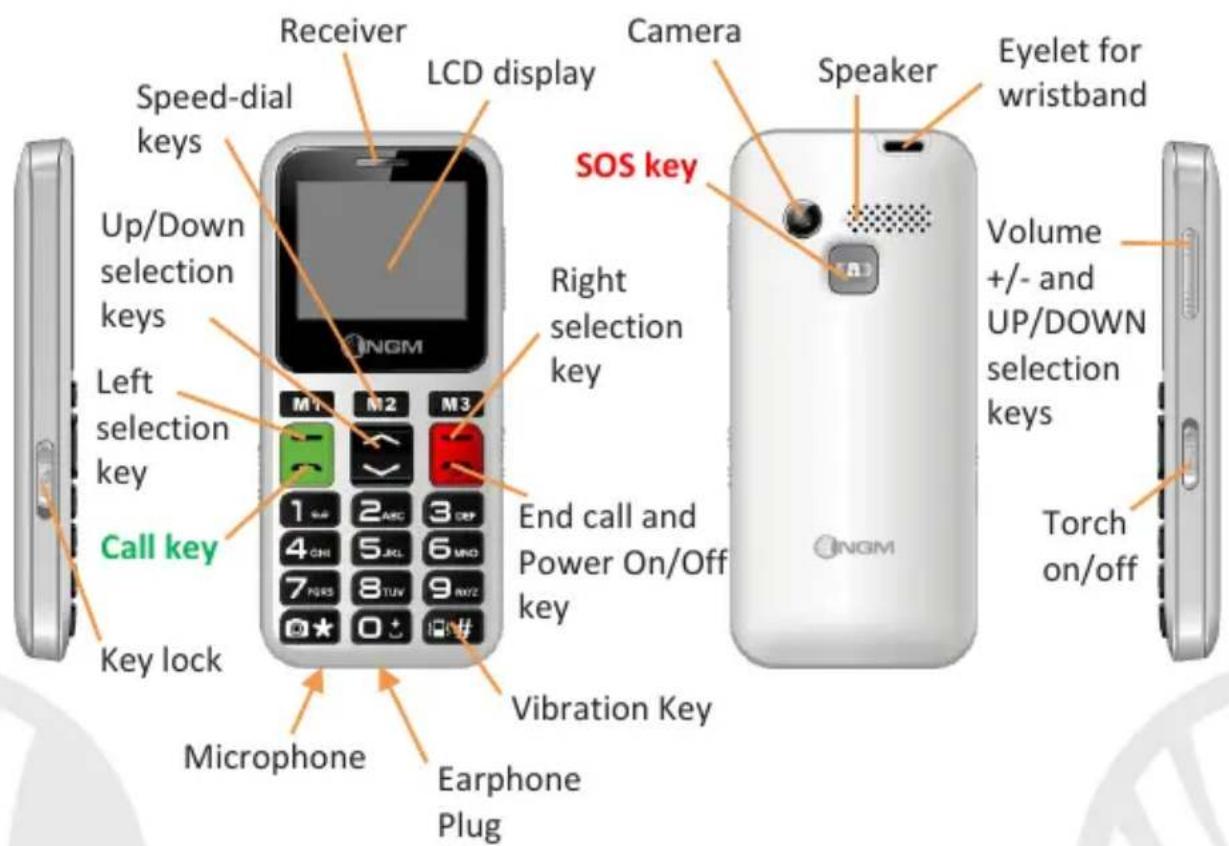
30ENGLISH
Turn ON, Turn OFF and keypad lock
To turn on and turn off the phone, press and hold the red end call key.
To rapidly lock and unlock the keypad, use the dedicated Lock Key on the left side of the phone. You can also choose the time lapse after which the keypad is automatically blocked in Menu > Settings > Security > Keys lock.
Dual SIM: to enable or disable the SIM separately at any time, select Menu > Settings > Dual SIM.
Main Menu
To access the Main Menu on your phone, press the left selection key. Scroll through the items in the menu with the up and down keys
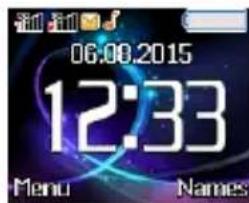
- Messaging to write and read SMS text messages
- Phonebook to manage and save contacts
- Calls: call settings and call log
- Multimedia: camera, gallery, videocamera, video player, audio recorder, radio and file manager
- Settings to personalize your phone (Profiles, Dual SIM...)
- Tools with Alarm, Calendar, To Do and Calculator
- SOS to enable and customize the SOS function
32ENGLISH
Making a call
To make a call from the home screen, type the desired number with the keypad, press the green call key and then choose the SIM you want to use with the keys; finally press OK with the left selection key. To end the call, press the red end call key.
Answer an incoming call
The external screen displays the caller number or the name if the contact has been saved on Phonebook. Take an incoming call simply by pressing During the conversation, by selecting Options with you can mute the microphone, put the call on hold, end the call, open the address book, call log or messages and record the call.
33ENGI
Call a number from the Phonebook: from the main menu, go to Address Book or press names with from the Home screen. Scroll through the contacts with the UP and DOWN keys and press the green call key and select the desired SIM card to call a selected contact.
Call a number from the call log: from the main screen, press the missed, received and outgoing calls will be automatically displayed. Scroll them with the keys and press again the green call key and select the desired SIM card when you found the number you want to call back.
Add contacts to the Phonebook: select Menu > Phonebook > Add new > Select and choose the storage between one of the SIM cards or the Phone. Enter the name and the new number, then press Options > Save.
34ENGLISH
Speed Dial: in Menu > Contacts > Options > Advanced Settings > Speed dial you have access to the screen from which you can assign to keys 2-9 (set Numbers) and to keys M1-M3 (M1-M2-M3) phone numbers from your address book which will be called automatically if the key is pressed and held from the Home screen. This feature can be turned on and off under Status.
Memory status: In the Phonebook > Options > Settings > Memory status you can check how many free storage locations there are on phone and on the SIM cards.
Send SMS: from the main screen, choose Menu > Messaging > Write message and write your message. Press Options > Send to > Number and enter the number using the numeric keypad or Add from phonebook to select from the Phonebook the contact you want to text.
35ENGI
Read SMS: when you receive a new SMS, a pop up notification appears in the main screen and in the external display. Press View (with the OK key) to access the Received folder or open it from the main screen by selecting Menu > Messages > Received.
In the messaging menu, you can access additional features such as Templates (short preset messages) and Memory status in SMS Settings, to control how many messages there are in the phone memory and on the SIM cards.
Speech: NGM FACILE Ciao can speak out each key that is pressed; select Settings > Profiles > General > Customize > Keypad > Options > Change. From the same menu, you can also choose a tone for the keypad or a click.
[Warning: speech is available for the Italian language only]
36ENGLISH
S.O.S. Function: NGM FACILE Ciao is equipped with a
dedicated SOS key on the back of the phone for the fast forwarding of emergency calls (^*) . This feature can be turned on and off by selecting Menu > SOS > Status (on/off).
In case of emergency, the user can use this function to ask for help up to five phone numbers, previously set in Menu > SOS > SOS numbers.
As soon as the SOS function is activated, the phone will send out a high volume alarm. Then, it will send an SOS message that can be personalized in "Content" to the SOS numbers.
Afterwards, the phone will call the 5 SOS numbers, for about 20 seconds each. If there is no answer, there will be a second cycle of calls. This procedure will be repeated for 5 times. If one of the called numbers answers, the cycle will be interrupted and the call will automatically switch to speaker phone (handsfree).
37ENGI
Attention: The SOS calls cycle will be interrupted if the answering machine or voicemail of one of the called SOS numbers takes the call.
38ENGLISH
Setting the ringtones
from the main screen, select Menu > Settings > User Profiles > General > Options > Customize. Select SIM1/SIM2 Ringtone and set the desired tone from those available for each SIM. You can also customize the following features: Alert type, Ringtone Volume, Keypad Volume, Message tone, Ringtone type.
Quickly turn on/off the vibration mode
To turn off all the phone ringtones and activate the vibration mode for calls and messages, press and hold the key. By pressing again the phone will enter to General mode.
Phone Settings: from Menu > Settings > Phone, you can access various settings such as Date and Time, Language and Display.
Restore factory settings: select Menu > Settings > Restore to reset the factory settings of NGM FACILE Ciao: enter the phone password 1122 to confirm the reset.
39ENGI
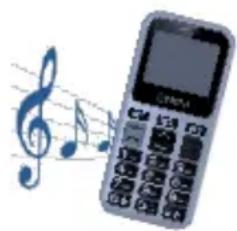
FM radio: select Menu > Multimedia > FM Radio. The radio also works without a headset. By selecting Options you have access to the following functions:
- Channel list to manually browse saved channels
- Manual for the manual search of radio channels
- Auto search to automatic search radio stations
- Settings for the radio playback
Select the key to turn on and off the radio and the left and right navigation keys and to owse through the stations.
40ENGLISH
*Limitation of Liability
this is not a life-saving device but a mobile phone. NGM will not be liable for any indirect, special, incidental or consequential damage arising from, or in connection with the use of this product.
Warning: The manufacturer assumes no responsibility for any failure of the policies set out above, or for any misuse of the phone. NGM reserves the right to modify any of the content in this user guide without previous public announcement. The content of this manual may vary from the actual content displayed in the mobile phone. In that case, the latter shall govern.
Copyright © 2015 NGM Italia
No part of this manual may be reproduced, distributed, translated, or transmitted in any form or by any means, electronic or mechanical, including photocopying, recording, or storing in any information storage and retrieval system, without the prior written permission of NGM Italia.
Facile CIAO
Copyright © 2015 NGM Italia
Copyright © 2015 NGM Italia
Copyright © 2015 NGM Italia
- Copyright © 2015 NGM Italia
- 24ENGLISH
- Inserting the battery
- 28ENGLISH
- Turn ON, Turn OFF and keypad lock
- Main Menu
- 32ENGLISH
- Making a call
- Answer an incoming call
- 34ENGLISH
- 36ENGLISH
- S.O.S. Function: NGM FACILE Ciao is equipped with a
- Setting the ringtones
- Quickly turn on/off the vibration mode
- 40ENGLISH
- *Limitation of Liability
- Facile CIAO
Brand : NGM
Model : Facile Ciao
Category : Smartphone