
Dynamic Life - Smartphone NGM - Free user manual and instructions
Find the device manual for free Dynamic Life NGM in PDF.


| Product type | Smartphone |
| Brand | NGM |
| Model | Dynamic Life |
| Operating system | Android 4.4.2 KitKat |
| DUAL SIM | Yes, two slots (SIM 1 + micro SIM 2) |
| Display | Capacitive touch screen |
| Battery | Rechargeable lithium-ion |
| External storage | microSD card (up to 32 GB recommended) |
| Connectivity | Wi-Fi 802.11 b/g/n, Bluetooth, GPS, 3G |
| Sensors | Accelerometer, proximity |
| Camera | Not specified in the manual |
| Dimensions (approx.) | Approximately 140 x 70 x 10 mm (estimation) |
| Weight (approx.) | Approximately 150 g (estimation) |
| Color | Not specified in the manual |
| Care and cleaning | Clean with a dry cloth; avoid moisture |
| Security | Screen lock by pattern, PIN, password, face or voice recognition |
| Warranty | Use of original NGM chargers and accessories recommended |
Frequently Asked Questions - Dynamic Life NGM
User questions about Dynamic Life NGM
0 question about this device. Answer the ones you know or ask your own.
Ask a new question about this device
Download the instructions for your Smartphone in PDF format for free! Find your manual Dynamic Life - NGM and take your electronic device back in hand. On this page are published all the documents necessary for the use of your device. Dynamic Life by NGM.
USER MANUAL Dynamic Life NGM
English - Quick Guide. 32
Administrator to SIM
Copyright © 2015 NGM Italia
Copyright © 2015 NGM Italia
Welcome to the NGM Android™ world. Thank you for purchasing NGM Dynamic Life. With this device you can have access to the many features of the Android™ 4.4.2, KitKat® OS to manage your contacts, email, social networks and to discover the opportunities of Internet with just a single touch! Discover the full potential of your new "smart" phone. Compared to the usual mono SIM Smartphones, NGM Dynamic Life offers the convenience of Dual SIM that has always characterized the entire range of NGM phones, i.e. the ability to handle two SIM cards and consequently two telephone numbers at the same time. You will discover other useful features such as setting the preferred SIM for calls, video calls, messages and data connection. By visiting the official website www.ngm.eu you can browse through the whole range of NGM mobile phones, ask for after sales assistance, access the forum for technical assistance and download software updates.
Warning: Data Connection of NGM Dynamic Life is active as soon as you first turn on the phone (and also after every factory data reset). If you do not have a special or "flat" rate for data connection with your SIM card, you are recommended to turn off data traffic and set up a Wi-Fi connection, in order to avoid additional costs.
32 ENGLISH
Setup
Warning: insert SIM and SD Cards only after removing the battery, in order to prevent data loss.
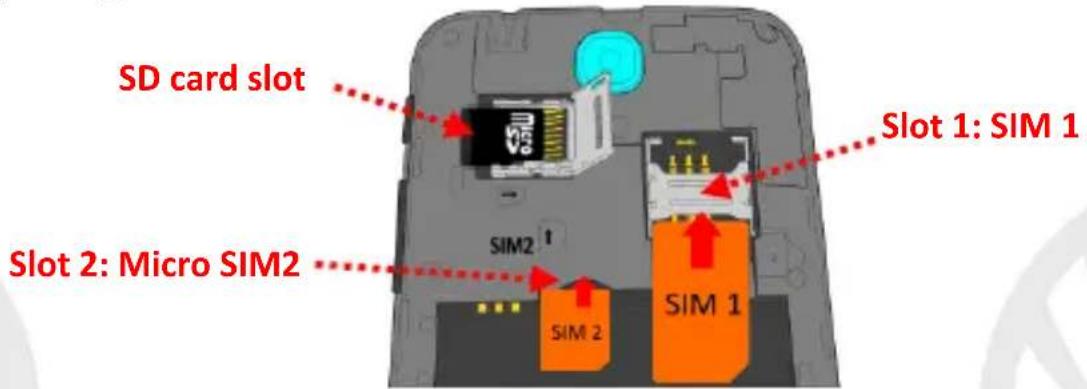
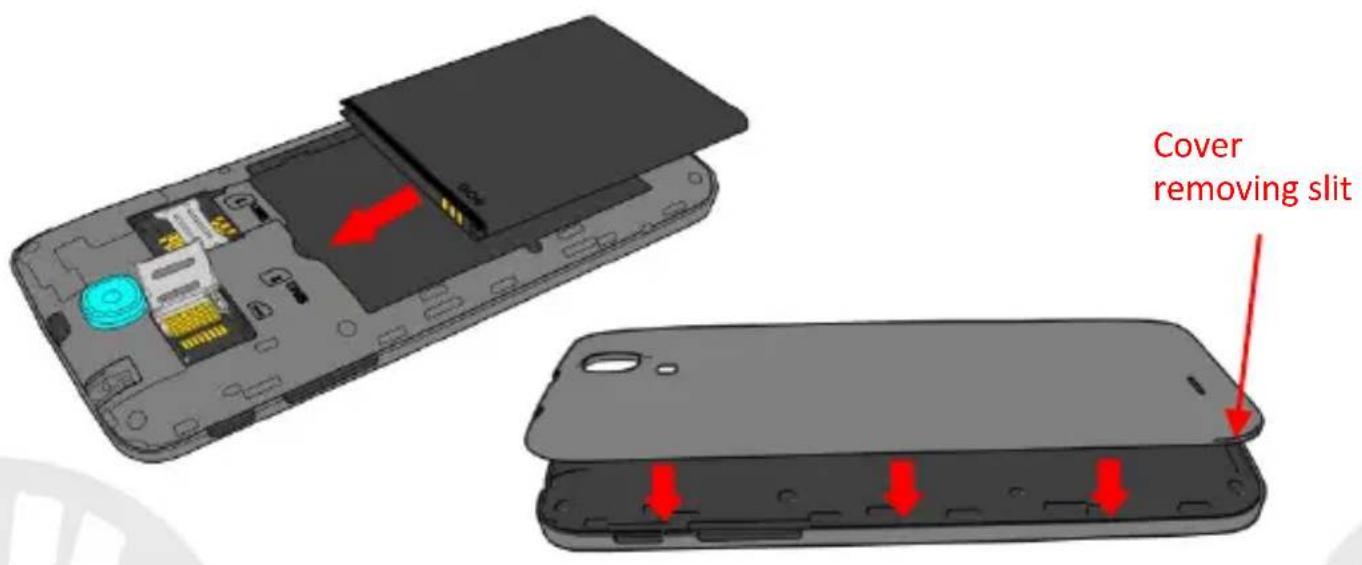
Insert the SIM cards: The SIM cards contain your phone number, PIN codes, links to external services, contacts and other important details. To access the compartment containing the SIM slots, turn off the phone and lift up the cover starting from the slit on the bottom left corner. Remove the battery and insert the SIM cards into the slots with their gold contacts facing downwards.
Insert SD card: to better manage all the functions of NGM Dynamic Life, you are recommended to use a micro-SD card: insert it into the back side of the phone. After turning off the phone, remove the back cover and the battery; unlock and open the metallic grid by pushing it to the right towards OPEN and insert the micro-SD, as shown in figure, with its golden contacts turned downwards. Then lock it with the inserted memory card by pushing it to the left towards LOCK.
Inserting the battery
Your device is provided with a lithium-ion battery and is designed to be used exclusively with original NGM batteries and chargers. The battery must be inserted into the backside of the phone. Insert the battery into the battery compartment with the contacts facing up, matching those of the phone. When done, put the hind cover back into position as shown in the following illustrations.
34 ENGLISH
Charge the battery
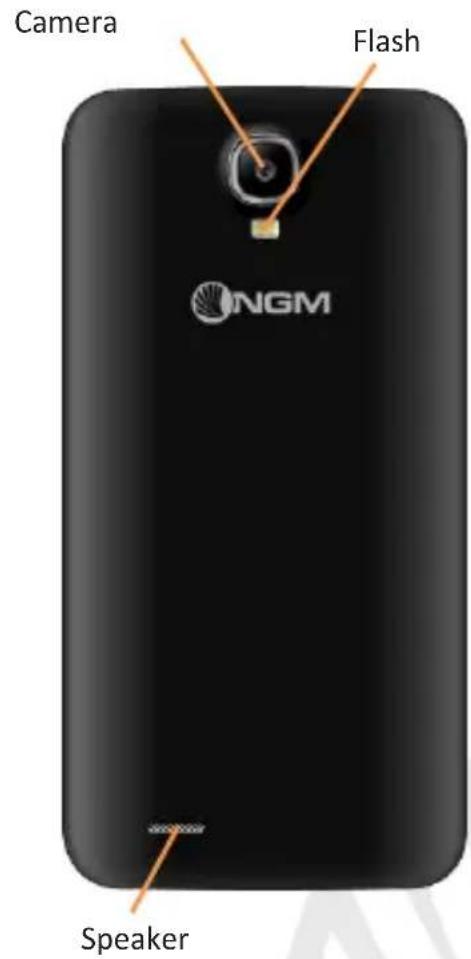
Charge the battery before starting to use the device. Use the supplied USB cable and the USB connector on the top side of the phone. Connect the charger to the provided wall socket adapter, and then the device to the USB cable. You can also charge the phone by connecting it with the PC USB port, but in this case charging will take longer. When the battery is charging, an animated icon on the screen will show the charging progress if the phone is on. Once the battery icon is filled, it is fully charged and the phone can be disconnected from the grid.
Warning: Do not connect the phone to a booting-up or running down PC to avoid voltage jumps. To preserve the functionality of the product and the integrity of the warranty, we recommend the use of original NGM chargers. Please charge the battery indoors, in a dry and favorable environment. It's normal for the battery to get slightly warm during the charging process. The battery will reach its full capacity when cycled several times.
Power on, power off and standby
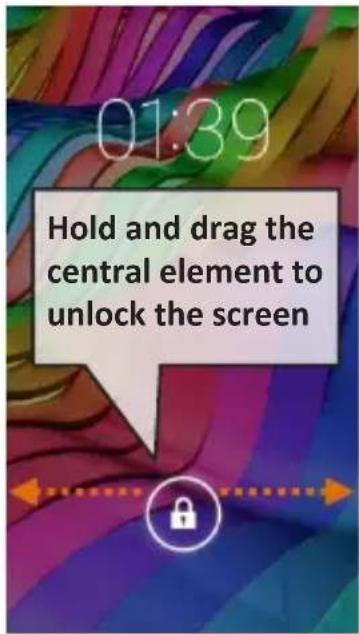
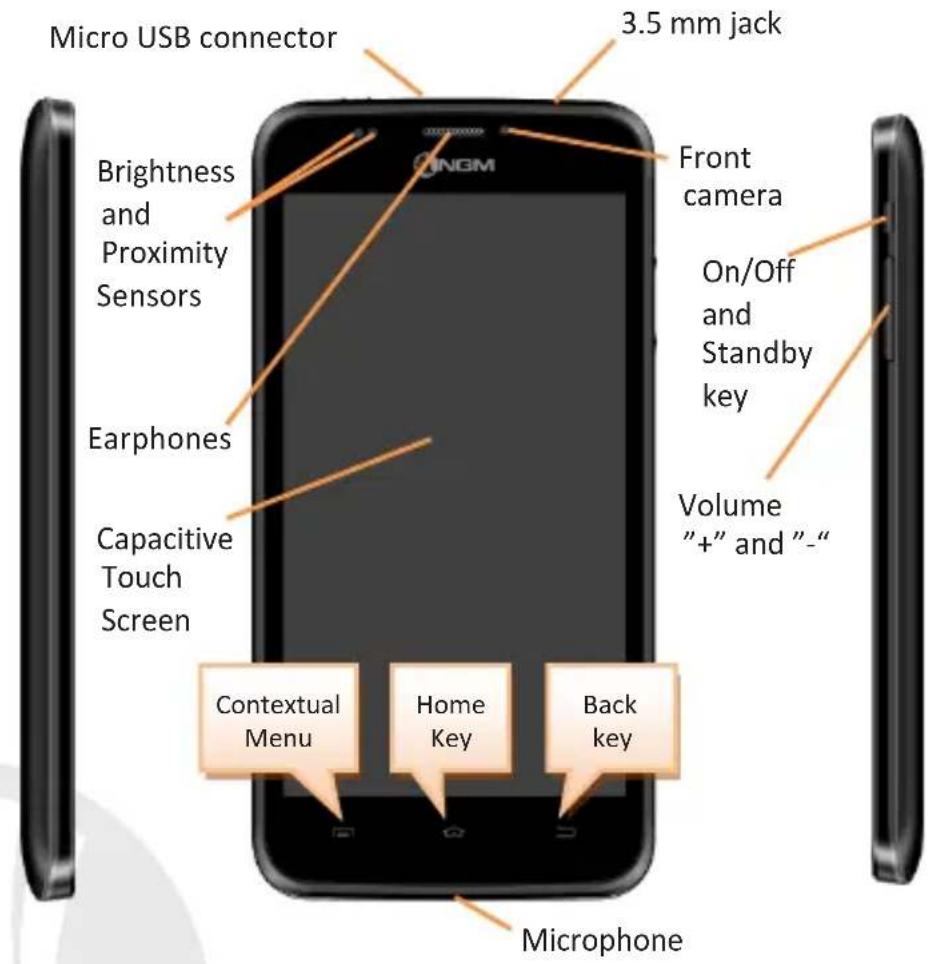
To turn on the phone, press and hold the power on/off key To turn off your device, press and hold the same key and confirm by selecting "Shutdown". A quick pressure sets the phone in stand-by mode (screen off) or allows you to go back to the lock screen (see below).
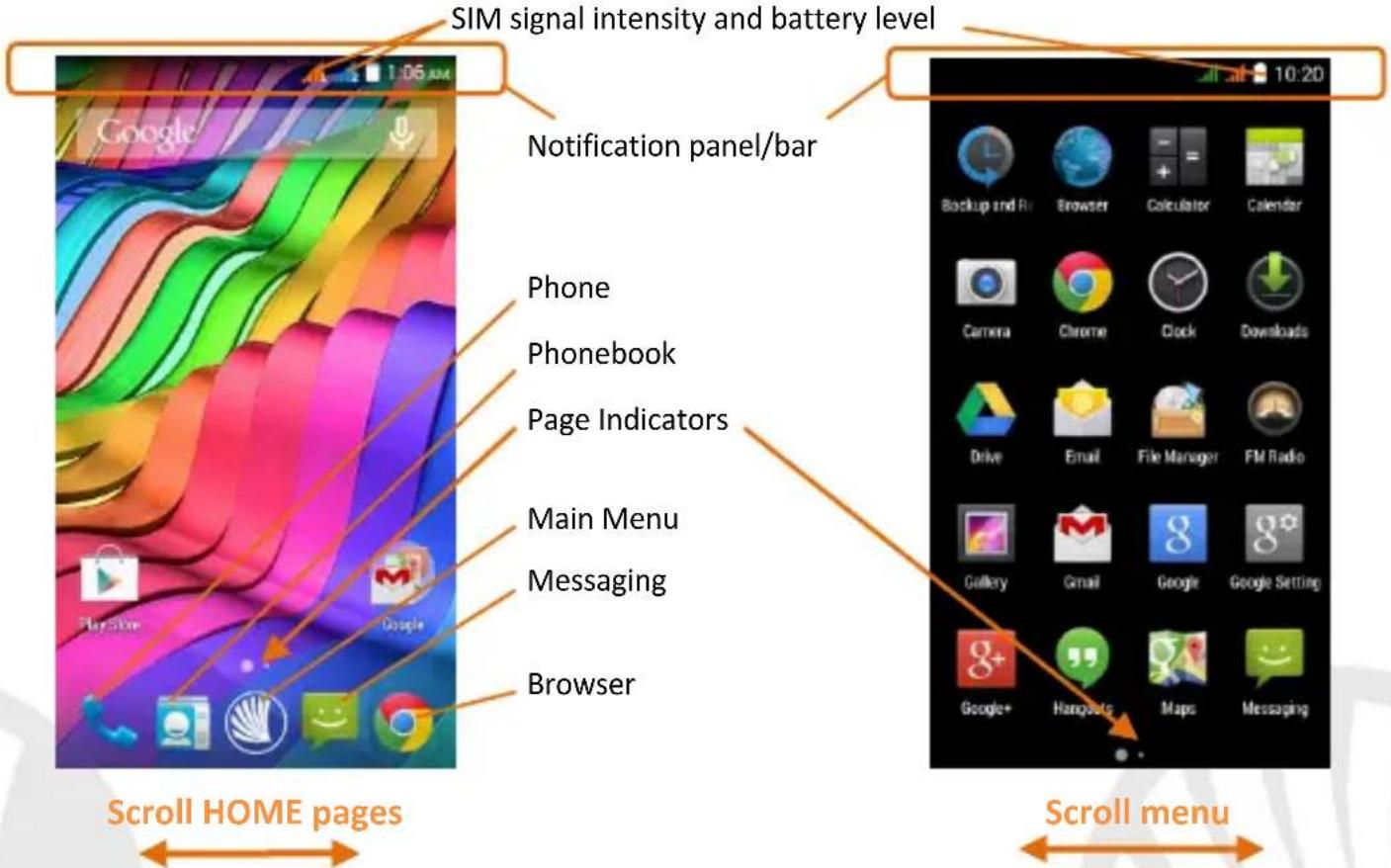
The main screen: use the touch screen by tapping, holding or dragging a finger across the screen. The main screen is the starting point for using all the applications on your phone. Other pages will be available to the right of the main page, as soon as you insert shortcuts or widgets into them: press and hold the desired application icon and drop it onto one of the desktop-thumbsnails. By swiping to the right with the held icon, you will create new pages that you can fill with shortcuts and widgets. You can also customize the four widgets next to the central menu icon by pressing, holding and moving them onto the desktop. To delete a shortcut or widget, tap and hold the icon and drag it onto the "X Remove" symbol on the screen. By moving an icon over another, you can create folders on the desktop and by long pressing an empty space on the desktop you can change the wallpaper.
Standby screen
The main menu: select an application from the main menu or scroll left/right to view other applications. Press back key to return to the previous screen, press the Home key to return to the main screen.
36 ENGLISH
Home Screen
Main Menu
38 ENGLISH
RAPID ACCESS
Notification panel
To open the Notification Panel, touch the upper bar containing the battery and signal-intensity icons and drag it downwards. Tap the icon at the top right-hand side to move from the notifications to the quick set keys With, you will erase all notifications in the panel. To hide the panel, drag up the bottom of the panel or tap the Back key.
Recent applications
When you are inside any application, long press the key: a list of the applications you have recently accessed will be shown and can be directly selected.
Lock screen and vibration
From the main menu, select Settings > Security > Screen Lock. Select the desired unlocking mode (None, Slide, Voice Unlock, Pattern, PIN or Password) and confirm. To quickly lock the screen, briefly press the power on/off key. To unlock it, follow the instructions on the screen.
Contextual Menu
Many apps have a Contextual Menu. By selecting it, you can display a contextual menu referred to the application itself, with related functions.
Managing the two SIM cards
From the main menu, select Settings > SIM Management. Select the I/O keys next to the phone operators corresponding to "SIM1" and "SIM2" to activate or deactivate selectively the SIM at any time. From this menu you can also customize the color and name for each SIM icon and decide which SIM to use as default for calls, video calls, messages and data connection or choose "always ask" if you don't want to set a SIM as default.
On Settings > Other > Mobile Networks > 3G service > Enable 3G you can select the SIM card on which you wish to activate the 3G service. This is a feature that allows you to move the 3G connection (normally available on slot1 only) from one SIM to the other without physically exchanging them.
MANAGING CALLS
From the main screen touch the Phone icon; use the virtual keypad to enter the desired phone number
Press the handset icon of desired SIM.
To end the call press the red end call key.
To answer a call, drag the phone icon to the right onto the green handset; to reject it, drag it to the left onto the red handset, to reject with a message drag the phone icon upwards. To silence an incoming call, press Volume "+" or "-" (on the right side of the phone).
40 ENGLISH
Call a number from the call log
From the main menu, first select the Phone App and then the ① icon; this will display the call logs with the missed, received and outgoing calls.
In case no default SIM has been set, select the desired number and choose which SIM to call with.
MANAGE CONTACTS
Add a new contact
Note: In the contact contextual menu, you can access the Import/Export functions and several other settings.
From the main menu select the Contacts icon.
Press on the bottom bar.
Select the storage where you want to save the contact (Account, Phone, SIM1 or SIM2).
Insert Name, Number and other contact details (if saving on Phone) and confirm with Save.
Add a new contact from call log
From Phone menu, access the Call Logs by selecting the icon.
Touch the empty contact picture near the number you want to save among the Missed, Received or Outgoing calls and confirm with OK.
Choose Create New Contact on the bottom bar or add the number to an Existing contact by selecting it from the list. Once you selected the saving path and added name and any further information (when saving in Phone), confirm with Done.
Set ringtones
Note: you can set ringtones in mid, wav, ogg or mp3 formats.
From the main menu, select Settings > Audio Profiles > General. Select Voice call ringtone > SIM1 or SIM2 and choose the desired ringtone for each SIM card. If you want to set a custom ringtone: in Music, select the desired audio track and choose Use as Ringtone in the contextual menu. The audio file will be added to the available ringtones list.
Quickly turn on/off the vibration mode: to quickly disable call and message ringtones press the Volume "-" key. Once the minimum volume has been reached, the phone will enter the vibration mode. By pressing volume "-" again, the phone will go on silent mode.
Sending and reading SMS and MMS
Reading SMS and MMS: when you receive a new SMS or MMS, an icon appears in the notification panel. By clicking on the displayed icon, you can directly access the conversation and read the incoming message. In any case, you can view the incoming messages from the home screen or menu by selecting Messaging.
Send SMS and MMS: from the Home page or from the main menu, choose Messaging and then the _+ icon on the bottom. Type the first letters of a name into the recipients field to search for a contact and select it from the pop-up or directly enter the phone number; otherwise select the _+ icon next to the field and select the recipient(s) from the contacts. Write the text into the dedicated space with the virtual keypad. Select the "+" icon to insert multimedia files (the message will automatically be converted into MMS). Press either key, selecting the SIM you want to use.
42ENGLISH
CONNECTIVITY: to better use the potentiality provided by the device and its operating system, you must have an active data connection; data connection of NGM Dynamic Life is active when you first power ON the phone. If it is not included into your mobile phone plan, data traffic may cause you extra costs, so it is recommended to configure an Internet connection via WiFi. To enable data traffic on one of the SIM cards, select Settings > Dual SIM Settings > Data connection, or activate it from the Quick Setup buttons in the notifications panel.
Connect to the Internet using Wi-Fi® You can connect to the WLAN using Wi-Fi option. To activate it, from the main menu choose Settings > WiFi I/O. Please follow all warnings and indications concerning the use of wireless devices in areas where the use of such functions is restricted (airplanes, hospitals, etc.). Go offline mode when you have to use only the functions that do not require Network access.
Connecting to a Bluetooth® device: turn ON the Bluetooth device you want to connect with. Refer to the device documentation.
From the main menu, choose Settings > Bluetooth on/off to turn on Bluetooth. In the contextual menu you will find additional functions and settings.
Choose Search for devices to automatically find other Bluetooth devices.
Among the discovered devices, select the device name to associate with. The phone will attempt to associate with the device, which may be asked for a pairing code.
Connect to the Internet: from the main menu, choose Browser. Type the URL into the address bar to start browsing. If you choose to navigate using data connection, be aware of costs or choose a "flat" data contract with your service provider. Alternatively, use WiFi (see "Connectivity") where possible.
Gmail account setup: in order to better manage the Android™ OS functionalities, it is recommended to configure a new Gmail account, or insert an existing one. This will allow you to access all Android™ OS applications.
E-mail: By configuring a default account you can easily manage your e-mails and display them automatically on your phone. If you want to use also a different Email account, you can configure a new account with another provider within the Email app in the Main Menu.
Synchronization: synchronization is the most efficient approach to manage your useful data because it allows you to make a backup of the data on your device with an internet account. In case of replacement, loss or damage of the phone you will not experience loss of data. The synchronization can be automatic (Settings > Data usage > Contextual menu > Auto-sync data) or can be activated manually, individually for each installed application to be synchronized; you can find the list of such applications in Settings > Account [installed App list]. To add a new account, select Add Account. The synchronization uses an active data connection, which could result in data traffic costs. It is advisable to use a WiFi connection when available.
44ENGLISH
GPS geolocation: The Global Positioning System (GPS) is a satellite-based positioning system, with a global and continuous coverage. To access GPS, select Settings > Localization I/O. When the GPS function is activated, the phone starts to collect data from satellites and determines the current position. The Fix Times (position detection) are variable and can be affected by several external factors (clouds, high buildings, etc.). Limit the use of battery and memory by switching off this function when you don't need it.
Warning: formatting and delivery of this user manual is based on the Android™ operating system, NGM Italia will not bear responsibility for any incompliance with the above guidelines or improper use of the mobile phone. NGM reserves the right to modify any of the content in this user guide without previous public announcement. The content of this manual may vary from the actual content displayed in the mobile phone. In that case, the latter shall govern.
Copyright © 2015 NGM Italia
No part of this manual may be reproduced, distributed, translated, or transmitted in any form or by any means, electronic or mechanical, including photocopying, recording, or storing in any information storage and retrieval system, without the prior written permission of NGM Italia.
Bluetooth® is a registered trademark of the Bluetooth SIG, Inc. worldwide.
Wi-Fi® and the Wi-Fi logo are registered trademarks of the Wi-Fi Alliance.
Copyright © 2015 NGM Italia
Copyright © 2015 NGM Italia
Copyright © 2015 NGM Italia
Legge inn ringetoner
Copyright © 2015 NGM Italia
Copyright © 2015 NGM Italia
Copyright © 2015 NGM Italia
- Administrator to SIM
- Copyright © 2015 NGM Italia
- Setup
- Inserting the battery
- ENGLISH
- Charge the battery
- Power on, power off and standby
- Standby screen
- ENGLISH
- Home Screen
- Main Menu
- RAPID ACCESS
- Notification panel
- Recent applications
- Lock screen and vibration
- Contextual Menu
- Managing the two SIM cards
- MANAGING CALLS
- Call a number from the call log
- MANAGE CONTACTS
- Add a new contact
- Add a new contact from call log
- Set ringtones
- Sending and reading SMS and MMS
- Legge inn ringetoner
Brand : NGM
Model : Dynamic Life
Category : Smartphone