HTL 2012 - Television XORO - Free user manual and instructions
Find the device manual for free HTL 2012 XORO in PDF.



| Product type | 20-inch LCD TV |
| Dimensions (with stand) | 654 mm (W) x 480 mm (H) x 195 mm (D) |
| Weight (with stand) | 10 kg |
| Power supply | 100-240 V AC, 50/60 Hz |
| Power consumption | 60 W |
| TV standards | PAL/SECAM B/G, D/K, I, L, L' ; NTSC (AV) |
| Video inputs | SCART, AV (CVBS), S-Video, YPbPr, VGA (D-Sub) |
| Audio inputs | Audio L/R (RCA), headphone jack |
| Remote control | Yes, with included AAA batteries |
| Image functions | Brightness, contrast, sharpness, saturation, hue adjustments; preset modes (Bright, Matt, Normal) |
| Audio functions | Bass, treble, balance adjustments; preset modes (Music, Movie, News); NICAM stereo/bilingual; IGR |
| PIP function | Picture-in-picture with source selection and adjustable size |
| Teletext | Yes |
| OSD display | Multilingual (French available); adjustable position, transparency and timeout |
| Channel memory | Automatic or manual; channel sorting and naming |
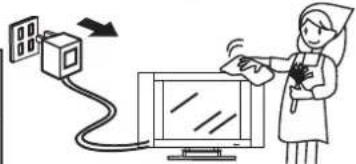
| Maintenance and cleaning | Wipe with a soft, dry cloth; do not use alcohol-based or solvent products |
| Safety | Do not open the casing (high voltage); unplug before cleaning; do not expose to moisture |
| Spare parts and repairability | Contact a qualified technician; use manufacturer-certified parts |
| Operating temperature | +5°C to +40°C |
| Storage temperature | 0°C to +50°C |
| General information | Complete manual available for download; email support |
Frequently Asked Questions - HTL 2012 XORO
User questions about HTL 2012 XORO
0 question about this device. Answer the ones you know or ask your own.
Ask a new question about this device
Download the instructions for your Television in PDF format for free! Find your manual HTL 2012 - XORO and take your electronic device back in hand. On this page are published all the documents necessary for the use of your device. HTL 2012 by XORO.
USER MANUAL HTL 2012 XORO
FREE TO CHOOSE INNOVATIONS
XORO®
HTL 2012
natural_image
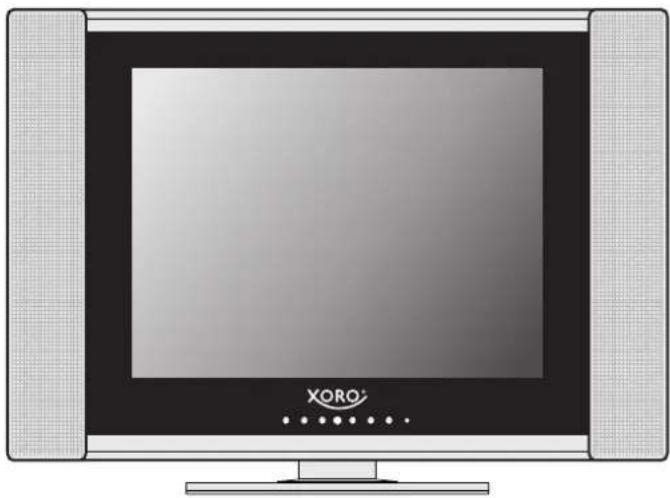
Illustration of a flat-screen CRT monitor with XORO branding and control buttons (no text or symbols on screen)LCD-TV
BEDIENUNGSANLEITUNG
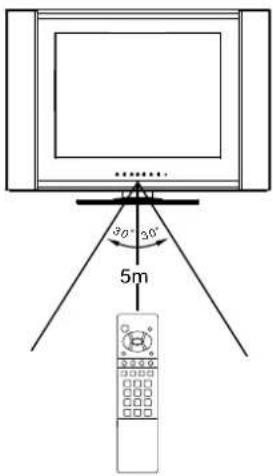
Use the remote control by pointing it towards the remote sensor window of the set. Objects between the remote control and sensor window may prevent proper operation.
Note:
the illustration is for your reference only, the remote sensor may locate differently with different model.
Cautions regarding use of remote control
Do not expose the remote control to shock. In addition, do not expose the remote control to liquids, and do not place in an area with high humidity.
The remote control may not work properly if the remote sensor window of the main unit is under direct sunlight or strong lighting. In such a case, change the angle of the lighting or LCD TV set, or operate the remote control closer to the remote sensor window.
natural_image
Illustration of a hand holding a coiled spring device with an arrow pointing to the handle (no text or symbols present)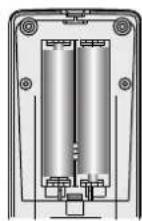
natural_image
Illustration of a hand holding a coiled spring and a rectangular device with an arrow pointing to it (no text or symbols present)natural_image
Technical line drawing of a rectangular electronic device with internal components and directional arrows (no text or symbols)Auf dem Gerät
1. VOL +/-
Flip the cover, open in the direction of the arrow.
- POWER ⏻
Turn the unit on or standby - 0\~9 digit buttons, -/-- button
0\~9: direct channel select;
-/- button: one digit/two digit/three digit channel number selector - PIP
To activate picture-in-picture in VGA mode - PIP-POS
To select PIP frame position in VGA mode - STEREO
To select stereo, mono or bilingual - P.MODE
To quickly select picture mode Red button (teletext) - S.MODE
To quickly select sound mode Green button (teletext) - MENU
To access the MENU main page In Menu operation, press this button to return to a higher level menu - DSP/CAPS
To display current channel status - RETURN \$
To quickly jump between current channel and last selected
channel. - SLEEP
To set sleep timer Blue button (teletext)
Fernbedienung
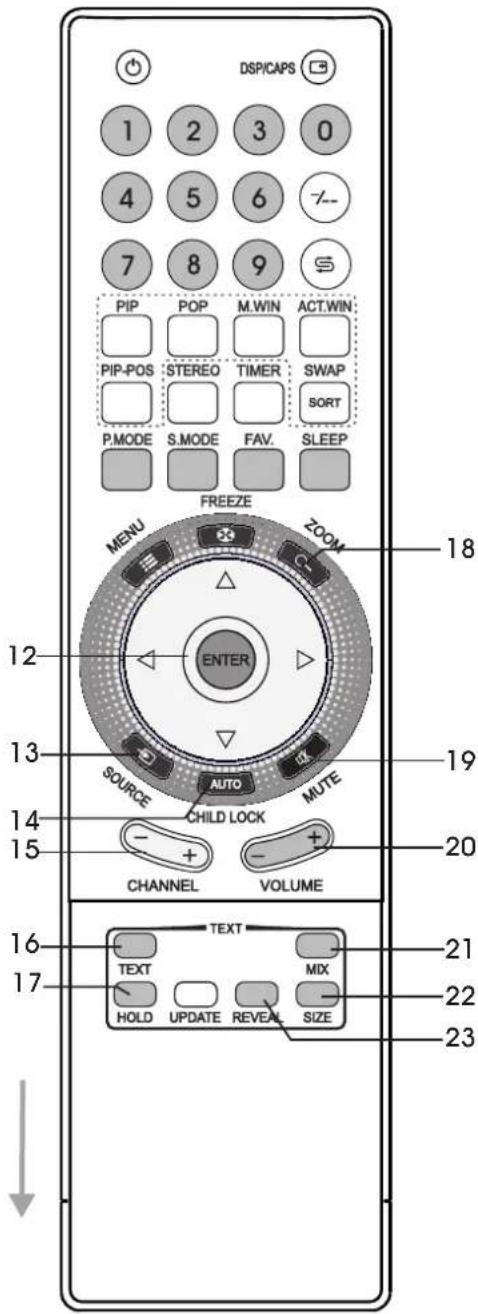
-
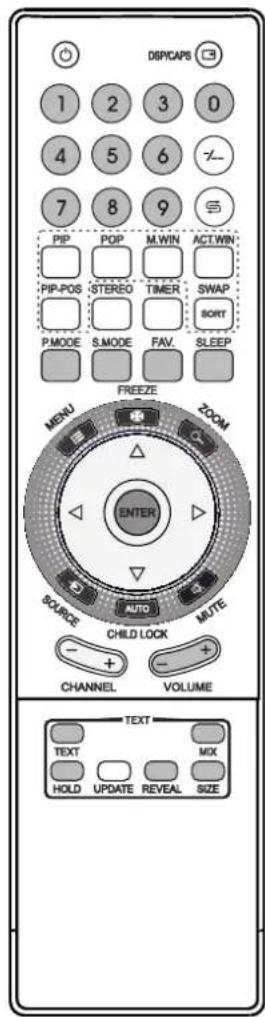
ENTER, ENTER(Up/Down), ENTER(Left/Right) ENTER: To confirm your operation or setting; ENTER(Up/Down): To move upward or downward in menu operation; ENTER(Left/Right): To move left or right in menu operation; To adjust selected menu item in menu operation
-
SOURCE To select input source
-
AUTO/CHILD LOCK To rectify the picture automatically in VGA mode
-
CHANNEL +/- Use to switch channels;
-
TEXT To enter/exit teletext mode (Teletext)
-
HOLD To hold the current teletext page temporarily (Teletext)
-
ZOOM To adjust the PIP frame size in VGA mode
-
MUTE ✝ Sound mute
-
VOLUME +/- Use to adjust volume
-
MIX To superimpose text on a TV picture (Teletext)
-
SIZE To expand top half or bottom half page of current screen (Teletext)
-
REVEAL To display hidden information such as solutions to riddles and puzzles. (Teletext)
Note: The above not mentioned buttons on the remote control have no function in this model.
natural_image
Line drawing of a vintage camera with lens and screen (no text or symbols)Videokamera
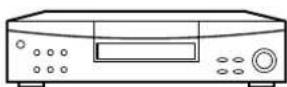
DVD-Player
natural_image
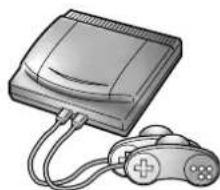
Illustration of a vintage electronic device with a scroll wheel and control panel (no text or symbols)Videospiel-System
bar
Picture | Category | Value | |---|---| | Brightness | 50 | | Contrast | 50 | | Sharpness | 17 | | Saturation | 50 | | 3D Comb ON Reset | ▶ | | PAL TV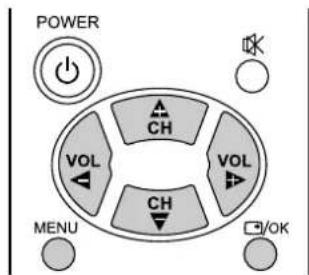
| TV Setting | |
| Stereo | MONO |
| Manual Scan | |
| Auto Scan | |
| Set Channel | 01 |
| Channel | ACTIVE |
| Label | |
| Tracking | |
| System | B/G |
| Option | AUTO FineTune |
| Swap Channel | |
| TV | PAL |
| TV Setting | |
| Stereo | MONO |
| Manual Scan | |
| Auto Scan | |
| Set Channel | 01 |
| Channel | ACTIVE |
| Label | |
| Tracking | |
| System | B/G |
| Option | AUTO FineTune |
| Swap Channel | |
| TV | PAL |
| TV Setting | |
| MANUAL SCAN: | |
| TV Channel | 03 |
| TV System | B/G |
| Search | 152.25 |
| TV | PAL |
Manuelles Fine-Tuning
| TV Setting | |
| Stereo | MONO |
| Manual Scan | |
| Auto Scan | |
| Set Channel | 01 |
| Channel | ACTIVE |
| Label | |
| Tracking | |
| System | B/G |
| Option | AUTO FineTune |
| Swap Channel | |
| TV | PAL |

BETRIEBSFUNKTIONEN
Wechseln der Kanäle

flowchart
graph TD
    A["NICAM STEREO"] --> B["MONO"]
    B --> C["Arrow to upper block"]
    C --> D["Arrow right"]
flowchart
graph TD
    A["NICAM A"] --> B["NICAM B"]
    B --> C["MONO"]
flowchart
graph TD
    A["NICAM MONO"] --> B["↓"]
    B --> C["MONO"]
flowchart
graph TD
    A["FM STEREO"] --> B["↓"]
    C["MONO"] --> B
    B --> D["←"]
flowchart
graph TD
    A["FM A"] --> B["↓"]
    B --> C["FM B"]



bar
Picture | Picture | Value | | :--- | :--- | | Brightness | 50 | | Contrast | 50 | | Sharpness | 17 | | Saturation | 50 | | Hue | 50 | | H-Position | 50 | | V-Position | 50 | | Clock | 25 | | Phase | 25 | | Reset | | | YPbPr | |
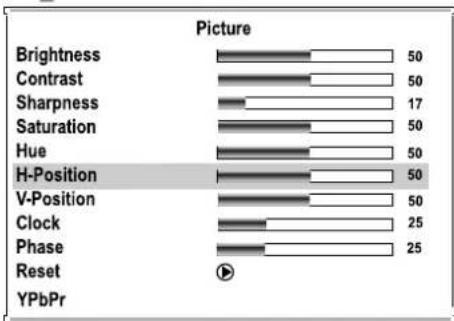
bar
Picture | Picture | Value | | :--- | :--- | | Brightness | 50 | | Contrast | 50 | | Sharpness | 17 | | Saturation | 50 | | Hue | 50 | | H-Position | 50 | | V-Position | 50 | | Clock | 25 | | Phase | 25 | | Reset | YPbPr | ▼
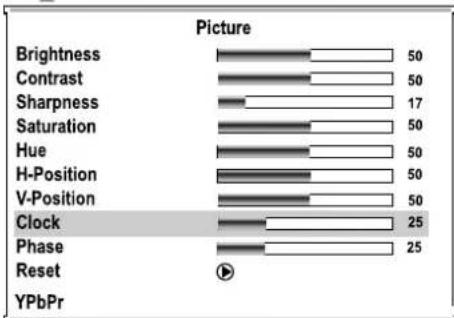
bar
Picture | Feature | Value | |---|---| | Brightness | 50 | | Contrast | 50 | | Sharpness | 17 | | Saturation | 50 | | Hue | 50 | | H-Position | 50 | | V-Position | 50 | | Clock | 25 | | Phase | 25 | | Reset | | YPbPr |
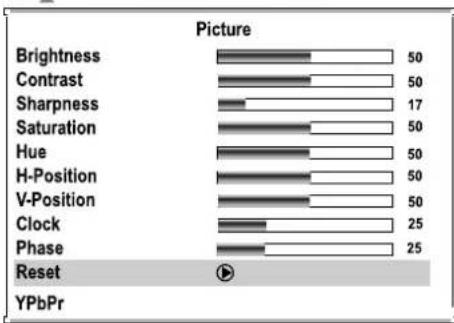
bar
Picture | Feature | Value | |---|---| | Brightness | 50 | | Contrast | 50 | | Sharpness | 17 | | Saturation | 50 | | Hue | 50 | | H-Position | 50 | | V-Position | 50 | | Clock | 25 | | Phase | 25 | Reset | YPbPr |TELETEXT-Funktionen
What Is Teletext?
Teletext broadcasts pages of information and entertainment to specially equipped television sets.
Your System receives Teletext signals broadcast by a TV network, and decodes them into graphical format for viewing. News, weather and sports information, stock exchange prices and programme previews are among the many services available.
Teletext Mode
Teletext is turned on/off with the TEXT button on the remote control unit. You can operate your System in Teletext mode directly by inputting commands with the remote control unit.
Turning On or Off Teletext
Select a TV channel providing the Teletext program.
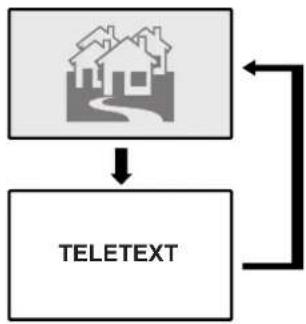
Press the TEXT button to display the Teletext.
Press the TEXT button again to switch back to TV screen.
Each time you press the TEXT button, the screen switches as right.
Button Functions
ENTER(Up/Down)
Changing Teletext pages
VOLUME+ or VOLUME-
Adjusting volume
MUTE
Muting the sound
Colour (RED/GREEN/YELLOW/BLUE)
You can select a group or block of pages displayed in the coloured brackets at the bottom of the screen by pressing the corresponding colour (RED/GREEN/ YELLOW/ BLUE) on the remote control unit.
0-9
Directly select any page by using 0–9.
MIX
Press this button to display the Teletext on the screen with transparent background while viewing the TV program simultaneously.
REVEAL
Press the button to reveal hidden information such as an answer to a quiz. Press the button again to hide the information.
SIZE
Press the button to expand the top half of the display. Press it again to expand the bottom half of the display. Press it once more to resume normal size.
HOLD
Press the button to stop updating Teletext pages automatically. Press it again to release hold mode.
flowchart
graph TD
    A["House Icon"] --> B["TELETEXT"]
    B --> A
- Design and specifications are subject to change without notice.
LCD TV
CVBS Bildpunkt.
FREE TO CHOOSE INNOVATIONS

XORO by MAS Elektronik AG
Blohmstrasse 16/20
21079 Hamburg, Germany
Tel.: +49 (040) 77 11 09 17
Fax: +49 (040) 76 73 35 15
xoro@mas.de
www.xoro.de
FREE TO CHOOSE INNOVATIONS
XORO®
HTL 2012
natural_image
Illustration of a flat-screen CRT monitor with XORO branding and control buttons (no text or symbols on screen)LCD TV
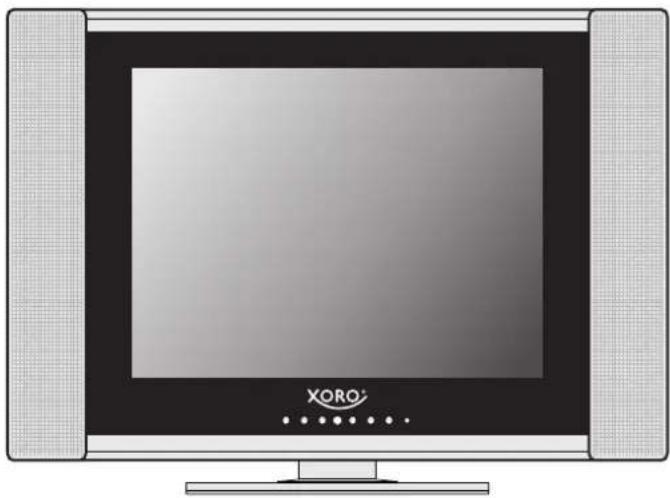
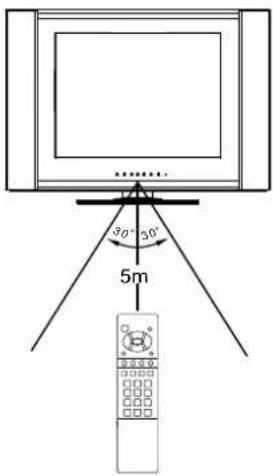
Use the remote control by pointing it towards the remote sensor window of the set. Objects between the remote control and sensor window may prevent proper operation.
Note:
the illustration is for your reference only, the remote sensor may locate differently with different model.
Cautions regarding use of remote control
Do not expose the remote control to shock. In addition, do not expose the remote control to liquids, and do not place in an area with high humidity.
The remote control may not work properly if the remote sensor window of the main unit is under direct sunlight or strong lighting. In such a case, change the angle of the lighting or LCD TV set, or operate the remote control closer to the remote sensor window.
natural_image
Illustration of a hand holding a coiled spring attached to a rectangular object (no text or symbols)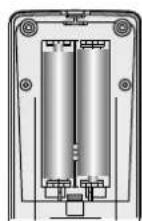
natural_image
Illustration of a hand holding a handheld electronic device with a scroll wheel (no text or symbols)natural_image
Technical line drawing of a rectangular electronic device with internal components and directional arrows (no text or symbols)natural_image
Line drawing of a vintage camera with lens and screen (no text or symbols)Видеокамеру
natural_image
Illustration of a vintage-style electronic device with a scroll and cable (no text or symbols)Игровую приставку
Подключение
Turn the unit on or standby
2. 0\~9 digit buttons, -/-- button
0\~9: direct channel select;
-/- button: one digit/two digit/three digit channel number selector
3. PIP
To activate picture-in-picture in VGA mode
4. PIP-POS
To select PIP frame position in VGA mode
5. STEREO
To select stereo, mono or bilingual
6. P.MODE
To quickly select picture mode Red button (teletext)
7. S.MODE
To quickly select sound mode Green button (teletext)
8. MENU
To access the MENU main page In Menu operation, press this button to return to a higher level menu
9. DSP/CAPS
To display current channel status
10. RETURN
To quickly jump between current channel and last selected channel.
11. SLEEP
To set sleep timer Blue button (teletext)

- ENTER, ENTER(Up/Down), ENTER(Left/Right)
ENTER: To confirm your operation or setting ;
ENTER(Up/Down): To move upward or downward in menu operation;
ENTER(Left/Right): To move left or right in menu operation;
To adjust selected menu item in menu operation
- SOURCE
To select input source
- AUTO/CHILD LOCK
To rectify the picture automatically in VGA mode
- CHANNEL +/-
Use to switch channels;
- TEXT
To enter/exit teletext mode (Teletext)
- HOLD
To hold the current teletext page temporarily (Teletext)
- ZOOM
To adjust the PIP frame size in VGA mode
- MUTE
Sound mute
- VOLUME +/-
Use to adjust volume
- MIX
To superimpose text on a TV picture (Teletext)
- SIZE
To expand top half or bottom half page of current screen (Teletext)
- REVEAL
To display hidden information such as solutions to riddles and puzzles. (Teletext)
Note:
The above not mentioned buttons on the remote control have no function in this model.
flowchart
graph TD
    A["House Icon"] --> B["TELETEXT"]
    B --> C["Arrow Right"]
| TV Setting | |
| Stereo | MONO |
| Manual Scan | |
| Auto Scan | |
| Set Channel | 01 |
| Channel | ACTIVE |
| Label | |
| Tracking | |
| System | B/G |
| Option | AUTO FineTune |
| Swap Channel | |
| TV | PAL |
| TV Setting | |
| Stereo | MONO |
| Manual Scan | |
| Auto Scan | |
| Set Channel | 01 |
| Channel | ACTIVE |
| Label | |
| Tracking | |
| System | B/G |
| Option | AUTO FineTune |
| Swap Channel | |
| TV | PAL |
| PICTURE | AUDIO | INPUT | TV | MENU |
| TV Setting | |
| MANUAL SCAN: | |
| TV Channel | 03 |
| TV System | B/G |
| Search | 152.25 |
| TV | PAL |
| TV Setting | |
| Stereo | MONO |
| Manual Scan | |
| Auto Scan | |
| Set Channel | 01 |
| Channel | ACTIVE |
| Label | |
| Tracking | |
| System | B/G |
| Option | AUTO FineTune |
| Swap Channel | |
| TV | PAL |
| PICTURE | AUDIO | INPUT | TV | MENU |
| TV Setting | |
| SWAP CHANNEL: | |
| PRESS VOL+ TO CONFIRM | |
| ENTER: | 03 |
| TV | PAL |
| TV Setting | |
| Stereo | MONO |
| Manual Scan | |
| Auto Scan | |
| Set Channel | 01 |
| Channel | ACTIVE |
| Label | |
| Tracking | |
| System | B/G |
| Option | AUTO FineTune |
| Swap Channel | |
| TV | PAL |
| PICTURE | AUDIO | INPUT | TV | MENU |
| TV Setting | |
| Stereo | MONO |
| Manual Scan | |
| Auto Scan | |
| Set Channel | 01 |
| Channel | ACTIVE |
| Label | |
| Tracking | |
| System | B/G |
| Option | AUTO FineTune |
| Swap Channel | |
| TV | PAL |
| PICTURE | AUDIO | INPUT | TV | MENU |
| TV Setting | |
| CHANNEL LABEL: | |
| 0 4 1 . . . | |
| 0 1 2 3 4 5 6 7 8 9 . | |
| A B C D E F G H I J K L M | |
| N O P Q R S T U V W X Y Z | |
| SAVE&EXIT | |
| MOVE CURSOR: ⚠ ⚡ ⚣ KEY | |
| MODIFY: MENU KEY | |
| NO SAVE & EXIT: OK KEY | |
| TV PAL |
| PICTURE | AUDIO | INPUT | TV | MENU |
| TV Setting | |
| Stereo | MONO |
| Manual Scan | |
| Auto Scan | |
| Set Channel | 01 |
| Channel | ACTIVE |
| Label | |
| Tracking | |
| System | B/G |
| Option | AUTO FineTune |
| Swap Channel | |
| TV | PAL |
[VOLUME, BASS, TREBLE, BALANCE]
bar
| Category | Value | |---|---| | Brightness | 50 | | Contrast | 50 | | H-Position | 50 | | V-Position | 50 | | Clock | 50 | | Phase | 67 | | Auto Adjust | ▶ | | DOS Mode | Text | | Reset | ▶ | VGA | 800 x 600 60.3 Hzbar
Picture | Feature | Value | |---|---| | Brightness | 50 | | Contrast | 50 | | Sharpness | 17 | | Saturation | 50 | | Hue | 50 | | H-Position | 50 | | V-Position | 50 | | Clock | 25 | | Phase | 25 | | Reset | | YPbPr |bar
Picture | Feature | Value | |---|---| | Brightness | 50 | | Contrast | 50 | | Sharpness | 17 | | Saturation | 50 | | Hue | 50 | | H-Position | 50 | | V-Position | 50 | | Clock | 25 | | Phase | 25 | | Reset | | YPbPr | |bar
Picture | Feature | Value | |---|---| | Brightness | 50 | | Contrast | 50 | | Sharpness | 17 | | Saturation | 50 | | Hue | 50 | | H-Position | 50 | | V-Position | 50 | | Clock | 25 | | Phase | 25 | | Reset | | YPbPr |bar
| Feature | Value | |---|---| | Brightness | 50 | | Contrast | 50 | | Sharpness | 17 | | Saturation | 50 | | Hue | 50 | | H-Position | 50 | | V-Position | 50 | | Clock | 25 | | Phase | 25 | | Reset | 25 | | YPbPr | 25 |
ТЕЛЕТЕКСТ
Changing Teletext pages
VOLUME+ or VOLUME-
Adjusting volume
MUTE
Muting the sound
Colour (RED/GREEN/YELLOW/BLUE)
You can select a group or block of pages displayed in the coloured brackets at the bottom of the screen by pressing the corresponding colour (RED/GREEN/ YELLOW/ BLUE) on the remote control unit.
0-9
Directly select any page by using 0–9.
MIX
Press this button to display the Teletext on the screen with transparent background while viewing the TV program simultaneously.
REVEAL
Press the button to reveal hidden information such as an answer to a quiz. Press the button again to hide the information.
SIZE
Press the button to expand the top half of the display. Press it again to expand the bottom half of the display. Press it once more to resume normal size.
HOLD
Press the button to stop updating Teletext pages automatically. Press it again to release hold mode.
FREE TO CHOOSE INNOVATIONS

XORO by MAS Elektronik AG
Blohmstrasse 16/20
21079 Hamburg, Germany
Tel.: +49 (040) 77 11 09 17
Fax: +49 (040) 76 73 35 15
xoro@mas.de
www.xoro.de
FREE TO CHOOSE INNOVATIONS
XORO®
HTL 2012
natural_image
Illustration of a flat-screen CRT monitor with XORO branding and control buttons (no text or symbols on screen)LCD TV
OPERATING MANUAL
Before connecting, operating or adjusting this product, please read the manual completely. Please keep this manual for future reference.
TABLE OF CONTENTS
IMPORTANT SAFETY PRECAUTIONS ....84
PREPARATIONS 86
Using the Remote Control....86
Batteries for the Remote Control 86
Antenna connection....87
Removing or installing the Back Cover....87
IDENTIFICATION OF CONTROLS 88
Main unit 88
Remote Control....90
CONNECTIONS. 92
Cautions before connecting....92
Connect 21-pin EURO-SCART Connect a PC ....92
Connect AV or S-Video inputs....93
Connect a DVD player or Home Cinema System....94
Connect a PC....95
TURNING THE UNIT ON AND OFF....96
Turning the Unit On and Off....96
Viewing the Menus....96
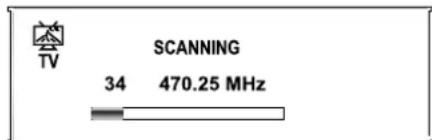
MEMORIZING THE CHANNELS 97
Storing Channels in Memory Automatically 97
Storing Channels in Memory Manually 98
Manual Fine Tuning 98
Adding and Erasing Channels 98
Editing Channel....98
Auto Fine Tune....99
BASIC OPERATIONS....99
Changing Channels 99
Using RETURN button....99
Adjusting the Volume 99
Using the Mute....99
Select Input Source....100
Selecting a MENU Language....100
Exchanging Channels....100
SETTING THE PICTURE....101
Customizing Picture....101
Turning 3D Comb ON or OFF....101
Loading the default Picture setting....101
Using the Preset Picture Mode 101
TABLE OF CONTENTS
OSD SETTINGS 102
Adjusting OSD Position....102
Adjusting OSD Transparency....102
Setting OSD Timeout....102
SETTING SOUND 103
Adjusting Sound Settings....103
Muting Sound or Not....103
Using the Preset Sound Mode....103
NICAM Broadcast Selection 104
IGR (German stereo system) Broadcasts....105
ADJUSTMENT IN VGA MODE 106
Customizing the Picture 106
Changing the Position of Image....106
Adjusting the Clock and Phase....106
Adjusting the Picture Automatically....107
Using the Preset Display Format....107
Loading the default Picture setting....107
Selecting Color Mode....108
Customizing the Color temperature....108
Viewing the PIP....108
Selecting the Signal Source for the PIP....109
Selecting Sound Source 109
Changing the Size of the PIP....109
Changing the Position of the PIP 109
ADJUSTING IN YPBPR MODE....110
Adjusting the Picture 110
Adjusting the Position of Image....110
Adjusting the Clock and Phase ....110
Loading the default Picture setting....110
TELETEXT 111
What is Teletext....111
Turning on and off Teletext....111
Button functions....111
TROUBLESHOOTING....112
CARE AND MAINTENANCE....113
LCD Display panel information....113
Cleaning and Maintenance
SPECIFICATIONS 114
GLOSSARY 115
Electrical energy can perform many useful functions, but it can also cause personal injuries and property damage if improperly handled. This product has been engineered and manufactured with the highest priority on safety. But IMPROPER USE CAN RESULT IN POTENTIAL ELECTRICAL SHOCK OR FIRE HAZARD. In order to prevent potential danger, please observe the following instructions when installing, operating and cleaning the product. To ensure your safety and prolong the service life of your LCD TV product, please read the following precautions carefully before using the product.
- Read these instructions---All operating instructions must be read and understood before the product is operated.
- Keep these instructions---These safety and operating instructions must be kept in a safe place for future reference.
- Heed all warnings--- All warnings on the product and in the instructions must be observed closely.
- Follow all instructions---All operating instructions must be followed.
- Attachments---Only use attachments/accessories specified by the manufacturer. Do not use attachments not recommended by the manufacturer. Use of improper attachments can result in accidents.
- Power source---This product is intended to be supplied by a listed power supply indicated on the marking label. If you are not sure of the type of power supply to your home, consult your product dealer or local power company. For added protection for this product during a lightning storm, or when it is left unattended and unused for long periods of time, unplug it from the wall outlet and disconnect the cable system.
- Power cord protection--- Protect the power cord from being walked on or pinched particularly at plugs, convenience receptacles, and the point where they exit from the apparatus.
- Overloading---Do not overload wall outlets, extension cords, or convenience receptacles on other equipment as this can result in a risk of fire or electric shock.
- Entering of objects and liquids---Never insert an object into the product through vents or openings. High voltage flows in the product, and inserting an object can cause electric shock and/or short internal parts. For the same reason, do not spill water or liquid on the product.
- Servicing---Refer all servicing to qualified service personnel. Servicing is required when the apparatus has been damaged in any way, such as power-supply cord or plug is damaged, liquid has been spilled or objects have fallen into the apparatus, the apparatus has been exposed to rain or moisture, does not operate normally, or has been dropped.
- Damage requiring service---If any of the following conditions occurs, unplug the power cord from the AC outlet, and request a qualified service person to perform repairs.
a. When the power cord or plug is damaged.
b. When a liquid is spilled on the product or when objects have fallen into the product.
c. When the product has been exposed to rain or water.
d. When the product does not operate properly as described in the operating instructions.
Do not touch the controls other than those described in the operating instructions. Improper adjustment of controls not described in the instructions can cause damage, which often requires extensive adjustment work by a qualified technician.
e. If the product has been dropped or the cabinet has been damaged in any way.
f. When the product displays an abnormal condition or exhibits a distinct change in performance. Any noticeable abnormality in the product indicates that the product needs servicing.
- Replacement parts---In case the product needs replacement parts, make sure that the service person uses replacement parts specified by the manufacturer, or those with the same characteristics and performance as the original parts. Use of unauthorized parts can result in fire, electric shock and/or other danger.
- Safety checks---Upon completion of service or repair work, request the service technician to perform safety checks to ensure that the product is in proper operating condition.
-
Wall or ceiling mounting---When mounting the product on a wall or ceiling, be sure to install the product according to the method recommended by the manufacturer. This is a safety feature.
-
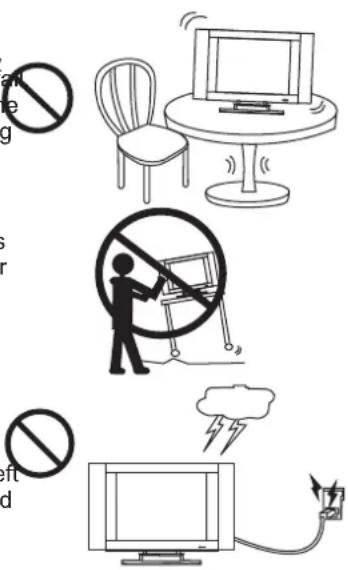
Stand---Use only with the cart, stand, tripod, bracket, or table specified by the manufacturer, or sold with the apparatus. Do not place the product on an unstable trolley, stand, tripod or table. Placing the product on an unstable base can cause the product to face resulting in serious personal injuries as well as damage to the product. When mounting the product on a wall, be sure to follow the manufacturer's instructions. Use only the mounting hardware recommended by the manufacturer.
-
Careful move---When a cart is used, use caution when moving the cart/apparatus combination to avoid injury from tip-over. Sudden stops, excessive force and uneven floor surfaces can cause the product to fall from the trolley.
-
Lightning---Unplug this apparatus during lightning storms or when unused for long periods of time. For added protection for this television equipment during a lightning storm, or when it is left unattended and unused for long periods of time, unplug it from the wall outlet and disconnect the antenna. This will prevent damage to the equipment due to lightning and power-line surges.
-
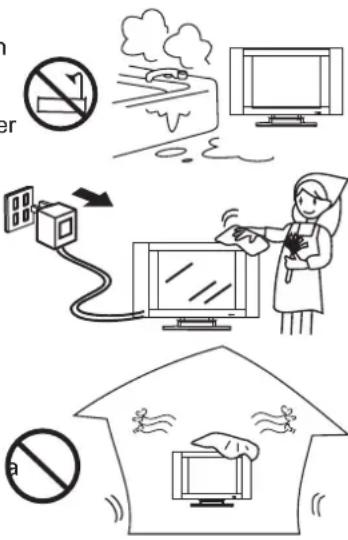
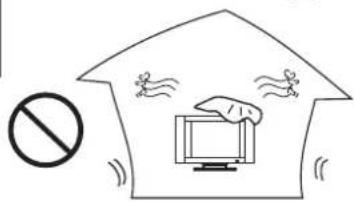
Do not use this apparatus near water---for example, near a bathtub, washbowl, kitchen sink, or laundry tub, in a wet basement, or near a swimming pool, and the like. Do not use immediately after moving from a low temperature to high temperature environment, as this causes condensation, which may result in fire, electric shock, or other hazards.
-
Clean only with dry cloth---Unplug this product from the wall outlet before cleaning. Do not use liquid cleaners or aerosol cleaners. Use a damp cloth for cleaning.
-
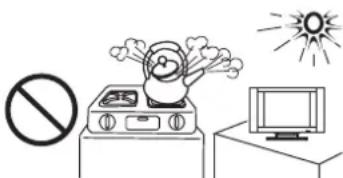
Ventilation---Do not block any ventilation openings. Install in accordance with the manufacturer instructions. The vents and other openings in the cabinet are designed for ventilation. Do not cover or block these vents and openings since insufficient ventilation can cause overheating and/or shorten the life of the product. Do not place the product on bed, sofa, rug or other similar surface, since they can block ventilation openings. This product is not designed for built-in installation; do not place the product in an enclosed place such as a bookcase or rack, unless proper ventilation is provided or the manufacturer's instructions are followed.
-
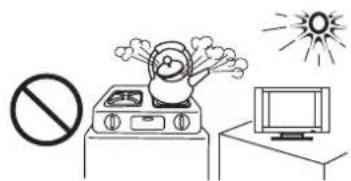
Heat sources---Do not install near any heat sources such as radiators, heat registers, stoves, or other apparatus (including amplifiers) that produce heat.
-
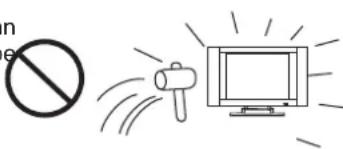
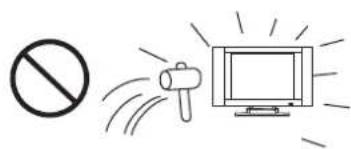
Panel protection---The LCD panel used in this product is made of glass. Therefore, it can break when the product is dropped or impacted upon by other objects. Be careful not to be injured by broken glass pieces in case the LCD panel breaks.
-
Pixel defect---The LCD panel is a very high technology product, giving you finely detailed pictures. Occasionally, a few non-active pixels may appear on the screen as a fixed point of blue, green or red. Please note that this does not affect the performance of your product.
Using the Remote Control
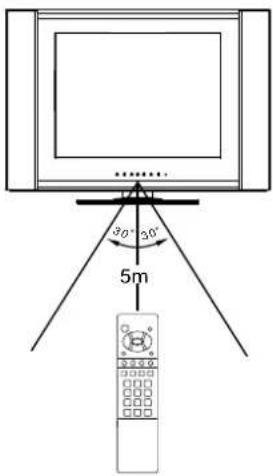
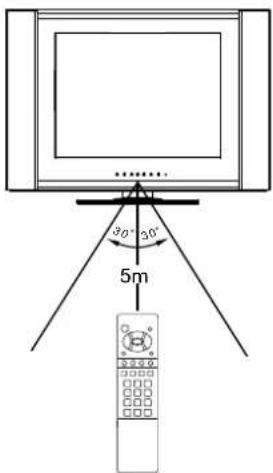
Use the remote control by pointing it towards the remote sensor window of the set. Objects between the remote control and sensor window may prevent proper operation.
Note:
the illustration is for your reference only, the remote sensor may locate differently with different model.
Cautions regarding use of remote control
Do not expose the remote control to shock. In addition, do not expose the remote control to liquids, and do not place in an area with high humidity.
The remote control may not work properly if the remote sensor window of the main unit is under direct sunlight or strong lighting. In such a case, change the angle of the lighting or LCD TV set, or operate the remote control closer to the remote sensor window.
Batteries for the Remote Control
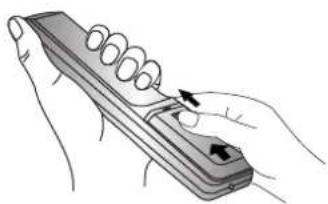
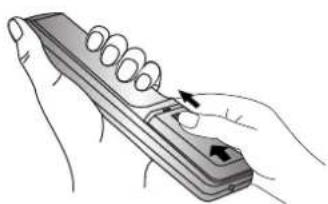
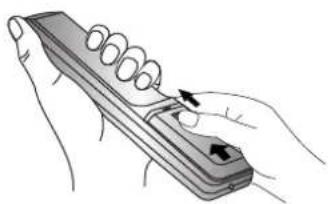
If the remote control fails to operate the LCD TV functions, replace the batteries in the remote control.
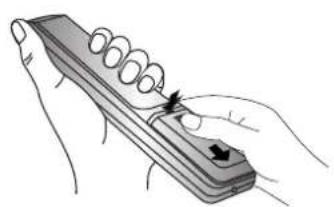
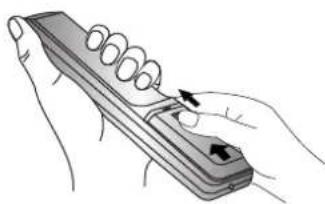
1 Open the battery cover. (Slide the cover while pressing down.)
2 Insert two size-AAA batteries. (Place the batteries with their terminals corresponding to the (+) and (−) indications in the battery compartment.)
3 Replace the cover and slide in reverse until the lock snaps.
natural_image
Illustration of a hand holding a coiled spring attached to a rectangular object (no text or symbols)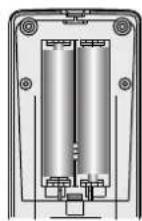
natural_image
Illustration of a hand holding a coiled spring and a rectangular device with an arrow pointing to it (no text or symbols present)Precaution on battery use
Improper use of batteries can result in a leakage of chemicals and/or explosion. Be sure to follow the instructions below.
I Place batteries with their terminals corresponding to the (+) and (−) indications.
I Different types of batteries have different characteristics. Do not mix batteries of different types.
Do not mix old and new batteries. Mixing old and new batteries can shorten the life of new batteries and/or cause old batteries to leak chemicals.
Remove batteries as soon as they are non-operable. Chemicals that leak from batteries can cause a rash. If chemical leakage is found, wipe with a cloth.
The batteries supplied with the product may have a shorter life expectancy due to storage conditions. If the remote control is not used for an extended period of time, remove the batteries from the remote control.
Antenna Connection
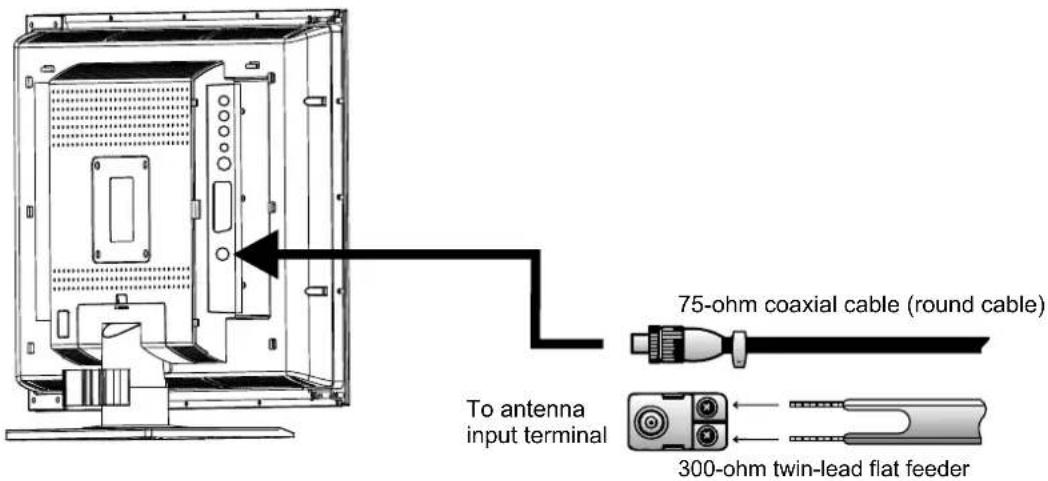
INSTALL the unit in a room where direct light will not fall upon the screen. Total darkness or a reflection on the picture screen may cause eyestrain. Soft and indirect lighting is recommended for comfortable viewing. Optimum reception of color requires a good signal and will generally mean that an outdoor aerial must be used. The exact type and position of the aerial will depend upon your particular area.
Note:
It is recommended that the 75-ohm coaxial cable be used to eliminate interference and noise which may occur due to radio wave conditions. The aerial cable should not be bundled with the power cord and the like.
Removing or installing the Back Cover
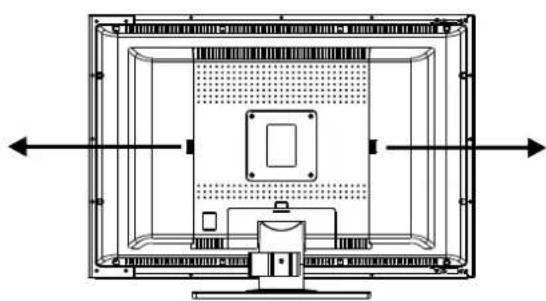
Press and push out the Cover carefully as the arrow shows.
Before you connect external devices with the unit, please removing the Back Cover. After finishing connecting, aim the insertion tabs toward the locating groove, then carefully push the Cover until the Cover locks in place with a click.
natural_image
Technical line drawing of a rectangular electronic device with internal components and directional arrows (no text or symbols)Main unit
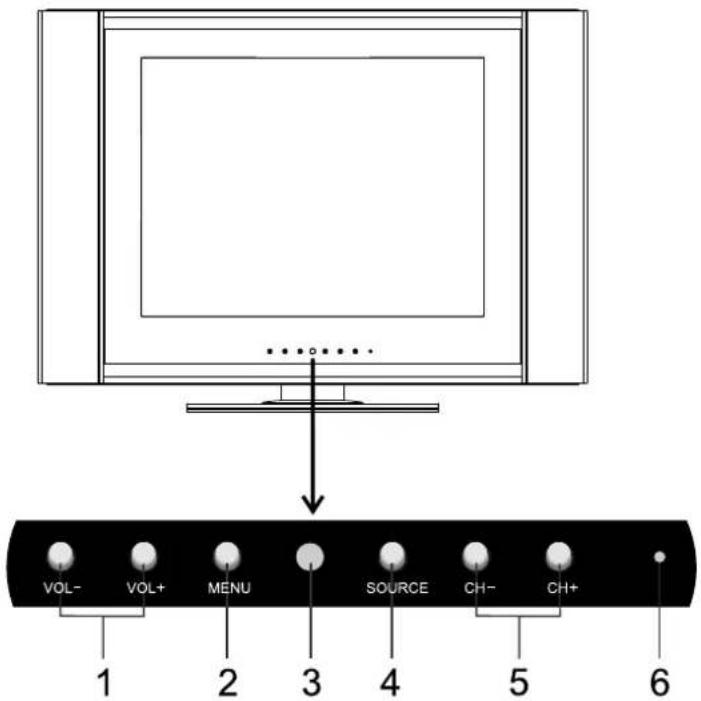
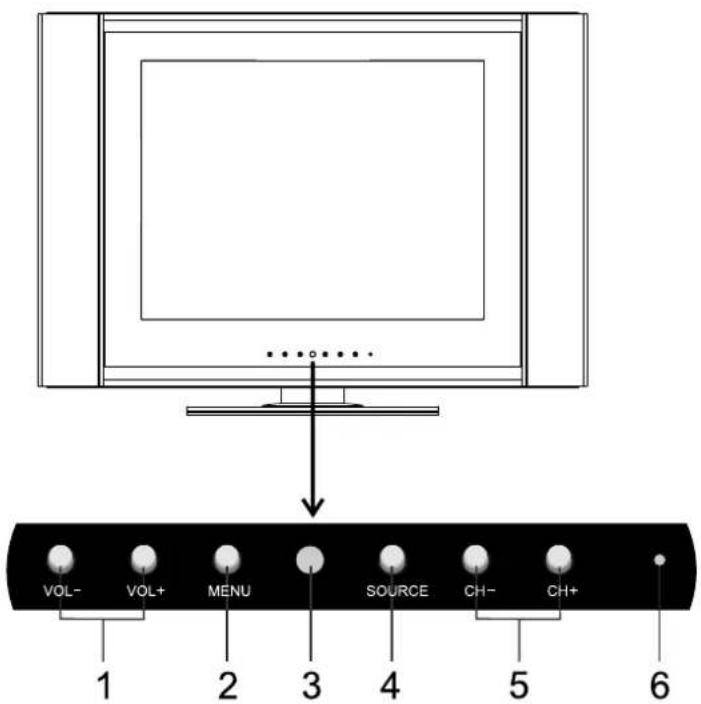
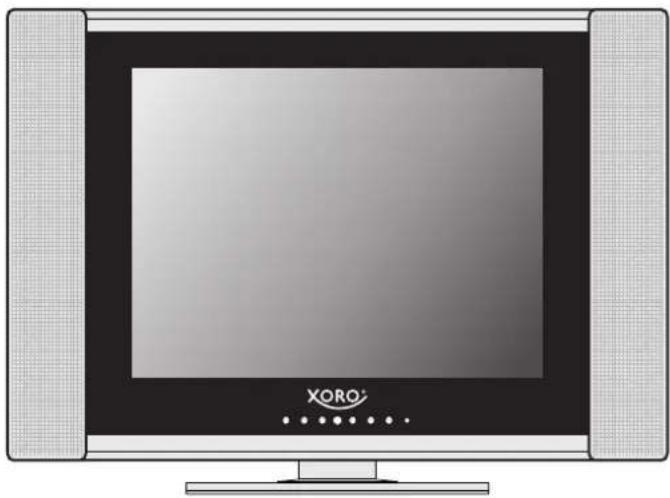
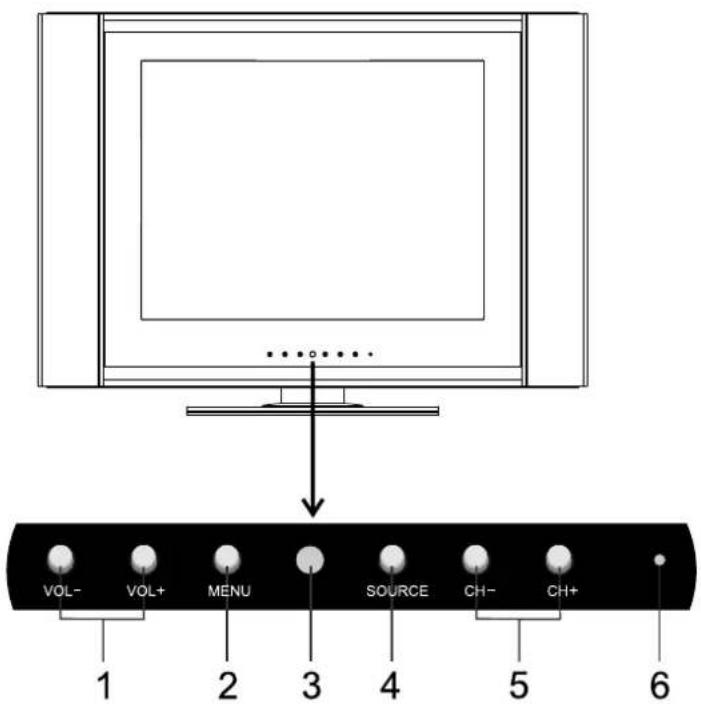
- VOL +/-
Increase or decrease the sound volume level.
In OSD Menu, press these buttons to adjust the value or setting of each item
- MENU
Press this button to access the MENU main page.
-
Remote Sensor
-
SOURCE
To access the SOURCE select menu
- CH +/-
Change the TV channel.
In OSD Menu, press these buttons to choose the OSD items.
-
Indicator
-
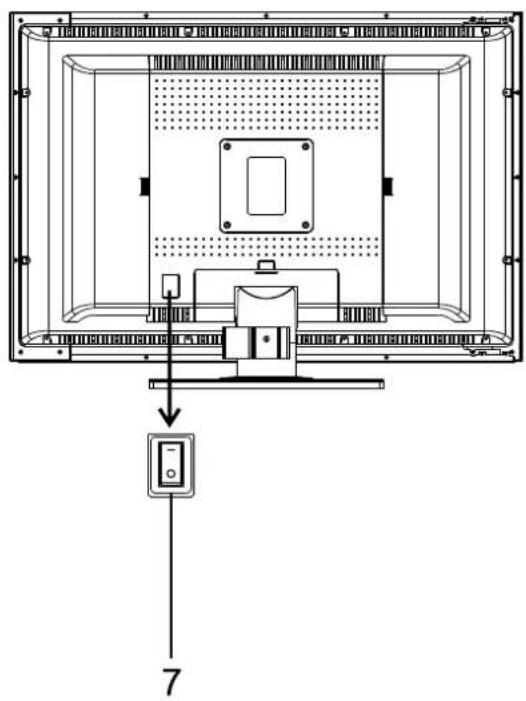
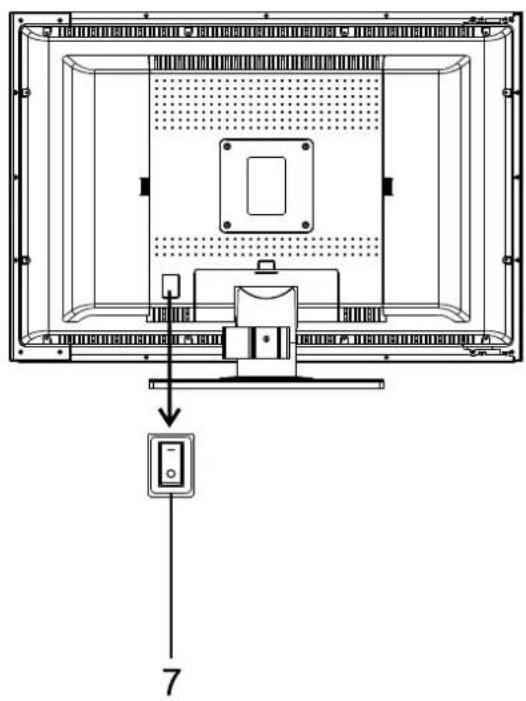
Power Switch
Note:
- SOURCE, MENU, CH+/-, VOL+/- on the main unit have the same functions as the corresponding buttons on the remote control.
● This operation manual provides a description based on operating functions with the remote control.
Main unit
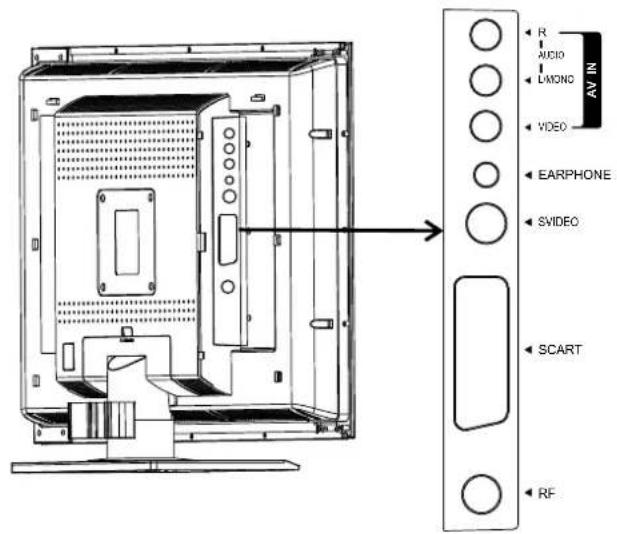
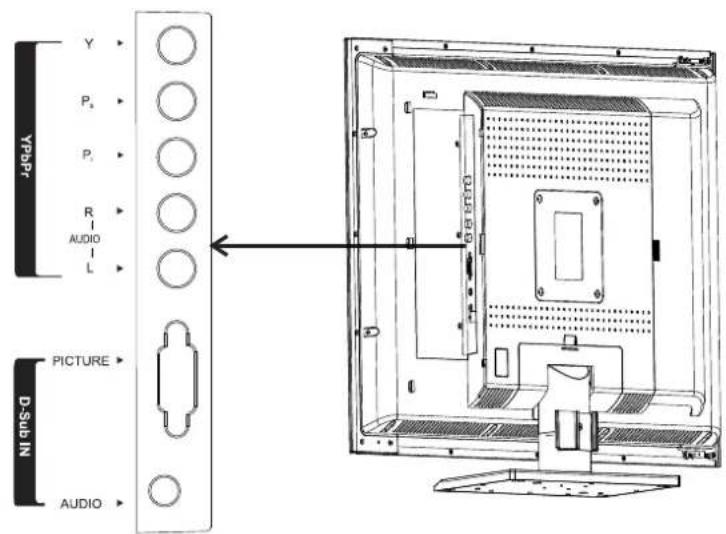
- AV inputs (Video, Audio L/MONO, R)
Receive video/audio signals from external sources such as VCR or DVD player.
-
Earphone jack
-
S-VIDEO input
Receive a S-Video signal from external source such as VCR or DVD player.
-
SCART interface
-
Antenna input
-
YPbPr inputs (Y, Pb, Pr, AUDIO: L, R)
Connect to the YPbPr and audio output sockets of a DVD player or Set-Top Box.
- D-Sub inputs
Connect to the D-Sub/AUDIO output sockets on your PC.
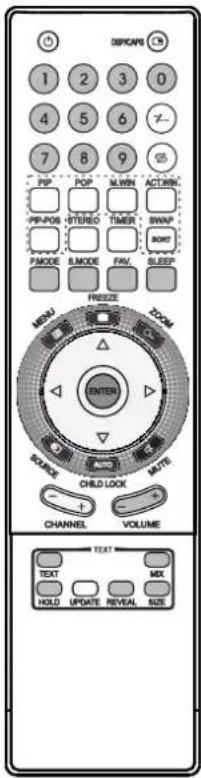
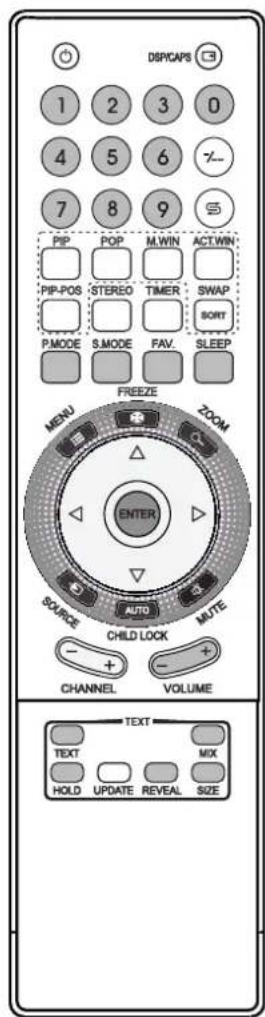
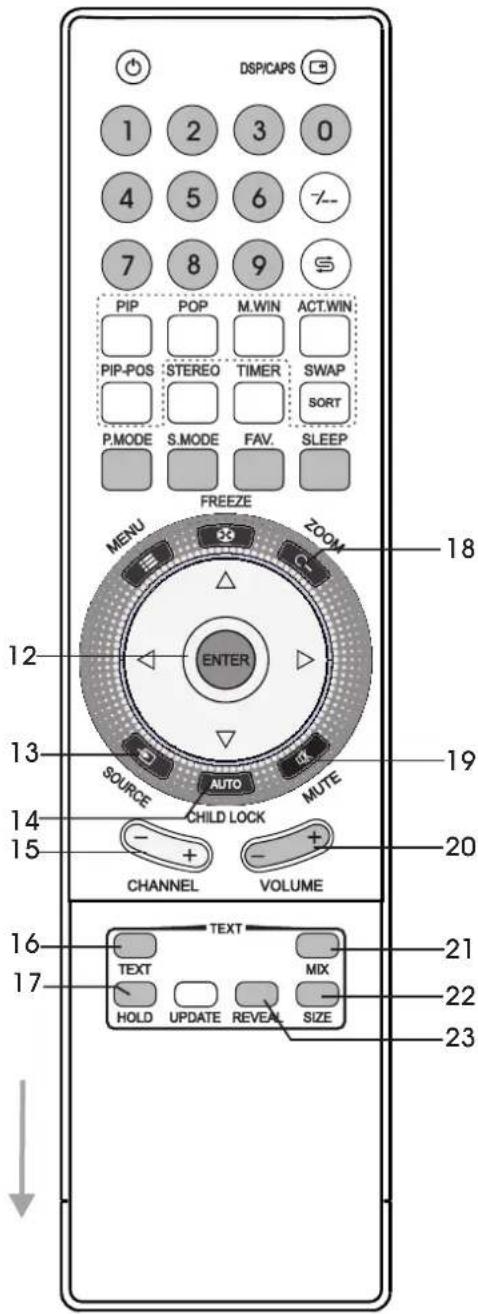
Remote Control
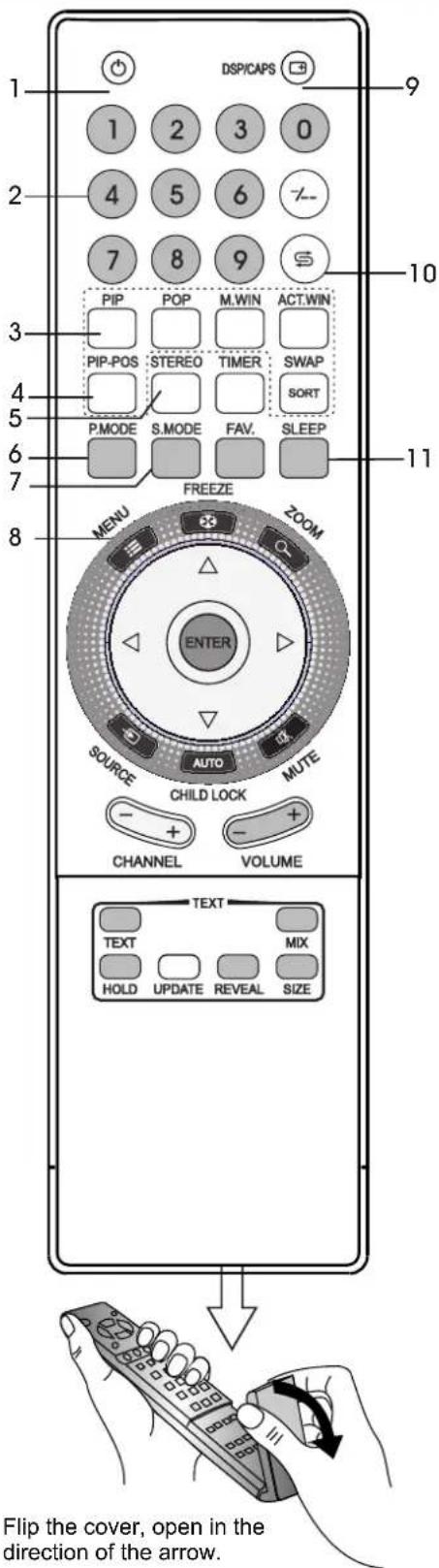
- POWER ⏻
Turn the unit on or standby
- 0\~9 digit buttons, -/-- button
0\~9: direct channel select;
-/- button: one digit/two digit/three digit channel number selector
- PIP
To activate picture-in-picture in VGA mode
- PIP-POS
To select PIP frame position in VGA mode
- STEREO
To select stereo, mono or bilingual
- P.MODE
To quickly select picture mode Red button (teletext)
- S.MODE
To quickly select sound mode Green button (teletext)
- MENU
To access the MENU main page
In Menu operation, press this button to return to a higher level menu
- DSP/CAPS
To display current channel status
- RETURN
To quickly jump between current channel and last selected channel.
- SLEEP
To set sleep timer Blue button (teletext)
Flip the cover, open in the direction of the arrow.
Remote Control
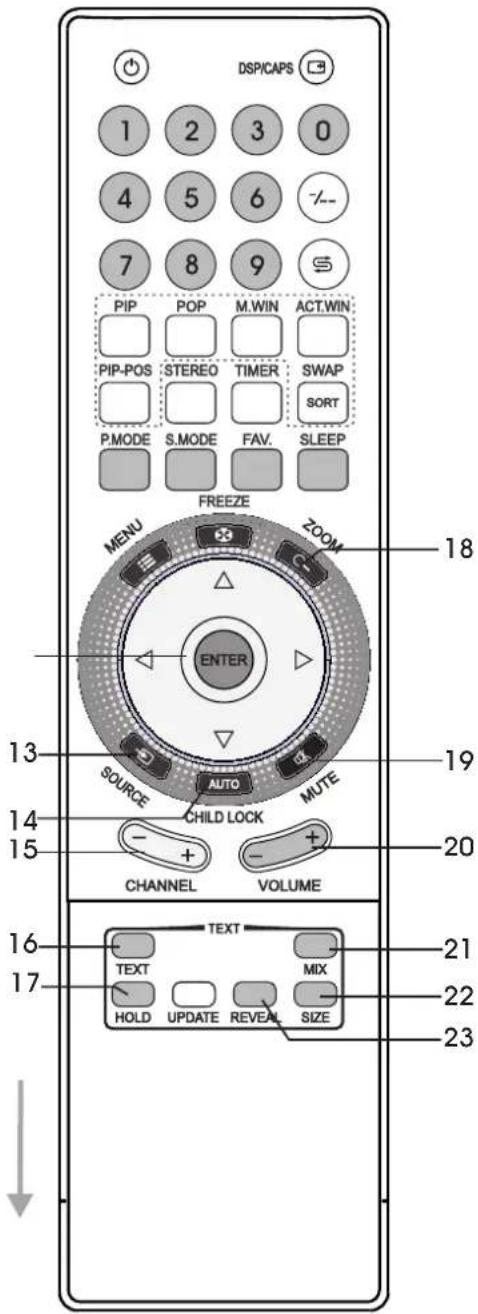
- ENTER, ENTER(Up/Down), ENTER(Left/Right)
ENTER: To confirm your operation or setting ;
ENTER(Up/Down): To move upward or downward in menu operation;
ENTER(Left/Right): To move left or right in menu operation;
To adjust selected menu item in menu operation
- SOURCE
To select input source
- AUTO/CHILD LOCK
To rectify the picture automatically in VGA mode
- CHANNEL +/-
Use to switch channels;
- TEXT
To enter/exit teletext mode (Teletext)
- HOLD
To hold the current teletext page temporarily (Teletext)
- ZOOM
To adjust the PIP frame size in VGA mode
- MUTE
Sound mute
- VOLUME +/-
Use to adjust volume
- MIX
To superimpose text on a TV picture (Teletext)
- SIZE
To expand top half or bottom half page of current screen (Teletext)
- REVEAL
To display hidden information such as solutions to riddles and puzzles. (Teletext)
Note:
The above not mentioned buttons on the remote control have no function in this model.
Cautions before connecting
- Carefully check the terminals for position and type before making any connections.
• The illustration of the external equipment may be different depending on your model. - Loose connectors can result in image or color problems. Make sure that all connectors are securely inserted into their terminals.
• Refer to the operating manual of the external device as well. - When connecting an external device, turn the power off to avoid any issues.
Connect 21-pin EURO-SCART
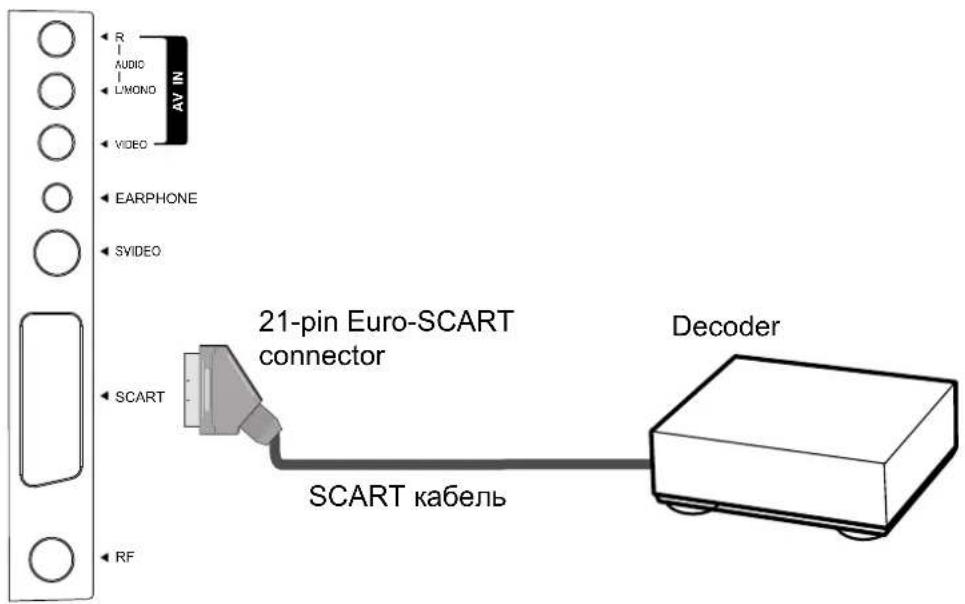
How to connect
Connect the 21-pin Euro-SCART between the unit and Decoder or other external device.
To watch decoder
- Turn on your LCD TV.
- SORCButton repeatedly to select SCART.
- Turn on the decoder.
Connect AV or S-Video inputs
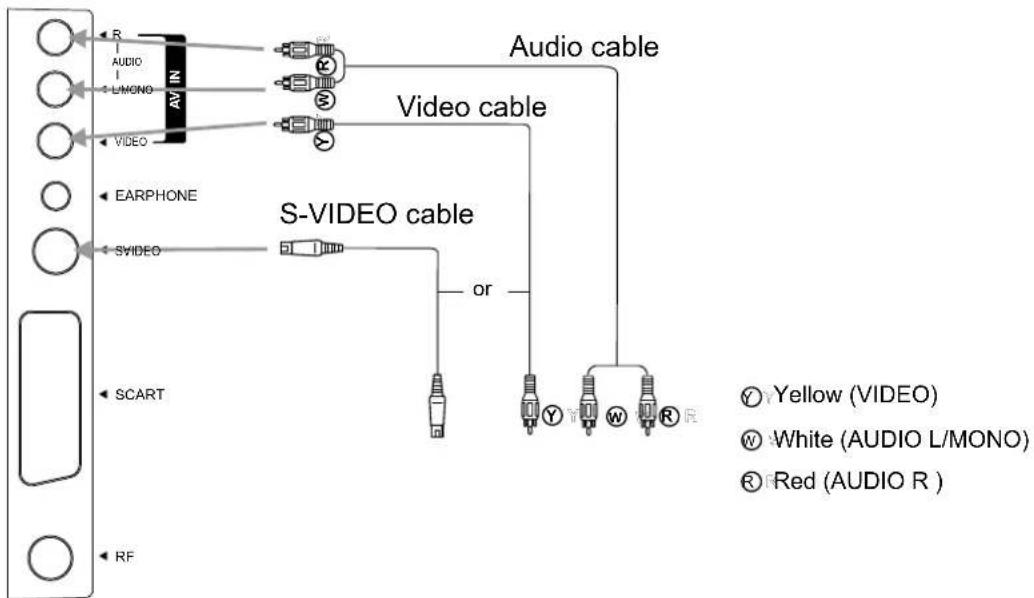
flowchart
graph TD
    A["AV IN"] --> B["Audio cable"]
    A --> C["Video cable"]
    A --> D["S-VIDEO cable"]
    D --> E["or"]
    E --> F["Yellow (VIDEO)"]
    E --> G["W White (AUDIO L/MONO)"]
    E --> H["R Red (AUDIO R)"]
Examples of external devices that can be connected
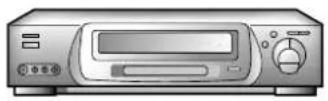
VCR
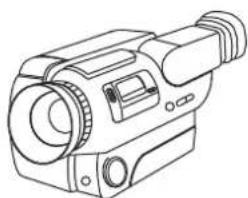
natural_image
Line drawing of a vintage camera with lens and screen (no text or symbols)Video Camera
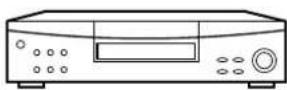
DVD player
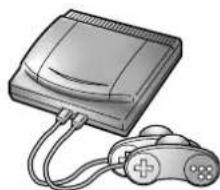
natural_image
Illustration of a vintage-style electronic device with a scroll and cable (no text or symbols visible)Home video game system
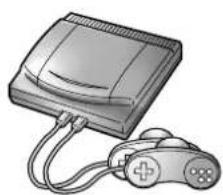
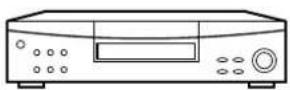
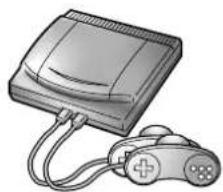
The unit provides Audio/Video inputs for you to connect external devices such as VCR, Video Camera, DVD Player or Home video game system.
How to connect
Connect the Audio/Video cables between the Audio (L/MONO,R)/Video jacks on the unit and external devices.
To view signal from AV inputs
- Turn on your LCD TV.
- Press Source ← button repeatedly to select CVBS or S-VIDEO.
- Turn on the external device and play it.
Note:
- For better video, you can use the S-video terminal if your source supports it. If you are going to use S-video terminal, please select S-VIDEO instead of CVBS .The Video input terminal on the AV IN and the S-Video input terminal share the same Audio input terminals.
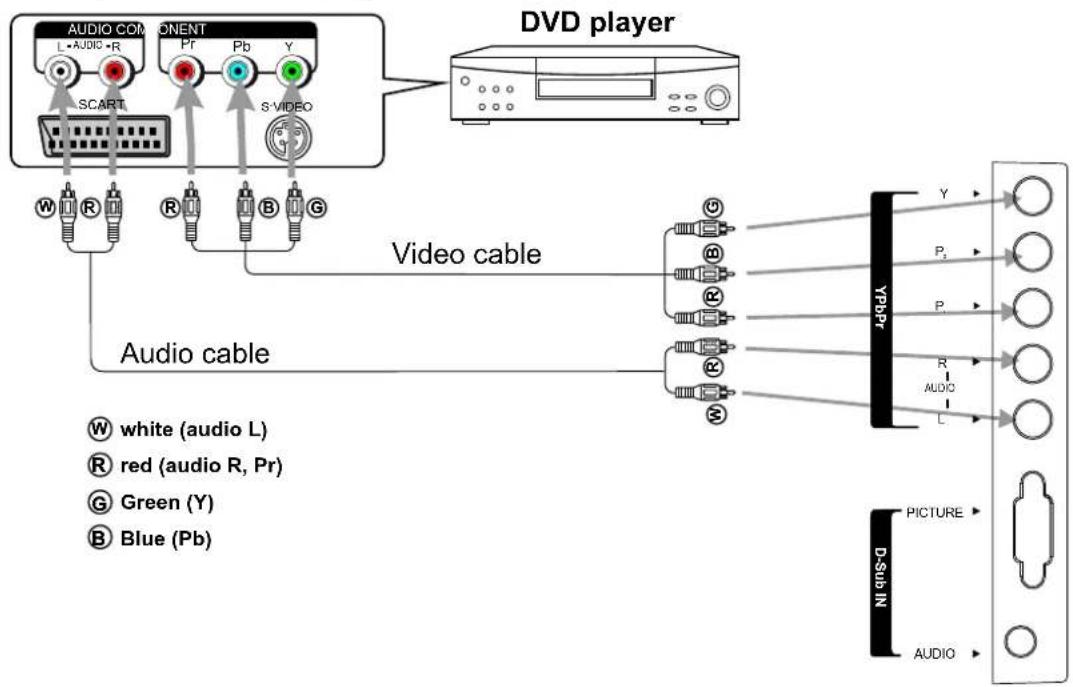
Connect a DVD player or Home Cinema System
Rear panel of the DVD player
flowchart
graph TD
    A["VIDEO player"] --> B["Audio cable"]
    B --> C["Video cable"]
    C --> D["YouTube Channel"]
    D --> E["VIDEO"]
    style A fill:#f9f,stroke:#333
    style B fill:#ccf,stroke:#333
    style C fill:#cfc,stroke:#333
    style D fill:#fcc,stroke:#333
    style E fill:#ffc,stroke:#333
How to connect a DVD Player or Home Cinema System using YPbPr Connections:
Connect the Video cable between the Y, Pb, Pr input jacks on the unit and Y, Pb, Pr output jacks on the DVD player. Connect the Audio cable between the AUDIO input jack on the unit and AUDIO output jacks on the DVD player.
To play DVD
- Turn on your LCD TV.
- Press Source button repeatedly to select YPbPr.
- Turn on your DVD player, insert a DVD disc and press the Play button.
Note:
- The Y, Pb, Pr outputs on your DVD player are sometimes labeled Y, Cb, Cr or Y, B-Y, R-Y. If so, connect the cables to like colours.
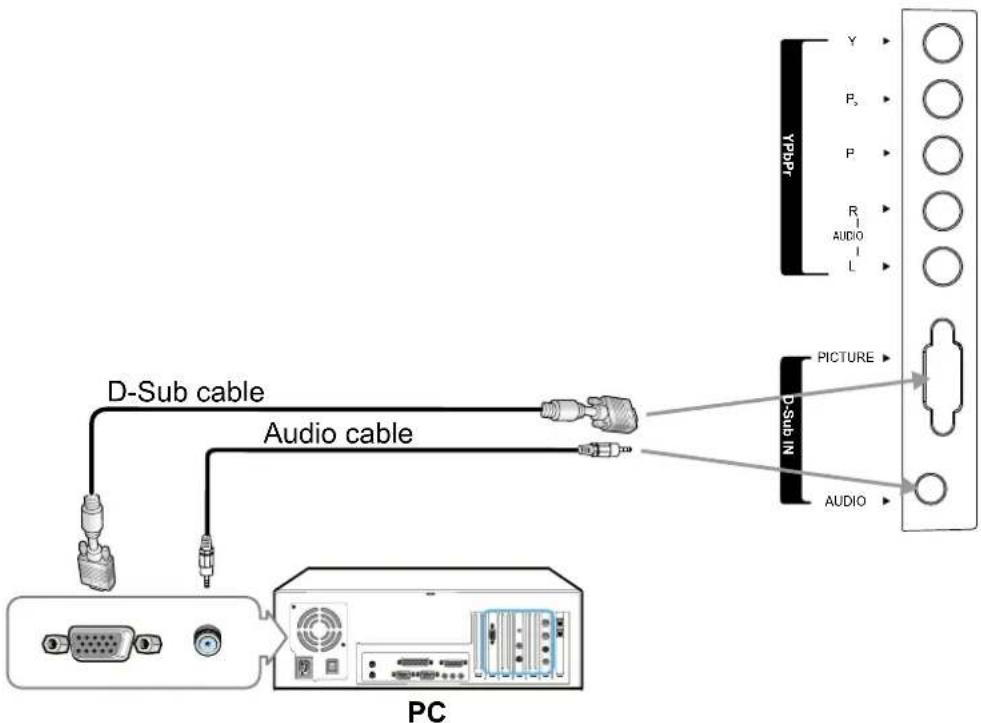
Connect a PC
flowchart
graph TD
    A["PC"] --> B["D-Sub cable"]
    A --> C["Audio cable"]
    B --> D["PC"]
    C --> D
    E["PICTURE"] --> F["Output Device"]
    G["Audio"] --> F
    H["Audio"] --> F
    I["Y"] --> J["Output Device"]
    K["P"] --> J
    L["R"] --> J
    M["L"] --> J
    N["Ps"] --> J
    O["P"] --> J
    P[" "] --> J
    Q["AUDIO"] --> J
How to connect:
Connect a D-Sub cable between the D-Sub jack on the PC and the PICTURE jack on the unit. Connect an Audio cable between the AUDIO output on the PC and AUDIO input jack on the unit.
To Watch the PC screen
- Turn on your LCD TV
- Press Source button repeatedly to select VGA.
- Turn on your PC and check for PC system requirements.
- Adjust the PC screen.
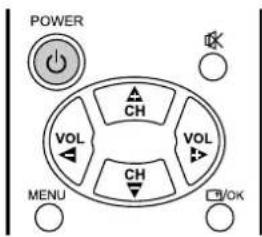
Turning the Unit On and Off
Turning On
Insert the power cord into the wall outlet. Press the Power Switch on the unit, if no picture appears, then press the Power button on the remote control or press the CH+ button on the main unit. The unit will be turned on and you will be ready to use its features.
Turning Off
With the power on, Press the Power button on the remote control to turn off the unit, and put the unit in standby mode. To cut off the power completely, press the Power Switch.
Viewing the Menus
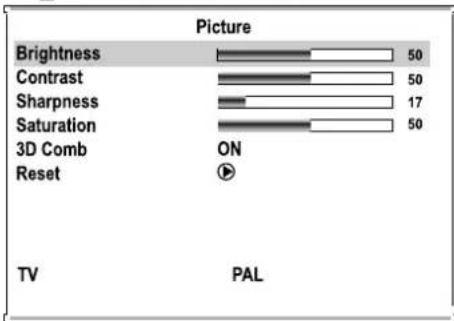
Your LCD TV has a simple, easy-to-use menu system that appears on the screen. This system makes it convenient and fast to use features on the unit.
Viewing the Menus
- With the power on, press the MENU button on the remote control. The main menu appears on the screen. (The illustration is for your reference only.)
- Use the VOL+/- to select menu page. Use CH+/- to activate the menu page.
- Use the CH+/- to select item. Use VOL+/- to adjust value or setting of each item. Use MENU or OK to exit menu system. On-screen menu will disappear from the screen automatically after some seconds (the time can be set by yourself).

bar
Picture | Category | Value | |---|---| | Brightness | 50 | | Contrast | 50 | | Sharpness | 17 | | Saturation | 50 | | 3D Comb ON Reset | | | TV PAL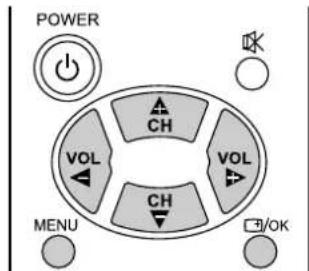
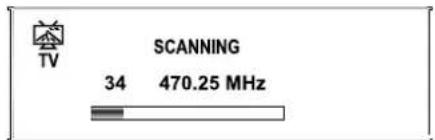
Your LCD TV can memorize and store all of the available channels. After the available channels are memorized, use CH+/- to scan through the available channels.
Storing Channels in Memory Automatically
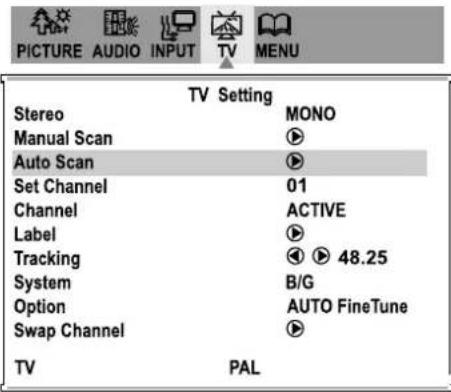
- Press MENU to display the menu main page.
- Press VOL+/- repeatedly to display TV menu page.
- Press CH- repeatedly to select System item.
- Press VOL+/- to select.
Please select L or LPRIME in France, or one kind among B/G,D/K and I in other country.
-
Press CH+/- repeatedly to select Auto Scan item.
-
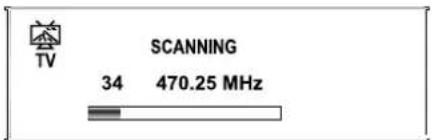
Press VOL+ to store channels in memory automatically.
The unit will begin memorizing all of the available channels.
Note:
The process of Auto Search will be stopped if you press the OK button.
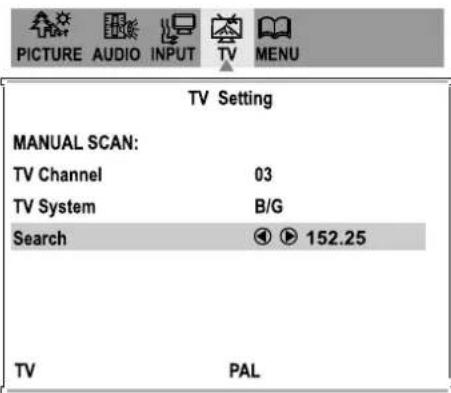
Storing Channels in Memory Manually
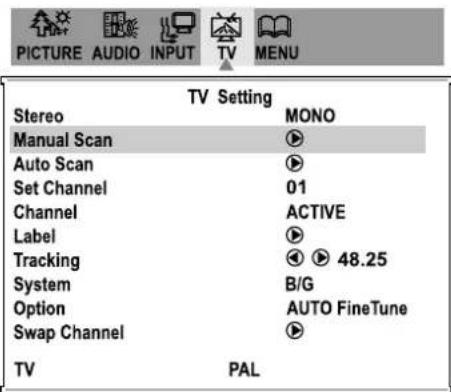
- Press MENU to display the menu main page.
- Press VOL+/- repeatedly to display TV menu page.
- Press CH-repeatedly to select Manual Scan item.
- Press VOL+to access the submenu.
- Press CH- to select TV Channel item.
- Press VOL+/- to select a desired channel number to store.
- Press CH- to select TV System item.
- Press VOL+/- to select a proper TV system.
- Press CH- to select Search item and press VOL+/- to start searching. When pressing VOL-, the unit searches towards lower frequency; When pressing VOL+, the unit searches towards higher frequency; When a program is located, the searching stops and the program is stored in the specified channel number.
Repeat the above steps if you want to store another program in other channel number.
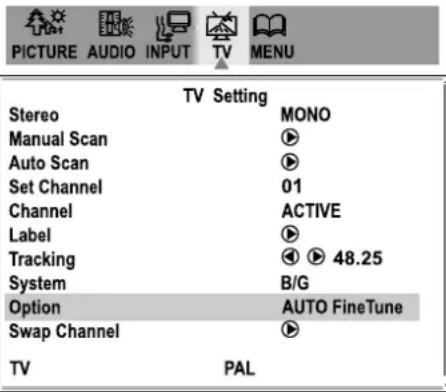
Manual Fine Tuning
- Press MENU to display the menu main page.
- Press VOL+/- repeatedly to display TV menu page.
- Press CH- repeatedly to selectTracking item.
- Press VOL+/- to fine tune till the best possible picture and sound are obtained.
| TV Setting | |
| Stereo | MONO |
| Manual Scan | |
| Auto Scan | |
| Set Channel | 01 |
| Channel | ACTIVE |
| Label | |
| Tracking | 48.25 |
| System | B/G |
| Option | AUTO FineTune |
| Swap Channel | |
| TV | PAL |
Adding and Erasing Channels
- Use number buttons to directly select a channel that will be added or erased.
- Press MENU to display the menu main page.
- Press VOL+/- repeatedly to display TV menu page.
- Press CH-repeatedly to select Channel item.
- Press VOL+/- to select ACTIVE or ERASED.
When ERASED is selected, the selected channel will be erased. When ACTIVE is selected, the selected channel will be added. The erased channels can not be selected by using the CH+/- buttons unless you use number buttons to input channel number directly.
| TV Setting | |
| Stereo | MONO |
| Manual Scan | |
| Auto Scan | |
| Set Channel | 01 |
| Channel | ACTIVE |
| Label | |
| Tracking | |
| System | B/G |
| Option | AUTO FineTune |
| Swap Channel | |
| TV | PAL |
Editing Channel Name
- Use number buttons to directly select a channel you want to edit its name.
- Press MENU to display the menu main page.
- Press VOL+/- repeatedly to display TV menu page.
- Press CH-repeatedly to select Label item.
- Press VOL+ to access the submenu.
Use VOL+/- and CH+/- to move cursor. Use MENU to modify or confirm.
After finishing editing channel name, move cursor to SAVE&EXIT, then press MENU to confirm.
Press MENU repeatedly to exit and press OK, then the channel name will be displayed on the screen. Or you can press OK to exit without saving the channel name.
| TV Setting | |
| Stereo | MONO |
| Manual Scan | |
| Auto Scan | |
| Set Channel | 01 |
| Channel | ACTIVE |
| Label | |
| Tracking | |
| System | B/G |
| Option | AUTO FineTune |
| Swap Channel | |
| TV | PAL |
| PICTURE | AUDIO | INPUT | TV | MENU |
| TV Setting | ||||||||||||
| CHANNEL LABEL: | ||||||||||||
| 0 4 1 . . . | ||||||||||||
| 0 | 1 | 2 | 3 | 4 | 5 | 6 | 7 | 8 | 9 | - | . | |
| A | B | C | D | E | F | G | H | I | J | K | L | M |
| N | O | P | Q | R | S | T | U | V | W | X | Y | Z |
| SAVE&EXIT | ||||||||||||
| MOVE CURSOR: ⚠️ ⏻ ⬇ KEY | ||||||||||||
| MODIFY: MENU KEY | ||||||||||||
| NO SAVE & EXIT: OK KEY | ||||||||||||
| TV PAL | ||||||||||||
Auto Fine Tune
If you are not satisfied with the picture, you may adjust the picture by using this function.
- Press MENU to display the menu main page.
- Press VOL+/- repeatedly to display TV menu page.
- Press CH- repeatedly to select Option item.
- Press VOL+/- to select.
Select AUTO FineTune to activate the function, select NORMAL to turn off the function.

BASIC OPERATIONS
Changing Channels
Using the Channel Buttons (CH+ or CH-)
Press the CH+ or CH- to change channels. When you press the CH+ or CH-, the unit changes channels in sequence. You will see all the channels that the unit has memorized. You will not see channels that were erased or unavailable.
Direct Accessing Channels
Press the number buttons to go directly to a channel.
To select a one-digit channel: Input the channel using the 0-9 number button directly.
To select a two-digit channel: Press -/-- to display "--", then input the channel number.
To select a three-digit channel: Press -/-- to display "---", then input the channel number.
Note:
Be sure to enter the channel number within 3 seconds. When you use the number buttons, You may select channels that were erased.
Using the Return button
Press this button to switch between the current channel and the previous channel.
Adjusting the Volume
Using the volume buttons (VOL- and VOL+)
Press the VOL +or VOL- to increase or decrease the volume.
Using the Mute
Using the MUTE ✕ button
At any time, you can temporarily turn off the sound using the MUTE button.
- Press the MUTE button and the sound turns off.
- To turn mute off, press the MUTE ✕ button again.
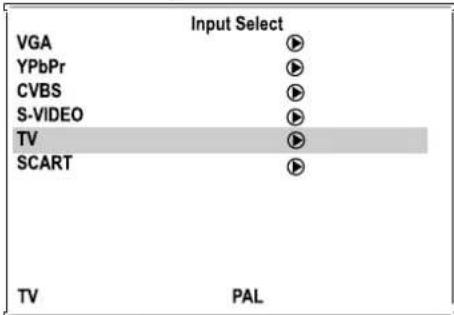
Select Input Source
- Press MENU to display the menu main page.
- Press VOL+/- repeatedly to display INPUT menu page.
- Press CH- repeatedly to select a desired input source.
- Press VOL+/- to confirm.
VGA Select signal from VGA interface.
YPbPr Select signal from YPbPr interface.
CVBS Select signal from AV input terminal.
S-VIDEO Select signal from S-video input.
TV Select TV signal.
SCART Select signal from SCART interface.
Note:
You may also use the Source ▶button to quickly select a desired input source
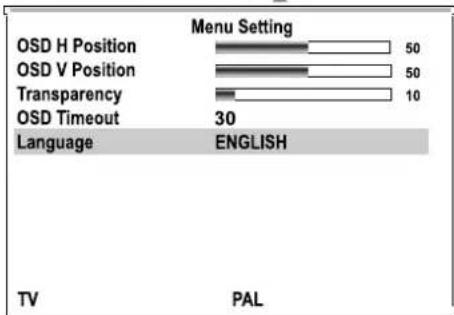
Selecting a MENU Language
- Press MENU to display the menu main page.
- Press VOL+/- repeatedly to displayMENU menu page.
- Press CH- repeatedly to select Language item.
- Press VOL+/- to select an appropriate language.
Note:
The OSD means On-Screen Display.
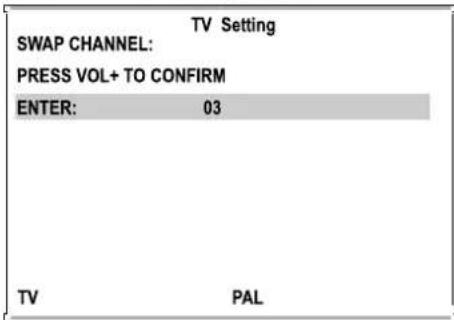
Exchanging Channels
The Exchanging Channels function is for you to arrange channel order as you wish.
- Use the number buttons to select a desired channel.
- Press MENU to display the menu main page.
- Press VOL+/- repeatedly to display TV menu page.
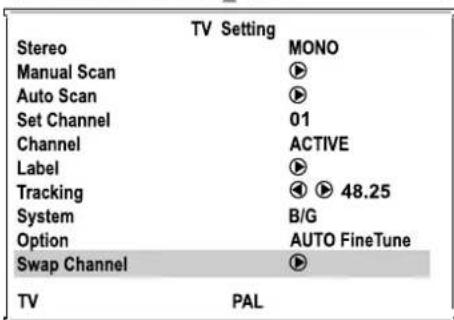
- Press CH- repeatedly to select Swap Channel item.
- Press VOL+ to access the submenu.
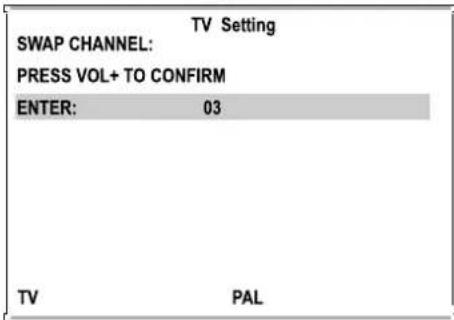
- Use the number buttons to input a target channel you want to exchange with current channel.
- Press VOL+ to confirm. Then the contents of the two channels will be exchanged.


bar
| Category | OSD H Position | OSD V Position | Transparency | OSD Timeout | Language | | :--- | :--- | :--- | :--- | :--- | :--- | | Menu Setting | 50 | 50 | 10 | 30 | ENGLISH | | Language | TV | PAL | | | | | | | | | | |

Customizing the Picture
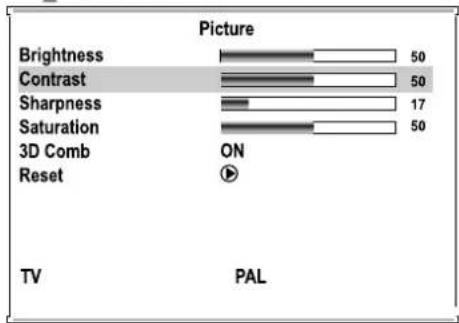
- Press MENU to display the menu main page.
The [PICTURE] menu will be displayed automatically - Press CH-repeatedly to select the item you wish to adjust.
- Press VOL+/- to adjust the value of the item.
Note:
You can quickly adjust the Brightness by using the ⚙- or ⚙+ button. The Hue and Film Mode item are for NTSC, when the program is with film mode, please set the Film Mode item to AUTO.

bar
| Picture | Value | | :--- | :--- | | Brightness | 50 | | Contrast | 50 | | Sharpness | 17 | | Saturation | 50 | | 3D Comb Reset | ON | | PAL | 17 | TVTurning 3D Comb ON or OFF
- Press MENU to display the menu main page.
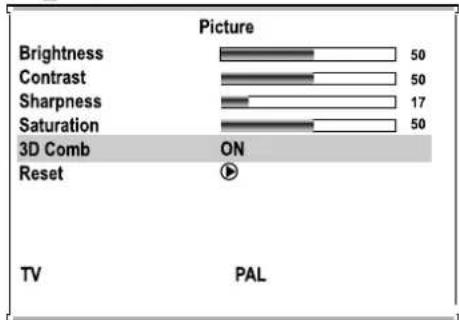
The [PICTURE] menu will be displayed automatically - Press CH-repeatedly to select 3D Comb item.
- Press VOL+/- to toggle between ON and OFF.
Note:
You may set this item to ON to get better Y/C separation effect.

Loading the default Picture setting
- Press MENU to display the menu main page.
The [PICTURE] menu will be displayed automatically - Press CH-repeatedly to select Reset item.
- Press VOL+/- to confirm..
Then the value of Brightness, Contrast, Sharpness and Saturation etc. will be restored to the default value.
Using the Preset Picture Mode
The LCD TV set provides three preset picture modes (BRIGHT, SOFT and NATURAL) and one user-set picture mode (USER). You can quickly select picture mode by pressing the P.P button.
Each preset mode has its own picture settings.

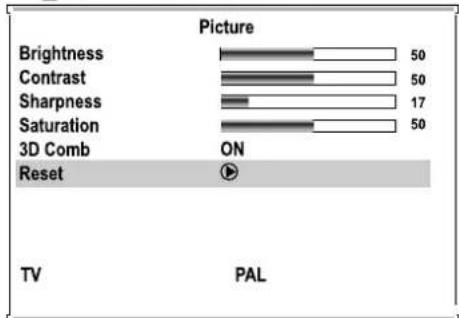
BRIGHT: Select for a bright picture.
SOFT: Select for a fine/soft picture.
NATURAL: Select for a normal picture.
Adjusted settings are stored in USER mode.
Adjusting OSD Position
- Press MENU to display the menu main page.
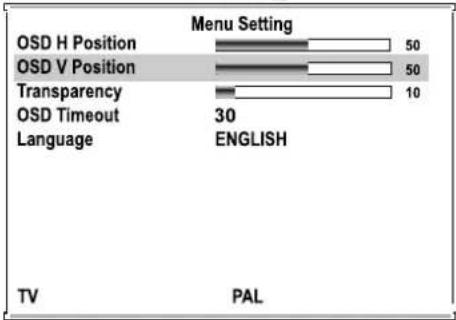
- Press VOL+/- repeatedly to display MENU menu page.
- Press CH- to select OSD H Position or OSD V Position item.
- Press VOL+/- to adjust the OSD position.
Note:
You can quickly select OSD position by using the POS button.

bar
| Category | OSD Position | Language | Value | |---|---|---|---| | Menu Setting | 50 | TV | | | Menu Setting | 50 | PAL | | | Transparency | 10 | English | 30 | OSD Timeout Language OSD H Position OSD V PositionAdjusting OSD Transparency
- Press MENU to display the menu main page.
- Press VOL+/- repeatedly to display MENU menu page.
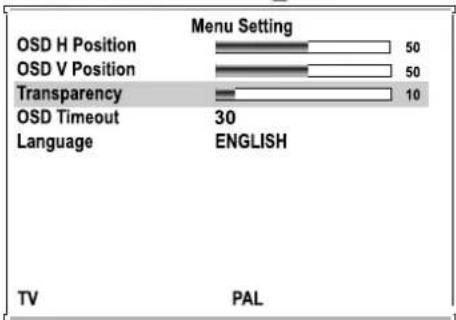
- Press CH- repeatedly to select Transparency item.
- Press VOL+/- to adjust the OSD transparency.

Setting OSD Timeout
- Press MENU to display the menu main page.
- Press VOL+/- repeatedly to display MENU menu page.
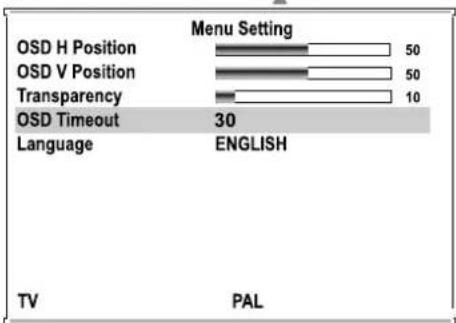
- Press CH- repeatedly to select OSD Timeout item.
- Press VOL+/- to adjust a proper time.
This function enables you to set a time that when you do not perform any operation during this period of time, the OSD disappears automatically when the time elapses.

bar
| Language | TV | PAL | |---|---|---| | OSD H Position | 50 | 50 | | OSD V Position | 50 | 50 | | Transparency | 10 | 10 | | OSD Timeout | 30 | 30 | Menu Setting Language | ENGLISH |Adjusting Sound Settings
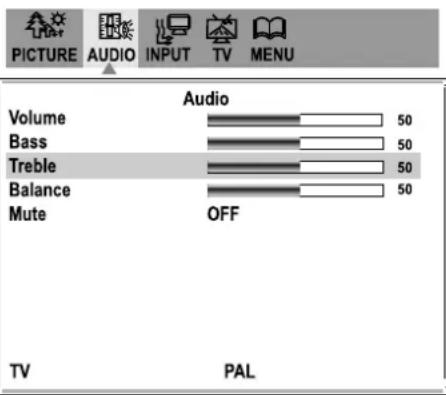
- Press MENU to display the menu main page.
- Press VOL+/- repeatedly to display AUDIO menu page.
- Press CH- to select item you are going to change.
- Press VOL+/- to adjust the value of the item.
Muting Sound or Not
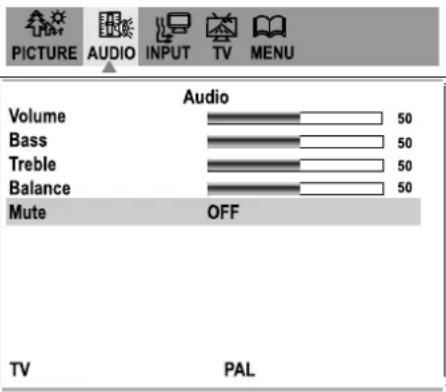
- Press MENU to display the menu main page.
- Press VOL+/- repeatedly to display AUDIO menu page.
- Press CH- to select Mute item.
- Press VOL+/- to toggle between ON and OFF.
Select ON to mute the sound, select OFF to turn mute off.
Using the Preset Sound Mode
There are three preset sound modes (MUSIC, FILM and NEWS) and one user-set sound mode (USER). You can quickly select sound mode by pressing the S.P button. Each preset mode has its own Audio settings (Treble and Bass).
MUSIC: Select for a music program. FILM: Select for a movie program. NEWS: Select for a speech or conversation program.
Adjusted settings are stored in USER mode.
NICAM Broadcast Selection
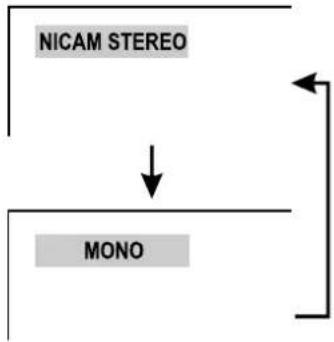
This enables the selection of the reception mode when receiving a NICAM signal. To let you enjoy NICAM broadcasting, this LCD TV set receives NICAM system stereo, bilingual, and monaural broadcasts.
Stereo
When the LCD TV set is receiving a stereo broadcast.
- Each time you press STEREO One mode changes between "NICAM STEREO" and "MONO".
- When "MONO" is selected, the TV sound is output monaurally.
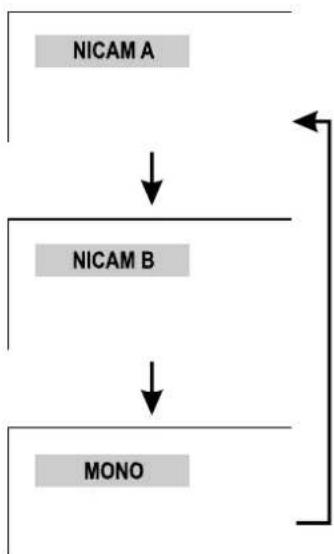
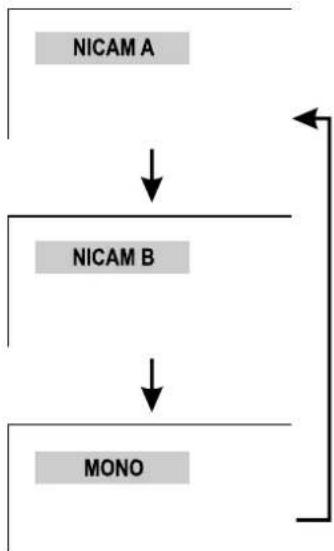
Bilingual
When the LCD TV set is receiving a bilingual program.
● Each time you press STEREO ☐, the mode changes as follows:

flowchart
graph TD
    A["NICAM STEREO"] --> B["MONO"]
    B --> C["Arrow Right"]
    C --> D["Arrow Left"]
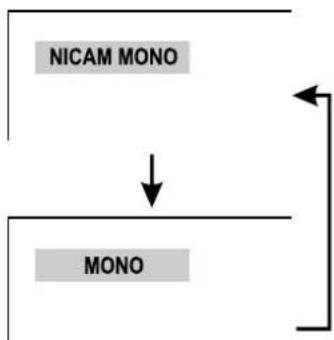
Monaural
When the LCD TV set is receiving a NICAM monaural broadcast.
- Each time you press STEREO Ⓐ, the mode changes between "NICAM MONO" and "MONO".
flowchart
graph TD
    A["NICAM A"] --> B["NICAM B"]
    B --> C["MONO"]
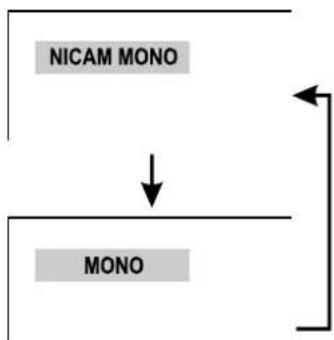
flowchart
graph TD
    A["NICAM MONO"] --> B["↓"]
    B --> C["MONO"]
IGR (German stereo system) Broadcasts
This enables the selection of the reception mode when receiving an IGR signal.
To let you enjoy IGR broadcasting, this LCD TV set receives IGR system stereo and bilingual broadcasts.
Stereo
When the LCD TV set is receiving a stereo broadcast.
- Each time you press STEREO, the mode changes between "FM STEREO" and "MONO".
- When "MONO" is selected, the TV sound is output monaurally.
Bilingual
When the LCD TV set is receiving a bilingual programme.
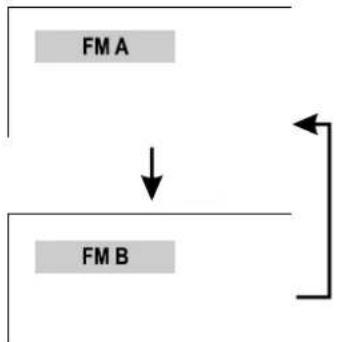
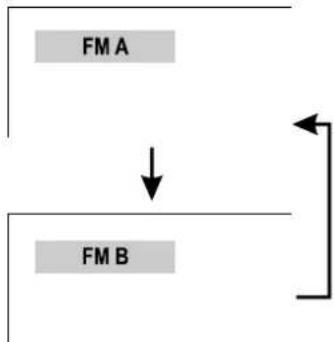
- Each time you press STEREO, the mode changes between "FM A" and "FM B".
Note:
- The selection of MTS can be performed by directly pressing the STEREO button or using the TV menu.
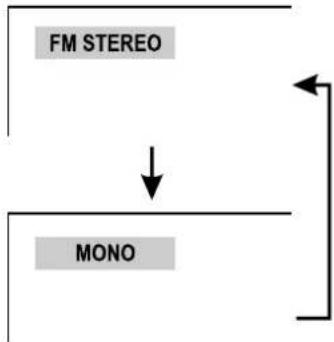
flowchart
graph TD
    A["FM STEREO"] --> B["↓"]
    B --> C["MONO"]
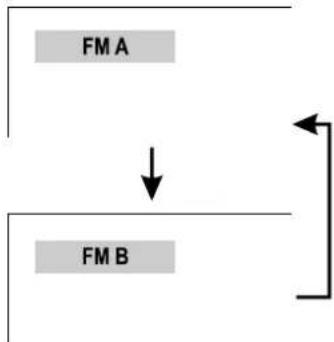
flowchart
graph TD
    A["FM A"] --> B["↓"]
    C["FM B"] --> B
    B --> D["←"]
The unit works in VGA mode when the input source is set to VGA, then this unit allows you to perform several adjustments.
Customizing the Picture
- Press MENU to display PICTURE menu page.
- Press CH- repeatedly to select Brightness or Contrast item.
- Press VOL+/- to adjust the value of the item.
Note:
- You can quickly adjust the brightness by using the ⚙- or ⚙+ button.
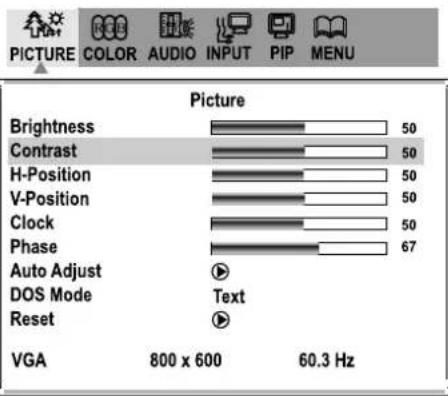
Changing the Position of Image
After connecting the unit to your PC, adjust the position of the screen if it is not well-aligned.
- Press MENU to display PICTURE menu page.
- Press CH- repeatedly to select H-Position or V-Position item.
- Press VOL+/- to adjust the value of the item until the screen is well-aligned.
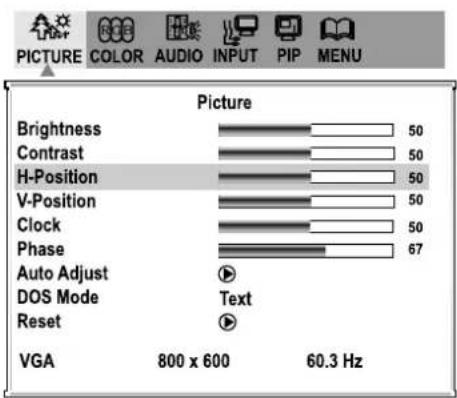
Adjusting the Clock and Phase
After connecting the unit to your PC, adjust the position of the screen if it is not well-aligned.
- Press MENU to display PICTURE menu page.
- Press CH-repeatedly to select Clock or Phase item.
- Press VOL+/- to adjust the value of the item.
You may find that images blur, depending on the clock phase of your PC's Processor. If you experience blurring, you can obtain a clearer image by adjusting the Clock setting. Adjust the clock frequency of the set's internal clock signal. If shimmering or rainbow-like noise is apparent in the image, try adjusting the Phase setting.
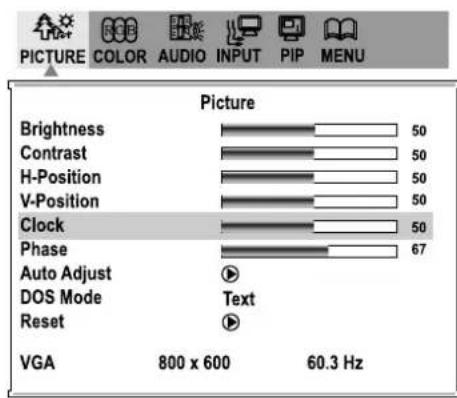
Adjusting the Picture Automatically
If you are not satisfied with the picture, you may use this function to adjust the picture.
- Press MENU to display PICTURE menu page.
- Press CH- repeatedly to select Auto Adjust item.
- Press VOL+/- to start adjusting.
You may also quickly adjust the picture by using the AUTO button. After the AUTO button is pressed, the picture adjustments are automatically activated.
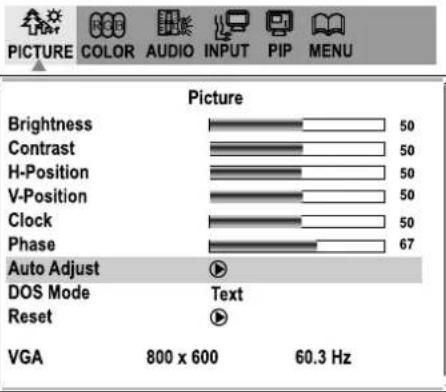
Using the Preset Display Format
- Press MENU to display PICTURE menu page.
- Press CH- repeatedly to select DOS Mode item.
- Press VOL+/- to select.
When the input signal format is 720 X 400 or 640 X400, then the display format is 720 X 400 if you select TEXT, or 640 X 400 if you select GRAPHIC.
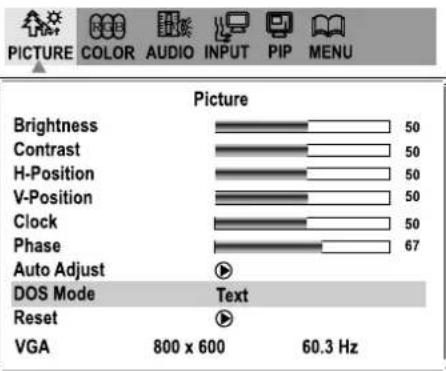
Loading the default Picture setting
- Press MENU to display PICTURE menu page.
- Press CH-repeatedly to select Reset item.
- Press VOL+/- to confirm.
Then the value of Brightness and Contrast etc. will be restored to the default value.
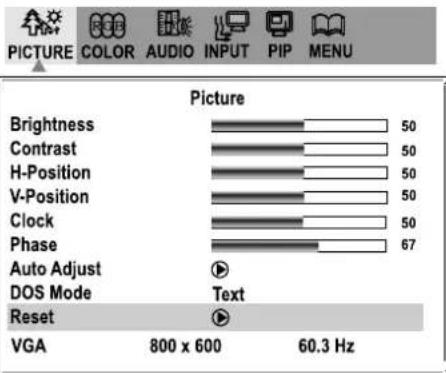
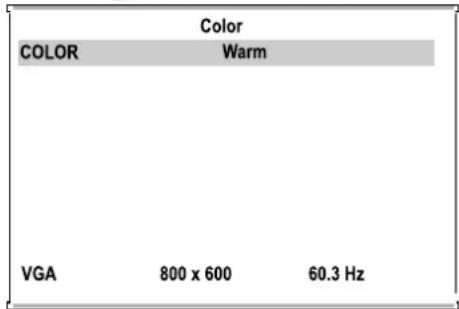
Selecting Color Mode
- Press MENU to display the menu main page.
- Press VOL+/- repeatedly to display COLOR menu page.
- Press CH- to select COLOR item.
- Press VOL+/- to toggle between Cool, Warm or User Color.

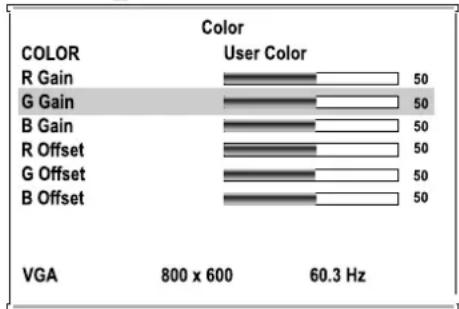
Customizing the Color temperature
You need to set the COLOR item to User Color if you want to customize the color by yourself.
- Press MENU to display the menu main page.
- Press VOL+/- repeatedly to display COLOR menu page.
- Press CH- repeatedly to select R Gain, G Gain, B Gain, R Offset, G Offset or B Offset item.
- Press VOL+/- to adjust the value of the item.

bar
| COLOR | User Color | VGA | |---|---|---| | R Gain | 50 | 800 x 600 | | G Gain | 50 | 800 x 600 | | B Gain | 50 | 800 x 600 | | R Offset | 50 | 800 x 600 | | G Offset | 50 | 800 x 600 | | B Offset | 50 | 800 x 600 | VGA: 800 x 600; 60.3 HzViewing the PIP
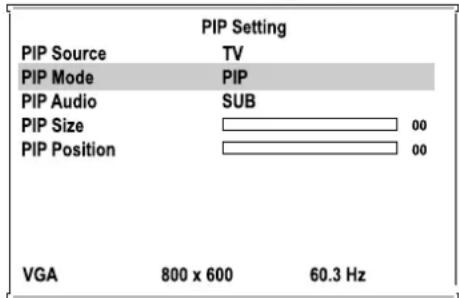
- Press MENU to display the menu main page.
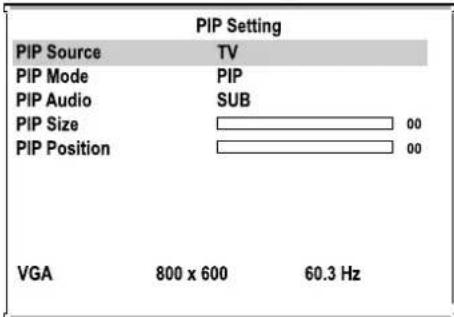
- Press VOL+/- repeatedly to display PIP menu page.
- Press CH- repeatedly to select PIP Mode item.
- Press VOL+/- to select PIP.

Selecting the Signal Source for the PIP
- With the PIP working, Press MENU to display the menu main page.
- Press VOL+/- repeatedly to display PIP menu page.
- Press CH- to select PIP Source item.
- Press VOL+/- to select.
Selecting Sound Source
- With the PIP working, Press MENU to display the menu main page.
- Press VOL+/- repeatedly to display PIP menu page.
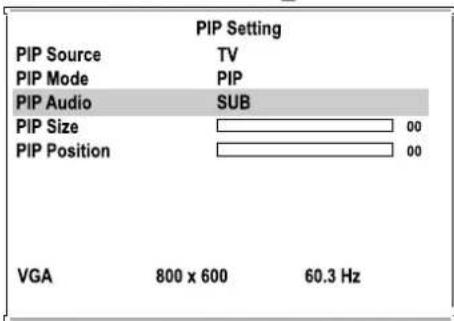
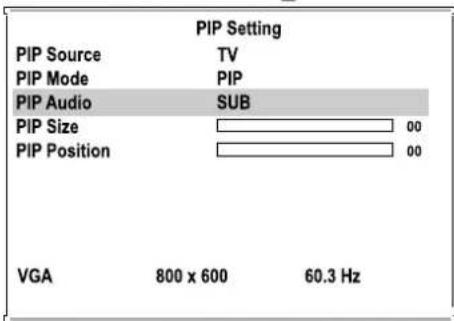
- Press CH-repeatedly to select PIP Audio item.
- Press VOL+/- to select a desired sound source.
If you select SUB, the PIP frame's sound will be output. If you select MAIN, the main frame's sound will be output.
Changing the Size of the PIP
- With the PIP working, Press MENU to display the menu main page.
- Press VOL+/- repeatedly to display PIP menu page.
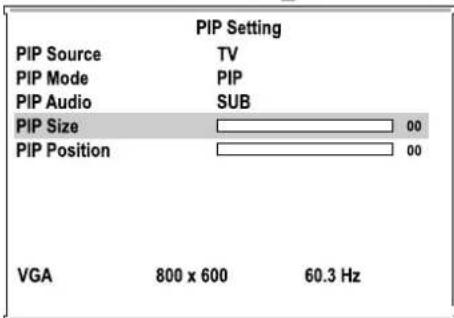
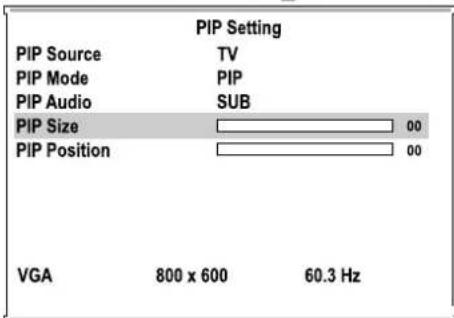
- Press CH-repeatedly to select PIP Size item.
- Press VOL+/- to adjust.
Changing the Position of the PIP
- With the PIP working, Press MENU to display the menu main page.
- Press VOL+/- repeatedly to display PIP menu page.
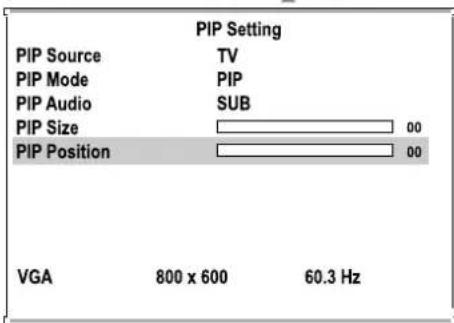
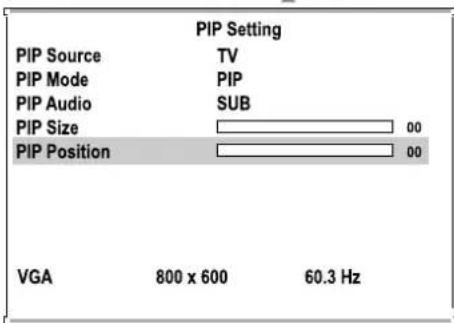
- Press CH-repeatedly to select PIP Position item.
- Press VOL+/- to adjust.




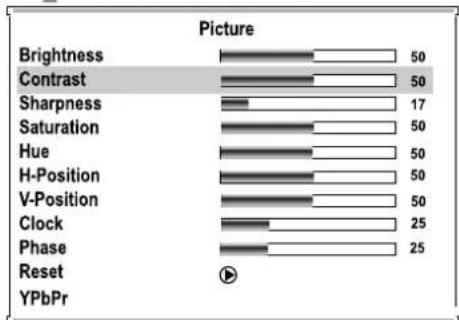
The unit works in YPbPr mode when the input source is set to YPbPr, then this unit allows you to perform several adjustments.
Adjusting the Picture
- Press MENU to display PICTURE menu page.
- Press CH-repeatedly to select the item you wish to adjust.
- Press VOL+/- to adjust the value of the item.
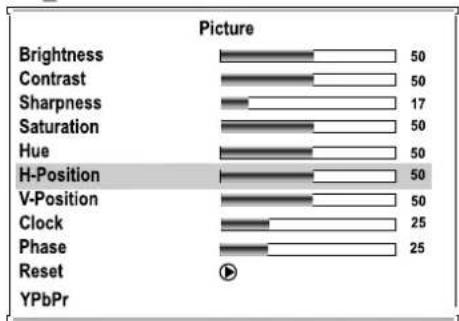
Adjusting the Position of Image
- Press MENU to display PICTURE menu page.
- Press CH-repeatedly to select H-Positon or V-Position item.
- Press VOL+/- to adjust.
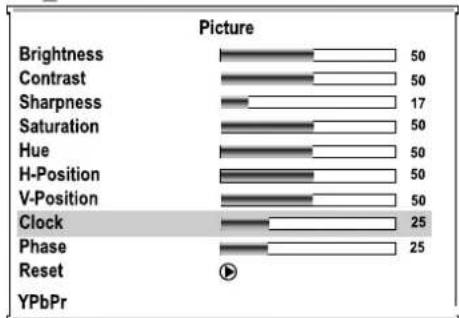
Adjusting the Clock and Phase
- Press MENU to display PICTURE menu page.
- Press CH-repeatedly to select Clock or Phase item.
- Press VOL+/- to adjust the value of the item.
You may find that images blur, depending on the clock phase of your PC's Processor. If you experience blurring, you can obtain a clearer image by adjusting the Clock setting. Adjust the clock frequency of the set's internal clock signal. If shimmering or rainbow-like noise is apparent in the image, try adjusting the Phase setting.
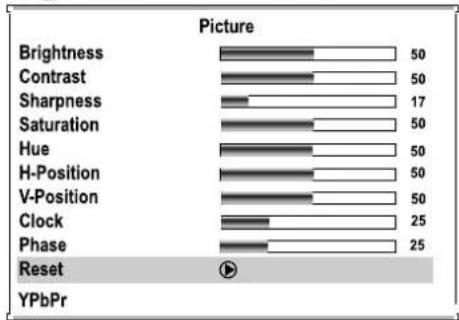
Loading the default Picture setting
- Press MENU to display PICTURE menu page.
- Press CH-repeatedly to select Reset item.
- Press VOL+/- to confirm.
Then the value of Brightness, Contrast, Sharpness, Saturation and Hue etc. will be restored to the default value.

bar
Picture | Feature | Value | |---|---| | Brightness | 50 | | Contrast | 50 | | Sharpness | 17 | | Saturation | 50 | | Hue | 50 | | H-Position | 50 | | V-Position | 50 | | Clock | 25 | | Phase | 25 | | Reset | 25 | | YPbPr | 25 |
bar
Picture | Feature | Value | |---|---| | Brightness | 50 | | Contrast | 50 | | Sharpness | 17 | | Saturation | 50 | | Hue | 50 | | H-Position | 50 | | V-Position | 50 | | Clock | 25 | | Phase | 25 | | Reset | YPbPr | ▼
bar
Picture | Feature | Value | |---|---| | Brightness | 50 | | Contrast | 50 | | Sharpness | 17 | | Saturation | 50 | | Hue | 50 | | H-Position | 50 | | V-Position | 50 | | Clock | 25 | | Phase | 25 | | Reset | | | YPbPr | |
bar
Picture | Picture | Value | | :--- | :--- | | Brightness | 50 | | Contrast | 50 | | Sharpness | 17 | | Saturation | 50 | | Hue | 50 | | H-Position | 50 | | V-Position | 50 | | Clock | 25 | | Phase | 25 | | Reset | YPbPr |Teletext broadcasts pages of information and entertainment to specially equipped television sets.
Your System receives Teletext signals broadcast by a TV network, and decodes them into graphical format for viewing. News, weather and sports information, stock exchange prices and programme previews are among the many services available.
Teletext Mode
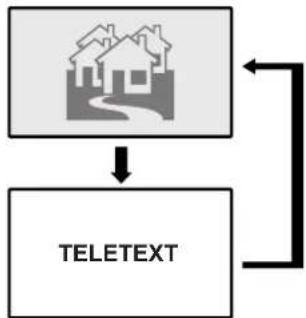
Teletext is turned on/off with the TEXT button on the remote control unit. You can operate your System in Teletext mode directly by inputting commands with the remote control unit.
Turning On or Off Teletext
Select a TV channel providing the Teletext program.
Press the TEXT button to display the Teletext.
Press the TEXT button again to switch back to TV screen.
Each time you press the TEXT button, the screen switches as right.
Button Functions
ENTER(Up/Down)
Changing Teletext pages
VOLUME+ or VOLUME-
Adjusting volume
MUTE
Muting the sound
Colour (RED/GREEN/YELLOW/BLUE)
You can select a group or block of pages displayed in the coloured brackets at the bottom of the screen by pressing the corresponding colour (RED/GREEN/ YELLOW/ BLUE) on the remote control unit.
0-9
Directly select any page by using 0–9.
MIX
Press this button to display the Teletext on the screen with transparent background while viewing the TV program simultaneously.
REVEAL
Press the button to reveal hidden information such as an answer to a quiz. Press the button again to hide the information.
SIZE
Press the button to expand the top half of the display. Press it again to expand the bottom half of the display. Press it once more to resume normal size.
HOLD
Press the button to stop updating Teletext pages automatically. Press it again to release hold mode.
flowchart
graph TD
    A["House Icon"] --> B["TELETEXT"]
    B --> C["Arrow Right"]
    C --> A
Before calling for repair service, check the following items for possible remedies to the encountered symptoms.
| Symptoms | Check item |
| “Ghost” or double images | This may be caused by obstruction to the antenna due to high rise buildings or hills. Using a highly directional antenna may improve the picture. |
| No power | Check that the AC power cord is plugged into the mains socket.Unplug the power cord, wait for 60 seconds. Then re-insert plug into the mains socket and turn on the unit again. |
| No picture | Check antenna connections at the rear of the unit to see if it is properly connected to the unit.Possible broadcast station trouble. Try another channel.Adjust the contrast and brightness settings.Select a correct input.Is a non-compatible signal being input? |
| Good picture but no sound | Increase the VOLUME.Check that the unit is not muted. |
| Good sound but poor color | Adjust the contrast, color and brightness settings. |
| Poor picture | Sometimes, poor picture quality occurs when having activated an S-VHS camera or camcorder connected and having connected another peripheral at the same time. In this case, switch off one of the other peripherals.Check whether the room is too bright |
| Horizontal dotted line | This may be caused by electrical interference (e.g. hairdryer, nearby neon lights, etc.)Turn off the equipment. |
| Television not responding to remote control | Check whether the batteries are working. Replace if necessary.Clean the remote control sensor lens on the unit.Do not use the remote control under strong or fluorescent lighting.The batteries should be inserted with polarity (+,-) aligned. |
| Snowy picture and noise | Check the antenna connection.Check if you have selected the correct D-Sub mode in your PC. |
| No stable or not synchronized VGA picture | Check if you have selected the correct VGA mode in your PC. |
| No output from one of the speakers | Adjust Balance in the Audio menu. |
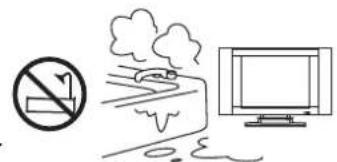
DO NOT USE IN HOT AND COLD ROOMS (LOCATIONS)
- When the unit is used in rooms (locations) with low temperature, the picture may leave trails or appear slightly delayed. This is not a malfunction, and the unit will recover when the temperature returns to normal.
- Do not leave the unit in a hot or cold location. Also, do not leave the unit in a location exposed to direct sunlight or near a heater, as this may cause the cabinet to deform and the LCD panel to malfunction.
(Storage temperature: 0^ C to +50^ C Working temperature: 5^ C to +40^ C)
Note:
- If your problem is not solved, turn your unit off and then on again once.
● Never attempt to repair a defective unit yourself
LCD Display panel information
The marking or retained image on the LCD panel resulting from fixed image use is not an operating defect and as such is not covered by Warranty. This product is not designed to display fixed image patterns for extended periods of time.
Note:
Important Information Regarding Use of Video Games, Computers, Captions or Other Fixed Image Displays.
The extended use of fixed image program material can cause a permanent "shadow image" on the LCD panel.
This background image is viewable on normal programs in the form of a stationary fixed image. This type of irreversible LCD panel deterioration can be limited by observing the following steps:
A. Reduce the brightness/contrast setting to a minimum viewing level.
B. Do not display the fixed image for extended periods of time.
C. Turn the power off when not in actual use.
Cleaning and Maintenance
To clean this unit, wipe with a soft, dry cloth.
If the surfaces are extremely dirty, use a soft cloth dipped in a soap and water solution or a weak detergent solution.
- Use eyeglass cleaner to remove stubborn dirt from the LCD.
● Never use alcohol, paint thinner or benzene to clean this unit.
● Before using a chemically treated cloth, read the instructions that came with the cloth carefully.
CAUTION:
If water or similar substances get inside the monitor via the liquid crystal panel surface, a malfunction may result.
| Type: LCD TV | |||
| Display Size diagonal: 20" | |||
| Power Supply: AC100-240V 50/60Hz | |||
| Power Consumption: 60W | |||
| Dimensions (mm): 654 (W) X 480.5(H) X 195 (D) (With Stand) | |||
| Unit Weight (kg): 10 (With Stand) | |||
| TV system & channel coverage: | |||
| System VHF UHF CATV | |||
| PAL-D/K 1-12 13-57 Z1~Z37 | |||
| PAL-B/G 2-12 21-69 X~Z+2, S1~S41 | |||
| PAL-I | 2-12 21-69 | ||
| SECAM-B/G | 2-12 21-69 X~Z+2, S1~S41 | ||
| SECAM-D/K | 1-12 21-69 | ||
| SECAM-L' | 2-4 | ||
| SECAM-L | 5-12 | 21-69 X~Z C57, S1~S41 | |
| TV System: PAL/SECAM BG, DK, PAL-I, SECAM-L,SECAM-L',NTSC (AV) | |||
Note:
- Design and specifications are subject to change without notice.
LCD TV
CVBS LCD
Composite Video Interface. The video signal is transmitted via a single signal line. CVBS should only be used, if your playback device does not offer other interfaces for on combina connection with you Xoro TV set, as CVBS due to technical 16.7 b reasons delivers worst quality of all available interfaces (please also refer to YUV, S-Video, SCART and RGB). The NTSC
CVBS interface can easily be identified from the yellow Widespread TV standard, espacially in US and Asia. 525 color of the RCA jack. (480 viewable) Lines and 60 Hz refresh rate. Describes the
Liquid Cristal Display. The picture is created with 3 layers of liquid crystals (red, green, blue) with backlight. Depending ation and brightness of these three colors, up to billion colors can be displayed.
DSP etc.) is transmitted. Within Europe, this video standard only Digital Signal Processor. Microprocessor for digital processing of signals. Virtual Surround for example is created with a DSP.
DVI
Digital Video Interface. Transmits video signals digitally and in a very high quality. With DVI, HDTV signals can be transmitted.
DVB
Digital Video Broadcasting. Standard for digital transmission of video signals. There are DVB-S (DVB via lines, satellite), DVB-T (DVB via antenna) DVB-C (DVB via cable).
Color temperature
The color temperature affects the way a picture looks like. If PiP it is to high or to low, the picture does not look naturally. The color temperature is measured in Kelvin. An optimal value for video pictures is 6500 degree Kelvin.
GUI
Graphic User Interface. See OSD
HDTV
High Definition Television. Standard for transmission and storage of high resolution video. To get the full quality of HDTV, both devices (playback device and TV set) must support HDTV.
HUE
HUE settings affect the color balance of the picture
Interlaced
The picture is created by writing two half pictures with a 1 line set-off on the screen. This is standard on conventional 50 Hz TV sets.
Copmponent-Signal
please refer to YUV
Contrast
Means the range of luminance between the brightest and reprogramming purposes or to load new firmware. the darkest pixel which can be displayed.
way the video information (brightness, color, refresh rate
appears on imported media (like US DVDs). Please also refer the table on page XXX showing which standard is used in which country.
OSD
The OSD (On Screen Display) is all the menus and options shown on the screen.
PAL
European TV standard. PAL stands for Phase Alternation Line; refresh rate: 50 Hz, TV lines: 625 Lines, 576 visible describes the way the video information (brightness, color, refresh rate etc.) is transmitted.
Please also refer the table on page XXX showing which standard is used in which country.
Picture in Picture. Display of an additional moving picture on the TV screen (e.g. a TV program in the right corner while watching a DVD)
Pixel
Describes the resolution. The more pixel a TV or video program contains, the higher is the resolution and the higher is the sharpness.
sive Scan
pressive Scan writes a whole picture in one step, while the normal interlaced TV-picture is composed of two half pictures. It delivers a significantly enhanced picture, especially when used on vide beamers, PC monitors or LCD TV.
RGB
Red Green Blue. Describes the way of transmission and display of video signals. The three in TV systems used colors red, green and blue are transmitted separately. When used for connection between playback device and TV set, it delivers a quality similar to YUV.
RS232
RS232 is a well known PC interface for data transfer. In home entertainment devices, it is usually for
LCD TV
S-Video YPbPr(1/2)
Describes the way video signals are transmitted. With S- please refer to YUV
Video, luminance and color information are transmitted
separately. S-Video interface can easily be identified by its YUV
4-ports in a round connector. Videosignal with separated transmission of color and
SECAM
French TV standard. It is also used outside france in some Easter European countries. Refresh rate is the same as in PAL standard (50 Hz). The signal produces 625 TV lines.
UHF
Ultra High Frequency - frequency band for transmission of TV program via air or cable (analogue)
VGA
Video Graphics Interface. Standard for transmission of video signals in the PC area.
VHF
Very High Frequency - frequency band for transmission of TV program via air or cable (analogue)
brightness information. Similar to RGB, the signal is transmitted via tree separate RCA cables. Also called Component Signal. YUV delivers best signal quality available with analogue signal transmission.
White balance
Important setting to ensure white parts in pictures really look white. Also refer to color temperature.

NOTES

NOTES

NOTES
FREE TO CHOOSE INNOVATIONS

XORO by MAS Elektronik AG
Blohmstrasse 16/20
21079 Hamburg, Germany
Tel.: +49 (040) 77 11 09 17
Fax: +49 (040) 76 73 35 15
xoro@mas.de
www.xoro.de
FREE TO CHOOSE INNOVATIONS
XORO®
HTL 2012
natural_image
Front view of a flat-screen CRT television with XORO logo and control buttons (no text or symbols on screen)TÉLÉVISEUR LCD
GUIDE DE L'UTILISATEUR
Use the remote control by pointing it towards the remote sensor window of the set. Objects between the remote control and sensor window may prevent proper operation.
Note:
the illustration is for your reference only, the remote sensor may locate differently with different model.
Cautions regarding use of remote control
Do not expose the remote control to shock. In addition, do not expose the remote control to liquids, and do not place in an area with high humidity.
The remote control may not work properly if the remote sensor window of the main unit is under direct sunlight or strong lighting. In such a case, change the angle of the lighting or LCD TV set, or operate the remote control closer to the remote sensor window.
natural_image
Illustration of a hand holding a rectangular object with a spiral arrow pointing to it (no text or symbols)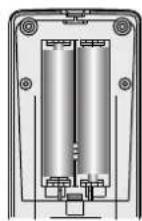
natural_image
Illustration of a hand holding a handheld device with a scroll wheel (no text or symbols)natural_image
Architectural floor plan diagram showing room layout and directional arrows (no text or labels)Sur l'appareil
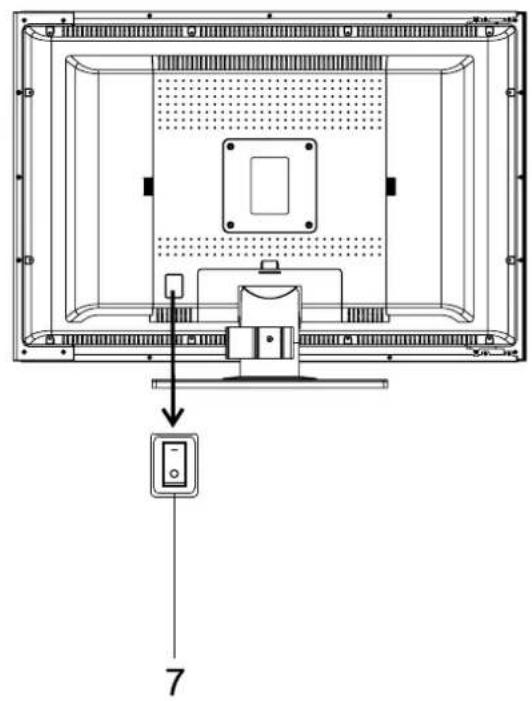
1. VOL +/-
- POWER ⏻
Turn the unit on or standby - 0\~9 digit buttons, -/-- button
0\~9: direct channel select;
-/- button: one digit/two digit/three digit channel number selector - PIP
To activate picture-in-picture in VGA mode - PIP-POS
To select PIP frame position in VGA mode - STEREO
To select stereo, mono or bilingual - P.MODE
To quickly select picture mode Red button (teletext) - S.MODE
To quickly select sound mode Green button (teletext) - MENU
To access the MENU main page In Menu operation, press this button to return to a higher level menu - DSP/CAPS
To display current channel status - RETURN \$
To quickly jump between current channel and last selected
channel - SLEEP
To set sleep timer Blue button (teletext)
Flip the cover, open in the direction of the arrow.
Télécommande
-
ENTER, ENTER(Up/Down), ENTER(Left/Right) ENTER: To confirm your operation or setting; ENTER(Up/Down): To move upward or downward in menu operation; ENTER(Left/Right): To move left or right in menu operation; To adjust selected menu item in menu operation
-
SOURCE To select input source
-
AUTO/CHILD LOCK To rectify the picture automatically in VGA mode
-
CHANNEL +/- Use to switch channels;
-
TEXT To enter/exit teletext mode (Teletext)
-
HOLD To hold the current teletext page temporarily (Teletext)
-
ZOOM To adjust the PIP frame size in VGA mode
-
MUTE ✝ Sound mute
-
VOLUME +/- Use to adjust volume
-
MIX To superimpose text on a TV picture (Teletext)
-
SIZE To expand top half or bottom half page of current screen (Teletext)
-
REVEAL To display hidden information such as solutions to riddles and puzzles. (Teletext)
Note: The above not mentioned buttons on the remote control have no function in this model.
natural_image
Line drawing of a vintage camera with lens and screen (no text or symbols)Caméscope
Lecteur DVD
natural_image
Illustration of a vintage electronic device with a scroll and cable (no text or symbols)Jeux-vidéo
flowchart
graph TD
    A["FM STÉRÉO"] --> B["↓"]
    B --> C["MONO"]
flowchart
graph TD
    A["FM A"] --> B["↓"]
    B --> C["FM B"]

IMAGE

COULE

JRAUDIO

INPUT

PIP

MENU
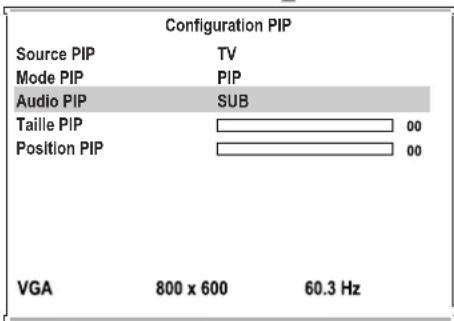

IMAGE

COULE

JRAUDIO

INPUT

PIP

MENU
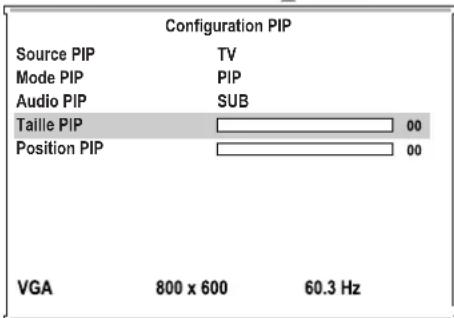

IMAGE

COULE

JRAUDIO

INPUT

PIP

MENU
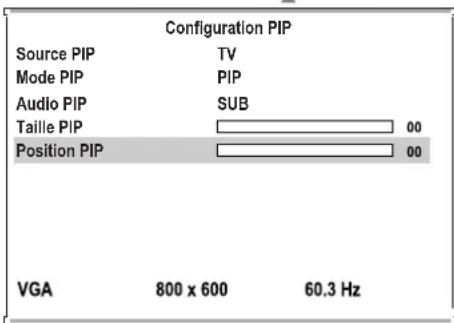
Teletext broadcasts pages of information and entertainment to specially equipped television sets.
Your System receives Teletext signals broadcast by a TV network, and decodes them into graphical format for viewing. News, weather and sports information, stock exchange prices and programme previews are among the many services available.
Teletext Mode
Teletext is turned on/off with the TEXT button on the remote control unit. You can operate your System in Teletext mode directly by inputting commands with the remote control unit.
Turning On or Off Teletext
Select a TV channel providing the Teletext program.
Press the TEXT button to display the Teletext.
Press the TEXT button again to switch back to TV screen.
Each time you press the TEXT button, the screen switches as right.
Button Functions
ENTER(Up/Down)
Changing Teletext pages
VOLUME+ or VOLUME-
Adjusting volume
MUTE
Muting the sound
Colour (RED/GREEN/YELLOW/BLUE)
You can select a group or block of pages displayed in the coloured brackets at the bottom of the screen by pressing the corresponding colour (RED/GREEN/ YELLOW/ BLUE) on the remote control unit.
0-9
Directly select any page by using 0–9.
MIX
Press this button to display the Teletext on the screen with transparent background while viewing the TV program simultaneously.
REVEAL
Press the button to reveal hidden information such as an answer to a quiz. Press the button again to hide the information.
SIZE
Press the button to expand the top half of the display. Press it again to expand the bottom half of the display. Press it once more to resume normal size.
HOLD
Press the button to stop updating Teletext pages automatically. Press it again to release hold mode.
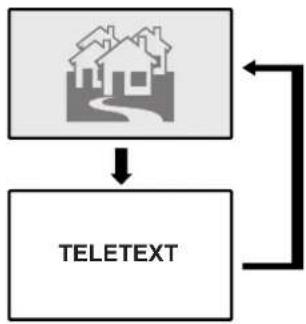
flowchart
graph TD
    A["House Icon"] --> B["TELETEXT"]
    B --> C["Arrow Left"]
    C --> D["Arrow Right"]

FREE TO CHOOSE INNOVATIONS

XORO by MAS Elektronik AG
Blohmstrasse 16/20
21079 Hamburg, Germany
Tel.: +49 (040) 77 11 09 17
Fax: +49 (040) 76 73 35 15
xoro@mas.de
www.xoro.de



- XORO®
- HTL 2012
- BEDIENUNGSANLEITUNG
- Note:
- Cautions regarding use of remote control
- Auf dem Gerät
- VOL +/-
- Fernbedienung
- Manuelles Fine-Tuning
- BETRIEBSFUNKTIONEN
- Wechseln der Kanäle
- TELETEXT-Funktionen
- What Is Teletext?
- Teletext Mode
- Turning On or Off Teletext
- Button Functions
- Colour (RED/GREEN/YELLOW/BLUE)
- LCD TV
- CVBS Bildpunkt.
- XORO by MAS Elektronik AG
- Подключение
- 0\~9 digit buttons, -/-- button
- PIP
- PIP-POS
- STEREO
- P.MODE
- S.MODE
- MENU
- DSP/CAPS
- RETURN
- SLEEP
- [VOLUME, BASS, TREBLE, BALANCE]
- ТЕЛЕТЕКСТ
- OPERATING MANUAL
- TABLE OF CONTENTS
- IMPORTANT SAFETY PRECAUTIONS ....84
- PREPARATIONS 86
- IDENTIFICATION OF CONTROLS 88
- CONNECTIONS. 92
- TURNING THE UNIT ON AND OFF....96
- MEMORIZING THE CHANNELS 97
- BASIC OPERATIONS....99
- SETTING THE PICTURE....101
- OSD SETTINGS 102
- SETTING SOUND 103
- ADJUSTMENT IN VGA MODE 106
- ADJUSTING IN YPBPR MODE....110
- TELETEXT 111
- TROUBLESHOOTING....112
- CARE AND MAINTENANCE....113
- SPECIFICATIONS 114
- GLOSSARY 115
- Using the Remote Control
- Batteries for the Remote Control
- Precaution on battery use
- Antenna Connection
- Removing or installing the Back Cover
- Main unit
- Remote Control
- Cautions before connecting
- Connect 21-pin EURO-SCART
- How to connect
- To watch decoder
- Connect AV or S-Video inputs
- Examples of external devices that can be connected
- To view signal from AV inputs
- Connect a DVD player or Home Cinema System
- How to connect a DVD Player or Home Cinema System using YPbPr Connections:
- To play DVD
- Connect a PC
- How to connect:
- To Watch the PC screen
- Turning the Unit On and Off
- Turning On
- Turning Off
- Viewing the Menus
- Storing Channels in Memory Automatically
- Storing Channels in Memory Manually
- Manual Fine Tuning
- Adding and Erasing Channels
- Editing Channel Name
- Auto Fine Tune
- BASIC OPERATIONS
- Changing Channels
- Using the Channel Buttons (CH+ or CH-)
- Direct Accessing Channels
- Using the Return button
- Adjusting the Volume
- Using the volume buttons (VOL- and VOL+)
- Using the Mute
- Using the MUTE ✕ button
- Select Input Source
- Selecting a MENU Language
- Exchanging Channels
- Customizing the Picture
- Turning 3D Comb ON or OFF
- Loading the default Picture setting
- Using the Preset Picture Mode
- Adjusting OSD Position
- Adjusting OSD Transparency
- Setting OSD Timeout
- Adjusting Sound Settings
- Muting Sound or Not
- Using the Preset Sound Mode
- NICAM Broadcast Selection
- Stereo
- Bilingual
- Monaural
- IGR (German stereo system) Broadcasts
- Changing the Position of Image
- Adjusting the Clock and Phase
- Adjusting the Picture Automatically
- Using the Preset Display Format
- Selecting Color Mode
- Customizing the Color temperature
- Viewing the PIP
- Selecting the Signal Source for the PIP
- Selecting Sound Source
- Changing the Size of the PIP
- Changing the Position of the PIP
- Adjusting the Picture
- Adjusting the Position of Image
- DO NOT USE IN HOT AND COLD ROOMS (LOCATIONS)
- LCD Display panel information
- Cleaning and Maintenance
- CAUTION:
- CVBS LCD
- DVI
- DVB
- Color temperature
- GUI
- HDTV
- HUE
- Interlaced
- Copmponent-Signal
- Contrast
- OSD
- PAL
- Pixel
- sive Scan
- RGB
- RS232
- S-Video YPbPr(1/2)
- SECAM
- UHF
- VGA
- VHF
- White balance
- NOTES
- TÉLÉVISEUR LCD
- GUIDE DE L'UTILISATEUR
- Sur l'appareil
- Télécommande
Brand : XORO
Model : HTL 2012
Category : Television