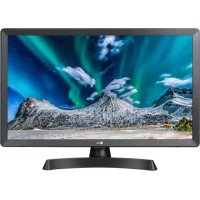
24TL510S - Television LG - Free user manual and instructions
Find the device manual for free 24TL510S LG in PDF.



| Product type | 24" LED TV |
| Brand | LG |
| Model | 24TL510S |
| Screen size | 24 inches (61 cm) |
| Resolution | HD 1366 x 768 pixels (estimated) |
| Power supply | AC adapter 100-240 V ~ 50/60 Hz, DC output 19 V - 2.1 A |
| Network connectivity | Wi-Fi 802.11a/b/g/n/ac, Ethernet (RJ45) |
| Smart TV | Yes (webOS interface, SmartShare, mobile devices) |
| Screen sharing | Miracast, WiDi, Wi-Fi Direct |
| Main functions | SmartShare, automatic firmware update, content sharing |
| Care and cleaning | Clean with a soft dry cloth. Do not use chemical products. |
| Safety | Minimum distance of 20 cm around the device for ventilation |
| Spare parts and repairability | Contact LG customer service for parts and repairs |
| General information | Manual available in multiple languages, 39 pages |
Frequently Asked Questions - 24TL510S LG
User questions about 24TL510S LG
0 question about this device. Answer the ones you know or ask your own.
Ask a new question about this device
Download the instructions for your Television in PDF format for free! Find your manual 24TL510S - LG and take your electronic device back in hand. On this page are published all the documents necessary for the use of your device. 24TL510S by LG.
USER MANUAL 24TL510S LG
Cbbp3BaHe Ha caTeJIHTHa YHHN
(Cam03a caTeNTHMOneN)
CbpxeTe TeIeBn3opa Cbc caTeNtHa YHHN I BKIOUcTe B CaTeNtHO rHe3do Upe3 caTeNtEH paIOueCTOTen Ka6en (75Ω).
Cbbp3BaHe Ha Cl MoodyT
(B 3aBnCmOCT OT MoDena)
TneJaTe KOndaHnTe (nNaTeHnTe) ycIyrgn B uNpOBoT eBn3nOHeH pekm.
- PpOBepTe dAnu Cl MoyIbTe nocTaBeH B cNoTa 3a PCMCIAB npabnHaTaNocoka.Ako MOyIbT He e nocTaBeH npabnHO,TOBa MoKe Da npuHn yBpeXdane Ha TeJeBn3Opa N cNoTa Ha PCMCIA KapTata.
- Ako TeIeBn3OpbT He Noka3Ba HnTo BnDeo, HnTo aydno npu Cbbp3BaHe Ha Cl+ CAM, MOJIA, CbbpXeTe Ce c OnepaTopa Ha Ha3eMHN/ Ka6eHN/CateJIHTH YuCyrN.
Cbbp3BaHe Ha KOMNIOTp
Korato cBbp3BaTe Baunia KOMNIOTpBp KbM HDMIBXoI, hAcTpoIe [Etuket Ha BXoJa] Ha HDMIBXOJaHa [KomNIOTpBp].
(BXOD) (Дистанцунно упраьменце) [Всчkn Bxodobe] [PEДАКТИРАЕ HA ]MnIOТьр]
Друн Врьзк.
CbpxKeTe Baunr TeNeBn3Op KbM BbHUN yCTpoiCTBa. 3a Han-dO6p0 KaueCTBO Ha n3o6paXeHne n 3ByK CbpxKeTe BbHnHOTO ycTPOIcTBo n TeBn3Opac HDMl Ka6JI. HkaON OTdENH KabeHn He ca npedocTaBeHn.
- Пдьрхан HDMI aydnoфopmaT: Dolby Digital / Dolby Digital Plus (32 kHz, 44,1 kHz, 48 kHz), DTS (44,1 kHz, 48 kHz), PCM (32 kHz, 44,1 kHz, 48 kHz, 96 kHz, 192 kHz) (В заимост от мдени)
- Image shown may differ from your TV.
- Image shown on a PC or mobile phone may vary depending on the OS(Operating System).
- App icon positions may vary on the platform, depending on the software version.
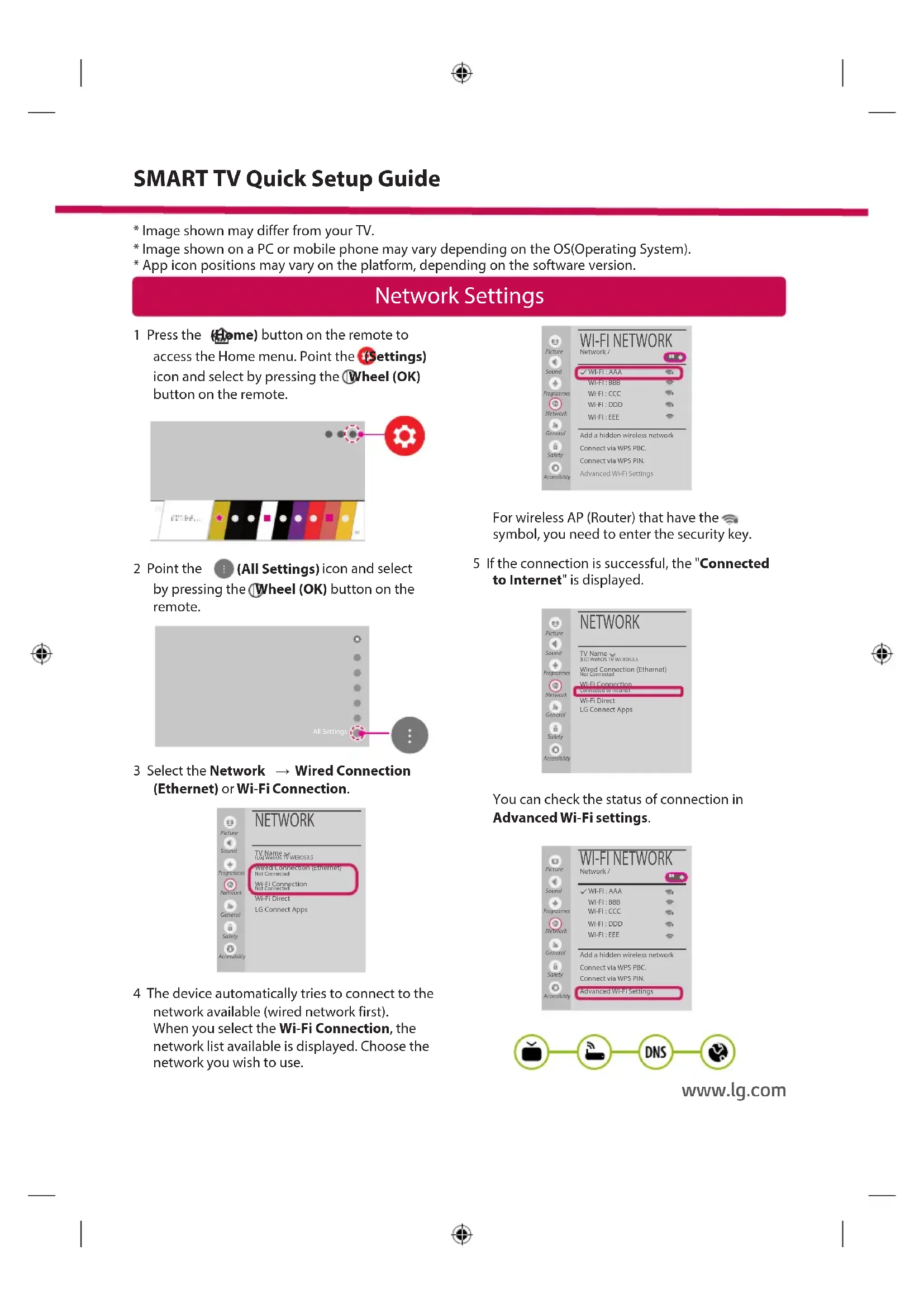
Network Settings
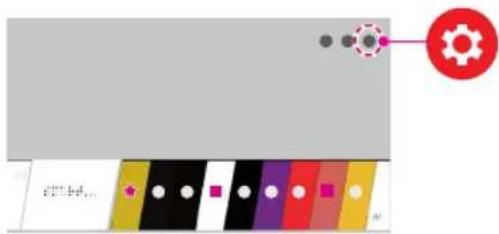
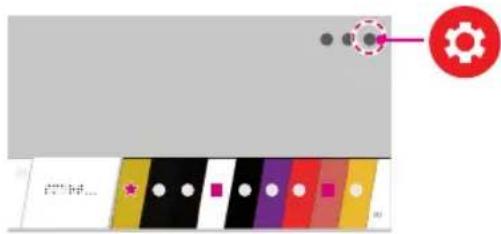
1 Press the (Home) button on the remote to access the Home menu. Point the (Settings) icon and select by pressing the Wheel (OK) button on the remote.
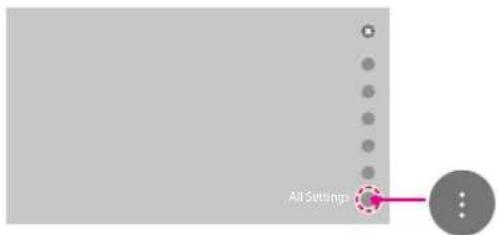
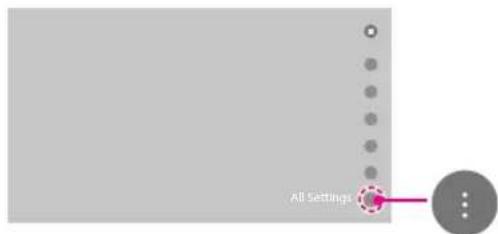
2 Point the (All Settings) icon and select by pressing the Wheel (OK) button on the remote.
3 Select the Network Wired Connection (Ethernet) or Wi-Fi Connection.
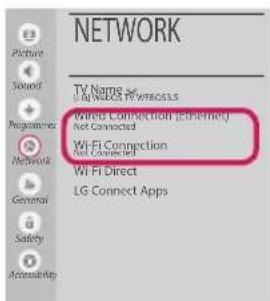
4 The device automatically tries to connect to the network available (wired network first). When you select the Wi-Fi Connection, the network list available is displayed. Choose the network you wish to use.
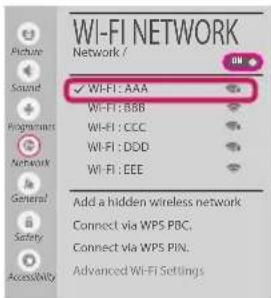
For wireless AP (Router) that have the symbol, you need to enter the security key.
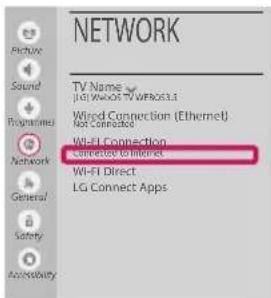
5 If the connection is successful, the "Connected to Internet" is displayed.
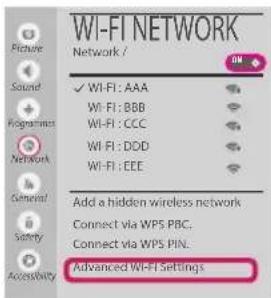
You can check the status of connection in Advanced Wi-Fi settings.

www.lg.com
Troubleshooting Network Problems
1 Press the Home button on the remote to access the Home menu. Point the Settings icon and select by pressing the Wheel (OK) button on the remote.
2 Point the (All Settings) icon and select by pressing the Wheel (OK) button on the remote.
3 Select the Network Wired Connection (Ethernet) or Wi-Fi Connection Advanced Wi-Fi settings.
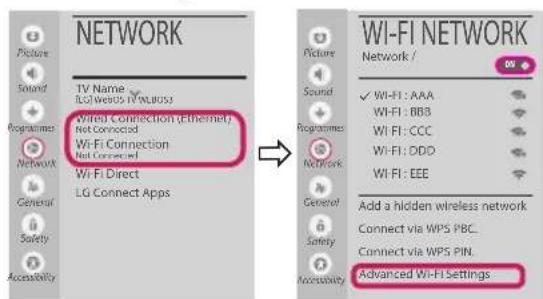
Follow the instructions below that correlate to your network status.
Check the TV or the AP (Router).

X

X

X

When X appears next to TV:
Check the connection status of the TV, AP (Router).
Power off and power on the TV, AP (Router).
If you are using a static IP, enter the IP directly.
Contact internet service provider or AP (Router) company.
Check the AP (Router) or consult your Internet service provider.

When X appears next to Gateway:
Unplug the power cord of the AP (Router) and try to connect after 5 seconds.
Initialize (Reset) the AP (Router).
Contact internet service provider or AP (Router) company.

When X appears next to DNS:
Unplug the power cord of the AP (Router) and try to connect after 5 seconds.
Initialize (Reset) the AP (Router).
Check that the MAC address of the TV/AP (Router) is registered with your Internet service provider. (The MAC address displayed on the right pane of the network status window should be registered with your Internet service provider.)
4 Check the AP (Router) manufacturer's website to make sure your router has the latest firmware version installed.
SmartShare PC SW Installing & Setting
1 Install the SmartShare PC SW programme on your PC.
2 Go to www.lg.com. Then, select your region.
3 Select SUPPORT. Then, select Drivers & Software, SOFTWARE UPDATE or Software & Firmware.
4 Search for your model. Then, select SmartShare PC SW.
5 You can run the programme when installation is complete.

NOTE
- SmartShare service is only available if TV and other devices are connected via a single AP (Router).
SmartShare Connection to Smartphone

1 Check that Wi-Fi is enabled on your smartphone. To use SmartShare, both devices must on the same local network.
2 Install/run the app for sharing content on your smartphone (It's called LG TV Plus on LG phones).
3 Enable your smartphone to share content files with other devices.
4 Open Device Connector application.

(Home) Device Connector Smartphone CONTENT SHARE.
5 Select the file type you want to play (movie, audio or photo).
6 Select a movie, music or photo file to play on the TV.
7 Play the media file to view and enjoy it on your TV.
Updating the TV Firmware
- If the TV is turned on for the first time after it was shipped from the factory, initialization of the TV may take a few minutes.
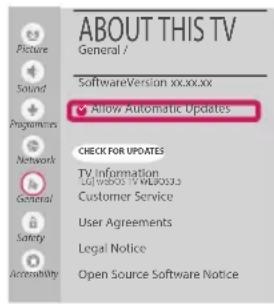
1 (Home)

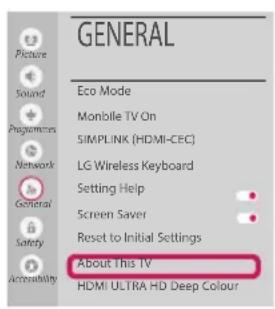
(Settings) (All Settings) General About This TV
CHECK FOR UPDATES
2 After checking the version of the software, update it.
If you check the "Allow Automatic Updates", you can update the software automatically.

Wi-Fi Direct Setting
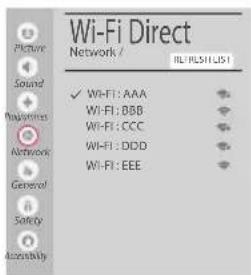
(Home) (Settings) (All Settings) Network Wi-Fi Direct If a local network is not available, you can connect a portable device directly to the TV using Wi-Fi Direct. With SmartShare, you can share files or screens of devices connected to Wi-Fi Direct.
1 When you open Wi-Fi Direct menu, a list of available devices appears.
2 When you are prompted to request connection, select Yes. Wi-Fi Direct is now connected to your TV.
Miracast Setting
Miracast allows a portable device to securely send video and sound to the TV wirelessly.
Home)/Input) Screen Share
1 Miracast should be set to "ON" on your portable device.
2 When your TV is detected, select the device on your portable device. When connection is completed, the device screen appears on the TV screen.
If you turn Listen Mode to ON after launching the Screen Share app, you can connect the device without starting the Screen Share app.
WiDi (Wireless Display) Setting
Intel's WiDi (Wireless Display) technology enables easy and fast connection without wires or internet network for mirrored and dual monitor display on your TV. You can sit back and experience your favorite movies, videos, photos, online shows and more in full HD on your TV with great image clarity and sound.
(Home)/input) Screen Share
1 Intel's WiDi is set to On. Your laptop runs the Intel WiDi programme.
2 It detects LG webOS TVs available, which supports WiDi. In the list, select the TV you want and click Connect. Enter the number shown on the screen into the input field (on your laptop and then click Continue.
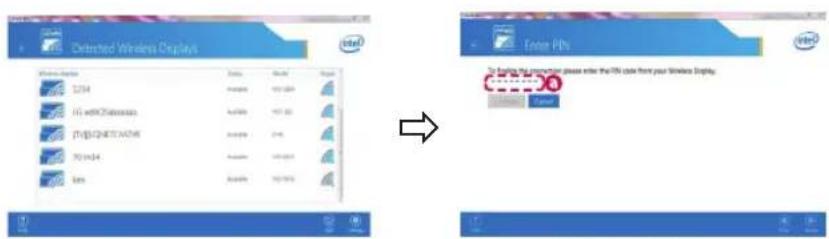
Notebook Screen
3 The laptop screen appears on the TV screen. The wireless environment may affect the screen display. If the connection is poor, the Intel WiDi connection may be lost.
- LG TVs do not need to register.
Please call LG Customer Service if you experience any problems.

- Cbbp3BaHe Ha caTeJIHTHa YHHN
- Cbbp3BaHe Ha Cl MoodyT
- Cbbp3BaHe Ha KOMNIOTp
- Друн Врьзк.
- Network Settings
- Troubleshooting Network Problems
- Check the TV or the AP (Router).
- SmartShare PC SW Installing & Setting
- NOTE
- SmartShare Connection to Smartphone
- Updating the TV Firmware
- Wi-Fi Direct Setting
- Miracast Setting
- WiDi (Wireless Display) Setting
Brand : LG
Model : 24TL510S
Category : Television