K52081AM - Shredder KENSINGTON - Free user manual and instructions
Find the device manual for free K52081AM KENSINGTON in PDF.



| Product type | Document shredder |
| Brand | Kensington |
| Model | K52081AM (Office Assist A6000) |
| Auto-feed capacity | 600 sheets (20 lb / 80 g/m²) |
| Manual feed capacity | 10 sheets (20 lb / 80 g/m²) |
| Voltage | 120 V / 60 Hz |
| Amperage | 2.6 A |
| Motor power | 310 W |
| Duty cycle | Continuous |
| Run time | Continuous |
| Lubrication system | Automatic with oil reservoir |
| Safety | Automatic stop if bin or cover open, PIN code lock |
| Anti-jam technology | Yes, automatic and manual clearing |
| CD/DVD destruction | Yes, with separate bin |
| Credit card destruction | Yes |
| Blade warranty | 2 year limited |
| Other parts warranty | 2 years |
| Maintenance | Clean IR sensor with cotton swab, rollers with dry cork |
| Included accessories | 60 ml oil, CD/DVD waste bin, bag support frame |
| Power supply | Easily accessible wall outlet |
Frequently Asked Questions - K52081AM KENSINGTON
User questions about K52081AM KENSINGTON
0 question about this device. Answer the ones you know or ask your own.
Ask a new question about this device
Download the instructions for your Shredder in PDF format for free! Find your manual K52081AM - KENSINGTON and take your electronic device back in hand. On this page are published all the documents necessary for the use of your device. K52081AM by KENSINGTON.
USER MANUAL K52081AM KENSINGTON
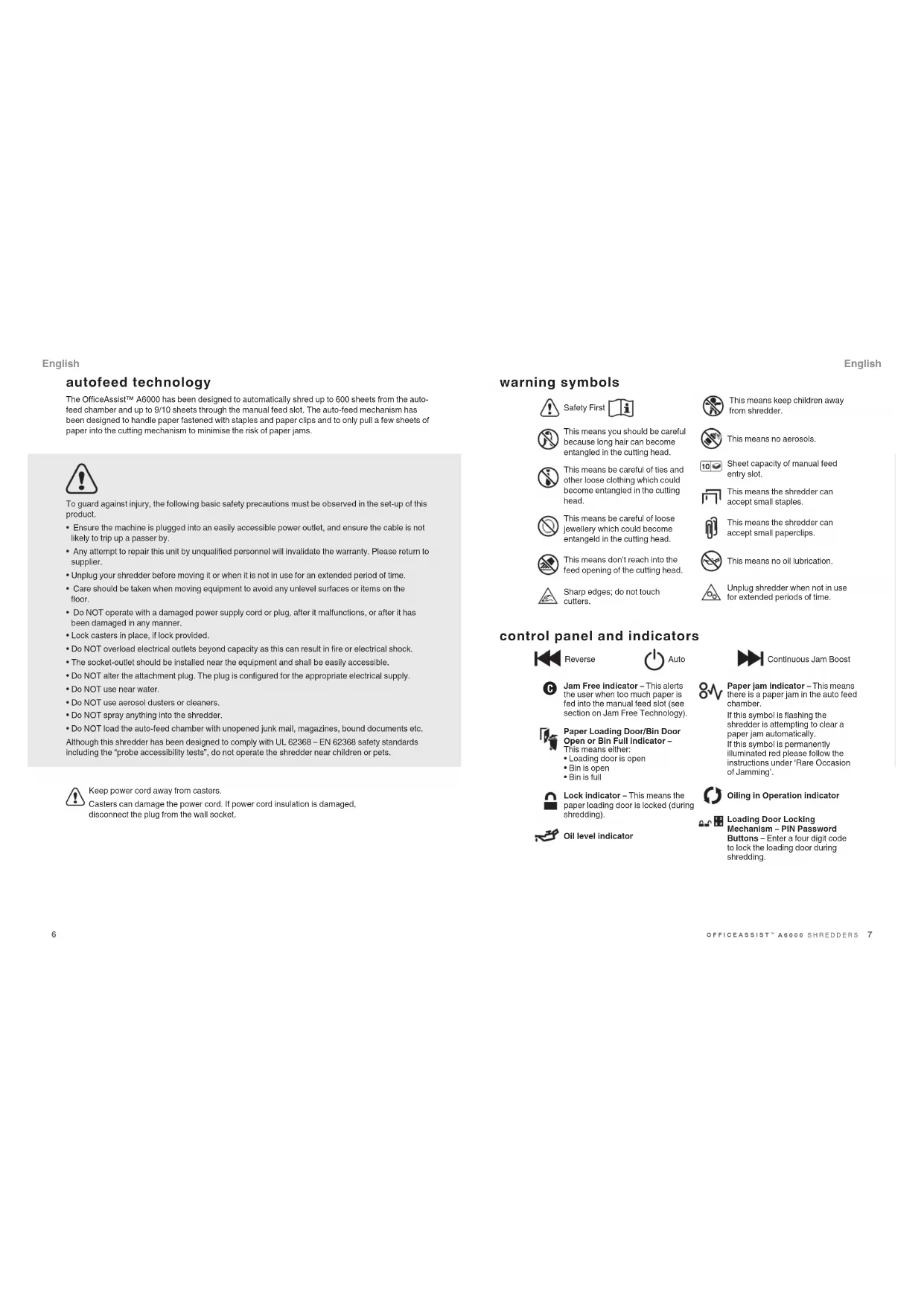
The OfficeAssist™ A6000 has been designed to automatically shred up to 600 sheets from the auto-feed chamber and up to 9/10 sheets through the manual feed slot. The auto-feed mechanism has been designed to handle paper fastened with staples and paper clips and to only pull a few sheets of paper into the cutting mechanism to minimise the risk of paper jams.

To guard against injury, the following basic safety precautions must be observed in the set-up of this product.
- Ensure the machine is plugged into an easily accessible power outlet, and ensure the cable is not likely to trip up a passer by.
- Any attempt to repair this unit by unqualified personnel will invalidate the warranty. Please return to supplier.
- Unplug your shredder before moving it or when it is not in use for an extended period of time.
- Care should be taken when moving equipment to avoid any unlevel surfaces or items on the floor.
- Do NOT operate with a damaged power supply cord or plug, after it malfunctions, or after it has been damaged in any manner.
- Lock casters in place, if lock provided.
- Do NOT overload electrical outlets beyond capacity as this can result in fire or electrical shock.
- The socket-outlet should be installed near the equipment and shall be easily accessible.
- Do NOT alter the attachment plug. The plug is configured for the appropriate electrical supply.
- Do NOT use near water
- Do NOT use aerosol dusters or cleaners.
- Do NOT spray anything into the shredder.
- Do NOT load the auto-feed chamber with unopened junk mail, magazines, bound documents etc. Although this shredder has been designed to comply with UL 62368 - EN 62368 safety standards including the "probe accessibility tests", do not operate the shredder near children or pets.

Keep power cord away from casters.
Casters can damage the power cord. If power cord insulation is damaged, disconnect the plug from the wall socket.
English
ng symbols

Safety First


This means you should be careful because long hair can become entangled in the cutting head.

This means be careful of ties and other loose clothing which could become entangled in the cutting head.

This means be careful of loose jewellery which could become entangled in the cutting head.

This means don't reach into the feed opening of the cutting head.

Sharp edges; do not touch cutters.

This means keep children away from shredder.

This means no aerosols.

Sheet capacity of manual feed entry slot.

This means the shredder can accept small staples.

This means the shredder can accept small paperclips.

This means no oil lubrication

Unplug shredder when not in use for extended periods of time.
control panel and indicators

Reverse

Auto

Jam Free Indicator: This alerts the user when too much paper is fed into the manual feed slot (see section on Jam Free Technology

Paper Loading Door/Bin Door Open or Bin Full Indicator -
This means either
- Loading door is oper
- Bin is open
Bin is full

Lock Indicator - This means the paper loading door is locked (during shredding).

Oil level indicator

Paper jam indicator - This means there is a paper jam in the auto feed chamber.
If this symbol is flashing the shredder is attempting to clear a paper jam automatically. If this symbol is permanently illuminated red please follow the instructions under 'Rare Occasion of Jamming'.

Oiling in Operation indicator

Loading Door Locking Mechanism - PIN Password Buttons - Enter a four digit code to lock the loading door during shredding.
English
OfficeAssist A6000 shredding capability
OfficeAssist" A6000 CAN shred the following:

600 sheets
- Stapled paper, 25mm within the corner
26/6 and 24/6 or smaller staples - Small sized paper loaded centrally

600 sheets
- Paper clip paper, 25mm within the corner
- Capable of shredding small/medium paper clips (max. wire thickness = 0.9 mm)
20 lb paper (through manual feed slot ONLY)

A3 folded in half max. 2 sheets
600 sheets
20 lb paper
Letter and Legal
- A3 single sheet folded in half to make A4
OfficeAssist™ A6000 CAN shred (through the manual feed slot):

Thick paper or
card.


Multiple folded sheets (e.g. A3 sheets folded in half).
Glossy paper or a sheet covered with print on both sides.

Unopened mail (e.g. junk mail)
Glossy paper or a sheet covered with print on both sides.
OfficeAssist™ A6000 CANNOT shred the following:

Heavy duty staples. Check the stapleleg length is not greater than 6mm.

Large clips. Check the length of the paperclip is not longer than 32mm.

Plastic sheets, laminated documents, plastic folders.

Bulldog clips

Bound documents

Adhesive labels

Magazines or other documents bound by multiple staples or clips.
English
initial setup (1)
The shredder is designed to automatically lubricate the cutting mechanism as required to ensure the product continues to work to its maximum performance and to extend the product life. Please follow the operation instruction before turning on the shredder for the first time. The 60ml bottle of oil is sufficient to allow the shredder to start for the first time and to operate continuously for about one hours shredding before the reservoir will need refilling. When the 'Oil Refill' indicator is illuminated ( ) , flip up the oil reservoir cap and refill the oil reservoir using a bottle of standard GBC* oil (1760049). The automatic oiling operation () last approximately two seconds and you will hear the distribution pump during this time. Auto-oiling operates after 15 minutes of shredding time.
bin or loading door open safety function
As a safety precaution, if the bin or loading door is opened during shredding, the shredder will stop and the bin full indicator will illuminate (1).
intelligent help
1 In the unlikely event of the shredder jamming, the OfficeAssist™ A6000 will stop shredding, and the jam icon will blink in orange.
2 The shredder will illuminate the FWD (▶) and REV (▲) buttons in the sequence necessary to clear the jam.
3 If the jam cannot be intelligently cleared, the jam icon (白) will illuminate in red. At this point open the auto feed chamber to clear any jammed material.
automatic jam clearance
Auto+Jam Clearance: In the unlikely event of the shredder jamming, the OfficeAssist A6000 will automatically reverse and forward the engine three times to clear a jam. During this operation the Paper Jam indicator will flash (A).
self-cleaning cutters
After emptying and replacing a full bin, the shredder will run in forward for 4 seconds, stop for 2 seconds and then reverse for 4 seconds to clear away any remaining paper from the cutter mechanism. This unique 'self-cleaning' mechanism is additional jam prevention technology from Kensington.
A CCOBands accept no liability for product performance or safety when other types of brands of lubricants are used on any part(s) of this machine.
English
operation (2)
1 After unpacking the product pull out the shredder bag frame and remove the CD shard tray, which sits on top of the bag frame. Store this tray on the product as shown and use when you shred CDs.
2 Lift up the loading door and open oil flap.
3 Remove oil cap and fill up the reservoir using the 60ml bottle of oil provided. Replace the cap.
4 Connect the shredder to mains supply.
5 Check that the on/off switch at the back of the machine is switched to the 'ON' position.
6 Press and hold down the Auto button ( ) for 5 seconds to start the pump and prime the system. Only required when the product is used for the first time.
7 To load the shredder, simply lift the loading door handle to open the loading door and insert documents. You can open the door further to 90 degrees for easier access if required. Load up to 600 sheets at a time into the feed chamber.
Do not fill above the MAX level, this could damage the shredder.
8 The shredder will start the shredding cycle automatically ONLY after closing the loading door. If there is paper in the Autofeed chamber after first attempt, open and re-close the paper loading door a second time.
Attention: If required you can now lock the loading door by entering a 4 digit code (see Locking the Paper Loading Door section).
9 If you only have up to 9/10 sheets to shred, you can use the manual feed slot, provided the auto feed chamber is empty.
10 Insert paper to be shredded into the feed area. The shredder will detect the paper and start automatically.
11 If the shredder is left in auto mode for more than 2 minutes without being used, the shredder will automatically turn back to sleep mode in order to save power.
12 The shredder will automatically 'wake up' from sleep mode when paper is inserted into the shred mouth or you open the loading door. There is no need to press the Auto button (B).
reverse function (3)
1 Should you wish to reverse paper out whilst shredding, a reverse button ( ) has been fitted for your convenience.
2 Reverse the paper out then turn the machine off using the ON/OFF switch at the rear of the shredder. Remove the paper from the manual feed slot (if being used) or open the loading door, remove the remaining stack of paper, then pull the jammed paper free of the cutting mechanism.
3 To resume shredding, tum the shredder on using the ON/OFF switch at the rear of the shredder. Return the switch to the auto position (O).
English
locking the paper loading door (4)
For additional security the paper loading door can be locked during the shredding of confidential material.
To lock shredder:
1 Place documents in tray. Close paper loading door.
2 Press any 4 digits. REMEMBER YOUR CODE!
Shredder unlocks automatically when:
- 4 digit code is re-entered.
- Shredding is complete.
- Shredder is inactive for 30 minutes (but documents remain in tray)
CD/DVD shredding (5)

A separate CD/DVD tray is provided to collect the shredded CD/DVD shards. Ensure that this is correctly mounted onto the standard shredder bag frame before shredding.
1 Lift up the paper loading door
2 Always insert CDs/DVDs in the CD/DVD slot. Only shred one CD/DVD at a time.
3 Close the paper loading door.
4 Empty the CD/DVD bin after 8 CDs/DVDs to avoid waste spilling over into the paper waste bin.
5 Remove the CDs/DVDs tray before recommending to shred paper and store on the side of the shredder.
credit card shredding (6)

The OfficeAssist™ A6000 can shred credit cards. Switch the shredder to auto mode, then;
1 Lift up the paper loading door.
2 Insert the credit card into the roller as shown. Only shred one credit card at a time.
3 Close the paper loading door.
Kensington encourages customers to recycle shredded paper.
Please note that shredded paper cannot be recycled if mixed with credit card shards. If recycling, please separate shredded paper and credit cards.
bin full (7)
The shredder will not function when the bin is full and the bin full symbol (1) is illuminated. You should empty the bin.
- Open the door and slide out the waste sack support frame.
Carefully remove the waste sack from the frame.
English
comb bind removal hooks (8)
Note - Use only on standard comb blind strips.
1 Open bin door.
2 Place document onto the comb bind hooks.
3 Pull down on the document to remove comb strip.
maintenance (9)
The rollers on the auto-feed mechanism may become dirty over time, please wipe clean with a dry cloth to maintain maximum product performance.
The auto-start infra-red sensor, located in the paper feed entry-slot, can occasionally become covered in paper-dust causing the shredder to run despite no paper being fed into the machine. Switch the shredder off at the rear of the machine and carefully clean the sensor using a cotton-swab.
shredder accessories
Visit GBC.com for shredder bags and oil. SKU#1765010B.
English
technical specifications
Kensington OfficeAssist A6000
| Sheet capacity: Manual feed slot | 10 sheets (20 lb) |
| Sheet capacity: Autofeed chamber | 600 sheets (20 lb) |
| Duty Cycle Continuous | |
| Run time from cold Continuous | |
| Volta / Hz 120V / 60Hz | |
| Amperage 2.6 Amps | |
| Motor Watts 310 Watts |
Limited Warranty
Limited 2 year Cutter Warranty for OfficeAssist™ A6000 Shredder and Limited 2 Year Warranty for all other Parts
ACCDBnndusLLC.ourCorrataeDiveLaeZucnIL50947-3987in Caned,ACCO BnnaCaneda Inc.781BrameaIb
Missessuela, LSC 134, Ontario, Canada; and in Mexico, ACCO Mexicana, S.A. de C.V. Au Ciruito Industrialo Norte PÉ Parque Industrialis Lemia S2000, Lemia Eco, De Mexico (each, respectively, "ACCO Brands") warrants to the original purchaser that the owners of the Kennerton
OfficeAssistTM A6000 Shredder are free from defects in workmanship and material under normal use and service for a period of 2 years after
purchase and all other parts are free from defects in workmanship and malanal under normal use and service for a period of 2 years after purchase.
ACCO Brands' obligation under this warranty is limited to replacement or repair, at AGCO Brands' option, of any warranted part found defective by
ACCO Brands without charge for materal or labor. Any replacement, at ACOO Brands' option, may be the same product or a substantially similar
product that may contain remanufactured or refuorished parts. This warranty shall be vio in the following circumstances:
If the product has been misused.
If the product has been damaged by negligence or accident, or
(ii) if the product has been altered by anyone other than ACCO Brands or ACCO Brands' authorized agents.
For warranty execution, please call:
1-300-541-0094 in the USA
1-800-268-3447 in Canada
01-155)-1500-5700/5778 in Mexico
Orgo to www.Kensington.com to register your product.
TO THE EXTENT ALLOWED BY APPLICABL FLAW, THIS WARRANTY IS IN LIELOF ALL OTHER EXPRESSED WARRANTYES.
REPRESENTATIONS OR PROMISES INCONSISTENT WITH OR IN ADDITION TO THIS WARRANTY ARE UNAUTHORIZED AND SHALL NOT
BE BINDING ON ACCO BRANDS, TO THE EXTENT PERMITTED BY APPPLICABLE LAWS, ANY IMPLIED WARRANTY (IF APPLICABLE)
AREDINIOOORTOEOTDOPOFTHESWAPNAYSSOMESTATESANDJOHNSOCNDSNOCTNOTALLOWCIMTIONS
RXARRICABLELAWINNOVSENTSHALLACCOBRANDSRELIABLEFORANYSPERCIALBUNDIVEXEMPARY
CONSEQUENTIAL OR SIMILAR DAMAGES. WHETHER OR NOT FORSEEABLE SOME STATES AND JURISDICTIONS DO NOT ALLOW
THE EXCLUSION OR LIMITATION OF SPECIFIC INDENTAL, PUNITIVE, EXSUMINARY, CONSEQUENTAL, OR SIMILAR DAMAGES, SO THE ABOVE EXCLUSION OR LIMITATION MAY NOT APPLY TO YOU.
FOR CONSUMERS WHO HAVE THE BENEFIT OF CONSUMER PROTECTION LAWS OR REGULATIONS IN THEIR JUDISDICTION OF
PURCHASE OR IF DIFFERENT, IN THEIR JURISDICTION OF RESIDENCE, THE BENEFITS CONFEERED BY THIS WARRANTY ARE IN
ADDITION TO ALL RIGHTS AND REMEDIES CONVEYED BY SUCH CONSUMER PROTECTION LAWS AND REGULATIONS
To the extent permitted by law this warranty is not transable and will automatically terminate if the original product purchaser sells or otherwise
CIOOES OF THE PRODUCT
This wrrty gives you saccilis legal rights. Other rights, which vary from jurisdiction to jurisdiction, may exist. In addition some jurisdictions do
not allow (i) the exclusion of certain warranties, (ii) limitations on how long an implied warranty (ests and/or (ii)) the exclusion or limitation of certain
ypes of costs and/or damages, so the above limitations may not apply
Français
Kensington OfficeAssist A6000
Kensington OfficeAssist A6000
Kensington OfficeAssist A6000