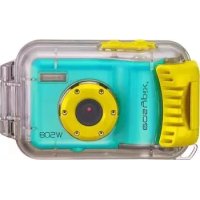
W508 - Camera EASYPIX - Free user manual and instructions
Find the device manual for free W508 EASYPIX in PDF.



| Product type | Digital camera |
| Sensor resolution | 5.0 Megapixels (CMOS) |
| Maximum image resolution | 4032x3024 pixels (12M by interpolation) |
| Video resolution | 640x480 (VGA), 320x240 (QVGA) |
| LCD screen | TFT 2.4 inches |
| Digital zoom | 8x |
| Built-in flash | Auto, Force, Red-eye reduction, Off |
| Image stabilization | Yes |
| Focus | f=7.45mm, F3.0 |
| White balance | Auto, Sunny, Cloudy, Tungsten, Fluorescent |
| ISO sensitivity | Auto, 50, 100, 200, 400 |
| Exposure compensation | -2.0 to +2.0 (1/3 step) |
| Scene modes | Auto, Landscape, Night scene, Portrait, Night Portrait, Sports, Party, Beach, High sensitivity |
| Self-timer | 2s, 10s, 3 continuous shots |
| Face detection | Yes |
| PictBridge | Yes |
| Webcam | Yes |
| External memory | SD/MMC card (up to 8 GB) |
| Power supply | 3 AAA batteries (not included) |
| Computer interface | USB 2.0 |
| Compatible operating systems | Windows 2000/XP/Vista, Mac OS X 10.2.6 and above |
| Included accessories | PhotoTags Express software CD, USB cable, user manual, wrist strap, carrying case |
| Care and cleaning | Handle with care, avoid shocks, moisture and extreme temperatures. Clean with a soft dry cloth. |
| Spare parts and repairability | Contact Easypix customer service for parts and repairs. |
Frequently Asked Questions - W508 EASYPIX
User questions about W508 EASYPIX
0 question about this device. Answer the ones you know or ask your own.
Ask a new question about this device
Download the instructions for your Camera in PDF format for free! Find your manual W508 - EASYPIX and take your electronic device back in hand. On this page are published all the documents necessary for the use of your device. W508 by EASYPIX.
USER MANUAL W508 EASYPIX
Portuguese Manual P73
Instruction Manual
Table of content
Introduction 2
Key Features 2
What Your Camera Includes 2
Computer System Requirement for Windows 2000/XP 2
Computer System Requirement for Windows Vista 2
Computer System Requirements for Macintosh 2
Quick Look at Your Camera 3
MainIcons on the LCD 3
Prepare Your Camera for use 4
Install battery. 4
Install SD memory card. 4
Starting Your Digital Camera 5
Camera mode 5
Video mode. 8
Playback mode 8
Camera setup 11
Transferring photos to your PC / Executing PC camera 13
Install PhotoTags Express Software 13
Everything you need to get the most from your photos. 15
Download photos to your PC 15
Photags Express software owner manual 17
Viewing Videos on Your Computer 17
Maintenance of Your Digital Camera 17
Appendix A: Technical Specifications 17
Introduction
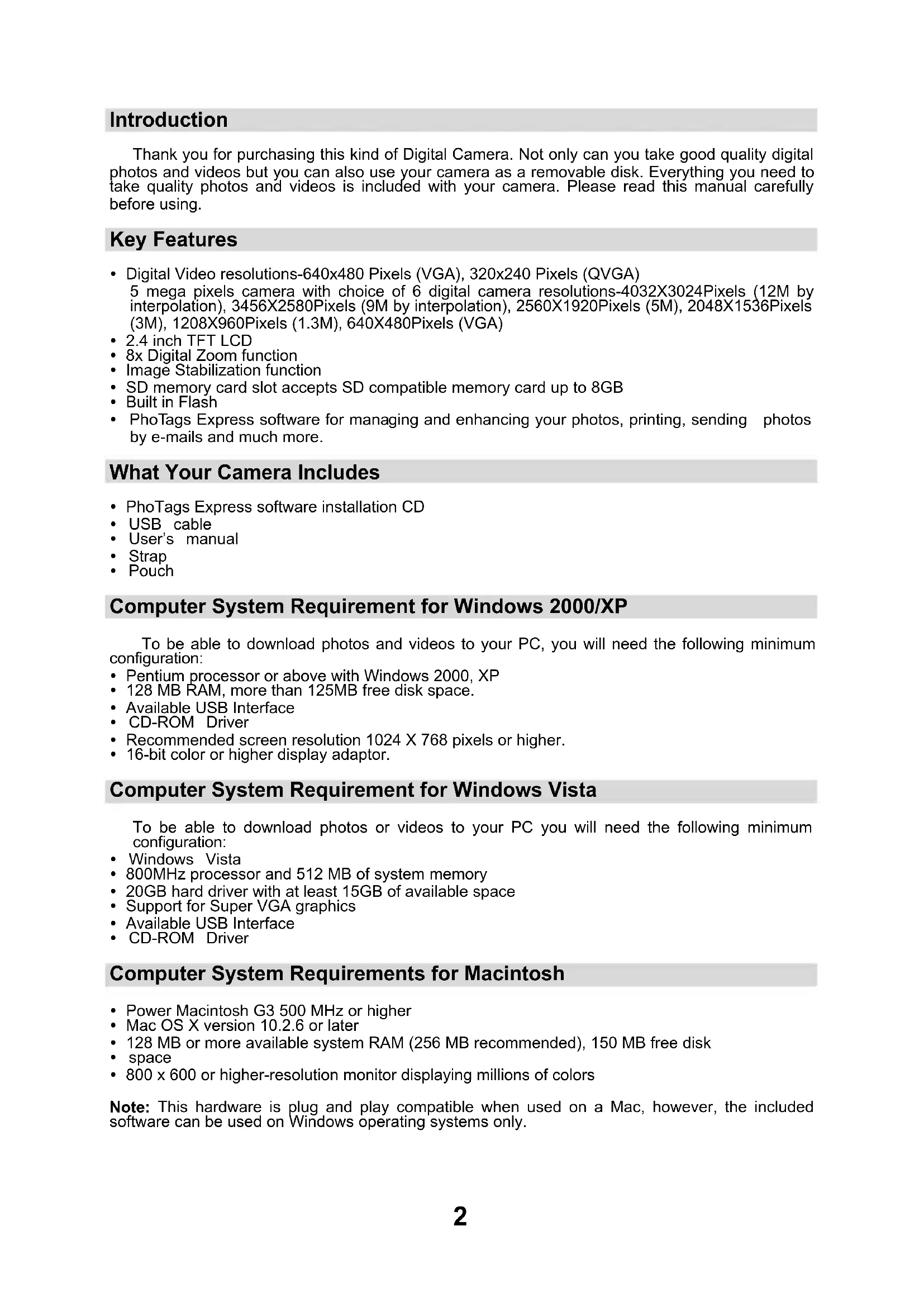
Thank you for purchasing this kind of Digital Camera. Not only can you take good quality digital photos and videos but you can also use your camera as a removable disk. Everything you need to take quality photos and videos is included with your camera. Please read this manual carefully before using.
Key Features
- Digital Video resolutions-640x480 Pixels (VGA), 320x240 Pixels (QVGA)
5 mega pixels camera with choice of 6 digital camera resolutions-4032X3024Pixels (12M by interpolation), 3456X2580Pixels (9M by interpolation), 2560X1920Pixels (5M), 2048X1536Pixels (3M), 1208X960Pixels (1.3M), 640X480Pixels (VGA)
2.4 inch TFT LCD - 8x Digital Zoom function
- Image Stabilization function
- SD memory card slot accepts SD compatible memory card up to 8GB
Built in Flash - PhotoTags Express software for managing and enhancing your photos, printing, sending photos by e-mails and much more.
What Your Camera Includes
- PhotoTags Express software installation CD
USB cable - User's manual
- Strap
- Pouch
Computer System Requirement for Windows 2000/XP
To be able to download photos and videos to your PC, you will need the following minimum configuration:
- Pentium processor or above with Windows 2000, XP
- 128 MB RAM, more than 125MB free disk space.
Available USB Interface - CD-ROM Driver
- Recommended screen resolution 1024 X 768 pixels or higher.
16-bit color or higher display adaptor.
Computer System Requirement for Windows Vista
To be able to download photos or videos to your PC you will need the following minimum configuration:
Windows Vista
800MHz processor and 512 MB of system memory
- 20GB hard driver with at least 15GB of available space
Support for Super VGA graphics
Available USB Interface
- CD-ROM Driver
Computer System Requirements for Macintosh
Power Macintosh G3 500 MHz or higher
Mac OS X version 10.2.6 or later
- 128 MB or more available system RAM (256 MB recommended), 150 MB free disk
space
- 800 × 600 or higher-resolution monitor displaying millions of colors
Note: This hardware is plug and play compatible when used on a Mac, however, the included software can be used on Windows operating systems only.
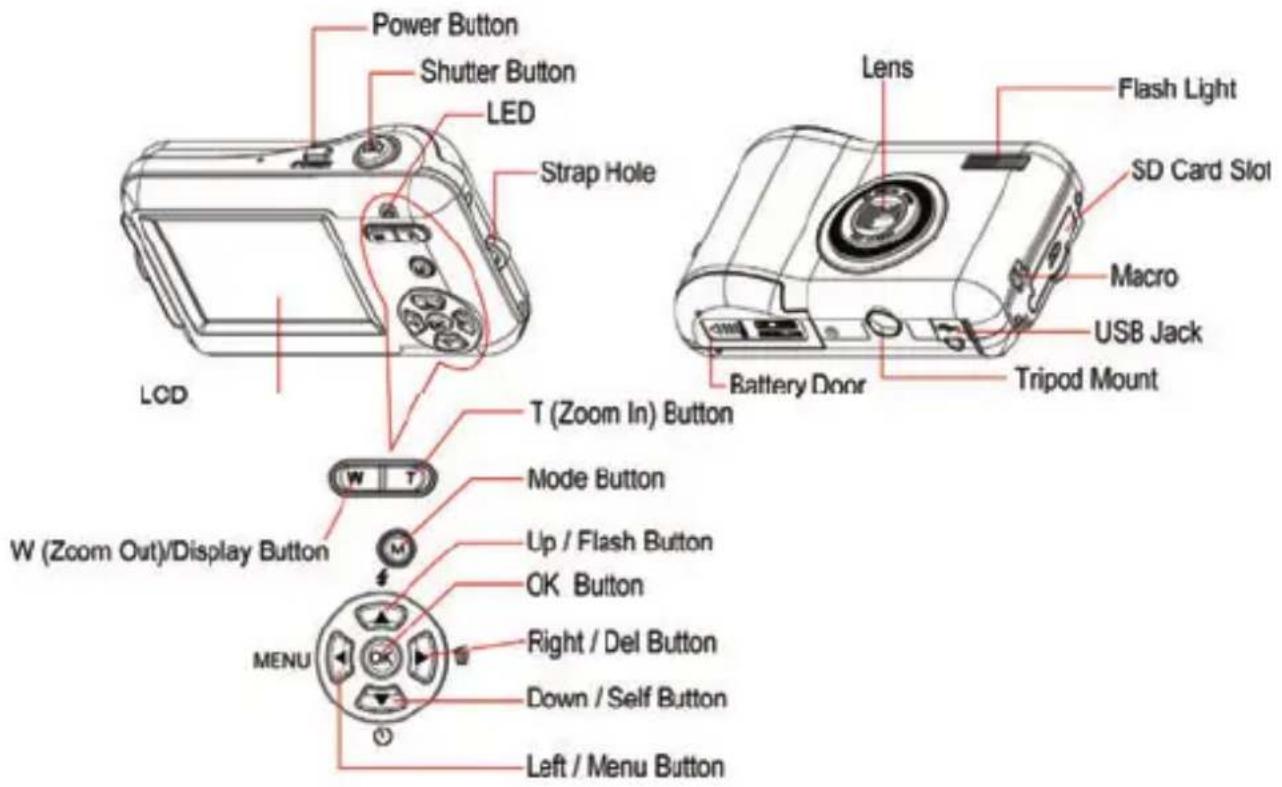
Quick Look at Your Camera
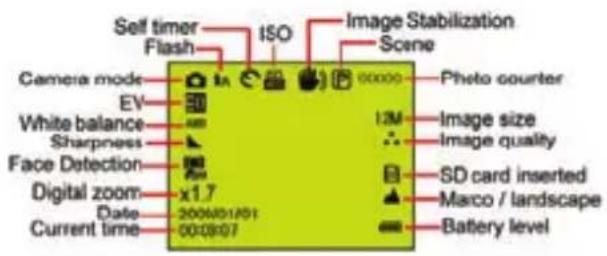
Main Icons on the LCD
Camera Mode
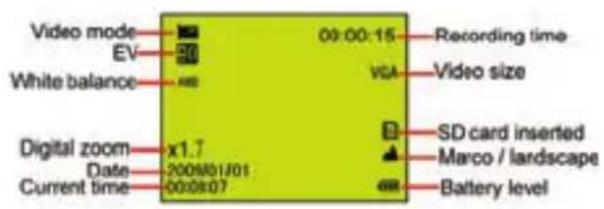
Video Mode

Playback Mode for photo
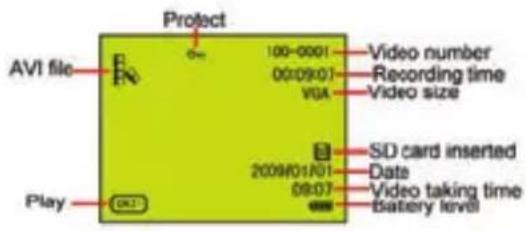
Playback Mode for Video
Modes

Camera

Video
FLASH

Force Flash

Auto

Red eye reduction

No Flesh
Quality

Super Fine

Fine
Sharpness

Strong

Normal

Soft
Macro / Far function

Far capture
Macro capture
ISO

:Auto/50/100/200/400
Self - timer

Self - timer on (2s)

Self - timer on (10s)
Continue shoot (3P)
White Balance

Auto

Daylight

Cloudy

Tungsten

Fluorescent
Battery power level

Full battery power

Medium battery power

Low battery power

Power off
Exposure

-2.0-5/3,4/3,-1.0-2/3-1/3+0.0
+1/3,+2/3,+1.0,+4/3,+5/3,+2.0
Scene

Auto

Scenary

Night Scene

Portrait

Night Portrait

Sports

Party

Beach

High Sensitivity
Prepare Your Camera for Use
Install battery
Please insert the battery correctly as the correct polarity facing up with the battery cover.
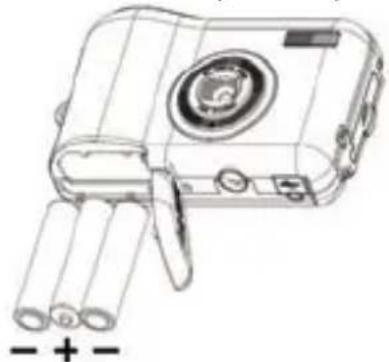
Note:
- "Low battery" will show on the LCD when battery is insufficient and your camera will be off.
- Please uninstall your battery when you don't intend to use your camera for a long time to forbid them leakage and corrosion.
- Your digital camera will be off when the battery is insufficient.
- The photos will be lost when the camera off or open the battery door, transfer the test photos/videos to PC as often as possible.
- Do not mix old and new batteries.
- Do not mix alkaline, standard (carbon-zinc), or rechargeable (nickel-cadmium metal hydride) batteries.
Install SD memory card
This camera supports any compatible SD memory card up to 8GB. Limited internal memory is only for you to take test photos, these photos will be lost when you turn off your camera or remove the
batteries. Please refer to the below diagram for correct installation method:

Locate the SD memory card slot, and insert an SD memory card as above, until you feel and hear a "Click" sound. When the icon appears on the LCD screen this indicates that your SD card is installed correctly.
Note:
- After the SD memory is inserted successful, "Move to SD card" will appear on the screen, the photos you have taken will be stored on the SD memory card.
- Formatting will delete all data on the SD memory card including protected data.
- Don't remove the SD card during formatting as this may damage the card and render it unusable.
- Download the photos/videos to your PC and delete the photos and videos from your SD Card in order to continue using your camera.
Starting Your Digital Camera
There are 3 modes on your camera.

Camera Mode: Take still photos

Video Mode: Capture video files

Playback Mode: View, print, edit photos and view videos
Power on
Press the Power button once to turn on your camera. The LCD will light up and it will sound a "beep", this indicates your camera is turned on and ready for use.
Power off
Press the Power button once to turn off your camera. When there is insufficient battery power, your camera will be off automatically after a moment.
Camera Mode
Taking Photos
After each photo is shot (when the camera returns to icon mode) the numbers of photos left to shoot at this resolution is displayed on the top right of the LCD screen.
When the camera's memory (photo capacity) is full, the LCD screen will display a message "Card Full."
Digital Zoom function
Use the T and W buttons to adjust the zoom. The icon x1.7 will show on your LCD screen. Press the T button to zoom in on your subject. Push the W button to zoom back out.
Macro shooting
slide the Macro/Far switch to position which is on the left side of the camera, until icon appears on the LCD screen, it indicates the macro shooting is on.
Far shooting
slide the Macro/Far switch to position which is on the left side of the camera, until icon appears on the LCD screen, it indicates that the far shooting is on.
Flash
Press the Up button repeatedly until the icon shows on the LCD screen. This will activate the automatic flash.
Press the Up button repeatedly until the icon appears on the LCD screen. This means the flash function has been "forced on" (manual flash). If the flash is not ready, a LED will light up and the icon will flash repeatedly - wait until the flash is ready before taking a photo.
Press the Up button repeatedly until the icon shows on the LCD screen. The red eye reduction is open.
Press the Up button repeatedly until the icon appears. This will turn off the flash function.
Self-Timer :
You can include yourself in a photo by using this feature to delay the time between your pressing the shutter and when the photo is actually taken. It is recommended that you use a tripod when you use the self-timer.
- Press Down button repeatedly to select continuous shooting.
or seconds self timer or 3 pictures
- Press the shutter button to start a 2 or 10 or 3 pictures continuous shooting to count down, and the photo will automatically be taken.
Delete :
You can delete the last photo you take on Camera Mode.
- Please press Right button to enter into the menu, and press Up/Down button to select it.
- Press OK button to confirm the selection, and press OK button to confirm the cancellation. Or, select Left button to exit.

Menu:
You can set photo/video quality and change other setting.
Photo setting :
Press Menu/Left button to enter into the menu, and press Up/Down button to select the setting. There are Resolution, Scene, Image stabilization, Quality, Sharpness, Exposure, White Balance, ISO and Face Detection.
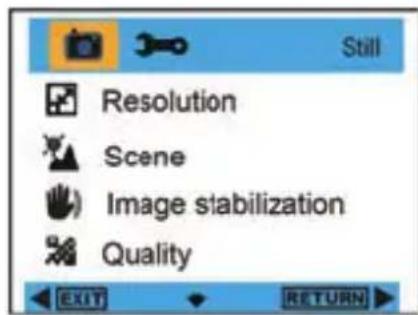
Resolution :
- Enter into MENU, and press Up/Down button to select

Resolution".
- Press OK button, and then press Up/Down button to select the resolution.
12M,9M,5M,3M,1.3M,VGA
- After selection, please press OK button to confirm, and press Left button to exit. Or, select Right button to return back.
Scene:
- Enter into MENU, and press Up/Down button to select

Scene".
- Press OK button, and then press Up/Down button to select the scenes, Auto, Night Scene, Night Portrait, Portrait, Scenery, Sports, Party, Beach, High Sensitivity.
- After selection, please press OK button to confirm, and press Left button to exit. Or, select Right button to return.
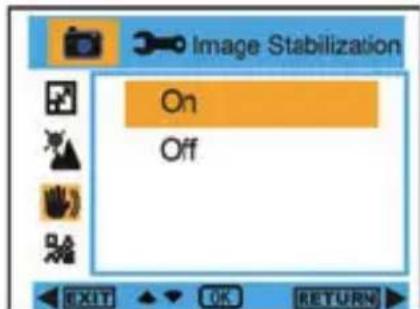
Image Stabilization :
- Enter into MENU, and press Up/Down button to select "Image Stabilization".
- Press OK button, and then press Up/Down button to selectOn/Off.
- After selection, please press OK button to confirm, and press Left button to exit. Or, select Right button to return.
Quality :
- Enter into MENU, and press Up/Down button to select" Quality".
- Press OK button, and then press Up/Down button to select the quality, Super Fine, Fine, Normal
- After selection, please press OK button to confirm, and press Left button to exit. Or, select Right button to return.
Sharpness :
- Enter into MENU, and press Up/Down button to select

Sharpness".
- Press OK button, and then press Up/Down button to select sharpness, Strong, Normal, Soft
- After selection, please press OK button to confirm, and press Left button to exit. Or, select Right button to return.




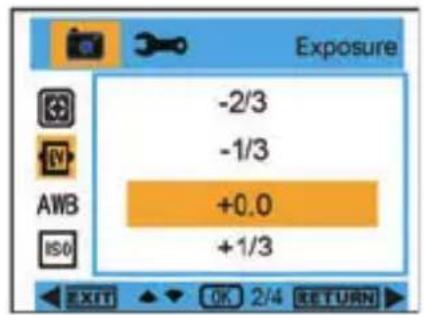
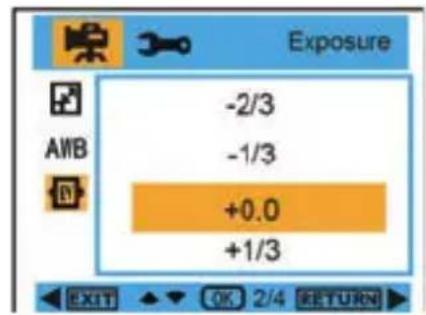
Exposure :
- Enter into MENU, and press Up/Down button to select Exposure".
- Press OK button, and then press Up/Down button to select exposure,-2.0,-5/3,-4/3,-1.0,-2/3,-1/3,+0.0,+1/3,+2/3,+1.0,+4/3,+5/3,+2.0
- After selection, please press OK button to confirm, and press Left button to exit. Or, select Right button to return.
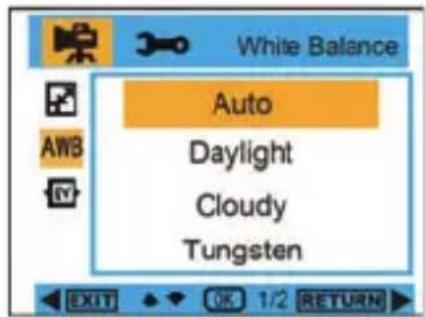
White Balance :
- Enter into MENU, and press Up/Down button to select "AWB White Balance".
- Press OK button, and then press Up/Down button to select white balance, Auto / Daylight / Cloudy / Tungsten / Fluorescent
- After selection, please press OK button to confirm, and press Left button to exit. Or, select Right button to return.
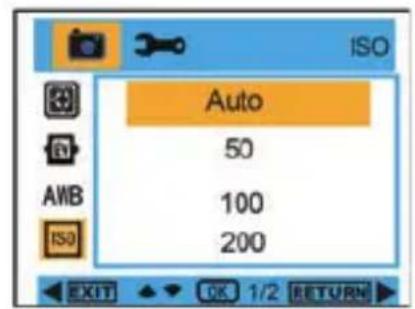
ISO :
- Enter into MENU, and press Up/Down button to select "ISO".
- Press OK button, and then press Up/Down button to select ISO, Auto, 50, 100, 200, 400
- After selection, please press OK button to confirm, and press Left button to exit. Or, select Right button to return.
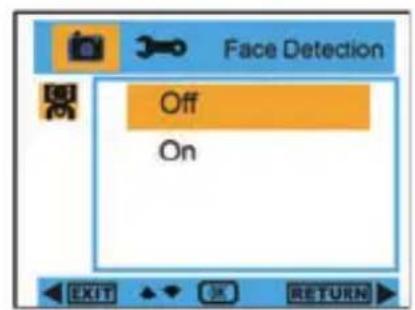
Face Detection :
- Enter into MENU, and press Up/Down button to select "Face Detection".
- Press OK button, and then press Up/Down button to select Face Detection Off / On
- After selection, please press OK button to confirm, and press Left button to exit. Or, select Right button to return.
Video Mode:
Under Video mode, please press Menu/Left button to enter into the menu, and press Up/Down button to select the setting. There are Resolution, White Balance, and Exposure


Resolution:
- Enter into MENU, and press Up/Down button to select

Resolution".
- Press OK button, and then press Up/Down button to select the resolution, VGA, QVGA
- After selection, please press OK button to confirm, and press Left button to exit. Or, select Right button to return.
White Balance :
- Enter into MENU, and press Up/Down button to select "AWB White Balance".
- Press OK button, and then press Up/Down button to select white balance, Auto / Daylight / Cloudy / Tungsten / Fluorescent
- After selection, please press OK button to confirm, and press Left button to exit. Or, select Right button to return.
Exposure :
- Enter into MENU, and press Up/Down button to select Exposure".
- Press OK button, and then press Up/Down button to select Exposure, -2.0, -5/3, -4/3, -1.0, -2/3, -1/3, +0.0, +1/3, +2/3, +1.0, +4/3, +5/3, +2.0
- After selection, please press OK button to confirm, and press Left button to exit. Or, select Right button to return.
Playback Mode
Under Camera mode, please press Mode Button twice quickly to enter into Playback Mode.
Press W Button to enter into Photo Mode, and press Up/Down/ Left/ Right button to select the photo you would like to view. After selection, please press OK button to view the photo.
When viewing the photo, you can press T Button to zoom in the photo, and press Up/Down/ Left/ Right button to adjust the viewing angle.


When viewing the photo, please press Menu/Left button to enter into Playback setting. There are Delete, Protect, Rotate, Crop, Slide Show, and Pictbridge.

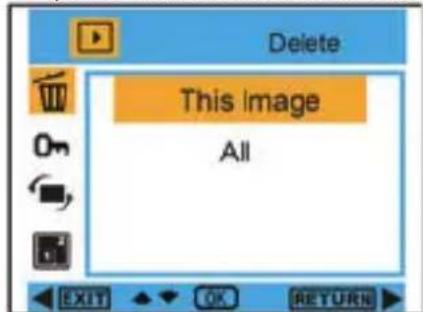
Delete :
- Enter into Playback mode, and press Up/Down button to select

Delete".
- Press OK button, and then press Up/Down button to select a setting.
- After selection, please press OK button to confirm. Press OK button again to execute it, and press Left button to exit. Or, select Right button to return back without any selection.


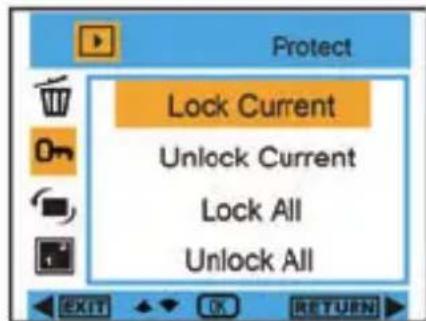
Protect :
- Enter into Playback mode, and press Menu button to select "Protect".
- Please press OK button, and then press Up/Down button to select a setting.
- After selection, please press OK button to confirm, and press Left button to exit. Or, select Right button to return without any selection.
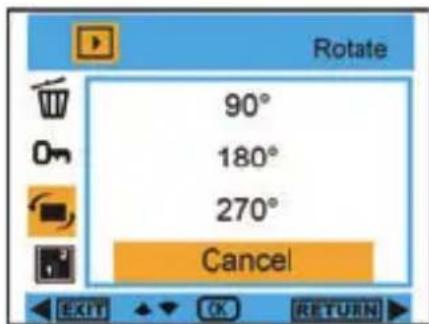
Rotate :
- Enter into Playback mode, and press Menu button to select "Rotate".
- Press OK button, and then press Up/Down button to select Rotate 90^ , 180^ , 270^ . Cancel
- After selection, please press OK button to confirm, and press Left button to exit. Or, select Right button to return without any selection.
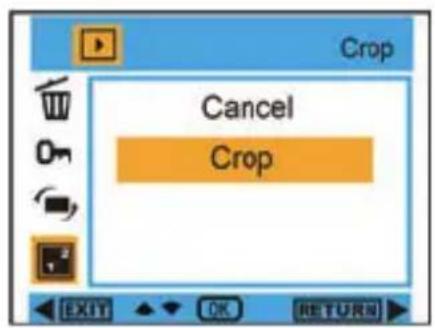
Crop :
- Enter into Playback mode, and press Menu button to select

Crop".
- Press OK button , and then press Up/Down button to select Crop.
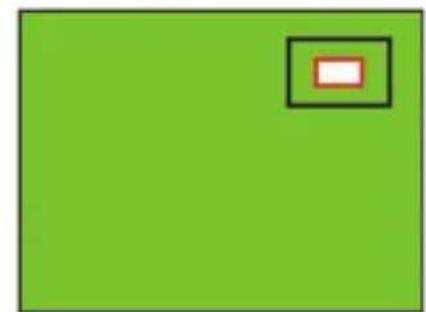
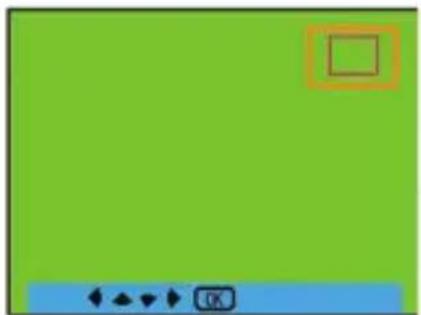
- Please press T/W button to select crop range, and press Up/Down/Left/Right button to select an area you want to crop.
- After selection, please press OK button to confirm, and press Left button to exit. Or, select Right button to return without any selection.
OK button
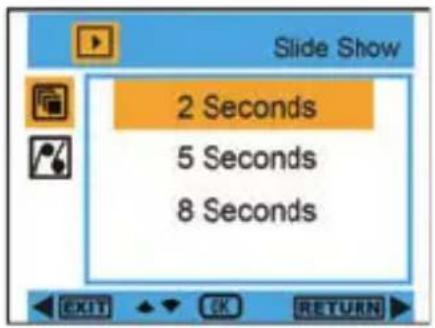
Slide Show :
- Enter into Playback mode, and press Menu button to select " Slide Show".
- Press OK button, and then press Up/Down button to select 2/5/8 seconds.
- After selection, please press OK button to confirm, or select Right button to return without any selection.
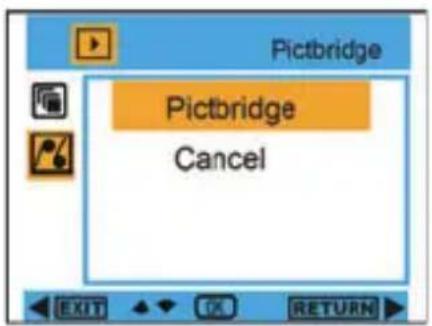
Pictbridge :
Your camera allows you to print the photos with printer. The operation is as below:
- After Choosing the photo, then press MENU/Left button into Playback mode, and press Up/Down button to select "Picturebridge" or exit.
- Connect your camera to compatible printer with USB cable correctly for printing.
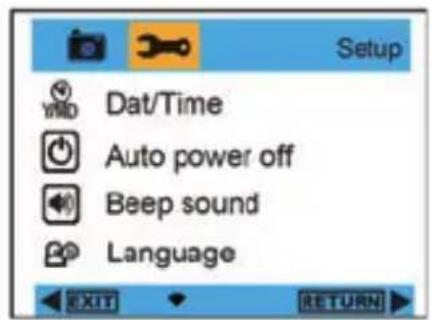
Camera Setup
Under Camera or Video Mode, please press Menu/Left button, and then press Right button to enter into setting list. Press Up/Down button to select Date/Time, Auto power off, Beep sound, Language, Date Stamp, Frequency, Format, or Default Setting.
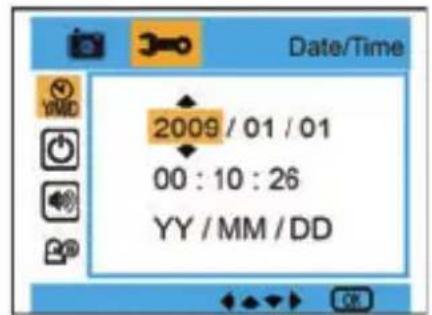
Date/Time :
- Enter into Camera Mode, and press Up/Down button to select "Date/Time".
- Press OK button, and then press Up/Down/ Left /Right button to setDate/Time.
- After selection, please press OK button to confirm, and press Left button to exit. Or, select Right button to return.
Auto power off :
- Enter into Camera Mode, and press Up/Down button to select " Auto power off".
- Press OK button, and then press Up/Down button to select Off, 1 Minute, or 3Minutes.
- After selection, please press OK button to confirm, and press Left button to exit. Or, select Right button to return.
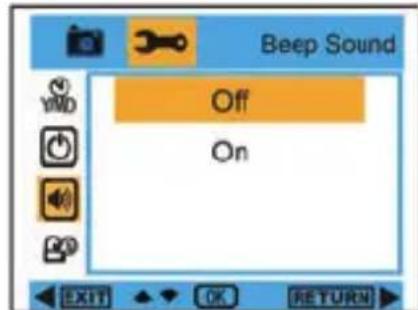
Beep sound :
- Enter into Camera Mode, and press Up/Down button to select " Beep sound".
- Press OK button, and then press Up/Down button to select On/Off
- After selection, please press OK button to confirm, and press Left button to exit. Or, select Right button to return.
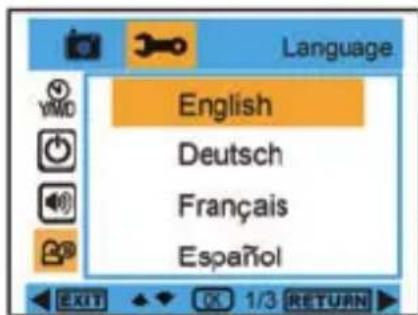
Language :
- Enter into Camera Mode, and press Up/Down button to select "Language".
- Press OK button, and then press Up/Down button to select a language, English, Deutsch, Français, Espanol, Italiano, Portugues, Japanese, Simplified Chinese, Traditional Chinese.
- After selection, please press OK button to confirm, and press Left button to exit. Or, select Right button to return.
Date Stamp :
- Enter into Camera Mode, and press Up/Down button to select "Date Date Stamp".
- Please press OK button, and then press Up/Down button to select Date/Time, Date, or off
- After selection, please press OK button to confirm, and press Left button to exit. Or, select Right button to return.
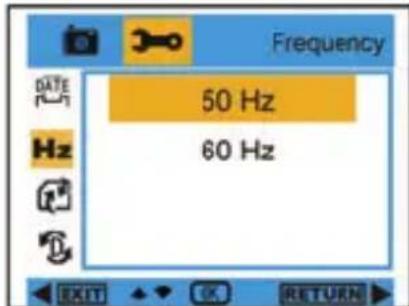
Frequency :
- Enter into Camera Mode, and press Up/Down button to select "Hz Frequency".
- Press OK button, and then press Up/Down button to select 50 Hz or 60 Hz
- After selection, please press OK button to confirm, and press Left button to exit. Or, select Right button to return.


Format :
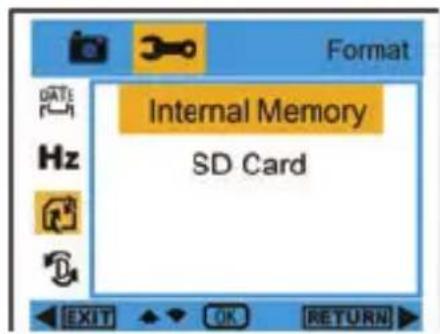
- Enter into Camera Mode, and press Up/Down button to select ” Format ”
- Press OK button to format SD card.
- Press Up/Down button to select Cancel or OK. After selection, please press OK button to format, and then press Left button to exit. Or, select Right button to return.

OK button
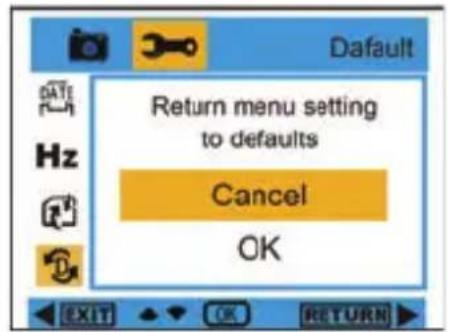
Default Setting :
- Enter into Camera mode, and press Up/Down button to select " Default Setting".
- Press OK button twice to confirm default setting.
- You can press Up/Down button to select Cancel or OK. After selection, please press OK button to confirm, and press Left button to exit. Or, select Right button to return.
Transferring photos to your PC / Executing PC camera
Please connect your computer and digital camera with USB cable. After connection, please press the power button, and it will show PC camera menu on the display of the camera. Please use UP/DOWN button to select PC Mode or PC Camera, or please right button to exit without any selection.
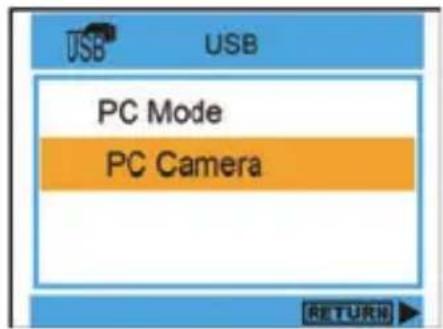
PC Mode : After connection, please clip my computer" ", and choose removable Disk" Removable Disk (Hc) to view all photos and videos.
PC Camera :After connection, please clip my computer " ", and choose PC CAM"

PC CAM " to execute PC camera.
Install PhotoTags Express Software
NOTE: Make sure that your camera is not connected to the computer.
Insert software CD to your computer. After a few seconds, there will be shown an installing main window on the screen.
You can "install AP", "Install DirectX", "Browse CD", and "Exit" in this installing main window.

Install Photags Express
Click on the "Install AP" to start installing process. The language window will be shown on the screen and you can choose the language you want to use.

And then the installer window will be shown as below.
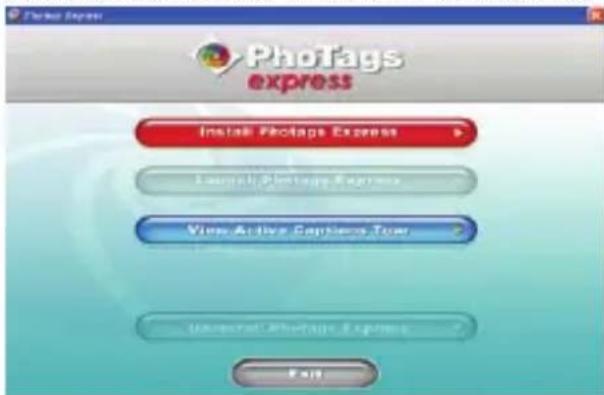
After you click "Install Photags Express" button, there will be showing some windows that help you to finish the installing. You are only required to follow the description and click the buttons that it's defaulted by the software.
Register online
Click "Register online" button to have a registration. Or you can directly click "Continue" for registration next time.
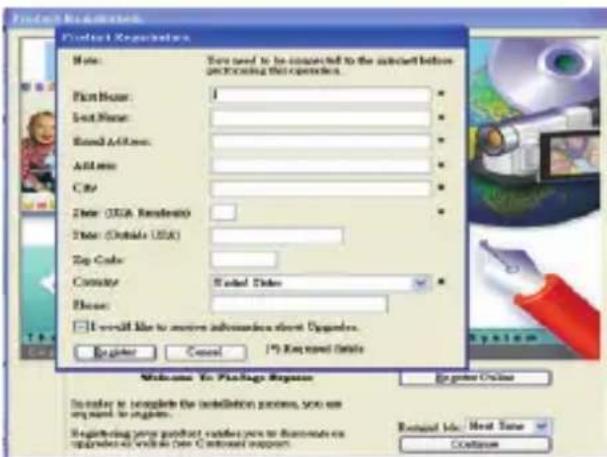
After this step, the main window will appear on the screen.

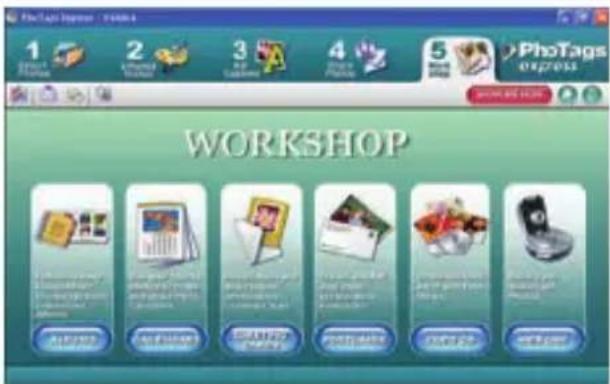
Everything you need to get the most from your photos
-
Select photos Select the photos that you download from your camera. And edit it in the software.
-
Edit photos Click the "Enhance photos", "Add captions" from the main window to edit your ideal photos.
-
Share photos Share your photos via "E-mail", "Printing", and "Create HTML web" to uploading online.
-
Workshop Create "Calendars", two sides "Greeting cards" and "Postcards" on standard photo paper. You can purchase "Album" and "Video CD". Two additional workshop project online at any time and create Photo Album and slide shows on CD that can be viewed on your PC and VCD for viewing on your TV using your DVD player.
Download photos to your PC
Turn on your camera, connect your camera to the computer correctly with USB cable, a "MSDC" will show on the LCD screen. The screen of PC will be shown a window (Removable Disk H:) as below:

NOTE: Now you can copy the photos to your computer with two methods as below:
I. Download photos directly from windows
Choose "copy pictures to a folder on my computer" on the Removable Disk (H:) window. After you click "OK", there will be shown some windows on the screen step by step, you are only required to follow the description and click the buttons that are defaulted by the system to finish transferring.
Or you can:
- Click on the START button in Windows.
- Click on the MY COMPUTER Icon on the desktop.
- Your memory card will appear as a REMOVABLE STORAGE DEVICE.
- Click on the REMOVABLE STORAGE DEVICE to view the images. The images are stored in the subfolder called DCM100.
- You can now copy and paste the images to any directory you choose.
II. Download photos using Photags Express
Double click the Photags Express icon

on the desktop to launch the application.
Click the "Get Photos" button on the main window. The "Get Photos" wizard mode will appear on the screen, you can select "custom copy" to download photos with your individuation. Or you can select "Express" option to download all photos to the computer without the option of selecting photos. In this mode you will not see a preview of the photos transferred.
Custom copy
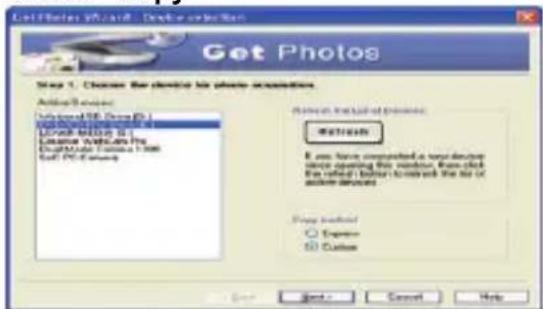



This mode is used to manually select the photos you wish to copy to your computer.
The "Device selection" mode will appear. Both your camera and the memory card will each appear in the "Active Devices" list
Select "Custom copy" click "Next" to continue. Note: At this moment, you can select "Express" option to copy all photos to your computer.
Select your photos click "Next" to continue.
Add active captions to the picture. With this feature you can add a date, keywords and categories. Click "Next" to continue.
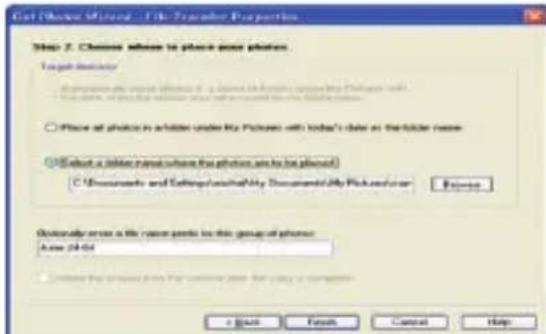
Choose a position where you want to place the photos. Click "Finish" to copy the photos to the location you selected.
Note:
All of the picture you imported will appear in the "Select Photos" main window. And now, you can edit your photos per your idea, and then download it to your computer. For how to edit the photos, you can refer to the Quick Start guide in the Photags Express.
Photags Express software owner manual
You can edit, printing, sharing photos with Photags Express. You can operate it as following step to know how to use Photags Express:
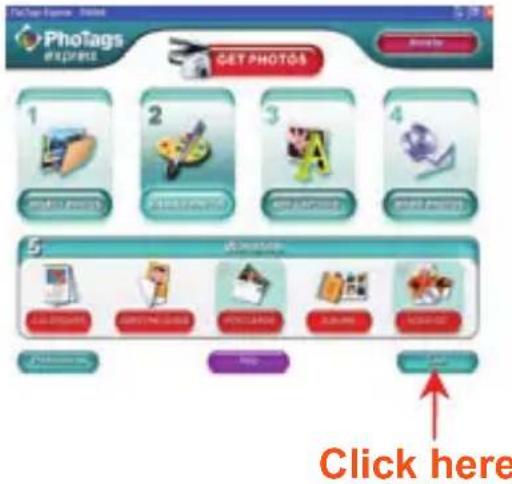
Launch the Photags Express.
Click "tour" button on the main window to view how to use the photags Express in detail.
Attention:
If Photags Express can not upgrade the DirectX automatically, you can manually install the DirectX in the CD before using the Camera, otherwise, if the edition of DirectX in the windows operation is less than 8.1, then the AVI file can not be played.
Viewing Videos on Your Computer
To view a video clip double click on a video file, this will open Windows Media Player.
Maintenance of Your Digital Camera
The digital camera is a delicate device. Please handle your camera with care to avoid damaging it.
Appendix A: Technical Specifications
| Image Sensor 5.0 Mega | Pixels CMOS Sensor |
| Image Resolution | 4032X3024Pixels (12M by interpolation), 3456X2580Pixels (9M by interpolation), 2560X1920Pixels (5M), 2048X1536Pixels (3M), 1280X960Pixels (1.3M), 640X480Pixels (VGA) |
| Video Resolution 640x480 Pixels (VGA), 320x240 Pixels (QVGA) | |
| File Format JPEG/AVI | |
| PC CAM Yes | |
| External Memory SD / | MMC Card (up to 8GB) |
| LCD Display 2.4 Inch TFT LCD | |
| Lens | f=7.45mm, F3.0 |
| Zoom 8X digital zoom | |
| Exposure -2.0, -5/3, -4 | 3, -1.0, -2/3, -1/3, +0.0, +1/3, +2/3, +1.0, +4/3, +5/3, +2.0 |
| Scene | Auto, Scenery, Night Scene, Portrait, Night Portrait, Sports, Party, Beach, High Sensitivity |
| White Balance Auto / Daylight / Cloudy / Tungsten / Fluorescent | |
| Image Stabilization Yes | |
| ISO Auto , 50 , 100 , 200 , 400 | |
| Flash Auto /Force on/Off /red eye reduction | |
| Self-timer 2 or 10 sec or 3 continuous shooting | |
| Face Detection | Yes |
| Anti-shake | Yes |
| Pictbridge | Yes |
| Interface USB 2.0 full speed | |
| System Requirements | Window 2000/XP/ Vista/ Mac OS X (10.2.6 or higher) |
| Battery | 3*AAA (not included) |
| Working Temperature | 0~40 °C |
Benutzeranleitung
Inhalt
-2.05/34/3-1.02/3-1/3+0.0
+1/3,+2/3,+1.0,+4/3,+5/3,+2.0
Appendice A: Specifications techniques 72
Présentation
Retardateur active (10s)
Prise continue (3P)
Balance Blancs

Auto

Ensoille

Nuageux

Tungstene

Fluor
Etat de la pile

Pile chargee

Pile à moins vide

Pile table

Déchargee
Exposition

Appendice A: Specifications techniques

- Instruction Manual
- Table of content
- Introduction
- Key Features
- What Your Camera Includes
- Computer System Requirement for Windows 2000/XP
- Computer System Requirement for Windows Vista
- Computer System Requirements for Macintosh
- Modes
- FLASH
- Quality
- Sharpness
- Macro / Far function
- ISO
- Self - timer
- White Balance
- Battery power level
- Exposure
- Scene
- Prepare Your Camera for Use
- Note:
- Install SD memory card
- Starting Your Digital Camera
- Power on
- Power off
- Camera Mode
- Taking Photos
- Digital Zoom function
- Macro shooting
- Far shooting
- Self-Timer :
- Delete :
- Menu:
- Photo setting :
- Resolution :
- Scene:
- Image Stabilization :
- Quality :
- Sharpness :
- Exposure :
- White Balance :
- ISO :
- Face Detection :
- Video Mode:
- Resolution:
- Playback Mode
- Protect :
- Rotate :
- Crop :
- Slide Show :
- Pictbridge :
- Camera Setup
- Date/Time :
- Auto power off :
- Beep sound :
- Language :
- Date Stamp :
- Frequency :
- Format :
- Default Setting :
- Transferring photos to your PC / Executing PC camera
- Install PhotoTags Express Software
- Install Photags Express
- Register online
- Everything you need to get the most from your photos
- Download photos to your PC
- Download photos directly from windows
- Or you can:
- Download photos using Photags Express
- Custom copy
- Photags Express software owner manual
- Viewing Videos on Your Computer
- Maintenance of Your Digital Camera
- Appendix A: Technical Specifications
- Benutzeranleitung
- Inhalt
- Présentation
- Balance Blancs
- Etat de la pile
- Exposition
- Appendice A: Specifications techniques
Brand : EASYPIX
Model : W508
Category : Camera