Sign Pro - Tablet WACOM - Free user manual and instructions
Find the device manual for free Sign Pro WACOM in PDF.



User questions about Sign Pro WACOM
0 question about this device. Answer the ones you know or ask your own.
Ask a new question about this device
Download the instructions for your Tablet in PDF format for free! Find your manual Sign Pro - WACOM and take your electronic device back in hand. On this page are published all the documents necessary for the use of your device. Sign Pro by WACOM.
USER MANUAL Sign Pro WACOM
EN Quick start guide
1 Close all open applications.
2 Connect your Wacom product to a free USB port of your computer.
3 Insert the Wacom sign | pro PDF installation CD into your computer.
4 Click "Start" and follow the on-screen prompts.
Starting Wacom sign | pro PDF
1 Click "Start" and choose "(All) Programs"
2 Select "Wacom sign | pro PDF" and open "Wacom sign | pro PDF"
Signing keys
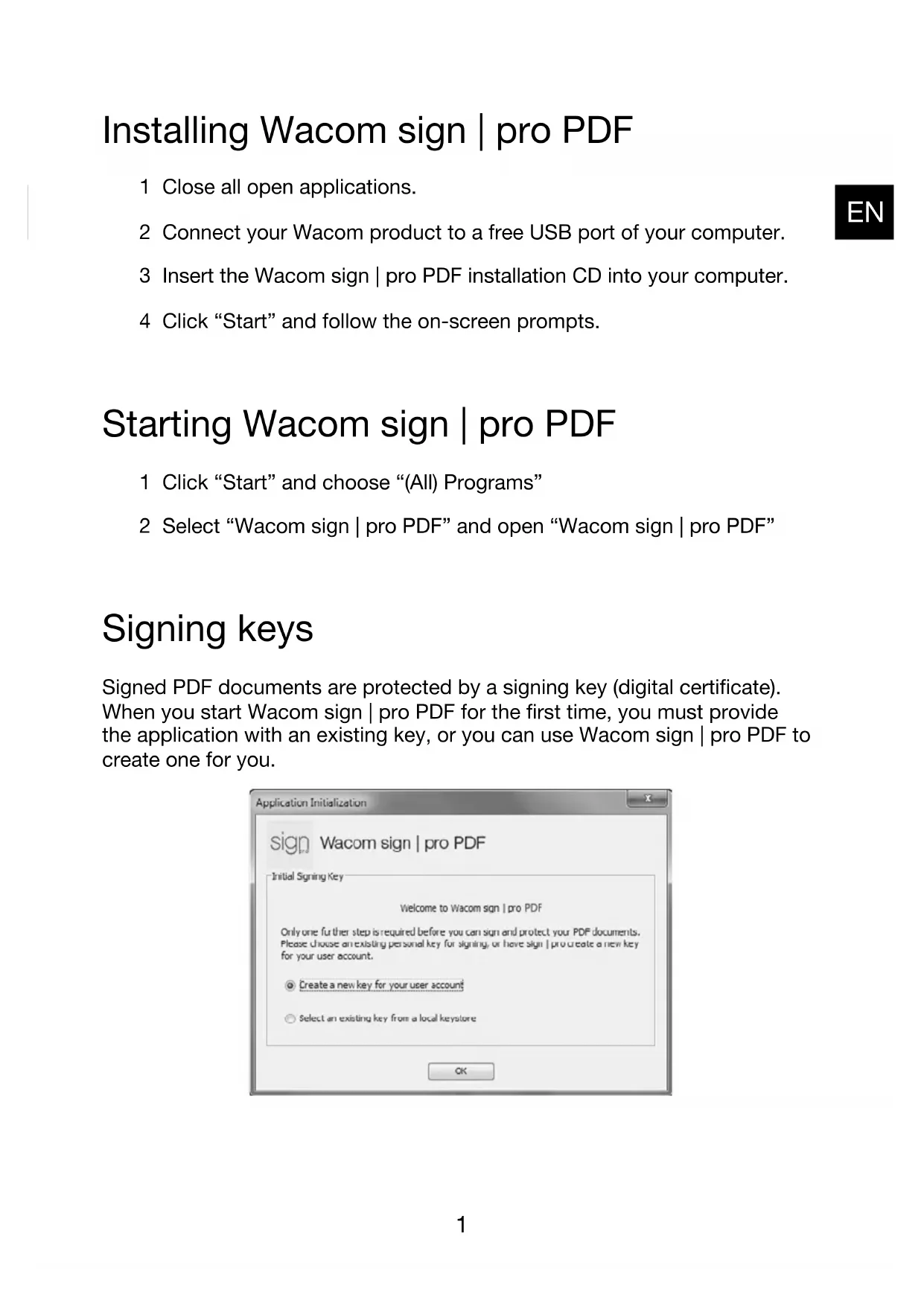
Signed PDF documents are protected by a signing key (digital certificate). When you start Wacom sign | pro PDF for the first time, you must provide the application with an existing key, or you can use Wacom sign | pro PDF to create one for you.
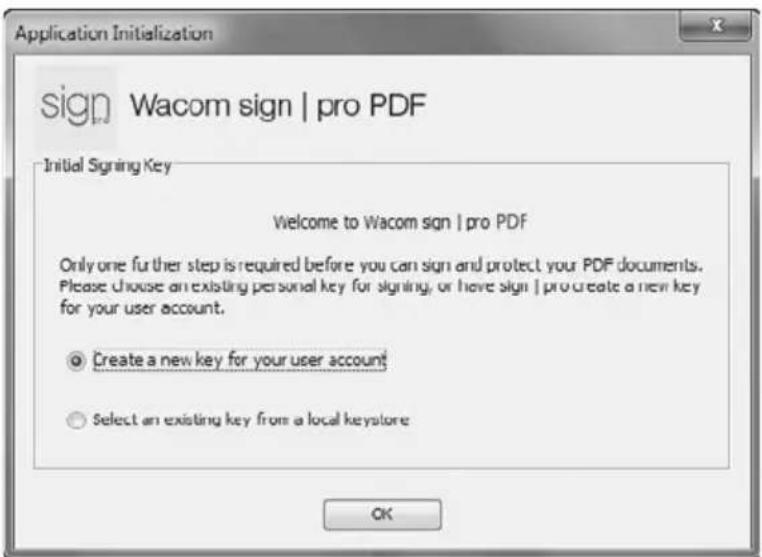
1 If you don't already have a signing key, simply click "OK".
2 Enter a password to be used with the certificate.
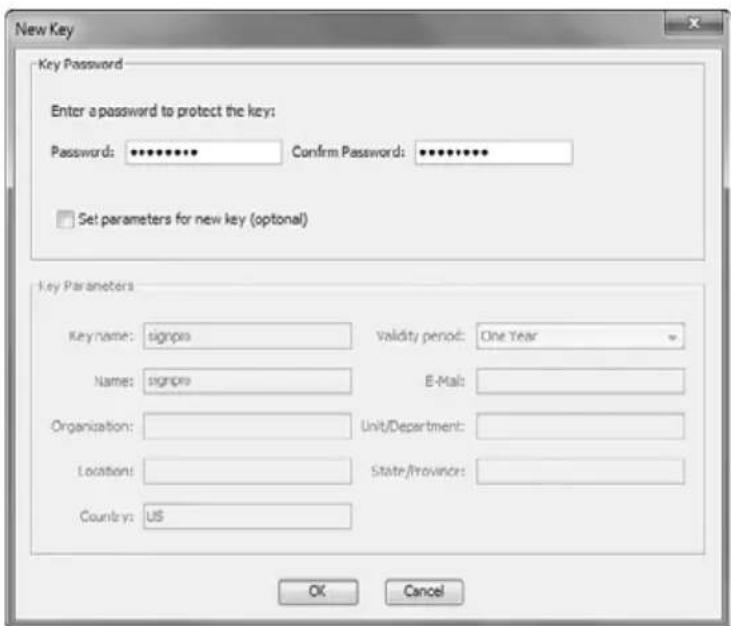
3 If you would like to define more information, select the "Set parameters for new key (optional)" checkbox and fill in the other information as required.
4 If you have chosen to use an existing key, click "Select key...", and then select the file containing the key you wish to use.
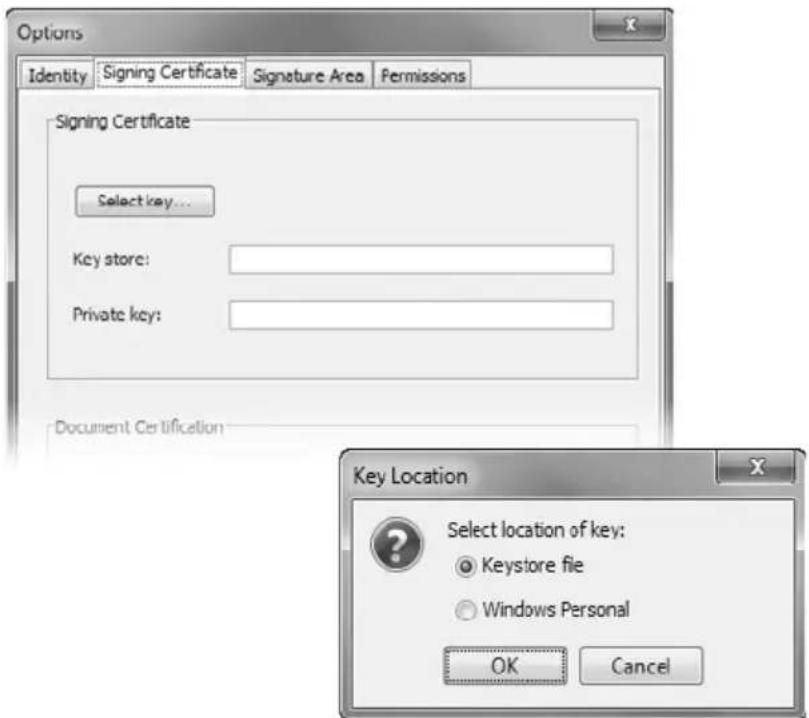
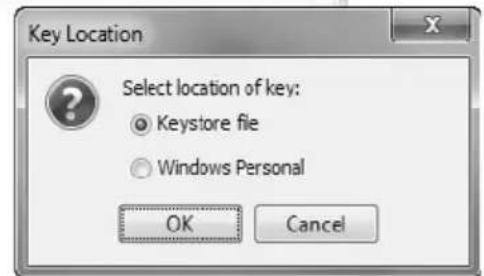
EN
Signing an existing PDF document
1 Click the button on the Wacom sign | pro PDF toolbar then browse to and open any PDF document.
2 Use the navigation and zoom buttons to review the document and go to the place you want a signature to appear.

3 Click on the button.
4 Enter name of person signing as well as the reason for signing and confirm your input by clicking "OK".
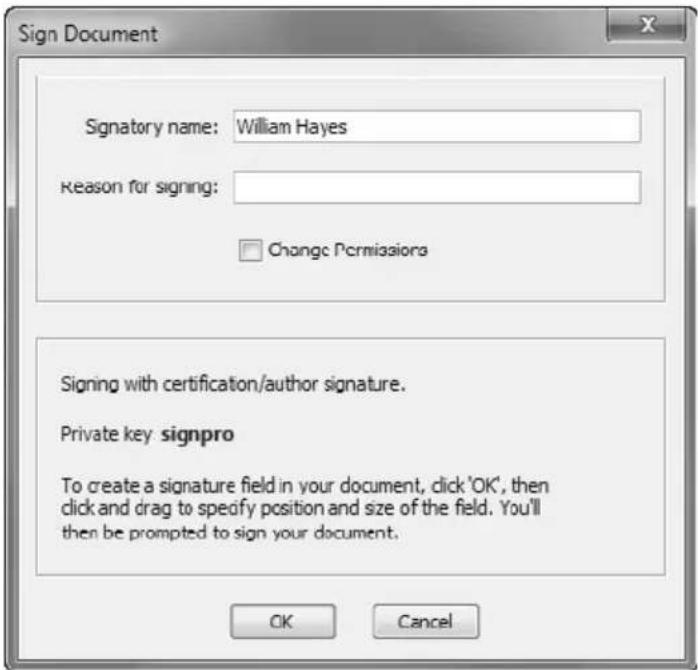
5 Click and drag on the document to mark the area where you wish the signature to appear.
6 Sign on the tablet and click "OK".
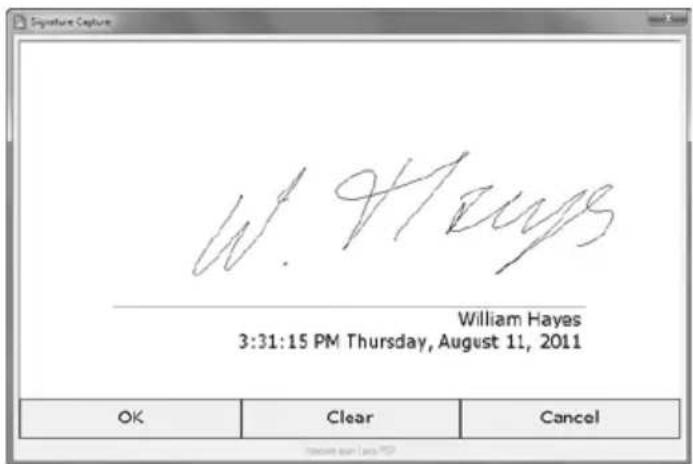
7 The signature will be displayed on the document.
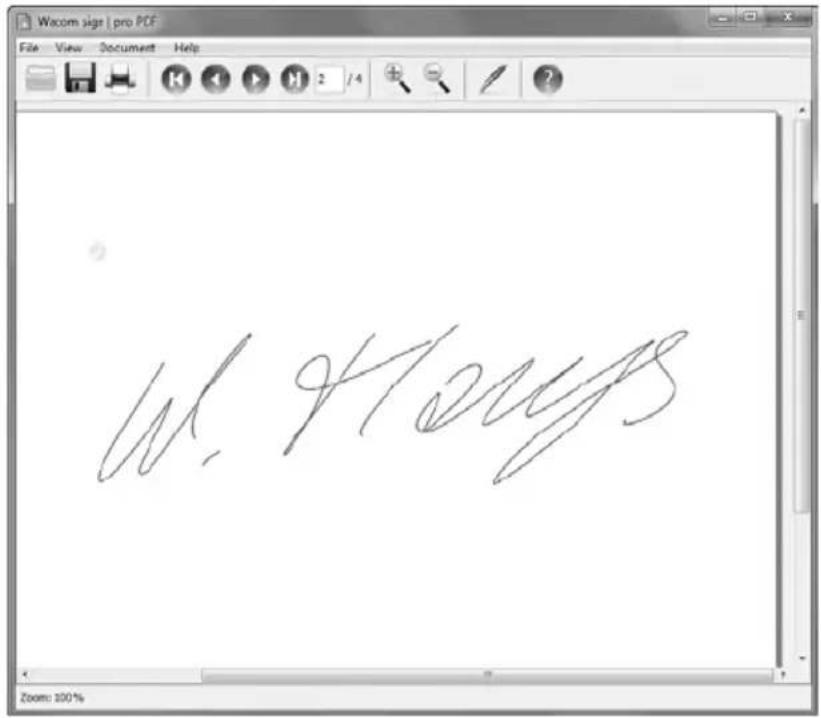

8 Add further signatures as required.
9 Click on a signature to view signing information.
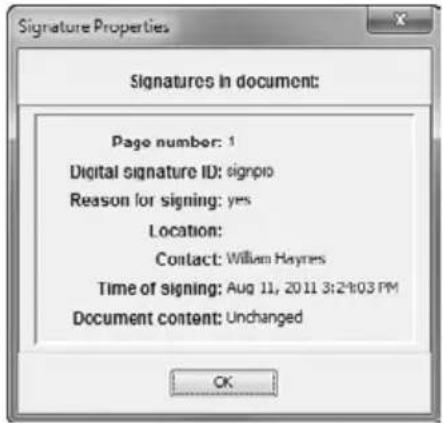
10 Click the button to print the document.
11 Click the button to save the document.
EN
Generating a PDF document to sign
1 Open any document (word processing document, spread sheet, etc.) you wish to sign in its associated application.
2 Use the application's menu commands (usually "File – Print...") to print to the "Wacom sign | pro PDF" printer.
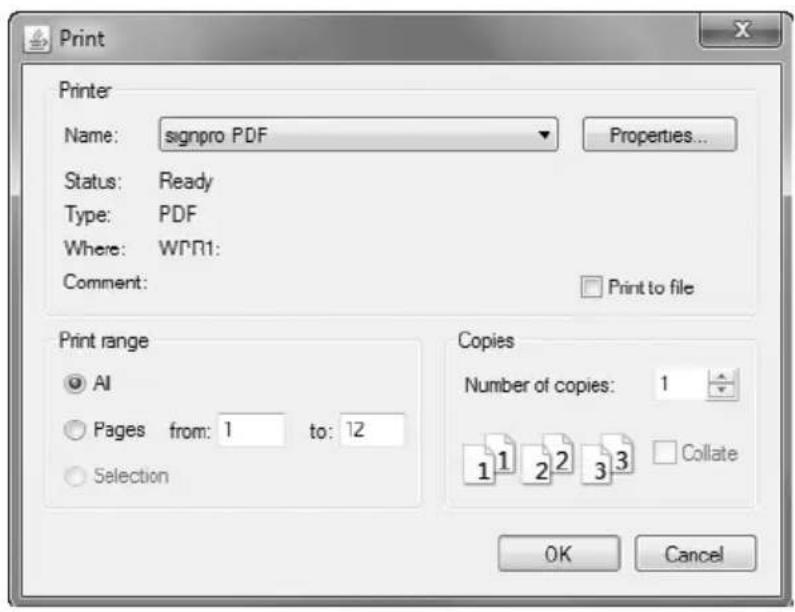

Do not use toolbar print buttons or "Quick Print" commands as these usually print immediately to the default printer without the opportunity to select the "Wacom signpro PDF" printer.
3 The Wacom sign | pro PDF printer will generate a PDF version of your document and open the Wacom sign | pro PDF application to display it.
4 Proceed to insert signature areas and sign the document as described above.
Online help
To read the online help that comes with Wacom sign | pro PDF, click the button on the Wacom sign | pro PDF toolbar.
EN
Register your product
Visit http://www.wacom.com/register to register the Wacom product you are using with your sign | pro PDF software.
Customer support
Check the Troubleshooting section in the User's Manual, or visit our web site at:
www.wacom.com/customercare
or
1-800-922-6613
© 2012 Wacom Technology Corporation. All rights reserved. Wacom is a trademark of Wacom Co., Ltd. All other trademarks and product names are property of their respective companies. The product contains software protected by copyright.
ES

www.wacom.com/customercare
O
1-800-922-6613
Signature d'un document PDF existant
FR

Assistance technique
www.wacom.com/customercare
ou
1-800-922-6613
natural_image
Abstract 3D illustration of five colored cone-like shapes arranged radially (no text or symbols)wacom®
Wacom. 1311 SE Cardinal Court, Vancouver, WA 98683 USA
www.wacom.com