Tab 737 QC - Tablet Sunstech - Free user manual and instructions
Find the device manual for free Tab 737 QC Sunstech in PDF.



| Product type | Tablet |
| Brand | Sunstech |
| Model | Tab 737 QC |
| Operating system | Android 6.0 |
| Processor | Quad core |
| RAM memory | 1 GB DDR3 |
| Internal storage | 8 GB flash |
| Expandable storage | Micro SD card (max. 64 GB) |
| Screen | LCD TFT 7 inches (1024 x 600 IPS), capacitive touch screen |
| Wi-Fi connectivity | IEEE 802.11 b/g/n |
| Bluetooth | Yes |
| Front camera | 0.3 MP |
| Rear camera | 2.0 MP |
| Battery | Rechargeable lithium polymer 2600 mAh |
| Power supply | 5V, 2A adapter |
| Audio output | 3.5 mm headphones |
| Speaker | 1 W built-in |
| Microphone | Built-in |
| PC interface | USB 2.0 high speed |
| Care and cleaning | Clean with a soft cloth, slightly damp if necessary. Do not use abrasives. |
| Safety | Do not expose to humidity, direct sunlight, or temperatures above 40 °C. Do not open the device. |
| Weight | Approximately 300 g (estimated) |
Frequently Asked Questions - Tab 737 QC Sunstech
User questions about Tab 737 QC Sunstech
0 question about this device. Answer the ones you know or ask your own.
Ask a new question about this device
Download the instructions for your Tablet in PDF format for free! Find your manual Tab 737 QC - Sunstech and take your electronic device back in hand. On this page are published all the documents necessary for the use of your device. Tab 737 QC by Sunstech.
USER MANUAL Tab 737 QC Sunstech
natural_image
Abstract illustration of a white sphere resting on a gray book with a small circle and crescent moon against a dark background (no text or symbols)TAB737QC
TABLET
USER GUIDE
CONTENT
| UNIT AT A GLANCE......1 |
| GETTING STARTED. ......2 |
| ABOUT APPLICATIONS......4 |
| PREINSTALLED APPLICATIONS......4 |
| CONNECTING TO THE INTERNET......5 |
| E-MAIL. ......7 |
| TRANSFERRING FILES ......8 |
| TROUBLESHOOTING. ......9 |
| SPECIFICATIONS. . ......11 |
| BLUETOOTH CONNECTIVITY......11 |
| FACTORY RESET. ......11 |
| WARNINGS. . ......13 |
ENGLISH
User guide
TAB737QC
UNIT AT A GLANCE
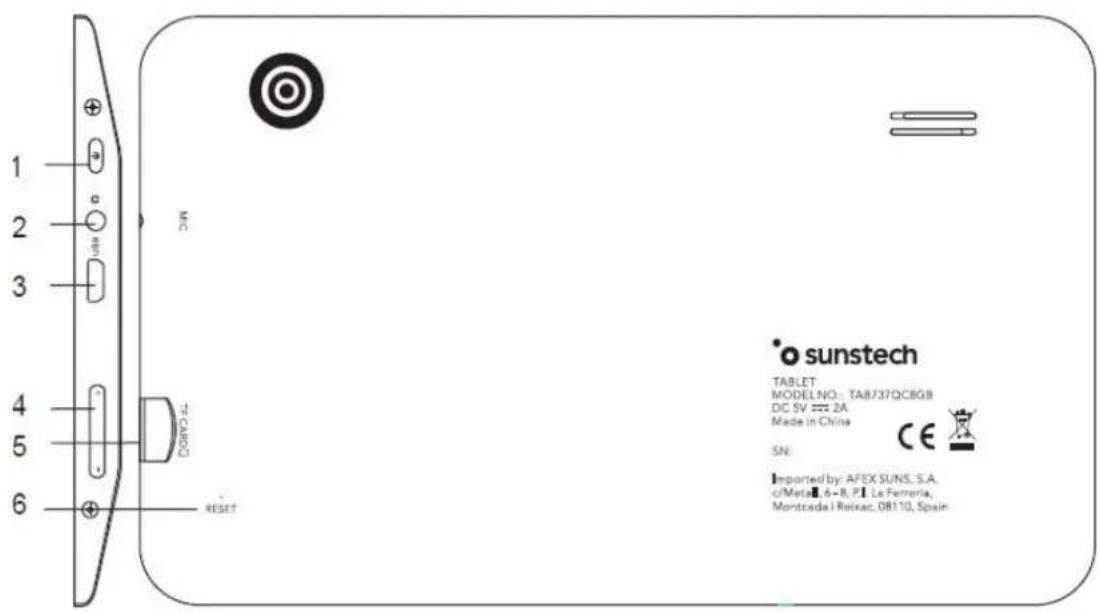
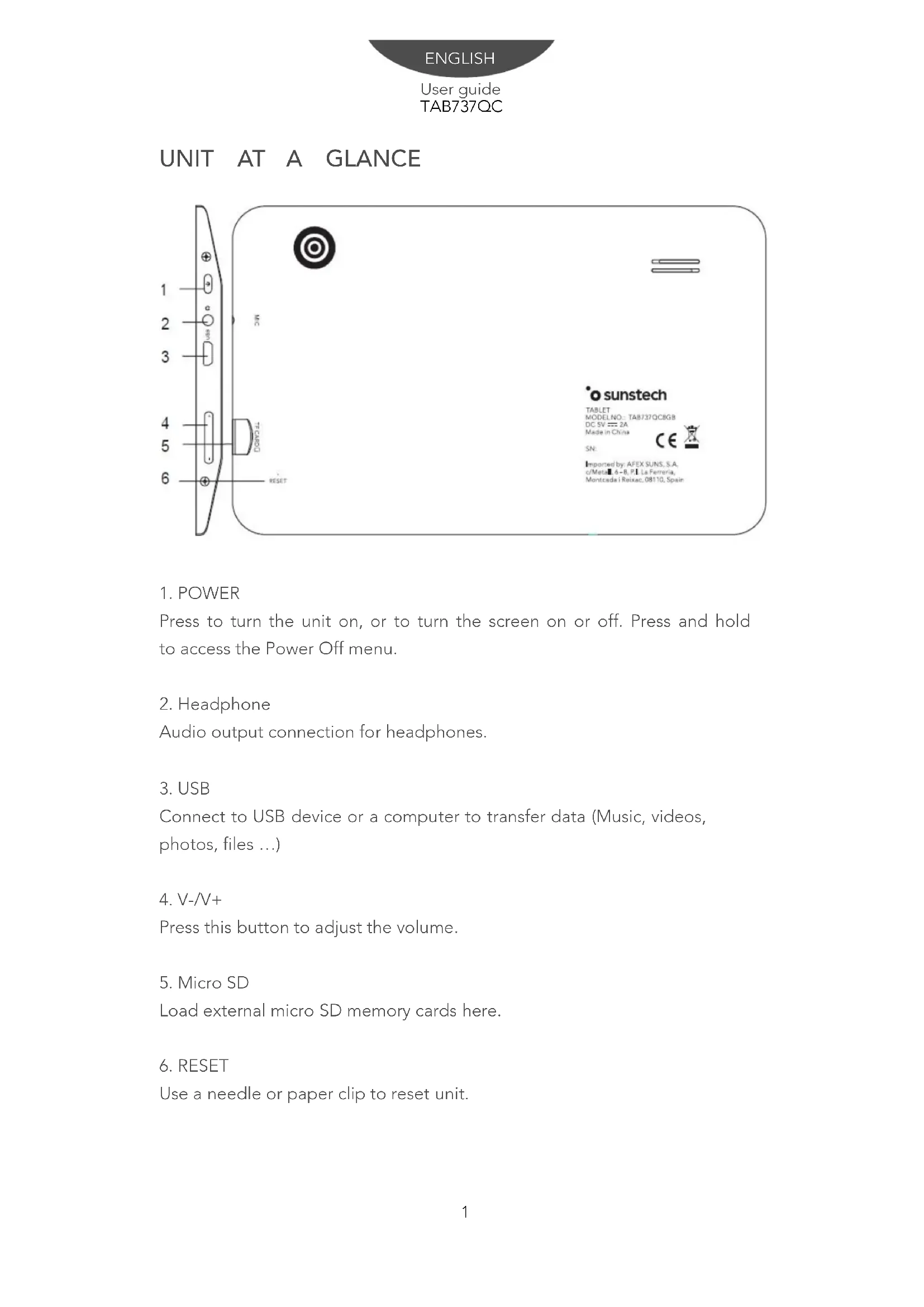
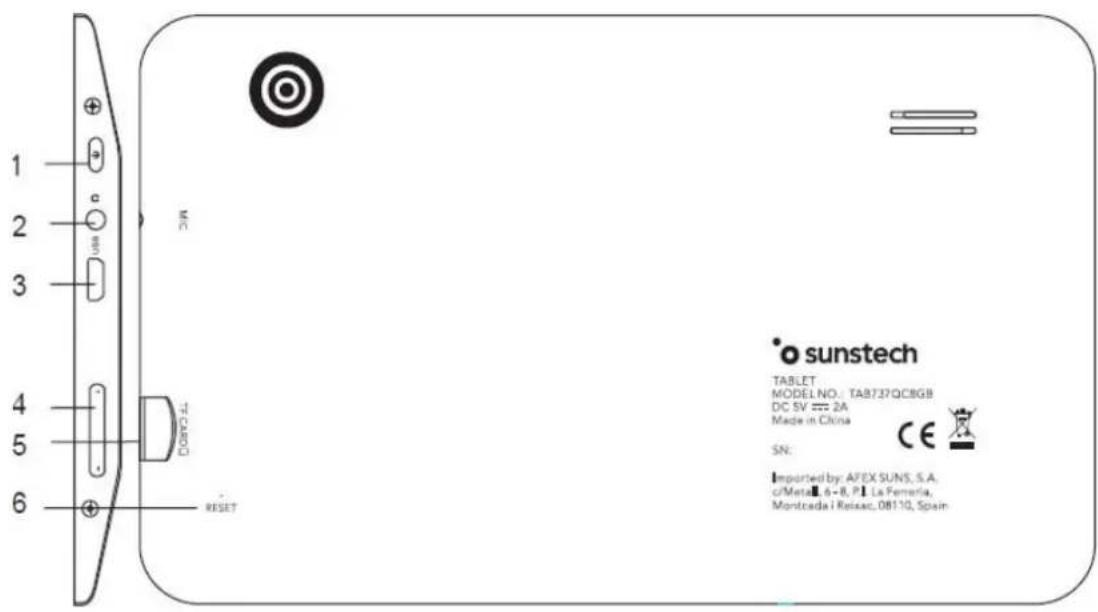
1. POWER
Press to turn the unit on, or to turn the screen on or off. Press and hold to access the Power Off menu.
2. Headphone
Audio output connection for headphones.
3. USB
Connect to USB device or a computer to transfer data (Music, videos, photos, files ...)
4. V-/V+
Press this button to adjust the volume.
5. Micro SD
Load external micro SD memory cards here.
6. RESET
Use a needle or paper clip to reset unit.
ENGLISH
User guide
TAB737QC
GETTING STARTED
Turning the Tablet on or off
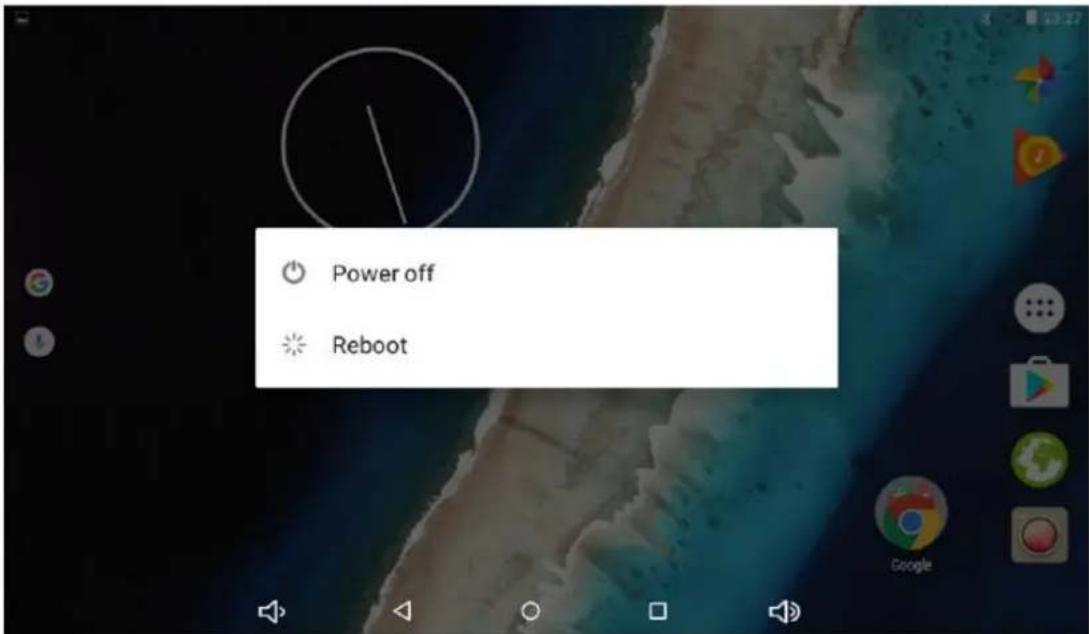
To turn the tablet on press and hold the Power key until the LCD screen turns on. Wait until the Home screen appears, the tablet is now ready for use. To turn the tablet off press and hold the Power key until the power off menu appears.
Turning the Screen On or off (Standby)
When the tablet is on, you can turn off the screen to conserve battery power simply pressing the Power key once to turn the screen off. Press the Power key again to turn the screen back on.

To conserve battery power, the screen can be set to turn off automatically when the tablet is not in use (between 15 seconds and 30 minutes). This Screen timeout option can be found in the Display menu.
ENGLISH
User guide
TAB737QC
Unlocking the Screen
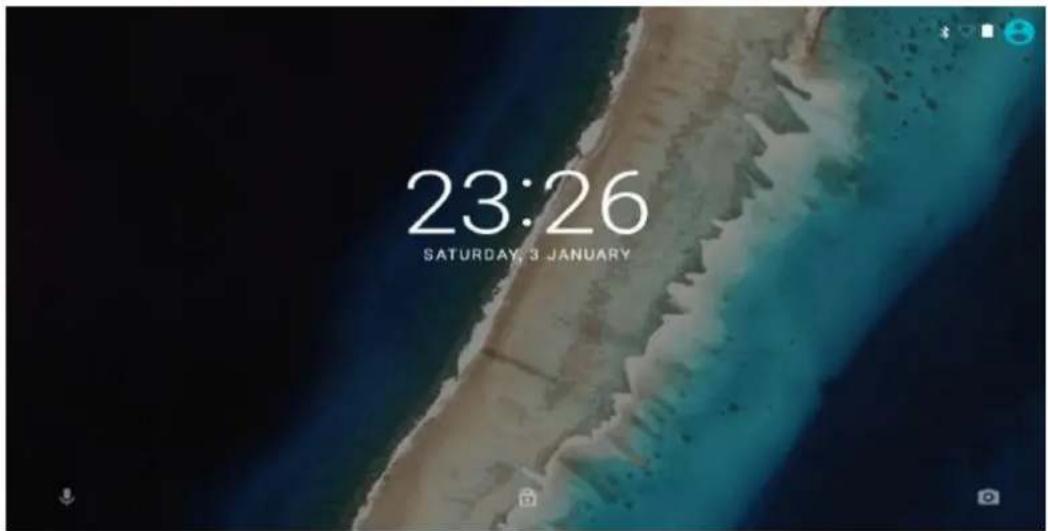
When the screen turns off, you will have to unlock the screen when you turn it back on. To unlock the screen, drag the lock icon across the screen towards the slide lock icon towards up side of the screen where there is an unlock icon shown. This will unlock tablet.
About Applications
To open an application, touch the application icon on the home screen or in the Launcher where you can tap the icon on the home screen to get in. Launcher screen:
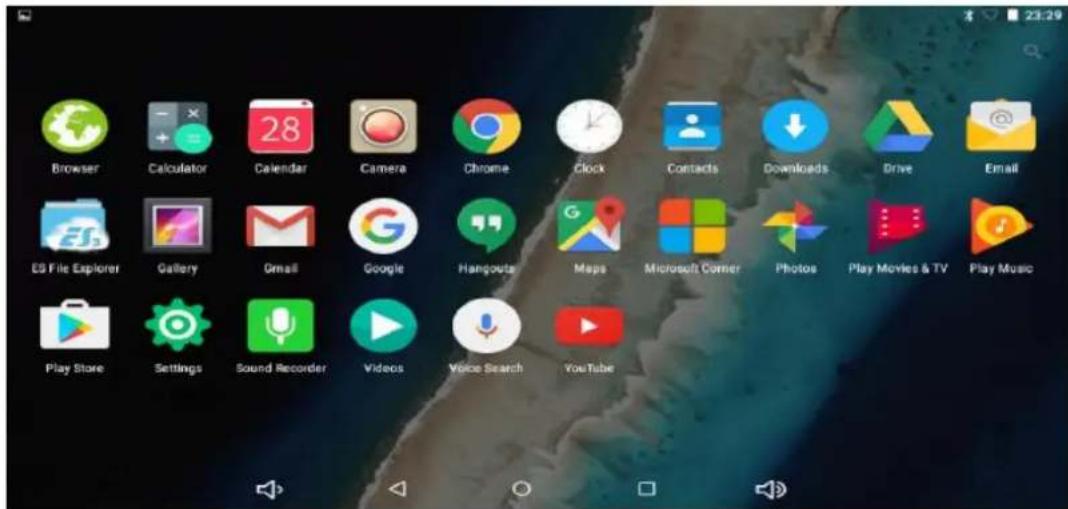

The screen shown above is for illustrative purposes only. Reserves the right to modify and improve the final list of applications available on the tablet.
ENGLISH
User guide
TAB737QC
ABOUT APPLICATIONS
Preinstalled Applications
Some applications have been installed on your tablet for your convenience. These applications include:

Browse the web.

Perform simple mathematical operations.

Take pictures or videos with the front facing camera.

Check your e-mail.

Play music.

Access the Settings menu to adjust the tablet's options.
PREINSTALLED APPLICATIONS
Installing Applications
You can also download and install additional applications from the device's applications marketplace, the web browser, or other sources. The tablet must be set to allow installation of applications from non-Market sources. The Unknown sources option can be set in the Application settings menu.
ENGLISH
User guide
TAB737QC
CONNECTING TO THE INTERNET
Connecting to Wireless Internet
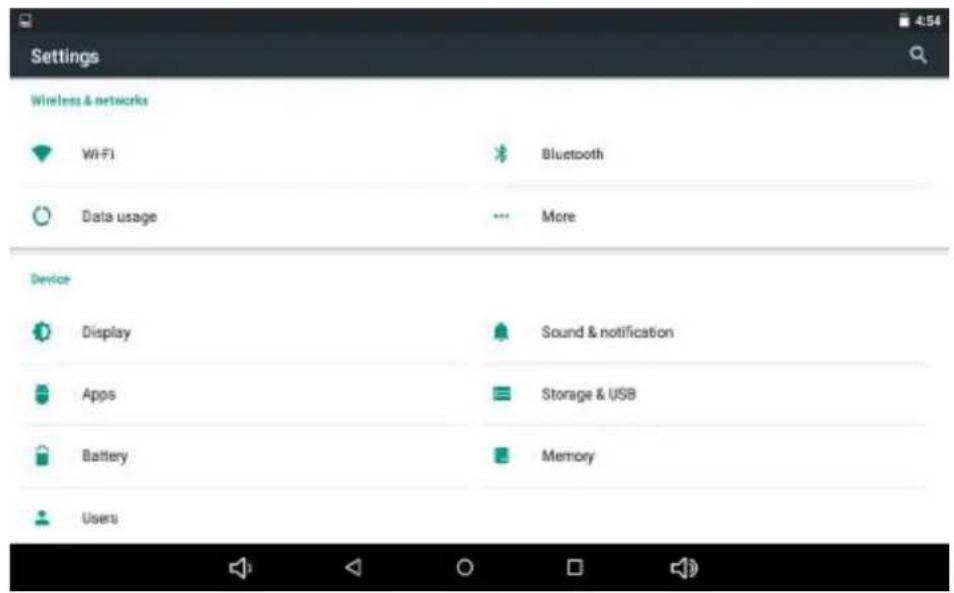
Press the Settings icon

locate the Wi-Fi setting

and slide it to the
ON position.
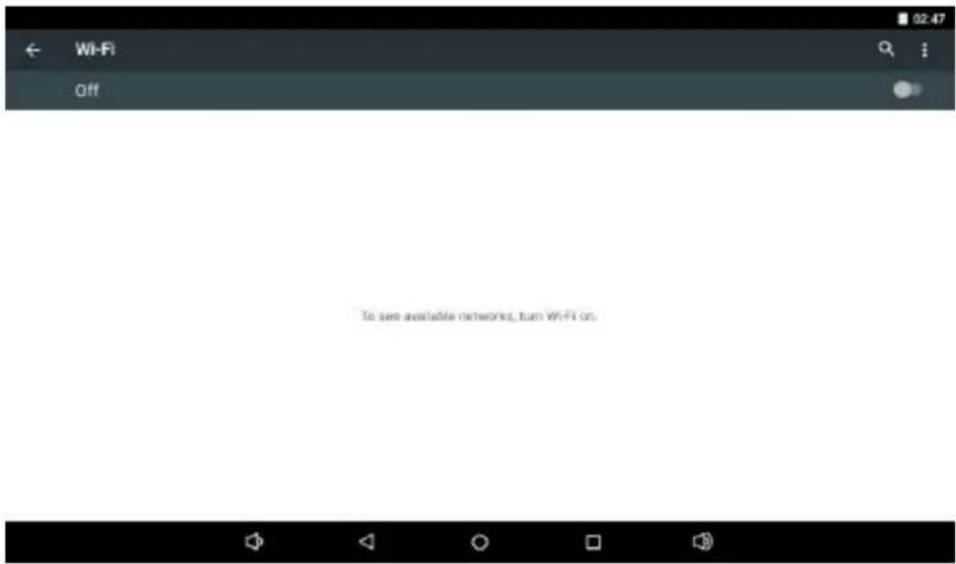
Select a network from the list of available networks. To refresh the list of available networks, press ☐, select Refresh button. To manually add a network, select the Add Network button. Finally select Connect from the popup menu.
ENGLISH
User guide
TAB737QC
If the network is secured with a password, enter the password to continue. Once finished connecting, the display will show Connected under the name of the network.
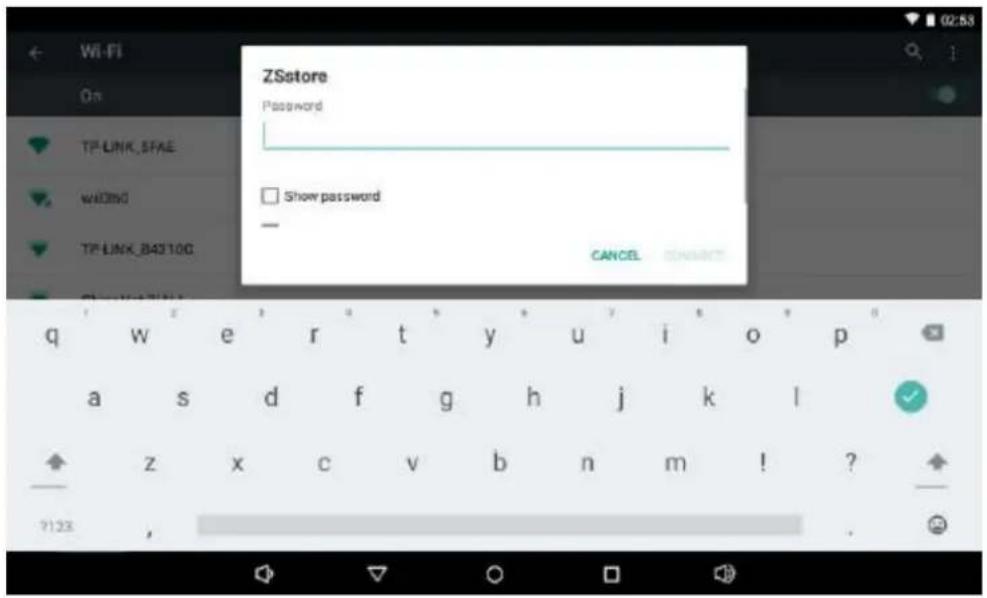

To conserve battery life, turn off Wi-Fi when not in use.
Setting Up an Email account
Press E-mail icon under App menu, enter your email address and password and then press Next. If this does not work, you will need to manually configure your account. Before attempting to configure manually, re-enter you email and password to make sure they are correct.
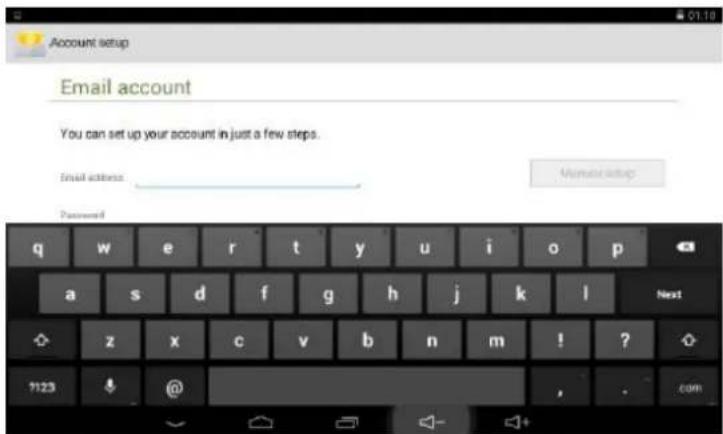
Manually Configuring an Email account
It is recommended to consult an IT professional before attempting to manually configure your email address. To set up your email manually, detailed information is required. Check your provider's website or phone support for individual provider information. The first thing you will need to determine is the server type (most servers are POP3, IMAP and Exchange are also supported services). Enter your email address and password then press Next. Fill in all information for the Incoming server portion of the manual setup, press Next and the app will test your settings (Wi-Fi is required to be active for this step). Fill in all information for the Outgoing server settings, press Next and the app will test your settings (Wi-Fi is required to be active for this step).
ENGLISH
User guide
TAB737QC
TRANSFERRING FILES
Transferring Files with a Computer
To begin transferring files to your computer, plug one end of the included Mini-USB to USB cord into the unit, and the other into the USB port on a computer.
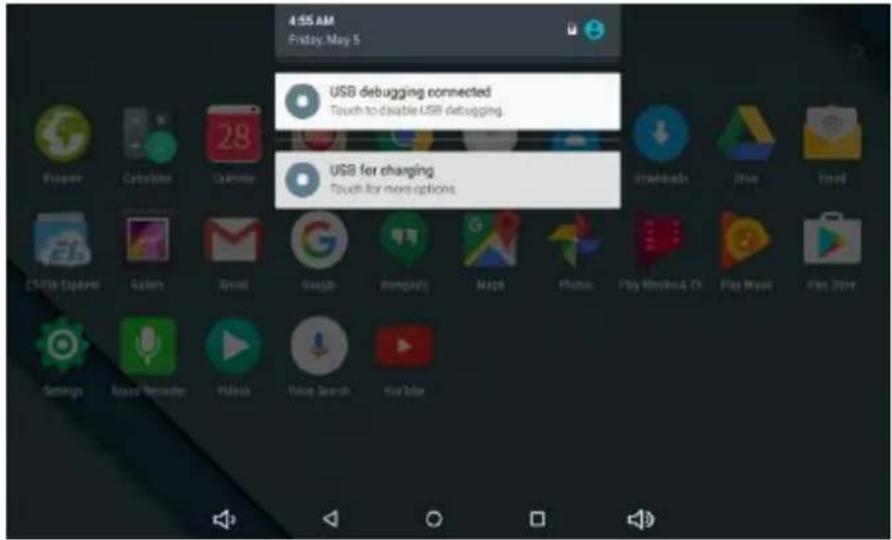
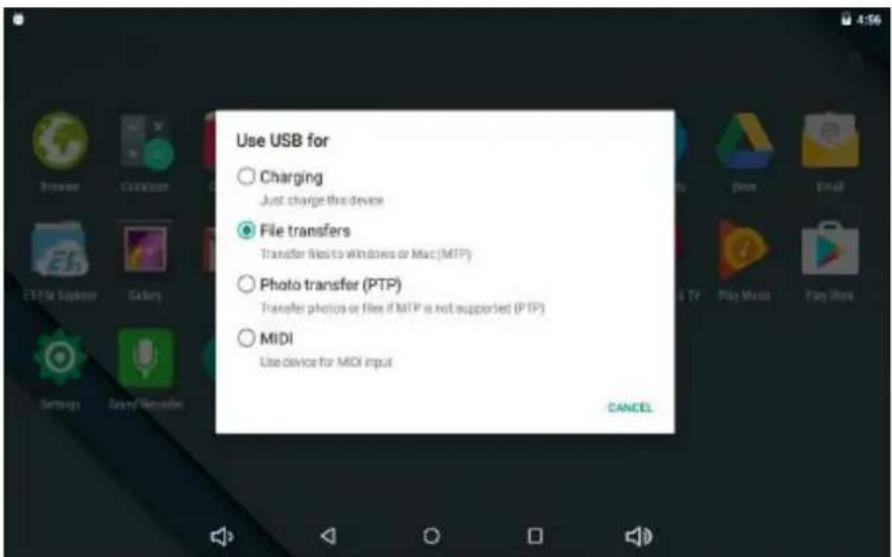
Choose MTP mode and then you can transfer files to and from your computer.
TROUBLESHOOTING
Device cannot connect to Wi-Fi
Ensure the wireless network is working by testing it using another wireless device.
Ensure the device and the wireless router is within the range of the wireless network to be connected too. Walls or other obstructions will reduce the possible distances between wireless devices.
Ensure the security password being used is correct.
Device doesn't turn on
You cannot turn on the device when the battery charge is below the critical level, please charge the battery.
Use a needle or paper clip to reset unit on the side of the device and check if it is restarting is normally or not.
Check if the charger is connected correctly.
Heat Issues
When running multiple applications, using the screen on its brightest setting, or when being charged, this device can get quite hot. This is normal and should not cause any inconvenience when in use.
System has anomalies and doesn't work correctly
Installing some third-party applications may cause the system not to operate correctly. Press the RESET button and perform a system reset to resolve this issue.
Cannot set E-mail Account or registration application
Ensure that the MID is connected to a Wi-Fi network and can connect to the Internet.
Ensure you E-mail settings have been entered correctly for the account being accessed.
Make sure your system time and local time are correct.
Cannot record
Use a needle or paper clip to reset unit on the side of the device, then check if the record function works correctly.
The stand-by time of the device is too short
The duration of the lithium battery varies with environmental temperature changes and the service conditions. If the environment temperature is too low or too high, the duration of the battery will be affected. It is recommended to use this device at normal temperature.
Battery life is dependent on usage High volume, WIFI and the frequent use may cause the battery to be drained at a higher rate.
No sound via earphone
Please check if the volume setting is 0.
Please check if audio file is broken, and try to play another audio file to confirm. If the audio file is broken, it may cause severe noise or static.
The color distortion of video or picture display
Use a needle or paper clip to reset unit on the back of the device to solve this issue.
Cannot copy files
Please check if the device is connected to the computer correctly.
Please check if the memory space is full.
Please check if the USB cable is broken.
Other troubles
Please follow up the steps as below to fix other troubles before you return the Tablet to us:
Step 1: Use a needle or paper clip to reset unit on the side of the device, then check if the function works correctly.
Step 2: Upgrade the firmware from the PC and restart the device and then check if the function works correctly.
BLUETOOTH CONNECTIVITY
This device features Bluetooth connectivity. To use this function, you should open the setting menu and select "Bluetooth", then slide the switch to turn on Bluetooth. The tablet will detect automatically all Bluetooth devices available in service range and list them. Finally select one from the list to start paring. Once paring is done, you can transfer files between the pair of devices.
FACTORY RESET
Please notice that factory reset of Android 6.0 units takes up to 10 minutes. After restarting it will keep on showing Android on the screen during reload of firmware. Just leave it and don't turn it off during this state. After reloading firmware it will automatically start the tablet again.
SPECIFICATIONS
Please visit www.sunstech.com for the latest product information.
Design, specifications and user guide are subject to change without notice.
| RAM | 1 GB DDR3 |
| Storage | 8 GB flash built-in; micro SD card slot Storage (max. 64GB supported) |
| Display | 7 "TFT LCD (1024 x 600 IPS), Capacitive touch screen |
| Wi-Fi Networking IE | IEEE 802.11 b/g/n |
| Audio Output | 3.5mm headphone |
| PC Interface | USB 2.0 high speed |
| Additional Features | Built-in microphoneCamera (0.3MP+2.0MP)1W speakerQuad CoreBluetooth |
| Operating System | Android^TM 6.0 |
| Power | Rechargeable Li-poly battery power 2600mAhPower Adapter (5V,2A) |
ENGLISH
User guide
TAB737QC
WARNINGS
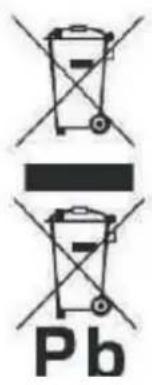 | Correct disposal of this Product (Waste Electrical & Electronic Equipment) (WEEE).Your product is designed and manufactured with high quality materials and components which can be recycled and reused.This symbol means that electrical and electronic equipment, at their end of-life should be disposed of separately from your household waste.Please dispose of this equipment at your local community waste collection/recycling centre.In the European Union there are separate collection systems for used electrical and electronic products. Please help us to conserve the environment we live in! |
 | DO NOT place objects on top of the device, as objects may scratch the device. |
 | DO NOT expose the device to dirty or dusty environments. |
 | DO NOT place the device on an uneven or unstable surface. |
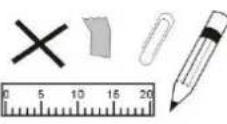 | DO NOT insert any foreign objects into the device. |
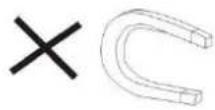 | DO NOT expose the device to strong magnetic or electrical field. |
 | DO NOT expose the device to direct sunlight as it can damage the device. Keep it away from heat sources. |
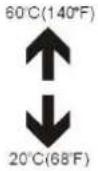 | DO NOT store your device in temperatures higher than 40°C (104°F). The internal operating temperature for this device is from 20°C (68°F) to 60°C (140°F). |
ENGLISH
User guide
TAB737QC
 | DO NOT use the device in the rain. |
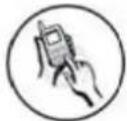 | Please check with your Local Authority or retailer for proper disposal of electronic products. |
 | The device and adaptor may product some heat during normal operation of charging. To prevent discomfort or injury from heat exposure, DO NOT leave the device on your lap. |
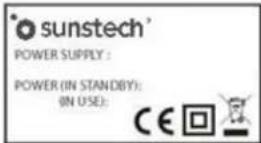 | POWER INPUT RATING: Refer to the rating label on the device and be sure that the power adaptor complies with the rating. Only use accessories specified by the manufacturer. |
 | Clean the device with a soft cloth. If needed, dampen the cloth slightly before cleaning. Never use abrasives or cleaning solutions. |
 | Always power off the device to install or remove external devices that do not support hot-plug. |
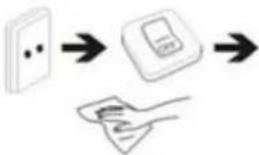 | Disconnect the device from an electrical outlet and power off before cleaning the device. |
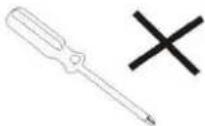 | DO NOT disassemble the device. Only a certified service technician should perform repair. |
 | The device has apertures to disperse heat. DO NOT block the device ventilation, the device may become hot and malfunction as a result. |
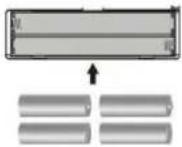 | Risk of explosion if battery replaced by an incorrect type. Dispose of used batteries according to the instruction. |
ENGLISH
User guide
TAB737QC
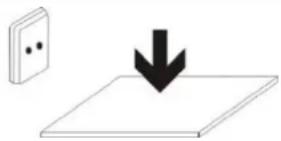 | PLUGGABLE EQUIPMENT: the socket-outlet shall be installed near the equipment and shall be easily accessible. |
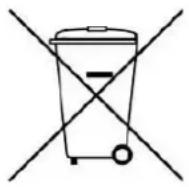 | European Union: Disposal Information.This symbol means that according to local laws and regulations your product and/or its battery shall be disposed of separately from household waste. When this product reaches its end of life, take it to a collection point designated by local authorities. The separate collection and recycling of your product and/or its battery at the time of disposal will help conserve natural resources and ensure that it is recycled in a manner that protects human health and the environment. |
| MADE IN CHINA | |

natural_image
Abstract illustration of a white sphere resting on a gray book with a small circle and crescent moon against a dark background (no text or symbols)TAB737QC
TABLET
GUÍA DE USUARIO
CONTENIDO
| LA UNIDAD EN UN VISTAZO......1 |
| PRIMEROS PASQS......2 |
| APLICACIONES......4 |
| APLICACIONES PREINSTALADAS......4 |
| CONECTARSE A INTERNET......5 |
| CORREO ELECTRÓNICO......7 |
| TRANSFERIR ARCHIVOS......8 |
| SOLUCIÓN DE PROBLEMAS......9 |
| CONEXIÓN BLUETOOTH......11 |
| RESETEAR......11 |
| ESPECIFICACIONES......12 |
| ADVERTENCIAS......13 |
ESPA ÑOL
Guía del usuario
TAB737QC

natural_image
Abstract illustration of a white sphere resting on a gray book with a small circle and crescent moon against a dark background (no text or symbols)TAB737QC
TABLET
GUIDE DE L'UTILISATEUR
CONTENU
| L'APPAREIL EN UN COUP D'ŒIL......1 |
| POUR COMMENCER. ......2 |
| À PROPOS D'APPLICATIONS. ......4 |
| APPLICATIONS PRÉ INSTALLÉES......4 |
| SE CONNECTER À L'INTERNET. ......5 |
| E-MAIL. ......7 |
| TRANSFÉRER DES FICHIERS. ......8 |
| DÉPANNAGE......9 |
| CONNECTIVITÉ BLUETOOTH. ......11 |
| RÉINITIALISATION......11 |
| SPÉCIFICATIONS. ......12 |
| AVERTISSEMENTS. ......13 |
FRANÇAIS
FRANÇAIS

DÉPANNAGE
natural_image
Abstract illustration of a white sphere resting on a gray book with a small circle and crescent moon against a dark background (no text or symbols)TAB737QC
TABLET
GUIA DO UTILIZADOR
CONTEÚDO
| A UNIDADE EM RESUMO......1 |
| INICIAR......2 |
| AS APLICACÕES......4 |
| APLICAÇÕES PREINSTALADAS......4 |
| CONECTAR-SE À INTERNET......5 |
| E-MAIL......7 |
| TRANSFERIR ARQUIVQS......8 |
| RESOLUÇÃO DE PROBLEMAS......9 |
| CONEXÃO BLUETOOTH......11 |
| REINICIALIZAÇÃO DE FÁBRICA......11 |
| ESPECIFICAÇÕES......12 |
WARNINGS. 13
PORTUGUÊS
Guia do utilizador
TAB737QC
A UNIDADE EM RESUMO
1. LIGAR
PORTUGUÊS
Guia do utilizador
TAB737QC
PORTUGUÊS
Guia do utilizador
TAB737QC
For you. For everyone.


- TAB737QC
- CONTENT
- ENGLISH
- UNIT AT A GLANCE
- POWER
- Headphone
- USB
- V-/V+
- Micro SD
- RESET
- GETTING STARTED
- Unlocking the Screen
- About Applications
- Preinstalled Applications
- Installing Applications
- CONNECTING TO THE INTERNET
- Connecting to Wireless Internet
- TRANSFERRING FILES
- TROUBLESHOOTING
- Cannot set E-mail Account or registration application
- The stand-by time of the device is too short
- No sound via earphone
- The color distortion of video or picture display
- Cannot copy files
- Other troubles
- BLUETOOTH CONNECTIVITY
- FACTORY RESET
- SPECIFICATIONS
- CONTENIDO
- ESPA ÑOL
- Guía del usuario
- CONTENU
- FRANÇAIS
- DÉPANNAGE
- CONTEÚDO
- PORTUGUÊS
- A UNIDADE EM RESUMO
- LIGAR
- Guia do utilizador
Brand : Sunstech
Model : Tab 737 QC
Category : Tablet