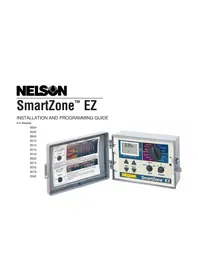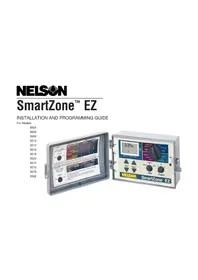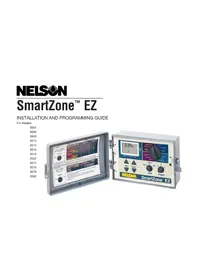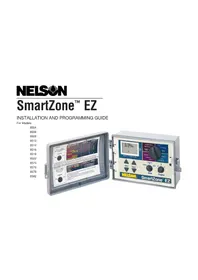
SmartZone EZ 8576 - Irrigation timer Nelson - Free user manual and instructions
Find the device manual for free SmartZone EZ 8576 Nelson in PDF.



User questions about SmartZone EZ 8576 Nelson
0 question about this device. Answer the ones you know or ask your own.
Ask a new question about this device
Download the instructions for your Irrigation timer in PDF format for free! Find your manual SmartZone EZ 8576 - Nelson and take your electronic device back in hand. On this page are published all the documents necessary for the use of your device. SmartZone EZ 8576 by Nelson.
USER MANUAL SmartZone EZ 8576 Nelson
INSTALLATION AND PROGRAMMING GUIDE
For Models:
8504
8506
8508
8512
8514
8516
8518
8522
8574
8576
8578
8582
THANK YOU for purchasing the SmartZone™ EZ electronic irrigation controller. You'll soon discover why we've dubbed it the "EZ". We are confident it will be the easiest and most reliable controller you will ever use. It's so "EZ", you'll probably be able to install and program this feature-packed controller without instructions. However, before installing and programming the controller, we recommend you read these instructions carefully to take full advantage of all the SmartZone™ EZ has to offer.
If you have questions, problems or comments on your new SmartZone™ EZ, please call our Technical Services Department toll-free at 1-800-NELSON8.
Leaders in Turf Irrigation Since 1911
NOTE: In our efforts to continually improve and update our products, features and specifications in this manual may change without notice.
TABLE OF CONTENTS
Features 3
Installation 4-9
Terminal Strip 5
Connecting Master Valve or Pump-Start Relay 5
Wiring the Transformer 5-6
Connecting Rain/Moisture Sensor 7
Connecting Battery & Resetting Controller 8-9
Programming the SmartZone™ EZ 10-19
Programming Overview 10
Front Panel Layout 11-12
Set Time of Day 13
Set Current Day 13
Set Today's Date 13
Select Zones and Set Their Run Times 13-14
Set Start Times
Set % Water Budget
Scheduling
Set Water Days Scheduling Option
Set Odd/Even Day Scheduling Option
Set Interval Scheduling Option
Program Review
Turning the Controller Off
Advanced Features 20-21
Run A Zone Manually
Run A Program Manually
Run A 3 Minute Test (Syringe)
Technical Data/Specifications
Troubleshooting/Service
FCC Rules 26
Warranty 27
FEATURES
Professional grade
- Easy to use dials and buttons for programming
Large and clear LCD (Liquid Crystal Display)
- Non-volatile memory for program retention without AC power or batteries
3 independent programs
- 3 start times per program (9 total starts)
- 3 scheduling options (7 day calendar, odd/even, 1-30 day interval)
- 3 test cycles (manual, cycle, 3 minute test)
Water budgeting
- Programmable run times from 1 minute to 9 hours 59 minutes
- Exclusive Select&Adjust™ programming
- Internal transformer
- 2 year warranty on materials and workmanship
INSTALLATION INSTRUCTIONS
NOTE: Instructions are for indoor or outdoor use.
Find a location near a 110V (220V for 8574, 8576, 8578, and 8582 models) outlet or a 110V wiring source. Install the SmartZone™ EZ near eye level if possible. Open the face panel by loosening the panel locking screw and pulling the tab on the right of the front panel to swing the panel open on its hinges. Use the three holes in the case to mark and pre-drill pilot holes in the wall. The left two hole guides in the SmartZone™ EZ are vertically aligned for mounting the controller to a stud. (See Figure 1) Insert screws through the holes in the case and screw each into the corresponding pilot hole in the wall.
NOTE: The front panel can be removed to aid in installation by removing the ribbon connector from the interconnect board and pulling the front panel off its hinges.
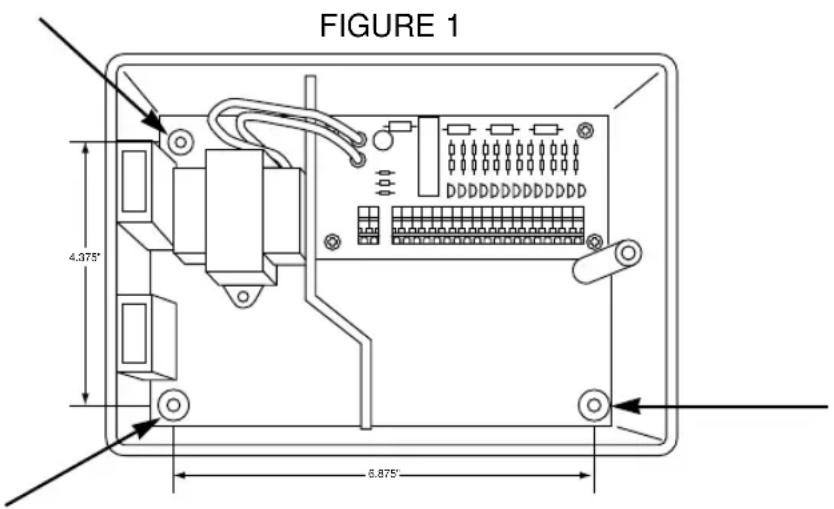
INSTALLATION INSTRUCTIONS
Terminal Strip
All zone, pump and sensor wire connections made inside the SmartZone™ EZ utilize tool-less connectors. Press on the terminal strip lever with a pen or small screwdriver and insert the wire into the bottom. The terminal strips in the SmartZone™ EZ controller accept 12 AWG (4.8mm) wire or smaller.
Connecting Master Valve or Pump-Start Relay
The SmartZone™ EZ is equipped with a shared circuit to operate either a pump-start relay or a master valve. Connect one wire from the pump-start relay to COM (common) on terminal strip, the other to PMP/MV (pump/master valve) on the terminal strip. Refer to the pump-start relay manufacturer's instructions for specific installation details.
Wiring the Transformer*
*110 VAC in United States, Canada and Mexico; 220 VAC in Europe and Australia NOTE: Refer to and follow local codes if different from these instructions.
CAUTION:
Disconnect 110V (220V for 8574, 8576, 8578, and 8582 models) power source before wiring transformer. Complete all wiring and installation before connecting the transformer to power source. This will avoid accidental shorting which could damage the controller.
INSTALLATION INSTRUCTIONS
For models 8504, 8506, 8508, 8512
With front panel open to provide access to the internal transformer, bring 110V wires up through 1/2'' conduit hole in the bottom of the case. (For field connection, AC wires must have an insulation rated at 75^ minimum). Conduit should be secured to the case (follow local codes). Attach AC wires to transformer wires using wire nuts. Also, ensure earth ground wire is attached to green with yellow stripe ground wire. Please check local codes for the grounding requirements in your area. Bundle wire within cable tie loop and tighten cable tie to prevent loose wiring from touching secondary circuits. The transformer is now wired. DO NOT turn on power yet.
For models 8574, 8576, 8578, 8582
With front panel open to provide access to the internal transformer, bring 220V wires up through 1/2'' conduit into the left hole in the bottom of the case. (For field connection, AC wires must have an insulation rated at 75^ minimum). Conduit should be secured to the case (follow local codes). Connect AC wires to connector provided and tighten screws. Observe proper polarity of wires as you install them (ie. L1, L2 and ground). Bundle wire within tie loop and tighten cable tie to prevent loose wiring from touching secondary circuits. The transformer is now wired. DO NOT turn on power yet.
NOTE: Failure to ground unit properly may cause severe damage to the controller and/or personal property and will void warranty.
For models 8514, 8516, 8518, 8522:
The transformer has been pre-wired with a 6 foot AC power cord with grounding plug. We recommend that you do not alter this connection. Replacement of this cord must follow local codes and in all cases the unit must be properly grounded.
INSTALLATION INSTRUCTIONS
Connecting Rain/Moisture Sensor
The SmartZone™ EZ is equipped to operate a sensor with normally-closed leads. The sensor port on the SmartZone™ EZ is the first tool-less connector on the interconnect board (see Figure 2). To install a sensor, remove the factory-installed jumper wire from the sensor connector on the terminal strip and insert the sensor wires. Refer to the sensor manufacturer's instructions for specific installation details.
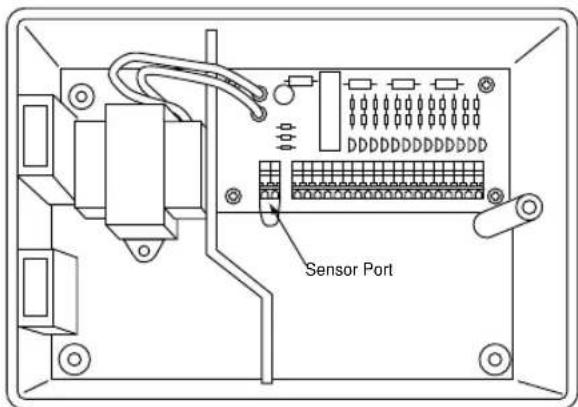
FIGURE 2
If a sensor has suspended watering, the sensor indicator segment will appear on the LCD. The symbol will go off when the sensor has dried out or when the controller is set in one of the manual modes (see pages 23-25). The SmartZone™ EZ will resume operation based on the selected program.
INSTALLATION INSTRUCTIONS
Connecting Battery and Resetting Controller
Connect one 9V Alkaline battery to the battery clip and insert into the battery holder on the back of the front panel. The battery enables the SmartZone™ EZ to be programmed without AC power and maintains the real time clock in the event of a power outage. If a battery is not installed, the controller will lose real time in the event of a power outage. The battery should be replaced once a year.
CAUTION: Use a 9V alkaline battery only. A 9V NiCad battery may leak or explode causing personal injury or property damage.
After installing the battery, press the black reset button on the back of the front panel to reset the controller (does not affect program(s)). To reset the controller to its default settings, press both the black reset button and the SELECT key simultaneously. Release reset button before releasing select key. Close the front panel, being sure not to damage wires. If wires are stiff, you may find it helpful to pre-bend them. Tighten the panel screw to secure the front panel to the case. Plug in the AC cord for the transformer or turn on the power source.
NOTE: Since all programs are stored in non-volatile memory, you will not lose program settings during a power failure - even if there is no battery installed.
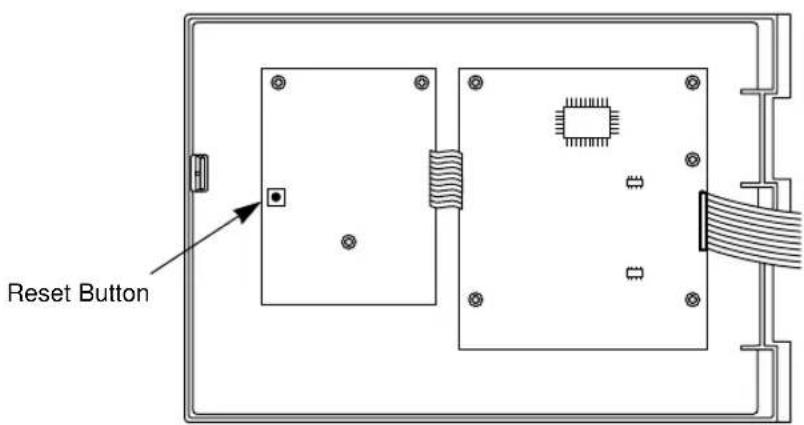
Figure 3
You're now ready to start programming!
PROGRAMMING INSTRUCTIONS
Programming Overview
Before programming the SmartZone™ EZ, it may be helpful to become familiar with some general programming guidelines:
- If a segment(s) on the LCD is flashing, it means that it can be changed by the user.
- When using or keys, hold the button three seconds to start a fast scroll.
- Be sure the appropriate program letter is displayed when you are programming; program changes are specific to the program letter displayed on the LCD.
- There is no "ENTER" key. Key-presses and dial settings are stored automatically for you.
- If you make a programming change while a program is running, the program terminates immediately. The new program starts at the next start time scheduled.
- When not running, the controller displays the current time and the current day.
- During manual operations, there is a 10 second delay before the operation begins. During this time, you can change your settings. Each time you make a change, the delay resets to 10 seconds.
- MANUAL, CYCLE, and 3 MINUTE TEST procedures only operate with the Program dial set in the AUTO position.
- After a test procedure runs, the controller reverts back to the AUTO procedure and runs the next program scheduled.
- The test procedures ignore the sensor connection; this allows you to water or run your program even if the sensor has suspended operation.
PROGRAMMING INSTRUCTIONS
Front Panel Layout
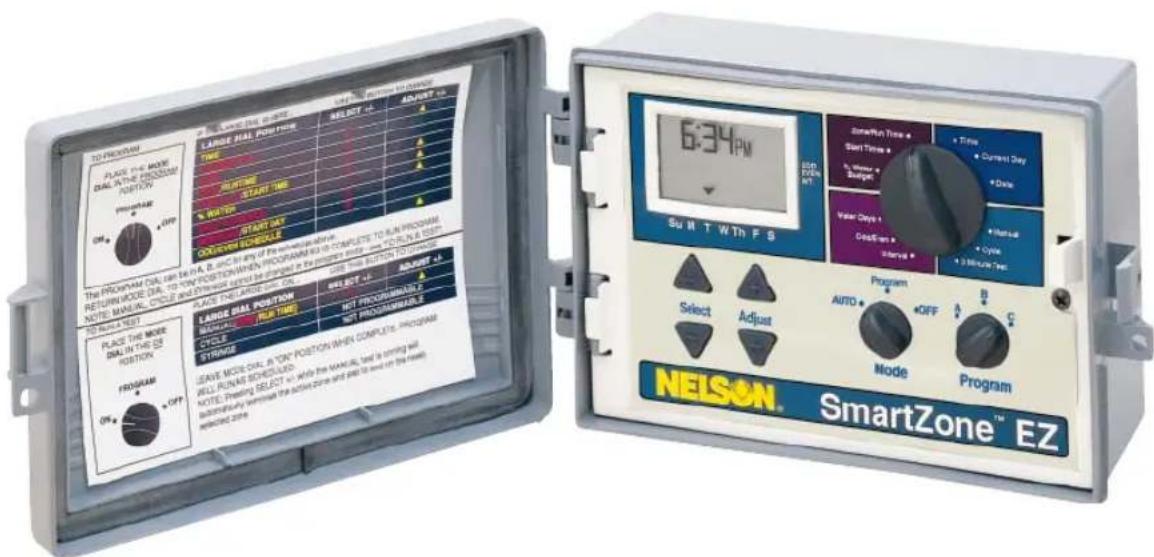
Looking at the front panel (see figure 4), you see a large LCD, 4 rubber buttons, one large rotary dial, and two small rotary dials. The rubber buttons are marked "SELECT" and "ADJUST" and are the heart of Nelson's exclusive SELECT&ADJUST® programming. The keys are identified with for increasing or decreasing the segment you're working on.
SELECT&ADJUST works on the principle that you first SELECT what you want to set, and ADJUST the variables of what you selected. For example, if you want a run time of 10 minutes on zone 5, you would use the SELECT keys to select zone 5 and, once on zone 5, you would use the ADJUST keys to set the run time to 10 minutes.
There are instances when only SELECT or only ADJUST is required. They will be explained in this guide where appropriate. A Rule of Thumb: SELECT will select zones or a particular start time (1,2 or 3). ADJUST will adjust Times, Dates, and % Water Budget. See the hang card inside the lid of the SmartZone™ EZ for a quick reference on what buttons to use for different dial positions.
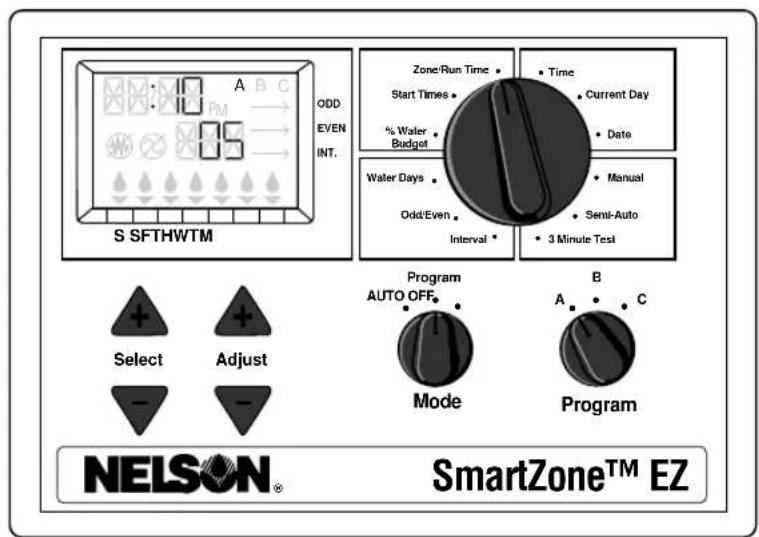
FIGURE 4
NOTE: The MODE dial must be in the "Program" position.
NOTE: Every time the or key is pressed, the time will increase or decrease one minute. Hold the or key for three seconds to initiate a fast scroll.
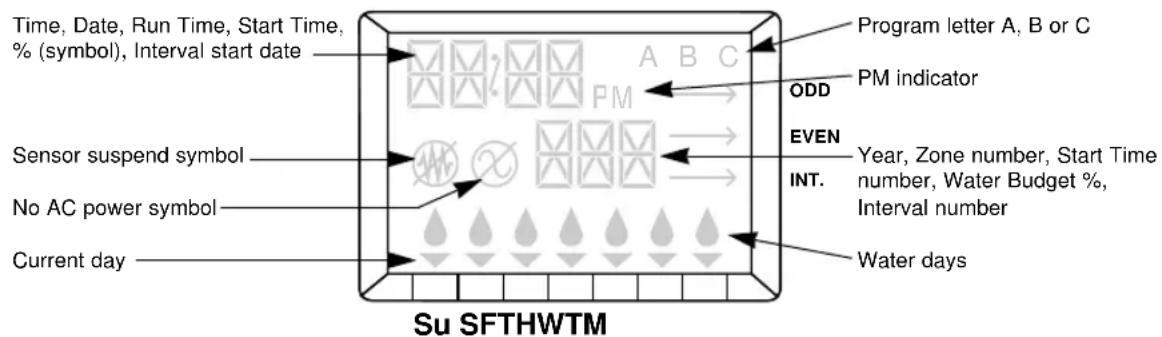
NOTE: Please refer to the Technical Data section for an explanation of the LCD segments
PROGRAMMING INSTRUCTIONS
Set Time of Day
Turn the large dial to the TIME position. Press ADJUST to scroll to the correct time. There is no A.M. indicator.
Set Current Day
Turn the large dial to the CURRENT DAY position. Press SELECT ± to position the current day indicator over the current day. SELECT ± will advance the indicator to the right;
SELECT will advance the indicator to the left.
Set Today's Date
Turn the large dial to the DATE position. Press ADJUST keys to scroll to the current date. The YEAR will automatically advance upon rolling over 12/31.
NOTE: A DATE is only required if you intend to use ODD/EVEN scheduling or to set a start date, other than the current date, for INTERVAL scheduling.
Select Zones and Set Their Run Times
A zone run time determines the duration a zone will run.
Turn the large dial to the ZONE / RUN TIME position. Press SELECT to select the zone you want for the selected program (A, B, or C). With the zone number displayed on the LCD, press ADJUST to adjust the RUN TIME for that zone. RUN TIMES can be set from 1 minute to 9 hours 59 minutes. Continue selecting zones and adjusting their run times until you have all the zones you want in the selected program.
PROGRAMMING INSTRUCTIONS
After the last zone and before the first zone, a RUN TIME summation is provided. This is useful for determining the total run time for a program. The LCD displays the letters "ALL" and a total RUN TIME is displayed. The time displayed is a summation of all the RUN TIMES for the selected program (100% water budget). (ex. A program has a run time of 5 minutes on zone 1; 12 minutes on zone 2; and 6 minutes on zone 4. The display at this position displays ALL and a run time of 23 minutes).
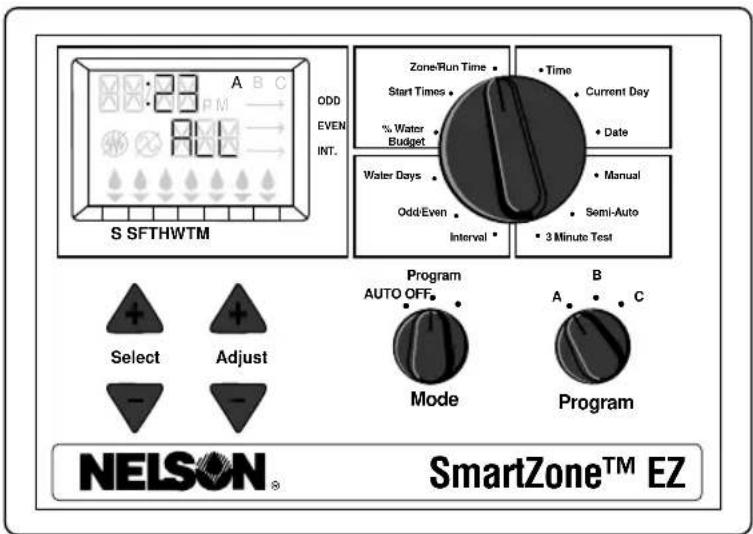
FIGURE 5
PROGRAMMING INSTRUCTIONS
Set Start Times
A START TIME is the time of day a program will start running. The SmartZone™ EZ allows three start times per program.
Turn the large dial to the START TIMES position. Press SELECT to select the start time you want to set (1, 2, or 3). Press ADJUST to set the time of day the program will start. Repeat as needed.
Set % Water Budget
% WATER BUDGET changes the duration of run times in a program by the percentage entered 5 - 200% (i.e., a 10 minute run time at 50% water budget will run 5 minutes). This feature is useful when changes in weather occur. If it is unusually dry, you may want to extend your run time for each zone in a program. With % Water Budget, you can change one number, and all run times in the program are adjusted.
Turn the large dial to the % WATER BUDGET position. A % symbol will appear on the LCD to let you know you are working on the % Water Budget amount. Press ADJUST to choose the desired percentage amount.
PROGRAMMING INSTRUCTIONS
If water budget is set for 110% or greater, the SmartZone™ EZ will split the run time in half to reduce runoff. Half of the calculated run time will operate for each zone in that program, followed by the second half of the run time for each zone.
Remember, % Water Budget is changeable by program. If you have programming in A, B, and C, you must enter three water budget values if you want every program to be changed.
SCHEDULING
A quick note on scheduling and the SmartZone™ EZ ...
The SmartZone™ EZ controller has three scheduling options:
- WATER DAYS, or daily, lets you choose which days of the week you want to water (i.e., Monday, Wednesday, Friday only).
- ODD/EVEN tells the controller to water on either the odd or even days of the month (i.e., the controller will water on the 31^st and the 1^st when an ODD schedule is chosen).
- INTERVAL waters every X number of days (from 1 to 30 days) (i.e., water every 3 days, water every 10 days, etc.). A value of 1 in an interval schedule means to water every day. When using the interval option, you have the flexibility to tell the controller what day to start the interval program on (up to 30 days out).
PROGRAMMING INSTRUCTIONS
NOTE: The MODE dial must be in the "Program" position to set a schedule.
When the dial is set to any of the scheduling options, the LCD will display the currently scheduled program (default is a 1 day interval schedule with today's date for a start date). Be sure the PROGRAM dial is set on the program you want to change (A, B, or C) and that you want to change the current schedule. A scheduling option is chosen after you press a button, either SELECT or ADJUST. The old schedule is replaced with the new one. If you want the old schedule back, it's easy to reprogram with the following procedures.
Set Water Days Scheduling Option
Turn the large dial to the WATER DAYS scheduling option. The last scheduling option chosen for the current program or the default 1 day interval scheduling option will appear on the LCD. Press the SELECT button to select that day for watering or press SELECT for non-watering days.
A flashing indicator appears over the day you're about to set. Rain drops appear over selected days to water. The indicator automatically moves one day to the right after a SELECT or key press. Continue selecting or deselecting the days you want the controller to water until you have your 7 day calendar set.
NOTE: Programming a WATER DAYS schedule deletes any other schedule for the selected program.
PROGRAMMING INSTRUCTIONS
Set Odd/Even Day Scheduling Option
Turn the large dial to the ODD/EVEN position. The last scheduling option chosen for the current program or the default 1 day interval scheduling option will appear on the LCD. To set either an odd or an even schedule press the SELECT button (a date must be set for odd/even watering). An arrow will appear on the LCD next to the appropriate schedule (Odd or Even). The SELECT buttons act as toggle keys and will toggle between odd or even.
NOTE: Programming an ODD/EVEN schedule deletes any other schedule for the selected program.
Set Interval Scheduling Option
Turn the large dial to the INTERVAL position. The last scheduling option chosen for the current program or the default 1 day interval scheduling option appears on the LCD. Press SELECT to set the interval days between watering (1-30). The date displayed is day one of the interval schedule. (today's date if one has been set). As needed, change the date for day one of the interval schedule with ADJUST (can only be set up to 30 days out).
Repeat the above procedures for each program (A, B, or C) you require.
That's it! Your SmartZone™ EZ is now programmed. Turn the MODE dial to the AUTO position to run the program you entered.
NOTE: Programming an ODD/EVEN schedule deletes any other schedule for the selected program.
PROGRAMMING INSTRUCTIONS
PROGRAM REVIEW
To review the current program, Turn the MODE dial to the PROGRAM position and turn the large dial to the setting you wish to review (i.e., turn the large dial to TIME to review the time set for the controller). When you need to view different zones or run times (1, 2, 3), use the SELECT + button only.
NOTE: Since you are in the program mode, the potential exists to change the program accidentally.
There are instances when you'll want to suspend watering, either for short periods (while it's raining if you don't have a sensor connected), or long periods (during winter). To accommodate this, the SmartZone™ EZ can be turned "Off". Turn the MODE dial to the OFF position. This suspends all watering operations (including manual/test procedures) from operating. The clock continues to maintain the current time and date and your program(s) is retained until you want to run your program(s) again. To run your program, turn the MODE dial back to the AUTO position.
NOTE: The non-volatile memory of the SmartZone™ EZ will maintain your program without power. If a battery is not present and AC power is lost, the real time for the clock will be lost. The time will need to be reprogrammed.
ADVANCED FEATURES
The SmartZone™ EZ incorporates three manual/test procedures for checking the function of the controller or allowing you to bypass the current program to water immediately. The following section will show you how to set up the controller to:
run a zone manually
run a program manually
- run a 3 minute test of every programmed zone
NOTE: All test procedures are run with the MODE dial in the AUTO position. This allows the controller to reset to the AUTO setting after running a manual/test procedure. It also allows you the ability to walk away from the controller after setting up a manual/test procedure and not have to come back to reset the controller to AUTO.
NOTE: All manual/test procedures ignore the sensor connection. Therefore, you can water utilizing one of the manual/test procedures even if the sensor has suspended your scheduled program.
Run a Zone Manually
Turn the large dial to the MANUAL position. The default of zone 01 and 00:10 minutes will be flashing (recall that this means you can change them). Press SELECT to select the zone number that you want to run. Press ADJUST to set the run time for the selected zone. The controller will delay 10 seconds before starting the zone.
ADVANCED FEATURES
The SmartZone™ EZ incorporates Nelson's ManualAdvance feature in the MANUAL procedure. ManualAdvance allows you to cease the currently running zone and immediately advance to any new zone you select. With the MANUAL procedure running a zone, press SELECT to advance to a new zone. The last entered run time will be displayed. Press ADJUST to enter a new run time for the new zone (the controller will delay 10 seconds before starting the new zone).
Run a Program Manually
Turn the large dial to the CYCLE position. The current program letter will flash. To change to a different program, turn the PROGRAM dial to the desired program (A, B, or C). The controller will delay 10 seconds before starting the selected program. After running, the controller resets to the AUTO procedure.
NOTE: CYCLE runs your current program immediately. Changes cannot be made to the program in the CYCLE procedure.
Run a 3 Minute Test (Syringe)
Turn the large dial to the 3 MINUTE TEST position. A B C will flash on the LCD (they cannot be changed). This is to let you know the controller will review all three programs and run a 3 minute test on only those zones that have been programmed. We call this SmartSyringe!.
This feature allows the controller to skip zones that have not been programmed. These may be zones that are not hooked-up, hence, saving your pump (if equipped).
TECHNICAL DATA
1. Transformer
24 VAC internal transformer; 20 VA, .83A for zones and logic. The transformer can run a pump or master valve and one zone valve, maximum.
2. Surge Protection
7 joule MOV across secondaries. (see Circuit Breaker below)
3. Sensor Operation
The SmartZone™ EZ is configured to operate the controller with or without a sensor. Sensors must have normally closed connections (leads). The factory-installed jumper wire must be in place if no sensor is used.
4. Zone Lines
The SmartZone™ EZ will operate a maximum of two (2) outputs concurrently, providing one is the pump/master valve. Each zone output can operate one solenoid.
I intrush .52A max
I hold .40A max
TECHNICAL DATA
5. Temperature Range
Operating: -5^ to +55^ C (23° to 131° Fahrenheit)
Storage: -30^ to +85^ C (-22^ to 185^ Fahrenheit)
6. Display
7. Batteries
One 9V Alkaline battery is required. Do not use NiCad batteries.
8. Program Retention
Non-volatile memory is used to retain programs when battery and AC power are lost. The non-volatile memory is updated when the program is changed and at 5 minute intervals.
Non-volatile memory will operate for a minimum of 5 years, worst case.
9. Case Dimensions (approx.)
6''H × 9.5''W × 3.75''D (lid is removable without tools)
TECHNICAL DATA
10. Default Program
12:00 a.m. (there is no "a.m." indicator on the LCD)
Sunday
Date is 01/01 96
No Run Times (zone 01, —:—)
No Start Times (start number 01, —:—)
100% Water Budget
Every day watering schedule (Interval = 01; Start date = today)
Mode dial is at OFF position
Program dial is on A program
3 second delay between zones (cannot be changed)
11. Circuit Breaker
An electronic poly-switch is incorporated on the interconnect PCB of the controller. This type of circuit breaker does not require resetting or replacement by the user.
TROUBLESHOOTING/SERVICE
SYMPTOM POSSIBLE CAUSE SOLUTION
no output to zone, pump or · AC disconnected · check AC source, if AC is not detected master valve by the controller, the no AC indicator
will be lit
no AC and blank display · no battery or dead battery · replace battery and press reset
LCD is blank · no AC and no battery · install battery to regain use of display,
- ribbon cable is disconnected - ensure ribbon
check AC to ensure output to field cable between the front panel and controller board is connected at both ends
LCD is scrambled or is missing · controller needs to be reset · press the reset button. If still segments scrambled, press the reset button and
the select ^+ button at the same time (returns to factory defaults)
"M-X" appears on the LCD when MODE dial is in program position position the MODE dial in the AUTO trying to run a zone manually position to run a zone manually
"C-X" appears on the LCD when trying to CYCLE a program
"S-X" appears on the LCD when trying to run a 3 MINUTE TEST
-
MODE dial is in program position
-
position the MODE dial in the AUTO position to cycle a program
-
MODE dial is in program position
-
position the MODE dial at the AUTO position to run the 3 Minute Test procedure
The controller won't run a 3 MINUTE TEST
No programs on A, B, or C
- enter a program with run times for the zones you need. The 3 MINUTE TEST only runs those zones with programmed run times on them
Er1 is displayed on the LCD
This is a communications error between the micro-controller and the non-volatile memory
- press reset. If the error does not clear, replace the board
Er2 is displayed on the LCD
This is telling the user there is more than 24 hours of run time programmed
Review your total run times on all programs and correct - OR -
- Press reset and select + at the same time to return to factory default settings.
REPLACEABLE PARTS
- Transformer • 6' AC cord
- Interconnect ribbon
-
Front panel
-
Interconnect board
FCC RULES
This electronic irrigation controller generates and uses radio frequency energy and if not installed and used properly, that is, in strict accordance with the manufacturer's instructions, may cause interference to radio and television reception. It has been type tested and found to comply with the limits for a Class B computing device in accordance with the specifications in Subpart J of Part 15 of FCC Rules, which are designed to provide reasonable protection against such interference in a residential installation. However, there is no guarantee that interference will not occur in a particular installation. If this controller does cause interference to radio or television reception, which can be determined by turning the controller off and on, the user is encouraged to try to correct the interference by one or more of the following measures:
Reorient the receiving antenna
Relocate the controller with respect to the receiver
Move the controller away from the receiver
Plug the controller into a different outlet so that the controller and receiver are on different branch circuits
If necessary, the user should consult the dealer or an experienced radio/television technician for additional suggestions. The
user may find the following booklet prepared by the Federal Communications Commission helpful:
"How to Identify and Resolve Radio-TV Interference Problems"
This booklet is available from the U.S. Government Printing Office, Washington, DC 20402. Stock No. 004-000-00345-4.
CANADIAN RADIO INTERFERENCE REGULATIONS
NOTE: This digital apparatus does not exceed the Class B limits for radio noise emissions from digital apparatus set out in the radio interference regulations of the Canadian Department of Communications.
WARRANTY
Limited Warranty
L.R. Nelson Corporation ("Nelson") warrants all electronic products to be free of defects in material and workmanship for a period of two (2) years from the original date of purchase. In the event of such defects, Nelson will repair or replace, at its option, the product or the defective part.
This warranty does not extend to damage to a Nelson product or part resulting from accident, misuse, alteration, neglect, abuse, improper installation or normal wear and tear, or to exterior appearance and color. This warranty extends only to the original user of the Nelson product.
If defect arises in a Nelson product or part within the warranty period, you should contact your installing contractor, Nelson retailer, distributor, or L.R. Nelson Corporation at one of the following locations:
One Sprinkler Lane 1961 Miraloma Ave. 3462 Maggie Blvd.
Peoria, IL 61615 Suite B Orlando, FL 32811
(309) 690-2200 Placentia, CA 92670 (407) 648-1020
Fax (309) 692-5847 (714) 993-0496 Fax (407) 648-0924
Fax (714) 993-0496
Nelson may, at its option, require that the product or part be returned to a Nelson service point or your retailer or distributor. Nelson will determine whether the claimed defect is covered by the warranty. If coverage is found, the product will be repaired or replaced. Please allow 4 to 6 weeks for completion of repairs or replacement and return of the product or part. If a product or part is replaced, the replacement is warranted only for the remainder of the original product or part warranty period.
This warranty gives you specific legal rights, and you may also have other rights which vary from state to state. L.R. Nelson Corporation does not authorize any person to create for it any other obligation or liability in connection with Nelson products.
TO THE EXTEND ALLOWED BY LAW, ANY IMPLIED WARRANTY OR MERCHANTABILITY OR FITNESS FOR A PARTICULAR PURPOSE APPLICABLE TO THE NELSON PRODUCTS IS LIMITED IN DURATION TO THE DURATION OF THESE WRITTEN WARRANTYES. NEITHER L.R. NELSON CORPORATION NOR ITS DISTRIBUTORS OR DEALERS SHALL BE LIABLE FOR LOSS OF TIME, INCONVENIENCE, ECONOMIC LOSS, OR INCIDENTAL OR CONSEQUENTIAL DAMAGES ASING FROM THE SALE OR DISTRIBUTION OF NELSON PRODUCTS WHETHER FOR BREACH OF WARRANTY HEREUNDER OF FOR NEGLIGENCE OR IN TORT. Some states do not allow limitations on how long an implied warranty will last of the exclusion or limitation on incidental or consequential damages, so the above limitations or exclusions may not apply to you.
If you have any questions concerning the warranty or its application, please write to L.R. Nelson Corporation, One Sprinkler Lane, Peoria, Illinois 61615, U.S.A. Attention: Customer Service.
CLAIMED DEFECTIVE MERCHANDISE POLICY
Products returned to the retailer or distributor and claimed defective must be inspected by the Nelson sales representative to determine warranty compliance. If approval is granted, products will be repaired or replaced or a credit memorandum covering the net purchase price will be issued.
NELSON
SmartZone™ EZ
GUIA DE INSTALLACION Y PROGRAMACION
Para los modelos:
8504
8506
8508
8512
8514
8516
8518
8522
8574
8576
8578
8582
L.R. Nelson Corporation
One Sprinkler Lane
Peoria, Illinois 61615
Tel. (309) 690-2200
Fax. (309) 693-0363
900-04862
Printed in U.S.A.
©1996 L.R. Nelson Corporation
NELSON
900-04856
SmartZone™ EZ
GUIDE D'INSTALLATION ET DE PROGRAMMATICN
Pour les modèles:
8504
8506
8508
8512
8514
8516
8518
8522
8574
8576
8578
8582
Francais. . pgs. 1-28
Deutsch. 29-57
"How to identify and resolve Radio-TV interference problems."
L.R. Nelson Corporation
One Sprinkler Lane
Peoria, Illinois 61615
Tel. (309) 690-2200
Fax. (309) 693-0363
900-04856
Printed in E.U.A.
©1996 L.R. Nelson Corporation
NELSON
SmartZone™ EZ
L.R. Nelson Corporation
One Sprinkler Lane
Peoria, Illinois 61615
Tel. (309) 690-2200
Fax. (309) 693-0363
900-04856
Printed in E.U.A.
1996 L.R. Nelson Corporation
NELSON
SmartZone™ EZ
900-04856
L.R. Nelson Corporation
One Sprinkler Lane
Peoria, Illinois 61615
Tel. (309) 690-2200
Fax. (309) 693-0363
900-04856
Printed in E.U.A.
1996 L.R. Nelson Corporation
NELSON
SmartZone™ EZ
Attention: Customer Service
APOLICE DE MERCADORIA DEFEITUOSA
Os produits devolvidos ao varejista ou distribuidor como sentido defeitosos devem ser inspecionado polo representante de vendas da Nelson para determinacao de conformidade com a garantia. Se a aprova tion for dada, os produits sera convertados ou substituicos, ou um memorando de credito cobrindo o preco liquido de compra sera emitido.
NELSON
L.R. Nelson Corporation
One Sprinkler Lane
Peoria, Illinois 61615
Tel. (309) 690-2200
Fax. (309) 693-0363
900-04856
Printed in E.U.A.
©1996 L.R. Nelson Corporation