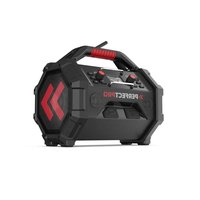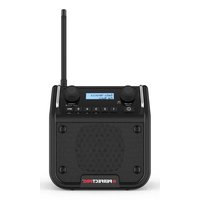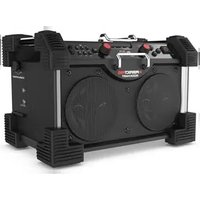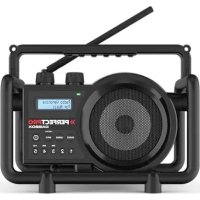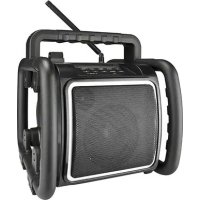
Teambox TBX1 - Radio PerfectPro - Free user manual and instructions
Find the device manual for free Teambox TBX1 PerfectPro in PDF.



| Product Type | Portable DAB+/FM Radio with Bluetooth and USB |
| Brand | PerfectPro |
| Model | Teambox TBX1 |
| Mains power supply | 230 V ~ 50/60 Hz |
| Built-in battery | Lithium polymer 11.1 V, 4000 mAh, rechargeable |
| Battery life | 20 to 26 hours at medium volume |
| Charging time | Approximately 6 to 7 hours (standby), longer in use |
| Frequency ranges | DAB: 174.928 – 239.200 MHz; FM: 87.5 – 108 MHz |
| Bluetooth | A2DP and AVRCP profiles, range up to 10 meters |
| USB audio formats | MP3, AAC, FLAC, WAV (FAT/FAT32, up to 32 GB) |
| Output power | 25 watts |
| Speakers | 5 inches (woofer) + 1 inch (tweeter) |
| USB port | Output 5 V, 1 A for mobile charging; input for music playback |
| Aux In input | 3.5 mm stereo jack |
| Protection rating | IP65 (dust and water jets) |
| Antenna | Original flexible antenna + optional metal telescopic antenna |
| Display | LCD screen with adjustable backlight |
| Equalizer | Neutral, Rock, Indoor, Jazz, Outdoor |
| Warranty | 2 years |
| Weight | Approximately 2.5 kg (estimated) |
| Dimensions (approx.) | W x H x D: 300 x 200 x 150 mm (estimated) |
Frequently Asked Questions - Teambox TBX1 PerfectPro
User questions about Teambox TBX1 PerfectPro
0 question about this device. Answer the ones you know or ask your own.
Ask a new question about this device
Download the instructions for your Radio in PDF format for free! Find your manual Teambox TBX1 - PerfectPro and take your electronic device back in hand. On this page are published all the documents necessary for the use of your device. Teambox TBX1 by PerfectPro.
USER MANUAL Teambox TBX1 PerfectPro
ENG Declaration of Conformity
Prime Europe B.V. hereby declares that this model TBX1 is in compliance with the essential requirements and other relevant provisions of Directive 2014/53/EU and also fulfills all the relevant provisions of EC/EU Directives: 2011/65/EU. The EU declaration of conformity is available at the following internet address: http://www.perfectpro.nl/support/ce-docs/
Important safety instructions 3
Power supply 4
AC mains operation. 4
Lithium battery operation and charging 4
User safety precautions. 5
Using the device for the first time 6
Controls 7
DAB Mode. 9
Operating the radio. 9
Selecting a station. 9
Secondary services 9
Display modes. 10
Finding new stations. 10
Manual tuning. 10
Dynamic Range Control (DRC) settings 11
Prune stations 11
FM Mode. 12
Operating the radio. 12
Manual tuning. 12
RDS station service. 12
Display modes. 13
Scan sensitivity setting. 13
Presel stations 13
Storing preset stations. 13
Recalling preset stations 14
Bluetooth 14
Pairing Bluetooth with your mobile phone 15
Playing music from your mobile phone 15
Display modes 16
Device List - Connect to the paired device 16
Restart Bluetooth sparing 16
USB Mode 17
Insert and remove an USB stick 17
Playing music files 17
Play mode 18
Information function. 19
Aux-in Mode 19
Setting the clock 19
Auto update 20
Equaliser 21
Language 21
Software update 21
Software version 22
Factory reset 22
Backlight 23
Additional metal telescopic antenna 24
Warranty 24
Specifications 25
Power requirements 25
Frequency coverage 25
Circuit features 25
Bluetooth 25
Environmental note 26
WARNING! WARRANTY BECOMES VOID ONCE THE DEVISE CABINET HAS BEEN OPENED OR ANY MODIFICATIONS TO THE ORIGINAL DEVICE HAVE BEEN MADE. NEVER OPEN THE DEVICE CASING. THE MANUFACTURER WILL NOT ACCEPT ANY LIABILITY FOR DAMAGE RESULTING FROM IMPROPER HANDLING. THE TYPE PLATE IS LOCATED ON THE BOTTOM OF THE DEVICE.

The Bluetooth® word mark and logos are registered trademarks owned by Bluetooth SIG, Inc. and any use of such marks is under license.
IMPORTANT SAFETY INSTRUCTIONS
- Read these instructions.
- Keep these instructions.
- Heed all warnings.
- Follow all instructions.
- Clean only with dry cloth.
- Do not block any ventilation openings. Install in accordance with the instructions.
- Do not install near any heat sources such as radiators, heat registers, stoves or other apparatus (including amplifiers) that produce heat.
- Do not defect the safety purpose of the polarized or grounding - type plug. A polarized plug has two blades with one wider than the other. A grounding type plug has two blades and a third grounding prong. The wide blade or the third prong is provided for your safety. If the provided plug does not fit into your outlet, consult an electrician for replacement of the obsolete outlet.
- Protect the power cord from being walked on or pinched particularly at plug, convenience receptacles, and the point where they exit from the apparatus. 10. Only use attachments/accessories specified by the manufacturer.
- Use only with the cart, stand, tripod, bracket, or table specified by the manufacturer, or sold with the apparatus. When a cart is used, use caution when moving the cart/ apparatus combination to avoid injury from tip-over.
- Unplug this apparatus during lightning storms or when unused for long periods of time.
- Refer all servicing to qualified service personnel. Servicing is required if the apparatus has been damaged in any, such as power-supply cord or plug is damaged, liquid has been spilled or objects have fallen into the apparatus, the apparatus has been exposed to rain or moisture, does not operate normally, or has been dropped.
- To reduce the risk of fire or electric shock, do not expose this appliance to rain or moisture.
- Do not remove the cover; there are no user-serviceable parts inside.
- No naked flame sources shall be placed on the apparatus.
- For outdoors use, to avoid electric shock, use battery only during a raining day or the weather is wet. To prevent electric shock, if the radio has been exposed to rain or water, the power supply cord and plug must be completely dried before plugging into the mains socket outlet.
- The power plug should be close to the apparatus, and easy to be approached that during emergency, to disconnect the power from the apparatus, just unplug the power plug from the AC power slot.
- The marking information is located at the bottom of the apparatus.
- This apparatus is provided with protection against splashing water (IP65).
- In case of malfunction due to electrostatic discharge or fast transient (burst), remove and reconnect the power supply.
- The apparatus must be used in a moderate climate.
- To prevent possible hearing damage, do not listen at high volume levels or long periods.
- Under the environment with Conducted Immunity disturbance / Radiated Immunity, the radio may malfunction. It will automatically recover to normal when the Conducted Immunity disturbance / Radiated Immunity stopped.
POWER SUPPLY
AC Mains Operation
- Before plugging the AC power plug into the AC mains power socket, be sure the voltage is correct.
- AC power cord storage and power plug storage is designed to store the cord and the plug when the Teambox is not in use.
NOTE:
In order to disconnect the Teambox from the AC mains power completely, the AC power plug should be removed from the AC mains power socket completely and it shall remain readily operable and should not be obstructed during intended use.
In case of malfunction due to electrostatic discharge or fast transient (burst), remove the AC power plug from AC mains power socket and reconnect the AC power plug after approximately one minute.
LITHIUM BATTERY OPERATION AND CHARGING
NOTE ON FIRST USE: BEFORE OPERATING THE TEAMBOX FOR THE FIRST TIME ALWAYS FIRST FULLY CHARGE THE BATTERY.
The Teambox can be operated by the built-in Lithium battery. During operation on battery power the approximate power level of the battery is displayed in the LCD display of the radio.
When the battery power level is very low, the battery symbol flashes on the display. Under this condition, the battery should be recharged as soon as possible to continue normal operation of the Teambox.
Charging time from empty to full battery is approximately 5-6 hours (at room temperature with radio in Standby mode). The Teambox can be charged in Standby mode as well as in On mode while playing music. While playing music the charging time will be longer than in Standby mode.
The Teambox, for additional safety, will not start charging when the battery is already full or nearly full.
NOTE ON PLAYING TIME ON BATTERY POWER: The achieved playing time on battery power depends on many factors such as: selected volume level, music type (bass heavy music consumes more energy), selected music source (DAB, FM, Bluetooth or AUX-IN), selected EQ setting, ambient temperature and age of the battery. Depending on these variables a playing time of approximately 20 to 26 hours on a medium set volume level can be achieved.
NOTE ON LITHIUM BATTERY LIFE: If the Teambox is not used for any extended period of time, always first charge the built-in battery until it is full. The optimum working life from the built-in battery will be obtained if it is kept topped up by recharging after each use of the Teambox, even if it is only partially discharged. The battery's working life will be reduced if the product is left in a discharged condition for a long period of time.
WARNING:
Do not attempt to replace or repair the built-in lithium battery. If you have any doubts about the built-in lithium battery, please contact the service department of Perfectpro for further assistance.
WARNING:
Danger of explosion if the battery is incorrectly replaced.
Do not expose the battery to excessive heat such as sunshine, fire or the like.
Batteries should not be disposed of by incineration and with household waste.
Disposable batteries should be taken to a suitable recycling centre if possible.

y information for internal rechargeable Lithium battery
The internal rechargeable lithium-polymer battery used in this device is able to supply power for a long period of time. However, even lithium-polymer batteries reach a point where they cannot be recharged. If the battery does not recharge after several attempts, it may be drained (have a too low charge), please contact service@perfectpro.eu for repair information.
However, if you do not want us to replace the battery, you will need to dispose of used batteries/ device in accordance to the laws and regulations in your area. In addition, you can contact your local electronics retailers or recycling centre for disposal.
User Safety Precautions
Check the room temperature range is 0^ - 35^ (32°-95° Fahrenheit) before charging the battery.
- Do not attempt to disassemble the plastic covering or any parts of the device, as the materials inside may be toxic and may damage skin and clothes.
- Do not puncture, crush, modify, throw or cause any unnecessary shock to your battery, as the battery used in this device may present a risk of fire, explosion, or chemical burn if mistreated.
- Do not leave, charge or use the battery in a car under direct sunlight, near fire or a heated source.
Do not immerse, throw, wet the battery in water/ seawater.
- Do not use or charge the battery if it appears to be abnormally hot, discoloration, deformation or abnormal conditions is detected during use, charge or storage.
- Do not leave a charging battery unattended. Keep the battery away from babies and children.
USING THE DEVICE FOR THE FIRST TIME
- Place the radio on a flat surface.
- Carefully extend the antenna located on the top of the radio. Adjust the antenna so it is vertically extending above the radio.
- Plug the AC power cord into the AC socket. The radio will start and will automatically perform an auto scan of the Band III DAB channels and the FM band in the back ground.
- When the scan is completed, the 10 strongest FM stations will be stored as presets. The radio will switch to standby with the updated clock and date showing on the display.
- If no signals are found, the clock will not be updated. It may be necessary to relocate the radio to a position giving better reception.
CONTROLS
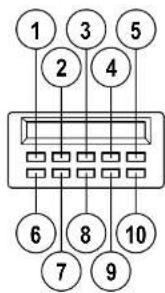
- Power button
- Source button
- Select/Info button
- Tuning << button
- Tuning >> button
- Menu / Folder button
- Preset /▶ button
- EQ button
- Volume - button
- Volume + button
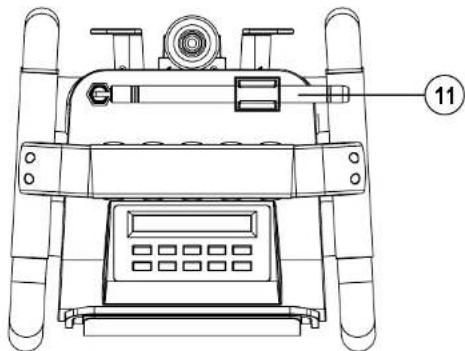
- Antenna
CONTROLS
DAB MODE
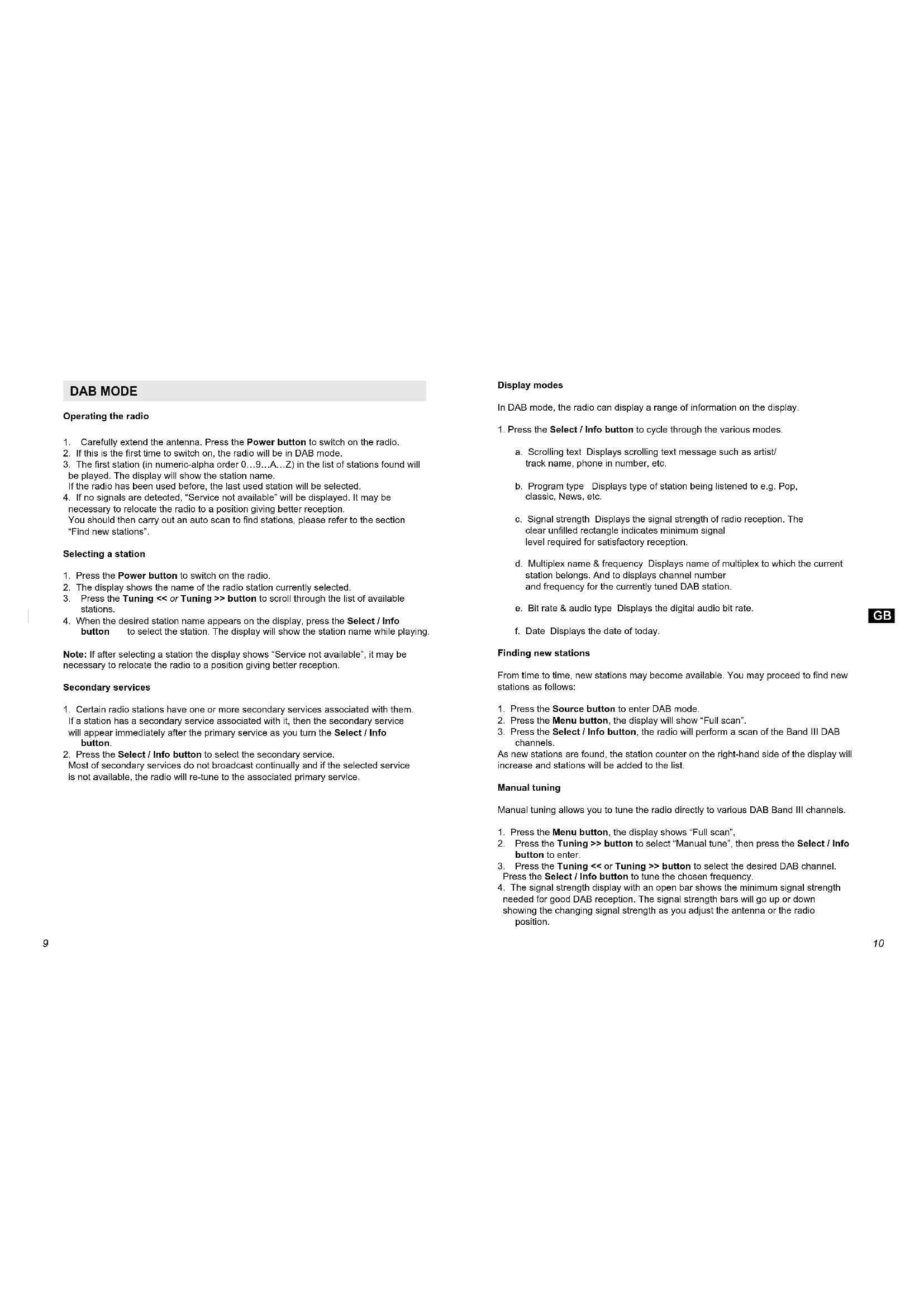
Operating the radio
- Carefully extend the antenna. Press the Power button to switch on the radio.
- If this is the first time to switch on, the radio will be in DAB mode.
- The first station (in numeric-alpha order 0...9...A...Z) in the list of stations found will be played. The display will show the station name. If the radio has been used before, the last used station will be selected.
- If no signals are detected, "Service not available" will be displayed. It may be necessary to relocate the radio to a position giving better reception. You should then carry out an auto scan to find stations, please refer to the section "Find new stations".
Selecting a station
- Press the Power button to switch on the radio.
- The display shows the name of the radio station currently selected.
- Press the Tuning << or Tuning >> button to scroll through the list of available stations.
- When the desired station name appears on the display, press the Select / Info button to select the station. The display will show the station name while playing.
Note: If after selecting a station the display shows "Service not available", it may be necessary to relocate the radio to a position giving better reception.
Secondary services
- Certain radio stations have one or more secondary services associated with them. If a station has a secondary service associated with it, then the secondary service will appear immediately after the primary service as you turn the Select / Info button.
- Press the Select / Info button to select the secondary service. Most of secondary services do not broadcast continually and if the selected service is not available, the radio will re-tune to the associated primary service.
Display modes
In DAB mode, the radio can display a range of information on the display.
- Press the Select / Info button to cycle through the various modes.
a. Scrolling text Displays scrolling text message such as artist/ track name, phone in number, etc.
b. Program type Displays type of station being listened to e.g. Pop, classic, News, etc.
c. Signal strength Displays the signal strength of radio reception. The clear unfilled rectangle indicates minimum signal level required for satisfactory reception.
d. Multiplex name & frequency Displays name of multiplex to which the current station belongs. And to displays channel number and frequency for the currently tuned DAB station.
e. Bit rate & audio type Displays the digital audio bit rate.
f. Date Displays the date of today.
Finding new stations
From time to time, new stations may become available. You may proceed to find new stations as follows:
- Press the Source button to enter DAB mode.
- Press the Menu button, the display will show "Full scan".
- Press the Select / Info button, the radio will perform a scan of the Band III DAB channels.
As new stations are found, the station counter on the right-hand side of the display will increase and stations will be added to the list.
Manual tuning
Manual tuning allows you to tune the radio directly to various DAB Band III channels.
- Press the Menu button, the display shows "Full scan",
- Press the Tuning >> button to select "Manual tune", then press the Select / Info button to enter.
- Press the Tuning << or Tuning button to select the desired DAB channel. Press the Select / Info button to tune the chosen frequency.
-
The signal strength display with an open bar shows the minimum signal strength needed for good DAB reception. The signal strength bars will go up or down showing the changing signal strength as you adjust the antenna or the radio position.
-
When a DAB signal is found, the display will show its signal strength. Any new radio stations found will be added to the list stored in the radio.
- Press the Select / Info button to return to normal DAB service.
Dynamic Range Control (DRC) settings
DRC can make quieter sounds easier to hear when the radio is used in a noisy environment.
- In DAB mode, press the Menu button, the display shows "Full scan".
- Press the Tuning << or Tuning >> button until the display shows "DRC". Press the Select / Info button.
- Press the Tuning << or Tuning >> button to select required DRC setting (default is Off).
DRC off DRC is switched off. Broadcast DRC will be ignored.
DRC high DRC is set to high as sent by broadcaster.
DRC low DRC level is set to low that sent by broadcaster.
- Press the Select / Info button to confirm the setting. The display will return to normal radio display.
Note: Not all DAB broadcasts use the DRC function. If the broadcast does not provide DRC information, the DRC setting in the radio will have no effect.
Prune stations
If you move to a different part of the country, some of the stations which were listed may no longer be available. Also, from time to time, some DAB services may stop broadcasting, or may change location or frequency. The Prune stations function will delete the unavailable DAB stations from your station list.
- In DAB mode, press the Menu button, the display shows "Full scan".
- Press the Tuning << or Tuning >> button until the display shows "Prune".
- Press the Select/Info button to enter the setting.
- Press the Tuning << or Tuning >> button to select between "Yes" or "No" (default is No).
Select "Yes" to enable this function if required, otherwise, select "No".
5. Press the Select / Info button to confirm your setting. The display will return to normal radio display.
Note: If you have moved the radio to a different part of the country, you should also carry out a search for new stations (please see the section "Finding new stations").
FM MODE
Operating the radio
- Press the Power button to turn on the radio.
- Select the FM waveband by pressing the Source button.
- If this is the first time to switch to FM mode, the station in preset 1 will be played.
If the radio has been used before, the last listened station will be played. - To seek station, press and hold the Tuning << or Tuning button. The scan stops automatically when it finds a station of sufficient strength.
- After a few seconds, the display will update and show station name if RDS information is being received.
- To find other stations, press the Tuning << or Tuning >> button again.
- When the waveband end is reached, the radio will recommence tuning from the opposite waveband end.
Manual tuning
- Press the Power button to turn on the radio
- Select the FM band by pressing the Source button.
- Press the Tuning << or Tuning button to reach the required FM station.
The radio will change the frequency in steps of 50kHz - Rotate the rubber antenna to get the best reception. If the radio is tuned to a station of sufficient signal strength with RDS information present, the display may change to show the station name.
- When the waveband end is reached, the radio will recommence tuning from the opposite waveband end.
RDS station service
RDS (Radio Data System) is an information system which inaudible digital information is transmitted in addition to the normal FM radio program. When the radio is receiving a RDS station and the reception strength is sufficient, the station name will appear in the display. It may take some time before the RDS information is available.
Display modes
When you are listening to a FM station with RDS system, repeatedly press the Select / Info button to cycle through the information. This will only function if the reception level is sufficient and clear.
a. Radio text Displays the message about the station being listened to as ticker text.
b. Program Type Displays the type of station being listened to, e.g. Pop, Classic, News, etc.
c. Signal strength Displays signal strength for the station being listened to.
d. Frequency Displays the frequency of the station being listened to.
e. Date Displays the date of today.
Scan sensitivity setting
The radio will normally scan all stations from FM broadcasts including the weaker signals. However, you may wish the Auto-scan to find only those stations with strong enough signals to give good reception.
- Press the Power button to turn on the radio.
- Select the FM band by pressing the Source button.
- Press the Menu button, the display shows "Scan setting", Then press the Select/Info button to enter.
- Press the Tuning << or Tuning >> button to select between "All stations" or "Strong stations only" (default is "Strong stations only"). The "Strong station" option will allow the radio to find strong signals only when scanning.
- Press the Select/Info button to confirm your setting. The display will return to normal radio display.
PRESET STATIONS
Storing preset stations
There are 20 memory presets in the radio, 10 for DAB and 10 for FM. Presets are remembered by the radio in the event of a power failure.
- Press the Power button to turn on the radio.
- Press the Source button to select the desired waveband.
- Tune to the required station.
- Press and hold the Preset button until the display shows for example "Preset 01: Empty".
-
Press the Tuning << or Tuning >> button to select the desired preset number, then press the Select / Info button to confirm saving preset. The display will show, for example, "Preset 01 Stored".
-
Repeat step 3 to 5 for the remaining presets.
- Stations stored in the preset memories can be over-written by following the above procedure.
Recalling preset stations
- Press the Power button to turn on the radio.
- Press the Source button to select the desired waveband.
- Press the Preset button until shows for example "Preset 01: 88.10MHz".
- Press the Tuning << or Tuning button to select the desired preset number, then press the Select / Info button to recall the preset.
- The display will show, e.g. "P01", at the end of first line.
BLUETOOTH
The Bluetooth mode on your Teambbox allows you to play audio, play sound from video files and stream music from Bluetooth capable devices such as your mobile phone, computer, tablet etc. through your Teambbox loudspeaker.
- When a Bluetooth enabled device such as your Teambox is in a 'discoverable' state other Bluetooth devices can detect, pair with or connect to it.
- 'Bluetooth pairing' occurs when two Bluetooth enabled devices agree to establish a connection and communicate with each other.
Bluetooth connectivity performance may vary depending on the connected Bluetooth devices. Please refer to the Bluetooth capabilities of your device before connecting to your Teambox. All features may not be supported on some paired Bluetooth devices.
A Bluetooth connection can provide a link for audio up to a distance of approximately ten metres. When pairing two Bluetooth enabled devices, for convenience, we recommend they should be no more than 2 to 3 metres apart. The presence of other functioning Bluetooth devices during connection may lead to operational difficulties.
Bluetooth is a short-range radio communication system and generally Bluetooth devices can communicate with each other clearly within a regular sized room or office. The reliability of a Bluetooth connection between different rooms will greatly depend upon the construction of the building.
Bluetooth communication range may be substantially reduced if the signal passes through a solid object. Human bodies, brick and concrete walls, heavy furniture or bookcases will all reduce the operational range of your Bluetooth devices to a greater or lesser extent. Glass, dry-wall or wood panelled walls and office partitions may have a less severe but noticeable effect. Metal pipes, foil-lined plasterboard, metal window frames and domestic wiring can also have an effect. You should position your Bluetooth devices closer to each other if you observe communication difficulties.
WiFi networks and cordless phones generally use similar radio frequencies to Bluetooth and may interfere with one another. If any interference is noticed, then try relocating the Teambox or one of the other devices.
The Bluetooth capabilities of your Teambox enable it to receive audio from many Bluetooth capable devices including mobile phones, personal computers and tablets. Only one Bluetooth device can be connected to your Teambox at a time. It supports the following Bluetooth profiles and functionality.
- Your Teambbox supports A2DP (Advanced Audio Distribution Profile) which is a audio connection that streams music from PCs, mobile phones etc. SBC and AAC audio CODEs are supported.
- Your Teambbox supports AVRCP (Audio Video Remote Control Profile) that allows your radio to control music playback from the connected device.
Note: Some mobile phones may temporarily disconnect from your Teambox when you make or receive calls. Some devices may temporarily mute their Bluetooth audio streaming when they receive text messages, emails or for other reasons unrelated to audio streaming. Such behaviour is a function of the connected device and does not indicate a fault with your Teambox.
Pairing Bluetooth with your mobile phone
- Press the Power button to turn on the radio.
- Select Bluetooth mode by pressing the Source button.
- The LCD display will show "Connecting" when radio is not yet paired with your mobile phone. At the same time, the Bluetooth icon will be blinking as the Bluetooth is in searching mode.
- In your mobile phone open the Setting menu and select Bluetooth, then select "Teambox" in the Bluetooth devices list (Bluetooth pairing instructions may vary per type of mobile phone, please check your mobile phone manual).
- When Bluetooth pairing is successful, the LCD display will show the name of the mobile device. At the same time, the Bluetooth icon will be lightened.
- After that, the LCD display will show the connected mobile phone's name to indicate the connected device to the radio.
Playing music from your mobile phone
- Press the Power button to turn on the radio.
- Select Bluetooth mode by pressing the Source button.
- Start playing music by using the media players in the paired mobile phone.
- Playback can be controlled from the mobile phone or by pressing the Preset /▶|. Tuning <<, and Tuning >> buttons on the radio.
- After music playback started, the name of the song will be displayed in the LCD.
Display modes
In Bluetooth mode, the radio can display a range of information of the current playing music on the display. Press the Select / Info button to cycle through the various types.
a. Title Displays scrolling song's name of the current playback music.
b. Artist Displays the artist's name of the current playback music.
c. Album Displays the album name of current playback music.
d. Time and date Display the current time and date.
Device List - Connect to the paired device
In the radio, you can select the Bluetooth device from the device list to connect again. The device names would be shown if the name of the Bluetooth devices were configured in the mobile devices. Please refer to the user manual of your mobile device for the configurations.
The device lists can be checked as below:
- In Bluetooth mode, press the Menu button to enter the system setting. The display will show "Discoverable".
- Press the Tuning << or Tuning >> button until "Device list" is displayed; press the Select / Info button to select the setting.
- Press the Tuning << or Tuning >> button to view the name of the devices.
- Press the Select/Info button to start Bluetooth reconnection. The radio will automatically connect to this mobile device.
Note: There can be up to 8 device names to be stored in the speaker. If there are more than 8 mobile devices have been connected and stored into the speakers, the earliest paired device name will be erased.
Note: If you have ever deleted the "Teambox" from your connected mobile device, the auto reconnection will be unsuccessful.
Restart Bluetooth pairing
The Bluetooth function can be set to operate in different ways as below:
- In Bluetooth mode, press the Menu button to enter the system setting. The display will show "Discoverable", press the Select / Info button to activate Bluetooth discovery function.
- The LCD display will show "Connecting", and the Bluetooth icon will be flashing at the same time. Now, the radio's Bluetooth is free for any mobile phone connection as it is in discoverable mode now.
Note: "Discoverable" is the option that forces the Bluetooth of this radio to disconnect from your mobile phone and enter the "discoverable mode". This is the way to allow the Bluetooth pairing to another device. If no new device is paired, the Bluetooth will automatically try to connect to the last device when it is switched off and on again.
The Auto-Power management function will be activated in Bluetooth mode. If there is no signal from Bluetooth for a period of over 15 minutes, the radio will automatically switch to standby mode. Pressing the Power button will wake up the unit.
USB MODE
CONDITIONS TO PREVENT MOIST FROM ENTERING THE RADIO!! KEEP THE RUBBER COVER CLOSED UNDER THESE CONDITIONS.
USB sticks can be used with the radio for playback of MP3, AAC, FLAC and WAV files.
The radio has been tested with a range of USB sticks up to 32GB. However, there are many different USB stick variants available and not all of them can be guaranteed to work in this radio. Memory must use the FAT or FAT32 filing system in order to operate in this radio.
Audio formats supported for playback are MP3, AAC, FLAC and WAV. Playback does not support files encoded using WMA lossless, WMA voice, WMA 10 professional, or files of any format that have DRM protection.
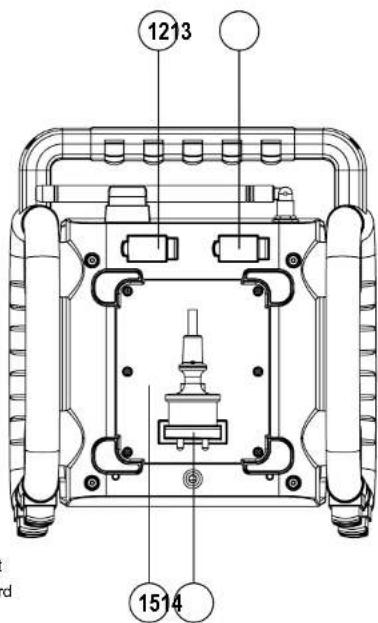
The USB socket are located on the back behind the rubber cover. Make sure the rubber cover is closed well after use to prevent moist and dirt from entering the radio. The USB stick should not be removed during playback as damage or corruption of files may occur.
USB sticks are not included with this radio.
Note: When the radio is playing an USB stick, the batteries will be charged in low current mode. Once the USB stick is removed normal charging will continue.
Insert and remove an USB stick
Carefully insert an USB stick into the USB socket.
To remove the USB stick, simply pull the device out.
Playing music files
- Press the Power button to turn on the radio.
- Press the Source button to select the USB. The display shows "Reading". It may take some time before the radio has read in the folders and files data on the memory device.
- After reading the USB stick, the radio will start to play the first file (song) in the first folder. If no USB stick is inserted, the display will show "No USB stick" respectively.
-
To pause the playback, press the Preset /▶ button. Press the Preset /▶ button again to resume the playback from pause position.
-
To skip to the next file, press the Tuning >> button.
- To skip to the previous file, press the Tuning << button.
- While the file is playing, press and hold down either the Tuning >> button or Tuning << button. Release the button when the desired part of the file is reached.
- To skip to the next folder, press and hold the Menu button for 2 seconds, then press Tuning << or Tuning >> buttons to navigate.
- Press the Select / Info button to confirm.
The radio supports a limited number of folders and files in the searching:
| Mode Max. no. of folders supported Max. no. of files supported | |
| Stop 999 (with folder name) 9999 (with file name) | |
| Play 999 9999 (1-99 with folder name) (1-999 with file name) (100-999 without folder name) (1000-9999 without file name) |
Play mode
During USB stick is playing,
- Press the Menu button,
- Press the Tuning << or Tuning button until the display shows "USB setting". Press the Select / Info button.
- Press the Tuning << or Tuning >> button to the desire play mode and press the Select / Info button to confirm.
The radio will step through the following options:
Normal play Repeat track Repeat folder Repeat all Shuffle
Normal play Playback in sequential order one to another.
Repeat track Repeatedly play the file you are listening to.
Repeat folder Repeatedly play the files within the folder you are listening to.
Repeat all Repeatedly play all files in the USB stick
Shuffle Play all files in the USB once in random order.
The selected mode is indicated on the right of the top line of the display by an icon. No icon is shown when in Normal play mode.
Information function
During USB stick playback, the title and the current playing time of the current playing music will be shown. Press the Select / Info button to cycle through the following information (only if this information is present with the file on the memory device):
Play time Title Folder name Artist name Album name Total no. of files Bitrate of the music Time and date Play time again.
AUX-IN MODE
A 3.5mm stereo Aux-in socket is provided on the side behind the rubber cover, for connecting an external audio device such as MP3 player or CD player (not included with this radio).
- Connect an audio source to the Aux-in socket.
- Press the Source button to select Aux-in. Display will show "Aux-in".
- Play the external player.
- Adjust the volume of both the radio and the player for comfortable listening
- After use, close the rubber cover to prevent moist or dust from entering into the six ockets and radio.
Notes: Never use the Aux-in socket in rainy or moist conditions to prevent moist from entering the radio. Keep the rubber cover closed under these conditions.
The Auto-Power management function will be activated in Aux-in mode. If there is no signal from the Aux-in jack for a period over 15 minutes, the unit will automatically switch to standby mode. The operation indicator and the LCD will go off in such case. Pressing the Power button will wake up the unit.
SETTING THE CLOCK
The clock can be set in system menu. If no buttons are pressed for 30 seconds, the radio will exit the clock setup and the setting is cancelled.
- Press the Power button to switch on the radio.
- Press the Menu button to display current menu.
- Press the Tuning << or Tuning >> button to select "System settings" and press the Select / Info button.
- Then press the Tuning << or Tuning button to select "Time/Date" and press the Select / Info button to confirm.
- Then press the Tuning << or Tuning button to select "Set Time/Date" and press the Select / Info button to confirm.
- Press the Tuning << or Tuning button to set the hour.
-
Press the Select / Info button to confirm, the minute digits flashes on the display.
-
Press the Tuning << or Tuning button to set the minute.
- Press the Select / Info button to confirm, the day flashes on the display.
- Press the Tuning << or Tuning >> button to set the current day.
- Press the Select / Info button to confirm, the month flashes on the display.
- Press the Tuning << or Tuning button to set the current month.
- Press the Select / Info button to confirm, the year will then flash on the display.
- Press the Tuning << or Tuning button to set the current year.
- Press the Select / Info button to confirm and finish the settings.
Auto update
The radio can receive the latest time information from either DAB or FM signal, then synchronizes the current date/time of the radio.
- Press the Power button to switch on the radio.
- Press the Menu button to display current menu.
- Press the Tuning << or Tuning button to select "System settings" and press the Select / Info button.
- Then press the Tuning << or Tuning button to select "Time/Date" and press the Select / Info button to confirm.
- Press the Tuning << or Tuning>> button to select "Time auto update" and press the Select/Info button.
- Press the Tuning << or Tuning >> button to select
"Any" Radio will be automatically synchronizes the date/lime from DAB or FM signal.
"DAB" Radio will automatically synchronize the date/time from current DAB station.
"FM" Radio will automatically synchronize the date/time from current FM station.
"No update" Radio will stop updating date/time from any of the radio stations.
- Press the Select / Info button again to confirm and finish setting.
Note: If reception is good and you have selected the "DAB" or "FM" option from Auto Update option, the time will be automatically updated. Time synchronization can take several minutes. The automatic time setting is always activated when the radio is switched from standby to last played radio mode.
EQUALISER
The sound on Teambbox can be adjusted to suit your personal taste for the material that you are listening to.
- Press the Power button to switch on the radio.
- Press the EQ button to display current menu.
- Press the Tuning << or Tuning >> button to select Neutral Rock Indoor Jazz Outdoor
- Press the Select/Info button to confirm.
LANGUAGE
The radio can be configured to a different language.
- Press the Power button to turn on the radio.
- Press the Menu button, and then Press the Tuning << or Tuning >> button until the display shows "System settings".
- Press the Select / Info button; Press the Tuning << or Tuning >> button until the display shows "Language".
- Press the Select / Info button to enter the language adjustment menu.
- Press the Tuning << or Tuning >> button until the desired language appears on the display (default is English).
- Press the Select / Info button to confirm your choice. The display will change to the chosen language.
SOFTWARE UPDATE
From time to time, new software features for your radio may be developed. Teambox has therefore been designed to allow its internal software to be updated using USB connection.
You should not attempt to update your radio unless it is recommended to you by Customer Services. Updating the software may remove all radio station presets from Teambox.
SOFTWARE VERSION
The software display cannot be altered and is just for your reference.
- Press the Power button to turn on the radio.
- Press the Menu button, and then Press the Tuning << or Tuning >> button until the display shows "System settings".
- Press the Select / Info button: Press the Tuning << or Tuning >> button until the display shows "SW version".
- Press the Select/Info button to view the software version.
FACTORY RESET
If the radio fails to operate correctly, or some digits on the display are missing or incomplete, carry out the following procedure.
- Press the Power button to switch on the radio.
- Press the Menu button.
- Press the Tuning << or Tuning >> button until the display shows "System settings" and press the Select / Info button.
- Press the Tuning << or Tuning >> button until the display shows "Factory reset" and press the Select / Info button.
- Press the Tuning << or Tuning >> button to select between "Yes" or "No". Select "Yes" if you wish to reset the radio, otherwise, select "No". 6. Press the Select / Info button to cause the factory reset.
- A full reset will be performed. All presets and the station list will be erased. All settings will be set to the default values.
After a brief stop, the radio will complete reset and automatically perform an auto scan of the Band III DAB channels and the FM band.
In case of malfunction due to electrostatic discharge; reset the product as above to resume normal operation. If you are not able to perform the reset operation as above, remove and reconnect the power supply.
BACKLIGHT
The backlight of Teambox can be adjusted the brightness level of both radio on mode and radio standby mode.
Radio on
You can set the brightness level of radio on mode.
- Press the Power button to switch on the radio.
- Press the Tuning << or Tuning >> button to select "System settings" and press the Select / Info button to enter system menu.
- Then press the Tuning << or Tuning >> button to select "Backlight" and press the Select / Info button to confirm.
- Press the Tuning << or Tuning >> button to select "Radio on" and press the Select / Info button.
- Press the Tuning << or Tuning >> button to select from High / Medium / Low / Off, then press the Select / Info button to confirm.
Standby
You can set the brightness level of radio on mode.
- Press the Power button to switch on the radio.
- Press the Tuning << or Tuning >> button to select "System settings" and press the Select / Info button.
- Then press the Tuning << or Tuning >> button to select "Backlight" and press the Select / Info button to confirm.
- Press the Tuning << or Tuning >> button to select "Radio standby" and press the Select / Info button to confirm.
- Press the Tuning << or Tuning >> button to select from High / Medium / Low / Off, then press the Select / Info button to confirm.
ADDITIONAL METAL TELESCOPIC ANTENNA
You can use this as an alternative antenna for your radio in areas or locations where the radio-signal (FM/DAB/DAB+) is weak to very weak.
ATTENTION: the standard antenna on the radio is flexible, this antenna is not flexible.
Installing: Carefully screw off the standard flexible antenna. First carefully loosen the antenna screw by a screwdriver - turn counter clockwise.
Carefully screw on the metal telescopic antenna and tighten it by a screwdriver - turn clockwise.
ATTENTION: do not use too much force when fixing the antennas as this can damage the screw threat of the antennas or make it break off.
WARRANTY
This radio has a 2 year limited warranty.
WARNING! Warranty becomes void once the radio cabinet has been opened or any modifications or alterations to the radio have been made!
The terms of the warranty of this radio do not cover the following:
- Damage caused by misuse, abuse, neglect, alterations, accidents or unauthorized repair.
Normal wear and tear.
- Breaking or bending of the metal telescopic antenna
Never open the device casing. The manufacturer will not accept any liability for damage resulting from improper handling. The type plate is located on the bottom of the device.
SPECIFICATIONS
Power requirements
Mains 230 volts AC, 50/60Hz
Built-in Lithium Polymer Battery: 11.1V, 4000mAh
Frequency coverage
DAB 174,928 - 239,200 MHz
FM 87.5-108 MHz
Circuit features
USB socket 5V 1A for charging mobile phones via authorised USB cable
Loudspeaker 05 inch + 01 inch
Output power 25 Watts
Aux-in socket 3.5 mm, stereo
Aerial System DAB Telescopic aerial
FM Telescopic aerial
Bluetooth
Version 4.1 Supports Bluetooth profiles A2DP and AVRCP
The company reserves the right to amend the specifications without notice.
Environmental note
This product has been manufactured with high quality parts and materials which can be reused and recycled.
Therefore, do not throw the product away with normal household waste at the end of its service life. Take it to a collection point for the recycling of electrical and electronic device. This is indicated by this symbol on the product, in the operating manual and on the packaging.
Please find out about collection points operated by your local authority.
Help protect the environment by recycling used products.

This device is noise-suppressed according to the applicable EU directives.
This product fulfills the European directives 2005/32/EC and 2014/53/EU.
This device conforms to the safety regulation DIN EN 60065 (VDE 0860) and therefore the international safety regulation IEC 60065.
Never open the device casing. The manufacturer will not accept any liability for damage resulting from improper handling.
The type plate is located on the bottom of the device.
CONTENU
Réglages Dynamic Range Control (DRC) 11
Suppression de stations 11
Mode FM 12
Utiliser de la radio 12
Recherche manuelle de stations 12
Dynamic Range Control (DRC) installingen 11