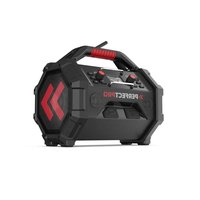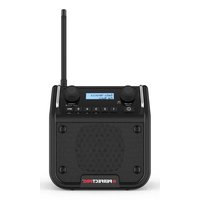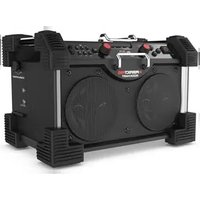
UBOX 500R - Radio PerfectPro - Free user manual and instructions
Find the device manual for free UBOX 500R PerfectPro in PDF.



User questions about UBOX 500R PerfectPro
0 question about this device. Answer the ones you know or ask your own.
Ask a new question about this device
Download the instructions for your Radio in PDF format for free! Find your manual UBOX 500R - PerfectPro and take your electronic device back in hand. On this page are published all the documents necessary for the use of your device. UBOX 500R by PerfectPro.
USER MANUAL UBOX 500R PerfectPro
Product name:UBOX500R
Art.nr.: UB500R
ENG Declaration of Conformity
Prime Europe B.V. hereby declares that this model UB500R is in compliance with the essential requirements and other relevant provisions of Directive 2014/53/EU and also fulfills all the relevant provisions of EC/EU Directives: 2011/65/EU.
The EU declaration of conformity is available at the following internet address: http://www.perfectpro.nl/support/ce-docs/
The Bluetooth® word mark and logos are registered trademarks owned by Bluetooth SIG, Inc. and any use of such marks by Perfectpro B.V. is under license.

WARNING
WARRANTY BECOMES VOID ONCE THE DEVICE CABINET HAS BEEN OPENED OR ANY MODIFICATIONS OR ALTERATIONS TO THE ORIGINAL DEVICE HAVE BEEN MADE. NEVER OPEN THE DEVICE CASING. THE MANUFACTURER WILL NOT ACCEPT ANY LIABILITY FOR DAMAGE RESULTING FROM IMPROPER HANDLING. THE TYPE PLATE IS LOCATED ON THE BACK OF THE DEVICE.
Important Safety Instructions
- Read these instructions.
- Keep these instructions.
- Heed all warnings.
- Follow all instructions.
- Do not use this apparatus near water.
- Clean only with dry cloth.
- Do not block any ventilation openings. Install in accordance with the instructions.
- Do not install near any heat sources such as radiators, heat registers, stoves or other apparatus (including amplifiers) that produce heat.
- Protect the power cord from being walked on or pinched particularly at plug, convenience receptacles, and the point where they exit from the apparatus.
- Only use attachments / accessories specified by the manufacturer.
- Use only with the cart, stand, tripod, bracket, or table specified by the manufacturer, or sold with the apparatus. When a cart is used, use caution when moving the cart / apparatus combination to avoid injury from tip-over.
- Unplug this apparatus during lightning storms or when unused for long periods of time.
- Refer all servicing to qualified service personnel. Servicing is required when the apparatus has been damaged in any way, such as power supply cord or plug is damaged, liquid has been spilled or objects have fallen into the apparatus, the apparatus has been exposed to rain or moisture, does not operate normally, or has been dropped.
- To reduce the risk of fire or electric shock, do not expose this appliance to Rain or Moisture. For outdoors use, to avoid electric shock, only use batteries power during a raining day or the weather is wet. This apparatus is provided with protection against splashing water and dust ingress (IP65).
- The Shock Hazard Marking and Associated Graphical Symbol is provided on the back of unit.
Important Safety Instructions

The lightning flash with arrowhead symbol, within an equilateral triangle, is intended to alert the user to the presence of uninsulated "dangerous voltage" within the product's enclosure that may be of sufficient magnitude as to constitute a risk of electric shock to persons.

The exclamation point within an equilateral triangle is intended to alert the user to the presence of important operating and maintenance (servicing) instructions in the literature accompanying the appliance.
- Apparatus shall not be exposed to dripping or splashing and no objects filled with liquids, shall be placed on the apparatus.
- The power plug should be close to the radio, and easy to be approached that during the emergency, to disconnect the power from the radio, just unplug the power plug from the AC power slot.
- NOTICE
The changes or modifications not expressly approved by the party responsible for compliance could void the user's authority to operate the equipment.
- Where the MAINS plug or an appliance coupler is used as the disconnect device, the disconnect device shall remain readily operable.
- A warning that batteries (battery pack or batteries installed) shall not be exposed to excessive heat such as sunshine, fire or the like.
21.
To prevent possible hearing damage, do not listen at high volume levels for long periods.
22.
This equipment is a Class II or double insulated electrical appliance. It has been designed in such a way that it does not require a safety connection to electrical earth.
- The ventilation should not be impeded by covering the ventilation openings with items, such as newspapers, table-cloths, curtains, etc.
Controls
| 1 | Volume control / EQ control button |
| 2 | Preset 3 / Rewind button |
| 3 | Preset 4 / Play / Pause button |
| 4 | Preset 5 / Fast-forward button |
| 5 | Menu button |
| 6 | Tuning control knob / Select button |
| 7 | Battery charging indicator |
| 8 | Bluetooth status indicator |
| 9 | Alarm 1 button |
| 10 | Alarm 2 button |
| 11 | Source button |
| 12 | Power On / Off button |
| 13 | LCD display |
| 14 | Info button |
| 15 | Auto tune / Play mode / Bluetooth pairing button |
| 16 | Speaker |
| 17 | Preset 1 / Folder down button |
| 18 | Preset 2 / Folder up button |
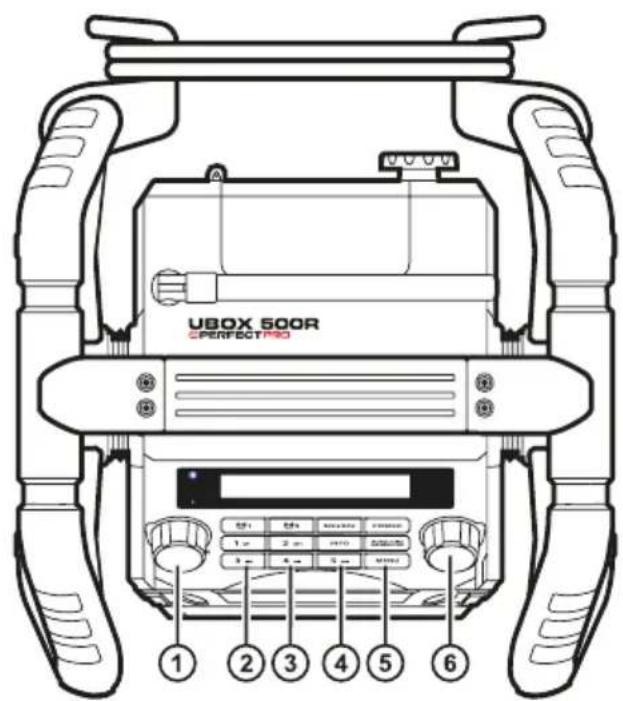
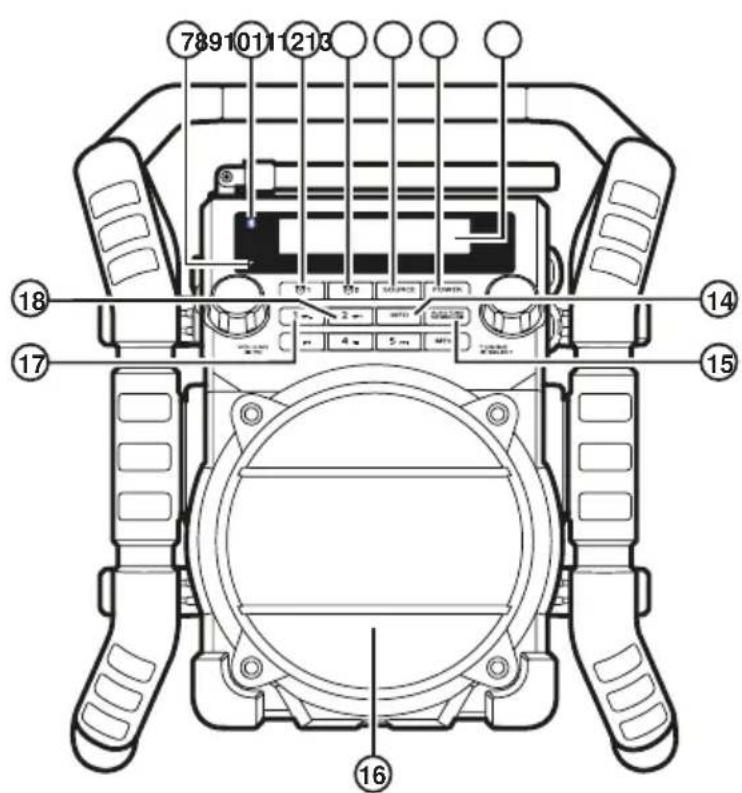
Front view
Controls
| 19 | USB socket |
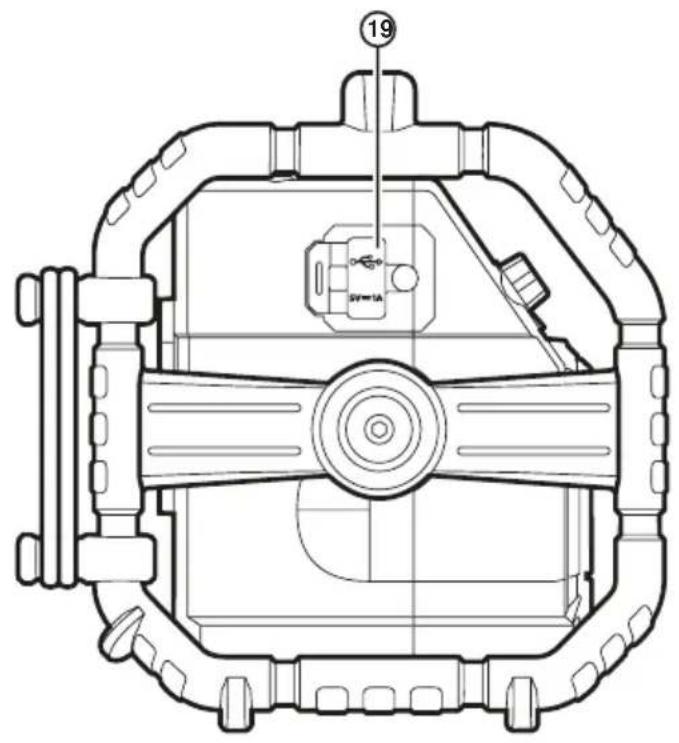
Left view
| 20 | DC In socket |
| 21 | Aux In socket |
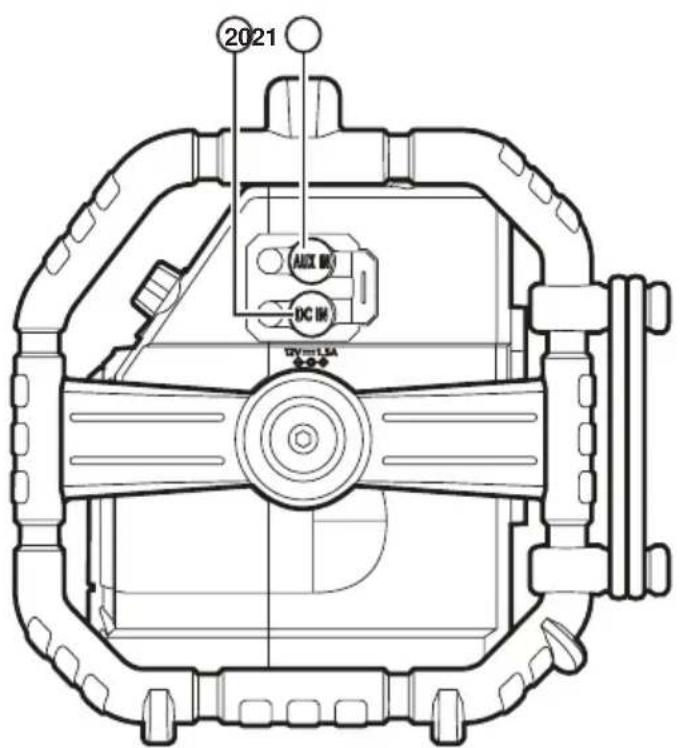
Controls
| 22 | FM / DAB+ antenna |
| 23 | Power cord storage |
| 24 | AC power cord |
Back view
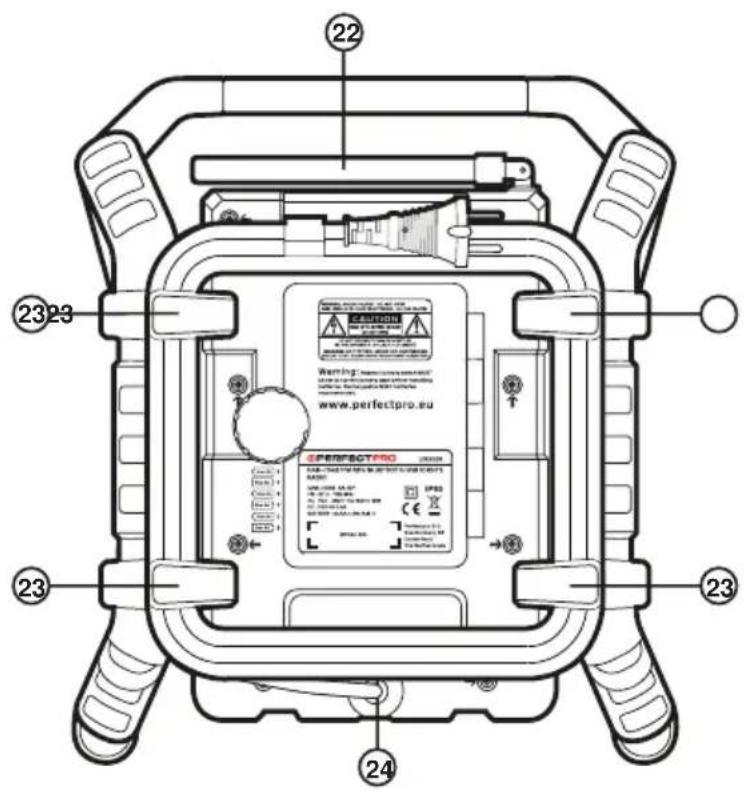
Back view
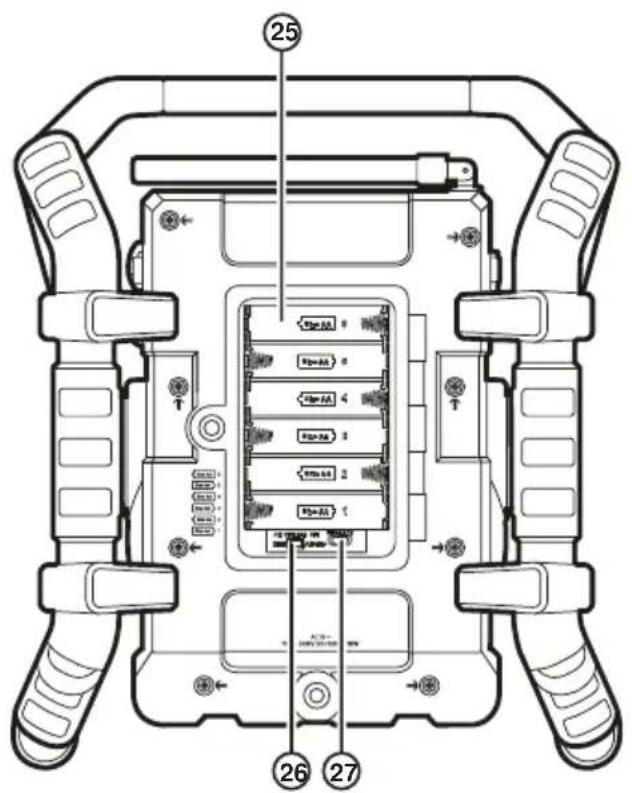
| 25 | Battery compartment |
| 26 | NiMH / Alkaline batteries switch |
| 27 | Socket for software upgrade |
Powering the radio
Battery operation
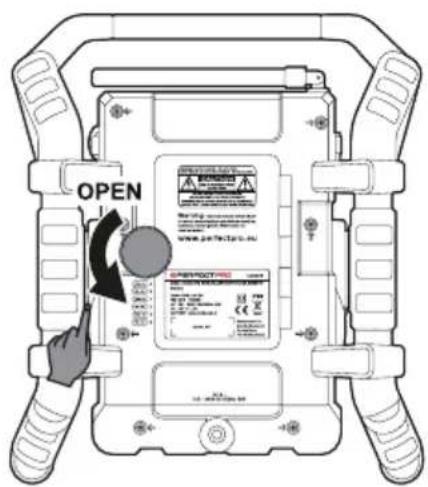
Installing the batteries: first turn battery cover fixture anti-clockwise to loosen and open the battery cover.

NOTE
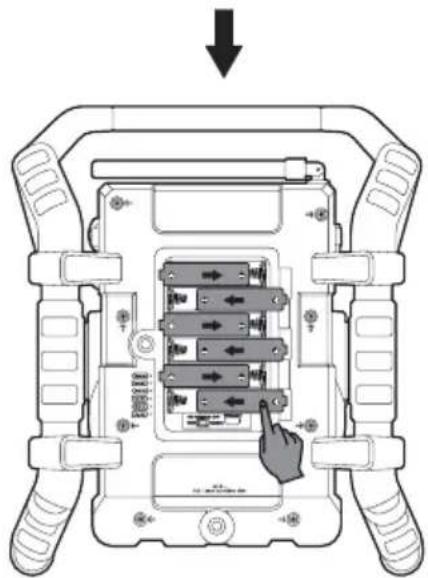
Before you insert the batteries, if you use nonrechargeable batteries, make sure the NiMH / Alkaline switch which located inside the battery compartment is switched to Alkaline position. If you use rechargeable batteries, make sure to switch NiMH / Alkaline switch to NiMH position.
Insert 6 x AA size (AM-3) battery into the compartment.
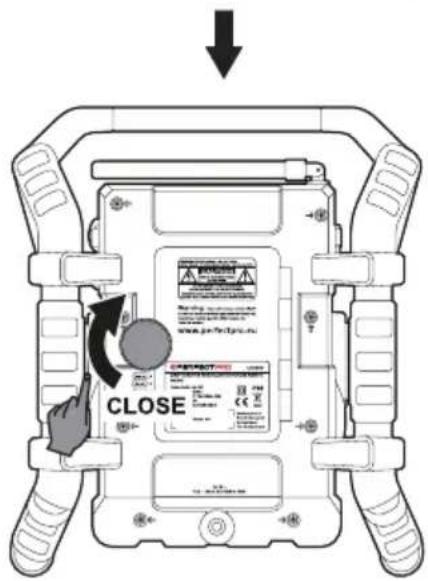
Ensure the batteries are inserted in accordance with the diagram shown. Close the battery cover and fasten the fixture by turning clockwise. If the radio is not to be used for any extended period of time, it is recommended that the batteries are removed from the radio. Reduced power, distortion and a stuttering sound or "Battery Low" showing on the display are all signs that the batteries need replacing or recharging. (see below information on "charging the batteries").
When playing on (rechargeable) batteries the output power is less compared to the output power when playing on AC mains power. Because of this the sound can be somewhat distorted at the highest volume settings.
AC operation
Before you plug the AC cord into the AC socket, make sure the voltage is correct. If you have batteries in the radio and use the AC power cord, the batteries will automatically be disconnected.
Power cord storage is designed to store the cord when the radio is not in use.
Powered via DC IN socket
The radio can be also powered via the DC IN socket which can allow 12 Volt DC, which is designed to be powered by the vehicle or the boat so you can take the radio with you outdoors or on the boat.
An additional cigarette lighter cable is required (not supplied) for this device.
NOTE
Never use the 12 Volt socket in rainy or moist conditions to prevent moist from entering the radio. Always keep the rubber cover on the back well closed under these conditions.
NOTE
If no controls are used and no sound output from the radio for 15 minutes, the radio will be put into standby mode when using the mains power. When the radio is operated on battery power, the radio will be switched off completely in order to minimize battery usage.
Charging the batteries
Make sure the radio is switched off and connected to the AC mains socket.
When the battery charge indicator LED flashes green, this indicates the batteries are charging. Batteries will be fully charged in around 5-7 hours. The battery charge indicator LED shows steady green light when the battery charging process is complete.
NOTE
Duration for charging your batteries fully can vary according to the mAh capacity of the batteries. Higher mAh batteries require longer charging time.
IMPORTANT
Under some conditions the charging LED indicator may switch off after flashing briefly. This may happen if the batteries are already freshly charged, or if the radio detects that you may be attempting to recharge alkaline batteries or mixed different types or capacity of rechargeable battery. In these cases the charging will be stopped.
INSTALL ONLY PRE-CHARGED (TO THE SAME VOLTAGE LEVEL) NIMH BATTERIES WITH "LOW SELF-DISCHARGE" CHARACTERISTICS. USE OF ORIGINAL PERFECTPRO BATTERIES IS HIGHLY RECOMMENDED.
Important Information On Charging And Using Rechargeable Batteries
- Recharge the batteries in any case at least every 2 months.
- Make sure the Battery Select switch next the battery compartment is set to the "CHARGE NiMH ON" position.
- Put the batteries in the compartment whilst paying attention to the correct polarity of the batteries (+ and -).
- First use: Charge new batteries in one continuous, uninterrupted, charge until they are full. This first charge may take longer than normal. For longer battery life it is advised to always recharge in one continuous, uninterrupted charge until batteries are full and to not recharge again whilst the batteries are still full.
- New batteries will only reach their full capacity after some time of use (several charge - discharge cycles).
- Leave the complete group of batteries in place inside the radio and do not use these batteries or a few of them for other purposes. This will result in a mix of (fully) charged and (partly) empty batteries. This can seriously damage the batteries and radio when recharged.
- It is advised to only charge batteries at room temperatures between 5 degrees C - 35 degrees C. In lower or higher temperatures full charge cannot be achieved.
- Depending on the capacity of the batteries, charging from "empty" to "full" can take several hours, even up to 7 hours or more.
- Do not charge batteries when the radio is hot or exposed to heat or heat sources.
- It is advised to clean the metal contacts of the batteries and of the charger inside the radio e.g. with a contact-spray from time to time.
- Do not use a mix of old and new rechargeable batteries.
- Do not use a mix of rechargeable and non-rechargeable batteries.
- Do not use a mix of full and empty rechargeable batteries.
- Do not use batteries that have a different mAh capacity.
Important Information On Charging And Using Rechargeable Batteries
- Do not use damaged, deformed or leaking batteries.
- Battery level indication is an approximate indication only and can vary with battery type used.
- Batteries can become hot during charging.
- In cold conditions the capacity of batteries will be much lower than when used at normal room temperature.
- Batteries (even when supplied with the radio), as being consumables, do not fall under the warranty conditions of the radio.
- It is advised to use Perfectpro rechargeable batteries as the radio and its charger were developed for use with these batteries.
- Batteries should not be disposed of by incineration and with household waste.
- Disposable batteries should be taken to a suitable recycling centre if possible.
- CAUTION
Danger of explosion if battery is incorrectly replaced. Replace only with the same or equivalent type.
Battery charging indicator
Please note that the battery charging status detection can only be activated when the radio is in charging mode (i.e. the radio is switched off, the battery switch slides to the NiHM position and it is connected to the AC mains socket).
| 1 When charging is in progress, display is shown at right and the charging indicator LED flashes green. | Battery 123456 Charging |
| 2 When the charging process is completed, display is shown at right and the charging indicator LED lights in steady green. | Battery 123456 Capacity |
| 3 If batteries are already fully charged, display is shown at right and it will switch to standby mode after 5 seconds. | Battery Full |
| 4 When there is no battery / missing batteries in the compartment or some of batteries are inserted with the incorrect polarity, display is shown at right and it will enter standby screen after 5 seconds. ▲NOTE If a battery is removed while charging, display is shown at right and the charging indicator LED lights red. | No cell |
| 5 During the charging process, if a battery is detected as faulty / damaged, a solid square will be displayed under the corresponding battery number (see picture right) and the charging indicator LED flashes red. | Battery 123456 Error |
Using the radio for the first time
| 1 Place your radio on a flat surface. | |
| 2 Straighten up the antenna. | |
| 3 Plug the AC power cord into an AC socket. The display will show “Welcome to Digital Radio” for a few seconds. After short time, the current time will appear on the display. | Welcome to Digital Radio |
| 4 If no time is displayed, the screen will show “00:00”. Press the Power On / Off button to turn on your radio and it will find a DAB clock radio stations. It may be necessary to relocate your radio to a position giving better reception and carry out a scan to find stations as described in later sections. | 00:00 Time not set |
| IMPORTANT The mains plug is used as the means of connecting the radio to the mains supply. The mains socket used for the radio must remain accessible during normal use. In order to disconnect the radio from the mains completely, the mains plug should be removed from the mains outlet completely. | |
Operating your radio - DAB
| 1 Straighten the antenna properly which is for both DAB and FM reception. Press the Power On / Off button to switch on your radio. |
| 2 Press the Source button to select DAB band. |
| 3 If this is the first time the radio is used, a quick scan of Band III DAB channels will be carried out. If the radio has been used before, the last used station will be selected. |
Operating your radio - DAB
| 4 During Autotune, as new stations are detected, the station counter on the right hand side of the display will increase and stations will be added to the list. The display shows a bar graph indicating progress of autotune. | Scanning... 019 |
| 5 When the Autotune is completed, the first station (in numeric-alpha order 0...9...A...Z) will be selected. | |
| 6 If the station list is still empty after the Autotune, your radio will display “No DAB Station”. | |
| 7 If no signals are found, it may be necessary to relocate your radio to a position giving better reception. | |
| ▲ NOTE The radio station name and frequency displays shown in this user guide may differ from those that you see on your radio. Broadcasters may change radio station names that are transmitted, and the frequencies used for DAB and FM radio stations may not be the same in all parts of the country. | |
Selecting a station - DAB
| 1 Press the Power On / Off button to switch on your radio. | |
| 2 Press and release the Source button until the DAB mode is selected. The display will show the name of the radio station currently selected. | DAB |
| 3 Rotate the Tuning control knob to scroll through the list of available stations. | Station list <BBC Radio 2 > |
Selecting a station - DAB
4 Press and release the Tuning control knob to select the station. The display may show "Connecting..." while your radio finds the new station.
BBC Radio 2 Connecting...
5 Adjust the Volume control to the required setting.
NOTE
If after selecting a station, the station is not found it may be necessary to relocate your radio to a position giving better reception.
Secondary service - DAB
- Certain radio stations have one or more secondary services associated with them. If a station has a secondary service associated with it, the display will show “>>” next to the station name on the station list.
The secondary service will then appear immediately after the primary service as you rotate the Tuning control knob. - Press and release the Tuning control knob to select the station. Most secondary services do not broadcast continually and if the selected service is not available, the radio will re-tune to the associated primary service.
Your radio has a range of display options when in DAB mode:
- Press and release the Info button to cycle through the various modes.
| a. Scrolling text (DLS) | displays scrolling text messages such as artist / track name, phone in number, etc. | sunshine live electronic music |
| b. Signal strength | displays the signal strength of radio reception. The clear unfilled rectangle indicates minimum signal level required for satisfactory reception. | sunshine live |
| c. Program type | displays type of station being listened to e.g. Pop, Classic, News etc. | sunshine live Pop Music |
| d. Multiplex name | displays name of multiplex to which current station belongs. | sunshine live DR Deutschland |
| e. Channel & frequency | displays current channel and frequency. | sunshine live 12B 225.648MHz |
| f. Bit rate / audio type | displays the digital bit rate and the audio type for the currently tuned DAB station. | sunshine live 72kbps / DAB+ |
| g. Battery level / Mains current | displays current battery level of using batteries operation. (If using AC power cord operation, "Mains current" is shown on the screen.) | sunshine live Bat.level |
| sunshine live Mains current | ||
| h. Time displays the current time. | sunshine live 9:07 AM | |
| i. Date displays the current date. | sunshine live 8-9-2016 | |
Finding new stations - DAB
As time passes new stations may become available. To find new stations proceed as follows:
1 To carry out a full scan of the entire DAB Band III frequencies press and release the Auto tune button.
As new stations are found, the station counter on the right hand side of the display will increase and stations will be added to the list.
Scanning.. 019
□□□
Manual Tuning - DAB
Manual tuning allows you to tune directly to the various DAB band III channels.
Press the Menu button to access DAB menu.
2 Rotate the Tuning control knob to find "Manual tune". Press and release the Tuning control knob to enter DAB channels in the list. Rotate the Tuning control knob to select required DAB channel. When required DAB channel is found, press and release the Tuning control knob to select the required DAB channel.
DAB
<Manual tune
Manual tune
<5A 174.928MHz
Dynamic Range Control (DRC) setting - DAB
DRC can make quieter sound easier to hear when your radio is used in a noisy environment.
1 In DAB band, press the Menu button to access DAB menu.
Dynamic Range Control (DRC) setting - DAB
| 2 Rotate the Tuning control knob to find “DRC”. Pr ess and release the Tuning control knob to enter adjustment mode. | DAB (DRC) |
| 3 Rotate the Tuning control knob to select required DRC setting (default is off). DRC off DRC is switched off, Broadcast DRC will be ignored. DRC high DRC is set as sent by broadcaster. DRC low DRC level is set to 1/2 that sent by broadcaster. | DRC * (DRC off) |
| DRC (DRC high) | |
| DRC (DRC low) | |
| 4 Press and release the Tuning control knob to confirm the setting. | |
| ▲ NOTE Not all DAB broadcasts are able to use the DRC function. If the broadcast does not support DRC, then the DRC setting in the radio will have no effect. | |
Station order setup
Your radio has 2 station order settings from which you can choose. The station order settings are alphanumeric and ensemble.
NOTE
The default station order on your radio is alphanumeric.
1 Press the Power On / Off button to switch on your radio.
2 Press the Source button to select DAB band.
Station order setup
| 3 Press the Menu button to access DAB menu. | |
| 4 Rotate the Tuning control knob until the display shows "Station order". Press the Tuning control knob to enter the station order adjustment mode. | DAB <Station order> |
| 5 Rotate the Tuning control knob to choose "Alphanumeric" or "Ensemble". "Alphanumeric" -sorts the station list alpha-numerically 0...9 A...Z. "Ensemble" - sorts the station list by DAB multiplex. The current setting is indicated by an asterisk. | Station order * <Alphanumeric> |
| Station order <Ensemble> | |
| 6 Press the Tuning control knob to select the required station order. | |
Prune stations
If you move to a different part of the country, some of the stations which were listed may no longer be available.
Also from time to time, some DAB services may stop broadcasting, or may change location or frequency.
Stations which cannot be found, or which have not been received for a very long time are shown in the station list with a question mark. The prune stations function will delete the marked DAB stations from your station list.
| 1 Press the Menu button to access DAB menu. | |
| 2 Rotate the Tuning control knob to find “Prune”. Press and release the Tuning control knob to enter adjustment mode. Then rotate the Tuning control knob to select “Yes” or “No”. To activate the Prune function select “Yes”, and press and release the Tuning control knob to confirm the setting. | DAB <Prune> |
| Prune? <Yes> No | |
Prune stations
3 If you do not wish to prune stations, select "No" and then press and release the Tuning control knob to confirm the setting.
Prune? Yes (No)

If you have moved your radio to a different part of the country you should also carry out a search for new stations (please see the section 'Finding new stations').
Operating your radio - FM
- Straighten the antenna. Press the Power On / Off button to switch on your radio.
- Press the Source button to select FM waveband.
- To scan up in frequency, first rotate the Tuning control knob in a clockwise direction and then press the Auto tune button. Your radio will scan in an upwards direction (low frequency to high frequency) and stop automatically when it finds a station of sufficient strength. To scan down in frequency, first rotate the Tuning control knob in a anti-clockwise direction and then press the Auto tune button. Your radio will scan in a downwards direction and stop automatically when it finds a station of sufficient strength. After a few seconds the display will update. The display will show the frequency of the signal found. If the signal is strong enough and there is RDS data present then the radio will display the station name.
- When the waveband end is reached, your radio will recommence tuning from the opposite waveband end.
- Adjust the Volume control to the required setting.
- To switch off your radio, press the Power On / Off button.
Manual tuning - FM
- Press the Power On / Off button to switch on your radio.
- Press the Source button to select FM waveband.
- Rotate the Tuning control knob to tune to a station. The frequency will change in steps of 50kHz . When the waveband end is reached, the radio will recommence tuning from the opposite waveband end.
- Adjust the Volume control to the required setting. To switch off your radio, press the Power On / Off button.
On FM the bottom line of the display can be set to any of the following modes:
- Press and release the Info button repeatedly to cycle through the various modes.
| a. Radio text | displays scrolling text messages such as artist / track name, phone in number etc. | U.H.B.N [No RadioText] |
| b. Program type | displays type of station being listened to e.g. Pop, Classic, News, etc. | U.H.B.N News |
| c. Frequency | displays the frequency of the station being listened to. | U.H.B.N 106.50MHz |
| d. Signal strength | displays the signal strength for the station being listened to. | U.H.B.N SGLV |
| e. Battery level / Mains current | displays current battery level of using batteries operation. (If using AC power cord operation, "Mains current" is shown on the screen.) | U.H.B.N Bat-level |
| U.H.B.N Mains current | ||
| f. Time displays the current time. | U.H.B.N 2:18 PM | |
| g. Date displays the current date. | U.H.B.N 8-9-2016 | |

NOTE
If no RDS information is available, the radio will be unable to display the station name, scrolling text and program type information.
Scan sensitivity setting - FM
Your radio includes "Strong stations only" and "All stations" options for the auto-scan function. By setting the radio to the "Strong stations only" scan option, weaker signals from more distant transmitters can be ignored by the radio, making stronger signals easier to find.
| 1 Press the Power On / Off button to switch on your radio. | |
| 2 If needed, press and release the Source button until the FM band is selected. | |
| 3 Press the Menu button to access FM menu. Rotate the Tuning control knob until “FM scan setting” shows on the display. Press and release the Tuning control knob to enter the scan sensitivity adjustment mode. The current setting will be marked with an asterisk. | FM <FM scan setting > |
| 4 Rotate the Tuning control knob to switch between “Strong stations only” and “All stations” options on the lower line of the display. The “All stations” option will allow the radio to find weaker signals when scanning. | FM scan setting * <All stations > FM scan setting <Strong stations only > |
| 5 Press and release the Tuning control knob to confirm your selection. The setting is stored in the radio and remains in force until changed or until a System Reset. | |
Preset stations in DAB and FM modes
There are 5 memory presets for each DAB / FM wavebands.
| 1 Press the Power On / Off button to switch on your radio. | |
| 2 Tune to the required station as previously described. | |
| 3 Press and hold the required Preset button until the display shows e.g. Preset 1 saved. The station will be stored under the chosen preset button. The corresponding preset number e.g.“P1” will show on the display. Repeat this procedure for the remaining presets. | Preset 1 saved |
| 4 Station stored in the memories may be over written by following the above procedure. | |
Recall a preset in DAB and FM modes
| 1 Press the Power On / Off button to turn on the radio. | |
| 2 Press the Source button to select the required waveband. | |
| 3 Momentarily press the required Preset button, the preset number and station will appear in the display. | 87.50MHz P1 [No RadioText] |
| ▲ NOTE The display will show “Preset empty” if no station has been stored to that preset. | |
Listening to music via Bluetooth streaming
You need to pair your Bluetooth device with your UBOX 500R before you can auto-link to play/stream Bluetooth music through your UBOX 500R. Pairing creates a 'bond' so the two devices can recognize each other.
Pairing and playing your Bluetooth device for the first time
- Press the Power On / Off button to switch on your radio and press the Source button to select Bluetooth function. "Bluetooth Pairing" will show on the display.
The Bluetooth status indicator ( n the radio will flash a fast blue to show the radio is discoverable. - Activate Bluetooth on your device according to the device's user manual to link to the radio. Locate the Bluetooth device list and select the device named 'UBOX 500R' (With some Smartphone's that are equipped with earlier versions than BT2.1 Bluetooth device, you may need to input the pass code "0000").
- Once connected, there will be a confirmation tone sound and the name of your connected Bluetooth device will show on the display. The Bluetooth status indicator ( ) will turn a solid blue. You can simply select and play any music from your source device.
- The volume control can be adjusted from your source device, or directly from the radio. Use the controls on your Bluetooth-enabled device or on the radio to play / pause and navigate tracks.
NOTE
- If 2 Bluetooth devices are pairing for the first time, both will search for your radio, it will show its availability on both devices. However, if one device links with this unit first, then the other Bluetooth device will not find it on the list.
- If you take your source device out of range, the connection will be temporarily disconnected to your radio. Your radio will automatically reconnect if the source device is brought back in range. Be aware that during the period of disconnection, no other Bluetooth device can pair or link with your radio.
- If 'UBOX 500R' shows in your Bluetooth device list but your device cannot connect with it, please delete the item from your list and pair the device with the radio again following the steps described previously.
- The effective operation range between the system and the paired device is approximately 10 meters (30 feet). Any obstacle between the system and the device can reduce the operational range.
- Bluetooth connectivity performance may vary depending on the connected Bluetooth devices. Please refer to the Bluetooth capabilities of your device before connecting to your radio. All features may not be supported on some paired Bluetooth devices.
- With some mobile phones, making / receiving calls, text messages, e-mails or any other activities unrelated to audio streaming may mute the Bluetooth audio streaming or even temporarily disconnect from your device. Such behavior is a function of the connected device and does not indicate a fault with your UBOX 500R.
Listening to music via Bluetooth streaming
Display modes - Bluetooth
Your UBOX 500R has a range of display options when in Bluetooth mode. Note that the availability of information depends on the specific media format.
- Press and release the Info button to cycle through the different options.
| a. Track status | Displays the current status of the track. | H30-U10 ▶ |
| b. Track name | Displays the track information for the track currently playing. | H30-U10 Title:Waiting For You |
| c. Artist | Displays the artist information for the track currently playing. | H30-U10 Artist:Isobel Anderson |
| d. Album | Displays the album information for the track currently playing. | H30-U10 Album:In My Garden |
| e. Battery level / Mains current | Displays current battery level of using batteries operation. (If using AC power cord operation, "Mains current" is shown on the screen.) | H30-U10 Bat.level H30-U10 Mains current |
| f. Time | Displays the current time. | H30-U10 16:55 |
| g. Date | Displays the current date. | H30-U10 4-10-2016 |
Listening to music via Bluetooth streaming
Playing audio files in Bluetooth mode
When you have successfully connected your radio with the chosen Bluetooth source device you can start to play your music using the controls on your connected Bluetooth device.
- Once playing has started adjust the volume to the required setting using the Volume control on your radio or on your enabled Bluetooth source device.
- Use the controls on your Bluetooth source device to play / pause and navigate tracks. Alternatively, control the playback using Play / Pause (4), Next track (5), Previous track buttons (3) on your radio.
- Press and hold the Fast-forward / Rewind button to move through the current track. Release the button when the desired point is reached.
NOTE
Not all player applications or devices may respond to all of these controls.
Reconnecting a previously paired Bluetooth source device
The UBOX 500R can memorize up to 8 sets of paired Bluetooth source devices, when the memory exceeds this amount, the earliest paring device will be over written from the device.
If your Bluetooth source device already paired with the UBOX 500R previously, the unit will memorize your Bluetooth source device and it attempts to reconnect with a Bluetooth source device in memory which is last connected. If the last connected Bluetooth source device is not available, the UBOX 500R will try to connect to the second last Bluetooth source device.
Alternatively, you can select to connect to your previously-paired device.
- Press the Source button as needed to select Bluetooth mode.
- Press Bluetooth pairing button to enter the "Paired Device List" menu.
- Rotate the Tuning control knob to select a previously-paired device you would like to connect and press the Tuning control knob to confirm the selection.
Disconnecting your Bluetooth device
- Press and hold the Bluetooth pairing button for 2-3 seconds to disconnect with your Bluetooth device or turn off Bluetooth on your Bluetooth source device to disable the connection. There will be a confirmation tone sound and the "Bluetooth Pairing" will show on the display. The Bluetooth status indicator ( ) on the radio will flash a fast blue to show the radio is discoverable again for pairing.
- You can also press the Source button to select any mode other than Bluetooth mode to disable the connection.
Using USB memory devices
IMPORTANT
- Your radio is only designed to work with USB flash memory devices. It is not intended to be connected to hard disk drives or any other type of USB device.
- It is possible to use SD or SDHC cards for media playback when held in a suitable USB adaptor. However, due to the wide variation of such adaptors, it is not possible to guarantee that all adaptor / card combinations will work with the radio.
- The radio has been tested with a range of USB memory devices of up to 32GB capacity. It supports USB 2.0 full speed and USB 3.0.
NOTE
when using USB 3.0, please allow the radio to detect the device for a longer period of time.
- USB memory must use the FAT or FAT 32 filing system in order to operate with the radio, it does not support NTFS.
- Audio formats supported for playback are MP3, WMA and AAC. Playback does not support files encoded using WMA lossless, WMA Voice, WMA 10 professional, nor files of any format which have DRM protection.
CAUTIONS
- In order to minimize the risk of damage to your radio, your USB Memory, please place the radio such that the device cannot easily be knocked while it is inserted in the socket.
- Remove the USB before carrying the radio or if not using the USB feature for a prolonged period.
- Turn off the radio before removing your USB memory device.
- The USB connection is intended only for flash memory devices. The use of hard disk storage media is not supported.
- Playback via USB files stored on MP3 players is not guarantee.
- Large file size or high memory USB device takes longer time to read.
Playing files from USB memory devices
- Insert the USB memory device into the USB slot which is located on the left hand side of the radio behind the rubber cover.
- Press the Power On / Off button to turn on the radio and Press the Source button to select USB mode. "Loading" will appear on the LCD display. Then the radio will start playing from the USB memory device.
NOTE
The text coding only supports ASCII.
- To pause playing, press the Play / Pause button (4). To resume playing, press the Play / Pause button (5).
NOTE
- If you turn off the radio, the next time the radio is turned on, it will resume to the last played track.
- If you switch to other mode when playing from the USB memory device, playback will be paused. When you switch to the USB mode again, playback will resume from the point where it was paused.
- It is recommended to store only music files (MP3 / WMA / AAC) in your USB memory device. If there is one folder contains file(s) other than music files, your radio will skip this file / folder and the file / folder number shown on the display will not be serial.
Display modes
Your radio has a range of display mode while in USB playback mode.
Press the Info button to cycle through the different options.
| a. File name | 00:30 File:01 Vincent |
| b. Folder name | 00:47 Folder:USB MUSIC |
| c. Genre | 01:01 Genre:MP3 |
| d. Folder and file numbers | 01:07 F003 T001 |
| e. Battery level / Mains current | 01:08 Bat.level |
| 01:13 Mains current | |
| f. Time | 01:18 17:17 |
| g. Date | 01:23 17-5-2018 |
| h. Song title | 01:49 Title:Vincent |
| i. Artist name | 02:10 Artist:Don McLea |
| j. Album name | 02:26 Album: |
Using USB memory devices
Selecting a file
- While the USB memory device is playing, press either the Next track button (5) or Previous track button (3) to change to the desired file. The file number is updated on the display. If there's more than one folder, all files in the current folder should have been played and the next folder will be played.
- Press and hold the Next track button (5) or Previous track button (3) to fast-forward / Rewind the current track. Release the button when the desired point in the track is reached.
To skip to another folder
With the USB memory device is in pause or play mode, press and release the Next folder button (2) or Previous folder button (1). The first file of the next or previous folder will be played.
NOTE
If your USB contains a folder without files, the device will skip the folder and play the files in the next folder.
Play Mode
When playing the files in the USB memory device, press and release Play mode button to select:
Repeat 1: repeatedly play the file you are listening to.
Repeat Folder : repeatedly play the files within the folder you are listening to.
Repeat All Repeatedly play the folders in the USB.
Random : it will play files in the USB by in random.
Charging with USB socket
Your radio has a USB socket which is intended for charging an iPhone, smart phone or similar devices. Charge time may vary and in some cases may take longer to charge than when using the manufacturers charging unit supplied with the smart phone. The radio can charge the iPhone, smart phone or similar devices when using AC power cord and the radio is in power on or standby mode.

IMPORTANT
- The USB jack can only provide power for the USB memory stick only with 1A 5V maximum and most of iPhone models. However, it does not support external Hard disk drive and all mobile phones and electronic device.
- The charger may not supply power to some USB devices.
- Do not connect power source to USB port. Otherwise there is risk of fire. The USB port is only intended for charging lower voltage device.
- Do not insert a nail, wire, etc. into USB power supply port. Otherwise a circuit short may cause smoke and fire.
- Do not connect this USB socket with your PC USB port, as it is highly possible that it may cause breakdown of the units.
- Never use the USB socket in rainy or moist conditions to prevent moist from entering the radio.
Loudness On / Off
When the radio is switched on, press and hold the EQ control button to get compensation on lower and higher frequency. The effect will be more audible when the radio is in lower volume level. The display will show "Loudness on" when Loudness function is applied. To turn off the loudness function, press and hold the EQ control button again. The display will show "Loudness off".
Equaliser function
- Press the Power On / Off button to switch on your radio.
- Press the EQ control button to enter the EQ setting menu.
- Rotate the Tuning control knob to select your required mode. Then press the Tuning control knob to confirm the selection.
Set up My EQ profile
- Press the Power On / Off button to switch on your radio.
- Press the EQ control button to enter the EQ setting menu.
- Rotate the Tuning control knob to select "My EQ". Then press the Tuning control knob to enter the setting.
- Rotate the Tuning control knob to select "Treble" or "Bass". Press the Tuning control knob to enter the setting.
- Rotate the Tuning control knob to select your required Treble level or Bass level. Press the Tuning control knob to confirm the setting.
SAFETY AND COURTESY NOTE
To prevent possible hearing damage, do not listen at high volume levels for long periods or put your ears too close to the speaker.
Please use the volume level responsibly with respectable consideration of the situation and other people or animals in the vicinity.
Clock time setting
Setting the time format
| 1 Press the Power On / Off button to turn on the radio. | |
| 2 Press the Menu button to access the menu for the current mode. Rotate the Tuning control knob to select “System” and press the Tuning control knob to enter the system settings menu. | FM (System) |
| 3 Rotate the Tuning control knob to select “Time” and press the Tuning control knob to enter the setting. | System (Time) |
| 4 Rotate the Tuning control knob to select “12 / 24 hour format” and press the Tuning control knob to enter the setting. | Time <12/24 hour format> |
Setting the time format
5 Rotate the Tuning control knob to select 12 or 24 hour format and press the Tuning control knob to confirm the setting. The selected format is used in standby mode and on the playing mode screen. If the 12 hour clock format is chosen, the radio will then use the 12 hour clock with an AM or PM indicator.
Setting the date format
| 1 Press the Power On / Off button to turn on the radio. | |
| 2 Press the Menu button to access the menu for the current mode. Rotate the Tuning control knob to select "System" and press the Tuning control knob to enter the system settings menu. | FM <system> |
| 3 Rotate the Tuning control knob to select "Time" and press the Tuning control knob to enter the setting. | System <time> |
| 4 Rotate the Tuning control knob to select "Set date format" and press the Tuning control knob to enter the setting. | Time <set date format> |
| 5 Rotate the Tuning control knob to select "DD-MM-YYYY" or "MM-DD-YYYY" date format and press the Tuning control knob to confirm the setting. | Set date format* <DD-MM-YYYY> |
| Set date format <MM-DD-YYYY> | |
Automatically updating the clock
Your radio will normally update the clock automatically using the DAB or FM signal. If no signal is available, then you need to set the time manually. After a power failure the radio will then set its clock the next time that you turn on the radio in DAB or FM mode. Alternatively you may specify that the time is not automatically updated. In this case the clock must always be set manually after a power interruption.
| 1 With your radio switched on, press the Menu button to access the menu for the current mode. | |
| 2 Rotate the Tuning control knob to select “System” and press the Tuning control knob to enter the system settings menu. | FM <system> |
| 3 Rotate the Tuning control knob to select “Time”. Press the Tuning control knob to enter the time setting menu. | System <time> |
| 4 Rotate the Tuning control knob to select “Time auto update” and press the Tuning control knob to enter the setting. | Time <time auto update> |
| 5 Rotate the Tuning control knob to choose an update option from “Update from all” “Update from DAB” “Update from FM” or “No update” as required. Press the Tuning control knob to confirm your choice. | Time auto update * <update from all> |
| Time auto update <update from DAB> | |
| Time auto update <update from FM> | |
| Time auto update <No update> | |
NOTE
If you select "Update from all", "Update from DAB", "Update from FM" the current time received will be displayed. If no signal is found you should either position the radio or its aerial so that a signal can be received, or revert to manual clock mode.
Setting the clock manually
| 1 With your radio switched on, press the Menu button to access the menu for the current mode. | |
| 2 Rotate the Tuning control knob to select "System" and press the Tuning control knob to enter the system settings menu. | FM <system> |
| 3 Rotate the Tuning control knob to select "Time". Press the Tuning control knob to enter the time setting menu. | System <time> |
| 4 Rotate the Tuning control knob to select "Set Time / Date" and press the Tuning control knob to enter the setting. The hour digits will flash on the display. Rotate the Tuning control knob to set the desired hour. | |
| 5 Press the Tuning control knob. The minute digits will flash on the display. Rotate the Tuning control knob to set the desired minute. ▲ NOTE If the radio has been set to use a 12 hour format, there will be an option here for setting AM or PM for the clock time. Rotate the Tuning control knob to select AM or PM. Press the Tuning control knob to confirm the setting. | Time <Set Time/Date> Set Time 2:36 PM |
| 6 If the radio has been set to use a DD-MM-YYYY date format (for example). The day will flash on the display. Rotate the Tuning control knob to change the day as needed. | |
| 7 Press the Tuning control knob. The month will flash on the display. Rotate the Tuning control knob to set the current month. | Set date 21-9-2016 |
| 8 Press the Tuning control knob. The year will flash on the display. Rotate the Tuning control knob to set the current year. Then press the Tuning control knob to confirm the setting. The display will show "Time Saved". ▲ NOTE If the radio has been set to use a MM-DD-YYYY date format, follow the steps above to set the month / day / year setting. | Time Saved |
Setting the alarm clock
Your radio has two separate alarms which can be set to wake you to either the radio or a buzzer alarm. In the event of a power interruption your radio has built in memory that will retain your alarm settings. Ensure that the time is set correctly before setting the alarms.

When using batteries only and the radio is switched off, the alarms can't be set and activated.

If no buttons are pressed for 10 seconds, the radio will exit the alarm setup.
| 1 Press and release the Alarm 1 button, for example. “Alarm 1: Setting” will show on the display. NOTE If the time is not set before setting the alarms, “Time not set” will show on the display. Then Use the Tuning control knob to set the time and date. When the setting is complete, proceed to step 2. | Alarm 1: Setting Off |
| 2 Press the Tuning control knob to enter the alarm setting. Alarm status will flash on the display. Rotate the Tuning control knob to select “On” or “Off”. If “Off” is selected any current setting for that alarm will be cancelled. With “On” selected, press the Tuning control knob to cause the alarm hour digits to flash on the display. | Alarm 1: Setting On |
| 3 Rotate the Tuning control knob to choose the desired hour for the alarm and then press the Tuning control knob to cause the alarm minute digits to flash on the display. | Alarm 1: Time 10:00 |
| 4 Rotate the Tuning control knob to choose the desired minute for the alarm and then press the Tuning control knob. NOTE If the radio has been set to the 12 hour clock format, there will also be an option here for setting AM or PM for t he alarm time. Rotate the Tuning control knob to select AM or PM. Press the Tuning control knob to confirm the setting. | |
| 5 Rotate the Tuning control knob to choose the desired source for the alarm (DAB, FM, Buzzer). Press the Tuning control knob when the desired source alarm is highlighted on the display. If setting alarm to Buzzer proceed to step 6. | Alarm 1: Mode Buzzer |
| For which ever radio mode is selected, the radio alarm may be set to any of the stations which have been stored as presets or to the station last listened to. If setting the alarm to a radio option, rotate the Tuning control knob to choose either last listened or from presets 1-5. A NOTE You can only set the alarm to use a preset which has already been stored. Press the Tuning control knob to confirm the selection. The alarm day option will flash on the display. | Alarm 1: Mode FM Alarm 1: Mode Last listened Alarm 1: Mode 1: 87.50MHz |
| 6 Your alarm can be set to sound once, daily, weekdays and weekends. Once - Will sound at one time only. Daily - Will sound every day. Weekdays - Will sound only on weekdays. Weekends - Will sound only on weekends. Rotate the Tuning control knob to choose the day option and then press the Tuning control knob to confirm the setting. • If setting alarms to daily, weekdays or weekends proceed to point 10. If selecting the alarm to once you will need to set the day, month and year options as described below. | Alarm 1: Day Once |
| 7 Rotate the Tuning control knob to select the correct day and then press the Tuning control knob to confirm the setting. | Alarm 1: Date 17-5-2018 |
| 8 Rotate the Tuning control knob to select the correct month and then press the Tuning control knob to confirm the setting. | |
| 9 Rotate the Tuning control knob to select the correct year and then press the Tuning control knob to confirm the setting. | |
| 10 Rotate the Tuning control knob to choose the desired volume and press the Tuning control knob to confirm the setting. Your radio will show "Alarm 1 Saved" and will exit the alarm setting procedure. Active alarms are indicated in the display by the alarm "A" symbol. A NOTE You can also press and hold the Alarm 1 button or Alarm 2 button to activate or disable the alarms. | Alarm 1: Volume 6 Alarm 1 Saved 10:06 A 17-5-2018 |
When the alarm sounds
The alarm will sound at the selected times for up to 60 minutes unless cancelled. The maximum volume used for the alarm will be specified during the alarm setting procedure. When your radio is set to wake by the radio alarm, your radio will switch to the selected radio station. If the radio cannot connect to the specified the radio station, the buzzer will be used instead.
To cancel a sounding alarm, press the Power On / Off button to cancel a sounding alarm.
NOTE
If the radio is switched on because of a radio alarm you can control basic functions such as the volume control.
When the alarm activates it will start softly and gradually increase in level. The radio will automatically switch back to standby mode when the 60 minutes have elapsed.
Snoopze timer
| 1 When the radio alarm sounds, pressing any button other than the Volume control will silence the alarm for the selected number of minutes. When the buzzer alarm sounds, press any button. This will silence the alarm for the selected number of minutes. The Snooze time can be adjusted between 5 and 20 minutes in 5 minute increments. Default setting is 5 minutes. | |
| 2 The snooze duration can only be set while the radio is playing. To adjust the silence time for the snooze timer, press the Menu button to access the menu for the current mode. | |
| 3 Rotate the Tuning control knob to select "System" and press the Tuning control knob to enter the system settings menu. | FM <system> |
| 4 Rotate the Tuning control knob until 'Snooze Duration' is shown on the display. Press the Tuning control knob to enter the setting. | System <Snoopze Duration> |
| 5 Rotate the Tuning control knob to choose the desired snooze time to 5, 10, 15 or 20 minutes. Press the Tuning control knob to confirm the setting. | Snoopze Duration* <5 Minutes> |
| 6 In order to cancel the Snooze timer while the alarm is suspended, press the Power On / Off button. | |
Sleep function
Your radio can be set to turn off after a preset time has elapsed. The sleep setting can be adjusted between 15 and 120 minutes. Ensure your radio is switched on.
| 1 To set the desired sleep time, press the Menu button to enter the menu of the current mode. | |
| 2 Rotate the Tuning control knob until “Sleep” is shown on the display. Press the Tuning control knob to enter the setting. The sleep settings available are 15, 30, 45, 60, 90 or 120 minutes. Press the Tuning control knob to confirm the setting. The display will exit the sleep options. The sleep symbol ‘S’ will show on the display. Your radio will switch off after the preset sleep time has elapsed. | FM < Sleep > |
| Set sleep time 15 minutes | |
| 3 To cancel the sleep timer and switch off your radio before the chosen sleep time has elapsed, press the Power On / Off button. To cancel the sleep timer without switching off your radio, go back to the sleep timer settings (step 1 to 2) and select the “Sleep off” option in step 2. | Set sleep time Sleep off |
| 4 To view the remaining time of an active sleep timer on the display, press the Menu button to enter the menu of the current mode. Rotate the Tuning control knob until “Sleep” is shown on the display and then press the Tuning control knob. | |
Brightness control
The brightness of the display can be adjusted for when the radio is in standby and for when it is in use. If you use the unit in the bedroom, you may prefer a lower standby brightness level than a higher brightness setting.
| 1 Press the Power On / Off button to switch on your radio. | |
| 2 Press the Menu button to access the menu for the current mode. | |
| 3 Rotate the Tuning control knob to select “System” and press the Tuning control knob to enter the system settings menu. | FM <system> |
Brightness control
| 4 Rotate the Tuning control knob to select “Backlight” and press the Tuning control knob to enter the setting menu. | System <Backlight> |
| 5 In Backlight menu, there are 3 settings: Timeout: to adjust the length of time before the backlight turns off. Radio on: to adjust the brightness when the radio is in use. Radio standby: to adjust the brightness when the radio is in standby. Rotate the Tuning control knob to select your option and press the Tuning control knob to confirm your setting. | Backlight <Timeout> |
| Backlight <Radio on> | |
| Backlight <Radio standby> |
Language selection
By default your radio will display all menus and messages in English. You can choose your preferred language.
| 1 Press the Power On / Off button to switch on your radio. | |
| 2 Press the Menu button to access the menu for the current mode. | |
| 3 Rotate the Tuning control knob to select “System” and press the Tuning control knob to enter the system settings menu. | FM <system> |
| 4 Rotate the Tuning control knob to select “Language” and press the Tuning control knob to enter the language adjustment menu. | System <language> |
| 5 Rotate the Tuning control knob until your desired language appears on the display. Press the Tuning control knob to confirm your choice. The display will change to the chosen language. The chosen language will be marked with an asterisk. | |
Factory reset
If your radio fails to operate or some digits on the display are missing or incomplete, carry out the following procedure.
| 1 Press the Power On / Off button to switch on your radio. | |
| 2 Press the Menu button to access the menu for the current mode. | |
| 3 Rotate the Tuning control knob to select "System" and press the Tuning control knob to enter the system settings menu. | FM <system> |
| 4 Rotate the Tuning control knob to select "Factory Reset" and press the Tuning control knob to enter the setting. | System <Factory Reset> |
| 5 Rotate the Tuning control knob to select "Yes" or "No". If you do not wish to carry out a system reset, select "No" and then press the Tuning control knob to confirm the setting. | Factory Reset? Yes <No> |
| 6 With "Yes" selected, press the Tuning control knob. A full reset will be performed. All preset and station lists will be erased. All settings will be set to their default values. After a system reset, the radio will be restarted. The display will show "Welcome to Digital Radio" and a scan of the DAB band III will be performed. In case of malfunction due to electrostatic discharge, reset the product (reconnection of power source may be required) to resume normal operation. | Factory Reset? <Yes> No |
Socket for software upgrade
From time to time, new software features for your radio may be developed. Your radio has therefore beendesigned to allow its internal software to be updated using your USB upgrade port. You should not attempt to update your radio unless it is recommended to you by Perfectpro Customer Services. Updating the software may remove all radio station presets and settings from your radio.
Software updates for your radio may be available in the future. As software updates become available software and information on how to update your radio can be found at:
www.perfectpro.eu
For more information, please contact our Head Office by sending an email to info@perfectpro.eu
| 1 Using the micro USB cable (not supplied) to connect the USB socket in the battery compartment and your PC. | |
| 2 With your radio switched on, press the Menu button to access the menu for the current mode. | |
| 3 Rotate the Tuning control knob to select "System" and press the Tuning control knob to enter the system settings menu. | FM <system> |
| 4 Rotate the Tuning control knob to select "Software Upgrade" and press the Tuning control knob to enter the setting. | System <software upgrade> |
| 5 Rotate the Tuning control knob to select "Yes" or "No". If you do not wish to carry out a software upgrade, select "No" and press the Tuning control knob to confirm the setting. | Upgrade? Yes <No> |
| 6 With "Yes" selected, press the Tuning control knob. The display will show "Waiting for PC wizard". | Upgrade? <Yes> No |
| 7 Go to the website above to download the latest software. Follow the on-screen instructions on your PC provided with the upgrade software to complete the software upgrade. | |
| ▲ NOTE Please use AC power cord as main power when upgrading software. Do not switch off the power to the radio until the update operation is complete and the radio has restarted, otherwise the unit may become permanently damaged. | |
Software version
The software display cannot be altered and is just for your reference.
| 1 With your radio switched on, press the Menu button to access the menu for the current mode. | |
| 2 Rotate the Tuning control knob to select “System” and press the Tuning control knob to enter the system settings menu. | FM <system> |
| 3 Rotate the Tuning control knob until “SW version” appears on the display and press the Tuning control knob. The software version shows on the display. | System <sw version> |
| 4 Press and release the Menu button to exit the software version display. | |
Auxiliary input socket
The 3.5mm Aux In socket is to connect audio source like MP3 player or CD walkman and listen the audio program via radio speaker.
- Connect a stereo or mono audio source (like CD walkman or MP3 player) to the Aux In socket, which is located on the right hand side, behind the rubber cover.
- Press the Power On / Off button to switch on your radio.
- Press the Source button until "AUX IN" mode is shown on the display.
- Play the file in the CD walkman or MP3 player.
- Adjust the volume control to the required level.
NOTE
Make sure the rubber cover of the Aux In socket is closed well after use to prevent moist and dirt from entering the radio. Never use the Aux In socket in rainy or moist conditions to prevent moist from entering the radio. Keep the rubber cover always closed under these conditions.
Warranty
This radio has a 2 year limited warranty.

WARNING
Warranty becomes void once the radio cabinet has been opened or any modifications or alterations to the radio have been made
The terms of the warranty of this radio do not cover the following:
- Damage caused by misuse, abuse, neglect, alterations, accidents or unauthorized repair.
Normal wear and tear. - Batteries
Never open the device casing. The manufacturer will not accept any liability for damage resulting from improper handling. The type plate is located on the back of the device.
Specifications
| Power Requirements | |
| AC: 100-240 V ~ 50/60 Hz 18W | |
| Batteries: | 6 x AM-3 (AA size, LR6) |
| Alkaline or Ni-MH battery | |
| Mains via AC adaptor (not supplied): DC 12V ---1.5A Center pin positive (+) | |
| Frequency Coverage: | FM 87.50-108 MHz |
| DAB 174.928-239.200 MHz | |
| Bluetooth | |
| Bluetooth specification Bluetooth | ®Ver 4.1 |
| Profile Support A2DP 1.2, AVRCP 1.5 | |
| Bluetooth Audio CODEC SBC, AAC | |
| Transmitting Power Power Class 2 | |
| Line of sight range 10meters / 30feet | |
| The frequency and maximum transmitted power: | 2402MHz ~ 2480MHz: 3.85dBm (Bluetooth EDR) |
| Electronic features | |
| Speaker: 3inches 8ohm 10W full range, waterproof | |
| Output power: | 3Watt 10% T.H.D. @ 100Hz @ DC battery 9V |
| 7Watt 10% T.H.D. @ 100Hz @ AC 230V or 120V | |
| Aux In level: | 300±70 mVrms (rated level), 1Vrms (max.) |
| Aux In socket: 3.5mm diameter | |
| Maximum supplying power of USB socket: | 5V, 1A |
| Operating temperature range: 0°C to +35°C | |
The company reserves the right to amend the specifications without notice.

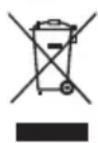
If at any time in the future you should need to dispose of this product please note that: Waste electrical products should not be disposed of with household waste. Please recycle where facilities exist. Check with your Local Authority or retailer for recycling advice. (Waste Electrical and Electronic Equipment Directive)
Bluetooth
Dynamic Range Control (DRC) - DAB
Duration for charging your batteries fully can vary according to the mAh capacity of the batteries. Higher mAh batteries require longer charging time.