Playon!DVR HD ACRPV76120 - Media player AC Ryan - Free user manual and instructions
Find the device manual for free Playon!DVR HD ACRPV76120 AC Ryan in PDF.



| Product Type | Full HD Digital Video Recorder and Network Media Player |
| Brand | AC Ryan |
| Model | Playon!DVR HD ACRPV76120 |
| Dimensions (approx.) | Approx. 250 x 180 x 55 mm |
| Weight (approx.) | Approx. 1.2 kg (without hard drive) |
| Power Supply | External power adapter (included) |
| Internal Hard Drive | 3.5-inch SATA hard drive slot (not included) |
| Video Outputs | HDMI, Composite (RCA), Component (YPbPr) |
| Audio Outputs | HDMI, Composite (RCA), SPDIF coaxial, SPDIF optical TOSLINK |
| Antenna Input | DVB-T antenna port (included) |
| Network Connectivity | Ethernet RJ45 (cable not included), Wi-Fi via optional dongle |
| Supported Formats | HD video (H.264, MPEG-2, etc.), audio, photo |
| Main Functions | Digital recording (DVR), network media playback, EPG, timeshift |
| Included Accessories | Remote control, batteries, HDMI cable, composite and component cables, USB cable, power adapter, antenna, screws |
| Maintenance and Cleaning | Unplug the device before cleaning. Wipe with a soft, dry cloth. |
| Safety | Do not expose to moisture. Use in a well-ventilated area. Do not open the case. |
| Spare Parts and Repairability | Parts available from the manufacturer or authorized dealer. Professional repair recommended. |
| General Information | Manual available in multiple languages. Warranty according to applicable legislation. |
Frequently Asked Questions - Playon!DVR HD ACRPV76120 AC Ryan
User questions about Playon!DVR HD ACRPV76120 AC Ryan
0 question about this device. Answer the ones you know or ask your own.
Ask a new question about this device
Download the instructions for your Media player in PDF format for free! Find your manual Playon!DVR HD ACRPV76120 - AC Ryan and take your electronic device back in hand. On this page are published all the documents necessary for the use of your device. Playon!DVR HD ACRPV76120 by AC Ryan.
USER MANUAL Playon!DVR HD ACRPV76120 AC Ryan
Thank you for purchasing our producT and welcome To The playon! communiTy!
This is a Quick insTallaTion guide To get you sTarTed wiTh your new playon!dVr
hd.
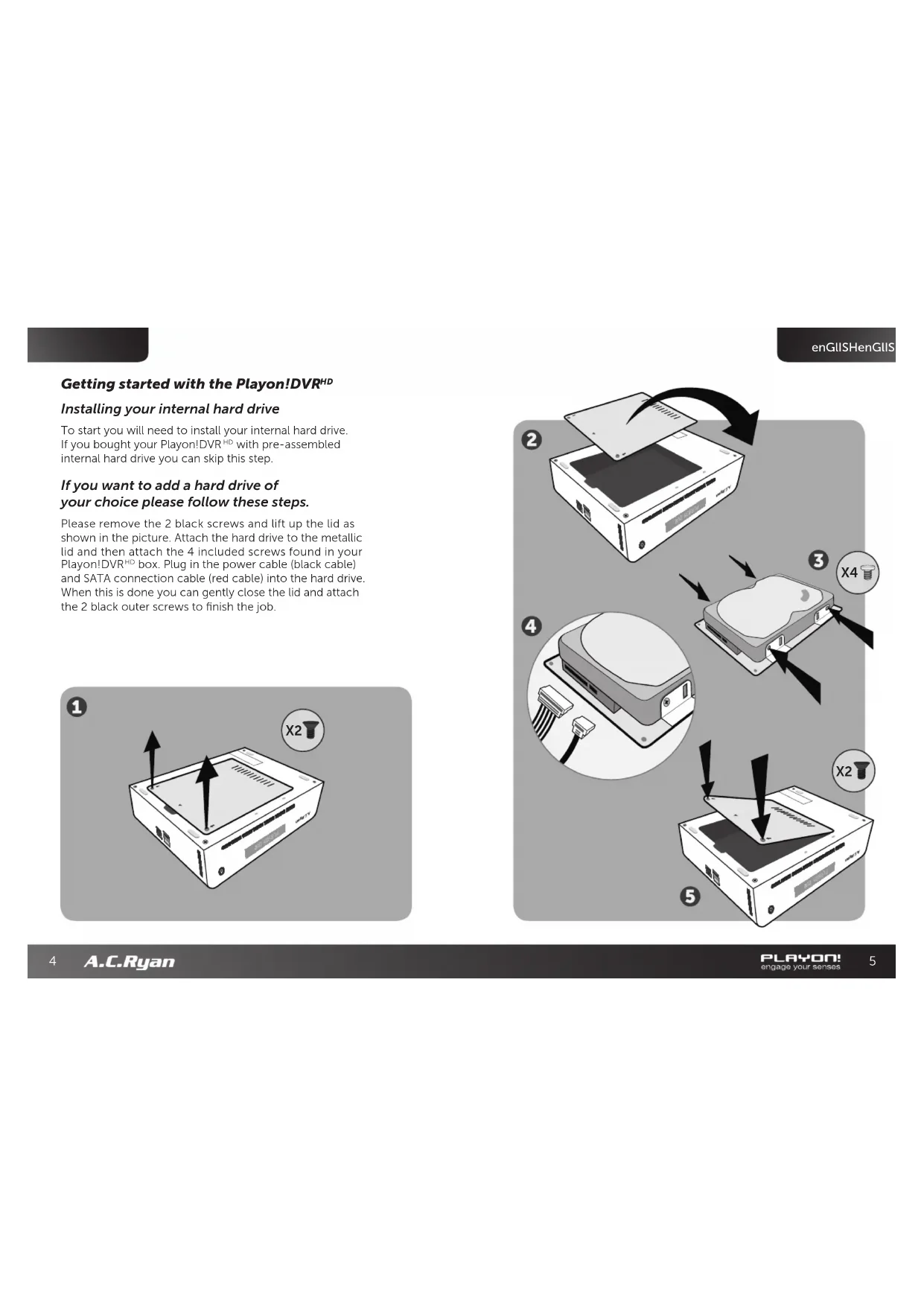
Included in this Playon!DVR HD box:
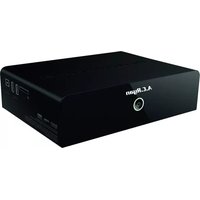
1 x Playon!DVR HD Digital Video Recorder and Full HD Network Media Player
1 x Quick install guide
1 x Remote control
2 x Batteries
1 x HDMI cable
1 x Pack of screws
2 x Composite cable (red/yellow/white)
1 x Component cable (red/blue/green)
1 x USB cable
1 x Power adapter
1 x Antenna
Getting started with the Playon!DVR HD
Installing your internal hard drive
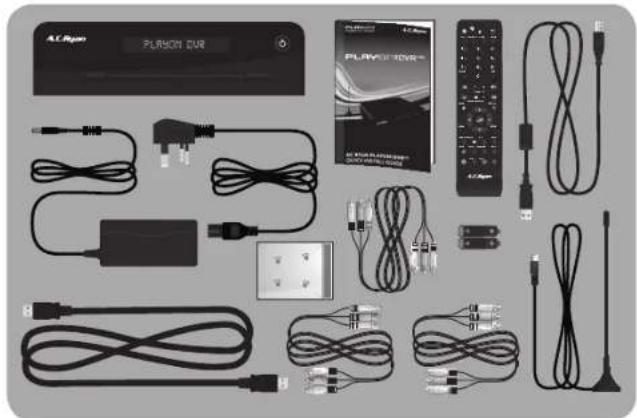
To start you will need to install your internal hard drive. If you bought your Playon!DVR HD with pre-assembled internal hard drive you can skip this step.
If you want to add a hard drive of your choice please follow these steps.
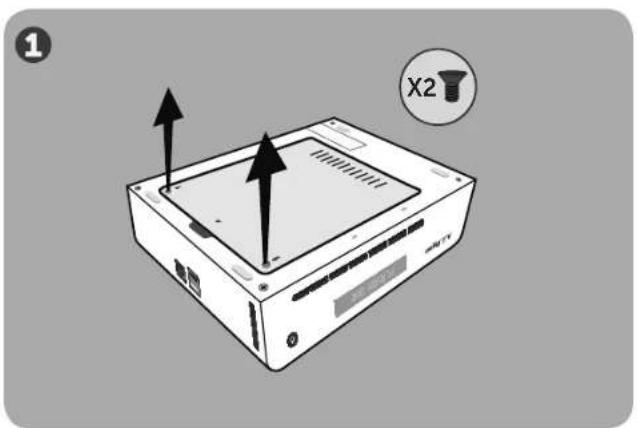
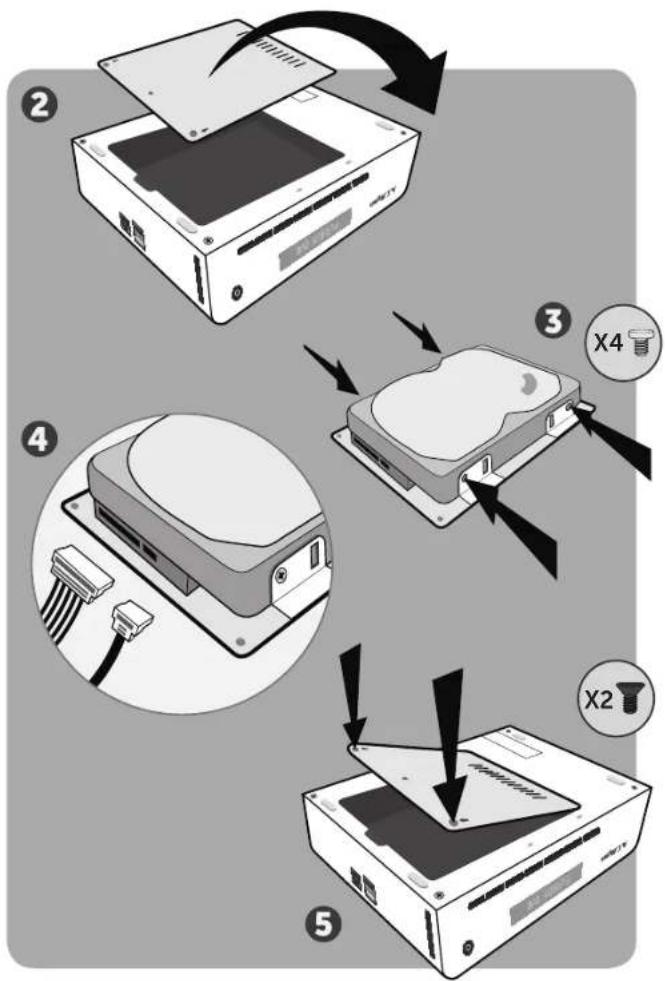
Please remove the 2 black screws and lift up the lid as shown in the picture. Attach the hard drive to the metallic lid and then attach the 4 included screws found in your Playon!DVR HD box. Plug in the power cable (black cable) and SATA connection cable (red cable) into the hard drive. When this is done you can gently close the lid and attach the 2 black outer screws to finish the job.
enGIISHenGIIS
Connecting the hardware to your TV
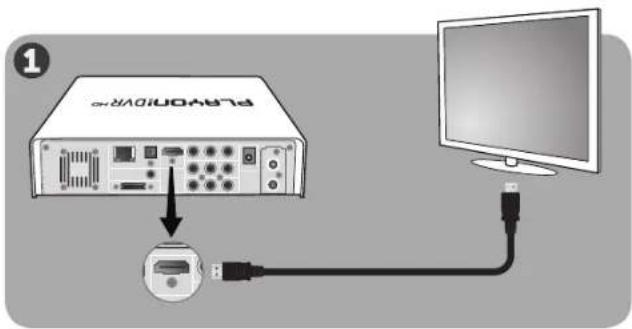
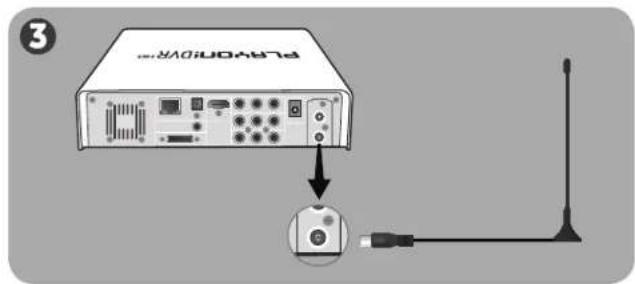
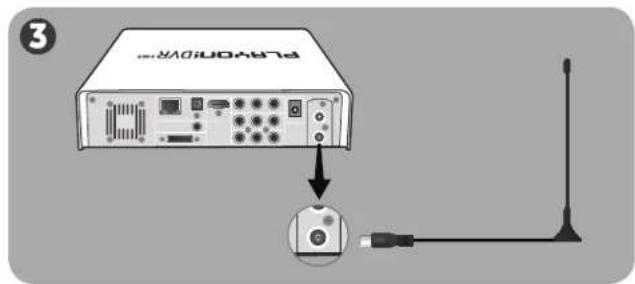
- Connect the included HDMI cable from the Playon!DVR HD to your TV for the highest quality video/audio.
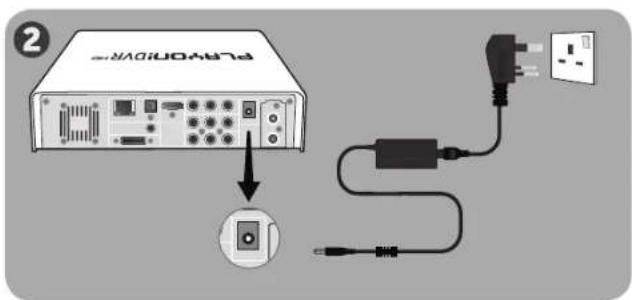
- Connect one end of the included power adapter jack to your Playon!DVR HD and the other end to your wall power socket.
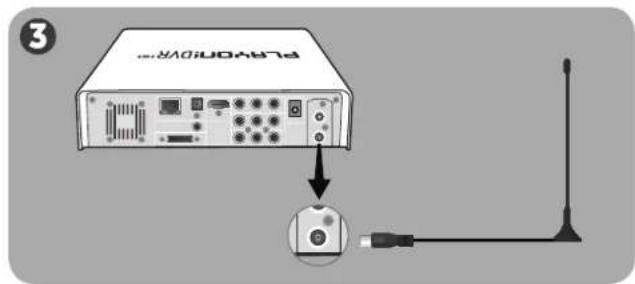
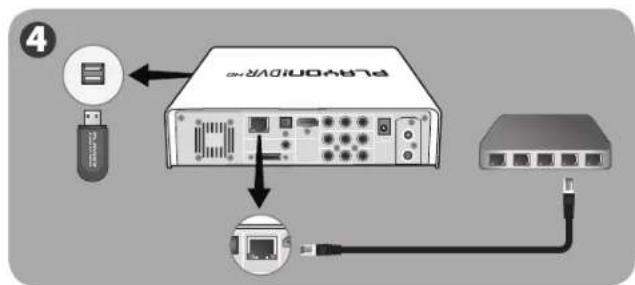
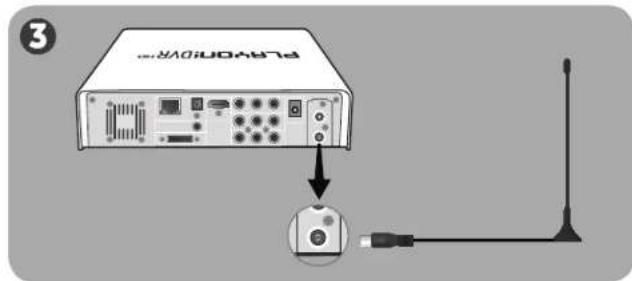
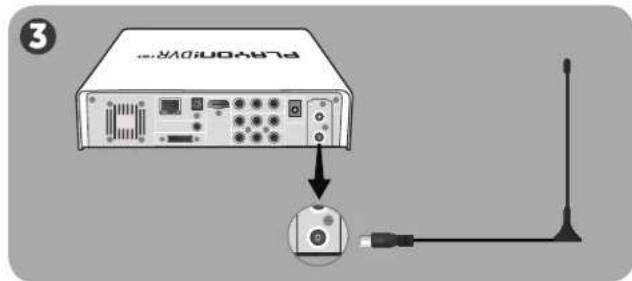
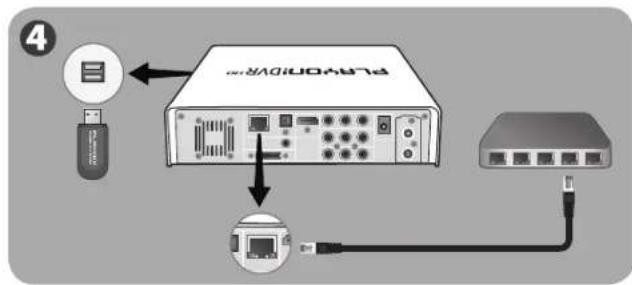
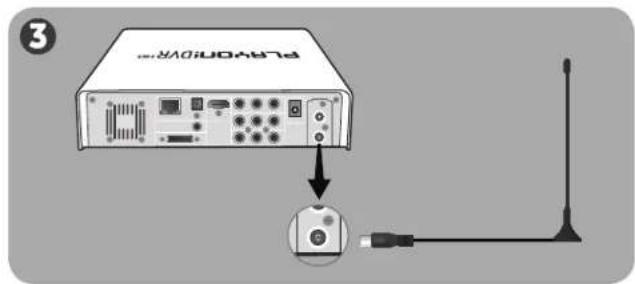
- Connect the included Antenna to the 'antenna in' connector on your Playon!DVR HD .
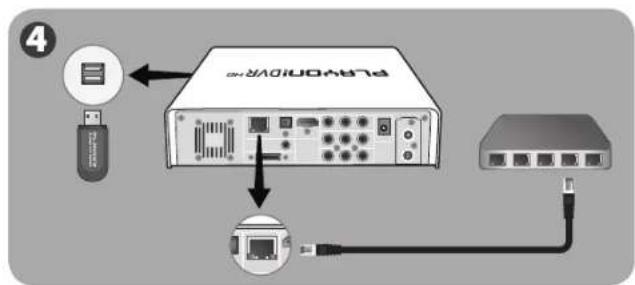
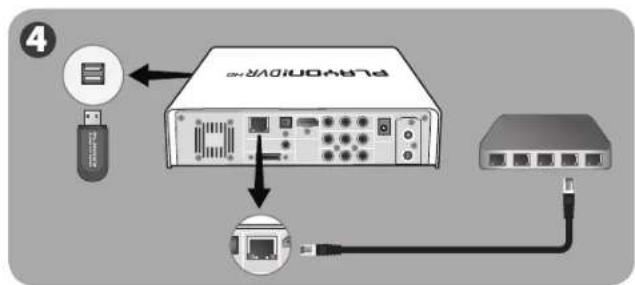
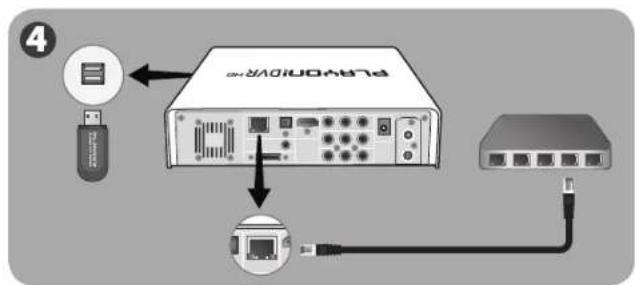
- To make the player part of your network you can connect your player to your network by using a normal network cable or optional Playon! Wireless dongle (both not included).
enGIISHenGIIS
Alternative options: If your TV does not have a HDMI input, you can use the included composite cable for both video and audio or the component cable (up to 1080i resolution) for video and the composite cable (red/white) for audio.
If you have an Audio/Video Receiver you can connect your audio/video signals through it to receive audio and video with a HDMI, Composite, Component, SPDIF Coaxial or SPDIF Optical TOSLINK cable.
***SPDIF Optical TOSLINK and SPDIF coaxial cables (not included) supports up to 5.1 surround sound. For rich HD Audio in 7.1 surround sound you need to use a HDMI cable.
enGLISH neDerl
Initial Setup
Choose your:
Menu language: Select the language you want to use.
Channel scan: Choose if you want to scan for DVB-T channels. You must have an antenna connected in order to scan.
Wired Setup: Choose automatic or fixed IP/DNS address if you have a network cable attached. Follow the instructions on the screen. If you don't have a network cable attached you can skip this step.
Time: Please set the current time to use the Electronic Program Guide (EPG). You can have this done automatically or set it manually.
If you have installed a new internal hard drive, or this is the first time you use the player, it is recommended to format the internal hard drive. The player will automatically detect this and ask you to format, follow the instructions on the screen to do so. If the player does not ask for a format by itself you can format the drive by going to Setup in the main menu, choose System and then select HDD Format. Your player will require a reboot after the format and then you are done with the basic setup of your Playon!DVR 110 .
Note: When you insert a hard drive with data on it, formatting this hard drive will erase your data. Be sure to make a backup of your data first before formatting your hard drive inside the player. Copy your backup after the format back onto the hard drive inside the player.
Please take your time to go through the Setup menu and personalize the settings that you want to use, then you are ready to use your Playon!DVR HD . Playon! Engage your senses.
HARTELIJK DANK VOOR DE AANKOOP VAN ONS PRODUCT EN WELKOM BIJ DE PLAYON! COMMUNITY!
DIT IS EEN SNELLE INSTALLATIEGIDS OM U TE HELPEN SNEL VAN START TE GAAN MET UW NIEUWE PLAYON!DVR HD .
neDerlanDSneDerla
neDerlanDSneDerla
DeutScHDeutSc
SvenSkaSvenSk
![graph TD A["USB Device"] --> B["Network Switch"] B --> C["Router"] C --> D["Switch"] style A fill:#f9f,stroke:#333 style B fill:#ccf,stroke:#333 style C fill:#cfc,stroke:#333 style D fill:#fcc,stroke:#333](/content/2026/03/447777/images/f7201fd66fd9626e036380acf1b4a445af8945e10b417f3791b92b11dafd1a22.jpg)
norSk
norSknorSk
![graph TD A["USB Device"] --> B["Network Switch"] B --> C["Ethernet Port"] C --> D["USB Link"] style A fill:#f9f,stroke:#333 style B fill:#ccf,stroke:#333 style C fill:#cfc,stroke:#333 style D fill:#fcc,stroke:#333](/content/2026/03/447777/images/3fa952f895d1d1d1c77fddedf7a824014423e2e2548e4f19314784de000e8f7a.jpg)
Alternativer: Hvis TV'en din ikke har en HDMI-inngang, kan du bruke den medfølgende komposittkabelen til både video og audio, eller en komponentkabel (opptil 1080i oppløsning) til video og komposittkabelen (rød/hvit) til audio.
Hvis du har en audio/video mottaker kan du få inn audio - og videosignalene gjennom HDMI-, RCA-, SPDIF Coaxial eller en SPDIF Optical Toslink-kabel.
***SPDIF Optical TOSLINK og SPDIF koaksialkabler (medfølger ikke) kan du oppnå 5.1 surround-lyd. For å få rik HD audio i 7.1 surroundlyd skal du bruke en HDMI-kabel.
Førstegangsoppsett
Velg ditt:
DanSk DanSk
DanSkDanSk
![graph TD A["USB"] --> B["Network packet"] B --> C["Router"] C --> D["Switch"] style A fill:#f9f,stroke:#333 style B fill:#ccf,stroke:#333 style C fill:#cfc,stroke:#333 style D fill:#fcc,stroke:#333](/content/2026/03/447777/images/c05c037df95614aba27b7574ebf266c75434e8779d631696c6dd4382becf41e2.jpg)
Suomi
Suoml
Suoml
Suomi
![graph TD A["USB"] --> B["Network packet"] B --> C["Router"] C --> D["Switch"] style A fill:#f9f,stroke:#333 style B fill:#ccf,stroke:#333 style C fill:#cfc,stroke:#333 style D fill:#fcc,stroke:#333](/content/2026/03/447777/images/0db322e1339dd03850fa78c32c76725e0924994c032f58bc9f50b00d38eb7e87.jpg)
Français Françal
Français Françal
eSpañoleSpaño
![graph TD A["Network Interface"] --> B["Switch"] B --> C["USB Port"] C --> D["Internet"] D --> E["USB Port"] E --> F["USB Port"] F --> G["USB Port"] G --> H["USB Port"] H --> I["USB Port"] I --> J["USB Port"] J --> K["USB Port"] K --> L["USB Port"] L --> M["USB Port"] M --> N["USB Port"] N --> O["USB…](/content/2026/03/447777/images/72856c32c70a441d325feb0b2f7c8fc359461fc6cb8371b3229b444fa76bbc8a.jpg)
ČeštlnaČeštlna
ČeštlnaČeštlna
РУССКИЙРУСО
НАЧАЛО РАБОТЫ С МЕДИАПЛЕЕРОМ PLAYON!DVR HD

РУССКИЙРУСО
![graph TD A["USB"] --> B["Network Port"] B --> C["Server"] C --> D["USB"] style A fill:#f9f,stroke:#333 style B fill:#ccf,stroke:#333 style C fill:#cfc,stroke:#333 style D fill:#fcc,stroke:#333](/content/2026/03/447777/images/914236e6931fefd4a5754732396c5da0af466de98e1b143e5d079452728a6e7a.jpg)
ΕΛΛΗΝΙΚΑΕΛΛΗ
ΕΛΛΗΝΙΚΑΕΛΛΙ
中文
中文
把硬件连接到电视机上:
תְבָרִי בְּרִי
Playon!DVR HD ob nisny nisnn
תְבָרִי בְּרִי
BaHaSa InDoneSlaBaHaSa
Mempersiapkan Playon!DVR HD Anda
Memasang hard disk internal Anda.
BaHaSa InDoneSlaBaHaSa
Menghubungkan peranti keras ke TV Anda
You can have this done automatically or set it manually.
Playon! Engage your senses.
ไทยไทย
ไทยไทย

- THANK YOU FOR PURCHASING OUR PRODUCT AND WELCOME TO THE PLAYON! COMMUNITY
- THIS IS A QUICK INSTALLATION GUIDE TO GET YOU STARTED WITH YOUR NEW PLAYON!DVR
- GETTING STARTED WITH THE PLAYON!DVR HD
- INSTALLING YOUR INTERNAL HARD DRIVE
- IF YOU WANT TO ADD A HARD DRIVE OF YOUR CHOICE PLEASE FOLLOW THESE STEPS
- CONNECTING THE HARDWARE TO YOUR TV
- INITIAL SETUP
- HARTELIJK DANK VOOR DE AANKOOP VAN ONS PRODUCT EN WELKOM BIJ DE PLAYON! COMMUNITY
- DIT IS EEN SNELLE INSTALLATIEGIDS OM U TE HELPEN SNEL VAN START TE GAAN MET UW NIEUWE PLAYON!DVR HD
- FØRSTEGANGSOPPSETT
- SUOMI
- SUOML
- НАЧАЛО РАБОТЫ С МЕДИАПЛЕЕРОМ PLAYON!DVR HD
- 中文
- 把硬件连接到电视机上:
- PLAYON!DVR HD OB NISNY NISNN
- MEMPERSIAPKAN PLAYON!DVR HD ANDA
- MEMASANG HARD DISK INTERNAL ANDA
- MENGHUBUNGKAN PERANTI KERAS KE TV ANDA
- ไทยไทย
Brand : AC Ryan
Model : Playon!DVR HD ACRPV76120
Category : Media player