
Playon!DVR HD - Media player AC Ryan - Free user manual and instructions
Find the device manual for free Playon!DVR HD AC Ryan in PDF.


| Product Type | Media Player with DVR |
| Model | AC Ryan Playon!DVR HD (ACR-PV75100 / ACR-PV75120) |
| Dimensions | 185(L) x 158(W) x 57(H) mm |
| Weight | Approx. 840 g (without HDD) |
| Power Supply | 12V DC, 3A |
| Main CPU | Realtek RTD1283DD 400 MHz |
| Memory | Flash: 512MB, DDRII: 256MB |
| Hard Drive Support | 3.5" SATA HDD (not included) |
| USB Ports | 1x USB Slave (USB 2.0), 2x USB Host (USB 2.0) |
| Video Outputs | Composite, Component (YPbPr), HDMI 1.3 (up to 1080p) |
| Audio Outputs | Stereo L/R, S/PDIF Coaxial, Optical |
| Network | 10/100Mbps Ethernet, optional 802.11n Wi-Fi |
| TV Tuner | Single Hybrid (PV75100) or Dual DVB-T (PV75120) + Analog |
| Supported Video Formats | MKV, MPG, AVI, WMV, VOB, TS, MOV, FLV, H.264, MPEG-1/2/4, DivX, XviD, VC-1 |
| Supported Audio Formats | MP3, OGG, WMA, AAC, AC3, WAV, FLAC, DTS, Dolby |
| Supported Photo Formats | JPG/JPEG, BMP, PNG, GIF, TIF |
| Recording Functions | Direct Record, Time-Shift, Time-Scheduling, EPG Record, AV-IN Record |
| Remote Web Access | Yes, via web browser (port forwarding required) |
| Torrent Download | Supported (in standby mode) |
| FTP Server | Yes, multi-user access |
| Cooling Fan | 25x25 mm brushless micro fan |
| Operating Temperature | 0°C to 60°C |
| Care & Cleaning | Keep away from moisture, heat, magnetic fields. Use dry cloth for cleaning. |
| Safety Precautions | Do not disassemble, drop, or expose to liquids. Unplug if wet. |
| Spare Parts & Repairability | Internal HDD replaceable; other parts not user-serviceable. Contact support for repairs. |
| General Information | Supports NTFS for recording, PAL/NTSC TV systems, multiple languages. |
Frequently Asked Questions - Playon!DVR HD AC Ryan
User questions about Playon!DVR HD AC Ryan
0 question about this device. Answer the ones you know or ask your own.
Ask a new question about this device
Download the instructions for your Media player in PDF format for free! Find your manual Playon!DVR HD - AC Ryan and take your electronic device back in hand. On this page are published all the documents necessary for the use of your device. Playon!DVR HD by AC Ryan.
USER MANUAL Playon!DVR HD AC Ryan
natural_image
Black PlayStation TV player with control buttons and indicator lights (no readable text or symbols beyond branding)Contents
Introduction ...... 3
Usage Precautions....3
Specifications 4
Functionality 5
MultiMedia Player Function....6
Package Contents 7
Product Description 8
-
How to Install a Hard Disk? 10
-
Connecting Audio & Video Cable to TV 11
2.1 Connect Video Cable....11
2.2 Connect Audio Cable....12
-
Using the remote control 13
-
Initial Setup....15
-
Setup Menu....17
-
TV / AV-IN & RECORD SCHEDULE 25
6.1 Direct Record/ Time-Shift / EPG / Time-Scheduling / AV-IN Record. ..... 25
-
MULTIMEDIA 32
-
FILE MANAGER 36
-
Files Management as an USB storage device 39
9.1 Supported Platforms....39
10. Setup a sharing folder in Windows 40
10.1 Windows 2000....41
10.2 Windows XP 43
10.3 Windows Vista....46
11. File Streaming from the network connected PCs 49
11.1 Stream by Wired LAN or Wireless Connection....49
11.2 Wireless Connection....55
12. Remote Web-Access & Torrent Download .... 58
12.1.1. System Info....59
12.1.2. File Browser 60
12.1.3. Record Schedule....61
12.1.4. Record History 65
12.1.5. Torrent Download....66
13. FTP Server 67
13.1.1. Accessing Playon!DVR ^HD (FTP Server) with a web-browser. 68
13.1.2. Accessing Playon!DVRHD (FTP Server) with a FTP Client Program. .. 69
14. Firmware Upgrade 70
15. Appendixes ...... 71
15.1 Frequently Asked Questions 71
15.2 Copyrights and Trademarks 73
15.3 Warranty 73
15.4 GPL Statement 73
Introduction
Usage Precautions
Please read the following carefully for the proper use of this product.
| Copyright | A.C.Ryan is not responsible for any recorded programs, files created or distributed for the purpose of illegal commercial or transactional activities. The party or parties who record or distribute the contents shall bear all the responsibilities (Civil or Criminal) directly or indirectly. |
| Supported codec | The Playon!DVR ^ may not play some media files. Please check the codec types. Also it may not play or run properly depending on the file characteristics or parameters used in encoding. |
| USB Device | Connect & turn on the power adapter as well when you connect the Playon!DVR.C.Playon!DVR ^ may not be connected if the USB cable is more than 3 meters (9.8 feet).We recommend you to use the supplied USB cable.If the USB cable is too long, the transfer speed and connection may not be good.If you connect this device to a USB1.1 Host Adapter, the transfer speed is limited to USB1.1 (Max. 12Mbps), we recommend you to connect to USB2.0 for full speed of max. 480Mbps. |
| USB Host | The USB Host ports may not be compatible with all USB storage devices. Please check the compatibility before you purchase or use the USB storage device. |
| HDD Type | Only 3.5" SATA type HDD can be used. |
| Interference | The Playon!DVR ^ may cause radio interference, we recommend not to use any services related to human safety when this product is in use. |
| Data Backup | We strongly recommend that you back up your data to another storage media. We are not responsible for any data lost or corruption in the internal HDD. |
| Drop & Shock | Do not drop the Playon!DVRIt may cause severe damage to the product and/or the internal HDD. |
| Foreign Materials | Do not insert conductive materials (coin, etc) or other objects that may cause defects to the Playon!DVR |
| Disassemble / Remodel | Do not try to disassemble or remodel the Playon!DVRmay cause malfunction & void the product warranty. |
| Stacking | Do not place any heavy objects on the Playon!DVR |
| Exposure to water, moisture, etc | Do not expose the Playon!DVRto oil, water, dust, moisture or rain and wind.If the Playon!DVRis wet, unplug the power cable from the unit immediately. Do not operate until the product is dry. |
| Heat | Keep the Playon!DVRaway from heated areas. Operate the product in well-ventilated places. |
| Magnetic Materials | Keep all magnetic materials away from the Playon!DVRMagnetic materials such as speakers or magnets may erase or cause damage to the data stored in the internal HDD. |
* A.C.Ryan does not assume any responsibility for any damaged HDD.
Specifications
| Product Name | AC Ryan Playon!DVR ACR-PV75100 / ACR-PV75120 |
| Main CPU | Realtek RTD1283DD 400Mhz processor |
| Power | 12V 3A |
| Weight | Approx. 840g (without HDD inside) |
| Dimension | 185(L) x 158(W) x 57(H) mm |
| Front VFD Display | Colorful VFD Display |
| Supported OS | Windows 98SE or higher, Mac OS 9.0 or higher, Linux 2.4 or higher |
| USB Slave | Slave Port x 1, USB2.0 (USB1.1 compatible) |
| USB Host | Host Port x 2, USB2.0 (USB1.1 compatible)Supports USB devices like external USB storage devices, ODD, Flash Drive, Card Reader |
| e-SATA | e-SATA port x 1 |
| Wired LAN | 10/100Mbps LAN (RJ-45) x 1 |
| Wireless Dongle (optional) | AC Ryan Playon! Wireless N USB adapter |
| HDD Type | 3.5" SATA HDD |
| HDD File System | NTFS (Read & Write for file Copying, Recording, Time-Shift, EPG function) |
| TV Type | PAL / NTSC |
| Video Format | MKV, MPG, ASF, AVI, WMV, VOB, TP, TS, TRP, DAT, ISO, IFO, M2T, M2TS, MOV, FLV(RM, RMVB up to 720p)H.264, MPEG1/2/4, DivX, XviD, WMV9(MP@HL), VC-1(AP@L3) |
| Audio Format | MP3, OGG, WMA, AAC, AC3, WAV, Dolby, FLAC, DTS |
| Photo Format | JPG / JPEG(HD), BMP, PNG, GIF, TIF |
| Subtitles | SRT, SMI, SSA, ASS, IDX/SUB, SUB |
| Video Output | CompositeComponent Y, Pb, Pr (480p, 720p, 1080i)HDMI1.3 (480p, 720p, 1080i, 1080p) |
| Audio Output | Analogue: Stereo L & RS/PDIF Digital Output: Coaxial / Optical |
| AV-IN / Tuner | PV75100: Composite AV-In / Single Hybrid TunerPV75120: Composite AV-In / Dual DVB-T Tuner |
| Memory | Flash - 512MB, DDRII - 256MB |
| Cooling Fan | 25 x 25 Brushless Micro Fan |
| Language | English, Spanish, French, Germany, Italian, Dutch, Russian (Other languages will be added) |
| Working Temperature | 0°C ~ 60°C |
| Working Humidity | 10% ~ 50% |
Functionality
* In order to use the recording functions (Direct Record, Time-Shift, Time-Scheduling Record, EPG Record), Remote Web-Access and Torrent Download, you should do the HDD Formatting via Playon!DVR ^0 (Not through a PC).
Playon!DVR ^® has a built-in Single Hybrid/Dual DVB-T tuner and fully records Analogue (PAL) & Digital (DVB-T) TV channels as well as supporting media playing functions.
(The above mentioned may differ from your model)
| Direct Record | The Playon!DVR ^HD has direct recording function.If you want to record the channel you are watching now, just press [RECORD] button on the front panel or on the remote control and it will record the current channel. |
| Time-Scheduling Record | You can schedule record your programs by using the Time-Scheduling Record on the unit directly or through web-access to the unit remotely. |
| EPG The Playon!DVR | ^HD supports 'EPG Recording'. |
| Time-Shift | 'Time-Shift' function allows you to pause & record live TV programs to a storage medium & resume playback at a more convenient time. Example, being interrupted while watching live TV programs (such as picking up calls, answering the door, etc), all you need to do is to press the [TIMESHIFT] button on the remote to record the program for a period of time and then later press [PLAY] button again to resume from where you left off. |
| Torrent Download | Playon!DVR ^HD supports Remote Torrent Download through the Remote Web-Access Control. |
| AV-IN | You can digitize analogue contents such as video tapes into the internal HDD via AV-In or record the digital signal from Cable Set-Top-Box, Satellite Set-Top-Box, etc which has AV-Out.Playon!DVR ^HD supports Composite AV-In. |
* The Playon!DVR ^HD will detect a new HDD you installed and will prompt if you would like to format it.
* We highly recommend that you format the internal HDD through the Playon!System for full intended functionalities.
* Make sure that your TV is switched to the correct [AV INPUT] mode.
MultiMedia Player Function
The Playon!DVR ^D is a stand-alone, multimedia HDD (Hard Disk Drive) player that plays digital videos, music, photos and DVD files on your TV and home entertainment system. You can enjoy the digital contents at home without having to burn discs or having to play it back on a DVD or CD player.
| MultiMedia Player | The Playon!DVR^HD can playback videos, music, photos from the internal HDD, an external USB storage device or via shared network locations. |
| High-Definition | The Playon!DVR^HD supports HD videos (up to 1920x1080p) and photos by using HDMI connection. |
| HDMI up to 1080p | By using a single HDMI cable connection, you can enjoy the high quality of both digital video and audio. |
| LAN | Provides 10/100Mbps network connection for media streaming from a PC and file transfer from/to a PC and Remote Web-Access, FTP Server, Client, etc. |
| Wireless | With the optional 802.11n wireless USB dongle, you can enjoy content streaming wirelessly.(Some high bitrate contents may not play smoothly with wireless streaming). |
| e-SATA Connects e-SATA devices. | |
| USB2.0 | With the two USB2.0 Host connections, you can attach additional external USB storage devices to further extend your storage capacities. |
Package Contents
The Playon!DVR ^HD package includes the below items and may be different from the actual contents.
| Part Quantity | |
| AC Ryan Playon!DVR ^5 | 1 |
| Remote control 1 | |
| Remote control Batteries 2 | |
| Composite A/V cable 2 | |
| Component YPbPr cable 1 | |
| AC Ryan HDMI cable 1 | |
| DVB-T Antenna 1 | |
| AC/DC adapter 1 | |
| AC/DC adapter power cord 1 | |
| USB cable 1 | |
| Mounting screws (Pack) 1 | |
| User manual (Printed) 1 | |
| Quick installation guide (Printed) | 1 |
| AC Ryan Playon! Wireless N USB adapter | 1 (optional) |
Note:
The actual contents in the package may be different from the packing contents in this manual.
Product Description
The Playon!DVR ^HD has some basic button controls on the front panel as well as on the remote controller.
< Front View >

| Front View | 1 POWER Power ON / OFF button. | |
| 2 IR Receives the remote controller signal. | ||
| 3 WFD Display Colorful display for status of the unit. | ||
| 4 OK [ENTER]Navigation | OK (Enter) or Select button.Volume Up / Down knob.Left / Right Navigation knob. | |
| 5 PLAY Play the files (contents) button. | ||
| 6 REC Direct Record Button. | ||
| 7 STOP Stop playback button. |
< Back View >
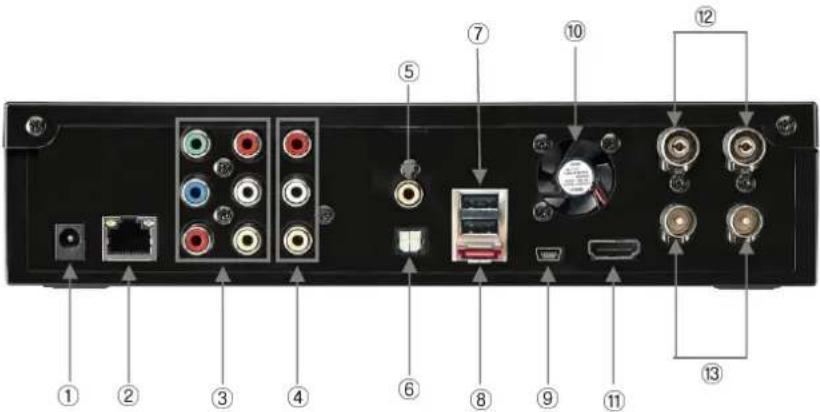
*Your product may be different from the above image
| Back View | 1 Power Jack Connects the power adapter. |
| 2 LAN Wired LAN connection to a PC for file streaming/transfer. | |
| 3 AV-OUT Connects Playon!DVR ^D to TV (Composite / Component). | |
| 4 AV-IN Connects an external AV device for recording. | |
| 5 Coaxial Coaxial cable for 5.1CH Digital audio output. | |
| 6 Optical Optical cable for 5.1CH Digital audio output. | |
| 7 USB Host Connects to an external WiFi USB dongle or storage device. | |
| 8 e-SATA Connects e-SATA device. | |
| 9 USB Slave Connects Playon!DVR ^D to a PC by USB cable. | |
| 10 Cooling Fan Exhausts heat from internal. | |
| 11 HDMI Connects HDMI Cable to TV. | |
| 12 Antennarin (Optional) Connects the coaxial cable from your wall antenna socket. | |
| 13 Antenna Out (Optional) Connects the coaxial cable from the Playon!DVRto TV. |
▶ Depending on your model, there may be more than one built-in tuner.
1. How to Install a Hard Disk?
√ Use a 3.5" SATA Hard Disk for installation.

natural_image
Back panel of a black electronic device showing ports, connectors, and a central display (no visible text or labels)
natural_image
Back view of a black electronic device with multiple colored connectors and ports (no visible text or symbols)① Unscrew the top 2 thumbscrews and open the cover by pulling in an upwards direction.
② Attach the power and SATA connector to HDD, secure with the screws provided.

natural_image
Back panel of a black electronic device showing ports, connectors, and a central display (no visible text or labels)③ Close the cover & complete assembly by securing the 2 thumbscrews.
*Your product may be different from the above image
2. Connecting Audio & Video Cable to TV
2.1 Connecting Video Cable
The Playon!DVR ^® supports three types of video output; “Composite, Component and HDMI” and you can connect using one of these connections.

*Your product may be different from the above image
① HDMI: HDMI Cable.
HDMI Connects HDMI Input Jack of TV
② Composite: Yellow RCA cable.

flowchart
graph LR
    A["Yellow (CVBS)"] --> B["Yellow (CVBS)"]
    C["Yellow (CVBS)"] --> B
    D["Yellow (CVBS)"] --> B
    B --> E["Connects to Composite Input (CVBS) Jack of TV"]
③ Component: Y,IPB, Pr component cable.

flowchart
graph TD
    A["Red (Pr)"] --> B["Blue (Pb)"]
    C["Green (Y)"] --> D["Blue (Pb)"]
    E["Red (Pr)"] --> F["Blue (Pb)"]
    G["Green (Y)"] --> H["Blue (Pb)"]
    I["Red (Pr)"] --> J["Blue (Pb)"]
    K["Green (Y)"] --> L["Blue (Pb)"]
    M["Red (Pr)"] --> N["Blue (Pb)"]
    O["Green (Y)"] --> P["Blue (Pb)"]
    Q["Red (Pr)"] --> R["Blue (Pb)"]
    S["Green (Y)"] --> T["Blue (Pb)"]
    U["Red (Pr)"] --> V["Blue (Pb)"]
    W["Green (Y)"] --> X["Blue (Pb)"]
    Y["Red (Pr)"] --> Z["Blue (Pb)"]
    AA["Green (Y)"] --> AB["Blue (Pb)"]
    AC["Red (Pr)"] --> AD["Blue (Pb)"]
    AE["Green (Y)"] --> AF["Blue (Pb)"]
    AG["Red (Pr)"] --> AH["Blue (Pb)"]
    AI["Green (Y)"] --> AJ["Blue (Pb)"]
    AK["Red (Pr)"] --> AL["Blue (Pb)"]
    AM["Green (Y)"] --> AN["Blue (Pb)"]
    AO["Red (Pr)"] --> AP["Blue (Pb)"]
    AQ["Green (Y)"] --> AR["Blue (Pb)"]
    AS["Red (Pr)"] --> AT["Blue (Pb)"]
    AU["Green (Y)"] --> AV["Blue (Pb)"]
    AW["Red (Pr)"] --> AX["Blue (Pb)"]
    AY["Red (Pr)"] --> AZ["Blue (Pb)"]
    BA["Green (Y)"] --> BB["Blue (Pb)"]
    BC["Red (Pr)"] --> BD["Blue (Pb)"]
    BE["Green (Y)"] --> BF["Blue (Pb)"]
    BG["Red (Pr)"] --> BH["Blue (Pb)"]
    BI["Green (Y)"] --> BJ["Blue (Pb)"]
    BK["Red (Pr)"] --> BL["Blue (Pb)"]
    BM["Green (Y)"] --> BN["Blue (Pb)"]
    BO["Red (Pr)"] --> BP["Blue (Pb)"]
    BQ["Green (Y)"] --> BR["Blue (Pb)"]
    BS["Red (Pr)"] --> BT["Blue (Pb)"]
    BU["Green (Y)"] --> BV["Blue (Pb)"]
    BW["Red (Pr)"] --> BX["Blue (Pb)"]
    BY["Green (Y)"] --> BZ["Blue (Pb)"]
    CA["Red (Pr)"] --> CB["Blue (Pb)"]
    CC["Green (Y)"] --> CD["Blue (Pb)"]
    DD["Red (Pr)"] --> DE["Blue (Pb)"]
    DF["Green (Y)"] --> DG["Blue (Pb)"]
    DH["Red (Pr)"] --> DI["Blue (Pb)"]
    DJ["Green (Y)"] --> DK["Blue (Pb)"]
√ If you cannot see any display after connecting a video cable, please check the following;
On TV: switch to the same video input mode as the video connection to your Playo!DVR
For more details, please refer to your TV user manual.
2.2 Connecting Audio Cable
The Playon!DVR ^HD supports three types of audio output; "Stereo, Coaxial and Optical".
Use an audio connection that your TV or external set supports. Most TV usually supports stereo audio connection, which is supplied in your package.
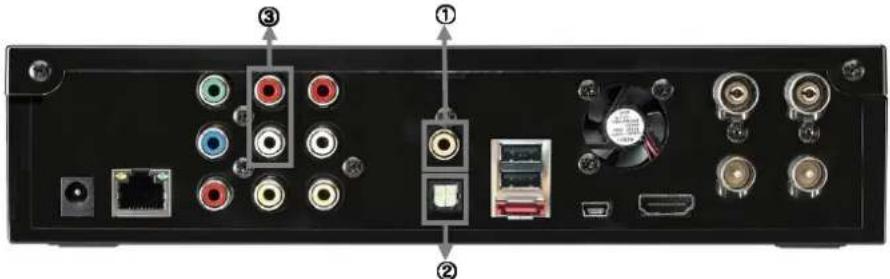
*Your product may be different from the above image
① Coaxial: Coaxial cable for Digital 5.1Ch

② Optical: Optical Cable for Digital 5.1Ch

√Don't connect optical and coaxial cable together at the same time.
③ Stereo: Red & White RCAcCable.

flowchart
graph LR
    A["Red (STEREO-R)"] --> B["White"]
    C["Red (STEREO-R)"] --> D["White"]
    E["Red (STEREO-L)"] --> F["White"]
    G["Red (STEREO-L)"] --> H["White"]
    I["Red (STEREO-L)"] --> J["White"]
    K["Red (STEREO-L)"] --> L["White"]
    M["Red (STEREO-L)"] --> N["White"]
    O["Red (STEREO-L)"] --> P["White"]
    Q["Red (STEREO-L)"] --> R["White"]
    S["Red (STEREO-L)"] --> T["White"]
    U["Red (STEREO-L)"] --> V["White"]
    W["Red (STEREO-L)"] --> X["White"]
    Y["Red (STEREO-L)"] --> Z["White"]
    AA["Red (STEREO-L)"] --> AB["White"]
    AC["Red (STEREO-L)"] --> AD["White"]
    AE["Red (STEREO-L)"] --> AF["White"]
    AG["Red (STEREO-L)"] --> AH["White"]
    AI["Red (STEREO-L)"] --> AJ["White"]
    AK["Red (STEREO-L)"] --> AL["White"]
    AM["Red (STEREO-L)"] --> AN["White"]
    AO["Red (STEREO-L)"] --> AP["White"]
    AQ["Red (STEREO-L)"] --> AR["White"]
    AS["Red (STEREO-L)"] --> AT["White"]
    AU["Red (STEREO-L)"] --> AV["White"]
    AW["Red (STEREO-L)"] --> AX["White"]
    AY["Red (STEREO-R)"]
    AZ["Red (STEREO-R)"] --> BA["Connects to R Jack of TV."]
    BB["Red (STEREO-R)"] --> BC["Connects to R Jack of TV."]
    BD["Red (STEREO-R)"] --> BE["Connects to R Jack of TV."]
    BF["Red (STEREO-R)"] --> BG["Connects to R Jack of TV."]
    BH["Red (STEREO-R)"] --> BI["Connects to R Jack of TV."]
    BJ["Red (STEREO-R)"] --> BK["Connects to R Jack of TV."]
    BL["Red (STEREO-R)"] --> BM["Connects to R Jack of TV."]
    BN["Red (STEREO-R)"] --> BO["Connects to R Jack of TV."]
    BP["Red (STEREO-R)"] --> BQ["Connects to R Jack of TV."]
    BR["Red (STEREO-R)"] --> BS["Connects to R Jack of TV."]
    BT["Red (STEREO-R)"] --> BU["Connects to R Jack of TV."]
    BV["Red (STEREO-R)"] --> BW["Connects to R Jack of TV."]
    BX["Red (STEREO-R)"] --> BY["Connects to R Jack of TV."]
    BZ["Red (STEREO-L)"]
    CA["Red (STEREO-L)"]
    CB["Red (STEREO-L)"]
    CC["Red (STEREO-L)"]
    CD["Red (STEREO-L)"]
    CE["Red (STEREO-L)"]
    CF["Red (STEREO-L)"]
    DG["Red (STEREO-L)"]
    DH["Red (STEREO-L)"]
    DI["Red (STEREO-L)"]
    DJ["Red (STEREO-L)"]
    DK["Red (STEREO-L)"]
    DL["Red (STEREO-L)"]
    DV["Red (STEREO-L)"]
    DW["Red (STEREO-L)"]
    DX["Red (STEREO-L)"]
    DXB["Red (STEREO-L)"]
3. Using the remote control
Functions of the remote control buttons.
| EPG Displays EPG program info | |
| INFO Displays the information of the content | |
| ARC Aspect Ratio Control | |
| EJECT Reserved for adding function later | |
| POWER Power On / Off the unit | |
| SETUP Set up the various configurations of the unit | |
| MUTE Turns off the audio | |
| Numeric Key Insert a number | |
| INS REPLY Backwards per 10 seconds frame | |
| CM SKIP Forwards per 30 seconds frame | |
| FR Fast Rewinding (2x, 4x, 6x, 8x, 16, 32x) | |
| SLOW Playback in slow motion | |
| FF Fast Forwarding (2x, 4x, 6x, 8x, 16, 32x) | |
| PREV. Previous chapter or file | |
| Rec Schedule Set up the Scheduled Recording time | |
| NEXT | Next chapter or file |
| UP / DOWN | Up & Down navigation button |
| LEFT / REW | Left navigation button / Rewind |
| RIGHT / FF | Right navigation button / Fast Foward |
| OK / Enter | OK [ENTER] button. |
| RETURN | Return to the previous screen / folder |
| Time Shift | Time-Shift recording of the live channel |
| HOME | Go to the Home Menu page |
| Vol + | Volume up |
| REC. | Direct Record button / Select a file Copy or Move |
| Vol - | Volume down |
| PAUSE | Pause the playback |
| PLAY | Play a content |
| STOP | Stop playback |
| Repeat (1/ALL) | Repeat one file or all files |
| Repeat (A<->B) | Repeat the selected section |
| GOTO Jump to a specific time frame of a content | |
| TV / AV-IN | Watch & Record TV channels |
| Select input source (Composite / ATV / DTV) | |
| MENU Displays the DVD Menu if available | |
| TITLE | Displays the Title Menu of a DVD if available |
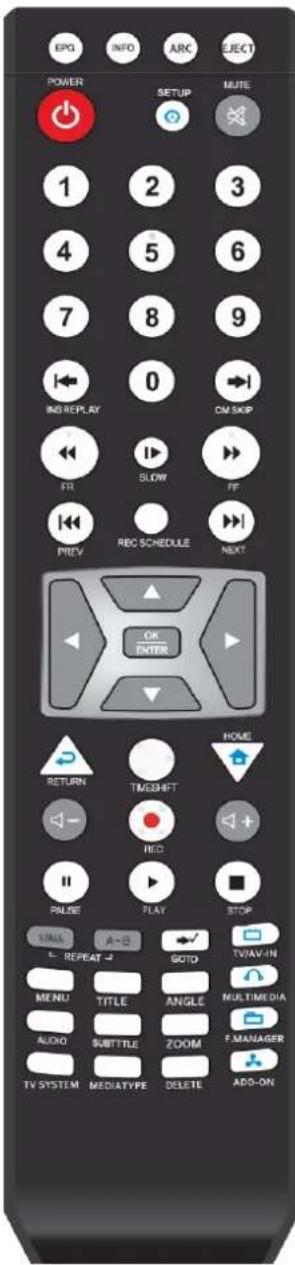
| ANGLE | Display the Teletext of DVB-T channels / Add the files to PlayList |
| MULTIMEDIA Access the contents of HDD, USB, Network | |
| AUDIO Select an audio track | |
| SUBTITLE Select a subtitle | |
| ZOOM Zoom video / image playback | |
| F. MANAGER | Copy / Move / Delete contents between HDD, USB Network |
| TV SYSTEM Switches TV-OUT modes | |
| MEDIA TYPE Automatic file filtering by Movie, Audio, Photo | |
| DELETE Rename / Delete a file | |
| ADD-ON Reserved for adding function later | |
[Tip]: If you lost the display or having any problems to see the display on TV & do not know what to do, then press [HOME] or [RETURN] button on the remote.
4. Initial Setup
When you first power on your Playon!DV On your display, you will see the Initial Setup page.
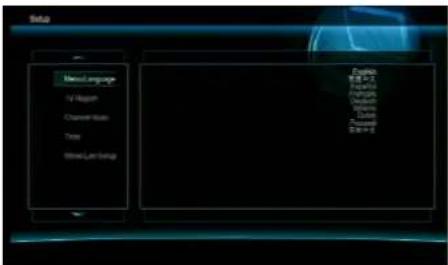
① [Menu Language]: Select a language.
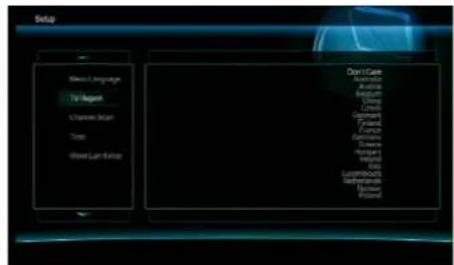
② [TV Region]: Select a country.
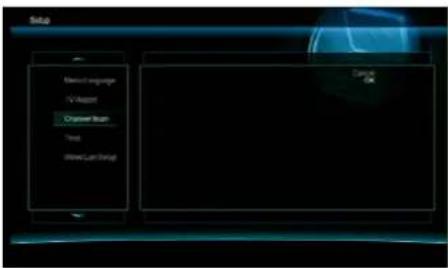
③ [Channel Scan]: Scans the TV channels.

④ [Time]: Set up the current time manually or automatically through DTV signal.

⑤ [Time]: After setting up the time, press [Confirm].

⑥ [Wired Lan Setup]: Obtain an IP address automatically by DHCP(Auto) or manually keying in a fixed IP address.

⑦ [DHCP IP (Auto)]: Obtain an IP address automatically.⑧ [DHCP IP (Auto)]: After selecting [OK], select [Confirm] to save Network Settings.
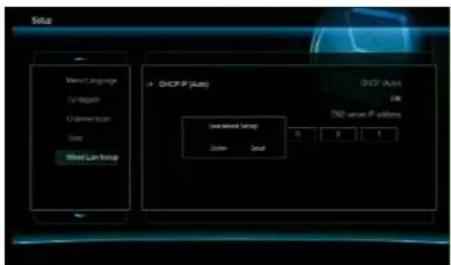
V.8 [DHCP IP (Auto)]: After selecting [OK], select [Confirm] to save Network Settings.
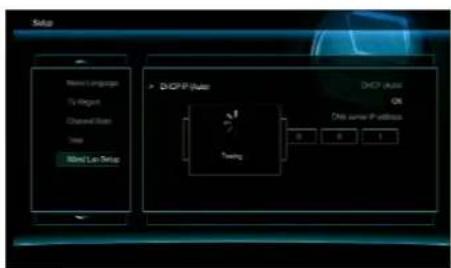
⑨ [DHCP IP (Auto)]: The Playon!DVRs testing your network connection and will obtain an IP address automatically from your AP router.
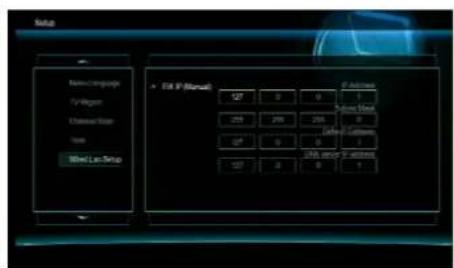
⑩ [FIX IP (Manual)]: You can manually key in your own static IP address / Subnet Mask / Default Gateway / DNS server IP address.

⑪ [Home Menu Page]: After completing setup, you will see the Home Menu page.
5. Setup Menu
Before you use the Playon!DVR, please go to [SETUP] menu to configure to your requirement.
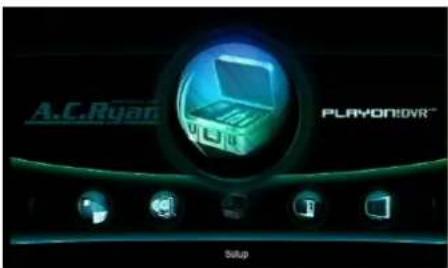
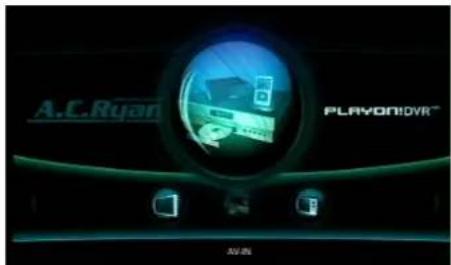
① At the Home Menu page, select [SETUP] menu.

② [TV] => TV Region: Select a country.

② [TV] => Channel Scan => AUTO SCAN: Scans the TV2 [TW] => Channel Scan => AUTO SCAN: During auto channels automatically. It will start scanning analogue TVscanning, press the [OK] button on the remote to cancel signals first, followed by digital TV signals. the channel scanning.
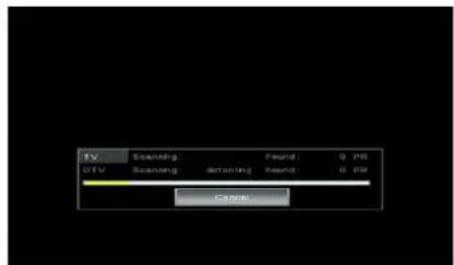
(If you are using DVB-T only model, then it scans for digital TV signals only).
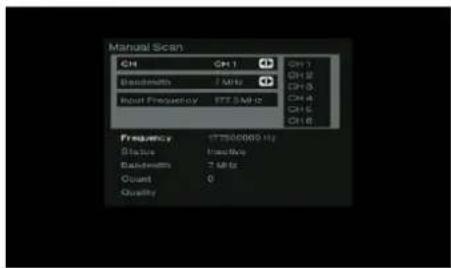
② [TV] => Channel Scan => MANUAL SCAN: You can input your channel manually and press the [OK] button on the remote.
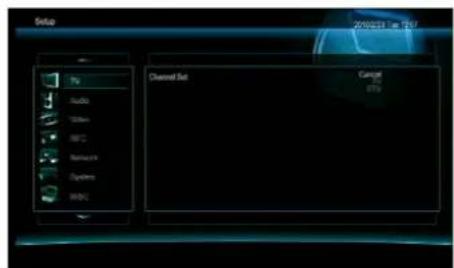
② [TV] => Channel Set: You can select to fine tune analogue or digital TV signal.
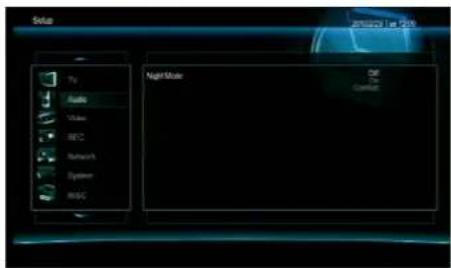
③ [Audio] => Night Mode Compatible digital audio
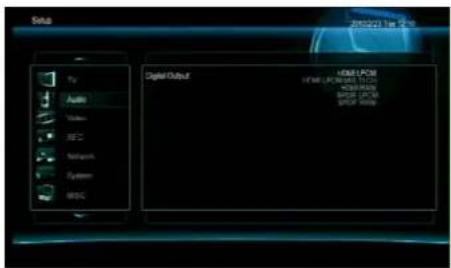
③ [Audio] => Digital Output Select HDMI or SPDIF (Coaxial
soundtracks will be dynamically compressed. Turn on foror Optical). good dialogues even at low volume.
Comfort : The basleve is limited to a comfort lev.
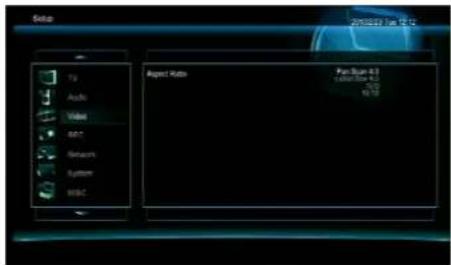
④ [Video] => Aspect Ratio: Select a screen resolution.
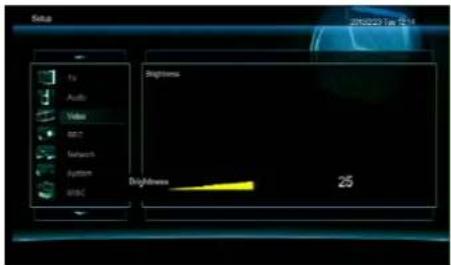
④ [Video] => Brightness: Adjust the brightness level.
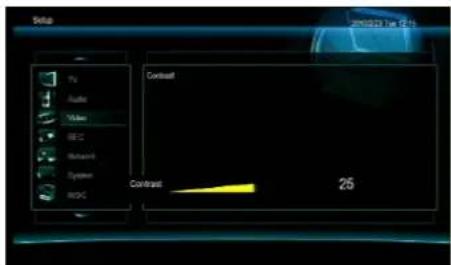
④ [Video] => Contrast: Adjust the contrast level.
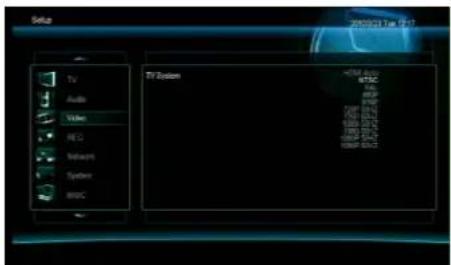
④ [Vided] => TV System: Select one of the modes to best suit your TV.

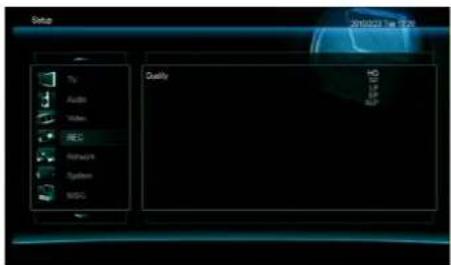
④ [Video] => 1080P 24Hz: Turn on to allow playing videos [REC] => Quality: Select a recording quality. The higher at 24Hz. This function is dependent on your video & TV the quality, the more HDD space it consumes. support

⑤ [REC] => Permanent Time-shift: If you select [ON] then the time-shift function is running automatically when you turn on the Playon!DVR.
Press the [Pause] button and then press [PLAY] button on the remote to watch from the last paused time frame.
** If you select [OFF], you will need to press the [TIMESHIFT] button to pause & play the live program.
![Setup Wind Linux Setup > DHCP IP (Auto) [NET Auto] OR [NET] serve IP address GIF 3 6 4](/content/2026/06/1244104/images/bd87e3239f022c6f0ba2293b336d9211ab871c7cce0c4f9205ea53f3c15d50ca.jpg)
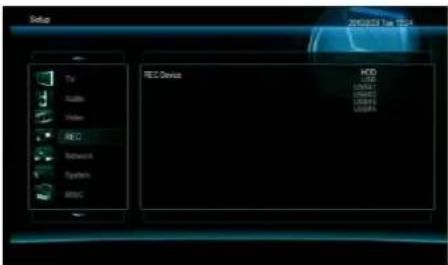
⑤ [REC] => REC Device: Select the default storage you want to record to. You can choose to record to an internal HDD or to an external USB storage device.
6 [Network] => Wired Lan Setup => DHCP IP (Auto): Using a wired network connection, the Playon!DVR will obtain an IP address automatically from your DHCP-enabled AP router.

⑥ [Network] => Wired Lan Setup => DHCP IP (Auto): Displays the IP address once connected.

⑥ [Network] => Wired Lan Setup => FIX IP (Manual): You can manually input your own static IP address / Subnet Mask / Default Gateway / DNS server IP address.
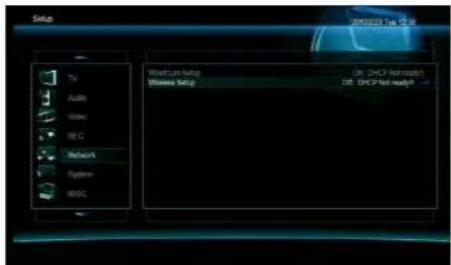
⑥ [[Network] => Wireless Setup: You can connect the Playon!DVR ^H0 to an AP router or to a PC directly.
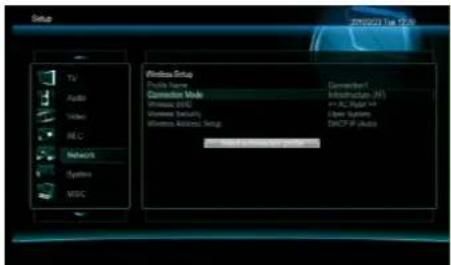
⑥ [Network] => Wireless Setup: Setting up a connection profile.
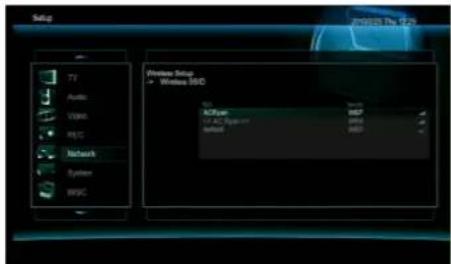
⑥ [Network] => Wireless Setup :
-. Profile Name: Select any one.
- Connection Mode: Select Infrastructure (AP) or Peer to Peer (Ad-hoc). In infrastructure mode, you can connect the Playon!DVR ^LD to an AP router and in Peer to Peer mode, you can directly connect the Playon!DVR a PC.
- Wireless SSID: Select this to scan for all available wireless networks within range. Choose the correct one to connect to.
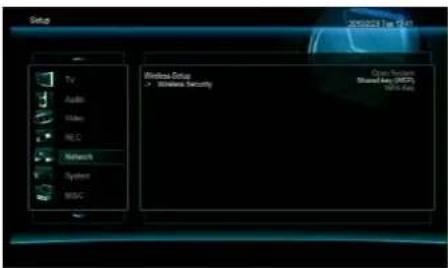
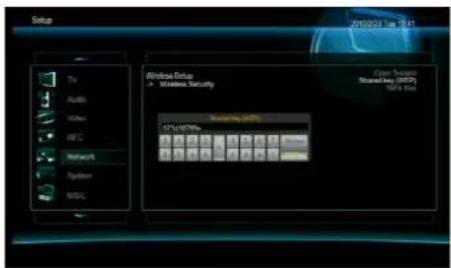
⑥ [Network] => Wireless Setup => Wireless Security.
- . Open System: Select this if your AP router does not require a password to connect.
- Shared Key(WEP): Select this if your AP router is secured with a WEP password and input using the on-screen keyboard.
-. WPA: Select this if your AP router is secured with a WPA password and input using the on-screen keyboard.
- OK(Open) / OK(Skey): Please check your wireless security configuration of the AP router first and then select the appropriate option.

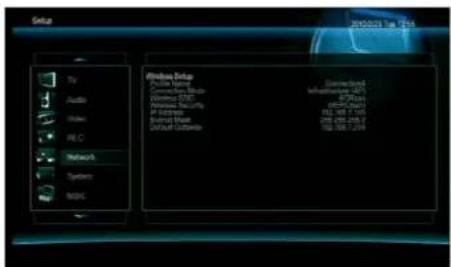
⑥ [[Network] => Wireless Setup => Wireless Address Setup: You can obtain an IP address automatically or manually key in your own IP address.
6 [Network] => Wireless Setup => Wireless Address Setup: After setup, press [Select a connection profile] and the Playon!DVR ^HD will obtain an IP address and connect to the AP router or PC.

⑥ [Network] => Wireless Setup: Displays the IP address and signal strength once connected

⑦ [System] => Text Encoding: Select the appropriate language encoding option to display the movie subtitles (text-based) correctly.
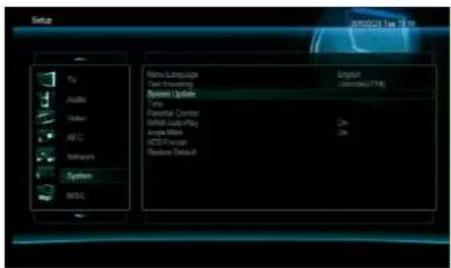
⑦ [[System] => System Update: The PlayonIDVR searches for an upgrade file on a USB flash drive and automatically upgrade if it found one.
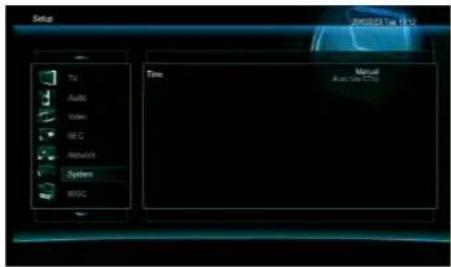
⑦ [System] => Time: You can manually set up the system time or automatically obtain it from DTV signal.

⑦ [System] => Parental Control: Setup restriction levels for DVD disc and DVB-T ratings.
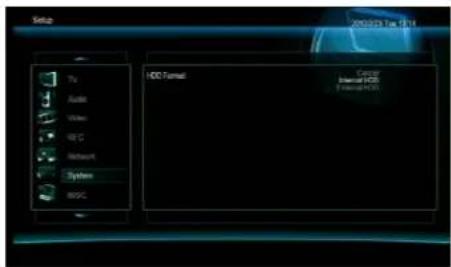
⑦ [System] => HDD Format: It is recommended to format the internal HDD using the Playon!DVR system.
*** Back up any existing important data before you start formatting the HDD.
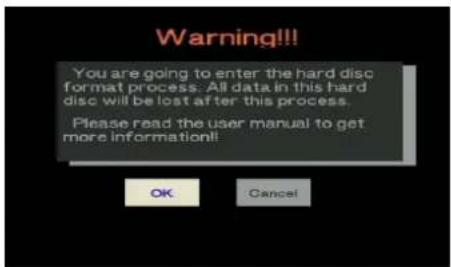
[System] => HDD Format: Select [OK] to proceed with the formatting process.

⑦ [System] => HDD Format: You can assign the capacity for Time-Shift function.
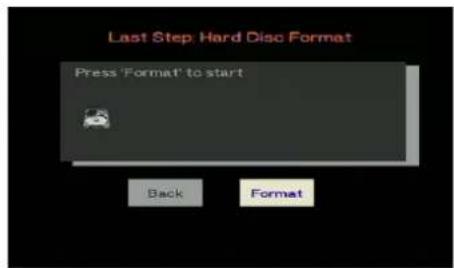
[System] => HDD Format: This is the last step to format the HDD. Select [Format] to start the format.

⑦ [System] => HDD Format: Formatting in progress. Please do not power off or interrupt the process.
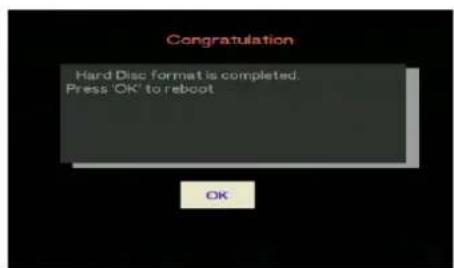
⑦ [System] => HDD Format: Select [OK] after the format is completed.
[Note]
After HDD Format, the unit will automatically re-boot. Please wait until you see the Home Menu.

⑧ [MISC] => Resume Play: If you select [ON], then the Playon!DVR ^ID will prompt you to resume from the previously stopped frame.

⑧ [MISC] => Slide Show Timing: Select the interval timing for the Photo Slide Show.

⑧ [MISC] => Transition Effect: Select the transition effects [[MISC]] => Background Music:
in between photos when playing slide show.
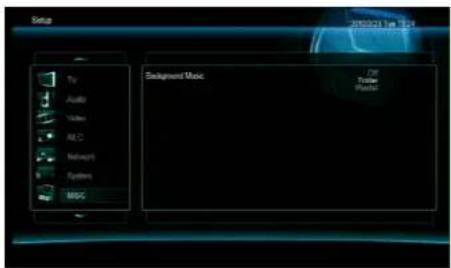
- Folder: Plays the audio files in the same folder of your photos.
-. Playlist: Plays the audio files in your playlist.

⑥ [MSC] => Screen Saver: Selecting [ON] will display the screen saver when the Playon!DVR is inactive for 5 minutes.

[MSC] => Movie Preview: Selecting [ON] allows you to preview your videos when they are selected.
6. TV / AV-IN & RECORD SCHEDULE
6.1 Direct Record/ Time-Shift / EPG / Time-Scheduling / AV-IN Record.
Please ensure that the Playon!DVRs connected to your TV and switched to the appropriate AV mode. While you are watching one channel, you can also record another channel or both channels at the same time (This function is only available with dual DVB-T tuners model).
6.1.1. Direct Recording.
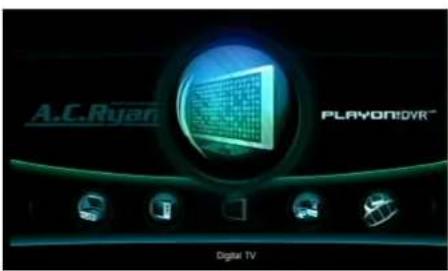
① At the Home Menu page, select [Analog TV], [Digital TV] Press the [Record] button on the remote to record a live or [AV-IN]. TV program and a record symbol appears at the top left

natural_image
Woman in a dark blue dress posing in front of a crowd with cameras and a red light source (no visible text or symbols)TV] Press the [Record] button on the remote to record a live TV program and a record symbol appears at the top left corner as show

③ Pressing the [Record] button on the remote continuously Press the [Stop] button on the remote to stop the real will turn on the OTR, one-touch-recording feature and willtime recording. record in lengths of 30 / 60 / 90 / 120 / 180 / 240 minutes.

natural_image
Group photo of formally dressed individuals at an event (no visible text or symbols)
⑤ To playback your recorded ATV, DTV or AV-In programs, enter the [Playback Recording] menu of the Home Menu page.
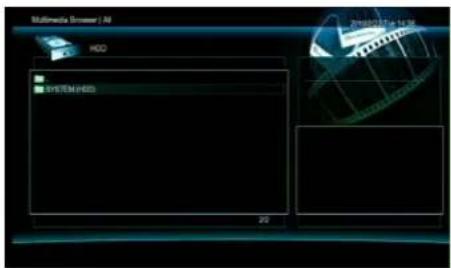
⑥ You can also select [HDD] => [System HDD] or select another storage which you have recorded to.
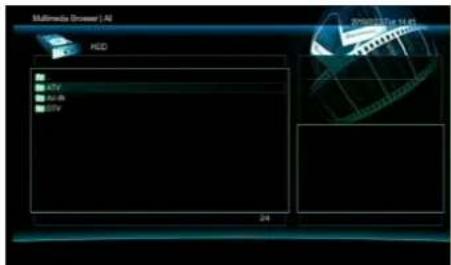
⑦ Navigate to the [REC] folder where the recorded programs are stored by default.

⑧ Select your desired program and press [OK] or [PLAY] button on the remote to play it.

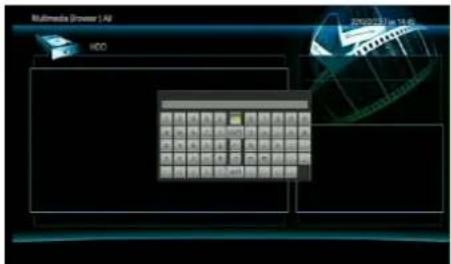
⑨ You can choose to rename or delete the selected file by An on-screen keyboard will appear when you choose to pressing on the [DELETE] button on the remote. rename your file.
6.1.2. Time-Shift Record.

① At the Home Menu page, select [Analog TV], [Digital TV] Press the [Time-Shift] button on the remote and the current frame will pause and a progress bar will appear at or [AV-IN].
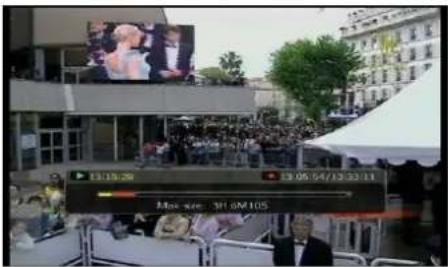
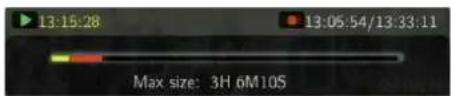
③ Press the [PLAY] button on the remote to resume playback from the last paused frame. To exit time-shift, press the [STOP] button on the remote.
④ Progress bar explanation.

: Play progress bar.
: Time-Shift progress bar.
6.1.3. EPG Record.
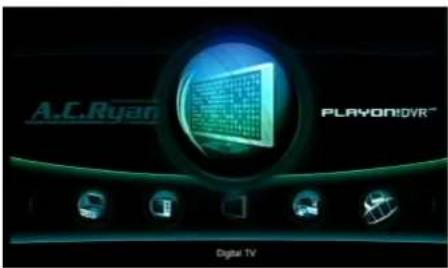
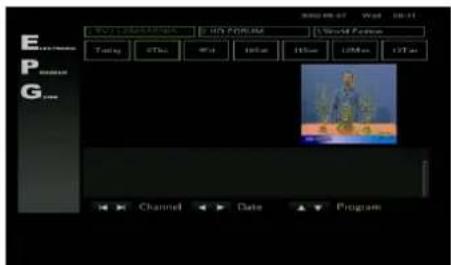
① At the Home Menu page, select [Analog TV], [Digital TV] Press the [EPG] button on the remote and you will see or [AV-IN]. the EPG information of the current channel. [EPG may not be available in all analogue/digital channels]
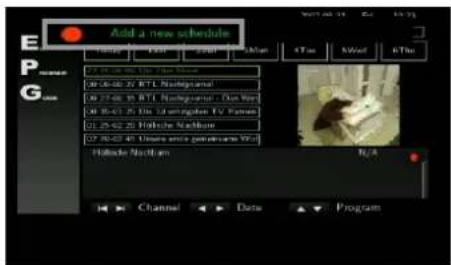
③ Select the day & program that you want to record by pressing [OK] or [REC] button on the remote. A new schedule will be automatically be added.
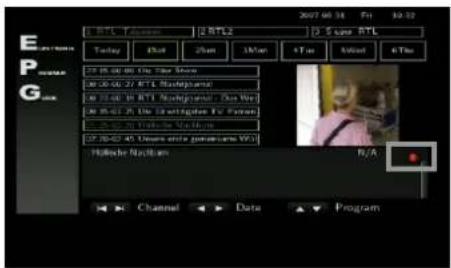
④ The selected program will display a record symbol at the right bottom side.
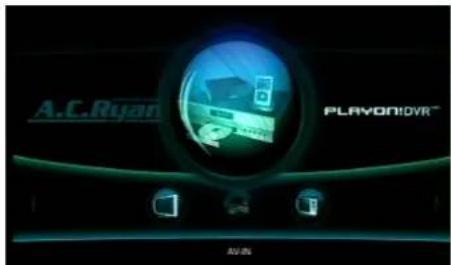
⑤ Top playback your recorded ATV, DTV or AV-In programs, enter the [Playback Recording] menu of the Home Menu page.

⑥ Navigate to the [REC] folder where the recorded programs are stored by default.
6.1.4. Time-Scheduling Record.
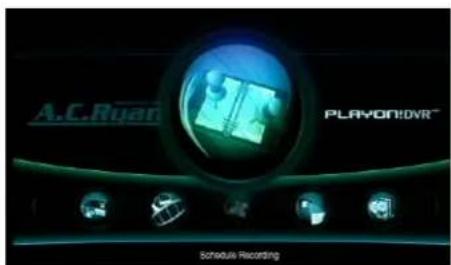
① At the Home Menu page, select [Schedule Recording].② Press the [REC SCHEDULE] button on the remote or select [Schedule Recording] menu and you will see the Time-Scheduling-Record page as above.
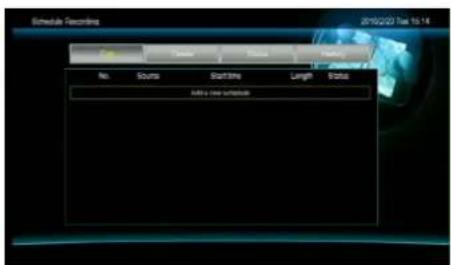
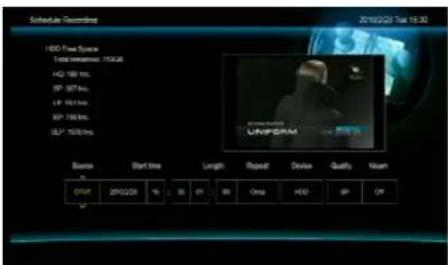
③ Set up your desired TV Channel / Start Time / Length Repeat period / Recording device / Quality / Nicam

After setup, press the [OK] button on the remote to display the confirmation window. Select [Confirm] to save the schedule.
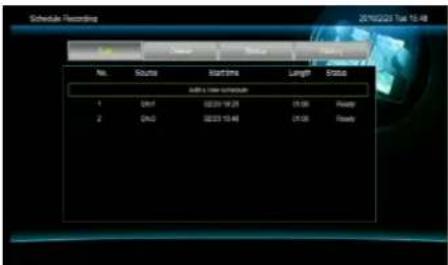
⑤ All added schedules will be displayed.

⑥ If you want to delete any schedule, go to the [Delete] menu, select the schedule and press the [OK] button on the remote

⑦ You will be prompted to delete the selected schedule delete all schedule
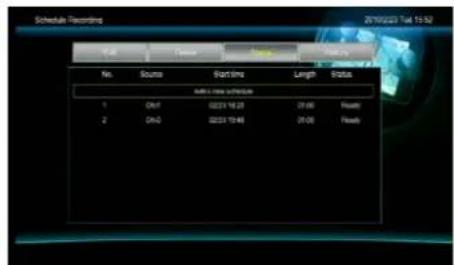
or To dcheck on the recording status, go to the [Status] menu
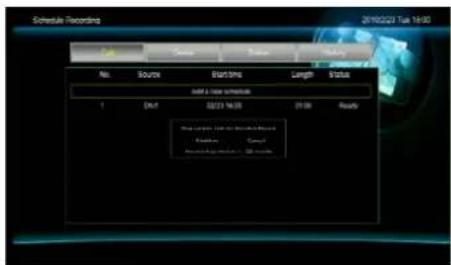
⑥ A message will appear seconds before a scheduled recording starts. Select [Confirm] or ignoring it will start the recording automatically after the timer countdown.

natural_image
Group photo of formally dressed individuals at an event, no visible text or symbols⑨ To stop a scheduled recording, press the [Stop] button on the remote and then select [Confirm].
⑤ Top playback your recorded ATV, DTV or AV-In programs, enter the [Playback Recording] menu of the Home Menu page.
⑥ Navigate to the [REC] folder where the recorded programs are stored by default.
6.1.5. AV-IN Record.

① At the Home Menu page, select [AV-IN].

② Press the [TV:AV-IN] button on the remote until you see the [AV-IN] source on your display which you have connected the Playon!DVR with. e.g. Set-Top box, VCR, video camcorder. e

③ Press the [Record] button on the remote to start

④ To stop the recording, press the [STOP] button on the
recording the program from your external AV-IN source. remote
7. MULTIMEDIA
You can play contents (Movie, Music, Photo) from the internal HDD, external USB storage devices, networked shared locations and connected UPnP servers.

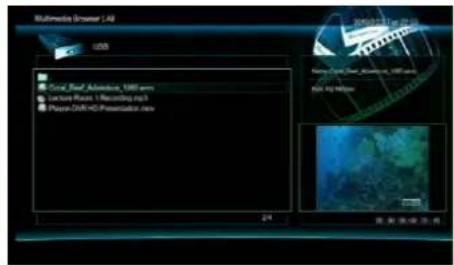
① [Multimedia Browser]: Select this menu at the Home ^2 Menu page or press the [MULTIMEDIA] button on the remote.
[[MultiMedia] => USB: You can play the contents from external USB storage devices. At times, you may need to connect the power to your USB device.


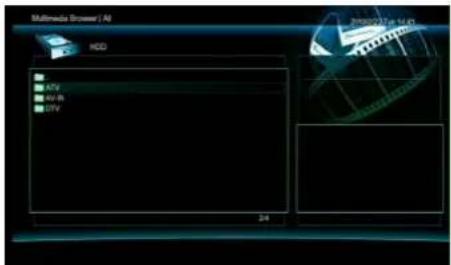
③ [Multimedia Browser] => SYSTEM HDD: You can play the contents from the internal HDD.
[ Multimedia Browser] => NET: The Playon!Dvean search for connected PCs in the same network and can
-. [BT]: Downloaded torrent files will be saved in this default folder
stream the contents from a shared folder. To do so, you need to create a shared folder on your PC.
Please refer to Chapter 12 for more detailed procedures on how to create the shared folders.
[TIP] To filter and display only ALL / MUSIC / PHOTO / MOVIES file types, press the [MEDIA TYPE] button on the remote to switch through the filtering.
Example, only movie file types will be displayed in a folder of mixed files when you filter to MOVIES.

5 [Multimedia Browser] => UPNP: The Playon!DVR supports UPnP client to connect to devices that operates as a UPnP server. The Playon!DVR can discover and stream the supported contents from the UPnP server devices.
See the below procedure on how to install a UPnP server application on your PC.
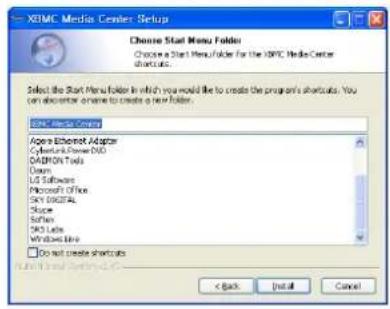
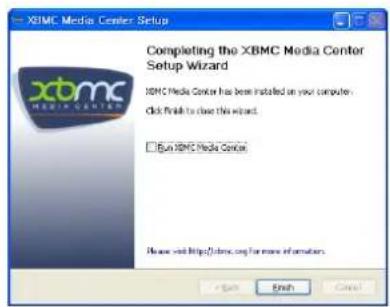
How to install a UPnP server application on your PC?
- In this example, we are using XBMC media center. Go to http://xmpc.org/down, select the proper media center application based on the OS you are using and then install the program as follow;

→

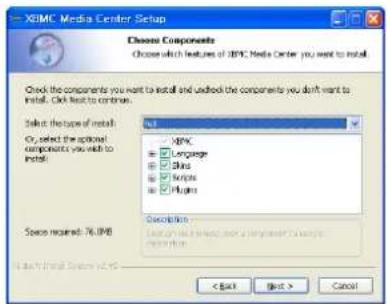
⇒


→

→

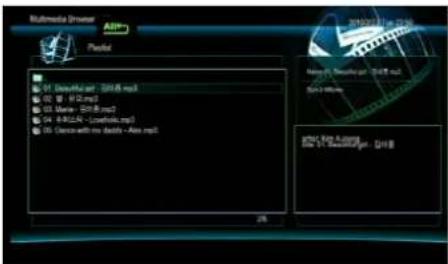
6 [PLAYLIST] => PLAYLIST: Select the files on the internal HDD you would like to add to the PLAYLIST. Press the [REC] button on the remote to select or deselect the files
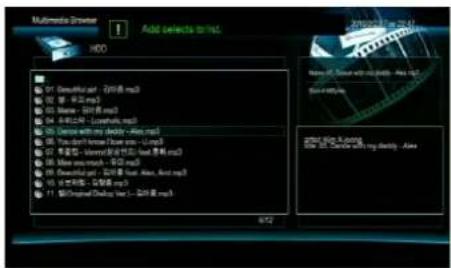
⑦ [[PLAYLIST] => PLAYLIST: After you have finished selecting the files, press the [ANGLE] button on the remote and these files will be added to the PLAYLIST

⑧ [PLAYLIST] => PLAYLIST: Entering the [PLAYLIST] menu now will display the files you have just added.
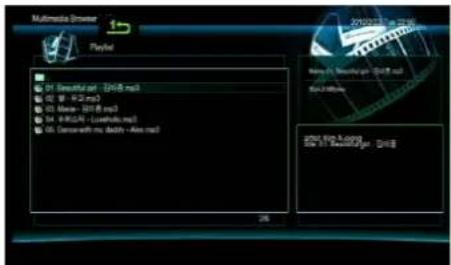
9 [PLAYLIST] => PLAYLIST: By pressing the [1:/ALL] button on the remote, you can switch repeat modes for playing a single or all files, or turn off the repeat function. Also, by pressing the [A-B] button on the remote, you can repeat playback of the selected segment.

8. FILE MANAGER
You can copy / move / delete any files from the Playon!DVR to and from the internal HDD, external USB storage devices and networked locations without the need of a PC.
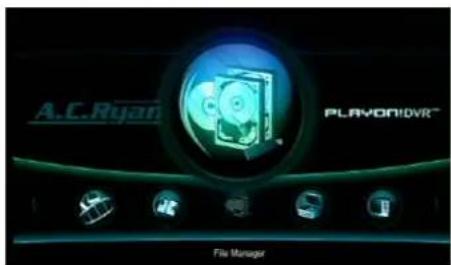

① [File Manager]: Select [FILE MANAGER] menu at the ^2 [[File Manager]: Source / Destination.
Home Menu page or press the [F.MANAGER] button -. Source: Location to copy / move / delete from.
on the remote.
- Destination: Location to copy / move / delete to.
-. NET: Networked location to copy / move / delete.
- Trash Can: Delete thselectecfiles to the trash ca
Example, if you want to copy or move files from an external USB storage device to the internal HDD.
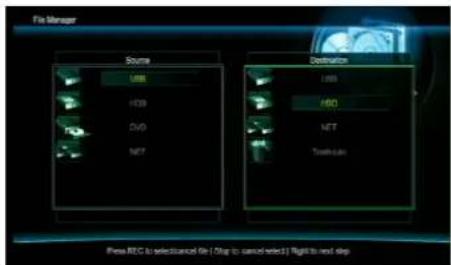
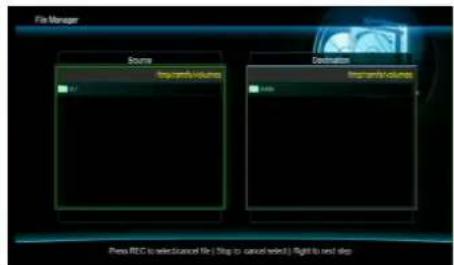
3 [File Manager]: Select [USB] at the Source section, press the [OK] button on the remote and then at the Destination section, select [HDD] and press the [OK] button on the remote.
4 [File Manager]: Select the drive letter of your USB storage device if you have more than one partitions, and press the [OK] button on the remote.

5 [File Manager]: Press the [REC] button on the remote to select or deselect. Press [STOP] to cancel. The selected files will be marked with a symbol.

[File Manager]: Press the [RIGHT] button on the remote and press [OK] to display the contents on your internal HDD.

⑦ [File Manager]: Select [NEW-DIRECTORY] if you want to copy / move the files to a new folder on your internal HDD.
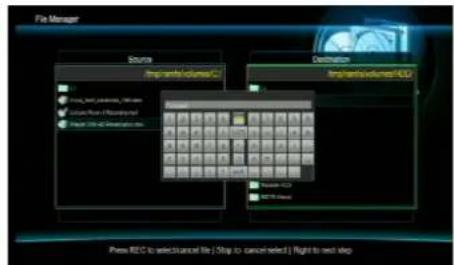
8 [FileManager]: By using the on-screen keyboard, you can name your new folder and press the [OK] button to create the new folder.
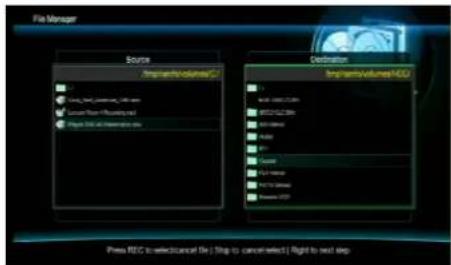
9 [File Manager]: Navigate to the new folder you have just created, enter and press the [RIGHT] button on the remote.
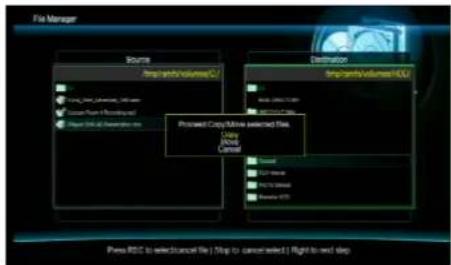
10 [File Manager]: Select Copy or Move.
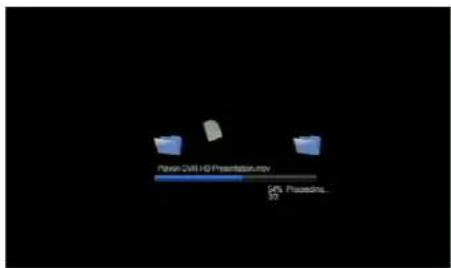
11) [File Manager]: Your selected files are now copying movinto the designated locatic.
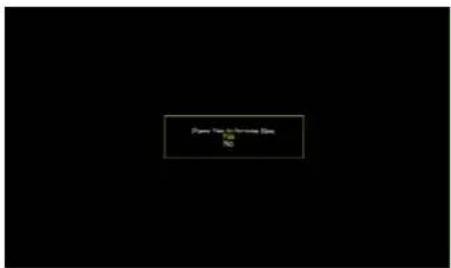
[File Manager]: Selecting [Yes] will bring you back to [MULTIMEDIA] menu and selecting [No] will bring you back to the [File Manager] menu.
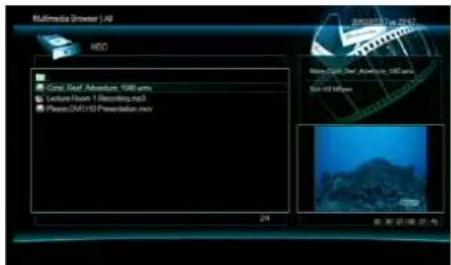
13 [File Manager]: Copied / Moved files are now in your new folder
9. Files Management as an USB storage device
Playon!DVR ^D will perform as an external hard disk drive when you connect it to a PC via the USB connection. You can manage the files / folders of the internal HDD easily with your PC.
* Please take note to power on the Playon!DWhen you are connecting to a PC.
9.1 Supported Platforms
Playon!DVR ^HD is automatically detected as a storage device with Windows 2000/XP and above or Mac OS 9.0 and above. No installation is needed for these OS versions.
Installing on Windows 98SE
√ First you have to install the Windows 98 Driver before connecting to a PC.
The driver is located in the supplied CD.
After installation is completed, power on and connect the PlayStation RPC via the supplied USB cable.
10. Setup a Sharing Folder in Windows
After you connect your Playon!DVR ^® by wired or wireless connection to your local network, you need to configure your networked PC individually to enable sharing.
The following sections explain how to set up a sharing folder on Windows 2000 / XP / Vista platform.
Certain programs or applications running in the background such as antivirus with firewall protection or internet / network security will need to be configured to allow network connections to the Playon!DMR configuring is unsure and you need to access the Playon!DVRia network for a brief period of time, you may want to disable your firewall / network security application and turn it back on when you are done.
A.C.Ryan is not responsible for configuring your network for sharing and do not recommend to disable your firewall application unless necessary.
10.1 Windows 2000
1) Select a folder which you want to share. Right-click the folder and select 'Sharing' in the popup menu.
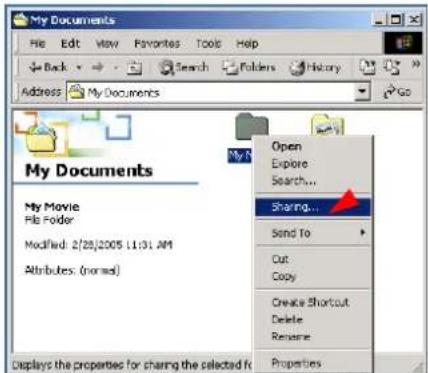
2) Check 'Share this folder' and write 'Name' For example, "My Movie"
√ Make sure you do not to provide a long 'Share name'.
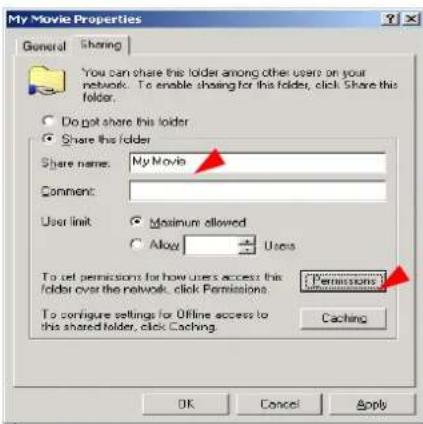
"Everyone" account is selected or not. If not, add "Everyone" account.
√ We recommend only to check 'Read>Allow' at Permissions.

4) After that, the shared folder will be displayed with a sharing icon.

My Movie
5) Go to [Settings>Control Panel>Administrative Tools>Computer managementLocal Users and Groups>Users], and double click 'Guest'.
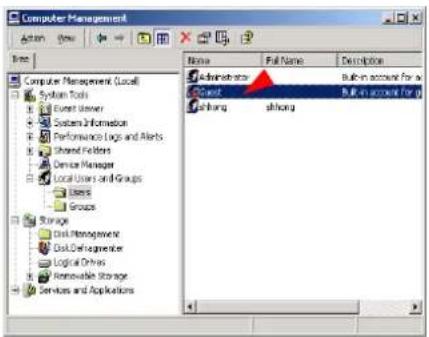
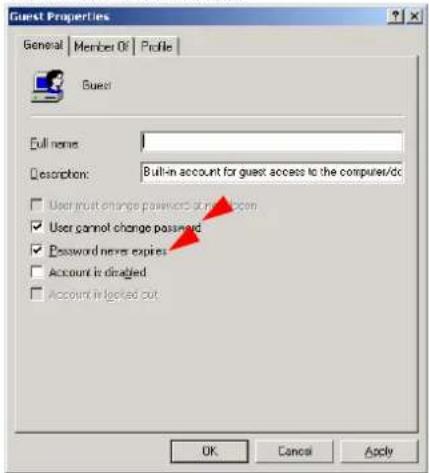
6) Check 'User cannot change password' and 'Password never expires'.
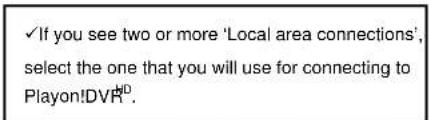
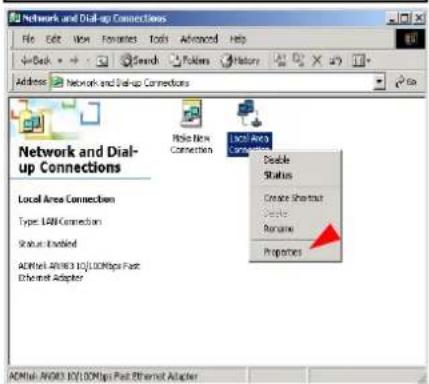
7) Go to [Control Panel>Network and Dial-up Connections], right click on 'Local Area Connections' and select Properties.
8) Double click on 'Internet Protocol (TCP/IP)'.

9) Check 'Use the following IP address', and write 'IP address' & 'Subnet mask' that you want to use.
For example,
IP address: 192.168.1.3
Subnet mask: 255.255.255.0
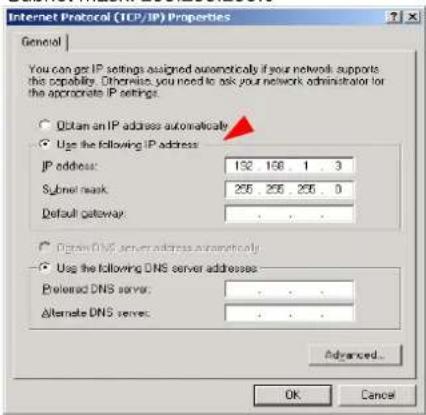
√ If you select 'Obtain an IP address automatically', you don't need to provide a specific IP address.
10.2 Windows XP
1) Select a folder which you want to share. Right-click the folder and select 'Sharing and Security' in the popup menu.

2) Check 'Share this folder on the network' and write 'Share name'.
For example, "My Movie"
√ Make sure you do not to provide a long 'Share name'.
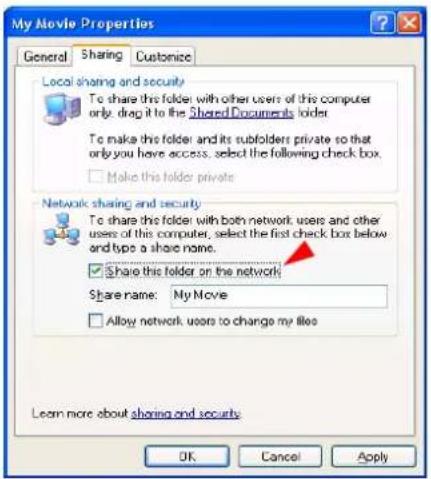
3) After that, the shared folder will be displayed with a sharing icon.

My Movie
4) Go to [Settings>Control Panel>Administrative Tools>
Computer management>
Local Users and Groups>Users], and double click 'Guest'.
√This step is for Windows XP Professional. For Windows XP Home users, please skip to step number 6.
√ If you can't find 'Administrative Tools' at Control Panel, click "Switch to classic view" option in the left pane of your screen.

5) Check 'User cannot change password' and 'Password never expires'.
See next page

6) Go to [Control Panel>Network connections], and right click on 'Local Area Connections' and select Properties.

7) Double click on 'Internet Protocol (TCP/IP)'.
![Local Area Connection Properties General Authentication Advanced Connect using ADNtek AN983 10/100 PCI Adapter Configure... This connection uses the following items: Client for Microsoft Networks File and Printer: Sharing for Microsoft Networks QoS Packet Scheduler Internet Protocol [TCP/IP] Install... Uninstall Properties Description Transmission Control Protocol/Internet Protocol. The default wide area network protocol that provides communication across diverse inconnected networks. Show icon in notification area when connected OK Cancel](/content/2026/06/1244104/images/b78289b9e13d6dd8b25793a7b9ab0599a89c5273211f4c917f8b2c1c5d3f8709.jpg)
8) Check 'Use the following IP address', and write 'IP address' & 'Subnet mask' that you want to use.
For example,
IP address: 192.168.1.3
Subnet mask: 255.255.255.0

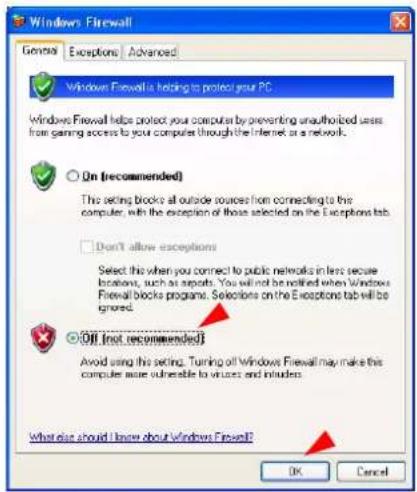
9) Click on 'Advanced' Tab and disable 'Internet Connection Firewall'.

√ If you use service pack 2, refer to the following figures. Click 'Settings' at 'Windows Firewall'
Check 'Off' and click 'OK'

10.3 Windows Vista
There are 3 sections to configure for correct Network sharing in Windows Vista.
10.3.1 Setup of User Accounts and Family safety
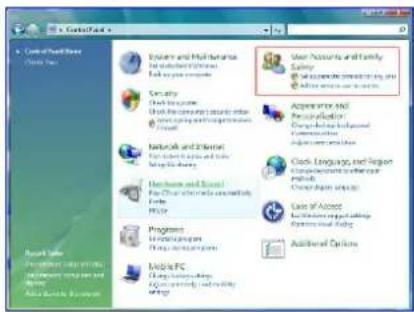
1) Click Start > Settings > Control Panel > Users Accounts and Family safety

2) Select the "Guest" accou
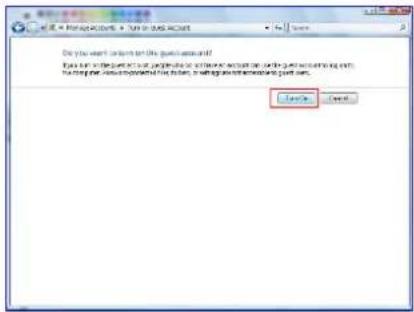
3) If the "Guest" account is off, switch it to "On".
10.3.2. Disable the "Firewall"
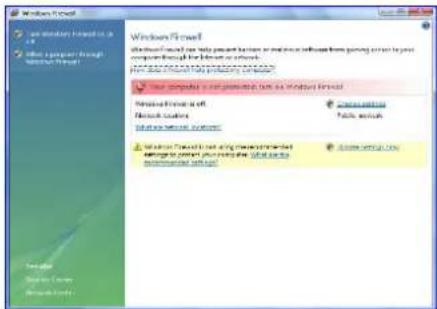
1) Click Start > Setting > Control Panel > Security > Windows Firewall on / off

2) Click 'Off (not recommended)
10.3.3 Setup of Network and Sharing Center
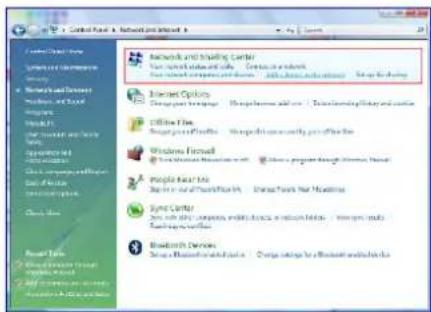
1) Click Start > Setting > Control Panel > Network and Internet > Network and Sharing Center.

2) Select "Password Protected sharing" and select "Turn off password protected sharing".

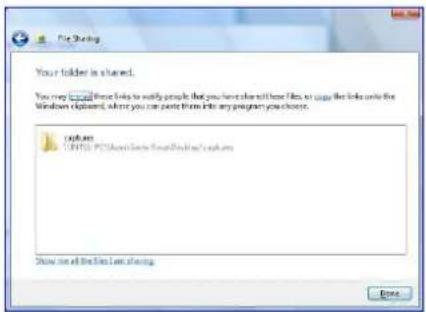
3) Select a folder which you want to share. Right-click the folder and select 'Share' in the popup menu.
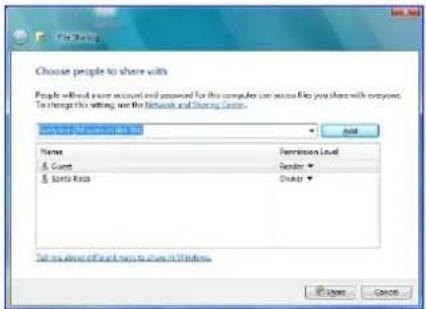
4) You will see a popup "Choose people to share with" then select "Everyone (All users in this list) and press "Add" butt

5) After you register the user account, then click "Share" button.
11. File Streaming from the network connected PCs
11.1 Stream by Wired LAN or Wireless Connection
You can stream contents to your Playon!DV from a PC (PCs) by Wired or Wireless network connection.
11.1.1 Connecting through a local network router.
You can use a network cable to connect Playon!DVR your router as illustrated below.
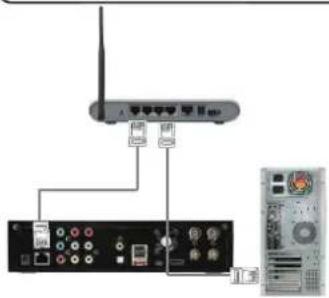
Connect a network cable to an available port behind the router to the Playon!DVR
Connect another network cable between the router and your PC.
Follow these steps.
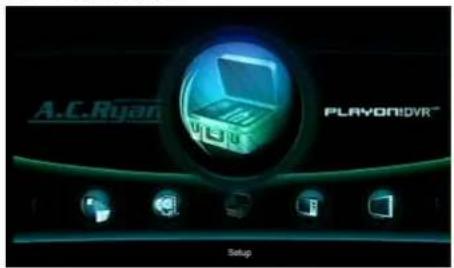
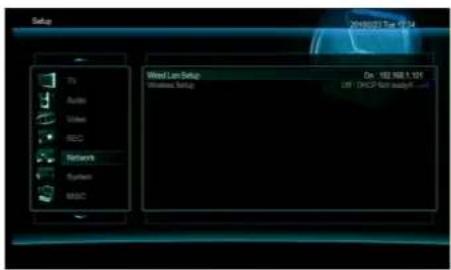
① At the Home Menu page, select [SETUP] or press the ② Select [Network] => [Wired LAN Setup]. [SETUP] button on the remote.
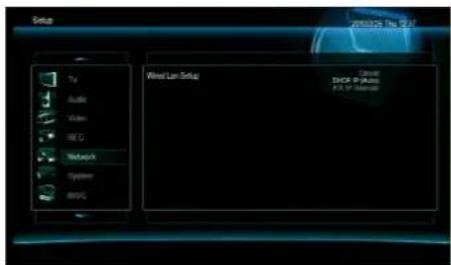
③ Select DHCP IP (AUTO).
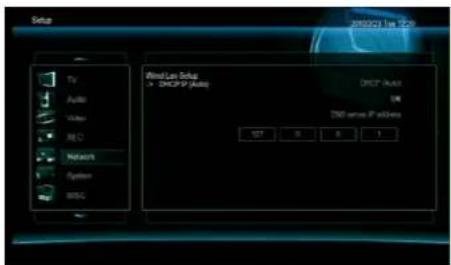
④ Select [OK] to obtain an IP address from your router automatically.

⑤ Select [Confirm] to test the network connection.
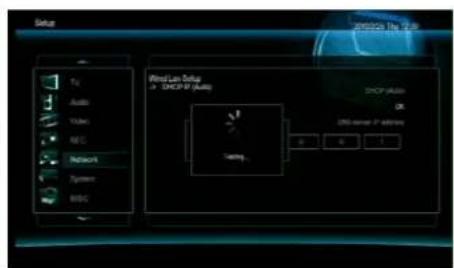
⑥ The Playon!DVR ^HD is now testing the network connection.

⑦ Once connected and obtained an IP address from your Go to the Home Menu page and select [MULTIMEDIA router. The IP address will be displayed. BROWSER] menu.

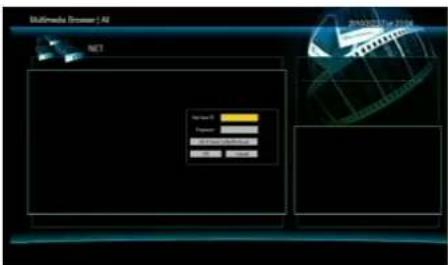
⑨ Select [NET] and you will see all your available local network connections. Select the network you wish to connect to. A menu may appear as seen above. [Note] If your PC does not require any ID & Password, the above menu will not appear and you can directly access the shared folders.
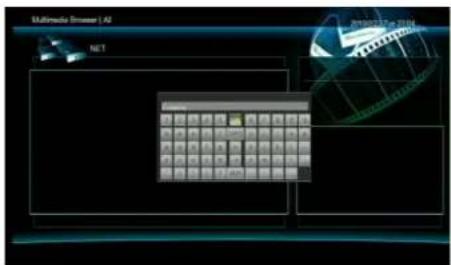
⑩ Key in the same PC logon ID & Password and select the [OK] button to save it.
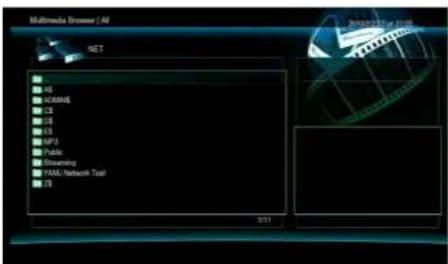
⑪ The shared folders will be now be displayed.
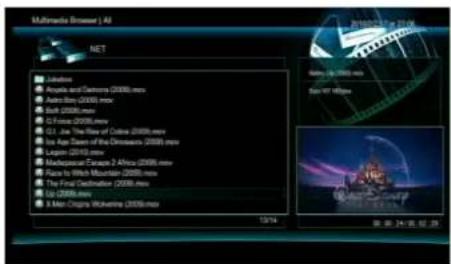
⑫ Select the content that you wish to stream over your network.
11.1.2 Direct connection between Playon!DVR your PC.
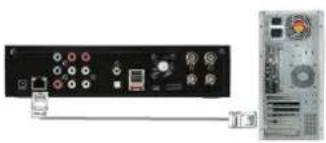
You can use a "Cross" network cable to directly connect Playon. Do your PC as illustrated below.
natural_image
Back panel of a computer interface showing ports and connectors, connected to a tower-mounted tower (no visible text or labels)Connect a cross network cable between the Playon!DVR ^ND and your PC.
[TIP] If your current PC network port is already connected to a modem for internet access, you can install additional network card to your PC and use it to connect to the Playon!DVR.
Follow these steps.
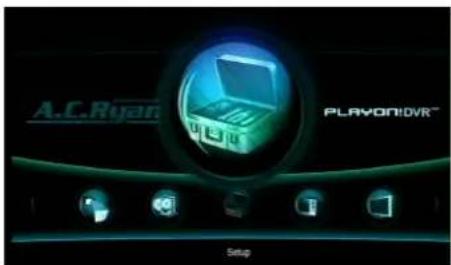
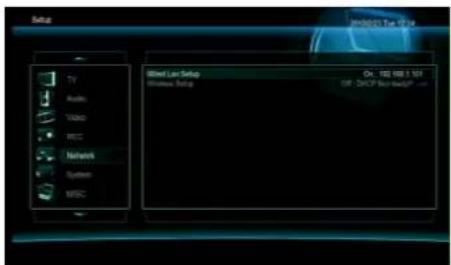
① At the Home Menu page, select [SETUP] or press the ② Select [Network] => [Wired LAN Setup]. [SETUP] button on the remote.
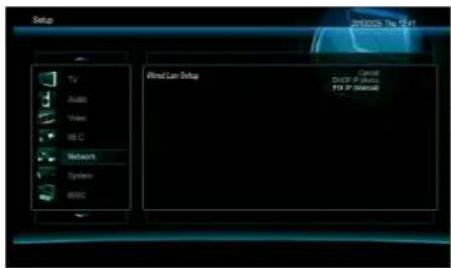
③ Select FIX IP (Manual).
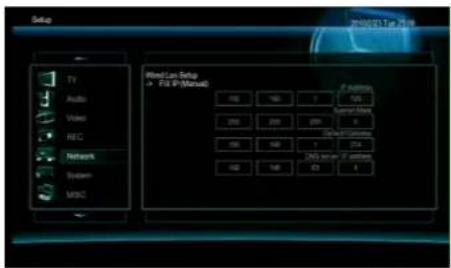
④ Keylin the static IP address, Subnet Mask, Default Gateway, DNS IP address of the Playon!DVR

⑤ Select [Confirm] to test the network connection.

⑥ The PlayonIDVR ^HD is now testing the network connection.

⑦ Once connected, the IP address will be displayed.

⑧ Go to the Home Menu page and select [MULTIMEDIA BROWSER] menu.

⑨ Select[NET] and you will see all your available local network connections. Select the network you wish to connect to. A menu may appear as seen above. [Note] If your PC does not require any ID & Password, the above menu will not appear and you can directly access the shared folders.
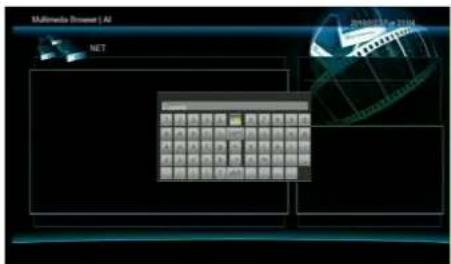
⑩ Key in the same PC logon ID & Password and select the [OK] button to save it.
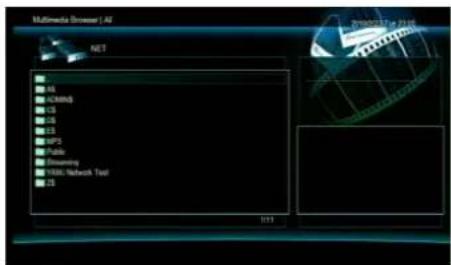
⑪ The shared folders will be now be displayed.
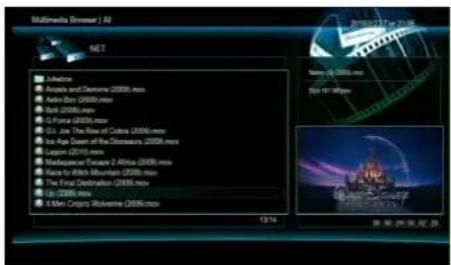
12 Select the content that you wish to stream over your network.
11.2 Wireless Connection
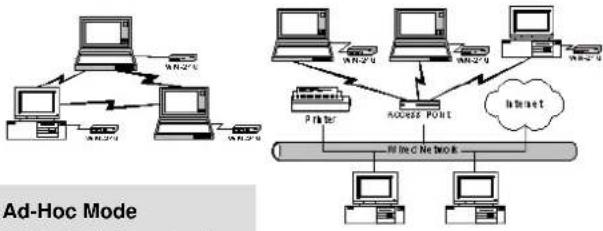
Playon!DVR ^D supports two types of wireless structure; 1) Ad-Hoc mode & 2) Infrastructure mode.
The wireless USB dongle is optional and may not be supplied in your package. Please refer to your local vendor if you wish to purchase one.
flowchart
graph TD
    subgraph Client_Accident
        A1["Computer"] -->|W-2.75| B1["Server"]
        A2["Computer"] -->|W-2.75| B2["Server"]
        A3["Computer"] -->|W-2.75| B3["Server"]
    end
    subgraph Ad_Hoc_Mode
        C1["Printer"] --> D1["Access Point"]
        D1 --> E1["Internet"]
        D1 --> F1["Desktop"]
        D1 --> G1["Desktop"]
        D1 --> H1["Desktop"]
    end
    I["Ad-Hoc Mode"] --> J["Network Port"]
    style I fill:#f9f,stroke:#333
    style J fill:#bbf,stroke:#333
1) Ad-Hoc Mode
Direct 1 to 1 wireless network connection between a wireless PC and the Playon!DVR without going through a wireless AP router.
2) Infrastructure Mode
Requires a wireless AP router to wirelessly connect to your network.
√ Note
Playon!DVR ^ID is compatible with IEEE 802.11N, G & B standard. We recommend using IEEE 802.11N connection for best wireless network performance.
Connecting in Infrastructure Mode with your wireless AP router.

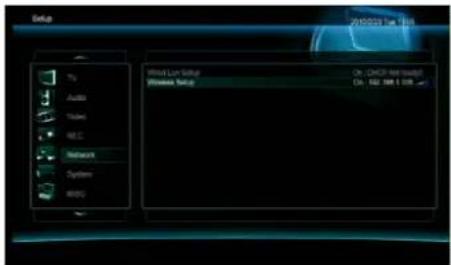
① At the Home Menu page, select [SETUP] or press the ② Select [Network] => [Wireless Setup]. [SETUP] button on the remote.
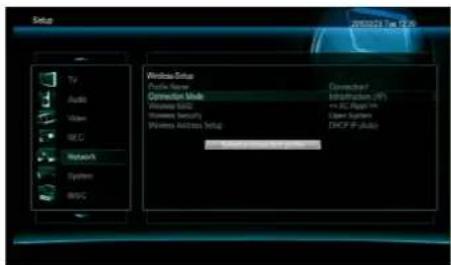
③ At the [Connection Mode], you can select [Infrastructure (AP)] or [Peer to Peer (Ad Hoc). Select [Infrastructure (AP)] mode here.
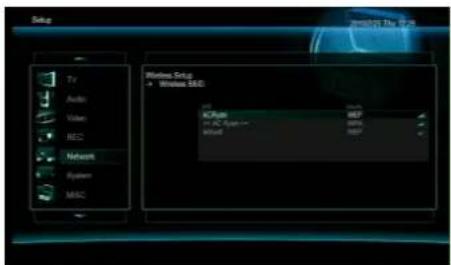
④ At the [Wireless SSID], you can search for all available wireless network and select the one you want to connect.
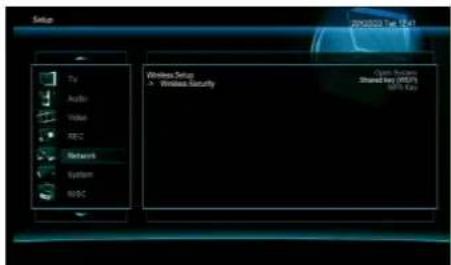
⑤ At the [Wireless Security], select [Open System], [Shared Key (WEP)] or [WPA Key]. [Note]: You need to know which wireless security mode your router is setup with before choosing the correct options.

⑥ Key in the wireless security password as you have setup on your router.
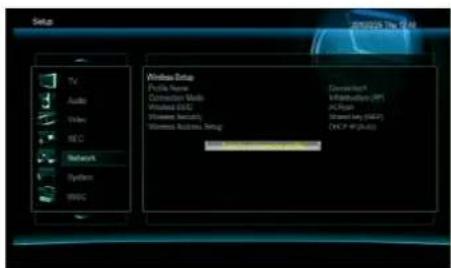
⑦ Press [Select a connection profile].

⑧ ThePlayon!DVR is now trying to connect to your wireless AP router.

⑨ Once connected, the network information will be displayed.

Go to the Home Menu page and select [MULTIMEDIA BROWSER] menu.
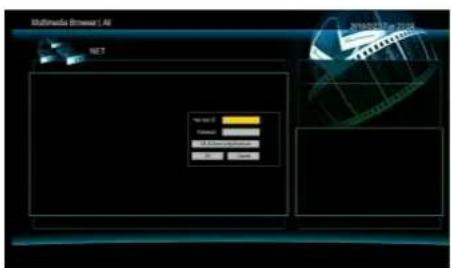
⑪ Select [NET] and you will see all your available local network connections. Select the network you wish to connect to. A menu may appear as seen above. [Note] If your PC does not require any ID & Password, the above menu will not appear and you can directly access the shared folder.
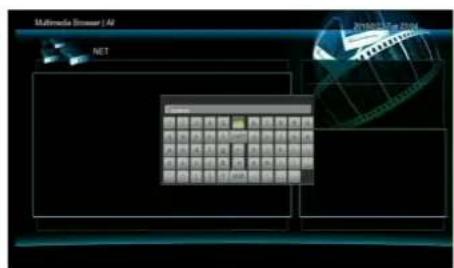
⑫ Key in the same PC logon ID & Password and select the [OK] button to save it.
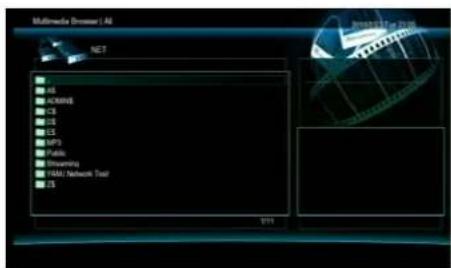
⑬ The shared folders will be now be displayed.
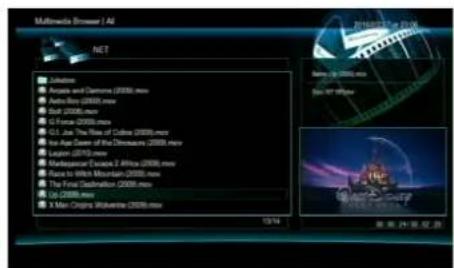
⑭ Select the content that you wish to stream over your network.
12. Remote Web-Access & Torrent Download
[Remote Web-Access] function is an unique feature of the Playon!DVR
You can access your Playon!DVRremotely through a web-browser and can
1) Manage the files from the Playon!DVR ^HD to a local connected PC.
2) Set up the time-scheduling recording of your Playon!DVR
3) Check the recording status of your Playon!DVR.
4) Download Torrent files directly to your Playon!DVR
In order to use this feature, you need to connect your Playon!DVRo a router and do [Port Forwarding /
Port number: 80] or [DMZ Server] on the router. For more information on how to setup [Port Forwarding],
please refer to your router manual.
On your Playon!DVR ^ID , you need to set up the following;
- IP Address: Assign a fixed IP address to your Playon!DVR
-. Subnet Mask: 255.255.255.0
-. Default Gateway: Key in the local IP address of your router
(If your router is using a dynamic IP address then you need to enable DDNS function).
-. DNS Server IP Address: For Bittorrent download, you need to input the DNS server IP address.


To remotely access your Playon!DVR, launch a web browser on your PC such as Internet Explorer or Firefox, etc and key in the following in the address bar.
Example: http://123.456.789.123:8080 where 123.456.789.123 is your router external IP address and 8080 is the port number you have assigned for port forwarding. Please refer to your router setup page for obtaining the external IP address and port number.
12.1.1. System Info.
You can access your Playon!DVR through a web-browser and check on status such as the total or used capacity of each partition, recording result, system time information, etc.
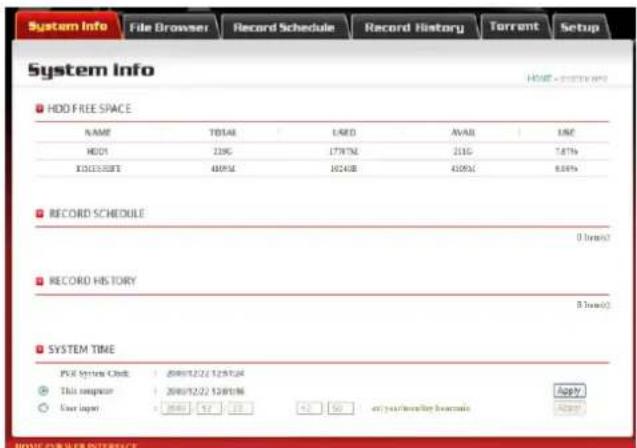
■ HDD FREE SPACE
- . Name: The name of each partition - . Total: The total capacity of each partition
- . Used: Used capacity of each partition - . Avail: Available capacity of each partition
- . Use: The used percentage of each partition
- HDD1: This is the main partition of your internal HDD which can be accessed from your PC for files management and Bittorrent download / Recorded programs will be saved to this partition.
- Time Shift: The capacity for time-shift function and the temporarily recorded program is written into this partition.
■ RECORD SCHEDULE
The Time-Scheduling Recording Lists or AV-IN Recording lists are shown in this field.
HISTORY LIST
It shows the recording result as "OK" or "Fail".
■ SYSTEM TIME
- PVR System Clock: The current time information of the Playon? You are using now.
- This Computer: The current time information of the PC you are using now.
- User Input: If you want to change the current time of the Playon!DV then check this to set up manually and press the [Apply] button to change the time information.
12.1.2. File Browser
[File Browser]: Access the internal HDD of your Playon!DV and allow you to copy the desired files to the PC you are accessing from.

For example, if you click [HDD1] folder you can access to the HDD1 folder as below;
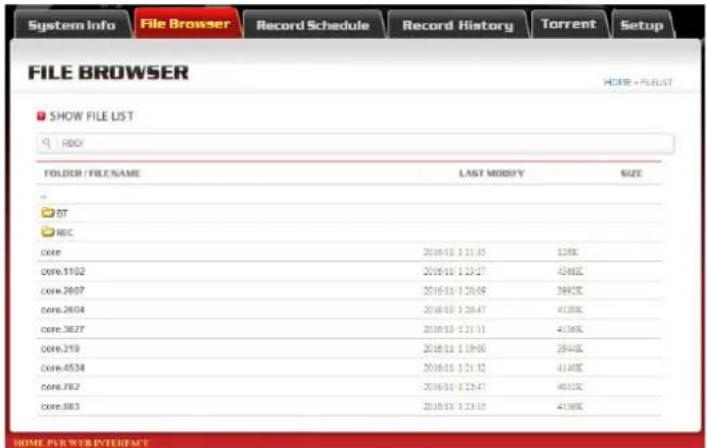
Select a file to download to your local PC you are remotely accessing your Playon.
12.1.3. Record Schedule
You can remotely add a new time-scheduling record using the Record Schedule menu.
![System Info FileList RecordList HistoryList Torrent Setup RECORDLIST SHOW RECORD LIST NO SOURCE START DATE LENGTH STATUS DELETE [NEW] HOME POWER INTERFACE](/content/2026/06/1244104/images/67c658888fb8929aa9d01544b446e0cf3481d4b5616c5e6990154ce365b53f31.jpg)
[New]: Add a new time-scheduling recording list
[Delete]: Delete the scheduled list.
If you press the [New] button you will see the below menu.


- . Source: Select input source AV-IN, Analogue TV or Digital TV.
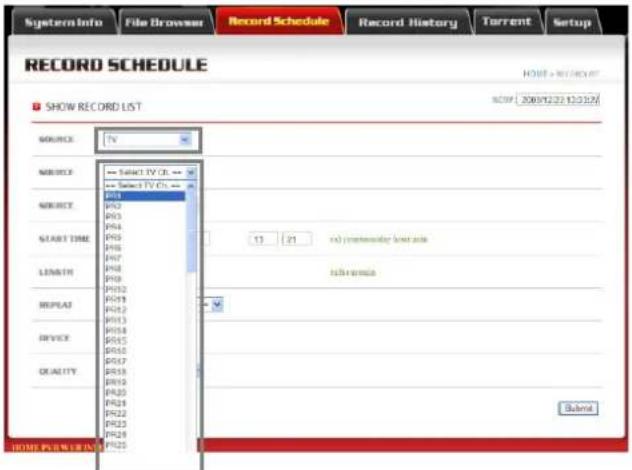
-. Source: Select the channel to time-schedule record.
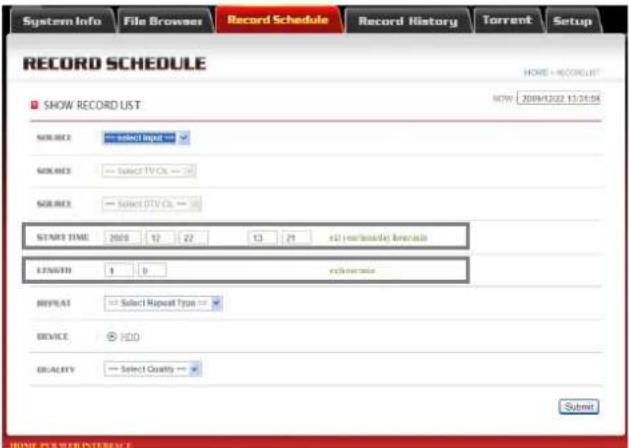
- Start Time: Set up the recording period in year / month / date / hour / minutes
- Length: Set up the recording length in hour / minutes
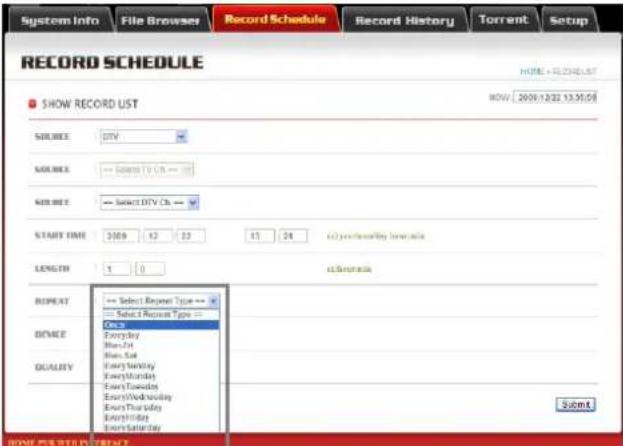
-.Repeat: Set up any repeating schedule such as once, everyday, every-Fri, etc as seen above.
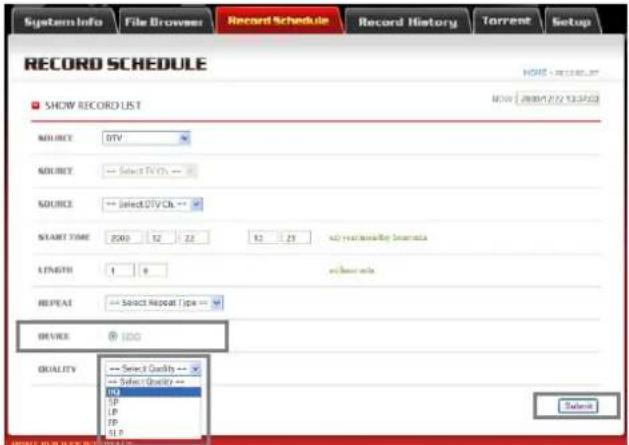
- Device: Select a device to record the programs. The default is HDD.
- . Quality: Select a quality of the recording.
After you have set up all the configurations for the recording, press the [Submit] button.
You will now see a new requested recording list as below;

12.1.4. Record History
Check the recording history using this menu.

To delete any recording history, check the boxes next to the No. and the click on the [DELETE] button.
12.1.5. Torrent Download
[Note]:
To download Torrent files with your Playon!DVR, you should put the unit to power standby mode. The Torrent will not download if your Playon!DVRs powered-off.
How to download Torrent Files?
[Step 1]: Search for your torrent files on the internet.
[Step 2]: Download your selected .torrent file to a folder of your PC.
[Step 3]: Click the [Torrent] button at the Web-Access page as below, Add new torrent and press the [Start] button.

[Step 4]: Torrent will start downloading immediately after adding and will continue to do so even after you power down the Playon!DVR ^ID to standby mode.
-. [Delete Job]: Delete the Torrent file from the Playon!BVR
-. [Delete Job and File]: Delete the Torrent file including the temporary files and also downloaded parts as well.
13. FTP Server
Multi-users can access to the Playon!DVRFTP Server) at the same time.
You can use your Playon!DVRas a FTP server to upload / download files.
In order to use this feature, you need to connect your Playon!D ^V to a router and do [Port Forwarding / Port number: 21] or [DMZ Server] on the router. For more information on how to setup [Port Forwarding], please refer to your router manual.
On your Playon!DVR, you need to set up the following:
- IP Address: Assign a fixed IP address to your Playon!DVR
-. Subnet Mask: 255.255.255.0 - Default Gateway: Key in the IP address of your router
(If your router is using a dynamic IP address then you need to enable DDNS function).

13.1.1. Accessing Playon!DVR ^HD (FTP Server) with a web-browser.
[Step 1]: Launch a Web-Browser, example Internet Explorer.
[Step 2]: Type [ftp://id:password@FTP server IP address].
e.g. ftp://admin:admin@123.456.789.123

[Step 3]: You can now access the Playon! DV Rollers to download / upload any files from your remote PC.
13.1.2. Accessing Playon!DVR ^HD (FTP Server) with a FTP Client Program.
[Step 1]: Install a FTP client program on your PC, example FileZilla
[Step 2]: Launch the FTP client program.
[Step 3]: Key in the Host: FTP Server IP address / Username / Password
(The default port is "21")
![File-Zinita Edit Edit View Render Server Bookmarks Help Host: 172.36.37.174 Username: admin Password: **** Sort: Quickconnect 我的 HTML: C:\Documents and Settings\新经典版式会社\新经典 Recent SendTo SKY DIGITAL Templates Tracks UserData 网络名 颜色: 红色 默认的大小/大小/英寸 [com] 368.854 MB... 17/03/2009 16:27:47 [UseHunt].Terminatbc.Thes.Sarah.Con... 14.838 TOP... 17/03/2009 17:39:42 Brachus.Al.TECH.English.l.pdf 3.099.220 Adeb... 25/02/2009 12:30:23 Freecom address.txt 127 Adeb... 17/03/2009 11:43:25 Licenses.xls 18.452 Micm... 15/03/2009 15:16:31 可编辑 <-->> 11.57.124 MBID Server\Local file 新经典... 原版式会社 颜色: 胤色... 缩进... 文件(F) 编辑(E)](/content/2026/06/1244104/images/bc091d827a4fa1e202c5191592881549f5a4368bb78181c97ba2a4e96b68fddd.jpg)
[Step 4]: Your PC can now access to your Playon!DV(RTP Server).
![admin172.16.37.174 - File28.x Edit View Transfer Server Bookwrite Help Edit: 172.16.37.174 Username: admin Password: Edit: Quick connect Response: 207 Ordering Passive Mode (172.16.37.174.4.1) Command: LIST Response: 150 OK Response: 226 Transfer complete Status: Direction long successful 文件夹 (A) [C] Documents and Settings (M) [W] [V] [W] [E] [E] [E] Recent SendTo SKY DIGITAL Templates Teaching UserInfo [ ] Document and Settings (M) [W] [W] [E] [E] [E] [ ] Report SendTo SKY DIGITAL Templates Teaching UserInfo [ ] Report SendTo SKY DIGITAL Templates Teaching UserInfo [ ] Report SendTo SKY DIGITAL Templates Teaching UserInfo [ ] Report SendTo SKY DIGITAL Templates Teaching UserInfo [ ] Report SendTo SKY DIGITAL Templates Teaching UserInfo [ ] Report SendTo SKY DIGITAL Templates Teaching UserInfo](/content/2026/06/1244104/images/fd19eb1dd9d94e5fbb4172f41d1cf109483099d4195b378297f9acafefe90da6.jpg)
14. Firmware Upgrade
Please visit www.acryan.com for more information on the latest firmware updates.
Do not power off the Playon!DVR when firmware upgrading is in progress.
How to upgrade the new firmware?
You can download the new firmware and place it in the root directory of the internal HDD or an external USB storage device.

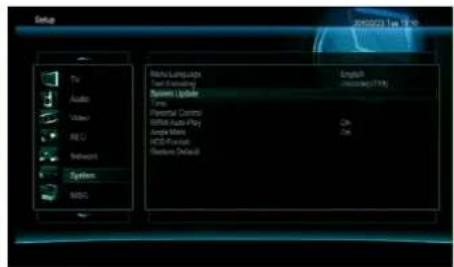
[Step 1] At the Home Menu page, select [SETUP]. [Step 2] Select [System] => [System Update].
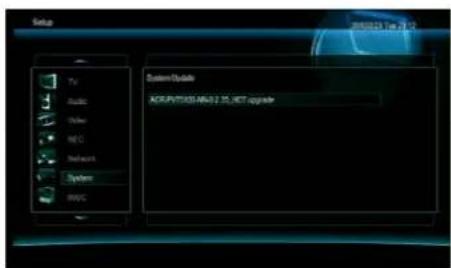
[Step 3] The Playon!DVR automatically searches for an upgrade file and displays it when found.

[Step 4] Press the [OK] button on the remote to confirm the firmware upgrade.
[Step 5] It takes about 2 minutes or more to complete the firmware upgrade. After upgrading is completed, the Playon!DVR will reboot and defaults back to the initial setup page.
15. Appendixes
15.1 Frequently Asked Questions
Question 1. I find new file names and folder names that I never created before or they have strange gibberish names. Answer:
Most likely, the player's file allocation table (FAT) has been corrupted. This might be due to the player shuttling down (due to low battery power) while reading or writing to your computer by the USB connection. Windows and Macintosh often write extra files to the hard disk such as finder.def or System volume info. These are normal and will not do any harm to the player.
Question 2. My files have disappeared from the player.
Answer:
Make sure that you browse your files via the correct browser mode which means correct filtered views such as Photos, Music, or Movies.
Question 3. During power on, why does the TV will have a short flashing, blue screen or screensaver?
Answer:
This is normal, when the system initializes, it will setup the corresponding parameters so it can output the correct video signal to the TV, during the initializing time, the TV will receive incorrect signals or the signals will not be stable and will cause the TV screen to flash, some TV's will treat this as no signal, and will display a blue screen or screensaver.
Question 4. Why when I switch to Y/Pb/Pr 480p, 576p, 720p, 1080i, and 1080p, does the TV screen display an unwatchable picture?
Answer:
Please check if your TV supports Y/Pb/Pr 480p, 576p, 720p, 1080i, and 1080p output, if your TV does not support, please use the A/V signal display instead, press the TV SYSYEM button on the remote control, then switch the TV's video input to NTSC or PAL.
Question 5. Why is there no sound on movie or music playback when using Y/Pb/Pr component output?
Answer:
Y/Pb/Pr output is a video output only, and does not include sound signals. When using Y/Pb/Pr output, please plug the A/V OUT or the S/PDIF jack to output sound.
Question 6. I cannot get SSID name, the screen always displays: 'Can't get any SSID!!'
Answer:
When the WLAN USB Adapter is connected to the player, it needs some time to get initialized. Please wait for about 1\~2 minutes and try refreshing the SSID list again.
Question 7. I cannot see files shared on my computer via MULTIMEDIA->NET menu.
Answer:
Please check following items:
- Connect the player to network and obtain an IP address first;
- Please enable NetBIOS of TCP/IP on computer;
- Please check your PC's firewall settings;
- Please enable your PC's 'Guest' account;
- Please share the folders which you wish to browse on your PC, and make sure that 'Everyone' or 'Guest' has the right to access.
Question 8. I configured everything correctly, but still cannot get the wireless network or UPnP function to work.
Answer:
Are you using a firewall such as Norton Internet Security, McAfee Personal Firewall, Zone Alarm, etc. or even the built-in firewall of Windows XP? (Don't forget that Service Pack 2 for Windows XP automatically upgrades your firewall and turn it on by default)
If you have a firewall, it may need to be configured or have exceptions created to allow you to see and communicate with the player on the network. To test if your firewall is preventing network communication (including PING and access shared folders), try disabling it to see if you can connect. If you can connect with the firewall disabled, you may need to add the player to the 'Trusted' list or configure the firewall for local intranet access. Worst-case, disable your firewall long enough to use the player, then enable it again when done.
Question 9. I am using the 802.11n Wi-Fi dongle with an 802.11n wireless router, why the speed is still 802.11g 54Mbps rather than 300Mbps?
Answer:
The IEEE 802.11n Draft standard prohibits using high throughput with WEP or TKIP as the unicast cipher. If you use these encryption methods (e.g. WEP, WPA-TKIP), your data rate will drop to 54 Mbps. You may contact the Access Point or router manufacturer to download the latest firmware, or try other encryption methods (WPA2-AES or WPA2-TKIP), or choose to configure an unsecured profile, but this option is not recommended.
15.2 Copyrights and Trademarks
Copyrights
All rights reserved. No part of this manual may be reproduced, or transmitted in any form or by any means, whether by electronically or mechanically, without the express written permission from the copyright holder.
Copyrighted materials, such as software, music files, or movies, are protected by local law, and may not be illegally copied or used without permission from the copyright owner.
Trademarks
Microsoft and Windows are registered trademarks of Microsoft Corporation.
All other trademarks are property of their respective holders.


Manufactured under license under U.S. Patent #'s: 5,451,942; 5,956,674; 5,974,380; 5,978,762; 6,487,535 & other U.S. and worldwide patents issued & pending. DTS and the Symbol are registered trademarks, & DTS 2.0+ Digital Out and the DTS logos are trademarks of DTS, Inc. Product includes software. © DTS, Inc. All Rights Reserved.
MANUFACTURED UNDER LICENSE FROM Dolby Laboratories.
DIGITAL
Dolby and the double-D symbol are registered trademarks of Dolby Laboratories.
15.3 Warranty
What your warranty does not cover:
-Acts of nature, such as fire, static discharge.
-Damage from unauthorized repair, alteration or accident.
-Damage from misuse or neglect.
-A unit that has been modified or incorporated into other products or is used for institutional or other commercial purposes.
-Loss of customer's software, firmware, information, or memory data.
-Improper handling or installation.
15.4 GPL Statement
This product contains free software which is licensed under the GNU General Public License. After you purchase this product, you may procure, modify or distribute the source code of the GPL/LGPL software that is used in this product.
To obtain a copy of our open source software, please contact our support center and we will provide you with a CD-ROM of the source code that is used, charging only the actual expense involved. However, please be noted that we cannot provide guarantee with the source code, and there is also no technical support for the source code from us.
- Contents
- Introduction ...... 3
- Setup a sharing folder in Windows 40
- File Streaming from the network connected PCs 49
- Remote Web-Access & Torrent Download .... 58
- FTP Server 67
- Firmware Upgrade 70
- Appendixes ...... 71
- Introduction
- Usage Precautions
- Functionality
- MultiMedia Player Function
- Package Contents
- Note:
- Product Description
- How to Install a Hard Disk?
- Connecting Audio & Video Cable to TV
- Connecting Video Cable
- Connecting Audio Cable
- Using the remote control
- Initial Setup
- Setup Menu
- [Note]
- TV / AV-IN & RECORD SCHEDULE
- Direct Record/ Time-Shift / EPG / Time-Scheduling / AV-IN Record.
- Direct Recording.
- Time-Shift Record.
- EPG Record.
- Time-Scheduling Record.
- AV-IN Record.
- MULTIMEDIA
- How to install a UPnP server application on your PC?
- FILE MANAGER
- Files Management as an USB storage device
- Supported Platforms
- Installing on Windows 98SE
- Setup a Sharing Folder in Windows
- Windows 2000
- Windows XP
- Windows Vista
- Setup of User Accounts and Family safety
- Disable the "Firewall"
- Setup of Network and Sharing Center
- File Streaming from the network connected PCs
- Stream by Wired LAN or Wireless Connection
- Connecting through a local network router.
- Follow these steps.
- Direct connection between Playon!DVR your PC.
- Wireless Connection
- 1) Ad-Hoc Mode
- 2) Infrastructure Mode
- √ Note
- Connecting in Infrastructure Mode with your wireless AP router.
- Advanced Options:
- Remote Web-Access & Torrent Download
- [Remote Web-Access] function is an unique feature of the Playon!DVR
- System Info.
- ■ HDD FREE SPACE
- ■ RECORD SCHEDULE
- HISTORY LIST
- ■ SYSTEM TIME
- File Browser
- Record Schedule
- Record History
- Torrent Download
- [Note]:
- FTP Server
- Buttons
- Accessing Playon!DVR HD (FTP Server) with a web-browser.
- Accessing Playon!DVR HD (FTP Server) with a FTP Client Program.
- Firmware Upgrade
- Do not power off the Playon!DVR when firmware upgrading is in progress.
- Appendixes
- Frequently Asked Questions
- Answer:
- Copyrights and Trademarks
- Copyrights
- Trademarks
- Warranty
- GPL Statement
Brand : AC Ryan
Model : Playon!DVR HD
Category : Media player