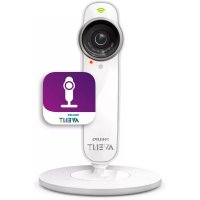
AVENT SCD870 - Baby monitors PHILIPS - Free user manual and instructions
Find the device manual for free AVENT SCD870 PHILIPS in PDF.



| Product type | Connected baby monitor |
| Brand | Philips |
| Model | AVENT SCD870 |
| Power supply | Power adapter (100-240 V) |
| Connectivity | Wi-Fi 2.4 GHz, uGrow app (iOS 7+ / Android 4.1+) |
| Main features | Night vision, lullabies, color nightlight, talk-back, temperature and humidity monitoring, push notifications |
| Background monitoring | Yes, with audio and notifications |
| Number of users | Up to 10 (including 2 administrators), 3 simultaneous viewers |
| Range | Via Internet (no distance limit) |
| Sensors | Temperature, humidity, light |
| Wall mounting | Wall mount included |
| Maintenance and cleaning | Clean with a soft dry cloth |
| Security | WPA2 network, strong password, factory reset, privacy mode |
| Repairability | Reset possible, firmware update |
| Included accessories | Power adapter, wall mount, camera unit |
| Warranty | International warranty (see manual) |
Frequently Asked Questions - AVENT SCD870 PHILIPS
User questions about AVENT SCD870 PHILIPS
0 question about this device. Answer the ones you know or ask your own.
Ask a new question about this device
Download the instructions for your Baby monitors in PDF format for free! Find your manual AVENT SCD870 - PHILIPS and take your electronic device back in hand. On this page are published all the documents necessary for the use of your device. AVENT SCD870 by PHILIPS.
USER MANUAL AVENT SCD870 PHILIPS
Always here to help you
Register your product and get support at
www.philips.com/welcome
SCD870

natural_image
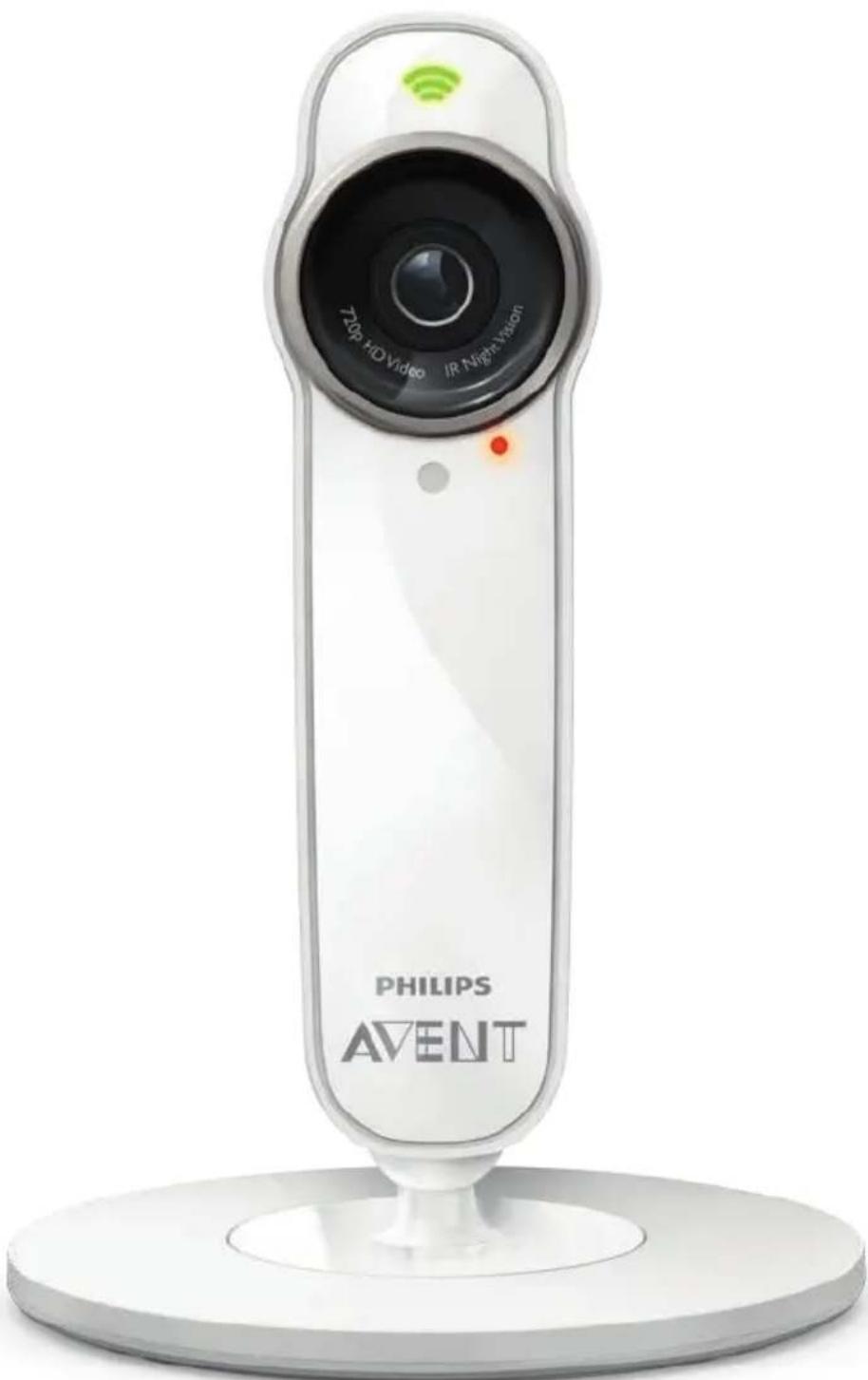
White Philips AVENT digital camera with visible lens and control buttons (no text beyond brand name)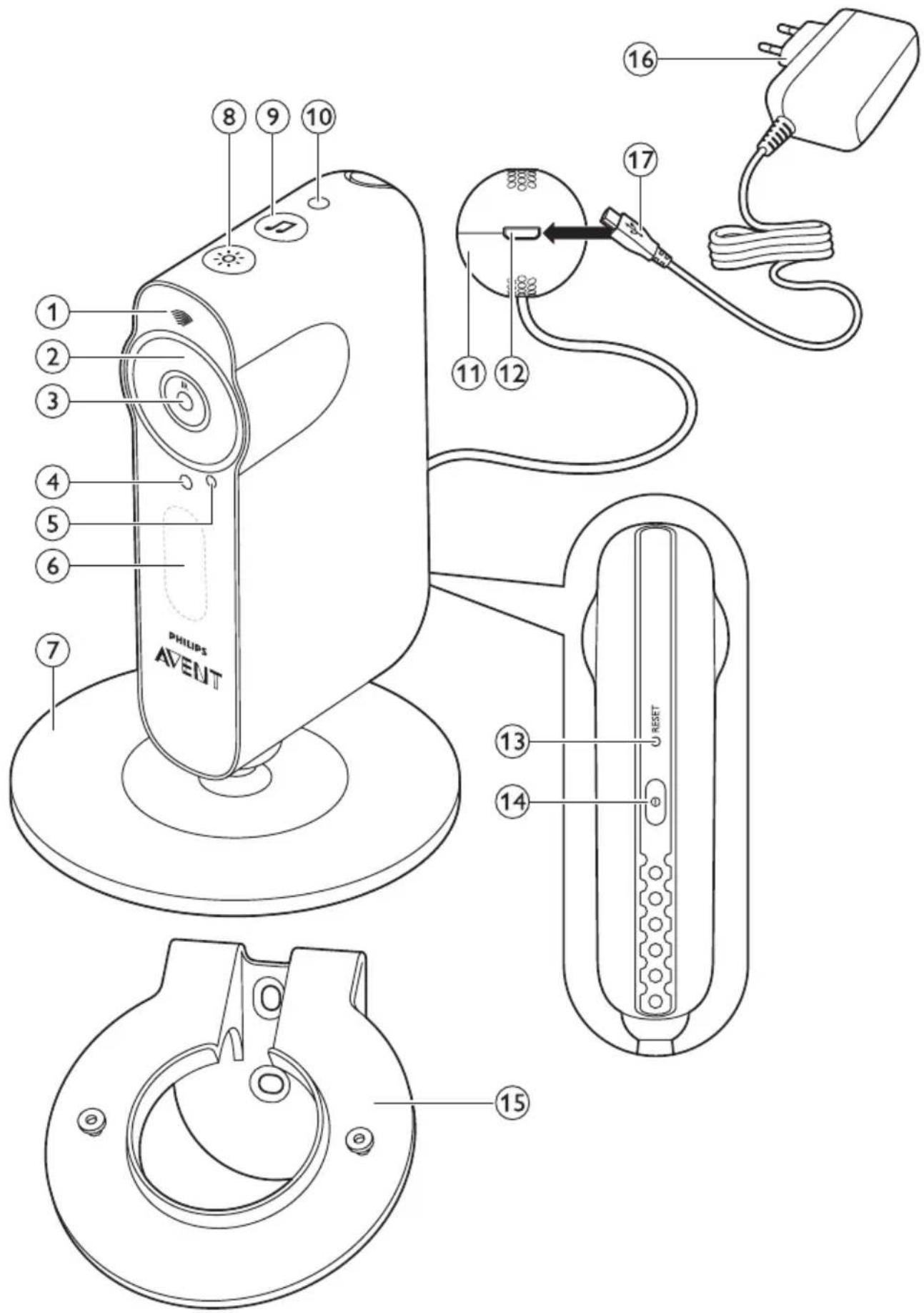
ENGLISH 4
DEUTSCH 30
ESPAÑOL 57
FRANÇAIS 84
ITALIANO 112
NEDERLANDS 139
PORTUGUÊS 166
Table of contents
Introduction 4
Product overview 5
First-time setup 5
Mounting the baby monitor on the wall 7
Quick start guide 9
Viewing, hearing and monitoring your baby 12
Viewing your baby 12
Hearing your baby 13
How to get notified that your baby cries 14
Background monitoring 14
Notification options 15
Guest viewers and accounts 16
Inviting guests and a second admin 16
Giving and removing access 17
Account management 18
General app use 19
Video and audio quality optimisation 19
WiFi connection to the Internet 20
Using the baby monitor away from home 20
Using the app on several devices 21
Resetting the baby monitor 21
Firmware upgrades 22
WiFi status light signals 22
Security and privacy 24
Network security 24
Strong passwords 24
Safe use of the baby monitor app 24
Device compatibility 24
Ordering accessories 25
Guarantee and support 25
Frequently asked questions 25
Introduction
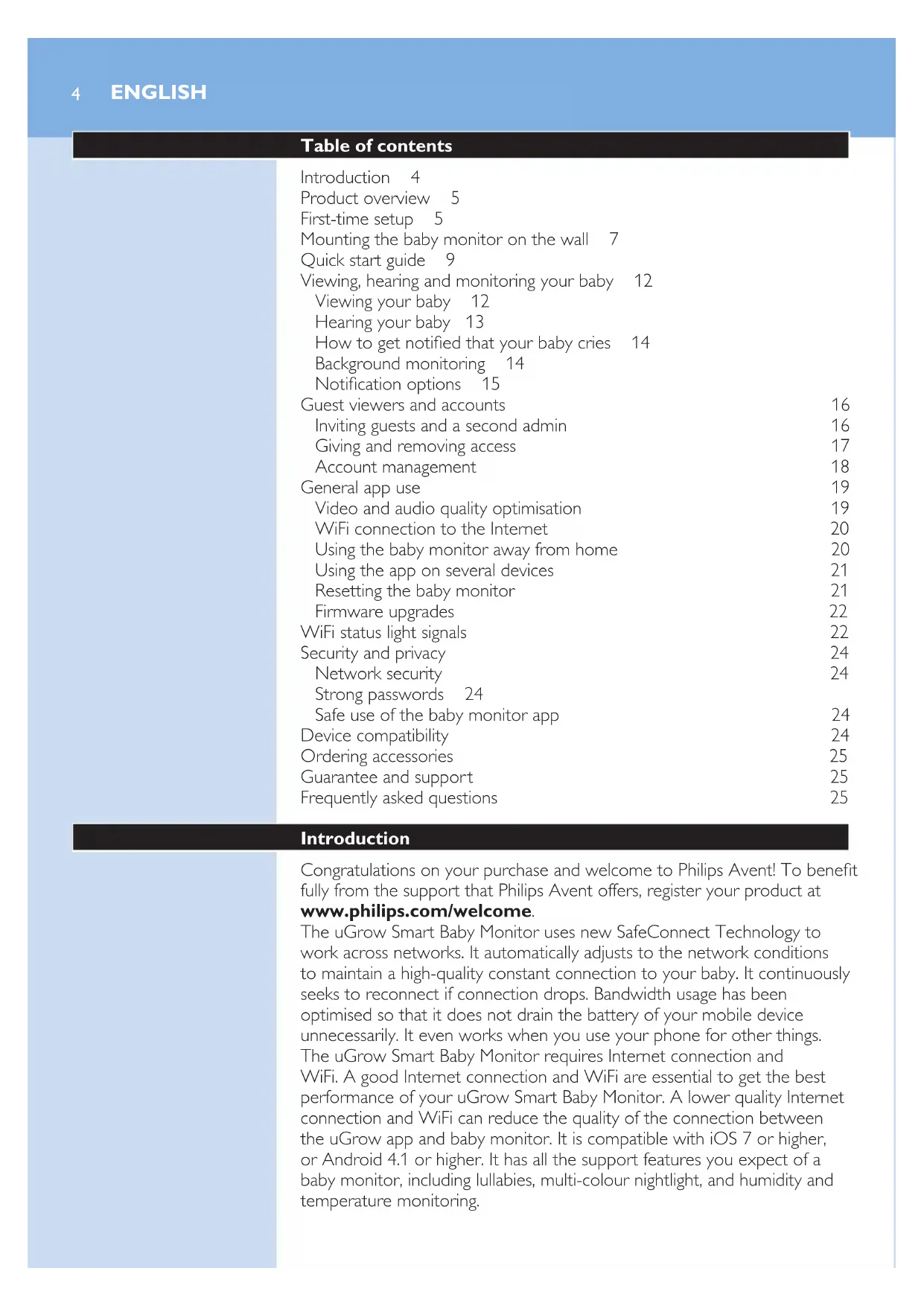
Congratulations on your purchase and welcome to Philips Avent! To benefit fully from the support that Philips Avent offers, register your product at
www.philips.com/welcome.
The uGrow Smart Baby Monitor uses new SafeConnect Technology to work across networks. It automatically adjusts to the network conditions to maintain a high-quality constant connection to your baby. It continuously seeks to reconnect if connection drops. Bandwidth usage has been optimised so that it does not drain the battery of your mobile device unnecessarily. It even works when you use your phone for other things. The uGrow Smart Baby Monitor requires Internet connection and WiFi. A good Internet connection and WiFi are essential to get the best performance of your uGrow Smart Baby Monitor. A lower quality Internet connection and WiFi can reduce the quality of the connection between the uGrow app and baby monitor. It is compatible with iOS 7 or higher, or Android 4.1 or higher. It has all the support features you expect of a baby monitor, including lullabies, multi-colour nightlight, and humidity and temperature monitoring.
Product overview (Fig. 1)
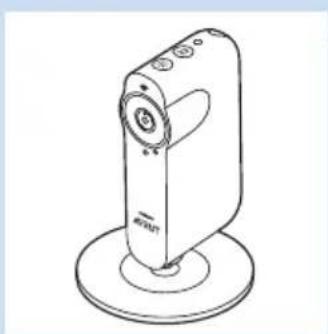
1 WiFi status light
2 Infrared lights
3 Baby monitor lens
4 Microphone
5 Viewing indicator
6 Nightlight
7 Foot
8 Nightlight button
9 Lullaby play/pause button
10 Light sensor
11 Temperature and humidity sensor unit
12 Appliance plug socket
13 Reset button
14 On/off button
15 Wall mounting bracket
16 Adapter
17 Appliance plug
First-time setup
natural_image
Purple square icon with a white microphone symbol, no text or numbers present.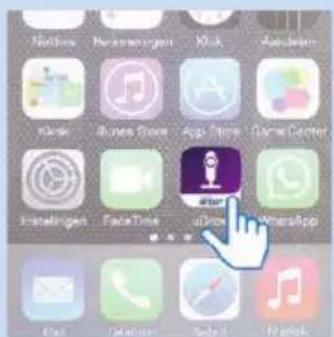
Before you start the set-up procedure, make sure:
- You have wireless Internet access (2.4 GHz WiFi).
- You are close enough to the WiFi router to have a good WiFi signal.
- If you use a WiFi repeater, make sure that your router and your WiFi repeater have the same SSID (the network name) and that you use the same password for the router and the repeater.
- You have the password of your WiFi network at hand. Always connect the baby monitor to a secure network (see chapter 'Security and privacy').
- Make sure that your smart device runs on iOS 7 or higher, or Android 4.1 or higher (for device compatibility, see chapter 'Device compatibility').
1 Download the Philips Avent uGrow Smart Baby Monitor app from the App Store or Google Play. Use keywords ‘uGrow smart monitor’ or ‘Philips smart monitor’ to find the app.
2 Launch the app.
natural_image
Diagram of a medical device with a bulb and connector, no text or symbols present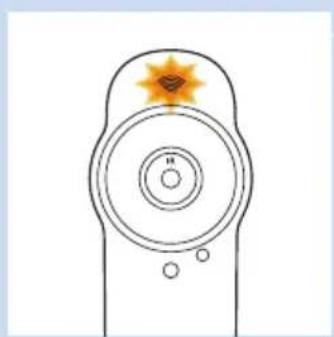
natural_image
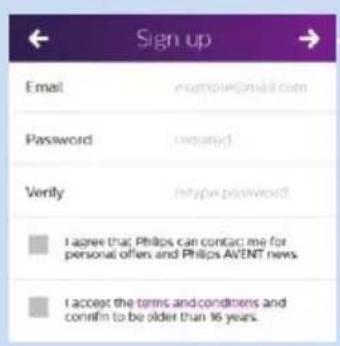
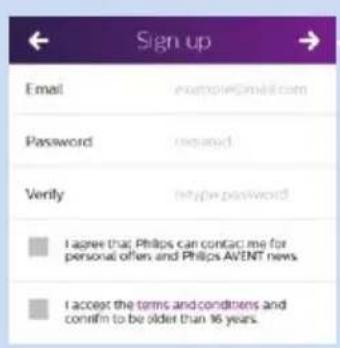
Simple line drawing of a remote control with concentric circles and a star-shaped highlight (no text or symbols)3 Follow the on-screen instructions to create a uGrow account.
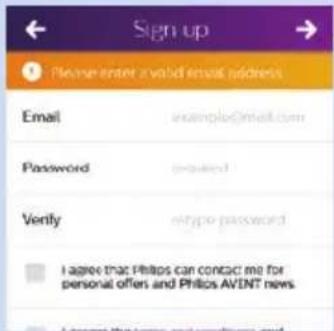
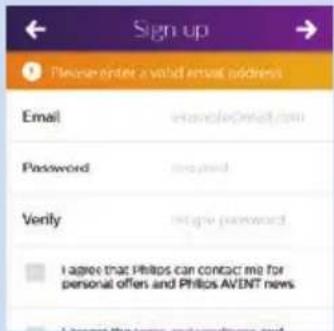
1 Make sure that you use a working email address on which you can always be reached.
2 Use a strong password (see 'Security and privacy').
3 When you receive the verification email, follow the instructions in this email to continue setting up your uGrow Smart Baby Monitor.
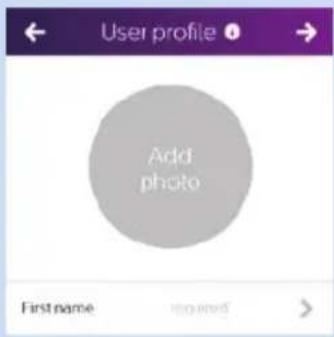
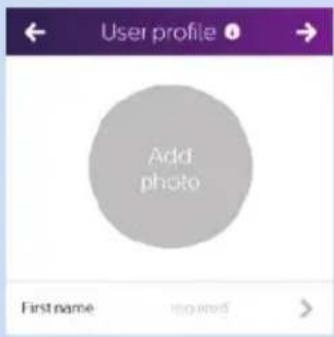
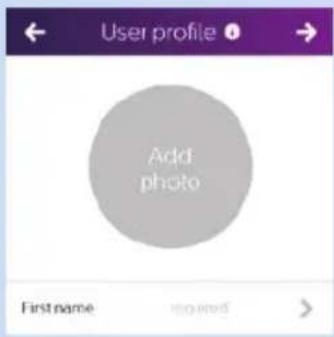
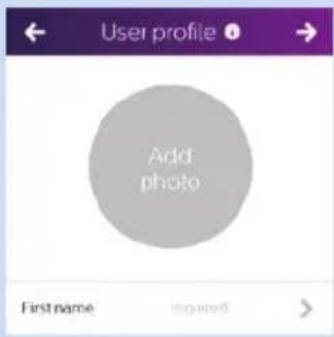
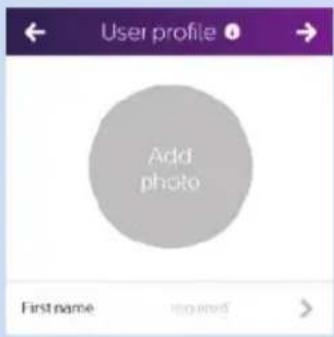
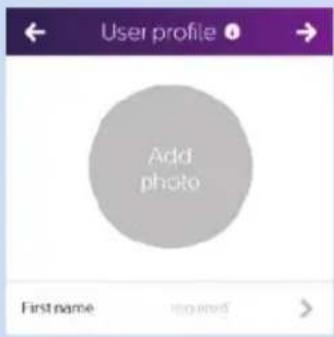
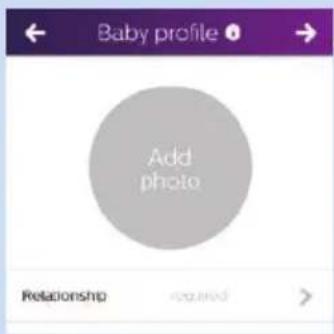
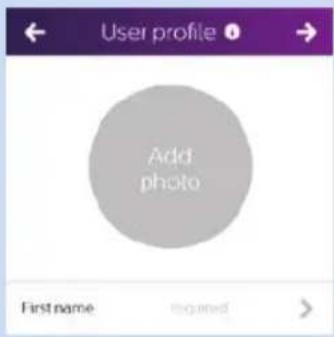
4 Create your user profile.
A user profile is needed to identify yourself to invited guest users.
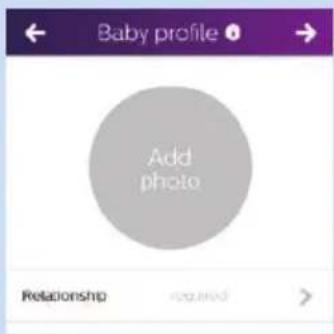
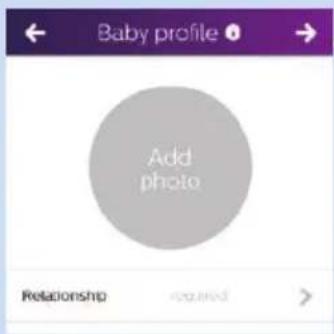
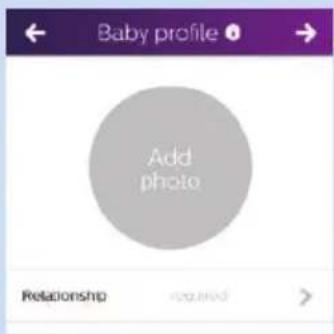
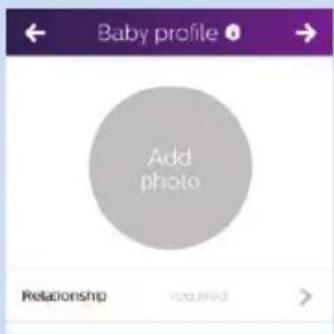
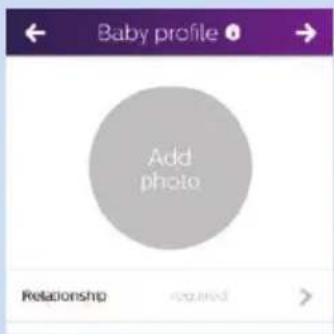
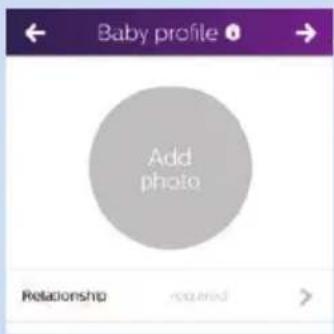
5 Create your baby's profile.
A baby name is needed to identify your baby monitor in the app, especially when multiple baby monitors are connected to your account.
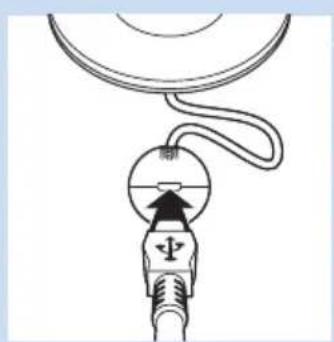
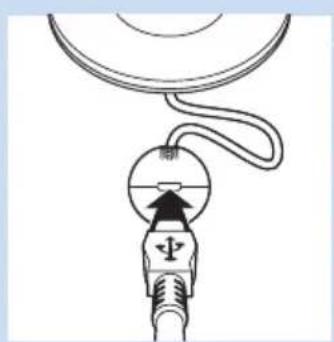
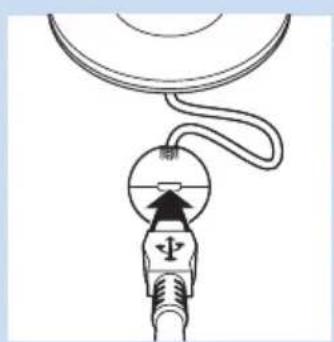
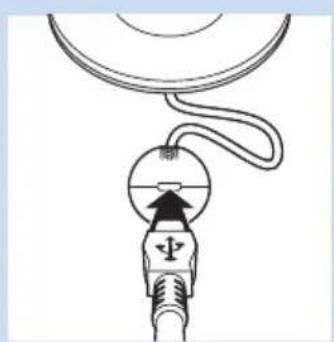
4 Follow the on-screen instructions to connect the baby monitor to the mains.
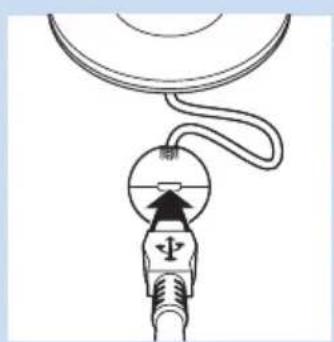
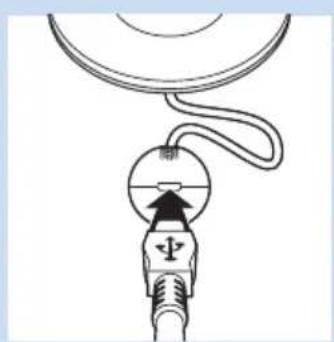
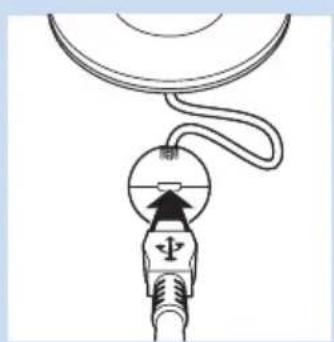
1 Insert the appliance plug into the appliance plug socket in the temperature and humidity sensor unit and insert the adapter into a wall socket.
2 The Wifi status light starts to flash orange when the baby monitor is switched on. Wait until the WiFi status stops flashing. When the WiFi status light is solid orange, the baby monitor is ready to read the WiFi QR code.
5 Link the baby monitor to your smart device.
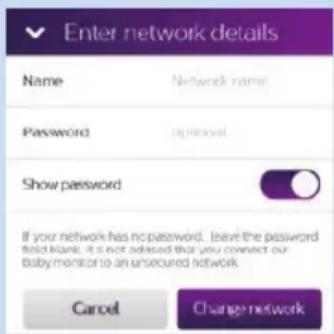
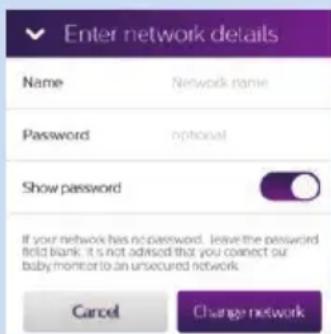
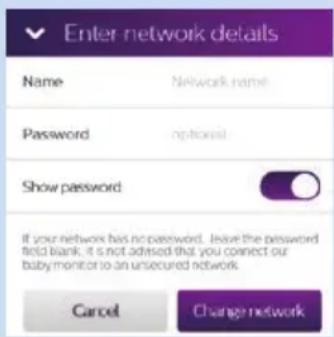
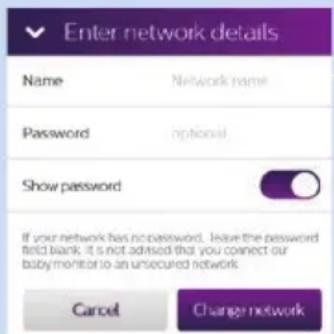
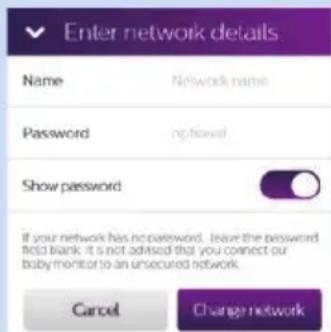
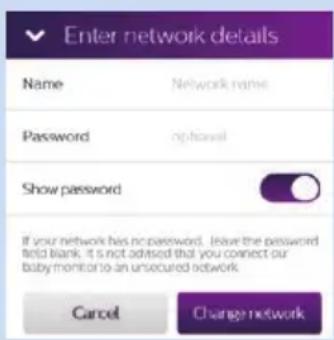
1 Select the WiFi network you want to use. Please note that the baby monitor only works on a 2.4 GHz WiFi network.
2 Enter the WiFi password.
1 Select the WiFi network you want to use. Please note that the baby monitor only works on a 2.4 GHz WiFi network. 2 Enter the WiFi password.
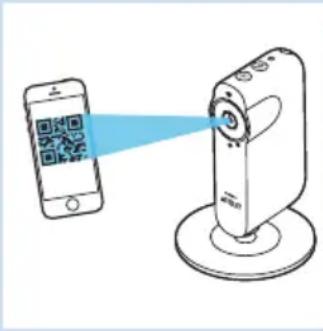
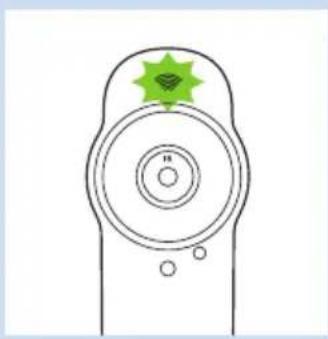
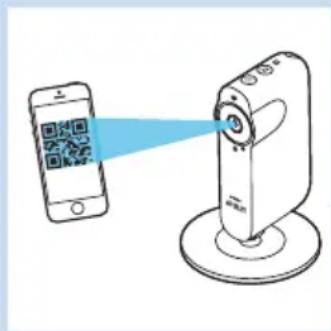
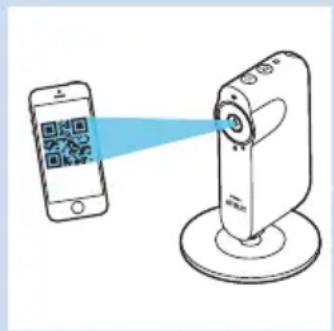
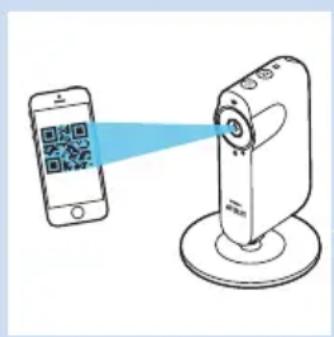
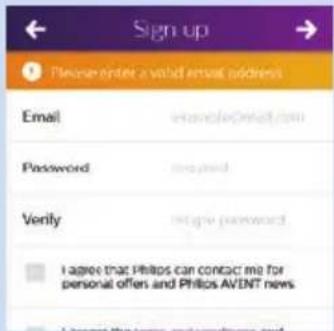
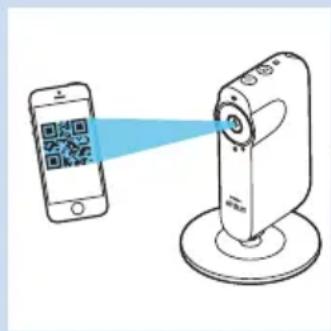
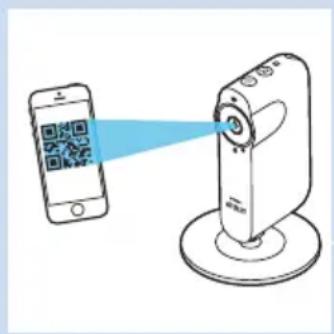
3 As instructed by the app, hold the WiFi QR code on the screen of your smartphone or tablet at a distance of around 20 cm in front of the baby monitor lens. Slowly move the smartphone or tablet closer or further away from the lens to ensure the WiFi QR is read properly. When the baby monitor has read the WiFi QR code, it plays a short tune and the WiFi status light starts to flash green.
4 Follow the on-screen instructions to complete the setup procedure.
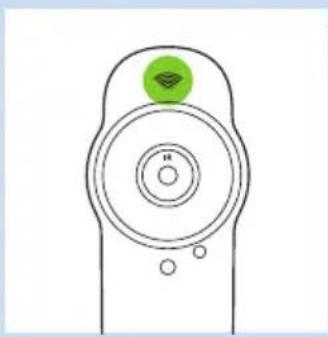
5 The WiFi status light turns solid green when the baby monitor is linked to the WiFi network.
Note: If you are unable to complete the setup procedure and your baby monitor is not linked to your smart device after you have completed the steps above, check 'Frequently asked questions' in this user manual for a possible solution.
Tip: For more information on the WiFi status light, see chapter 'WiFi status light signals'.
6 Next you get an introductory tour through the app.
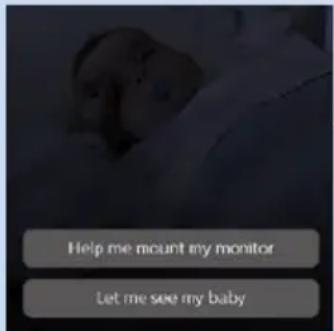
7 You can then choose between two options: 'Help me mount the baby monitor' and 'Let me see my baby'.
8 If you choose the first option, you can follow the on-screen instructions to mount the baby monitor on the wall (see chapter 'Mounting the baby monitor on the wall'). At the end of the on-screen instructions you can choose 'Let me see my baby'.
Mounting the baby monitor on the wall
natural_image
Line drawing of a hand holding a pencil with a cross mark (no text or symbols)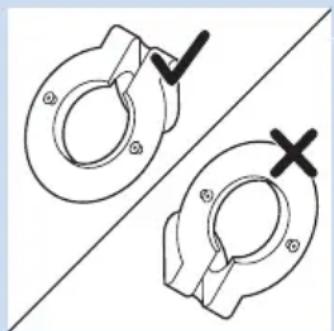
natural_image
Technical line drawing of two mechanical flange components with no text or symbolsThe baby monitor comes with a wall mounting bracket. Before you mount the baby monitor on the wall, make sure there is a good WiFi signal at the point where you want to mount the baby monitor. Follow the instructions below to fasten the wall mounting bracket to the wall and to attach the baby monitor onto the wall mounting bracket.
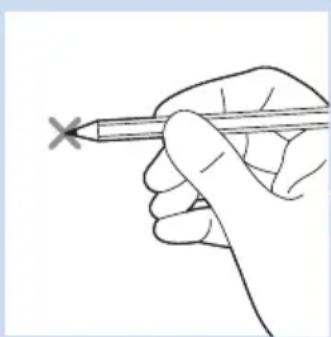
1 Use a pencil to put a cross on the wall at the place where you want to mount the baby monitor.
2 Hold the wall mounting bracket to the wall. Make sure that one of the holes is right over the cross that you put on the wall at step 1.
Note: Make sure that the ring of the wall mounting bracket slants downward when you hold it to the wall. If the ring of the wall mounting bracket slants upward, turn the wall mounting bracket the other way around so that it is in the correct position.
natural_image
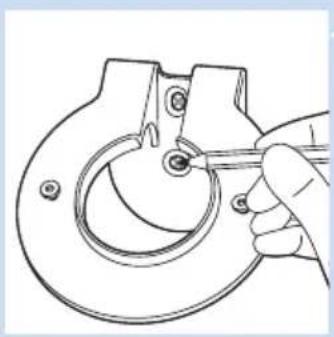
Hand holding a mechanical component with a tool, no visible text or symbols3 Use a pencil to mark the other screw hole on the wall.

natural_image
Line drawing of a hand holding a handheld electric drill pen (no text or symbols)4 Drill 2 holes in the wall at the marks.
natural_image
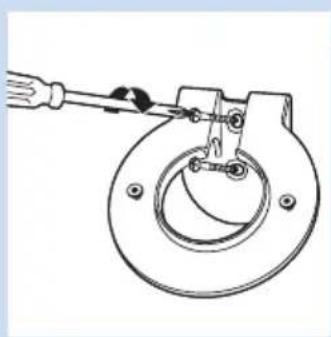
Technical line drawing of a mechanical clamp or bracket assembly with a tool (no text or symbols)5 Use 2 screws to fasten the wall mounting bracket to the wall. Tighten the screws with a screwdriver.
natural_image
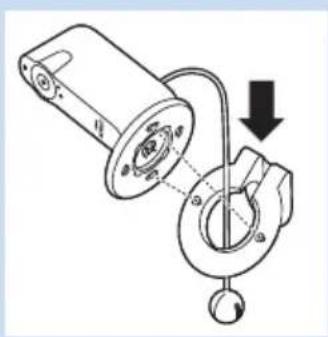
Mechanical assembly diagram showing a motor and gear assembly with a downward arrow indicating motion (no text or symbols)6 Pass the humidity and temperature sensor unit through the hole in the wall mounting bracket. Then align the slots in the foot of the baby monitor with the projections on the ring. Fit the groove in the foot of the baby monitor onto the raised edge on the inside of the ring.
natural_image
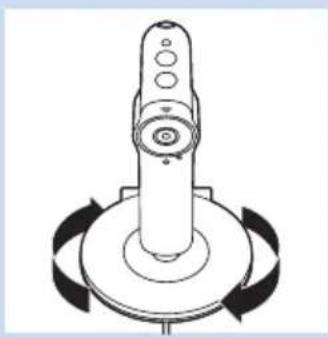
Diagram of a mechanical component with circular base and rotating arrows (no text or symbols)7 Turn the foot of the baby monitor clockwise to position the baby monitor.
natural_image
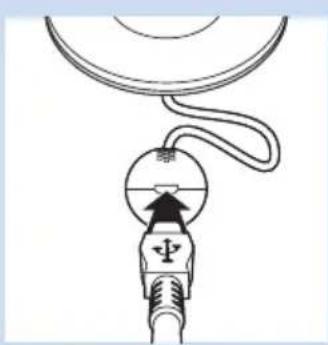
Diagram of a medical or scientific device with a bulb and connecting rod, no visible text or symbols8 Insert the appliance plug into the appliance plug socket in the temperature and humidity sensor unit and insert the adapter into a wall socket. Now your baby monitor is ready for use.
Quick start guide
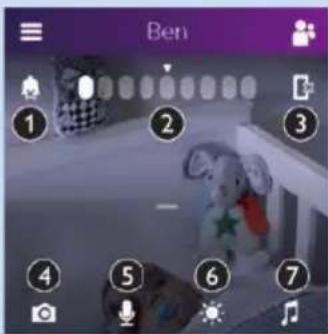
Main screen features
Top of screen:
1 All notifications on/off
2 Sound level indication bar
3 Switch audio on/off
Bottom of screen:
4 Snap shot
5 Talk-back
6 Nightlight
7 Lullabies
Quick action buttons
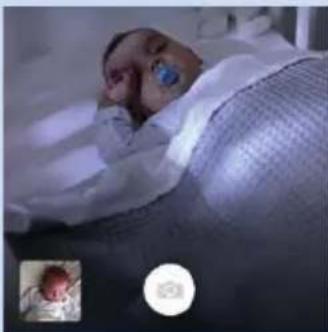
Snap shot: tap this button to take a photo of your baby.
- When you take a photo of your baby, the photo will be stored in the photo album on your smart device.
natural_image
Patient in hospital bed with medical equipment, no visible text or symbols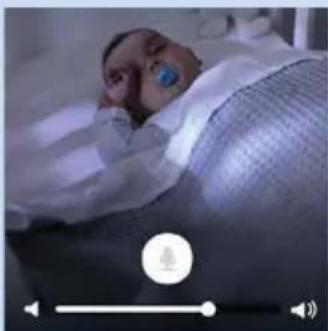
natural_image
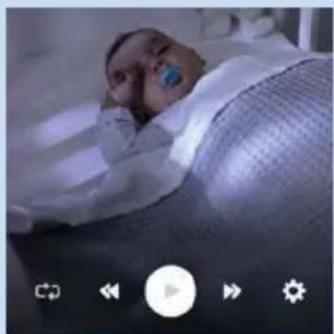
Medical professional lying in bed with visible ear and blue surgical mask (no text or symbols)▶Talk-back: tap this button to talk to your baby directly. Options available:
- Talk back on or off
- Adjust talk-back volume
natural_image
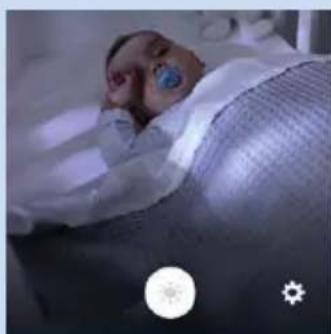
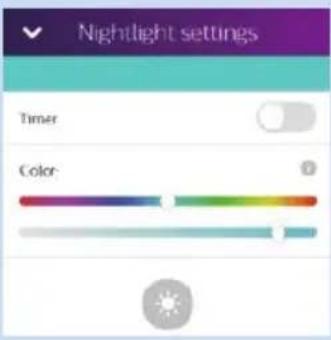
Person lying in a hospital bed with medical equipment, no visible text or symbolsNightlight: tap this button to switch the nightlight on or off. Tap the settings icon in the bottom right-hand corner to adjust the colour of the nightlight or to set the nightlight timer. Options available:
- Nightlight on/off
- Set the nightlight timer or switch the nightlight on continuously
natural_image
Patient lying in bed with medical equipment, no visible text or symbols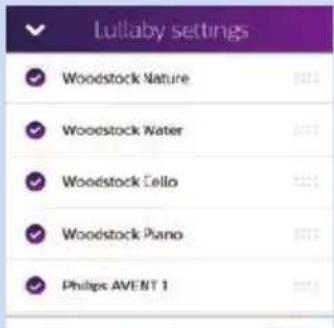

- Set the colour of the nightlight
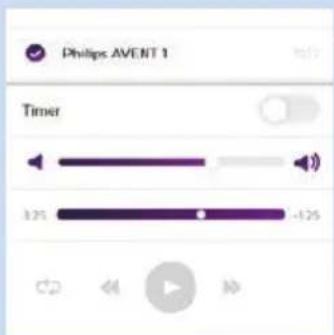
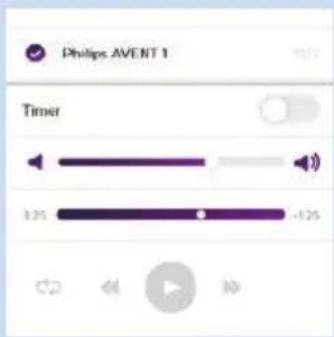
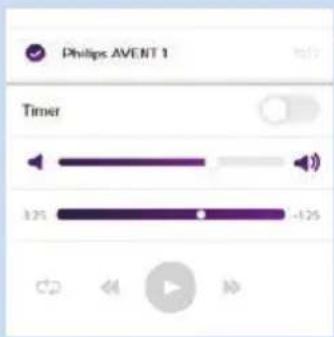
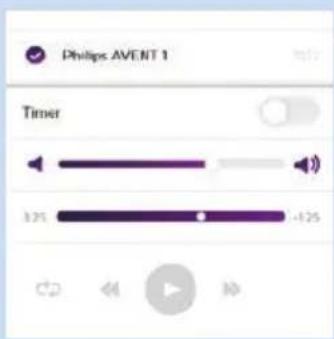
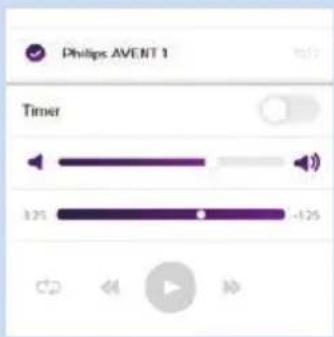
Lullabies: tap this button to switch lullaby playing on or off. Tap the settings icon in the bottom right-hand corner to select the lullabies, to set a timer and to adjust the volume. Options available:
- Select a lullaby from a list of lullabies
- Program a play list from the lullabies available
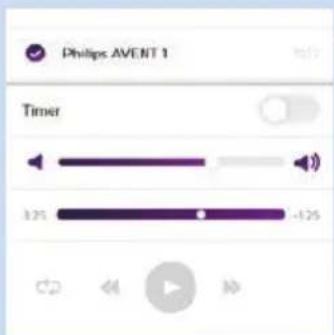
- Set the lullaby timer or choose play continuously
- Adjust the playback volume.
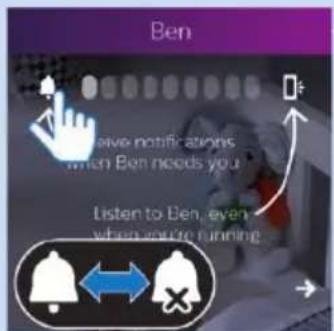
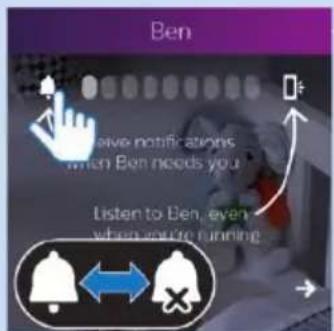
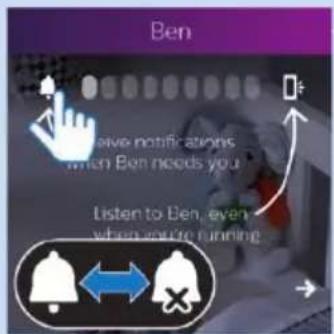
Background monitoring icons
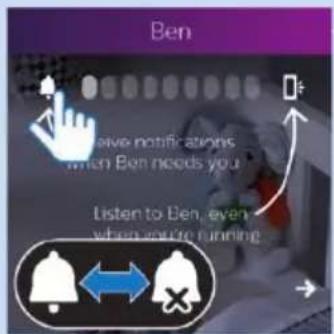
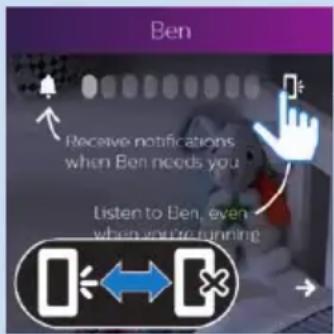
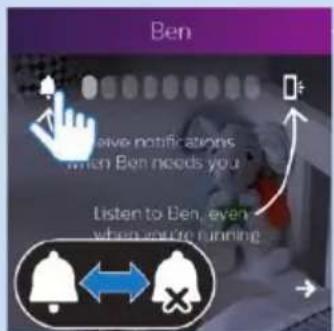
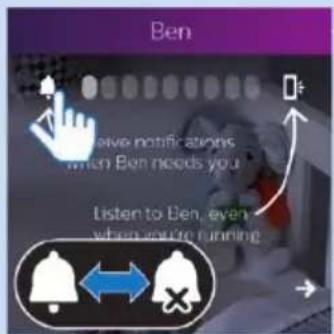
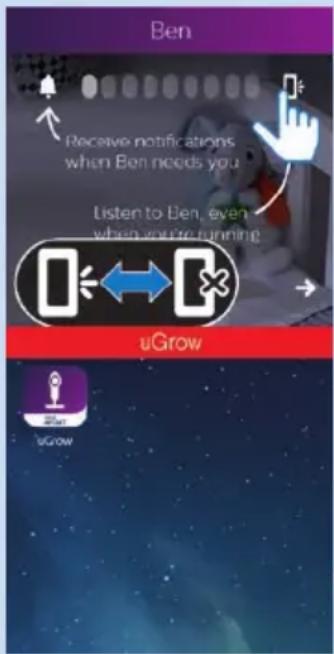
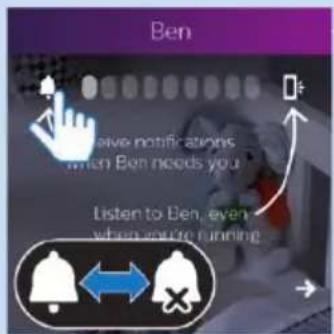
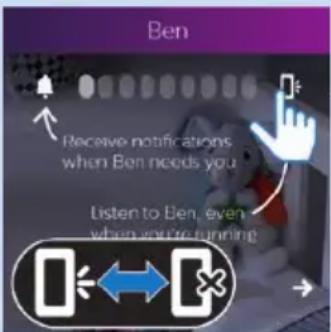
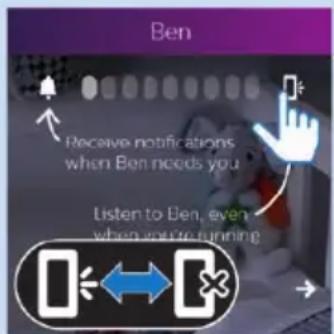
- Bell icon: tap to switch notifications on or off.
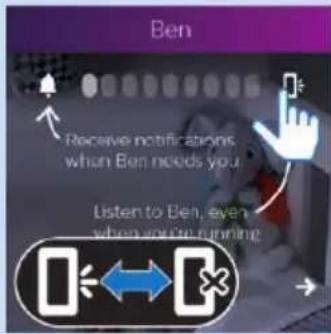
- Mobile phone icon: tap to switch audio on or off.
Note: For more information about background monitoring, see chapter 'Viewing, hearing and monitoring your baby'.
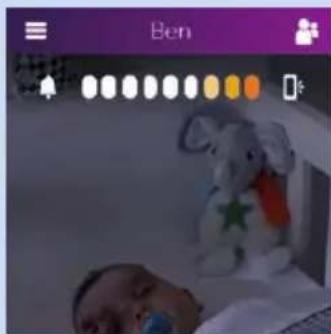
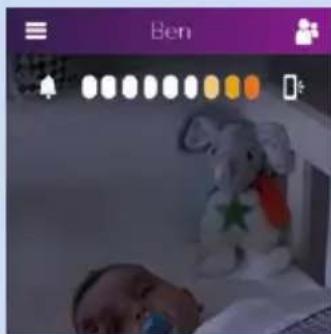
Sound level indication bar
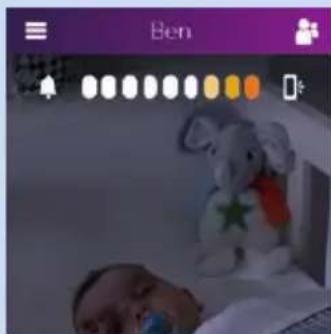
- The lights indicate the sound level in your baby's room.
Note: For more information, see chapter 'Viewing, hearing and monitoring your baby'.
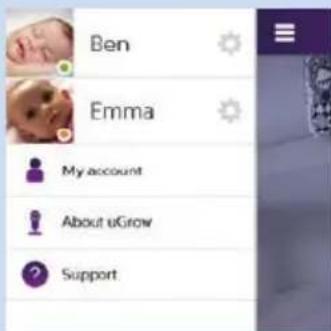
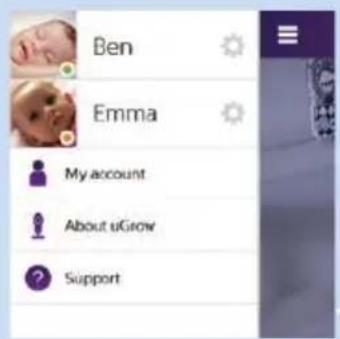
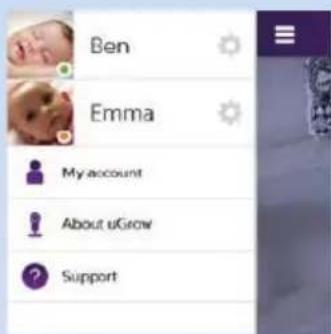
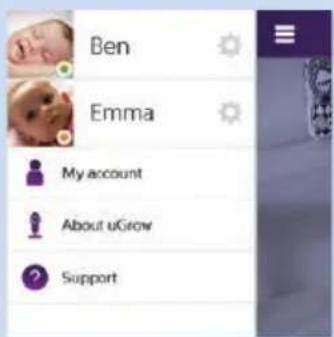
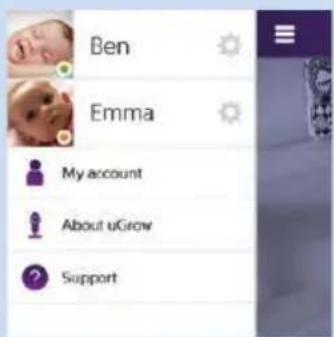
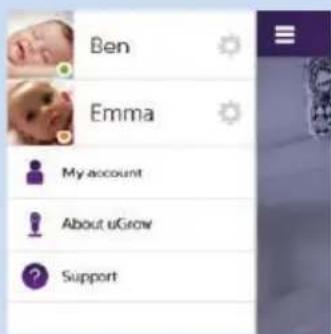
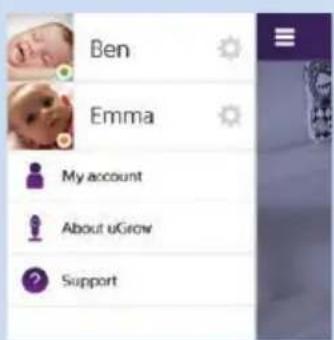
Left tray
- List of baby monitors linked to the app: tap the settings icon to set your baby monitor preferences and to invite guest users to view your baby
- My account: tap this option to view and adjust your account information, your profile and your baby's profile, and to add or remove a baby monitor
- About: tap this option for more information about the app, versions, etc.
- Support: tap this option to open the support menu
Note: For more information about the left tray, see chapter 'General app use'.
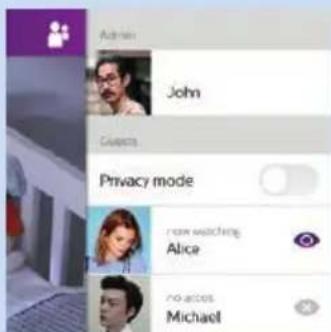
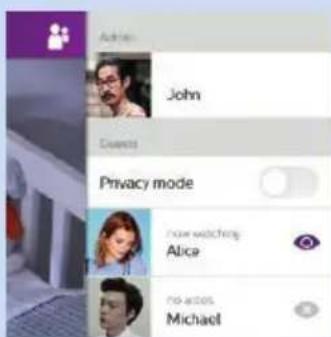
Right tray
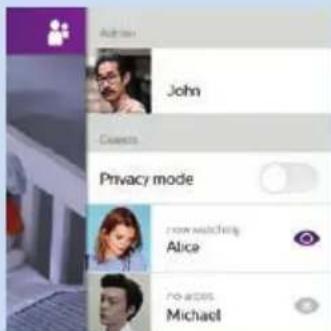
The right tray gives information on the users connected.
Note: The options in the right tray are only available to you if you are an admin (for more information about the right tray, see chapter 'General app use').
- It shows who is currently watching
- It shows who has access or has no access
The privacy mode button prevents all users from being able to watch your baby
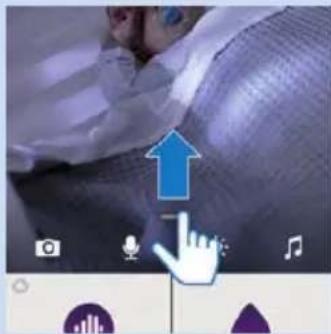
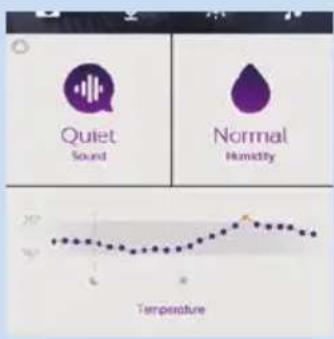
Dashboard
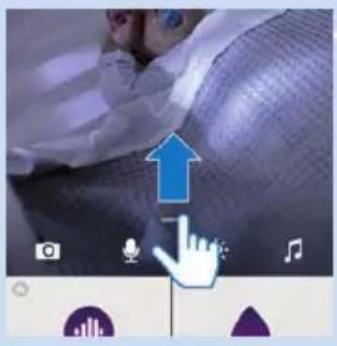
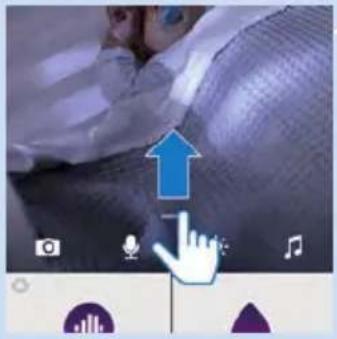
The app's dashboard is in the bottom tray.
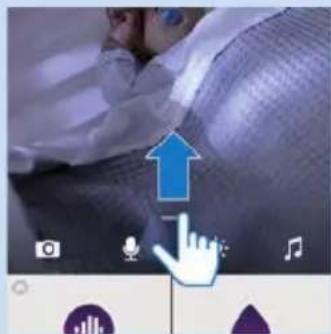
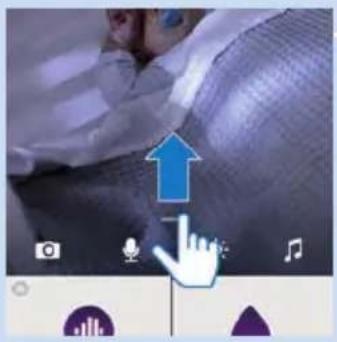
1 Put your finger on the horizontal line on the screen just above the icons at the bottom of the screen. Pull this line towards the top of the screen. The icons at the bottom of the screen also move up.
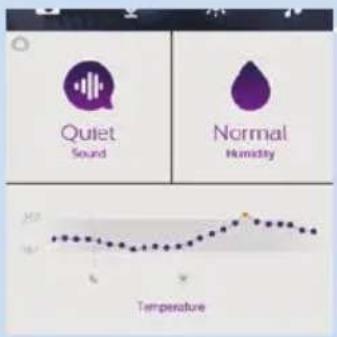
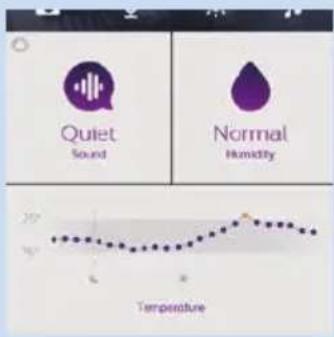
2 When you have pulled the line up, the dashboard in the bottom tray is fully visible.
On the dashboard you have a number of notification options:
1 Sound
2 Temperature
3 Humidity
Note: For more information about the notification options on the dashboard, see section 'Notification options' in chapter 'Viewing, hearing and monitoring your baby' in this user manual.
Viewing, hearing and monitoring your baby
You can watch, hear and monitor your baby on your smartphone or tablet. You can also comfort your child by talking to it.
Viewing your baby
natural_image
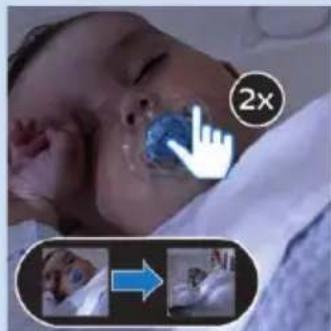
Medical photo showing a patient in bed with a hand pointing at 2x magnification (no text or symbols on the image itself)Zooming and panning
Note: This feature is only available in portrait viewing mode.
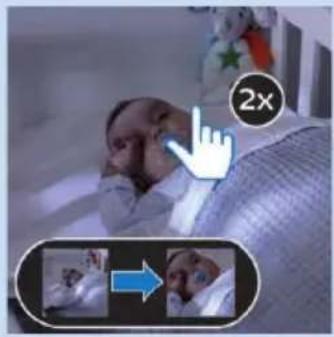
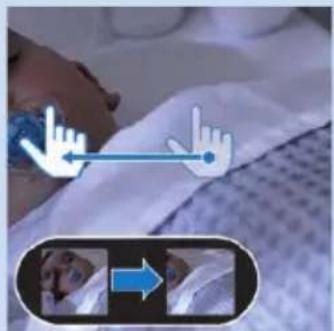
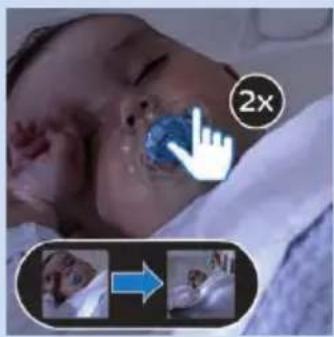
1 When in full screen mode, double tap or pinch outwards to zoom in.
natural_image
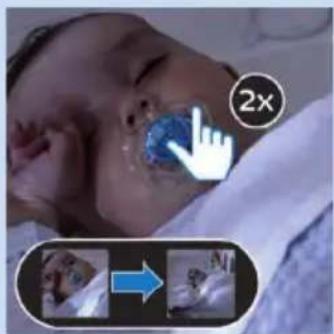
Close-up of a baby's face with a hand pointing to the eye area, accompanied by two circular icons showing a close-up photo (no text or symbols)2 Double tap or pinch inwards to zoom out.
natural_image
Medical procedure image showing hand placement on a patient bed with close-ups of the right side (no text or symbols visible)3 Drag to pan through a zoomed-in image.
natural_image
Close-up of a person lying in bed, wearing a blue surgical mask (no visible text or symbols)Portrait or landscape viewing
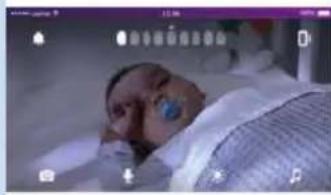
- Rotate your smartphone or tablet to view your baby in landscape mode.
Night vision mode
When the light level in the room is low, the baby monitor switches to night vision mode.
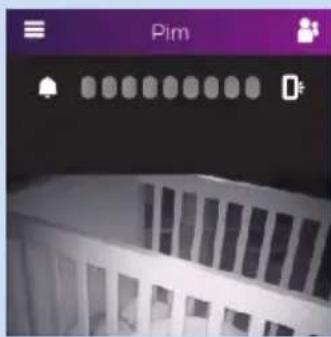
- In this mode, you see black and white images of your baby on your smart device.
Hearing your baby
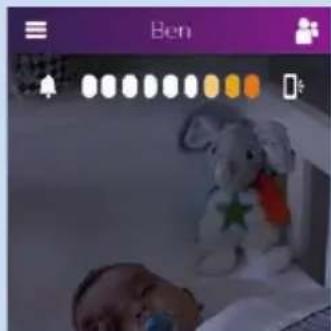
You hear your baby when it starts to cry.
- How loud you hear the baby, depends on the set volume level of your smart device.
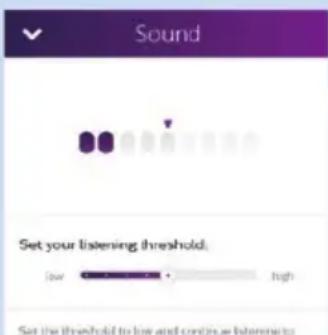
- The level of sound produced by the baby is also visible on the sound level indication bar. The number of lights that light up indicates the loudness of the sound in your baby's room. The indication bar works from left to right. The further to the right the lights light up, the louder the sound is.
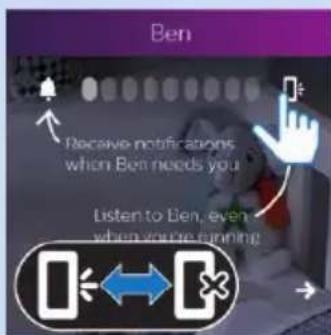
Note: The audio on/off button must be set to 'on' for you to hear your baby at all.
Tip: Connect your smart device to mains power when you want to use it for overnight monitoring to prevent the battery from running out.
How to get notified that your baby cries
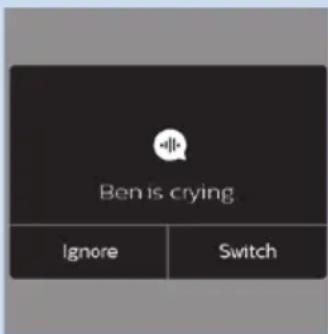
1 Push notification: you receive a push notification when your baby starts to cry.
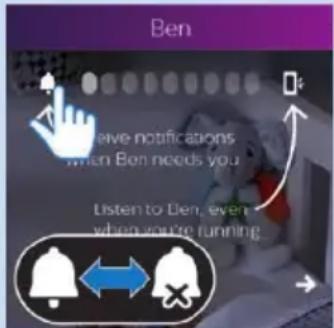
Note: If you want to receive a notification while you are performing other activities on your smart device (e.g. texting, phoning, browsing the Internet), make sure that you set the all notifications toggle switch to 'on'.
Tip: Switch on vibration in the 'Settings' of your smartphone if you want your smartphone to vibrate to alert you when your baby cries, for instance when you carry the smartphone in your pocket or because you are in a loud environment.
How to specify when you receive a notification
You can also specify in the dashboard when you want to receive a notification.
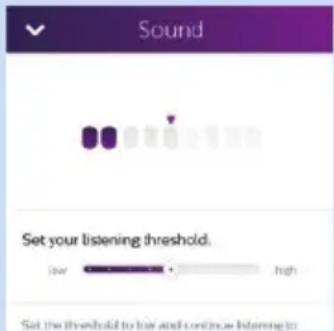
1 Receive a notification when the your baby's sound passes the set level.
2 Receive a notification when the baby has been crying for a preset time.
Note: If you choose ‘no notification’, you don’t receive any notification that your baby is crying (see section ‘Notification options’ in this chapter.
Switching notifications on or off on your smart device
Notifications are a setting on your smart device (outside the app). You can select if and how you want to receive notifications from the app.
1 Go to the notification centre on your device.
2 Select notification and click to set it on or off.
Background monitoring
Background monitoring is a feature in the app that ensures that you can hear your baby and/or receive notifications about your baby while you are doing other things on your smart device. Background monitoring is on by default, but you can switch it off.
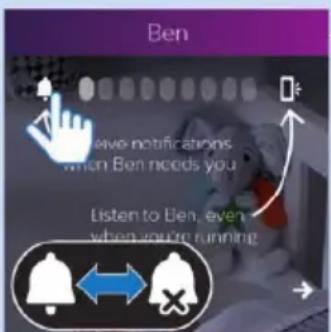
Switching background monitoring off or on
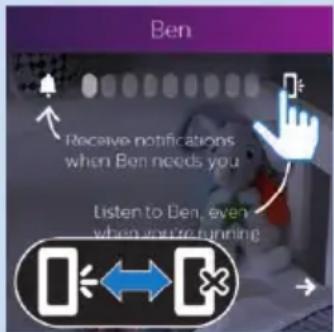
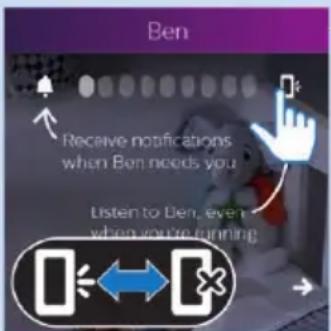
- Tap the bell icon to switch all notifications on or off. When the all notifications toggle switch is set to 'on', you receive a message on your screen when the baby starts crying. You can set your notification preference in the dashboard and/or monitor settings screen.
Note: Set the all notifications toggle switch to 'on' to receive all notifications about your baby if the app is running in the background, for example when you do something else on your smart device or the device is on standby with its screen off. The all notifications toggle switch has to be set to 'on' if you want to adjust personalised notifications on temperature, sound and humidity in the dashboard.
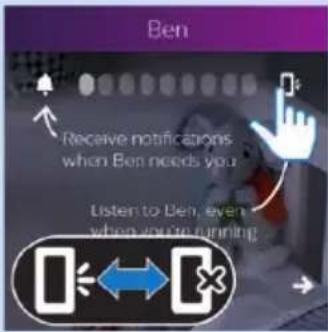

- Tap the mobile phone icon to switch audio on or off.
Note: If you mute the sound, you will not be able to hear your baby when you switch to another function on your smart device (phoning, texting, etc.).
Note: When you make a mobile call or use a VoIP app (e.g. Skype, Viber or FaceTime) to call someone, you will not hear your baby. As soon as the baby starts to cry, however, you will receive a notification.
Switching from background monitoring to app main screen
The app remains active in the background, also when the device is on standby. While background monitoring is active, there is a red bar at the top of the screen of your smart device.
1 To switch from background monitoring to the app main screen, tap the red bar at the top of the screen to bring the app to the foreground.
Notification options
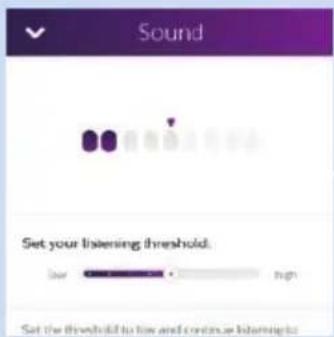
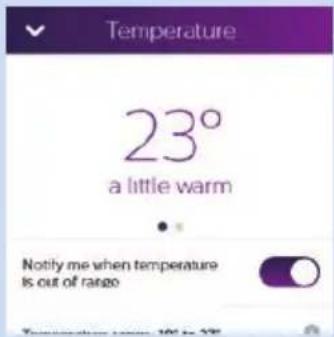
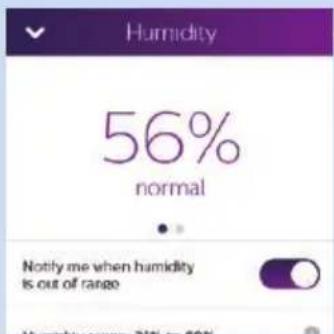
The app's notification options are in the dashboard. The dashboard is located in the tray at the bottom of the screen. Pull up the dashboard to see the option menu. The menu contains the following options.
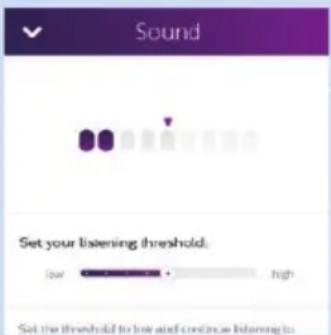
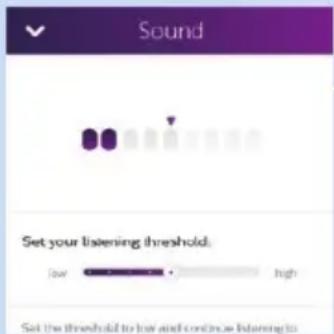
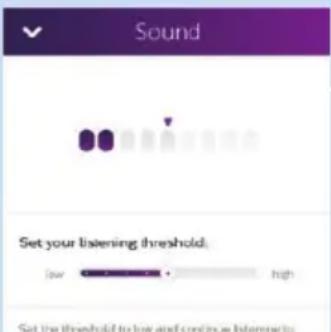
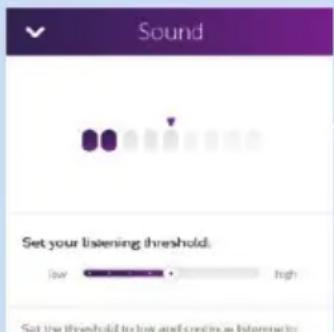
Sound
- Set the slider to a sound level above which you wish to be notified
Note: If the slider is set to 'quiet', you will hear your baby continuously when you leave the app.
- Set the duration of the sound after which you wish to be notified
Temperature
- Set the temperature range above or below which you want to receive a temperature notification
- Switch temperature notification on or off
- Display current temperature or history
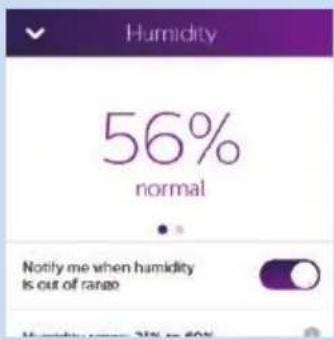
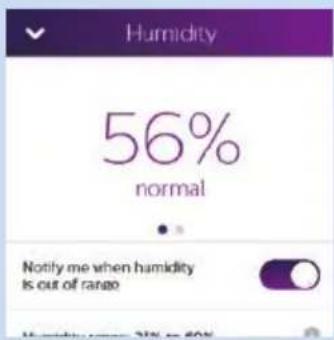
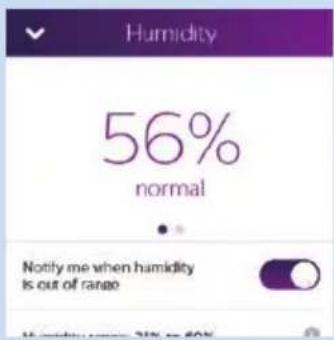
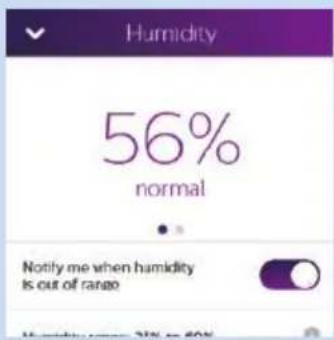
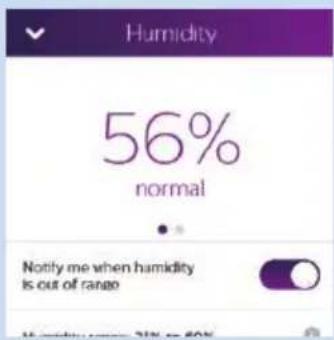
Humidity
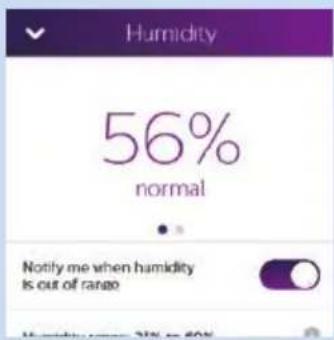
- Set the humidity range above or below which you want to receive a humidity notification
- Switch humidity notification on or off
- Display current humidity or history
Guest viewers and accounts
Inviting guests and a second admin
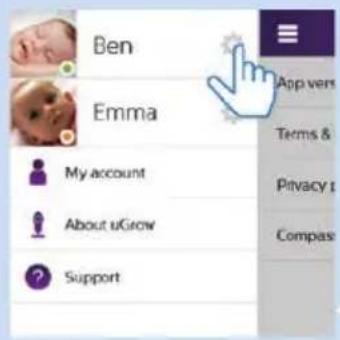
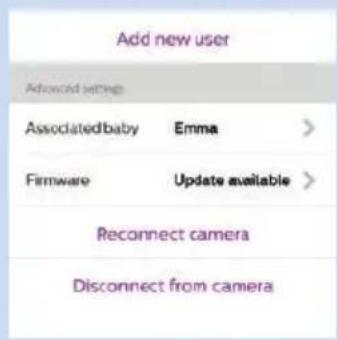
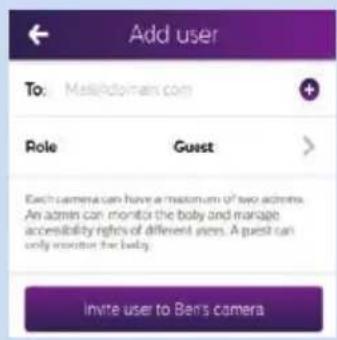
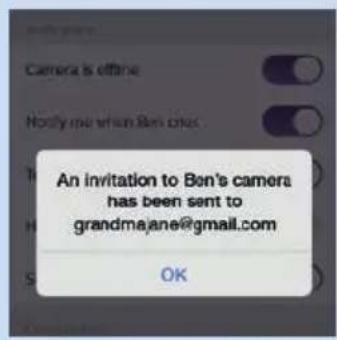
You can invite up to nine relatives or friends as guests and allow them to watch your baby on their smartphone or tablet. You can invite one of these guests to act as second admin. A second admin has the same rights as the first admin. Guests only have viewing rights and these rights are controlled by the admin(s). Just like a guest, an admin has viewing rights. On top of that, the admin has the right to invite guests, to give them access, to remove their access and to disconnect them. The admin can also deactivate his or her account and thereby disassociate the guests from the baby monitor.
1 In the left tray, tap on the settings icon next to the baby monitor.
2 Scroll down and tap 'Add new user'.
3 Add a guest's email address and his or her role (admin or guest).
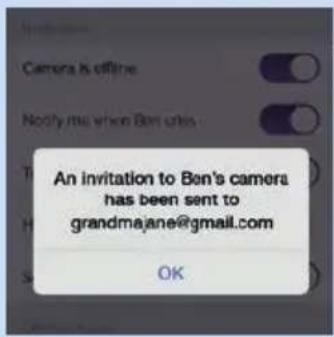
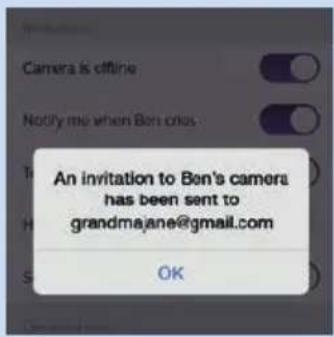
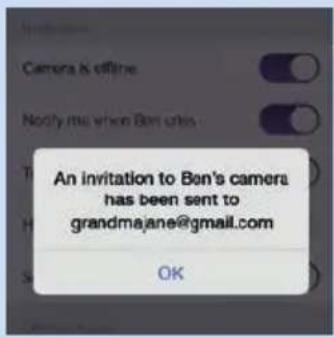
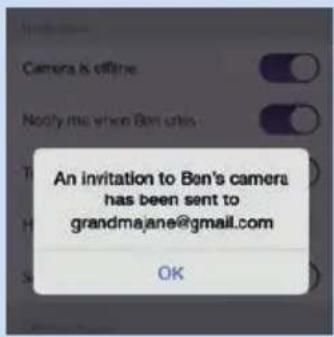
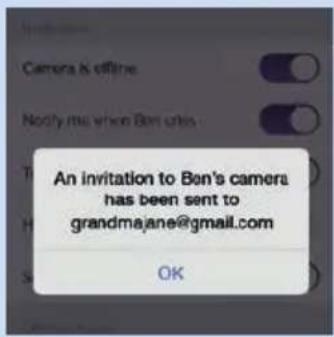
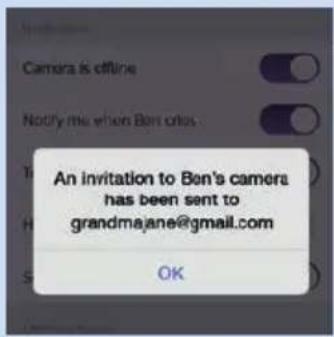
4 The app sends an email to the person invited and you see a notification pop up that an email has been sent.
5 The guest receives an email with an invitation code that is only valid for a limited period. The email also contains a link to the App Store. The guest can click this link to install the app.
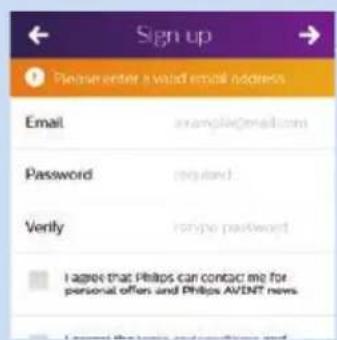
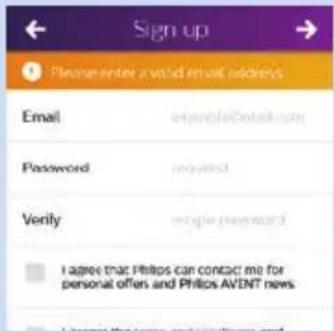
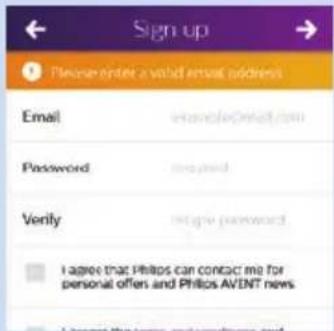
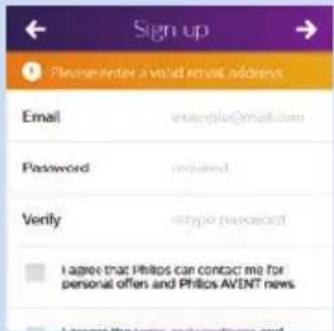
6 After installing the app, the guest creates an account by following the instructions in the app.
natural_image
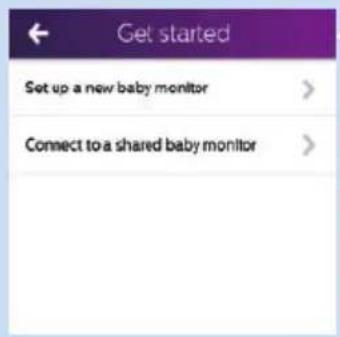
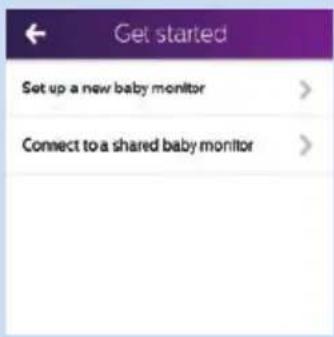
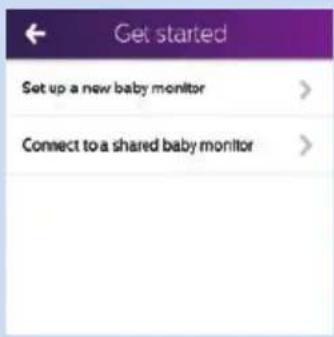
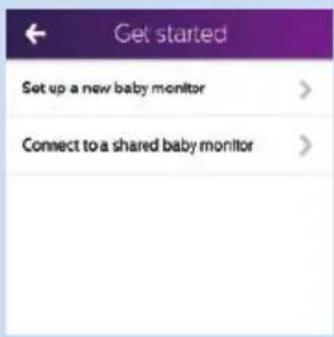
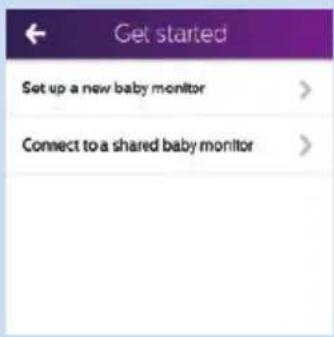
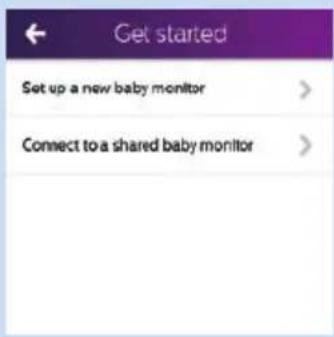
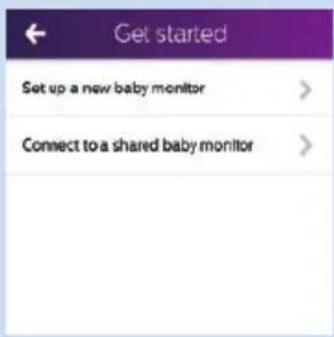
Simple line drawing of a remote control with a red circular indicator and leaf symbol (no text or labels)7 The guest selects the 'Connect to a shared baby monitor' option during the setup process. This opens the page on which the invitation is validated.
8 The guest enters the invitation code, his email address and confirms. The code and the email address are checked.
9 The admin receives an email that confirms that the guest has been connected to the baby monitor and that the admin can now grant the guest access.
10 When the admin has granted the guest access, the guest can view the baby.
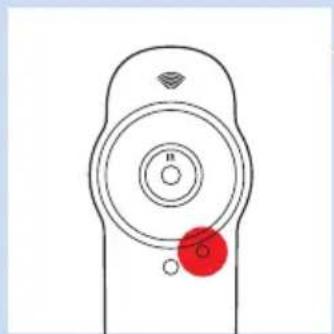
- When one or more people watch the baby, the red viewing indicator lights up red.
Note: Although up to ten people (eight or nine guests and one or two admins) have viewing rights to the same baby monitor, only three people can watch the baby at the same time. If guests try to access the baby monitor while three viewers are already watching, they will receive the message 'Too many connections'. Admins can always override the access of the guests if they want to watch the baby.
Giving and removing access
Users with admin rights can determine who can watch the baby.
1 To remove access for a guest viewer, go to the right tray, tap the guest whose access you want to remove and tap the eye icon next to the guest's name.
Tip: If there are already three people watching your baby and you want to give someone, e.g. the babysitter, access to the baby monitor, you can remove access for one of the current viewers and give someone else access instead.
2 To give a guest viewer access, go to the right tray, tap the guest you want to give access and tap the eye icon next to the guest's icon.
3 If you want to remove access for all viewers simultaneously, tap the privacy mode button. This will deny everyone except yourself access to the baby monitor until you tap the privacy mode button again.
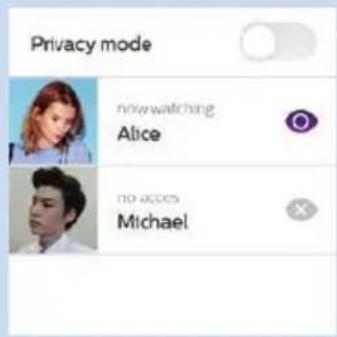
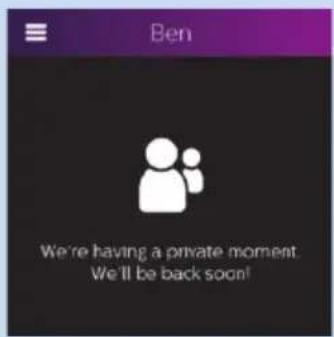
Tip: You can use the privacy mode button to have a moment of privacy with your baby, e.g. to breastfeed or bathe the baby or to change its nappy. The guests who try to access the baby monitor receive an on-screen notification.
Account management
Disconnecting a guest
To disconnect guest users from the app permanently, you have to remove them from the list of guests. A guest may also disconnect himself permanently from the app.
Deactivating your user account
If there is only one admin and this admin deactivates his or her account, all the accounts of guest users are disassociated from the baby monitor, although the accounts continue to exist. If there are two admins, both admins have to deactivate their accounts to disassociate all accounts. If only one of the two admins deactivates his or her account, the guests remain connected to the baby monitor.
If you want to transfer the baby monitor to someone else, if you lose the baby monitor or if the baby monitor is stolen, we advise you to deactivate the admin account or accounts. This is essential to protect you and your baby's privacy.
![Are you sure you want to deactivate your [Philips] account?](/content/2026/03/446602/images/d3d28b3afbcca743ed2325a7dee9d3916276602da8d6fc73e47ae5ce91c9dd84.jpg)
![Your [Philips] account has been deactivated. OK](/content/2026/03/446602/images/8850d9be9be08c4f75b722eb5d8b4bdaac5a51c347105112810346b6337f599a.jpg)
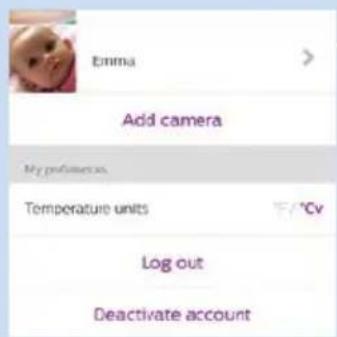
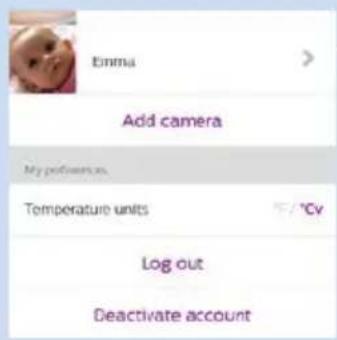
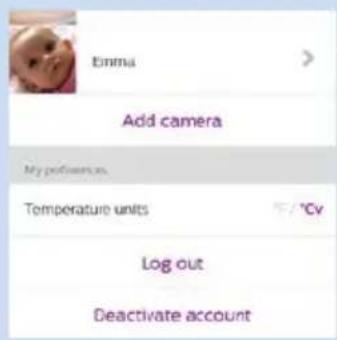
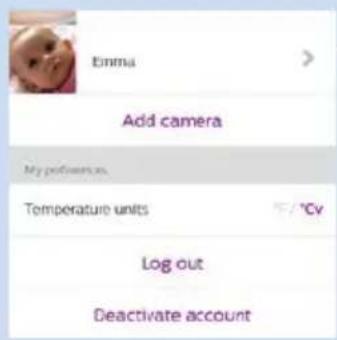
1 To deactivate your account, go to the left tray and tap on 'My account'.
2 Tap on 'Deactivate account'.
3 A pop-up window appears that asks you to confirm that you wish to deactivate your account.
4 When you tap on 'Deactivate', a pop-up window confirms that your account has been deactivated.
Adding or removing baby monitors
You can add up to ten baby monitors in the app. This allows you to monitor more children or the same child in more rooms. You may, for instance, want to install a monitor over the baby's cot in the baby room and over its playpen in the living room. You have to connect the baby monitors to the app one by one.
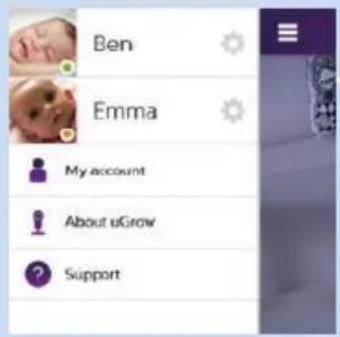
1 Go to 'My account' in the left tray.
2 You will see the list of baby monitors connected. Tap on 'Add baby monitor'.
3 Follow the instructions in chapter 'First-time setup' in this user manual to connect the baby monitor to the app.
General app use
Video and audio quality optimisation
natural_image
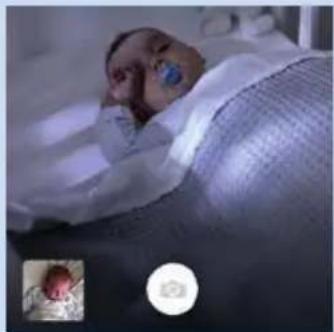
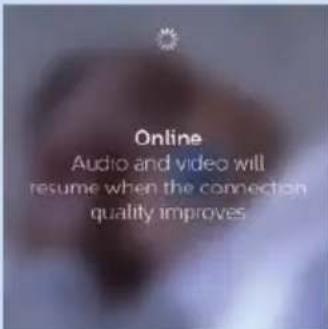
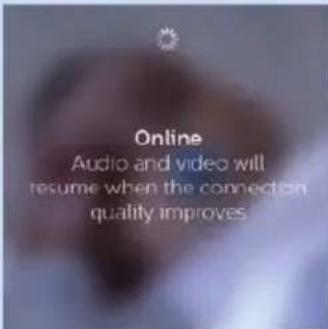
Medical photo of a newborn in bed with visible medical equipment and a close-up inset of a baby (no text or symbols)The quality of the video and audio on your smart device may change over time, depending on the available bandwidth of your connection to Internet. Using a WiFi connection typically gives the best results, while 4G and 3G may offer less bandwidth and deliver reduced quality. The app will automatically offer you the best possible experience, by matching the video and audio quality to the bandwidth available.
Matching takes place in steps:
1 Large bandwidth: good video and audio quality, with text notifications.
natural_image
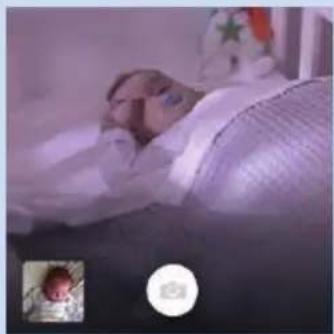
Patient lying in bed with medical equipment, no visible text or symbols2 Reduced bandwidth (such as when using 3G): reduced video quality; good audio quality, with text notifications.

3 Small bandwidth (such as when using 2G): only an audio link will be available, with text notifications
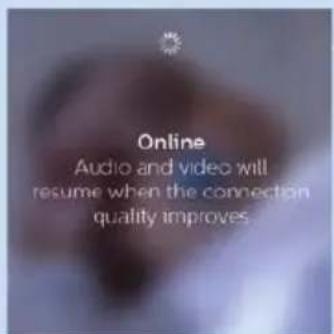
4 Very small bandwidth: only text notifications are available
WiFi connection to the Internet
You get the best results if you connect your smart device to the Internet via WiFi. It will then automatically use the WiFi network to link to your baby monitor. When there is no WiFi connection to the Internet, your smart device switches to its 3G or 4G mobile data connection. Use of this data connection may involve extra charges from your provider, depending on your subscription. A video connection typically requires 0.1 to 0.25 MB of data per second. An audio connection requires 0.01 MB of data per second. If you want to prevent your smart device from connecting to the 3G or 4G network, you have to switch off the mobile data connection of your device. This will affect all other apps that may use the 3G or 4G mobile data connection. Please note that, if you switch off the mobile data connection, you will not be alerted that your baby is crying when you lose the WiFi connection to the Internet.
Using the baby monitor away from home
You can use the monitor at any place where a 2.4 GHz WiFi network is available, whether it as a friend's or relative's home or at a hotel or holiday residence. If you have the WiFi network name and the WiFi password, you can set up and use your baby monitor away from home. Follow the setup instructions below to do so. Once you have set up connection with a WiFi network, the settings are stored in the memory of your device and you need not repeat the setup procedure as long as you use your app and baby monitor at the same place.
Note: If the WiFi network connection requires an extra confirmation, e.g. to agree to the terms of use, the baby monitor will not be able to connect to the WiFi network. This may happen on hotel WiFi networks and other public WiFi networks.
1 There are two options to connect the baby monitor to the WiFi network.
- The first option: When you switch on the baby monitor, you get the message 'Baby monitor not found'. Wait until the app offers the option 'Reconnect the baby monitor'.
- The second option: Switch on the baby monitor. Open the left tray, select the baby monitor and choose 'Reconnect the baby monitor'.
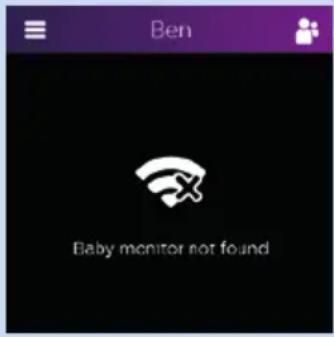
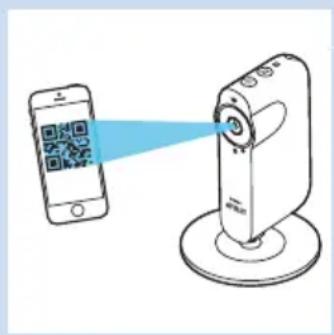
2 When the app has generated a WiFi QR code, hold the screen of your smartphone or tablet at a distance of around 20 cm in front of the baby monitor lens. Slowly move the smartphone or tablet closer or further away from the lens to ensure the WiFi QR is read properly.
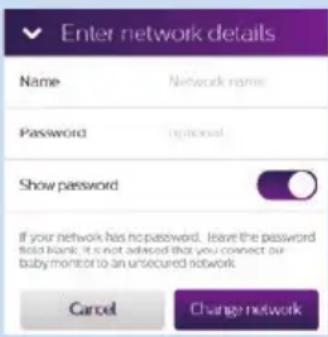
3 Follow the rest of the on-screen instructions to complete setup. The setup procedure is completed and the baby monitor is connected to the WiFi network and ready for use, when the WiFi status light on the front of the baby monitor turns solid green.
Note: When you return home, you have to follow the procedure above to reconnect the baby monitor to your home WiFi network.
Using the app on several devices
You can use the uGrow Smart Baby Monitor app on more than one device (e.g. on your iPhone and your iPad).
Note: When you log in with the same account on a device while the app is active on another device, the device on which the app was active first will automatically log you out. You cannot use the app under the same account on two different devices simultaneously.
Resetting the baby monitor
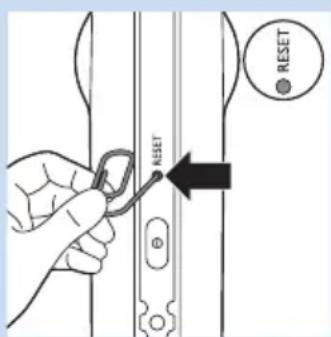
The baby monitor has a reset button on the back. When you press this button the baby monitor is reset to its factory default settings. This means that you disassociate all accounts from the baby monitor.
Note: Always reset the baby monitor by pressing the reset button before you transfer the baby monitor to someone else. This is necessary to protect your privacy. Also reset the baby monitor when you buy or receive it second-hand.
How to reset to factory default settings
Note: Make sure the baby monitor is switched on before you reset it.
1 While the baby monitor is on, press the reset button on the back of the baby monitor with a paperclip or another pointed object. It is recommended to do this when the baby monitor is connected to your WiFi network.
2 Keep the reset button pressed until the baby monitor beeps, then you can release the button. When you release the button, the baby monitor plays a short tune to confirm the reset.
What to do after a reset to factory default settings
After the baby monitor has been reset, the WiFi status light flashes orange when you switch on the baby monitor to indicate that it is rebooting after a reset. When the WiFi status light stops flashing, you can connect the baby monitor to your WiFi network again. Follow the instructions in chapter 'First-time setup' in this user manual. If you invited other people to access the baby monitor, you need to invite them again.
Firmware upgrades
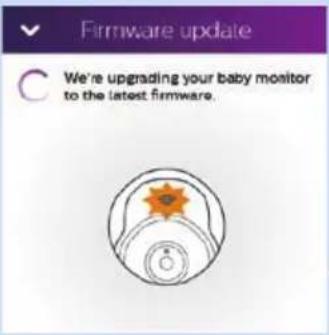
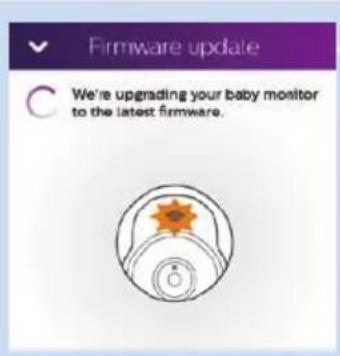
Upgrading is essential to safeguard your privacy and the proper functioning of the baby monitor and the app.
- Essential upgrades are mandatory. Mandatory app upgrades are installed on your smart device automatically and do not require confirmation. You will only receive a notification that a forced mandatory upgrade is taking place.
- From time to time, you receive notifications that upgrades are available for your baby monitor's firmware or for the app software. The upgrades are installed when you confirm them.
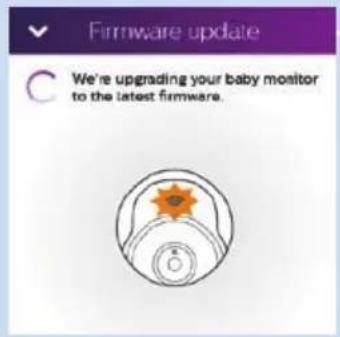
- To look for firmware upgrades for your baby monitor, open the left tray and tap the settings icon next to the baby monitor. Scroll down to 'Firmware' and tap on it to check for firmware upgrades. If an upgrade is available, tap on it to install.
Note: When an upgrade is being installed, you are temporarily unable to view and hear your baby.
WiFi status light signals
Off
1 Off: The baby monitor is off
Orange
1 Flashes orange fast: the baby monitor is starting up.
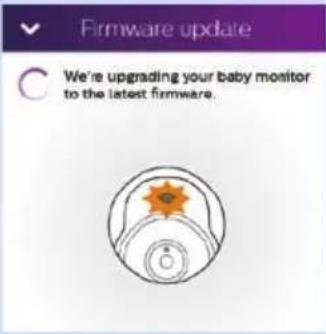
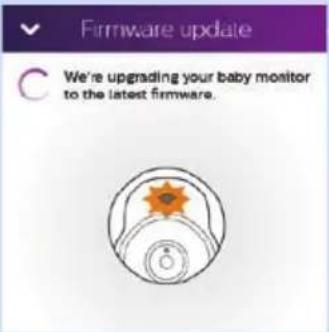
2 Flashes orange slowly: the baby monitor is upgrading its firmware.
Note: The WiFi status light might switch off shortly during the firmware upgrade.
natural_image
Line drawing of a handheld device with a circular lens and base mount (no text or symbols)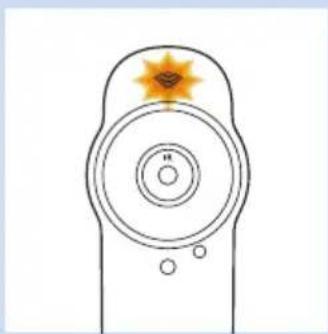
natural_image
Simple line drawing of a remote control with a star-shaped head and circular dial (no text or symbols)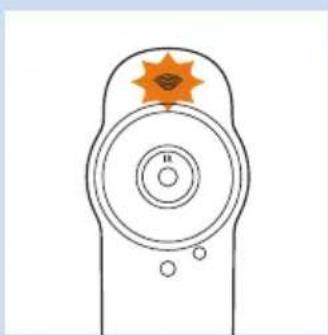
natural_image
Simple line drawing of a remote control with an orange star on the top (no text or symbols)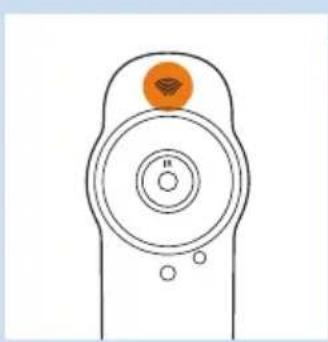
natural_image
Simple line drawing of a remote control with a circular dial and an orange button (no text or symbols)3 Solid orange: the camera of the baby monitor is ready to read the WiFi QR code generated by your smartphone or tablet.
Green
natural_image
Simple line drawing of a remote control with a green star badge on the top (no text or symbols)1 Flashes green: the WiFi QR code has been read successfully.
natural_image
Simple line drawing of a remote control with a green sensor icon on the top (no text or symbols)2 Solid green: the baby monitor is connected to the WiFi network.
Red
natural_image
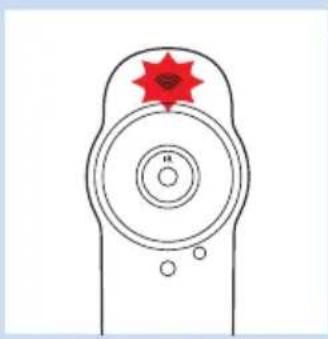
Simple line drawing of a target with concentric circles and a red star on top (no text or symbols)1 Flashes red slowly: you entered the wrong WiFi password.
natural_image
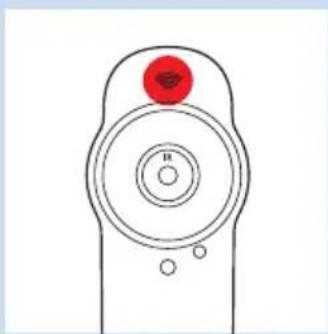
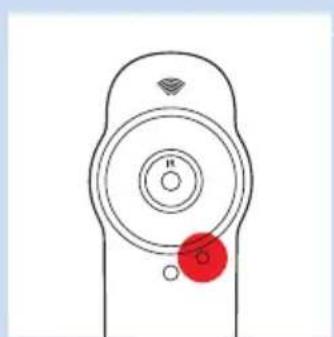
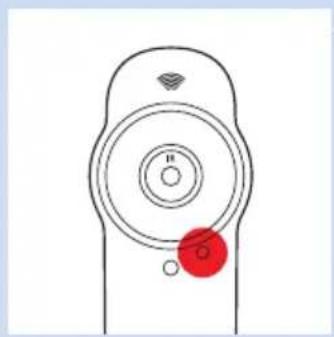
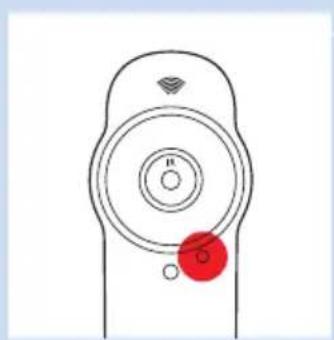
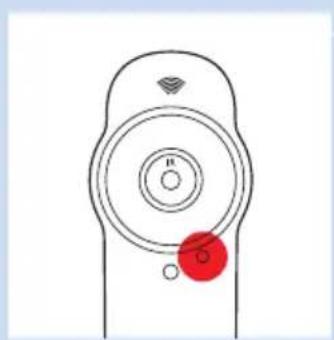
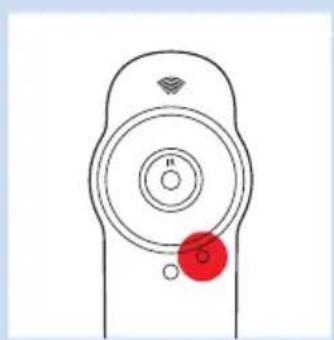
Simple line drawing of a remote control with a red circular indicator on top (no text or symbols)2 Solid red: the baby monitor fails to connect to the WiFi network.
| Security and privacy | |
| Network security | |
| WiFi hotspots in public places, such as airports and hotels, are convenient, but they are often not secure.We advise you to use the baby monitor only on a WiFi network protected with WPA2 encryption. We advise you not to use the baby monitor on a network that uses WEP encryption.Note: WiFi networks that do not require a password are not secure.Strong passwords | |
| Passwords are essential to protect your WiFi network and your account against unauthorised access. The stronger your password, the better protected your WiFi network and your account is.The rules for a strong password are:1 A strong password has at least 8 characters.2 A strong password does not contain your name, your baby's name, another real name or a brand name.3 A strong password does not contain a complete word.4 A strong password is very different from passwords that you have used before.5 A strong password contains characters from at least two of the following categories:- Letters: A, B, C or a, b, c- Numbers: 0, 1, 2, 3, 4, 5, 6, 7, 8, 9-Symbols: _. @ $Safe use of the baby monitor app | |
| Only use the app on a secure networkDon't use the app on an unsecured WiFi network. We advise you to use the baby monitor only on a WiFi network protected with WPA2 encryption.You can also use your phone's data network (often referred to as 3G or 4G).Always use the latest software and firmwareAlways upgrade the app software and the baby monitor firmware when you receive a notification that an upgrade is available. Upgrades are made available when there are software improvements or to prevent a security issue. If you fail to upgrade, your connection to the baby monitor via the app may no longer be safe and private. | |
Device compatibility
DiPhone compatibility
- iPhone 4S and newer
DiPad compatibility
- iPad 2 and newer
DiPod Touch compatibility
- iPod Touch 5th gen and newer
▶Android compatibility
- Android 4.1 or higher
Note: For the latest information on device compatibility, please visit www.philips.com/ugrow.
Ordering accessories
To buy accessories or spare parts, visit www.shop.philips.com/service or go to your Philips dealer. You can also contact the Philips Consumer Care Centre in your country (see the worldwide guarantee leaflet for contact details).
Guarantee and support
If you need information or support, please visit the Philips website at www.philips.com/support or read the separate worldwide guarantee leaflet.
Frequently asked questions
For more frequently asked questions about this baby monitor, see the support page of this product on www.philips.com/support.
Question Answer
Troubleshooting
| Why can't I find the app in the App Store or Google Play? | You can download the app from the Apple App Store or Google Play, by searching for uGrow Smart Baby Monitor. If you do not see the app in the App Store or Google Play, your phone may not have the required iOS or Android version. This app is only compatible with iOS 7 or higher, or Android 4.1 or higher. |
| I cannot download and install the app. What can I do? | Please check if any of the following factors prevent a smooth download. Is your WiFi signal stable and strong enough? Does your smart device run on iOS 7 or higher, or Android 4.1 and higher? Do you have enough space left on your smart device to save the app? Did you enter the correct password for the App Store or Google Play? |
| I cannot setup the baby monitor. Each time I end up in the connection error screen. What is the matter? | If the WiFi status light is solid orange and flashed red while trying to connect, the WiFi password entered is wrong. Restart the set up process. Re-enter the WiFi password and make sure that the password is correct . |
| If the WiFi status light is solid orange and was solid red while trying to connect, the baby monitor fails to connect to the WiFi network. First check if your phone or tablet uses the same WiFi network you want to connect the baby monitor to. Then check if you have Internet access to 2.4GHz WiFi. If this does not solve the problem, make sure the router SSID (the network name) does not contain special symbols. If it does, change the name of your router SSID accordingly. | |
| I have problems making my baby monitor read the QR code on my smart device. What can I do? | Make sure that you hold the WiFi QR code at approx. 20 cm/8 inch distance from the lens. Try moving the smart device slightly up or down or left or right to ensure the WiFi QR code is directly in front of the baby monitor. You can also try moving the smart device closer to or further away from the baby monitor lens to allow proper focussing. Make sure that there is enough light in the room, but avoid too bright light. When the baby monitor has read the WiFi QR code, you hear a confirmation sound and the WiFi status light flashes green. |
Question Answer
| Perhaps you did not remove the protective foil from the baby monitor lens. Remove the foil. | |
| Perhaps part of your hand covers the WiFi QR code. Hold your device in such a way that your hand does not cover the WiFi QR code. | |
| If the WiFi status light is solid orange, the baby monitor did not read the QR code successfully. Go back using the arrow in the top left-hand corner of the screen and follow the QR code instructions. | |
| If the WiFi status light flashes orange, the camera is still booting. Wait until the light is solid orange. Then go back using the arrow in the top left-hand corner of the screen and follow the QR code instructions. | |
| I cannot see my baby. What is wrong? | Check if the WiFi signal is strong enough in the room where the baby monitor is placed. |
| Check if the baby monitor is connected to a live power socket and switched on. | |
| The WiFi status light on the front of the baby monitor must be solid green (see chapter 'WiFi status light signals'). | |
| If you use more than one baby monitor, check that the correct one is selected. Go to the left tray and tap the baby monitor to see if it is active. | |
| Perhaps there are already three people watching the baby. The app only allows three people to watch simultaneously. If you have administrator rights, you can remove access for one of the guests to be able to watch yourself. | |
| Why does the app not notify me that the baby is crying? | Check if the baby monitor is connected to the WiFi network. The WiFi status light on the front of the baby monitor must be solid green. |
| The baby monitor may be offline. To receive a notification that the baby monitor goes offline, go to the left tray and switch on this notification under 'Settings'. | |
| The sound threshold for notification may have been set too high. In that case, the app will only notify you when the baby produces a lot of sound. Open the dashboard to lower the sound threshold to ensure that you will be notified sooner when the baby starts crying. | |
| You may have set the duration of the crying too long. Choose a shorter time so that the app notifies you sooner. | |
| The volume of your phone may be off. Set the volume of your phone to normal. | |
| Perhaps talk-back is active. Tap the talk-back icon to switch off talk-back. During talk-back you don't hear any sounds from the baby. | |
| Check if you have not received an email to notify that your account has been removed. If you have viewing rights as a guest, the administrator may also deny you access temporarily. Contact the administrator and ask him or her do enable you or to reinvite you as a guest. |
Question Answer
| I lose connection frequently. What is the matter? | Check if the WiFi signal in the room where the baby monitor is placed is strong enough and stable. If this is not the case, you need a WiFi repeater to get a strong and stable signal. If you use a WiFi repeater, make sure that your router and your WiFi repeater have the same SSID and that you use the same password for the router and the repeater. |
| If the WiFi status light on the front of the baby monitor is solid green and you keep losing connection, there may be a problem with the Internet connection of your smart device. Check the WiFi signal on your smart device or the 3G or 4G speed by trying to watch a movie, e.g, one on YouTube. | |
| After I changed my router, I cannot see my baby anymore. What is wrong? | First make sure that your smart device has a good WiFi signal from the new router. There are two options to connect the baby monitor to the WiFi network. The first option is to switch on the baby monitor. The app will give the message 'Baby monitor not found'. Go to 'Troubleshooting' and select 'Reconnect baby monitor'. The second option is to open the left tray when the app gives the message 'Baby monitor not found'. Select the baby monitor in the left tray and select 'Reconnect baby monitor'. When the app has generated a WiFi QR code, hold the screen of your smart device at a distance of 20cm in front of the baby monitor's lens. Next, follow the on-screen instructions to complete setup. The setup procedure has been completed successfully when the WiFi status light on the front of the baby monitor turns solid green. |
| I have been invited as a guest, but why don't I see anything when I open the app? | Check if you have not received an email to notify that your account has been removed. If you have viewing rights as a guest, the administrator may also deny you access temporarily. Contact the administrator and ask him or her do enable you or to reinvite you as a guest. |
| Check if your smart device is connected to the Internet. | |
| The baby monitor may be offline. To receive a notification that the baby monitor goes offline, go to the left tray and switch on this notification under 'Settings'. | |
| The sound threshold for notification may have been set too high. In that case, the app will only notify you when the baby produces a lot of sound. Open the dashboard to lower the sound threshold to ensure that you will be notified sooner when the baby starts crying. | |
| You may have set the duration of the crying too long. Choose a shorter time so that the app notifies you sooner. | |
| The volume of your phone may be off. Set the volume of your phone to normal. |
Question Answer
Tips and tricks
| Do I have to keep the app on screen to monitor my baby? | No, the app can monitor in the background while you do other things on your smartphone or tablet. Tap the mobile phone icon. Now you hear your baby and also hear when it starts to cry. When the all notifications toggle switch is set to on, you will also receive an on-screen notification that the baby is crying, while the app runs in the background. |
| Why do I get black and white images instead of colour ones? | The baby monitor has switched to night vision mode. The room where the baby monitor is placed is dark. |
| If there is enough light in the room, the light sensor on top of the baby monitor may be covered or dirty. Make sure that this sensor is fully exposed to the light in the room. | |
| If my device is locked or I am using another app or making a phone call, can I still hear my baby? | Yes, you can choose to continue monitoring your baby in the background. Please note that if you use your phone to make a call, you will only hear a ringtone when the baby starts crying. You will not hear your baby. Tap the mobile phone symbol to switch on background audio. When background audio is on, you hear your baby while you are engaged in other activities. You can also choose to receive a notification when your baby is crying. Tap the bell symbol on the main screen to switch all notifications on or off. When all notifications is set to on, you will receive a message on your screen when the baby is crying. |
Use and learn
| Do I need an extra account if I have more baby monitors? | No, you do not need an extra account if you use more baby monitors. You can add a baby monitor to your uGrow Smart Baby Monitor app. Go to 'My account' in the left tray. Here you see a list of the baby monitors connected to the app. Tap on 'Add baby monitor'. Follow the instructions in chapter 'First-time setup' to connect the baby monitor to the app. |
| Can I use more baby monitors in the same app? | You can connect up to ten baby monitors to the app, but you can only view the video from one baby monitor at the time. You will receive notifications from the other baby monitors connected. If you receive a notification and tap on it, the app will take you directly to that baby monitor. You can also select the baby monitor you want to view in the left tray. |
| Why does it take a long time for the app to load? | The Internet connection of your smart device or the WiFi connection of the baby monitor may be slow. Please check the connection of your smart device and of the baby monitor. The app needs a stable network connection. |
| Is the baby monitor hacker-proof? | We do everything we can to prevent hacking and issue frequent updates. Please make sure that you always use the latest app software and the latest baby monitor firmware. If you lose your smart device, reset the baby monitor to remove any connections to it. You can also log in on the app from another smart device and delete your account. If you are the only administrator, all guest users will be disconnected from the baby monitor too. |
Question Answer
| I have lost my smartphone. How can I prevent strangers from viewing my baby? | Log in on the app from another smart device and delete your account. If you are the only administrator, this will disconnect all guest users of the app from the baby monitor tool. You can also reset the baby monitor to disable all connections to the device you lost. You find the reset button on the back of the baby monitor. |
| Will I be notified of upgrades of the app or the baby monitor software? | Yes, you will receive a notification on your phone to upgrade via the App Store. This will happen periodically. Upgrade notifications for the firmware of the baby monitor will appear in the app along with instructions on how to upgrade. |
| My phone or tablet becomes warm when I use the app. Is this normal? | Your device needs the power to provide high-quality video. This does not harm your device. To prevent this, we advise you to update your device to the latest iOS and uGrow app version. Your device does not warm up when you run the app in the background. |
Inhaltsangabe
Einführung 30
Produktübersicht 31
Ersteinrichtung 31
Anbringen des Babyphones an der Wand 33
Kurzanleitung 35
natural_image
Purple square icon with a white microphone symbol, no text or numbers present.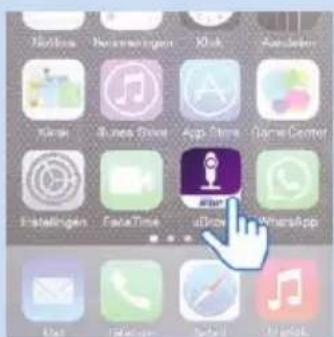
natural_image
Diagram of a medical or electrical device with a bulb and cable, no visible text or symbols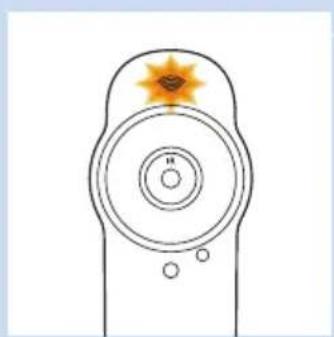
natural_image
Simple line drawing of a remote control with concentric circles and a star-shaped highlight (no text or symbols)natural_image
Line drawing of a hand holding a pencil with a cross mark, no text or symbols presentnatural_image
Technical line drawing of two mechanical flange components with checkmark indicators (no text or symbols)natural_image
Hand holding a mechanical component with a tool, no visible text or symbolsnatural_image
Line drawing of a hand holding a handheld electric drill pen (no text or symbols)natural_image
Technical line drawing of a mechanical clamp or bracket assembly with a tool (no text or symbols)natural_image
Mechanical assembly diagram showing a motor and gear assembly with a downward arrow indicating motion (no text or symbols)natural_image
Technical line drawing of a mechanical component with circular base and three circular ports (no text or symbols)natural_image
Simple line drawing of a medical or electrical device with a bulb, rope, and plug (no text or symbols)natural_image
Patient in hospital bed with medical equipment, no visible text or symbols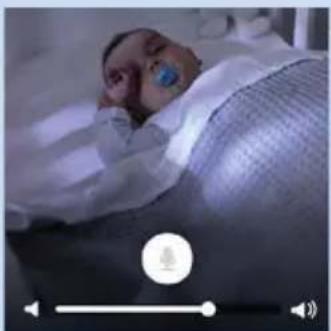
natural_image
Medical photo of a patient lying in bed with visible ear and bandage (no text or symbols)natural_image
Patient lying in a hospital bed with medical equipment, no visible text or symbolsnatural_image
Patient lying in bed with medical equipment, no visible text or symbols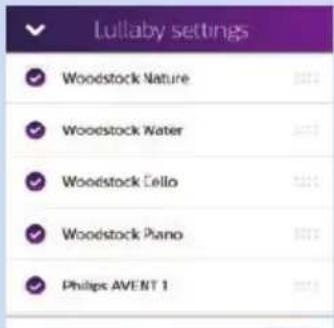
Linke Infoleiste
natural_image
Close-up of a person's hand pointing at a finger on a textured surface, with UI icons below (no readable text or symbols)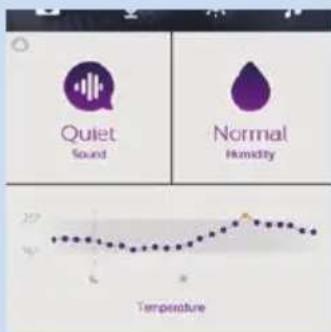
Dashboard
natural_image
Close-up of a newborn baby's face with a hand pointing to the ear area, accompanied by a zoomed-in photo of a medical professional (no text or symbols visible)natural_image
Medical procedure image showing hand placement on patient bed with a close-up of a patient's photo (no text or symbols)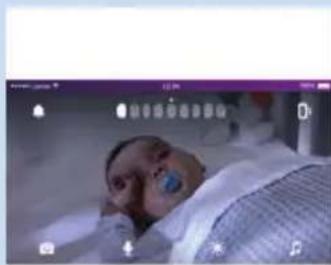
natural_image
Patient in hospital bed with medical equipment visible (no readable text or symbols)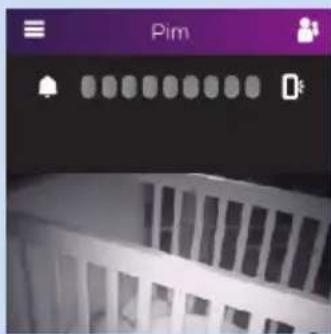

Temperatur
natural_image
Simple line drawing of a remote control with a red circular indicator and diamond symbol (no text or labels)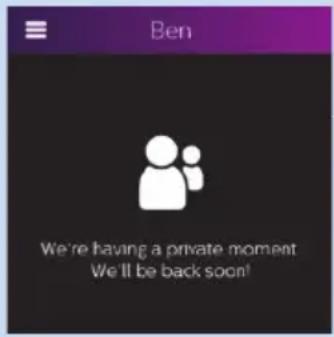
natural_image
Patient lying in a hospital bed with medical equipment, no visible text or symbolsnatural_image
Patient lying in bed with medical equipment, no visible text or symbols

natural_image
Line drawing of a handheld device with a circular lens and base (no text or symbols)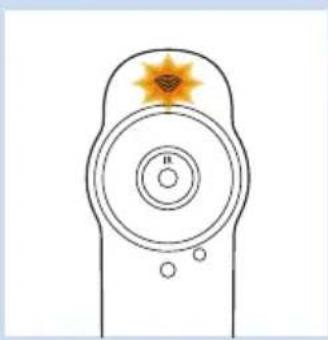
natural_image
Simple line drawing of a remote control with concentric circles and a star-shaped highlight (no text or symbols)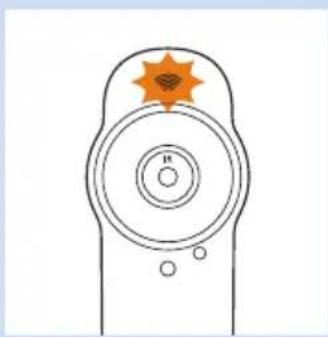
natural_image
Simple line drawing of a remote control with an orange star on the top (no text or symbols)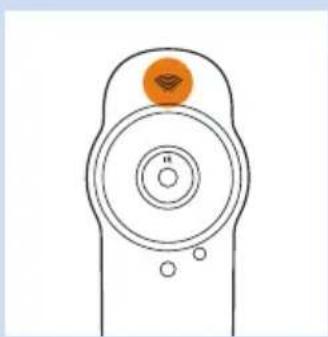
natural_image
Simple line drawing of a remote control with an orange sensor icon on the top (no text or symbols)natural_image
Purple square icon with a white microphone symbol, no text or numbers present.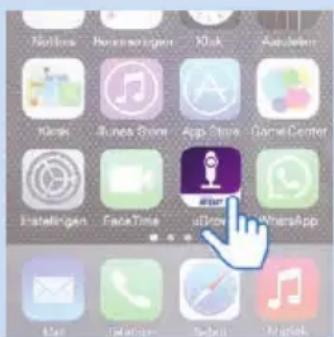
natural_image
Diagram of a medical device with a bulb and connector, no text or symbols present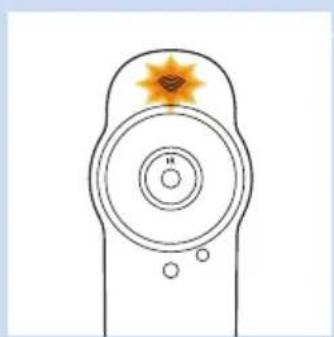
natural_image
Simple line drawing of a remote control with concentric circles and a star-shaped highlight (no text or symbols)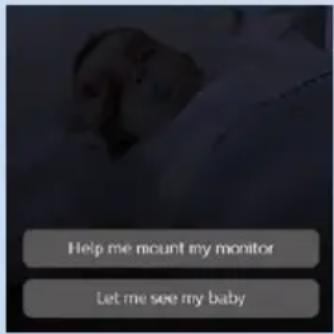
natural_image
Line drawing of a hand holding a pencil with a cross mark (no text or symbols)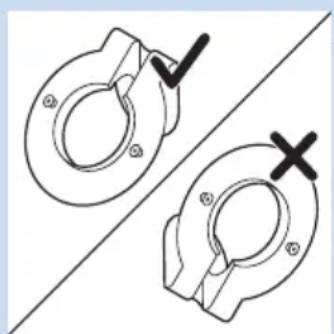
natural_image
Technical line drawing of two mechanical flanges with checkmark and cross symbols (no text or labels)natural_image
Hand holding a mechanical component with a tool, no visible text or symbolsnatural_image
Line drawing of a hand holding a handheld electric drill pen (no text or symbols)natural_image
Technical line drawing of a mechanical clamp or bracket assembly with a tool (no text or symbols)natural_image
Mechanical assembly diagram showing a motor and gear assembly with a downward arrow indicating motion (no text or symbols)natural_image
Technical line drawing of a mechanical component with circular base and three circular ports (no text or symbols)natural_image
Diagram of a medical or scientific device with a bulb and connecting rod, no visible text or symbolsnatural_image
Patient in hospital bed with medical equipment, no visible text or symbols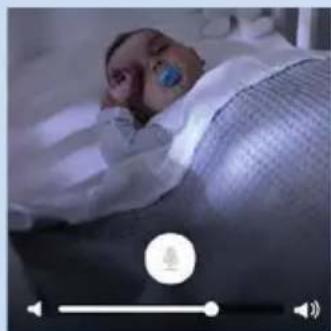
natural_image
Patient lying in bed with medical equipment, no visible text or symbolsnatural_image
Patient lying in a hospital bed with medical equipment, no visible text or symbolsnatural_image
Patient lying in a hospital bed with medical equipment, no visible text or symbols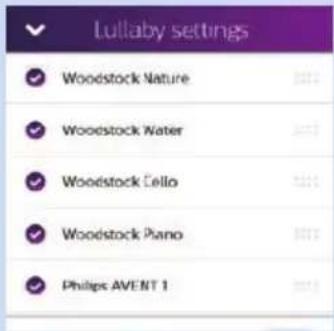
natural_image
Close-up of a baby's face with a hand pointing to the eye area, showing a 2x magnification and photo editing interface (no readable text or symbols)natural_image
Medical procedure image showing hand placement on patient bed with a close-up of a patient's photo (no text or symbols)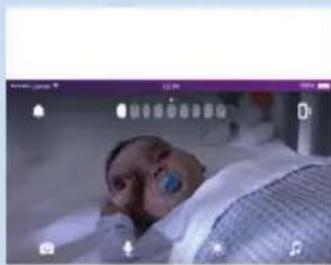
natural_image
Patient in hospital bed with medical equipment visible (no readable text or symbols)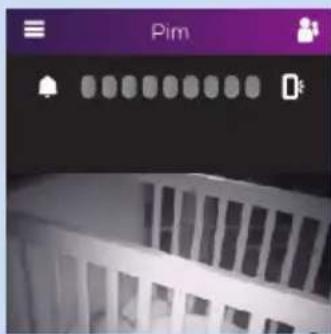


Temperatura
natural_image
Simple line drawing of a remote control with a red circular indicator and diamond symbol (no text or labels)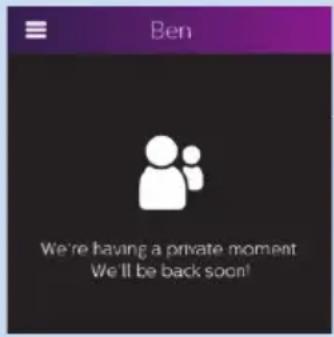
![Are you sure you want to deactivate your [Philips] account?](/content/2026/03/446602/images/bb25173d4da1b5af585a662dc4bfd5f48f0d06627a8d018ba136dcfe9d93ef41.jpg)
![Your [Philips] account has been deactivated. OK](/content/2026/03/446602/images/fb89d89cff6cf101964967a56b93b09967c2e9c1b4f2e5d0e9e844852964abad.jpg)
natural_image
Patient in hospital bed with medical equipment, no visible text or symbols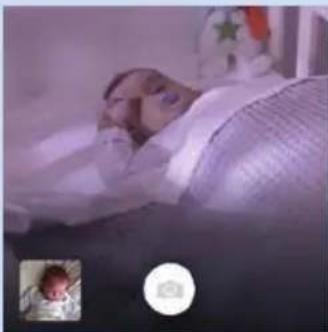
natural_image
Patient in hospital bed with medical equipment, no visible text or symbols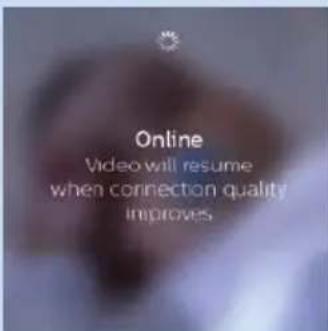
natural_image
Line drawing of a handheld device with a circular lens and base mount (no text or symbols)Apagado
natural_image
Simple line drawing of a remote control with a star-shaped head and concentric rings (no text or symbols)natural_image
Simple line drawing of a remote control with an orange star on the top (no text or symbols)natural_image
Simple line drawing of a remote control with an orange sensor icon on the top (no text or symbols)natural_image
Purple square icon with a white microphone symbol, no text or numbers present.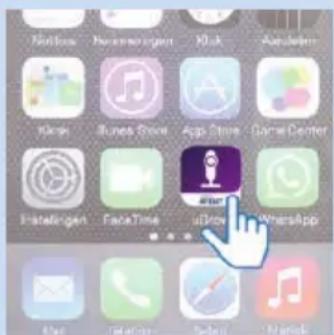
natural_image
Diagram of a medical or electrical device with a bulb and cable, no visible text or symbols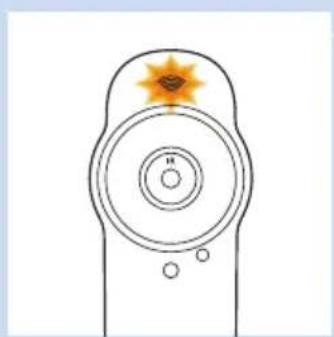
natural_image
Simple line drawing of a remote control with concentric circles and a star-shaped highlight (no text or symbols)natural_image
Line drawing of a hand holding a pencil with a cross mark, no text or symbols presentnatural_image
Technical drawing of two mechanical flange components with checkmark indicators (no text or symbols)natural_image
Hand holding a mechanical component with a tool, no visible text or symbolsnatural_image
Line drawing of a hand holding a handheld electric drill pen (no text or symbols)natural_image
Technical line drawing of a mechanical clamp or bracket assembly with a tool (no text or symbols)natural_image
Mechanical assembly diagram showing a motor and gear assembly with a downward arrow indicating motion (no text or symbols)natural_image
Technical line drawing of a mechanical component with circular base and three circular ports (no text or symbols)natural_image
Simple line drawing of a bulb with a coiled cable and a pointer, no text or symbols presentnatural_image
Patient in hospital bed with medical equipment, no visible text or symbols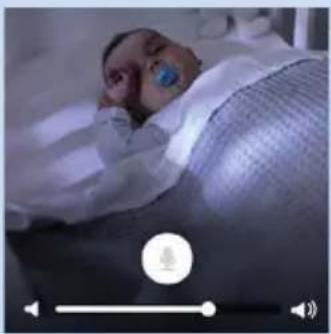
natural_image
Medical photo of a patient lying in bed with visible ear and mouth, no text or symbols presentnatural_image
Person lying in a hospital bed with medical equipment, no visible text or symbolsnatural_image
Patient lying in bed with medical equipment, no visible text or symbols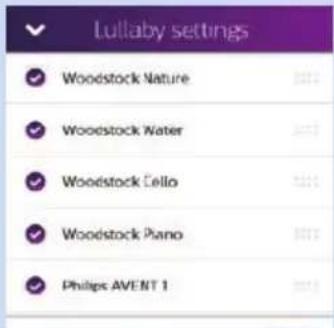
Barre de gauche
Zoom et panoramique
natural_image
Close-up of a newborn baby's face with a hand pointing to the nose area, accompanied by two circular icons showing a photo and a blue arrow (no text or symbols)natural_image
Medical procedure image showing hand placement on patient bed with a close-up of a patient's photo (no text or symbols)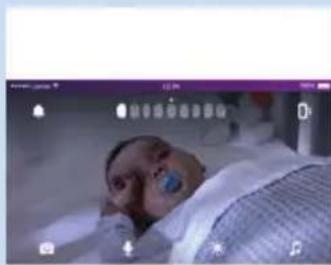
natural_image
Patient in hospital bed with medical equipment visible (no readable text or symbols)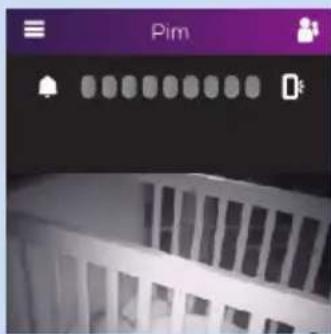

Température
natural_image
Simple line drawing of a remote control with a red circular indicator (no text or symbols)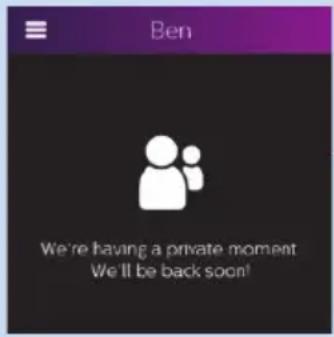
![Are you sure you want to deactivate your [Philips] account?](/content/2026/03/446602/images/a8731bba61d0652b9d0e9d8035d73ab29c344376df55b50386d7a1a03604ef18.jpg)
![Your [Philips] account has been deactivated. OK](/content/2026/03/446602/images/d870c8f9666524bf61e19f007c97eefee827f2d5c624fc0bc545a99402f0a82e.jpg)
natural_image
Patient in hospital bed with medical equipment, no visible text or symbolsnatural_image
Patient in hospital bed with medical equipment, no visible text or symbols
natural_image
Line drawing of a handheld device with a circular lens and base mount (no text or symbols)Arrêt
natural_image
Simple line drawing of a remote control with a star-shaped head and circular dial (no text or symbols)natural_image
Simple line drawing of a remote control with an orange star on the top (no text or symbols)natural_image
Simple line drawing of a remote control with an orange sensor icon on the top (no text or symbols)natural_image
Simple line drawing of a remote control with a green star badge on the top (no text or symbols)natural_image
Simple line drawing of a remote control with a green sensor icon on the top (no text or symbols)natural_image
Simple line drawing of a remote control with a red star on the top (no text or symbols)natural_image
Simple line drawing of a remote control with a red circular indicator on top (no text or symbols)natural_image
Purple square icon with a white microphone symbol, no text or numbers present.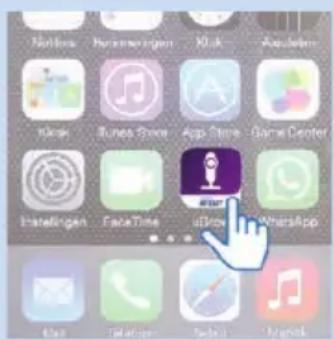
natural_image
Diagram of a medical or electrical device with a bulb and cable, no visible text or symbols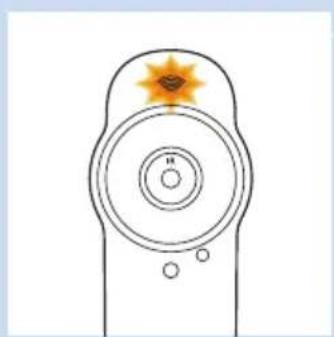
natural_image
Simple line drawing of a remote control with concentric circles and a star-shaped highlight (no text or symbols)natural_image
Line drawing of a hand holding a pencil with a cross mark, no text or symbols presentnatural_image
Technical line drawing of two mechanical flanges with checkmark and cross symbols (no text or labels)natural_image
Hand holding a mechanical component with a tool, no visible text or symbolsnatural_image
Line drawing of a hand holding a handheld electric drill pen (no text or symbols)natural_image
Technical line drawing of a mechanical clamp or bracket assembly with a tool (no text or symbols)natural_image
Mechanical assembly diagram showing a motor and gear assembly with a downward arrow indicating motion (no text or symbols)natural_image
Technical line drawing of a mechanical component with circular base and three circular ports (no text or symbols)natural_image
Simple line drawing of a bulb with a coiled cable and a pointer, no text or symbols presentnatural_image
Patient in hospital bed with medical equipment, no visible text or symbols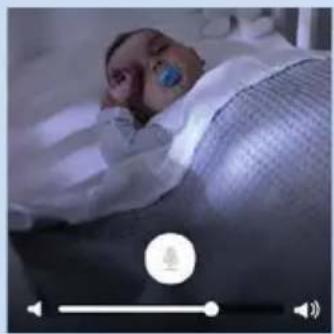
natural_image
Patient lying in bed with medical equipment, no visible text or symbolsnatural_image
Patient lying in a hospital bed with medical equipment, no visible text or symbolsnatural_image
Patient lying in bed with medical equipment, no visible text or symbols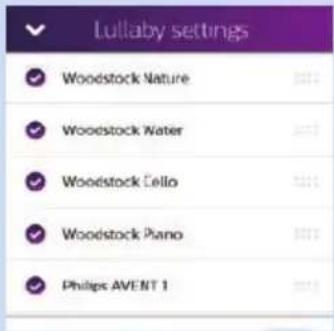
Pannello sinistro
natural_image
Close-up of a newborn baby's face with a hand pointing to the eye area, accompanied by two small inset images showing close-ups (no text or symbols)Zoom e panoramica
natural_image
Medical procedure image showing hand placement on patient bed with a close-up of a patient's photo (no text or symbols)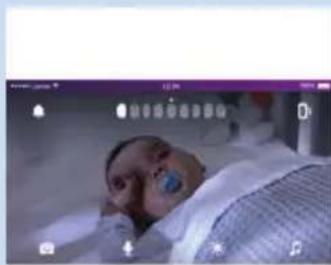
natural_image
Patient in hospital bed with medical equipment visible (no readable text or symbols)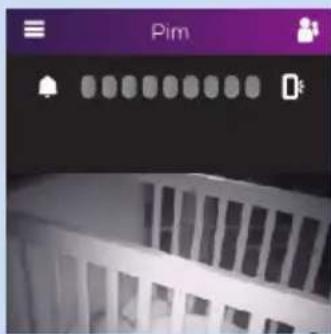
Controllo in background
Temperatura
natural_image
Simple line drawing of a remote control with a red circular indicator (no text or symbols)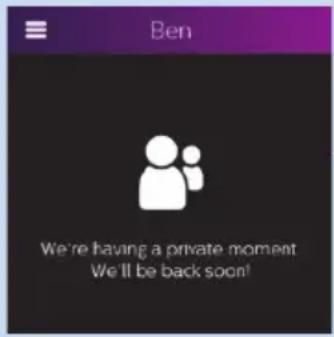
2 Toccate "Deactivate account" (Disattivare account).
![Are you sure you want to deactivate your [Philips] account?](/content/2026/03/446602/images/c27aea5999457fd0f94546532bf9c44b6bd6ec0a1dce5f834f072bdab8c68252.jpg)
natural_image
Patient lying in a hospital bed with medical equipment, no visible text or symbols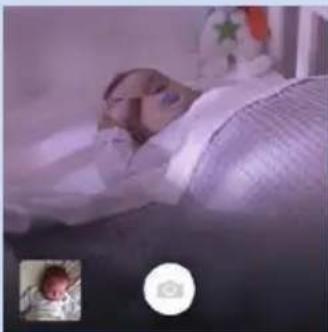
natural_image
Patient lying in bed with medical equipment, no visible text or symbols
natural_image
Three line drawings of a remote control device with a speaker, showing front, side, and top views (no text or symbols)Off
natural_image
Simple line drawing of a remote control with an orange button on the top (no text or symbols)natural_image
Simple line drawing of a remote control with a green star badge on the top (no text or symbols)natural_image
Simple line drawing of a remote control with a green circular icon on top (no text or symbols)natural_image
Simple line drawing of a remote control with a red star on the top (no text or symbols)natural_image
Simple line drawing of a remote control with a red circular button on top (no text or symbols)Firmware-upgrades 157
Signalen Wi-Fi-statuslampje 158
Beveiliging en privacy 159
natural_image
Purple and white icon of a microphone with 'PHILIPS' and 'AVELIT' text below (no additional symbols or text)
1 Download de Philips Avent slimme uGrow-babyfoon-app in de App Store of Google Play. Gebruik de trefwoorden ‘uGrow smart monitor’ of ‘Philips smart monitor’ om de app te vinden.
2 Start de app.
natural_image
Diagram of a medical device with a bulb and connector, no text or symbols present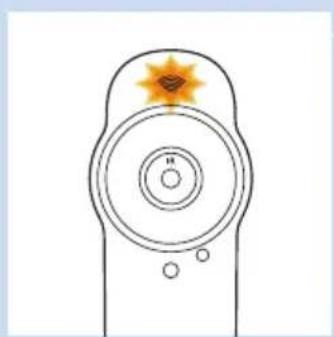
natural_image
Simple line drawing of a remote control with concentric circles and a star-shaped highlight (no text or symbols)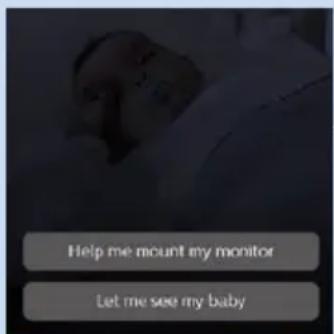
natural_image
Line drawing of a hand holding a pencil with a cross mark, no text or symbols present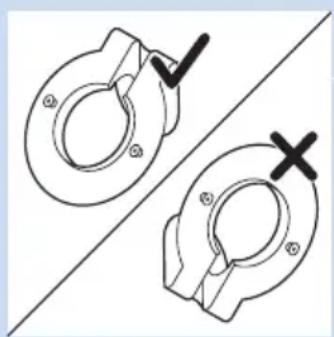
natural_image
Technical line drawing of two mechanical flanges with no text or symbolsnatural_image
Hand holding a mechanical component with a tool, no visible text or symbolsnatural_image
Line drawing of a hand holding a handheld electric drill pen (no text or symbols)natural_image
Technical line drawing of a mechanical clamp or bracket assembly with a tool inserted (no text or symbols)natural_image
Mechanical assembly diagram showing a motor and gear assembly with a downward arrow indicating motion (no text or symbols)natural_image
Technical line drawing of a mechanical component with circular base and three circular ports (no text or symbols)natural_image
Diagram of a medical or scientific device with a bulb and connecting rod (no text or symbols)natural_image
Patient in hospital bed with medical equipment, no visible text or symbolsnatural_image
Medical professional lying in bed with visible ear and blue surgical mask (no text or symbols)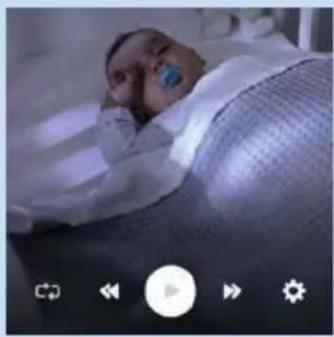
natural_image
Patient lying in bed with medical equipment, no visible text or symbols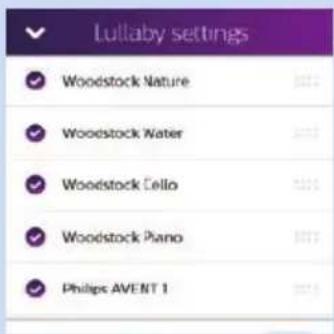
Dashboard
natural_image
Close-up of a baby's face with a hand pointing to the eye area, accompanied by two inset images showing medical or clinical photos (no text or symbols)Zoomen en pannen
natural_image
Medical procedure image showing hand placement on patient bed with a close-up of a patient's photo (no text or symbols)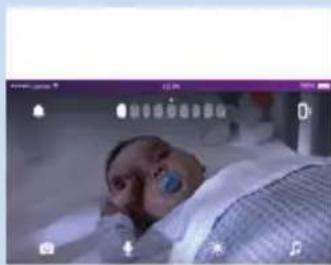
natural_image
Patient in hospital bed with medical equipment visible (no readable text or symbols)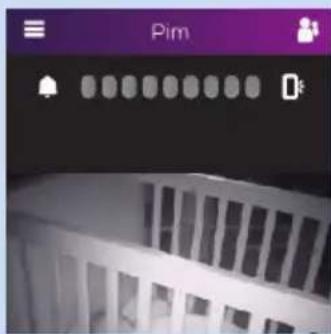

Temperatuur
natural_image
Simple line drawing of a remote control with a red circular indicator (no text or symbols)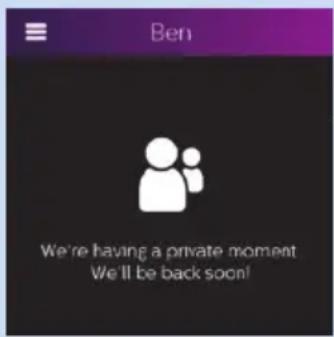
Accountbeheer
Gasten loskoppelen
![Are you sure you want to deactivate your [Philips] account?](/content/2026/03/446602/images/22a855312fa1acfaef3d2415885081b3bc30a69021a606eab471ad98bd7d81c3.jpg)
![Your [Philips] account has been deactivated. OK](/content/2026/03/446602/images/9b525cfa15700e571815c15f067bfa575f8c46175538b31593637ea08e2168ff.jpg)
natural_image
Patient in hospital bed with medical equipment, no visible text or symbolsnatural_image
Patient in hospital bed with medical equipment, no visible text or symbols
natural_image
Line drawing of a handheld device with a circular lens and base mount (no text or symbols)DUt
natural_image
Simple line drawing of a device with concentric circles and a star-shaped highlight on top (no text or symbols)natural_image
Simple line drawing of a device with concentric circles and an orange star-shaped badge (no text or symbols)natural_image
Simple line drawing of a device with concentric circles and an orange circular icon on top (no text or symbols)- Letters: A, B, C of a, b, c
- Cijfers: 0, 1, 2, 3, 4, 5, 6, 7, 8, 9
- Symbolen: _. @ \$
Encomendar acessórios 188
natural_image
Purple and white icon of a microphone with 'PHILIPS AVENT' text below (no other symbols or text)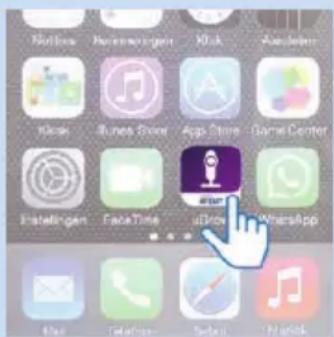
natural_image
Diagram of a medical or scientific device with a bulb and connecting wires, no visible text or symbols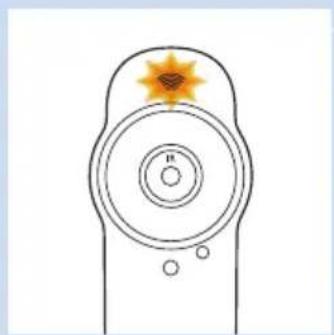
natural_image
Simple line drawing of a remote control with concentric circles and a star-shaped highlight (no text or symbols)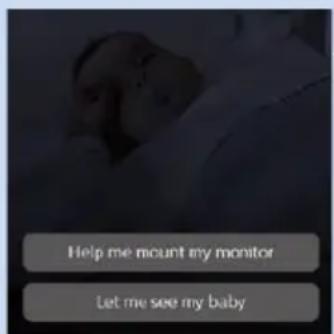
natural_image
Line drawing of a hand holding a pencil with a cross mark, no text or symbols present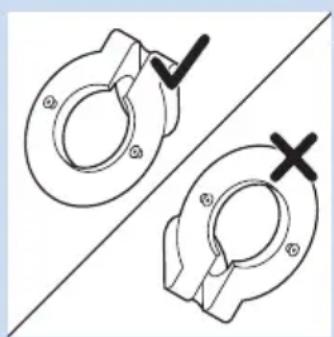
natural_image
Technical line drawing of two mechanical flanges with checkmark indicators (no text or symbols)natural_image
Hand holding a mechanical component with a tool, no visible text or symbolsnatural_image
Line drawing of a hand holding a handheld electric drill pen (no text or symbols)natural_image
Technical line drawing of a mechanical clamp or bracket assembly with a tool (no text or symbols)natural_image
Mechanical assembly diagram showing a motor and gear assembly with a downward arrow indicating motion (no text or symbols)natural_image
Technical line drawing of a mechanical component with circular base and three circular ports (no text or symbols)natural_image
Simple line drawing of a medical or electrical device with a bulb, rope, and plug (no text or symbols)natural_image
Patient lying in hospital bed with medical equipment, no visible text or symbols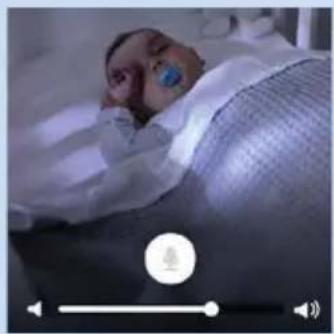
natural_image
Patient lying in bed with medical equipment, no visible text or symbolsnatural_image
Patient lying in a hospital bed with medical equipment, no visible text or symbolsnatural_image
Patient lying in bed with medical equipment, no visible text or symbols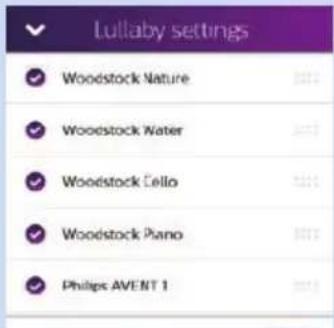
Painel esquerdo
natural_image
Close-up of a baby's face with a hand pointing to the eye area, showing two close-ups of a photo (no text or symbols visible)natural_image
Medical procedure image showing hand placement and eye examination steps (no text or symbols)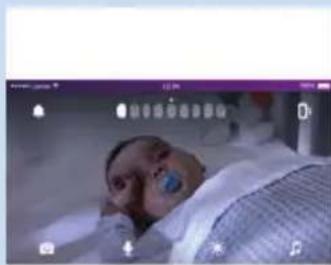
natural_image
Patient in hospital bed with medical equipment visible (no readable text or symbols)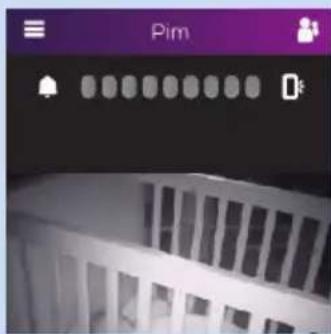

Temperatura
natural_image
Simple line drawing of a remote control device with no text or symbolsGestão de conta
natural_image
Patient in hospital bed with medical equipment, no visible text or symbolsnatural_image
Patient in hospital bed with medical equipment, no visible text or symbols
natural_image
Line drawing of a handheld device with a circular lens and base mount (no text or symbols)Apagado
natural_image
Simple line drawing of a remote control with a sun icon on top (no text or symbols)natural_image
Simple line drawing of a remote control with an orange star on the top (no text or symbols)natural_image
Simple line drawing of a remote control with an orange sensor icon on the top (no text or symbols)natural_image
Simple line drawing of a remote control with a green star badge on the top (no text or symbols)natural_image
Simple line drawing of a remote control with a green sensor icon on the top (no text or symbols)natural_image
Simple line drawing of a remote control with a red star on the top (no text or symbols)natural_image
Simple line drawing of a remote control with a red circular indicator on top (no text or symbols)Encomendar acessórios
Philips Consumer Lifestyle BV
Tussendiepen 4, 9206 AD Drachten, Netherlands
Trademarks owned by the Philips Group.
©2015 Koninklijke Philips N.V. All rights reserved
- Always here to help you
- Table of contents
- Introduction
- www.philips.com/welcome.
- Product overview (Fig. 1)
- First-time setup
- Follow the on-screen instructions to create a uGrow account.
- Mounting the baby monitor on the wall
- Quick start guide
- Main screen features
- Quick action buttons
- Background monitoring icons
- Sound level indication bar
- Left tray
- Right tray
- Dashboard
- Viewing, hearing and monitoring your baby
- Viewing your baby
- Zooming and panning
- Portrait or landscape viewing
- Night vision mode
- Hearing your baby
- How to get notified that your baby cries
- How to specify when you receive a notification
- Switching notifications on or off on your smart device
- Background monitoring
- Switching background monitoring off or on
- Switching from background monitoring to app main screen
- Notification options
- Sound
- Temperature
- Humidity
- Guest viewers and accounts
- Inviting guests and a second admin
- Giving and removing access
- Account management
- Disconnecting a guest
- Deactivating your user account
- Adding or removing baby monitors
- General app use
- Video and audio quality optimisation
- WiFi connection to the Internet
- Using the baby monitor away from home
- Using the app on several devices
- Resetting the baby monitor
- How to reset to factory default settings
- What to do after a reset to factory default settings
- Firmware upgrades
- WiFi status light signals
- Off
- Device compatibility
- Ordering accessories
- Guarantee and support
- Frequently asked questions
- Question Answer
- Inhaltsangabe
- Linke Infoleiste
- Temperatur
- Temperatura
- Barre de gauche
- Zoom et panoramique
- Température
- Arrêt
- Pannello sinistro
- Zoom e panoramica
- Controllo in background
- Zoomen en pannen
- Temperatuur
- Accountbeheer
- Gasten loskoppelen
- DUt
- Painel esquerdo
- Gestão de conta
- Apagado
- Encomendar acessórios
Brand : PHILIPS
Model : AVENT SCD870
Category : Baby monitors