303338 - Mouse Titanwolf - Free user manual and instructions
Find the device manual for free 303338 Titanwolf in PDF.


| Product type | Wired gaming mouse |
| Brand | Titanwolf |
| Model | 303338 |
| Sensor | Pixart 3310 optical |
| Maximum resolution (DPI) | 5000 DPI (6 adjustable levels) |
| Number of buttons | 8 programmable buttons |
| Scroll wheel | Bidirectional |
| Polling rate | Up to 1000 Hz (adjustable) |
| Lighting | Configurable RGB LED (multiple modes) |
| Connectivity | USB 2.0 (gold-plated connector) |
| Cable length | Approximately 1.8 m |
| Dimensions (L x W x H) | Approximately 125 x 70 x 40 mm |
| Weight | Approximately 100 g (without cable) |
| Ergonomics | Designed for right-handed users, rubberized surface |
| Glide feet | Durable, Teflon |
| Thumb rest | Yes, with interchangeable side covers |
| Supported operating systems | Windows XP/Vista/7/8/10 (32/64 bit) |
| Included software | CD with drivers and configuration software |
| Storable profiles | Yes, via the software |
| Cleaning and maintenance | Clean with a dry, soft cloth; do not use harsh chemicals |
| Safety | Do not open, avoid moisture, keep out of reach of children |
Frequently Asked Questions - 303338 Titanwolf
User questions about 303338 Titanwolf
0 question about this device. Answer the ones you know or ask your own.
Ask a new question about this device
Download the instructions for your Mouse in PDF format for free! Find your manual 303338 - Titanwolf and take your electronic device back in hand. On this page are published all the documents necessary for the use of your device. 303338 by Titanwolf.
USER MANUAL 303338 Titanwolf
text_image
TITANWOLF® User Manual WING Wired Gaming MouseTITANWOLF®
User Manual
WING Wired Gaming Mouse
Table of contents (languages)
- Deutsch .... 2
- English 12
- Français 21
- Italiano 31
- Español....41
Inhaltsverzeichnis
- Scope of delivery.... 12
- Specifications .... 13
- System requirements .... 13
- Installation....14
- Software settings ...... 15
- Changing the side cover 19
- Resetting to factory settings....19
- Safety instructions and Disclaimer 19
- Disposal instructions 20
Thank you for choosing a TITANWOLF product. Please read the following user manual carefully so that you can enjoy the purchased product for a long time.
1. Scope of supply
• WING Wired Gaming Mouse
- User manual
- Software CD
2. Specifications
- Perfectly designed to meet the needs of gamers: up to 5000 DPI, variable polling rate up to 1000Hz
- PIXART 3310 sensor ensures accurate gaming and a more thrilling gaming experience in conjunction with HUANO mouse buttons
- 8 programmable buttons, setting profiles that can be saved, configurable LED lighting
- 4 DPI levels
• 2-way mouse scrolling wheel - Durable gliding pads, 2 side buttons, ergonomic design for right-handed people, rubberised surface for better grip, gold-plated USB connector, replaceable side parts
3. System requirements
- Operating system: Microsoft® Windows® 10 (32/64bit), Windows® 8.1, Windows® 8 (32/64bit), Windows® 7 (32/64bit), Windows® Vista (32/64bit), Windows® XP (32/64bit)
- Hard disk: approx. 20MB of free disk space is required
4. Installation
Connect the device to a free USB port on your computer.
Installation is necessary to use the gaming mouse that you have purchased. For this purpose, insert the driver CD into your drive. The automatic playback opens.
Click on "Run autorun.exe" to start the installation. If you need to install the software manually, then open the contents of the software CD and then run the "Titanwolf_WING.exe"

Titanwolf\_WING.exe
A confirmation prompt is displayed that needs to be accepted with "Yes".

Now follow the instructions of the installation wizard to carry out the installation properly.
Once the process is completed, you can stop the installation program by clicking on "Finish". The software is now fully installed and can be used immediately.
5. Software settings
You have the option of carrying out many settings in the configuration software of the gaming mouse. Freely configurable profiles are available, which you can select using the software under the menu item "Profiles". Additional information about the setting options are given below, which are profile-independent and relate to a specific profile, and are suitable for creating macros.
5.2 Configuring the profiles
The options, which are explained in detail below, can be individually configured and saved for each of the profiles. Select a profile using the mouse in the "Profiles" menu (bottom left of the software) or create a new profile. To create a new profile, click on "+" and select a profile name. Make the desired profile settings and confirm using the "Apply" button.
To change profiles, click on the "Profile" button and then click on the desired profile. To load the profile, select it and click "Apply".
5.2.1 General
text_image
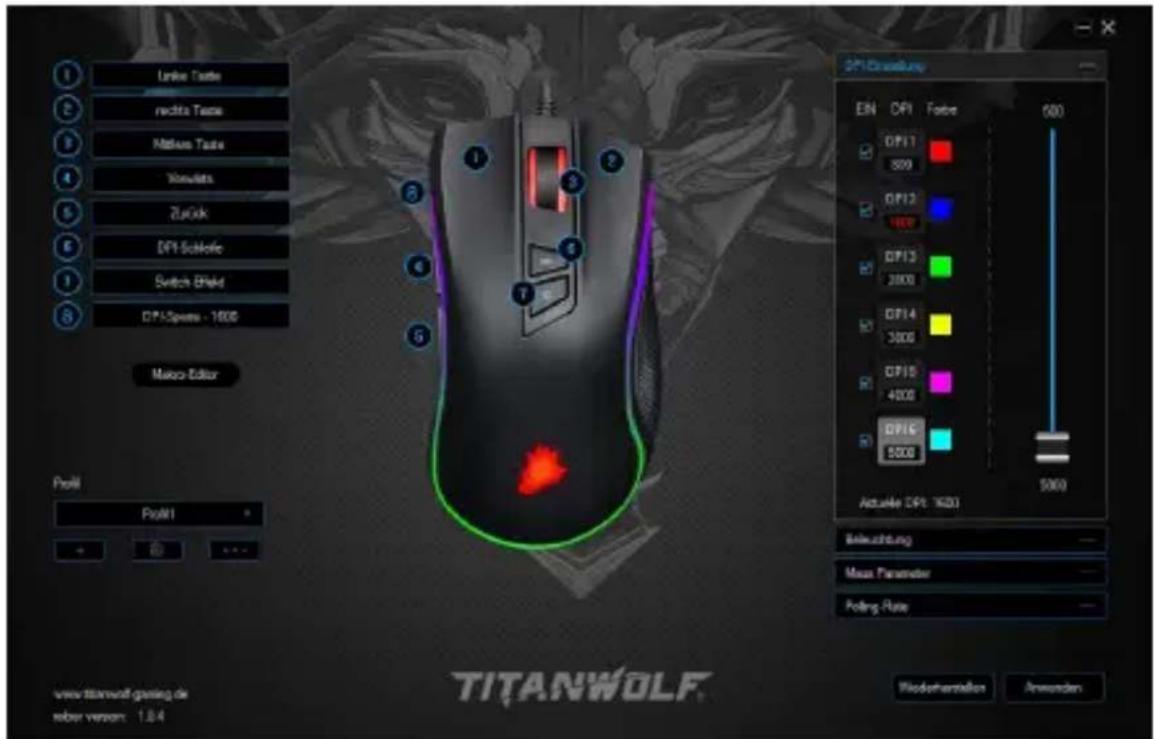
Unite Taste rechte Taste Maltava Taste Tovats ZuGok DPI-Scholfe Switch Shield DPI-Spens - 1600 Macro Editor Profil Profil TITANWOLF Filederverktaion Anwunden DFI/Drawlsung EN DPI Forder 500 DFI17 800 DFI12 100 DFI13 2000 DFI14 3000 DFI15 4000 DFI16 5000 Actualie DPI: KDDI Beleuchtung Mass Parameter Polding Rate www.titanwolf.gaming.de mber version: 1.8.4- Lighting: You can configure the light effects individually in the "Lighting" menu item. You can select between several light modes and they can also be configured as desired.
- Polling rate: Select your preferred polling rate to define the intervals at which the mouse sends the position data to the computer. A polling rate of 1000 Hz means that data is sent 1000 times per second
- Double-click speed: The double-click speed defines the maximum time between two clicks, so that it can be registered as a double click and not two individual clicks.
- Scrolling speed: The scrolling speed of the mouse wheel can be configured here.
- Mouse sensitivity: You can adjust the sensitivity of the mouse in this menu item.
- Configuring the mouse buttons: The buttons at the top of the mouse as well as those at the side can be freely configured. To reconfigure a button, click on the number corresponding to the desired button in the list on the left of the mouse diagram. The mapping of numbers and buttons is shown in the diagram. You not only can choose from preconfigured options, but can also make individual settings. A special feature is the option of creating macros, which is explained in detail later in section 5.3. (page 8).
Note: Please remember that the "Z" and "Y" keys are reversed. To configure, use the letter other than the one desired to get the right result.
5.2.2 DPI
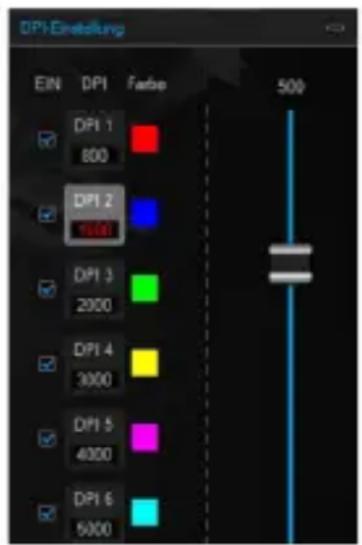
In the DPI settings, you have the option of configuring 6 individual DPI levels or disabling them if desired. You can choose different DPI values up to 5000 DPI as desired using the 6 DPI levels.
text_image
DPI-Einstellung EIN DPI Farbo 500 DPI 1 800 DPI 2 1000 DPI 3 2000 DPI 4 3000 DPI 5 4000 DPI 6 5000Note: When changing the profile and if the "DPI setting" window is open, it may happen that the DPI values displayed cannot be edited directly on the profile DPI. In such cases, close and open the "DPI settings" once. To update the display of the DPI bar, close and open the software once again.
5.2.3 LED
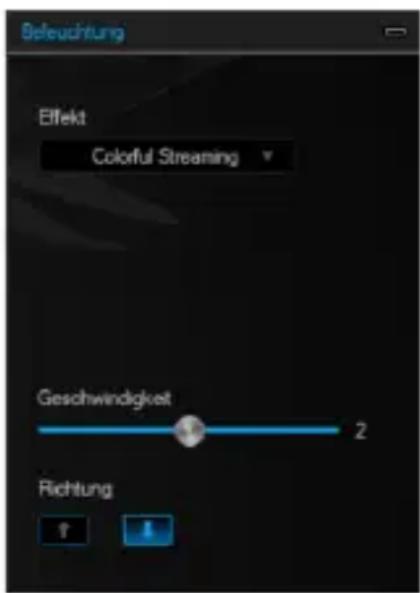
You can customise the LED lighting as desired. Effect type, colour and speed (speed of the currently enabled effect) can be selected depending on the desired appearance. For this purpose, double click a colour to enable the corresponding colour.
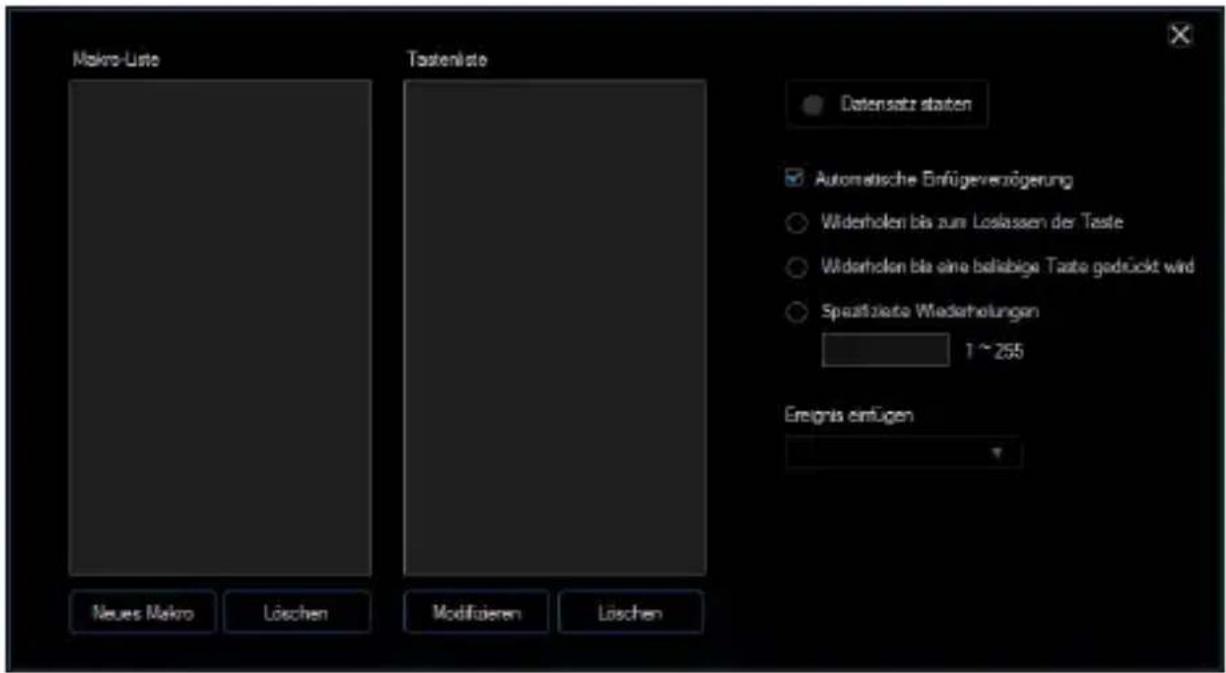
Macros are recordings of specific key sequences, which can be run by pressing a single mouse button depending on the configuration. This can, for example, be keystrokes or mouse commands. To define a macro, click the "Macro Manager" button in the left section of the software.
To start recording a new macro, first click on "New". Then, define a name by double clicking on the macro. The recording can be started using the "Start recording" button and stopped using the "Stop recording" button. Additional options are available on the right side of the Macro Manager for recording the steps. You can customise other settings by right clicking on the "Key Press Sequence" field. This, for example, can be a delay of 50 milliseconds between the desired keystrokes. The option of editing the recorded steps subsequently is also available.
Note: Please remember that the "Z" and "Y" keys are reversed. To configure, use the letter other than the one desired to obtain the right result. Special characters and the numpad cannot be used as a macro.
6. Changing the side cover
A removable side cover is provided on the right side of the mouse. You can remove this cover by sliding your thumb through the notch at the bottom of the mouse and opening the cover. Select one of the two supplied covers and mount it back on the mouse, so that it sits tightly. Thanks to the magnetic lock, the cover clings to the mouse.
7. Resetting to factory settings
It is possible to reset the settings of the current profile back to the factory settings using the "Restore" button at the bottom of the software.

8. Safety instructions and disclaimer
Never try to open the device to carry out repairs or modifications. Avoid contact with the mains voltage. Do not short-circuit the product. The device is not water-proof, therefore please use it only in dry surroundings. Protect it from high humidity, water and snow. Do not expose the device to high temperatures. Do not expose
the device to sudden changes in temperature or strong vibrations, as this could damage the electronic components. Check the device for any damage before using it. The device should not be used if it was subject to impact or has been damaged in some other manner. Please comply with the local regulations and restrictions. Do not use the device for purposes other than those described in the user manual. This product is not a toy. Keep it out of the reach of children or mentally disabled persons. Any repair or modifications to the device, which is not carried out by the original supplier, will void any warranty and guarantee claims. The device should be used only by persons who have read and understood this user manual. The specifications of the device may be changed without prior notice.

9. Disposal instructions
In line with the European WEEE directive, electrical and electronic devices should not be disposed of along with domestic waste. Their components must be sent separately for recycling or disposal, as improper disposal of toxic and dangerous components may permanently damage the environment. According to the electrical and electronic equipment act (ElektroG), you are obliged (as a consumer) to return (free of charge) all electrical and electronic devices to the manufacturer, the point of sale, or public collection points at the end of their service life. The relevant local laws regulate the details in this regard. The symbol on the product, in the user manual or/and the packaging refers to these regulations. With this manner of sorting, recycling and disposal of used devices, you make an important contribution towards protecting our environment.

WEEE Guideline: 2012/19/EU WEEE Register no.: DE 67896761
WD Plus GmbH hereby certifies that the device 303338/20180703SZ232 complies with the fundamental requirements and all other relevant stipulations. A complete conformity statement can be obtained from: WD Plus GmbH, Wohlenbergstraße 16, 30179 Hannover