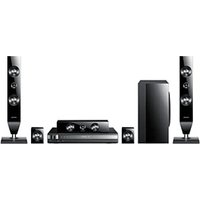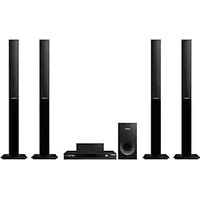
HTD455K - Home Theater System SAMSUNG - Free user manual and instructions
Find the device manual for free HTD455K SAMSUNG in PDF.

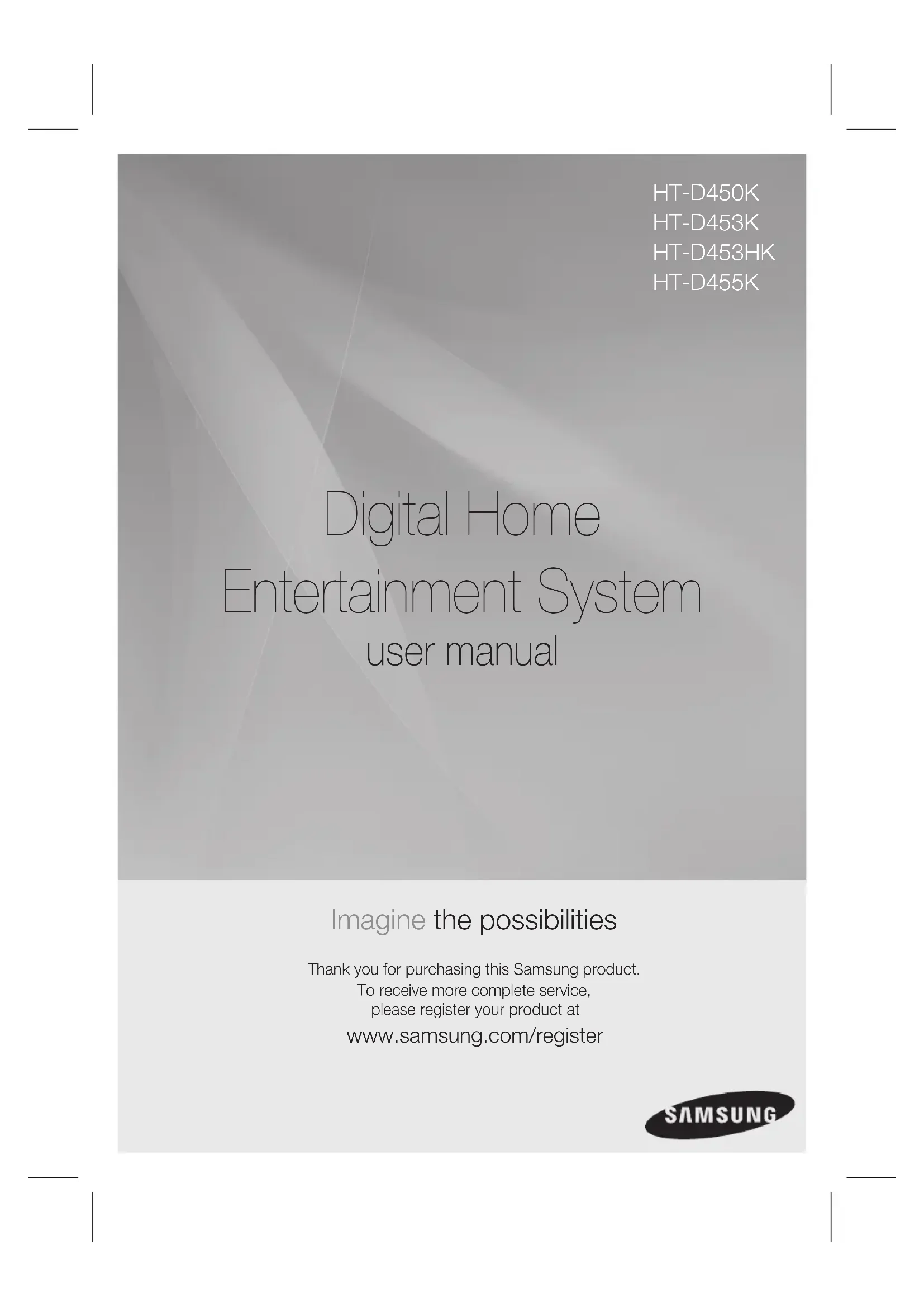

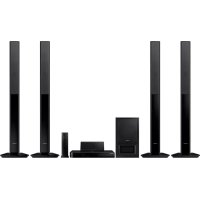
| Technical Features | 5.1 home theater system, total power of 1000 W, built-in DVD player, compatibility with Dolby Digital and DTS audio formats. |
|---|---|
| Connectivity | HDMI, USB, and analog audio inputs, HDMI output for connection to a television. |
| Usage | Ideal for movies, music, and video games, with customizable audio settings. |
| Maintenance | Regular cleaning of speakers and DVD player, firmware updates if available. |
| Safety | Use only with a compatible power supply, avoid exposure to moisture. |
| General Information | Compact dimensions, modern design, remote control included for easy operation. |
Frequently Asked Questions - HTD455K SAMSUNG
User questions about HTD455K SAMSUNG
0 question about this device. Answer the ones you know or ask your own.
Ask a new question about this device
Download the instructions for your Home Theater System in PDF format for free! Find your manual HTD455K - SAMSUNG and take your electronic device back in hand. On this page are published all the documents necessary for the use of your device. HTD455K by SAMSUNG.
USER MANUAL HTD455K SAMSUNG
Entertainment System user manual
Imagine the possibilities
Thank you for purchasing this Samsung product.
To receive more complete service,
please register your product at
www.samsung.com/register
SAMSUNG
Safety Information
Safety Warnings
TO REDUCE THE RISK OF ELECTRIC SHOCK, DO NOT REMOVE THE COVER(OR BACK). NO USER-SERVICEABLE PARTS ARE INSIDE. REFER SERVICING TO QUALIFIED SERVICE PERSONNEL.
 |  |  |
| This symbol indicates “dangerous voltage” inside the product that presents a risk of electric shock or personal injury. | CAUTION : TO PREVENT ELECTRIC SHOCK, MATCH WIDE BLADE OF PLUG TO WIDE SLOT, FULLY INSERT. | This symbol indicates important instructions accompanying the product. |
WARNING
- To reduce the risk of fire or electric shock, do not expose this appliance to rain or moisture.
CAUTION
- Apparatus shall not be exposed to dripping or splashing and no objects filled with liquids, such as vases, shall be placed on the apparatus.
- The Mains plug is used as a disconnect device and shall stay readily operable at any time.
- This apparatus shall always be connected to an AC outlet with a protective grounding connection.
- To disconnect the apparatus from the mains, the plug must be pulled out from the mains socket, therefore the mains plug shall be readily operable.
CLASS 1 LASER PRODUCT KLASSE 1 LASER PRODUKT LUOKAN 1 LASER LAITE KLASS 1 LASER APPARAT PRODUCTO LÁSER CLASE 1
CLASS 1 LASER PRODUCT
This Compact Disc player is classified as a CLASS 1 LASER product.
Use of controls, adjustments or performance of procedures other than those specified herein may result in hazardous radiation exposure.
CAUTION
• INVISIBLE LASER RADIATION WHEN OPEN AND INTERLOCKS DEFEATED, AVOID EXPOSURE TO BEAM.
Precautions
- Ensure that the AC power supply in your house complies with the identification sticker located on the back of your product.
• Install your product horizontally, on a suitable base (furniture), with enough space around it for ventilation (7.5\~10cm). - Do not place the product on amplifiers or other equipment which may become hot. Make sure the ventilation slots are not covered.
- Do not stack anything on top of the product.
- Before moving the product, ensure the Disc Insert Hole is empty.
- In order to disconnect the product completely from the power supply, remove the AC plug from the wall outlet, especially when left unused for a long period of time.
- During thunderstorms, disconnect the AC plug from the wall outlet. Voltage peaks due to lightning could damage the product.
- Do not expose the product to direct sunlight or other heat sources. This could lead to overheating and malfunction of the product.
- Protect the product from moisture, and excess heat or equipment creating strong magnetic or electric fields (i.e. speakers.).
- Disconnect the power cable from the AC supply if the product malfunctions.
- Your product is not intended for industrial use. Use of this product is for personal use only.
- Condensation may occur if your product or disc has been stored in cold temperatures. If transporting the product during the winter, wait approximately 2 hours until the product has reached room temperature before using.
- The batteries used with this product contain chemicals that are harmful to the environment. Do not dispose of batteries in the general household trash.
Accessories
Check for the supplied accessories below.
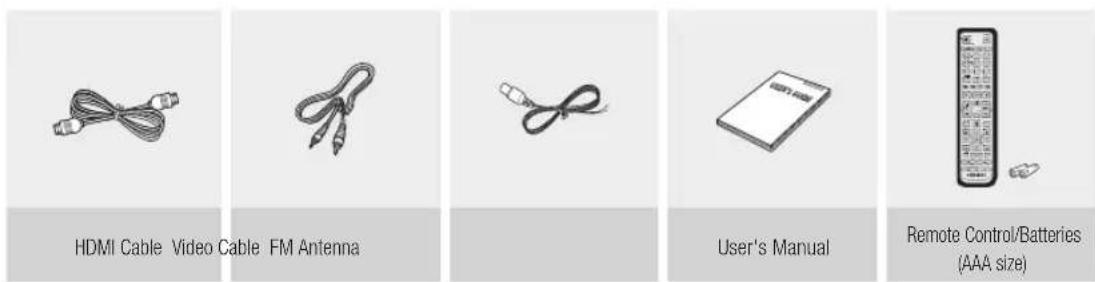
text_image
HDMI Cable Video Cable FM Antenna User's Manual Remote Control/Batteries (AAA size)Safety Information
Cautions on Handling and Storing Discs
Small scratches on the disc may reduce sound and picture quality or cause skipping.
Be especially careful not to scratch discs when handling them.
Holding discs
- Do not touch the playback side of the disc.
- Hold the disc by the edges so that fingerprints will not get on the surface.
- Do not stick paper or tape on the disc.
Disc Storage
- Do not keep in direct sunlight
- Keep in a cool ventilated area
- Keep in a clean Protection jacket.
Store vertically.

NOTE
■ Do not allow the discs to become contaminated with dirt.
■ Do not load cracked or scratched discs.
Handling and Storing Discs
If you get fingerprints or dirt on the disc, clean it with a mild detergent diluted in water and wipe with a soft cloth.
- When cleaning, wipe gently from the inside to the outside of the disc

NOTE
- Condensation may form if warm air comes into contact with cold parts inside the product. When condensation forms inside the product, it may not operate correctly. If this occurs, remove the disc and let the product stand for 1 or 2 hours with the power on.
License
- ABOUT DIVX VIDEO: DivX® is a digital video format created by DivX, Inc. This is an official DivX Certified® device that plays DivX video. Visit www.divx.com for more information and software tools to convert your files into DivX video.
ABOUT DIVX VIDEO-ON-DEMAND: This DivX Certified® device must be registered in order to play purchased DivX Video-on-Demand (VOD) movies. To obtain your registration code, locate the DivX VOD section in your device setup menu. Go to vod.divx.com for more information on how to complete your registration.
DivX Certified® to play DivX® video, including premium content DivX®, DivX Certified® and associated logos are trademarks of DivX, Inc. and are used under license.
Covered by one or more of the following U.S. patents : 7,295,673; 7,460,668; 7,515,710; 7,519,274
- HDMI, the HDMI Logo, and High-Definition Multimedia Interface are trademarks or registered trademarks of HDMI Licensing LLC in the United States and other countries.
- This item incorporates copy protection technology that is protected by U.S. patents and other intellectual property rights of Rovi Corporation. Reverse engineering and disassembly are prohibited.
- Dolby, Pro Logic, and the double-D symbol are registered trademarks of Dolby Laboratories.
- Manufactured under license under U.S. Patent #'s: 5,451,942; 5,956,674; 5,974,380; 5,978,762; 6,487,535 & other U.S. and worldwide patents issued & pending. DTS and the Symbol are registered trademarks & DTS Digital Surround and the DTS logos are trademarks of DTS, Inc. Product includes software © DTS, Inc. All Rights Reserved.
DOLBY.
DIGITAL PRO LOGIC II
Digital Surround

Copyright
© 2011 Samsung Electronics Co., Ltd. All rights reserved.
Copy Protection
- Many DVD discs are encoded with copy protection. Because of this, you should only connect your product directly to your TV, not to a VCR. Connecting to a VCR results in a distorted picture from copy-protected DVD discs.
Contents
SAFETY INFORMATION
2
2 Safety Warnings
3 Precautions
3 Accessories
4 Cautions on Handling and Storing Discs
4 License
4 Copyright
4 Copy Protection
GETTING STARTED
7
7 Icons that will be used in manual
7 Disc Types and Characteristics
11 Description
11 Front Panel
12 Rear Panel
13 Remote control
CONNECTIONS
15
15 Connecting the Speakers
19 Connecting the Video Out to your TV
21 Connecting the FM Antenna
21 Connecting Microphone
22 Connecting Audio from External Components
SETUP
23
23 Before Starting (Initial Setting)
23 Setting the Setup menu
24 Display
24 TV Aspect
24 BD Wise
24 Resolution
24 HDMI Format
24 Video Out Signal
25 Audio
25 Speaker Setting
26 DRC (Dynamic Range Compression)
26 AUDIO SYNC
27 HDMI Audio
27 User EQ
27 Audio Return Ch.
27 Karaoke scoring
27 System
27 Initial Setting
27 DivX(R) Registration
27 DivX(R) Deactivation
28 Language
28 Security
28 Parental Rating
28 Change Password
28 Support
28 Product Information
Contents
BASIC FUNCTIONS
29
29 Disc Playback
29 Audio CD(CD-DA)/MP3/WMA Playback
30 JPEG File Playback
30 Using the Playback Function
34 Sound Mode
36 Listening to Radio
ADVANCED FUNCTIONS
37
37 USB Function
37 USB Recording
OTHER INFORMATION
38
38 Troubleshooting
39 Language code list
40 Specifications
- Figures and illustrations in this User Manual are provided for reference only and may differ from actual product appearance.
Getting Started
Icons that will be used in manual
Make sure to check the following terms before reading the user manual.
| Icon | Term Definition | |
 | DVD | This involves a function available with DVD-Video or DVD ± R/ ± RW discs that have been recorded and Finalized in Video Mode. |
 | CD | This involves a function available with a data CD (CD DA, CD-R/-RW). |
 | MP3 | This involves a function available with CD-R/-RW discs. |
 | JPEG | This involves a function available with CD-R/-RW discs. |
| [68SH] | DivX | This involves a function available with MPEG4 discs. (DVD ± R/ ± RW, CD-R/-RW) |
| [697] | CAUTION | This involves a case where a function does not operate or settings may be canceled. |
| [100] | NOTE | This involves tips or instructions on the page that help each function operate. |
 | Shortcut Key | This function provides direct and easy access pressing the button on the remote control. |
Disc Types and Characteristics
Region Code
The product and the discs are coded by region. These regional codes must match in order for the disc to play. If the codes do not match, the disc will not play.
| Disc Type | Region Code | Area |
| DVD-VIDEO |  | The U.S., U.S. territories and Canada |
 | Europe, Japan, the Middle East, Egypt, South Africa, Greenland | |
 | Taiwan, Korea, the Philippines, Indonesia, Hong Kong | |
 | Mexico, South America, Central America, Australia, New Zealand Pacific Islands, Caribbean | |
 | Russia, Eastern Europe, India, most of Africa, North Korea, Mongolia | |
 | China |
Getting Started
Disc types that can be played
| Disc Types & Mark (Logo) | Recorded Signals | Disc Size | Max. Playing Time |
 DVD-VIDEO DVD-VIDEO | AUDIO + VIDEO | 12 cm | Approx. 240 min. (single-sided) |
| Approx. 480 min. (double-sided) | |||
| 8 cm | Approx. 80 min. (single-sided) | ||
| Approx. 160 min. (double-sided) | |||
 AUDIO-CD AUDIO-CD | AUDIO | 12 cm | 74 min. |
| 8 cm | 20 min. | ||
 | AUDIO + VIDEO | 12 cm | — |
| 8 cm | — |
Do not use the following type of discs!
- LD, CD-G, CD-I, CD-ROM, DVD-ROM and DVD-RAM discs cannot be played on this product. If such discs are played, a
- DVD discs purchased abroad may not play on this product.
If such discs are played, a
Disc Types And Disc Format
This product does not support Secure (DRM) Media files.
CD-R Discs
- Some CD-R discs may not be playable depending on the disc recording device (CD-Recorder or PC) and the condition of the disc.
- Use a 650MB/74 minute CD-R disc. Do not use CD-R discs over 700MB/80 minutes as they may not be played back.
- Some CD-RW (Rewritable) media, may not be playable.
- Only CD-Rs that are properly "closed" can be fully played. If the session is closed but the disc is left open, you may not be able to fully play the disc.
CD-R MP3 Discs
- Only CD-R discs with MP3 files in ISO 9660 or Joliet format can be played.
- MP3 file names should contain no blank spaces or special characters (. / = +).
- Use discs recorded with a compression/decompression data rate greater than 128Kbps.
- Only files with the ".mp3" and ".MP3" extensions can be played.
- Only a consecutively written multisession disc can be played. If there is a blank segment in the Multisession disc, the disc can be played only up to the blank segment.
- If the disc is not closed, it will take longer to begin playback and not all of the recorded files may be played.
- For files encoded in Variable Bitrate (VBR) format, i.e. files encoded in both low Bitrate and high Bitrate (e.g., 32Kbps \~ 320Kbps), the sound may skip during playback.
- A maximum of 500 tracks can be played per CD.
- A maximum of 300 folders can be played per CD.
CD-R JPEG Discs
- Only files with the "jpg" extensions can be played.
- If the disc is not closed, it will take longer to start playing and not all of the recorded files may be played.
- Only CD-R discs with JPEG files in ISO 9660 or Joliet format can be played.
- JPEG file names should be 8 characters or less in length and contain no blank spaces or special characters (. / = +).
- Only a consecutively written multisession disc can be played. If there is a blank segment in the multisession disc, the disc can be played only up to the blank segment.
- A maximum of 999 images can be stored on a folder.
- When playing a Kodak/Fuji Picture CD, only the JPEG files in the picture folder can be played.
- Picture discs other than Kodak/Fuji Picture CDs may take longer to start playing or may not play at all.
DVD±R/±RW, CD-R/RW Discs
- Software updates for incompatible formats are not supported.
(Example : QPEL, GMC, resolutions higher than 800 x 600 pixels, etc.) - If a DVD-R/-RW disc has not been recorded properly in DVD Video format, it will not be playable.
DivX (Digital internet video express)
DivX® is a video file format developed by DivX, Incand is based on MPEG4 compression technology to provide audio and video data over the Internet in real-time.
MPEG4 is used for video encoding and MP3 for audio encoding, enabling to watch a movie at near DVD-quality video and audio.
Supported Formats (DivX)
This product only supports the following media formats. If both video and audio formats are not supported, the user may experience problems such as broken images or no sound.
Supported Video Formats
| Format Supported Versions | |
| AVI | DivX3.11~DivX5.1 |
| WMV | V1/V2/V3/V7 |
Supported Audio Formats
| Format Bitrate | Sampling Frequency | |
| MP3 | 80~320kbps | 44.1khz |
| WMA | 56~128kbps | |
| AC3 | 128~384kbps 44.1/48khz | |
| DTS | 1.5Mbps 44.1khz | |
- DivX files, including audio and video files, created in the DTS format can only support up to 6Mbps.
-
Aspect Ratio : Although the default DivX resolution is 640x480 pixels, this product supports up to 720x480 pixels. TV screen resolutions higher than 800 will not be supported.
-
When you play a disc whose sampling frequency is higher than 48khz or 320kbps, you may experience shaking on the screen during playback.
- Sections with a high frame rate might not be played while playing a DivX file.
- Since this product only provides encoding formats authorized by DivX Networks, Inc., a DivX file created by the user might not play.
Getting Started
Notes on USB connection
Supported devices: USB storage media, MP3 player, digital camera
1) If a folder or file name is longer than 10 characters, it may not properly display or operate.
2) A subtitle file bigger than 300KB may not be properly displayed.
3) A certain USB/digital camera device, USB card reader is not supported.
4) FAT16 and FAT32 file systems are supported.
5) Photo (JPEG), music (MP3, WMA) and video file should have their names in Korean or English. Otherwise, the file may not played.
6) Connect directly to the product's USB port. Connecting through another cable may raise problems with USB compatibility.
7) Inserting more than one memory device to a multi-card reader may not operate properly.
8) PTP protocol for digital camera is not supported.
9) Do not disconnect USB device during a "Reading" process.
10) Bigger the image resolution, the longer the delay to displaying.
11) DRM applied MP3/WMA or video files downloaded from a commercial site are not played back.
12) External HDD device is not supported.
13) The maximum current supported by the USB port for an external device is 500 mA (at 5V DC).
14) Supported file formats
| Format | Still Picture | Music Movie | |||
| File name | JPG MP3 | WMA W | MV DivX | ||
| File extension | JPG .JPEG | .MP3 . | WMA .WMV | .AVI | |
| Bitrate | - | 80~320 kbps | 56~128 kbps | 4Mbps | 4Mbps |
| Version | - | - | V8 | V1,V2,V3,V7 | DivX3.11~DivX5.1 |
| Pixel | 640x480 | - | - | 720x480 | |
| Sampling Frequency | - | 44.1kHz | 44.1kHz | 44.1KHz~ 48KHz | |
Description
Front Panel
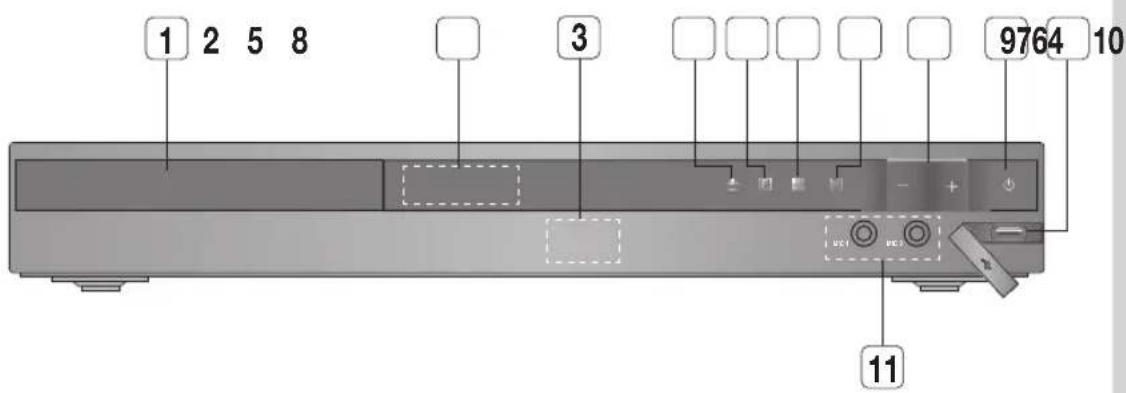
text_image
1 2 5 8 3 9764 10 11| 1 | DISC TRAY | Insert disc here. |
| 2 | DISPLAY | Displays the playing status, time, etc. |
| 3 | REMOTE CONTROL SENSOR | Detects signals from the remote control. |
| 4 | OPEN/CLOSE BUTTON( ) | Opens and closes the disc tray. |
| 5 | FUNCTION BUTTON( ) | The mode switches as follows : DVD/CD → D.IN → AUX → USB → FM |
| 6 | STOP BUTTON( ) | Stops disc playback. |
| 7 | PLAY/ PAUSE BUTTON( ) | Plays a disc or pauses playback. |
| 8 | VOLUME CONTROL BUTTON ( , ) + | Volume adjustment. |
| 9 | POWER BUTTON ( ) | Turns the product on and off. |
| 10 | USB PORT | Connect here and play fi les from external USB storage devices such as MP3 players, USB fl ash memory, etc. |
| 11 | MIC JACKS | Connects to the microphone. |
Getting Started
Rear Panel
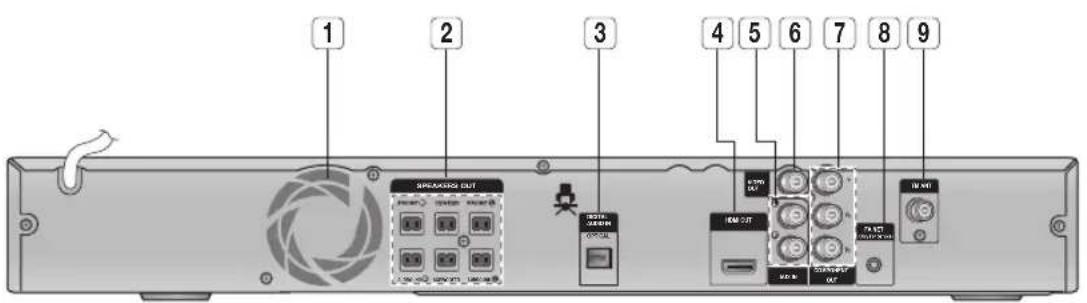
text_image
1 2 3 4 5 6 7 8 9 SPERKANG OUT TEN INT TEN OUT TEN INT| 1 | COOLING FAN | The fan always revolves when the power is on. Ensure a minimum of 10cm of clear space on all sides of the fan when installing the product. |
| 2 | SPEAKERS OUTPUT CONNECTORS | Connect the front, Center, surround speakers and subwoofer. |
| 3 | EXTERNAL DIGITAL OPTICAL IN JACK (DIGITAL AUDIO IN) | Use this to connect external equipment capable of digital output. |
| 4 | HDMI OUT JACK | Using an HDMI cable, connect this HDMI output jack to the HDMI input jack on your TV for the best quality picture. |
| 5 | AUX IN JACK | Connect to the 2CH Analog output of an external device (such as a VCR). |
| 6 | VIDEO OUT JACK | Connect your TV's Video Input jack (VIDEO IN) to the VIDEO OUT jack. |
| 7 | COMPONENT VIDEO OUTPUT JACKS | Connect a TV with Component video inputs to these jacks. |
| 8 | FA NET (Only for Service) | Used for the service repair. |
| 9 | FM ANTENNA JACK | Connect the FM antenna. |
12 English
Remote control
Tour of the Remote Control
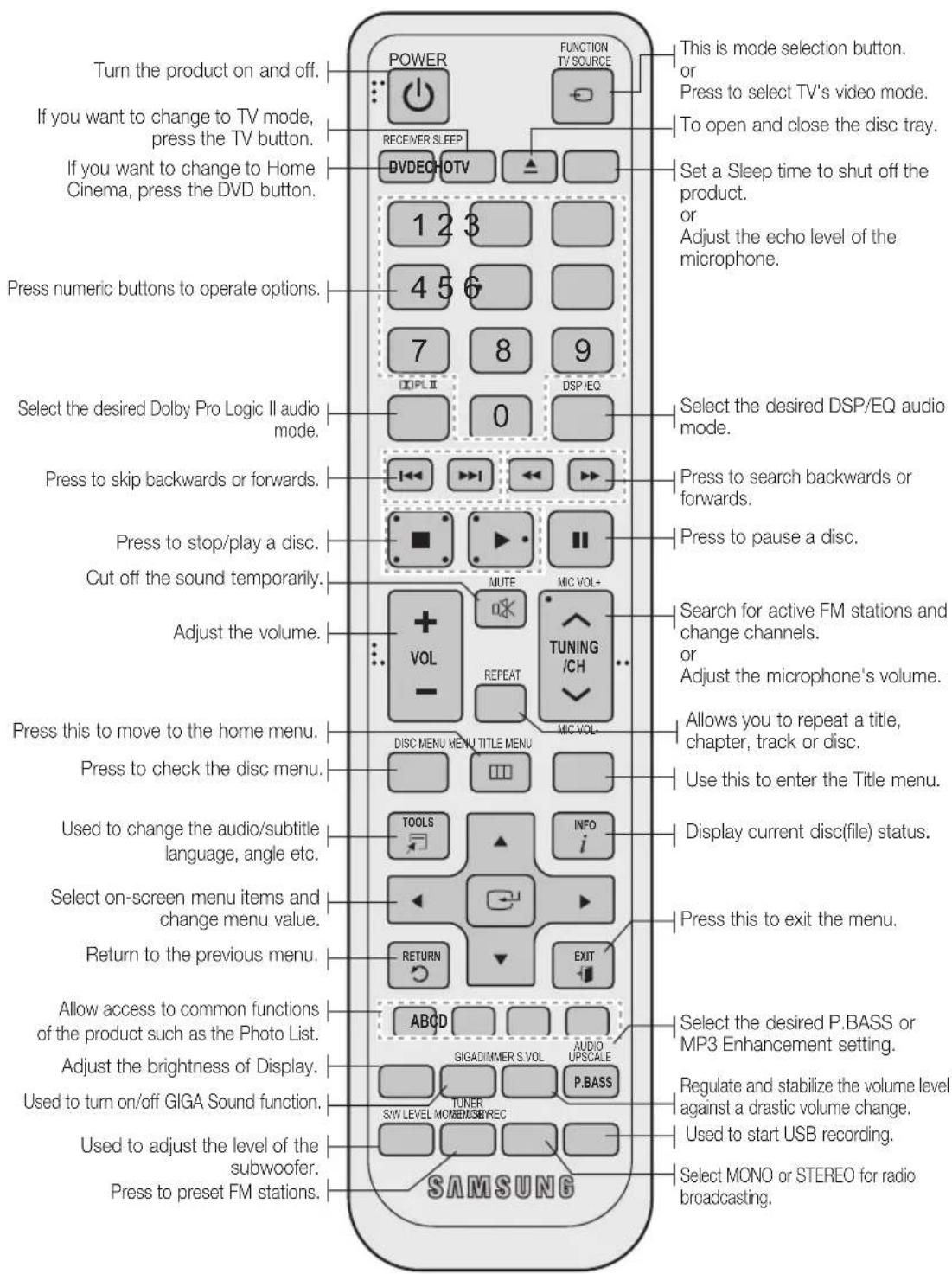
text_image
Turn the product on and off. If you want to change to TV mode, press the TV button. If you want to change to Home Cinema, press the DVD button. Press numeric buttons to operate options. Select the desired Dolby Pro Logic II audio mode. Press to skip backwards or forwards. Press to stop/play a disc. Cut off the sound temporarily. Adjust the volume. Press this to move to the home menu. Press to check the disc menu. Used to change the audio/subtitle language, angle etc. Select on-screen menu items and change menu value. Return to the previous menu. Allow access to common functions of the product such as the Photo List. Adjust the brightness of Display. Used to turn on/off GIGA Sound function. Used to adjust the level of the subwoofer. Press to preset FM stations. SAMSUNG POWER FUNCTION TV SOURCE RECEIVER SLEEP DVDECHOTV 1 2 3 4 5 6 7 8 9 DSP/EQ 0 MUTE MIC VOL+ REPEAT TUNING /CH MIC VOL- DISC MENU MENU TITLE MENU ACCESS ABC D GIGADIMMER S.VOL AUDIO UPSCALE P.BASS SW LEVEL MONO & REC Select the desired P.BASS or MP3 Enhancement setting. Regulate and stabilize the volume level against a drastic volume change. Used to start USB recording. Select MONO or STEREO for radio broadcasting.Getting Started
Installing batteries in the Remote Control
* Battery size: AAA
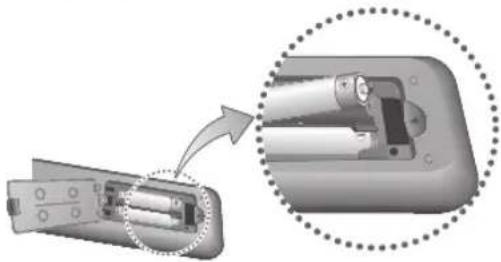
natural_image
Diagram showing a device being inserted into a housing, with an arrow indicating the process (no text or symbols present)
NOTE
Place batteries in the remote control so they match the polarity: (+) to (+) and (-) to (-).
■ Always replace both batteries at the same time.
■ Do not expose the batteries to heat or flame.
■ The remote control can be used up to approximately 7 meters in a straight line.
Setting the Remote Control
You can control certain functions of your TV with this remote control.
When operating a TV with the remote control
- Press the TV button to set the remote control to TV mode.
- Press the POWER button to turn on the TV.
- While holding down the POWER button, enter the code corresponding to your brand of TV.
- If there is more than one code listed for your TV in the table, enter one at a time to determine which code works.
• Example : For a Samsung TV While holding down the POWER button, use the number buttons to enter 00, 15, 16, 17 and 40.
- If the TV turns off, the setting is complete.
- You can use the TV POWER, VOLUME, CHANNEL, and Numeric buttons (0\~9).

NOTE
■ The remote control may not work or some operations may not be possible with some brands of TVs.
The remote control will work on a Samsung TV by default.
TV Brand Code List
| Brand Code Brand Code | |||
| Admiral(M.Wards) | 56, 57, 58 | MTC | 18 |
| A Mark | 01, 15 | NEC | 18, 19, 20, 40, 59, 60 |
| Anam | 01, 02, 03, 04, 05, 06,07, 08, 09, 10, 11,12, 13, 14 | Nikkei | 03 |
| AOC | 01, 18, 40, 48 | Onking | 03 |
| Bell & Howell(M.Wards) | 57, 58, 61 | Onwa | 03 |
| Brosonic | 59, 60 | Panasonic | 06, 07, 08, 09, 54, 66,67, 73, 74 |
| Candle | 18 | Penney | 18 |
| Catronic | 03 | Phlico | 03, 15, 17, 18, 48, 54,59, 62, 69, 90 |
| Citizen | 03, 18, 25 | Phillips | 15, 17, 18, 40, 48,54, 62, 72 |
| Cinema | 97 | Pioneer | 83, 66, 80, 91 |
| Classic | 03 | Portland | 15, 18, 59 |
| Concerto | 18 | Proton | 40 |
| Contec | 46 | Quasar | 08, 66, 67 |
| Coronado | 15 | Radio Shack | 17, 48, 56, 60, 61, 75 |
| Craig | 03, 05, 61, 82, 83, 84 | RCA/Proscan | 18, 59, 67, 76, 77, 78,92, 93, 94 |
| Croslex | 62 | Realistic | 03, 19 |
| Crown | 03 | Sampo | 40 |
| Curtis Matos | 59, 61, 63 | Samsung | 30, 15, 18, 17, 40, 43, 46,47, 48, 49 |
| CXC | 03 | Sanyo | 19, 61, 65 |
| Daewoo | 02, 03, 04, 15, 16, 17, 18,19, 20, 21, 22, 23, 24, 25,26, 27, 28, 29, 30, 32, 34,35, 36, 43, 59, 90 | Scott | 03, 40, 60, 61 |
| Daytron | 40 | Sears | 15, 18, 19 |
| Dynasty | 03 | Sharp | 15, 57, 64 |
| Emerson | 03, 15, 40, 46, 59, 61,64, 92, 83, 84, 85 | Signature2000(M.Wards) | 57, 58 |
| Fisher | 19, 65 | Sony | 50, 51, 52, 53, 55 |
| Funai | 03 | Sounddesign | 03, 40 |
| Futuretech | 03 | Spectricon | 01 |
| GeneralElectric (GE) | 06, 40, 56, 59, 66,67, 68 | SSS | 18 |
| Hall Mark | 40 | Sylvania | 18, 40, 48, 54, 59,60, 62 |
| Hitachi | 15, 10, 50, 59, 69 | Symphonic | 61, 95, 96 |
| Inkel | 45 | Tatung | 06 |
| JC Penny | 56, 59, 67, 96 | Techwood | 18 |
| JVC | 70 | Teknikka | 03, 15, 18, 25 |
| KTV | 59, 61, 87, 88 | TMK | 18, 40 |
| KEC | 03, 15, 40 | Toshiba | 19, 57, 63, 71 |
| KMC | 15 | Vidtech | 18 |
| LG (Goldstar) | 01, 15, 16, 17, 37, 38,39, 40, 41, 42, 43, 44 | Videch | 59, 60, 69 |
| Luxman | 18 | Wards | 15, 17, 18, 40, 48,54, 60, 64 |
| LXI (Sears) | 19, 54, 56, 59, 60, 62,63, 65, 71 | Yamaha | 18 |
| Magnavox | 15, 17, 18, 48, 54, 59,60, 62, 72, 89 | York | 40 |
| Marantz | 40, 54 | Yupiteru | 03 |
| Matsui | 54 | Zenith | 58, 79 |
| MGA | 18, 40 | Zonda | 01 |
| Mitsubishi/MGA | 18, 40, 59, 60, 75 | Dongyang | 03, 54 |
Connections
This section involves various methods of connecting the product to other external components. Before moving or installing the product, be sure to turn off the power and disconnect the power cord.
Connecting the Speakers
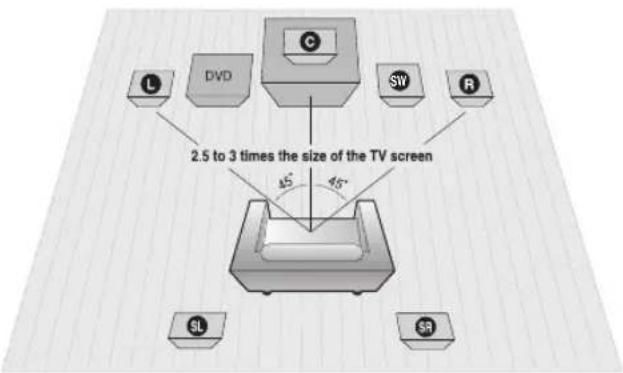
text_image
2.5 to 3 times the size of the TV screen 45° 45°Position of the product
Place it on a stand or cabinet shelf, or under the TV stand.
Selecting the Listening Position
The listening position should be located about 2.5 to 3 times the distance of the TV's screen size away from the TV.
Example : For 32" TV's 2\~2.4m For 55" TV's 3.5\~4m
| Front Speakers L R | Place these speakers in front of your listening position, facing inwards (about 45°) toward you. Place the speakers so that their tweeters will be at the same height as your ear. Align the front face of the front speakers with the front face of the Center speaker or place them slightly in front of the Center speakers. |
| Center Speaker C | It is best to install it at the same height as the front speakers. You can also install it directly over or under the TV. |
| Surround Speakers SL SR | Place these speakers to the side of your listening position. If there isn't enough room, place these speakers so they face each other. Place them about 60 to 90cm above your ear, facing slightly downward.★ Unlike the front and Center speakers, the surround speakers are used to handle mainly sound effects and sound will not come from them all the time. |
| Subwoofer SW | The position of the subwoofer is not so critical. Place it anywhere you like. |
! CAUTION
Do not let children play with or near the speakers. They could get hurt if the speaker falls.
- When connecting the speaker wires to the speakers, make sure that the polarity (+/-) is correct.
- Keep the subwoofer out of the reach of children so as to prevent them from inserting their hands or alien substances into the duct (hole) of the subwoofer.
- Do not hang the subwoofer on the wall through the duct (hole).
NOTE
If you place a speaker near your TV set, screen Color may be distorted because of the magnetic field generated by the speaker. If this occurs, place the speaker away from your TV set.
Connections
Speaker Components
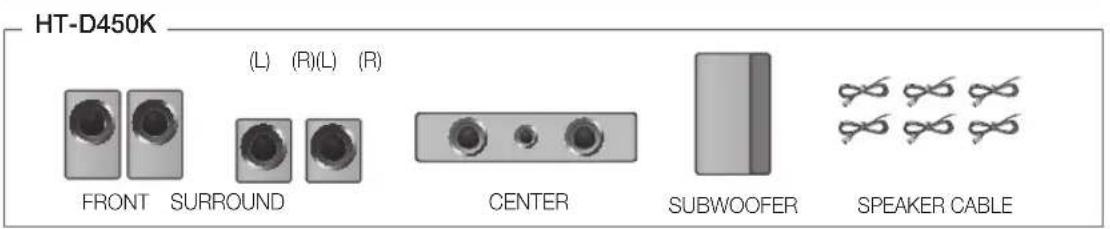
text_image
HT-D450K (L) (R)(L) (R) FRONT SURROUND CENTER SUBWOOFER SPEAKER CABLESpeaker Components Assembled Speakers
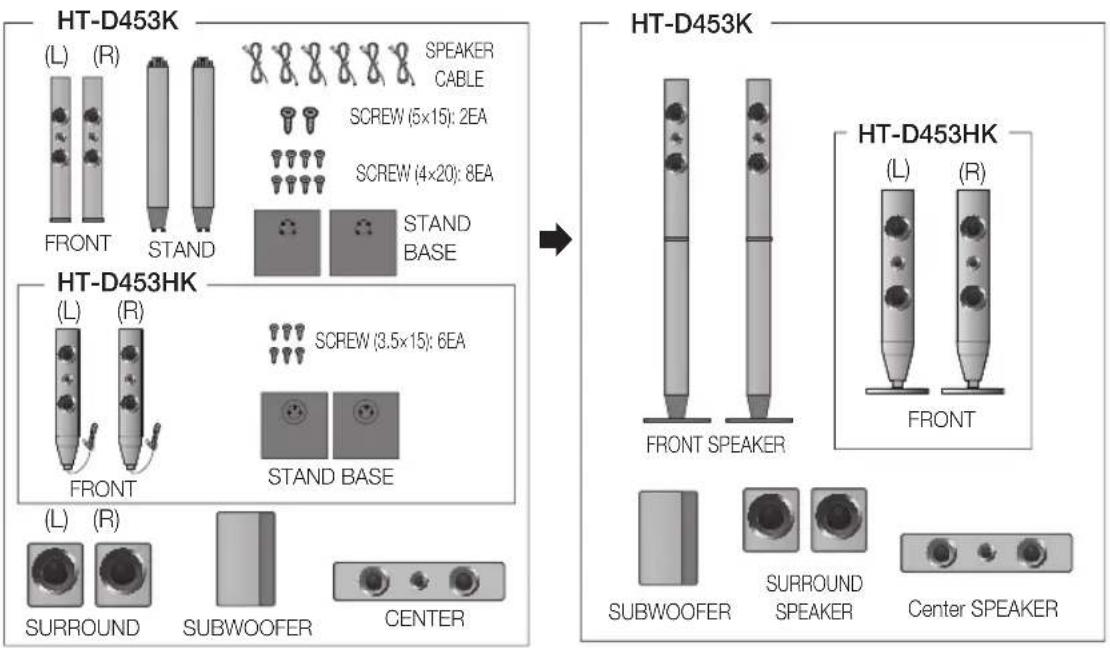
text_image
HT-D453K (L) (R) FRONT STAND SPEAKER CABLE SCREW (5×15): 2EA SCREW (4×20): 8EA STAND BASE HT-D453HK (L) (R) FRONT STAND BASE L) (R) SURROUND SUBWOOFER CENTER HT-D453K FRONT SPEAKER HT-D453HK (L) (R) FRONT SURROUND SPEAKER Center SPEAKER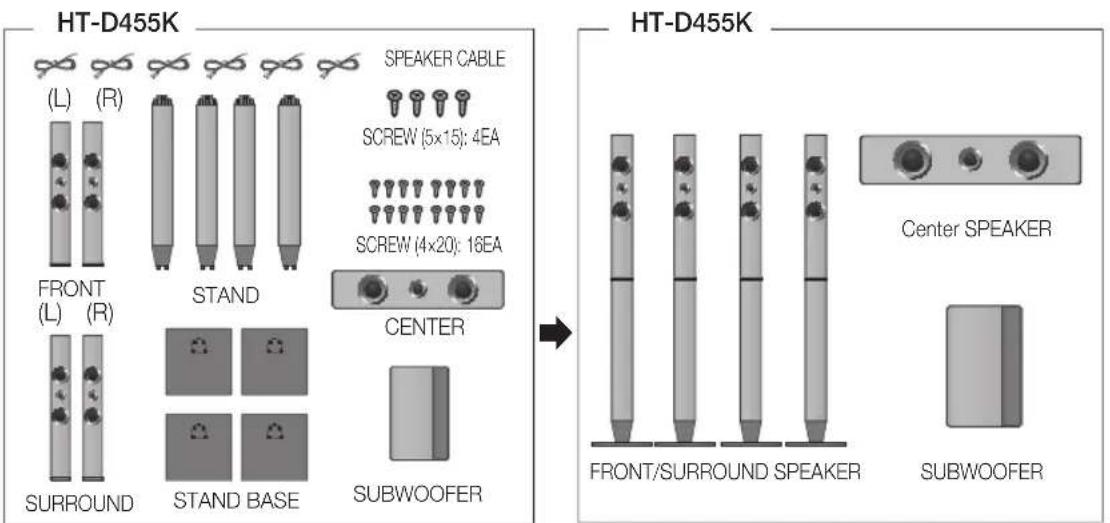
text_image
HT-D455K (L) (R) FRONT (L) (R) SURROUND STAND STAND BASE SPEAKER CABLE SCREW (5x15): 4EA SCREW (4x20): 16EA CENTER SUBWOOFER HT-D455K FRONT/SURROUND SPEAKER Center SPEAKER SUBWOOFERNOTE
■ Refer to page 17 to install the Speakers on the Tallboy Stand.
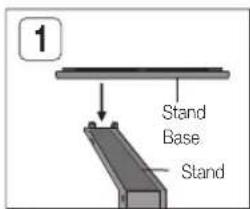
Installing the Speakers on the Tallboy Stand
* HT-D453K only - Front Speakers
* HT-D455K only - Front/Surround Speakers
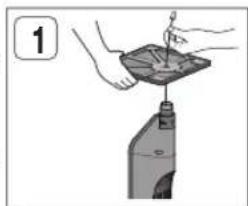
- Turn the Stand Base upside-down and connect it to the Stand.
- Insert small screws (4*20, For connecting Stand & Stand Base) clockwise into the four holes marked using a screwdriver as shown in the illustration.
! CAUTION: When you use a torque screwdriver, be careful not to put excessive force. Otherwise, it runs idle or can be damaged. (torque screwdriver- below 15 kg.f.cm)
- Connect the upper Speaker to the assembled Stand.
- Insert another largescrew (5*15, For connecting Speaker & Stand) clockwise into the hole on the rear of the speaker using ascrewdriver.
- This is the appearance after the speaker is installed. Follow this steps to install other speaker.
text_image
1 Stand Base Stand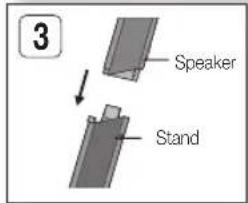
text_image
3 Speaker Stand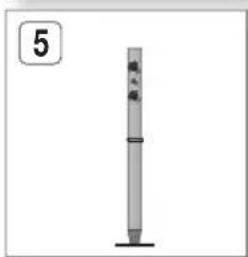
natural_image
Simple vertical cylindrical object with a base, no visible text or symbols
natural_image
Illustration of a hand using a tool to press or install a device on a stand (no text or symbols visible)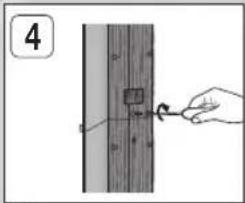
text_image
4Installing the Speakers on the Half Tallboy
* HT-D453HK only - Front Speakers
- Stretch out the speaker cables as shown and arrange it through the hole of the stand base.
- When done, use the screw driver to tighten the screw (C) in each of 3 screw holes as shown.
- This is the appearance after the speaker is installed. Follow these steps to install other speaker.
natural_image
Illustration of hands cleaning a container with a bottle (no text or symbols)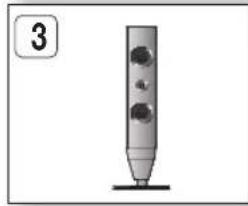
natural_image
Simple illustration of a vertical cylindrical object with circular holes, no text or symbols present.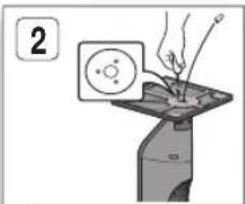
text_image
2Connections
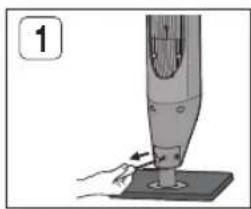
Adjusting the height of the Half Tallboy Speaker
\* HT-D453HK only - Front Speakers
- If you want to adjust the height of the speaker, loosen 3 screws on the rear of the speaker base first.
- Pull up the speaker in the arrow direction. (See figure 2)
! CAUTION: Be careful as an excessive force may result in a physical damage.
- Fit the speaker in a height adjusting hole of your choice. For the height information, check the following examples. (570mm for the default height)
Ex) Hole 1: 650mm in the speaker height
Hole 2: 635mm in the speaker height
- Close the cover as shown and tighten back the 3 screws.
- This is after the height of the speaker is adjusted. You can repeat these steps above at any time if you want to readjust the height.
natural_image
Illustration of a hand using a handheld tool to press or install a component, no text or symbols visible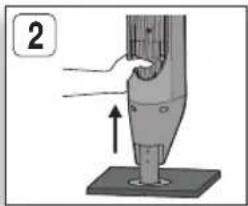
text_image
2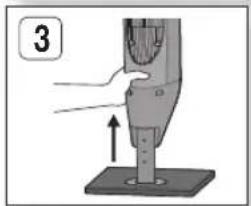
natural_image
Illustration of a hand using a tool to press or install a component, with no visible text or symbols.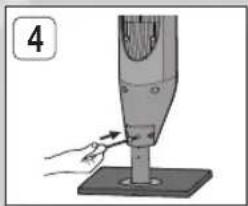
natural_image
Illustration of a hand using a handheld device to press or install a cylindrical component on a base (no text or symbols visible)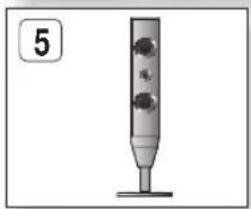
natural_image
Simple illustration of a vertical cylindrical object with three circular holes, mounted on a base (no text or symbols)Connecting The Speakers
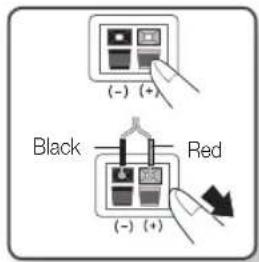
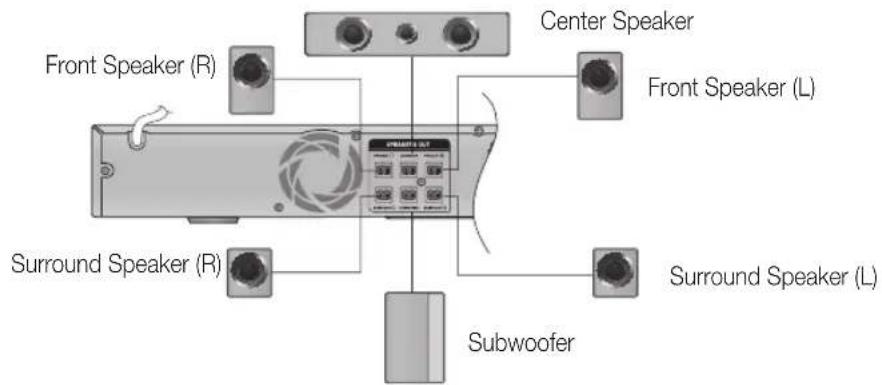
- Press down the terminal tab on the back of the speaker.
- Insert the black wire into the black terminal (−) and the red wire into the red terminal (+), and then release the tab.
- Connect the connecting plugs to the back of the product by matching the Colors of the speaker plugs to the speaker jacks.
text_image
(- ) (+) Black Red (- ) (+)In case of HT-D450K
text_image
Front Speaker (R) Surround Speaker (R) Center Speaker Front Speaker (L) Surround Speaker (L) Subwoofer* Refer to page 16 for the speakers of HT-D453K/D453HK/D455K.
Connecting the Video Out to your TV
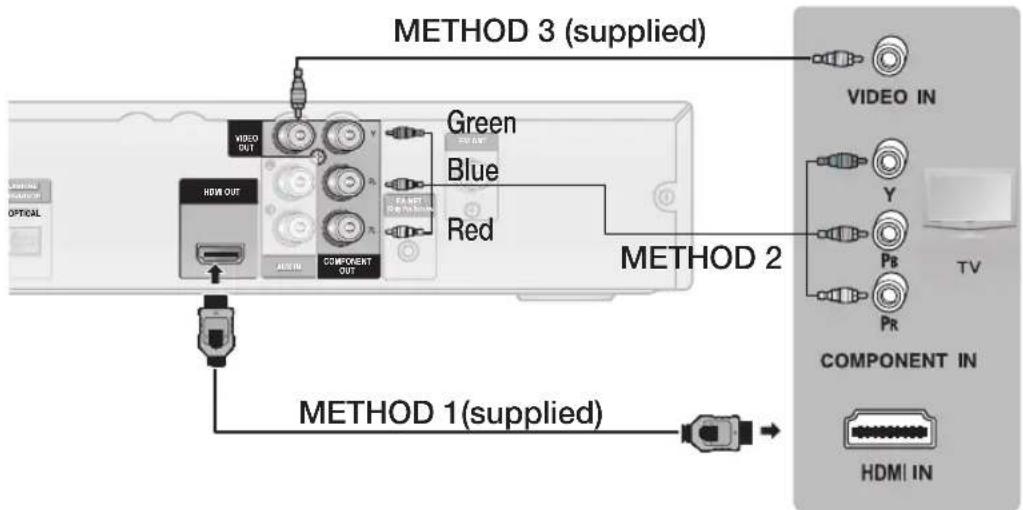
Choose one of the three methods for connecting to a TV.
text_image
METHOD 3 (supplied) VIDEO OUT HDMI OUT COMPONENT OUT Green Blue Red METHOD 2 METHOD 1(supplied) VIDEO IN Y TV PB PR COMPONENT IN HDMI INMETHOD 1 : HDMI
Connect an HDMI cable (supplied) from the HDMI OUT jack on the back of the product to the HDMI IN jack on your TV.
METHOD 2 : Component Video
If your television is equipped with Component Video inputs, connect a Component video cable(not supplied) from the COMPONENT OUT (Y, P_B and P_R ) jacks on the back of the product to the Component Video Input jacks on your TV.
METHOD 3 : Composite Video
Connect the supplied Video cable from the VIDEO OUT jack on the back of the product to the VIDEO IN jack on your TV.

NOTE
■ Resolutions available for the HDMI output are 480p(576p), 720p,1080i/1080p. See page 24 for the resolution setting.
This product operates in Interlace scan mode 480i(576i) for component/composite output.
■ After making the video connection, set the Video input source on your TV to match the corresponding Video output mode on your product.
Turn this product on first before you set the video input source on your TV. See your TV owner's manual for more information on how to select the TV's Video Input source.
! CAUTION
- Do not connect the unit through a VCR. Video signals fed through VCRs may be affected by copyright protection systems and the picture will be distorted on the television.
Connections
HDMI FUNCTION
HDMI Auto Detection Function
If your TV is Samsung TV and it supports CEC function. The product's video output will automatically change to HDMI mode when connecting an HDMI cable while power is on.
• HDMI (High Definition Multimedia Interface)
- HDMI is an interface that enables the digital transmission of video and audio data with just a single connector. Using HDMI, the product transmits a digital video and audio signal and displays a vivid picture on a TV having an HDMI input jack.
• HDMI connection description
- HDMI outputs only a pure digital signal to the TV.
- If your TV does not support HDCP (High-bandwidth Digital Content Protection), random noise appears on the screen.
• What is the HDCP?
- HDCP (High-band width Digital Content Protection) is a system for protecting DVD content outputted via HDMI from being copied. It provides a secure digital link between a video source (PC, DVD, etc) and a display device (TV, projector, etc). Content is encrypted at the source device to prevent unauthorized copies from being made.
Using Anynet+(HDMI-CEC)
Anynet+ is a function that enables you to control other Samsung Devices with your Samsung TV's remote control. Anynet + can be used by connecting this product to a SAMSUNG TV using a HDMI Cable. This is only available with SAMSUNG TV's that support Anynet+.
- Connect the product to a Samsung TV with an HDMI cable. (See page 19)
- Set the Anynet+ function on your TV. (See the TV instruction manual for more information.)

NOTE
The Anynet+ function supports some buttons of the remote control.
This function is not available if an HDMI cable does not support CEC.
Depending on your TV, certain HDMI output resolutions may not work. Please refer to the user's manual of your TV.
Please check the Anynet ^+ logo (If your TV has an Anynet ^+ logo, then it supports Anynet+ function.)
Connecting the FM Antenna
text_image
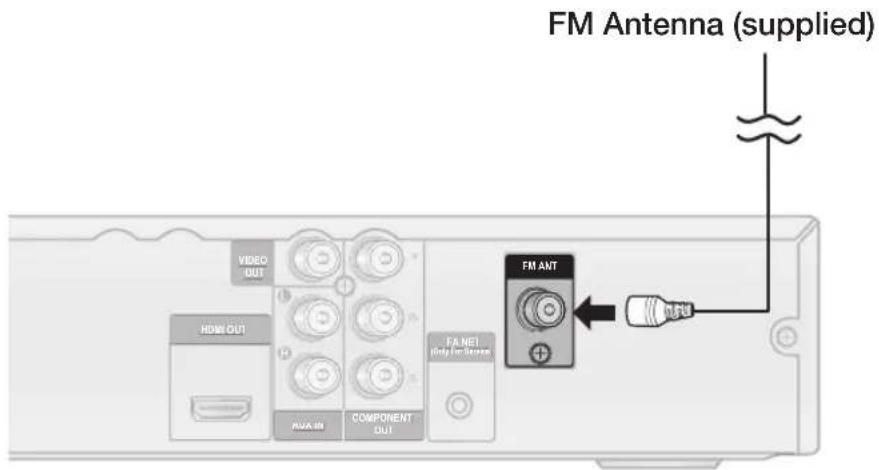
FM Antenna (supplied) VIDEO OUT HDMI OUT FA NET HUA IN COMPONENT OUT FM ANT +- Connect the FM antenna supplied to the FM Antenna jack.
- Slowly move the antenna wire around until you find a location where reception is good, then fasten it to a wall or other rigid surface.

NOTE
This product does not receive AM broadcasts.
Connecting Microphone
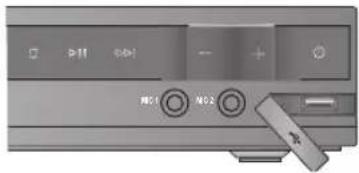
You can enjoy the feeling of a karaoke bar in the comfort of your home. Watch the video and sing along the lyrics displayed on the TV screen against the accompaniment.
text_image
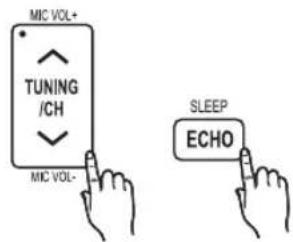
M01 M02- Connect the microphone to the MIC jack on the front of the product.
- Press the MIC VOL button to adjust the volume of the microphone.
- Press the ECHO button to adjust the echo level of the microphone.
text_image
MIC VOL+ TUNING /CH MIC VOL- SLEEP ECHO
NOTE
If you hear strange noises (squealing or howling) while using the Karaoke feature, move the microphone away from the speakers. Turning down the microphone's volume or the speaker volume is also effective.
■ The microphone does not operate in the AUX and TUNER mode.
Connections
Connecting Audio from External Components
flowchart
graph TD
    A["Set-Top Box VCR"] -->|Optical Cable (not supplied)| B["OPTICAL"]
    C["AUX"] -->|Audio Cable (not supplied) If the external Analog component has only one Audio Out, connect either left or right.| D["AUX"]
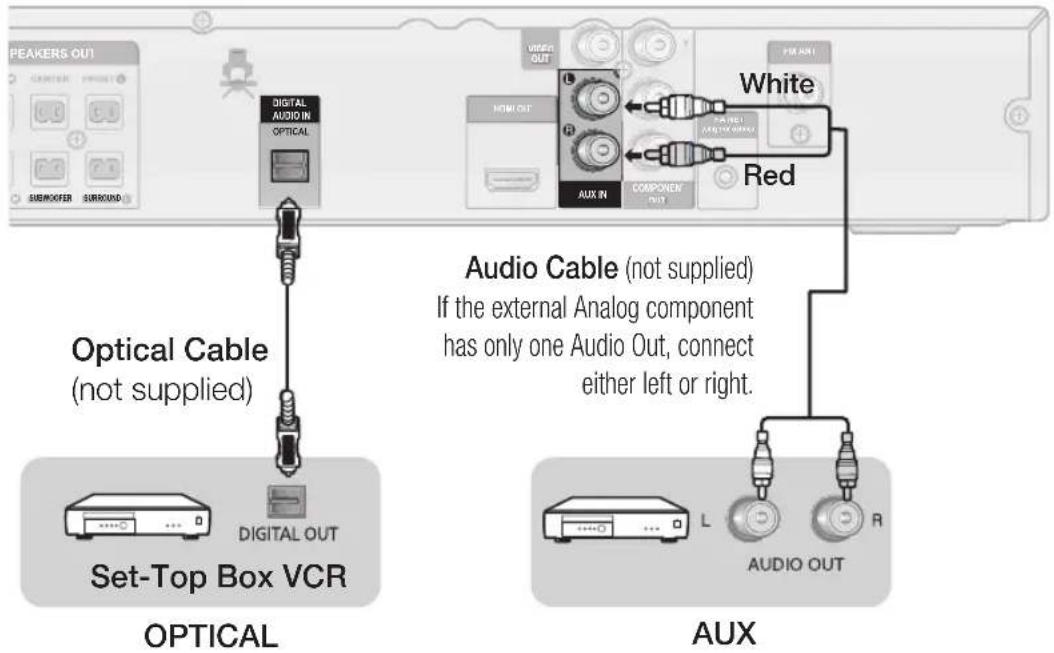
AUX : Connecting an External Analog Component
Analog signal components such as a VCR.
- Connect AUX IN (Audio) on the back of the product to the Audio Out of the external Analog component.
- Be sure to match the Colors of the connecting jacks.
- Press the FUNCTION button to select AUX input.
- The mode switches as follows: DVD/CD → D.IN → AUX → USB → FM

NOTE
- You can connect the Video Output jack of your VCR to the TV, and connect the Audio Output jacks of the VCR to this product.
OPTICAL : Connecting an External Digital Component
Digital signal components such as a Cable Box/Satellite receiver (Set-Top Box).
-
Connect the DIGITAL AUDIO IN (OPTICAL) on the back of the product to the Digital Output of the external digital component.
-
Press the FUNCTION button to select D.IN.
- The mode switches as follows: DVD/CD → D.IN → AUX → USB → FM
22
English
Setup
Before Starting (Initial Setting)
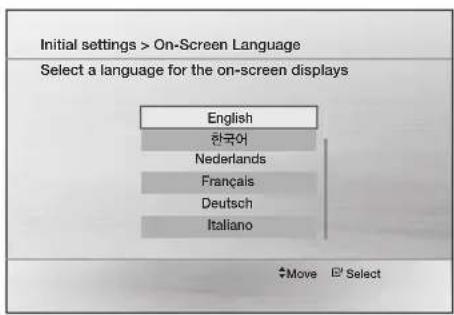
- Press the POWER button when it is plugged in TV for the first time. Initial Setting screen will be displayed.
text_image
Initial settings > On-Screen Language Select a language for the on-screen displays English 한국어 Nederlands Français Deutsch Italiano Move Select- Press the ▲▼ buttons to select the desired language, then press the ENTER button.
- Press the ENTER button to select Start button.
- Press the ▲▼ buttons to select desired TV Aspect, then press the ENTER button.
- If the HDMI cable is connected to the product, TV Zspect does not appear.

NOTE
If you have not selected a preferred language in the initial settings, you will see a language selection window next time you turn on the product.
- Your language selection will apply to all menus: On-Screen Menu, Disc Menu, Audio, Subtitle.
If you want to move to the previous screen, press the RETURN button.
Once you select a menu language, you can change it by pressing the STOP (■) button on the remote control for more than 5 seconds with no disc inserted.
■ When the Initial Setting screen does not appear, refer to the Initial Setting. (see page 27)
Setting the Setup menu
The access step may differ depending on the selected menu. The GUI (Graphical User Interface) in this manual may differ, depending on the firmware version.
text_image
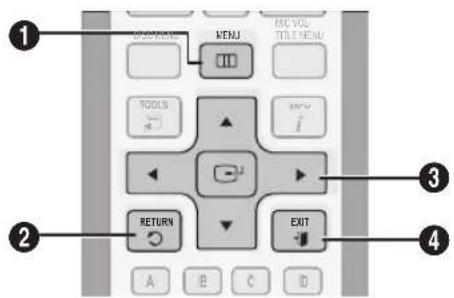
1 2 3 4 A B C D CUSTOM MENU MO VOL TITLE MENU TOOLS i RETURN EXIT1 MENU BUTTON : Display the home menu.
2 RETURN BUTTON : Return to the previous setup menu.
ENTER / DIRECTION BUTTON
3 Move the cursor and select an item. Select the currently selected item. Confirm the setting.
4 EXIT BUTTON : Exit the setup menu.
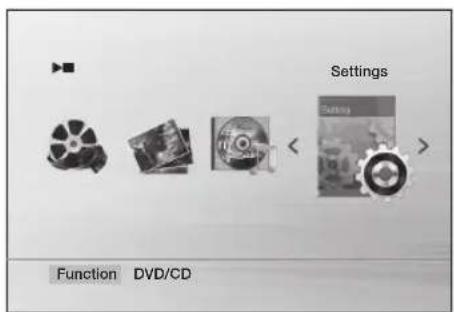
text_image
Settings Function DVD/CD- Press the POWER button.
- Press the ◀▶ buttons to select Settings, then press the ENTER button.
- Press the ▲▼ buttons to select the desired menu, then press the ENTER button.
- Press the ▲▼ buttons to select the desired sub-menu, then press the ENTER button.
- Press the ▲▼ buttons to select the desired item, then press the ENTER button.
- Press the EXIT button to exit the setup menu.
Setup
Display
You can configure various display options such as the TV Aspect, Resolution, etc.
TV Aspect
Depending on the type of television you have, you may want to adjust the screen setting.
• 4:3 Pan-Scan
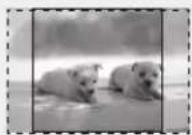
Select when you want to see the 16:9 video supplied by the DVD without the black bars on top and bottom, even though you have a TV with a 4:3 ratio screen(extreme left and right portion of the movie picture will be cut off).
• 4:3 Letter Box
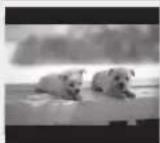
Select when you want to see the total 16:9 ratio screen DVD supplies, even though you have a TV with a 4:3 ratio screen. Black bars will appear at the top and bottom of the screen.
• 16:9 Wide
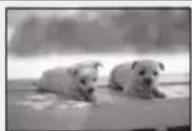
You can view the full 16:9 picture on your widescreen TV.

NOTE
- When using HDMI, the screen is automatically converted to the 16:9 Wide mode and TV Aspect is deactivated.
If a DVD is in the 4:3 ratio, you cannot view it in the wide screen.
■ Since DVD discs are recorded in various image formats, they will look different depending on the software, the type of TV, and the TV aspect ratio setting.
BD Wise
(Samsung products only)
BD Wise is Samsung's latest inter-connectivity feature. When you connect Samsung products with BD-Wise to each other via HDMI, the optimum resolution will be set automatically.
- On: The original resolution of the DVD disc will be output to the TV direct.
- Off: The output resolution will be fixed according to the Resolution previously set, regardless of the resolution of the disc.
24
English

NOTE
This will optimize the picture quality according to the content (In the DVD disc, etc) that you want to play and the product or your BD Wise-compliant Samsung TV.
If you want to change the resolution in BD Wise mode, you must set BD mode to Off in advance.
■ BD Wise will be disabled if the product is connected to a device that does not support BD Wise.
Resolution
Sets the output resolution of the HDMI video signal. The number in 480p(576p), 720p, 1080i and 1080p indicates the number of lines of video.
The i and p indicate interlace and progressive scan, respectively.
• 480p(576p) : Outputs 480 lines of progressive video.
• 720p : Outputs 720 lines of progressive video.
• 1080i : Outputs 1080 lines of interlaced video.
• 1080p : Outputs 1080 lines of progressive video.
- BD Wise : Automatically sets the optimal resolution when connected via HDMI to a TV with the BD Wise feature. (The BD Wise menu item appears only if BD Wise is set to On.)

NOTE
If Component or Composite is connected, the resolution supports only 480i(576i).
■ 1080P may not appear depending on TV.
HDMI Format
You can optimize the Color setting from the HDMI output. Select a connected device Type.
• Monitor : Select if connected to a Monitor via HDMI.
• TV : Select if connected to a TV via HDMI.
Video Out Signal
Different countries apply different TV standard. You can select from NTSC or PAL.
• NTSC : You can select the NTSC video format.
• PAL : You can select the PAL video format.
Audio
Speaker Setting
Speaker Size
You can set the Speaker Size of the Center and Surround Speakers, as well as Test Tone in this mode.
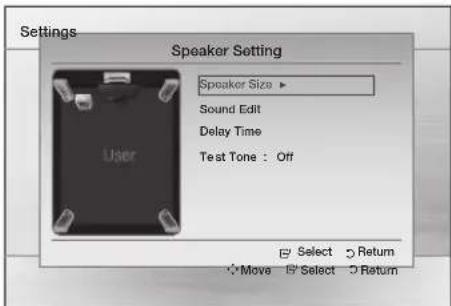
text_image
Settings Speaker Setting Speaker Size ▶ Sound Edit Delay Time Test Tone : Off User Select Return Move Select Return- For the Front, the mode is set to Small.
- For the Subwoofer, the mode is set to Present.
-
For the Center and Surround, you can switch the mode to Small or None.
-
Small : Select this when using the speakers.
- None : Select this when no speaker is connected.

NOTE
The speaker mode may vary depending on the Dolby Pro Logic and Stereo settings.
Sound Edit
You can adjust the balance and level for each speaker.
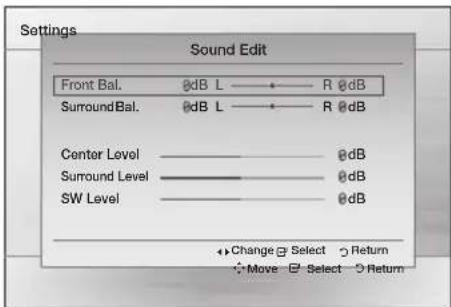
text_image
Settings Sound Edit Front Bal. @dB L —— R @dB SurroundBal. @dB L —— R @dB Center Level —————— @dB Surround Level —————— @dB SW Level —————— @dB Change Select Return Move Select ReturnPress the ▲▼ buttons to select and adjust the desired speaker.
Press the ◀▶ buttons to adjust the settings.
Adjusting Front/Surround Bal.
■ You can select between 0 and -6.
■ The volume decreases as you move closer to -6.
Adjusting Center/Surround/Subwoofer Level
The volume level can be adjusted in steps from +6dB to -6dB.
■ The sound gets louder as you move closer to +6dB and quieter as you get closer to -6dB.
Delay Time
If the speakers cannot be placed at equal distances from the listening position, you can adjust the delay time of the audio signals from the Center and Surround speakers. You can also set the Test Tone in this mode.
Setting up the Speaker Delay Time
When 5.1CH Surround Sound is played, you can enjoy the best sound if the distance between you and each speaker is the same.
Since the sounds arrive at the listening position at different times depending on the placement of speakers, you can adjust this difference by adding a delay effect to the Center and Surround Speakers.
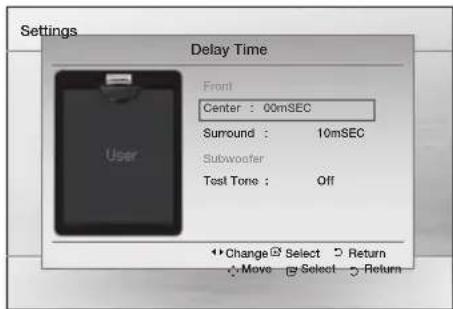
text_image
Settings Delay Time Front Center : 00mSEC Surround : 10mSEC Subwoofer Test Tone : Off User Change Select Return Move Select Return
NOTE
The Delay Time menu will be activated only when the 5.1 channel source is played.
- You can not set Center and Surround in this mode when their Speaker Size is set to None.
Setup
flowchart
graph TD
    A["Center"] --> B["C"]
    B --> C["R"]
    C --> D["SW"]
    D --> E["Dc"]
    E --> F["SI"]
    F --> G["SR"]
    G --> H["DS"]
    H --> I["Df"]
    I --> J["L"]
    J --> K["Ideal Center Speaker placement"]
    style A fill:#f9f,stroke:#333
    style K fill:#ccf,stroke:#333
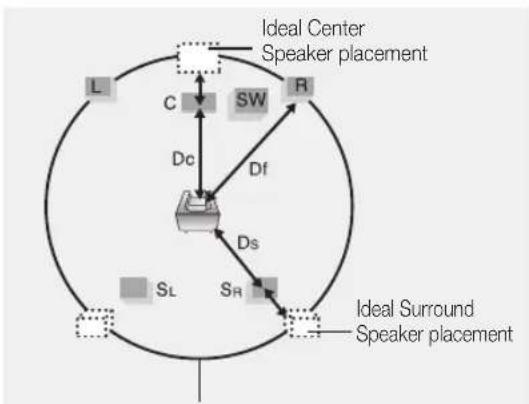
Place all speakers within this circle.
Df: The distance from Front Speaker
Dc: The distance from Center Speaker
Ds: The distance from Surround Speaker
Setting the Center Speaker
If the distance of Dc is equal to or longer than the distance of Df in the figure, set the mode as 0ms. Otherwise, change the setting according to the table.
| Distance between Df and Dc | 0.00m | 0.34m | 0.68m | 1.06m | 1.40m | 1.76m | |
| Delay Time | 00 ms | 01 ms | 02 ms | 03 ms | 04 ms | 05 ms |
Setting the Surround Speaker
If the distance of Dc is equal to or longer than the distance of Ds in the figure, set the mode as 0ms. Otherwise, change the setting according to the table.
| Distance between Ds and Dc | 0.00m | 1.06m | 2.11m | 3.16m | 3.62m | 5.29m | |
| Delay Time | 00 ms | 03 ms | 06 ms | 09 ms | 12 ms | 15 ms |

NOTE
- With DPL II (Dolby Pro Logic II), the delay time may be different for each mode.
■ With AC-3 and DTS, the delay time can be set between 00 and 15mSEC.
■ The Center channel is only adjustable on 5.1 channel discs.
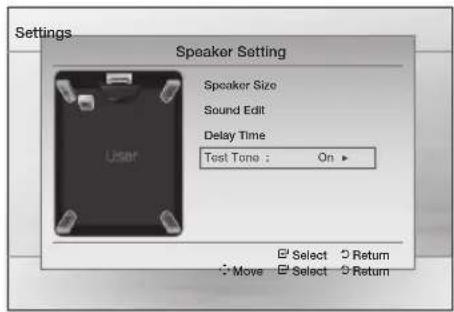
Test Tone
text_image
Settings Speaker Setting Speaker Size Sound Edit Delay Time Test Tone : On ▶ User □ Select ○ Return ■ Move □ Select □ ReturnUse the Test Tone feature to check the speaker connections.
- Press the ◀▶ buttons to select On.
- The test tone will be sent to Front Left → Center → Front Right → Surround Right → Surround Left → Subwoofer in order.
To stop the test tone, press the ENTER button.
DRC (Dynamic Range Compression)
This feature balances the range between the loudest and quietest sounds. You can use this function to enjoy Dolby Digital sound when watching movies at low volume at night.
- You can select either Full, 6/8, 4/8, 2/8, off.
AUDIO SYNC
Video and audio sync may not match with digital TV. If this occurs, adjust the audio delay time to match the video
- You can set the audio delay time between 0 mSec and 300 mSec. Set it to the optimal status.
HDMI Audio
The audio signals transmitted over the HDMI Cable can be toggled On/Off.
- Off: Video is transmitted over the HDMI connection cable only, and audio is output through the product speakers only.
- On: Both video and audio signals are transmitted over the HDMI connection cable, and audio is output through your TV speakers only.
NOTE
■ The default setting of this function is HDMI Audio Off.
■ HDMI Audio is automatically down-mixed to 2ch for TV speakers.
- When HDMI Audio is set to On, PL II /DSP EQ /P.BASS doesn't work.
- With HDMI AUDIO set to 'On', the volume can be adjusted only using the TV remote control.
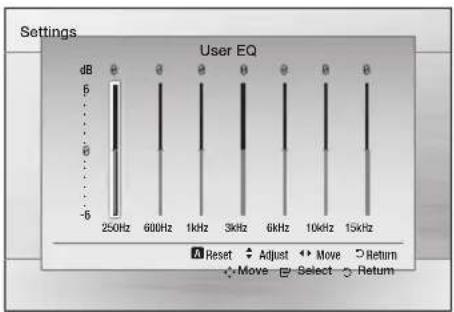
User EQ
You can configure the equalizer settings manually to your preference.
bar
Settings | Frequency | Reset (dB) | Adjust (dB) | Move (dB) | Return (dB) | |---|---|---|---|---| | 250Hz | 5 | 0 | 0 | 0 | | 600Hz | 5 | 0 | 0 | 0 | | 1kHz | 5 | 0 | 0 | 0 | | 3kHz | 5 | 0 | 0 | 0 | | 6kHz | 5 | 0 | 0 | 0 | | 10kHz | 5 | 0 | 0 | 0 | | 15kHz | 5 | 0 | 0 | 0 |NOTE
This can be also done using the DSP/EQ button. (see page 35)
Audio Return Ch.
You can enjoy TV sound from the Home Cinema speakers by using just one HDMI cable.
- Off : Turn the Audio Return Channel function off.
- Auto : Listen to TV sound from the Home Cinema speakers if your TV is compatible with the Audio Return Channel function.
NOTE
- When Anynet+ (HDMI-CEC) is Off, the Audio Return Channel function is not available.
■ Using an ARC (Audio Return Channel)-uncertifi ed HDMI cable may cause a problem in compatibility.
■ ARC function is only available if an ARC-compliant TV is connected.
KARAOKE SCORING
Karaoke score display can be toggled On or Off.
- Off: Turns off the karaoke score display.
- On: After the singing, the score is displayed on the screen.
NOTE
This function is available only for the CD-DA/DVD.
- Karaoke score may be affected by ambient noise.
System
Initial Settings
By using the Initial Setting, you can set the language and TV aspect.
NOTE
If the HDMI cable is connected to the product, TV aspect does not appear and it is set to 16:9 Wide automatically.
DivX(R) Registration
View DivX(R) VOD Registration Code to purchase and play DivX(R) VOD content.
NOTE
This option is not activated if you select OK. To activate this option, please activate the DivX(R) Deactivation.
Even after you reset the system, the settings of DivX Registration will not be reset.
DivX(R) Deactivation
Select this to get a new registration code.
English
Setup
Language
You can select the language you prefer for on-screen menu, disc menu, etc.
| OSD Language | Select the language for the on-screen displays. |
| Disc Menu | Select the language for the disc menu displays. |
| Audio | Select the language for disc audio. |
| Subtitle | Select the language for disc subtitles. |
※ To select a language that does not appear in the menu, select OTHERS in the Disc Menu, Audio and Subtitle, and enter the language code of your country (see page 39).
※ You cannot select OTHERS in the OSD Language menu.

NOTE
- The selected language will only appear if it is supported on the disc.
Security
The Parental Lock function works in conjunction with DVDs that have been assigned a rating, which helps you control the types of DVDs that your family watches. There are up to 8 rating levels on a disc.
Parental Rating
Select the rating level you want to set.
A larger number indicates that the program is intended for adult use only. For example, if you select up to Level 6, discs that contain Level 7, 8 will not play.
Enter the password and then press the ENTER button.
- The password is set to "0000" by default.
- Once the setup is complete, you will be taken to the previous screen.
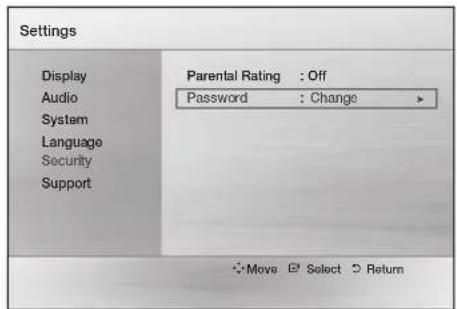
Change Password
Select Change and enter the 4-digit password to set the parental lock using the number buttons on the remote control.
text_image
Settings Display Audio System Language Security Support Parental Rating : Off Password : Change Move Select ReturnIf you forgot your password
- Remove the disc.
- Press and hold the STOP (■) button on the remote control for 5 seconds or more. All settings will revert to the factory settings.
Support
Product Information
Provide the product information such as Model code, Software Version, etc.
Basic Functions
Disc Playback
- Press the OPEN/CLOSE (▲) button.
- Place a disc gently into the tray with the disc's label facing up.
- Press the OPEN/CLOSE (▲) button to close the disc tray.
NOTE
- Resume function: When you stop disc play, the product remembers where you stopped, so when you press PLAY button again, it will pick up where you left off. (This function works only with DVDs.)
Press the STOP button twice during playback to disable the Resume function.
If no buttons are pressed on the product or remote control for more than 3 minutes when the product is in Pause mode, it will change to STOP mode.
The initial screen may appear different, depending on the content of the disc. - Pirated discs will not play in this product because they violate the CSS(Content Scrambling System: a copy protection system) recommendations.
※ Ⓧ will appear when an invalid button is pressed.
TV Screen Saver/Power Saving Function
- If no button input is made for more than 5 minutes in Stop or Play mode, the screen saver will get activated.
- If the product is left in the screen saver mode for more than 20 minutes, the power will automatically turn off. (Except when playing music)
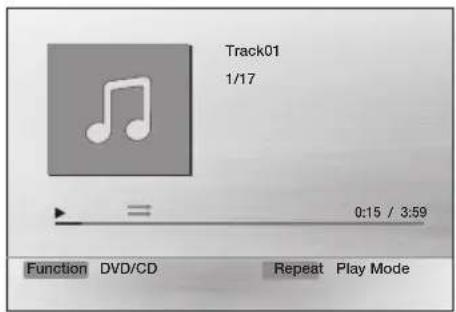
Audio CD(CD-DA)/MP3/WMA Playback

text_image
Track01 1/17 0:15 / 3:59 Function DVD/CD Repeat Play Mode- Insert an Audio CD(CD-DA) or an MP3 Disc into the disc tray.
- For an Audio CD, the first track will be played automatically.
- Press the ◀◀◀▶▶I buttons to move to the previous/next track.
- For the MP3/WMA disc, press the ◀▶ buttons to select Music, then press the ENTER button.
- Press the ▲◀▶ buttons to select a desired file and press the ENTER button.
-
Press the◀◀▶▶ buttons to move to the previous/next pages.
-
Press the STOP (■) button to stop playback.
NOTE
■ Some MP3/WMA-CDs may not play, depending on the recording mode.
Table of contents of a MP3-CD varies depending on the MP3/WMA track format recorded on the disc.
■ WMA-DRM files cannot be played.
Basic Functions
JPEG File Playback
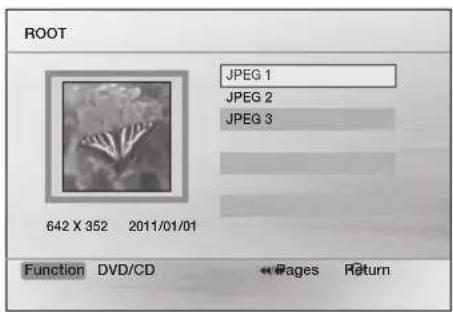
Images captured with a digital camera or camcorder, or JPEG files on a PC can be stored on a CD and then played back with this product.
- Insert a JPEG disc on the disc tray.
- Press the ◀▶ buttons to select Photo, and then press the ENTER button.
- Press the ▲▼ buttons to select the folder you want to play, and then press the ENTER button.
- Press the ▲▼ buttons to select the photo you want to play, and then press the ENTER button.
- The selected file will play and slide show will start.
• To stop slide show, press the PAUSE (II) button. - You can view the previous/next file by pressing the ◀,▶ buttons during the slideshow mode.
text_image
ROOT JPEG 1 JPEG 2 JPEG 3 642 X 352 2011/01/01 Function DVD/CD ← Pages ReturnRotate Function

Press the GREEN(B) or YELLOW(C) button during the PAUSE mode.
- GREEN(B) Button: Rotate 90^ counterclockwise.
- YELLOW(C) Button: Rotate 90^ clockwise.

NOTE
The maximum resolutions supported by this product are 5120 x 3480 (or 19.0 MPixel) for standard JPEG files and 2048 x 1536 (or 3.0 MPixel) for progressive image files.
Using the Playback Function
Forward/Reverse Search
Press the ◀◀▶▶ buttons for Search Function.
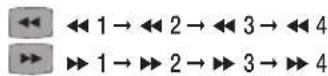
NOTE
■ No sound is played in search mode.
■ The playback search produces sound only when searching at ▶▶ 1 and ▶▶ 2 speed.
This function is available only for the CD-DA.
Skipping Scenes/Songs
Press the ◀◀▶▶I buttons.
• Each time the button is pressed during playback, the previous or next chapter, track or directory (file) will be played.
- You cannot skip chapters consecutively.
Slow Motion Play
Press the PAUSE (II) button and then ▶ button for Slow Motion play.
NOTE
■ No sound is heard during slow playback.
■ Reverse slow playback does not work.
Step Motion Play


Press the PAUSE button repeatedly.
- The picture moves forward one frame each time the button is pressed during playback.

NOTE
■ No sound is heard during step motion playback.
5 Minute Skip function

During playback, press the ◀,▶ button.
- Playback skips 5 minutes forward whenever you press the ▶ button.
- Playback skips 5 minutes backward whenever you press the ◀ button.

NOTE
This function is available only for the DivX that contains time information.
Using the Disc Menu

You can view the menus for the audio language, subtitle language, profi le, etc.
- During playback, press the DISC MENU button on the remote control.
- Press the ▲▼◀▶ buttons to make the desired selection, then press the ENTER button.

NOTE
■ Depending on the disc, menu setup items may vary and this menu may not be available.
Using the Title Menu

For DVDs containing multiple titles, you can view the title of each movie.
- During playback, press the TITLE MENU button on the remote control.
- Press the ▲▼◀▶ buttons to make the desired selection, then press the ENTER button.

NOTE
■ Depending on the disc, menu setup items may vary and this menu may not be available.
Repeat Playback
DVD/DivX Repeat
You can repeat the title, chapter or the section(A-B Repeat) of the DVD/DivX.

text_image
Repeat OFF- During DVD/DivX playback, press the REPEAT button on the remote control.
- Press the ▲▼ buttons to select a desired repeat mode, then press the ENTER button.
- Press the ▲▼ buttons to select OFF to return to normal play, then press the ENTER button.

Title → Chapter → A - → Off

Title → Folder → All → Off
Basic Functions
CD/MP3 Repeat
- During the CD/MP3 playback, press the REPEAT button repeatedly to select the repeat mode you want.
 | |
 | \( 1 = 1, 1, 1, 1, 1, 1, 1, 1, 1, 1, 1, 1, 1, 1, 1, 1, 1, 1, 1, 1, 1, 1, 1, 1, 1, 1, 1, 1, 1, 1, 1, 1, 1, 1, |
A-B Repeat Playback


You can repeatedly play back a designated section of a DVD or CD.
- During the DVD disc or CD playback, press the REPEAT button on the remote control.
- For DVD, press the ▲▼ buttons to select A-.
For CD press the REPEAT button repeatedly until A-B appears.
- Press the ENTER button at the point where you want repeat play to start (A).
- Press the ENTER button at the point where you want repeat play to stop (B).
- To return to normal playback, For DVD, press the ▲▼ buttons to select to OFF. For CD, press the REPEAT button to select to

NOTE
The A-B Repeat function does not operate with DivX, MP3 or JPEG discs.
Displaying Disc Information

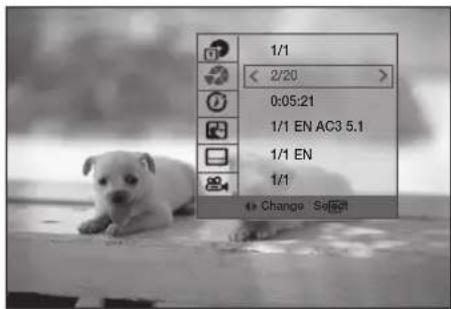
text_image
1/1 < 2/20 > 0:05:21 1/1 EN AC3 5.1 1/1 EN 1/1 + Change Select
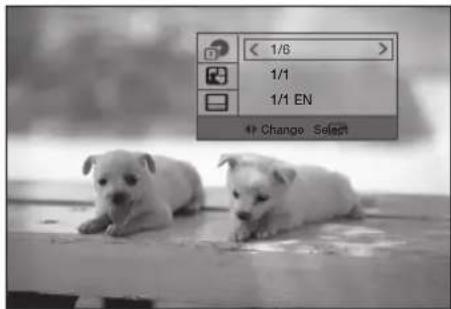
text_image
< 1/6 > 1/1 1/1 EN + Change Select
- During playback, press the TOOLS button on the remote control.
- Press the ▲▼ buttons to select the desired item.
- Press the ◀▶ buttons to make the desired setup change and then press the ENTER button.
- You may use the number buttons of the remote control to control some items.
- To make Disc information disappear, press the TOOLS button again.
NOTE
If you are playing contents from the tools menu, some functions may not be enabled depending on the disc.
- You can also select DTS, Dolby Digital or Pro Logic, depending on the disc.
■ Some tools menus may differ depending on discs and files.
32
English
TOOLS menu
- Title( ): To access the desired title when there is more than one in the disc. For example, if there is more than one movie on a DVD, each movie will be identified as a Title.
- Chapter( ✉ ) : Most DVD discs are recorded in chapters so that you can quickly find a specific chapter.
- Playing time(①): Allows playback of the film from a desired time. You must enter the starting time as a reference. The time search function does not operate on some discs.
■ Audio(☐): Refers to the film's soundtrack language. A DVD Disc can contain up to 8 audio languages. - Subtitle(☐): Refers to the subtitle languages available in the disc. You will be able to choose the subtitle languages or, if you prefer, turn them off from the screen. A DVD Disc can contain up to 32 subtitle languages.
- Angle( 🔊): When a DVD contains multiple angles of a particular scene, you can use the Angle function.
Selecting the Audio Language


- Press the TOOLS button.
- Press the ▲▼ buttons to select AUDIO (☐) display.
- Press the ◀▶ buttons to select the desired audio language.
- Depending on the of languages on a DVD disc, a different audio language is selected each time the button is pressed.
Selecting the Subtitle Language


- Press the TOOLS button.
-
Press the ▲▼ buttons to select SUBTITLE (☐) display.
-
Press the ◀▶ buttons to select the desired subtitle language.
- Depending on the languages on a DVD disc, a different subtitle language is selected each time the button is pressed.

NOTE
■ Depending on the disc, the Subtitle and Audio Language functions may not be available.
Caption Function

- You must have some experience with video extraction and editing in order to use this feature properly.
- To use the caption function, save the caption file (*.smi) in the same file name as that of the DivX media file (*.avi) within the same folder.
Example. Root Samsung_007CD1.avi Samsung_007CD1.smi
- Up to 100 alphanumeric characters or 50 East Asian characters (2 byte characters such as Korean and Chinese) for the file name.
- The subtitle of DivX files are *.smi, *.sub, *.srt over 148 kbyte is not supported.
Angle Function

This function allows you to view the same scene in different angles.
- Press the TOOLS button.
- Press the ▲▼ buttons to select ANGLE ( 🔊 ) display.
- Press the ◀▶ buttons to select the desired angle.

NOTE
■ The Angle function works only with discs on which multiple angles have been recorded.
Basic Functions
SLEEP
You can set the time that the Home Cinema will shut itself off.
Press the SLEEP button.
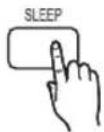
• Each time the button is pressed, the selection changes as follows
SLP 10 → SLP 20 → SLP 30 → SLP 60 →
SLP 90 → SLP 120 → SLP 150 → OFF.
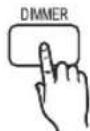
DIMMER
You can adjust the brightness of the display on the main unit.
Press the DIMMER button.
Sound Mode
P.BASS
The P.BASS function provides a bass boost to reinforce the low frequencies.
The MP3 ENHANCE function provides better sound quality by upscaling the sampling frequency.
Press the P.BASS button.
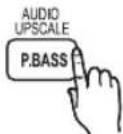
| 2 ChannelLPCM source | POWER BASS ON→POWER BASS OFF |
| MP3 file | MP3 ENHANCE ON →POWER BASS ON →POWER BASS OFF |

NOTE
The P.BASS function is only available with 2 channel LPCM sources such as MP3, DivX, CD and WMA.
The P.BASS function does not work with GIGA SOUND or Dolby Pro Logic II modes. If you press P.BASS in the DSP/EQ mode, the DSP/EQ mode is automatically shut off and the P. BASS function will be turned on.
■ The MP3 Enhancement function is only available MP3 file.
GIGA
The GIGA Sound Function amplifies bass and improves bass twice as much for you to appreciate powerful real sound. The GIGA Sound feature will be applied only to the subwoofer.
Press the GIGA button.
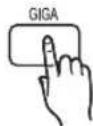

NOTE
If GIGA Sound is set to 'ON', other sound field effects will not be applied.
If DOLBY PLII is set to 'ON', the GIGA Sound effect will not be applied.
■ The GIGA Sound works when in 2-channel LPCM mode only.
S.VOL (SMART VOLUME)
This will regulate and stabilize the volume level against a drastic volume change when changing channels or during a scene transition.
Press the S.VOL button.
• Each time the button is pressed, the selection changes as follows :
SMART VOLUME ON → SMART VOLUME OFF
S/W LEVEL
You can also press the S/W LEVEL button on the remote control and use the ◀ or ▶ buttons to adjust the level of subwoofer.
Press the S/W LEVEL button.
DSP (Digital Signal Processor)/EQ
- DSP (Digital Signal Processor) : DSP modes have been designed to simulate different acoustic environments.
- EQ: You can select POPS, JAZZ, ROCK, or USER etc. to optimize the sound for the genre of music you are playing.
Press the DSP/EQ button.
| POPS, JAZZ, ROCK | Select POP, JAZZ, or ROCK, depending on the genre of music you're listening to. |
| USER | You can enjoy music as you set in “EQ:USER”.If you press ENTER in the “EQ:USER” menu, you will see a window where you can change the EQ settings to your preference. |
| STUDIO | Provides a sense of presence as if in a studio. |
| CLUB | Simulates the sound of a dance club with a throbbing bass beat. |
| HALL | Provides a clear vocal as if listening in a concert hall. |
| MOVIE | Provides the feeling of a movie cinema. |
| CHURCH | Provides the feeling of being in a grand church. |
| RANCHERA, SAMBA, CUMBIA, HABANERA, BOOMBA, REGGAE | Select RANCHERA, SAMBA, CUMBIA, HABANERA, BOOMBA or REGGAE, depending on the genre of music you're listening to. |
| OFF | Select this for normal listening. |
NOTE
■ The menu may vary depending on the region.
■ The DSP/EQ function is only available in Stereo mode.
■ The DSP/EQ function is not available while playing AC3 signal in 2.1 channel mode.
Dolby Pro Logic II Mode
You can select the desired Dolby Pro Logic II audio mode.
Press the ☐ PL II button.
| MUSIC | When listening to music, you can experience sound effects as if you are listening to the actual performance. |
| MOVIE | Adds realism to the movie soundtrack. |
| PROLOG | You can listen to a 2CH sound source in 5.1CH surround sound with all speakers active.- A specific speaker(s) may not be output depending on the input signal. |
| MATRIX | You will hear multi-channel surround sound. |
| STEREO | Select this to listen to sound from the front left and right speakers and the subwoofer only. |
NOTE
- When selecting Pro Logic II mode, connect your external device to the AUDIO INPUT jacks (L and R) on the product. If you connect to only one of the inputs (L or R), you cannot listen to surround sound.
■ The Pro Logic II function is only available in Stereo mode.
■ The Pro Logic II function is not available while playing AC3 signal in 2.1 channel mode.
Basic Functions
Listening to Radio
Using buttons on the Remote Control
- Press the FUNCTION button to select FM.
-
Tune in to the desired station.
-
Preset Tuning 1 : You must first add a desired frequency as a preset. Press the STOP (■) button to select PRESET and then press the TUNING/CH (^▼) button to select the preset station.
- Manual Tuning : Press the STOP (■) button to select MANUAL and then press the TUNING/CH
(^^) button to tune in to a lower or higher frequency.
- Automatic Tuning : Press the STOP (■) button to select MANUAL and then press and hold the TUNING/CH (^) button to automatically search the band.
Setting Mono/Stereo
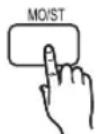
Press the MO/ST button.
• Each time the button is pressed, the sound switches between STEREO and MONO.
- In a poor reception area, select MONO for a clear, interference-free broadcast.
Presetting Stations
Example : Presetting FM 89.10 in the memory
- Press the FUNCTION button to select FM.
- Press the TUNING/CH ( ) button to select <89.10>.
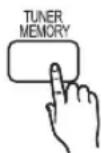
- Press the TUNER MEMORY button.
• Number flashes on the display.
- Press the buttons to select preset number.
- You can select between 1 and 15 presets.
-
Press the TUNER MEMORY button again.
-
Press the TUNER MEMORY button before number disappears from the display.
-
Number disappears from the display and the station is stored in memory.
-
To preset another station, repeat steps 2 to 5.
- To tune in to a preset station, press the TUNING/CH (▲) buttons on the remote control to select a channel.
Advanced Functions
USB Function
Playing Media Files using the USB Host Feature
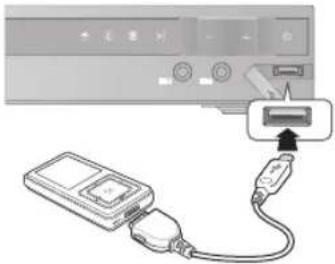
You can enjoy media fi les such as pictures, movies and music saved on an MP3 player, USB memory stick or digital camera in high quality video with 5.1 channel sound by connecting the storage device to the USB port of the product.
natural_image
Illustration of a device connected to a cable with an attached connector (no text or symbols visible)- Connect the USB device to the USB port on the front panel of the product.
- Press the FUNCTION button to select USB.
- USB appears on the display screen and then disappears.
- Press the ◀▶ buttons to select Videos, Photos or Music.
- Select a file to play.
Safe USB Removal
To prevent damage to the memory stored in the USB device, perform safe removal before disconnecting the USB cable.
- Press the YELLOW(C) button.
- REMOVE will appear on the display.
- Remove the USB cable.

NOTE
To listen to your music fi les with 5.1 channel sound, you must set the Dolby Pro Logic II mode to Matrix. (See page 35)
■ Remove the USB cable from the USB port slowly. Otherwise, it may cause damage to the USB port.
USB Recording
While playing CD-DA (Compact Disc Digital Audio) using the USB Recording function or listening to the FM radio or receiving audio source from an external device, you can record the audio source in the USB memory.
Ex) USB recording of CD-DA audio contents
- Connect the USB device to your product.
-
Insert the CD-DA disc into the CD tray.
-
Press the USB REC button on the remote control.

- To start ripping the current track, press the USB REC button on the remote control while the system is playing a track or stopped temporarily.
- To record the entire CD, press and hold the USB REC button on the remote control.
- "FULL CD RIPPING" appears on the display and recording starts.
-
Press the STOP (■) button to stop recording.
-
When USB recording of a CD is completed, you will find a new folder named "RECORDING" in the USB drive. The contents will be saved in the folder in the MP3 format.
- When USB recording of FM radio or AUX source is completed, you will find a new folder named "TUNER RECORDING or AUX RECORDING" in the USB drive. The contents will be saved in the folder in the MP3 format.

NOTE
Do not disconnect the USB connection or the power cable during the USB Recording. Otherwise, it may cause damage to the data.
To stop USB Recording, press the STOP button and disconnect the USB device after the system stops playing the CD completely.
If you disconnect the USB connection during the USB Recording, the system will turn off and you will not be able to delete the recorded file.
If you connect the USB device to the system while it is playing a CD, the system stops temporarily and will play again.
■ DTS-CDs cannot be recorded.
If the recording duration is less than 5 seconds, a recording file may not be created.
USB Recording works only if the USB device is formatted in the FAT file system. (The NTFS file system is not supported.)
The audio signal will not be output during USB recording of the CD.
- When HDMI AUDIO is set to On, the USB Recording function is not supported.
- Do not insert the MIC while CD Ripping.
Other Information
Troubleshooting
Refer to the chart below when this product does not function properly. If the problem you are experiencing is not listed below or if the instruction below does not help, turn off the product, disconnect the power cord, and contact the nearest authorized dealer or Samsung Electronics Service Center.
| Symptom Check/Remedy | |
| I cannot eject the disc. | Is the power cord plugged securely into the outlet?Turn off the power and then turn it back on. |
| Playback does not start. | Check the region number of the DVD.DVD discs purchased from abroad may not be playable.CD-ROMs and DVD-ROMs cannot be played on this product.Make sure that the rating level is correct. |
| Playback does not start immediately when the Play/Pause button is pressed. | Are you using a deformed disc or a disc with scratches on the surface?Wipe the disc clean. |
| Sound is not produced. | No sound is heard during fast playback, slow playback, and step motion playback.Are the speakers connected properly? Is the speaker setup correctly customized?Is the disc severely damaged? |
| Sound can be heard only from a few speakers and not all 6. | On certain DVD discs, sound is output from the front speakers only.Check if the speakers are connected properly.Adjust the volume.When listening to a CD, radio or TV, sound is output to the front speakers only.Select "PROLOG" by pressingPL II (Dolby Pro Logic II) on the remote control to use all six speakers. |
| Dolby Digital 5.1 CH Surround Sound is not produced. | Is there "Dolby Digital 5.1 CH" mark on the disc? Dolby Digital 5.1 CH Surround Sound is produced only if the disc is recorded with 5.1 channel sound.Is the audio language correctly set to Dolby Digital 5.1-CH in the information display? |
| The remote control does not work. | Is the remote control being operated within its operation range of angle and distance?Are the batteries drained?Have you selected the correct mode (RECEIVER DVD/TV)? |
| Disc is rotating but no picture is produced.Picture quality is poor and picture is shaking. | Is the TV power on?Are the video cables connected properly?Is the disc dirty or damaged?A poorly manufactured disc may not be playable. |
| Audio language and subtitles do not work. | Audio language and subtitles will not work if the disc does not contain them. |
| The Disc/Title menu screen does not appear even when the Disc/Title function is selected. | Are you using a disc that does not contain menus? |
| Aspect ratio cannot be changed. | You can play 16:9 DVDs in 16:9 WIDE mode, 4:3 LETTER BOX mode, or 4:3 PAN SCAN mode, but 4:3 DVDs can be seen in 4:3 ratio only. Refer to the DVD disc jacket and then select the appropriate function. |
| The product is not working.(Example: The power goes out or the front panel key doesn't work or a strange noise is heard.)The product is not working normally. | Press and hold the STOP (■) button on the remote control for longer than 5 seconds with no disc (reset function).Using the RESET function will erase all stored settings.Do not use this unless necessary. |
| The rating level password has been forgotten. | While “NO DISC” message appears on the display of the product, press and hold the remote control's STOP (■) button for longer than 5 seconds. “INIT” appears on the display and all settings will return to the default values.And then press the POWER button.Using the RESET function will erase all stored settings.Do not use this unless necessary. |
| Can't receive radio broadcast. | Is the antenna connected properly?If the antenna's input signal is weak, install an external FM antenna in an area with good reception. |
Language code list
Enter the appropriate code number for OTHERS in the Disc Menu, Audio and Subtitle. (See page 28).
| Code Language Code | Language | Code Language | Code Language | Code Language | Language Code | Language | Language | ||||
| 1027 | Afar | 1142 | Greek | 1239 | Interlingue | 1345 | Malagasy | 1482 | Kirundi | 1527 | Tajik |
| 1028 | Abkhazian | 1144 | English | 1245 | Inupiak | 1347 | Maori | 1483 | Romanian | 1528 | Thai |
| 1032 | Afrikaans | 1145 | Esperanto | 1248 | Indonesian | 1349 | Macedonian | 1489 | Russian | 1529 | Tigrinya |
| 1039 | Amharic | 1149 | Spanish | 1253 | Icelandic | 1350 | Malayalam | 1491 | Kinyanwanda | 1531 | Turkmen |
| 1044 | Arabic | 1150 | Estonian | 1254 | Italian | 1352 | Mongolian | 1496 | Sanskrit | 1532 | Tagalog |
| 1045 | Assamese | 1151 | Basque | 1257 | Hebrew | 1353 | Moldavian | 1498 | Sindhi | 1534 | Setswana |
| 1051 | Aymara | 1157 | Persian | 1261 | Japanese | 1356 | Marathi | 1501 | Sangro | 1535 | Tonga |
| 1052 | Azerbaijani | 1165 | Finnish | 1269 | Yiddish | 1357 | Malay | 1502 | Serbo-Croatian | 1538 | Turkish |
| 1053 | Bashkir | 1166 | Fiji | 1283 | Javanese | 1358 | Maïtese | 1503 | Singhalese | 1539 | Tsonga |
| 1057 | Byelorussian | 1171 | Faeroese | 1287 | Georgian | 1363 | Burmese | 1505 | Slovak | 1540 | Tatar |
| 1059 | Bulgarian | 1174 | French | 1297 | Kazakh | 1365 | Nauru | 1506 | Slovenian | 1543 | Twi |
| 1060 | Bihari | 1181 | Frisian | 1298 | Greenlandic | 1369 | Nepali | 1507 | Samcan | 1557 | Ukrainian |
| 1069 | Bislama | 1183 | Irish | 1299 | Cambodian | 1376 | Dutch | 1508 | Shona | 1564 | Urdu |
| 1066 | Bengali; Bangla | 1186 | Scots Gaelic | 1300 | Canada | 1379 | Norwegian | 1509 | Somali | 1572 | Uzbek |
| 1067 | Tibetan | 1194 | Galician | 1301 | Korean | 1393 | Occitan | 1511 | Albanian | 1581 | Vietnamese |
| 1070 | Breton | 1196 | Guarani | 1305 | Kashmir | 1403 | (Afan) Oromo | 1512 | Serbian | 1587 | Volapuk |
| 1079 | Catalan | 1203 | Gujarati | 1307 | Kurdish | 1408 | Oriya | 1513 | Siswati | 1613 | Wolof |
| 1093 | Corsican | 1209 | Hausa | 1311 | Kirghiz | 1417 | Punjabi | 1514 | Sesotho | 1632 | Xhosa |
| 1097 | Czech | 1217 | Hindi | 1313 | Latin | 1428 | Polish | 1515 | Sundanese | 1665 | Yoruba |
| 1103 | Welsh | 1226 | Croatian | 1326 | Lingala | 1435 | Pashto, Pushto | 1516 | Swedish | 1684 | Chinese |
| 1105 | Danish | 1229 | Hungarian | 1327 | Laotnian | 1436 | Portuguese | 1517 | Swahili | 1697 | Zulu |
| 1109 | German | 1233 | Armenian | 1332 | Lithuanian | 1463 | Quechua | 1521 | Tamil | ||
| 1130 | Bhutani | 1235 Interlingua 1334 | Latvian, Lettish | 1481 | Rhaeto-Romance | 1525 Tegulu | |||||
Other Information
Specifications
| General | Weight | 2.76 Kg |
| Dimensions | 430 (W) x 59 (H) x 249 (D) mm | |
| Operating Temperature Range | +5°C~+35°C | |
| Operating Humidity Range | 10 % to 75 % | |
| FM Tuner | Signal/noise ratio | 70 dB |
| Usable sensitivity | 10 dB | |
| Total harmonic distortion | 0.5 % | |
| Disc | DVD (Digital Versatile Disc) | Reading Speed: 3.49 ~ 4.06 m/sec. |
| Approx. Play Time (Single Sided, Single Layer Disc): 135 min. | ||
| CD: 12 cm (COMPACT DISC) | Reading Speed: 4.8 ~ 5.6 m/sec. | |
| Maximum Play Time: 74 min. | ||
| CD: 8cm (COMPACT DISC) | Reading Speed: 4.8 ~ 5.6 m/sec. | |
| Maximum Play Time: 20 min. | ||
| Video Output | Composite Video | 480i(576i) |
| 1 channel: 1.0 Vp-p (75 Ω load) | ||
| Component Video | 480i(576i) | |
| Y: 1.0 Vp-p (75 Ω load) | ||
| Pr: 0.70 Vp-p (75 Ω load) | ||
| Pb: 0.70 Vp-p (75 Ω load) | ||
| Video/Audio HDMI | 1080p, 1080i, 720p, 480p(576p) | |
| Amplifier | Front speaker output | 142W x 2(3Ω) |
| Center speaker output | 142W(3Ω) | |
| Surround speaker output | 141W x 2(3Ω) | |
| Subwoofer output | 142W(3Ω) | |
| Frequency range | 20Hz~20KHz | |
| S/N Ratio 65dB | ||
| Channel separation 60dB | ||
| Input sensitivity (AUX)800mV | ||
*: Nominal specification
- Samsung Electronics Co., Ltd reserves the right to change the specifications without notice.
- Weight and dimensions are approximate.
- Design and specifications are subject to change without prior notice.
- For the power supply and Power Consumption, refer to the label attached to the product.
HT-D450K
| Speaker | Speaker system | 5.1ch speaker system | |||
| Front | Surround | Center | Subwoofer | ||
| Impedance | 3 Ω | 3 Ω | 3 Ω | 3 Ω | |
| Frequency range | 140Hz~20KHz | 140Hz~20KHz | 140Hz~20KHz | 40Hz~160Hz | |
| Output sound pressure level | 86dB/W/M | 86dB/W/M | 86dB/W/M | 88dB/W/M | |
| Rated input | 142W | 141W | 142W | 142W | |
| Maximum input | 284W | 282W | 284W | 284W | |
| Dimensions (W x H x D) | Front: 90 x 141.5 x 68.5 mmSurround: 84 x 104.5 x 68.5 mmCenter: 360 x 74.5 x 68.5 mmSubwoofer: 200 x 390 x 350 mm | ||||
| Weights | Front: 0.58 Kg, Center: 0.96 KgSurround: 0.40 Kg, Subwoofer: 5.0 Kg | ||||
HT-D453K
| Speaker | Speaker system | 5.1ch speaker system | |||
| Front | Surround | Center | Subwoofer | ||
| Impedance | 3 Ω | 3 Ω | 3 Ω | 3 Ω | |
| Frequency range | 140Hz~20KHz | 140Hz~20KHz | 140Hz~20KHz | 40Hz~160Hz | |
| Output sound pressure level | 86dB/W/M | 86dB/W/M | 86dB/W/M | 88dB/W/M | |
| Rated input | 142W | 141W | 142W | 142W | |
| Maximum input | 284W | 282W | 284W | 284W | |
| Dimensions (W x H x D) | Front: 90 x 1200 x 119 mm (stand base: 250 x 250)Surround: 84 x 104.5 x 68.5 mmCenter: 360 x 74.5 x 68.5 mmSubwoofer: 200 x 390 x 350 mm | ||||
| Weights | Front: 3.69 Kg, Center: 0.96 KgSurround: 0.4 Kg, Subwoofer: 5.0 Kg | ||||
HT-D453HK
| Speaker | Speaker system | 5.1ch speaker system | |||
| Front | Surround | Center | Subwoofer | ||
| Impedance | 3 Ω | 3 Ω | 3 Ω | 3 Ω | |
| Frequency range | 140Hz~20KHz | 140Hz~20KHz | 140Hz~20KHz | 40Hz~160Hz | |
| Output sound pressure level | 86dB/W/M | 86dB/W/M | 86dB/W/M | 88dB/W/M | |
| Rated input | 142W | 141W | 142W | 142W | |
| Maximum input | 284W | 282W | 284W | 284W | |
| Dimensions (W x H x D) | Front: 90 x 660 x 92 mm (stand base: 176 x 176)Surround: 84 x 104.5 x 68.5 mmCenter: 360 x 74.5 x 68.5 mmSubwoofer: 200 x 390 x 350 mm | ||||
| Weights | Front: 1.75 Kg, Center: 0.96 KgSurround: 0.4 Kg, Subwoofer: 5.0 Kg | ||||
HT-D455K
| Speaker | Speaker system | 5.1ch speaker system | |||
| Front | Surround | Center | Subwoofer | ||
| Impedance | 3 Ω | 3 Ω | 3 Ω | 3 Ω | |
| Frequency range | 140Hz~20KHz | 140Hz~20KHz | 140Hz~20KHz | 40Hz~160Hz | |
| Output sound pressure level | 86dB/W/M | 86dB/W/M | 86dB/W/M | 88dB/W/M | |
| Rated input | 142W | 141W | 142W | 142W | |
| Maximum input | 284W | 282W | 284W | 284W | |
| Dimensions (W x H x D) | Front/Surround :90 x 1200 x 119 mm (stand base : 250 x 250)Center : 360 x 74.5 x 68.5 mmSubwoofer : 200 x 390 x 350 mm | ||||
| Weights | Front/Surround : 3.69 Kg, Center : 0.96 KgSubwoofer : 5.0 Kg | ||||
Contact SAMSUNG WORLD WIDE
If you have any questions or comments relating to Samsung products, please contact the SAMSUNG customer care center.
| Area Contact Center | Web Site | |
| ▪ North America | ||
| Canada 1-800-SAMSUNG (726-7864) www.samsung.com | ||
| Mexico 01-800-SAMSUNG (726-7864) www.samsung.com | ||
| U.S.A 1-800-SAMSUNG (726-7864) www.samsung.com | ||
| ▪ Latin America | ||
| Argentine 0800-333-3733 www.samsung.com | ||
| Brazil 0800-124-421 / 4004-0000 www.samsung.com | ||
| Chile 800-SAMSUNG (726-7864) www.samsung.com | ||
| Colombia 01-800-0112112 www.samsung.com | ||
| Costa Rica 0-800-507-7267 www.samsung.com | ||
| Dominica 1-800-751-2676 www.samsung.com | ||
| Ecuador 1-800-10-7267 www.samsung.com | ||
| El Salvador | 800-6225 | www.samsung.com |
| Guatemala 1-800-299-0013 www.samsung.com | ||
| Honduras 800-7919267 www.samsung.com | ||
| Jamaica | 1-800-234-7267 www.samsung.com | |
| Nicaragua | 00-1800-5077267 | www.samsung.com |
| Panama 800-7267 www.samsung.com | ||
| Peru | 0-800-777-08 | www.samsung.com |
| Puerto Rico | 1-800-682-3180 www.samsung.com | |
| Trinidad & Tobago | 1-800-SAMSUNG (726-7864) www.samsung.com | |
| Venezuela | 0-800-100-5303 www.samsung.com | |
| ▪ Europe | ||
| Albania | 42 27 5755 | - |
| Austria | 0810 - SAMSUNG (7267864, € 0.07/min) | www.samsung.com |
| Belgium 02-201-24-18 | www.samsung.com/be (Dutch)www.samsung.com/be_fr (French) | |
| Bosnia | 05 133 1999 | - |
| Bulgaria 07001 33 11 www.samsung.com | ||
| Croatia 062 SAMSUNG (062 726 7864) www.samsung.com | ||
| Czech | 800-SAMSUNG (800-726786)Samsung Zrt., česká organizačni složka, Oasis Florenc, Soko-lovská394/17, 180 00, Praha 8 | www.samsung.com |
| Denmark | 70 70 19 70 | www.samsung.com |
| Finland | 030 - 6227 515 | www.samsung.com |
| France | 01 48 63 00 00 | www.samsung.com |
| Germany | 01805 - SAMSUNG (726-7864 € 0,14/Min) | www.samsung.com |
| Hungary | 06-80-SAMSUNG (726-7864) www.samsung.com | |
| Italia | 800-SAMSUNG (726-7864) www.samsung.com | |
| Kosovo | +381 0113216899 | - |
| Luxemburg | 261 03 710 | www.samsung.com |
| Macedonia | 023 207 777 | - |
| Montenegro | 020 405 888 | - |
| Netherlands | 0900-SAMSUNG(0900-7267864) (€ 0,10/Min) | www.samsung.com |
| Norway | 815-56 480 | www.samsung.com |
| Poland | 0 801 1SAMSUNG (172678)/ 022-607-93-33 | www.samsung.com |
| Portugal | 80820-SAMSUNG (726-7864) | www.samsung.com |
| Rumania | 1. 08010 SAMSUNG (72678) -doar din rețeaua Romtelecom,tarif local2. 021.206.01.10 - din oriceretea, tarif normal | www.samsung.com |
| Area Contact Center | Web Site | |
| Serbia | 0700 Samsung (0700 726 7864) | www.samsung.com |
| Slovakia 0800-SAMSUNG (726-7864) www.samsung.com | ||
| Spain 902-1-SAMSUNG (902 172 678) www.samsung.com | ||
| Sweden | 0771 726 7864 (SAMSUNG) | www.samsung.com |
| Switzerland | 0848-SAMSUNG (7267864, CHF 0.08/min) | www.samsung.com/chwww.samsung.com/ch_fr/(French) |
| U.K | 0330 SAMSUNG (7267864) | www.samsung.com |
| Eire | 0818 717100 | www.samsung.com |
| Lithuania | 8-800-77777 | www.samsung.com |
| Latvia | 8000 7267 | www.samsung.com |
| Estonia | 800-7267 | www.samsung.com |
| CIS | ||
| Russia | 8-800-555-55-55 | www.samsung.com |
| Georgia 8-800-555-555 | ||
| Armenia | 0-800-05-555 | |
| Azerbaijan | 088-55-55-555 | |
| Kazakhstan | 8-10-800-500-55-500(GSM: 7799) | www.samsung.com |
| Uzbekistan | 8-10-800-500-55-500 www.samsung.com | |
| Kyrgyzstan | 00-800-500-55-500 | www.samsung.com |
| Tadjikistan | 8-10-800-500-55-500 www.samsung.com | |
| Ukraine 0-800-502-000 | www.samsung.uawww.samsung.com/ua_ru | |
| Belarus 810-800-500-55-500 | ||
| Moldova | 00-800-500-55-500 | |
| Asia Pacific | ||
| Australia | 1300 362 603 | www.samsung.com |
| New Zealand | 0800 SAMSUNG (0800 726 786) | www.samsung.com |
| China | 400-810-5858 / 010-6475 1880 | www.samsung.com |
| Hong Kong | (852) 3698 4698 | www.samsung.com/hkwww.samsung.com/hk_en/ |
| India | 3030 8282 / 1800 110011 / 1800 3000 8282 / 1800 266 8282 | www.samsung.com |
| Indonesia | 0800-112-8888 / 021-5699-7777 | www.samsung.com |
| Japan | 0120-327-527 | www.samsung.com |
| Malaysia | 1800-88-9999 | www.samsung.com |
| Philippines | 1-800-10-SAMSUNG(726-7864) / 1-800-3-SAMSUNG(726-7864) / 1-800-8 SAMSUNG(726-7864) / 02-5805777 | www.samsung.com |
| Singapore | 1800-SAMSUNG (726-7864) www.samsung.com | |
| Thailand | 1800-29-3232 / 02-689-3232 | www.samsung.com |
| Taiwan | 0800-329-999 | www.samsung.com |
| Vietnam 1 800 588 889 www.samsung.com | ||
| Middle East | ||
| Bahrain 8000-4726 www.samsung.com | ||
| Egypt 08000-726786 www.samsung.com | ||
| Jordan | 800-22273 | www.samsung.com |
| Morocco | 080 100 2255 | www.samsung.com |
| Oman | 800-SAMSUNG (726-7864) www.samsung.com | |
| Saudi Arabia 9200-21230 www.samsung.com | ||
| Turkey | 444 77 11 | www.samsung.com |
| U.A.E 800-SAMSUNG (726-7864) www.samsung.com | ||
| Africa | ||
| Nigeria 0800-SAMSUNG (726-7864) www.samsung.com | ||
| South Africa | 0860-SAMSUNG (726-7864) | www.samsung.com |
SAMSUNG
CLASS 1 LASER PRODUCT
KLASSE 1 LASER PRODUKT
LUOKAN 1 LASER LAITE
KLASS 1 LASER APPARAT
PRODUCTO LÁSER CLASE 1
text_image
(L) (R)(L) (R) HT-D450K م Cumpe Amaia m rkrziz m mcm Psot k abl Sema a btext_image
HT-D453K HT-D453HK (L) (R) (L) (R) (L) (R) (L) (R) (L) (R) (L) (R) (L) (R) (L) (R) (L) (R) (L) (R) (L) (R) (L) (R) (L) (R) (L) (R) (L) (R) (L) (R) (L) (R) (L) (R)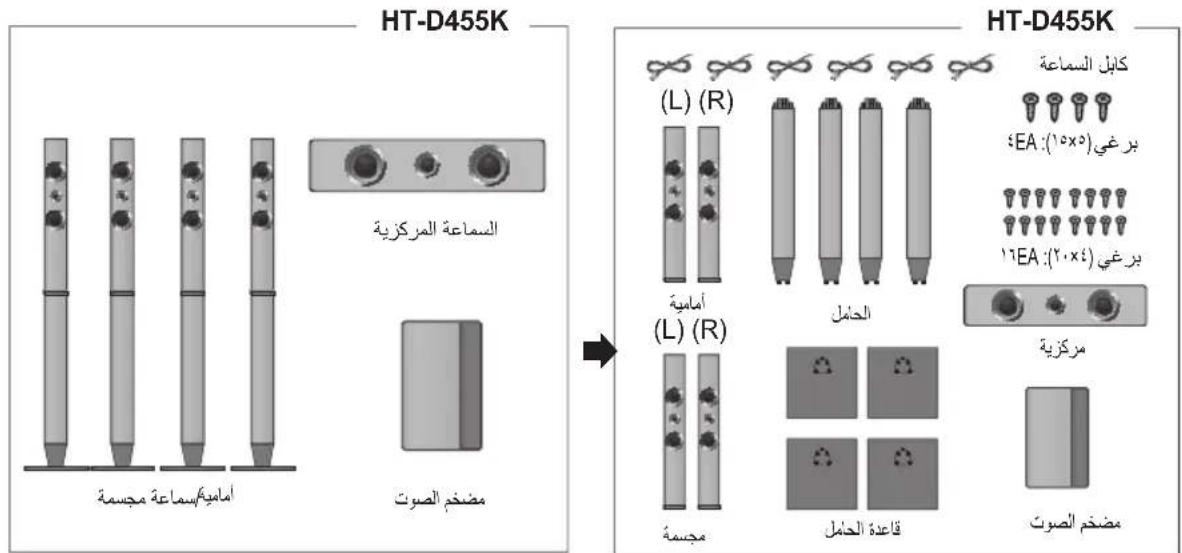
natural_image
Illustration of a hand using a tool to press or install a device on a stand (no text or symbols visible)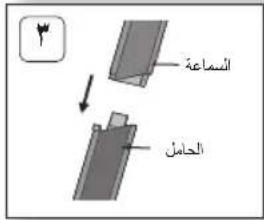
natural_image
Diagram showing a hand holding a tool interacting with a vertical panel, no text or symbols present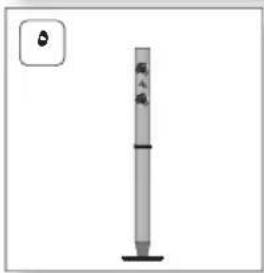
text_image
6 雨 风natural_image
Illustration of hands cleaning a container with a bottle (no text or symbols)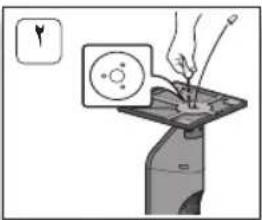
natural_image
Illustration of a hand using a tool to press a circular component on a tray (no text or symbols visible)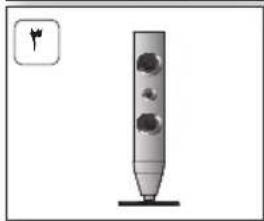
natural_image
Simple illustration of a vertical cylindrical object with three circular holes, mounted on a base (no text or symbols)natural_image
Illustration of a hand using a tool to press or install a component on a base, with no visible text or symbols.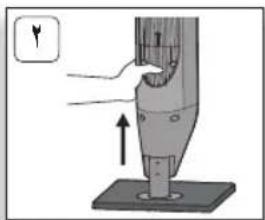
natural_image
Diagram of a mechanical device with a hand operating a tool, showing an upward force and a small symbol (no text or labels present)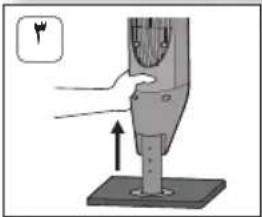
natural_image
Illustration of a hand operating a mechanical device with an upward arrow, no text or symbols present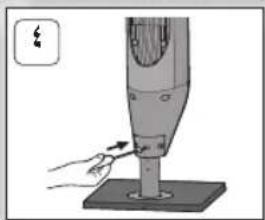
natural_image
Illustration of a hand using a tool to press or install a mechanical component on a base (no text or symbols visible)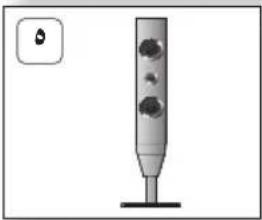
natural_image
Simple illustration of a vertical cylindrical object with three circular holes, mounted on a base (no text or symbols)text_image
MIC VOL+ TUNING /CH MIC VOL- SLEEP ECHODVD/CD → D.IN → AUX → USB → FM
ملاحظة
DVD/CD → D.IN → AUX → USB → FM
ضبط قائمة الإعداد
text_image
Settings Speaker Setting Speaker Size Sound Edit Delay Time Test Tone : Off Select Return Move Select Returntext_image
Settings Sound Edit Front Bal. 0 dB L R 0 dB Surround Bal. 0 dB L R 0 dB Center Level 0 dB Surround Level 0 dB SW Level 0 dB Change Select Return Move Select Returntext_image
Settings Speaker Setting Speaker Size Sound Edit Delay Time Test Tone : On User Select Return Move Select ReturnFront Left → Center → Front Right → Surround Right → Surround Left → Subwoofer
بالترتيب.
text_image
Settings Display Audio System Language Security Support Parental Rating : Off Password : Change Move Select Returntext_image
Repeat OFF
| Title → Chapter → A - → Off | |
| Title → Folder → All → Off |

→ Normal → Repeat Track → Repeat All) (Random → Repeat Section A-B)

→ALL →→ →→ →Normal → Repeat Track) (Repeat All → Random → (المسار) Repeat Dir

A-B تكرار تشغيل
SMART VOLUME OFF → SMART VOLUME ON
وضع الصوت
تحسين الصوت
natural_image
Illustration of a CD-ROM connected to a USB cable via a connector (no text or symbols visible)PRODUIT LASER DE CLASSE 1
natural_image
3D diagram showing a mechanical component being inserted into a housing, with an arrow indicating the process (no text or symbols present)
REMARQUE
| Marque Code Marque Code | |||
| Admiral(M.Wards) | 56, 57, 58 | MTC | 18 |
| A Mark | 01, 15 | NEC | 18, 19, 20, 40, 59, 60 |
| Anam | 01, 02, 03, 04, 05, 06,07, 08, 09, 10, 11,12, 13, 14 | Nikeli | 03 |
| AOC | 01, 18, 40, 48 | Onking | 03 |
| Bel & Howell(M.Wards) | 57, 58, 61 | Onwa | 03 |
| Brocsonic | 59, 60 | Panasonic | 06, 07, 08, 09, 54, 66,67, 73, 74 |
| Candle | 18 | Penney | 18 |
| Cetronic | 03 | Phico | 03, 15, 17, 18, 48, 54,59, 62, 69, 90 |
| Citizen | 03, 18, 25 | Philips | 15, 17, 18, 40, 48,54, 62, 72 |
| Cinema | 97 | Pioneer | 83, 66, 80, 91 |
| Classic | 03 | Portland | 15, 18, 59 |
| Concerto | 18 | Proton | 40 |
| Contec | 46 | Quasar | 08, 66, 67 |
| Coronado | 15 | Radio Shack | 17, 48, 56, 60, 61, 75 |
| Craig | 03, 05, 61, 82, 83, 84 | RCA/Proscan | 18, 59, 67, 76, 77, 78,92, 93, 94 |
| Croslex | 62 | Realistic | 03, 19 |
| Crown | 03 | Sampo | 40 |
| Curtis Mates | 59, 61, 63 | Samsung | 00, 15, 16, 17, 40, 43, 46,47, 48, 49 |
| CXC | 03 | Sanyo | 19, 61, 65 |
| Daewoo | 02, 03, 04, 15, 16, 17, 18,19, 20, 21, 22, 23, 24, 25,26, 27, 28, 29, 30, 32, 34,35, 36, 48, 59, 90 | Scott | 03, 40, 60, 61 |
| Daytron | 40 | Seans | 15, 18, 19 |
| Dynasty | 03 | Sharp | 15, 57, 64 |
| Emerson | 03, 15, 40, 46, 59, 61,64, 82, 83, 84, 85 | Signature2000(M.Wards) | 57, 58 |
| Fisher | 19, 65 | Sony | 50, 51, 52, 53, 55 |
| Funai | 03 | Soundsign | 03, 40 |
| Futuretech | 03 | Spectricon | 01 |
| GeneralElectric (GE) | 06, 40, 66, 59, 66,67, 68 | SSS | 18 |
| Hall Mark | 40 | Sylvania | 18, 40, 48, 54, 59,60, 62 |
| Hitachi | 15, 18, 50, 59, 69 | Symphonic | 61, 95, 96 |
| Inkel | 45 | Tatung | 06 |
| JC Penny | 56, 59, 67, 86 | Techwood | 18 |
| JVC | 70 | Toknika | 03, 15, 18, 25 |
| KTV | 59, 61, 87, 88 | TMK | 18, 40 |
| KEC | 03, 15, 40 | Toshiba | 19, 57, 63, 71 |
| KMC | 15 | Vidtech | 18 |
| LG (Goldstar) | 01, 15, 16, 17, 37, 38,39, 40, 41, 42, 43, 44 | Videch | 59, 60, 69 |
| Luxman | 18 | Wards | 15, 17, 18, 40, 48,54, 60, 64 |
| LXI (Seers) | 19, 54, 56, 59, 60, 62,63, 65, 71 | Yamaha | 18 |
| Magnavox | 15, 17, 18, 48, 54, 59,60, 62, 72, 89 | York | 40 |
| Marantz | 40, 54 | Yupitru | 03 |
| Matsui | 54 | Zenith | 58, 79 |
| MGA | 18, 40 | Zonda | 01 |
| Mitsubishi/MGA | 18, 40, 59, 60, 75 | Dongyang | 03, 54 |
Connexions
natural_image
Simple line drawing of a vertical cylindrical object with a base, no text or symbols present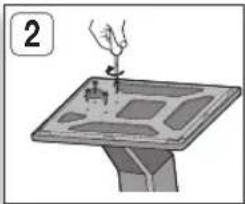
natural_image
Illustration of a hand using a tool to press or install a device on a stand (no text or symbols visible)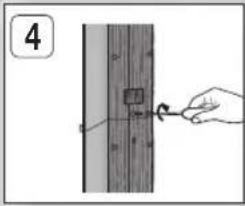
text_image
4natural_image
Illustration of a hand pouring liquid into a bottle (no text or symbols)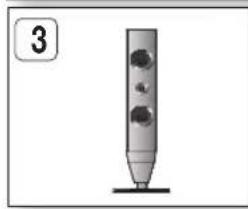
natural_image
Simple illustration of a vertical cylindrical object with three circular holes, mounted on a base (no text or symbols)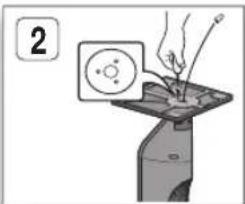
text_image
2Connexions
natural_image
Illustration of a hand using a handheld device to press or install a component, no text or symbols visible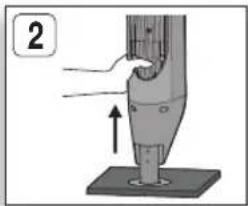
text_image
2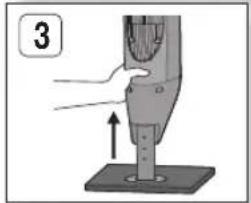
natural_image
Illustration of a hand holding a mechanical component with an upward arrow, no text or symbols present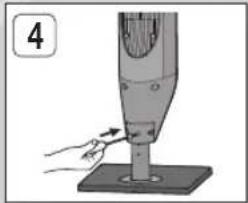
natural_image
Illustration of a hand using a handheld device to lift a cylindrical component (no text or symbols visible)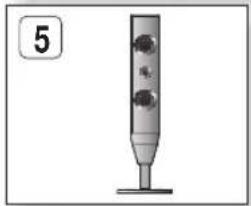
natural_image
Simple illustration of a vertical cylindrical device with three circular components, no text or symbols present.text_image
MIC VOL+ TUNING /CH MIC VOL- SLEEP ECHOREMARQUE
DVD/CD → D.IN → AUX → USB → FM

REMARQUE
DVD/CD → D.IN → AUX → USB → FM

French
Configuration
text_image
< 1/6 > 1/1 1/1 EN + Change Select.
SLP 10 → SLP 20 → SLP 30 → SLP 60 → SLP 90 → SLP 120 → SLP 150 → OFF(Non).
DIMMER
SMART VOLUME ON → SMART VOLUME OFF