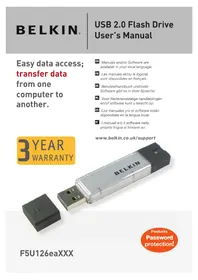
BELKIN F5U025TT128MB - USB Drive

F5U025TT128MB - USB Drive BELKIN - Free user manual and instructions

Find the device manual for free F5U025TT128MB BELKIN in PDF.

📄 211 pages English EN Download 💬 AI Question ⚙️ Specs
Notice BELKIN F5U025TT128MB - page 4
Pick your language and provide your email: we'll send you a specifically translated version.
SKIP

Frequently Asked Questions - F5U025TT128MB BELKIN

User questions about F5U025TT128MB BELKIN

0 question about this device. Answer the ones you know or ask your own.

Ask a new question about this device

The email remains private: it is only used to notify you if someone responds to your question.

No questions yet. Be the first to ask one.

Download the instructions for your USB Drive in PDF format for free! Find your manual F5U025TT128MB - BELKIN and take your electronic device back in hand. On this page are published all the documents necessary for the use of your device. F5U025TT128MB by BELKIN.

USER MANUAL F5U025TT128MB BELKIN

USB 2.0 Flash Drive User's Manual

Easy data access; transfer data from one computer to another.

EN Manuals and/or Software are available in your local language:
FR Les manuels et/ou le logiciel sont disponibles en français :
DE Benutzerhandbuch und/oder Software gibt es in Ihrer Sprache:
NL Voor Nederlandstalige handleidingen en/of software kunt u terecht op:
ES Los manuales y/o el software están disponibles en la lengua local:
IT I manuali e/o il software nella propria lingua si trovano su:

3 YEAR WARRANTY

www.belkin.co.uk/support
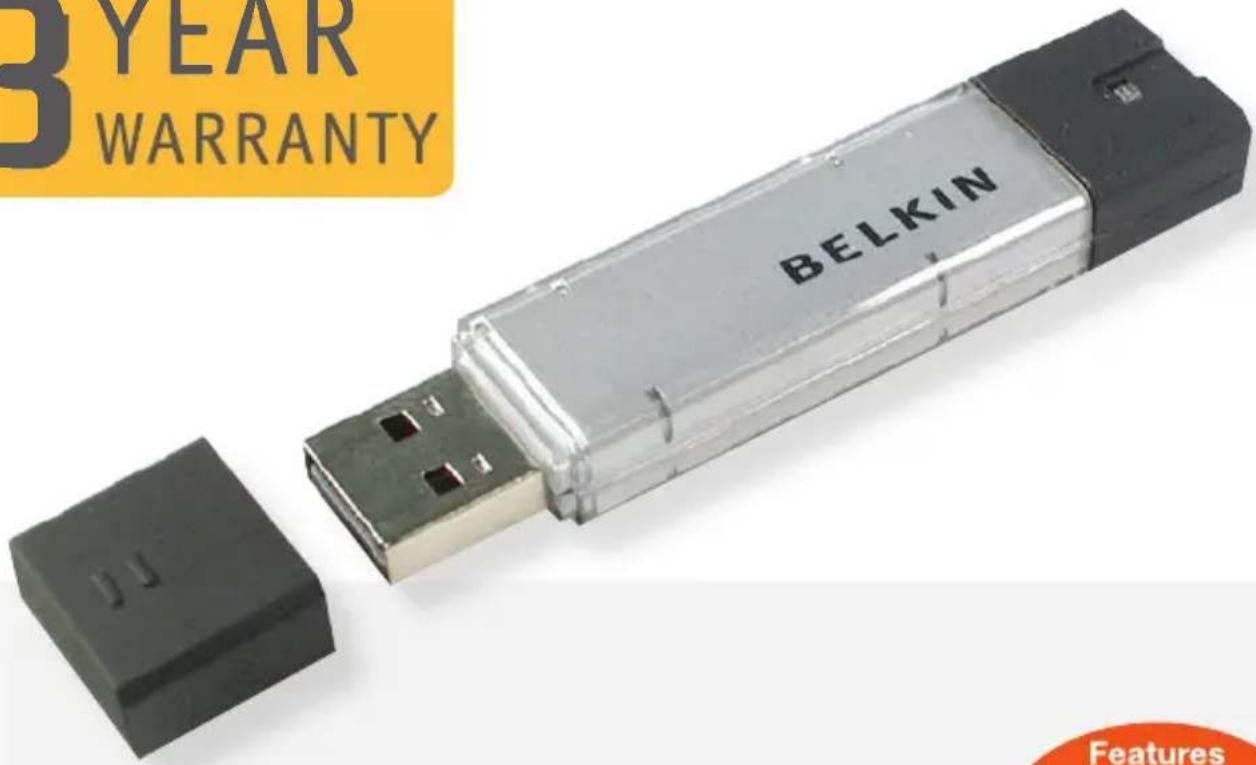
BELKIN F5U025TT128MB - YEAR WARRANTY - 1

text_image 3 YEAR WARRANTY BELKIN Features

F5U126eaXXX

Features Password protection!

BELKIN.

USB 2.0 Flash Drive User's Manual

Easy data access; transfer data from one computer to another.

BELKIN F5U025TT128MB - USB 2.0 Flash Drive User's Manual - 1

text_image 3 YEAR WARRANTY

BELKIN F5U025TT128MB - USB 2.0 Flash Drive User's Manual - 2

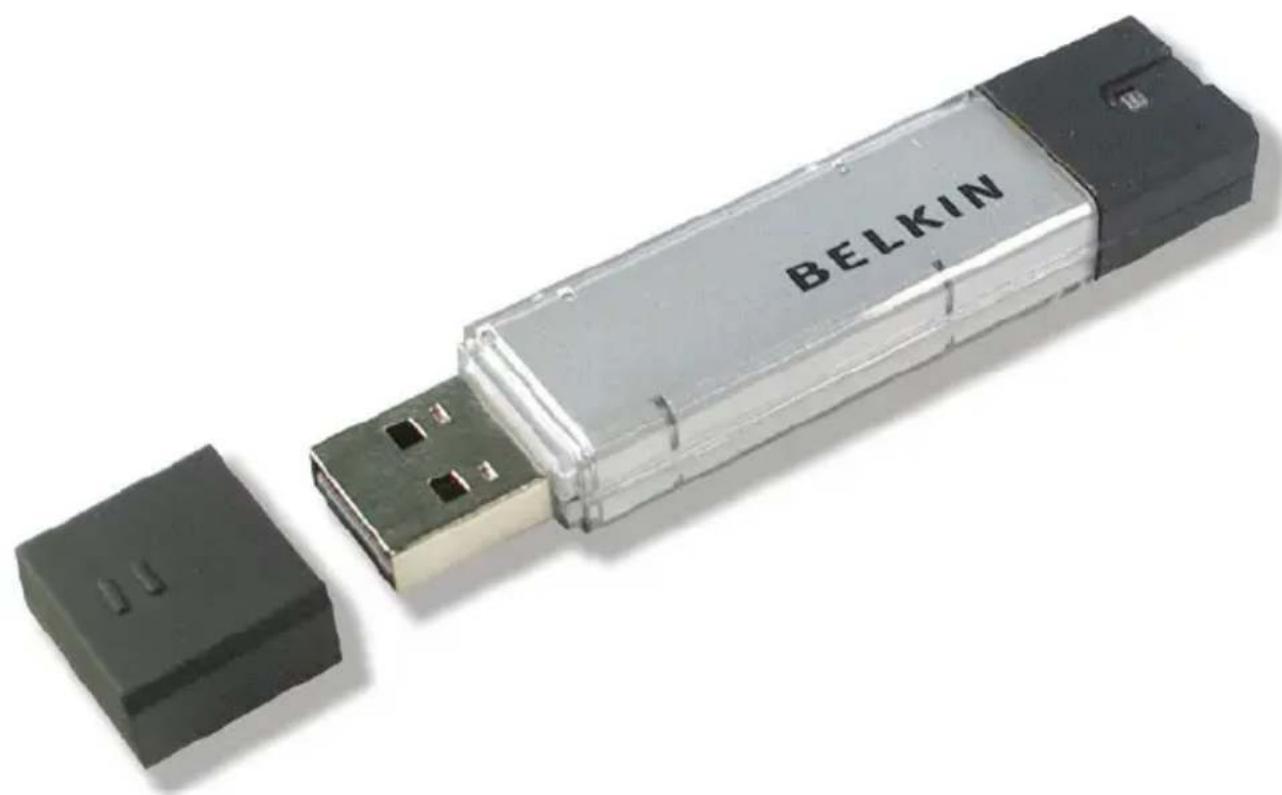
natural_image Exterior view of a Belkin USB flash drive with a black case and metallic casing (no text or symbols on the device body)

Section 1. Introduction Page 3

Section 2. System Requirements Page 4

Section 3. Guide to Components Page 5

Section 4. Basic Functions Page 6-8

Section 5. Partition Type Page 9-10

Section 6. Using the Software (Belkin U-Storage) On Windows Platform Page 11-22

Section 7. Boot Up Function Page 23-26

Section 8. Recover Disk Page 27

Section 9. Known Problems Page 28-32

Section 10. Disclaimer Page 33

Section 11. Trademark Acknowledgments Page 34

Thank you for purchasing the Belkin USB Flash Drive. The manual explains how to use the Belkin software bundled with the device.

Safety Precautions

Please follow the safety precautions carefully before you use the Belkin USB Flash Drive and the application software. Make sure that you use the application software correctly according to the procedures described in this guide.

Warnings:

This mark indicates topics that could lead to serious injury of your body or damage of the product if ignored or handled incorrectly.

BELKIN F5U025TT128MB - Warnings: - 1

Warnings

  • Do not attempt to disassemble or alter any part of the product that is not described in this guide.
  • Do not allow the product to come into contact with water or other liquids. In the event that water or other liquids enter the interior, immediately unplug the product from the computer. Continued use of the product may result in fire or electrical shock. Please consult your product distributor or the closest support center.
  • Do not handle the product to do the plug and unplug operation if your hands are wet. Otherwise it will cause electrical shock.
  • Do not place the product near a heat source or expose them to direct flame or heat.
  • Never place the product close to equipment generating strong electromagnetic fields. Exposure to strong magnetic fields may cause malfunctions or corrupt data.

There are minimum hardware and software requirements that must be satisfied to ensure the product to function properly.

  • Computer Model
  • IBM PC/AT Compatible, Power Macintosh, PowerBook, iMAC or iBook
  • OS - Windows 98 Second Edition, Windows Millennium Edition (Windows ME), Windows 2000, Windows XP, Linux 2.4 or higher, Mac OS 9.0 or higher

- Interface - USB

• Free Hard Disk Space 3 MB

and more - Windows 98 SE does not support default Mass Storage Driver. You have to install the driver bundled with the product (Driver for Windows 98/SE).

- The product can use the default driver in most of the OS. If you want to run the application software bundled with the product (“Belkin U-Storage”), install the driver by clicking on the “Tools” in the “Driver & Tools Installation” menu. Then, the application software (“Belkin U-Storage”) will work properly.

- The application software ("Belkin U-Storage") can ONLY run in Microsoft Windows OS.

- However, the Belkin USB Flash Drive basic functions can be supported in all OS listed above.
BELKIN F5U025TT128MB - Warnings - 1

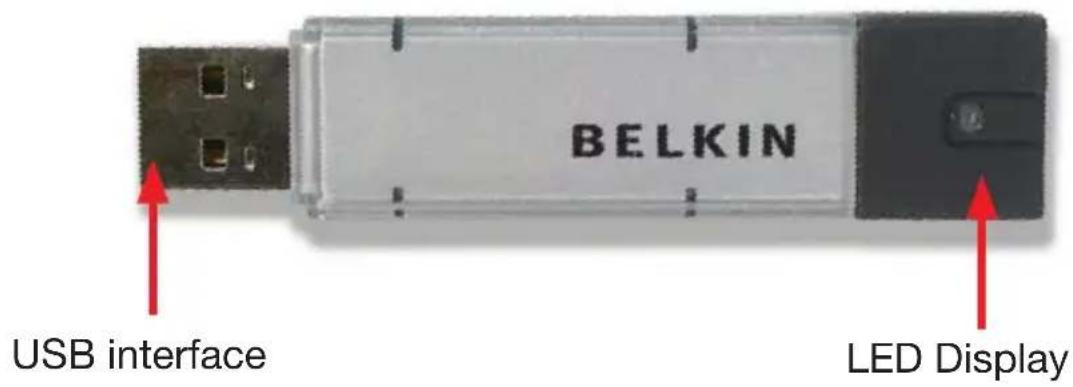
text_image BELKIN USB interface LED Display

USB Interface: - The interface connects to the

USB port of the computer.

LED Display:

- This LED Display will show the status of the device. Once the device is in operation, the LED will be turned on.

1. Plug and Play
BELKIN F5U025TT128MB - Plug and Play - 1

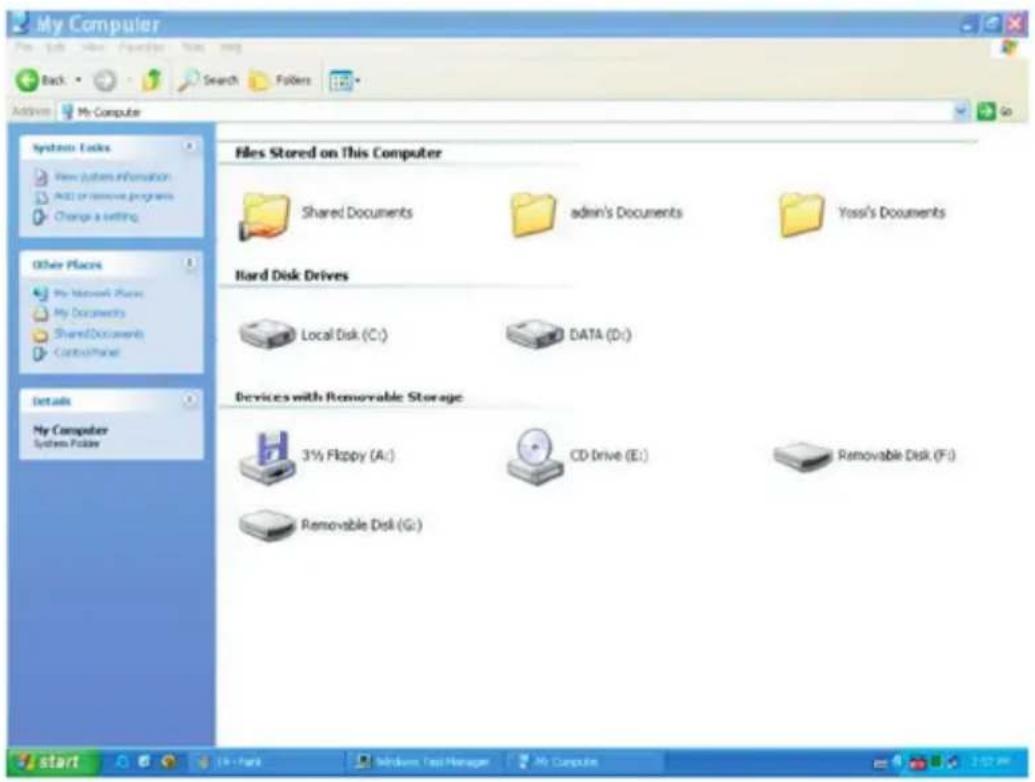
text_image My Computer Back Search Folders Address My Computer Systems Locks View Pattern Information ADD or Remove Programs Change a setting Other Places My Network Places My Documents Shared Documents Shared Documents admin's Documents Yossi's Documents Files Stored on This Computer Hard Disk Drives Local Disk (C:) DATA (D:) Devices with Removable Storage 3½ Floppy (A:) CD Drive (E:) Removable Disk (F:) Removable Disk (G:) My Computer System Folder start 16 - Park Windows Test Manager My Computer

When you plug the device into the USB port of your computer, you will see a "Removable Disk" icon in the file manager window. In Macintosh, once you plug the Belkin USB Flash Drive into the USB port. You can see the disk icon in the "Desktop".

In Linux OS, you can mount the device by the following instruction.

  • Execute cd /etc/sysconfig/ ( cat /etc/sysconfig/hwconf | more )
  • Check the device information in hwconf_write down the mount point.
    • Make a directory in /mnt (ex: mkdir /mnt/usbHD)
  • Then, execute mount /dev/sda1 /mnt usbHD (if mount point was .dev/sda)

2. Read and Write

You can retrieve files from or store files in the device as you do with a hard disk. The read/write operation of the device is the same as that of a hard disk.

3. Write-Protect Switch

When you turn the write-protect switch to "ON" position, you cannot write any file or data into the device. You still can view and read the files and data in the device. You can switch the "Write-Protect" switch even you do not disconnect the device. Due to Linux OS limitation, the write-protect switch will not work on-line.

4. Unplug

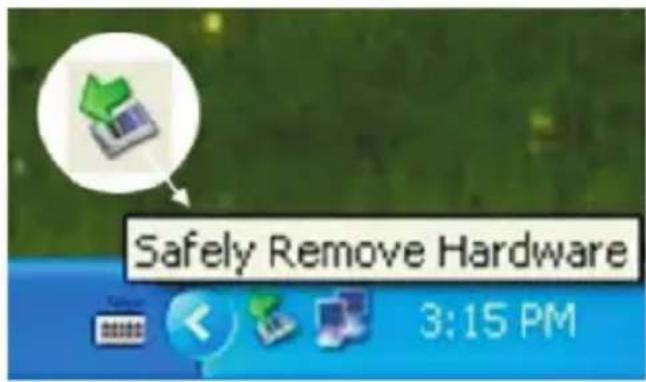
You can remove the device after you finish the action with the device. However, in Windows ME and Windows 2000, please follow the safe removal procedure. You can find a safe removal icon in your computer's notification area.
BELKIN F5U025TT128MB - Unplug - 1

text_image Safely Remove Hardware 3:15 PM

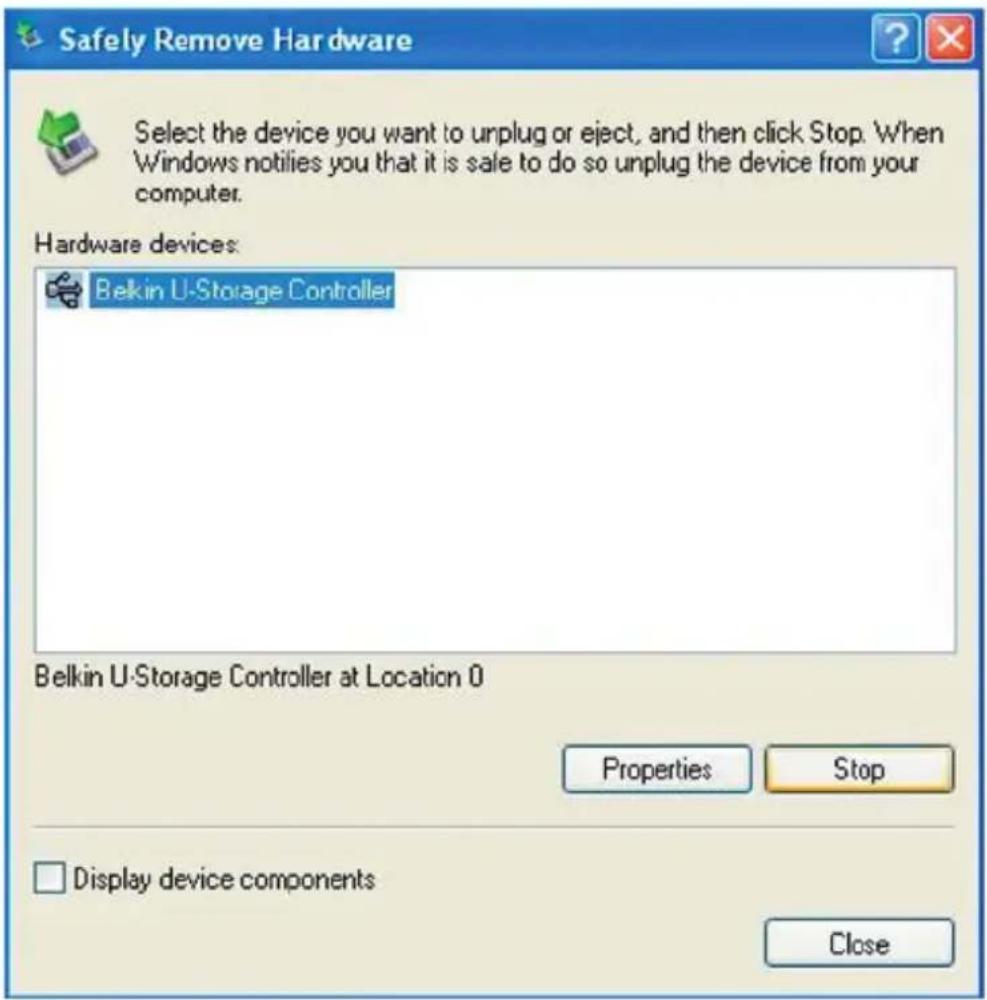
Double click the “safe removal” icon; the “Unplug or Eject Hardware” window will be pop up. You can select the device you want to remove. Then, click the [Stop] button. After that you can unplug the device from the USB port of your computer.

Warnings: When you want to remove the Belkin USB Flash Drive,

BELKIN F5U025TT128MB - Unplug - 2

make sure the LED is not flashing. When the LED flashes quickly, there are some traffic on going between the OS and the Belkin USB Flash Drive. Don't remove the Belkin USB Flash Drive at this moment. Otherwise, it will cause some damages to the data or even the Belkin USB Flash Drive itself.
BELKIN F5U025TT128MB - Unplug - 3

text_image Safely Remove Hardware Select the device you want to unplug or eject, and then click Stop. When Windows notifies you that it is sale to do so unplug the device from your computer. Hardware devices: Belkin U-Storage Controller Belkin U-Storage Controller at Location 0 Properties Stop □ Display device components Close

Warnings: If you do not follow the safe removal procedure in

Windows ME and Windows 2000 systems, data loss caused by the “write cache” issue may happen.

BELKIN F5U025TT128MB - Unplug - 4

In Macintosh systems, you can drag the removable disk icon and put into the trash. This action will perform the "Eject" function

In Linux OS, please follow the "un-mount" command procedure to un-mount the device.

The Belkin USB Flash Drive may be partitioned into three types of disk. We will use the following terms in this guide,

1. Public Area

There is an area where you, as well as anyone else can do any basic functions, described in the “Basic Functions” section, in this area.

2. Security Area

This area cannot be viewed without the application software.

BELKIN F5U025TT128MB - Security Area - 1

Once you do the “Log In” action in the application software, you will switch view from “Public Area” to “Security Area”. After successful switch, you can do any basic functions, described in the “Basic Functions” section, in this area.

- You can only view either “Public Area” or “Security Area” at the same time in the same disk logic unit number (Drive).

In Belkin USB Flash Drive, you can select the following partition combinations:

1. Single Public Area

Make all the device area accessible by everybody.

2. Security Area

BELKIN F5U025TT128MB - Security Area - 1

the device area into two partitions in the same Drive, Public Area and Security Area. Everybody can access the Public Area. The Security Area can be accessed “Only” with a password.

3. Public Area Plus Security Area

Make the device area into three partitions in two Drives, Public Area and Security Area in Drive1, and Public Area in Drive2. You can access these partitions by the multiple-Drive driver. The partition status was shown in the following figure. The partitions in Drive1 will perform as described in item 2. The partition in Drive2 will perform as described in item1.

Drive1

Public Area

Change View Through Login & Logout

Security Area

This figure shows detailed operations of single Drive.

Drive1

Public Area

Change View Through Login & Logout

Security Area

Drive2

Public Area

This figure shows detailed operations of multiple Drives.

Function TypeSecurity PasswordDisk Logical Unit NumberDisk Letters in OS
1. Public Area OnlyNo No 1(Drive1) 1
2. Security AreaYes Yes1 (Drive1) 1
3. Public Area Plus Security AreaYes Yes2 (Drive1& 2) 2

This table describes the functions of the three partition types.

Using the Software (Belkin U-Storage) On Windows Platform

Installing/Uninstalling the Application Software (Belkin U-Storage):

Installing the software:

If you are installing the application software onto Windows OS, you must first log in as the administrator and then install the application software.

Precaution about the USB Interface

  • Please connect the device to the USB port of your computer when you install the application software.
  • If you do not connect the device to the USB port and install the application software in the Microsoft Windows XP, you have to install the Belkin 98/SE Driver again as you plug in the device.
  • In Windows 98 SE and Win Me, you need to unplug the Belkin USB Flash Drive and plug again after install the driver.

1 Place the "Driver & Tools" CD into the CD-ROM drive in the computer, a menu called "Driver & Tools" Installation will pop up.
2 Left click on "Tools".
3 Follow the on-screen instructions to proceed.

Uninstalling the software:

To remove the installed software, you can click the windows [Start] menu and select [Setting], [Control Panel] and [Add/Remove Programs]. The application software can also be uninstalled by clicking the [Start] menu and selecting [Programs], [Belkin U-Storage], [Uninstall Belkin U-Storage].

Using the Software (Belkin U-Storage) On Windows Platform

Notes:

  • The “Driver for Windows 98/SE” will be required to install, as the device is connected to the PC through the USB port for the fist time when operation is made under Windows 98/98SE system. After that, the drive installation is no more required in future uses.
  • Do not cancel the installation during the procedure. The Belkin USB Flash Drive may not operate correctly if the installation is incomplete.
  • Read the “Troubleshooting” Section if the installation cancels itself during the procedure, if the installation did not proceed as described, or if you feel that the driver are not properly installed

Installing the USB Driver:

For some Windows system, users should log in as the Administrator before installation. Once you have inserted the Belkin USB Flash Drive into the computer, under Windows ME/2000/XP, the OS will find the appropriate driver or the “Add New Hardware Wizard” dialog will appear after a moment. In Windows 98/98SE, you can do the installation of the driver manually; just place the “Driver & Tools” CD into the CD-ROM drive in the computer and click on “Driver for Windows 98/SE” when the “Driver & Tools” installation menu pops up. Follow along the instructions, the driver will then be installed.

During the installation procedure, if the “Digital Signature Not Found” message displays, just click the [Yes] button in the showing window.

Using "Belkin U-Storage" Program for the First Time:

Warnings:

BELKIN F5U025TT128MB - Warnings: - 1

Because the “Belkin U-Storage” program can only handle one Belkin USB Flash Drive at the same time. If you don’t want to use the functions of the “Belkin U-Storage”, like [Resize], [Change Password], or [Log In], etc., you can insert more than two Belkin USB Flash Drives. If you want to use the functions of the program, remove all other Belkin USB Flash Drives. Otherwise, the “Belkin U-Storage” may not perform properly or even cause data loss.

Using the Software (Belkin U-Storage) On Windows Platform

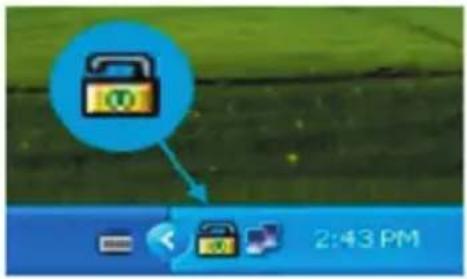
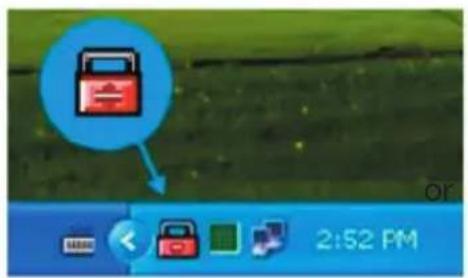
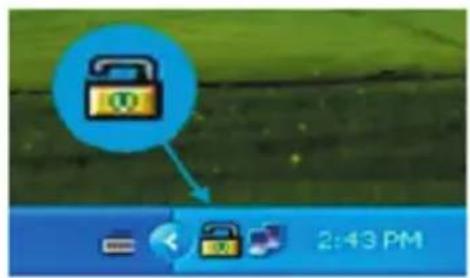
After you install the software and driver correctly, the "Belkin U-Storage" icon (shown as a "lock") will appear at the notification area automatically.
BELKIN F5U025TT128MB - Using the Software (Belkin U-Storage) On Windows Platform - 1

text_image or 2:52 PM

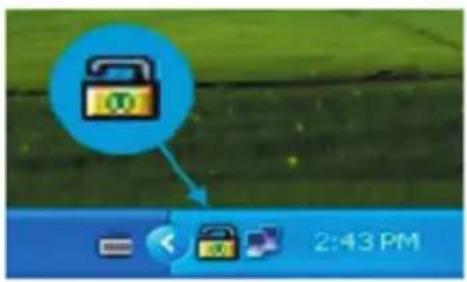
BELKIN F5U025TT128MB - Using the Software (Belkin U-Storage) On Windows Platform - 2

text_image 2:43 PM

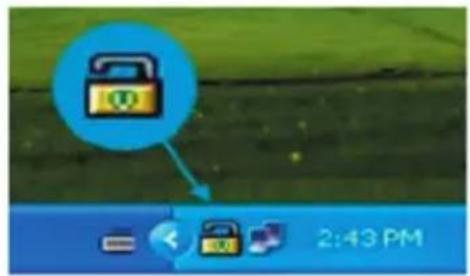
The display will depend on the status of the device.

- You can use the right button of your mouse to pop up the selection menu as the following figures. Then, you can select the functions you want.
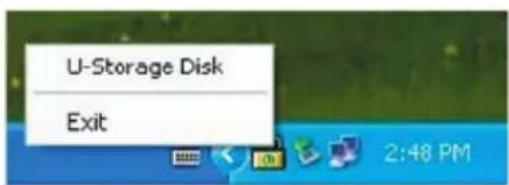
BELKIN F5U025TT128MB - Using the Software (Belkin U-Storage) On Windows Platform - 3

text_image U-Storage Disk Exit 2:48 PM

- Or you can double click the icon in the notification window. The "Belkin U-Storage" manager window will pop up :
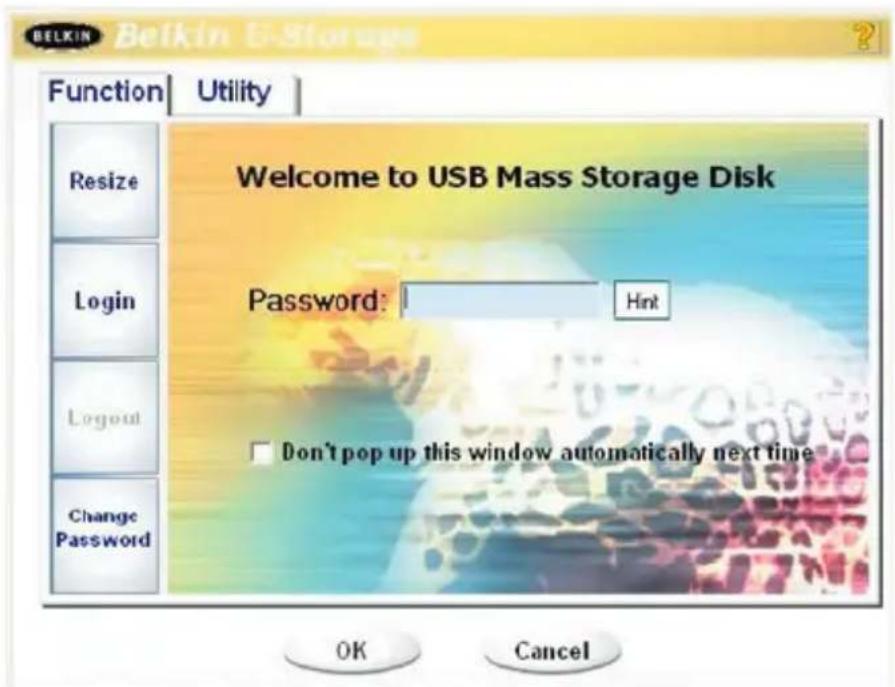
BELKIN F5U025TT128MB - Using the Software (Belkin U-Storage) On Windows Platform - 4

text_image BELKIN Belkin E-Storage Function Utility Welcome to USB Mass Storage Disk Password: Hint Login Logout Change Password Don't pop up this window automatically next time OK Cancel

Using the Software (Belkin U-Storage) On Windows Platform

By default, the device is non-security. So, the "Resize" function will be active when you run this software first time.

Belkin USB Flash Drive- Resize:

As described in the "Partition Type" section, you can do the "Resize" action to your Belkin USB Flash Drive.

Warnings:

BELKIN F5U025TT128MB - Belkin USB Flash Drive- Resize: - 1

The “Resize” action will erase all the data or files existing in Belkin USB Flash Drive. The action is not reversible. You have to backup all the important files or data. Also, please close all the active programs and windows on the screen of your computer.

  1. Click the [Resize] button in the "Belkin U-Storage" manager window. The following "Resize Partition" window pop up.
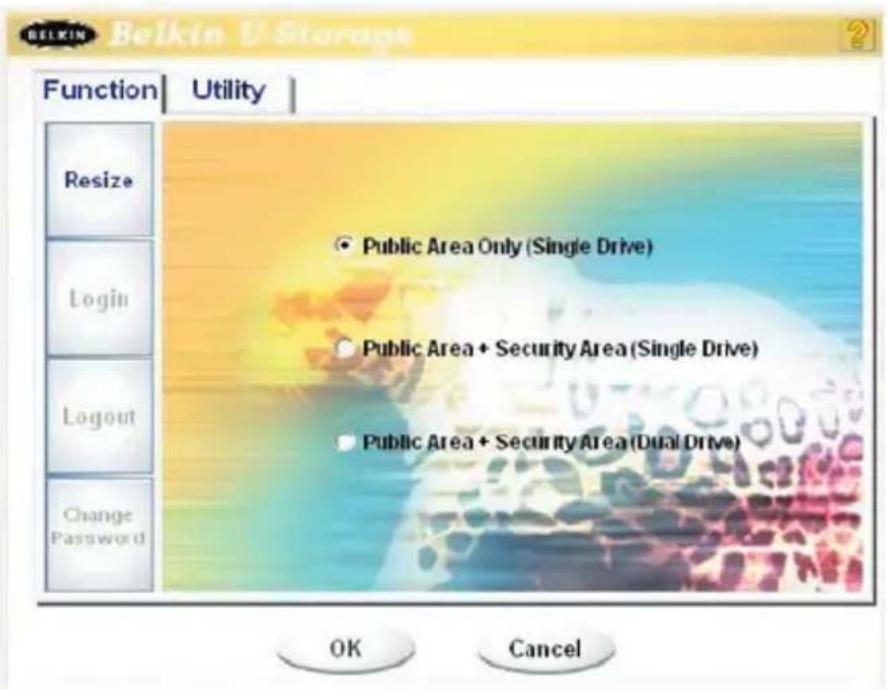
BELKIN F5U025TT128MB - Belkin USB Flash Drive- Resize: - 2

text_image BELKIN Belkin V Storage Function Utility Resize Login Logout Change Password Public Area Only (Single Drive) Public Area + Security Area (Single Drive) Public Area + Security Area (Dual Drive) OK Cancel
  1. Select the partition type you want.
  2. If you select the "Public Area Only (Single Drive)", then click the [OK] button. The "Confirmation" window will pop up. Please make sure you already backup all the important files or data.

Using the Software (Belkin U-Storage) On Windows Platform
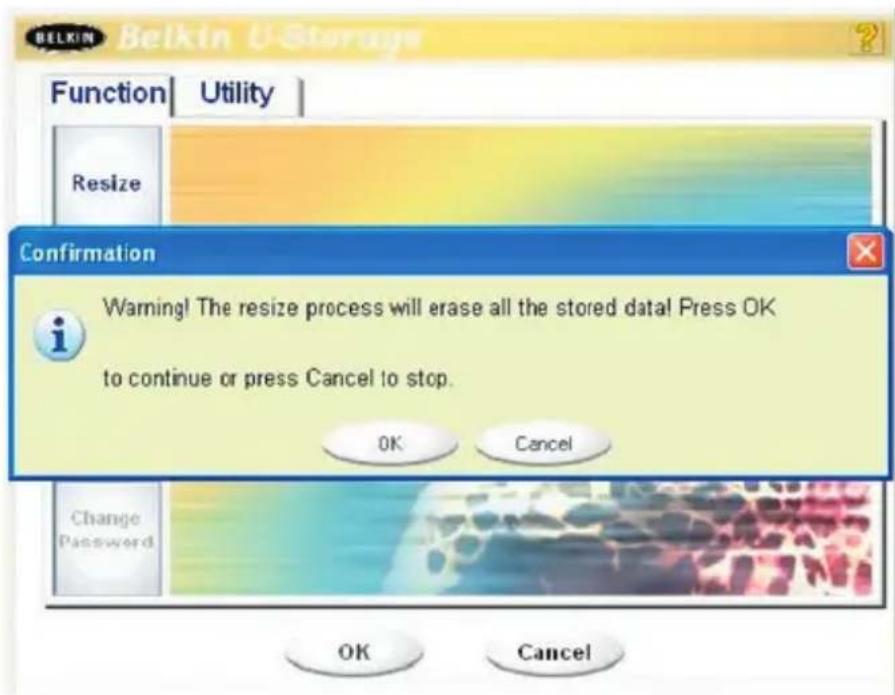
BELKIN F5U025TT128MB - Using the Software (Belkin U-Storage) On Windows Platform - 1

text_image BELKIN Belkin U-Storage Function Utility Resize Confirmation Warning! The resize process will erase all the stored data! Press OK to continue or press Cancel to stop. OK Cancel Change Password OK Cancel
  1. If you select the “Public Area + Security Area (Single Drive)”, then the following “Security Area” window will pop up. You can drag the scroll bar in the middle of the window to set the size of the “Public Area” and “Security Area”. Or you can type in the size of each Zone you want in the “Size” window. You can set the password for accessing the security area in the “New Password” window. The maximum size of the password is 8 characters. You can key in the hint of your new password in the “Password Hint” window. This hint will be displayed when you click the [Hint] button in the “Unlock Protect” window. The maximum size of the Hint is 32 characters. After you finished the setting, click the [OK] button. The “Confirmation” window will pop up. Please make sure you already backup all the important files or data.

Using the Software (Belkin U-Storage) On Windows Platform
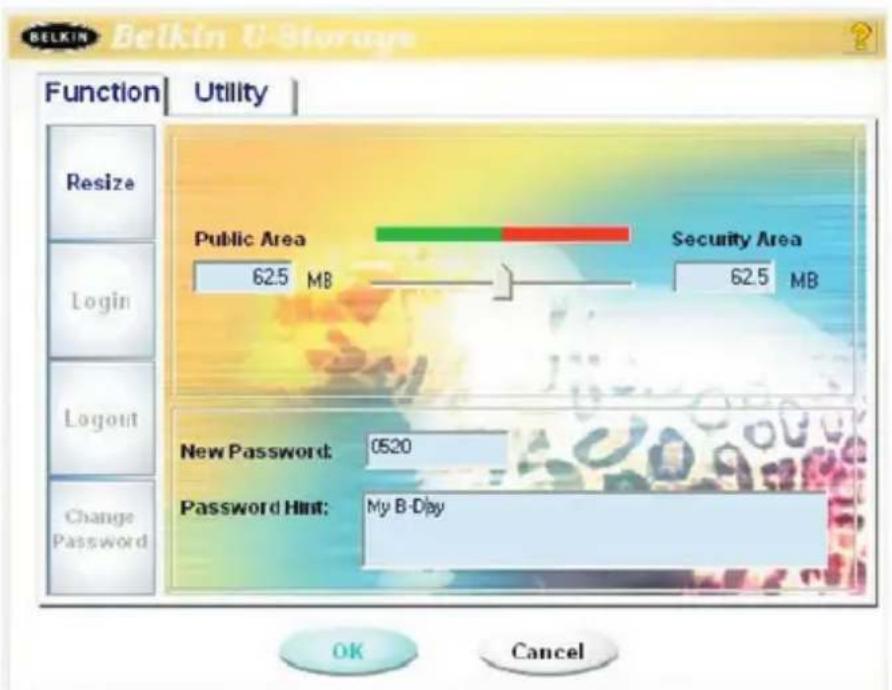
BELKIN F5U025TT128MB - Using the Software (Belkin U-Storage) On Windows Platform - 1

text_image BELKIN Belkin U-Storage Function Utility Resize Login Logout Change Password Public Area 62.5 MB Security Area 62.5 MB New Password: 0520 Password Hint: My B-Day OK Cancel
  1. If you select the “Public Area + Security Area(Dual Drive)”, then the following “Public Area(Drive1)/Security Area” window will pop up. You can drag the scroll bar in the window to set the size of each area. First, please set the size of the “Public Area (Drive2)”. The minimum size for each area is 1MB. The maximum size of the “Public Area (Drive2)” is 1/4 of the total size. Once the size of the “Public Area (Drive2)” was set, the scroll bar of the “Public Area (Drive1)” and “Security Area” will be set in the middle automatically. Or you can type in the size of each Zone you want in the “Size” window. You can set the password for accessing the security area in the “New Password” window. The maximum size of the password is 8 characters. You can key in the hint of your new password in the “Password Hint” window. This hint will be displayed when you click the [Hint] button in the “Unlock Protect” window. The maximum size of the Hint is 32 characters. After you finish the setting, click the [OK] button. The “Confirmation” window will pop up. Please make sure you already backup all the important files or data.

Using the Software (Belkin U-Storage) On Windows Platform
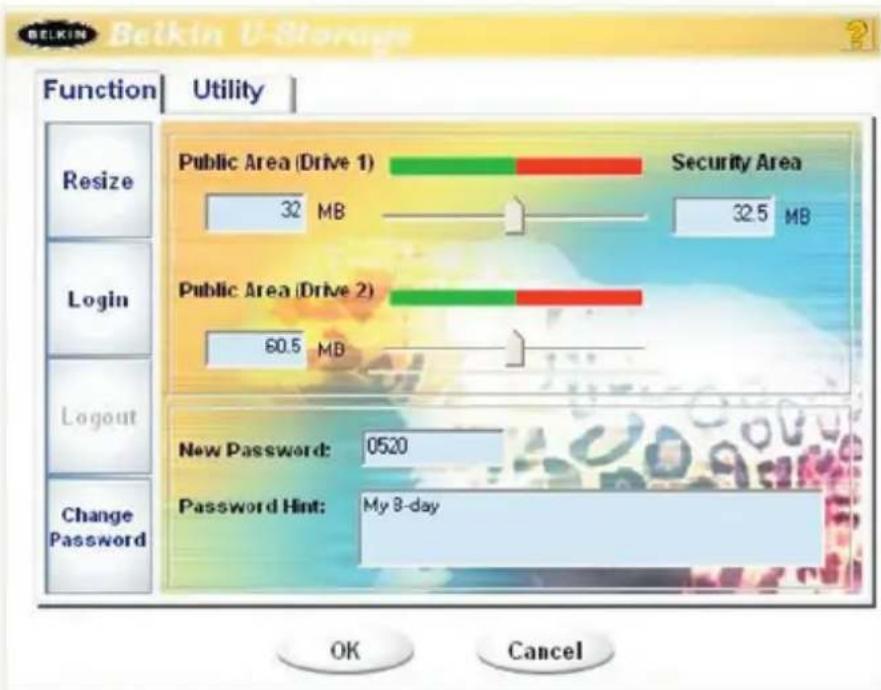
BELKIN F5U025TT128MB - Using the Software (Belkin U-Storage) On Windows Platform - 1

text_image BELKIN Belkin U-Storage Function Utility Resize Public Area (Drive 1) Security Area 32 MB 32.5 MB Login Public Area (Drive 2) 60.5 MB Logout Change Password New Password: 0520 Password Hint: My 8-day OK Cancel
  1. Once the resizing is finished, the following message will pop up.
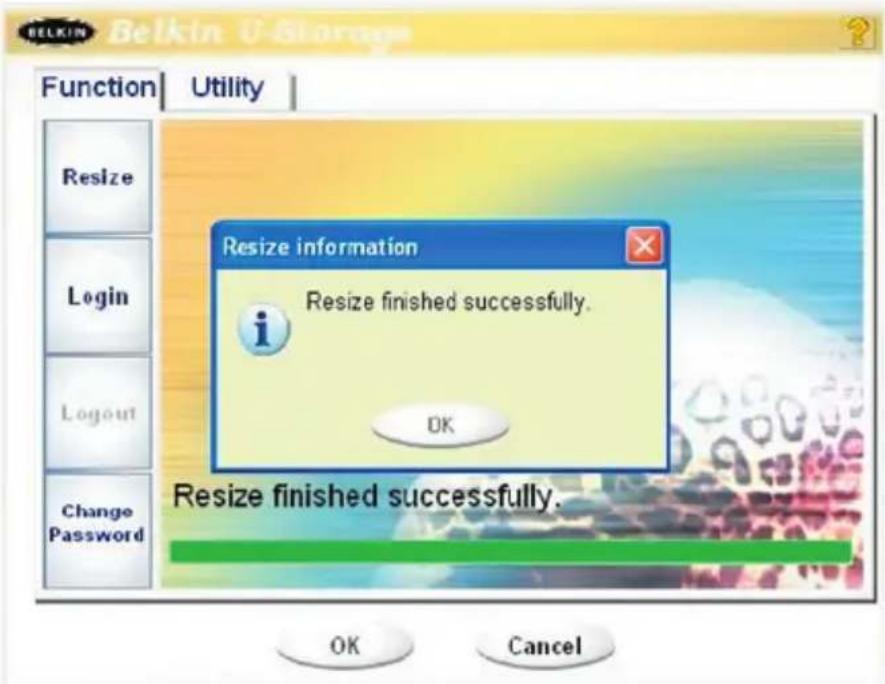
BELKIN F5U025TT128MB - Using the Software (Belkin U-Storage) On Windows Platform - 2

text_image BELKIN Belkin U Storage Function Utility Resize Login Logout Change Password Resize information Resize finished successfully. OK Resize finished successfully. OK Cancel
  1. After you finish the "Resize", the "Setup.exe" program (exactly the same as "Tools.exe" in the "Driver & Tools" CD) will be copied into the "Public Area (Drive1)" automatically. It's removable. However, it is needed when you insert your device into another computer. It will install the "Belkin U-Storage" software for you in the computer you want to operate on.

Using the Software (Belkin U-Storage) On Windows Platform

Log in the Security Area:

If you partition the device with security, you can execute the following "Login" function to access the security Area.

  1. Double click the "Belkin U-Storage" icon in the notification window or click the [Login] button in the "Belkin U-Storage" manager window. The "Unlock Protect" window will pop up.
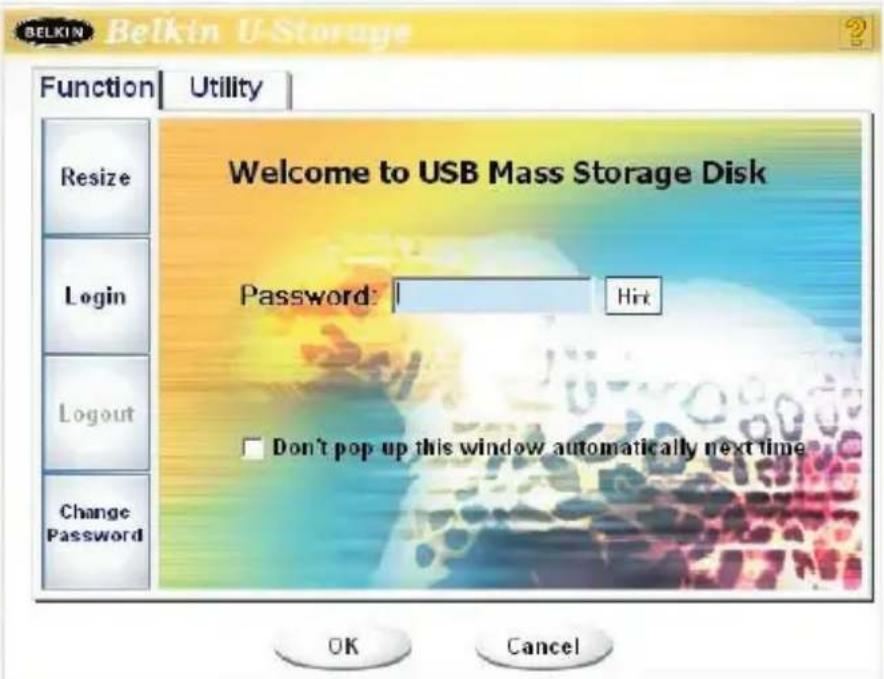
BELKIN F5U025TT128MB - Log in the Security Area: - 1

text_image BELKIN Belkin U-Storage Function Utility Welcome to USB Mass Storage Disk Password: Hit Login Logout Change Password Don't pop up this window automatically next time OK Cancel

Warnings:

BELKIN F5U025TT128MB - Warnings: - 1

When you do the login and logout action with the device, please make sure there is no application or program running or document unclosed on the device. If so, it will cause data loss or damage.

  1. Key in the password in the "Password" area.

- You can create the password hint in the "Resize" or "Change Password" functions. Once you create the password hint, you can click on the [Hint] button in the "Unlock Protect" window to prevent you from forgetting the password. The hint will show up in a couple of seconds.

Using the Software (Belkin U-Storage) On Windows Platform
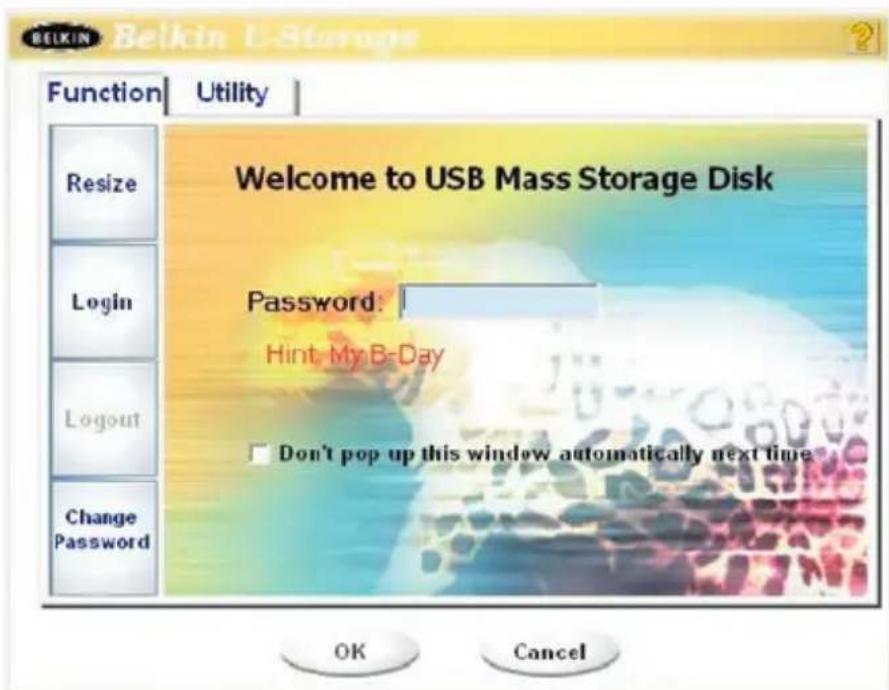
BELKIN F5U025TT128MB - Using the Software (Belkin U-Storage) On Windows Platform - 1

text_image Welcome to USB Mass Storage Disk Password: Hint My B-Day Don't pop up this window automatically next time OK Cancel

- If you key in the wrong password, the following message will be shown.
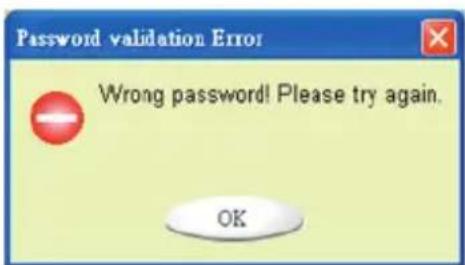
BELKIN F5U025TT128MB - Using the Software (Belkin U-Storage) On Windows Platform - 2

text_image Password validation Error Wrong password! Please try again. OK

- You have three tries to input the password. After three tries, the following message will pop up. And you have to unplug and plug the device again in order to do future actions.
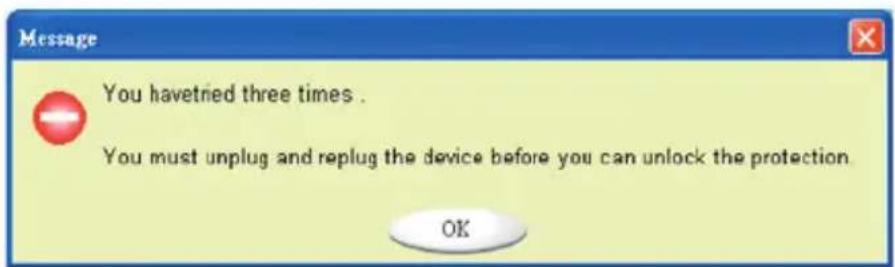
BELKIN F5U025TT128MB - Using the Software (Belkin U-Storage) On Windows Platform - 3

text_image Message You havetried three times . You must unplug and replug the device before you can unlock the protection. OK

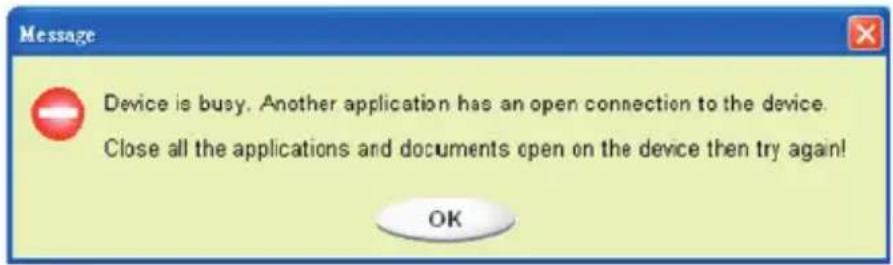
- When you do the login or logout action, please make sure you close all the programs or documents open connection on the device. If there are some application programs running or documents unclosed on the device, the following message will pop up.

Using the Software (Belkin U-Storage) On Windows Platform

In Windows 2000, even the “file manager” has accessed the device, it will be treated as “busy”. You have to close the file manager in order to do the “Login”. However, not all the connection could be checked in all kind of OS.
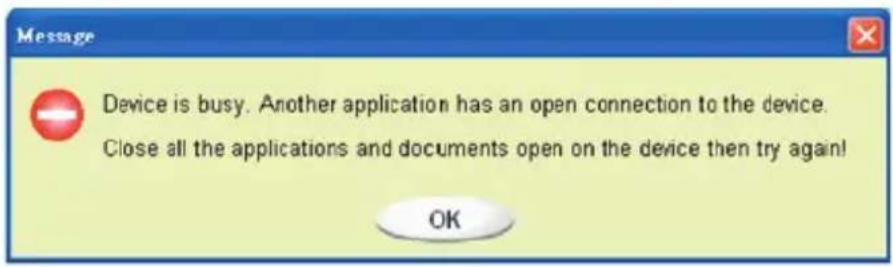
BELKIN F5U025TT128MB - Using the Software (Belkin U-Storage) On Windows Platform - 1

text_image Device is busy. Another application has an open connection to the device. Close all the applications and documents open on the device then try again! OK
  1. Click on the [OK] button.
  2. Once the file manager window contains the "Security Area" pops up, you can do the operation you want with the "Security Area". The file manager window looks like this :
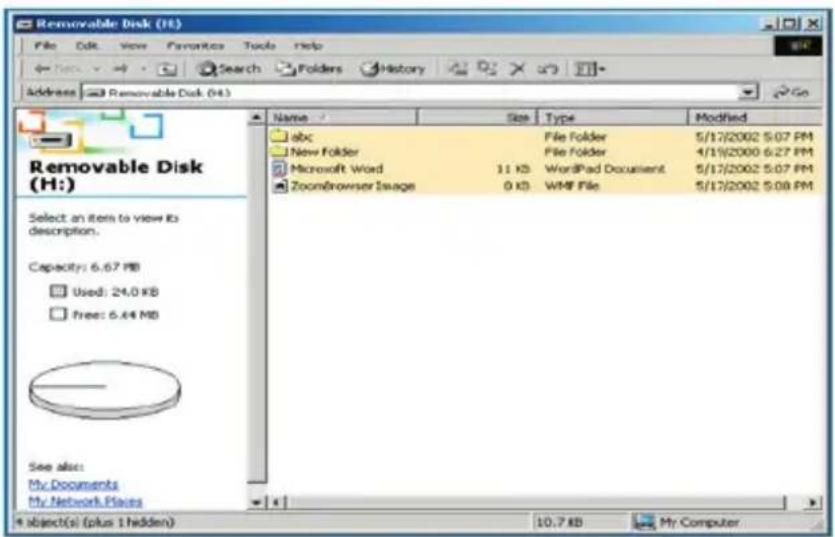
BELKIN F5U025TT128MB - Using the Software (Belkin U-Storage) On Windows Platform - 2

text_image Removable Disk (H:) File Edit View Favorites Tools Help Search Folders History Address Removable Disk (H:) Name Size Type Modified abc File Folder 5/17/2002 5:07 PM New Folder File Folder 4/17/2000 6:27 PM Microsoft Word 11 KB WordPad Document 5/17/2002 5:07 PM ZoomBrowser Image 0 KB WMF File 5/17/2002 5:08 PM Capacity: 6.67 MB Used: 24.0 KB Free: 6.44 MB See also: My Documents My Network Places object(s) (plus 1 hidden) 10.7 KB My Computer

Log out the Security Data Zone:

  1. Double click the "Belkin U-Storage" icon in the notification window or select the [Logout] button in the "Belkin U-Storage" manager window.

Using the Software (Belkin U-Storage) On Windows Platform

Warnings:

When you do the login and logout action with the device,

BELKIN F5U025TT128MB - Warnings: - 1

please make sure there is no application or program running or document unclosed on the device. If so, it will cause data loss or damage.

- When you do the login or logout action, please make sure you have closed all the programs or documents on the device. If there are any programs running or documents unclosed on the device, the following message will pop up. In Windows 2000, even the “file manager” has accessed the device, it will be treated as “busy”. You have to close the file manager in order to do the “Login”. However, not all the connection could be checked in all kind of OS.
BELKIN F5U025TT128MB - Warnings: - 2

text_image Message Device is busy. Another application has an open connection to the device. Close all the applications and documents open on the device then try again! OK
  1. Once the file manager window contains the "Public Area (Single Drive)" pops up, you can do the operation you want with the Public Area.

Change Password:

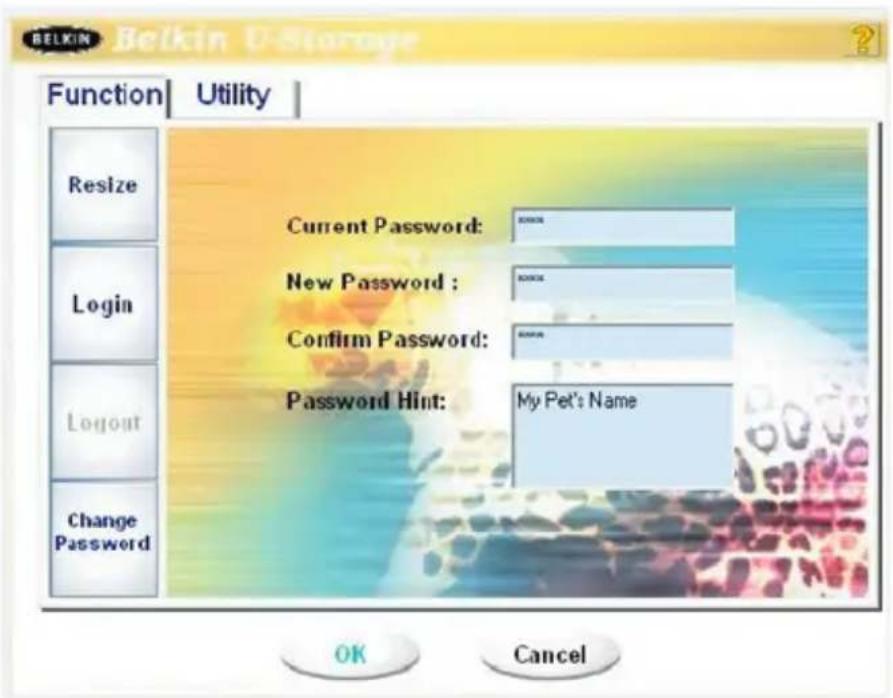
User can change password and key in the password hint using the “Change Password” selection in the “Belkin U-Storage” manager menu. You can only select this item in “Security AP Zone”.

Using the Software (Belkin U-Storage) On Windows Platform
BELKIN F5U025TT128MB - Using the Software (Belkin U-Storage) On Windows Platform - 1

text_image BELKIN Belkin U-Storage Function Utility Resize Login Logout Change Password Current Password: New Password : Confirm Password: Password Hint: My Pet's Name OK Cancel

1 Make sure the "Write Protect" switch is in "OFF" position.
2 Key in your current password in the "Current Password" area.
3 Then, key in your new password and confirm in the "Confirm Password" area.
- The maximum size of the password is 8 characters.
4 You can key in the hint of your new password in the "Password Hint" window. This hint will be displayed when you click the "Hint" button in the "Unlock Protect" window.

The BootUp program in “Utility” section of “Belkin U-Storage” manager window will build up the device as a bootable disk. Before you run the program, please make the following preparations,

1 This program can run under Windows 98 SE, XP, and ME. (The program can't be supported in Windows 2000.)
2 Please turn off the anti-virus program during the procedure.
3 Make sure your Windows system was located in C Disk.
4 Make sure the "write-protect" switch is in "OFF" position.
5 This program only deals with one device at the same time.
6 Make sure your Belkin USB Flash Drive is in "Public Area" if it is with "Security" function.

7 If you want to make your device as a bootable USB HDD, you can't make the device as a "Security" one. This option is only supported in Windows 98 SE.

Warnings:
BELKIN F5U025TT128MB - Using the Software (Belkin U-Storage) On Windows Platform - 2

BELKIN F5U025TT128MB - Using the Software (Belkin U-Storage) On Windows Platform - 3

If you performed the “Log In” action with your Belkin USB Flash Drive and located in “Security Area” and run the BootUp function, it will do the “Log Out” and erase all the data in “Public Area”.

When you are ready to process, follow the following procedures, the procedures for Windows XP is different from Windows 98 and ME. This program cannot be run in Windows 2000.

Windows 98 SE and Windows ME:

1 You can click the [Utility] button in the "Belkin U-Storage" manager window to execute the Boot-up utility.

BELKIN F5U025TT128MB - Windows 98 SE and Windows ME: - 1

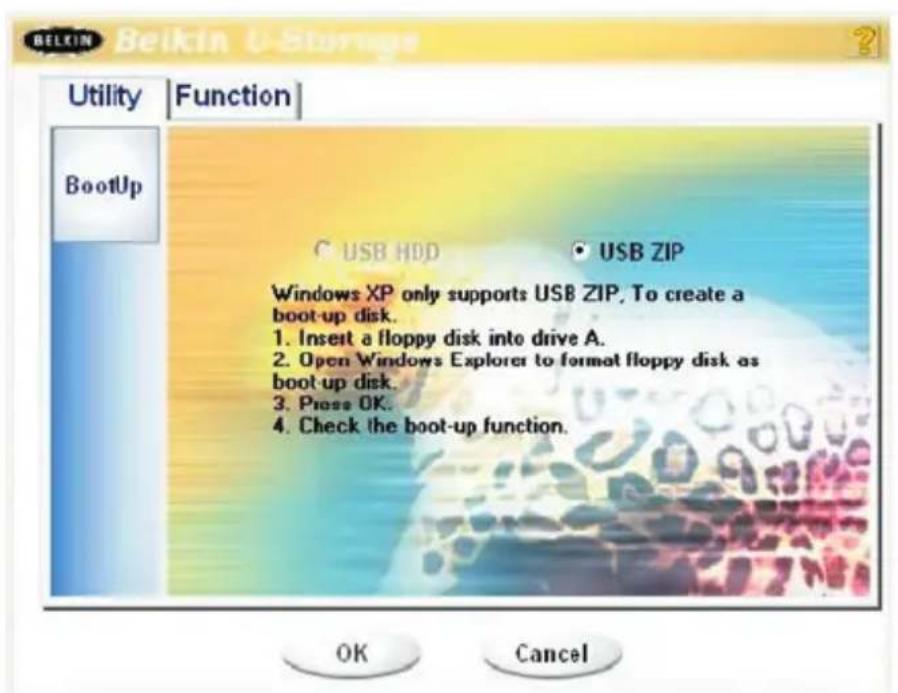
2 The following window will show up

BELKIN F5U025TT128MB - Windows 98 SE and Windows ME: - 2

text_image BEIKIN U-Storage Utility | Function | BootUp C USB HDD ● USB ZIP Windows XP only supports USB ZIP. To create a boot-up disk. 1. Insert a floppy disk into drive A. 2. Open Windows Explorer to format floppy disk as boot-up disk. 3. Press OK. 4. Check the boot-up function. OK Cancel
  1. You can select the type of the boot-up method, USB ZIP or USB HDD. The USB HDD is only for Windows 98.

  2. If you select "USB HDD", the computer will get the "C: > " prompt after you boot from the Belkin USB Flash Drive.

  3. If you select "USB ZIP", the computer will get the "A:>" prompt after you boot from the Belkin USB Flash Drive.
  4. If your device is with "Security" function, only USB ZIP can be selected.

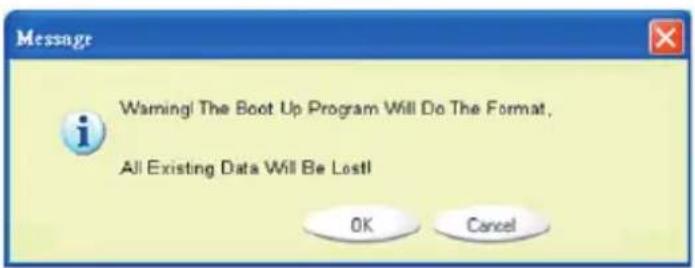
  5. After the selection, click the [OK] button. The following warning message will be shown. The data in the "Public Area" will be lost. If it is OK, click the [OK] button to continue the process.

Warnings:

The program will do the format. The existing data in the "Public Area", which you want to make, will be lost.

BELKIN F5U025TT128MB - Warnings: - 1

BELKIN F5U025TT128MB - Warnings: - 2

text_image Message Warning! The Boot Up Program Will Do The Format, All Existing Data Will Be Lost! OK Cancel
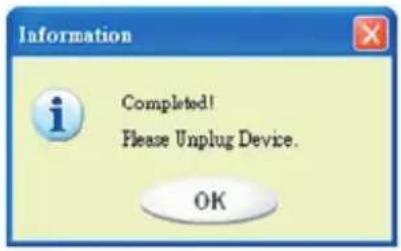
  1. After the process is completed done, the finish message will be shown.
BELKIN F5U025TT128MB - Warnings: - 3

text_image Information Completed! Please Unplug Device. OK

Windows XP:

1 Please make a bootable floppy first. You can insert a floppy into the floppy drive. Then, click on the icon of 3.5" floppy in the "My Computer" window by using the right button of the mice. Select the "Format" item.
2 Select the item for build up a bootable floppy in the format options. Then, click on the [Start] button.
3 Make a directory called XP_Bootable in the root directory of your computer system disk.
4 Copy all the files in the floppy to the XP_Bootable directory.
5 Click on the [Utility] button in the "Belkin U-Storage" manager window. Then, select the USB ZIP. Click on the [OK] button.

BELKIN F5U025TT128MB - Windows XP: - 1

text_image Utility | Function BootUp USB HDD USB ZIP Windows XP only supports USB ZIP, To create a boot-up disk. 1. Insert a floppy disk into drive A. 2. Open Windows Explorer to format floppy disk as boot-up disk. 3. Press OK. 4. Check the boot-up function. OK Cancel

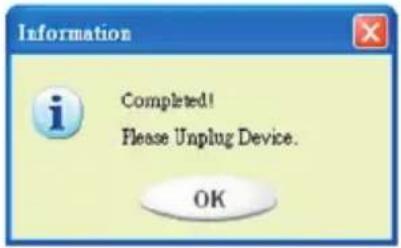
6 After the process is completed, the finish message will be shown.
BELKIN F5U025TT128MB - Windows XP: - 2

text_image Information Completed! Please Unplug Device. OK

Error Messages:

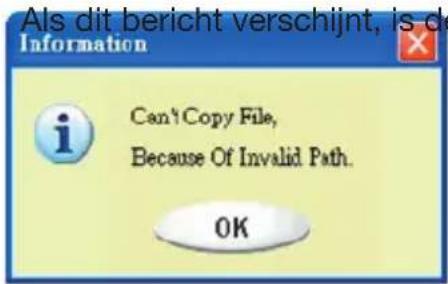
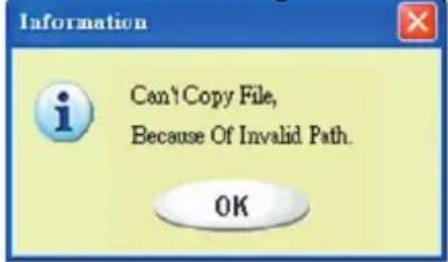
When this message shows up, the possible
BELKIN F5U025TT128MB - Error Messages: - 1

text_image Information Can't Copy File, Because Of Invalid Path. OK

reason is your Windows OS installation is not completed. (Please make sure the path \WINDOWS\COMMAND\ EBD in Windows 98, \WINDOWS\COMMAND\EBD in Windows ME, or \XP_Bootable in Windows XP is exists)
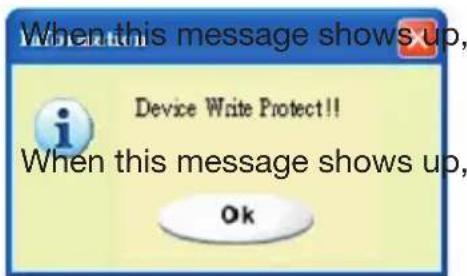
BELKIN F5U025TT128MB - Error Messages: - 2

text_image When this message shows up, Device Write Protect!! When this message shows up, Ok

please make sure the "Write-Protect" switch is in "OFF" position.

please make sure the capacity of the "Public Area" is enough.

Notes:

  • After you finish the program, you will see different disk property when you select different disk type. For example, if you select it as "USB HDD", you will see the hard disk icon in the file manager window. If you select it as "USB ZIP", you will see the removable disk icon in the file manager window. However, only Windows 2000 and above can identify the difference. In Windows 98, you just can see the "Removable Disk".
  • After you finish the program, the device contains the files necessary for boot up function. Please don't remove any files in this area. Otherwise it will cause failure when you do the boot-up procedure of your computer.
  • When you want to use the Belkin USB Flash Drive to boot up your computer, please select the appropriate setting of the BIOS. Please refer to the user manual of the motherboard.
  • Since the BIOS design of each motherboard is quite different, we cannot guarantee the boot up device is suitable for every computer.
  • Since Award changed their BIOS spec. In March 2002, the boot up procedure is different from before. We cannot identify if the BIOS is new or old. So, this boot up utility is not suitable for Award's new BIOS if you use USB ZIP boot up option.

Once your device is damaged, you can use this utility to recover the device. It will check if there are too many bad block in device and try to repair it.

1 After you double click on the Recover Disk shortcut in start menu, the following window will pop up.
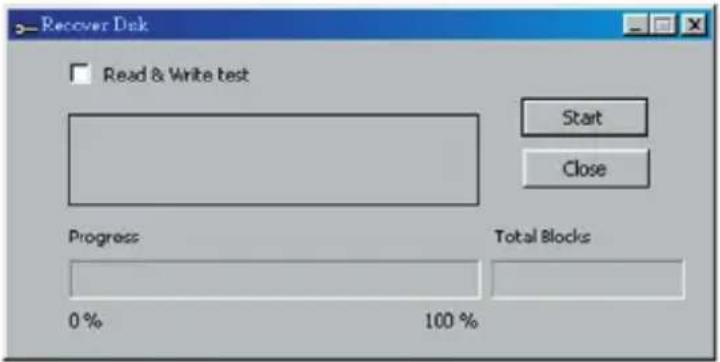
BELKIN F5U025TT128MB - Notes: - 1

text_image Recover Disk Read & Write test Start Close Progress Total Blocks 0% 100%

Warnings:

BELKIN F5U025TT128MB - Warnings: - 1

The “Recover Disk” action will erase all the data or files existing in Belkin USB Flash Drive. The action is not reversible. You have to backup all the important files or data.

2 There are two steps in Recover Disk, one is "scan bad block" and the other is "Read/Write" testing for each block. It will take a long time to scan each block. It will take about 1.5 minutes for each 16 MB.
3 After you click the [Start] button in the window, the Recover process will be started.
4 Once the job is finished, the complete message will be shown in the middle area, or else it will show error message.

Problem 1:

The "Write-Protect" switch can not work on-line on Macintosh computer with Mac OS 10.1.4.

Warnings: The "Recover Disk" action will erase all the data or files existing in Belkin USB Flash Drive. The action is not reversible. You have to backup all the important files or data.

BELKIN F5U025TT128MB - Problem 1: - 1

Workaround: Disconnect the device when you need to switch the "Write-Protect" with Mac OS 10.1.4. We will solve the system hang-up problem in the near future. However, due to the OS operation issue, we don't recommend you switch the "Write-Protect" on-line.

Problem 2:

In Window2k or Window XP, when user use VIA USB 2.0 host controller and run resize in Belkin USB Flash Drive AP will cause OS reboot or resize function fail.

Solution: In Windows XP:

Update USB 2.0 driver from Microsoft Windows Update(usually Windows XP will update automatically).

Windows 2k:

When your OS detect USB 2.0 host controller PCI card or onboard chip at first time, OS will show new hardware detect and request to direct driver location, please select Microsoft Windows Update to update from internet, otherwise if you install VIA driver before, you must update manually follow below step:

Right click My Computer and select Properties.
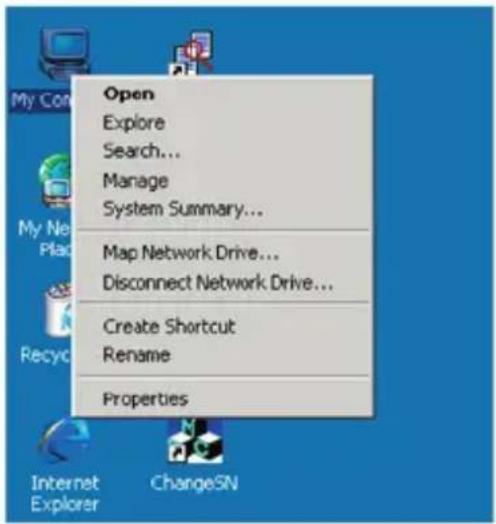
BELKIN F5U025TT128MB - Windows 2k: - 1

text_image Open Explore Search... Manage System Summary... Map Network Drive... Disconnect Network Drive... Create Shortcut Rename Properties

Select Device Manager... in Hardware page
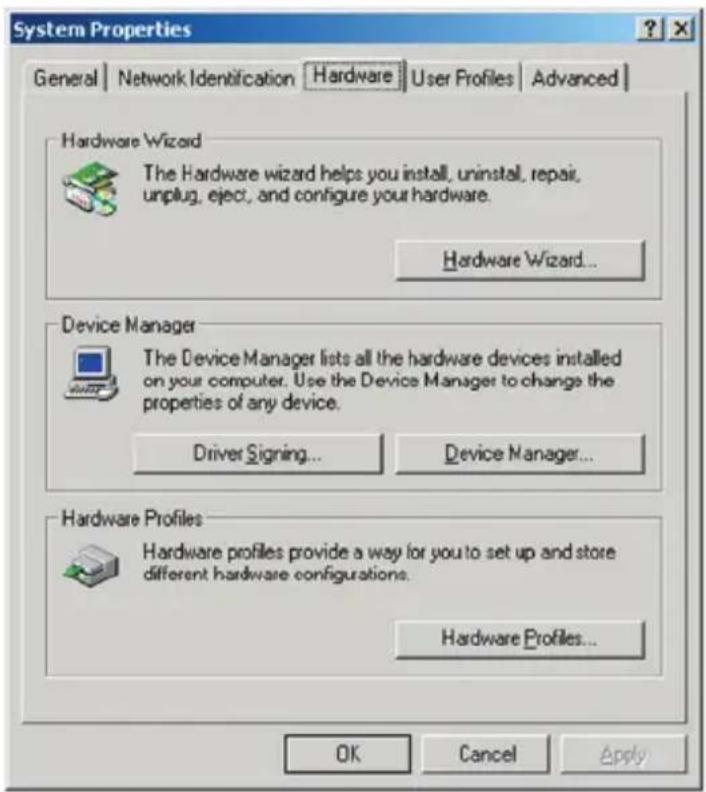
BELKIN F5U025TT128MB - Windows 2k: - 2

text_image System Properties General | Network Identification | Hardware | User Profiles | Advanced | Hardware Wizard The Hardware wizard helps you install, uninstall, repair, unplug, eject, and configure your hardware. Hardware Wizard... Device Manager The Device Manager lists all the hardware devices installed on your computer. Use the Device Manager to change the properties of any device. Driver Signing... Device Manager... Hardware Profiles Hardware profiles provide a way for you to set up and store different hardware configurations. Hardware Profiles... OK Cancel Apply

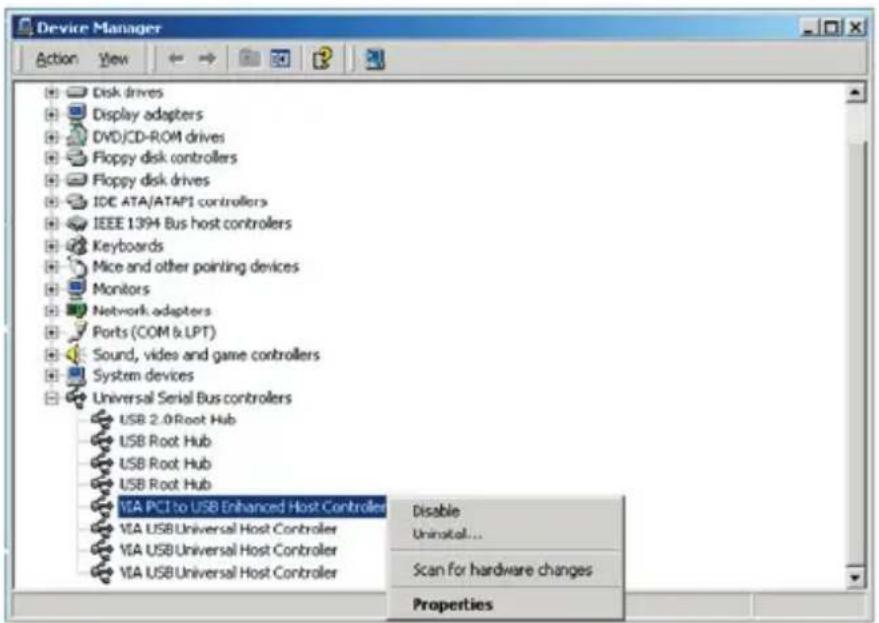
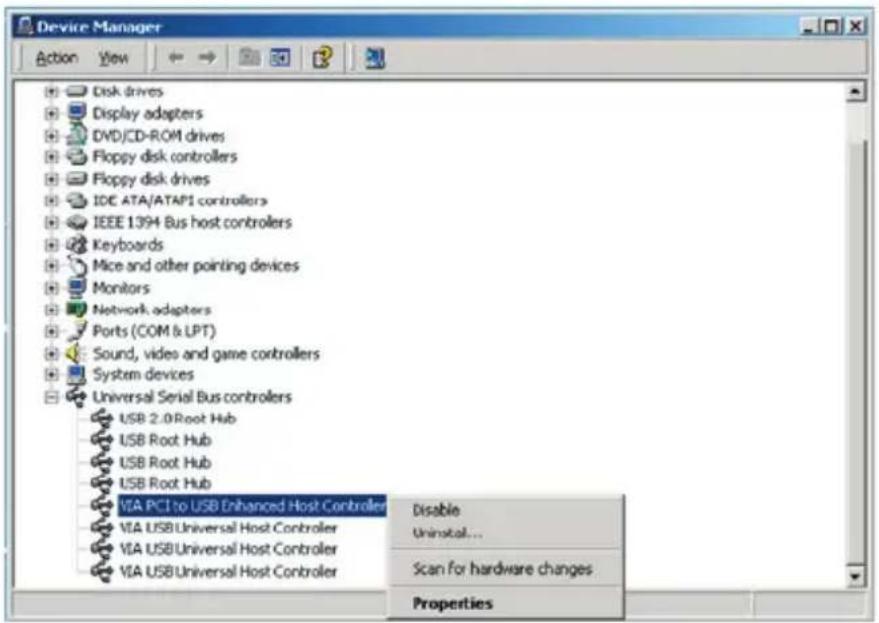
Select VIA PCI to USB Enhanced Host Controller under Universal Serial Bus controllers and click right mouse button to select Properties.
BELKIN F5U025TT128MB - Windows 2k: - 3

text_image Device Manager Action View Disk drives Display adapters DVD/CD-ROM drives Floppy disk controllers Floppy disk drives IDC ATA/ATAP1 controllers IEEE 1394 Bus host controllers Keyboards Mice and other pointing devices Monitors Network adapters Ports (COM & LPT) Sound, video and game controllers System devices Universal Serial Bus controllers USB 2.0 Root Hub USB Root Hub USB Root Hub USB Root Hub VIA PCI to USB Enhanced Host Controller VIA USB Universal Host Controller VIA USB Universal Host Controller VIA USB Universal Host Controller Disable Uninstall... Scan for hardware changes Properties

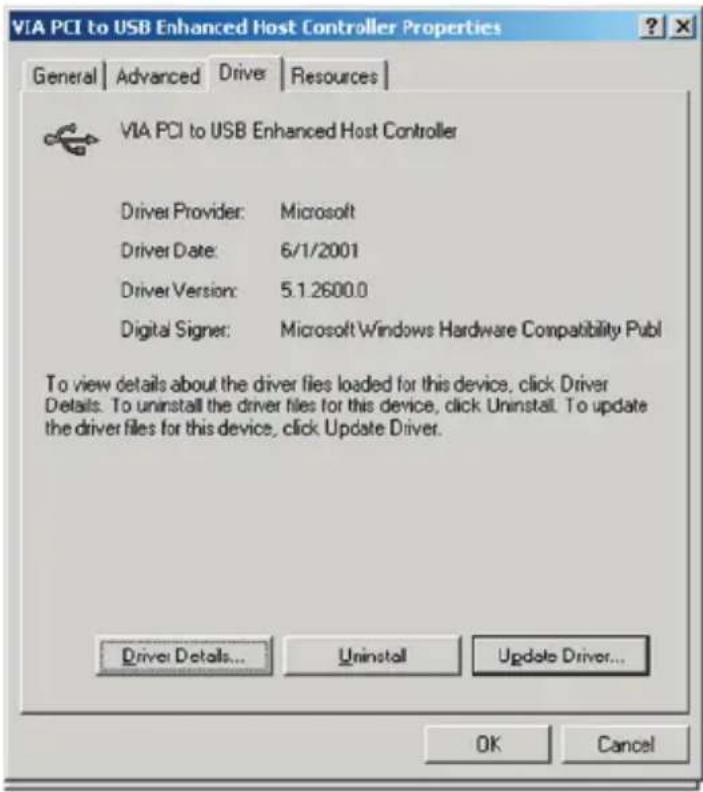
Then select Update Driver... in Driver page.
BELKIN F5U025TT128MB - Windows 2k: - 4

text_image VIA PCI to USB Enhanced Host Controller Properties General | Advanced | Driver | Resources | VIA PCI to USB Enhanced Host Controller Driver Provider: Microsoft Driver Date: 6/1/2001 Driver Version: 5.1.2600.0 Digital Signer: Microsoft Windows Hardware Compatibility Publ To view details about the driver files loaded for this device, click Driver Details. To uninstall the driver files for this device, click Uninstall. To update the driver files for this device, click Update Driver. Driver Details... Uninstall Update Driver... OK Cancel

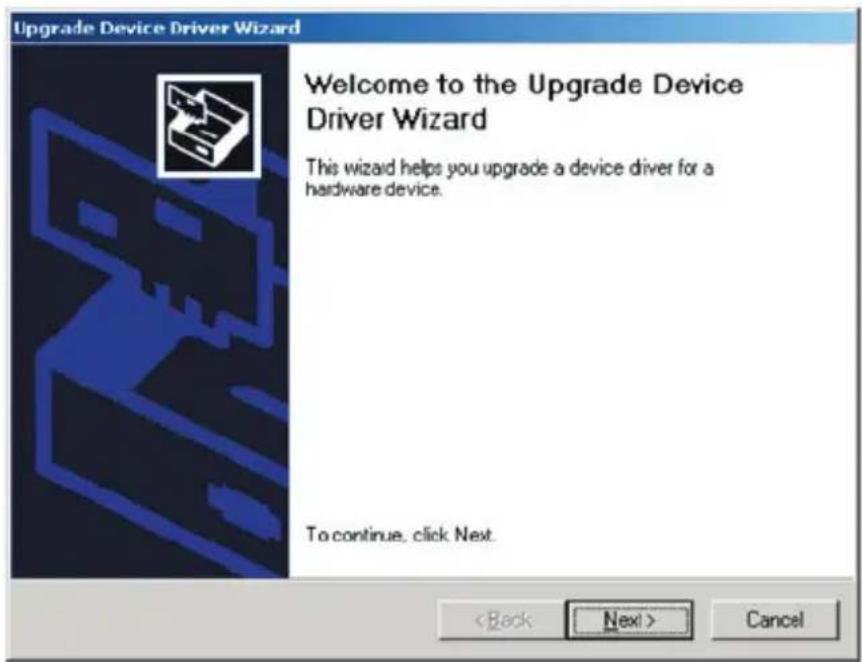
Press Next.

BELKIN F5U025TT128MB - Windows 2k: - 5

text_image Upgrade Device Driver Wizard Welcome to the Upgrade Device Driver Wizard This wizard helps you upgrade a device driver for a hardware device. To continue, click Next. < Back Next > Cancel

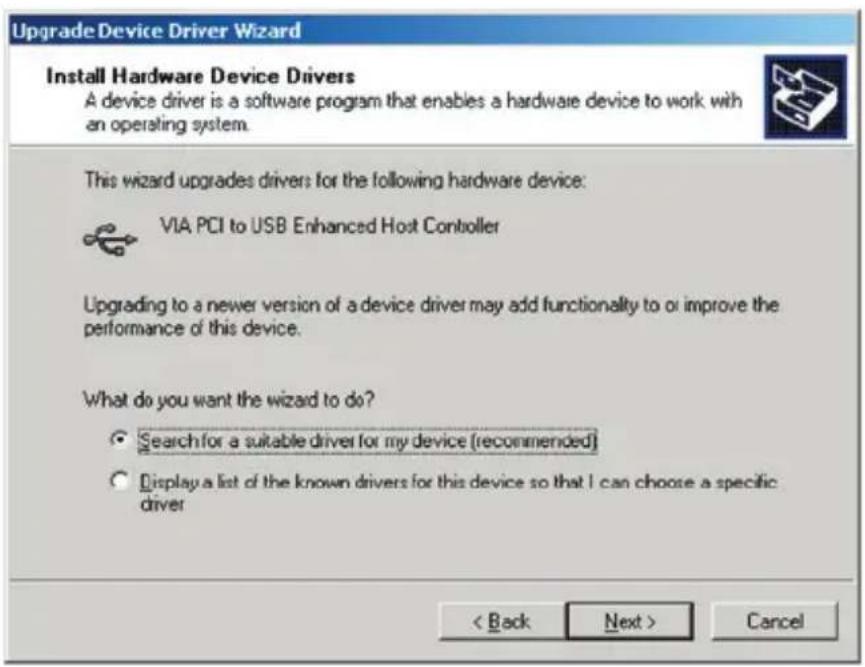
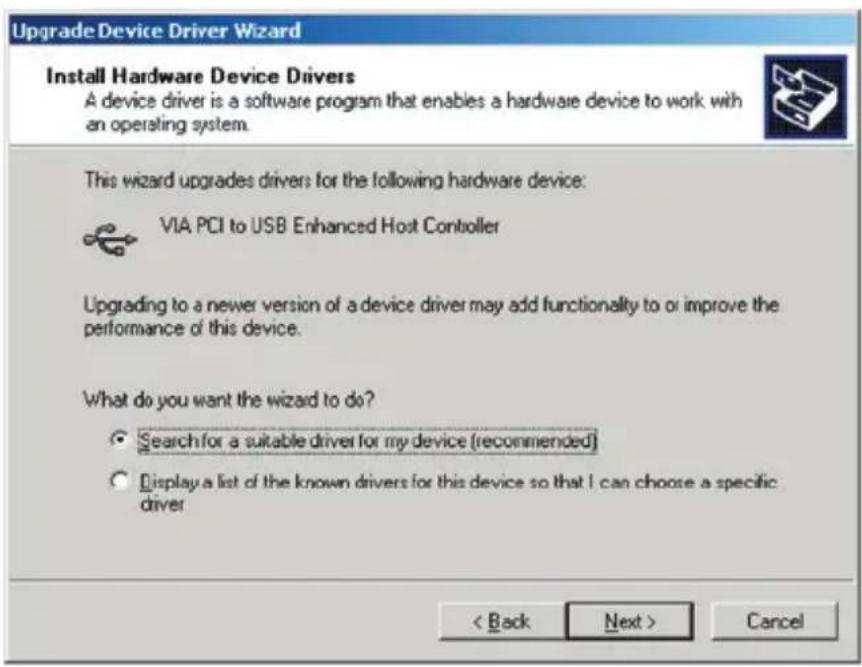
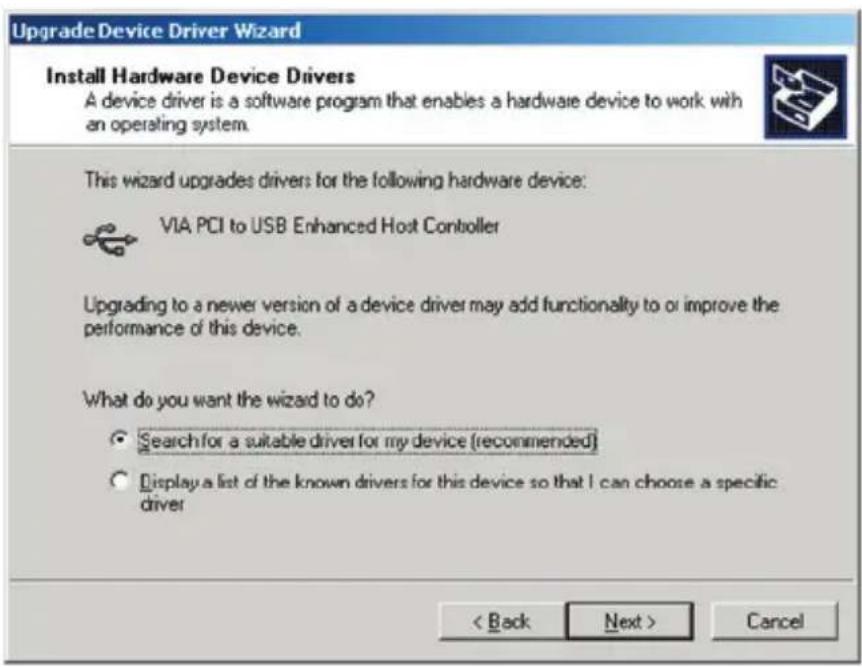
Select Search for a suitable driver for my device (recommended).
BELKIN F5U025TT128MB - Windows 2k: - 6

text_image Upgrade Device Driver Wizard Install Hardware Device Drivers A device driver is a software program that enables a hardware device to work with an operating system. This wizard upgrades drivers for the following hardware device: VIA PCI to USB Enhanced Host Controller Upgrading to a newer version of a device driver may add functionality to or improve the performance of this device. What do you want the wizard to do? Search for a suitable driver for my device (recommended) Display a list of the known drivers for this device so that I can choose a specific driver < Back Next > Cancel

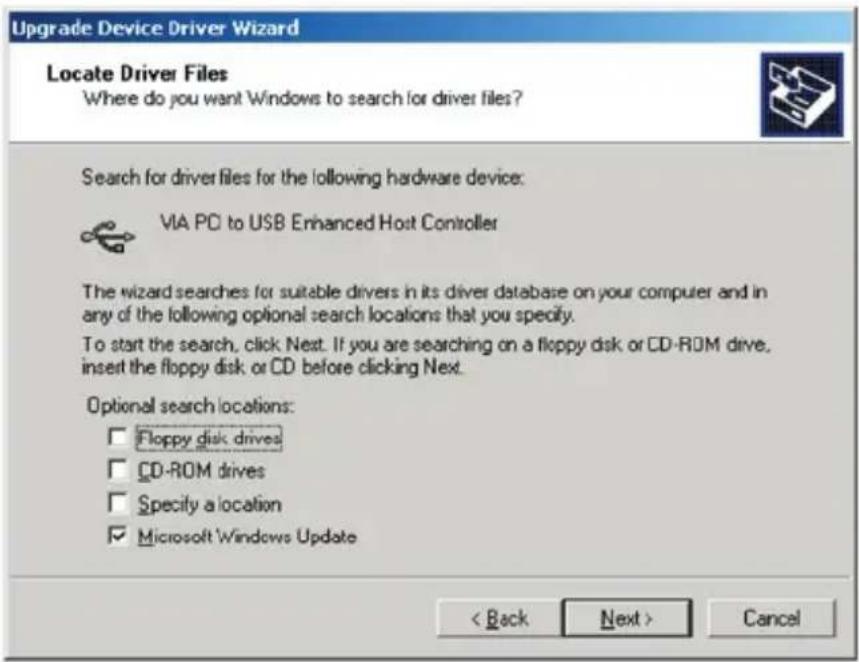
Then select Microsoft Windows Update to update driver.
BELKIN F5U025TT128MB - Windows 2k: - 7

text_image Upgrade Device Driver Wizard Locate Driver Files Where do you want Windows to search for driver files? Search for driver files for the following hardware device: VIA PC to USB Enhanced Host Controller The wizard searches for suitable drivers in its driver database on your computer and in any of the following optional search locations that you specify. To start the search, click Next. If you are searching on a floppy disk or CD-ROM drive, insert the floppy disk or CD before clicking Next. Optional search locations: □ Floppy disk drives □ CD-ROM drives □ Specify a location ☑ Microsoft Windows Update < Back Next > Cancel

In Windows 98 and Windows ME:

Please update VIA driver to V2.42 or higher from VIA website to prevent above issues.

If user uses other manufacturer's USB 2.0 card and occur this issue, follow the same step to update USB 2.0 driver or connect USB card manufacturer for solution.

Problem 3:

In Windows XP, when user uninstall Belkin USB Flash Drive, it may cause Belkin 98/SE Driver not to be removed in VIA USB 2.0 host controller, but this situation will not take any bad effect to use device. After user reboot OS, Belkin 98/SE Driver will be replaced to default(Microsoft) driver.

We made every effort to ensure that the information and procedure in this guide is accurate and complete, no liability can be accepted for any errors or omissions. The controller manufacturer of this Belkin USB Flash Drive, Ours Technology Inc. (OTI) reserves the right to make any changes without further notice to any products herein.

  • IBM is a registered trademark of international Business Machines Corporation.
  • iBook and iMac are trademarks of Apple Computer, Inc.
  • Macintosh, PowerBook, Power Macintosh are trademarks of Apple Computer, Inc.
  • Microsoft, Windows, Windows 98, Windows ME, Windows 2000, and Windows XP are either registered trademarks of Microsoft Corporation in the United States and/or other countries.
  • Other names and products not mentioned above may be registered trademarks of their respective companies.

BELKIN _8

www.belkin.com

Belkin Ltd.

Express Business Park • Shipton Way

Rushden • NN10 6GL • United Kingdom

Tel: +44 (0) 1933 35 2000

Fax: +44 (0) 1933 31 2000

Belkin B.V.

Starparc Building • Boeing Avenue 333

1119 PH Schiphol-Rijk • The Netherlands

Tel: +31 (0) 20 654 7300

Fax: +31 (0) 20 654 7349

Belkin GmbH

Hanebergstraße 2

80637 München • Germany

Tel: +49 (0) 89 143405 0

Fax: +49 (0) 89 143405 100

Belkin SAS

natural_image Exterior view of a Belkin USB flash drive with a black case and metallic casing (no text or symbols on the device body)

Section 1. Introduction Page 3

text_image My Computer Back Search Folders Address My Computer Systems Locks View Pattern Information ADD or Remove Programs Change a setting Other Places My Network Places My Documents Shared Documents Shared Documents admin's Documents Yossi's Documents Hard Disk Drives Local Disk (C:) DATA (D:) Devices with Removable Storage 3½ Floppy (A:) CD Drive (E:) Removable Disk (F:) Removable Disk (G:) Details My Computer System Folder start 16 - Park Windows Test Manager My Computer
text_image Safely Remove Hardware 3:15 PM
text_image Safely Remove Hardware Select the device you want to unplug or eject, and then click Stop. When Windows notifies you that it is safe to do so unplug the device from your computer. Hardware devices: Belkin U-Storage Controller Belkin U-Storage Controller at Location 0 Properties Stop Display device components Close

Avertissement

BELKIN F5U025TT128MB - Avertissement - 1

flowchart
graph LR
    A["Drive1 Public Area"] <-->|Change View Through Login & Logout| B["Security Area"]
text_image Drive2 Public Area
text_image OU 2:52 PM

OU

BELKIN F5U025TT128MB - Avertissement - 2

text_image Screenshot of a desktop application showing a lock icon with time and duration settings
text_image BELKIN Belkin U Storage Function Utility Resize Login Logout Change Password Public Area Only (Single Drive) Public Area + Security Area (Single Drive) Public Area + Security Area (Dual Drive) OK Cancel
text_image BELKIN Belkin U-Storage Function Utility Resize Confirmation Warning! The resize process will erase all the stored data! Press OK to continue or press Cancel to stop. OK Cancel Change Password OK Cancel
text_image BELKIN Belkin U-Storage Function Utility Resize Login Logout Change Password Public Area 62.5 MB Security Area 62.5 MB New Password: 0520 Password Hint: My B-Day OK Cancel
text_image BELKIN Belkin V-Storage Function Utility Resize Public Area (Drive 1) Security Area 32 MB 32.5 MB Login Public Area (Drive 2) 60.5 MB Logout New Password: 0520 Password Hint: My 8-day Change Password OK Cancel
text_image SELKIN Belkin U Storage Function Utility Resize Login Logout Change Password Resize information Resize finished successfully. OK Resize finished successfully. OK Cancel
text_image SELKIN Belkin U-Storage Function Utility Welcome to USB Mass Storage Disk Password: 1 Hit Logout Change Password Don't pop up this window automatically next time OK Cancel

Avertissement:

BELKIN F5U025TT128MB - Avertissement: - 1

text_image Welcome to USB Mass Storage Disk Password: Hint, My B-Day Don't pop up this window automatically next time OK Cancel
text_image Password validation Error Wrong password! Please try again. OK
text_image Message You havetried three times . You must unplug and replug the device before you can unlock the protection. OK
text_image Message Device is busy. Another application has an open connection to the device. Close all the applications and documents open on the device then try again! OK
text_image BEIKIN Beikin & Storage Utility Function BootUp USB HDD • USB ZIP Windows XP only supports USB ZIP. To create a boot-up disk. 1. Insert a floppy disk into drive A. 2. Open Windows Explorer to format floppy disk as boot-up disk. 3. Press OK. 4. Check the boot-up function. OK Cancel
text_image Information Completed! Please Unplug Device. OK

Windows XP:

text_image Utility | Function BootUp USB HDD USB ZIP Windows XP only supports USB ZIP, To create a boot-up disk. 1. Insert a floppy disk into drive A. 2. Open Windows Explorer to format floppy disk as boot-up disk. 3. Press OK. 4. Check the boot-up function. OK Cancel
text_image Information Completed! Please Unplug Device. OK

Messages d'erreur :

text_image Recover Disk Read & Write test Start Close Progress Total Blocks 0% 100%

Avertissement

BELKIN F5U025TT128MB - Avertissement - 1

text_image System Properties General | Network Identification | Hardware | User Profiles | Advanced | Hardware Wizard The Hardware wizard helps you install, uninstall, repair, unplug, eject, and configure your hardware. Hardware Wizard... Device Manager The Device Manager lists all the hardware devices installed on your computer. Use the Device Manager to change the properties of any device. Driver Signing... Device Manager... Hardware Profiles Hardware profiles provide a way for you to set up and store different hardware configurations. Hardware Profiles... OK Cancel Apply
text_image Device Manager Action View Disk drives Display adapters DVD/CD-ROM drives Floppy disk controllers Floppy disk drives IDE ATA/ATAP1 controllers IEEE 1394 Bus host controllers Keyboards Mice and other pointing devices Monitors Network adapters Ports (COM & LPT) Sound, video and game controllers System devices Universal Serial Bus controllers USB 2.0 Root Hub USB Root Hub USB Root Hub USB Root Hub VIA PCT to USB Enhanced Host Controller VIA USB Universal Host Controller VIA USB Universal Host Controller VIA USB Universal Host Controller Disable Uninstal... Scan for hardware changes Properties
text_image VIA PCI to USB Enhanced Host Controller Properties General | Advanced | Driver | Resources | VIA PCI to USB Enhanced Host Controller Driver Provider: Microsoft Driver Date: 6/1/2001 Driver Version: 5.1.2600.0 Digital Signer: Microsoft Windows Hardware Compatibility Publ To view details about the driver files loaded for this device, click Driver Details. To uninstall the driver files for this device, click Uninstall. To update the driver files for this device, click Update Driver. Driver Details... Uninstall Update Driver... OK Cancel
text_image Upgrade Device Driver Wizard Welcome to the Upgrade Device Driver Wizard This wizard helps you upgrade a device driver for a hardware device. To continue, click Next. < Back Next > Cancel
text_image Upgrade Device Driver Wizard Install Hardware Device Drivers A device driver is a software program that enables a hardware device to work with an operating system. This wizard upgrades drivers for the following hardware device: VIA PCI to USB Enhanced Host Controller Upgrading to a newer version of a device driver may add functionality to or improve the performance of this device. What do you want the wizard to do? ● Search for a suitable driver for my device (recommended) ○ Display a list of the known drivers for this device so that I can choose a specific driver < Back Next > Cancel
text_image Upgrade Device Driver Wizard Locate Driver Files Where do you want Windows to search for driver files? Search for driver files for the following hardware device: VIA PCI to USB Enhanced Host Controller The wizard searches for suitable drivers in its driver database on your computer and in any of the following optional search locations that you specify. To start the search, click Next. If you are searching on a floppy disk or CD-ROM drive, insert the floppy disk or CD before clicking Next. Optional search locations: □ Floppy disk drives □ CD-ROM drives □ Specify a location ☑ Microsoft Windows Update < Back Next > Cancel

Express Business Park • Shipton Way

Assistance technique Belkin

Europa: 00 800 223 55 460

natural_image Exterior view of a Belkin USB flash drive with a black case and metallic casing (no text or symbols on the device body)

Section 1. Einführung Page 3

Section 2. Systemanforderungen Page 4

text_image My Computer Back Search Folders Address My Computer Systems Locks View Pattern Information ADD or Remove Programs Change a setting Other Places My Network Places My Documents Shared Documents Shared Documents admin's Documents Yossi's Documents Files Stored on This Computer Hard Disk Drives Local Disk (C:) DATA (D:) Devices with Removable Storage 3½ Floppy (A:) CD Drive (E:) Removable Disk (F:) Removable Disk (G:) My Computer System Folder start 16 - Park Windows Test Manager My Computer
text_image Safely Remove Hardware 3:15 PM
text_image Safely Remove Hardware Select the device you want to unplug or eject, and then click Stop. When Windows notifies you that it is sale to do so unplug the device from your computer. Hardware devices: Belkin U-Storage Controller Belkin U-Storage Controller at Location 0 Properties Stop Display device components Close

Warnung:

BELKIN F5U025TT128MB - Warnung: - 1

text_image Screenshot of a desktop application with a lock icon, time stamp, and status bar showing 2:52 PM

OU

BELKIN F5U025TT128MB - Warnung: - 2

text_image Screenshot of a desktop application showing a lock icon with time and duration settings
text_image SELKIN Belkin U Storage Function Utility Resize Login Logout Change Password Public Area Only (Single Drive) Public Area + Security Area (Single Drive) Public Area + Security Area (Dual Drive) OK Cancel
text_image BELKIN Belkin U-Storage Function Utility Resize Confirmation Warning! The resize process will erase all the stored data! Press OK to continue or press Cancel to stop. OK Cancel Change Password OK Cancel
text_image BELKIN Belkin U-Storage Function Utility Resize Login Logout Change Password Public Area 62.5 MB Security Area 62.5 MB New Password: 0520 Password Hint: My B-Day OK Cancel
text_image BELKIN Belkin V-Storage Function Utility Resize Public Area (Drive 1) Security Area 32 MB 32.5 MB Login Public Area (Drive 2) 60.5 MB Logout Change Password New Password: 0520 Password Hint: My 8-day OK Cancel
text_image SELKIN Belkin U Storage Function Utility Resize Login Logout Change Password Resize information Resize finished successfully. OK Resize finished successfully. OK Cancel
text_image SELKIN Belkin U-Storage Function Utility Welcome to USB Mass Storage Disk Password: 1 Hit Logout Change Password Don't pop up this window automatically next time OK Cancel

Warnung :

BELKIN F5U025TT128MB - Warnung : - 1

text_image Welcome to USB Mass Storage Disk Password: Hint, My B-Day Don't pop up this window automatically next time OK Cancel
text_image Password validation Error Wrong password! Please try again. OK
text_image Message You havetried three times . You must unplug and replug the device before you can unlock the protection. OK
text_image Message Device is busy. Another application has an open connection to the device. Close all the applications and documents open on the device then try again! OK
text_image Device is busy. Another application has an open connection to the device. Close all the applications and documents open on the device then try again! OK
text_image BEIKIN U-Storage Utility Function BootUp USB HDD • USB ZIP Windows XP only supports USB ZIP. To create a boot-up disk. 1. Insert a floppy disk into drive A. 2. Open Windows Explorer to format floppy disk as boot-up disk. 3. Press OK. 4. Check the boot-up function. OK Cancel
text_image Information Completed! Please Unplug Device. OK

Windows XP:

text_image Utility | Function | BootUp USB HDD USB ZIP Windows XP only supports USB ZIP. To create a boot-up disk. 1. Insert a floppy disk into drive A. 2. Open Windows Explorer to format floppy disk as boot-up disk. 3. Press OK. 4. Check the boot-up function. OK Cancel
text_image Information Completed! Please Unplug Device. OK

Fehlermeldungen:

text_image Recover Disk Read & Write test Start Close Progress Total Blocks 0% 100%

Warnung :

text_image System Properties General | Network Identification | Hardware | User Profiles | Advanced | Hardware Wizard The Hardware wizard helps you install, uninstall, repair, unplug, eject, and configure your hardware. Hardware Wizard... Device Manager The Device Manager lists all the hardware devices installed on your computer. Use the Device Manager to change the properties of any device. Driver Signing... Device Manager... Hardware Profiles Hardware profiles provide a way for you to set up and store different hardware configurations. Hardware Profiles... OK Cancel Apply
text_image Device Manager Action View Disk drives Display adapters DVD/CD-ROM drives Floppy disk controllers Floppy disk drives IDE ATA/ATAPI controllers IEEE 1394 Bus host controllers Keyboards Mice and other pointing devices Monitors Network adapters Ports (COM & LPT) Sound, video and game controllers System devices Universal Serial Bus controllers USB 2.0 Root Hub USB Root Hub USB Root Hub USB Root Hub VIA PCT to USB Enhanced Host Controller VIA USB Universal Host Controller VIA USB Universal Host Controller VIA USB Universal Host Controller Disable Uninital... Scan for hardware changes Properties
text_image VIA PCI to USB Enhanced Host Controller Properties General | Advanced | Driver | Resources | VIA PCI to USB Enhanced Host Controller Driver Provider: Microsoft Driver Date: 5/1/2001 Driver Version: 5.1.2600.0 Digital Signer: Microsoft Windows Hardware Compatibility Publ To view details about the driver files loaded for this device, click Driver Details. To uninstall the driver files for this device, click Uninstall. To update the driver files for this device, click Update Driver. Driver Details... Uninstall Update Driver... OK Cancel
text_image Upgrade Device Driver Wizard Welcome to the Upgrade Device Driver Wizard This wizard helps you upgrade a device driver for a hardware device. To continue, click Next. < Back Next > Cancel
text_image Upgrade Device Driver Wizard Install Hardware Device Drivers A device driver is a software program that enables a hardware device to work with an operating system. This wizard upgrades drivers for the following hardware device: VIA PCI to USB Enhanced Host Controller Upgrading to a newer version of a device driver may add functionality to or improve the performance of this device. What do you want the wizard to do? • Search for a suitable driver for my device (recommended) • Display a list of the known drivers for this device so that I can choose a specific driver < Back Next > Cancel
text_image Upgrade Device Driver Wizard Locate Driver Files Where do you want Windows to search for driver files? Search for driver files for the following hardware device: VIA PCI to USB Enhanced Host Controller The wizard searches for suitable drivers in its driver database on your computer and in any of the following optional search locations that you specify. To start the search, click Next. If you are searching on a floppy disk or CD-ROM drive, insert the floppy disk or CD before clicking Next. Optional search locations: □ Floppy disk drives □ CD-ROM drives □ Specify a location ☑ Microsoft Windows Update < Back Next > Cancel

Express Business Park • Shipton Way

natural_image Exterior view of a Belkin USB flash drive with a black case and metallic casing (no text or symbols on the device body)
text_image My Computer Back Search Folders Address My Computer Systems Locks View Pattern Information ADD or Remove Programs Change a setting Other Places My Network Places My Documents Shared Documents Shared Documents admin's Documents Yossi's Documents Hard Disk Drives Local Disk (C:) DATA (D:) Devices with Removable Storage 3½ Floppy (A:) CD Drive (E:) Removable Disk (F:) Removable Disk (G:) Details My Computer System Folder start 16 - Park Windows Test Manager My Computer
text_image Safely Remove Hardware 3:15 PM
text_image Safely Remove Hardware Select the device you want to unplug or eject, and then click Stop. When Windows notifies you that it is safe to do so unplug the device from your computer. Hardware devices: Bekin U-Storage Controller Belkin U-Storage Controller at Location 0 Properties Stop Display device components Close

3. Public Area Plus Security Area

text_image BELKIN Belkin U-Storage Function Utility Resize Login Logout Change Password Public Area Only (Single Drive) Public Area + Security Area (Single Drive) Public Area + Security Area (Dual Drive) OK Cancel
text_image BELKIN Belkin U-Storage Function Utility Resize Confirmation Warning! The resize process will erase all the stored data! Press OK to continue or press Cancel to stop. OK Cancel Change Password OK Cancel
text_image BELKIN Belkin U-Storage Function Utility Resize Login Logout Change Password Public Area 62.5 MB Security Area 62.5 MB New Password: 0520 Password Hint: My B-Day OK Cancel
text_image BELKIN Belkin U-Storage Function Utility Resize Public Area (Drive 1) Security Area 32 MB 32.5 MB Login Public Area (Drive 2) 60.5 MB Logout Change Password New Password: 0520 Password Hint: My 8-day OK Cancel
text_image Delkin Belkin U Storage Function Utility Resize information Resize finished successfully. Login Logout Change Password OK Cancel
text_image Welcome to USB Mass Storage Disk Password: Hint My B-Day Don't pop up this window automatically next time OK Cancel
text_image Password validation Error Wrong password! Please try again. OK
text_image Message You havetried three times . You must unplug and replug the device before you can unlock the protection. OK
text_image Message Device is busy. Another application has an open connection to the device. Close all the applications and documents open on the device then try again! OK
text_image BEIKIN U-Storage Utility | Function | BootUp C USB HDD ● USB ZIP Windows XP only supports USB ZIP. To create a boot-up disk. 1. Insert a floppy disk into drive A. 2. Open Windows Explorer to format floppy disk as boot-up disk. 3. Press OK. 4. Check the boot-up function. OK Cancel
text_image Information Completed! Please Unplug Device. OK

Windows XP:

text_image Utility | Function BootUp USB HDD USB ZIP Windows XP only supports USB ZIP. To create a boot-up disk. 1. Insert a floppy disk into drive A. 2. Open Windows Explorer to format floppy disk as boot-up disk. 3. Press OK. 4. Check the boot-up function. OK Cancel
text_image Information Completed! Please Unplug Device. OK

Foutmeldingen:

BELKIN F5U025TT128MB - Foutmeldingen: - 1

text_image Als dit bericht verschijnt, is de Information Can't Copy File, Because Of Invalid Path. OK

e installatie van

text_image Recover Disk Read & Write test Start Close Progress Total blocks 0% 100%

Pas op:
BELKIN F5U025TT128MB - Foutmeldingen: - 2

text_image System Properties General | Network Identification | Hardware | User Profiles | Advanced | Hardware Wizard The Hardware wizard helps you install, uninstall, repair, unplug, eject, and configure your hardware. Hardware Wizard... Device Manager The Device Manager lists all the hardware devices installed on your computer. Use the Device Manager to change the properties of any device. Driver Signing... Device Manager... Hardware Profiles Hardware profiles provide a way for you to set up and store different hardware configurations. Hardware Profiles... OK Cancel Apply

Selecteer 'VIA PCI to USB Enhanced Host Controller' Onder 'Universal Serial Bus controllers' en klik met uw rechter muisknop op om Properties (Eigenschappen) te selecteren.
BELKIN F5U025TT128MB - Foutmeldingen: - 3

text_image Device Manager Action View Disk drives Display adapters DVD/CD-ROM drives Floppy disk controllers Floppy disk drives IDC ATA/ATAP1 controllers IEEE 1394 Bus host controllers Keyboards Mice and other pointing devices Monitors Network adapters Ports (COM & LPT) Sound, video and game controllers System devices Universal Serial Bus controllers USB 2.0 Root Hub USB Root Hub USB Root Hub USB Root Hub VIA PCI to USB Enhanced Host Controller VIA USB Universal Host Controller VIA USB Universal Host Controller VIA USB Universal Host Controller Disable Uninstall... Scan for hardware changes Properties

Selecteer 'Search for a suitable driver for my device (Recommended).'

text_image Upgrade Device Driver Wizard Install Hardware Device Drivers A device driver is a software program that enables a hardware device to work with an operating system. This wizard upgrades drivers for the following hardware device: VIA PCI to USB Enhanced Host Controller Upgrading to a newer version of a device driver may add functionality to or improve the performance of this device. What do you want the wizard to do? Search for a suitable driver for my device (recommended) Display a list of the known drivers for this device so that I can choose a specific driver < Back Next > Cancel
text_image Upgrade Device Driver Wizard Locate Driver Files Where do you want Windows to search for driver files? Search for driver files for the following hardware device: VIA PC to USB Enhanced Host Controller The wizard searches for suitable drivers in its driver database on your computer and in any of the following optional search locations that you specify. To start the search, click Next. If you are searching on a floppy disk or CD-ROM drive, insert the floppy disk or CD before clicking Next. Optional search locations: □ Floppy disk drives □ CD-ROM drives □ Specify a location ☑ Microsoft Windows Update < Back Next > Cancel

Oplossing C: Onder Windows 98 en Windows ME:

Express Business Park • Shipton Way

Rushden • NN10 6GL

natural_image Exterior view of a Belkin USB flash drive with a black case and metallic casing (no text or symbols on the device body)
text_image My Computer Back Search Folders Address My Computer Systems Locks View Pattern Information ADD or Remove Programs Change a setting Other Places My Network Places My Documents Shared Documents Shared Documents admin's Documents Yossi's Documents Files Stored on This Computer Hard Disk Drives Local Disk (C:) DATA (D:) Devices with Removable Storage 3½ Floppy (A:) CD Drive (E:) Removable Disk (F:) Removable Disk (G:) My Computer System Folder start 16 - Park Windows Test Manager My Computer
text_image Safely Remove Hardware 3:15 PM
text_image Safely Remove Hardware Select the device you want to unplug or eject, and then click Stop. When Windows notifies you that it is sale to do so unplug the device from your computer. Hardware devices: Belkin U-Storage Controller Belkin U-Storage Controller at Location 0 Properties Stop □ Display device components Close
text_image Drive2 Public Area
text_image 2:52 PM or

BELKIN F5U025TT128MB - Oplossing C: Onder Windows 98 en Windows ME: - 1

text_image 2:43 PM
text_image BELKIN Belkin U Storage Function Utility Resize Login Logout Change Password Public Area Only (Single Drive) Public Area + Security Area (Single Drive) Public Area + Security Area (Dual Drive) OK Cancel
text_image BELKIN Belkin U-Storage Function Utility Resize Confirmation Warning! The resize process will erase all the stored data! Press OK to continue or press Cancel to stop. OK Cancel Change Password OK Cancel
text_image BELKIN Belkin U-Storage Function Utility Resize Login Logout Change Password Public Area 62.5 MB Security Area 62.5 MB New Password: 0520 Password Hint: My B-Day OK Cancel
text_image BELKIN Belkin U-Storage Function Utility Resize Public Area (Drive 1) Security Area 32 MB 32.5 MB Login Public Area (Drive 2) 60.5 MB Logout Change Password New Password: 0520 Password Hint: My 8-day OK Cancel
text_image BELKIN Belkin U Storage Function Utility Resize Login Logout Change Password Resize information Resize finished successfully. OK Resize finished successfully. OK Cancel
text_image BELKIN Belkin U-Storage Function Utility Welcome to USB Mass Storage Disk Password: 1 Hit Logout Change Password Don't pop up this window automatically next time OK Cancel

Atención:

BELKIN F5U025TT128MB - Atención: - 1

text_image Welcome to USB Mass Storage Disk Password: Hint My B-Day Don't pop up this window automatically next time OK Cancel
text_image Password validation Error Wrong password! Please try again. OK
text_image Message You havetried three times . You must unplug and replug the device before you can unlock the protection. OK
text_image Message Device is busy. Another application has an open connection to the device. Close all the applications and documents open on the device then try again! OK
text_image BEIKIN U-Storage Utility | Function | BootUp C USB HDD • USB ZIP Windows XP only supports USB ZIP. To create a boot-up disk. 1. Insert a floppy disk into drive A. 2. Open Windows Explorer to format floppy disk as boot-up disk. 3. Press OK. 4. Check the boot-up function. OK Cancel
text_image Information Completed! Please Unplug Device. OK

Windows XP:

text_image BELKIN Belkin U Storage Utility | Function | BootUp USB HDD USB ZIP Windows XP only supports USB ZIP. To create a boot-up disk. 1. Insert a floppy disk into drive A. 2. Open Windows Explorer to format floppy disk as boot-up disk. 3. Press OK. 4. Check the boot-up function. OK Cancel
text_image Information Completed! Please Unplug Device. OK

Mensajes de error:

text_image Recover Disk Read & Write test Start Close Progress Total Blocks 0% 100%

Atención:

BELKIN F5U025TT128MB - Atención: - 1

text_image System Properties General | Network Identification | Hardware | User Profiles | Advanced | Hardware Wizard The Hardware wizard helps you install, uninstall, repair, unplug, eject, and configure your hardware. Hardware Wizard... Device Manager The Device Manager lists all the hardware devices installed on your computer. Use the Device Manager to change the properties of any device. Driver Signing... Device Manager... Hardware Profiles Hardware profiles provide a way for you to set up and store different hardware configurations. Hardware Profiles... OK Cancel Apply
text_image Device Manager Action View Disk drives Display adapters DVD/CD-ROM drives Floppy disk controllers Floppy disk drives IDC ATA/ATAP1 controllers IEEE 1394 Bus host controllers Keyboards Mice and other pointing devices Monitors Network adapters Ports (COM & LPT) Sound, video and game controllers System devices Universal Serial Bus controllers USB 2.0 Root Hub USB Root Hub USB Root Hub USB Root Hub VIA PCI to USB Enhanced Host Controller VIA USB Universal Host Controller VIA USB Universal Host Controller VIA USB Universal Host Controller Disable Uninstall... Scan for hardware changes Properties
text_image VIA PCI to USB Enhanced Host Controller Properties General | Advanced | Driver | Resources | VIA PCI to USB Enhanced Host Controller Driver Provider: Microsoft Driver Date: 6/1/2001 Driver Version: 5.1.2600.0 Digital Signer: Microsoft Windows Hardware Compatibility Publ To view details about the driver files loaded for this device, click Driver Details. To uninstall the driver files for this device, click Uninstall. To update the driver files for this device, click Update Driver. Driver Details... Uninstall Update Driver... OK Cancel
text_image Upgrade Device Driver Wizard Welcome to the Upgrade Device Driver Wizard This wizard helps you upgrade a device driver for a hardware device. To continue, click Next. < Back Next > Cancel

Seleccione "Search for a suitable driver for my device (Recommended)" (Buscar un controlador idóneo para mi dispositivo [Recomendado]).
BELKIN F5U025TT128MB - Atención: - 2

text_image Upgrade Device Driver Wizard Install Hardware Device Drivers A device driver is a software program that enables a hardware device to work with an operating system. This wizard upgrades drivers for the following hardware device: VIA PCI to USB Enhanced Host Controller Upgrading to a newer version of a device driver may add functionality to or improve the performance of this device. What do you want the wizard to do? Search for a suitable driver for my device (recommended) Display a list of the known drivers for this device so that I can choose a specific driver < Back Next > Cancel
text_image Upgrade Device Driver Wizard Locate Driver Files Where do you want Windows to search for driver files? Search for driver files for the following hardware device: VIA PC to USB Enhanced Host Controller The wizard searches for suitable drivers in its driver database on your computer and in any of the following optional search locations that you specify. To start the search, click Next. If you are searching on a floppy disk or CD-ROM drive, insert the floppy disk or CD before clicking Next. Optional search locations: □ Floppy disk drives □ CD-ROM drives □ Specify a location ☑ Microsoft Windows Update < Back Next > Cancel

Solución C: En Windows 98 y Windows ME:

Express Business Park • Shipton Way

Rushden • NN10 6GL • Reino Unido

Tel: +44 (0) 1933 35 2000

Fax: +44 (0) 1933 31 2000

Belkin B.V.

Starparc Building • Boeing Avenue 333

1119 PH Schiphol-Rijk • Holanda

Tel: +31 (0) 20 654 7300

Fax: +31 (0) 20 654 7349

Belkin GmbH

Hanebergstrasse 2

80637 München • Alemania

Tel: +49 (0) 89 143405 0

Fax: +49 (0) 89 143405 100

Belkin SAS

natural_image Exterior view of a Belkin USB flash drive with a black case and metallic casing (no text or symbols on the device body)
text_image My Computer Back Search Folders Address My Computer Systems Locks View Pattern Information ADD or Remove Programs Change a setting Other Places My Network Places My Documents Shared Documents Shared Documents admin's Documents Yossi's Documents Hard Disk Drives Local Disk (C:) DATA (D:) Devices with Removable Storage 3½ Floppy (A:) CD Drive (E:) Removable Disk (F:) Removable Disk (G:) Details My Computer System Folder start 16 - Park Windows Test Manager My Computer
text_image Safely Remove Hardware 3:15 PM
text_image Safely Remove Hardware Select the device you want to unplug or eject, and then click Stop. When Windows notifies you that it is safe to do so unplug the device from your computer. Hardware devices: Belkin U-Storage Controller Belkin U-Storage Controller at Location 0 Properties Stop □ Display device components Close

Avvertenza:

text_image 2:52 PM Or

BELKIN F5U025TT128MB - Avvertenza: - 1

text_image Screenshot of a desktop application showing a lock icon with time and duration settings
text_image SELKIN Belkin U Storage Function Utility Resize Login Logout Change Password Public Area Only (Single Drive) Public Area + Security Area (Single Drive) Public Area + Security Area (Dual Drive) OK Cancel
text_image BELKIN Belkin U-Storage Function Utility Resize Confirmation Warning! The resize process will erase all the stored data! Press OK to continue or press Cancel to stop. OK Cancel Change Password OK Cancel
text_image BELKIN Belkin U-Storage Function Utility Resize Login Logout Change Password Public Area 62.5 MB Security Area 62.5 MB New Password: 0520 Password Hint: My B-Day OK Cancel
text_image BELKIN Belkin U-Storage Function Utility Resize Public Area (Drive 1) Security Area 32 MB 32.5 MB Login Public Area (Drive 2) 60.5 MB Logout Change Password New Password: 0520 Password Hint: My 8-day OK Cancel
text_image BELKIN Belkin U Storage Function Utility Resize Login Logout Change Password Resize information Resize finished successfully. OK Resize finished successfully. OK Cancel
text_image BELKIN Belkin U-Storage Function Utility Welcome to USB Mass Storage Disk Password: 1 Hit Logout Change Password Don't pop up this window automatically next time OK Cancel

Avvertenza:

BELKIN F5U025TT128MB - Avvertenza: - 1

text_image Welcome to USB Mass Storage Disk Password: Hint, My B-Day Don't pop up this window automatically next time OK Cancel
text_image Password validation Error Wrong password! Please try again. OK
text_image Message You havetried three times . You must unplug and replug the device before you can unlock the protection OK
text_image Device is busy. Another application has an open connection to the device. Close all the applications and documents open on the device then try again! OK
text_image BELKIN Beikin U-Storage Utility | Function | BootUp C USB HDD • USB ZIP Windows XP only supports USB ZIP. To create a boot-up disk. 1. Insert a floppy disk into drive A. 2. Open Windows Explorer to format floppy disk as boot-up disk. 3. Press OK. 4. Check the boot-up function. OK Cancel
text_image Information Completed! Please Unplug Device. OK

Windows XP:

text_image SELKIN Belkin U Staraya Utility Function BootUp USB HDD USB ZIP Windows XP only supports USB ZIP. To create a boot-up disk. 1. Insert a floppy disk into drive A. 2. Open Windows Explorer to format floppy disk as boot-up disk. 3. Press OK. 4. Check the boot-up function. OK Cancel
text_image Information Completed! Please Unplug Device. OK

Messaggi di errore:

text_image Recover Disk Read & Write test Start Close Progress Total Blocks 0% 100%

Avvertenza:

BELKIN F5U025TT128MB - Avvertenza: - 1

text_image System Properties General | Network Identification | Hardware | User Profiles | Advanced | Hardware Wizard The Hardware wizard helps you install, uninstall, repair, unplug, eject, and configure your hardware. Hardware Wizard... Device Manager The Device Manager lists all the hardware devices installed on your computer. Use the Device Manager to change the properties of any device. Driver Signing... Device Manager... Hardware Profiles Hardware profiles provide a way for you to set up and store different hardware configurations. Hardware Profiles... OK Cancel Apply
text_image Device Manager Action View Disk drives Display adapters DVD/CD-ROM drives Floppy disk controllers Floppy disk drives IDC ATA/ATAP1 controllers IEEE 1394 Bus host controllers Keyboards Mice and other pointing devices Monitors Network adapters Ports (COM & LPT) Sound, video and game controllers System devices Universal Serial Bus controllers USB 2.0 Root Hub USB Root Hub USB Root Hub USB Root Hub VIA PCI to USB Enhanced Host Controller VIA USB Universal Host Controller VIA USB Universal Host Controller VIA USB Universal Host Controller Disable Uninstall... Scan for hardware changes Properties
text_image VIA PCI to USB Enhanced Host Controller Properties General | Advanced | Driver | Resources | VIA PCI to USB Enhanced Host Controller Driver Provider: Microsoft Driver Date: 6/1/2001 Driver Version: 5.1.2600.0 Digital Signer: Microsoft Windows Hardware Compatibility Publ To view details about the driver files loaded for this device, click Driver Details. To uninstall the driver files for this device, click Uninstall. To update the driver files for this device, click Update Driver. Driver Details... Uninstall Update Driver... OK Cancel
text_image Upgrade Device Driver Wizard Welcome to the Upgrade Device Driver Wizard This wizard helps you upgrade a device driver for a hardware device. To continue, click Next. < Back Next > Cancel

Selezionate Search for a suitable driver for my device (recommended) (Cerca driver migliore (scelta consigliata).
BELKIN F5U025TT128MB - Avvertenza: - 2

text_image Upgrade Device Driver Wizard Install Hardware Device Drivers A device driver is a software program that enables a hardware device to work with an operating system. This wizard upgrades drivers for the following hardware device: VIA PCI to USB Enhanced Host Controller Upgrading to a newer version of a device driver may add functionality to or improve the performance of this device. What do you want the wizard to do? Search for a suitable driver for my device (recommended) Display a list of the known drivers for this device so that I can choose a specific driver < Back Next > Cancel
text_image Upgrade Device Driver Wizard Locate Driver Files Where do you want Windows to search for driver files? Search for driver files for the following hardware device: VIA PC to USB Enhanced Host Controller The wizard searches for suitable drivers in its driver database on your computer and in any of the following optional search locations that you specify. To start the search, click Next. If you are searching on a floppy disk or CD-ROM drive, insert the floppy disk or CD before clicking Next. Optional search locations: □ Floppy disk drives □ CD-ROM drives □ Specify a location ☑ Microsoft Windows Update < Back Next > Cancel

Express Business Park • Shipton Way

Rushden • NN10 6GL • Regno Unito

Tel: +44 (0) 1933 35 2000

Fax: +44 (0) 1933 31 2000

Belkin B.V.

Starparc Building • Boeing Avenue 333

1119 PH Schiphol-Rijk • Paesi Bassi

Tel: +31 (0) 20 654 7300

Fax: +31 (0) 20 654 7349

Belkin GmbH

Hanebergstraße 2

Manual assistant
Powered by Anthropic
Waiting for your message
Product information

Brand : BELKIN

Model : F5U025TT128MB

Category : USB Drive