BL503 - Weather Station Ea2 LABS - Free user manual and instructions
Find the device manual for free BL503 Ea2 LABS in PDF.



| Brand | Ea2 LABS |
| Model | BL503 |
| Product type | Wireless weather station |
| Main unit dimensions | 158 x 80 x 19 mm (H x W x D) |
| Outdoor sensor dimensions | 84 x 65 x 18 mm (H x W x D) |
| Main unit power supply | 3 AAA batteries (not included) |
| Outdoor sensor power supply | 2 AAA batteries (not included) |
| Main functions | Weather forecast (5 icons), indoor/outdoor thermometer, hygrometer, DCF radio-controlled clock, alarm with snooze, dual time zone, perpetual calendar, weekday display in 8 languages |
| Indoor temperature range | 0°C to 50°C (32°F to 122°F) |
| Outdoor temperature range | -20°C to 50°C (-4°F to 122°F) |
| Humidity range | 20% to 99% |
| Transmission frequency | 433 MHz RF |
| Transmission range | 30 meters in open space |
| Max number of sensors | 3 (channels CH1, CH2, CH3) |
| Installation | Tabletop or wall mount (main unit and sensor) |
| Maintenance and cleaning | Clean with a soft, dry cloth. Do not use abrasive or corrosive products. |
| Safety | Do not expose to direct sunlight, excessive heat, extreme cold, or moisture. The outdoor sensor must not be immersed. |
| Spare parts and repairability | Replaceable batteries (AAA). Reset button available. No other spare parts supplied. |
| General information | User manual available as PDF on notice-facile.com. Warranty and after-sales service not specified. |
Frequently Asked Questions - BL503 Ea2 LABS
User questions about BL503 Ea2 LABS
0 question about this device. Answer the ones you know or ask your own.
Ask a new question about this device
Download the instructions for your Weather Station in PDF format for free! Find your manual BL503 - Ea2 LABS and take your electronic device back in hand. On this page are published all the documents necessary for the use of your device. BL503 by Ea2 LABS.
USER MANUAL BL503 Ea2 LABS
Slim Wireless Weather Station with
Temperature and Humidity
User Manual
BL503 Slim Wireless Weather Station with Temperature and Humidity
USERMANUAL
Page
Index 1
1. Features
1.1 Weather Forecast 2
1.2 Time
1.3 Humidity 2
1.4 Temperature 2
1.5 Wireless Outdoor Sensor 2
2. Main Unit Appearance
2.1 Part A - Display 3
2.2 Part B-Buttons 3
2.3 Part C - Structure 3
- Outdoor Sensor Appearance 4
4. Getting Started
4.1 Main Unit 4
4.2 Oudoor Thermo Sensor 4
5. Installation
5.1 Main Unit 4
5.2Outdoor Thermo Sensor 4
6. Weather Forecast Function
6.1Operation 5
6.2 Weather Conditions 5
6.3 Barometric Trend 6
7. Thermometer
7.1 RF Transmission Procedure 6
7.2 Temperature & Humidity
Time/Alarm Setting 7
8.1 Radio Controlled Clock (DCF) 7
8.2 Manual Time Setting 8
8.3 12/24 Hour Selection 8
8.4 Daily Snooze Alarm Setting 9
8.5 Dual Time Setting 9
- Low Battery Indication 9
10.Backlight 9
11.Precautions 10
- Specifications 10
1. Features
1.1 Weather Forecast - Sunny, Slightly Cloudy, Cloudy, Rainy and Snow animation
1.2 Time
Dual Time setting
- 12/24 hour user selectable
- Daily Snooze Alarm function
Perpetual Calendar Up to Year 2099
Day of week in 8 languages user selectable
1.3 Humidity - Measurable range: 20-99%
Max/Min Memory
1.4 Temperature
-Indoor measurable range: 0 50°C [32\~122°F]
Measures o C / o F user seleclable
Outdoor measurable range: -20 - 50°C [-4 - 122°F]
Max/Min Memory [indoor & outdoor]
1.5 Wireless Outdoor Sensor - Low-battery indicator for Outdoor Thermo Sensor
Wall Mount or Table Stand
One Wireless Thermo Sensor Included
-433MHz RF transmitting frequency
- 30 meter [100 feet] transmission range in an
open area

2. Main Unit Appearance

2.1 Part A-LCD
A1: Barometer Pressure Trend
A2:Weather Forecast
A3: Outdoor Temperature
A4: Indoor Temperature
A5:Time Display
A6: Outdoor Temperature Trend
A7: Indoor Humidity
A8: Day of Week
A9: Radio Control Icon
A10:Date
B3:"MAX/MIN" button
B4:"-C/F" button
B5:WEATHER" button
B6:“MODE/SET” button
B7:“+(12/24)” button
B8:"CHANNEL" button
B9:"RESET" button
2.3 Part C-Structure
C1: Wall Mount Hole
C2: Battery Cover
C3: Stand
3. Outdoor Thermo Sensor

D1: Transmission Indication LED
D2: Wall Mount Hole
D3: Channel Select Switch
4. Getting Started:

D4:"RESET" button
D5: Battery Compartment
D6: Stand
4.1 Main Unit:
- Slide open main unit battery compartment cover [C2]
- Insert 3 x AAA balleries observing polarity [+ + and - marks]
- Replace main unit battery compartment cover [C2]
- Use a pin to press the RESET [B9] button on the rear of the main unit, the main unit is now ready for use
4.2 Outdoor Thermo Sensor
-
Batteries compartment (D5) of thermo sensor is locating behind the back cover, unscrews the batteries cover to open.
-
Insert 2 x AAA batteries observing polarity [+° and - marks]
5. Installation
5.1 Main Unit
The main unit can be placed onto any flat surface (C3), or wall mounted by the hanging hole (C1) at the back of the unit.
5.2 Outdoor Thermo sensor
The remote sensor should be securely mounted onto a horizontal surface.
Note: Transmissions between receiver and transmitter can reach up to 30m in open area. Open Area: there are no interfering obstacles such as buildings, trees, vehicles, high voltage lines, etc.
6. Weather Forecast Function
6.1 Operation
- After Batteries inserted, or holding "WEATHER" button (B5) for 3 seconds, weather icon flash (A2) on the LCD. Enter the current weather pressing "+” (B4) or ^+ "B7) button. Press "WEATHER" (B5) button to confirm the setting. The weather forecast may not be accurate if the current weather entered is not correct.
- The current weather status should be entered again if the altitude of the Main Unit is changed. (Barometric pressure is lower at higher altitude location. Therefore, altitude change will affect the weather forecast). The weather station will start the first forecast at 6 hours later after the current weather status is entered.
6.2 Weather Conditions
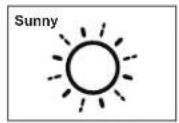
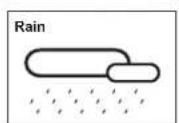
There are totally 5 different weather status animations in the weather forecast.



Note:

- If there is any inconsistency of weather forecast between Local Weather Station and this unit, the Local Weather Station's forecast should prevail. We will not hold responsible for any trouble that may come up due to wrong forecasting from this unit.
6.3 Barometric Trend Pointer (A1)
The trend pointer displayed on the LCD (A1) indicates the trend of the Barometric pressure.

7. Thermometer
7.1 RF Transmission Procedure:
- The main unit automatically starts receiving transmission from outdoor thermo sensor for outdoor temperature after batteries are inserted.
- The thermo sensor unit will automatically transmit temperature signal to the main unit after batteries inserted.
- For having more than one external transmitter (Maximum3), select the Channel, CH1, CH2 or CH3 to ensure each sensor is transmitting difference channel before inserting batteries. The channel select switch (D3) is at the back of the thermo sensor.
- If main unit failed to receive transmission from outdoor thermo sensor in first 3 minutes after the batteries inserted (一 - 一 - 一 display on the LCD), hold "Channel" button (B8) for 3 seconds to receive transmission manually. RF icon ^ 一 on the LCD
Note: Buttons (except "Channel" & "Light" buttons) will not function while scanning for thermo sensor's signal unless they are well received or stopped manually.
7.2 Temperature & Humidity
(1) Outdoor Temperature--- Channel Selection
- Press 'CHANNEL' button (B8) to view the 3 Channel's temperature. The sequence is shown as follow:
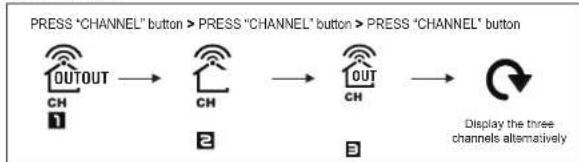
- When viewing the record on CHANNEL 1 or 2, or 3, hold "CHANNEL" button (BB) for 3 seconds to cancel the record on this channel manually, and receive the transmission from channels automatically again.
ENGLISH 6 ENGLISH 7
(2) Outdoor Temperature Trend
- The trend pointer (A6) displayed on the LCD indicates the trend of the outdoor temperature.

- Press "C/F" button (B4) to select Indoor/Outdoor Temperature in Celsius mode or Fahrenheit mode.
- If the temperature is out of the measurable range, LL.L (beyond the minimum temperature) or HH.H (beyond the maximum temperature) will be shown on the LCD.
(4) Maximum / Minimum Temperature & Indoor Humidity Recording Function:
- Press "MAX/MIN" button (B3) to show the maximum recorded Indoor/Outdoor Temperature and Indoor Humidity. " " shown on the LCD
- Press "MAX/MIN" button again to show the minimum recorded Indoor/Outdoor Temperature and Indoor Humidity. " " is shown on the LCD.
- Hold "MAX/MIN" button (B3) for 3 seconds to clear the recorded maximum and minimum reading.
8. Time and Alarm Setting
8.1 Radio Controlled Clock:
After batteries inserted and main unit finishes receiving the transmissions from outdoor thermo sensor, the clock automatically starts to scan the DCF time signal. Radio Control Icon " *R9) flashes on the LCD.

The clock automatically scans the time signal at 3.00 a.m. every day to maintain accurate timing. If reception fails, scanning stops (* LCD disappear) and repeats again at 4.00 a.m. 5.00a.m. and 6.00a.m.
- The clock can be set to scan the time signal manually by holding a button (B4) for 3 seconds. Each reception takes about 5 minutes. If receptions fail, scanning stops.
- "On LCD disappear" and repeats again at next hour. E.g. scanning failed at 8:20a.m. It will scan again at 9:00a.m.
- Stop scanning by holding " button (B4) for 3 seconds.
- "DST" shown on the LCD if it is in Daylight Saving Time Mode
Note: Buttons (except "LIGHT" button (B2)) will not function while scanning for DCF time signal unless they are well received or stopped manually.
8.2 Manual Time Setting:
- Hold "MODE/SET" button (B6) for 3 seconds to enter Clock/Calendar setting mode.
- Press "+" (B4) or "+" (B7) button to adjust the setting and press "MODE/SET" button (B6) to confirm each setting.
- The setting sequence is shown as follow: Hour, Minute, Second, Year, Month, Day, Time Zone, Day-of-week language.
- 8 languages can be selected in Day-of-week, they are: German, French, Spanish, Italian, Dutch, Denmark, Russian and English.
- The languages and their selected abbreviations for each day of the week are shown in the following table.
| Language | Sunday | Monday | Tuesday | Wednesday | Thursday | Friday | Saturday | |
| German, GE | SO | MO | DI | MI | DO | FR | SA | |
| English, EN | SU | MO | TU | WE | TH | FR | SA | |
| Russian, RU | BC | ПН | BT | CP | ЧТ | ПТ | СБ | |
| Denmark, DA | SO | MA | TI | ON | TO | FR | LO | |
| Dutch, NE | ZO | MA | DI | WO | DO | VR | ZA | |
| Italian, IT | DO | LU | MA | ME | GI | VE | SA | |
| Spanish, ES | DO | LU | MA | MI | JU | VI | SA | |
| French, FR | DI | LU | MA | ME | JE | VE | SA |
- The Time zone is used for the countries where can receive the DCF time signal but the time zone is different from the German time.
- When the country time is faster than the German time for 1 hour, the zone should be set to +1. Then the clock will automatically set 1 hour faster from the signal time received.
Note:
(1) Second adjusted to zero only.
(2) The Time Setting Mode will automatically exit in 15 seconds without any adjustment.
8.3 12/24 Hour Display mode:
Press "12/24" button (B7) to select 12 or 24 hours mode.
8.4 Dally Snooze Alarm Function:
- Press "MODE/SET" button (B6) to select to view:
Time Weekday Alarm Time AL Shown on the LCD)
- When viewing the Alarm Time, hold "MODE/SET" button (B6) for 3 seconds to enter Alarm Time setting. Press "+" (B4) or "+" (B7) button to adjust the alarm time. Press "MODE/SET" button (B6) to confirm the setting.
Press"ALON/OFF" button (B1) to switch alarm on or off. If it is on, " (wn on the LCD. - When Alarming, press "SNOOZE / LIGHT" button (B2) to activate the snooze alarm, on the LCD). The alarm will snooze for 5 minutes, then it alarms again. This snooze function can be enabled for maximum 7 times.
- Except "Snooze" button, press any button to stop the snooze alarm.
8.5 Dual Time Setting Function
- Press "MODE/SET" button (B6) to select to view:
Time Weekday Alarm Time Dual TimeDT shown on the LCD)
- When viewing the Dual Time, hold "MODE/SET" button (B6) for 3 seconds to enter. Dual Time setting: "Hour" & "Min" digits flash. Press " → " (B4) or "+" (B7) button to adjust the "hour", press "MODE/SET" button (B6) to confirm and quit the setting.
9. Low battery indication:
The low battery icon will appear at particular channel indicating that thermo sensor unit of the channel is in low battery status. The batteries should be replaced.
10. Backlight
Press 'SNOOZE/LIGHT' button (B2), back light states for 5 seconds.
11. Precautions
- Use a pin to press the reset button (B9) if the Unit does not work properly.
All Setting Modes will automatically exit in 15 seconds without any adjustment.
The clock loses its time information when the battery is removed. - Avoid placing the clock near interference sources/metal frames such as computer or TV sets.
- Do not expose it to direct sunlight, heavy heat, cold, high humidity or wet areas
- The outdoor sensor must not be set up and installed under water. Set it up in away direct sunlight and Rain
- Never clean the device using abrasive or corrosive materials or products. Abrasive cleaning agents may scratch plastic parts and corrode electronic circuits
-
If there is any inconsistency of weather forecast between Local Weather Station and this unit, the Local Weather Station's forecast should prevail. The manufacturer will not take responsible for incorrect forecasting from this unit
-
Specifications
| Indoor Data: | |
| Temperature range: | 0 to 50°C [32 to 122°F] |
| Temperature Units Measured: | °C or °F [switchable] |
| Humidity Range: | 20% to 99% |
| Weather Forecast: | 5 icons [sunny, slightly cloudy, cloudy, rainy & snow] |
| Outdoor Data: | |
| Transmission distance: (open area) | 30m @ 433MHz |
| Temperature range: | -20 ~ 50°C [-4 ~ 122°F] |
| Mount: | wall / table |
| Main Unit Dimensions: | w80 x h158 x d19 mm |
| Thermo Sensor Dimensions: | w65 x h84 x d18 mm |
| Battery Requirements: | |
| Base Station [indoor]: | 3 x AAA batteries |
| Sensors [outdoor]: | 2 x AAA batteries |
7.1 Procedures de transmission RF:
(2) Outdoor Temperature Trend
- The trend pointer (A6) displayed on the LCD indicates the trend of the outdoor temperature.


B1: Boton "ALARM ON/OFF" (Alarma
- BL503 SLIM WIRELESS WEATHER STATION WITH TEMPERATURE AND HUMIDITY
- USERMANUAL
- INDEX 1
- FEATURES
- MAIN UNIT APPEARANCE
- GETTING STARTED
- INSTALLATION
- WEATHER FORECAST FUNCTION
- THERMOMETER
- 1.2 TIME
- 1.4 TEMPERATURE
- 2.1 PART A-LCD
- 2.3 PART C-STRUCTURE
- OUTDOOR THERMO SENSOR
- 4.1 MAIN UNIT
- 4.2 OUTDOOR THERMO SENSOR
- 5.1 MAIN UNIT
- 5.2 OUTDOOR THERMO SENSOR
- 6.1 OPERATION
- 6.2 WEATHER CONDITIONS
- 6.3 BAROMETRIC TREND POINTER (A1)
- 7.1 RF TRANSMISSION PROCEDURE
- 7.2 TEMPERATURE & HUMIDITY
- TIME AND ALARM SETTING
- 8.1 RADIO CONTROLLED CLOCK
- 8.2 MANUAL TIME SETTING
- NOTE
- 8.3 12/24 HOUR DISPLAY MODE
- 8.4 DALLY SNOOZE ALARM FUNCTION
- 8.5 DUAL TIME SETTING FUNCTION
- LOW BATTERY INDICATION
- BACKLIGHT
- PRECAUTIONS
- 7.1 PROCEDURES DE TRANSMISSION RF
Brand : Ea2 LABS
Model : BL503
Category : Weather Station