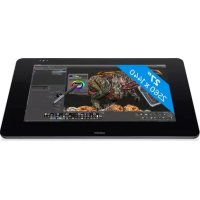
Cintiq 27QHD Touch - Graphic tablet WACOM - Free user manual and instructions
Find the device manual for free Cintiq 27QHD Touch WACOM in PDF.



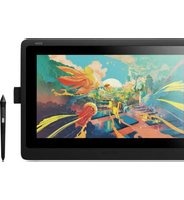
| Product type | Interactive graphics tablet |
| Brand | Wacom |
| Model | Cintiq 27QHD Touch |
| Screen size | 27 inches (diagonal) |
| Resolution | QHD (2560 x 1440) |
| Touch technology | Yes, multi-touch screen |
| Pen | Wireless with color ring |
| ExpressKey Remote | Yes, with Touch Ring and 4 customizable buttons |
| Connectivity | USB 3.0, HDMI, DisplayPort |
| Power supply | AC adapter |
| VESA mounting | Yes, mounting holes (6 screws) |
| Main features | Touch input, customizable shortcuts, magnetic areas |
| Included accessories | Pen, color rings, ExpressKey Remote, USB cables, HDMI/DisplayPort, power supply |
| Maintenance | Use a soft, dry cloth to clean the screen |
| Safety | Keep credit cards away from magnetic areas |
Frequently Asked Questions - Cintiq 27QHD Touch WACOM
User questions about Cintiq 27QHD Touch WACOM
0 question about this device. Answer the ones you know or ask your own.
Ask a new question about this device
Download the instructions for your Graphic tablet in PDF format for free! Find your manual Cintiq 27QHD Touch - WACOM and take your electronic device back in hand. On this page are published all the documents necessary for the use of your device. Cintiq 27QHD Touch by WACOM.
USER MANUAL Cintiq 27QHD Touch WACOM
27QHD Creative Pen and Touch Display

wacom



EN


Welcome
EN
Thank you for buying a Cintiq 27QHD pen display. In front of you is a powerful tool that will help you be both more creative and more productive. Take the time to explore and setup the unique ExpressKey Remote for your favorite software short-cuts. You can use the Remote on the screen, in your hand, on the desk or wherever is most comfortable.
Before using your new Cintiq please read this Quick Start Guide. It is very important that you follow the setup instructions so that your Cintiq will function properly.
After installation take a look at the Wacom Desktop Center. It's a great place to change your settings and access information on how to use your new Cintiq. There is also an extensive Help system.
At the conclusion of the setup you will be asked to register your Cintiq with Wacom. We strongly encourage you to do so in order to take advantage of all the available Wacom resources.
We are thrilled that you have chosen a Wacom product. Together we will make a more creative world.
Sincerely,
The Wacom Team
EN
Supplied accessories
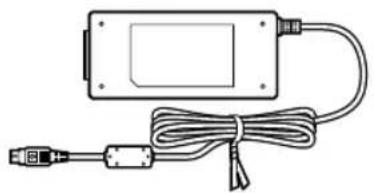
AC adapter
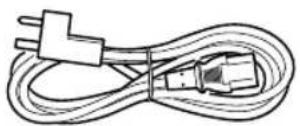
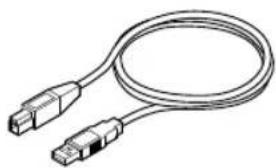
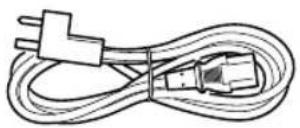
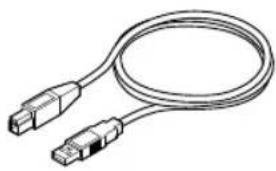
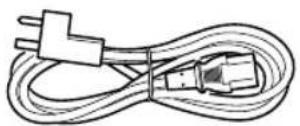
Power cable USB 3.0 cable
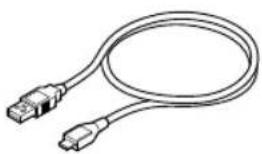
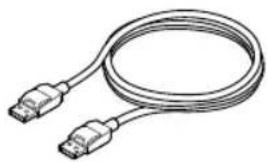
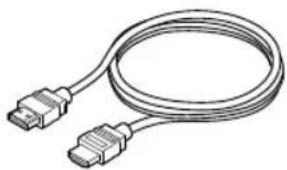
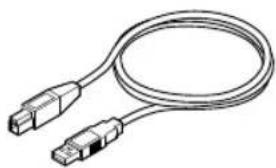
Micro USB cable HDMI cable DisplayPort cable

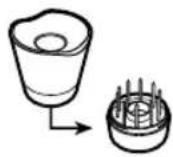
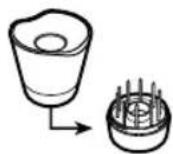
CD-ROM Pen stand
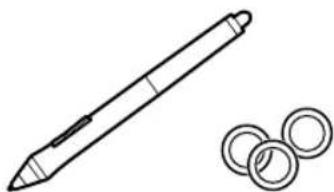
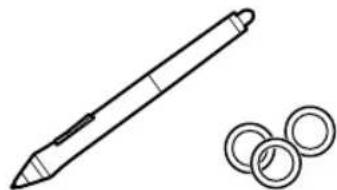
Pen, Color rings

Screw (6 pieces) for Vesa Mount
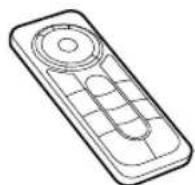
ExpressKey Remote

See the Help for information on attaching to a VESA Mount.
Getting to know the Cintiq
EN
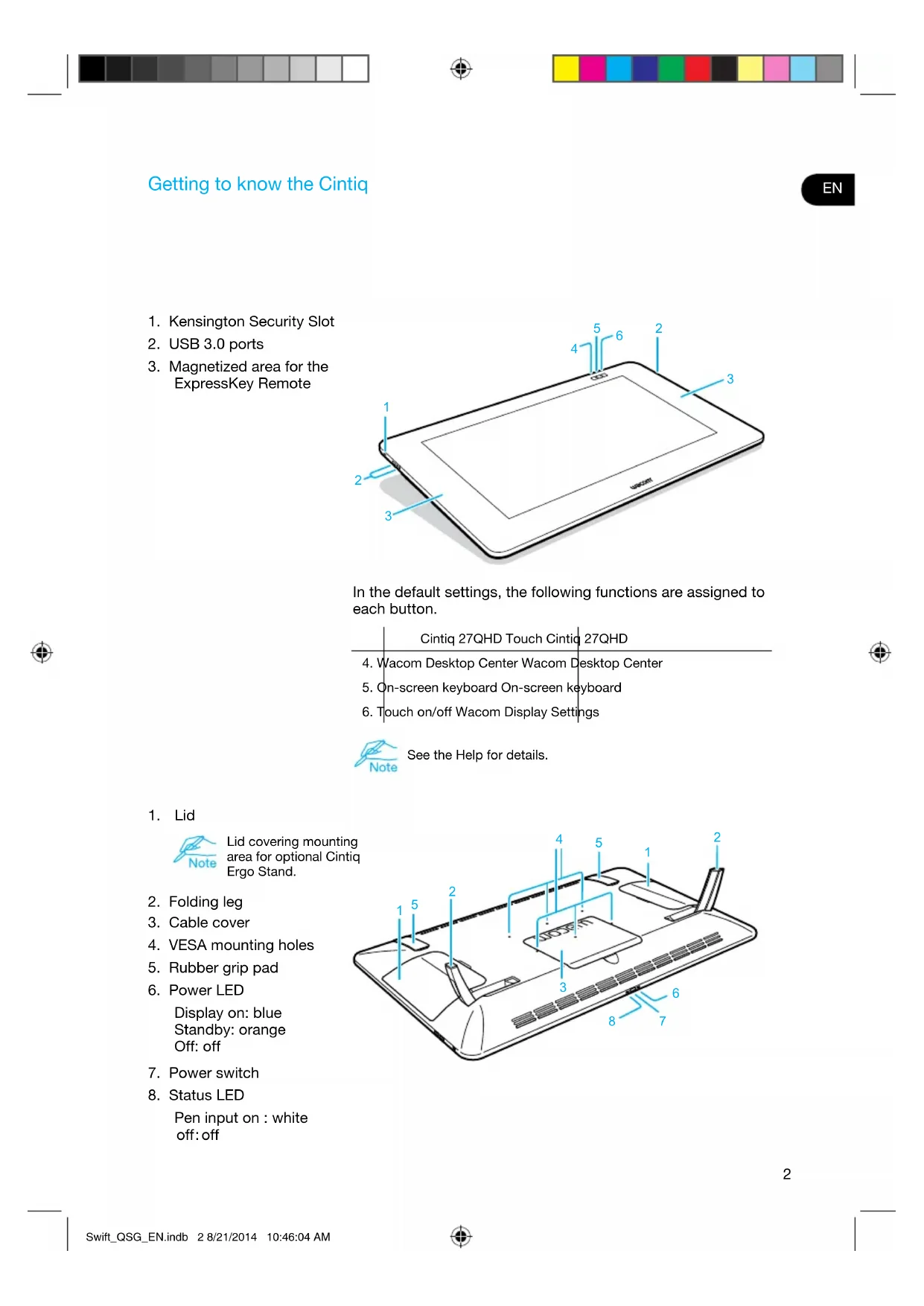
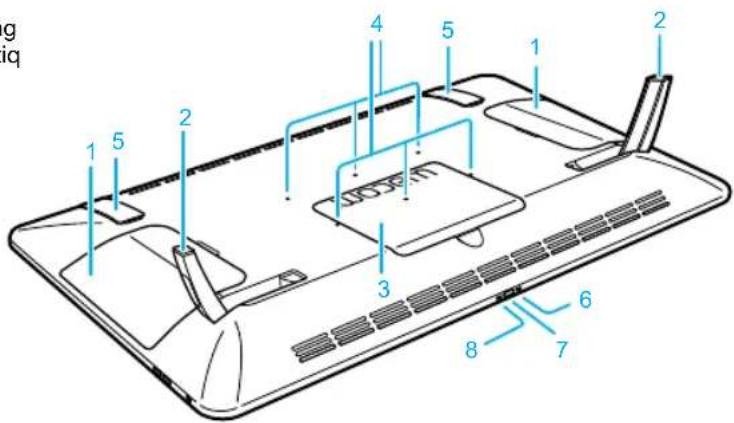
- Kensington Security Slot
- USB 3.0 ports
- Magnetized area for the ExpressKey Remote
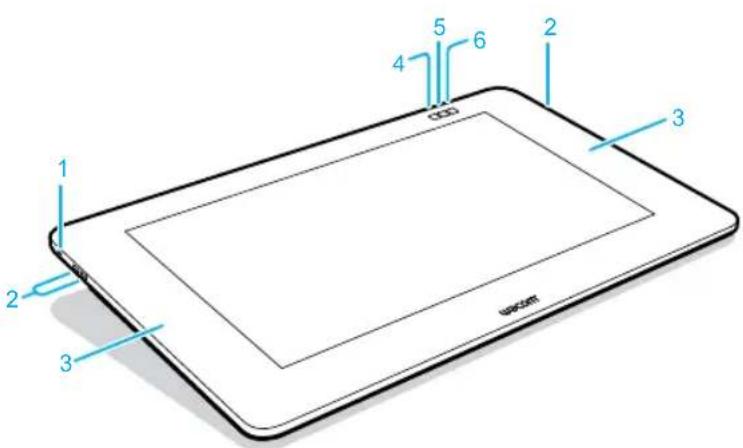
In the default settings, the following functions are assigned to each button.
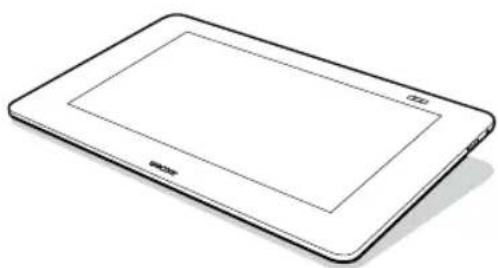
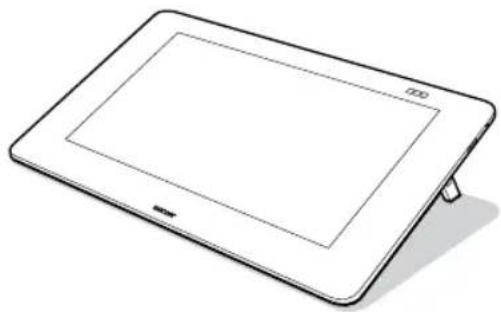
Cintiq 27QHD Touch Cintiq 27QHD
- Wacom Desktop Center Wacom Desktop Center
- On-screen keyboard On-screen keyboard
- Touch on/off Wacom Display Settings

See the Help for details.
- Lid

Lid covering mounting area for optional Cintiq Ergo Stand.
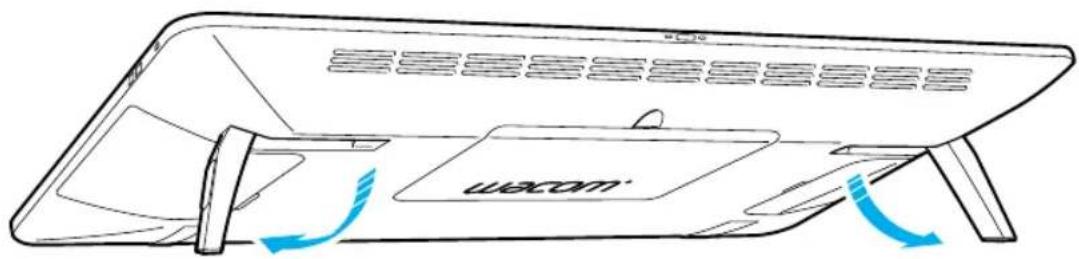
- Folding leg
- Cable cover
- VESA mounting holes
- Rubber grip pad
-
Power LED
Display on: blue Standby: orange Off: off -
Power switch
-
Status LED
Pen input on : white off: off
EN
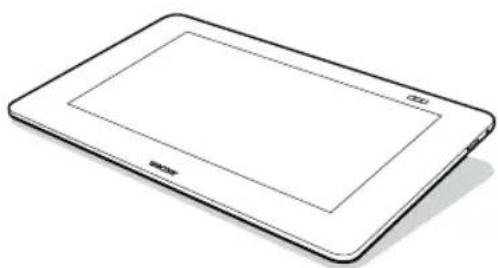
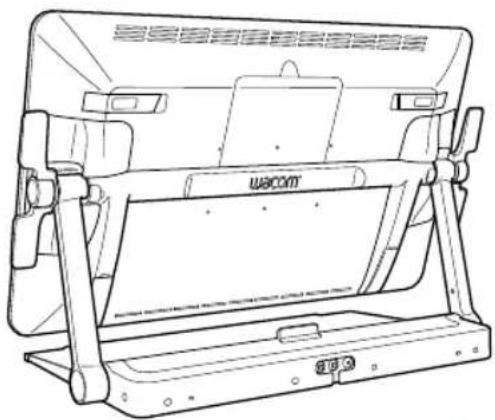
Using the folding legs
5°20°
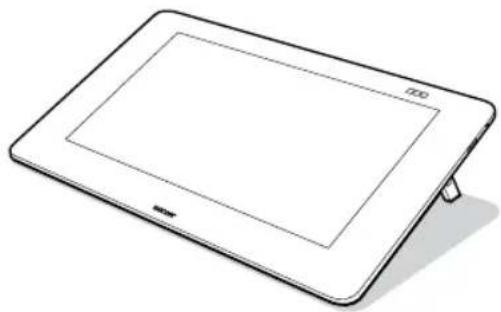
The device can be used at any angle with the optional Cintiq Ergo Stand.
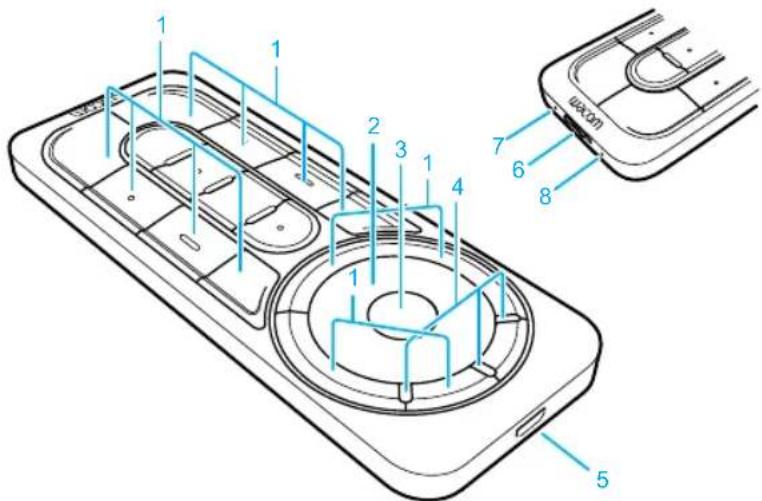
ExpressKey Remote
EN
- ExpressKey
- Touch Ring
- Mode Button
- Mode LED
- Micro USB port (for charging battery)
- Power Slide Button
- Battery Status LED Low battery: flashing red Charging: solid amber Fully charged: off
- Status LED Pairing mode: flashing blue Connected/Sleep: off
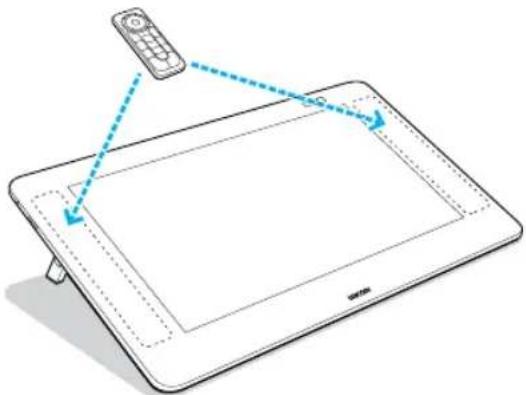
Using the ExpressKey Remote
- For comfortable use, the ExpressKey Remote may be placed anywhere on the screen or bezel. At angles above 45 degrees attach Remote to magnetized area on left and right hand side of bezel.

Keep credit cards, watches and other objects affected by magnetic field away from this area. For best results, use the ExpressKey™ Remote at least 1.6 inches (40 mm) away from the pen.
- The ExpressKey Remote buttons have defaults for popular software applications. Button assignments can be changed in the control panel. See the Help for details.
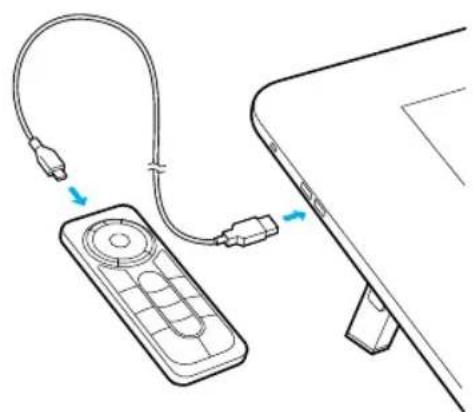
Charging the ExpressKey Remote
- Recharges using a USB cable plugged into the device's USB port.
- The ExpressKey Remote goes into Sleep mode if not used for a certain length of time. To wake it up, please slide the Power Slide button and release.

The ExpressKey Remote is already pre-paired with Cintiq. For further information on pairing see the Help.
EN
Setting up the Cintiq
- To attach cables, turn the Cintiq over and place on a cloth to protect the screen. Remove the cable cover.
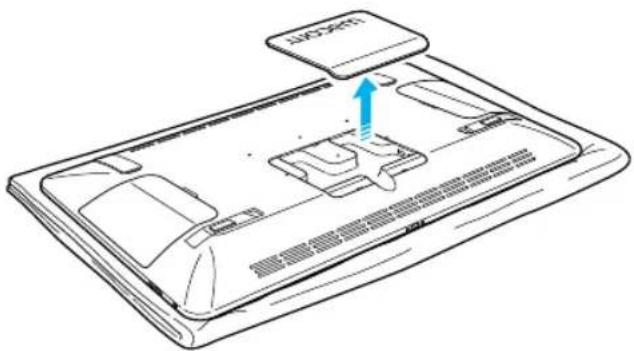
-
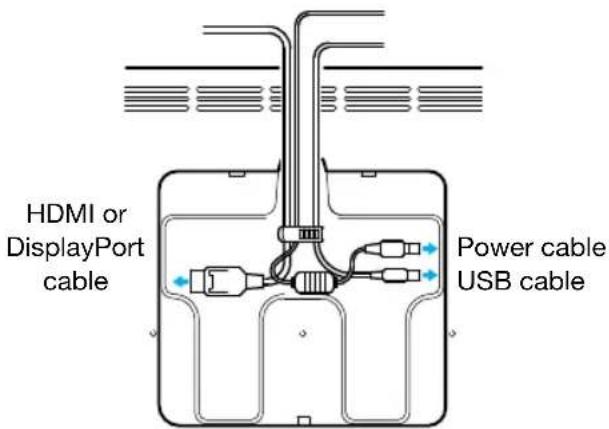
Connect the cables to the Cintiq as shown in the diagram on the right.
-
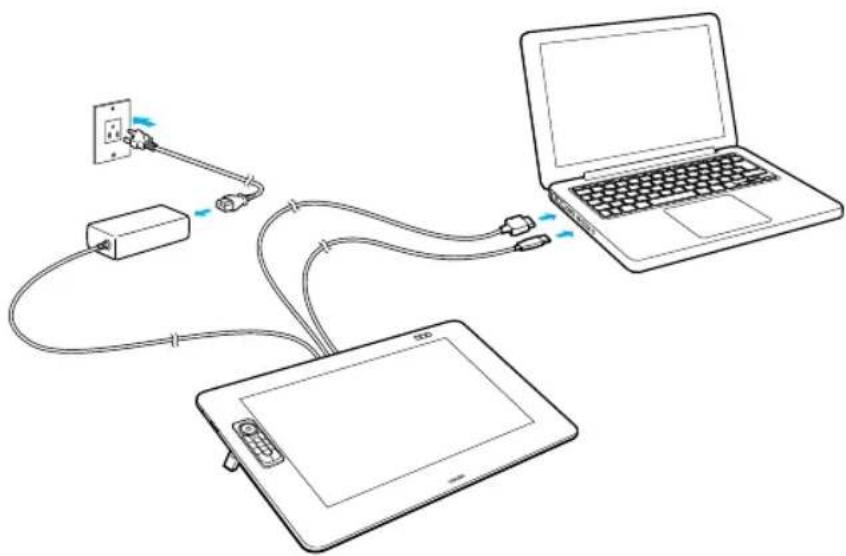
Turn off the computer. Connect the HDMI or DisplayPort cable to the corresponding connector on your computer.
-
Plug the USB connector into an available USB port on your computer. Plug the power cable into the power adapter and then into an AC outlet.
-
Turn on the Cintiq by pressing the power button.
Software installation
EN
-
Connect to the Internet.
-
Windows 8, Windows 7 and Mac OS X:
Insert the installation CD. The installer is downloaded automatically.
If your computer is not connected to the Internet, run the installer from the Installation CD.
After the Setup is completed, open the Wacom Desktop Center application and update the Cintiq's Wacom driver if a newer version is available.

Wacom driver is required to use all the functionality of the product. Wacom recommends to always use up-to-date drivers and software.
EN
Using the pen with Cintiq

Move the pen slightly above the display, without touching the surface, to position the display cursor.
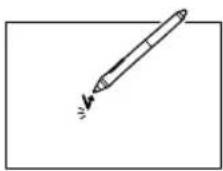
Tap the display once with the pen tip to select.
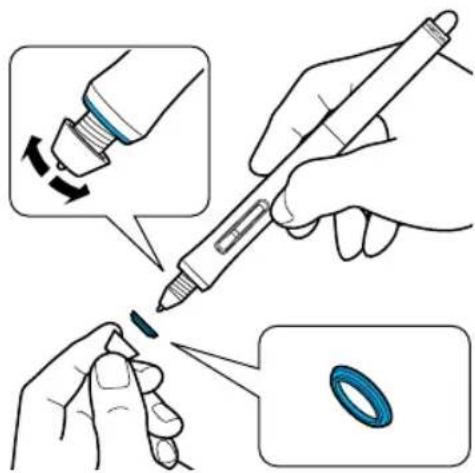
Choose a color ring to distinguish your pen.
More Information in the Wacom Desktop Center
EN
The Wacom Desktop Center is a software utility installed for Windows and Mac. It can be quickly accessed from the left button on the top of the display. It provides quick access to:
• Frequently used Cintiq settings
- Help with information on customizing your Cintiq, changing pen nibs, tips and tricks and troubleshooting
- Pen calibration: Wacom recommends to re-calibrate after significantly changing your working position or viewing angle
- Important Product Information such as specifications, warranties, licensing and care of your Cintiq
- Software updates
- Access to Wacom support
Wacom Desktop Center is only available when your Cintiq is connected to your PC or Mac.


Register Your Cintiq
You may register your Cintiq at the end of the setup process or in the Wacom Desktop Center.



FR


Bienvenue
Adaptateur secteur
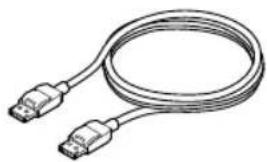
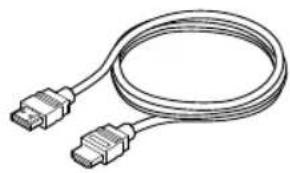
Câble micro USB Câble HDMI Câble DisplayPort


CD-ROM Porte-stylet
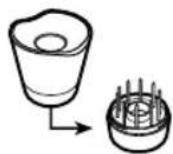
Cintiq 27QHD Touch Cintiq 27QHD

5°20°

Configuration de la Cintiq
FR

Adaptador de CA
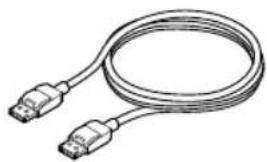
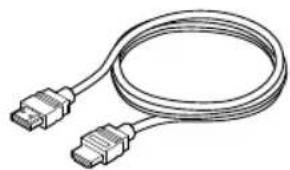
Cable Micro USB Cable HDMI Cable DisplayPort

CD-ROM Portalápices
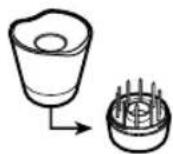
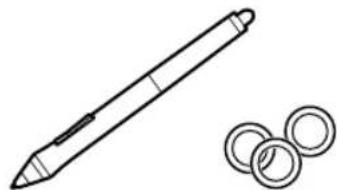




ES
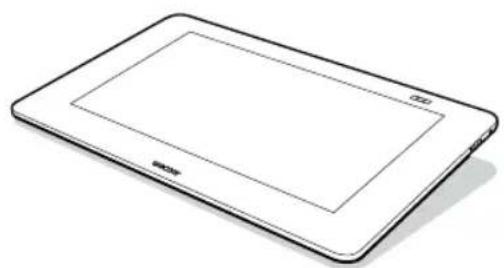
5°20°


ES

ES


Registre su Cintiq
Adaptador CA
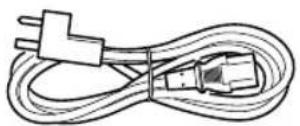
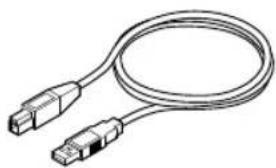
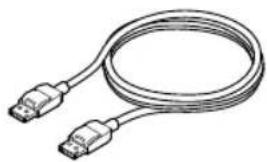
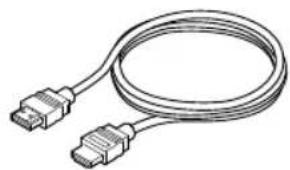
Cabo Micro USB Cabo HDMI Cabo DisplayPort
PT-BR


CD-ROM Porta caneta
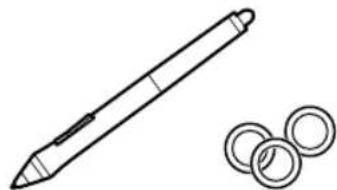
Caneta, anéis coloridos
Cintiq 27QHD Touch Cintiq 27QHD
- Wacom Desktop Center Wacom Desktop Center
- Teclado na tela Teclado na tela
- Ativar/desativar toque
PT-BR

5°20°
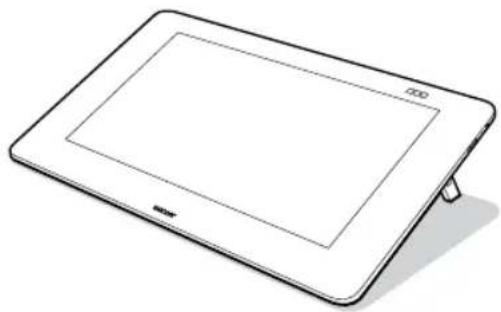
Controle remoto ExpressKey
-
ExpressKey
-
Touch Ring
-
Botão Modo
-
LED Modo
-
Porta Micro USB
Carregamento do controle remoto ExpressKey
Configurar a Cintiq
PT-BR


Registre sua Cintiq
© 2014 Wacom Company, Limited. All rights reserved. Wacom, the logo and Cintiq are trademarks and/or registered trademarks of Wacom Company, Ltd. All other company or product names are trademarks and/or registered trademarks of the respective company. Modifications and errors excepted.


- WELCOME
- EN
- SUPPLIED ACCESSORIES
- GETTING TO KNOW THE CINTIQ
- USING THE FOLDING LEGS
- EXPRESSKEY REMOTE
- USING THE EXPRESSKEY REMOTE
- CHARGING THE EXPRESSKEY REMOTE
- SETTING UP THE CINTIQ
- SOFTWARE INSTALLATION
- USING THE PEN WITH CINTIQ
- MORE INFORMATION IN THE WACOM DESKTOP CENTER
- REGISTER YOUR CINTIQ
- BIENVENUE
- CONFIGURATION DE LA CINTIQ
- FR
- ES
- REGISTRE SU CINTIQ
- CONTROLE REMOTO EXPRESSKEY
- CARREGAMENTO DO CONTROLE REMOTO EXPRESSKEY
- CONFIGURAR A CINTIQ
- REGISTRE SUA CINTIQ
Brand : WACOM
Model : Cintiq 27QHD Touch
Category : Graphic tablet